The Computer Use tool lets you build browser, mobile, and desktop control agents
that interact with and automate tasks. Using screenshots, the model can "see" a
computer screen, and "act" by generating specific UI actions like mouse clicks
and keyboard inputs. Similar to function calling, you will need to implement the
client-side execution environment to receive and execute the Computer Use
actions.
For the list of supported models, see [Model versions](https://ai.google.dev/gemini-api/docs/computer-use#model-versions). The Gemini 3.x models support several advanced capabilities:
- **Multi-environment support:** build agents for [browser, mobile, and desktop](https://ai.google.dev/gemini-api/docs/computer-use#supported-environments) environments.
- **Streamlined actions with intents:** actions include an `intent` field that explains the model's reasoning behind each step.
- **Configurable safety policies:** fine-tune [safety behavior](https://ai.google.dev/gemini-api/docs/computer-use#safety-policies) with built-in policy categories and overrides.
- **Prompt injection detection:** opt-in [screenshot scanning](https://ai.google.dev/gemini-api/docs/computer-use#prompt-injection) to detect hidden adversarial instructions.
With Computer Use, you can build agents that:
- Automate repetitive data entry or form filling on websites.
- Perform automated testing of web applications and user flows
- Conduct research across various websites (e.g., gathering product information, prices, and reviews from ecommerce sites to inform a purchase)
Here's a minimal example of initializing the client and sending a prompt to the model with the `computer_use` tool enabled for a browser environment:
### Python
from google import genai
client = genai.Client()
interaction = client.interactions.create(
model="gemini-3.8-flash",
input="Search for 'Gemini API' on Google.",
tools=[{"type": "computer_use", "environment": "browser"}]
)
print(interaction)
### JavaScript
import { GoogleGenAI } from '@google/genai';
const ai = new GoogleGenAI();
const interaction = await ai.interactions.create({
model: 'gemini-3.8-flash',
input: "Search for 'Gemini API' on Google.",
tools: [{ type: "computer_use", environment: "browser" }]
});
console.log(interaction);
### Java
import com.google.genai.Client;
import com.google.genai.gaos.models.interactions.ComputerUse;
import com.google.genai.gaos.models.interactions.CreateModelInteraction;
import com.google.genai.gaos.models.interactions.Interaction;
import com.google.genai.gaos.models.interactions.InteractionsInput;
import com.google.genai.gaos.models.interactions.Model;
import com.google.genai.gaos.models.operations.CreateInteractionRequestBody;
import java.util.Arrays;
Client client = new Client();
CreateModelInteraction params =
CreateModelInteraction.builder()
.model(Model.of("gemini-3.8-flash"))
.input(InteractionsInput.of("Click the Submit button on the screen."))
.tools(Arrays.asList(new ComputerUse()))
.build();
Interaction interaction =
client.interactions.create(CreateInteractionRequestBody.of(params)).interaction().get();
System.out.println(interaction.outputText().orElse(""));
> [!NOTE]
> **Note:** As a Preview capability, Computer Use may contain errors and security vulnerabilities. We recommend supervising closely for important tasks, and that you avoid using the Computer Use capability for tasks involving critical decisions, sensitive data, or actions where serious errors cannot be corrected. We encourage you to review the [Safety best practices](https://ai.google.dev/gemini-api/docs/computer-use#safety-best-practices), the [Prohibited Use
> Policy](https://policies.google.com/terms/generative-ai/use-policy) and [Gemini
> API Additional Terms of Service](https://ai.google.dev/terms).
## How Computer Use works
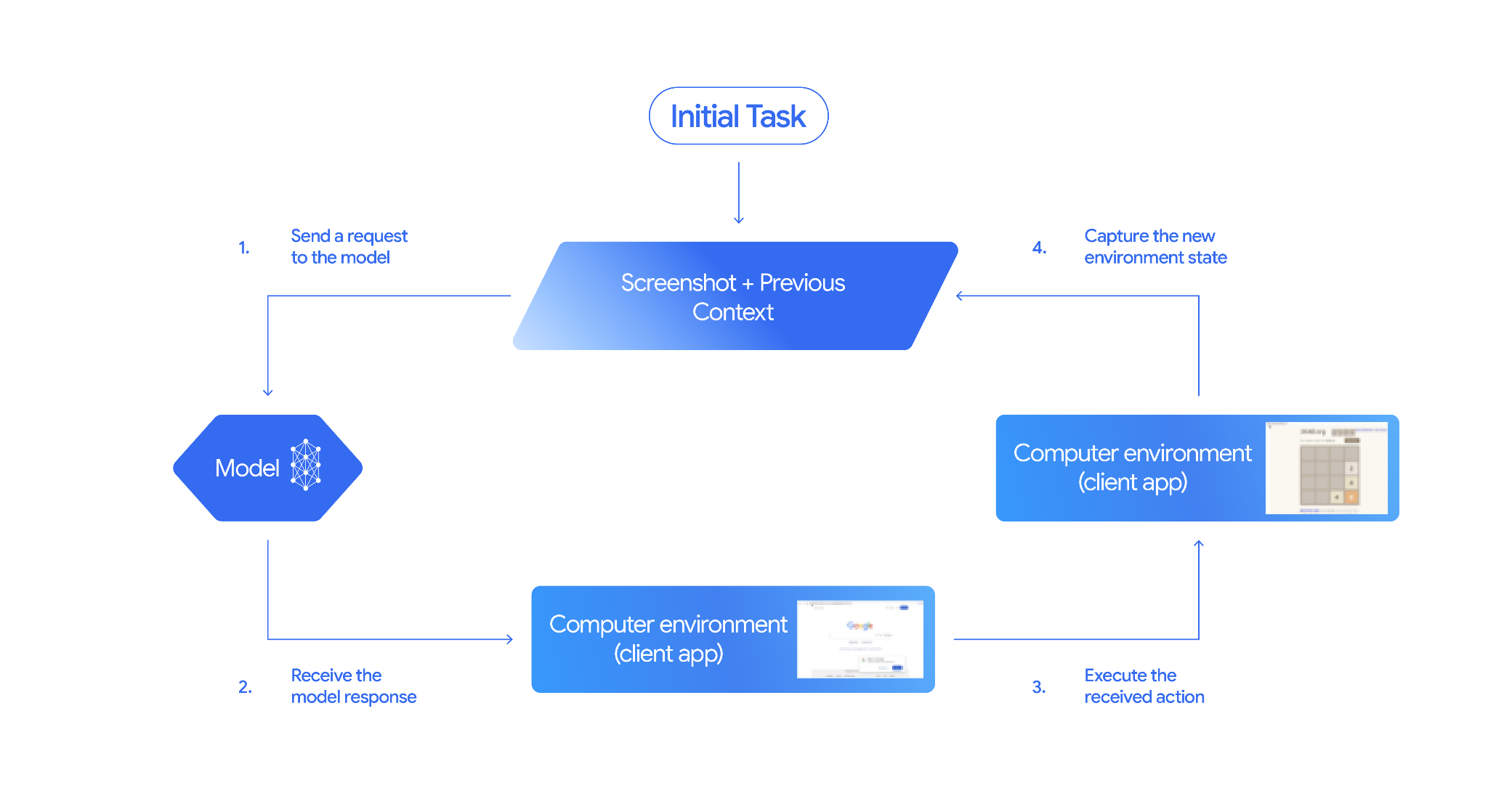
To build an agent with the Computer Use model, you need to set up a
continuous loop between your application and the API. Here is what your code
will do at each step:
1. [**Send a request to the model**](https://ai.google.dev/gemini-api/docs/computer-use#send-request)
- Your application sends an API request containing the Computer Use tool, your configuration settings (like the target environment), the user's prompt, and a screenshot of the current screen.
2. [**Receive the model response**](https://ai.google.dev/gemini-api/docs/computer-use#model-response)
- The model analyzes the screen and the prompt, returning a response which includes a suggested `function_call` representing a UI action (such as a click, scroll, or keystroke).
- For **Gemini 3.x models** , the response also includes a reasoning `intent` explaining why the model chose that action.
- The response may also include a `safety_decision` from an internal safety system that classifies the action as regular/allowed, `require_confirmation` (requiring user approval), or blocked.
3. [**Execute the received action**](https://ai.google.dev/gemini-api/docs/computer-use#execute-actions)
- If the action is allowed (or the user confirms it), your client-side code parses the `function_call`, scales the normalized coordinates to match your viewport, and executes the action in your target environment using automation tools (such as Playwright). If the action is blocked, your client should halt the execution or handle the interruption.
4. [**Capture the new environment state**](https://ai.google.dev/gemini-api/docs/computer-use#capture-state)
- After the action finishes executing, your application captures a new screenshot and sends it back to the model in a `function_result` to request the next step.
This process then repeats from step 2, continually soliciting the next action
from the model until the task is completed or terminated.
## How to implement Computer Use
Before building with the Computer Use tool you will need to set up:
- **Secure execution environment:** Run your agent in a sandboxed VM or container to isolate it from your host system and limit its potential impact. The [reference implementation](https://github.com/google/computer-use-preview/) includes a ready-to-use Docker-based sandbox you can use as a starting point.
- **Client-side action handler:** Implement client-side logic to execute coordinates, type text, and take screenshots.
The examples below use a web browser as the execution environment and
[Playwright](https://playwright.dev/) as the client-side handler.
### 0. Set up Playwright
First, install the required packages:
pip install google-genai playwright
playwright install chromium
Then, initialize a Playwright browser instance to use for execution:
from playwright.sync_api import sync_playwright
# 1. Configure screen dimensions for the target environment
SCREEN_WIDTH = 1440
SCREEN_HEIGHT = 900
# 2. Start the Playwright browser
# In production, utilize a sandboxed environment.
playwright = sync_playwright().start()
# Set headless=False to see the actions performed on your screen
browser = playwright.chromium.launch(headless=False)
# 3. Create a context and page with the specified dimensions
context = browser.new_context(
viewport={"width": SCREEN_WIDTH, "height": SCREEN_HEIGHT}
)
page = context.new_page()
# 4. Navigate to an initial page to start the task
page.goto("https://www.google.com")
# The 'page', 'SCREEN_WIDTH', and 'SCREEN_HEIGHT' variables
# will be used in the steps below.
### 1. Send a request to the model
Initialize the client library and configure the Computer Use tool. Note that there is no need to specify the display size when issuing a request; the model predicts pixel coordinates scaled to the height and width of the screen.
### Gemini 3.x
### Python
Use the `google-genai` Python SDK (version `2.7.0` or higher) to configure a request targeting the browser environment:
from google import genai
client = genai.Client()
interaction = client.interactions.create(
model='gemini-3.8-flash',
input="Find a flight from SF to Hawaii on Jun 30th, coming back on Jul 6th",
tools=[
{
"type": "computer_use",
"environment": "browser",
"enable_prompt_injection_detection": True
}
]
)
print(interaction)
### JavaScript
Use the `@google/genai` Node.js SDK to configure a request targeting the browser environment:
import { GoogleGenAI } from '@google/genai';
const ai = new GoogleGenAI();
const interaction = await ai.interactions.create({
model: 'gemini-3.8-flash',
input: "Find a flight from SF to Hawaii on Jun 30th, coming back on Jul 6th",
tools: [
{
type: "computer_use",
environment: "browser",
enable_prompt_injection_detection: true
}
]
});
console.log(interaction);
### Java
import com.google.genai.Client;
import com.google.genai.gaos.models.interactions.ComputerUse;
import com.google.genai.gaos.models.interactions.CreateModelInteraction;
import com.google.genai.gaos.models.interactions.Interaction;
import com.google.genai.gaos.models.interactions.InteractionsInput;
import com.google.genai.gaos.models.interactions.Model;
import com.google.genai.gaos.models.operations.CreateInteractionRequestBody;
import java.util.Arrays;
Client client = new Client();
CreateModelInteraction params =
CreateModelInteraction.builder()
.model(Model.of("gemini-3.8-flash"))
.input(InteractionsInput.of("Click the Submit button on the screen."))
.tools(Arrays.asList(new ComputerUse()))
.build();
Interaction interaction =
client.interactions.create(CreateInteractionRequestBody.of(params)).interaction().get();
System.out.println(interaction.outputText().orElse(""));
### REST
Use curl to send a request:
curl -X POST \
"https://generativelanguage.googleapis.com/v1beta/interactions" \
-H "x-goog-api-key: $GEMINI_API_KEY" \
-H "Content-Type: application/json" \
-d '{
"model": "gemini-3.8-flash",
"input": "Find me a flight from SF to Hawaii on Jun 30th, coming back on Jul 6th. Start by navigating directly to flights.google.com",
"tools": [
{
"type": "computer_use",
"environment": "browser",
"enable_prompt_injection_detection": true
}
]
}'
### Gemini 2.5 (Legacy)
### Python
from google import genai
client = genai.Client()
# Specify predefined functions to exclude (optional)
excluded_functions = ["drag_and_drop"]
interaction = client.interactions.create(
model='gemini-2.5-computer-use-preview-10-2025',
input="Search for highly rated smart fridges on Google Shopping.",
tools=[
{
"type": "computer_use",
"environment": "browser",
"excluded_predefined_functions": excluded_functions
}
]
)
print(interaction)
### JavaScript
import { GoogleGenAI } from '@google/genai';
const ai = new GoogleGenAI();
// Specify predefined functions to exclude (optional)
const excludedFunctions = ["drag_and_drop"];
const interaction = await ai.interactions.create({
model: 'gemini-2.5-computer-use-preview-10-2025',
input: "Search for highly rated smart fridges on Google Shopping.",
tools: [
{
type: "computer_use",
environment: "browser",
excluded_predefined_functions: excludedFunctions
}
]
});
console.log(interaction);
### Java
import com.google.genai.Client;
import com.google.genai.gaos.models.interactions.ComputerUse;
import com.google.genai.gaos.models.interactions.CreateModelInteraction;
import com.google.genai.gaos.models.interactions.Interaction;
import com.google.genai.gaos.models.interactions.InteractionsInput;
import com.google.genai.gaos.models.interactions.Model;
import com.google.genai.gaos.models.operations.CreateInteractionRequestBody;
import java.util.Arrays;
Client client = new Client();
CreateModelInteraction params =
CreateModelInteraction.builder()
.model(Model.of("gemini-3.8-flash"))
.input(InteractionsInput.of("Click the Submit button on the screen."))
.tools(Arrays.asList(new ComputerUse()))
.build();
Interaction interaction =
client.interactions.create(CreateInteractionRequestBody.of(params)).interaction().get();
System.out.println(interaction.outputText().orElse(""));
### 2. Receive the model response
The response model suggests a function call. For **Gemini 3.x models**, the
response contains a tailored reasoning intent alongside coordinates. The
following shows examples of both responses:
### Gemini 3.x
{
"steps": [
{
"type": "function_call",
"name": "click",
"arguments": {
"x": 450,
"y": 120,
"intent": "Click the search box to type the destination."
}
}
]
}
### Gemini 2.5 (Legacy)
{
"steps": [
{
"type": "model_output",
"content": [
{
"type": "text",
"text": "I will type the search query into the search bar."
}
]
},
{
"type": "function_call",
"name": "type_text_at",
"arguments": {
"x": 371,
"y": 470,
"text": "highly rated smart fridges",
"press_enter": true
}
}
]
}
### 3. Execute the received actions
Your application must parse the response coordinates, execute the action, and scale them from the normalized 1000x1000 coordinates.
The code below handles both legacy tool commands (`click_at`, `type_text_at`) and modern streamlined commands (`click`, `type`).
### Python
from typing import Any, List, Tuple
import time
def denormalize_x(x: int, screen_width: int) -> int:
"""Convert normalized x coordinate (0-1000) to actual pixel coordinate."""
return int(x / 1000 * screen_width)
def denormalize_y(y: int, screen_height: int) -> int:
"""Convert normalized y coordinate (0-1000) to actual pixel coordinate."""
return int(y / 1000 * screen_height)
def execute_function_calls(interaction, page, screen_width, screen_height):
results = []
function_calls = [
step for step in interaction.steps if step.type == "function_call"
]
for function_call in function_calls:
action_result = {}
fname = function_call.name
args = function_call.arguments
print(f" -> Executing: {fname} (Intent: {args.get('intent', 'N/A')})")
try:
if fname in ("open_web_browser", "open_app"):
pass # Handled / already open
elif fname in ("click", "click_at", "double_click", "triple_click", "middle_click", "right_click", "move", "long_press"):
actual_x = denormalize_x(args["x"], screen_width)
actual_y = denormalize_y(args["y"], screen_height)
if fname in ("click", "click_at"):
page.mouse.click(actual_x, actual_y)
elif fname == "double_click":
page.mouse.dblclick(actual_x, actual_y)
elif fname == "right_click":
page.mouse.click(actual_x, actual_y, button="right")
elif fname == "middle_click":
page.mouse.click(actual_x, actual_y, button="middle")
elif fname == "move":
page.mouse.move(actual_x, actual_y)
elif fname in ("type", "type_text_at"):
actual_x = denormalize_x(args["x"], screen_width) if "x" in args else None
actual_y = denormalize_y(args["y"], screen_height) if "y" in args else None
text = args["text"]
press_enter = args.get("press_enter", False)
if actual_x is not None and actual_y is not None:
page.mouse.click(actual_x, actual_y)
# Clear field first
page.keyboard.press("Meta+A")
page.keyboard.press("Backspace")
page.keyboard.type(text)
if press_enter:
page.keyboard.press("Enter")
elif fname == "navigate":
page.goto(args["url"])
elif fname == "go_back":
page.go_back()
elif fname == "go_forward":
page.go_forward()
elif fname == "wait":
time.sleep(args.get("seconds", 1))
else:
print(f"Warning: Custom or unhandled function {fname}")
page.wait_for_load_state(timeout=5000)
time.sleep(1)
except Exception as e:
print(f"Error executing {fname}: {e}")
action_result = {"error": str(e)}
results.append((fname, function_call.id, action_result))
return results
### JavaScript
function denormalizeX(x, screenWidth) {
// Convert normalized x coordinate (0-1000) to actual pixel coordinate.
return Math.floor((x / 1000) * screenWidth);
}
function denormalizeY(y, screenHeight) {
// Convert normalized y coordinate (0-1000) to actual pixel coordinate.
return Math.floor((y / 1000) * screenHeight);
}
async function executeFunctionCalls(interaction, page, screenWidth, screenHeight) {
const results = [];
const functionCalls = interaction.steps.filter(step => step.type === "function_call");
for (const functionCall of functionCalls) {
const actionResult = {};
const fname = functionCall.name;
const args = functionCall.arguments;
console.log(` -> Executing: ${fname} (Intent: ${args.intent || 'N/A'})`);
try {
if (fname === "open_web_browser" || fname === "open_app") {
// Handled / already open
} else if (["click", "click_at", "double_click", "triple_click", "middle_click", "right_click", "move", "long_press"].includes(fname)) {
const actualX = denormalizeX(args.x, screenWidth);
const actualY = denormalizeY(args.y, screenHeight);
if (fname === "click" || fname === "click_at") {
await page.mouse.click(actualX, actualY);
} else if (fname === "double_click") {
await page.mouse.dblclick(actualX, actualY);
} else if (fname === "right_click") {
await page.mouse.click(actualX, actualY, { button: "right" });
} else if (fname === "middle_click") {
await page.mouse.click(actualX, actualY, { button: "middle" });
} else if (fname === "move") {
await page.mouse.move(actualX, actualY);
}
} else if (fname === "type" || fname === "type_text_at") {
const actualX = args.x !== undefined ? denormalizeX(args.x, screenWidth) : null;
const actualY = args.y !== undefined ? denormalizeY(args.y, screenHeight) : null;
const text = args.text;
const pressEnter = args.press_enter || false;
if (actualX !== null && actualY !== null) {
await page.mouse.click(actualX, actualY);
}
// Clear field first
await page.keyboard.press("Meta+A");
await page.keyboard.press("Backspace");
await page.keyboard.type(text);
if (pressEnter) {
await page.keyboard.press("Enter");
}
} else if (fname === "navigate") {
await page.goto(args.url);
} else if (fname === "go_back") {
await page.goBack();
} else if (fname === "go_forward") {
await page.goForward();
} else if (fname === "wait") {
await new Promise(resolve => setTimeout(resolve, (args.seconds || 1) * 1000));
} else {
console.log(`Warning: Custom or unhandled function ${fname}`);
}
await page.waitForLoadState('load', { timeout: 5000 }).catch(() => {});
await new Promise(resolve => setTimeout(resolve, 1000));
} catch (e) {
console.log(`Error executing ${fname}: ${e}`);
actionResult.error = e.message;
}
results.push([fname, functionCall.id, actionResult]);
}
return results;
}
### Java
import com.google.genai.Client;
import com.google.genai.gaos.models.interactions.ComputerUse;
import com.google.genai.gaos.models.interactions.CreateModelInteraction;
import com.google.genai.gaos.models.interactions.Interaction;
import com.google.genai.gaos.models.interactions.InteractionsInput;
import com.google.genai.gaos.models.interactions.Model;
import com.google.genai.gaos.models.operations.CreateInteractionRequestBody;
import java.util.Arrays;
Client client = new Client();
CreateModelInteraction params =
CreateModelInteraction.builder()
.model(Model.of("gemini-3.8-flash"))
.input(InteractionsInput.of("Click the Submit button on the screen."))
.tools(Arrays.asList(new ComputerUse()))
.build();
Interaction interaction =
client.interactions.create(CreateInteractionRequestBody.of(params)).interaction().get();
System.out.println(interaction.outputText().orElse(""));
### 4. Capture the new environment state
After executing the actions, send the result of the function execution back to
the model so it can use this information to generate the next action. If
multiple actions (parallel calls) were executed, you must send a
`function_result` for each one in the subsequent user turn.
### Python
import json
import base64
def get_function_responses(page, results):
screenshot_bytes = page.screenshot(type="png")
current_url = page.url
function_responses = []
for name, call_id, result in results:
function_responses.append({
"type": "function_result",
"name": name,
"call_id": call_id,
"result": [
{
"type": "text",
"text": json.dumps({"url": current_url, **result})
},
{
"type": "image",
"data": base64.b64encode(screenshot_bytes).decode("utf-8"),
"mime_type": "image/png"
}
]
})
return function_responses
### JavaScript
async function getFunctionResponses(page, results) {
const screenshotBuffer = await page.screenshot({ type: 'png' });
const screenshotBase64 = screenshotBuffer.toString('base64');
const currentUrl = page.url();
const functionResponses = [];
for (const [name, callId, result] of results) {
functionResponses.push({
type: "function_result",
name: name,
call_id: callId,
result: [
{
type: "text",
text: JSON.stringify({ url: currentUrl, ...result })
},
{
type: "image",
data: screenshotBase64,
mime_type: "image/png"
}
]
});
}
return functionResponses;
}
### Java
import com.google.genai.Client;
import com.google.genai.gaos.models.interactions.ComputerUse;
import com.google.genai.gaos.models.interactions.CreateModelInteraction;
import com.google.genai.gaos.models.interactions.Interaction;
import com.google.genai.gaos.models.interactions.InteractionsInput;
import com.google.genai.gaos.models.interactions.Model;
import com.google.genai.gaos.models.operations.CreateInteractionRequestBody;
import java.util.Arrays;
Client client = new Client();
CreateModelInteraction params =
CreateModelInteraction.builder()
.model(Model.of("gemini-3.8-flash"))
.input(InteractionsInput.of("Click the Submit button on the screen."))
.tools(Arrays.asList(new ComputerUse()))
.build();
Interaction interaction =
client.interactions.create(CreateInteractionRequestBody.of(params)).interaction().get();
System.out.println(interaction.outputText().orElse(""));
Once you have defined how to capture and format the environment state, you can
combine all these steps into a continuous execution loop.
## Build an agent loop
To enable multi-step interactions, combine the four steps from the [How to
implement Computer Use](https://ai.google.dev/gemini-api/docs/computer-use#implement-computer-use) section into a single loop.
This loop continues requesting actions and feeding the results back to the model
until the task is complete.
Remember to manage the conversation history correctly by appending both the
model responses and your function responses to the history at each step.
### Python
import time
from typing import Any, List, Tuple
from playwright.sync_api import sync_playwright
from google import genai
client = genai.Client()
# Constants for screen dimensions
SCREEN_WIDTH = 1440
SCREEN_HEIGHT = 900
# Setup Playwright
print("Initializing browser...")
playwright = sync_playwright().start()
browser = playwright.chromium.launch(headless=False)
context = browser.new_context(viewport={"width": SCREEN_WIDTH, "height": SCREEN_HEIGHT})
page = context.new_page()
# Define helper functions. Copy/paste from steps 3 and 4
# def denormalize_x(...)
# def denormalize_y(...)
# def execute_function_calls(...)
# def get_function_responses(...)
try:
# Go to initial page
page.goto("https://ai.google.dev/gemini-api/docs")
# Take initial screenshot
initial_screenshot = page.screenshot(type="png")
USER_PROMPT = "Go to ai.google.dev/gemini-api/docs and search for pricing."
print(f"Goal: {USER_PROMPT}")
# First interaction
interaction = client.interactions.create(
model='gemini-3.8-flash',
input=[
{"type": "text", "text": USER_PROMPT},
{"type": "image", "data": base64.b64encode(initial_screenshot).decode("utf-8"), "mime_type": "image/png"}
],
tools=[{
"type": "computer_use",
"environment": "browser",
"enable_prompt_injection_detection": True
}]
)
# Agent Loop
turn_limit = 5
for i in range(turn_limit):
print(f"\n--- Turn {i+1} ---")
has_function_calls = any(
step.type == "function_call"
for step in interaction.steps
)
if not has_function_calls:
text_response = " ".join([
content_block.text for step in interaction.steps if step.type == "model_output"
for content_block in step.content if content_block.type == "text"
])
print("Agent finished:", text_response)
break
print("Executing actions...")
results = execute_function_calls(interaction, page, SCREEN_WIDTH, SCREEN_HEIGHT)
print("Capturing state...")
function_responses = get_function_responses(page, results)
# Continue conversation with function responses
interaction = client.interactions.create(
model='gemini-3.8-flash',
previous_interaction_id=interaction.id,
input=function_responses,
tools=[{
"type": "computer_use",
"environment": "browser",
"enable_prompt_injection_detection": True
}]
)
finally:
# Cleanup
print("\nClosing browser...")
browser.close()
playwright.stop()
### JavaScript
import { chromium } from 'playwright';
import { GoogleGenAI } from '@google/genai';
const ai = new GoogleGenAI();
// Constants for screen dimensions
const SCREEN_WIDTH = 1440;
const SCREEN_HEIGHT = 900;
console.log("Initializing browser...");
const browser = await chromium.launch({ headless: false });
const context = await browser.newContext({
viewport: { width: SCREEN_WIDTH, height: SCREEN_HEIGHT }
});
const page = await context.newPage();
// Define helper functions. Copy/paste from steps 3 and 4:
// function denormalizeX(...)
// function denormalizeY(...)
// async function executeFunctionCalls(...)
// async function getFunctionResponses(...)
try {
// Go to initial page
await page.goto("https://ai.google.dev/gemini-api/docs");
// Take initial screenshot
const initialScreenshotBuffer = await page.screenshot({ type: 'png' });
const initialScreenshotBase64 = initialScreenshotBuffer.toString('base64');
const USER_PROMPT = "Go to ai.google.dev/gemini-api/docs and search for pricing.";
console.log(`Goal: ${USER_PROMPT}`);
// First interaction
let interaction = await ai.interactions.create({
model: 'gemini-3.8-flash',
input: [
{ type: 'text', text: USER_PROMPT },
{ type: 'image', data: initialScreenshotBase64, mime_type: 'image/png' }
],
tools: [{
type: 'computer_use',
environment: 'browser',
enable_prompt_injection_detection: true
}]
});
// Agent Loop
const turnLimit = 5;
for (let i = 0; i < turnLimit; i++) {
console.log(`\n--- Turn ${i + 1} ---`);
const hasFunctionCalls = interaction.steps.some(step => step.type === "function_call");
if (!hasFunctionCalls) {
const textResponses = [];
for (const step of interaction.steps) {
if (step.type === "model_output") {
for (const contentBlock of step.content || []) {
if (contentBlock.type === "text") {
textResponses.push(contentBlock.text);
}
}
}
}
console.log("Agent finished:", textResponses.join(" "));
break;
}
console.log("Executing actions...");
const results = await executeFunctionCalls(interaction, page, SCREEN_WIDTH, SCREEN_HEIGHT);
console.log("Capturing state...");
const functionResponses = await getFunctionResponses(page, results);
// Continue conversation with function responses
interaction = await ai.interactions.create({
model: 'gemini-3.8-flash',
previous_interaction_id: interaction.id,
input: functionResponses,
tools: [{
type: 'computer_use',
environment: 'browser',
enable_prompt_injection_detection: true
}]
});
}
} finally {
// Cleanup
console.log("\nClosing browser...");
await browser.close();
}
### Java
import com.google.genai.Client;
import com.google.genai.gaos.models.interactions.ComputerUse;
import com.google.genai.gaos.models.interactions.CreateModelInteraction;
import com.google.genai.gaos.models.interactions.Interaction;
import com.google.genai.gaos.models.interactions.InteractionsInput;
import com.google.genai.gaos.models.interactions.Model;
import com.google.genai.gaos.models.operations.CreateInteractionRequestBody;
import java.util.Arrays;
Client client = new Client();
CreateModelInteraction params =
CreateModelInteraction.builder()
.model(Model.of("gemini-3.8-flash"))
.input(InteractionsInput.of("Click the Submit button on the screen."))
.tools(Arrays.asList(new ComputerUse()))
.build();
Interaction interaction =
client.interactions.create(CreateInteractionRequestBody.of(params)).interaction().get();
System.out.println(interaction.outputText().orElse(""));
## Supported environments (Gemini 3.x)
Gemini 3.x models support three environments specified in the `computer_use`
configurations:
### Browser environment (`ENVIRONMENT_BROWSER`)
Available actions under browser tool:
| Command name | Description | Arguments (in function call) |
|---|---|---|
| **click** | Left clicks at the coordinate. | `y`: int (0-999) `x`: int (0-999) `intent`: str |
| **double_click** | Double clicks at the coordinate. | `y`: int (0-999) `x`: int (0-999) `intent`: str |
| **triple_click** | Triple clicks at the coordinate. | `y`: int (0-999) `x`: int (0-999) `intent`: str |
| **middle_click** | Middle clicks at the coordinate. | `y`: int (0-999) `x`: int (0-999) `intent`: str |
| **right_click** | Right clicks at the coordinate. | `y`: int (0-999) `x`: int (0-999) `intent`: str |
| **mouse_down** | Presses and holds the mouse button at the coordinate. | `y`: int (0-999) `x`: int (0-999) `intent`: str |
| **mouse_up** | Releases the mouse button at the coordinate. | `y`: int (0-999) `x`: int (0-999) `intent`: str |
| **move** | Moves the cursor to the specified position. | `y`: int (0-999) `x`: int (0-999) `intent`: str |
| **type** | Types text. | `text`: str `press_enter`: bool (Optional, default `false`) `intent`: str |
| **drag_and_drop** | Drags an item from the start coordinate to the end coordinate. | `start_y`: int (0-999) `start_x`: int (0-999) `end_y`: int (0-999) `end_x`: int (0-999) `intent`: str |
| **wait** | Pauses execution for a specified number of seconds. | `seconds`: int (Optional, default `1`) `intent`: str |
| **press_key** | Presses the specified key and releases it. | `key`: str `intent`: str |
| **key_down** | Presses and holds the specified key. | `key`: str `intent`: str |
| **key_up** | Releases the specified key. | `key`: str `intent`: str |
| **hotkey** | Presses the specified key combination. | `keys`: `List[str]` `intent`: `str` |
| **take_screenshot** | Returns a screenshot of the current screen. | `intent`: str |
| **scroll** | Scrolls up, down, left, or right at a coordinate by a pixel distance. | `y`: int (0-999) `x`: int (0-999) `direction`: str (`"up"`, `"down"`, `"left"`, `"right"`) `magnitude_in_pixels`: int (0-999, Optional, default `300`) `intent`: str |
| **go_back** | Navigates back to the previous webpage in the browser history. | `intent`: str |
| **navigate** | Navigates directly to a specified URL. | `url`: str `intent`: str |
| **go_forward** | Navigates forward to the next webpage in the browser history. | `intent`: str |
### Mobile environment (`ENVIRONMENT_MOBILE`)
Android-optimized environment actions:
| Command name | Description | Arguments (in function call) |
|---|---|---|
| **open_app** | Opens an application by its name. | `app_name`: str `intent`: str |
| **click** | Left clicks at the coordinate. | `y`: int (0-999) `x`: int (0-999) `intent`: str |
| **list_apps** | Lists available applications on the device, returning their names and package names. | `intent`: str |
| **wait** | Pauses execution for a specified number of seconds. | `seconds`: int (Optional, default `1`) `intent`: str |
| **go_back** | Navigates back to the previous screen or webpage. | `intent`: str |
| **type** | Types text. | `text`: str `press_enter`: bool (Optional, default `false`) `intent`: str |
| **drag_and_drop** | Drags an item from the start coordinate to the end coordinate. | `start_y`: int (0-999) `start_x`: int (0-999) `end_y`: int (0-999) `end_x`: int (0-999) `intent`: str |
| **long_press** | Performs a long press at a coordinate on the screen. | `y`: int (0-999) `x`: int (0-999) `seconds`: int (Optional, default `2`) `intent`: str |
| **press_key** | Presses the specified key and releases it. | `key`: str `intent`: str |
| **take_screenshot** | Returns a screenshot of the current screen. | `intent`: str |
### Desktop environment (`ENVIRONMENT_DESKTOP`)
Desktop environments OS-level cursor commands:
| Command name | Description | Arguments (in function call) |
|---|---|---|
| **click** | Left clicks at the coordinate. | `y`: int (0-999) `x`: int (0-999) `intent`: str |
| **double_click** | Double clicks at the coordinate. | `y`: int (0-999) `x`: int (0-999) `intent`: str |
| **triple_click** | Triple clicks at the coordinate. | `y`: int (0-999) `x`: int (0-999) `intent`: str |
| **middle_click** | Middle clicks at the coordinate. | `y`: int (0-999) `x`: int (0-999) `intent`: str |
| **right_click** | Right clicks at the coordinate. | `y`: int (0-999) `x`: int (0-999) `intent`: str |
| **mouse_down** | Presses and holds the mouse button at the coordinate. | `y`: int (0-999) `x`: int (0-999) `intent`: str |
| **mouse_up** | Releases the mouse button at the coordinate. | `y`: int (0-999) `x`: int (0-999) `intent`: str |
| **move** | Moves the cursor to the specified position. | `y`: int (0-999) `x`: int (0-999) `intent`: str |
| **type** | Types text. | `text`: str `press_enter`: bool (Optional, default `false`) `intent`: str |
| **drag_and_drop** | Drags an item from the start coordinate to the end coordinate. | `start_y`: int (0-999) `start_x`: int (0-999) `end_y`: int (0-999) `end_x`: int (0-999) `intent`: str |
| **wait** | Pauses execution for a specified number of seconds. | `seconds`: int (Optional, default `1`) `intent`: str |
| **press_key** | Presses the specified key and releases it. | `key`: str `intent`: str |
| **key_down** | Presses and holds the specified key. | `key`: str `intent`: str |
| **key_up** | Releases the specified key. | `key`: str `intent`: str |
| **hotkey** | Presses the specified key combination. | `keys`: `List[str]` `intent`: `str` |
| **take_screenshot** | Returns a screenshot of the current screen. | `intent`: str |
| **scroll** | Scrolls up, down, left, or right at a coordinate by a pixel distance. | `y`: int (0-999) `x`: int (0-999) `direction`: str (`"up"`, `"down"`, `"left"`, `"right"`) `magnitude_in_pixels`: int (0-999, Optional, default `300`) `intent`: str |
## Legacy Supported UI actions (Gemini 2.5)
For legacy models (`gemini-2.5-computer-use-preview-10-2025`), the following actions are supported:
| Command name | Description | Arguments (in function call) | Example function call |
|---|---|---|---|
| **open_web_browser** | Opens the web browser. | None | `{"name": "open_web_browser", "arguments": {}}` |
| **wait_5_seconds** | Pauses execution for 5 seconds. | None | `{"name": "wait_5_seconds", "arguments": {}}` |
| **go_back** | Navigates to the previous page in history. | None | `{"name": "go_back", "arguments": {}}` |
| **go_forward** | Navigates to the next page in history. | None | `{"name": "go_forward", "arguments": {}}` |
| **search** | Navigates to default search engine. | None | `{"name": "search", "arguments": {}}` |
| **navigate** | Navigates the browser directly to the specified URL. | `url`: str | `{"name": "navigate", "arguments": {"url": "https://www.wikipedia.org"}}` |
| **click_at** | Clicks at a specific coordinate. | `y`: int (0-999), `x`: int (0-999) | `{"name": "click_at", "arguments": {"y": 300, "x": 500}}` |
| **hover_at** | Hovers mouse at a specific coordinate. | `y`: int (0-999), `x`: int (0-999) | `{"name": "hover_at", "arguments": {"y": 150, "x": 250}}` |
| **type_text_at** | Types text at a coordinate. | `y`: int (0-999), `x`: int (0-999), `text`: str, `press_enter`: bool (Optional, default True), `clear_before_typing`: bool (Optional, default True) | `{"name": "type_text_at", "arguments": {"y": 250, "x": 400, "text": "search", "press_enter": false}}` |
| **key_combination** | Press keys or combinations. | `keys`: str | `{"name": "key_combination", "arguments": {"keys": "Control+A"}}` |
| **scroll_document** | Scrolls the entire webpage. | `direction`: str | `{"name": "scroll_document", "arguments": {"direction": "down"}}` |
| **scroll_at** | Scrolls at coordinate (x,y). | `y`: int, `x`: int, `direction`: str, `magnitude`: int (Optional, default 800) | `{"name": "scroll_at", "arguments": {"y": 500, "x": 500, "direction": "down"}}` |
| **drag_and_drop** | Drags between two coordinates. | `y`: int, `x`: int, `destination_y`: int, `destination_x`: int | `{"name": "drag_and_drop", "arguments": {"y": 100, "destination_y": 500, "destination_x": 500, "x": 100}}` |
## Custom user-defined functions
You can extend the functionality of the model by including custom user-defined functions. For example, in human-in-the-loop (HITL) scenarios you can exclude default predefined actions and register custom actions.
#### Gemini 3.x Custom Tooling
### Python
Exclude standard predefined browser actions (such as `click`) and register a custom `yield_to_user` tool:
from google import genai
client = genai.Client()
yield_to_user_tool = {
"type": "function",
"name": "yield_to_user",
"description": "Yields control back to the user for assistance or verification when an automated action is unsafe or ambiguous.",
"parameters": {
"type": "object",
"properties": {
"reason": {
"type": "string",
"description": "The reason why the agent is yielding control to the human."
}
},
"required": ["reason"]
}
}
interaction = client.interactions.create(
model="gemini-3.8-flash",
input="Click the submit button. If you need a second factor authentication code, ask me.",
tools=[
{
"type": "computer_use",
"environment": "mobile",
"excluded_predefined_functions": ["click"]
},
yield_to_user_tool
]
)
### JavaScript
Exclude standard predefined browser actions (such as `click`) and register a custom `yield_to_user` tool:
import { GoogleGenAI } from '@google/genai';
const ai = new GoogleGenAI();
const yieldToUserTool = {
type: "function",
name: "yield_to_user",
description: "Yields control back to the user for assistance or verification when an automated action is unsafe or ambiguous.",
parameters: {
type: "object",
properties: {
reason: {
type: "string",
description: "The reason why the agent is yielding control to the human."
}
},
required: ["reason"]
}
};
const interaction = await ai.interactions.create({
model: "gemini-3.8-flash",
input: "Click the submit button. If you need a second factor authentication code, ask me.",
tools: [
{
type: "computer_use",
environment: "mobile",
excluded_predefined_functions: ["click"]
},
yieldToUserTool
]
});
### Java
import com.google.genai.Client;
import com.google.genai.gaos.models.interactions.ComputerUse;
import com.google.genai.gaos.models.interactions.CreateModelInteraction;
import com.google.genai.gaos.models.interactions.Interaction;
import com.google.genai.gaos.models.interactions.InteractionsInput;
import com.google.genai.gaos.models.interactions.Model;
import com.google.genai.gaos.models.operations.CreateInteractionRequestBody;
import java.util.Arrays;
Client client = new Client();
CreateModelInteraction params =
CreateModelInteraction.builder()
.model(Model.of("gemini-3.8-flash"))
.input(InteractionsInput.of("Click the Submit button on the screen."))
.tools(Arrays.asList(new ComputerUse()))
.build();
Interaction interaction =
client.interactions.create(CreateInteractionRequestBody.of(params)).interaction().get();
System.out.println(interaction.outputText().orElse(""));
#### Gemini 2.5 (Legacy) Custom Tooling
### Python
from google import genai
client = genai.Client()
# Define custom tools here
custom_functions = [...] # Describe parameters as function declarations
excluded_functions = [
"open_web_browser",
"wait_5_seconds",
"go_back",
"go_forward",
"search",
"navigate",
"hover_at",
"scroll_document",
"key_combination",
"drag_and_drop",
]
interaction = client.interactions.create(
model='gemini-2.5-computer-use-preview-10-2025',
input="Open Chrome, then long-press at 200,400.",
tools=[
{
"type": "computer_use",
"environment": "browser",
"excluded_predefined_functions": excluded_functions
},
*custom_functions
]
)
print(interaction)
### JavaScript
import { GoogleGenAI } from '@google/genai';
const ai = new GoogleGenAI();
// Define custom tools here
const customFunctions = [...]; // Describe parameters as function declarations
const excludedFunctions = [
"open_web_browser",
"wait_5_seconds",
"go_back",
"go_forward",
"search",
"navigate",
"hover_at",
"scroll_document",
"key_combination",
"drag_and_drop",
];
const interaction = await ai.interactions.create({
model: 'gemini-2.5-computer-use-preview-10-2025',
input: "Open Chrome, then long-press at 200,400.",
tools: [
{
type: "computer_use",
environment: "browser",
excluded_predefined_functions: excludedFunctions
},
...customFunctions
]
});
console.log(interaction);
### Java
import com.google.genai.Client;
import com.google.genai.gaos.models.interactions.ComputerUse;
import com.google.genai.gaos.models.interactions.CreateModelInteraction;
import com.google.genai.gaos.models.interactions.Interaction;
import com.google.genai.gaos.models.interactions.InteractionsInput;
import com.google.genai.gaos.models.interactions.Model;
import com.google.genai.gaos.models.operations.CreateInteractionRequestBody;
import java.util.Arrays;
Client client = new Client();
CreateModelInteraction params =
CreateModelInteraction.builder()
.model(Model.of("gemini-3.8-flash"))
.input(InteractionsInput.of("Click the Submit button on the screen."))
.tools(Arrays.asList(new ComputerUse()))
.build();
Interaction interaction =
client.interactions.create(CreateInteractionRequestBody.of(params)).interaction().get();
System.out.println(interaction.outputText().orElse(""));
## Managing thinking levels (Gemini 3.x)
For computer use agents, you can configure different thinking levels to balance action quality and execution speed. Lower thinking levels generally achieve a good balance for standard automation tasks.
## Safety and security
### Configuring safety policies (Gemini 3.x)
Gemini 3.x models include built-in safety service categories that automatically determine if user confirmation is required.
| Safety policy category | Description |
|---|---|
| `FINANCIAL_TRANSACTIONS` | Blocks or triggers confirmation for actions involving payments, retail checkout, or regulated goods. |
| `SENSITIVE_DATA_MODIFICATION` | Protects health, financial, or government records from unauthorized modification. |
| `COMMUNICATION_TOOL` | Restricts the agent from autonomously sending emails, chat messages, or drafts. |
| `ACCOUNT_CREATION` | Restricts the agent from autonomously registering new accounts on websites. |
| `DATA_MODIFICATION` | Regulates overall file system modifications, data sharing, and storage deletion. |
| `USER_CONSENT_MANAGEMENT` | Requires user takeover for cookie consent banners and privacy prompts. |
| `LEGAL_TERMS_AND_AGREEMENTS` | Prevents the model from autonomously accepting Terms of Service or legally binding contracts. |
#### Safety overrides
You can override select policies by passing overrides:
> [!NOTE]
> **Note:** Safety overrides indicate your preference, but the model may still return a `safety_decision` with `require_confirmation` in some cases. Your application should always implement safety decision handling regardless of configured overrides.
### Python
from google import genai
client = genai.Client()
interaction = client.interactions.create(
model="gemini-3.8-flash",
input="Clean up the local folder by archiving old logs.",
tools=[
{
"type": "computer_use",
"environment": "desktop",
"disabled_safety_policies": [
"data_modification"
]
}
]
)
### JavaScript
import { GoogleGenAI } from '@google/genai';
const ai = new GoogleGenAI();
const interaction = await ai.interactions.create({
model: "gemini-3.8-flash",
input: "Clean up the local folder by archiving old logs.",
tools: [
{
type: "computer_use",
environment: "desktop",
disabled_safety_policies: [
"data_modification"
]
}
]
});
### Java
import com.google.genai.Client;
import com.google.genai.gaos.models.interactions.ComputerUse;
import com.google.genai.gaos.models.interactions.CreateModelInteraction;
import com.google.genai.gaos.models.interactions.Interaction;
import com.google.genai.gaos.models.interactions.InteractionsInput;
import com.google.genai.gaos.models.interactions.Model;
import com.google.genai.gaos.models.operations.CreateInteractionRequestBody;
import java.util.Arrays;
Client client = new Client();
CreateModelInteraction params =
CreateModelInteraction.builder()
.model(Model.of("gemini-3.8-flash"))
.input(InteractionsInput.of("Click the Submit button on the screen."))
.tools(Arrays.asList(new ComputerUse()))
.build();
Interaction interaction =
client.interactions.create(CreateInteractionRequestBody.of(params)).interaction().get();
System.out.println(interaction.outputText().orElse(""));
### Prompt injection detection (Gemini 3.x)
Computer Use for Gemini 3.5 Flash or later supports an advanced safety
mechanism to detect prompt injection attacks. When enabled, this feature
checks whether an included screenshot contains hidden adversarial
instructions (for example, "Ignore previous commands") and blocks
execution when detected.
Prompt injection detection is an opt-in feature. The default is `false`.
The following examples demonstrate how to enable prompt injection detection
in your Computer Use tool configuration:
### Python
from google import genai
client = genai.Client()
interaction = client.interactions.create(
model="gemini-3.5-flash",
input="Search for flight deals and summarize top results.",
tools=[
{
"type": "computer_use",
"environment": "desktop",
"enable_prompt_injection_detection": True,
}
],
)
### JavaScript
import { GoogleGenAI } from '@google/genai';
const ai = new GoogleGenAI();
const interaction = await ai.interactions.create({
model: "gemini-3.5-flash",
input: "Search for flight deals and summarize top results.",
tools: [
{
type: "computer_use",
environment: "desktop",
enablePromptInjectionDetection: true,
}
]
});
### Java
import com.google.genai.Client;
import com.google.genai.gaos.models.interactions.ComputerUse;
import com.google.genai.gaos.models.interactions.CreateModelInteraction;
import com.google.genai.gaos.models.interactions.Interaction;
import com.google.genai.gaos.models.interactions.InteractionsInput;
import com.google.genai.gaos.models.interactions.Model;
import com.google.genai.gaos.models.operations.CreateInteractionRequestBody;
import java.util.Arrays;
Client client = new Client();
CreateModelInteraction params =
CreateModelInteraction.builder()
.model(Model.of("gemini-3.8-flash"))
.input(InteractionsInput.of("Click the Submit button on the screen."))
.tools(Arrays.asList(new ComputerUse()))
.build();
Interaction interaction =
client.interactions.create(CreateInteractionRequestBody.of(params)).interaction().get();
System.out.println(interaction.outputText().orElse(""));
### cURL
curl "https://generativelanguage.googleapis.com/v1beta/interactions?key=${GEMINI_API_KEY}" \
-H 'Content-Type: application/json' \
-d '{
"model": "gemini-3.5-flash",
"input": "Search for flight deals and summarize top results.",
"tools": [
{
"type": "computer_use",
"environment": "desktop",
"enable_prompt_injection_detection": true
}
]
}'
### Acknowledge safety decision
The response may include a `safety_decision` parameter in the function call arguments:
{
"steps": [
{
"type": "function_call",
"name": "click_at",
"arguments": {
"x": 60,
"y": 100,
"safety_decision": {
"explanation": "Must check check-box",
"decision": "require_confirmation"
}
}
}
]
}
If the `safety_decision` is `require_confirmation`, prompt the end user. If the user confirms, set `safety_acknowledgement` in `function_result`.
### Python
def get_safety_confirmation(safety_decision):
# Prompt user for confirmation
print(f"Safety confirmation required: {safety_decision.get('explanation', '')}")
return "CONTINUE" # Or TERMINATE
# Inside execute_function_calls, check for safety_decision:
if 'safety_decision' in function_call.arguments:
decision = get_safety_confirmation(function_call.arguments['safety_decision'])
if decision == "TERMINATE":
break
# Include safety_acknowledgement inside the action result
action_result["safety_acknowledgement"] = True
### Safety best practices
Computer Use presents unique security and operational risks, as a model acting
on a user's behalf might encounter untrusted content on screens or make errors
in executing actions. Implement the following best practices to protect user
data and systems:
1. **Human-in-the-Loop (HITL):**
- **Enforce user confirmation:** When the safety response indicates `require_confirmation` (or legacy safety decision requires it), prompt the user for approval.
- **Provide custom safety instructions:** Implement a custom system instruction to define and enforce your own safety boundaries. For example:
### Python
from google import genai
client = genai.Client()
system_instruction = """
## **RULE 1: Seek User Confirmation (USER_CONFIRMATION)**
This is your first and most important check. If the next required action falls
into any of the following categories, you MUST stop immediately, and seek the
user's explicit permission.
**Procedure for Seeking Confirmation:**
* **For Consequential Actions:** Perform all preparatory steps (e.g., navigating,
filling out forms, typing a message). You will ask for confirmation **AFTER**
all necessary information is entered on the screen, but **BEFORE** you perform
the final, irreversible action (e.g., before clicking "Send", "Submit",
"Confirm Purchase", "Share").
* **For Prohibited Actions:** If the action is strictly forbidden (e.g., accepting
legal terms, solving a CAPTCHA), you must first inform the user about the
required action and ask for their confirmation to proceed.
**USER_CONFIRMATION Categories:**
* **Consent and Agreements:** You are FORBIDDEN from accepting, selecting, or
agreeing to any of the following on the user's behalf. You must ask the
user to confirm before performing these actions.
* Terms of Service
* Privacy Policies
* Cookie consent banners
* End User License Agreements (EULAs)
* Any other legally significant contracts or agreements.
* **Robot Detection:** You MUST NEVER attempt to solve or bypass the
following. You must ask the user to confirm before performing these actions.
* CAPTCHAs (of any kind)
* Any other anti-robot or human-verification mechanisms, even if you are
capable.
* **Financial Transactions:**
* Completing any purchase.
* Managing or moving money (e.g., transfers, payments).
* Purchasing regulated goods or participating in gambling.
* **Sending Communications:**
* Sending emails.
* Sending messages on any platform (e.g., social media, chat apps).
* Posting content on social media or forums.
* **Accessing or Modifying Sensitive Information:**
* Health, financial, or government records (e.g., medical history, tax
forms, passport status).
* Revealing or modifying sensitive personal identifiers (e.g., SSN, bank
account number, credit card number).
* **User Data Management:**
* Accessing, downloading, or saving files from the web.
* Sharing or sending files/data to any third party.
* Transferring user data between systems.
* **Browser Data Usage:**
* Accessing or managing Chrome browsing history, bookmarks, autofill data,
or saved passwords.
* **Security and Identity:**
* Logging into any user account.
* Any action that involves misrepresentation or impersonation (e.g.,
creating a fan account, posting as someone else).
* **Insurmountable Obstacles:** If you are technically unable to interact with
a user interface element or are stuck in a loop you cannot resolve, ask the
user to take over.
---
## **RULE 2: Default Behavior (ACTUATE)**
If an action does **NOT** fall under the conditions for `USER_CONFIRMATION`,
your default behavior is to **Actuate**.
**Actuation Means:** You MUST proactively perform all necessary steps to move
the user's request forward. Continue to actuate until you either complete the
non-consequential task or encounter a condition defined in Rule 1.
* **Example 1:** If asked to send money, you will navigate to the payment
portal, enter the recipient's details, and enter the amount. You will then
**STOP** as per Rule 1 and ask for confirmation before clicking the final
"Send" button.
* **Example 2:** If asked to post a message, you will navigate to the site,
open the post composition window, and write the full message. You will then
**STOP** as per Rule 1 and ask for confirmation before clicking the final
"Post" button.
After the user has confirmed, remember to get the user's latest screen
before continuing to perform actions.
# Final Response Guidelines:
Write final response to the user in the following cases:
- User confirmation
- When the task is complete or you have enough information to respond to the user
"""
interaction = client.interactions.create(
model="gemini-3.8-flash",
system_instruction=system_instruction,
input="Prepare a draft but do not send.",
tools=[{
"type": "computer_use",
"environment": "browser"
}]
)
### JavaScript
import { GoogleGenAI } from '@google/genai';
const ai = new GoogleGenAI();
const systemInstruction = `
## **RULE 1: Seek User Confirmation (USER_CONFIRMATION)**
This is your first and most important check. If the next required action falls
into any of the following categories, you MUST stop immediately, and seek the
user's explicit permission.
**Procedure for Seeking Confirmation:**
* **For Consequential Actions:** Perform all preparatory steps (e.g., navigating,
filling out forms, typing a message). You will ask for confirmation **AFTER**
all necessary information is entered on the screen, but **BEFORE** you perform
the final, irreversible action (e.g., before clicking "Send", "Submit",
"Confirm Purchase", "Share").
* **For Prohibited Actions:** If the action is strictly forbidden (e.g., accepting
legal terms, solving a CAPTCHA), you must first inform the user about the
required action and ask for their confirmation to proceed.
**USER_CONFIRMATION Categories:**
* **Consent and Agreements:** You are FORBIDDEN from accepting, selecting, or
agreeing to any of the following on the user's behalf. You must ask the
user to confirm before performing these actions.
* Terms of Service
* Privacy Policies
* Cookie consent banners
* End User License Agreements (EULAs)
* Any other legally significant contracts or agreements.
* **Robot Detection:** You MUST NEVER attempt to solve or bypass the
following. You must ask the user to confirm before performing these actions.
* CAPTCHAs (of any kind)
* Any other anti-robot or human-verification mechanisms, even if you are
capable.
* **Financial Transactions:**
* Completing any purchase.
* Managing or moving money (e.g., transfers, payments).
* Purchasing regulated goods or participating in gambling.
* **Sending Communications:**
* Sending emails.
* Sending messages on any platform (e.g., social media, chat apps).
* Posting content on social media or forums.
* **Accessing or Modifying Sensitive Information:**
* Health, financial, or government records (e.g., medical history, tax
forms, passport status).
* Revealing or modifying sensitive personal identifiers (e.g., SSN, bank
account number, credit card number).
* **User Data Management:**
* Accessing, downloading, or saving files from the web.
* Sharing or sending files/data to any third party.
* Transferring user data between systems.
* **Browser Data Usage:**
* Accessing or managing Chrome browsing history, bookmarks, autofill data,
or saved passwords.
* **Security and Identity:**
* Logging into any user account.
* Any action that involves misrepresentation or impersonation (e.g.,
creating a fan account, posting as someone else).
* **Insurmountable Obstacles:** If you are technically unable to interact with
a user interface element or are stuck in a loop you cannot resolve, ask the
user to take over.
---
## **RULE 2: Default Behavior (ACTUATE)**
If an action does **NOT** fall under the conditions for \`USER_CONFIRMATION\`,
your default behavior is to **Actuate**.
**Actuation Means:** You MUST proactively perform all necessary steps to move
the user's request forward. Continue to actuate until you either complete the
non-consequential task or encounter a condition defined in Rule 1.
* **Example 1:** If asked to send money, you will navigate to the payment
portal, enter the recipient's details, and enter the amount. You will then
**STOP** as per Rule 1 and ask for confirmation before clicking the final
"Send" button.
* **Example 2:** If asked to post a message, you will navigate to the site,
open the post composition window, and write the full message. You will then
**STOP** as per Rule 1 and ask for confirmation before clicking the final
"Post" button.
After the user has confirmed, remember to get the user's latest screen
before continuing to perform actions.
# Final Response Guidelines:
Write final response to the user in the following cases:
- User confirmation
- When the task is complete or you have enough information to respond to the user
`;
const interaction = await ai.interactions.create({
model: "gemini-3.8-flash",
system_instruction: systemInstruction,
input: "Prepare a draft but do not send.",
tools: [{
type: "computer_use",
environment: "browser"
}]
});
### Java
`java
import com.google.genai.Client;
import com.google.genai.gaos.models.interactions.ComputerUse;
import com.google.genai.gaos.models.interactions.CreateModelInteraction;
import com.google.genai.gaos.models.interactions.Interaction;
import com.google.genai.gaos.models.interactions.InteractionsInput;
import com.google.genai.gaos.models.interactions.Model;
import com.google.genai.gaos.models.operations.CreateInteractionRequestBody;
import java.util.Arrays;
Client client = new Client();
CreateModelInteraction params =
CreateModelInteraction.builder()
.model(Model.of("gemini-3.8-flash"))
.input(InteractionsInput.of("Click the Submit button on the screen."))
.tools(Arrays.asList(new ComputerUse()))
.build();
Interaction interaction =
client.interactions.create(CreateInteractionRequestBody.of(params)).interaction().get();
System.out.println(interaction.outputText().orElse(""));`
1. **Secure execution environment:** Run your agent in a secure, sandboxed environment to limit its potential impact. This can be a sandboxed virtual machine (VM), a container (e.g., Docker), or a dedicated browser profile with limited permissions. See the [GitHub reference implementation](https://github.com/google/computer-use-preview/) for sandbox setup guidance using Docker.
2. **Input sanitization:** Sanitize all user-generated text in prompts to mitigate the risk of unintended instructions or prompt injection. This is a helpful layer of security, but not a replacement for a secure execution environment.
3. **Content guardrails:** Use guardrails and content safety APIs to evaluate user inputs, tool inputs and outputs, and the agent's responses for appropriateness, prompt injection, and jailbreak detection.
4. **Allowlists and blocklists:** Implement filtering mechanisms to control where the model can navigate and what it can do. A blocklist of prohibited websites is a good starting point, while a more restrictive allowlist is even more secure.
5. **Observability and logging:** Maintain detailed logs for debugging, auditing, and incident response. Your client should log prompts, screenshots, model-suggested actions (`function_call`), safety responses, and all actions ultimately executed by the client.
6. **Environment management:** Ensure the GUI environment is consistent. Unexpected pop-ups, notifications, or changes in layout can confuse the model. Start from a known, clean state for each new task if possible.
## Model versions
You can use Computer Use with the following models:
- [**Gemini 3.8 Flash**](https://ai.google.dev/gemini-api/docs/models/gemini-3.8-flash) (`gemini-3.8-flash`): The recommended model for computer use, featuring high-accuracy UI interaction and reliable tool calling.
- [**Gemini 3.7 Flash**](https://ai.google.dev/gemini-api/docs/models/gemini-3.7-flash) (`gemini-3.7-flash`): Previous stable model for computer use, featuring streamlined actions with intents, support for browser, mobile, and desktop environments, configurable safety policies, and prompt injection detection.
- [**Gemini 3.5 Flash-Lite**](https://ai.google.dev/gemini-api/docs/models/gemini-3.5-flash-lite) (`gemini-3.5-flash-lite`): A low-latency, cost-effective model supporting computer use.
- [**Gemini 3.5 Flash**](https://ai.google.dev/gemini-api/docs/models/gemini-3.5-flash) (`gemini-3.5-flash`): Previous stable model supporting computer use.
- [**Gemini 3 Flash Preview**](https://ai.google.dev/gemini-api/docs/models/gemini-3-flash-preview) (`gemini-3-flash-preview`): Preview model supporting computer use.
- [**Gemini 2.5 (Legacy Preview)**](https://ai.google.dev/gemini-api/docs/models/gemini-2.5-computer-use-preview-10-2025) (`gemini-2.5-computer-use-preview-10-2025`): Legacy preview model optimized for browser-based computer use.
## What's next
- Experiment with Computer Use in the [Browserbase demo environment](http://gemini.browserbase.com).
- Check out the [Reference implementation](https://github.com/google/computer-use-preview) for example code.
- Learn about other Gemini API tools:
- [Function calling](https://ai.google.dev/gemini-api/docs/function-calling)
- [Grounding with Google Search](https://ai.google.dev/gemini-api/docs/google-search)