

Gemini Omni Flash 1.1 (gemini-omni-1.1-eap)은 고속 동영상 생성, 편집, 영화적 제어를 위해 설계된 고성능 멀티모달 모델입니다.
Gemini Omni Flash 1.1은 이전 버전의 Gemini Omni Flash를 완전히 대체하여 향상된 생성 품질, 기본 멀티모달, 상태 저장 동영상 편집 기능을 제공합니다.
- 기본 멀티모달: 텍스트, 이미지, 오디오, 동영상을 동시에 처리하여 더 일관성 있고 제어 가능한 출력을 제공합니다.
- 대화 기반 수정: Interactions API를 통해 사용 설정되며 자연어 대화를 통해 동영상을 반복적으로 미세 조정하고 편집할 수 있습니다. 변경하려는 내용을 설명하면 모델에서 동영상에서 유지하려는 부분을 보존하면서 편집을 적용합니다.
- 세계 지식: Gemini Omni는 물리학에 대한 이해와 Gemini의 역사, 과학, 문화적 맥락에 대한 지식을 결합하여 실사주의에서 의미 있는 스토리텔링으로의 격차를 해소합니다.
텍스트로 동영상 생성
텍스트 프롬프트로 동영상을 생성합니다. 모델은 텍스트 설명을 기반으로 오디오가 포함된 동영상을 생성합니다. 최상의 결과를 얻으려면 장면 설명, 카메라 움직임, 조명, 분위기 등의 세부정보를 포함하여 프롬프트를 작성하세요.
Python
import base64
from google import genai

client = genai.Client()

interaction = client.interactions.create(
    model="gemini-omni-1.1-eap",
    input="A marble rolling fast on a chain reaction style track, continuous smooth shot."
)
with open("marble.mp4", "wb") as f:
    f.write(base64.b64decode(interaction.output_video.data))
JavaScript
import { GoogleGenAI } from '@google/genai';
import * as fs from 'fs';
const ai = new GoogleGenAI({});

const interaction = await ai.interactions.create({
  model: 'gemini-omni-1.1-eap',
  input: 'A marble rolling fast on a chain reaction style track, continuous smooth shot.',
});

if (interaction.output_video?.data) {
  fs.writeFileSync('marble.mp4', Buffer.from(interaction.output_video.data, 'base64'));
}
REST
curl -X POST "https://generativelanguage.googleapis.com/v1beta/interactions?key=$API_KEY" \
-H "Content-Type: application/json" \
-d '{
 "model": "gemini-omni-1.1-eap",
 "input": "A marble rolling fast on a chain reaction style track, continuous smooth shot."
}'
REST 응답 스키마
편의 필드 interaction.output_video는 SDK 전용 입니다.
REST API를 직접 사용하는 경우 steps 배열에서 동영상 출력을 가져옵니다.
원시 REST JSON 구조:
{
  "steps": [
    { "type": "user_input", "content": [{"type": "text", "text": "..."}] },
    { "type": "thought", "content": [{"text": "...", "type": "thought"}] },
    {
      "type": "model_output",
      "content": [
        {
          "type": "video",
          "mime_type": "video/mp4",
          "data": "AAAAIGZ0eXBpc29t..." // Base64 encoded video data
        }
      ]
    }
  ],
  "id": "v1_...",
  "status": "completed",
  "model": "gemini-omni-1.1-eap",
  "object": "interaction"
}
가로세로 비율 제어
세로 동영상을 만들려면 aspect_ratio를 "9:16"로 설정합니다. 가로 모드 (16:9)가 기본값입니다.
Python
import base64
from google import genai

client = genai.Client()

interaction = client.interactions.create(
    model="gemini-omni-1.1-eap",
    input="A futuristic city with neon lights and flying cars, cyberpunk style",
    response_format={
        "type": "video",  # optional
        "aspect_ratio": "9:16"  # Supported values: "9:16", "16:9"
    }
)
with open("example.mp4", "wb") as f:
    f.write(base64.b64decode(interaction.output_video.data))
JavaScript
import { GoogleGenAI } from '@google/genai';
import * as fs from 'fs';
const ai = new GoogleGenAI({});

const interaction = await ai.interactions.create({
  model: 'gemini-omni-1.1-eap',
  input: 'A futuristic city with neon lights and flying cars, cyberpunk style',
  response_format: {
    type: 'video', // optional
    aspect_ratio: '9:16' // Supported values: '9:16', '16:9'
  },
});

if (interaction.output_video?.data) {
  fs.writeFileSync('example.mp4', Buffer.from(interaction.output_video.data, 'base64'));
}
REST
curl -X POST "https://generativelanguage.googleapis.com/v1beta/interactions?key=$API_KEY" \
-H "Content-Type: application/json" \
-d '{
 "model": "gemini-omni-1.1-eap",
 "input": "A futuristic city with neon lights and flying cars, cyberpunk style",
 "response_format": {
   "type": "video",
   "aspect_ratio": "9:16"
 }
}'
해상도 제어
360p 초안 모드
response_format에서 resolution: "360p"를 사용하여 토큰 소비를 줄이면서 약 2배 더 빠르게 가벼운 미리보기 클립을 생성합니다.
Python
interaction = client.interactions.create(
    model="gemini-omni-1.1-eap",
    input="A robotic dog exploring a lush enchanted forest.",
    response_format={
        "type": "video",
        "resolution": "360p",
        "aspect_ratio": "16:9"
    }
)
JavaScript
import { GoogleGenAI } from '@google/genai';
const ai = new GoogleGenAI({});

const interaction = await ai.interactions.create({
  model: 'gemini-omni-1.1-eap',
  input: 'A robotic dog exploring a lush enchanted forest.',
  response_format: {
    type: 'video',
    resolution: '360p',
    aspect_ratio: '16:9',
  },
});
REST
curl -X POST "https://generativelanguage.googleapis.com/v1beta/interactions?key=$API_KEY" \
  -H "Content-Type: application/json" \
  -d '{
    "model": "gemini-omni-1.1-eap",
    "input": "A robotic dog exploring a lush enchanted forest.",
    "response_format": {
      "type": "video",
      "resolution": "360p",  # Supported values: "360p", "720p", "1080p", "4k"
      "aspect_ratio": "16:9"
    }
  }'
고해상도 (1080p 및 4K)
response_format에서 resolution을 "1080p" 또는 "4k"로 설정하여 선명한 고해상도 동영상을 생성합니다.
Python
interaction = client.interactions.create(
    model="gemini-omni-1.1-eap",
    input="A cinematic drone shot through misty pine mountains at sunrise.",
    response_format={
        "type": "video",
        "resolution": "1080p",  # Supported values: "360p", "720p", "1080p", "4k"
        "delivery": "uri"
    }
)
JavaScript
import { GoogleGenAI } from '@google/genai';
const ai = new GoogleGenAI({});

const interaction = await ai.interactions.create({
  model: 'gemini-omni-1.1-eap',
  input: 'A cinematic drone shot through misty pine mountains at sunrise.',
  response_format: {
    type: 'video',
    resolution: '1080p', // Supported values: '360p', '720p', '1080p', '4k'
    delivery: 'uri',
  },
});
REST
curl -X POST "https://generativelanguage.googleapis.com/v1beta/interactions?key=$API_KEY" \
  -H "Content-Type: application/json" \
  -d '{
    "model": "gemini-omni-1.1-eap",
    "input": "A cinematic drone shot through misty pine mountains at sunrise.",
    "response_format": {
      "type": "video",
      "resolution": "1080p",
      "delivery": "uri"
    }
  }'
이미지로 동영상 생성
텍스트 프롬프트와 함께 참고 이미지를 제공할 수 있습니다. 프롬프트에 따라 모델은 제품 사진, 일러스트레이션, 사진에 생동감을 불어넣는 등 이미지를 사용하는 방법을 결정합니다.
다음 예에서는 물에서 뛰어오르는 물고기 그림의 참고 이미지를 사용하는 방법을 보여줍니다.
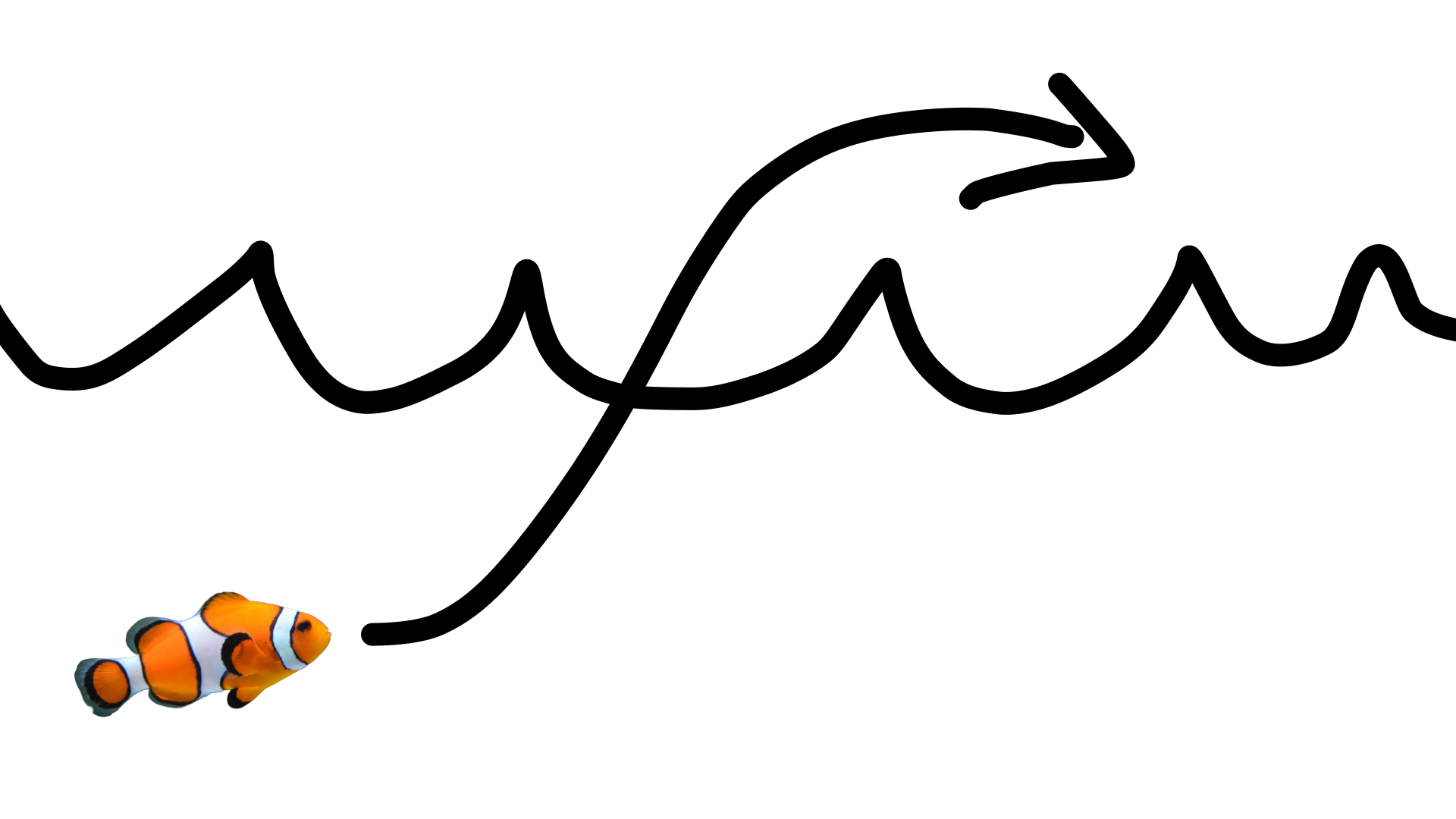
다음 프롬프트 사용:
turn this into realistic footage, using the drawing only as a guide for movement, do not show the drawing in the final video
Python
import base64
from google import genai

client = genai.Client()

interaction = client.interactions.create(
    model="gemini-omni-1.1-eap",
    input=[
        {"type": "image", "data": base64_image, "mime_type": "image/jpeg"},
        {"type": "text", "text": "turn this into realistic footage, using the drawing only as a guide for movement, do not show the drawing in the final video"}
    ],
)
with open("clownfish.mp4", "wb") as f:
    f.write(base64.b64decode(interaction.output_video.data))
JavaScript
import { GoogleGenAI } from '@google/genai';
import * as fs from 'fs';
const ai = new GoogleGenAI({});

const interaction = await ai.interactions.create({
  model: 'gemini-omni-1.1-eap',
  input: [
    { type: 'image', data: base64Image, mime_type: 'image/jpeg' },
    { type: 'text', text: 'turn this into realistic footage, using the drawing only as a guide for movement, do not show the drawing in the final video' }
  ]
});

if (interaction.output_video?.data) {
  fs.writeFileSync('clownfish.mp4', Buffer.from(interaction.output_video.data, 'base64'));
}
REST
curl -X POST "https://generativelanguage.googleapis.com/v1beta/interactions?key=$API_KEY" \
-H "Content-Type: application/json" \
-d '{
 "model": "gemini-omni-1.1-eap",
 "input": [
   {"type": "image", "data": "'"$BASE64_IMAGE"'", "mime_type": "image/jpeg"},
   {"type": "text", "text": "turn this into realistic footage, using the drawing only as a guide for movement, do not show the drawing in the final video"}
 ]
}'
피사체 참조
참고 이미지로 제공된 특정 피사체를 통합하는 동영상을 생성할 수 있습니다. 예를 들어 다음 코드는 고양이와 털실의 이미지 2개를 제공하여 고양이가 털실을 가지고 노는 동영상을 생성하는 방법을 보여줍니다.
Python
import base64
from google import genai

client = genai.Client()

interaction = client.interactions.create(
    model="gemini-omni-1.1-eap",
    input=[
        {"type": "image", "data": cat_b64, "mime_type": "image/png"},
        {"type": "image", "data": yarn_b64, "mime_type": "image/png"},
        {"type": "text", "text": "A cat playfully batting at a ball of yarn."}
    ],
)
with open("cat.mp4", "wb") as f:
    f.write(base64.b64decode(interaction.output_video.data))
JavaScript
import { GoogleGenAI } from '@google/genai';
import * as fs from 'fs';
const ai = new GoogleGenAI({});

const interaction = await ai.interactions.create({
  model: 'gemini-omni-1.1-eap',
  input: [
    { type: 'image', data: catData, mime_type: 'image/png' },
    { type: 'image', data: yarnData, mime_type: 'image/png' },
    { type: 'text', text: 'A cat playfully batting at a ball of yarn.' }
  ]
});

if (interaction.output_video?.data) {
  fs.writeFileSync('cat.mp4', Buffer.from(interaction.output_video.data, 'base64'));
}
REST
curl -X POST "https://generativelanguage.googleapis.com/v1beta/interactions?key=$API_KEY" \
-H "Content-Type: application/json" \
-d '{
 "model": "gemini-omni-1.1-eap",
 "input": [
   {"type": "image", "data": "'"$CAT_B64"'", "mime_type": "image/png"},
   {"type": "image", "data": "'"$YARN_B64"'", "mime_type": "image/png"},
   {"type": "text", "text": "A cat playfully batting at a ball of yarn."}
 ]
}'
작업 매개변수
선택적으로 generation_config의 video_config에서 task 매개변수를 설정하여 생성 작업을 명시적으로 정의할 수 있습니다. 설정하지 않으면 모델에서 프롬프트와 입력 미디어를 기반으로 적절한 모드를 자동으로 결정합니다.
지원되는 task 값은 다음과 같습니다.
text_to_video: 텍스트 프롬프트에서만 동영상을 생성합니다.image_to_video: 하나 또는 두 개의 소스 이미지 (시작 프레임 및 선택적 종료 프레임)에서 동영상을 생성합니다.reference_to_video: 제공된 미디어를 참고 자료로 사용하여 동영상을 생성합니다.edit: 기존 동영상을 수정합니다.extend: 기존 동영상 클립을 확장합니다.
Python
import base64
from google import genai

client = genai.Client()

interaction = client.interactions.create(
    model="gemini-omni-1.1-eap",
    input=[
        {"type": "image", "data": base64_image, "mime_type": "image/jpeg"},
        {"type": "text", "text": "turn this into realistic footage, using the drawing only as a guide for movement, do not show the drawing in the final video"}
    ],
    generation_config={
        "video_config": {
            "task": "image_to_video"
        }
    },
)
with open("example.mp4", "wb") as f:
    f.write(base64.b64decode(interaction.output_video.data))
JavaScript
import { GoogleGenAI } from "@google/genai";
import * as fs from 'fs';
const ai = new GoogleGenAI({});

const interaction = await ai.interactions.create({
  model: 'gemini-omni-1.1-eap',
  input: [
    { type: 'image', data: base64Image, mime_type: 'image/jpeg' },
    { type: 'text', text: 'turn this into realistic footage, using the drawing only as a guide for movement, do not show the drawing in the final video' }
  ],
  generationConfig: {
    videoConfig: {
      task: 'image_to_video',
    }
  }
});

if (interaction.output_video?.data) {
  fs.writeFileSync('example.mp4', Buffer.from(interaction.output_video.data, 'base64'));
}
REST
curl -X POST "https://generativelanguage.googleapis.com/v1beta/interactions?key=$API_KEY" \
  -H "Content-Type: application/json" \
  -d '{
    "model": "gemini-omni-1.1-eap",
    "input": [
      {
        "type": "image",
        "data": "'"$BASE64_IMAGE"'",
        "mime_type": "image/jpeg"
      },
      {
        "type": "text",
        "text": "turn this into realistic footage, using the drawing only as a guide for movement, do not show the drawing in the final video"
      }
    ],
    "generation_config": {
      "video_config": {
        "task": "image_to_video"
      }
    }
  }'
키프레임 보간
시작 프레임과 종료 프레임 간에 부드럽게 전환되는 연속 동영상을 생성합니다. 카메라 궤도, 줌 효과, 타임랩스 진행, 끊김 없는 루핑 클립에 적합합니다.
입력 배열에 원하는 동작에 대한 설명과 함께 두 이미지를 모두 제공합니다.
Python
import base64
from google import genai

client = genai.Client()

interaction = client.interactions.create(
    model="gemini-omni-1.1-eap",
    input=[
        {"type": "image", "data": start_frame_b64, "mime_type": "image/png"},
        {"type": "image", "data": end_frame_b64, "mime_type": "image/png"},
        {
            "type": "text",
            "text": "Smooth continuous timelapse from sunrise to sunset over a mountain lake."
        }
    ],
    # The task parameter is optional. If omitted, the model automatically infers the mode.
    generation_config={
        "video_config": {
            "task": "image_to_video"
        }
    },
    response_format={"type": "video"}
)
with open("interpolated.mp4", "wb") as f:
    f.write(base64.b64decode(interaction.output_video.data))
JavaScript
import { GoogleGenAI } from '@google/genai';
import * as fs from 'fs';
const ai = new GoogleGenAI({});

const interaction = await ai.interactions.create({
  model: 'gemini-omni-1.1-eap',
  input: [
    { type: 'image', data: startFrameB64, mime_type: 'image/png' },
    { type: 'image', data: endFrameB64, mime_type: 'image/png' },
    {
      type: 'text',
      text: 'Smooth continuous timelapse from sunrise to sunset over a mountain lake.'
    }
  ],
  // The task parameter is optional. If omitted, the model automatically infers the mode.
  generationConfig: {
    videoConfig: {
      task: 'image_to_video',
    },
  },
  response_format: { type: 'video' }
});

if (interaction.output_video?.data) {
  fs.writeFileSync('interpolated.mp4', Buffer.from(interaction.output_video.data, 'base64'));
}
REST
curl -X POST "https://generativelanguage.googleapis.com/v1beta/interactions?key=$API_KEY" \
  -H "Content-Type: application/json" \
  -d '{
    "model": "gemini-omni-1.1-eap",
    "input": [
      {"type": "image", "data": "'"$START_FRAME_B64"'", "mime_type": "image/png"},
      {"type": "image", "data": "'"$END_FRAME_B64"'", "mime_type": "image/png"},
      {
        "type": "text",
        "text": "Smooth continuous timelapse from sunrise to sunset over a mountain lake."
      }
    ],
    "generation_config": {
      "video_config": {
        "task": "image_to_video"
      }
    },
    "response_format": {"type": "video"}
  }'
상태 저장 동영상 편집
후속 프롬프트를 사용하여 동영상을 생성하고 반복적으로 편집합니다. 각 턴은 이전 결과를 기반으로 합니다. 모델은 동영상 컨텍스트를 기억하고 언급하지 않은 요소를 보존하면서 변경사항을 적용합니다. previous_interaction_id를 사용하여 이전 동영상을 다시 업로드하지 않고 대화 기록과 생성된 동영상 상태를 추적합니다.
다음 예에서는 첫 번째 동영상을 생성한 후 편집하는 방법을 보여줍니다.
Python
import base64
from google import genai

client = genai.Client()

# Turn 1: Generate initial video
res1 = client.interactions.create(model="gemini-omni-1.1-eap", input="A woman playing violin outdoors.")

# Turn 2: Edit the previous video
res2 = client.interactions.create(
    model="gemini-omni-1.1-eap",
    previous_interaction_id=res1.id,
    input="Make the violin invisible."
)
with open("example.mp4", "wb") as f:
    f.write(base64.b64decode(res2.output_video.data))
JavaScript
import { GoogleGenAI } from '@google/genai';
import * as fs from 'fs';
const ai = new GoogleGenAI({});

// Turn 1: Generate initial video
const res1 = await ai.interactions.create({
  model: 'gemini-omni-1.1-eap',
  input: 'A woman playing violin outdoors.',
});

// Turn 2: Edit the previous video
const res2 = await ai.interactions.create({
  model: 'gemini-omni-1.1-eap',
  previous_interaction_id: res1.id,
  input: 'Make the violin invisible.',
});

if (res2.output_video?.data) {
  fs.writeFileSync('example.mp4', Buffer.from(res2.output_video.data, 'base64'));
}
REST
curl -X POST "https://generativelanguage.googleapis.com/v1beta/interactions?key=$API_KEY" \
-H "Content-Type: application/json" \
-d '{
 "model": "gemini-omni-1.1-eap",
 "previous_interaction_id": "'"$PREVIOUS_ID"'",
 "input": "Make the violin invisible."
}'
초기 동영상의 예:
편집된 동영상의 예:
대화의 각 턴은 새 동영상을 생성합니다. 모델은 이전 턴의 컨텍스트를 이해하므로 전체 장면을 다시 설명하지 않고도 조명 조정, 배경 전환과 같은 점진적인 변경을 할 수 있습니다.
자체 동영상 편집
Files API를 사용하여 동영상을 업로드하고 Gemini Omni Flash 1.1로 편집합니다.
다음 예에서는 다음 원본 동영상을 편집하는 방법을 보여줍니다.
Python
import time
import base64
from google import genai

client = genai.Client()

# Upload video using the file API
video_file = client.files.upload(file="Video.mp4")

while video_file.state == "PROCESSING":
    print('Waiting for video to be processed.')
    time.sleep(10)
    video_file = client.files.get(name=video_file.name)

if video_file.state == "FAILED":
  raise ValueError(video_file.state)
print(f'Video processing complete: ' + video_file.uri)

# Edit your video
interaction = client.interactions.create(
    model="gemini-omni-1.1-eap",
    input=[
        {"type": "document", "uri": video_file.uri},
        {"type": "text", "text": "When the person touches the mirror, make the mirror ripple beautifully like liquid, and the person's arm turns into reflective mirror material"}
    ],
)
with open("example.mp4", "wb") as f:
    f.write(base64.b64decode(interaction.output_video.data))
JavaScript
import { GoogleGenAI } from '@google/genai';
import * as fs from 'fs';
const ai = new GoogleGenAI({});

// Upload video using the file API
let videoFile = await ai.files.upload({
  file: 'Video.mp4',
});

while (videoFile.state === 'PROCESSING') {
  console.log('Waiting for video to be processed.');
  await new Promise(r => setTimeout(r, 10000));
  videoFile = await ai.files.get({ name: videoFile.name });
}

if (videoFile.state === 'FAILED') {
  throw new Error(videoFile.state);
}
console.log('Video processing complete: ' + videoFile.uri);

# Edit your video
const interaction = await ai.interactions.create({
  model: 'gemini-omni-1.1-eap',
  input: [
    { type: 'document', uri: videoFile.uri },
    { type: 'text', text: "When the person touches the mirror, make the mirror ripple beautifully like liquid, and the person's arm turns into reflective mirror material" }
  ],
});

if (interaction.output_video?.data) {
  fs.writeFileSync('example.mp4', Buffer.from(interaction.output_video.data, 'base64'));
}
REST
curl -X POST "https://generativelanguage.googleapis.com/v1beta/interactions?key=$API_KEY" \
  -H "Content-Type: application/json" \
  -d '{
    "model": "gemini-omni-1.1-eap",
    "input": [
      {
        "type": "video",
        "data": "'"$VIDEO_B64"'",
        "mime_type": "video/mp4"
      },
      {
        "type": "text",
        "text": "When the person touches the mirror, make the mirror ripple beautifully like liquid, and the person arm turns into reflective mirror material"
      }
    ]
  }'
편집된 동영상의 예:
장면 확장
이전 컨텍스트를 사용하여 기존 동영상 클립을 확장합니다. Gemini Omni Flash 1.1은 이전 동작과 장면 구성을 분석하여 확장된 샷에서 연속성, 캐릭터 정체성, 환경 조명을 유지합니다.
Python
import base64
from google import genai

client = genai.Client()

# Extend from a previous interaction ID
# The task parameter is optional. If omitted, the model automatically infers the mode.
extended = client.interactions.create(
    model="gemini-omni-1.1-eap",
    previous_interaction_id=res1.id,
    input="Continue the shot: the woman finishes the violin solo and takes a bow.",
    generation_config={
        "video_config": {
            "task": "extend"
        }
    },
    response_format={"type": "video"}
)
with open("extended.mp4", "wb") as f:
    f.write(base64.b64decode(extended.output_video.data))
JavaScript
import { GoogleGenAI } from '@google/genai';
import * as fs from 'fs';
const ai = new GoogleGenAI({});

// The task parameter is optional. If omitted, the model automatically infers the mode.
const extended = await ai.interactions.create({
  model: 'gemini-omni-1.1-eap',
  previous_interaction_id: res1.id,
  input: 'Continue the shot: the woman finishes the violin solo and takes a bow.',
  generationConfig: {
    videoConfig: {
      task: 'extend',
    },
  },
  response_format: { type: 'video' },
});

if (extended.output_video?.data) {
  fs.writeFileSync('extended.mp4', Buffer.from(extended.output_video.data, 'base64'));
}
REST
curl -X POST "https://generativelanguage.googleapis.com/v1beta/interactions?key=$API_KEY" \
  -H "Content-Type: application/json" \
  -d '{
    "model": "gemini-omni-1.1-eap",
    "previous_interaction_id": "'"$PREVIOUS_ID"'",
    "input": "Continue the shot: the woman finishes the violin solo and takes a bow.",
    "generation_config": {
      "video_config": {
        "task": "extend"
      }
    },
    "response_format": {
      "type": "video"
    }
  }'
URI로 동영상 가져오기
delivery="uri" 매개변수를
response_format에서 사용하여 4MB보다 큰 생성된 동영상을 가져옵니다.
이렇게 하면 동영상이 ACTIVE가 될 때까지 폴링한 후 다운로드할 수 있는 Google 호스팅 URI가 반환됩니다.
Python
import time
from google import genai

client = genai.Client()

# 1. Request video via URI delivery
interaction = client.interactions.create(
    model="gemini-omni-1.1-eap",
    input="A beautiful sunset.",
    response_format={"type": "video", "delivery": "uri"}
)

# 2. Extract file name and poll for ACTIVE state
video_output = interaction.output_video
file_name = video_output.uri.split("/")[-1] # Extract ID

print("Waiting for video processing...")
while True:
    f_info = client.files.get(name=f"files/{file_name}")
    if f_info.state.name == "ACTIVE":
        break
    elif f_info.state.name == "FAILED":
        raise RuntimeError("Generation failed.")
    time.sleep(5)

# 3. Download the final video
video_bytes = client.files.download(file=video_output.uri)
with open("output.mp4", "wb") as f:
    f.write(video_bytes)
JavaScript
import { GoogleGenAI } from '@google/genai';
const ai = new GoogleGenAI({});

// 1. Request video via URI delivery
const interaction = await ai.interactions.create({
  model: 'gemini-omni-1.1-eap',
  input: 'A beautiful sunset.',
  response_format: { type: 'video', delivery: 'uri' },
});

// 2. Extract file name and poll for ACTIVE state
const videoOutput = interaction.output_video;
const fileId = videoOutput.uri.match(/files\/([a-zA-Z0-9]+)/)[1];
const name = `files/${fileId}`;

console.log("Waiting for video processing...");
while (true) {
  const fInfo = await ai.files.get({ name });
  if (fInfo.state.name === 'ACTIVE') break;
  if (fInfo.state.name === 'FAILED') throw new Error("Generation failed.");
  await new Promise(r => setTimeout(r, 5000));
}

// 3. Download the final video
await ai.files.download({
  file: videoOutput,
  downloadPath: 'output.mp4',
});
console.log("Saved video to output.mp4");
REST
#!/bin/bash

# 1. Initial request to generate the video
RESPONSE=$(curl -s -X POST "https://generativelanguage.googleapis.com/v1beta/interactions?key=$API_KEY" \
-H "Content-Type: application/json" \
-d '{
 "model": "gemini-omni-1.1-eap",
 "input": "A beautiful sunset over a calm ocean.",
 "response_format": {"type": "video", "delivery": "uri"}
}')

# Extract FILE_ID from the URI (e.g., "files/abc-123" -> "abc-123")
FILE_URI=$(echo $RESPONSE | jq -r '.output_video.uri')
FILE_ID=$(echo $FILE_URI | cut -d'/' -f2)

echo "Video requested (ID: $FILE_ID). Waiting for processing..."

# 2. Polling loop
while true; do
 # Get current file status
 STATUS_JSON=$(curl -s -X GET "https://generativelanguage.googleapis.com/v1beta/files/$FILE_ID?key=$API_KEY")
 STATE=$(echo $STATUS_JSON | jq -r '.state')

 if [ "$STATE" == "ACTIVE" ]; then
   echo "Processing complete! Downloading..."
   break
 elif [ "$STATE" == "FAILED" ]; then
   echo "Error: Generation failed."
   exit 1
 else
   echo "Current state: $STATE... (waiting 5s)"
   sleep 5
 fi
done

# 3. Final download
curl -L -X GET "https://generativelanguage.googleapis.com/v1beta/files/$FILE_ID:download?alt=media&key=$API_KEY" \
--output "output.mp4"

echo "Done! Video saved to output.mp4"
원시 REST JSON 구조 (URI):
{
  "steps": [
    { "type": "user_input", "content": [{"type": "text", "text": "..."}] },
    { "type": "thought", "content": [{"text": "...", "type": "thought"}] },
    {
      "type": "model_output",
      "content": [
        {
          "type": "video",
          "mime_type": "video/mp4",
          "uri": "https://generativelanguage.googleapis.com/v1beta/files/...:download?alt=media"
        }
      ]
    }
  ],
  "id": "v1_...",
  "status": "completed",
  "model": "gemini-omni-1.1-eap",
  "object": "interaction"
}
권장사항
- 대용량 동영상에 URI 전달 사용: 4MB보다 큰 동영상 (>720p
사용 가능한 경우)의 경우
delivery="uri"에서response_format를 사용하여 페이로드 크기 제한을 피하세요. - 최적화된 성능: 더 빠른 동기식 단항 생성을 위해
background=false,store=false,stream=false를 설정합니다.store=false를 설정하면 후속 턴에서previous_interaction_id를 사용하여 생성된 동영상을 수정할 수 없습니다. - 프롬프트 정밀도: 자세한 내용은 프롬프트 가이드 섹션을 참고하세요.
제한사항
- 유럽 경제 지역, 스위스, 영국에서는 미성년자가 포함된 이미지를 업로드하고 편집하는 것이 지원되지 않습니다.
- 특정 인식 가능한 인물이 포함된 이미지를 업로드하고 편집하는 것은 지원되지 않습니다.
- 유럽 경제 지역 (EEA), 스위스, 영국 사용자는 현재 업로드된 동영상을 편집할 수 없습니다 (모델에서 생성된 동영상 편집은 지원됨).
- 현재 버전의 API에서는 오디오 참고 자료 업로드가 지원되지 않습니다.
- 최대 3초 길이의 동영상 참고 자료는 API 스키마에서 허용되지만 현재 모델에서 올바르게 처리되지 않습니다.
- 여러 동영상에서 참조하거나 추론하는 것은 지원되지 않습니다. 다중 동영상 프롬프트를 시도하면 모델 성능이 저하되거나 예기치 않은 출력이 발생할 수 있습니다.
- 동영상 확장 및 동영상 보간 (첫 번째 프레임과 마지막 프레임 사이에 동영상 생성)은 지원되지 않습니다.
- 음성 편집은 지원되지 않습니다.
- 프로비저닝된 처리량은 지원되지 않습니다.
- 시스템 안내, 온도,
top_p, 중지 시퀀스, 부정적인 프롬프트는 지원되지 않습니다 (부정적인 프롬프트를 일반 프롬프트에 넣을 수 있음, 예: 'X를 하지 마세요'). - YouTube 동영상을 미디어 소스로 사용하는 것은 지원되지 않습니다.
기술 세부정보
- 생성된 모든 동영상에는 시청자에게는 보이지 않지만 출처 확인을 위해 프로그래매틱 방식으로 감지할 수 있는 SynthID 워터마크가 포함됩니다.
- 동영상 생성 시간은 길이, 해상도, 현재 API 로드에 따라 다릅니다. 길이가 길고 해상도가 높은 동영상은 생성하는 데 시간이 더 오래 걸립니다.
- 콘텐츠 보안 필터는 입력 프롬프트와 생성된 동영상 모두에 적용되며 (지역에 따라 다름) 사용 정책을 위반하는 프롬프트는 차단됩니다. 사용 정책을 위반하는 프롬프트는 차단됩니다.
- 영어 (EN)는 완전히 지원되지만 다른 언어는 평가되지 않았으므로 작동할 수 있지만 결과는 다를 수 있습니다.
Gemini Omni Flash 프롬프트 가이드
이 섹션에는 Gemini Omni Flash를 효과적으로 프롬프트하는 방법에 관한 팁과 예가 포함되어 있습니다.
단일 장면
기본적으로 Omni Flash는 몇 가지 다른 샷으로 동영상을 만들려고 시도합니다. 프롬프트를 기반으로 흥미로운 내러티브를 만들려고 시도합니다.
출력 동영상에 단일 장면이 포함되어야 하는 경우 다음과 같이 프롬프트를 작성해야 합니다.
- 끊김 없는 단일 장면에서
- 연속으로 촬영하라고요
- 장면 전환 없음
예를 들면 다음과 같습니다.
Continuous, unbroken handheld shot of a fluffy tabby cat sitting on a sunny windowsill, looking out into a leafy garden. The cat's tail twitches slowly, and its ears rotate slightly toward ambient noises. Sunbeams illuminate dust motes in the air. Sound design: Gentle breeze, distant bird chirps. No dialogue.
원치 않는 요소 삭제
생성된 동영상에 원치 않는 항목이 포함되어 있으면 간단한 부정적인 프롬프트를 포함하여 이를 방지하세요.
- 대화 없음
- 장식 없음
- 추가 음향 효과 없음
편집 프롬프트
동영상 편집에는 간단한 프롬프트가 가장 적합합니다. 지나치게 설명적인 프롬프트는 의도치 않은 변경으로 이어질 수 있습니다.
다음은 간단한 편집 프롬프트의 추가 예입니다.
- 이 동영상을 애니메이션으로 만들어 줘
- 이 사람에게 세련된 모자를 씌워 줘
- 조명을 더 극적으로 바꿔 줘
- 표지판의 텍스트를 'Omni Flash'로 바꿔 줘
동영상의 특정 측면을 편집할 때는 시각적 일관성을 유지하기 위해 "Keep everything else the same"을 포함하세요.
다음은 이 기법을 적용하는 방법을 보여주는 몇 가지 예입니다.
- 피해야 할 사항:
In the video of the man sitting on the sofa, please add a small black cat that runs from the right side of the screen, jumps onto his lap, and then he starts to stroke its head while looking down.- 단순화:
Add a cat that jumps onto his lap, he begins to pet it.
Keep everything else the same.
- 단순화:
- 피해야 할 사항:
Please remove the cell phone that the person is holding in their hand and fill in the background so it looks like they are just holding their hand empty.- 단순화:
Make the phone invisible. Keep everything else the
same.
- 단순화:
오디오 프롬프트
기본적으로 모델은 동영상에 적절한 오디오 트랙을 생성하려고 시도합니다. 항상 원하는 것은 아닐 수 있습니다. 프롬프트를 사용하여 원하는 오디오 유형을 설명할 수 있습니다. 동영상에 음악을 포함하려는 경우 특히 중요합니다.
- 잔잔한 배경 음악을 포함해 줘
- 동영상에 활기찬 테크노 비트가 있어
- 오디오는 배경에서 노래를 재생하는 낮은 음질의 라디오 방송이야
이벤트 타이밍
동영상에서 특정 시간에 발생할 일을 프롬프트할 수 있습니다. 정확한 구문은 필요하지 않으며 자연어를 사용할 수 있습니다. 자체 장면 전환, 리듬 또는 래피드 파이어 시퀀스를 만드는 데 특히 유용합니다. 예는 다음을 참고하세요.
- 3초 후 여자가 장면에 들어와.
- 5초에 배경 오디오에서 코러스가 시작돼.
- 2초마다 새 프레임으로 전환해 줘.
- 래피드 파이어 시퀀스에서 0.5초마다 (24fps에서 12프레임) 장면을 새 위치로 바꿔 줘.
타임코드 구문을 사용할 수도 있습니다.
[0-3s] A person is walking
[3-6s] They stop and turn around
[6-10s] They start running
메타 프롬프트 작성
Gemini Omni Flash에게 동영상 생성의 일반적인 품질 또는 원칙에 주의를 기울여 달라고 요청할 수 있습니다.
- 매우 풍부하고 세부적이지만 완전히 자연스러운 장면을 만들려면 미세한 디테일, 표현, 타이밍을 고려해 줘.
- 캐릭터와 환경에 대한 설명을 매우 자세하게 작성해 줘. 캐릭터에 의상 디자인 원칙을 적용해 줘. 장면에 있는 사람, 항목, 객체를 매우 구체적으로 지정해 줘.
- 장면을 사실적이고 자연스럽게 보이도록 배경 요소에 적절한 세부정보를 많이 포함해 줘.
- 1초마다 다른 희귀한
[thing]을 보여주는 래피드 파이어 동영상을 만들어 줘. 신나는 음악을 포함하고 텍스트를 포함하여 항목에 라벨을 지정해 줘.
동영상의 텍스트
동영상에 텍스트를 포함하도록 프롬프트를 작성할 수 있으며 Gemini Omni는 올바르고 읽을 수 있는 방식으로 렌더링합니다. 동영상에 배경 요소에도 자연스럽게 발생하는 텍스트가 있는 경우 텍스트의 내용을 정의하는 데 도움이 될 수 있습니다.
- 화면에 한 번에 한 단어씩 표시해 줘. 'Omni가 멋진 텍스트를 만들 수 있다는 것을 알고 있었니?' 각 단어는 1초 동안 다른 애니메이션 스타일로 표시돼. 대화 없음.
- 'Omni의 AI 생성'이라고 적힌 거리 표지판이 있고 'All you need AI'라고 적힌 상점이 있고 'OMN111'이라는 번호판이 달린 자동차가 있어.
프롬프트에서 태그를 사용하여 이미지 역할 설정
태그를 사용하여 업로드된 미디어를 특정 생성 역할에 바인딩할 수 있습니다. 이렇게 하면 각 이미지가 초기 프레임인지 참고 자료인지 지정할 수 있습니다.
<FIRST_FRAME>: 이미지를 동영상의 시작 프레임으로 사용합니다( 예:<FIRST_FRAME> a woman is walking).<IMAGE_REF_N>: 이미지를 참고 자료로 사용합니다 (예:in the style of <IMAGE_REF_0> a woman <IMAGE_REF_1> is walking). 첫 번째 이미지의 스타일 참고 자료와 두 번째 이미지의 피사체 참고 자료를 결합합니다. 이미지 참고 자료는 0부터 시작합니다.
다음은 참고 이미지가 포함된 예입니다.
[0-3s] A studio fashion sequence. Starting with woman <IMAGE_REF_0>, she is holding <IMAGE_REF_1>
[3-6s] Then we see the man <IMAGE_REF_2> holding <IMAGE_REF_3>
[6-10s] And finally another woman <IMAGE_REF_4> who is holding <IMAGE_REF_5> while walking.
다음 단계
- Omni 빠른 시작 Colab에서 실험하여 Gemini Omni Flash를 시작하세요.
- 프롬프트 디자인 소개를 통해 더 나은 프롬프트를 작성하는 방법을 알아보세요.