

Gemini Omni Flash 1.1 (gemini-omni-1.1-eap) เป็นโมเดลมัลติโมดัลที่มีประสิทธิภาพสูง ซึ่งออกแบบมาสำหรับการสร้างและตัดต่อวิดีโอความเร็วสูง รวมถึงการควบคุมแบบภาพยนตร์
Gemini Omni Flash 1.1 จะมาแทนที่ Gemini Omni Flash เวอร์ชันก่อนหน้าอย่างสมบูรณ์ โดยมีคุณภาพการสร้างที่ดีขึ้น ความสามารถในการประมวลผลข้อมูลหลายรูปแบบในตัว และความสามารถในการตัดต่อวิดีโอแบบมีสถานะ
- ความสามารถในการประมวลผลข้อมูลหลายรูปแบบในตัว: โมเดลนี้จะประมวลผลข้อความ รูปภาพ เสียง และวิดีโอพร้อมกัน ทำให้คุณได้เอาต์พุตที่สอดคล้องกันมากขึ้นและควบคุมได้
- การแก้ไขโดยใช้การสนทนา: โมเดลนี้ใช้ Interactions API เพื่อให้คุณปรับแต่ง และตัดต่อวิดีโอซ้ำๆ ได้ผ่านการสนทนาด้วยภาษาธรรมชาติ เพียงอธิบายสิ่งที่คุณต้องการเปลี่ยนแปลง แล้วโมเดลจะใช้การแก้ไขพร้อมกับเก็บส่วนของวิดีโอที่คุณต้องการไว้
- ความรู้เกี่ยวกับโลก: Gemini Omni ผสานรวมความเข้าใจด้านฟิสิกส์เข้ากับความรู้ด้านประวัติศาสตร์ วิทยาศาสตร์ และบริบททางวัฒนธรรมของ Gemini เพื่อเชื่อมช่องว่างจากความสมจริงแบบภาพถ่ายไปสู่การเล่าเรื่องที่มีความหมาย
การสร้างวิดีโอจากข้อความ
สร้างวิดีโอจากพรอมต์ข้อความ โมเดลจะสร้างวิดีโอพร้อมเสียงตามคำอธิบายข้อความของคุณ เขียนพรอมต์โดยระบุรายละเอียดต่างๆ เช่น คำอธิบายฉาก การเคลื่อนไหวของกล้อง แสง และอารมณ์ เพื่อให้ได้ผลลัพธ์ที่ดีที่สุด
Python
import base64
from google import genai

client = genai.Client()

interaction = client.interactions.create(
    model="gemini-omni-1.1-eap",
    input="A marble rolling fast on a chain reaction style track, continuous smooth shot."
)
with open("marble.mp4", "wb") as f:
    f.write(base64.b64decode(interaction.output_video.data))
JavaScript
import { GoogleGenAI } from '@google/genai';
import * as fs from 'fs';
const ai = new GoogleGenAI({});

const interaction = await ai.interactions.create({
  model: 'gemini-omni-1.1-eap',
  input: 'A marble rolling fast on a chain reaction style track, continuous smooth shot.',
});

if (interaction.output_video?.data) {
  fs.writeFileSync('marble.mp4', Buffer.from(interaction.output_video.data, 'base64'));
}
REST
curl -X POST "https://generativelanguage.googleapis.com/v1beta/interactions?key=$API_KEY" \
-H "Content-Type: application/json" \
-d '{
 "model": "gemini-omni-1.1-eap",
 "input": "A marble rolling fast on a chain reaction style track, continuous smooth shot."
}'
สคีมาการตอบกลับ REST
ฟิลด์ interaction.output_video ที่ใช้งานง่ายนี้เป็นฟิลด์ที่ใช้ได้กับ SDK เท่านั้น
รับเอาต์พุตวิดีโอจากอาร์เรย์ steps เมื่อใช้ REST API โดยตรง
โครงสร้าง JSON ของ REST แบบข้อมูลดิบ
{
  "steps": [
    { "type": "user_input", "content": [{"type": "text", "text": "..."}] },
    { "type": "thought", "content": [{"text": "...", "type": "thought"}] },
    {
      "type": "model_output",
      "content": [
        {
          "type": "video",
          "mime_type": "video/mp4",
          "data": "AAAAIGZ0eXBpc29t..." // Base64 encoded video data
        }
      ]
    }
  ],
  "id": "v1_...",
  "status": "completed",
  "model": "gemini-omni-1.1-eap",
  "object": "interaction"
}
ควบคุมสัดส่วนภาพ
ตั้งค่า aspect_ratio เป็น "9:16" เพื่อสร้างวิดีโอแนวตั้ง โดยค่าเริ่มต้นจะเป็นแนวนอน (16:9)
Python
import base64
from google import genai

client = genai.Client()

interaction = client.interactions.create(
    model="gemini-omni-1.1-eap",
    input="A futuristic city with neon lights and flying cars, cyberpunk style",
    response_format={
        "type": "video",  # optional
        "aspect_ratio": "9:16"  # Supported values: "9:16", "16:9"
    }
)
with open("example.mp4", "wb") as f:
    f.write(base64.b64decode(interaction.output_video.data))
JavaScript
import { GoogleGenAI } from '@google/genai';
import * as fs from 'fs';
const ai = new GoogleGenAI({});

const interaction = await ai.interactions.create({
  model: 'gemini-omni-1.1-eap',
  input: 'A futuristic city with neon lights and flying cars, cyberpunk style',
  response_format: {
    type: 'video', // optional
    aspect_ratio: '9:16' // Supported values: '9:16', '16:9'
  },
});

if (interaction.output_video?.data) {
  fs.writeFileSync('example.mp4', Buffer.from(interaction.output_video.data, 'base64'));
}
REST
curl -X POST "https://generativelanguage.googleapis.com/v1beta/interactions?key=$API_KEY" \
-H "Content-Type: application/json" \
-d '{
 "model": "gemini-omni-1.1-eap",
 "input": "A futuristic city with neon lights and flying cars, cyberpunk style",
 "response_format": {
   "type": "video",
   "aspect_ratio": "9:16"
 }
}'
ตัวควบคุมความละเอียด
โหมดร่าง 360p
ใช้ resolution: "360p" ใน response_format เพื่อสร้างคลิปตัวอย่างขนาดเล็กได้เร็วขึ้นประมาณ 2 เท่า โดยใช้โทเค็นน้อยลง
Python
interaction = client.interactions.create(
    model="gemini-omni-1.1-eap",
    input="A robotic dog exploring a lush enchanted forest.",
    response_format={
        "type": "video",
        "resolution": "360p",
        "aspect_ratio": "16:9"
    }
)
JavaScript
import { GoogleGenAI } from '@google/genai';
const ai = new GoogleGenAI({});

const interaction = await ai.interactions.create({
  model: 'gemini-omni-1.1-eap',
  input: 'A robotic dog exploring a lush enchanted forest.',
  response_format: {
    type: 'video',
    resolution: '360p',
    aspect_ratio: '16:9',
  },
});
REST
curl -X POST "https://generativelanguage.googleapis.com/v1beta/interactions?key=$API_KEY" \
  -H "Content-Type: application/json" \
  -d '{
    "model": "gemini-omni-1.1-eap",
    "input": "A robotic dog exploring a lush enchanted forest.",
    "response_format": {
      "type": "video",
      "resolution": "360p",  # Supported values: "360p", "720p", "1080p", "4k"
      "aspect_ratio": "16:9"
    }
  }'
ความละเอียดสูง (1080p และ 4K)
ตั้งค่า resolution เป็น "1080p" หรือ "4k" ใน response_format เพื่อสร้างวิดีโอความละเอียดสูงที่คมชัด
Python
interaction = client.interactions.create(
    model="gemini-omni-1.1-eap",
    input="A cinematic drone shot through misty pine mountains at sunrise.",
    response_format={
        "type": "video",
        "resolution": "1080p",  # Supported values: "360p", "720p", "1080p", "4k"
        "delivery": "uri"
    }
)
JavaScript
import { GoogleGenAI } from '@google/genai';
const ai = new GoogleGenAI({});

const interaction = await ai.interactions.create({
  model: 'gemini-omni-1.1-eap',
  input: 'A cinematic drone shot through misty pine mountains at sunrise.',
  response_format: {
    type: 'video',
    resolution: '1080p', // Supported values: '360p', '720p', '1080p', '4k'
    delivery: 'uri',
  },
});
REST
curl -X POST "https://generativelanguage.googleapis.com/v1beta/interactions?key=$API_KEY" \
  -H "Content-Type: application/json" \
  -d '{
    "model": "gemini-omni-1.1-eap",
    "input": "A cinematic drone shot through misty pine mountains at sunrise.",
    "response_format": {
      "type": "video",
      "resolution": "1080p",
      "delivery": "uri"
    }
  }'
การสร้างวิดีโอจากรูปภาพ
คุณสามารถใส่รูปภาพอ้างอิงพร้อมกับพรอมต์ข้อความได้ โมเดลจะตัดสินใจว่าจะใช้รูปภาพอย่างไรเพื่อทำให้ภาพผลิตภัณฑ์ ภาพประกอบ หรือภาพถ่ายดูสมจริงขึ้น ทั้งนี้ขึ้นอยู่กับพรอมต์ของคุณ
ตัวอย่างต่อไปนี้แสดงวิธีใช้รูปภาพอ้างอิงเป็นภาพวาดของปลาที่กระโดดขึ้นจากน้ำ
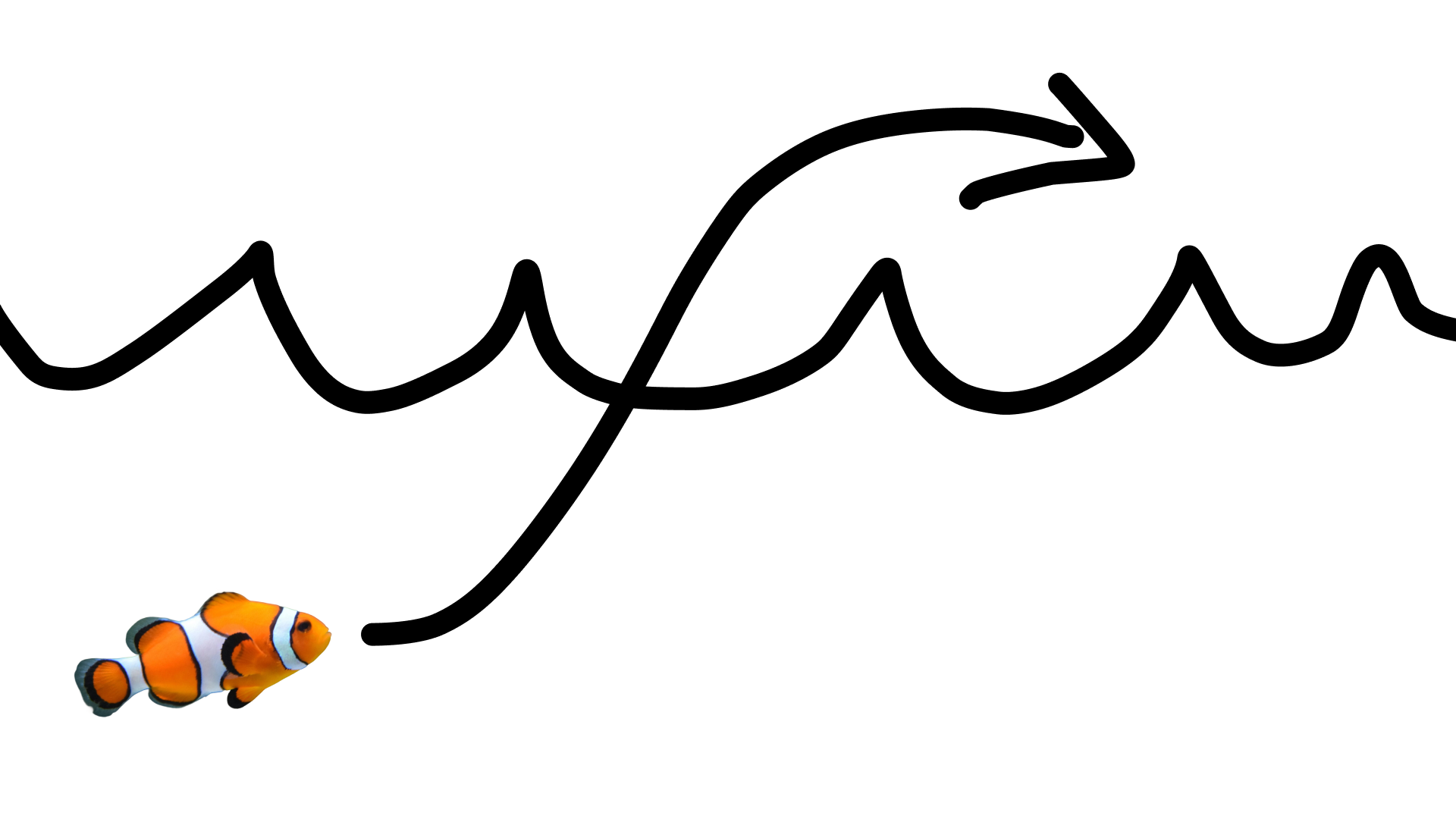
โดยใช้พรอมต์ต่อไปนี้
turn this into realistic footage, using the drawing only as a guide for movement, do not show the drawing in the final video
Python
import base64
from google import genai

client = genai.Client()

interaction = client.interactions.create(
    model="gemini-omni-1.1-eap",
    input=[
        {"type": "image", "data": base64_image, "mime_type": "image/jpeg"},
        {"type": "text", "text": "turn this into realistic footage, using the drawing only as a guide for movement, do not show the drawing in the final video"}
    ],
)
with open("clownfish.mp4", "wb") as f:
    f.write(base64.b64decode(interaction.output_video.data))
JavaScript
import { GoogleGenAI } from '@google/genai';
import * as fs from 'fs';
const ai = new GoogleGenAI({});

const interaction = await ai.interactions.create({
  model: 'gemini-omni-1.1-eap',
  input: [
    { type: 'image', data: base64Image, mime_type: 'image/jpeg' },
    { type: 'text', text: 'turn this into realistic footage, using the drawing only as a guide for movement, do not show the drawing in the final video' }
  ]
});

if (interaction.output_video?.data) {
  fs.writeFileSync('clownfish.mp4', Buffer.from(interaction.output_video.data, 'base64'));
}
REST
curl -X POST "https://generativelanguage.googleapis.com/v1beta/interactions?key=$API_KEY" \
-H "Content-Type: application/json" \
-d '{
 "model": "gemini-omni-1.1-eap",
 "input": [
   {"type": "image", "data": "'"$BASE64_IMAGE"'", "mime_type": "image/jpeg"},
   {"type": "text", "text": "turn this into realistic footage, using the drawing only as a guide for movement, do not show the drawing in the final video"}
 ]
}'
การอ้างอิงตัวแบบ
คุณสามารถสร้างวิดีโอที่รวมตัวแบบที่เฉพาะเจาะจงซึ่งระบุเป็นรูปภาพอ้างอิง ตัวอย่างเช่น โค้ดต่อไปนี้แสดงวิธีใส่รูปภาพแมวและเส้นด้าย 2 รูปเพื่อสร้างวิดีโอแมวเล่นกับเส้นด้าย
Python
import base64
from google import genai

client = genai.Client()

interaction = client.interactions.create(
    model="gemini-omni-1.1-eap",
    input=[
        {"type": "image", "data": cat_b64, "mime_type": "image/png"},
        {"type": "image", "data": yarn_b64, "mime_type": "image/png"},
        {"type": "text", "text": "A cat playfully batting at a ball of yarn."}
    ],
)
with open("cat.mp4", "wb") as f:
    f.write(base64.b64decode(interaction.output_video.data))
JavaScript
import { GoogleGenAI } from '@google/genai';
import * as fs from 'fs';
const ai = new GoogleGenAI({});

const interaction = await ai.interactions.create({
  model: 'gemini-omni-1.1-eap',
  input: [
    { type: 'image', data: catData, mime_type: 'image/png' },
    { type: 'image', data: yarnData, mime_type: 'image/png' },
    { type: 'text', text: 'A cat playfully batting at a ball of yarn.' }
  ]
});

if (interaction.output_video?.data) {
  fs.writeFileSync('cat.mp4', Buffer.from(interaction.output_video.data, 'base64'));
}
REST
curl -X POST "https://generativelanguage.googleapis.com/v1beta/interactions?key=$API_KEY" \
-H "Content-Type: application/json" \
-d '{
 "model": "gemini-omni-1.1-eap",
 "input": [
   {"type": "image", "data": "'"$CAT_B64"'", "mime_type": "image/png"},
   {"type": "image", "data": "'"$YARN_B64"'", "mime_type": "image/png"},
   {"type": "text", "text": "A cat playfully batting at a ball of yarn."}
 ]
}'
พารามิเตอร์งาน
คุณสามารถตั้งค่าพารามิเตอร์ task ใน video_config ภายใต้ generation_config เพื่อกำหนดงานการสร้างอย่างชัดเจน (ไม่บังคับ) หากไม่ได้ตั้งค่า โมเดลจะกำหนดโหมดที่เหมาะสมโดยอัตโนมัติตามพรอมต์และสื่ออินพุต
ค่า task ที่รองรับมีดังนี้
text_to_video: สร้างวิดีโอจากพรอมต์ข้อความเท่านั้นimage_to_video: สร้างวิดีโอจากรูปภาพต้นฉบับ 1 หรือ 2 รูป (เฟรมเริ่มต้นและเฟรมสิ้นสุดที่ไม่บังคับ)reference_to_video: สร้างวิดีโอโดยใช้สื่อที่ระบุเป็นข้อมูลอ้างอิงedit: แก้ไขวิดีโอที่มีอยู่extend: ขยายวิดีโอคลิปที่มีอยู่
Python
import base64
from google import genai

client = genai.Client()

interaction = client.interactions.create(
    model="gemini-omni-1.1-eap",
    input=[
        {"type": "image", "data": base64_image, "mime_type": "image/jpeg"},
        {"type": "text", "text": "turn this into realistic footage, using the drawing only as a guide for movement, do not show the drawing in the final video"}
    ],
    generation_config={
        "video_config": {
            "task": "image_to_video"
        }
    },
)
with open("example.mp4", "wb") as f:
    f.write(base64.b64decode(interaction.output_video.data))
JavaScript
import { GoogleGenAI } from "@google/genai";
import * as fs from 'fs';
const ai = new GoogleGenAI({});

const interaction = await ai.interactions.create({
  model: 'gemini-omni-1.1-eap',
  input: [
    { type: 'image', data: base64Image, mime_type: 'image/jpeg' },
    { type: 'text', text: 'turn this into realistic footage, using the drawing only as a guide for movement, do not show the drawing in the final video' }
  ],
  generationConfig: {
    videoConfig: {
      task: 'image_to_video',
    }
  }
});

if (interaction.output_video?.data) {
  fs.writeFileSync('example.mp4', Buffer.from(interaction.output_video.data, 'base64'));
}
REST
curl -X POST "https://generativelanguage.googleapis.com/v1beta/interactions?key=$API_KEY" \
  -H "Content-Type: application/json" \
  -d '{
    "model": "gemini-omni-1.1-eap",
    "input": [
      {
        "type": "image",
        "data": "'"$BASE64_IMAGE"'",
        "mime_type": "image/jpeg"
      },
      {
        "type": "text",
        "text": "turn this into realistic footage, using the drawing only as a guide for movement, do not show the drawing in the final video"
      }
    ],
    "generation_config": {
      "video_config": {
        "task": "image_to_video"
      }
    }
  }'
การประมาณค่าคีย์เฟรม
สร้างวิดีโอต่อเนื่องที่เปลี่ยนจากเฟรมเริ่มต้นไปยังเฟรมสิ้นสุดได้อย่างราบรื่น วิธีนี้เหมาะอย่างยิ่งสำหรับการหมุนกล้อง เอฟเฟกต์การซูม การเปลี่ยนภาพแบบไทม์แลปส์ และคลิปที่วนซ้ำได้อย่างราบรื่น
ใส่รูปภาพทั้ง 2 รูปในอาร์เรย์อินพุตพร้อมกับคำอธิบายการเคลื่อนไหวที่ต้องการ
Python
import base64
from google import genai

client = genai.Client()

interaction = client.interactions.create(
    model="gemini-omni-1.1-eap",
    input=[
        {"type": "image", "data": start_frame_b64, "mime_type": "image/png"},
        {"type": "image", "data": end_frame_b64, "mime_type": "image/png"},
        {
            "type": "text",
            "text": "Smooth continuous timelapse from sunrise to sunset over a mountain lake."
        }
    ],
    # The task parameter is optional. If omitted, the model automatically infers the mode.
    generation_config={
        "video_config": {
            "task": "image_to_video"
        }
    },
    response_format={"type": "video"}
)
with open("interpolated.mp4", "wb") as f:
    f.write(base64.b64decode(interaction.output_video.data))
JavaScript
import { GoogleGenAI } from '@google/genai';
import * as fs from 'fs';
const ai = new GoogleGenAI({});

const interaction = await ai.interactions.create({
  model: 'gemini-omni-1.1-eap',
  input: [
    { type: 'image', data: startFrameB64, mime_type: 'image/png' },
    { type: 'image', data: endFrameB64, mime_type: 'image/png' },
    {
      type: 'text',
      text: 'Smooth continuous timelapse from sunrise to sunset over a mountain lake.'
    }
  ],
  // The task parameter is optional. If omitted, the model automatically infers the mode.
  generationConfig: {
    videoConfig: {
      task: 'image_to_video',
    },
  },
  response_format: { type: 'video' }
});

if (interaction.output_video?.data) {
  fs.writeFileSync('interpolated.mp4', Buffer.from(interaction.output_video.data, 'base64'));
}
REST
curl -X POST "https://generativelanguage.googleapis.com/v1beta/interactions?key=$API_KEY" \
  -H "Content-Type: application/json" \
  -d '{
    "model": "gemini-omni-1.1-eap",
    "input": [
      {"type": "image", "data": "'"$START_FRAME_B64"'", "mime_type": "image/png"},
      {"type": "image", "data": "'"$END_FRAME_B64"'", "mime_type": "image/png"},
      {
        "type": "text",
        "text": "Smooth continuous timelapse from sunrise to sunset over a mountain lake."
      }
    ],
    "generation_config": {
      "video_config": {
        "task": "image_to_video"
      }
    },
    "response_format": {"type": "video"}
  }'
การตัดต่อวิดีโอแบบมีสถานะ
สร้างวิดีโอและตัดต่อวิดีโอซ้ำๆ โดยใช้พรอมต์ติดตามผล แต่ละรอบจะอิงตามผลลัพธ์ก่อนหน้า โมเดลจะจดจำบริบทของวิดีโอและใช้การเปลี่ยนแปลงของคุณพร้อมกับเก็บองค์ประกอบที่คุณไม่ได้กล่าวถึงไว้ ใช้ previous_interaction_id เพื่อติดตามประวัติการสนทนาและสถานะวิดีโอที่สร้างขึ้นโดยไม่ต้องอัปโหลดวิดีโอก่อนหน้าอีกครั้ง
ตัวอย่างต่อไปนี้แสดงวิธีสร้างวิดีโอแรกแล้วจึงตัดต่อวิดีโอ
Python
import base64
from google import genai

client = genai.Client()

# Turn 1: Generate initial video
res1 = client.interactions.create(model="gemini-omni-1.1-eap", input="A woman playing violin outdoors.")

# Turn 2: Edit the previous video
res2 = client.interactions.create(
    model="gemini-omni-1.1-eap",
    previous_interaction_id=res1.id,
    input="Make the violin invisible."
)
with open("example.mp4", "wb") as f:
    f.write(base64.b64decode(res2.output_video.data))
JavaScript
import { GoogleGenAI } from '@google/genai';
import * as fs from 'fs';
const ai = new GoogleGenAI({});

// Turn 1: Generate initial video
const res1 = await ai.interactions.create({
  model: 'gemini-omni-1.1-eap',
  input: 'A woman playing violin outdoors.',
});

// Turn 2: Edit the previous video
const res2 = await ai.interactions.create({
  model: 'gemini-omni-1.1-eap',
  previous_interaction_id: res1.id,
  input: 'Make the violin invisible.',
});

if (res2.output_video?.data) {
  fs.writeFileSync('example.mp4', Buffer.from(res2.output_video.data, 'base64'));
}
REST
curl -X POST "https://generativelanguage.googleapis.com/v1beta/interactions?key=$API_KEY" \
-H "Content-Type: application/json" \
-d '{
 "model": "gemini-omni-1.1-eap",
 "previous_interaction_id": "'"$PREVIOUS_ID"'",
 "input": "Make the violin invisible."
}'
ตัวอย่างวิดีโอเริ่มต้น
ตัวอย่างวิดีโอที่ตัดต่อแล้ว
การสนทนาแต่ละรอบจะสร้างวิดีโอใหม่ โมเดลจะเข้าใจบริบทจากรอบก่อนหน้า ทำให้คุณทำการเปลี่ยนแปลงทีละน้อยได้ เช่น การปรับแสงและการเปลี่ยนพื้นหลัง โดยไม่ต้องอธิบายฉากทั้งหมดอีกครั้ง
ตัดต่อวิดีโอของคุณเอง
อัปโหลดวิดีโอโดยใช้ Files API เพื่อตัดต่อวิดีโอ ด้วย Gemini Omni Flash 1.1
ตัวอย่างต่อไปนี้แสดงวิธีตัดต่อวิดีโอต้นฉบับต่อไปนี้
Python
import time
import base64
from google import genai

client = genai.Client()

# Upload video using the file API
video_file = client.files.upload(file="Video.mp4")

while video_file.state == "PROCESSING":
    print('Waiting for video to be processed.')
    time.sleep(10)
    video_file = client.files.get(name=video_file.name)

if video_file.state == "FAILED":
  raise ValueError(video_file.state)
print(f'Video processing complete: ' + video_file.uri)

# Edit your video
interaction = client.interactions.create(
    model="gemini-omni-1.1-eap",
    input=[
        {"type": "document", "uri": video_file.uri},
        {"type": "text", "text": "When the person touches the mirror, make the mirror ripple beautifully like liquid, and the person's arm turns into reflective mirror material"}
    ],
)
with open("example.mp4", "wb") as f:
    f.write(base64.b64decode(interaction.output_video.data))
JavaScript
import { GoogleGenAI } from '@google/genai';
import * as fs from 'fs';
const ai = new GoogleGenAI({});

// Upload video using the file API
let videoFile = await ai.files.upload({
  file: 'Video.mp4',
});

while (videoFile.state === 'PROCESSING') {
  console.log('Waiting for video to be processed.');
  await new Promise(r => setTimeout(r, 10000));
  videoFile = await ai.files.get({ name: videoFile.name });
}

if (videoFile.state === 'FAILED') {
  throw new Error(videoFile.state);
}
console.log('Video processing complete: ' + videoFile.uri);

# Edit your video
const interaction = await ai.interactions.create({
  model: 'gemini-omni-1.1-eap',
  input: [
    { type: 'document', uri: videoFile.uri },
    { type: 'text', text: "When the person touches the mirror, make the mirror ripple beautifully like liquid, and the person's arm turns into reflective mirror material" }
  ],
});

if (interaction.output_video?.data) {
  fs.writeFileSync('example.mp4', Buffer.from(interaction.output_video.data, 'base64'));
}
REST
curl -X POST "https://generativelanguage.googleapis.com/v1beta/interactions?key=$API_KEY" \
  -H "Content-Type: application/json" \
  -d '{
    "model": "gemini-omni-1.1-eap",
    "input": [
      {
        "type": "video",
        "data": "'"$VIDEO_B64"'",
        "mime_type": "video/mp4"
      },
      {
        "type": "text",
        "text": "When the person touches the mirror, make the mirror ripple beautifully like liquid, and the person arm turns into reflective mirror material"
      }
    ]
  }'
ตัวอย่างวิดีโอที่ตัดต่อแล้ว
ส่วนขยายฉาก
ขยายวิดีโอคลิปที่มีอยู่โดยใช้บริบทก่อนหน้า Gemini Omni Flash 1.1 จะวิเคราะห์การเคลื่อนไหวก่อนหน้าและการจัดองค์ประกอบฉากเพื่อรักษาความต่อเนื่อง ตัวตนของตัวละคร และแสงในสภาพแวดล้อมตลอดทั้งช็อตที่ขยาย
Python
import base64
from google import genai

client = genai.Client()

# Extend from a previous interaction ID
# The task parameter is optional. If omitted, the model automatically infers the mode.
extended = client.interactions.create(
    model="gemini-omni-1.1-eap",
    previous_interaction_id=res1.id,
    input="Continue the shot: the woman finishes the violin solo and takes a bow.",
    generation_config={
        "video_config": {
            "task": "extend"
        }
    },
    response_format={"type": "video"}
)
with open("extended.mp4", "wb") as f:
    f.write(base64.b64decode(extended.output_video.data))
JavaScript
import { GoogleGenAI } from '@google/genai';
import * as fs from 'fs';
const ai = new GoogleGenAI({});

// The task parameter is optional. If omitted, the model automatically infers the mode.
const extended = await ai.interactions.create({
  model: 'gemini-omni-1.1-eap',
  previous_interaction_id: res1.id,
  input: 'Continue the shot: the woman finishes the violin solo and takes a bow.',
  generationConfig: {
    videoConfig: {
      task: 'extend',
    },
  },
  response_format: { type: 'video' },
});

if (extended.output_video?.data) {
  fs.writeFileSync('extended.mp4', Buffer.from(extended.output_video.data, 'base64'));
}
REST
curl -X POST "https://generativelanguage.googleapis.com/v1beta/interactions?key=$API_KEY" \
  -H "Content-Type: application/json" \
  -d '{
    "model": "gemini-omni-1.1-eap",
    "previous_interaction_id": "'"$PREVIOUS_ID"'",
    "input": "Continue the shot: the woman finishes the violin solo and takes a bow.",
    "generation_config": {
      "video_config": {
        "task": "extend"
      }
    },
    "response_format": {
      "type": "video"
    }
  }'
การดึงวิดีโอด้วย URI
ใช้พารามิเตอร์ delivery="uri" ใน
response_format เพื่อดึงวิดีโอที่สร้างขึ้นซึ่งมีขนาดใหญ่กว่า 4 MB
ระบบจะแสดง URI ที่โฮสต์โดย Google ซึ่งคุณสามารถโพลจนกว่าวิดีโอจะมีสถานะเป็น ACTIVE ก่อนที่จะดาวน์โหลด
Python
import time
from google import genai

client = genai.Client()

# 1. Request video via URI delivery
interaction = client.interactions.create(
    model="gemini-omni-1.1-eap",
    input="A beautiful sunset.",
    response_format={"type": "video", "delivery": "uri"}
)

# 2. Extract file name and poll for ACTIVE state
video_output = interaction.output_video
file_name = video_output.uri.split("/")[-1] # Extract ID

print("Waiting for video processing...")
while True:
    f_info = client.files.get(name=f"files/{file_name}")
    if f_info.state.name == "ACTIVE":
        break
    elif f_info.state.name == "FAILED":
        raise RuntimeError("Generation failed.")
    time.sleep(5)

# 3. Download the final video
video_bytes = client.files.download(file=video_output.uri)
with open("output.mp4", "wb") as f:
    f.write(video_bytes)
JavaScript
import { GoogleGenAI } from '@google/genai';
const ai = new GoogleGenAI({});

// 1. Request video via URI delivery
const interaction = await ai.interactions.create({
  model: 'gemini-omni-1.1-eap',
  input: 'A beautiful sunset.',
  response_format: { type: 'video', delivery: 'uri' },
});

// 2. Extract file name and poll for ACTIVE state
const videoOutput = interaction.output_video;
const fileId = videoOutput.uri.match(/files\/([a-zA-Z0-9]+)/)[1];
const name = `files/${fileId}`;

console.log("Waiting for video processing...");
while (true) {
  const fInfo = await ai.files.get({ name });
  if (fInfo.state.name === 'ACTIVE') break;
  if (fInfo.state.name === 'FAILED') throw new Error("Generation failed.");
  await new Promise(r => setTimeout(r, 5000));
}

// 3. Download the final video
await ai.files.download({
  file: videoOutput,
  downloadPath: 'output.mp4',
});
console.log("Saved video to output.mp4");
REST
#!/bin/bash

# 1. Initial request to generate the video
RESPONSE=$(curl -s -X POST "https://generativelanguage.googleapis.com/v1beta/interactions?key=$API_KEY" \
-H "Content-Type: application/json" \
-d '{
 "model": "gemini-omni-1.1-eap",
 "input": "A beautiful sunset over a calm ocean.",
 "response_format": {"type": "video", "delivery": "uri"}
}')

# Extract FILE_ID from the URI (e.g., "files/abc-123" -> "abc-123")
FILE_URI=$(echo $RESPONSE | jq -r '.output_video.uri')
FILE_ID=$(echo $FILE_URI | cut -d'/' -f2)

echo "Video requested (ID: $FILE_ID). Waiting for processing..."

# 2. Polling loop
while true; do
 # Get current file status
 STATUS_JSON=$(curl -s -X GET "https://generativelanguage.googleapis.com/v1beta/files/$FILE_ID?key=$API_KEY")
 STATE=$(echo $STATUS_JSON | jq -r '.state')

 if [ "$STATE" == "ACTIVE" ]; then
   echo "Processing complete! Downloading..."
   break
 elif [ "$STATE" == "FAILED" ]; then
   echo "Error: Generation failed."
   exit 1
 else
   echo "Current state: $STATE... (waiting 5s)"
   sleep 5
 fi
done

# 3. Final download
curl -L -X GET "https://generativelanguage.googleapis.com/v1beta/files/$FILE_ID:download?alt=media&key=$API_KEY" \
--output "output.mp4"

echo "Done! Video saved to output.mp4"
โครงสร้าง JSON ของ REST แบบข้อมูลดิบ (URI)
{
  "steps": [
    { "type": "user_input", "content": [{"type": "text", "text": "..."}] },
    { "type": "thought", "content": [{"text": "...", "type": "thought"}] },
    {
      "type": "model_output",
      "content": [
        {
          "type": "video",
          "mime_type": "video/mp4",
          "uri": "https://generativelanguage.googleapis.com/v1beta/files/...:download?alt=media"
        }
      ]
    }
  ],
  "id": "v1_...",
  "status": "completed",
  "model": "gemini-omni-1.1-eap",
  "object": "interaction"
}
แนวทางปฏิบัติแนะนำ
- ใช้การส่ง URI สำหรับวิดีโอขนาดใหญ่: สำหรับวิดีโอที่มีขนาดใหญ่กว่า 4 MB (>720p
เมื่อพร้อมให้บริการ) ให้ใช้
delivery="uri"ในresponse_formatเพื่อหลีกเลี่ยงขีดจำกัดขนาดเพย์โหลด - ประสิทธิภาพที่เพิ่มประสิทธิภาพ: ตั้งค่า
background=false,store=falseและstream=falseเพื่อการสร้างแบบเอกภาคพร้อมกันที่เร็วขึ้น โปรดทราบว่าการตั้งค่าstore=falseหมายความว่าคุณจะแก้ไขวิดีโอที่สร้างขึ้นในรอบถัดไปโดยใช้previous_interaction_idไม่ได้ - ความแม่นยำของพรอมต์: ดูส่วนคำแนะนำในการเขียนพรอมต์สำหรับ รายละเอียด
ข้อจำกัด
- ระบบไม่รองรับการอัปโหลดและแก้ไขรูปภาพที่มีผู้เยาว์ในเขตเศรษฐกิจยุโรป สวิตเซอร์แลนด์ และสหราชอาณาจักร
- ระบบไม่รองรับการอัปโหลดและแก้ไขรูปภาพที่มีบุคคลที่จดจำได้บางคน
- ขณะนี้การแก้ไขวิดีโอที่อัปโหลดไม่พร้อมให้บริการสำหรับผู้ใช้ในเขตเศรษฐกิจยุโรป (EEA), สวิตเซอร์แลนด์ และสหราชอาณาจักร (ระบบรองรับการแก้ไขวิดีโอที่สร้างโดยโมเดล)
- API เวอร์ชันปัจจุบันไม่รองรับการอัปโหลดข้อมูลอ้างอิงเสียง
- สคีมา API ยอมรับข้อมูลอ้างอิงวิดีโอที่มีระยะเวลาไม่เกิน 3 วินาที แต่โมเดลยังประมวลผลข้อมูลอ้างอิงเหล่านี้ไม่ถูกต้องในขณะนี้
- ระบบไม่รองรับการอ้างอิงหรือการให้เหตุผลในวิดีโอหลายรายการ การพยายามเขียนพรอมต์สำหรับวิดีโอหลายรายการอาจทำให้ประสิทธิภาพของโมเดลลดลงหรือได้เอาต์พุตที่ไม่คาดคิด
- ระบบไม่รองรับการขยายวิดีโอและการประมาณค่าวิดีโอ (การสร้างวิดีโอระหว่างเฟรมแรกกับเฟรมสุดท้าย)
- ระบบไม่รองรับการแก้ไขเสียง
- ระบบไม่รองรับปริมาณงานที่จัดสรร
- ระบบไม่รองรับคำแนะนำของระบบ อุณหภูมิ
top_pลำดับการหยุด และพรอมต์เชิงลบ (คุณสามารถใส่พรอมต์เชิงลบในพรอมต์ปกติได้ เช่น "อย่าทำ X") - ระบบไม่รองรับการใช้วิดีโอ YouTube เป็นแหล่งที่มาของสื่อ
รายละเอียดทางเทคนิค
- วิดีโอที่สร้างขึ้นทั้งหมดจะมีลายน้ำ SynthID ซึ่งผู้ชมมองไม่เห็น แต่สามารถตรวจจับได้โดยโปรแกรมเพื่อการยืนยันแหล่งที่มา
- เวลาในการสร้างวิดีโอจะแตกต่างกันไปตามระยะเวลา ความละเอียด และปริมาณงานของ API ในปัจจุบัน วิดีโอที่มีระยะเวลานานขึ้นและความละเอียดสูงขึ้นจะใช้เวลาในการสร้างนานขึ้น
- ระบบจะใช้ตัวกรองความปลอดภัยของเนื้อหากับทั้งพรอมต์อินพุตและวิดีโอที่สร้างขึ้น (และขึ้นอยู่กับภูมิภาคของคุณ) ระบบจะบล็อกพรอมต์ที่ละเมิดนโยบายการใช้งาน
- ระบบรองรับภาษาอังกฤษ (EN) อย่างเต็มรูปแบบ แต่ยังไม่ได้ประเมินภาษาอื่นๆ ดังนั้นภาษาเหล่านั้นอาจใช้งานได้ แต่ผลลัพธ์อาจแตกต่างกันไป
คู่มือการใช้พรอมต์ของ Gemini Omni Flash
ส่วนนี้มีเคล็ดลับและตัวอย่างเกี่ยวกับวิธีเขียนพรอมต์สำหรับ Gemini Omni Flash อย่างมีประสิทธิภาพ
ฉากเดียว
โดยค่าเริ่มต้น Omni Flash จะพยายามสร้างวิดีโอที่มีช็อตต่างๆ 2-3 ช็อต และจะพยายามสร้างเรื่องราวที่น่าสนใจตามพรอมต์
หากต้องการให้วิดีโอเอาต์พุตมีฉากเดียว คุณต้องเขียนพรอมต์ดังนี้
- ในฉากเดียวที่ไม่ขาดตอน
- ในช็อตเดียวต่อเนื่อง
- ไม่มีการตัดฉาก
เช่น
Continuous, unbroken handheld shot of a fluffy tabby cat sitting on a sunny windowsill, looking out into a leafy garden. The cat's tail twitches slowly, and its ears rotate slightly toward ambient noises. Sunbeams illuminate dust motes in the air. Sound design: Gentle breeze, distant bird chirps. No dialogue.
การนำองค์ประกอบที่ไม่ต้องการออก
หากวิดีโอที่สร้างขึ้นมีสิ่งที่คุณไม่ต้องการ ให้ใส่พรอมต์เชิงลบแบบง่ายๆ เพื่อหลีกเลี่ยงสิ่งเหล่านั้น
- ไม่มีบทพูด
- ไม่มีเครื่องประดับ
- ไม่มีเอฟเฟกต์เสียงเพิ่มเติม
พรอมต์สำหรับการตัดต่อ
พรอมต์แบบง่ายๆ เหมาะที่สุดสำหรับการตัดต่อวิดีโอ พรอมต์ที่มีคำอธิบายมากเกินไปอาจทำให้เกิดการเปลี่ยนแปลงที่ไม่ต้องการ
ตัวอย่างพรอมต์การตัดต่อแบบง่ายๆ เพิ่มเติมมีดังนี้
- สร้างวิดีโอนี้ให้เป็นอนิเมะ
- ใส่หมวกแฟชั่นให้บุคคลนี้
- เปลี่ยนแสงให้ดูน่าทึ่งมากขึ้น
- เปลี่ยนข้อความบนป้ายให้เป็น "Omni Flash"
เมื่อตัดต่อวิดีโอในส่วนที่เฉพาะเจาะจง ให้ใส่ "Keep everything else the same" เพื่อรักษาความสอดคล้องของภาพ
ตัวอย่างต่อไปนี้แสดงวิธีใช้เทคนิคนี้
- สิ่งที่ควรหลีกความเสี่ยง:
In the video of the man sitting on the sofa, please add a small black cat that runs from the right side of the screen, jumps onto his lap, and then he starts to stroke its head while looking down.- ปรับให้อ่านง่าย:
Add a cat that jumps onto his lap, he begins to pet it.
Keep everything else the same.
- ปรับให้อ่านง่าย:
- สิ่งที่ควรหลีกเลี่ยง:
Please remove the cell phone that the person is holding in their hand and fill in the background so it looks like they are just holding their hand empty.- ปรับให้อ่านง่าย:
Make the phone invisible. Keep everything else the
same.
- ปรับให้อ่านง่าย:
การเขียนพรอมต์สำหรับเสียง
โดยค่าเริ่มต้น โมเดลจะพยายามสร้างแทร็กเสียงที่เหมาะสมสำหรับวิดีโอ ซึ่งอาจไม่ใช่สิ่งที่คุณต้องการเสมอไป คุณสามารถใช้พรอมต์เพื่ออธิบายประเภทเสียงที่ต้องการได้ วิธีนี้มีประโยชน์อย่างยิ่งหากคุณต้องการใส่เพลงในวิดีโอ
- ใส่เพลงประกอบที่ผ่อนคลาย
- วิดีโอมีจังหวะเทคโนที่สนุกสนาน
- เสียงเป็นเสียงวิทยุที่เบาและแหลมเล็กเล่นเพลงอยู่เบื้องหลัง
ช่วงเวลาของเหตุการณ์
คุณสามารถเขียนพรอมต์ให้สิ่งต่างๆ เกิดขึ้นในเวลาที่เฉพาะเจาะจงในวิดีโอได้ โดยไม่จำเป็นต้องใช้ไวยากรณ์ที่แม่นยำและคุณสามารถใช้ภาษาธรรมชาติได้ วิธีนี้มีประโยชน์อย่างยิ่งในการสร้างการตัดฉาก จังหวะ หรือลำดับการยิงแบบรัวๆ ของคุณเอง ดูตัวอย่างได้ดังนี้
- หลังจากผ่านไป 3 วินาที ผู้หญิงคนหนึ่งจะเข้ามาในฉาก
- ที่ 5 วินาที ท่อนฮุกจะเริ่มเล่นในเสียงเบื้องหลัง
- ตัดไปที่เฟรมใหม่ทุกๆ 2 วินาที
- ในลำดับการยิงแบบรัวๆ ให้เปลี่ยนฉากเป็นตำแหน่งใหม่ทุกๆ ครึ่งวินาที (12 เฟรมที่ 24 เฟรมต่อวินาที)
นอกจากนี้ คุณยังใช้ไวยากรณ์รหัสเวลาได้ด้วย
[0-3s] A person is walking
[3-6s] They stop and turn around
[6-10s] They start running
การเขียนพรอมต์เมตา
คุณสามารถขอให้ Gemini Omni Flash ให้ความสำคัญกับคุณสมบัติหรือหลักการทั่วไปของการสร้างวิดีโอได้ดังนี้
- พิจารณารายละเอียดเล็กๆ น้อยๆ การแสดงออก และเวลาเพื่อสร้างฉากที่สมบูรณ์และละเอียดมาก แต่ดูเป็นธรรมชาติทั้งหมด
- อธิบายตัวละครและสภาพแวดล้อมอย่างละเอียด ใช้หลักการออกแบบเครื่องแต่งกายกับตัวละคร ระบุบุคคล สิ่งของ และวัตถุในฉากอย่างชัดเจน
- ใส่รายละเอียดที่เหมาะสมมากมายในองค์ประกอบพื้นหลังเพื่อให้ฉากดูสมจริงและเป็นธรรมชาติ
- สร้างวิดีโอแบบรัวๆ ที่แสดง
[thing]ที่แตกต่างกันและหายากทุกๆ 1 วินาที ใส่เพลงที่สนุกสนานและใส่ข้อความเพื่อติดป้ายกำกับสิ่งของ
ข้อความในวิดีโอ
คุณสามารถเขียนพรอมต์เพื่อใส่ข้อความในวิดีโอได้ และ Gemini Omni จะแสดงข้อความในลักษณะที่ถูกต้องและอ่านได้ หากวิดีโอจะมีข้อความที่เกิดขึ้นตามธรรมชาติ แม้แต่ในองค์ประกอบพื้นหลัง การกำหนดข้อความที่ควรแสดงก็อาจเป็นประโยชน์
- แสดงคำเดียวบนหน้าจอในแต่ละครั้ง: "did, you, know, that, Omni, can, do, awesome, text?" โดยแต่ละคำจะปรากฏเป็นเวลา 1 วินาทีพร้อมสไตล์ภาพเคลื่อนไหวที่แตกต่างกัน ไม่มีบทพูด
- มีป้ายบอกทางที่เขียนว่า "This is an AI generation by Omni" มีหน้าร้านที่เขียนว่า "All you need AI" มีรถที่มีป้ายทะเบียน "OMN111"
การใช้แท็กในพรอมต์เพื่อตั้งค่าบทบาทของรูปภาพ
คุณสามารถใช้แท็กเพื่อผูกสื่อที่อัปโหลดกับบทบาทการสร้างที่เฉพาะเจาะจง วิธีนี้ช่วยให้คุณระบุได้ว่ารูปภาพแต่ละรูปเป็นเฟรมเริ่มต้นหรือข้อมูลอ้างอิง
<FIRST_FRAME>: ใช้รูปภาพเป็นเฟรมเริ่มต้นของวิดีโอ สำหรับ ตัวอย่าง:<FIRST_FRAME> a woman is walking<IMAGE_REF_N>: ใช้รูปภาพเป็นข้อมูลอ้างอิง เช่นin the style of <IMAGE_REF_0> a woman <IMAGE_REF_1> is walking(รวมข้อมูลอ้างอิงสไตล์ จากรูปภาพแรกและข้อมูลอ้างอิงตัวแบบจากรูปภาพที่ 2) ข้อมูลอ้างอิงรูปภาพจะเริ่มจาก 0
ตัวอย่างต่อไปนี้แสดงรูปภาพอ้างอิง
[0-3s] A studio fashion sequence. Starting with woman <IMAGE_REF_0>, she is holding <IMAGE_REF_1>
[3-6s] Then we see the man <IMAGE_REF_2> holding <IMAGE_REF_3>
[6-10s] And finally another woman <IMAGE_REF_4> who is holding <IMAGE_REF_5> while walking.
ขั้นตอนถัดไป
- เริ่มต้นใช้งาน Gemini Omni Flash โดยทดลองใช้ใน Omni Quickstart Colab
- ดูวิธีเขียนพรอมต์ให้ดียิ่งขึ้นด้วยบทนำเกี่ยวกับการออกแบบพรอมต์