

Gemini Omni Flash 1.1 (gemini-omni-1.1-eap) là một mô hình đa phương thức hiệu suất cao được thiết kế để tạo, chỉnh sửa video và kiểm soát chất lượng điện ảnh ở tốc độ cao.
Gemini Omni Flash 1.1 hoàn toàn thay thế các phiên bản trước của Gemini Omni Flash, mang đến chất lượng tạo nội dung nâng cao, khả năng đa phương thức gốc và khả năng chỉnh sửa video có trạng thái:
- Đa phương thức tự nhiên: Gemini có thể xử lý đồng thời văn bản, hình ảnh, âm thanh và video, mang đến cho bạn kết quả nhất quán, mạch lạc và dễ kiểm soát hơn.
- Chỉnh sửa bằng ngôn ngữ tự nhiên: được hỗ trợ bởi Interactions API, tính năng này cho phép bạn tinh chỉnh và chỉnh sửa video nhiều lần thông qua cuộc trò chuyện bằng ngôn ngữ tự nhiên. Mô tả nội dung bạn muốn thay đổi, mô hình sẽ áp dụng nội dung chỉnh sửa trong khi vẫn giữ lại những phần bạn muốn giữ lại trong video.
- Kiến thức về thế giới: Gemini Omni kết hợp kiến thức về vật lý với kiến thức của Gemini về lịch sử, khoa học và bối cảnh văn hoá, thu hẹp khoảng cách từ tính chân thực của ảnh đến khả năng kể chuyện có ý nghĩa.
Tạo video từ văn bản
Tạo video từ câu lệnh văn bản. Mô hình này tạo video có âm thanh dựa trên nội dung mô tả bằng văn bản của bạn. Viết câu lệnh có các thông tin chi tiết như nội dung mô tả cảnh, chuyển động của camera, ánh sáng và tâm trạng để có kết quả tốt nhất.
Python
import base64
from google import genai

client = genai.Client()

interaction = client.interactions.create(
    model="gemini-omni-1.1-eap",
    input="A marble rolling fast on a chain reaction style track, continuous smooth shot."
)
with open("marble.mp4", "wb") as f:
    f.write(base64.b64decode(interaction.output_video.data))
JavaScript
import { GoogleGenAI } from '@google/genai';
import * as fs from 'fs';
const ai = new GoogleGenAI({});

const interaction = await ai.interactions.create({
  model: 'gemini-omni-1.1-eap',
  input: 'A marble rolling fast on a chain reaction style track, continuous smooth shot.',
});

if (interaction.output_video?.data) {
  fs.writeFileSync('marble.mp4', Buffer.from(interaction.output_video.data, 'base64'));
}
REST
curl -X POST "https://generativelanguage.googleapis.com/v1beta/interactions?key=$API_KEY" \
-H "Content-Type: application/json" \
-d '{
 "model": "gemini-omni-1.1-eap",
 "input": "A marble rolling fast on a chain reaction style track, continuous smooth shot."
}'
Giản đồ phản hồi REST
Trường tiện ích interaction.output_video là chỉ dành cho SDK.
Nhận đầu ra video từ mảng steps khi sử dụng trực tiếp API REST.
Cấu trúc JSON REST thô:
{
  "steps": [
    { "type": "user_input", "content": [{"type": "text", "text": "..."}] },
    { "type": "thought", "content": [{"text": "...", "type": "thought"}] },
    {
      "type": "model_output",
      "content": [
        {
          "type": "video",
          "mime_type": "video/mp4",
          "data": "AAAAIGZ0eXBpc29t..." // Base64 encoded video data
        }
      ]
    }
  ],
  "id": "v1_...",
  "status": "completed",
  "model": "gemini-omni-1.1-eap",
  "object": "interaction"
}
Kiểm soát tỷ lệ khung hình
Đặt aspect_ratio thành "9:16" để tạo video dọc. Hướng ngang (16:9) là hướng mặc định.
Python
import base64
from google import genai

client = genai.Client()

interaction = client.interactions.create(
    model="gemini-omni-1.1-eap",
    input="A futuristic city with neon lights and flying cars, cyberpunk style",
    response_format={
        "type": "video",  # optional
        "aspect_ratio": "9:16"  # Supported values: "9:16", "16:9"
    }
)
with open("example.mp4", "wb") as f:
    f.write(base64.b64decode(interaction.output_video.data))
JavaScript
import { GoogleGenAI } from '@google/genai';
import * as fs from 'fs';
const ai = new GoogleGenAI({});

const interaction = await ai.interactions.create({
  model: 'gemini-omni-1.1-eap',
  input: 'A futuristic city with neon lights and flying cars, cyberpunk style',
  response_format: {
    type: 'video', // optional
    aspect_ratio: '9:16' // Supported values: '9:16', '16:9'
  },
});

if (interaction.output_video?.data) {
  fs.writeFileSync('example.mp4', Buffer.from(interaction.output_video.data, 'base64'));
}
REST
curl -X POST "https://generativelanguage.googleapis.com/v1beta/interactions?key=$API_KEY" \
-H "Content-Type: application/json" \
-d '{
 "model": "gemini-omni-1.1-eap",
 "input": "A futuristic city with neon lights and flying cars, cyberpunk style",
 "response_format": {
   "type": "video",
   "aspect_ratio": "9:16"
 }
}'
Các chế độ kiểm soát độ phân giải
Chế độ 360p (Bản nháp)
Sử dụng resolution: "360p" trong response_format để tạo các đoạn video xem trước có dung lượng nhỏ nhanh hơn khoảng 2 lần và giảm mức tiêu thụ mã thông báo.
Python
interaction = client.interactions.create(
    model="gemini-omni-1.1-eap",
    input="A robotic dog exploring a lush enchanted forest.",
    response_format={
        "type": "video",
        "resolution": "360p",
        "aspect_ratio": "16:9"
    }
)
JavaScript
import { GoogleGenAI } from '@google/genai';
const ai = new GoogleGenAI({});

const interaction = await ai.interactions.create({
  model: 'gemini-omni-1.1-eap',
  input: 'A robotic dog exploring a lush enchanted forest.',
  response_format: {
    type: 'video',
    resolution: '360p',
    aspect_ratio: '16:9',
  },
});
REST
curl -X POST "https://generativelanguage.googleapis.com/v1beta/interactions?key=$API_KEY" \
  -H "Content-Type: application/json" \
  -d '{
    "model": "gemini-omni-1.1-eap",
    "input": "A robotic dog exploring a lush enchanted forest.",
    "response_format": {
      "type": "video",
      "resolution": "360p",  # Supported values: "360p", "720p", "1080p", "4k"
      "aspect_ratio": "16:9"
    }
  }'
Độ phân giải cao (1080p và 4K)
Đặt resolution thành "1080p" hoặc "4k" trong response_format để tạo video có độ phân giải cao sắc nét.
Python
interaction = client.interactions.create(
    model="gemini-omni-1.1-eap",
    input="A cinematic drone shot through misty pine mountains at sunrise.",
    response_format={
        "type": "video",
        "resolution": "1080p",  # Supported values: "360p", "720p", "1080p", "4k"
        "delivery": "uri"
    }
)
JavaScript
import { GoogleGenAI } from '@google/genai';
const ai = new GoogleGenAI({});

const interaction = await ai.interactions.create({
  model: 'gemini-omni-1.1-eap',
  input: 'A cinematic drone shot through misty pine mountains at sunrise.',
  response_format: {
    type: 'video',
    resolution: '1080p', // Supported values: '360p', '720p', '1080p', '4k'
    delivery: 'uri',
  },
});
REST
curl -X POST "https://generativelanguage.googleapis.com/v1beta/interactions?key=$API_KEY" \
  -H "Content-Type: application/json" \
  -d '{
    "model": "gemini-omni-1.1-eap",
    "input": "A cinematic drone shot through misty pine mountains at sunrise.",
    "response_format": {
      "type": "video",
      "resolution": "1080p",
      "delivery": "uri"
    }
  }'
Tạo video từ hình ảnh
Bạn có thể cung cấp hình ảnh tham khảo cùng với câu lệnh văn bản. Tuỳ thuộc vào câu lệnh của bạn, mô hình sẽ quyết định cách sử dụng hình ảnh, chẳng hạn như tạo ảnh chụp sản phẩm, hình minh hoạ hoặc ảnh chụp thực tế.
Ví dụ sau đây cho thấy cách sử dụng hình ảnh tham khảo về bức vẽ một con cá nhảy ra khỏi mặt nước:
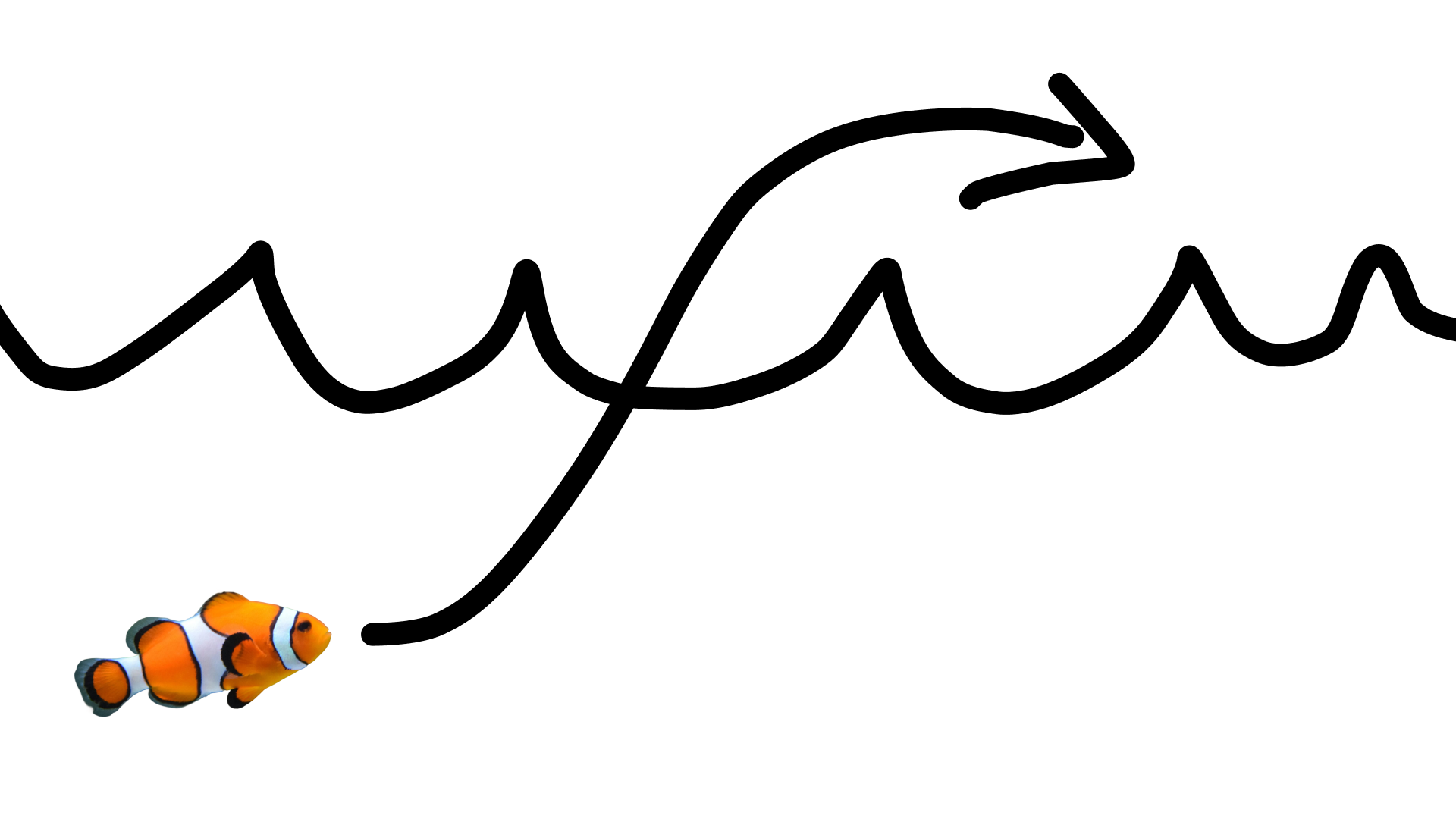
Với câu lệnh sau:
turn this into realistic footage, using the drawing only as a guide for movement, do not show the drawing in the final video
Python
import base64
from google import genai

client = genai.Client()

interaction = client.interactions.create(
    model="gemini-omni-1.1-eap",
    input=[
        {"type": "image", "data": base64_image, "mime_type": "image/jpeg"},
        {"type": "text", "text": "turn this into realistic footage, using the drawing only as a guide for movement, do not show the drawing in the final video"}
    ],
)
with open("clownfish.mp4", "wb") as f:
    f.write(base64.b64decode(interaction.output_video.data))
JavaScript
import { GoogleGenAI } from '@google/genai';
import * as fs from 'fs';
const ai = new GoogleGenAI({});

const interaction = await ai.interactions.create({
  model: 'gemini-omni-1.1-eap',
  input: [
    { type: 'image', data: base64Image, mime_type: 'image/jpeg' },
    { type: 'text', text: 'turn this into realistic footage, using the drawing only as a guide for movement, do not show the drawing in the final video' }
  ]
});

if (interaction.output_video?.data) {
  fs.writeFileSync('clownfish.mp4', Buffer.from(interaction.output_video.data, 'base64'));
}
REST
curl -X POST "https://generativelanguage.googleapis.com/v1beta/interactions?key=$API_KEY" \
-H "Content-Type: application/json" \
-d '{
 "model": "gemini-omni-1.1-eap",
 "input": [
   {"type": "image", "data": "'"$BASE64_IMAGE"'", "mime_type": "image/jpeg"},
   {"type": "text", "text": "turn this into realistic footage, using the drawing only as a guide for movement, do not show the drawing in the final video"}
 ]
}'
Tham chiếu đối tượng
Bạn có thể tạo một video có chứa các chủ đề cụ thể được cung cấp dưới dạng hình ảnh tham khảo. Ví dụ: mã sau đây cho biết cách cung cấp 2 hình ảnh về một con mèo và cuộn len để tạo video về con mèo đang chơi với cuộn len.
Python
import base64
from google import genai

client = genai.Client()

interaction = client.interactions.create(
    model="gemini-omni-1.1-eap",
    input=[
        {"type": "image", "data": cat_b64, "mime_type": "image/png"},
        {"type": "image", "data": yarn_b64, "mime_type": "image/png"},
        {"type": "text", "text": "A cat playfully batting at a ball of yarn."}
    ],
)
with open("cat.mp4", "wb") as f:
    f.write(base64.b64decode(interaction.output_video.data))
JavaScript
import { GoogleGenAI } from '@google/genai';
import * as fs from 'fs';
const ai = new GoogleGenAI({});

const interaction = await ai.interactions.create({
  model: 'gemini-omni-1.1-eap',
  input: [
    { type: 'image', data: catData, mime_type: 'image/png' },
    { type: 'image', data: yarnData, mime_type: 'image/png' },
    { type: 'text', text: 'A cat playfully batting at a ball of yarn.' }
  ]
});

if (interaction.output_video?.data) {
  fs.writeFileSync('cat.mp4', Buffer.from(interaction.output_video.data, 'base64'));
}
REST
curl -X POST "https://generativelanguage.googleapis.com/v1beta/interactions?key=$API_KEY" \
-H "Content-Type: application/json" \
-d '{
 "model": "gemini-omni-1.1-eap",
 "input": [
   {"type": "image", "data": "'"$CAT_B64"'", "mime_type": "image/png"},
   {"type": "image", "data": "'"$YARN_B64"'", "mime_type": "image/png"},
   {"type": "text", "text": "A cat playfully batting at a ball of yarn."}
 ]
}'
Tham số Tasks
Bạn có thể đặt tham số task trong video_config (không bắt buộc) trong generation_config để xác định rõ ràng tác vụ tạo. Nếu bạn không đặt chế độ này, mô hình sẽ tự động xác định chế độ phù hợp dựa trên câu lệnh và nội dung nghe nhìn đầu vào.
Sau đây là các giá trị task được hỗ trợ:
text_to_video: Tạo video chỉ bằng một câu lệnh văn bản.image_to_video: Tạo video từ một hoặc hai hình ảnh nguồn (khung hình bắt đầu và khung hình kết thúc không bắt buộc).reference_to_video: Tạo video bằng cách sử dụng nội dung nghe nhìn được cung cấp làm tài liệu tham khảo.edit: Sửa đổi một video hiện có.extend: Mở rộng một đoạn video hiện có.
Python
import base64
from google import genai

client = genai.Client()

interaction = client.interactions.create(
    model="gemini-omni-1.1-eap",
    input=[
        {"type": "image", "data": base64_image, "mime_type": "image/jpeg"},
        {"type": "text", "text": "turn this into realistic footage, using the drawing only as a guide for movement, do not show the drawing in the final video"}
    ],
    generation_config={
        "video_config": {
            "task": "image_to_video"
        }
    },
)
with open("example.mp4", "wb") as f:
    f.write(base64.b64decode(interaction.output_video.data))
JavaScript
import { GoogleGenAI } from "@google/genai";
import * as fs from 'fs';
const ai = new GoogleGenAI({});

const interaction = await ai.interactions.create({
  model: 'gemini-omni-1.1-eap',
  input: [
    { type: 'image', data: base64Image, mime_type: 'image/jpeg' },
    { type: 'text', text: 'turn this into realistic footage, using the drawing only as a guide for movement, do not show the drawing in the final video' }
  ],
  generationConfig: {
    videoConfig: {
      task: 'image_to_video',
    }
  }
});

if (interaction.output_video?.data) {
  fs.writeFileSync('example.mp4', Buffer.from(interaction.output_video.data, 'base64'));
}
REST
curl -X POST "https://generativelanguage.googleapis.com/v1beta/interactions?key=$API_KEY" \
  -H "Content-Type: application/json" \
  -d '{
    "model": "gemini-omni-1.1-eap",
    "input": [
      {
        "type": "image",
        "data": "'"$BASE64_IMAGE"'",
        "mime_type": "image/jpeg"
      },
      {
        "type": "text",
        "text": "turn this into realistic footage, using the drawing only as a guide for movement, do not show the drawing in the final video"
      }
    ],
    "generation_config": {
      "video_config": {
        "task": "image_to_video"
      }
    }
  }'
Nội suy khung hình chính
Tạo video liên tục chuyển đổi mượt mà giữa khung hình bắt đầu và khung hình kết thúc. Đây là lựa chọn lý tưởng cho các cảnh quay xoay quanh camera, hiệu ứng thu phóng, tiến trình tua nhanh thời gian và các đoạn video lặp lại liền mạch.
Cung cấp cả hai hình ảnh trong mảng đầu vào cùng với nội dung mô tả về chuyển động mong muốn:
Python
import base64
from google import genai

client = genai.Client()

interaction = client.interactions.create(
    model="gemini-omni-1.1-eap",
    input=[
        {"type": "image", "data": start_frame_b64, "mime_type": "image/png"},
        {"type": "image", "data": end_frame_b64, "mime_type": "image/png"},
        {
            "type": "text",
            "text": "Smooth continuous timelapse from sunrise to sunset over a mountain lake."
        }
    ],
    # The task parameter is optional. If omitted, the model automatically infers the mode.
    generation_config={
        "video_config": {
            "task": "image_to_video"
        }
    },
    response_format={"type": "video"}
)
with open("interpolated.mp4", "wb") as f:
    f.write(base64.b64decode(interaction.output_video.data))
JavaScript
import { GoogleGenAI } from '@google/genai';
import * as fs from 'fs';
const ai = new GoogleGenAI({});

const interaction = await ai.interactions.create({
  model: 'gemini-omni-1.1-eap',
  input: [
    { type: 'image', data: startFrameB64, mime_type: 'image/png' },
    { type: 'image', data: endFrameB64, mime_type: 'image/png' },
    {
      type: 'text',
      text: 'Smooth continuous timelapse from sunrise to sunset over a mountain lake.'
    }
  ],
  // The task parameter is optional. If omitted, the model automatically infers the mode.
  generationConfig: {
    videoConfig: {
      task: 'image_to_video',
    },
  },
  response_format: { type: 'video' }
});

if (interaction.output_video?.data) {
  fs.writeFileSync('interpolated.mp4', Buffer.from(interaction.output_video.data, 'base64'));
}
REST
curl -X POST "https://generativelanguage.googleapis.com/v1beta/interactions?key=$API_KEY" \
  -H "Content-Type: application/json" \
  -d '{
    "model": "gemini-omni-1.1-eap",
    "input": [
      {"type": "image", "data": "'"$START_FRAME_B64"'", "mime_type": "image/png"},
      {"type": "image", "data": "'"$END_FRAME_B64"'", "mime_type": "image/png"},
      {
        "type": "text",
        "text": "Smooth continuous timelapse from sunrise to sunset over a mountain lake."
      }
    ],
    "generation_config": {
      "video_config": {
        "task": "image_to_video"
      }
    },
    "response_format": {"type": "video"}
  }'
Chỉnh sửa video có trạng thái
Tạo video và chỉnh sửa video đó nhiều lần bằng các câu lệnh tiếp theo. Mỗi lượt đều dựa trên kết quả trước đó. Mô hình này ghi nhớ bối cảnh video, áp dụng các thay đổi của bạn trong khi vẫn giữ nguyên những phần tử mà bạn không đề cập đến. Sử dụng previous_interaction_id để theo dõi lịch sử cuộc trò chuyện và trạng thái video đã tạo mà không cần tải lại video trước đó.
Ví dụ sau đây minh hoạ cách tạo video đầu tiên rồi chỉnh sửa video đó:
Python
import base64
from google import genai

client = genai.Client()

# Turn 1: Generate initial video
res1 = client.interactions.create(model="gemini-omni-1.1-eap", input="A woman playing violin outdoors.")

# Turn 2: Edit the previous video
res2 = client.interactions.create(
    model="gemini-omni-1.1-eap",
    previous_interaction_id=res1.id,
    input="Make the violin invisible."
)
with open("example.mp4", "wb") as f:
    f.write(base64.b64decode(res2.output_video.data))
JavaScript
import { GoogleGenAI } from '@google/genai';
import * as fs from 'fs';
const ai = new GoogleGenAI({});

// Turn 1: Generate initial video
const res1 = await ai.interactions.create({
  model: 'gemini-omni-1.1-eap',
  input: 'A woman playing violin outdoors.',
});

// Turn 2: Edit the previous video
const res2 = await ai.interactions.create({
  model: 'gemini-omni-1.1-eap',
  previous_interaction_id: res1.id,
  input: 'Make the violin invisible.',
});

if (res2.output_video?.data) {
  fs.writeFileSync('example.mp4', Buffer.from(res2.output_video.data, 'base64'));
}
REST
curl -X POST "https://generativelanguage.googleapis.com/v1beta/interactions?key=$API_KEY" \
-H "Content-Type: application/json" \
-d '{
 "model": "gemini-omni-1.1-eap",
 "previous_interaction_id": "'"$PREVIOUS_ID"'",
 "input": "Make the violin invisible."
}'
Ví dụ về video ban đầu:
Ví dụ về video đã chỉnh sửa:
Mỗi lượt trò chuyện sẽ tạo ra một video mới. Mô hình này hiểu được ngữ cảnh từ các lượt tương tác trước đó, cho phép bạn thực hiện các thay đổi gia tăng như điều chỉnh ánh sáng và thay đổi phông nền mà không cần mô tả lại toàn bộ cảnh.
Chỉnh sửa video của chính bạn
Tải video lên bằng Files API để chỉnh sửa bằng Gemini Omni Flash 1.1.
Ví dụ sau đây minh hoạ cách chỉnh sửa video gốc sau đây:
Python
import time
import base64
from google import genai

client = genai.Client()

# Upload video using the file API
video_file = client.files.upload(file="Video.mp4")

while video_file.state == "PROCESSING":
    print('Waiting for video to be processed.')
    time.sleep(10)
    video_file = client.files.get(name=video_file.name)

if video_file.state == "FAILED":
  raise ValueError(video_file.state)
print(f'Video processing complete: ' + video_file.uri)

# Edit your video
interaction = client.interactions.create(
    model="gemini-omni-1.1-eap",
    input=[
        {"type": "document", "uri": video_file.uri},
        {"type": "text", "text": "When the person touches the mirror, make the mirror ripple beautifully like liquid, and the person's arm turns into reflective mirror material"}
    ],
)
with open("example.mp4", "wb") as f:
    f.write(base64.b64decode(interaction.output_video.data))
JavaScript
import { GoogleGenAI } from '@google/genai';
import * as fs from 'fs';
const ai = new GoogleGenAI({});

// Upload video using the file API
let videoFile = await ai.files.upload({
  file: 'Video.mp4',
});

while (videoFile.state === 'PROCESSING') {
  console.log('Waiting for video to be processed.');
  await new Promise(r => setTimeout(r, 10000));
  videoFile = await ai.files.get({ name: videoFile.name });
}

if (videoFile.state === 'FAILED') {
  throw new Error(videoFile.state);
}
console.log('Video processing complete: ' + videoFile.uri);

# Edit your video
const interaction = await ai.interactions.create({
  model: 'gemini-omni-1.1-eap',
  input: [
    { type: 'document', uri: videoFile.uri },
    { type: 'text', text: "When the person touches the mirror, make the mirror ripple beautifully like liquid, and the person's arm turns into reflective mirror material" }
  ],
});

if (interaction.output_video?.data) {
  fs.writeFileSync('example.mp4', Buffer.from(interaction.output_video.data, 'base64'));
}
REST
curl -X POST "https://generativelanguage.googleapis.com/v1beta/interactions?key=$API_KEY" \
  -H "Content-Type: application/json" \
  -d '{
    "model": "gemini-omni-1.1-eap",
    "input": [
      {
        "type": "video",
        "data": "'"$VIDEO_B64"'",
        "mime_type": "video/mp4"
      },
      {
        "type": "text",
        "text": "When the person touches the mirror, make the mirror ripple beautifully like liquid, and the person arm turns into reflective mirror material"
      }
    ]
  }'
Ví dụ về video đã chỉnh sửa:
Phần mở rộng cảnh
Mở rộng các đoạn video hiện có bằng cách sử dụng bối cảnh trước đó. Gemini Omni Flash 1.1 phân tích chuyển động và bố cục cảnh trước đó để duy trì tính liên tục, nhận dạng nhân vật và ánh sáng môi trường trong toàn bộ cảnh mở rộng.
Python
import base64
from google import genai

client = genai.Client()

# Extend from a previous interaction ID
# The task parameter is optional. If omitted, the model automatically infers the mode.
extended = client.interactions.create(
    model="gemini-omni-1.1-eap",
    previous_interaction_id=res1.id,
    input="Continue the shot: the woman finishes the violin solo and takes a bow.",
    generation_config={
        "video_config": {
            "task": "extend"
        }
    },
    response_format={"type": "video"}
)
with open("extended.mp4", "wb") as f:
    f.write(base64.b64decode(extended.output_video.data))
JavaScript
import { GoogleGenAI } from '@google/genai';
import * as fs from 'fs';
const ai = new GoogleGenAI({});

// The task parameter is optional. If omitted, the model automatically infers the mode.
const extended = await ai.interactions.create({
  model: 'gemini-omni-1.1-eap',
  previous_interaction_id: res1.id,
  input: 'Continue the shot: the woman finishes the violin solo and takes a bow.',
  generationConfig: {
    videoConfig: {
      task: 'extend',
    },
  },
  response_format: { type: 'video' },
});

if (extended.output_video?.data) {
  fs.writeFileSync('extended.mp4', Buffer.from(extended.output_video.data, 'base64'));
}
REST
curl -X POST "https://generativelanguage.googleapis.com/v1beta/interactions?key=$API_KEY" \
  -H "Content-Type: application/json" \
  -d '{
    "model": "gemini-omni-1.1-eap",
    "previous_interaction_id": "'"$PREVIOUS_ID"'",
    "input": "Continue the shot: the woman finishes the violin solo and takes a bow.",
    "generation_config": {
      "video_config": {
        "task": "extend"
      }
    },
    "response_format": {
      "type": "video"
    }
  }'
Truy xuất video bằng URI
Sử dụng tham số delivery="uri" trong response_format để truy xuất những video được tạo có kích thước lớn hơn 4 MB.
Thao tác này trả về một URI do Google lưu trữ mà bạn có thể thăm dò cho đến khi video ở trạng thái ACTIVE trước khi tải xuống.
Python
import time
from google import genai

client = genai.Client()

# 1. Request video via URI delivery
interaction = client.interactions.create(
    model="gemini-omni-1.1-eap",
    input="A beautiful sunset.",
    response_format={"type": "video", "delivery": "uri"}
)

# 2. Extract file name and poll for ACTIVE state
video_output = interaction.output_video
file_name = video_output.uri.split("/")[-1] # Extract ID

print("Waiting for video processing...")
while True:
    f_info = client.files.get(name=f"files/{file_name}")
    if f_info.state.name == "ACTIVE":
        break
    elif f_info.state.name == "FAILED":
        raise RuntimeError("Generation failed.")
    time.sleep(5)

# 3. Download the final video
video_bytes = client.files.download(file=video_output.uri)
with open("output.mp4", "wb") as f:
    f.write(video_bytes)
JavaScript
import { GoogleGenAI } from '@google/genai';
const ai = new GoogleGenAI({});

// 1. Request video via URI delivery
const interaction = await ai.interactions.create({
  model: 'gemini-omni-1.1-eap',
  input: 'A beautiful sunset.',
  response_format: { type: 'video', delivery: 'uri' },
});

// 2. Extract file name and poll for ACTIVE state
const videoOutput = interaction.output_video;
const fileId = videoOutput.uri.match(/files\/([a-zA-Z0-9]+)/)[1];
const name = `files/${fileId}`;

console.log("Waiting for video processing...");
while (true) {
  const fInfo = await ai.files.get({ name });
  if (fInfo.state.name === 'ACTIVE') break;
  if (fInfo.state.name === 'FAILED') throw new Error("Generation failed.");
  await new Promise(r => setTimeout(r, 5000));
}

// 3. Download the final video
await ai.files.download({
  file: videoOutput,
  downloadPath: 'output.mp4',
});
console.log("Saved video to output.mp4");
REST
#!/bin/bash

# 1. Initial request to generate the video
RESPONSE=$(curl -s -X POST "https://generativelanguage.googleapis.com/v1beta/interactions?key=$API_KEY" \
-H "Content-Type: application/json" \
-d '{
 "model": "gemini-omni-1.1-eap",
 "input": "A beautiful sunset over a calm ocean.",
 "response_format": {"type": "video", "delivery": "uri"}
}')

# Extract FILE_ID from the URI (e.g., "files/abc-123" -> "abc-123")
FILE_URI=$(echo $RESPONSE | jq -r '.output_video.uri')
FILE_ID=$(echo $FILE_URI | cut -d'/' -f2)

echo "Video requested (ID: $FILE_ID). Waiting for processing..."

# 2. Polling loop
while true; do
 # Get current file status
 STATUS_JSON=$(curl -s -X GET "https://generativelanguage.googleapis.com/v1beta/files/$FILE_ID?key=$API_KEY")
 STATE=$(echo $STATUS_JSON | jq -r '.state')

 if [ "$STATE" == "ACTIVE" ]; then
   echo "Processing complete! Downloading..."
   break
 elif [ "$STATE" == "FAILED" ]; then
   echo "Error: Generation failed."
   exit 1
 else
   echo "Current state: $STATE... (waiting 5s)"
   sleep 5
 fi
done

# 3. Final download
curl -L -X GET "https://generativelanguage.googleapis.com/v1beta/files/$FILE_ID:download?alt=media&key=$API_KEY" \
--output "output.mp4"

echo "Done! Video saved to output.mp4"
Cấu trúc JSON REST thô (URI):
{
  "steps": [
    { "type": "user_input", "content": [{"type": "text", "text": "..."}] },
    { "type": "thought", "content": [{"text": "...", "type": "thought"}] },
    {
      "type": "model_output",
      "content": [
        {
          "type": "video",
          "mime_type": "video/mp4",
          "uri": "https://generativelanguage.googleapis.com/v1beta/files/...:download?alt=media"
        }
      ]
    }
  ],
  "id": "v1_...",
  "status": "completed",
  "model": "gemini-omni-1.1-eap",
  "object": "interaction"
}
Các phương pháp hay nhất
- Sử dụng phương thức phân phối URI cho video có kích thước lớn: Đối với video có kích thước lớn hơn 4 MB (>720p khi có thể), hãy sử dụng
delivery="uri"trongresponse_formatđể tránh giới hạn về kích thước tải trọng. - Tối ưu hoá hiệu suất: Đặt
background=false,store=falsevàstream=falseđể tạo số một ngôi nhanh hơn, đồng bộ. Xin lưu ý rằng chế độ cài đặtstore=falsecó nghĩa là bạn sẽ không thể chỉnh sửa video đã tạo trong các lượt tiếp theo bằngprevious_interaction_id. - Độ chính xác của câu lệnh: Xem phần hướng dẫn về câu lệnh để biết thông tin chi tiết.
Các điểm hạn chế
- Chúng tôi không hỗ trợ việc tải lên và chỉnh sửa hình ảnh có trẻ vị thành niên ở Khu vực kinh tế Châu Âu, Thuỵ Sĩ và Vương quốc Anh.
- Chúng tôi không hỗ trợ việc tải lên và chỉnh sửa hình ảnh có chứa một số người có thể nhận dạng được.
- Tính năng chỉnh sửa video đã tải lên hiện chưa được cung cấp cho người dùng ở Khu vực kinh tế Châu Âu (EEA), Thuỵ Sĩ và Vương quốc Anh (chúng tôi có hỗ trợ chỉnh sửa video do mô hình tạo).
- Phiên bản API hiện tại không hỗ trợ việc tải các tệp âm thanh tham chiếu lên.
- Lược trích video có thời lượng tối đa 3 giây được chấp nhận theo giản đồ API nhưng hiện không được mô hình xử lý đúng cách.
- Không hỗ trợ việc tham chiếu hoặc suy luận trên nhiều video. Việc thử tạo câu lệnh cho nhiều video có thể làm giảm hiệu suất của mô hình hoặc tạo ra kết quả không mong muốn.
- Không hỗ trợ tiện ích video và tính năng nội suy video (tạo video giữa khung hình đầu tiên và khung hình cuối cùng).
- Không hỗ trợ chỉnh sửa bằng giọng nói.
- Không hỗ trợ thông lượng được cung cấp.
- Không được hỗ trợ chỉ dẫn cho hệ thống, nhiệt độ,
top_p, chuỗi dừng và câu lệnh phủ định (bạn có thể đặt câu lệnh phủ định vào câu lệnh thông thường: ví dụ: "Đừng làm X"). - Không hỗ trợ việc sử dụng video trên YouTube làm nguồn nội dung nghe nhìn.
Chi tiết kỹ thuật
- Tất cả video được tạo đều có hình mờ SynthID. Người xem không nhìn thấy hình mờ này nhưng hệ thống có thể phát hiện được để xác minh nguồn gốc.
- Thời gian tạo video sẽ khác nhau tuỳ thuộc vào thời lượng, độ phân giải và mức tải API hiện tại. Video có thời lượng dài hơn và độ phân giải cao hơn sẽ mất nhiều thời gian hơn để tạo.
- Bộ lọc an toàn cho nội dung được áp dụng cho cả câu lệnh đầu vào và video được tạo (và tuỳ thuộc vào khu vực của bạn). Những câu lệnh vi phạm chính sách sử dụng sẽ bị chặn.
- Tiếng Anh (EN) được hỗ trợ đầy đủ, nhưng các ngôn ngữ khác chưa được đánh giá, vì vậy, các ngôn ngữ này có thể hoạt động nhưng kết quả có thể khác nhau.
Hướng dẫn về câu lệnh cho Gemini Omni Flash
Phần này chứa các mẹo và ví dụ về cách đưa ra câu lệnh hiệu quả cho Gemini Omni Flash.
Một cảnh
Theo mặc định, Omni Flash sẽ cố gắng tạo một video có một số cảnh khác nhau. Công cụ này sẽ cố gắng tạo ra một câu chuyện thú vị dựa trên câu lệnh.
Nếu cần video đầu ra chứa một cảnh duy nhất, bạn phải đưa ra câu lệnh cho cảnh đó:
- Trong một cảnh duy nhất không bị gián đoạn
- Trong một cảnh quay liền mạch
- Không có cảnh cắt
Ví dụ:
Continuous, unbroken handheld shot of a fluffy tabby cat sitting on a sunny windowsill, looking out into a leafy garden. The cat's tail twitches slowly, and its ears rotate slightly toward ambient noises. Sunbeams illuminate dust motes in the air. Sound design: Gentle breeze, distant bird chirps. No dialogue.
Xoá các phần tử không mong muốn
Nếu video được tạo có những nội dung bạn không muốn, hãy thêm các câu lệnh phủ định đơn giản để tránh những nội dung đó:
- Không có lời thoại
- Không có thông tin bổ sung
- Không có hiệu ứng âm thanh bổ sung
Lời nhắc chỉnh sửa
Câu lệnh đơn giản sẽ cho kết quả tốt nhất khi chỉnh sửa video. Câu lệnh mô tả quá chi tiết có thể dẫn đến những thay đổi ngoài ý muốn.
Sau đây là một số ví dụ khác về câu lệnh chỉnh sửa đơn giản:
- Biến video này thành hoạt hình Nhật Bản
- Đội cho người này một chiếc mũ thời trang
- Thay đổi ánh sáng để tạo cảm giác kịch tính hơn
- Thay đổi văn bản trên biển báo thành "Omni Flash"
Khi chỉnh sửa một khía cạnh cụ thể của video, hãy thêm "Keep everything else the same" để duy trì tính nhất quán về hình ảnh.
Sau đây là một số ví dụ minh hoạ cách áp dụng kỹ thuật này:
- Tránh:
In the video of the man sitting on the sofa, please add a small black cat that runs from the right side of the screen, jumps onto his lap, and then he starts to stroke its head while looking down.- Đơn giản hoá:
Add a cat that jumps onto his lap, he begins to pet it.
Keep everything else the same.
- Đơn giản hoá:
- Tránh:
Please remove the cell phone that the person is holding in their hand and fill in the background so it looks like they are just holding their hand empty.- Đơn giản hoá:
Make the phone invisible. Keep everything else the
same.
- Đơn giản hoá:
Tạo câu lệnh cho âm thanh
Theo mặc định, mô hình này sẽ cố gắng tạo một bản âm thanh phù hợp cho video. Đây có thể không phải là điều bạn muốn. Bạn có thể dùng câu lệnh để mô tả loại âm thanh bạn muốn. Điều này đặc biệt quan trọng nếu bạn muốn có nhạc trong video:
- Thêm nhạc nền êm dịu
- Video có nhịp điệu techno sôi động
- Âm thanh là một bản phát sóng radio có âm lượng nhỏ và chói tai ở chế độ nền, đang phát một bài hát
Sự kiện về thời gian
Bạn có thể yêu cầu những việc xảy ra vào những thời điểm cụ thể trong video, không cần cú pháp chính xác và bạn có thể sử dụng ngôn ngữ tự nhiên. Điều này đặc biệt hữu ích khi bạn tạo các cảnh cắt, nhịp điệu hoặc chuỗi cảnh bắn nhanh của riêng mình. Hãy xem các ví dụ sau:
- Sau 3 giây, một người phụ nữ xuất hiện.
- Điệp khúc bắt đầu ở giây thứ 5 trong âm thanh nền.
- Cứ 2 giây lại chuyển sang một khung hình mới.
- Trong một chuỗi cảnh quay nhanh, cứ nửa giây (12 khung hình ở tốc độ 24 khung hình/giây), hãy thay đổi cảnh sang một vị trí mới.
Bạn cũng có thể sử dụng cú pháp mã thời gian:
[0-3s] A person is walking
[3-6s] They stop and turn around
[6-10s] They start running
Đặt siêu câu lệnh
Bạn có thể yêu cầu Gemini Omni Flash chú ý đến các phẩm chất hoặc nguyên tắc chung khi tạo video:
- Hãy cân nhắc chi tiết nhỏ, biểu cảm và thời gian để tạo ra một cảnh quay rất phong phú, chi tiết nhưng hoàn toàn tự nhiên.
- Mô tả nhân vật và môi trường một cách cực kỳ chi tiết. Áp dụng các nguyên tắc thiết kế trang phục cho nhân vật. Mô tả thật cụ thể về người, vật phẩm và đối tượng trong cảnh.
- Thêm nhiều chi tiết phù hợp vào các phần tử nền để cảnh trông chân thực và tự nhiên.
- Tạo một video có nhịp độ nhanh, trong đó cứ 1 giây sẽ xuất hiện một
[thing]hiếm gặp khác, nhạc vui nhộn và văn bản để gắn nhãn cho vật thể.
Văn bản trong video
Bạn có thể đưa ra câu lệnh để thêm văn bản vào video và Gemini Omni sẽ hiển thị văn bản theo cách chính xác và dễ đọc. Nếu video của bạn có văn bản xuất hiện tự nhiên, ngay cả trong các phần tử nền, thì bạn có thể xác định nội dung mà văn bản đó nên nói.
- Mỗi lần một từ trên màn hình: "did, you, know, that, Omni, can, do, awesome, text?" (bạn, có, biết, rằng, Omni, có, thể, tạo, văn, bản, tuyệt, vời, không?) Mỗi từ xuất hiện trong 1 giây với một kiểu hoạt hoạ riêng. Không có lời thoại.
- Có một biển báo đường phố có nội dung: "Đây là nội dung do AI tạo bằng Omni", có một mặt tiền cửa hàng có nội dung: "AI đáp ứng mọi nhu cầu của bạn", có một chiếc ô tô có biển số: "OMN111"
Sử dụng thẻ trong câu lệnh để đặt vai trò cho hình ảnh
Bạn có thể dùng thẻ để liên kết nội dung nghe nhìn đã tải lên với các vai trò tạo sinh cụ thể. Điều này cho phép bạn chỉ định xem mỗi hình ảnh là khung hình ban đầu hay khung hình tham chiếu.
<FIRST_FRAME>: dùng hình ảnh làm khung hình bắt đầu của video, ví dụ:<FIRST_FRAME> a woman is walking<IMAGE_REF_N>: sử dụng hình ảnh làm tài liệu tham khảo, ví dụ:in the style of <IMAGE_REF_0> a woman <IMAGE_REF_1> is walking(kết hợp tài liệu tham khảo về phong cách từ hình ảnh đầu tiên và tài liệu tham khảo về chủ đề từ hình ảnh thứ hai). Ảnh tham chiếu bắt đầu từ 0.
Sau đây là ví dụ về hình ảnh tham chiếu:
[0-3s] A studio fashion sequence. Starting with woman <IMAGE_REF_0>, she is holding <IMAGE_REF_1>
[3-6s] Then we see the man <IMAGE_REF_2> holding <IMAGE_REF_3>
[6-10s] And finally another woman <IMAGE_REF_4> who is holding <IMAGE_REF_5> while walking.
Bước tiếp theo
- Bắt đầu dùng Gemini Omni Flash bằng cách thử nghiệm trong Omni Quickstart Colab.
- Tìm hiểu cách viết câu lệnh hiệu quả hơn nữa qua bài viết Giới thiệu về thiết kế câu lệnh.