

Gemini Omni Flash 1.1 (gemini-omni-1.1-eap) 是一款高性能多模态模型,专为高速视频生成、编辑和电影级控制而设计。Gemini Omni Flash 1.1 完全取代了之前的 Gemini Omni Flash 版本,可提供更高的生成质量、原生多模态功能和有状态视频编辑功能:
- 原生多模态:可同时处理文本、图片、音频和视频,为您提供更连贯、一致且可控的输出。
- 对话式编辑:通过 Interactions API 实现,让您可以通过自然语言对话迭代优化和编辑视频。描述您想要更改的内容,模型会应用相应编辑,同时保留您想要保留的视频部分。
- 世界知识:Gemini Omni 将对物理的理解与 Gemini 在历史、科学和文化背景方面的知识相结合,弥合了从照片写实主义到有意义的故事讲述之间的差距。
文生视频
根据文本提示生成视频。模型会根据您的文字说明生成包含音频的视频。撰写提示时,请添加场景描述、镜头移动、光效和氛围等详细信息,以便获得最佳效果。
Python
import base64
from google import genai

client = genai.Client()

interaction = client.interactions.create(
    model="gemini-omni-1.1-eap",
    input="A marble rolling fast on a chain reaction style track, continuous smooth shot."
)
with open("marble.mp4", "wb") as f:
    f.write(base64.b64decode(interaction.output_video.data))
JavaScript
import { GoogleGenAI } from '@google/genai';
import * as fs from 'fs';
const ai = new GoogleGenAI({});

const interaction = await ai.interactions.create({
  model: 'gemini-omni-1.1-eap',
  input: 'A marble rolling fast on a chain reaction style track, continuous smooth shot.',
});

if (interaction.output_video?.data) {
  fs.writeFileSync('marble.mp4', Buffer.from(interaction.output_video.data, 'base64'));
}
REST
curl -X POST "https://generativelanguage.googleapis.com/v1beta/interactions?key=$API_KEY" \
-H "Content-Type: application/json" \
-d '{
 "model": "gemini-omni-1.1-eap",
 "input": "A marble rolling fast on a chain reaction style track, continuous smooth shot."
}'
REST 响应 schema
便捷字段 interaction.output_video 仅适用于 SDK。
直接使用 REST API 时,从 steps 数组获取视频输出。
原始 REST JSON 结构:
{
  "steps": [
    { "type": "user_input", "content": [{"type": "text", "text": "..."}] },
    { "type": "thought", "content": [{"text": "...", "type": "thought"}] },
    {
      "type": "model_output",
      "content": [
        {
          "type": "video",
          "mime_type": "video/mp4",
          "data": "AAAAIGZ0eXBpc29t..." // Base64 encoded video data
        }
      ]
    }
  ],
  "id": "v1_...",
  "status": "completed",
  "model": "gemini-omni-1.1-eap",
  "object": "interaction"
}
控制宽高比
将aspect_ratio设置为 "9:16",即可创建竖屏视频。横向 (16:9) 是默认值。
Python
import base64
from google import genai

client = genai.Client()

interaction = client.interactions.create(
    model="gemini-omni-1.1-eap",
    input="A futuristic city with neon lights and flying cars, cyberpunk style",
    response_format={
        "type": "video",  # optional
        "aspect_ratio": "9:16"  # Supported values: "9:16", "16:9"
    }
)
with open("example.mp4", "wb") as f:
    f.write(base64.b64decode(interaction.output_video.data))
JavaScript
import { GoogleGenAI } from '@google/genai';
import * as fs from 'fs';
const ai = new GoogleGenAI({});

const interaction = await ai.interactions.create({
  model: 'gemini-omni-1.1-eap',
  input: 'A futuristic city with neon lights and flying cars, cyberpunk style',
  response_format: {
    type: 'video', // optional
    aspect_ratio: '9:16' // Supported values: '9:16', '16:9'
  },
});

if (interaction.output_video?.data) {
  fs.writeFileSync('example.mp4', Buffer.from(interaction.output_video.data, 'base64'));
}
REST
curl -X POST "https://generativelanguage.googleapis.com/v1beta/interactions?key=$API_KEY" \
-H "Content-Type: application/json" \
-d '{
 "model": "gemini-omni-1.1-eap",
 "input": "A futuristic city with neon lights and flying cars, cyberpunk style",
 "response_format": {
   "type": "video",
   "aspect_ratio": "9:16"
 }
}'
分辨率控制
360p 草稿模式
在 response_format 中使用 resolution: "360p" 可生成轻量级预览片段,速度大约快 2 倍,同时减少 token 消耗。
Python
interaction = client.interactions.create(
    model="gemini-omni-1.1-eap",
    input="A robotic dog exploring a lush enchanted forest.",
    response_format={
        "type": "video",
        "resolution": "360p",
        "aspect_ratio": "16:9"
    }
)
JavaScript
import { GoogleGenAI } from '@google/genai';
const ai = new GoogleGenAI({});

const interaction = await ai.interactions.create({
  model: 'gemini-omni-1.1-eap',
  input: 'A robotic dog exploring a lush enchanted forest.',
  response_format: {
    type: 'video',
    resolution: '360p',
    aspect_ratio: '16:9',
  },
});
REST
curl -X POST "https://generativelanguage.googleapis.com/v1beta/interactions?key=$API_KEY" \
  -H "Content-Type: application/json" \
  -d '{
    "model": "gemini-omni-1.1-eap",
    "input": "A robotic dog exploring a lush enchanted forest.",
    "response_format": {
      "type": "video",
      "resolution": "360p",  # Supported values: "360p", "720p", "1080p", "4k"
      "aspect_ratio": "16:9"
    }
  }'
高分辨率(1080p 和 4K)
在 response_format 中将 resolution 设置为 "1080p" 或 "4k",即可生成清晰的高分辨率视频。
Python
interaction = client.interactions.create(
    model="gemini-omni-1.1-eap",
    input="A cinematic drone shot through misty pine mountains at sunrise.",
    response_format={
        "type": "video",
        "resolution": "1080p",  # Supported values: "360p", "720p", "1080p", "4k"
        "delivery": "uri"
    }
)
JavaScript
import { GoogleGenAI } from '@google/genai';
const ai = new GoogleGenAI({});

const interaction = await ai.interactions.create({
  model: 'gemini-omni-1.1-eap',
  input: 'A cinematic drone shot through misty pine mountains at sunrise.',
  response_format: {
    type: 'video',
    resolution: '1080p', // Supported values: '360p', '720p', '1080p', '4k'
    delivery: 'uri',
  },
});
REST
curl -X POST "https://generativelanguage.googleapis.com/v1beta/interactions?key=$API_KEY" \
  -H "Content-Type: application/json" \
  -d '{
    "model": "gemini-omni-1.1-eap",
    "input": "A cinematic drone shot through misty pine mountains at sunrise.",
    "response_format": {
      "type": "video",
      "resolution": "1080p",
      "delivery": "uri"
    }
  }'
图片转视频生成
您可以在文本提示中提供参考图片。模型会根据您的提示决定如何使用图片,从而使产品照片、插图或照片栩栩如生。
以下示例展示了如何使用鱼跃出水面的绘画参考图片:
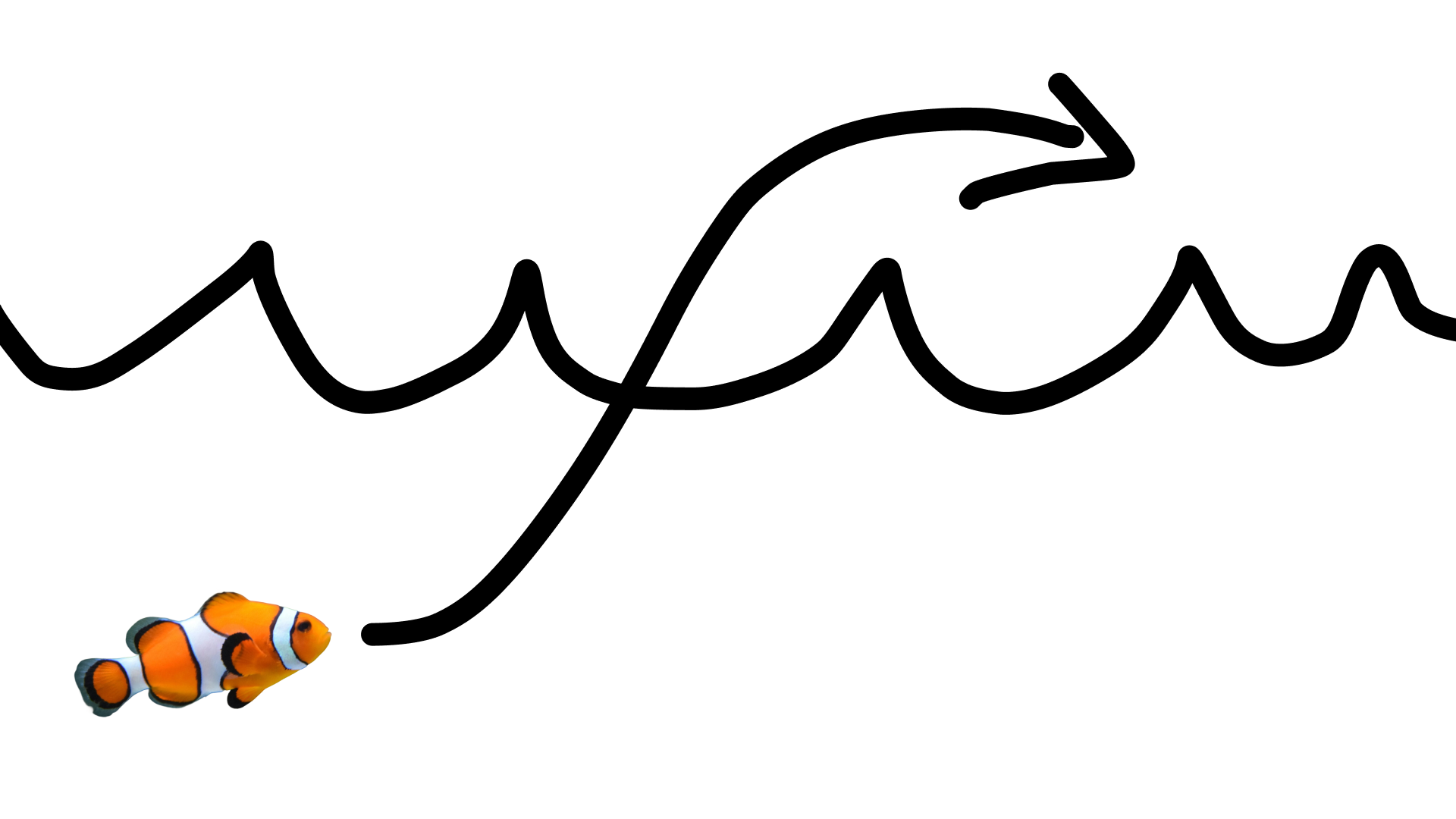
使用以下提示:
turn this into realistic footage, using the drawing only as a guide for movement, do not show the drawing in the final video
Python
import base64
from google import genai

client = genai.Client()

interaction = client.interactions.create(
    model="gemini-omni-1.1-eap",
    input=[
        {"type": "image", "data": base64_image, "mime_type": "image/jpeg"},
        {"type": "text", "text": "turn this into realistic footage, using the drawing only as a guide for movement, do not show the drawing in the final video"}
    ],
)
with open("clownfish.mp4", "wb") as f:
    f.write(base64.b64decode(interaction.output_video.data))
JavaScript
import { GoogleGenAI } from '@google/genai';
import * as fs from 'fs';
const ai = new GoogleGenAI({});

const interaction = await ai.interactions.create({
  model: 'gemini-omni-1.1-eap',
  input: [
    { type: 'image', data: base64Image, mime_type: 'image/jpeg' },
    { type: 'text', text: 'turn this into realistic footage, using the drawing only as a guide for movement, do not show the drawing in the final video' }
  ]
});

if (interaction.output_video?.data) {
  fs.writeFileSync('clownfish.mp4', Buffer.from(interaction.output_video.data, 'base64'));
}
REST
curl -X POST "https://generativelanguage.googleapis.com/v1beta/interactions?key=$API_KEY" \
-H "Content-Type: application/json" \
-d '{
 "model": "gemini-omni-1.1-eap",
 "input": [
   {"type": "image", "data": "'"$BASE64_IMAGE"'", "mime_type": "image/jpeg"},
   {"type": "text", "text": "turn this into realistic footage, using the drawing only as a guide for movement, do not show the drawing in the final video"}
 ]
}'
主题参考
您可以生成包含参考图片中提供的特定主题的视频。 例如,以下代码展示了如何提供 2 张猫和毛线的图片,以生成猫玩毛线的视频。
Python
import base64
from google import genai

client = genai.Client()

interaction = client.interactions.create(
    model="gemini-omni-1.1-eap",
    input=[
        {"type": "image", "data": cat_b64, "mime_type": "image/png"},
        {"type": "image", "data": yarn_b64, "mime_type": "image/png"},
        {"type": "text", "text": "A cat playfully batting at a ball of yarn."}
    ],
)
with open("cat.mp4", "wb") as f:
    f.write(base64.b64decode(interaction.output_video.data))
JavaScript
import { GoogleGenAI } from '@google/genai';
import * as fs from 'fs';
const ai = new GoogleGenAI({});

const interaction = await ai.interactions.create({
  model: 'gemini-omni-1.1-eap',
  input: [
    { type: 'image', data: catData, mime_type: 'image/png' },
    { type: 'image', data: yarnData, mime_type: 'image/png' },
    { type: 'text', text: 'A cat playfully batting at a ball of yarn.' }
  ]
});

if (interaction.output_video?.data) {
  fs.writeFileSync('cat.mp4', Buffer.from(interaction.output_video.data, 'base64'));
}
REST
curl -X POST "https://generativelanguage.googleapis.com/v1beta/interactions?key=$API_KEY" \
-H "Content-Type: application/json" \
-d '{
 "model": "gemini-omni-1.1-eap",
 "input": [
   {"type": "image", "data": "'"$CAT_B64"'", "mime_type": "image/png"},
   {"type": "image", "data": "'"$YARN_B64"'", "mime_type": "image/png"},
   {"type": "text", "text": "A cat playfully batting at a ball of yarn."}
 ]
}'
任务参数
您可以选择在 generation_config 下的 video_config 中设置 task 参数,以明确定义生成任务。如果未设置,模型会根据提示和输入媒体自动确定合适的模式。
支持的 task 值包括:
text_to_video:仅根据文本提示生成视频。image_to_video:根据一张或两张源图片(起始帧和可选的结束帧)生成视频。reference_to_video:使用提供的媒体作为参考来生成视频。edit:修改现有视频。extend:延长现有视频片段。
Python
import base64
from google import genai

client = genai.Client()

interaction = client.interactions.create(
    model="gemini-omni-1.1-eap",
    input=[
        {"type": "image", "data": base64_image, "mime_type": "image/jpeg"},
        {"type": "text", "text": "turn this into realistic footage, using the drawing only as a guide for movement, do not show the drawing in the final video"}
    ],
    generation_config={
        "video_config": {
            "task": "image_to_video"
        }
    },
)
with open("example.mp4", "wb") as f:
    f.write(base64.b64decode(interaction.output_video.data))
JavaScript
import { GoogleGenAI } from "@google/genai";
import * as fs from 'fs';
const ai = new GoogleGenAI({});

const interaction = await ai.interactions.create({
  model: 'gemini-omni-1.1-eap',
  input: [
    { type: 'image', data: base64Image, mime_type: 'image/jpeg' },
    { type: 'text', text: 'turn this into realistic footage, using the drawing only as a guide for movement, do not show the drawing in the final video' }
  ],
  generationConfig: {
    videoConfig: {
      task: 'image_to_video',
    }
  }
});

if (interaction.output_video?.data) {
  fs.writeFileSync('example.mp4', Buffer.from(interaction.output_video.data, 'base64'));
}
REST
curl -X POST "https://generativelanguage.googleapis.com/v1beta/interactions?key=$API_KEY" \
  -H "Content-Type: application/json" \
  -d '{
    "model": "gemini-omni-1.1-eap",
    "input": [
      {
        "type": "image",
        "data": "'"$BASE64_IMAGE"'",
        "mime_type": "image/jpeg"
      },
      {
        "type": "text",
        "text": "turn this into realistic footage, using the drawing only as a guide for movement, do not show the drawing in the final video"
      }
    ],
    "generation_config": {
      "video_config": {
        "task": "image_to_video"
      }
    }
  }'
关键帧插值
生成从起始帧到结束帧平滑过渡的连续视频。此功能非常适合用于拍摄相机环绕、变焦效果、延时进展和无缝循环播放的片段。
在输入数组中提供两张图片,并附上所需动态效果的说明:
Python
import base64
from google import genai

client = genai.Client()

interaction = client.interactions.create(
    model="gemini-omni-1.1-eap",
    input=[
        {"type": "image", "data": start_frame_b64, "mime_type": "image/png"},
        {"type": "image", "data": end_frame_b64, "mime_type": "image/png"},
        {
            "type": "text",
            "text": "Smooth continuous timelapse from sunrise to sunset over a mountain lake."
        }
    ],
    # The task parameter is optional. If omitted, the model automatically infers the mode.
    generation_config={
        "video_config": {
            "task": "image_to_video"
        }
    },
    response_format={"type": "video"}
)
with open("interpolated.mp4", "wb") as f:
    f.write(base64.b64decode(interaction.output_video.data))
JavaScript
import { GoogleGenAI } from '@google/genai';
import * as fs from 'fs';
const ai = new GoogleGenAI({});

const interaction = await ai.interactions.create({
  model: 'gemini-omni-1.1-eap',
  input: [
    { type: 'image', data: startFrameB64, mime_type: 'image/png' },
    { type: 'image', data: endFrameB64, mime_type: 'image/png' },
    {
      type: 'text',
      text: 'Smooth continuous timelapse from sunrise to sunset over a mountain lake.'
    }
  ],
  // The task parameter is optional. If omitted, the model automatically infers the mode.
  generationConfig: {
    videoConfig: {
      task: 'image_to_video',
    },
  },
  response_format: { type: 'video' }
});

if (interaction.output_video?.data) {
  fs.writeFileSync('interpolated.mp4', Buffer.from(interaction.output_video.data, 'base64'));
}
REST
curl -X POST "https://generativelanguage.googleapis.com/v1beta/interactions?key=$API_KEY" \
  -H "Content-Type: application/json" \
  -d '{
    "model": "gemini-omni-1.1-eap",
    "input": [
      {"type": "image", "data": "'"$START_FRAME_B64"'", "mime_type": "image/png"},
      {"type": "image", "data": "'"$END_FRAME_B64"'", "mime_type": "image/png"},
      {
        "type": "text",
        "text": "Smooth continuous timelapse from sunrise to sunset over a mountain lake."
      }
    ],
    "generation_config": {
      "video_config": {
        "task": "image_to_video"
      }
    },
    "response_format": {"type": "video"}
  }'
有状态视频编辑
生成视频并使用后续提示进行迭代式修改。每个回合都基于上一个回合的结果。该模型会记住视频上下文,在应用您的更改的同时保留您未提及的元素。使用 previous_interaction_id 跟踪对话记录和生成的视频状态,而无需重新上传之前的视频。
以下示例演示了如何生成第一个视频,然后对其进行修改:
Python
import base64
from google import genai

client = genai.Client()

# Turn 1: Generate initial video
res1 = client.interactions.create(model="gemini-omni-1.1-eap", input="A woman playing violin outdoors.")

# Turn 2: Edit the previous video
res2 = client.interactions.create(
    model="gemini-omni-1.1-eap",
    previous_interaction_id=res1.id,
    input="Make the violin invisible."
)
with open("example.mp4", "wb") as f:
    f.write(base64.b64decode(res2.output_video.data))
JavaScript
import { GoogleGenAI } from '@google/genai';
import * as fs from 'fs';
const ai = new GoogleGenAI({});

// Turn 1: Generate initial video
const res1 = await ai.interactions.create({
  model: 'gemini-omni-1.1-eap',
  input: 'A woman playing violin outdoors.',
});

// Turn 2: Edit the previous video
const res2 = await ai.interactions.create({
  model: 'gemini-omni-1.1-eap',
  previous_interaction_id: res1.id,
  input: 'Make the violin invisible.',
});

if (res2.output_video?.data) {
  fs.writeFileSync('example.mp4', Buffer.from(res2.output_video.data, 'base64'));
}
REST
curl -X POST "https://generativelanguage.googleapis.com/v1beta/interactions?key=$API_KEY" \
-H "Content-Type: application/json" \
-d '{
 "model": "gemini-omni-1.1-eap",
 "previous_interaction_id": "'"$PREVIOUS_ID"'",
 "input": "Make the violin invisible."
}'
初始视频示例:
修改后的视频示例:
对话中的每一轮都会生成一个新视频。该模型可以理解之前对话轮次中的上下文,让您能够进行增量更改,例如调整光照和更换背景,而无需重新描述整个场景。
编辑自己的视频
使用 Files API 上传视频,以便使用 Gemini Omni Flash 1.1 对其进行编辑。
以下示例展示了如何编辑以下原始视频:
Python
import time
import base64
from google import genai

client = genai.Client()

# Upload video using the file API
video_file = client.files.upload(file="Video.mp4")

while video_file.state == "PROCESSING":
    print('Waiting for video to be processed.')
    time.sleep(10)
    video_file = client.files.get(name=video_file.name)

if video_file.state == "FAILED":
  raise ValueError(video_file.state)
print(f'Video processing complete: ' + video_file.uri)

# Edit your video
interaction = client.interactions.create(
    model="gemini-omni-1.1-eap",
    input=[
        {"type": "document", "uri": video_file.uri},
        {"type": "text", "text": "When the person touches the mirror, make the mirror ripple beautifully like liquid, and the person's arm turns into reflective mirror material"}
    ],
)
with open("example.mp4", "wb") as f:
    f.write(base64.b64decode(interaction.output_video.data))
JavaScript
import { GoogleGenAI } from '@google/genai';
import * as fs from 'fs';
const ai = new GoogleGenAI({});

// Upload video using the file API
let videoFile = await ai.files.upload({
  file: 'Video.mp4',
});

while (videoFile.state === 'PROCESSING') {
  console.log('Waiting for video to be processed.');
  await new Promise(r => setTimeout(r, 10000));
  videoFile = await ai.files.get({ name: videoFile.name });
}

if (videoFile.state === 'FAILED') {
  throw new Error(videoFile.state);
}
console.log('Video processing complete: ' + videoFile.uri);

# Edit your video
const interaction = await ai.interactions.create({
  model: 'gemini-omni-1.1-eap',
  input: [
    { type: 'document', uri: videoFile.uri },
    { type: 'text', text: "When the person touches the mirror, make the mirror ripple beautifully like liquid, and the person's arm turns into reflective mirror material" }
  ],
});

if (interaction.output_video?.data) {
  fs.writeFileSync('example.mp4', Buffer.from(interaction.output_video.data, 'base64'));
}
REST
curl -X POST "https://generativelanguage.googleapis.com/v1beta/interactions?key=$API_KEY" \
  -H "Content-Type: application/json" \
  -d '{
    "model": "gemini-omni-1.1-eap",
    "input": [
      {
        "type": "video",
        "data": "'"$VIDEO_B64"'",
        "mime_type": "video/mp4"
      },
      {
        "type": "text",
        "text": "When the person touches the mirror, make the mirror ripple beautifully like liquid, and the person arm turns into reflective mirror material"
      }
    ]
  }'
修改后的视频示例:
场景扩展
使用先验上下文延展现有视频片段。Gemini Omni Flash 1.1 会分析之前的运动和场景构图,以在延长的镜头中保持连贯性、角色身份和环境光照。
Python
import base64
from google import genai

client = genai.Client()

# Extend from a previous interaction ID
# The task parameter is optional. If omitted, the model automatically infers the mode.
extended = client.interactions.create(
    model="gemini-omni-1.1-eap",
    previous_interaction_id=res1.id,
    input="Continue the shot: the woman finishes the violin solo and takes a bow.",
    generation_config={
        "video_config": {
            "task": "extend"
        }
    },
    response_format={"type": "video"}
)
with open("extended.mp4", "wb") as f:
    f.write(base64.b64decode(extended.output_video.data))
JavaScript
import { GoogleGenAI } from '@google/genai';
import * as fs from 'fs';
const ai = new GoogleGenAI({});

// The task parameter is optional. If omitted, the model automatically infers the mode.
const extended = await ai.interactions.create({
  model: 'gemini-omni-1.1-eap',
  previous_interaction_id: res1.id,
  input: 'Continue the shot: the woman finishes the violin solo and takes a bow.',
  generationConfig: {
    videoConfig: {
      task: 'extend',
    },
  },
  response_format: { type: 'video' },
});

if (extended.output_video?.data) {
  fs.writeFileSync('extended.mp4', Buffer.from(extended.output_video.data, 'base64'));
}
REST
curl -X POST "https://generativelanguage.googleapis.com/v1beta/interactions?key=$API_KEY" \
  -H "Content-Type: application/json" \
  -d '{
    "model": "gemini-omni-1.1-eap",
    "previous_interaction_id": "'"$PREVIOUS_ID"'",
    "input": "Continue the shot: the woman finishes the violin solo and takes a bow.",
    "generation_config": {
      "video_config": {
        "task": "extend"
      }
    },
    "response_format": {
      "type": "video"
    }
  }'
使用 URI 检索视频
在 response_format 中使用 delivery="uri" 参数可检索大于 4MB 的生成的视频。
此方法会返回一个 Google 托管的 URI,您可以轮询该 URI,直到视频变为 ACTIVE,然后才能下载。
Python
import time
from google import genai

client = genai.Client()

# 1. Request video via URI delivery
interaction = client.interactions.create(
    model="gemini-omni-1.1-eap",
    input="A beautiful sunset.",
    response_format={"type": "video", "delivery": "uri"}
)

# 2. Extract file name and poll for ACTIVE state
video_output = interaction.output_video
file_name = video_output.uri.split("/")[-1] # Extract ID

print("Waiting for video processing...")
while True:
    f_info = client.files.get(name=f"files/{file_name}")
    if f_info.state.name == "ACTIVE":
        break
    elif f_info.state.name == "FAILED":
        raise RuntimeError("Generation failed.")
    time.sleep(5)

# 3. Download the final video
video_bytes = client.files.download(file=video_output.uri)
with open("output.mp4", "wb") as f:
    f.write(video_bytes)
JavaScript
import { GoogleGenAI } from '@google/genai';
const ai = new GoogleGenAI({});

// 1. Request video via URI delivery
const interaction = await ai.interactions.create({
  model: 'gemini-omni-1.1-eap',
  input: 'A beautiful sunset.',
  response_format: { type: 'video', delivery: 'uri' },
});

// 2. Extract file name and poll for ACTIVE state
const videoOutput = interaction.output_video;
const fileId = videoOutput.uri.match(/files\/([a-zA-Z0-9]+)/)[1];
const name = `files/${fileId}`;

console.log("Waiting for video processing...");
while (true) {
  const fInfo = await ai.files.get({ name });
  if (fInfo.state.name === 'ACTIVE') break;
  if (fInfo.state.name === 'FAILED') throw new Error("Generation failed.");
  await new Promise(r => setTimeout(r, 5000));
}

// 3. Download the final video
await ai.files.download({
  file: videoOutput,
  downloadPath: 'output.mp4',
});
console.log("Saved video to output.mp4");
REST
#!/bin/bash

# 1. Initial request to generate the video
RESPONSE=$(curl -s -X POST "https://generativelanguage.googleapis.com/v1beta/interactions?key=$API_KEY" \
-H "Content-Type: application/json" \
-d '{
 "model": "gemini-omni-1.1-eap",
 "input": "A beautiful sunset over a calm ocean.",
 "response_format": {"type": "video", "delivery": "uri"}
}')

# Extract FILE_ID from the URI (e.g., "files/abc-123" -> "abc-123")
FILE_URI=$(echo $RESPONSE | jq -r '.output_video.uri')
FILE_ID=$(echo $FILE_URI | cut -d'/' -f2)

echo "Video requested (ID: $FILE_ID). Waiting for processing..."

# 2. Polling loop
while true; do
 # Get current file status
 STATUS_JSON=$(curl -s -X GET "https://generativelanguage.googleapis.com/v1beta/files/$FILE_ID?key=$API_KEY")
 STATE=$(echo $STATUS_JSON | jq -r '.state')

 if [ "$STATE" == "ACTIVE" ]; then
   echo "Processing complete! Downloading..."
   break
 elif [ "$STATE" == "FAILED" ]; then
   echo "Error: Generation failed."
   exit 1
 else
   echo "Current state: $STATE... (waiting 5s)"
   sleep 5
 fi
done

# 3. Final download
curl -L -X GET "https://generativelanguage.googleapis.com/v1beta/files/$FILE_ID:download?alt=media&key=$API_KEY" \
--output "output.mp4"

echo "Done! Video saved to output.mp4"
原始 REST JSON 结构 (URI):
{
  "steps": [
    { "type": "user_input", "content": [{"type": "text", "text": "..."}] },
    { "type": "thought", "content": [{"text": "...", "type": "thought"}] },
    {
      "type": "model_output",
      "content": [
        {
          "type": "video",
          "mime_type": "video/mp4",
          "uri": "https://generativelanguage.googleapis.com/v1beta/files/...:download?alt=media"
        }
      ]
    }
  ],
  "id": "v1_...",
  "status": "completed",
  "model": "gemini-omni-1.1-eap",
  "object": "interaction"
}
最佳做法
- 针对大型视频使用 URI 传送:对于大于 4MB 的视频(如果可用,则分辨率高于 720p),请在
response_format中使用delivery="uri",以避免载荷大小限制。 - 优化性能:设置
background=false、store=false和stream=false,以实现更快的同步一元生成。请注意,设置store=false意味着生成的视频在后续轮次中无法使用previous_interaction_id进行编辑。 - 提示精确度:如需了解详情,请参阅提示指南部分。
限制
- 在欧洲经济区、瑞士和英国,不支持上传和修改包含未成年人的图片。
- 不支持上传和修改包含某些可识别人物的图片。
- 欧洲经济区 (EEA)、瑞士和英国境内的用户目前无法编辑上传的视频(但可以编辑模型生成的视频)。
- 当前版本的 API 不支持上传音频参考。
- API 架构接受时长不超过 3 秒的视频引用,但模型目前无法正确处理此类引用。
- 不支持跨多个视频进行参考或推理。尝试多视频提示可能会导致模型性能下降或输出意外结果。
- 不支持视频扩展和视频插值(在第一帧和最后一帧之间生成视频)。
- 不支持语音编辑。
- 不支持预配吞吐量。
- 不支持系统指令、温度、
top_p、停止序列和负面提示(您可以将负面提示放在常规提示中,例如“请勿执行 X”)。 - 不支持使用 YouTube 视频作为媒体来源。
技术详情
- 所有生成的视频都包含 SynthID 水印,该水印对观看者不可见,但可通过程序检测以验证来源。
- 视频生成时间因时长、分辨率和当前 API 负载而异。生成时长较长且分辨率较高的视频需要更多时间。
- 内容安全过滤条件会应用于输入提示和生成的视频(具体取决于您所在的区域)。违反使用政策的提示将被屏蔽。
- 系统完全支持英语 (EN),但尚未评估其他语言,因此这些语言可能可以正常使用,但结果可能会有所不同。
Gemini Omni Flash 提示指南
本部分包含有关如何有效提示 Gemini Omni Flash 的提示和示例。
单一场景
默认情况下,Omni Flash 会尝试创建包含几个不同镜头的视频。 它会尝试根据提示创作有趣的故事。
如果您需要输出视频包含单个场景,则必须在提示中指定:
- 以一个不间断的场景
- 以单个连续镜头拍摄
- 无场景剪辑
例如:
Continuous, unbroken handheld shot of a fluffy tabby cat sitting on a sunny windowsill, looking out into a leafy garden. The cat's tail twitches slowly, and its ears rotate slightly toward ambient noises. Sunbeams illuminate dust motes in the air. Sound design: Gentle breeze, distant bird chirps. No dialogue.
移除不需要的元素
如果生成的视频包含您不想要的内容,请添加简单的负面提示来避免这些内容:
- 无对话
- 无装饰
- 没有额外的音效
用于编辑的提示
简单的提示最适合用于视频编辑。过于详细的提示可能会导致意外的更改。
以下是更多简单的编辑提示示例:
- 将此视频变成动漫风
- 给这个人戴上时尚的帽子
- 将光效更改为更具戏剧性
- 将标牌上的文字更改为“Omni Flash”
在修改视频的特定方面时,请添加 "Keep everything else the same" 以保持视觉一致性。
以下是一些示例,展示了如何应用此技术:
- 应避免以下做法:
In the video of the man sitting on the sofa, please add a small black cat that runs from the right side of the screen, jumps onto his lap, and then he starts to stroke its head while looking down.- 文本简化:
Add a cat that jumps onto his lap, he begins to pet it.
Keep everything else the same.
- 文本简化:
- 应避免以下做法:
Please remove the cell phone that the person is holding in their hand and fill in the background so it looks like they are just holding their hand empty.- 文本简化:
Make the phone invisible. Keep everything else the
same.
- 文本简化:
提示音频
默认情况下,模型会尝试为视频生成合适的音轨。这可能并不总是您想要的结果。您可以使用提示来描述所需的音频类型。如果您想在视频中使用音乐,这一点尤为重要:
- 包含舒缓的背景音乐
- 视频配乐是高燃的电子舞曲
- 音频是背景中播放的一首歌曲,声音低沉而尖锐,像是收音机播放的
时间事件
您可以提示在视频中的特定时间发生某些事情,无需使用精确的语法,只需使用自然语言即可。这在创建自己的场景剪辑、节奏或快速连续镜头时尤其有用。 如需查看示例,请参阅以下内容:
- 3 秒后,一位女性进入画面。
- 在 5 秒时,背景音频中开始播放合唱。
- 每 2 秒切换到新帧。
- 在快速拍摄序列中,每半秒(24 fps 下为 12 帧)将场景更改为新位置。
您还可以使用时间码语法:
[0-3s] A person is walking
[3-6s] They stop and turn around
[6-10s] They start running
Meta 提示
您可以要求 Gemini Omni Flash 注意视频生成的一般质量或原则:
- 考虑微细节、表情和时间,以创建非常丰富、细致但完全自然的场景。
- 在描述角色和环境时要非常详细。 将服装设计原则应用于角色。非常具体地描述场景中的人物、物品和对象。
- 在背景元素中添加大量适当的细节,使场景看起来逼真自然。
- 制作一个快节奏的视频,每秒显示一个不同的稀有
[thing],搭配欢快的音乐,并添加文字标签来标记事物。
视频中的文字
您可以提示在视频中添加文字,Gemini Omni 会以正确且易于阅读的方式呈现文字。如果您的视频中包含自然出现的文字(即使是在背景元素中),最好定义一下这些文字的内容。
- 屏幕上一次显示一个字词:“did, you, know, that, Omni, can, do, awesome, text?”每个字词都会以不同的动画样式显示 1 秒。无对话。
- 有一块街牌上写着:“这是 Omni 生成的 AI”,有一家店面的招牌上写着:“All you need AI”,有一辆车的车牌号是“OMN111”
在提示中使用标记来设置图片角色
您可以使用标记将上传的媒体与特定生成角色绑定。这样一来,您就可以指定每张图片是初始帧还是参考帧。
<FIRST_FRAME>:将图片用作视频的起始帧,例如:<FIRST_FRAME> a woman is walking<IMAGE_REF_N>:将图片用作参考,例如:in the style of <IMAGE_REF_0> a woman <IMAGE_REF_1> is walking(结合了第一张图片的风格参考和第二张图片的正文参考)。图片引用从 0 开始。
以下是包含参考图片的示例:
[0-3s] A studio fashion sequence. Starting with woman <IMAGE_REF_0>, she is holding <IMAGE_REF_1>
[3-6s] Then we see the man <IMAGE_REF_2> holding <IMAGE_REF_3>
[6-10s] And finally another woman <IMAGE_REF_4> who is holding <IMAGE_REF_5> while walking.
后续步骤
- 不妨在 Omni 快速入门 Colab 中进行实验,开始使用 Gemini Omni Flash。
- 如需了解如何撰写更好的提示,请参阅我们的提示设计简介。