
ऑब्जेक्ट डिटेक्टर, ऑब्जेक्ट के किसी जाने-पहचाने सेट में से यह पता लगा सकते हैं कि कौनसे ऑब्जेक्ट मौजूद हो सकते हैं. साथ ही, वे दी गई इमेज या वीडियो स्ट्रीम में उनकी पोज़िशन के बारे में जानकारी दे सकते हैं. ऑब्जेक्ट डिटेक्टर को, अलग-अलग क्लास के ऑब्जेक्ट की मौजूदगी और उनकी जगह का पता लगाने के लिए ट्रेन किया जाता है. उदाहरण के लिए, किसी मॉडल को ऐसी इमेज के साथ ट्रेन किया जा सकता है जिनमें अलग-अलग तरह के फल शामिल हों. साथ ही, एक लेबल भी शामिल हो, जिसमें यह बताया गया हो कि वे किस तरह के फल हैं. जैसे, सेब, केला या स्ट्रॉबेरी. इसके अलावा, ऐसा डेटा भी शामिल हो जिसमें यह बताया गया हो कि इमेज में हर ऑब्जेक्ट कहां दिखता है. ऑब्जेक्ट डिटेक्टर के बारे में ज़्यादा जानने के लिए, ऑब्जेक्ट डिटेक्शन का उदाहरण देखें.
अपने मोबाइल ऐप्लिकेशन में कस्टम ऑब्जेक्ट डिटेक्टर या पहले से ट्रेन किए गए ऑब्जेक्ट डिटेक्टर को डिप्लॉय करने के लिए, Task Library ObjectDetector API का इस्तेमाल करें.
ObjectDetector API की मुख्य सुविधाएं
इनपुट इमेज को प्रोसेस करना. इसमें इमेज को घुमाना, उसका साइज़ बदलना, और कलर स्पेस बदलना शामिल है.
मैप के लिए स्थान-भाषा का लेबल.
नतीजों को फ़िल्टर करने के लिए स्कोर थ्रेशोल्ड.
सबसे ज़्यादा संभावना वाले k नतीजे.
लेबल को अनुमति वाली सूची और ब्लॉकलिस्ट में जोड़ना.
ऑब्जेक्ट का पता लगाने वाले मॉडल
इन मॉडल में ObjectDetector API का इस्तेमाल किया जा सकता है.
TensorFlow Hub पर मौजूद, ऑब्जेक्ट का पता लगाने के लिए पहले से ट्रेन किए गए मॉडल.
AutoML Vision Edge Object Detection की मदद से बनाए गए मॉडल.
TensorFlow Lite Model Maker for object detector की मदद से बनाए गए मॉडल.
कस्टम मॉडल, जो मॉडल के साथ काम करने की ज़रूरी शर्तों को पूरा करते हों.
Java में अनुमान लगाने की सुविधा इस्तेमाल करना
Android ऐप्लिकेशन में ObjectDetector का इस्तेमाल करने का उदाहरण देखने के लिए, ऑब्जेक्ट का पता लगाने वाला रेफ़रंस ऐप्लिकेशन देखें.
पहला चरण: Gradle डिपेंडेंसी और अन्य सेटिंग इंपोर्ट करना
.tflite मॉडल फ़ाइल को Android मॉड्यूल की ऐसेट डायरेक्ट्री में कॉपी करें. मॉडल को इसी डायरेक्ट्री में चलाया जाएगा. यह तय करें कि फ़ाइल को कंप्रेस नहीं किया जाना चाहिए. साथ ही, मॉड्यूल की build.gradle फ़ाइल में TensorFlow Lite लाइब्रेरी जोड़ें:
android {
    // Other settings

    // Specify tflite file should not be compressed for the app apk
    aaptOptions {
        noCompress "tflite"
    }
}

dependencies {
    // Other dependencies

    // Import the Task Vision Library dependency
    implementation 'org.tensorflow:tensorflow-lite-task-vision'
    // Import the GPU delegate plugin Library for GPU inference
    implementation 'org.tensorflow:tensorflow-lite-gpu-delegate-plugin'
}
दूसरा चरण: मॉडल का इस्तेमाल करना
// Initialization
ObjectDetectorOptions options =
    ObjectDetectorOptions.builder()
        .setBaseOptions(BaseOptions.builder().useGpu().build())
        .setMaxResults(1)
        .build();
ObjectDetector objectDetector =
    ObjectDetector.createFromFileAndOptions(
        context, modelFile, options);

// Run inference
List<Detection> results = objectDetector.detect(image);
ObjectDetector को कॉन्फ़िगर करने के ज़्यादा विकल्पों के लिए, सोर्स कोड और javadoc देखें.
iOS में अनुमान लगाने की सुविधा का इस्तेमाल करना
पहला चरण: डिपेंडेंसी इंस्टॉल करना
टास्क लाइब्रेरी को CocoaPods का इस्तेमाल करके इंस्टॉल किया जा सकता है. पक्का करें कि आपके सिस्टम पर CocoaPods इंस्टॉल हो. निर्देशों के लिए, कृपया CocoaPods इंस्टॉल करने से जुड़ी गाइड देखें.
Xcode प्रोजेक्ट में पॉड जोड़ने के बारे में जानकारी पाने के लिए, कृपया CocoaPods गाइड देखें.
Podfile में TensorFlowLiteTaskVision पॉड जोड़ें.
target 'MyAppWithTaskAPI' do
  use_frameworks!
  pod 'TensorFlowLiteTaskVision'
end
पक्का करें कि अनुमान लगाने के लिए इस्तेमाल किया जाने वाला .tflite मॉडल, आपके ऐप्लिकेशन बंडल में मौजूद हो.
दूसरा चरण: मॉडल का इस्तेमाल करना
Swift
// Imports
import TensorFlowLiteTaskVision

// Initialization
guard let modelPath = Bundle.main.path(forResource: "ssd_mobilenet_v1",
                                            ofType: "tflite") else { return }

let options = ObjectDetectorOptions(modelPath: modelPath)

// Configure any additional options:
// options.classificationOptions.maxResults = 3

let detector = try ObjectDetector.detector(options: options)

// Convert the input image to MLImage.
// There are other sources for MLImage. For more details, please see:
// https://developers.google.com/ml-kit/reference/ios/mlimage/api/reference/Classes/GMLImage
guard let image = UIImage (named: "cats_and_dogs.jpg"), let mlImage = MLImage(image: image) else { return }

// Run inference
let detectionResult = try detector.detect(mlImage: mlImage)
Objective-C
// Imports
#import <TensorFlowLiteTaskVision/TensorFlowLiteTaskVision.h>

// Initialization
NSString *modelPath = [[NSBundle mainBundle] pathForResource:@"ssd_mobilenet_v1" ofType:@"tflite"];

TFLObjectDetectorOptions *options = [[TFLObjectDetectorOptions alloc] initWithModelPath:modelPath];

// Configure any additional options:
// options.classificationOptions.maxResults = 3;

TFLObjectDetector *detector = [TFLObjectDetector objectDetectorWithOptions:options
                                                                     error:nil];

// Convert the input image to MLImage.
UIImage *image = [UIImage imageNamed:@"dogs.jpg"];

// There are other sources for GMLImage. For more details, please see:
// https://developers.google.com/ml-kit/reference/ios/mlimage/api/reference/Classes/GMLImage
GMLImage *gmlImage = [[GMLImage alloc] initWithImage:image];

// Run inference
TFLDetectionResult *detectionResult = [detector detectWithGMLImage:gmlImage error:nil];
TFLObjectDetector को कॉन्फ़िगर करने के ज़्यादा विकल्पों के लिए, सोर्स कोड देखें.
Python में अनुमान लगाने की सुविधा का इस्तेमाल करना
पहला चरण: pip पैकेज इंस्टॉल करना
pip install tflite-support
दूसरा चरण: मॉडल का इस्तेमाल करना
# Imports
from tflite_support.task import vision
from tflite_support.task import core
from tflite_support.task import processor

# Initialization
base_options = core.BaseOptions(file_name=model_path)
detection_options = processor.DetectionOptions(max_results=2)
options = vision.ObjectDetectorOptions(base_options=base_options, detection_options=detection_options)
detector = vision.ObjectDetector.create_from_options(options)

# Alternatively, you can create an object detector in the following manner:
# detector = vision.ObjectDetector.create_from_file(model_path)

# Run inference
image = vision.TensorImage.create_from_file(image_path)
detection_result = detector.detect(image)
ObjectDetector को कॉन्फ़िगर करने के ज़्यादा विकल्पों के लिए, सोर्स कोड देखें.
C++ में अनुमान चलाने की सुविधा
// Initialization
ObjectDetectorOptions options;
options.mutable_base_options()->mutable_model_file()->set_file_name(model_path);
std::unique_ptr<ObjectDetector> object_detector = ObjectDetector::CreateFromOptions(options).value();

// Create input frame_buffer from your inputs, `image_data` and `image_dimension`.
// See more information here: tensorflow_lite_support/cc/task/vision/utils/frame_buffer_common_utils.h
std::unique_ptr<FrameBuffer> frame_buffer = CreateFromRgbRawBuffer(
      image_data, image_dimension);

// Run inference
const DetectionResult result = object_detector->Detect(*frame_buffer).value();
ObjectDetector को कॉन्फ़िगर करने के ज़्यादा विकल्पों के लिए, सोर्स कोड देखें.
परिणामों के उदाहरण
यहां TensorFlow Hub से ssd mobilenet v1 के ऑब्जेक्ट का पता लगाने के नतीजों का एक उदाहरण दिया गया है.
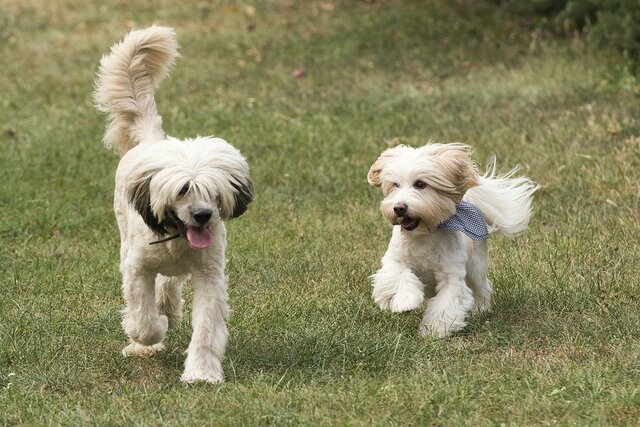
Results:
 Detection #0 (red):
  Box: (x: 355, y: 133, w: 190, h: 206)
  Top-1 class:
   index       : 17
   score       : 0.73828
   class name  : dog
 Detection #1 (green):
  Box: (x: 103, y: 15, w: 138, h: 369)
  Top-1 class:
   index       : 17
   score       : 0.73047
   class name  : dog
इनपुट इमेज पर बाउंडिंग बॉक्स रेंडर करें:
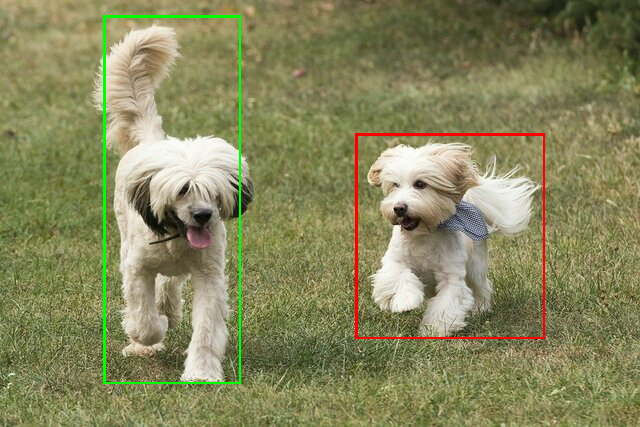
अपने मॉडल और टेस्ट डेटा के साथ, ObjectDetector के लिए, सीएलआई डेमो टूल आज़माएं.
मॉडल के साथ काम करने से जुड़ी ज़रूरी शर्तें
ObjectDetector एपीआई को TFLite मॉडल
मेटाडेटा के साथ TFLite मॉडल की ज़रूरत होती है. TensorFlow Lite Metadata Writer API का इस्तेमाल करके, ऑब्जेक्ट डिटेक्टर के लिए मेटाडेटा बनाने के उदाहरण देखें.
ऑब्जेक्ट डिटेक्ट करने वाले मॉडल को इन ज़रूरी शर्तों को पूरा करना होगा:
इनपुट इमेज टेंसर: (kTfLiteUInt8/kTfLiteFloat32)
[batch x height x width x channels]साइज़ की इमेज का इनपुट.- बैच इन्फ़रेंस की सुविधा काम नहीं करती (
batchकी वैल्यू 1 होनी चाहिए). - सिर्फ़ आरजीबी इनपुट इस्तेमाल किए जा सकते हैं (
channelsकी वैल्यू 3 होनी चाहिए). - अगर टाइप kTfLiteFloat32 है, तो इनपुट को सामान्य बनाने के लिए, मेटाडेटा में NormalizationOptions अटैच करना ज़रूरी है.
आउटपुट टेंसर,
DetectionPostProcessऑप के चार आउटपुट होने चाहिए. जैसे:- जगहों का टेंसर (kTfLiteFloat32)
[1 x num_results x 4]साइज़ का टेंसर. इसमें मौजूद इनर ऐरे, [top, left, right, bottom] के फ़ॉर्म में बाउंडिंग बॉक्स दिखाता है.- मेटाडेटा के साथ BoundingBoxProperties अटैच करना ज़रूरी है. साथ ही, इसमें
type=BOUNDARIESऔर `coordinate_type=RATIO की जानकारी देना ज़रूरी है. क्लास टेंसर (kTfLiteFloat32)
[1 x num_results]साइज़ का टेंसर. हर वैल्यू, क्लास के पूर्णांक इंडेक्स को दिखाती है.ज़रूरी नहीं (लेकिन सुझाव दिया गया) लेबल मैप को AssociatedFile के तौर पर अटैच किया जा सकता है. इनका टाइप TENSOR_VALUE_LABELS होता है. इनमें हर लाइन में एक लेबल होता है. लेबल फ़ाइल का उदाहरण देखें. अगर कोई AssociatedFile मौजूद है, तो उसका इस्तेमाल नतीजों के
class_nameफ़ील्ड को भरने के लिए किया जाता है.display_nameफ़ील्ड में, AssociatedFile से जानकारी भरी जाती है. अगर कोई AssociatedFile मौजूद है, तो उसकी भाषा,display_names_localeफ़ील्ड की भाषा से मेल खानी चाहिए.ObjectDetectorOptionsफ़ील्ड का इस्तेमाल, क्रिएटिव बनाते समय किया जाता है. इसकी डिफ़ॉल्ट भाषा "en" होती है. इसका मतलब है कि यह अंग्रेज़ी में होता है. अगर इनमें से कोई भी फ़ील्ड उपलब्ध नहीं है, तो नतीजों के सिर्फ़indexफ़ील्ड में जानकारी भरी जाएगी.स्कोर टेंसर (kTfLiteFloat32)
[1 x num_results]साइज़ का टेंसर. हर वैल्यू, पहचाने गए ऑब्जेक्ट के स्कोर को दिखाती है.पहचान करने वाले टेंसर की संख्या (kTfLiteFloat32)
पूर्णांक num_results को
[1]साइज़ के टेंसर के तौर पर.