

Gemini-Modelle sind von Grund auf multimodal konzipiert und ermöglichen eine Vielzahl von Bildverarbeitungs- und Computer Vision-Aufgaben, darunter Bilduntertitelung, ‑klassifizierung und Visual Question Answering, ohne dass spezielle ML-Modelle trainiert werden müssen.
Zusätzlich zu ihren allgemeinen multimodalen Funktionen bieten Gemini-Modelle durch zusätzliches Training eine höhere Genauigkeit für bestimmte Anwendungsfälle wie Objekterkennung und Segmentierung.
Bilder an Gemini übergeben
Sie haben verschiedene Möglichkeiten, Bilder als Eingabe für Gemini bereitzustellen:
- Bild per URL übergeben: Ideal für öffentlich zugängliche Bilder.
- Inline-Bilddaten übergeben: Für base64-codierte Bilddaten.
- Bilder mit der File API hochladen: Empfohlen für größere Dateien oder wenn Bilder in mehreren Anfragen wiederverwendet werden sollen.
Bild per URL übergeben
Sie können ein Bild mit der Files API hochladen und in der Anfrage übergeben:
Python
from google import genai

client = genai.Client()

uploaded_file = client.files.upload(file="path/to/organ.jpg")

interaction = client.interactions.create(
    model="gemini-3.8-flash",
    input=[
        {"type": "text", "text": "Caption this image."},
        {
            "type": "image",
            "uri": uploaded_file.uri,
            "mime_type": uploaded_file.mime_type
        }
    ]
)
print(interaction.output_text)
JavaScript
import { GoogleGenAI } from "@google/genai";

const client = new GoogleGenAI({});

const uploadedFile = await client.files.upload({
    file: "path/to/organ.jpg",
    config: { mimeType: "image/jpeg" }
});

const interaction = await client.interactions.create({
    model: "gemini-3.8-flash",
    input: [
        {type: "text", text: "Caption this image."},
        {
            type: "image",
            uri: uploadedFile.uri,
            mime_type: uploadedFile.mimeType
        }
    ]
});
console.log(interaction.output_text);
Java
import com.google.genai.Client;
import com.google.genai.gaos.models.interactions.Content;
import com.google.genai.gaos.models.interactions.CreateModelInteraction;
import com.google.genai.gaos.models.interactions.ImageContent;
import com.google.genai.gaos.models.interactions.ImageContentMimeType;
import com.google.genai.gaos.models.interactions.Interaction;
import com.google.genai.gaos.models.interactions.InteractionsInput;
import com.google.genai.gaos.models.interactions.Model;
import com.google.genai.gaos.models.interactions.TextContent;
import com.google.genai.gaos.models.operations.CreateInteractionRequestBody;
import com.google.genai.types.File;
import com.google.genai.types.UploadFileConfig;
import java.util.Arrays;
import java.util.List;

Client client = new Client();

File uploadedFile =
    client.files.upload(
        new java.io.File("path/to/organ.jpg"),
        UploadFileConfig.builder().mimeType("image/jpeg").build());

Content textContent = TextContent.builder().text("Caption this image.").build();
Content imageContent =
    ImageContent.builder()
        .uri(uploadedFile.uri().orElse(""))
        .mimeType(ImageContentMimeType.of(uploadedFile.mimeType().orElse("image/jpeg")))
        .build();

List<Content> contents = Arrays.asList(textContent, imageContent);

CreateModelInteraction params =
    CreateModelInteraction.builder()
        .model(Model.of("gemini-3.8-flash"))
        .input(InteractionsInput.ofContent(contents))
        .build();

Interaction interaction =
    client.interactions.create(CreateInteractionRequestBody.of(params)).interaction().get();
System.out.println(interaction.outputText().orElse(""));
Go
package main

import (
    "context"
    "fmt"
    "log"

    "google.golang.org/genai"
    "google.golang.org/genai/interactions/models/interactions"
    "google.golang.org/genai/interactions/models/operations"
)

func main() {
    ctx := context.Background()
    client, err := genai.NewClient(ctx, nil)
    if err != nil {
        log.Fatal(err)
    }

    uploadedFile, err := client.Files.UploadFromPath(ctx, "path/to/organ.jpg", &genai.UploadFileConfig{
        MIMEType: "image/jpeg",
    })
    if err != nil {
        log.Fatal(err)
    }

    res, err := client.Interactions.Create(ctx, operations.CreateInteractionRequest{
        Body: operations.NewCreateInteractionRequestBody(interactions.CreateModelInteraction{
            Model: interactions.Model("gemini-3.8-flash"),
            Input: interactions.NewInteractionsInput([]interactions.Content{
                interactions.NewContent(interactions.TextContent{
                    Text: "Caption this image.",
                }),
                interactions.NewContent(interactions.ImageContent{
                    URI:      genai.Ptr(uploadedFile.URI),
                    MimeType: interactions.ImageContentMimeType(uploadedFile.MIMEType).ToPointer(),
                }),
            }),
        }),
    })
    if err != nil {
        log.Fatal(err)
    }
    if res.Interaction.OutputText != nil {
        fmt.Println(*res.Interaction.OutputText)
    }
}
REST
# First upload the file using the Files API, then use the URI:
curl -X POST "https://generativelanguage.googleapis.com/v1beta/interactions" \
  -H "x-goog-api-key: $GEMINI_API_KEY" \
  -H 'Content-Type: application/json' \
  -d '{
    "model": "gemini-3.8-flash",
    "input": [
      {"type": "text", "text": "Caption this image."},
      {
        "type": "image",
        "uri": "YOUR_FILE_URI",
        "mime_type": "image/jpeg"
      }
    ]
  }'
Inline-Bilddaten übergeben
Sie können Bilddaten als base64-codierte Strings bereitstellen:
Python
import base64
from google import genai

with open('path/to/small-sample.jpg', 'rb') as f:
    image_bytes = f.read()

client = genai.Client()

interaction = client.interactions.create(
    model="gemini-3.8-flash",
    input=[
        {"type": "text", "text": "Caption this image."},
        {
            "type": "image",
            "data": base64.b64encode(image_bytes).decode('utf-8'),
            "mime_type": "image/jpeg"
        }
    ]
)
print(interaction.output_text)
JavaScript
import { GoogleGenAI } from "@google/genai";
import * as fs from "node:fs";

const client = new GoogleGenAI({});
const base64ImageFile = fs.readFileSync("path/to/small-sample.jpg", {
  encoding: "base64",
});

const interaction = await client.interactions.create({
    model: "gemini-3.8-flash",
    input: [
        {type: "text", text: "Caption this image."},
        {
            type: "image",
            data: base64ImageFile,
            mime_type: "image/jpeg"
        }
    ]
});
console.log(interaction.output_text);
Java
import com.google.genai.Client;
import com.google.genai.gaos.models.interactions.Content;
import com.google.genai.gaos.models.interactions.CreateModelInteraction;
import com.google.genai.gaos.models.interactions.ImageContent;
import com.google.genai.gaos.models.interactions.ImageContentMimeType;
import com.google.genai.gaos.models.interactions.Interaction;
import com.google.genai.gaos.models.interactions.InteractionsInput;
import com.google.genai.gaos.models.interactions.Model;
import com.google.genai.gaos.models.interactions.TextContent;
import com.google.genai.gaos.models.operations.CreateInteractionRequestBody;
import java.nio.file.Files;
import java.nio.file.Paths;
import java.util.Arrays;
import java.util.Base64;
import java.util.List;

byte[] imageBytes = Files.readAllBytes(Paths.get("path/to/small-sample.jpg"));
String base64Image = Base64.getEncoder().encodeToString(imageBytes);

Client client = new Client();

Content textContent = TextContent.builder().text("Caption this image.").build();
Content imageContent =
    ImageContent.builder()
        .data(base64Image)
        .mimeType(ImageContentMimeType.IMAGE_JPEG)
        .build();

List<Content> contents = Arrays.asList(textContent, imageContent);

CreateModelInteraction params =
    CreateModelInteraction.builder()
        .model(Model.of("gemini-3.8-flash"))
        .input(InteractionsInput.ofContent(contents))
        .build();

Interaction interaction =
    client.interactions.create(CreateInteractionRequestBody.of(params)).interaction().get();
System.out.println(interaction.outputText().orElse(""));
Go
package main

import (
    "context"
    "encoding/base64"
    "fmt"
    "log"
    "os"

    "google.golang.org/genai"
    "google.golang.org/genai/interactions/models/interactions"
    "google.golang.org/genai/interactions/models/operations"
)

func main() {
    ctx := context.Background()
    client, err := genai.NewClient(ctx, nil)
    if err != nil {
        log.Fatal(err)
    }

    imageBytes, err := os.ReadFile("path/to/small-sample.jpg")
    if err != nil {
        log.Fatal(err)
    }
    base64Image := base64.StdEncoding.EncodeToString(imageBytes)

    res, err := client.Interactions.Create(ctx, operations.CreateInteractionRequest{
        Body: operations.NewCreateInteractionRequestBody(interactions.CreateModelInteraction{
            Model: interactions.Model("gemini-3.8-flash"),
            Input: interactions.NewInteractionsInput([]interactions.Content{
                interactions.NewContent(interactions.TextContent{
                    Text: "Caption this image.",
                }),
                interactions.NewContent(interactions.ImageContent{
                    Data:     genai.Ptr(base64Image),
                    MimeType: interactions.ImageContentMimeTypeImageJpeg.ToPointer(),
                }),
            }),
        }),
    })
    if err != nil {
        log.Fatal(err)
    }
    if res.Interaction.OutputText != nil {
        fmt.Println(*res.Interaction.OutputText)
    }
}
REST
IMG_PATH="/path/to/your/image1.jpg"

if [[ "$(base64 --version 2>&1)" = *"FreeBSD"* ]]; then
  B64FLAGS="--input"
else
  B64FLAGS="-w0"
fi

curl -X POST "https://generativelanguage.googleapis.com/v1beta/interactions" \
  -H "x-goog-api-key: $GEMINI_API_KEY" \
  -H 'Content-Type: application/json' \
  -d '{
    "model": "gemini-3.8-flash",
    "input": [
      {"type": "text", "text": "Caption this image."},
      {
        "type": "image",
        "data": "'"$(base64 $B64FLAGS $IMG_PATH)"'",
        "mime_type": "image/jpeg"
      }
    ]
  }'
Bilder mit der File API hochladen
Verwenden Sie für große Dateien oder um dieselbe Bilddatei wiederholt verwenden zu können, die Files API. Weitere Informationen finden Sie im Leitfaden zur Files API.
Python
from google import genai

client = genai.Client()

my_file = client.files.upload(file="path/to/sample.jpg")

interaction = client.interactions.create(
    model="gemini-3.8-flash",
    input=[
        {"type": "text", "text": "Caption this image."},
        {
            "type": "image",
            "uri": my_file.uri,
            "mime_type": my_file.mime_type
        }
    ]
)
print(interaction.output_text)
JavaScript
import { GoogleGenAI } from "@google/genai";

const client = new GoogleGenAI({});

const myfile = await client.files.upload({
    file: "path/to/sample.jpg",
    config: { mimeType: "image/jpeg" },
});

const interaction = await client.interactions.create({
    model: "gemini-3.8-flash",
    input: [
        {type: "text", text: "Caption this image."},
        {
            type: "image",
            uri: myfile.uri,
            mime_type: myfile.mimeType
        }
    ]
});
console.log(interaction.output_text);
Java
import com.google.genai.Client;
import com.google.genai.gaos.models.interactions.Content;
import com.google.genai.gaos.models.interactions.CreateModelInteraction;
import com.google.genai.gaos.models.interactions.ImageContent;
import com.google.genai.gaos.models.interactions.ImageContentMimeType;
import com.google.genai.gaos.models.interactions.Interaction;
import com.google.genai.gaos.models.interactions.InteractionsInput;
import com.google.genai.gaos.models.interactions.Model;
import com.google.genai.gaos.models.interactions.TextContent;
import com.google.genai.gaos.models.operations.CreateInteractionRequestBody;
import com.google.genai.types.File;
import com.google.genai.types.UploadFileConfig;
import java.util.Arrays;
import java.util.List;

Client client = new Client();

File myFile =
    client.files.upload(
        new java.io.File("path/to/sample.jpg"),
        UploadFileConfig.builder().mimeType("image/jpeg").build());

Content textContent = TextContent.builder().text("Caption this image.").build();
Content imageContent =
    ImageContent.builder()
        .uri(myFile.uri().orElse(""))
        .mimeType(ImageContentMimeType.of(myFile.mimeType().orElse("image/jpeg")))
        .build();

List<Content> contents = Arrays.asList(textContent, imageContent);

CreateModelInteraction params =
    CreateModelInteraction.builder()
        .model(Model.of("gemini-3.8-flash"))
        .input(InteractionsInput.ofContent(contents))
        .build();

Interaction interaction =
    client.interactions.create(CreateInteractionRequestBody.of(params)).interaction().get();
System.out.println(interaction.outputText().orElse(""));
Go
package main

import (
    "context"
    "fmt"
    "log"

    "google.golang.org/genai"
    "google.golang.org/genai/interactions/models/interactions"
    "google.golang.org/genai/interactions/models/operations"
)

func main() {
    ctx := context.Background()
    client, err := genai.NewClient(ctx, nil)
    if err != nil {
        log.Fatal(err)
    }

    myFile, err := client.Files.UploadFromPath(ctx, "path/to/sample.jpg", &genai.UploadFileConfig{
        MIMEType: "image/jpeg",
    })
    if err != nil {
        log.Fatal(err)
    }

    res, err := client.Interactions.Create(ctx, operations.CreateInteractionRequest{
        Body: operations.NewCreateInteractionRequestBody(interactions.CreateModelInteraction{
            Model: interactions.Model("gemini-3.8-flash"),
            Input: interactions.NewInteractionsInput([]interactions.Content{
                interactions.NewContent(interactions.TextContent{
                    Text: "Caption this image.",
                }),
                interactions.NewContent(interactions.ImageContent{
                    URI:      genai.Ptr(myFile.URI),
                    MimeType: interactions.ImageContentMimeType(myFile.MIMEType).ToPointer(),
                }),
            }),
        }),
    })
    if err != nil {
        log.Fatal(err)
    }
    if res.Interaction.OutputText != nil {
        fmt.Println(*res.Interaction.OutputText)
    }
}
REST
# First upload the file (see Files API guide for details)
# Then use the file URI in the request:

curl -X POST "https://generativelanguage.googleapis.com/v1beta/interactions" \
  -H "x-goog-api-key: $GEMINI_API_KEY" \
  -H 'Content-Type: application/json' \
  -d '{
    "model": "gemini-3.8-flash",
    "input": [
      {"type": "text", "text": "Caption this image."},
      {
        "type": "image",
        "uri": "YOUR_FILE_URI",
        "mime_type": "image/jpeg"
      }
    ]
  }'
Prompts mit mehreren Bildern
Sie können in einem einzelnen Prompt mehrere Bilder angeben, indem Sie dem Array input mehrere Bildobjekte hinzufügen:
Python
from google import genai

client = genai.Client()

interaction = client.interactions.create(
    model="gemini-3.8-flash",
    input=[
        {"type": "text", "text": "What is different between these two images?"},
        {
            "type": "image",
            "uri": "https://example.com/image1.jpg",
            "mime_type": "image/jpeg"
        },
        {
            "type": "image",
            "uri": "https://example.com/image2.jpg",
            "mime_type": "image/jpeg"
        }
    ]
)
print(interaction.output_text)
JavaScript
import { GoogleGenAI } from "@google/genai";

const client = new GoogleGenAI({});

const interaction = await client.interactions.create({
    model: "gemini-3.8-flash",
    input: [
        {type: "text", text: "What is different between these two images?"},
        {
            type: "image",
            uri: "https://example.com/image1.jpg",
            mime_type: "image/jpeg"
        },
        {
            type: "image",
            uri: "https://example.com/image2.jpg",
            mime_type: "image/jpeg"
        }
    ]
});
console.log(interaction.output_text);
Java
import com.google.genai.Client;
import com.google.genai.gaos.models.interactions.Content;
import com.google.genai.gaos.models.interactions.CreateModelInteraction;
import com.google.genai.gaos.models.interactions.ImageContent;
import com.google.genai.gaos.models.interactions.ImageContentMimeType;
import com.google.genai.gaos.models.interactions.Interaction;
import com.google.genai.gaos.models.interactions.InteractionsInput;
import com.google.genai.gaos.models.interactions.Model;
import com.google.genai.gaos.models.interactions.TextContent;
import com.google.genai.gaos.models.operations.CreateInteractionRequestBody;
import java.util.Arrays;
import java.util.List;

Client client = new Client();

Content textContent =
    TextContent.builder().text("What is different between these two images?").build();
Content image1 =
    ImageContent.builder()
        .uri("https://example.com/image1.jpg")
        .mimeType(ImageContentMimeType.IMAGE_JPEG)
        .build();
Content image2 =
    ImageContent.builder()
        .uri("https://example.com/image2.jpg")
        .mimeType(ImageContentMimeType.IMAGE_JPEG)
        .build();

List<Content> contents = Arrays.asList(textContent, image1, image2);

CreateModelInteraction params =
    CreateModelInteraction.builder()
        .model(Model.of("gemini-3.8-flash"))
        .input(InteractionsInput.ofContent(contents))
        .build();

Interaction interaction =
    client.interactions.create(CreateInteractionRequestBody.of(params)).interaction().get();
System.out.println(interaction.outputText().orElse(""));
Go
package main

import (
    "context"
    "fmt"
    "log"

    "google.golang.org/genai"
    "google.golang.org/genai/interactions/models/interactions"
    "google.golang.org/genai/interactions/models/operations"
)

func main() {
    ctx := context.Background()
    client, err := genai.NewClient(ctx, nil)
    if err != nil {
        log.Fatal(err)
    }

    res, err := client.Interactions.Create(ctx, operations.CreateInteractionRequest{
        Body: operations.NewCreateInteractionRequestBody(interactions.CreateModelInteraction{
            Model: interactions.Model("gemini-3.8-flash"),
            Input: interactions.NewInteractionsInput([]interactions.Content{
                interactions.NewContent(interactions.TextContent{
                    Text: "What is different between these two images?",
                }),
                interactions.NewContent(interactions.ImageContent{
                    URI:      genai.Ptr("https://example.com/image1.jpg"),
                    MimeType: interactions.ImageContentMimeTypeImageJpeg.ToPointer(),
                }),
                interactions.NewContent(interactions.ImageContent{
                    URI:      genai.Ptr("https://example.com/image2.jpg"),
                    MimeType: interactions.ImageContentMimeTypeImageJpeg.ToPointer(),
                }),
            }),
        }),
    })
    if err != nil {
        log.Fatal(err)
    }
    if res.Interaction.OutputText != nil {
        fmt.Println(*res.Interaction.OutputText)
    }
}
REST
curl -X POST "https://generativelanguage.googleapis.com/v1beta/interactions" \
  -H "x-goog-api-key: $GEMINI_API_KEY" \
  -H 'Content-Type: application/json' \
  -d '{
    "model": "gemini-3.8-flash",
    "input": [
      {"type": "text", "text": "What is different between these two images?"},
      {
        "type": "image",
        "uri": "https://example.com/image1.jpg",
        "mime_type": "image/jpeg"
      },
      {
        "type": "image",
        "uri": "https://example.com/image2.jpg",
        "mime_type": "image/jpeg"
      }
    ]
  }'
Objekterkennung
Modelle werden trainiert, um Objekte in einem Bild zu erkennen und die Koordinaten ihrer Begrenzungsrahmen zu ermitteln. Die Koordinaten werden im Verhältnis zu den Bildabmessungen auf [0, 1000] skaliert. Sie müssen diese Koordinaten anhand der Originalbildgröße herunterskalieren.
Python
from google import genai
from pydantic import BaseModel, Field
from typing import List
import json

client = genai.Client()
prompt = "Detect the all of the prominent items in the image. The box_2d should be [ymin, xmin, ymax, xmax] normalized to 0-1000."

class BoundingBox(BaseModel):
    box_2d: List[int] = Field(description="The 2D bounding box of the item as [ymin, xmin, ymax, xmax] normalized to 0-1000.")
    mask: List[List[int]] = Field(description="The segmentation mask of the item as a polygon of [x,y] coordinates, normalized to 0-1000.")
    label: str = Field(description="A descriptive label for the item.")

class BoundingBoxes(BaseModel):
    boxes: List[BoundingBox]

interaction = client.interactions.create(
    model="gemini-3.8-flash",
    input=[
        {"type": "text", "text": prompt},
        {
            "type": "image",
            "uri": "https://example.com/image.png",
            "mime_type": "image/png"
        }
    ],
    response_format={
        "type": "text",
        "mime_type": "application/json",
        "schema": BoundingBoxes.model_json_schema()
    }
)

bounding_boxes = BoundingBoxes.model_validate_json(interaction.output_text)
print(bounding_boxes)
JavaScript
import { GoogleGenAI } from "@google/genai";
import * as z from "zod";

const client = new GoogleGenAI({});
const prompt = "Detect the all of the prominent items in the image. The box_2d should be [ymin, xmin, ymax, xmax] normalized to 0-1000.";

const boundingBoxesSchema = z.object({
  boxes: z.array(z.object({
    box_2d: z.array(z.number()),
    mask: z.array(z.array(z.number())),
    label: z.string()
  }))
});

const interaction = await client.interactions.create({
  model: "gemini-3.8-flash",
  input: [
    { type: "text", text: prompt },
    {
      type: "image",
      uri: "https://example.com/image.png",
      mime_type: "image/png"
    }
  ],
  response_format: {
    type: 'text',
    mime_type: 'application/json',
    schema: z.toJSONSchema(boundingBoxesSchema)
  },
});

const result = boundingBoxesSchema.parse(JSON.parse(interaction.output_text));
console.log(result);
Java
import com.google.genai.Client;
import com.google.genai.gaos.models.interactions.Content;
import com.google.genai.gaos.models.interactions.CreateModelInteraction;
import com.google.genai.gaos.models.interactions.CreateModelInteractionResponseFormat;
import com.google.genai.gaos.models.interactions.ImageContent;
import com.google.genai.gaos.models.interactions.ImageContentMimeType;
import com.google.genai.gaos.models.interactions.Interaction;
import com.google.genai.gaos.models.interactions.InteractionsInput;
import com.google.genai.gaos.models.interactions.Model;
import com.google.genai.gaos.models.interactions.ResponseFormat;
import com.google.genai.gaos.models.interactions.TextContent;
import com.google.genai.gaos.models.interactions.TextResponseFormat;
import com.google.genai.gaos.models.interactions.TextResponseFormatMimeType;
import com.google.genai.gaos.models.operations.CreateInteractionRequestBody;
import java.util.Arrays;
import java.util.List;
import java.util.Map;

Client client = new Client();
String prompt =
    "Detect the all of the prominent items in the image. The box_2d should be [ymin, xmin, ymax, xmax] normalized to 0-1000.";

Map<String, Object> boundingBoxSchema =
    Map.of(
        "type", "object",
        "properties",
            Map.of(
                "box_2d",
                    Map.of(
                        "type", "array",
                        "items", Map.of("type", "integer"),
                        "description",
                            "The 2D bounding box of the item as [ymin, xmin, ymax, xmax] normalized to 0-1000."),
                "mask",
                    Map.of(
                        "type", "array",
                        "items", Map.of("type", "array", "items", Map.of("type", "integer")),
                        "description",
                            "The segmentation mask of the item as a polygon of [x,y] coordinates, normalized to 0-1000."),
                "label",
                    Map.of("type", "string", "description", "A descriptive label for the item.")),
        "required", List.of("box_2d", "mask", "label"));

Map<String, Object> boundingBoxesSchema =
    Map.of(
        "type", "object",
        "properties", Map.of("boxes", Map.of("type", "array", "items", boundingBoxSchema)),
        "required", List.of("boxes"));

CreateModelInteractionResponseFormat format =
    CreateModelInteractionResponseFormat.of(
        ResponseFormat.of(
            TextResponseFormat.builder()
                .mimeType(TextResponseFormatMimeType.APPLICATION_JSON)
                .schema(boundingBoxesSchema)
                .build()));

Content textContent = TextContent.builder().text(prompt).build();
Content imageContent =
    ImageContent.builder()
        .uri("https://example.com/image.png")
        .mimeType(ImageContentMimeType.IMAGE_PNG)
        .build();

CreateModelInteraction params =
    CreateModelInteraction.builder()
        .model(Model.of("gemini-3.8-flash"))
        .input(InteractionsInput.ofContent(Arrays.asList(textContent, imageContent)))
        .responseFormat(format)
        .build();

Interaction interaction =
    client.interactions.create(CreateInteractionRequestBody.of(params)).interaction().get();
System.out.println(interaction.outputText().orElse(""));
Go
package main

import (
    "context"
    "fmt"
    "log"

    "google.golang.org/genai"
    "google.golang.org/genai/interactions/models/interactions"
    "google.golang.org/genai/interactions/models/operations"
)

func main() {
    ctx := context.Background()
    client, err := genai.NewClient(ctx, nil)
    if err != nil {
        log.Fatal(err)
    }

    prompt := "Detect the all of the prominent items in the image. The box_2d should be [ymin, xmin, ymax, xmax] normalized to 0-1000."

    boundingBoxSchema := map[string]any{
        "type": "object",
        "properties": map[string]any{
            "box_2d": map[string]any{
                "type":        "array",
                "items":       map[string]any{"type": "integer"},
                "description": "The 2D bounding box of the item as [ymin, xmin, ymax, xmax] normalized to 0-1000.",
            },
            "mask": map[string]any{
                "type":        "array",
                "items":       map[string]any{"type": "array", "items": map[string]any{"type": "integer"}},
                "description": "The segmentation mask of the item as a polygon of [x,y] coordinates, normalized to 0-1000.",
            },
            "label": map[string]any{
                "type":        "string",
                "description": "A descriptive label for the item.",
            },
        },
        "required": []string{"box_2d", "mask", "label"},
    }

    boundingBoxesSchema := map[string]any{
        "type": "object",
        "properties": map[string]any{
            "boxes": map[string]any{
                "type":  "array",
                "items": boundingBoxSchema,
            },
        },
        "required": []string{"boxes"},
    }

    format := interactions.NewCreateModelInteractionResponseFormat(
        interactions.NewResponseFormat(interactions.TextResponseFormat{
            MimeType: interactions.TextResponseFormatMimeTypeApplicationJSON.ToPointer(),
            Schema:   boundingBoxesSchema,
        }),
    )

    res, err := client.Interactions.Create(ctx, operations.CreateInteractionRequest{
        Body: operations.NewCreateInteractionRequestBody(interactions.CreateModelInteraction{
            Model: interactions.Model("gemini-3.8-flash"),
            Input: interactions.NewInteractionsInput([]interactions.Content{
                interactions.NewContent(interactions.TextContent{
                    Text: prompt,
                }),
                interactions.NewContent(interactions.ImageContent{
                    URI:      genai.Ptr("https://example.com/image.png"),
                    MimeType: interactions.ImageContentMimeTypeImagePng.ToPointer(),
                }),
            }),
            ResponseFormat: genai.Ptr(format),
        }),
    })
    if err != nil {
        log.Fatal(err)
    }
    if res.Interaction.OutputText != nil {
        fmt.Println(*res.Interaction.OutputText)
    }
}
REST
curl -X POST "https://generativelanguage.googleapis.com/v1beta/interactions" \
  -H "x-goog-api-key: $GEMINI_API_KEY" \
  -H 'Content-Type: application/json' \
  -d '{
    "model": "gemini-3.8-flash",
    "input": [
      {"type": "text", "text": "Detect the all of the prominent items in the image. The box_2d should be [ymin, xmin, ymax, xmax] normalized to 0-1000."},
      {
        "type": "image",
        "uri": "https://example.com/image.png",
        "mime_type": "image/png"
      }
    ],
    "response_format": {
      "type": "text",
      "mime_type": "application/json",
      "schema": {
        "type": "object",
        "properties": {
          "boxes": {
            "type": "array",
            "items": {
              "type": "object",
              "properties": {
                "box_2d": { "type": "array", "items": { "type": "integer" } },
                "mask": { "type": "array", "items": { "type": "array", "items": { "type": "integer" } } },
                "label": { "type": "string" }
              },
              "required": ["box_2d", "mask", "label"]
            }
          }
        },
        "required": ["boxes"]
      }
    }
  }'
Weitere Beispiele finden Sie im Gemini-Cookbook.
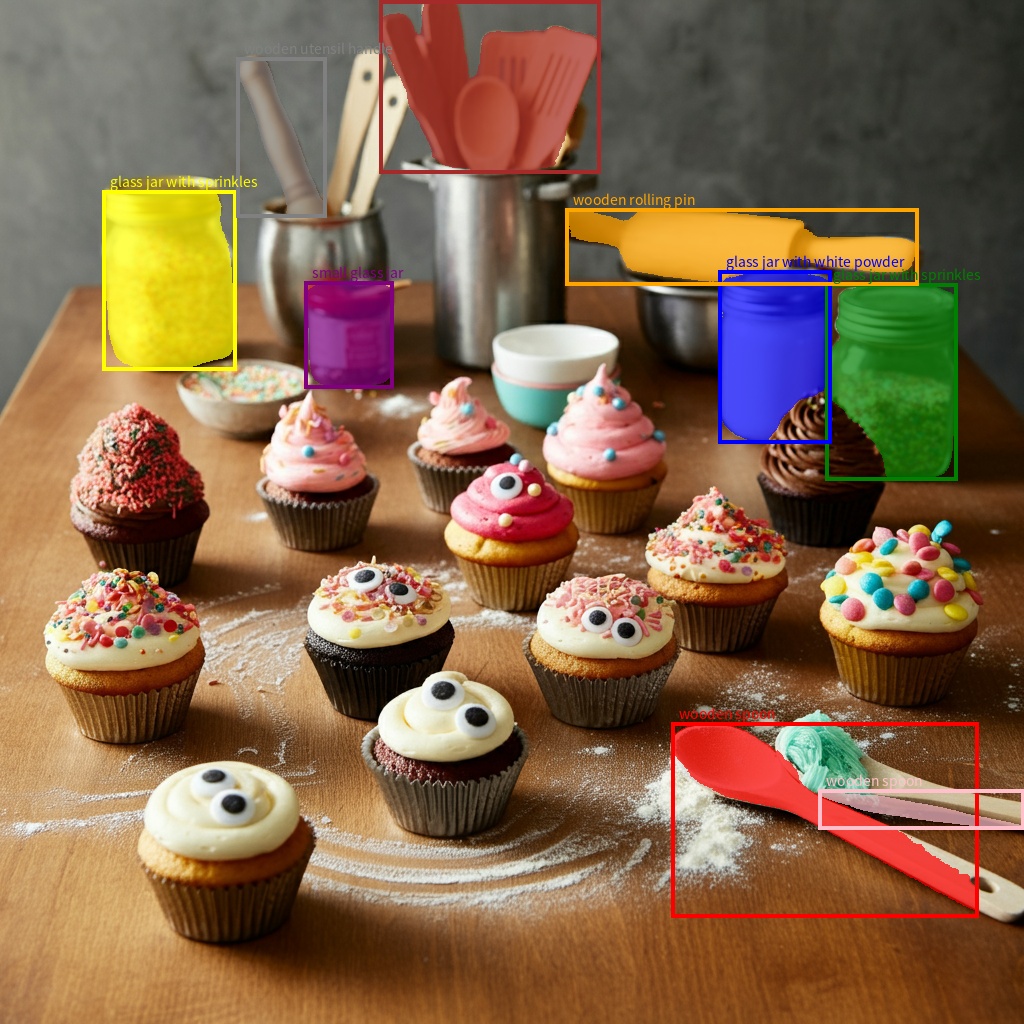
Segmentierung
Gemini-Modelle erkennen nicht nur Elemente, sondern segmentieren sie auch und stellen ihre Konturmasken bereit.
Das Modell sagt eine JSON-Liste voraus, in der jedes Element eine Segmentierungsmaske darstellt. Jedes Element hat einen Begrenzungsrahmen („box_2d“) im Format [ymin, xmin, ymax, xmax] mit normalisierten Koordinaten zwischen 0 und 1.000, ein Label („label“), das das Objekt identifiziert, und schließlich die Segmentierungsmaske innerhalb des Begrenzungsrahmens als Polygon mit [x, y] Koordinaten, die auf 0 bis 1.000 normalisiert sind.
Python
from google import genai
from pydantic import BaseModel, Field
from typing import List
import json

client = genai.Client()

prompt = """
Give the segmentation masks for the wooden and glass items.
Output a JSON list of segmentation masks where each entry contains the 2D
bounding box in the key "box_2d", the segmentation mask in key "mask", and
the text label in the key "label". Use descriptive labels.
"""

class BoundingBox(BaseModel):
    box_2d: List[int] = Field(description="The 2D bounding box of the item as [ymin, xmin, ymax, xmax] normalized to 0-1000.")
    mask: List[List[int]] = Field(description="The segmentation mask of the item as a polygon of [x,y] coordinates, normalized to 0-1000.")
    label: str = Field(description="A descriptive label for the item.")

class BoundingBoxes(BaseModel):
    boxes: List[BoundingBox]

interaction = client.interactions.create(
    model="gemini-3.8-flash",
    input=[
        {"type": "text", "text": prompt},
        {
            "type": "image",
            "uri": "https://example.com/image.png",
            "mime_type": "image/png"
        }
    ],
    response_format={
        "type": "text",
        "mime_type": "application/json",
        "schema": BoundingBoxes.model_json_schema()
    },
    generation_config={
        "thinking_level": "minimal"
    }
)

items = BoundingBoxes.model_validate_json(interaction.output_text)
print("Segmentation results:", items)
JavaScript
import { GoogleGenAI } from "@google/genai";
import * as z from "zod";

const client = new GoogleGenAI({});
const prompt = `
Give the segmentation masks for the wooden and glass items.
Output a JSON list of segmentation masks where each entry contains the 2D
bounding box in the key "box_2d", the segmentation mask in key "mask", and
the text label in the key "label". Use descriptive labels.
`;

const boundingBoxesSchema = z.object({
  boxes: z.array(z.object({
    box_2d: z.array(z.number()),
    mask: z.array(z.array(z.number())),
    label: z.string()
  }))
});

const interaction = await client.interactions.create({
  model: "gemini-3.8-flash",
  input: [
    { type: "text", text: prompt },
    {
      type: "image",
      uri: "https://example.com/image.png",
      mime_type: "image/png"
    }
  ],
  response_format: {
    type: 'text',
    mime_type: 'application/json',
    schema: z.toJSONSchema(boundingBoxesSchema)
  },
  generation_config: {
    thinking_level: "minimal"
  }
});

const result = boundingBoxesSchema.parse(JSON.parse(interaction.output_text));
console.log(result);
Java
import com.google.genai.Client;
import com.google.genai.gaos.models.interactions.Content;
import com.google.genai.gaos.models.interactions.CreateModelInteraction;
import com.google.genai.gaos.models.interactions.CreateModelInteractionResponseFormat;
import com.google.genai.gaos.models.interactions.GenerationConfig;
import com.google.genai.gaos.models.interactions.ImageContent;
import com.google.genai.gaos.models.interactions.ImageContentMimeType;
import com.google.genai.gaos.models.interactions.Interaction;
import com.google.genai.gaos.models.interactions.InteractionsInput;
import com.google.genai.gaos.models.interactions.Model;
import com.google.genai.gaos.models.interactions.ResponseFormat;
import com.google.genai.gaos.models.interactions.TextContent;
import com.google.genai.gaos.models.interactions.TextResponseFormat;
import com.google.genai.gaos.models.interactions.TextResponseFormatMimeType;
import com.google.genai.gaos.models.interactions.ThinkingLevel;
import com.google.genai.gaos.models.operations.CreateInteractionRequestBody;
import java.util.Arrays;
import java.util.List;
import java.util.Map;

Client client = new Client();

String prompt =
    "Give the segmentation masks for the wooden and glass items.\n"
        + "Output a JSON list of segmentation masks where each entry contains the 2D\n"
        + "bounding box in the key \"box_2d\", the segmentation mask in key \"mask\", and\n"
        + "the text label in the key \"label\". Use descriptive labels.";

Map<String, Object> boundingBoxSchema =
    Map.of(
        "type", "object",
        "properties",
            Map.of(
                "box_2d",
                    Map.of(
                        "type", "array",
                        "items", Map.of("type", "integer"),
                        "description",
                            "The 2D bounding box of the item as [ymin, xmin, ymax, xmax] normalized to 0-1000."),
                "mask",
                    Map.of(
                        "type", "array",
                        "items", Map.of("type", "array", "items", Map.of("type", "integer")),
                        "description",
                            "The segmentation mask of the item as a polygon of [x,y] coordinates, normalized to 0-1000."),
                "label",
                    Map.of("type", "string", "description", "A descriptive label for the item.")),
        "required", List.of("box_2d", "mask", "label"));

Map<String, Object> boundingBoxesSchema =
    Map.of(
        "type", "object",
        "properties", Map.of("boxes", Map.of("type", "array", "items", boundingBoxSchema)),
        "required", List.of("boxes"));

CreateModelInteractionResponseFormat format =
    CreateModelInteractionResponseFormat.of(
        ResponseFormat.of(
            TextResponseFormat.builder()
                .mimeType(TextResponseFormatMimeType.APPLICATION_JSON)
                .schema(boundingBoxesSchema)
                .build()));

Content textContent = TextContent.builder().text(prompt).build();
Content imageContent =
    ImageContent.builder()
        .uri("https://example.com/image.png")
        .mimeType(ImageContentMimeType.IMAGE_PNG)
        .build();

CreateModelInteraction params =
    CreateModelInteraction.builder()
        .model(Model.of("gemini-3.8-flash"))
        .input(InteractionsInput.ofContent(Arrays.asList(textContent, imageContent)))
        .responseFormat(format)
        .generationConfig(GenerationConfig.builder().thinkingLevel(ThinkingLevel.MINIMAL).build())
        .build();

Interaction interaction =
    client.interactions.create(CreateInteractionRequestBody.of(params)).interaction().get();
System.out.println("Segmentation results: " + interaction.outputText().orElse(""));
Go
package main

import (
    "context"
    "fmt"
    "log"

    "google.golang.org/genai"
    "google.golang.org/genai/interactions/models/interactions"
    "google.golang.org/genai/interactions/models/operations"
)

func main() {
    ctx := context.Background()
    client, err := genai.NewClient(ctx, nil)
    if err != nil {
        log.Fatal(err)
    }

    prompt := "Give the segmentation masks for the wooden and glass items.\n" +
        "Output a JSON list of segmentation masks where each entry contains the 2D\n" +
        "bounding box in the key \"box_2d\", the segmentation mask in key \"mask\", and\n" +
        "the text label in the key \"label\". Use descriptive labels."

    boundingBoxSchema := map[string]any{
        "type": "object",
        "properties": map[string]any{
            "box_2d": map[string]any{
                "type":        "array",
                "items":       map[string]any{"type": "integer"},
                "description": "The 2D bounding box of the item as [ymin, xmin, ymax, xmax] normalized to 0-1000.",
            },
            "mask": map[string]any{
                "type":        "array",
                "items":       map[string]any{"type": "array", "items": map[string]any{"type": "integer"}},
                "description": "The segmentation mask of the item as a polygon of [x,y] coordinates, normalized to 0-1000.",
            },
            "label": map[string]any{
                "type":        "string",
                "description": "A descriptive label for the item.",
            },
        },
        "required": []string{"box_2d", "mask", "label"},
    }

    boundingBoxesSchema := map[string]any{
        "type": "object",
        "properties": map[string]any{
            "boxes": map[string]any{
                "type":  "array",
                "items": boundingBoxSchema,
            },
        },
        "required": []string{"boxes"},
    }

    format := interactions.NewCreateModelInteractionResponseFormat(
        interactions.NewResponseFormat(interactions.TextResponseFormat{
            MimeType: interactions.TextResponseFormatMimeTypeApplicationJSON.ToPointer(),
            Schema:   boundingBoxesSchema,
        }),
    )

    res, err := client.Interactions.Create(ctx, operations.CreateInteractionRequest{
        Body: operations.NewCreateInteractionRequestBody(interactions.CreateModelInteraction{
            Model: interactions.Model("gemini-3.8-flash"),
            Input: interactions.NewInteractionsInput([]interactions.Content{
                interactions.NewContent(interactions.TextContent{
                    Text: prompt,
                }),
                interactions.NewContent(interactions.ImageContent{
                    URI:      genai.Ptr("https://example.com/image.png"),
                    MimeType: interactions.ImageContentMimeTypeImagePng.ToPointer(),
                }),
            }),
            ResponseFormat: genai.Ptr(format),
            GenerationConfig: &interactions.GenerationConfig{
                ThinkingLevel: interactions.ThinkingLevelMinimal.ToPointer(),
            },
        }),
    })
    if err != nil {
        log.Fatal(err)
    }
    if res.Interaction.OutputText != nil {
        fmt.Println("Segmentation results: " + *res.Interaction.OutputText)
    }
}
REST
curl -X POST "https://generativelanguage.googleapis.com/v1beta/interactions" \
  -H "x-goog-api-key: $GEMINI_API_KEY" \
  -H 'Content-Type: application/json' \
  -d '{
    "model": "gemini-3.8-flash",
    "input": [
      {"type": "text", "text": "Give the segmentation masks for the wooden and glass items.\nOutput a JSON list of segmentation masks where each entry contains the 2D\nbounding box in the key \"box_2d\", the segmentation mask in key \"mask\", and\nthe text label in the key \"label\". Use descriptive labels."},
      {
        "type": "image",
        "uri": "https://example.com/image.png",
        "mime_type": "image/png"
      }
    ],
    "response_format": {
      "type": "text",
      "mime_type": "application/json",
      "schema": {
        "type": "object",
        "properties": {
          "boxes": {
            "type": "array",
            "items": {
              "type": "object",
              "properties": {
                "box_2d": { "type": "array", "items": { "type": "integer" } },
                "mask": { "type": "array", "items": { "type": "array", "items": { "type": "integer" } } },
                "label": { "type": "string" }
              },
              "required": ["box_2d", "mask", "label"]
            }
          }
        },
        "required": ["boxes"]
      }
    },
    "generation_config": {
      "thinking_level": "minimal"
    }
  }'
Unterstützte Bildformate
Gemini unterstützt die folgenden MIME-Typen für Bildformate:
- PNG -
image/png - JPEG -
image/jpeg - WEBP -
image/webp - HEIC –
image/heic - HEIF -
image/heif
Weitere Informationen zu anderen Methoden für die Dateieingabe finden Sie im Leitfaden Methoden für die Dateieingabe.
Leistungsspektrum
Alle Gemini-Modellversionen sind multimodal und können für eine Vielzahl von Bildverarbeitungs- und Computer Vision-Aufgaben verwendet werden, darunter Bilduntertitelung, Visual Question Answering, Bildklassifizierung, Objekterkennung und Segmentierung.
Je nach Ihren Qualitäts- und Leistungsanforderungen kann Gemini die Notwendigkeit reduzieren, spezielle ML-Modelle zu verwenden.
Die neuesten Modellversionen werden speziell trainiert, um die Genauigkeit von spezialisierten Aufgaben zusätzlich zu generischen Funktionen wie verbesserter Objekterkennung und Segmentierung zu verbessern.
Einschränkungen und wichtige technische Informationen
Dateilimit
Gemini-Modelle unterstützen maximal 3.600 Bilddateien pro Anfrage.
Tokenberechnung
- 258 Tokens, wenn beide Dimensionen kleiner oder gleich 384 Pixel sind. Größere Bilder werden in Kacheln mit 768 × 768 Pixeln aufgeteilt, die jeweils 258 Tokens kosten.
Eine ungefähre Formel zur Berechnung der Anzahl der Kacheln lautet:
- Berechnen Sie die Größe der Zuschneideeinheit, die ungefähr
floor(min(width, height)/ 1,5 beträgt. - Teilen Sie jede Dimension durch die Größe der Zuschneideeinheit und multiplizieren Sie die Ergebnisse, um die Anzahl der Kacheln zu erhalten.
Ein Bild mit den Abmessungen 960 × 540 hätte beispielsweise eine Zuschneideeinheit von 360. Teilen Sie jede Dimension durch 360. Die Anzahl der Kacheln beträgt dann 3 × 2 = 6.
Auflösung von Medien
Mit Gemini 3 wird die multimodale Bildverarbeitung durch den Parameter media_resolution detaillierter gesteuert. Der Parameter media_resolution bestimmt die maximale Anzahl von Tokens, die pro Eingabebild oder Videoframes zugewiesen werden.
Höhere Auflösungen verbessern die Fähigkeit des Modells, kleinen Text zu lesen oder kleine Details zu erkennen, erhöhen aber die Token-Nutzung und die Latenz.
Tipps und Best Practices
- Prüfen Sie, ob die Bilder richtig gedreht sind.
- Verwenden Sie klare, nicht verschwommene Bilder.
- Wenn Sie ein einzelnes Bild mit Text verwenden, platzieren Sie den Text-Prompt vor dem Bild im
input-Array.
Nächste Schritte
In dieser Anleitung erfahren Sie, wie Sie Bilddateien hochladen und Textausgaben aus Bildeingaben generieren. Weitere Informationen finden Sie in den folgenden Ressourcen:
- Files API: Hier finden Sie weitere Informationen zum Hochladen und Verwalten von Dateien für die Verwendung mit Gemini.
- Systemanweisungen: Mit Systemanweisungen können Sie das Verhalten des Modells basierend auf Ihren spezifischen Anforderungen und Anwendungsfällen steuern.
- Strategien für Dateiprompts: Die Gemini API unterstützt Prompts mit Text-, Bild-, Audio- und Videodaten, auch bekannt als multimodale Prompts.
- Sicherheitshinweise: Generative KI-Modelle können manchmal unerwartete Ausgaben generieren, z. B. Ausgaben, die ungenau, voreingenommen oder anstößig sind. Die Nachbearbeitung und menschliche Bewertung sind unerlässlich, um das Risiko von Schäden durch solche Ausgaben zu begrenzen.