

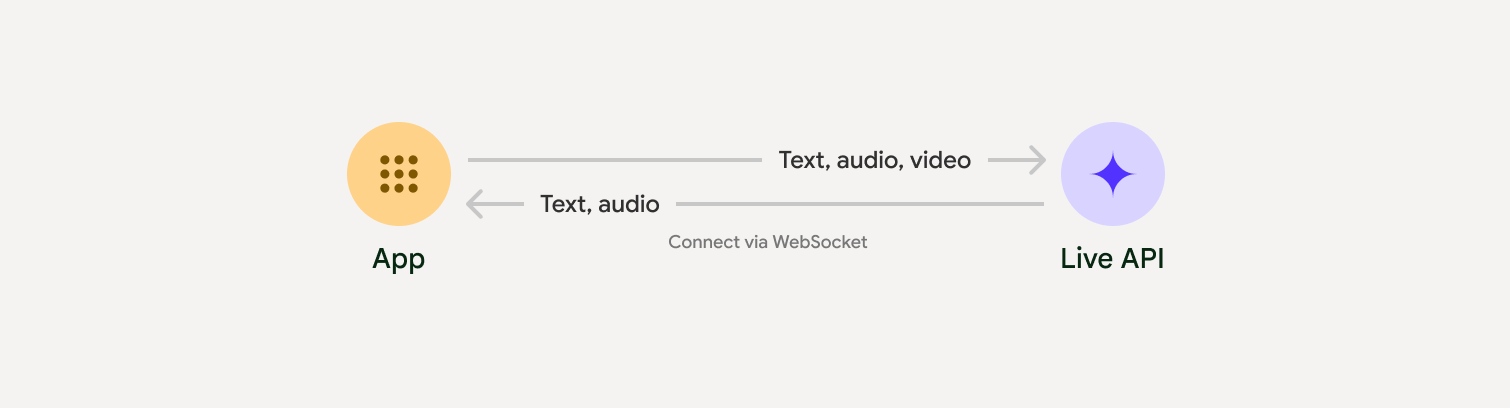
Live API की मदद से, Gemini के साथ कम समय में और रीयल-टाइम में आवाज़ और विज़न से जुड़ी बातचीत की जा सकती है. यह ऑडियो, इमेज, और टेक्स्ट की लगातार स्ट्रीम को प्रोसेस करता है, ताकि इंसानों जैसी आवाज़ में तुरंत जवाब दिया जा सके. इससे लोगों को बातचीत करने का नैचुरल अनुभव मिलता है.
उपयोग के उदाहरण
Live API का इस्तेमाल, कई तरह के उद्योगों के लिए रीयल-टाइम में काम करने वाले वॉइस एजेंट बनाने के लिए किया जा सकता है. जैसे:
- ई-कॉमर्स और खुदरा कारोबार: शॉपिंग असिस्टेंट, जो लोगों की दिलचस्पी के हिसाब से सुझाव देती हैं. साथ ही, सहायता एजेंट, जो खरीदारों की समस्याओं को हल करते हैं.
- गेमिंग: इंटरैक्टिव नॉन-प्लेयर कैरेक्टर (एनपीसी), गेम में मदद करने वाले असिस्टेंट, और गेम में मौजूद कॉन्टेंट का रीयल-टाइम में अनुवाद करने की सुविधा.
- नेक्स्ट जनरेशन इंटरफ़ेस: रोबोटिक्स, स्मार्ट ग्लास, और वाहनों में आवाज़ और वीडियो की सुविधा वाले अनुभव.
- स्वास्थ्य सेवा: मरीज़ों की मदद करने और उन्हें शिक्षित करने के लिए स्वास्थ्य से जुड़े कंपैनियन.
- वित्तीय सेवाएं: वेल्थ मैनेजमेंट और निवेश से जुड़ी सलाह देने के लिए एआई सलाहकार.
- शिक्षा: एआई मेंटर और सीखने वाले लोगों के लिए कंपैनियन, जो उनके हिसाब से निर्देश और सुझाव देते हैं.
- अनुवाद और स्थानीयकरण: बोली गई बातचीत का रीयल-टाइम में और कम समय में अनुवाद किया जा सकता है. इससे अलग-अलग भाषाओं में आसानी से बातचीत की जा सकती है.
- लाइव ट्रांसक्रिप्शन और कैप्शन जनरेट करने की सुविधा: बोले गए शब्दों को रीयल टाइम में टेक्स्ट में बदलने की सुविधा. इसका इस्तेमाल लाइव सबटाइटल जनरेट करने, मीटिंग के ट्रांसक्रिप्शन, बोलकर टेक्स्ट लिखने, और ग्राहक की कॉल लॉग करने के लिए किया जा सकता है.
मुख्य सुविधाएं
Live API में, आवाज़ से काम करने वाले एजेंट बनाने के लिए कई सुविधाएँ उपलब्ध हैं:
- कई भाषाओं में उपलब्ध: 70 भाषाओं में बातचीत करें.
- बार्ज-इन: उपयोगकर्ता, बातचीत के दौरान किसी भी समय मॉडल को रोक सकते हैं, ताकि वे जवाब दे सकें.
- टूल का इस्तेमाल करना: इसमें डाइनैमिक इंटरैक्शन के लिए, फ़ंक्शन कॉलिंग और Google Search जैसे टूल इंटिग्रेट किए जाते हैं.
- ऑडियो ट्रांसक्रिप्ट: इससे उपयोगकर्ता के इनपुट और मॉडल आउटपुट, दोनों की टेक्स्ट ट्रांसक्रिप्ट मिलती हैं.
- अपने-आप मिलने वाली ऑडियो मदद: इस सुविधा की मदद से, यह कंट्रोल किया जा सकता है कि मॉडल कब और किन संदर्भों में जवाब दे.
- भावनाओं के हिसाब से बातचीत करना: जवाब देने के तरीके और टोन को, उपयोगकर्ता के इनपुट के हिसाब से ढालता है.
- लाइव ट्रांसक्रिप्शन: यह सुविधा, बोली को रीयल-टाइम में लगातार लिखाई में बदलती है. इसमें भाषा की पहचान अपने-आप होती है और शब्दावली को पसंद के मुताबिक बनाया जा सकता है.
- रीयल-टाइम में अनुवाद पाने की सुविधा: 70 से ज़्यादा भाषाओं में, बोले जा रहे शब्दों का रीयल-टाइम में अनुवाद पाएं.
तकनीकी जानकारी
यहां दी गई टेबल में, Live API की तकनीकी जानकारी दी गई है:
| कैटगरी | विवरण |
|---|---|
| इनपुट के तरीके | ऑडियो (रॉ 16-बिट पीसीएम ऑडियो, 16 किलोहर्ट्ज़, लिटिल-एंडियन), इमेज (JPEG <= 1 एफ़पीएस), टेक्स्ट |
| आउटपुट के तरीके | ऑडियो (रॉ 16-बिट पीसीएम ऑडियो, 24 किलोहर्ट्ज़, लिटिल-एंडियन) |
| प्रोटोकॉल | स्टेटफ़ुल WebSocket कनेक्शन (WSS) |
लागू करने का कोई तरीका चुनें
Live API के साथ इंटिग्रेट करते समय, आपको लागू करने के लिए इनमें से कोई एक तरीका चुनना होगा:
- सर्वर-टू-सर्वर: आपका बैकएंड, WebSockets का इस्तेमाल करके Live API से कनेक्ट होता है. आम तौर पर, आपका क्लाइंट स्ट्रीम का डेटा (ऑडियो, वीडियो, टेक्स्ट) आपके सर्वर को भेजता है. इसके बाद, सर्वर उसे Live API को भेजता है.
- क्लाइंट-टू-सर्वर: आपका फ़्रंटएंड कोड, डेटा स्ट्रीम करने के लिए सीधे Live API से कनेक्ट होता है. इसके लिए, WebSockets का इस्तेमाल किया जाता है. इसमें आपके बैकएंड को शामिल नहीं किया जाता.
अपनी प्रोफ़ाइल बनाना शुरू करें
अपने डेवलपमेंट एनवायरमेंट से मेल खाने वाली गाइड चुनें:
GenAI SDK ट्यूटोरियल
Python बैकएंड के साथ रीयल-टाइम मल्टीमॉडल ऐप्लिकेशन बनाने के लिए, GenAI SDK का इस्तेमाल करके Gemini Live API से कनेक्ट करें.
WebSocket ट्यूटोरियल
WebSockets का इस्तेमाल करके, Gemini Live API से कनेक्ट करें. इससे JavaScript फ़्रंटएंड और कुछ समय के लिए मान्य टोकन के साथ, रीयल-टाइम मल्टीमॉडल ऐप्लिकेशन बनाया जा सकता है.
ADK ट्यूटोरियल
कोई एजेंट बनाएं और आवाज़ और वीडियो के ज़रिए बातचीत करने की सुविधा चालू करने के लिए, Agent Development Kit (ADK) स्ट्रीमिंग का इस्तेमाल करें.
पार्टनर इंटिग्रेशन
रीयल-टाइम में ऑडियो और वीडियो ऐप्लिकेशन डेवलप करने के लिए, तीसरे पक्ष के इंटिग्रेशन का इस्तेमाल किया जा सकता है. यह इंटिग्रेशन, WebRTC या WebSockets के बजाय Gemini Live API के साथ काम करता है.
LiveKit
LiveKit एजेंट के साथ Gemini Live API का इस्तेमाल करें.
Pipecat by Daily
Gemini Live और Pipecat का इस्तेमाल करके, रीयल-टाइम में एआई चैटबॉट बनाएँ.
Software Mansion का Fishjam
Fishjam की मदद से, लाइव वीडियो और ऑडियो स्ट्रीमिंग वाले ऐप्लिकेशन बनाएं.
स्ट्रीम के हिसाब से विज़न एजेंट
Vision Agents की मदद से, रीयल-टाइम में काम करने वाले वॉइस और वीडियो एआई ऐप्लिकेशन बनाएं.
Voximplant
Voximplant की मदद से, आने वाले और जाने वाले कॉल को Live API से कनेक्ट करें.
अगोरा
Agora की मदद से, रीयल-टाइम में बातचीत करने वाले एआई ऐप्लिकेशन बनाएं.
Firebase AI SDK
Firebase AI Logic का इस्तेमाल करके, Gemini Live API का इस्तेमाल शुरू करें.