

เครื่องมือการใช้คอมพิวเตอร์ช่วยให้คุณสร้างเอเจนต์ควบคุมเบราว์เซอร์ อุปกรณ์เคลื่อนที่ และเดสก์ท็อป ที่โต้ตอบและทำงานโดยอัตโนมัติได้ การใช้ภาพหน้าจอทำให้โมเดล "เห็น" หน้าจอคอมพิวเตอร์ และ "ดำเนินการ" โดยสร้างการดำเนินการ UI ที่เฉพาะเจาะจง เช่น การคลิกเมาส์ และการป้อนข้อมูลด้วยแป้นพิมพ์ คุณจะต้องใช้สภาพแวดล้อมการดำเนินการฝั่งไคลเอ็นต์เพื่อรับและดำเนินการกับการดำเนินการใช้คอมพิวเตอร์ เช่นเดียวกับการเรียกใช้ฟังก์ชัน
ดูรายการโมเดลที่รองรับได้ที่เวอร์ชันโมเดล โมเดล Gemini 3.x รองรับความสามารถขั้นสูงหลายอย่าง ได้แก่
- การรองรับหลายสภาพแวดล้อม: สร้างเอเจนต์สำหรับสภาพแวดล้อมของเบราว์เซอร์ อุปกรณ์เคลื่อนที่ และเดสก์ท็อป
- การดำเนินการที่ปรับปรุงแล้วด้วยเจตนา: การดำเนินการมีฟิลด์
intentที่อธิบายการให้เหตุผลของโมเดลในแต่ละขั้นตอน - นโยบายความปลอดภัยที่กำหนดค่าได้: ปรับพฤติกรรมด้านความปลอดภัยให้เหมาะสมด้วยหมวดหมู่นโยบายและการลบล้างที่มีอยู่
- การตรวจหาการแทรกพรอมต์: เลือกใช้การสแกนภาพหน้าจอเพื่อตรวจหาคำสั่งที่เป็นอันตรายที่ซ่อนอยู่
การใช้คอมพิวเตอร์ช่วยให้คุณสร้างเอเจนต์ที่ทำสิ่งต่อไปนี้ได้
- ป้อนข้อมูลซ้ำๆ หรือกรอกแบบฟอร์มในเว็บไซต์โดยอัตโนมัติ
- ทำการทดสอบเว็บแอปพลิเคชันและโฟลว์ของผู้ใช้โดยอัตโนมัติ
- ทําการวิจัยในเว็บไซต์ต่างๆ (เช่น รวบรวมข้อมูลผลิตภัณฑ์ ราคา และรีวิวจากเว็บไซต์อีคอมเมิร์ซเพื่อประกอบการตัดสินใจซื้อ)
ต่อไปนี้คือตัวอย่างการเริ่มต้นไคลเอ็นต์และการส่งพรอมต์ไปยังโมเดลโดยเปิดใช้เครื่องมือ computer_use สำหรับสภาพแวดล้อมของเบราว์เซอร์
Python
from google import genai

client = genai.Client()

interaction = client.interactions.create(
    model="gemini-3.8-flash",
    input="Search for 'Gemini API' on Google.",
    tools=[{"type": "computer_use", "environment": "browser"}]
)

print(interaction)
JavaScript
import { GoogleGenAI } from '@google/genai';

const ai = new GoogleGenAI();

const interaction = await ai.interactions.create({
  model: 'gemini-3.8-flash',
  input: "Search for 'Gemini API' on Google.",
  tools: [{ type: "computer_use", environment: "browser" }]
});

console.log(interaction);
Java
import com.google.genai.Client;
import com.google.genai.gaos.models.interactions.ComputerUse;
import com.google.genai.gaos.models.interactions.CreateModelInteraction;
import com.google.genai.gaos.models.interactions.EnvironmentEnum;
import com.google.genai.gaos.models.interactions.Interaction;
import com.google.genai.gaos.models.interactions.InteractionsInput;
import com.google.genai.gaos.models.operations.CreateInteractionRequestBody;
import java.util.Arrays;

Client client = new Client();

CreateModelInteraction params =
    CreateModelInteraction.builder()
        .model("gemini-3.8-flash")
        .input(InteractionsInput.of("Search for 'Gemini API' on Google."))
        .tools(
            Arrays.asList(
                ComputerUse.builder().environment(EnvironmentEnum.BROWSER).build()))
        .build();

Interaction interaction =
    client.interactions.create(CreateInteractionRequestBody.of(params)).interaction().get();

System.out.println(interaction);
การทำงานของการใช้คอมพิวเตอร์
หากต้องการสร้างเอเจนต์ด้วยโมเดลการใช้คอมพิวเตอร์ คุณต้องตั้งค่า ลูปต่อเนื่องระหว่างแอปพลิเคชันกับ API โค้ดของคุณจะทำสิ่งต่อไปนี้ในแต่ละขั้นตอน
- ส่งคำขอไปยังโมเดล
- แอปพลิเคชันของคุณจะส่งคำขอ API ที่มีเครื่องมือการใช้งานคอมพิวเตอร์ การตั้งค่าการกำหนดค่า (เช่น สภาพแวดล้อมเป้าหมาย) พรอมต์ของผู้ใช้ และภาพหน้าจอของหน้าจอปัจจุบัน
- รับคำตอบของโมเดล
- โมเดลจะวิเคราะห์หน้าจอและพรอมต์ แล้วส่งคำตอบ
ซึ่งมี
function_callที่แนะนำซึ่งแสดงถึงการดำเนินการใน UI (เช่น การคลิก การเลื่อน หรือการกดแป้น) - สำหรับโมเดล Gemini 3.x คำตอบจะมีเหตุผล
intentอธิบายว่าเหตุใดโมเดลจึงเลือกการดำเนินการนั้น - การตอบกลับอาจรวมถึง
safety_decisionจากระบบความปลอดภัยภายใน ที่จัดประเภทการดำเนินการเป็นปกติ/อนุญาตrequire_confirmation(ต้องได้รับการอนุมัติจากผู้ใช้) หรือถูกบล็อก
- โมเดลจะวิเคราะห์หน้าจอและพรอมต์ แล้วส่งคำตอบ
ซึ่งมี
- ดำเนินการตามการกระทำที่ได้รับ
- หากได้รับอนุญาตให้ดำเนินการ (หรือผู้ใช้ยืนยัน) โค้ดฝั่งไคลเอ็นต์ จะแยกวิเคราะห์
function_callปรับขนาดพิกัดที่ปรับให้เป็นมาตรฐานให้ตรงกับ วิวพอร์ต และดำเนินการในสภาพแวดล้อมเป้าหมายโดยใช้ เครื่องมือการทำงานอัตโนมัติ (เช่น Playwright) หากการดำเนินการถูกบล็อก ไคลเอ็นต์ควรหยุดการดำเนินการหรือจัดการการหยุดชะงัก
- หากได้รับอนุญาตให้ดำเนินการ (หรือผู้ใช้ยืนยัน) โค้ดฝั่งไคลเอ็นต์ จะแยกวิเคราะห์
- บันทึกสถานะสภาพแวดล้อมใหม่
- หลังจากดำเนินการเสร็จแล้ว แอปพลิเคชันจะจับภาพหน้าจอใหม่
และส่งกลับไปยังโมเดลใน
function_resultเพื่อ ขอขั้นตอนถัดไป
- หลังจากดำเนินการเสร็จแล้ว แอปพลิเคชันจะจับภาพหน้าจอใหม่
และส่งกลับไปยังโมเดลใน
จากนั้นกระบวนการนี้จะทำซ้ำจากขั้นตอนที่ 2 โดยจะขอให้โมเดลดำเนินการต่อไปเรื่อยๆ จนกว่างานจะเสร็จสมบูรณ์หรือสิ้นสุด
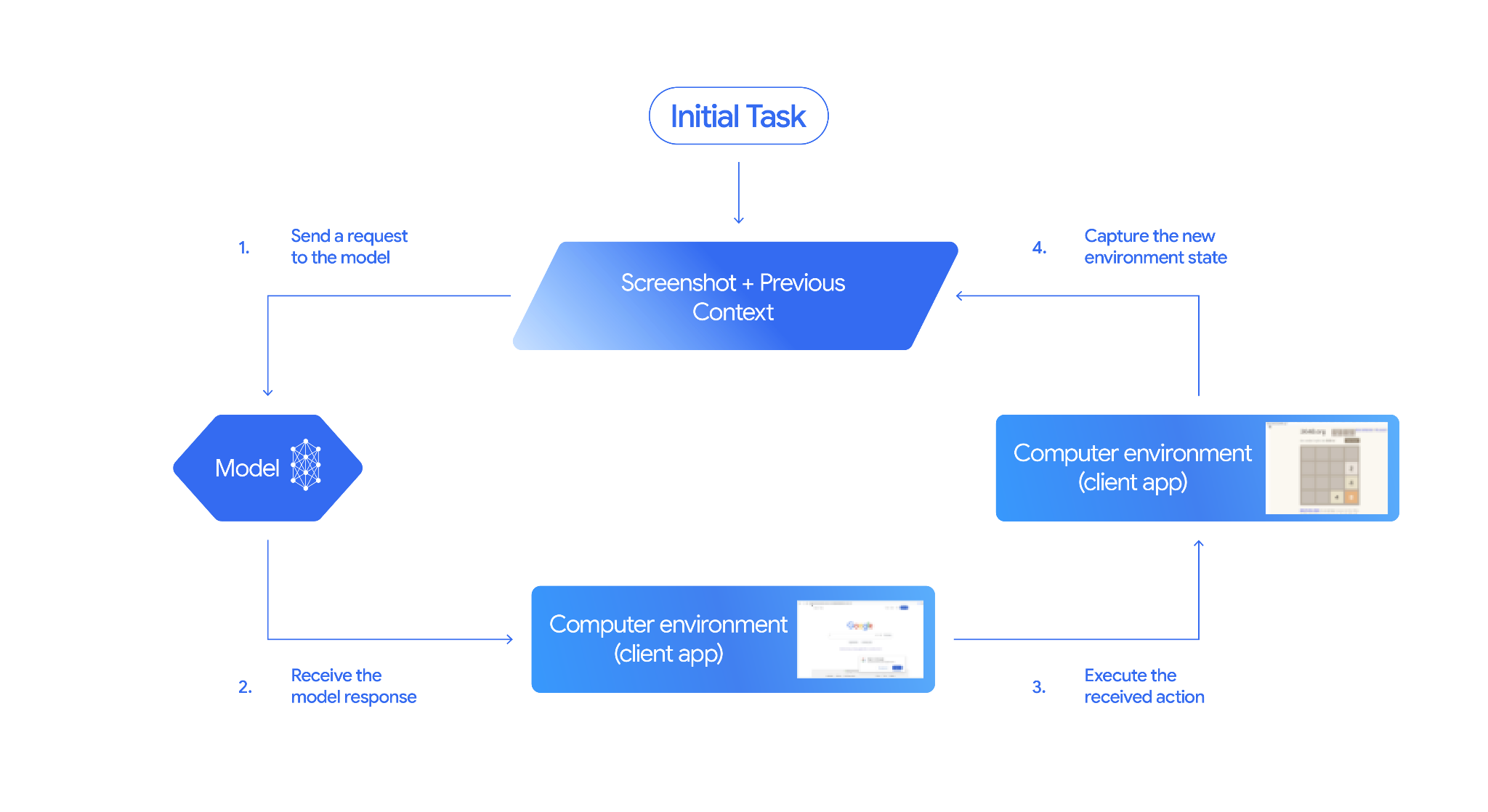
วิธีใช้การใช้คอมพิวเตอร์
ก่อนที่จะสร้างด้วยเครื่องมือการใช้งานคอมพิวเตอร์ คุณจะต้องตั้งค่าสิ่งต่อไปนี้
- สภาพแวดล้อมการดำเนินการที่ปลอดภัย: เรียกใช้เอเจนต์ใน VM หรือคอนเทนเนอร์แซนด์บ็อกซ์เพื่อแยกเอเจนต์ออกจากระบบโฮสต์และจำกัดผลกระทบที่อาจเกิดขึ้น การติดตั้งใช้งานอ้างอิง มีแซนด์บ็อกซ์ที่ใช้ Docker พร้อมใช้งานซึ่งคุณใช้เป็นจุดเริ่มต้นได้
- ตัวแฮนเดิลการดำเนินการฝั่งไคลเอ็นต์: ใช้ตรรกะฝั่งไคลเอ็นต์เพื่อดำเนินการกับพิกัด พิมพ์ข้อความ และถ่ายภาพหน้าจอ
ตัวอย่างด้านล่างใช้เว็บเบราว์เซอร์เป็นสภาพแวดล้อมการดำเนินการและ Playwright เป็นตัวแฮนเดิลฝั่งไคลเอ็นต์
0. ตั้งค่า Playwright
ก่อนอื่น ให้ติดตั้งแพ็กเกจที่จำเป็น
pip install google-genai playwright
playwright install chromium
จากนั้นเริ่มต้นอินสแตนซ์เบราว์เซอร์ Playwright เพื่อใช้ในการดำเนินการ
from playwright.sync_api import sync_playwright

# 1. Configure screen dimensions for the target environment
SCREEN_WIDTH = 1440
SCREEN_HEIGHT = 900

# 2. Start the Playwright browser
# In production, utilize a sandboxed environment.
playwright = sync_playwright().start()
# Set headless=False to see the actions performed on your screen
browser = playwright.chromium.launch(headless=False)

# 3. Create a context and page with the specified dimensions
context = browser.new_context(
    viewport={"width": SCREEN_WIDTH, "height": SCREEN_HEIGHT}
)
page = context.new_page()

# 4. Navigate to an initial page to start the task
page.goto("https://www.google.com")

# The 'page', 'SCREEN_WIDTH', and 'SCREEN_HEIGHT' variables
# will be used in the steps below.
1. ส่งคำขอไปยังโมเดล
เริ่มต้นไลบรารีของไคลเอ็นต์และกำหนดค่าเครื่องมือการใช้งานคอมพิวเตอร์ โปรดทราบว่าไม่จำเป็นต้องระบุขนาดการแสดงผลเมื่อส่งคำขอ เนื่องจากโมเดลจะคาดการณ์พิกัดพิกเซลที่ปรับขนาดตามความสูงและความกว้างของหน้าจอ
Gemini 3.x
Python
ใช้ google-genai Python SDK (เวอร์ชัน 2.7.0 ขึ้นไป) เพื่อกำหนดค่าคำขอที่กำหนดเป้าหมายไปยังสภาพแวดล้อมของเบราว์เซอร์
from google import genai

client = genai.Client()

interaction = client.interactions.create(
    model='gemini-3.8-flash',
    input="Find a flight from SF to Hawaii on Jun 30th, coming back on Jul 6th",
    tools=[
        {
            "type": "computer_use",
            "environment": "browser",
            "enable_prompt_injection_detection": True
        }
    ]
)

print(interaction)
JavaScript
ใช้ @google/genai Node.js SDK เพื่อกำหนดค่าคำขอที่กำหนดเป้าหมายไปยังสภาพแวดล้อมของเบราว์เซอร์
import { GoogleGenAI } from '@google/genai';

const ai = new GoogleGenAI();

const interaction = await ai.interactions.create({
  model: 'gemini-3.8-flash',
  input: "Find a flight from SF to Hawaii on Jun 30th, coming back on Jul 6th",
  tools: [
    {
      type: "computer_use",
      environment: "browser",
      enable_prompt_injection_detection: true
    }
  ]
});

console.log(interaction);
Java
import com.google.genai.Client;
import com.google.genai.gaos.models.interactions.ComputerUse;
import com.google.genai.gaos.models.interactions.CreateModelInteraction;
import com.google.genai.gaos.models.interactions.EnvironmentEnum;
import com.google.genai.gaos.models.interactions.Interaction;
import com.google.genai.gaos.models.interactions.InteractionsInput;
import com.google.genai.gaos.models.operations.CreateInteractionRequestBody;
import java.util.Arrays;

Client client = new Client();

CreateModelInteraction params =
    CreateModelInteraction.builder()
        .model("gemini-3.8-flash")
        .input(
            InteractionsInput.of(
                "Find a flight from SF to Hawaii on Jun 30th, coming back on Jul 6th"))
        .tools(
            Arrays.asList(
                ComputerUse.builder()
                    .environment(EnvironmentEnum.BROWSER)
                    .enablePromptInjectionDetection(true)
                    .build()))
        .build();

Interaction interaction =
    client.interactions.create(CreateInteractionRequestBody.of(params)).interaction().get();

System.out.println(interaction);
REST
ใช้ curl เพื่อส่งคำขอ
curl -X POST \
  "https://generativelanguage.googleapis.com/v1beta/interactions" \
  -H "x-goog-api-key: $GEMINI_API_KEY" \
  -H "Content-Type: application/json" \
  -d '{
    "model": "gemini-3.8-flash",
    "input": "Find me a flight from SF to Hawaii on Jun 30th, coming back on Jul 6th. Start by navigating directly to flights.google.com",
    "tools": [
      {
        "type": "computer_use",
        "environment": "browser",
        "enable_prompt_injection_detection": true
      }
    ]
  }'
Gemini 2.5 (เดิม)
Python
from google import genai

client = genai.Client()

# Specify predefined functions to exclude (optional)
excluded_functions = ["drag_and_drop"]

interaction = client.interactions.create(
    model='gemini-2.5-computer-use-preview-10-2025',
    input="Search for highly rated smart fridges on Google Shopping.",
    tools=[
        {
            "type": "computer_use",
            "environment": "browser",
            "excluded_predefined_functions": excluded_functions
        }
    ]
)

print(interaction)
JavaScript
import { GoogleGenAI } from '@google/genai';

const ai = new GoogleGenAI();

// Specify predefined functions to exclude (optional)
const excludedFunctions = ["drag_and_drop"];

const interaction = await ai.interactions.create({
  model: 'gemini-2.5-computer-use-preview-10-2025',
  input: "Search for highly rated smart fridges on Google Shopping.",
  tools: [
    {
      type: "computer_use",
      environment: "browser",
      excluded_predefined_functions: excludedFunctions
    }
  ]
});

console.log(interaction);
Java
import com.google.genai.Client;
import com.google.genai.gaos.models.interactions.ComputerUse;
import com.google.genai.gaos.models.interactions.CreateModelInteraction;
import com.google.genai.gaos.models.interactions.EnvironmentEnum;
import com.google.genai.gaos.models.interactions.Interaction;
import com.google.genai.gaos.models.interactions.InteractionsInput;
import com.google.genai.gaos.models.operations.CreateInteractionRequestBody;
import java.util.Arrays;
import java.util.List;

Client client = new Client();

// Specify predefined functions to exclude (optional)
List<String> excludedFunctions = Arrays.asList("drag_and_drop");

CreateModelInteraction params =
    CreateModelInteraction.builder()
        .model("gemini-2.5-computer-use-preview-10-2025")
        .input(InteractionsInput.of("Search for highly rated smart fridges on Google Shopping."))
        .tools(
            Arrays.asList(
                ComputerUse.builder()
                    .environment(EnvironmentEnum.BROWSER)
                    .excludedPredefinedFunctions(excludedFunctions)
                    .build()))
        .build();

Interaction interaction =
    client.interactions.create(CreateInteractionRequestBody.of(params)).interaction().get();

System.out.println(interaction);
2. รับคำตอบของโมเดล
โมเดลการตอบกลับแนะนำการเรียกใช้ฟังก์ชัน สำหรับโมเดล Gemini 3.x คำตอบจะมีเจตนาในการให้เหตุผลที่ปรับแต่งแล้วพร้อมกับพิกัด ต่อไปนี้เป็นตัวอย่างของการตอบกลับทั้ง 2 แบบ
Gemini 3.x
{
  "steps": [
    {
      "type": "function_call",
      "name": "click",
      "arguments": {
        "x": 450,
        "y": 120,
        "intent": "Click the search box to type the destination."
      }
    }
  ]
}
Gemini 2.5 (เดิม)
{
  "steps": [
    {
      "type": "model_output",
      "content": [
        {
          "type": "text",
          "text": "I will type the search query into the search bar."
        }
      ]
    },
    {
      "type": "function_call",
      "name": "type_text_at",
      "arguments": {
        "x": 371,
        "y": 470,
        "text": "highly rated smart fridges",
        "press_enter": true
      }
    }
  ]
}
3. ดำเนินการตามการดำเนินการที่ได้รับ
แอปพลิเคชันของคุณต้องแยกวิเคราะห์พิกัดการตอบกลับ ดำเนินการ และปรับขนาดจากพิกัด 1000x1000 ที่เป็นค่าปกติ
โค้ดด้านล่างจะจัดการทั้งคำสั่งเครื่องมือเดิม (click_at, type_text_at) และคำสั่งที่ปรับปรุงใหม่ (click, type)
Python
from typing import Any, List, Tuple
import time

def denormalize_x(x: int, screen_width: int) -> int:
    """Convert normalized x coordinate (0-1000) to actual pixel coordinate."""
    return int(x / 1000 * screen_width)

def denormalize_y(y: int, screen_height: int) -> int:
    """Convert normalized y coordinate (0-1000) to actual pixel coordinate."""
    return int(y / 1000 * screen_height)

def execute_function_calls(interaction, page, screen_width, screen_height):
    results = []
    function_calls = [
        step for step in interaction.steps if step.type == "function_call"
    ]

    for function_call in function_calls:
        action_result = {}
        fname = function_call.name
        args = function_call.arguments
        print(f"  -> Executing: {fname} (Intent: {args.get('intent', 'N/A')})")

        try:
            if fname in ("open_web_browser", "open_app"):
                pass # Handled / already open
            elif fname in ("click", "click_at", "double_click", "triple_click", "middle_click", "right_click", "move", "long_press"):
                actual_x = denormalize_x(args["x"], screen_width)
                actual_y = denormalize_y(args["y"], screen_height)

                if fname in ("click", "click_at"):
                    page.mouse.click(actual_x, actual_y)
                elif fname == "double_click":
                    page.mouse.dblclick(actual_x, actual_y)
                elif fname == "right_click":
                    page.mouse.click(actual_x, actual_y, button="right")
                elif fname == "middle_click":
                    page.mouse.click(actual_x, actual_y, button="middle")
                elif fname == "move":
                    page.mouse.move(actual_x, actual_y)
            elif fname in ("type", "type_text_at"):
                actual_x = denormalize_x(args["x"], screen_width) if "x" in args else None
                actual_y = denormalize_y(args["y"], screen_height) if "y" in args else None
                text = args["text"]
                press_enter = args.get("press_enter", False)

                if actual_x is not None and actual_y is not None:
                    page.mouse.click(actual_x, actual_y)
                # Clear field first
                page.keyboard.press("Meta+A")
                page.keyboard.press("Backspace")
                page.keyboard.type(text)
                if press_enter:
                    page.keyboard.press("Enter")
            elif fname == "navigate":
                page.goto(args["url"])
            elif fname == "go_back":
                page.go_back()
            elif fname == "go_forward":
                page.go_forward()
            elif fname == "wait":
                time.sleep(args.get("seconds", 1))
            else:
                print(f"Warning: Custom or unhandled function {fname}")

            page.wait_for_load_state(timeout=5000)
            time.sleep(1)

        except Exception as e:
            print(f"Error executing {fname}: {e}")
            action_result = {"error": str(e)}

        results.append((fname, function_call.id, action_result))

    return results
JavaScript
function denormalizeX(x, screenWidth) {
    // Convert normalized x coordinate (0-1000) to actual pixel coordinate.
    return Math.floor((x / 1000) * screenWidth);
}

function denormalizeY(y, screenHeight) {
    // Convert normalized y coordinate (0-1000) to actual pixel coordinate.
    return Math.floor((y / 1000) * screenHeight);
}

async function executeFunctionCalls(interaction, page, screenWidth, screenHeight) {
    const results = [];
    const functionCalls = interaction.steps.filter(step => step.type === "function_call");

    for (const functionCall of functionCalls) {
        const actionResult = {};
        const fname = functionCall.name;
        const args = functionCall.arguments;
        console.log(`  -> Executing: ${fname} (Intent: ${args.intent || 'N/A'})`);

        try {
            if (fname === "open_web_browser" || fname === "open_app") {
                // Handled / already open
            } else if (["click", "click_at", "double_click", "triple_click", "middle_click", "right_click", "move", "long_press"].includes(fname)) {
                const actualX = denormalizeX(args.x, screenWidth);
                const actualY = denormalizeY(args.y, screenHeight);

                if (fname === "click" || fname === "click_at") {
                    await page.mouse.click(actualX, actualY);
                } else if (fname === "double_click") {
                    await page.mouse.dblclick(actualX, actualY);
                } else if (fname === "right_click") {
                    await page.mouse.click(actualX, actualY, { button: "right" });
                } else if (fname === "middle_click") {
                    await page.mouse.click(actualX, actualY, { button: "middle" });
                } else if (fname === "move") {
                    await page.mouse.move(actualX, actualY);
                }
            } else if (fname === "type" || fname === "type_text_at") {
                const actualX = args.x !== undefined ? denormalizeX(args.x, screenWidth) : null;
                const actualY = args.y !== undefined ? denormalizeY(args.y, screenHeight) : null;
                const text = args.text;
                const pressEnter = args.press_enter || false;

                if (actualX !== null && actualY !== null) {
                    await page.mouse.click(actualX, actualY);
                }
                // Clear field first
                await page.keyboard.press("Meta+A");
                await page.keyboard.press("Backspace");
                await page.keyboard.type(text);
                if (pressEnter) {
                    await page.keyboard.press("Enter");
                }
            } else if (fname === "navigate") {
                await page.goto(args.url);
            } else if (fname === "go_back") {
                await page.goBack();
            } else if (fname === "go_forward") {
                await page.goForward();
            } else if (fname === "wait") {
                await new Promise(resolve => setTimeout(resolve, (args.seconds || 1) * 1000));
            } else {
                console.log(`Warning: Custom or unhandled function ${fname}`);
            }

            await page.waitForLoadState('load', { timeout: 5000 }).catch(() => {});
            await new Promise(resolve => setTimeout(resolve, 1000));
        } catch (e) {
            console.log(`Error executing ${fname}: ${e}`);
            actionResult.error = e.message;
        }

        results.push([fname, functionCall.id, actionResult]);
    }

    return results;
}
Java
import com.google.genai.gaos.models.interactions.FunctionCallStep;
import com.google.genai.gaos.models.interactions.Interaction;
import com.google.genai.gaos.models.interactions.Step;
import java.util.ArrayList;
import java.util.Collections;
import java.util.HashMap;
import java.util.List;
import java.util.Map;

class ActionExecutor {
  int denormalizeX(int x, int screenWidth) {
    return (int) (x / 1000.0 * screenWidth);
  }

  int denormalizeY(int y, int screenHeight) {
    return (int) (y / 1000.0 * screenHeight);
  }

  List<Map<String, Object>> executeFunctionCalls(
      Interaction interaction, int screenWidth, int screenHeight) {
    List<Map<String, Object>> results = new ArrayList<>();

    for (Step step : interaction.steps().orElse(Collections.emptyList())) {
      if (step instanceof FunctionCallStep) {
        FunctionCallStep functionCall = (FunctionCallStep) step;
        String fname = functionCall.name().orElse("");
        Map<String, Object> args = functionCall.arguments().orElse(Collections.emptyMap());
        Map<String, Object> actionResult = new HashMap<>();

        System.out.println(
            "  -> Executing: " + fname + " (Intent: " + args.getOrDefault("intent", "N/A") + ")");

        try {
          if (fname.equals("click") || fname.equals("click_at")) {
            int actualX = denormalizeX(((Number) args.get("x")).intValue(), screenWidth);
            int actualY = denormalizeY(((Number) args.get("y")).intValue(), screenHeight);
            // Perform mouse click at (actualX, actualY) using your browser automation library
          } else if (fname.equals("type") || fname.equals("type_text_at")) {
            String text = (String) args.get("text");
            // Type text into active element using your browser automation library
          } else if (fname.equals("navigate")) {
            String url = (String) args.get("url");
            // Navigate browser to url
          }
        } catch (Exception e) {
          actionResult.put("error", e.getMessage());
        }

        Map<String, Object> entry = new HashMap<>();
        entry.put("name", fname);
        entry.put("callId", functionCall.id().orElse(""));
        entry.put("result", actionResult);
        results.add(entry);
      }
    }
    return results;
  }
}
4. บันทึกสถานะสภาพแวดล้อมใหม่
หลังจากดำเนินการแล้ว ให้ส่งผลลัพธ์ของการเรียกใช้ฟังก์ชันกลับไปยังโมเดล เพื่อให้โมเดลใช้ข้อมูลนี้สร้างการดำเนินการถัดไปได้ หากมีการดำเนินการหลายอย่าง (การเรียกแบบขนาน) คุณต้องส่ง function_result สำหรับแต่ละรายการในเทิร์นของผู้ใช้ถัดไป
Python
import json
import base64

def get_function_responses(page, results):
    screenshot_bytes = page.screenshot(type="png")
    current_url = page.url
    function_responses = []
    for name, call_id, result in results:
        function_responses.append({
            "type": "function_result",
            "name": name,
            "call_id": call_id,
            "result": [
                {
                    "type": "text",
                    "text": json.dumps({"url": current_url, **result})
                },
                {
                    "type": "image",
                    "data": base64.b64encode(screenshot_bytes).decode("utf-8"),
                    "mime_type": "image/png"
                }
            ]
        })
    return function_responses
JavaScript
async function getFunctionResponses(page, results) {
    const screenshotBuffer = await page.screenshot({ type: 'png' });
    const screenshotBase64 = screenshotBuffer.toString('base64');
    const currentUrl = page.url();
    const functionResponses = [];

    for (const [name, callId, result] of results) {
        functionResponses.push({
            type: "function_result",
            name: name,
            call_id: callId,
            result: [
                {
                    type: "text",
                    text: JSON.stringify({ url: currentUrl, ...result })
                },
                {
                    type: "image",
                    data: screenshotBase64,
                    mime_type: "image/png"
                }
            ]
        });
    }
    return functionResponses;
}
Java
import com.google.genai.gaos.models.interactions.FunctionResultStep;
import com.google.genai.gaos.models.interactions.FunctionResultStepResultUnion;
import com.google.genai.gaos.models.interactions.ImageContent;
import com.google.genai.gaos.models.interactions.ImageContentMimeType;
import com.google.genai.gaos.models.interactions.Step;
import com.google.genai.gaos.models.interactions.TextContent;
import java.util.ArrayList;
import java.util.Arrays;
import java.util.Base64;
import java.util.List;
import java.util.Map;

class StateCapturer {
  List<Step> getFunctionResponses(
      byte[] screenshotBytes, String currentUrl, List<Map<String, Object>> results) {
    List<Step> functionResponses = new ArrayList<>();
    String base64Screenshot = Base64.getEncoder().encodeToString(screenshotBytes);

    for (Map<String, Object> entry : results) {
      String name = (String) entry.get("name");
      String callId = (String) entry.get("callId");
      String jsonResult = String.format("{\"url\": \"%s\"}", currentUrl);

      FunctionResultStep responseStep =
          FunctionResultStep.builder()
              .name(name)
              .callId(callId)
              .result(
                  FunctionResultStepResultUnion.of(
                      Arrays.asList(
                          TextContent.builder().text(jsonResult).build(),
                          ImageContent.builder()
                              .data(base64Screenshot)
                              .mimeType(ImageContentMimeType.IMAGE_PNG)
                              .build())))
              .build();
      functionResponses.add(responseStep);
    }
    return functionResponses;
  }
}
เมื่อกำหนดวิธีบันทึกและจัดรูปแบบสถานะสภาพแวดล้อมแล้ว คุณจะ รวมขั้นตอนทั้งหมดเหล่านี้เป็นลูปการดำเนินการต่อเนื่องได้
สร้างลูปของ Agent
หากต้องการเปิดใช้การโต้ตอบแบบหลายขั้นตอน ให้รวม 4 ขั้นตอนจากส่วนวิธี ใช้งานคอมพิวเตอร์เป็นลูปเดียว ลูปนี้จะขอการดำเนินการและป้อนผลลัพธ์กลับไปยังโมเดลต่อไป จนกว่างานจะเสร็จสมบูรณ์
อย่าลืมจัดการประวัติการสนทนาอย่างถูกต้องโดยการต่อท้ายทั้ง คำตอบของโมเดลและคำตอบของฟังก์ชันลงในประวัติในแต่ละขั้นตอน
Python
import time
from typing import Any, List, Tuple
from playwright.sync_api import sync_playwright

from google import genai

client = genai.Client()

# Constants for screen dimensions
SCREEN_WIDTH = 1440
SCREEN_HEIGHT = 900

# Setup Playwright
print("Initializing browser...")
playwright = sync_playwright().start()
browser = playwright.chromium.launch(headless=False)
context = browser.new_context(viewport={"width": SCREEN_WIDTH, "height": SCREEN_HEIGHT})
page = context.new_page()

# Define helper functions. Copy/paste from steps 3 and 4
# def denormalize_x(...)
# def denormalize_y(...)
# def execute_function_calls(...)
# def get_function_responses(...)

try:
    # Go to initial page
    page.goto("https://ai.google.dev/gemini-api/docs")

    # Take initial screenshot
    initial_screenshot = page.screenshot(type="png")
    USER_PROMPT = "Go to ai.google.dev/gemini-api/docs and search for pricing."
    print(f"Goal: {USER_PROMPT}")

    # First interaction
    interaction = client.interactions.create(
        model='gemini-3.8-flash',
        input=[
            {"type": "text", "text": USER_PROMPT},
            {"type": "image", "data": base64.b64encode(initial_screenshot).decode("utf-8"), "mime_type": "image/png"}
        ],
        tools=[{
            "type": "computer_use",
            "environment": "browser",
            "enable_prompt_injection_detection": True
        }]
    )

    # Agent Loop
    turn_limit = 5
    for i in range(turn_limit):
        print(f"\n--- Turn {i+1} ---")

        has_function_calls = any(
            step.type == "function_call"
            for step in interaction.steps
        )
        if not has_function_calls:
            text_response = " ".join([
                content_block.text for step in interaction.steps if step.type == "model_output"
                for content_block in step.content if content_block.type == "text"
            ])
            print("Agent finished:", text_response)
            break

        print("Executing actions...")
        results = execute_function_calls(interaction, page, SCREEN_WIDTH, SCREEN_HEIGHT)

        print("Capturing state...")
        function_responses = get_function_responses(page, results)

        # Continue conversation with function responses
        interaction = client.interactions.create(
            model='gemini-3.8-flash',
            previous_interaction_id=interaction.id,
            input=function_responses,
            tools=[{
                "type": "computer_use",
                "environment": "browser",
                "enable_prompt_injection_detection": True
            }]
        )

finally:
    # Cleanup
    print("\nClosing browser...")
    browser.close()
    playwright.stop()
JavaScript
import { chromium } from 'playwright';
import { GoogleGenAI } from '@google/genai';

const ai = new GoogleGenAI();

// Constants for screen dimensions
const SCREEN_WIDTH = 1440;
const SCREEN_HEIGHT = 900;

console.log("Initializing browser...");
const browser = await chromium.launch({ headless: false });
const context = await browser.newContext({
    viewport: { width: SCREEN_WIDTH, height: SCREEN_HEIGHT }
});
const page = await context.newPage();

// Define helper functions. Copy/paste from steps 3 and 4:
// function denormalizeX(...)
// function denormalizeY(...)
// async function executeFunctionCalls(...)
// async function getFunctionResponses(...)

try {
    // Go to initial page
    await page.goto("https://ai.google.dev/gemini-api/docs");

    // Take initial screenshot
    const initialScreenshotBuffer = await page.screenshot({ type: 'png' });
    const initialScreenshotBase64 = initialScreenshotBuffer.toString('base64');
    const USER_PROMPT = "Go to ai.google.dev/gemini-api/docs and search for pricing.";
    console.log(`Goal: ${USER_PROMPT}`);

    // First interaction
    let interaction = await ai.interactions.create({
        model: 'gemini-3.8-flash',
        input: [
            { type: 'text', text: USER_PROMPT },
            { type: 'image', data: initialScreenshotBase64, mime_type: 'image/png' }
        ],
        tools: [{
            type: 'computer_use',
            environment: 'browser',
            enable_prompt_injection_detection: true
        }]
    });

    // Agent Loop
    const turnLimit = 5;
    for (let i = 0; i < turnLimit; i++) {
        console.log(`\n--- Turn ${i + 1} ---`);

        const hasFunctionCalls = interaction.steps.some(step => step.type === "function_call");
        if (!hasFunctionCalls) {
            const textResponses = [];
            for (const step of interaction.steps) {
                if (step.type === "model_output") {
                    for (const contentBlock of step.content || []) {
                        if (contentBlock.type === "text") {
                            textResponses.push(contentBlock.text);
                        }
                    }
                }
            }
            console.log("Agent finished:", textResponses.join(" "));
            break;
        }

        console.log("Executing actions...");
        const results = await executeFunctionCalls(interaction, page, SCREEN_WIDTH, SCREEN_HEIGHT);

        console.log("Capturing state...");
        const functionResponses = await getFunctionResponses(page, results);

        // Continue conversation with function responses
        interaction = await ai.interactions.create({
            model: 'gemini-3.8-flash',
            previous_interaction_id: interaction.id,
            input: functionResponses,
            tools: [{
                type: 'computer_use',
                environment: 'browser',
                enable_prompt_injection_detection: true
            }]
        });
    }
} finally {
    // Cleanup
    console.log("\nClosing browser...");
    await browser.close();
}
Java
import com.google.genai.Client;
import com.google.genai.gaos.models.interactions.ComputerUse;
import com.google.genai.gaos.models.interactions.Content;
import com.google.genai.gaos.models.interactions.CreateModelInteraction;
import com.google.genai.gaos.models.interactions.EnvironmentEnum;
import com.google.genai.gaos.models.interactions.FunctionCallStep;
import com.google.genai.gaos.models.interactions.ImageContent;
import com.google.genai.gaos.models.interactions.ImageContentMimeType;
import com.google.genai.gaos.models.interactions.Interaction;
import com.google.genai.gaos.models.interactions.InteractionsInput;
import com.google.genai.gaos.models.interactions.ModelOutputStep;
import com.google.genai.gaos.models.interactions.Step;
import com.google.genai.gaos.models.interactions.TextContent;
import com.google.genai.gaos.models.operations.CreateInteractionRequestBody;
import java.util.ArrayList;
import java.util.Arrays;
import java.util.Base64;
import java.util.Collections;
import java.util.List;

Client client = new Client();

// Constants for screen dimensions
int screenWidth = 1440;
int screenHeight = 900;

// Capture initial screenshot from browser driver (e.g. Playwright)
byte[] initialScreenshot = new byte[0];
String base64Screenshot = Base64.getEncoder().encodeToString(initialScreenshot);
String userPrompt = "Go to ai.google.dev/gemini-api/docs and search for pricing.";
System.out.println("Goal: " + userPrompt);

ComputerUse computerUseTool =
    ComputerUse.builder()
        .environment(EnvironmentEnum.BROWSER)
        .enablePromptInjectionDetection(true)
        .build();

CreateModelInteraction initialParams =
    CreateModelInteraction.builder()
        .model("gemini-3.8-flash")
        .input(
            InteractionsInput.ofContent(
                Arrays.asList(
                    TextContent.builder().text(userPrompt).build(),
                    ImageContent.builder()
                        .data(base64Screenshot)
                        .mimeType(ImageContentMimeType.IMAGE_PNG)
                        .build())))
        .tools(Arrays.asList(computerUseTool))
        .build();

Interaction interaction =
    client.interactions.create(CreateInteractionRequestBody.of(initialParams)).interaction().get();

int turnLimit = 5;
for (int i = 0; i < turnLimit; i++) {
  System.out.println("\n--- Turn " + (i + 1) + " ---");

  boolean hasFunctionCalls =
      interaction.steps().orElse(Collections.emptyList()).stream()
          .anyMatch(step -> step instanceof FunctionCallStep);

  if (!hasFunctionCalls) {
    StringBuilder textResponse = new StringBuilder();
    for (Step step : interaction.steps().orElse(Collections.emptyList())) {
      if (step instanceof ModelOutputStep) {
        for (Content contentBlock :
            ((ModelOutputStep) step).content().orElse(Collections.emptyList())) {
          if (contentBlock instanceof TextContent) {
            textResponse.append(((TextContent) contentBlock).text().orElse("")).append(" ");
          }
        }
      }
    }
    System.out.println("Agent finished: " + textResponse.toString().trim());
    break;
  }

  System.out.println("Executing actions and capturing state...");
  // Execute function calls against browser driver and capture List<Step> functionResponses
  List<Step> functionResponses = new ArrayList<>();

  CreateModelInteraction nextParams =
      CreateModelInteraction.builder()
          .model("gemini-3.8-flash")
          .previousInteractionId(interaction.id().get())
          .input(InteractionsInput.ofStep(functionResponses))
          .tools(Arrays.asList(computerUseTool))
          .build();

  interaction =
      client.interactions.create(CreateInteractionRequestBody.of(nextParams)).interaction().get();
}
สภาพแวดล้อมที่รองรับ (Gemini 3.x)
โมเดล Gemini 3.x รองรับสภาพแวดล้อม 3 แบบที่ระบุไว้ในการกำหนดค่า computer_use
ดังนี้
สภาพแวดล้อมของเบราว์เซอร์ (ENVIRONMENT_BROWSER)
การดำเนินการที่ใช้ได้ในเครื่องมือเบราว์เซอร์
| ชื่อคำสั่ง | คำอธิบาย | อาร์กิวเมนต์ (ในการเรียกใช้ฟังก์ชัน) |
|---|---|---|
| คลิก | คลิกซ้ายที่พิกัด | y: int (0-999)x: int (0-999)intent: str |
| double_click | ดับเบิลคลิกที่พิกัด | y: int (0-999)x: int (0-999)intent: str |
| triple_click | คลิก 3 ครั้งที่พิกัด | y: int (0-999)x: int (0-999)intent: str |
| middle_click | คลิกตรงกลางที่พิกัด | y: int (0-999)x: int (0-999)intent: str |
| right_click | คลิกขวาที่พิกัด | y: int (0-999)x: int (0-999)intent: str |
| mouse_down | กดปุ่มเมาส์ค้างไว้ที่พิกัด | y: int (0-999)x: int (0-999)intent: str |
| mouse_up | ปล่อยปุ่มเมาส์ที่พิกัด | y: int (0-999)x: int (0-999)intent: str |
| ย้าย | ย้ายเคอร์เซอร์ไปยังตำแหน่งที่ระบุ | y: int (0-999)x: int (0-999)intent: str |
| ประเภท | พิมพ์ข้อความ | text: strpress_enter: bool (ไม่บังคับ ค่าเริ่มต้น false)intent: str |
| drag_and_drop | ลากรายการจากพิกัดเริ่มต้นไปยังพิกัดสิ้นสุด | start_y: int (0-999)start_x: int (0-999)end_y: int (0-999)end_x: int (0-999)intent: str |
| รอ | หยุดการดำเนินการชั่วคราวตามจำนวนวินาทีที่ระบุ | seconds: int (ไม่บังคับ ค่าเริ่มต้น 1)intent: str |
| press_key | กดแป้นที่ระบุแล้วปล่อย | key: strintent: str |
| key_down | กดแป้นที่ระบุค้างไว้ | key: strintent: str |
| key_up | ปล่อยคีย์ที่ระบุ | key: strintent: str |
| ฮอตคีย์ | กดชุดแป้นที่ระบุ | keys: List[str]intent: str |
| take_screenshot | แสดงผลภาพหน้าจอปัจจุบัน | intent: str |
| เลื่อน | เลื่อนขึ้น ลง ซ้าย หรือขวาที่พิกัดตามระยะห่างของพิกเซล | y: int (0-999)x: int (0-999)direction: str ("up", "down", "left", "right")magnitude_in_pixels: int (0-999, ไม่บังคับ, ค่าเริ่มต้น 300)intent: str |
| go_back | กลับไปยังหน้าเว็บก่อนหน้าในประวัติการท่องเว็บ | intent: str |
| navigate | ไปยัง URL ที่ระบุโดยตรง | url: strintent: str |
| go_forward | ไปยังหน้าเว็บถัดไปในประวัติการท่องเว็บ | intent: str |
สภาพแวดล้อมบนอุปกรณ์เคลื่อนที่ (ENVIRONMENT_MOBILE)
การดำเนินการในสภาพแวดล้อมที่เพิ่มประสิทธิภาพสำหรับ Android
| ชื่อคำสั่ง | คำอธิบาย | อาร์กิวเมนต์ (ในการเรียกใช้ฟังก์ชัน) |
|---|---|---|
| open_app | เปิดแอปพลิเคชันตามชื่อ | app_name: strintent: str |
| คลิก | คลิกซ้ายที่พิกัด | y: int (0-999)x: int (0-999)intent: str |
| list_apps | แสดงรายการแอปพลิเคชันที่พร้อมใช้งานในอุปกรณ์ โดยแสดงชื่อและชื่อแพ็กเกจ | intent: str |
| รอ | หยุดการดำเนินการชั่วคราวตามจำนวนวินาทีที่ระบุ | seconds: int (ไม่บังคับ ค่าเริ่มต้น 1)intent: str |
| go_back | กลับไปยังหน้าจอก่อนหน้าหรือหน้าเว็บก่อนหน้า | intent: str |
| ประเภท | พิมพ์ข้อความ | text: strpress_enter: bool (ไม่บังคับ ค่าเริ่มต้น false)intent: str |
| drag_and_drop | ลากรายการจากพิกัดเริ่มต้นไปยังพิกัดสิ้นสุด | start_y: int (0-999)start_x: int (0-999)end_y: int (0-999)end_x: int (0-999)intent: str |
| long_press | กดค้างที่พิกัดบนหน้าจอ | y: int (0-999)x: int (0-999)seconds: int (ไม่บังคับ ค่าเริ่มต้น 2)intent: str |
| press_key | กดแป้นที่ระบุแล้วปล่อย | key: strintent: str |
| take_screenshot | แสดงผลภาพหน้าจอปัจจุบัน | intent: str |
สภาพแวดล้อมของเดสก์ท็อป (ENVIRONMENT_DESKTOP)
คำสั่งเคอร์เซอร์ระดับระบบปฏิบัติการของสภาพแวดล้อมเดสก์ท็อป
| ชื่อคำสั่ง | คำอธิบาย | อาร์กิวเมนต์ (ในการเรียกใช้ฟังก์ชัน) |
|---|---|---|
| คลิก | คลิกซ้ายที่พิกัด | y: int (0-999)x: int (0-999)intent: str |
| double_click | ดับเบิลคลิกที่พิกัด | y: int (0-999)x: int (0-999)intent: str |
| triple_click | คลิก 3 ครั้งที่พิกัด | y: int (0-999)x: int (0-999)intent: str |
| middle_click | คลิกตรงกลางที่พิกัด | y: int (0-999)x: int (0-999)intent: str |
| right_click | คลิกขวาที่พิกัด | y: int (0-999)x: int (0-999)intent: str |
| mouse_down | กดปุ่มเมาส์ค้างไว้ที่พิกัด | y: int (0-999)x: int (0-999)intent: str |
| mouse_up | ปล่อยปุ่มเมาส์ที่พิกัด | y: int (0-999)x: int (0-999)intent: str |
| ย้าย | ย้ายเคอร์เซอร์ไปยังตำแหน่งที่ระบุ | y: int (0-999)x: int (0-999)intent: str |
| ประเภท | พิมพ์ข้อความ | text: strpress_enter: bool (ไม่บังคับ ค่าเริ่มต้น false)intent: str |
| drag_and_drop | ลากรายการจากพิกัดเริ่มต้นไปยังพิกัดสิ้นสุด | start_y: int (0-999)start_x: int (0-999)end_y: int (0-999)end_x: int (0-999)intent: str |
| รอ | หยุดการดำเนินการชั่วคราวตามจำนวนวินาทีที่ระบุ | seconds: int (ไม่บังคับ ค่าเริ่มต้น 1)intent: str |
| press_key | กดแป้นที่ระบุแล้วปล่อย | key: strintent: str |
| key_down | กดแป้นที่ระบุค้างไว้ | key: strintent: str |
| key_up | ปล่อยคีย์ที่ระบุ | key: strintent: str |
| ฮอตคีย์ | กดชุดแป้นที่ระบุ | keys: List[str]intent: str |
| take_screenshot | แสดงผลภาพหน้าจอปัจจุบัน | intent: str |
| เลื่อน | เลื่อนขึ้น ลง ซ้าย หรือขวาที่พิกัดตามระยะห่างของพิกเซล | y: int (0-999)x: int (0-999)direction: str ("up", "down", "left", "right")magnitude_in_pixels: int (0-999, ไม่บังคับ, ค่าเริ่มต้น 300)intent: str |
การดำเนินการใน UI ที่รองรับเวอร์ชันเดิม (Gemini 2.5)
สำหรับโมเดลเดิม (gemini-2.5-computer-use-preview-10-2025) ระบบจะรองรับการดำเนินการต่อไปนี้
| ชื่อคำสั่ง | คำอธิบาย | อาร์กิวเมนต์ (ในการเรียกใช้ฟังก์ชัน) | ตัวอย่างการเรียกใช้ฟังก์ชัน |
|---|---|---|---|
| open_web_browser | เปิดเว็บเบราว์เซอร์ | ไม่มี | {"name": "open_web_browser", "arguments": {}} |
| wait_5_seconds | หยุดการดำเนินการชั่วคราวเป็นเวลา 5 วินาที | ไม่มี | {"name": "wait_5_seconds", "arguments": {}} |
| go_back | ไปยังหน้าก่อนหน้าในประวัติการเข้าชม | ไม่มี | {"name": "go_back", "arguments": {}} |
| go_forward | ไปยังหน้าถัดไปในประวัติการเข้าชม | ไม่มี | {"name": "go_forward", "arguments": {}} |
| search | ไปยังเครื่องมือค้นหาเริ่มต้น | ไม่มี | {"name": "search", "arguments": {}} |
| navigate | นำทางเบราว์เซอร์ไปยัง URL ที่ระบุโดยตรง | url: str |
{"name": "navigate", "arguments": {"url": "https://www.wikipedia.org"}} |
| click_at | คลิกที่พิกัดที่เฉพาะเจาะจง | y: int (0-999), x: int (0-999) |
{"name": "click_at", "arguments": {"y": 300, "x": 500}} |
| hover_at | วางเมาส์ที่พิกัดที่เฉพาะเจาะจง | y: int (0-999), x: int (0-999) |
{"name": "hover_at", "arguments": {"y": 150, "x": 250}} |
| type_text_at | พิมพ์ข้อความที่พิกัด | y: int (0-999), x: int (0-999), text: str, press_enter: bool (ไม่บังคับ ค่าเริ่มต้นคือ True), clear_before_typing: bool (ไม่บังคับ ค่าเริ่มต้นคือ True) |
{"name": "type_text_at", "arguments": {"y": 250, "x": 400, "text": "search", "press_enter": false}} |
| key_combination | กดแป้นหรือชุดแป้น | keys: str |
{"name": "key_combination", "arguments": {"keys": "Control+A"}} |
| scroll_document | เลื่อนทั้งหน้าเว็บ | direction: str |
{"name": "scroll_document", "arguments": {"direction": "down"}} |
| scroll_at | เลื่อนที่พิกัด (x,y) | y: int, x: int, direction: str, magnitude: int (ไม่บังคับ ค่าเริ่มต้นคือ 800) |
{"name": "scroll_at", "arguments": {"y": 500, "x": 500, "direction": "down"}} |
| drag_and_drop | ลากระหว่างพิกัด 2 จุด | y: int, x: int, destination_y: int, destination_x: int |
{"name": "drag_and_drop", "arguments": {"y": 100, "destination_y": 500, "destination_x": 500, "x": 100}} |
ฟังก์ชันที่กำหนดเองซึ่งผู้ใช้กำหนด
คุณขยายฟังก์ชันการทำงานของโมเดลได้โดยรวมฟังก์ชันที่กำหนดเองโดยผู้ใช้ เช่น ในสถานการณ์ที่มีการใช้คนในกระบวนการ (HITL) คุณสามารถยกเว้นการดำเนินการเริ่มต้นที่กำหนดไว้ล่วงหน้าและลงทะเบียนการดำเนินการที่กำหนดเองได้
เครื่องมือที่กำหนดเองของ Gemini 3.x
Python
ยกเว้นการดำเนินการในเบราว์เซอร์ที่กำหนดไว้ล่วงหน้ามาตรฐาน (เช่น click) และลงทะเบียนเครื่องมือ yield_to_user ที่กำหนดเอง
from google import genai

client = genai.Client()

yield_to_user_tool = {
    "type": "function",
    "name": "yield_to_user",
    "description": "Yields control back to the user for assistance or verification when an automated action is unsafe or ambiguous.",
    "parameters": {
        "type": "object",
        "properties": {
            "reason": {
                "type": "string",
                "description": "The reason why the agent is yielding control to the human."
            }
        },
        "required": ["reason"]
    }
}

interaction = client.interactions.create(
    model="gemini-3.8-flash",
    input="Click the submit button. If you need a second factor authentication code, ask me.",
    tools=[
        {
            "type": "computer_use",
            "environment": "mobile",
            "excluded_predefined_functions": ["click"]
        },
        yield_to_user_tool
    ]
)
JavaScript
ยกเว้นการดำเนินการในเบราว์เซอร์ที่กำหนดไว้ล่วงหน้ามาตรฐาน (เช่น click) และลงทะเบียนเครื่องมือ yield_to_user ที่กำหนดเอง
import { GoogleGenAI } from '@google/genai';

const ai = new GoogleGenAI();

const yieldToUserTool = {
    type: "function",
    name: "yield_to_user",
    description: "Yields control back to the user for assistance or verification when an automated action is unsafe or ambiguous.",
    parameters: {
        type: "object",
        properties: {
            reason: {
                type: "string",
                description: "The reason why the agent is yielding control to the human."
            }
        },
        required: ["reason"]
    }
};

const interaction = await ai.interactions.create({
    model: "gemini-3.8-flash",
    input: "Click the submit button. If you need a second factor authentication code, ask me.",
    tools: [
        {
            type: "computer_use",
            environment: "mobile",
            excluded_predefined_functions: ["click"]
        },
        yieldToUserTool
    ]
});
Java
import com.google.genai.Client;
import com.google.genai.gaos.models.interactions.ComputerUse;
import com.google.genai.gaos.models.interactions.CreateModelInteraction;
import com.google.genai.gaos.models.interactions.EnvironmentEnum;
import com.google.genai.gaos.models.interactions.Function;
import com.google.genai.gaos.models.interactions.Interaction;
import com.google.genai.gaos.models.interactions.InteractionsInput;
import com.google.genai.gaos.models.operations.CreateInteractionRequestBody;
import java.util.Arrays;
import java.util.Collections;
import java.util.HashMap;
import java.util.Map;

Client client = new Client();

Map<String, Object> reasonProp = new HashMap<>();
reasonProp.put("type", "string");
reasonProp.put("description", "The reason why the agent is yielding control to the human.");

Map<String, Object> properties = new HashMap<>();
properties.put("reason", reasonProp);

Map<String, Object> parameters = new HashMap<>();
parameters.put("type", "object");
parameters.put("properties", properties);
parameters.put("required", Collections.singletonList("reason"));

Function yieldToUserTool =
    Function.builder()
        .name("yield_to_user")
        .description(
            "Yields control back to the user for assistance or verification when an automated action is unsafe or ambiguous.")
        .parameters(parameters)
        .build();

CreateModelInteraction params =
    CreateModelInteraction.builder()
        .model("gemini-3.8-flash")
        .input(
            InteractionsInput.of(
                "Click the submit button. If you need a second factor authentication code, ask me."))
        .tools(
            Arrays.asList(
                ComputerUse.builder()
                    .environment(EnvironmentEnum.MOBILE)
                    .excludedPredefinedFunctions(Arrays.asList("click"))
                    .build(),
                yieldToUserTool))
        .build();

Interaction interaction =
    client.interactions.create(CreateInteractionRequestBody.of(params)).interaction().get();
เครื่องมือที่กำหนดเองของ Gemini 2.5 (เดิม)
Python
from google import genai

client = genai.Client()

# Define custom tools here
custom_functions = [...]  # Describe parameters as function declarations

excluded_functions = [
    "open_web_browser",
    "wait_5_seconds",
    "go_back",
    "go_forward",
    "search",
    "navigate",
    "hover_at",
    "scroll_document",
    "key_combination",
    "drag_and_drop",
]

interaction = client.interactions.create(
    model='gemini-2.5-computer-use-preview-10-2025',
    input="Open Chrome, then long-press at 200,400.",
    tools=[
        {
            "type": "computer_use",
            "environment": "browser",
            "excluded_predefined_functions": excluded_functions
        },
        *custom_functions
    ]
)

print(interaction)
JavaScript
import { GoogleGenAI } from '@google/genai';

const ai = new GoogleGenAI();

// Define custom tools here
const customFunctions = [...]; // Describe parameters as function declarations

const excludedFunctions = [
    "open_web_browser",
    "wait_5_seconds",
    "go_back",
    "go_forward",
    "search",
    "navigate",
    "hover_at",
    "scroll_document",
    "key_combination",
    "drag_and_drop",
];

const interaction = await ai.interactions.create({
    model: 'gemini-2.5-computer-use-preview-10-2025',
    input: "Open Chrome, then long-press at 200,400.",
    tools: [
        {
            type: "computer_use",
            environment: "browser",
            excluded_predefined_functions: excludedFunctions
        },
        ...customFunctions
    ]
});

console.log(interaction);
Java
import com.google.genai.Client;
import com.google.genai.gaos.models.interactions.ComputerUse;
import com.google.genai.gaos.models.interactions.CreateModelInteraction;
import com.google.genai.gaos.models.interactions.EnvironmentEnum;
import com.google.genai.gaos.models.interactions.Function;
import com.google.genai.gaos.models.interactions.Interaction;
import com.google.genai.gaos.models.interactions.InteractionsInput;
import com.google.genai.gaos.models.operations.CreateInteractionRequestBody;
import java.util.Arrays;
import java.util.List;

Client client = new Client();

// Define custom tools here
Function customFunction =
    Function.builder()
        .name("long_press_at")
        .description("Long-press at specified coordinates.")
        .build();

List<String> excludedFunctions =
    Arrays.asList(
        "open_web_browser",
        "wait_5_seconds",
        "go_back",
        "go_forward",
        "search",
        "navigate",
        "hover_at",
        "scroll_document",
        "key_combination",
        "drag_and_drop");

CreateModelInteraction params =
    CreateModelInteraction.builder()
        .model("gemini-2.5-computer-use-preview-10-2025")
        .input(InteractionsInput.of("Open Chrome, then long-press at 200,400."))
        .tools(
            Arrays.asList(
                ComputerUse.builder()
                    .environment(EnvironmentEnum.BROWSER)
                    .excludedPredefinedFunctions(excludedFunctions)
                    .build(),
                customFunction))
        .build();

Interaction interaction =
    client.interactions.create(CreateInteractionRequestBody.of(params)).interaction().get();

System.out.println(interaction);
การจัดการระดับการคิด (Gemini 3.x)
สำหรับเอเจนต์ที่ใช้คอมพิวเตอร์ คุณสามารถกำหนดค่าระดับการคิดต่างๆ เพื่อปรับสมดุลคุณภาพการดำเนินการและความเร็วในการดำเนินการ โดยทั่วไปแล้ว ระดับการคิดที่ต่ำกว่าจะสร้างสมดุลที่ดีสำหรับงานอัตโนมัติมาตรฐาน
ความปลอดภัย
การกำหนดค่านโยบายความปลอดภัย (Gemini 3.x)
โมเดล Gemini 3.x มีหมวดหมู่บริการด้านความปลอดภัยในตัวที่จะพิจารณาโดยอัตโนมัติว่าต้องมีการยืนยันจากผู้ใช้หรือไม่
| หมวดหมู่นโยบายด้านความปลอดภัย | คำอธิบาย |
|---|---|
FINANCIAL_TRANSACTIONS |
บล็อกหรือทริกเกอร์การยืนยันสำหรับการดำเนินการที่เกี่ยวข้องกับการชำระเงิน การชำระเงินที่ร้านค้าปลีก หรือสินค้าควบคุม |
SENSITIVE_DATA_MODIFICATION |
ปกป้องบันทึกด้านสุขภาพ การเงิน หรือของรัฐบาลจากการแก้ไขที่ไม่ได้รับอนุญาต |
COMMUNICATION_TOOL |
จำกัดไม่ให้ตัวแทนส่งอีเมล ข้อความแชท หรือฉบับร่างโดยอัตโนมัติ |
ACCOUNT_CREATION |
จำกัดไม่ให้เอเจนต์ลงทะเบียนบัญชีใหม่บนเว็บไซต์โดยอัตโนมัติ |
DATA_MODIFICATION |
ควบคุมการแก้ไขระบบไฟล์โดยรวม การแชร์ข้อมูล และการลบข้อมูลที่จัดเก็บ |
USER_CONSENT_MANAGEMENT |
ต้องมีการควบคุมของผู้ใช้สำหรับแบนเนอร์แสดงความยินยอมในการใช้คุกกี้และข้อความแจ้งเกี่ยวกับความเป็นส่วนตัว |
LEGAL_TERMS_AND_AGREEMENTS |
ป้องกันไม่ให้โมเดลยอมรับข้อกำหนดในการให้บริการหรือสัญญาที่มีผลผูกพันตามกฎหมายโดยอัตโนมัติ |
การลบล้างความปลอดภัย
คุณสามารถลบล้างนโยบายบางอย่างได้โดยส่งการลบล้างดังนี้
Python
from google import genai

client = genai.Client()

interaction = client.interactions.create(
    model="gemini-3.8-flash",
    input="Clean up the local folder by archiving old logs.",
    tools=[
        {
            "type": "computer_use",
            "environment": "desktop",
            "disabled_safety_policies": [
                "data_modification"
            ]
        }
    ]
)
JavaScript
import { GoogleGenAI } from '@google/genai';

const ai = new GoogleGenAI();

const interaction = await ai.interactions.create({
    model: "gemini-3.8-flash",
    input: "Clean up the local folder by archiving old logs.",
    tools: [
        {
            type: "computer_use",
            environment: "desktop",
            disabled_safety_policies: [
                "data_modification"
            ]
        }
    ]
});
Java
import com.google.genai.Client;
import com.google.genai.gaos.models.interactions.ComputerUse;
import com.google.genai.gaos.models.interactions.CreateModelInteraction;
import com.google.genai.gaos.models.interactions.DisabledSafetyPolicy;
import com.google.genai.gaos.models.interactions.EnvironmentEnum;
import com.google.genai.gaos.models.interactions.Interaction;
import com.google.genai.gaos.models.interactions.InteractionsInput;
import com.google.genai.gaos.models.operations.CreateInteractionRequestBody;
import java.util.Arrays;

Client client = new Client();

CreateModelInteraction params =
    CreateModelInteraction.builder()
        .model("gemini-3.8-flash")
        .input(InteractionsInput.of("Clean up the local folder by archiving old logs."))
        .tools(
            Arrays.asList(
                ComputerUse.builder()
                    .environment(EnvironmentEnum.DESKTOP)
                    .disabledSafetyPolicies(
                        Arrays.asList(DisabledSafetyPolicy.DATA_MODIFICATION))
                    .build()))
        .build();

Interaction interaction =
    client.interactions.create(CreateInteractionRequestBody.of(params)).interaction().get();
การตรวจหาการแทรกพรอมต์ (Gemini 3.x)
การใช้คอมพิวเตอร์สำหรับ Gemini 3.5 Flash ขึ้นไปรองรับกลไกความปลอดภัยขั้นสูง เพื่อตรวจหาการโจมตีด้วยการแทรกพรอมต์ เมื่อเปิดใช้ ฟีเจอร์นี้จะ ตรวจสอบว่าภาพหน้าจอที่รวมมีคำสั่งที่ซ่อนอยู่ซึ่งเป็น การโจมตีแบบ Adversarial หรือไม่ (เช่น "ไม่สนใจคำสั่งก่อนหน้า") และบล็อก การดำเนินการเมื่อตรวจพบ
การตรวจหาการแทรกพรอมต์เป็นฟีเจอร์แบบเลือกใช้ โดยมีค่าเริ่มต้นเป็น false
ตัวอย่างต่อไปนี้แสดงวิธีเปิดใช้การตรวจหาการแทรกพรอมต์ ในการกำหนดค่าเครื่องมือการใช้คอมพิวเตอร์
Python
from google import genai

client = genai.Client()

interaction = client.interactions.create(
    model="gemini-3.5-flash",
    input="Search for flight deals and summarize top results.",
    tools=[
        {
            "type": "computer_use",
            "environment": "desktop",
            "enable_prompt_injection_detection": True,
        }
    ],
)
JavaScript
import { GoogleGenAI } from '@google/genai';

const ai = new GoogleGenAI();

const interaction = await ai.interactions.create({
    model: "gemini-3.5-flash",
    input: "Search for flight deals and summarize top results.",
    tools: [
        {
            type: "computer_use",
            environment: "desktop",
            enablePromptInjectionDetection: true,
        }
    ]
});
Java
import com.google.genai.Client;
import com.google.genai.gaos.models.interactions.ComputerUse;
import com.google.genai.gaos.models.interactions.CreateModelInteraction;
import com.google.genai.gaos.models.interactions.EnvironmentEnum;
import com.google.genai.gaos.models.interactions.Interaction;
import com.google.genai.gaos.models.interactions.InteractionsInput;
import com.google.genai.gaos.models.operations.CreateInteractionRequestBody;
import java.util.Arrays;

Client client = new Client();

CreateModelInteraction params =
    CreateModelInteraction.builder()
        .model("gemini-3.5-flash")
        .input(InteractionsInput.of("Search for flight deals and summarize top results."))
        .tools(
            Arrays.asList(
                ComputerUse.builder()
                    .environment(EnvironmentEnum.DESKTOP)
                    .enablePromptInjectionDetection(true)
                    .build()))
        .build();

Interaction interaction =
    client.interactions.create(CreateInteractionRequestBody.of(params)).interaction().get();
cURL
curl "https://generativelanguage.googleapis.com/v1beta/interactions?key=${GEMINI_API_KEY}" \
-H 'Content-Type: application/json' \
-d '{
  "model": "gemini-3.5-flash",
  "input": "Search for flight deals and summarize top results.",
  "tools": [
    {
      "type": "computer_use",
      "environment": "desktop",
      "enable_prompt_injection_detection": true
    }
  ]
}'
รับทราบการตัดสินใจด้านความปลอดภัย
การตอบกลับอาจมีพารามิเตอร์ safety_decision ในอาร์กิวเมนต์การเรียกใช้ฟังก์ชัน
{
  "steps": [
    {
      "type": "function_call",
      "name": "click_at",
      "arguments": {
        "x": 60,
        "y": 100,
        "safety_decision": {
          "explanation": "Must check check-box",
          "decision": "require_confirmation"
        }
      }
    }
  ]
}
หาก safety_decision เป็น require_confirmation ให้แจ้งผู้ใช้ปลายทาง หากผู้ใช้ยืนยัน ให้ตั้งค่า safety_acknowledgement ใน function_result
Python
def get_safety_confirmation(safety_decision):
    # Prompt user for confirmation
    print(f"Safety confirmation required: {safety_decision.get('explanation', '')}")
    return "CONTINUE" # Or TERMINATE

# Inside execute_function_calls, check for safety_decision:
if 'safety_decision' in function_call.arguments:
    decision = get_safety_confirmation(function_call.arguments['safety_decision'])
    if decision == "TERMINATE":
        break
    # Include safety_acknowledgement inside the action result
    action_result["safety_acknowledgement"] = True
แนวทางปฏิบัติแนะนำด้านความปลอดภัย
การใช้คอมพิวเตอร์มีความเสี่ยงด้านความปลอดภัยและการปฏิบัติงานที่ไม่เหมือนใคร เนื่องจากโมเดลที่ทํางานในนามของผู้ใช้อาจพบเนื้อหาที่ไม่น่าเชื่อถือบนหน้าจอหรือทําผิดพลาดในการดําเนินการ ใช้แนวทางปฏิบัติแนะนำต่อไปนี้เพื่อปกป้องข้อมูลและระบบของผู้ใช้
- การมีส่วนร่วมของมนุษย์ (HITL):
- บังคับใช้การยืนยันผู้ใช้: เมื่อการตอบกลับด้านความปลอดภัยระบุ
require_confirmation(หรือการตัดสินด้านความปลอดภัยเดิมกำหนดไว้) ให้แจ้งให้ผู้ใช้ขออนุมัติ ระบุวิธีการด้านความปลอดภัยที่กำหนดเอง: ใช้คำสั่งของระบบที่กำหนดเองเพื่อกำหนดและบังคับใช้ขอบเขตด้านความปลอดภัยของคุณเอง เช่น
Python
from google import genai

client = genai.Client()

system_instruction = """
## **RULE 1: Seek User Confirmation (USER_CONFIRMATION)**

This is your first and most important check. If the next required action falls
into any of the following categories, you MUST stop immediately, and seek the
user's explicit permission.

**Procedure for Seeking Confirmation:**
* **For Consequential Actions:** Perform all preparatory steps (e.g., navigating,
  filling out forms, typing a message). You will ask for confirmation **AFTER**
  all necessary information is entered on the screen, but **BEFORE** you perform
  the final, irreversible action (e.g., before clicking "Send", "Submit",
  "Confirm Purchase", "Share").
* **For Prohibited Actions:** If the action is strictly forbidden (e.g., accepting
  legal terms, solving a CAPTCHA), you must first inform the user about the
  required action and ask for their confirmation to proceed.

**USER_CONFIRMATION Categories:**

*   **Consent and Agreements:** You are FORBIDDEN from accepting, selecting, or
    agreeing to any of the following on the user's behalf. You must ask the
    user to confirm before performing these actions.
    *   Terms of Service
    *   Privacy Policies
    *   Cookie consent banners
    *   End User License Agreements (EULAs)
    *   Any other legally significant contracts or agreements.
*   **Robot Detection:** You MUST NEVER attempt to solve or bypass the
    following. You must ask the user to confirm before performing these actions.
    *   CAPTCHAs (of any kind)
    *   Any other anti-robot or human-verification mechanisms, even if you are
        capable.
*   **Financial Transactions:**
    *   Completing any purchase.
    *   Managing or moving money (e.g., transfers, payments).
    *   Purchasing regulated goods or participating in gambling.
*   **Sending Communications:**
    *   Sending emails.
    *   Sending messages on any platform (e.g., social media, chat apps).
    *   Posting content on social media or forums.
*   **Accessing or Modifying Sensitive Information:**
    *   Health, financial, or government records (e.g., medical history, tax
        forms, passport status).
    *   Revealing or modifying sensitive personal identifiers (e.g., SSN, bank
        account number, credit card number).
*   **User Data Management:**
    *   Accessing, downloading, or saving files from the web.
    *   Sharing or sending files/data to any third party.
    *   Transferring user data between systems.
*   **Browser Data Usage:**
    *   Accessing or managing Chrome browsing history, bookmarks, autofill data,
        or saved passwords.
*   **Security and Identity:**
    *   Logging into any user account.
    *   Any action that involves misrepresentation or impersonation (e.g.,
        creating a fan account, posting as someone else).
*   **Insurmountable Obstacles:** If you are technically unable to interact with
    a user interface element or are stuck in a loop you cannot resolve, ask the
    user to take over.
---

## **RULE 2: Default Behavior (ACTUATE)**

If an action does **NOT** fall under the conditions for `USER_CONFIRMATION`,
your default behavior is to **Actuate**.

**Actuation Means:**  You MUST proactively perform all necessary steps to move
the user's request forward. Continue to actuate until you either complete the
non-consequential task or encounter a condition defined in Rule 1.

*   **Example 1:** If asked to send money, you will navigate to the payment
    portal, enter the recipient's details, and enter the amount. You will then
    **STOP** as per Rule 1 and ask for confirmation before clicking the final
    "Send" button.
*   **Example 2:** If asked to post a message, you will navigate to the site,
    open the post composition window, and write the full message. You will then
    **STOP** as per Rule 1 and ask for confirmation before clicking the final
    "Post" button.

    After the user has confirmed, remember to get the user's latest screen
    before continuing to perform actions.

# Final Response Guidelines:
Write final response to the user in the following cases:
- User confirmation
- When the task is complete or you have enough information to respond to the user
"""

interaction = client.interactions.create(
    model="gemini-3.8-flash",
    system_instruction=system_instruction,
    input="Prepare a draft but do not send.",
    tools=[{
        "type": "computer_use",
        "environment": "browser"
    }]
)
JavaScript
import { GoogleGenAI } from '@google/genai';

const ai = new GoogleGenAI();

const systemInstruction = `
## **RULE 1: Seek User Confirmation (USER_CONFIRMATION)**

This is your first and most important check. If the next required action falls
into any of the following categories, you MUST stop immediately, and seek the
user's explicit permission.

**Procedure for Seeking Confirmation:**
* **For Consequential Actions:** Perform all preparatory steps (e.g., navigating,
  filling out forms, typing a message). You will ask for confirmation **AFTER**
  all necessary information is entered on the screen, but **BEFORE** you perform
  the final, irreversible action (e.g., before clicking "Send", "Submit",
  "Confirm Purchase", "Share").
* **For Prohibited Actions:** If the action is strictly forbidden (e.g., accepting
  legal terms, solving a CAPTCHA), you must first inform the user about the
  required action and ask for their confirmation to proceed.

**USER_CONFIRMATION Categories:**

*   **Consent and Agreements:** You are FORBIDDEN from accepting, selecting, or
    agreeing to any of the following on the user's behalf. You must ask the
    user to confirm before performing these actions.
    *   Terms of Service
    *   Privacy Policies
    *   Cookie consent banners
    *   End User License Agreements (EULAs)
    *   Any other legally significant contracts or agreements.
*   **Robot Detection:** You MUST NEVER attempt to solve or bypass the
    following. You must ask the user to confirm before performing these actions.
    *   CAPTCHAs (of any kind)
    *   Any other anti-robot or human-verification mechanisms, even if you are
        capable.
*   **Financial Transactions:**
    *   Completing any purchase.
    *   Managing or moving money (e.g., transfers, payments).
    *   Purchasing regulated goods or participating in gambling.
*   **Sending Communications:**
    *   Sending emails.
    *   Sending messages on any platform (e.g., social media, chat apps).
    *   Posting content on social media or forums.
*   **Accessing or Modifying Sensitive Information:**
    *   Health, financial, or government records (e.g., medical history, tax
        forms, passport status).
    *   Revealing or modifying sensitive personal identifiers (e.g., SSN, bank
        account number, credit card number).
*   **User Data Management:**
    *   Accessing, downloading, or saving files from the web.
    *   Sharing or sending files/data to any third party.
    *   Transferring user data between systems.
*   **Browser Data Usage:**
    *   Accessing or managing Chrome browsing history, bookmarks, autofill data,
        or saved passwords.
*   **Security and Identity:**
    *   Logging into any user account.
    *   Any action that involves misrepresentation or impersonation (e.g.,
        creating a fan account, posting as someone else).
*   **Insurmountable Obstacles:** If you are technically unable to interact with
    a user interface element or are stuck in a loop you cannot resolve, ask the
    user to take over.
---

## **RULE 2: Default Behavior (ACTUATE)**

If an action does **NOT** fall under the conditions for \`USER_CONFIRMATION\`,
your default behavior is to **Actuate**.

**Actuation Means:**  You MUST proactively perform all necessary steps to move
the user's request forward. Continue to actuate until you either complete the
non-consequential task or encounter a condition defined in Rule 1.

*   **Example 1:** If asked to send money, you will navigate to the payment
    portal, enter the recipient's details, and enter the amount. You will then
    **STOP** as per Rule 1 and ask for confirmation before clicking the final
    "Send" button.
*   **Example 2:** If asked to post a message, you will navigate to the site,
    open the post composition window, and write the full message. You will then
    **STOP** as per Rule 1 and ask for confirmation before clicking the final
    "Post" button.

    After the user has confirmed, remember to get the user's latest screen
    before continuing to perform actions.

# Final Response Guidelines:
Write final response to the user in the following cases:
- User confirmation
- When the task is complete or you have enough information to respond to the user
`;

const interaction = await ai.interactions.create({
    model: "gemini-3.8-flash",
    system_instruction: systemInstruction,
    input: "Prepare a draft but do not send.",
    tools: [{
        type: "computer_use",
        environment: "browser"
    }]
});
- บังคับใช้การยืนยันผู้ใช้: เมื่อการตอบกลับด้านความปลอดภัยระบุ
Java
java
import com.google.genai.Client;
import com.google.genai.gaos.models.interactions.ComputerUse;
import com.google.genai.gaos.models.interactions.CreateModelInteraction;
import com.google.genai.gaos.models.interactions.EnvironmentEnum;
import com.google.genai.gaos.models.interactions.Interaction;
import com.google.genai.gaos.models.interactions.InteractionsInput;
import com.google.genai.gaos.models.operations.CreateInteractionRequestBody;
import java.util.Arrays;

Client client = new Client();

String systemInstruction =
    "## **RULE 1: Seek User Confirmation (USER_CONFIRMATION)**\n\n"
        + "This is your first and most important check. If the next required action falls "
        + "into any of the following categories, you MUST stop immediately, and seek the "
        + "user's explicit permission.\n\n"
        + "## **RULE 2: Default Behavior (ACTUATE)**\n\n"
        + "If an action does **NOT** fall under the conditions for `USER_CONFIRMATION`, "
        + "your default behavior is to **Actuate**.";

CreateModelInteraction params =
    CreateModelInteraction.builder()
        .model("gemini-3.8-flash")
        .systemInstruction(systemInstruction)
        .input(InteractionsInput.of("Prepare a draft but do not send."))
        .tools(
            Arrays.asList(
                ComputerUse.builder().environment(EnvironmentEnum.BROWSER).build()))
        .build();

Interaction interaction =
client.interactions.create(CreateInteractionRequestBody.of(params)).interaction().get();- สภาพแวดล้อมการดำเนินการที่ปลอดภัย: เรียกใช้เอเจนต์ในสภาพแวดล้อมแซนด์บ็อกซ์ที่ปลอดภัย เพื่อจำกัดผลกระทบที่อาจเกิดขึ้น ซึ่งอาจเป็นเครื่องเสมือน (VM) ที่อยู่ในแซนด์บ็อกซ์ คอนเทนเนอร์ (เช่น Docker) หรือโปรไฟล์เบราว์เซอร์เฉพาะที่มีสิทธิ์จำกัด ดูคำแนะนำในการตั้งค่าแซนด์บ็อกซ์โดยใช้ Docker ได้ที่การใช้งานอ้างอิงของ GitHub
- การล้างข้อมูลอินพุต: ล้างข้อความทั้งหมดที่ผู้ใช้สร้างขึ้นในพรอมต์เพื่อลดความเสี่ยงของวิธีการที่ไม่พึงประสงค์หรือการแทรกพรอมต์ ซึ่งเป็น การรักษาความปลอดภัยที่มีประโยชน์ แต่ไม่ใช่สิ่งทดแทนสภาพแวดล้อมการดำเนินการที่ปลอดภัย
- แนวทางป้องกันเนื้อหา: ใช้ API แนวทางป้องกันและ API ความปลอดภัยของเนื้อหาเพื่อประเมิน อินพุตของผู้ใช้ อินพุตและเอาต์พุตของเครื่องมือ รวมถึงการตอบกลับของเอเจนต์ว่าเหมาะสมหรือไม่ การแทรกพรอมต์ และการตรวจหาการหลบเลี่ยง
- รายการที่อนุญาตและรายการที่บล็อก: ใช้กลไกการกรองเพื่อควบคุม ตำแหน่งที่โมเดลสามารถไปยังส่วนต่างๆ และสิ่งที่โมเดลทำได้ การใช้รายการที่บล็อกของเว็บไซต์ที่ห้าม เป็นจุดเริ่มต้นที่ดี ในขณะที่การใช้รายการที่อนุญาตที่เข้มงวดมากขึ้นจะ ปลอดภัยยิ่งกว่า
- ความสามารถในการสังเกตและการบันทึก: จัดเก็บบันทึกโดยละเอียดสำหรับการแก้ไขข้อบกพร่อง การตรวจสอบ และการตอบสนองต่อเหตุการณ์ ลูกค้าควรบันทึกพรอมต์
ภาพหน้าจอ การดำเนินการที่โมเดลแนะนำ (
function_call) การตอบกลับด้านความปลอดภัย และ การดำเนินการทั้งหมดที่ไคลเอ็นต์ดำเนินการในท้ายที่สุด - การจัดการสภาพแวดล้อม: ตรวจสอบว่าสภาพแวดล้อม GUI สอดคล้องกัน ป๊อปอัป การแจ้งเตือน หรือการเปลี่ยนแปลงเลย์เอาต์ที่ไม่คาดคิดอาจทำให้โมเดลสับสน เริ่มจากสถานะที่ทราบและสะอาดสำหรับงานใหม่แต่ละงานหากเป็นไปได้
เวอร์ชันของโมเดล
คุณใช้การใช้คอมพิวเตอร์กับรุ่นต่อไปนี้ได้
- Gemini 3.8 Flash (
gemini-3.8-flash): โมเดลที่แนะนำสำหรับการใช้งานในคอมพิวเตอร์ ซึ่งมีปฏิสัมพันธ์ UI ที่มีความแม่นยำสูงและการเรียกใช้เครื่องมือที่เชื่อถือได้ - Gemini 3.7 Flash (
gemini-3.7-flash): โมเดลเสถียรก่อนหน้าสําหรับ การใช้งานบนคอมพิวเตอร์ ซึ่งมีฟีเจอร์การดําเนินการที่คล่องตัวพร้อมเจตนา รองรับ สภาพแวดล้อมของเบราว์เซอร์ อุปกรณ์เคลื่อนที่ และเดสก์ท็อป นโยบายความปลอดภัยที่กําหนดค่าได้ และ การตรวจหาการแทรกพรอมต์ - Gemini 3.5 Flash-Lite (
gemini-3.5-flash-lite): โมเดลที่มีเวลาในการตอบสนองต่ำและคุ้มค่าซึ่งรองรับการใช้งานคอมพิวเตอร์ - Gemini 3.5 Flash (
gemini-3.5-flash): โมเดลเวอร์ชันเสถียรก่อนหน้าซึ่งรองรับการใช้งานในคอมพิวเตอร์ - รุ่นตัวอย่าง Gemini 3 Flash (
gemini-3-flash-preview): โมเดลตัวอย่าง ที่รองรับการใช้งานคอมพิวเตอร์ - Gemini 2.5 (ตัวอย่างเวอร์ชันเดิม) (
gemini-2.5-computer-use-preview-10-2025): โมเดลตัวอย่างเวอร์ชันเดิมที่ได้รับการเพิ่มประสิทธิภาพสำหรับการใช้งานคอมพิวเตอร์ที่ใช้เบราว์เซอร์
ขั้นตอนถัดไป
- ทดลองใช้คอมพิวเตอร์ในสภาพแวดล้อมการสาธิตของ Browserbase
- ดูโค้ดตัวอย่างได้ที่การติดตั้งใช้งานอ้างอิง
- ดูข้อมูลเกี่ยวกับเครื่องมืออื่นๆ ของ Gemini API