

コンピュータ使用ツールを使用すると、ブラウザ、モバイル、パソコンの制御エージェントを構築して、タスクを操作して自動化できます。モデルはスクリーンショットを使用して、コンピュータ画面を「見て」、マウスのクリックやキーボード入力などの特定の UI アクションを生成して「操作」できます。関数呼び出しと同様に、クライアントサイドの実行環境を実装して、コンピュータ使用アクションを受信して実行する必要があります。
Gemini 3.5 Flash は、パソコンでの使用におすすめのモデルです。次の新機能が導入されています。
- マルチ環境のサポート: ブラウザ、モバイル、パソコン環境用のエージェントを構築します。
- インテントを使用した合理化されたアクション: アクションには、各ステップの背後にあるモデルの推論を説明する
intentフィールドが含まれています。 - 構成可能な安全性ポリシー: 組み込みのポリシー カテゴリとオーバーライドを使用して、安全性動作を微調整します。
- プロンプト インジェクションの検出: 隠れた敵対的指示を検出するために、スクリーンショット スキャンをオプトインします。
コンピュータ使用モデルを使用すると、次のことができるエージェントを構築できます。
- ウェブサイトでのデータ入力やフォームへの記入など、繰り返し発生する作業を自動化します。
- ウェブ アプリケーションとユーザーフローの自動テストを実行する
- さまざまなウェブサイトで調査を行う(e コマース サイトから商品の情報、価格、レビューを収集して購入の判断に役立てるなど)
コンピュータの使用ツールを有効にする最小限の例を次に示します。
Python
from google import genai
from google.genai import types

client = genai.Client()

response = client.models.generate_content(
    model="gemini-3.5-flash",
    contents="Search for 'Gemini API' on Google.",
    config=types.GenerateContentConfig(
        tools=[types.Tool(
            computer_use=types.ComputerUse(
                environment=types.Environment.ENVIRONMENT_BROWSER,
            )
        )]
    )
)

print(response.text)
JavaScript
import { GoogleGenAI } from '@google/genai';

const ai = new GoogleGenAI();

const response = await ai.models.generateContent({
  model: 'gemini-3.5-flash',
  contents: "Search for 'Gemini API' on Google.",
  config: {
    tools: [{
      computerUse: {
        environment: "ENVIRONMENT_BROWSER",
      }
    }]
  }
});

console.log(response.text);
コンピュータ使用の仕組み
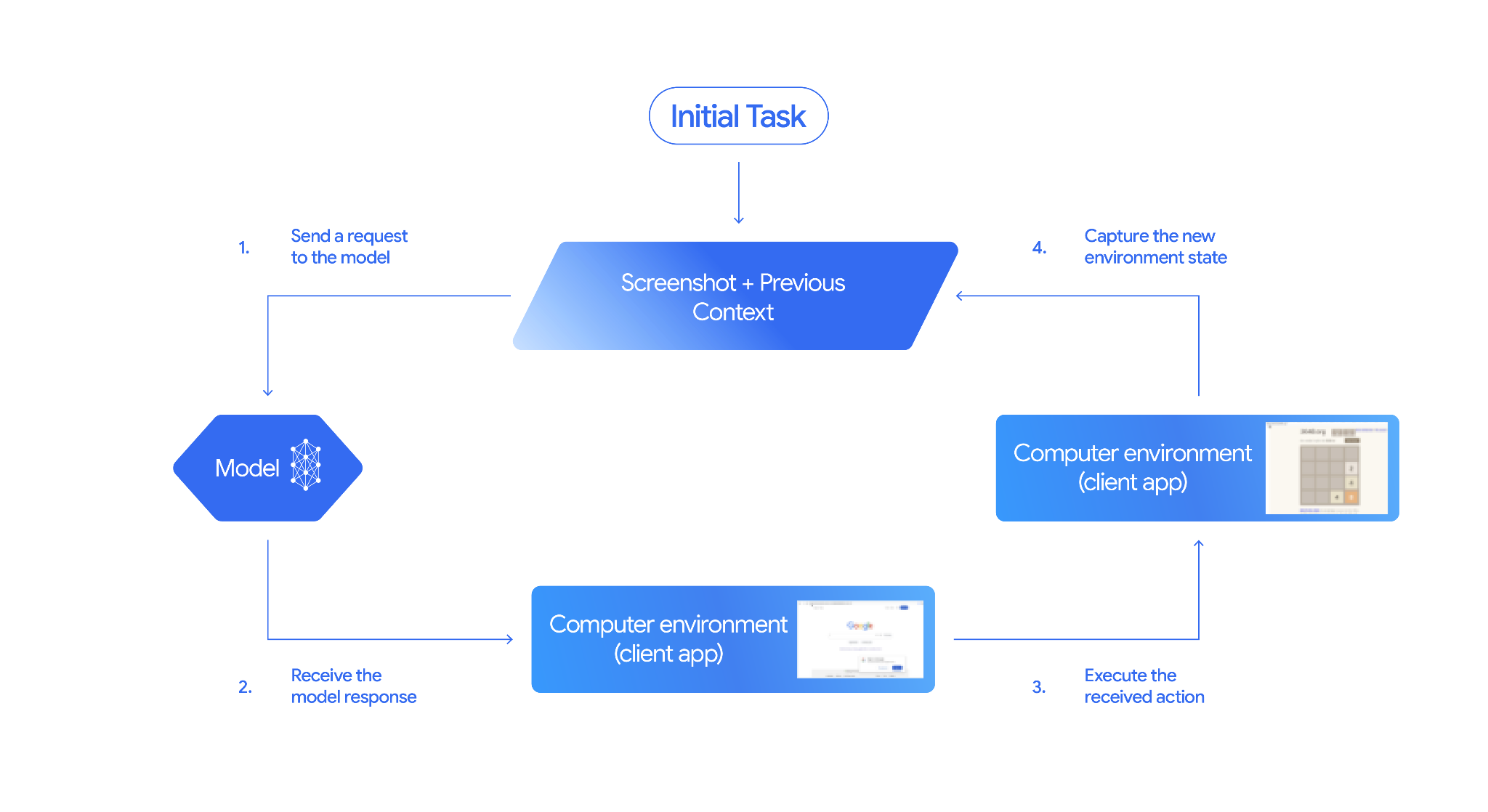
コンピュータ使用モデルを使用してエージェントを構築するには、アプリケーションと API の間に継続的なループを設定する必要があります。各ステップでコードが実行する処理は次のとおりです。
- モデルにリクエストを送信する
- アプリケーションは、コンピュータ使用ツール、構成設定(ターゲット環境など)、ユーザーのプロンプト、現在の画面のスクリーンショットを含む API リクエストを送信します。
- モデル レスポンスを受信する
- モデルは画面とプロンプトを分析し、UI アクション(クリック、スクロール、キーストロークなど)を表す
function_callを含むレスポンスを返します。 - Gemini 3.5 Flash の場合、レスポンスには、モデルがそのアクションを選択した理由を説明する推論
intentも含まれます。 - レスポンスには、アクションを通常/許可、
require_confirmation(ユーザーの承認が必要)、ブロックに分類する内部安全システムからのsafety_decisionが含まれる場合もあります。
- モデルは画面とプロンプトを分析し、UI アクション(クリック、スクロール、キーストロークなど)を表す
- 受信したアクションを実行する
- アクションが許可されている場合(またはユーザーが確認した場合)、クライアントサイドのコードは
function_callを解析し、正規化された座標をビューポートに合わせてスケーリングし、自動化ツール(Playwright など)を使用してターゲット環境でアクションを実行します。アクションがブロックされた場合、クライアントは実行を停止するか、中断を処理する必要があります。
- アクションが許可されている場合(またはユーザーが確認した場合)、クライアントサイドのコードは
- 新しい環境の状態をキャプチャする
- アクションの実行が完了すると、アプリケーションは新しいスクリーンショットをキャプチャし、
function_resultでモデルに送り返して次のステップをリクエストします。
- アクションの実行が完了すると、アプリケーションは新しいスクリーンショットをキャプチャし、
このプロセスはステップ 2 から繰り返され、タスクが完了または終了するまで、モデルから次のアクションが継続的に求められます。
コンピュータの使用を実装する方法
コンピュータの使用ツールを使用して構築する前に、次の設定を行う必要があります。
- 安全な実行環境: サンドボックス化された VM またはコンテナでエージェントを実行して、ホストシステムから隔離し、潜在的な影響を制限します。リファレンス実装には、出発点として使用できる Docker ベースのサンドボックスが含まれています。
- クライアントサイドのアクション ハンドラ: 座標の実行、テキストの入力、スクリーンショットの撮影を行うクライアントサイドのロジックを実装します。
次の例では、実行環境としてウェブブラウザを使用し、クライアントサイド ハンドラとして Playwright を使用しています。
0: Playwright を設定する
まず、必要なパッケージをインストールします。
pip install google-genai playwright
playwright install chromium
次に、実行に使用する Playwright ブラウザ インスタンスを初期化します。
from playwright.sync_api import sync_playwright

# 1. Configure screen dimensions for the target environment
SCREEN_WIDTH = 1440
SCREEN_HEIGHT = 900

# 2. Start the Playwright browser
# In production, utilize a sandboxed environment.
playwright = sync_playwright().start()
# Set headless=False to see the actions performed on your screen
browser = playwright.chromium.launch(headless=False)

# 3. Create a context and page with the specified dimensions
context = browser.new_context(
    viewport={"width": SCREEN_WIDTH, "height": SCREEN_HEIGHT}
)
page = context.new_page()

# 4. Navigate to an initial page to start the task
page.goto("https://www.google.com")

# The 'page', 'SCREEN_WIDTH', and 'SCREEN_HEIGHT' variables
# will be used in the steps below.
1. モデルにリクエストを送信する
クライアント ライブラリを初期化し、コンピュータ使用ツールを構成します。リクエストを発行する際に表示サイズを指定する必要はありません。モデルは、画面の高さと幅に合わせてスケーリングされたピクセル座標を予測します。
Gemini 3.5 Flash(推奨)
Python
google-genai Python SDK(バージョン 2.7.0 以降)を使用して、ブラウザ環境をターゲットとするリクエストを構成します。
from google import genai
from google.genai.types import (
    Content,
    Part,
    GenerateContentConfig,
    Tool,
    ComputerUse,
    Environment,
    ThinkingConfig,
)

client = genai.Client()

response = client.models.generate_content(
    model="gemini-3.5-flash",
    contents=[
        Content(
            role="user",
            parts=[
                Part(text="Find a flight from SF to Hawaii on Jun 30th, coming back on Jul 6th"),
            ],
        )
    ],
    config=GenerateContentConfig(
        tools=[
            Tool(
                computer_use=ComputerUse(
                    environment=Environment.ENVIRONMENT_BROWSER,
                    enable_prompt_injection_detection=True,
                ),
            ),
        ],
        thinking_config=ThinkingConfig(
            include_thoughts=True
        ),
    )
)

print(response.text)
JavaScript
@google/genai Node.js SDK を使用して、ブラウザ環境をターゲットとするリクエストを構成します。
import { GoogleGenAI } from '@google/genai';

const ai = new GoogleGenAI();

const response = await ai.models.generateContent({
  model: 'gemini-3.5-flash',
  contents: [
    {
      role: 'user',
      parts: [{ text: "Find a flight from SF to Hawaii on Jun 30th, coming back on Jul 6th" }]
    }
  ],
  config: {
    tools: [{
      computerUse: {
        environment: "ENVIRONMENT_BROWSER",
        enable_prompt_injection_detection: true
      }
    }],
    thinkingConfig: {
      includeThoughts: true
    }
  }
});

console.log(response.text);
REST
curl を使用してリクエストを送信します。
curl -X POST \
  "https://generativelanguage.googleapis.com/v1beta/models/gemini-3.5-flash:generateContent?key=$GEMINI_API_KEY" \
  -H "Content-Type: application/json" \
  -d '{
    "contents": [
      {
        "role": "user",
        "parts": {
          "text": "Find me a flight from SF to Hawaii on Jun 30th, coming back on Jul 6th. Start by navigating directly to flights.google.com"
        }
      }
    ],
    "tools": [
      {
        "computer_use": {
          "environment": "ENVIRONMENT_BROWSER",
          "enable_prompt_injection_detection": true
        }
      }
    ]
  }'
Gemini 2.5(以前のバージョン)
Python
from google import genai
from google.genai import types
from google.genai.types import Content, Part

client = genai.Client()

# Specify predefined functions to exclude (optional)
excluded_functions = ["drag_and_drop"]

generate_content_config = genai.types.GenerateContentConfig(
    tools=[
        types.Tool(
            computer_use=types.ComputerUse(
                environment=types.Environment.ENVIRONMENT_BROWSER,
                excluded_predefined_functions=excluded_functions
                )
              ),
          ],
  )

contents=[
    Content(
        role="user",
        parts=[
            Part(text="Search for highly rated smart fridges on Google Shopping."),
        ],
    )
]

response = client.models.generate_content(
    model='gemini-2.5-computer-use-preview-10-2025',
    contents=contents,
    config=generate_content_config,
)

print(response)
JavaScript
import { GoogleGenAI } from '@google/genai';

const ai = new GoogleGenAI();

// Specify predefined functions to exclude (optional)
const excludedFunctions = ["drag_and_drop"];

const response = await ai.models.generateContent({
  model: 'gemini-2.5-computer-use-preview-10-2025',
  contents: [
    {
      role: 'user',
      parts: [{ text: "Search for highly rated smart fridges on Google Shopping." }]
    }
  ],
  config: {
    tools: [{
      computerUse: {
        environment: "ENVIRONMENT_BROWSER",
        excluded_predefined_functions: excludedFunctions
      }
    }]
  }
});

console.log(response);
2. モデル レスポンスを受信する
レスポンス モデルは関数呼び出しを提案します。Gemini 3.5 Flash の場合、レスポンスには座標とともにカスタマイズされた推論インテントが含まれます。次の例は、両方のレスポンスを示しています。
Gemini 3.5 Flash
{
  "function_call": {
    "name": "click",
    "args": {
      "x": 450,
      "y": 120,
      "intent": "Click the search box to type the destination."
    }
  }
}
Gemini 2.5(以前のバージョン)
{
  "content": {
    "parts": [
      {
        "text": "I will type the search query into the search bar."
      },
      {
        "function_call": {
          "name": "type_text_at",
          "args": {
            "x": 371,
            "y": 470,
            "text": "highly rated smart fridges",
            "press_enter": true
          }
        }
      }
    ]
  }
}
3. 受信したアクションを実行する
アプリケーション コードで、モデルのレスポンスを解析してアクションを実行し、結果を収集する必要があります。
次のコードは、以前のツールコマンド(click_at、type_text_at)と Gemini 3.5 Flash の効率化されたコマンド(click、type)の両方を処理します。
Python
from typing import Any, List, Tuple
import time

def denormalize_x(x: int, screen_width: int) -> int:
    """Convert normalized x coordinate (0-1000) to actual pixel coordinate."""
    return int(x / 1000 * screen_width)

def denormalize_y(y: int, screen_height: int) -> int:
    """Convert normalized y coordinate (0-1000) to actual pixel coordinate."""
    return int(y / 1000 * screen_height)

def execute_function_calls(interaction, page, screen_width, screen_height):
    results = []
    function_calls = []

    # Parse content parts (Handling legacy and Gemini 3 response structures)
    parts = candidate.content.parts if hasattr(candidate, 'content') else []
    if not parts and hasattr(candidate, 'function_calls'):
        function_calls = candidate.function_calls
    else:
        for part in parts:
            if part.function_call:
                function_calls.append(part.function_call)

    for function_call in function_calls:
        action_result = {}
        fname = function_call.name
        args = function_call.args
        print(f"  -> Executing: {fname} (Intent: {args.get('intent', 'N/A')})")

        try:
            if fname in ("open_web_browser", "open_app"):
                pass # Handled / already open
            elif fname in ("click", "click_at", "double_click", "triple_click", "middle_click", "right_click", "move", "long_press"):
                actual_x = denormalize_x(args["x"], screen_width)
                actual_y = denormalize_y(args["y"], screen_height)

                if fname in ("click", "click_at"):
                    page.mouse.click(actual_x, actual_y)
                elif fname == "double_click":
                    page.mouse.dblclick(actual_x, actual_y)
                elif fname == "right_click":
                    page.mouse.click(actual_x, actual_y, button="right")
                elif fname == "middle_click":
                    page.mouse.click(actual_x, actual_y, button="middle")
                elif fname == "move":
                    page.mouse.move(actual_x, actual_y)
            elif fname in ("type", "type_text_at"):
                actual_x = denormalize_x(args["x"], screen_width) if "x" in args else None
                actual_y = denormalize_y(args["y"], screen_height) if "y" in args else None
                text = args["text"]
                press_enter = args.get("press_enter", False)

                if actual_x is not None and actual_y is not None:
                    page.mouse.click(actual_x, actual_y)
                # Clear field first
                page.keyboard.press("Meta+A")
                page.keyboard.press("Backspace")
                page.keyboard.type(text)
                if press_enter:
                    page.keyboard.press("Enter")
            elif fname == "navigate":
                page.goto(args["url"])
            elif fname == "go_back":
                page.go_back()
            elif fname == "go_forward":
                page.go_forward()
            elif fname == "wait":
                time.sleep(args.get("seconds", 1))
            else:
                print(f"Warning: Custom or unhandled function {fname}")

            page.wait_for_load_state(timeout=5000)
            time.sleep(1)

        except Exception as e:
            print(f"Error executing {fname}: {e}")
            action_result = {"error": str(e)}

        results.append((fname, function_call.id, action_result))

    return results
JavaScript
function denormalizeX(x, screenWidth) {
    // Convert normalized x coordinate (0-1000) to actual pixel coordinate.
    return Math.floor((x / 1000) * screenWidth);
}

function denormalizeY(y, screenHeight) {
    // Convert normalized y coordinate (0-1000) to actual pixel coordinate.
    return Math.floor((y / 1000) * screenHeight);
}

async function executeFunctionCalls(candidate, page, screenWidth, screenHeight) {
    const results = [];
    let functionCalls = [];

    // Parse function calls from candidate response
    const parts = candidate.content?.parts || [];
    if (parts.length === 0 && candidate.functionCalls) {
        functionCalls = candidate.functionCalls;
    } else {
        for (const part of parts) {
            if (part.functionCall) {
                functionCalls.push(part.functionCall);
            }
        }
    }

    for (const functionCall of functionCalls) {
        const actionResult = {};
        const fname = functionCall.name;
        const args = functionCall.args;
        console.log(`  -> Executing: ${fname} (Intent: ${args.intent || 'N/A'})`);

        try {
            if (fname === "open_web_browser" || fname === "open_app") {
                // Handled / already open
            } else if (["click", "click_at", "double_click", "triple_click", "middle_click", "right_click", "move", "long_press"].includes(fname)) {
                const actualX = denormalizeX(args.x, screenWidth);
                const actualY = denormalizeY(args.y, screenHeight);

                if (fname === "click" || fname === "click_at") {
                    await page.mouse.click(actualX, actualY);
                } else if (fname === "double_click") {
                    await page.mouse.dblclick(actualX, actualY);
                } else if (fname === "right_click") {
                    await page.mouse.click(actualX, actualY, { button: "right" });
                } else if (fname === "middle_click") {
                    await page.mouse.click(actualX, actualY, { button: "middle" });
                } else if (fname === "move") {
                    await page.mouse.move(actualX, actualY);
                }
            } else if (fname === "type" || fname === "type_text_at") {
                const actualX = args.x !== undefined ? denormalizeX(args.x, screenWidth) : null;
                const actualY = args.y !== undefined ? denormalizeY(args.y, screenHeight) : null;
                const text = args.text;
                const pressEnter = args.press_enter || false;

                if (actualX !== null && actualY !== null) {
                    await page.mouse.click(actualX, actualY);
                }
                // Clear field first
                await page.keyboard.press("Meta+A");
                await page.keyboard.press("Backspace");
                await page.keyboard.type(text);
                if (pressEnter) {
                    await page.keyboard.press("Enter");
                }
            } else if (fname === "navigate") {
                await page.goto(args.url);
            } else if (fname === "go_back") {
                await page.goBack();
            } else if (fname === "go_forward") {
                await page.goForward();
            } else if (fname === "wait") {
                await new Promise(resolve => setTimeout(resolve, (args.seconds || 1) * 1000));
            } else {
                console.log(`Warning: Custom or unhandled function ${fname}`);
            }

            await page.waitForLoadState('load', { timeout: 5000 }).catch(() => {});
            await new Promise(resolve => setTimeout(resolve, 1000));
        } catch (e) {
            console.log(`Error executing ${fname}: ${e}`);
            actionResult.error = e.message;
        }

        results.push([fname, functionCall.id, actionResult]);
    }

    return results;
}
4. 新しい環境の状態をキャプチャする
画面表現をキャプチャしてモデルに返します。
Python
def get_function_responses(page, results):
    screenshot_bytes = page.screenshot(type="png")
    current_url = page.url
    function_responses = []
    for name, call_id, result in results:
        function_responses.append({
            "type": "function_result",
            "name": name,
            "call_id": call_id,
            "result": [
                {
                    "type": "text",
                    "text": json.dumps({"url": current_url, **result})
                },
                {
                    "type": "image",
                    "data": base64.b64encode(screenshot_bytes).decode("utf-8"),
                    "mime_type": "image/png"
                }
            ]
        })
    return function_responses
JavaScript
async function getFunctionResponses(page, results) {
    const screenshotBuffer = await page.screenshot({ type: 'png' });
    const screenshotBase64 = screenshotBuffer.toString('base64');
    const currentUrl = page.url();
    const functionResponses = [];

    for (const [name, callId, result] of results) {
        functionResponses.push({
            type: "function_result",
            name: name,
            call_id: callId,
            result: [
                {
                    type: "text",
                    text: JSON.stringify({ url: currentUrl, ...result })
                },
                {
                    type: "image",
                    data: screenshotBase64,
                    mime_type: "image/png"
                }
            ]
        });
    }
    return functionResponses;
}
環境の状態をキャプチャしてフォーマットする方法を定義したら、これらの手順をすべて継続的な実行ループにまとめることができます。
エージェント ループを作成する
複数ステップのやり取りを可能にするには、コンピュータの使用を実装する方法セクションの 4 つの手順を 1 つのループにまとめます。このループは、タスクが完了するまでアクションをリクエストし、結果をモデルにフィードバックし続けます。
各ステップでモデルのレスポンスと関数のレスポンスの両方を履歴に追加して、会話履歴を正しく管理してください。
Python
import time
from typing import Any, List, Tuple
from playwright.sync_api import sync_playwright
from google import genai
from google.genai import types

client = genai.Client()

SCREEN_WIDTH = 1440
SCREEN_HEIGHT = 900

print("Initializing browser...")
playwright = sync_playwright().start()
browser = playwright.chromium.launch(headless=False)
context = browser.new_context(viewport={"width": SCREEN_WIDTH, "height": SCREEN_HEIGHT})
page = context.new_page()

# Paste helper functions execute_function_calls and get_function_responses here

try:
    page.goto("https://ai.google.dev/gemini-api/docs")

    config = types.GenerateContentConfig(
        tools=[types.Tool(computer_use=types.ComputerUse(
            environment=types.Environment.ENVIRONMENT_BROWSER,
            enable_prompt_injection_detection=True
        ))],
        thinking_config=types.ThinkingConfig(include_thoughts=True),
    )

    initial_screenshot = page.screenshot(type="png")
    USER_PROMPT = "Go to ai.google.dev/gemini-api/docs and search for pricing."
    print(f"Goal: {USER_PROMPT}")

    contents = [
        types.Content(role="user", parts=[
            types.Part(text=USER_PROMPT),
            types.Part.from_bytes(data=initial_screenshot, mime_type='image/png')
        ])
    ]

    # Agent Loop
    turn_limit = 5
    for i in range(turn_limit):
        print(f"\n--- Turn {i+1} ---")
        print("Thinking...")
        response = client.models.generate_content(
            model='gemini-3.5-flash',
            contents=contents,
            config=config,
        )

        candidate = response.candidates[0]
        contents.append(candidate.content)

        has_function_calls = any(part.function_call for part in candidate.content.parts)
        if not has_function_calls:
            text_response = " ".join(
                part.text for part in candidate.content.parts if hasattr(part, 'text')
            )
            print("Agent finished:", text_response)
            break

        print("Executing actions...")
        results = execute_function_calls(candidate, page, SCREEN_WIDTH, SCREEN_HEIGHT)

        print("Capturing state...")
        function_responses = get_function_responses(page, results)

        contents.append(
            types.Content(role="user", parts=[types.Part(function_response=fr) for fr in function_responses])
        )

finally:
    print("Closing browser...")
    browser.close()
    playwright.stop()
JavaScript
import { chromium } from 'playwright';
import { GoogleGenAI } from '@google/genai';

const ai = new GoogleGenAI();

// Constants for screen dimensions
const SCREEN_WIDTH = 1440;
const SCREEN_HEIGHT = 900;

console.log("Initializing browser...");
const browser = await chromium.launch({ headless: false });
const context = await browser.newContext({
    viewport: { width: SCREEN_WIDTH, height: SCREEN_HEIGHT }
});
const page = await context.newPage();

// Define helper functions. Copy/paste from steps 3 and 4:
// function denormalizeX(...)
// function denormalizeY(...)
// async function executeFunctionCalls(...)
// async function getFunctionResponses(...)

try {
    await page.goto("https://ai.google.dev/gemini-api/docs");

    const config = {
        tools: [{
            computerUse: {
                environment: "ENVIRONMENT_BROWSER",
                enable_prompt_injection_detection: true
            }
        }],
        thinkingConfig: { includeThoughts: true }
    };

    const initialScreenshotBuffer = await page.screenshot({ type: 'png' });
    const initialScreenshotBase64 = initialScreenshotBuffer.toString('base64');
    const USER_PROMPT = "Go to ai.google.dev/gemini-api/docs and search for pricing.";
    console.log(`Goal: ${USER_PROMPT}`);

    const contents = [
        {
            role: "user",
            parts: [
                { text: USER_PROMPT },
                {
                    inlineData: {
                        data: initialScreenshotBase64,
                        mimeType: "image/png"
                    }
                }
            ]
        }
    ];

    // Agent Loop
    const turnLimit = 5;
    for (let i = 0; i < turnLimit; i++) {
        console.log(`\n--- Turn ${i + 1} ---`);
        console.log("Thinking...");
        const response = await ai.models.generateContent({
            model: 'gemini-3.5-flash',
            contents: contents,
            config: config
        });

        const candidate = response.candidates[0];
        contents.push(candidate.content);

        const hasFunctionCalls = candidate.content.parts.some(part => part.functionCall);
        if (!hasFunctionCalls) {
            const textResponse = candidate.content.parts
                .filter(part => part.text)
                .map(part => part.text)
                .join(" ");
            console.log("Agent finished:", textResponse);
            break;
        }

        console.log("Executing actions...");
        const results = await executeFunctionCalls(candidate, page, SCREEN_WIDTH, SCREEN_HEIGHT);

        console.log("Capturing state...");
        const functionResponses = await getFunctionResponses(page, results);

        contents.push({
            role: "user",
            parts: functionResponses.map(fr => ({
                ...fr
            }))
        });
    }
} finally {
    console.log("Closing browser...");
    await browser.close();
}
サポートされている環境(Gemini 3.5 Flash)
Gemini 3.5 Flash は、computer_use 構成で指定された次の 3 つの環境をサポートしています。
ブラウザ環境(ENVIRONMENT_BROWSER)
ブラウザツールの [Action](アクション):
| コマンド名 | 説明 | 引数(関数呼び出し内) |
|---|---|---|
| click | 座標で左クリックします。 | y: int(0 ~ 999)x: int(0 ~ 999)intent: str |
| double_click | 座標をダブルクリックします。 | y: int(0 ~ 999)x: int(0 ~ 999)intent: str |
| triple_click | 座標を 3 回クリックします。 | y: int(0 ~ 999)x: int(0 ~ 999)intent: str |
| middle_click | 座標で中クリックします。 | y: int(0 ~ 999)x: int(0 ~ 999)intent: str |
| right_click | 座標での右クリック。 | y: int(0 ~ 999)x: int(0 ~ 999)intent: str |
| mouse_down | 座標でマウスボタンを押して長押しします。 | y: int(0 ~ 999)x: int(0 ~ 999)intent: str |
| mouse_up | 座標でマウスボタンを離します。 | y: int(0 ~ 999)x: int(0 ~ 999)intent: str |
| move | カーソルを指定した位置に移動します。 | y: int(0 ~ 999)x: int(0 ~ 999)intent: str |
| type | テキストを入力します。 | text: strpress_enter: bool(省略可、デフォルトは false)intent: str |
| drag_and_drop | アイテムを開始座標から終了座標までドラッグします。 | start_y: int(0 ~ 999)start_x: int(0 ~ 999)end_y: int(0 ~ 999)end_x: int(0 ~ 999)intent: str |
| wait | 指定された秒数だけ実行を一時停止します。 | seconds: int(省略可、デフォルトは 1)intent: str |
| press_key | 指定されたキーを押して離します。 | key: strintent: str |
| key_down | 指定されたキーを押して保持します。 | key: strintent: str |
| key_up | 指定されたキーをリリースします。 | key: strintent: str |
| ホットキー | 指定されたキーの組み合わせを押します。 | keys: List[str]intent: str |
| take_screenshot | 現在の画面のスクリーンショットを返します。 | intent: str |
| scroll | 座標で上下左右にピクセル距離だけスクロールします。 | y: int(0 ~ 999)x: int(0 ~ 999)direction: str("up"、"down"、"left"、"right")magnitude_in_pixels: int(0 ~ 999、省略可、デフォルトは 300)intent: str |
| go_back | ブラウザの履歴の前のウェブページに戻ります。 | intent: str |
| navigate | 指定された URL に直接移動します。 | url: strintent: str |
| go_forward | ブラウザの履歴の次のウェブページに移動します。 | intent: str |
モバイル環境(ENVIRONMENT_MOBILE)
Android に最適化された環境アクション:
| コマンド名 | 説明 | 引数(関数呼び出し内) |
|---|---|---|
| open_app | 名前でアプリケーションを開きます。 | app_name: strintent: str |
| click | 座標で左クリックします。 | y: int(0 ~ 999)x: int(0 ~ 999)intent: str |
| list_apps | デバイスで利用可能なアプリを一覧表示し、名前とパッケージ名を返します。 | intent: str |
| wait | 指定された秒数だけ実行を一時停止します。 | seconds: int(省略可、デフォルトは 1)intent: str |
| go_back | 前の画面またはウェブページに戻ります。 | intent: str |
| type | テキストを入力します。 | text: strpress_enter: bool(省略可、デフォルトは false)intent: str |
| drag_and_drop | アイテムを開始座標から終了座標までドラッグします。 | start_y: int(0 ~ 999)start_x: int(0 ~ 999)end_y: int(0 ~ 999)end_x: int(0 ~ 999)intent: str |
| long_press | 画面上の座標で長押しを実行します。 | y: int(0 ~ 999)x: int(0 ~ 999)seconds: int(省略可、デフォルトは 2)intent: str |
| press_key | 指定されたキーを押して離します。 | key: strintent: str |
| take_screenshot | 現在の画面のスクリーンショットを返します。 | intent: str |
デスクトップ環境(ENVIRONMENT_DESKTOP)
デスクトップ環境の OS レベルのカーソル コマンド:
| コマンド名 | 説明 | 引数(関数呼び出し内) |
|---|---|---|
| click | 座標で左クリックします。 | y: int(0 ~ 999)x: int(0 ~ 999)intent: str |
| double_click | 座標をダブルクリックします。 | y: int(0 ~ 999)x: int(0 ~ 999)intent: str |
| triple_click | 座標を 3 回クリックします。 | y: int(0 ~ 999)x: int(0 ~ 999)intent: str |
| middle_click | 座標で中クリックします。 | y: int(0 ~ 999)x: int(0 ~ 999)intent: str |
| right_click | 座標での右クリック。 | y: int(0 ~ 999)x: int(0 ~ 999)intent: str |
| mouse_down | 座標でマウスボタンを押して長押しします。 | y: int(0 ~ 999)x: int(0 ~ 999)intent: str |
| mouse_up | 座標でマウスボタンを離します。 | y: int(0 ~ 999)x: int(0 ~ 999)intent: str |
| move | カーソルを指定した位置に移動します。 | y: int(0 ~ 999)x: int(0 ~ 999)intent: str |
| type | テキストを入力します。 | text: strpress_enter: bool(省略可、デフォルトは false)intent: str |
| drag_and_drop | アイテムを開始座標から終了座標までドラッグします。 | start_y: int(0 ~ 999)start_x: int(0 ~ 999)end_y: int(0 ~ 999)end_x: int(0 ~ 999)intent: str |
| wait | 指定された秒数だけ実行を一時停止します。 | seconds: int(省略可、デフォルトは 1)intent: str |
| press_key | 指定されたキーを押して離します。 | key: strintent: str |
| key_down | 指定されたキーを押して保持します。 | key: strintent: str |
| key_up | 指定されたキーをリリースします。 | key: strintent: str |
| ホットキー | 指定されたキーの組み合わせを押します。 | keys: List[str]intent: str |
| take_screenshot | 現在の画面のスクリーンショットを返します。 | intent: str |
| scroll | 座標で上下左右にピクセル距離だけスクロールします。 | y: int(0 ~ 999)x: int(0 ~ 999)direction: str("up"、"down"、"left"、"right")magnitude_in_pixels: int(0 ~ 999、省略可、デフォルトは 300)intent: str |
以前のサポート対象の UI アクション(Gemini 2.5)
以前のモデル(gemini-2.5-computer-use-preview-10-2025)では、次のアクションがサポートされています。
| コマンド名 | 説明 | 引数(関数呼び出し内) | 関数呼び出しの例 |
|---|---|---|---|
| open_web_browser | ウェブブラウザを開きます。 | なし | {"name": "open_web_browser", "args": {}} |
| wait_5_seconds | 実行を 5 秒間一時停止します。 | なし | {"name": "wait_5_seconds", "args": {}} |
| go_back | 履歴の前のページに移動します。 | なし | {"name": "go_back", "args": {}} |
| go_forward | 履歴の次のページに移動します。 | なし | {"name": "go_forward", "args": {}} |
| search | デフォルトの検索エンジンに移動します。 | なし | {"name": "search", "args": {}} |
| navigate | ブラウザを指定された URL に直接移動します。 | url: str |
{"name": "navigate", "args": {"url": "https://www.wikipedia.org"}} |
| click_at | 特定の座標をクリックします。 | y: int(0~999)、x: int(0~999) |
{"name": "click_at", "args": {"y": 300, "x": 500}} |
| hover_at | 特定の座標にマウスを移動します。 | y: int(0~999)、x: int(0~999) |
{"name": "hover_at", "args": {"y": 150, "x": 250}} |
| type_text_at | 座標にテキストを入力します。 | y: int(0 ~ 999)、x: int(0 ~ 999)、text: str、press_enter: bool(省略可、デフォルトは True)、clear_before_typing: bool(省略可、デフォルトは True) |
{"name": "type_text_at", "args": {"y": 250, "x": 400, "text": "search", "press_enter": false}} |
| key_combination | キーまたはキーの組み合わせを押します。 | keys: str |
{"name": "key_combination", "args": {"keys": "Control+A"}} |
| scroll_document | ウェブページ全体をスクロールします。 | direction: str |
{"name": "scroll_document", "args": {"direction": "down"}} |
| scroll_at | 座標(x,y)でスクロールします。 | y: int、x: int、direction: str、magnitude: int(省略可、デフォルトは 800) |
{"name": "scroll_at", "args": {"y": 500, "x": 500, "direction": "down"}} |
| drag_and_drop | 2 つの座標間でドラッグします。 | y: int、x: int、destination_y: int、destination_x: int |
{"name": "drag_and_drop", "args": {"y": 100, "destination_y": 500, "destination_x": 500, "x": 100}} |
カスタムのユーザー定義関数
カスタム ユーザー定義関数を含めて、モデルの機能を拡張できます。たとえば、人間参加型(HITL)シナリオでは、デフォルトの事前定義済みアクションを除外して、カスタム アクションを登録できます。
Gemini 3.5 Flash カスタム ツール
Python
標準の事前定義されたブラウザ アクション(click など)を除外し、カスタム yield_to_user ツールを登録します。
from google import genai
from google.genai import types

client = genai.Client()

yield_to_user_tool = types.FunctionDeclaration(
    name="yield_to_user",
    description="Yields control back to the user for assistance or verification when an automated action is unsafe or ambiguous.",
    parameters=types.Schema(
        type="OBJECT",
        properties={
            "reason": types.Schema(
                type="STRING",
                description="The reason why the agent is yielding control to the human."
            )
        },
        required=["reason"]
    )
)

response = client.models.generate_content(
    model="gemini-3.5-flash",
    contents="Click the submit button. If you need a second factor authentication code, ask me.",
    config=types.GenerateContentConfig(
        tools=[
            types.Tool(
                computer_use=types.ComputerUse(
                    environment="ENVIRONMENT_MOBILE",
                    excluded_predefined_functions=["click"]
                )
            ),
            yield_to_user_tool
        ]
    )
)
Gemini 2.5(以前のバージョン)のカスタム ツール
Python
from typing import Optional, Dict, Any
from google import genai
from google.genai import types

client = genai.Client()

# Define custom tools here
custom_functions = [...] # Describe parameters as FunctionDeclaration object

def make_generate_content_config():
    excluded_functions = ["open_web_browser", "wait_5_seconds", "go_back", "go_forward", "search", "navigate", "hover_at", "scroll_document", "key_combination", "drag_and_drop"]
    generate_content_config = types.GenerateContentConfig(
        tools=[
            types.Tool(
                computer_use=types.ComputerUse(
                    environment=types.Environment.ENVIRONMENT_BROWSER,
                    excluded_predefined_functions=excluded_functions
                )
            ),
            types.Tool(function_declarations=custom_functions)
        ]
    )
    return generate_content_config
思考レベルを管理する(Gemini 3.5 Flash)
コンピュータ使用エージェントでは、アクションの品質と実行速度のバランスを取るために、さまざまな思考レベルを構成できます。通常、思考レベルを低くすると、標準的な自動化タスクでバランスが取れます。
安全性とセキュリティ
安全性ポリシーの構成(Gemini 3.5 Flash)
Gemini 3.5 Flash モデルには、ユーザーの確認が必要かどうかを自動的に判断する組み込みの安全サービス カテゴリが含まれています。
| 安全性に関するポリシーのカテゴリ | 説明 |
|---|---|
FINANCIAL_TRANSACTIONS |
支払い、小売店のレジ、規制対象商品に関連するアクションをブロックするか、確認をトリガーします。 |
SENSITIVE_DATA_MODIFICATION |
医療、財務、政府の記録を不正な変更から保護します。 |
COMMUNICATION_TOOL |
エージェントがメール、チャット メッセージ、下書きを自律的に送信することを制限します。 |
ACCOUNT_CREATION |
エージェントがウェブサイトで新しいアカウントを自律的に登録することを制限します。 |
DATA_MODIFICATION |
ファイル システムの変更、データ共有、ストレージの削除を全体的に規制します。 |
USER_CONSENT_MANAGEMENT |
Cookie 使用の同意バナーとプライバシー プロンプトでユーザーの操作が必要になります。 |
LEGAL_TERMS_AND_AGREEMENTS |
モデルが利用規約や法的拘束力のある契約に自律的に同意することを防ぎます。 |
安全性のオーバーライド
オーバーライドを渡すことで、一部のポリシーをオーバーライドできます。
Python
from google import genai
from google.genai import types

client = genai.Client()

response = client.models.generate_content(
    model="gemini-3.5-flash",
    contents="Clean up the local folder by archiving old logs.",
    config=types.GenerateContentConfig(
        tools=[
            types.Tool(
                computer_use=types.ComputerUse(
                    environment=types.Environment.ENVIRONMENT_DESKTOP,
                    disabled_safety_policies=[
                        types.SafetyPolicy.DATA_MODIFICATION
                    ]
                )
            )
        ]
    )
)
JavaScript
import { GoogleGenAI } from '@google/genai';

const ai = new GoogleGenAI();

const response = await ai.models.generateContent({
  model: 'gemini-3.5-flash',
  contents: "Clean up the local folder by archiving old logs.",
  config: {
    tools: [{
      computerUse: {
        environment: "ENVIRONMENT_DESKTOP",
        disabledSafetyPolicies: [
          "DATA_MODIFICATION"
        ]
      }
    }]
  }
});
プロンプト インジェクションの検出(Gemini 3.5 Flash)
スクリーンショットのピクセルをスキャンして、隠された敵対的プロンプトの指示(「前のコマンドを無視」など)を検出し、検出された場合に実行をブロックするオプトインの安全メカニズム。
安全性の判断を確認する
レスポンスには、関数呼び出しの引数に safety_decision パラメータが含まれる場合があります。
{
  "function_call": {
    "name": "click_at",
    "args": {
      "x": 60,
      "y": 100,
      "safety_decision": {
        "explanation": "Must check check-box",
        "decision": "require_confirmation"
      }
    }
  }
}
safety_decision が require_confirmation の場合は、エンドユーザーにプロンプトを表示します。ユーザーが確認したら、FunctionResponse で safety_acknowledgement を設定します。
Python
def get_safety_confirmation(safety_decision):
    # Prompt user for confirmation
    print(f"Safety confirmation required: {safety_decision.get('explanation', '')}")
    return "CONTINUE" # Or TERMINATE

# Inside execute_function_calls, check for safety_decision:
if 'safety_decision' in function_call.args:
    decision = get_safety_confirmation(function_call.args['safety_decision'])
    if decision == "TERMINATE":
        break
    # Include safety_acknowledgement inside the action result
    action_result["safety_acknowledgement"] = True
安全に使用するためのベスト プラクティス
コンピュータ使用は、ユーザーに代わって動作するモデルが画面上で信頼できないコンテンツに遭遇したり、アクションの実行でエラーが発生したりする可能性があるため、固有のセキュリティ リスクと運用リスクが生じます。ユーザーデータとシステムを保護するには、次のベスト プラクティスを実装します。
人間参加型(HITL):
- ユーザー確認を強制する: 安全レスポンスで
require_confirmationが示されている場合(または以前の安全判定で必要とされている場合)、ユーザーに承認を求めます。 カスタムの安全性に関する指示を提供する: カスタム システム指示を実装して、独自の安全性に関する境界を定義し、適用します。次に例を示します。
Python
from google import genai
from google.genai import types

system_instruction = """
## **RULE 1: Seek User Confirmation (USER_CONFIRMATION)**

This is your first and most important check. If the next required action falls
into any of the following categories, you MUST stop immediately, and seek the
user's explicit permission.

**Procedure for Seeking Confirmation:**
* **For Consequential Actions:** Perform all preparatory steps (e.g., navigating,
  filling out forms, typing a message). You will ask for confirmation **AFTER**
  all necessary information is entered on the screen, but **BEFORE** you perform
  the final, irreversible action (e.g., before clicking "Send", "Submit",
  "Confirm Purchase", "Share").
* **For Prohibited Actions:** If the action is strictly forbidden (e.g., accepting
  legal terms, solving a CAPTCHA), you must first inform the user about the
  required action and ask for their confirmation to proceed.

**USER_CONFIRMATION Categories:**

*   **Consent and Agreements:** You are FORBIDDEN from accepting, selecting, or
    agreeing to any of the following on the user's behalf. You must ask the
    user to confirm before performing these actions.
    *   Terms of Service
    *   Privacy Policies
    *   Cookie consent banners
    *   End User License Agreements (EULAs)
    *   Any other legally significant contracts or agreements.
*   **Robot Detection:** You MUST NEVER attempt to solve or bypass the
    following. You must ask the user to confirm before performing these actions.
    *   CAPTCHAs (of any kind)
    *   Any other anti-robot or human-verification mechanisms, even if you are
        capable.
*   **Financial Transactions:**
    *   Completing any purchase.
    *   Managing or moving money (e.g., transfers, payments).
    *   Purchasing regulated goods or participating in gambling.
*   **Sending Communications:**
    *   Sending emails.
    *   Sending messages on any platform (e.g., social media, chat apps).
    *   Posting content on social media or forums.
*   **Accessing or Modifying Sensitive Information:**
    *   Health, financial, or government records (e.g., medical history, tax
        forms, passport status).
    *   Revealing or modifying sensitive personal identifiers (e.g., SSN, bank
        account number, credit card number).
*   **User Data Management:**
    *   Accessing, downloading, or saving files from the web.
    *   Sharing or sending files/data to any third party.
    *   Transferring user data between systems.
*   **Browser Data Usage:**
    *   Accessing or managing Chrome browsing history, bookmarks, autofill data,
        or saved passwords.
*   **Security and Identity:**
    *   Logging into any user account.
    *   Any action that involves misrepresentation or impersonation (e.g.,
        creating a fan account, posting as someone else).
*   **Insurmountable Obstacles:** If you are technically unable to interact with
    a user interface element or are stuck in a loop you cannot resolve, ask the
    user to take over.
---

## **RULE 2: Default Behavior (ACTUATE)**

If an action does **NOT** fall under the conditions for `USER_CONFIRMATION`,
your default behavior is to **Actuate**.

**Actuation Means:**  You MUST proactively perform all necessary steps to move
the user's request forward. Continue to actuate until you either complete the
non-consequential task or encounter a condition defined in Rule 1.

*   **Example 1:** If asked to send money, you will navigate to the payment
    portal, enter the recipient's details, and enter the amount. You will then
    **STOP** as per Rule 1 and ask for confirmation before clicking the final
    "Send" button.
*   **Example 2:** If asked to post a message, you will navigate to the site,
    open the post composition window, and write the full message. You will then
    **STOP** as per Rule 1 and ask for confirmation before clicking the final
    "Post" button.

    After the user has confirmed, remember to get the user's latest screen
    before continuing to perform actions.

# Final Response Guidelines:
Write final response to the user in the following cases:
- User confirmation
- When the task is complete or you have enough information to respond to the user
"""

client = genai.Client()
response = client.models.generate_content(
    model="gemini-3.5-flash",
    contents="Prepare a draft but do not send.",
    config=types.GenerateContentConfig(
        system_instruction=system_instruction,
        tools=[types.Tool(computer_use=types.ComputerUse(environment="ENVIRONMENT_BROWSER"))]
    )
)
JavaScript
import { GoogleGenAI } from '@google/genai';

const ai = new GoogleGenAI();

const systemInstruction = `
## **RULE 1: Seek User Confirmation (USER_CONFIRMATION)**

This is your first and most important check. If the next required action falls
into any of the following categories, you MUST stop immediately, and seek the
user's explicit permission.

**Procedure for Seeking Confirmation:**
* **For Consequential Actions:** Perform all preparatory steps (e.g., navigating,
  filling out forms, typing a message). You will ask for confirmation **AFTER**
  all necessary information is entered on the screen, but **BEFORE** you perform
  the final, irreversible action (e.g., before clicking "Send", "Submit",
  "Confirm Purchase", "Share").
* **For Prohibited Actions:** If the action is strictly forbidden (e.g., accepting
  legal terms, solving a CAPTCHA), you must first inform the user about the
  required action and ask for their confirmation to proceed.

**USER_CONFIRMATION Categories:**

*   **Consent and Agreements:** You are FORBIDDEN from accepting, selecting, or
    agreeing to any of the following on the user's behalf. You must ask the
    user to confirm before performing these actions.
    *   Terms of Service
    *   Privacy Policies
    *   Cookie consent banners
    *   End User License Agreements (EULAs)
    *   Any other legally significant contracts or agreements.
*   **Robot Detection:** You MUST NEVER attempt to solve or bypass the
    following. You must ask the user to confirm before performing these actions.
    *   CAPTCHAs (of any kind)
    *   Any other anti-robot or human-verification mechanisms, even if you are
        capable.
*   **Financial Transactions:**
    *   Compleying any purchase.
    *   Managing or moving money (e.g., transfers, payments).
    *   Purchasing regulated goods or participating in gambling.
*   **Sending Communications:**
    *   Sending emails.
    *   Sending messages on any platform (e.g., social media, chat apps).
    *   Posting content on social media or forums.
*   **Accessing or Modifying Sensitive Information:**
    *   Health, financial, or government records (e.g., medical history, tax
        forms, passport status).
    *   Revealing or modifying sensitive personal identifiers (e.g., SSN, bank
        account number, credit card number).
*   **User Data Management:**
    *   Accessing, downloading, or saving files from the web.
    *   Sharing or sending files/data to any third party.
    *   Transferring user data between systems.
*   **Browser Data Usage:**
    *   Accessing or managing Chrome browsing history, bookmarks, autofill data,
        or saved passwords.
*   **Security and Identity:**
    *   Logging into any user account.
    *   Any action that involves misrepresentation or impersonation (e.g.,
        creating a fan account, posting as someone else).
*   **Insurmountable Obstacles:** If you are technically unable to interact with
    a user interface element or are stuck in a loop you cannot resolve, ask the
    user to take over.
---

## **RULE 2: Default Behavior (ACTUATE)**

If an action does **NOT** fall under the conditions for `USER_CONFIRMATION`,
your default behavior is to **Actuate**.

**Actuation Means:**  You MUST proactively perform all necessary steps to move
the user's request forward. Continue to actuate until you either complete the
non-consequential task or encounter a condition defined in Rule 1.

*   **Example 1:** If asked to send money, you will navigate to the payment
    portal, enter the recipient's details, and enter the amount. You will then
    **STOP** as per Rule 1 and ask for confirmation before clicking the final
    "Send" button.
*   **Example 2:** If asked to post a message, you will navigate to the site,
    open the post composition window, and write the full message. You will then
    **STOP** as per Rule 1 and ask for confirmation before clicking the final
    "Post" button.

    After the user has confirmed, remember to get the user's latest screen
    before continuing to perform actions.

# Final Response Guidelines:
Write final response to the user in the following cases:
- User confirmation
- When the task is complete or you have enough information to respond to the user
`;

const response = await ai.models.generateContent({
  model: 'gemini-3.5-flash',
  contents: "Prepare a draft but do not send.",
  config: {
    systemInstruction: systemInstruction,
    tools: [{
      computerUse: {
        environment: "ENVIRONMENT_BROWSER"
      }
    }]
  }
});
- ユーザー確認を強制する: 安全レスポンスで
安全な実行環境: 安全なサンドボックス環境でエージェントを実行して、潜在的な影響を制限します。これは、サンドボックス化された仮想マシン(VM)、コンテナ(Docker など)、権限が制限された専用のブラウザ プロファイルなどです。Docker を使用したサンドボックスのセットアップ ガイダンスについては、GitHub リファレンス実装をご覧ください。
入力のサニタイズ: プロンプト内のユーザーが生成したすべてのテキストをサニタイズして、意図しない指示やプロンプト インジェクションのリスクを軽減します。これはセキュリティの有用なレイヤですが、安全な実行環境の代わりにはなりません。
コンテンツ ガードレール: ガードレールとコンテンツ安全 API を使用して、ユーザー入力、ツール入力と出力、エージェントのレスポンスの適切性、プロンプト インジェクション、ジェイルブレイクの検出を評価します。
許可リストとブロックリスト: モデルが移動できる場所と実行できる操作を制御するフィルタリング メカニズムを実装します。禁止されているウェブサイトのブロックリストは適切な出発点ですが、より制限の厳しい許可リストを使用することで安全性を高めることができます。
オブザーバビリティとロギング: デバッグ、監査、インシデント対応のために詳細なログを保持します。クライアントは、プロンプト、スクリーンショット、モデルが提案したアクション(
function_call)、安全性に関するレスポンス、クライアントが最終的に実行したすべてのアクションをログに記録する必要があります。環境管理: GUI 環境の一貫性を確保します。予期しないポップアップ、通知、レイアウトの変更は、モデルを混乱させる可能性があります。可能であれば、新しいタスクごとに既知のクリーンな状態から開始します。
モデル バージョン
コンピュータ使用は次のモデルで使用できます。
- Gemini 3.5 Flash(
gemini-3.5-flash): コンピュータ使用に推奨されるモデル。インテントによるアクションの効率化、ブラウザ、モバイル、デスクトップ環境のサポート、構成可能な安全ポリシー、プロンプト インジェクションの検出が特徴です。 - Gemini 3 Flash プレビュー(
gemini-3-flash-preview): コンピュータでの使用をサポートするプレビュー モデル。 - Gemini 2.5(以前のプレビュー)(
gemini-2.5-computer-use-preview-10-2025): ブラウザベースのコンピュータでの使用に最適化された以前のプレビュー モデル。
次のステップ
- Browserbase デモ環境でコンピュータの使用を試す。
- サンプルコードについては、リファレンス実装をご覧ください。
- 他の Gemini API ツールについて学習します。