

Mit dem Tool „Computernutzung“ können Sie Browser-, Mobil- und Desktop-Steuerungs-Agents erstellen, die mit Aufgaben interagieren und diese automatisieren. Anhand von Screenshots kann das Modell einen Computerbildschirm „sehen“ und „agieren“, indem es bestimmte UI-Aktionen wie Mausklicks und Tastatureingaben generiert. Ähnlich wie beim Funktionsaufruf müssen Sie die clientseitige Ausführungsumgebung implementieren, um die Aktionen für die Computerverwendung zu empfangen und auszuführen.
Gemini 3.5 Flash ist das empfohlene Modell für Computer Use und bietet mehrere neue Funktionen:
- Unterstützung mehrerer Umgebungen:Sie können Agents für Browser-, Mobil- und Desktopumgebungen erstellen.
- Optimierte Aktionen mit Intents:Aktionen enthalten ein
intent-Feld, in dem die Begründung des Modells für jeden Schritt erläutert wird. - Konfigurierbare Sicherheitsrichtlinien:Sie können das Sicherheitsverhalten mit integrierten Richtlinienkategorien und Überschreibungen optimieren.
- Erkennung von Prompt Injection:Aktivieren Sie das Scannen von Screenshots, um verborgene feindselige Anweisungen zu erkennen.
Mit „Computer Use“ können Sie Agents erstellen, die Folgendes können:
- Wiederholte Dateneingaben oder das Ausfüllen von Formularen auf Websites automatisieren
- Automatisierte Tests von Webanwendungen und User Flows durchführen
- Recherchen auf verschiedenen Websites durchführen (z.B. Produktinformationen, Preise und Rezensionen von E-Commerce-Websites abrufen, um eine Kaufentscheidung zu treffen)
Hier ein Minimalbeispiel für die Aktivierung des Tools „Computer Use“:
Python
from google import genai
from google.genai import types

client = genai.Client()

response = client.models.generate_content(
    model="gemini-3.5-flash",
    contents="Search for 'Gemini API' on Google.",
    config=types.GenerateContentConfig(
        tools=[types.Tool(
            computer_use=types.ComputerUse(
                environment=types.Environment.ENVIRONMENT_BROWSER,
            )
        )]
    )
)

print(response.text)
JavaScript
import { GoogleGenAI } from '@google/genai';

const ai = new GoogleGenAI();

const response = await ai.models.generateContent({
  model: 'gemini-3.5-flash',
  contents: "Search for 'Gemini API' on Google.",
  config: {
    tools: [{
      computerUse: {
        environment: "ENVIRONMENT_BROWSER",
      }
    }]
  }
});

console.log(response.text);
So funktioniert die Computernutzung
Wenn Sie einen Agent mit dem Modell für die Computernutzung erstellen möchten, müssen Sie eine Endlosschleife zwischen Ihrer Anwendung und der API einrichten. Das passiert in Ihrem Code bei jedem Schritt:
- Anfrage an das Modell senden
- Ihre Anwendung sendet eine API-Anfrage mit dem Tool „Computer Use“, Ihren Konfigurationseinstellungen (z. B. der Zielumgebung), dem Prompt des Nutzers und einem Screenshot des aktuellen Bildschirms.
- Modellantwort erhalten
- Das Modell analysiert den Bildschirm und den Prompt und gibt eine Antwort zurück, die eine vorgeschlagene
function_callenthält, die eine UI-Aktion darstellt, z. B. einen Klick, einen Bildlauf oder einen Tastendruck. - Bei Gemini 3.5 Flash enthält die Antwort auch eine Begründung
intent, in der erklärt wird, warum das Modell diese Aktion ausgewählt hat. - Die Antwort kann auch eine
safety_decisionvon einem internen Sicherheitssystem enthalten, das die Aktion als regulär/zulässig,require_confirmation(erfordert Nutzergenehmigung) oder blockiert klassifiziert.
- Das Modell analysiert den Bildschirm und den Prompt und gibt eine Antwort zurück, die eine vorgeschlagene
- Erhaltene Aktion ausführen
- Wenn die Aktion zulässig ist (oder der Nutzer sie bestätigt), parst Ihr clientseitiger Code die
function_call, skaliert die normalisierten Koordinaten entsprechend Ihrem Viewport und führt die Aktion in Ihrer Zielumgebung mit Automatisierungstools wie Playwright aus. Wenn die Aktion blockiert wird, sollte Ihr Client die Ausführung beenden oder die Unterbrechung verarbeiten.
- Wenn die Aktion zulässig ist (oder der Nutzer sie bestätigt), parst Ihr clientseitiger Code die
- Neuen Umgebungsstatus erfassen
- Nachdem die Ausführung der Aktion abgeschlossen ist, erstellt Ihre Anwendung einen neuen Screenshot und sendet ihn in einem
function_resultan das Modell, um den nächsten Schritt anzufordern.
- Nachdem die Ausführung der Aktion abgeschlossen ist, erstellt Ihre Anwendung einen neuen Screenshot und sendet ihn in einem
Dieser Prozess wird dann ab Schritt 2 wiederholt und das Modell wird kontinuierlich aufgefordert, die nächste Aktion auszuführen, bis die Aufgabe abgeschlossen oder beendet ist.
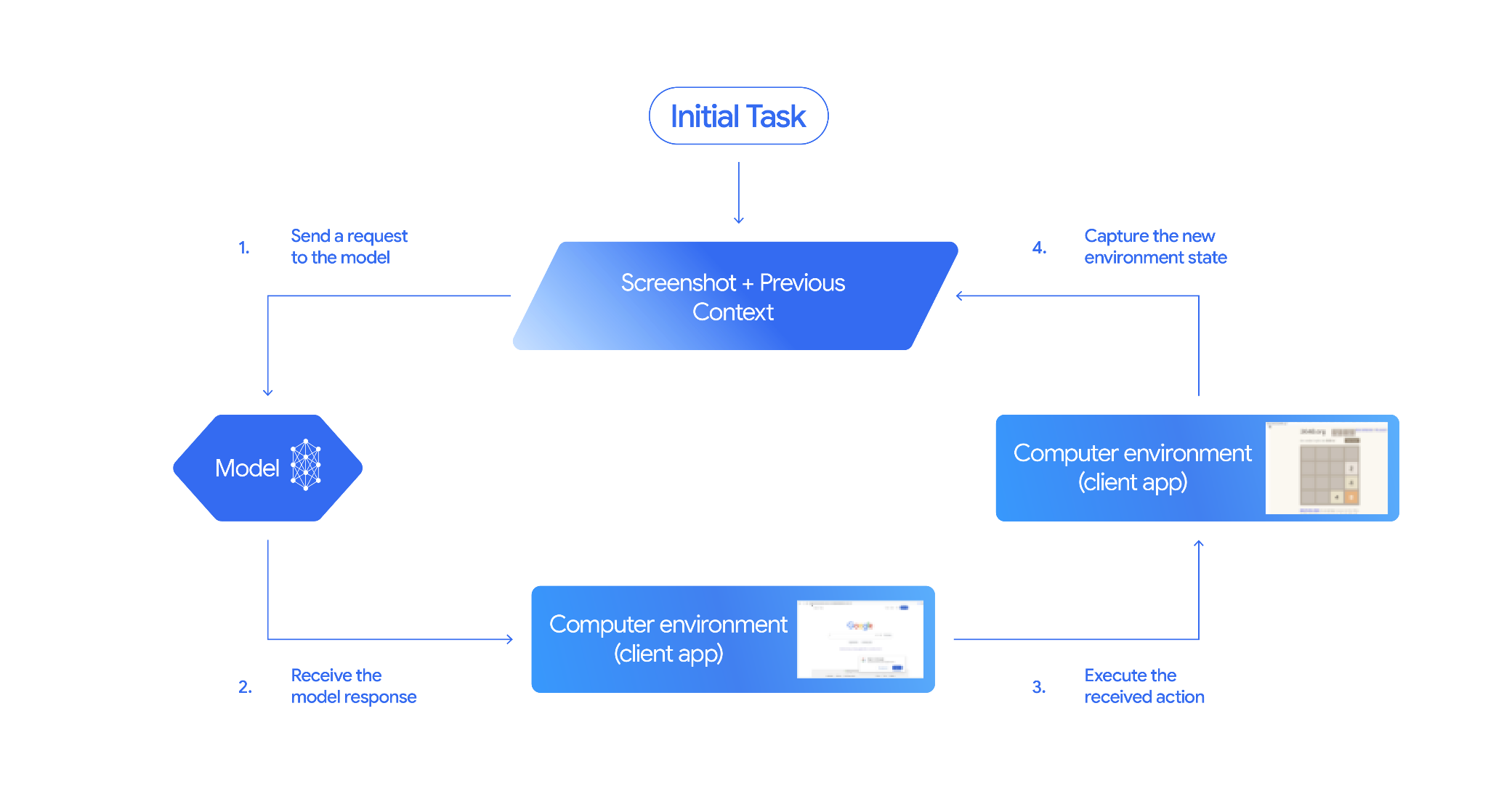
Implementierung von „Computer Use“
Bevor Sie das Tool „Computer Use“ verwenden können, müssen Sie Folgendes einrichten:
- Sichere Ausführungsumgebung:Führen Sie Ihren Agent in einer Sandbox-VM oder einem Sandbox-Container aus, um ihn von Ihrem Hostsystem zu isolieren und seine potenziellen Auswirkungen zu begrenzen. Die Referenzimplementierung enthält eine sofort einsatzbereite Docker-basierte Sandbox, die Sie als Ausgangspunkt verwenden können.
- Clientseitiger Aktionshandler:Implementieren Sie clientseitige Logik, um Koordinaten auszuführen, Text einzugeben und Screenshots zu erstellen.
In den folgenden Beispielen wird ein Webbrowser als Ausführungsumgebung und Playwright als clientseitiger Handler verwendet.
0. Playwright einrichten
Installieren Sie zuerst die erforderlichen Pakete:
pip install google-genai playwright
playwright install chromium
Initialisieren Sie dann eine Playwright-Browserinstanz für die Ausführung:
from playwright.sync_api import sync_playwright

# 1. Configure screen dimensions for the target environment
SCREEN_WIDTH = 1440
SCREEN_HEIGHT = 900

# 2. Start the Playwright browser
# In production, utilize a sandboxed environment.
playwright = sync_playwright().start()
# Set headless=False to see the actions performed on your screen
browser = playwright.chromium.launch(headless=False)

# 3. Create a context and page with the specified dimensions
context = browser.new_context(
    viewport={"width": SCREEN_WIDTH, "height": SCREEN_HEIGHT}
)
page = context.new_page()

# 4. Navigate to an initial page to start the task
page.goto("https://www.google.com")

# The 'page', 'SCREEN_WIDTH', and 'SCREEN_HEIGHT' variables
# will be used in the steps below.
1. Anfrage an das Modell senden
Initialisieren Sie die Clientbibliothek und konfigurieren Sie das Tool zur Computernutzung. Beachten Sie, dass Sie die Anzeigegröße bei einer Anfrage nicht angeben müssen. Das Modell sagt Pixelkoordinaten voraus, die auf die Höhe und Breite des Bildschirms skaliert werden.
Gemini 3.5 Flash (empfohlen)
Python
Verwenden Sie das google-genai Python SDK (Version 2.7.0 oder höher), um eine Anfrage für die Browserumgebung zu konfigurieren:
from google import genai
from google.genai.types import (
    Content,
    Part,
    GenerateContentConfig,
    Tool,
    ComputerUse,
    Environment,
    ThinkingConfig,
)

client = genai.Client()

response = client.models.generate_content(
    model="gemini-3.5-flash",
    contents=[
        Content(
            role="user",
            parts=[
                Part(text="Find a flight from SF to Hawaii on Jun 30th, coming back on Jul 6th"),
            ],
        )
    ],
    config=GenerateContentConfig(
        tools=[
            Tool(
                computer_use=ComputerUse(
                    environment=Environment.ENVIRONMENT_BROWSER,
                    enable_prompt_injection_detection=True,
                ),
            ),
        ],
        thinking_config=ThinkingConfig(
            include_thoughts=True
        ),
    )
)

print(response.text)
JavaScript
Verwenden Sie das @google/genai Node.js SDK, um eine Anfrage zu konfigurieren, die auf die Browserumgebung ausgerichtet ist:
import { GoogleGenAI } from '@google/genai';

const ai = new GoogleGenAI();

const response = await ai.models.generateContent({
  model: 'gemini-3.5-flash',
  contents: [
    {
      role: 'user',
      parts: [{ text: "Find a flight from SF to Hawaii on Jun 30th, coming back on Jul 6th" }]
    }
  ],
  config: {
    tools: [{
      computerUse: {
        environment: "ENVIRONMENT_BROWSER",
        enable_prompt_injection_detection: true
      }
    }],
    thinkingConfig: {
      includeThoughts: true
    }
  }
});

console.log(response.text);
REST
So senden Sie eine Anfrage mit curl:
curl -X POST \
  "https://generativelanguage.googleapis.com/v1beta/models/gemini-3.5-flash:generateContent?key=$GEMINI_API_KEY" \
  -H "Content-Type: application/json" \
  -d '{
    "contents": [
      {
        "role": "user",
        "parts": {
          "text": "Find me a flight from SF to Hawaii on Jun 30th, coming back on Jul 6th. Start by navigating directly to flights.google.com"
        }
      }
    ],
    "tools": [
      {
        "computer_use": {
          "environment": "ENVIRONMENT_BROWSER",
          "enable_prompt_injection_detection": true
        }
      }
    ]
  }'
Gemini 2.5 (Legacy)
Python
from google import genai
from google.genai import types
from google.genai.types import Content, Part

client = genai.Client()

# Specify predefined functions to exclude (optional)
excluded_functions = ["drag_and_drop"]

generate_content_config = genai.types.GenerateContentConfig(
    tools=[
        types.Tool(
            computer_use=types.ComputerUse(
                environment=types.Environment.ENVIRONMENT_BROWSER,
                excluded_predefined_functions=excluded_functions
                )
              ),
          ],
  )

contents=[
    Content(
        role="user",
        parts=[
            Part(text="Search for highly rated smart fridges on Google Shopping."),
        ],
    )
]

response = client.models.generate_content(
    model='gemini-2.5-computer-use-preview-10-2025',
    contents=contents,
    config=generate_content_config,
)

print(response)
JavaScript
import { GoogleGenAI } from '@google/genai';

const ai = new GoogleGenAI();

// Specify predefined functions to exclude (optional)
const excludedFunctions = ["drag_and_drop"];

const response = await ai.models.generateContent({
  model: 'gemini-2.5-computer-use-preview-10-2025',
  contents: [
    {
      role: 'user',
      parts: [{ text: "Search for highly rated smart fridges on Google Shopping." }]
    }
  ],
  config: {
    tools: [{
      computerUse: {
        environment: "ENVIRONMENT_BROWSER",
        excluded_predefined_functions: excludedFunctions
      }
    }]
  }
});

console.log(response);
2. Antwort des Modells erhalten
Das Antwortmodell schlägt einen Funktionsaufruf vor. Bei Gemini 3.5 Flash enthält die Antwort neben Koordinaten auch einen angepassten Intent für die Begründung. Im Folgenden finden Sie Beispiele für beide Antworten:
Gemini 3.5 Flash
{
  "function_call": {
    "name": "click",
    "args": {
      "x": 450,
      "y": 120,
      "intent": "Click the search box to type the destination."
    }
  }
}
Gemini 2.5 (Legacy)
{
  "content": {
    "parts": [
      {
        "text": "I will type the search query into the search bar."
      },
      {
        "function_call": {
          "name": "type_text_at",
          "args": {
            "x": 371,
            "y": 470,
            "text": "highly rated smart fridges",
            "press_enter": true
          }
        }
      }
    ]
  }
}
3. Erhaltene Aktionen ausführen
Ihr Anwendungscode muss die Modellantwort parsen, die Aktionen ausführen und die Ergebnisse erfassen.
Der folgende Code verarbeitet sowohl Legacy-Tool-Befehle (click_at, type_text_at) als auch optimierte Gemini 3.5 Flash-Befehle (click, type).
Python
from typing import Any, List, Tuple
import time

def denormalize_x(x: int, screen_width: int) -> int:
    """Convert normalized x coordinate (0-1000) to actual pixel coordinate."""
    return int(x / 1000 * screen_width)

def denormalize_y(y: int, screen_height: int) -> int:
    """Convert normalized y coordinate (0-1000) to actual pixel coordinate."""
    return int(y / 1000 * screen_height)

def execute_function_calls(interaction, page, screen_width, screen_height):
    results = []
    function_calls = []

    # Parse content parts (Handling legacy and Gemini 3 response structures)
    parts = candidate.content.parts if hasattr(candidate, 'content') else []
    if not parts and hasattr(candidate, 'function_calls'):
        function_calls = candidate.function_calls
    else:
        for part in parts:
            if part.function_call:
                function_calls.append(part.function_call)

    for function_call in function_calls:
        action_result = {}
        fname = function_call.name
        args = function_call.args
        print(f"  -> Executing: {fname} (Intent: {args.get('intent', 'N/A')})")

        try:
            if fname in ("open_web_browser", "open_app"):
                pass # Handled / already open
            elif fname in ("click", "click_at", "double_click", "triple_click", "middle_click", "right_click", "move", "long_press"):
                actual_x = denormalize_x(args["x"], screen_width)
                actual_y = denormalize_y(args["y"], screen_height)

                if fname in ("click", "click_at"):
                    page.mouse.click(actual_x, actual_y)
                elif fname == "double_click":
                    page.mouse.dblclick(actual_x, actual_y)
                elif fname == "right_click":
                    page.mouse.click(actual_x, actual_y, button="right")
                elif fname == "middle_click":
                    page.mouse.click(actual_x, actual_y, button="middle")
                elif fname == "move":
                    page.mouse.move(actual_x, actual_y)
            elif fname in ("type", "type_text_at"):
                actual_x = denormalize_x(args["x"], screen_width) if "x" in args else None
                actual_y = denormalize_y(args["y"], screen_height) if "y" in args else None
                text = args["text"]
                press_enter = args.get("press_enter", False)

                if actual_x is not None and actual_y is not None:
                    page.mouse.click(actual_x, actual_y)
                # Clear field first
                page.keyboard.press("Meta+A")
                page.keyboard.press("Backspace")
                page.keyboard.type(text)
                if press_enter:
                    page.keyboard.press("Enter")
            elif fname == "navigate":
                page.goto(args["url"])
            elif fname == "go_back":
                page.go_back()
            elif fname == "go_forward":
                page.go_forward()
            elif fname == "wait":
                time.sleep(args.get("seconds", 1))
            else:
                print(f"Warning: Custom or unhandled function {fname}")

            page.wait_for_load_state(timeout=5000)
            time.sleep(1)

        except Exception as e:
            print(f"Error executing {fname}: {e}")
            action_result = {"error": str(e)}

        results.append((fname, function_call.id, action_result))

    return results
JavaScript
function denormalizeX(x, screenWidth) {
    // Convert normalized x coordinate (0-1000) to actual pixel coordinate.
    return Math.floor((x / 1000) * screenWidth);
}

function denormalizeY(y, screenHeight) {
    // Convert normalized y coordinate (0-1000) to actual pixel coordinate.
    return Math.floor((y / 1000) * screenHeight);
}

async function executeFunctionCalls(candidate, page, screenWidth, screenHeight) {
    const results = [];
    let functionCalls = [];

    // Parse function calls from candidate response
    const parts = candidate.content?.parts || [];
    if (parts.length === 0 && candidate.functionCalls) {
        functionCalls = candidate.functionCalls;
    } else {
        for (const part of parts) {
            if (part.functionCall) {
                functionCalls.push(part.functionCall);
            }
        }
    }

    for (const functionCall of functionCalls) {
        const actionResult = {};
        const fname = functionCall.name;
        const args = functionCall.args;
        console.log(`  -> Executing: ${fname} (Intent: ${args.intent || 'N/A'})`);

        try {
            if (fname === "open_web_browser" || fname === "open_app") {
                // Handled / already open
            } else if (["click", "click_at", "double_click", "triple_click", "middle_click", "right_click", "move", "long_press"].includes(fname)) {
                const actualX = denormalizeX(args.x, screenWidth);
                const actualY = denormalizeY(args.y, screenHeight);

                if (fname === "click" || fname === "click_at") {
                    await page.mouse.click(actualX, actualY);
                } else if (fname === "double_click") {
                    await page.mouse.dblclick(actualX, actualY);
                } else if (fname === "right_click") {
                    await page.mouse.click(actualX, actualY, { button: "right" });
                } else if (fname === "middle_click") {
                    await page.mouse.click(actualX, actualY, { button: "middle" });
                } else if (fname === "move") {
                    await page.mouse.move(actualX, actualY);
                }
            } else if (fname === "type" || fname === "type_text_at") {
                const actualX = args.x !== undefined ? denormalizeX(args.x, screenWidth) : null;
                const actualY = args.y !== undefined ? denormalizeY(args.y, screenHeight) : null;
                const text = args.text;
                const pressEnter = args.press_enter || false;

                if (actualX !== null && actualY !== null) {
                    await page.mouse.click(actualX, actualY);
                }
                // Clear field first
                await page.keyboard.press("Meta+A");
                await page.keyboard.press("Backspace");
                await page.keyboard.type(text);
                if (pressEnter) {
                    await page.keyboard.press("Enter");
                }
            } else if (fname === "navigate") {
                await page.goto(args.url);
            } else if (fname === "go_back") {
                await page.goBack();
            } else if (fname === "go_forward") {
                await page.goForward();
            } else if (fname === "wait") {
                await new Promise(resolve => setTimeout(resolve, (args.seconds || 1) * 1000));
            } else {
                console.log(`Warning: Custom or unhandled function ${fname}`);
            }

            await page.waitForLoadState('load', { timeout: 5000 }).catch(() => {});
            await new Promise(resolve => setTimeout(resolve, 1000));
        } catch (e) {
            console.log(`Error executing ${fname}: ${e}`);
            actionResult.error = e.message;
        }

        results.push([fname, functionCall.id, actionResult]);
    }

    return results;
}
4. Neuen Umgebungsstatus erfassen
Erstellt eine Bildschirmdarstellung und gibt sie an das Modell zurück.
Python
def get_function_responses(page, results):
    screenshot_bytes = page.screenshot(type="png")
    current_url = page.url
    function_responses = []
    for name, call_id, result in results:
        function_responses.append({
            "type": "function_result",
            "name": name,
            "call_id": call_id,
            "result": [
                {
                    "type": "text",
                    "text": json.dumps({"url": current_url, **result})
                },
                {
                    "type": "image",
                    "data": base64.b64encode(screenshot_bytes).decode("utf-8"),
                    "mime_type": "image/png"
                }
            ]
        })
    return function_responses
JavaScript
async function getFunctionResponses(page, results) {
    const screenshotBuffer = await page.screenshot({ type: 'png' });
    const screenshotBase64 = screenshotBuffer.toString('base64');
    const currentUrl = page.url();
    const functionResponses = [];

    for (const [name, callId, result] of results) {
        functionResponses.push({
            type: "function_result",
            name: name,
            call_id: callId,
            result: [
                {
                    type: "text",
                    text: JSON.stringify({ url: currentUrl, ...result })
                },
                {
                    type: "image",
                    data: screenshotBase64,
                    mime_type: "image/png"
                }
            ]
        });
    }
    return functionResponses;
}
Nachdem Sie definiert haben, wie der Umgebungsstatus erfasst und formatiert werden soll, können Sie alle diese Schritte in einem kontinuierlichen Ausführungszyklus kombinieren.
Agent-Schleife erstellen
Um Interaktionen mit mehreren Schritten zu ermöglichen, kombinieren Sie die vier Schritte aus dem Abschnitt Computer Use implementieren in einem einzigen Loop. In dieser Schleife werden so lange Aktionen angefordert und die Ergebnisse an das Modell zurückgegeben, bis die Aufgabe abgeschlossen ist.
Denken Sie daran, den Unterhaltungsverlauf richtig zu verwalten, indem Sie die Modellantworten und Ihre Funktionsantworten in jedem Schritt an den Verlauf anhängen.
Python
import time
from typing import Any, List, Tuple
from playwright.sync_api import sync_playwright
from google import genai
from google.genai import types

client = genai.Client()

SCREEN_WIDTH = 1440
SCREEN_HEIGHT = 900

print("Initializing browser...")
playwright = sync_playwright().start()
browser = playwright.chromium.launch(headless=False)
context = browser.new_context(viewport={"width": SCREEN_WIDTH, "height": SCREEN_HEIGHT})
page = context.new_page()

# Paste helper functions execute_function_calls and get_function_responses here

try:
    page.goto("https://ai.google.dev/gemini-api/docs")

    config = types.GenerateContentConfig(
        tools=[types.Tool(computer_use=types.ComputerUse(
            environment=types.Environment.ENVIRONMENT_BROWSER,
            enable_prompt_injection_detection=True
        ))],
        thinking_config=types.ThinkingConfig(include_thoughts=True),
    )

    initial_screenshot = page.screenshot(type="png")
    USER_PROMPT = "Go to ai.google.dev/gemini-api/docs and search for pricing."
    print(f"Goal: {USER_PROMPT}")

    contents = [
        types.Content(role="user", parts=[
            types.Part(text=USER_PROMPT),
            types.Part.from_bytes(data=initial_screenshot, mime_type='image/png')
        ])
    ]

    # Agent Loop
    turn_limit = 5
    for i in range(turn_limit):
        print(f"\n--- Turn {i+1} ---")
        print("Thinking...")
        response = client.models.generate_content(
            model='gemini-3.5-flash',
            contents=contents,
            config=config,
        )

        candidate = response.candidates[0]
        contents.append(candidate.content)

        has_function_calls = any(part.function_call for part in candidate.content.parts)
        if not has_function_calls:
            text_response = " ".join(
                part.text for part in candidate.content.parts if hasattr(part, 'text')
            )
            print("Agent finished:", text_response)
            break

        print("Executing actions...")
        results = execute_function_calls(candidate, page, SCREEN_WIDTH, SCREEN_HEIGHT)

        print("Capturing state...")
        function_responses = get_function_responses(page, results)

        contents.append(
            types.Content(role="user", parts=[types.Part(function_response=fr) for fr in function_responses])
        )

finally:
    print("Closing browser...")
    browser.close()
    playwright.stop()
JavaScript
import { chromium } from 'playwright';
import { GoogleGenAI } from '@google/genai';

const ai = new GoogleGenAI();

// Constants for screen dimensions
const SCREEN_WIDTH = 1440;
const SCREEN_HEIGHT = 900;

console.log("Initializing browser...");
const browser = await chromium.launch({ headless: false });
const context = await browser.newContext({
    viewport: { width: SCREEN_WIDTH, height: SCREEN_HEIGHT }
});
const page = await context.newPage();

// Define helper functions. Copy/paste from steps 3 and 4:
// function denormalizeX(...)
// function denormalizeY(...)
// async function executeFunctionCalls(...)
// async function getFunctionResponses(...)

try {
    await page.goto("https://ai.google.dev/gemini-api/docs");

    const config = {
        tools: [{
            computerUse: {
                environment: "ENVIRONMENT_BROWSER",
                enable_prompt_injection_detection: true
            }
        }],
        thinkingConfig: { includeThoughts: true }
    };

    const initialScreenshotBuffer = await page.screenshot({ type: 'png' });
    const initialScreenshotBase64 = initialScreenshotBuffer.toString('base64');
    const USER_PROMPT = "Go to ai.google.dev/gemini-api/docs and search for pricing.";
    console.log(`Goal: ${USER_PROMPT}`);

    const contents = [
        {
            role: "user",
            parts: [
                { text: USER_PROMPT },
                {
                    inlineData: {
                        data: initialScreenshotBase64,
                        mimeType: "image/png"
                    }
                }
            ]
        }
    ];

    // Agent Loop
    const turnLimit = 5;
    for (let i = 0; i < turnLimit; i++) {
        console.log(`\n--- Turn ${i + 1} ---`);
        console.log("Thinking...");
        const response = await ai.models.generateContent({
            model: 'gemini-3.5-flash',
            contents: contents,
            config: config
        });

        const candidate = response.candidates[0];
        contents.push(candidate.content);

        const hasFunctionCalls = candidate.content.parts.some(part => part.functionCall);
        if (!hasFunctionCalls) {
            const textResponse = candidate.content.parts
                .filter(part => part.text)
                .map(part => part.text)
                .join(" ");
            console.log("Agent finished:", textResponse);
            break;
        }

        console.log("Executing actions...");
        const results = await executeFunctionCalls(candidate, page, SCREEN_WIDTH, SCREEN_HEIGHT);

        console.log("Capturing state...");
        const functionResponses = await getFunctionResponses(page, results);

        contents.push({
            role: "user",
            parts: functionResponses.map(fr => ({
                ...fr
            }))
        });
    }
} finally {
    console.log("Closing browser...");
    await browser.close();
}
Unterstützte Umgebungen (Gemini 3.5 Flash)
Gemini 3.5 Flash unterstützt drei Umgebungen, die in den computer_use-Konfigurationen angegeben sind:
Browserumgebung (ENVIRONMENT_BROWSER)
Aktionsaktionen im Browser-Tool:
| Befehlsname | Beschreibung | Argumente (im Funktionsaufruf) |
|---|---|---|
| click | Linksklicks an der Koordinate. | y: int (0–999)x: int (0–999)intent: str |
| double_click | Doppelklicks an der Koordinate. | y: int (0–999)x: int (0–999)intent: str |
| triple_click | Dreifachklicks an der Koordinate. | y: int (0–999)x: int (0–999)intent: str |
| middle_click | Mit der mittleren Maustaste auf die Koordinate klicken. | y: int (0–999)x: int (0–999)intent: str |
| right_click | Rechtsklicks an der Koordinate. | y: int (0–999)x: int (0–999)intent: str |
| mouse_down | Drückt die Maustaste an der Koordinate und hält sie gedrückt. | y: int (0–999)x: int (0–999)intent: str |
| mouse_up | Lässt die Maustaste an der Koordinate los. | y: int (0–999)x: int (0–999)intent: str |
| move | Verschiebt den Cursor an die angegebene Position. | y: int (0–999)x: int (0–999)intent: str |
| type | Text eingeben | text: strpress_enter: bool (optional, Standardwert: false)intent: str |
| drag_and_drop | Zieht ein Element von der Startkoordinate zur Endkoordinate. | start_y: int (0–999)start_x: int (0–999)end_y: int (0–999)end_x: int (0–999)intent: str |
| wait | Hält die Ausführung für eine bestimmte Anzahl von Sekunden an. | seconds: int (optional, Standardwert: 1)intent: str |
| press_key | Drückt die angegebene Taste und lässt sie wieder los. | key: strintent: str |
| key_down | Drückt und hält die angegebene Taste. | key: strintent: str |
| key_up | Gibt den angegebenen Schlüssel frei. | key: strintent: str |
| Tastenkürzel | Drückt die angegebene Tastenkombination. | keys: List[str]intent: str |
| take_screenshot | Gibt einen Screenshot des aktuellen Bildschirms zurück. | intent: str |
| scroll | Scrollt an einer Koordinate um eine bestimmte Anzahl von Pixeln nach oben, unten, links oder rechts. | y: int (0–999)x: int (0–999)direction: str ("up", "down", "left", "right")magnitude_in_pixels: int (0–999, optional, Standardwert 300)intent: str |
| go_back | Navigiert zurück zur vorherigen Webseite im Browserverlauf. | intent: str |
| navigate | Navigiert direkt zu einer angegebenen URL. | url: strintent: str |
| go_forward | Navigiert vorwärts zur nächsten Webseite im Browserverlauf. | intent: str |
Mobile Umgebung (ENVIRONMENT_MOBILE)
Android-optimierte Umgebungsvorgänge:
| Befehlsname | Beschreibung | Argumente (im Funktionsaufruf) |
|---|---|---|
| open_app | Öffnet eine Anwendung anhand ihres Namens. | app_name: strintent: str |
| click | Linksklicks an der Koordinate. | y: int (0–999)x: int (0–999)intent: str |
| list_apps | Listet die auf dem Gerät verfügbaren Anwendungen auf und gibt ihre Namen und Paketnamen zurück. | intent: str |
| wait | Hält die Ausführung für eine bestimmte Anzahl von Sekunden an. | seconds: int (optional, Standardwert: 1)intent: str |
| go_back | Navigiert zurück zum vorherigen Bildschirm oder zur vorherigen Webseite. | intent: str |
| type | Text eingeben | text: strpress_enter: bool (optional, Standardwert: false)intent: str |
| drag_and_drop | Zieht ein Element von der Startkoordinate zur Endkoordinate. | start_y: int (0–999)start_x: int (0–999)end_y: int (0–999)end_x: int (0–999)intent: str |
| long_press | Führt einen langen Druck auf eine Koordinate auf dem Bildschirm aus. | y: int (0–999)x: int (0–999)seconds: int (optional, Standardwert: 2)intent: str |
| press_key | Drückt die angegebene Taste und lässt sie wieder los. | key: strintent: str |
| take_screenshot | Gibt einen Screenshot des aktuellen Bildschirms zurück. | intent: str |
Desktopumgebung (ENVIRONMENT_DESKTOP)
Betriebssystemebene – Cursorbefehle für Desktopumgebungen:
| Befehlsname | Beschreibung | Argumente (im Funktionsaufruf) |
|---|---|---|
| click | Linksklicks an der Koordinate. | y: int (0–999)x: int (0–999)intent: str |
| double_click | Doppelklicks an der Koordinate. | y: int (0–999)x: int (0–999)intent: str |
| triple_click | Dreifachklicks an der Koordinate. | y: int (0–999)x: int (0–999)intent: str |
| middle_click | Mit der mittleren Maustaste auf die Koordinate klicken. | y: int (0–999)x: int (0–999)intent: str |
| right_click | Rechtsklicks an der Koordinate. | y: int (0–999)x: int (0–999)intent: str |
| mouse_down | Drückt die Maustaste an der Koordinate und hält sie gedrückt. | y: int (0–999)x: int (0–999)intent: str |
| mouse_up | Lässt die Maustaste an der Koordinate los. | y: int (0–999)x: int (0–999)intent: str |
| move | Verschiebt den Cursor an die angegebene Position. | y: int (0–999)x: int (0–999)intent: str |
| type | Text eingeben | text: strpress_enter: bool (optional, Standardwert: false)intent: str |
| drag_and_drop | Zieht ein Element von der Startkoordinate zur Endkoordinate. | start_y: int (0–999)start_x: int (0–999)end_y: int (0–999)end_x: int (0–999)intent: str |
| wait | Hält die Ausführung für eine bestimmte Anzahl von Sekunden an. | seconds: int (optional, Standardwert: 1)intent: str |
| press_key | Drückt die angegebene Taste und lässt sie wieder los. | key: strintent: str |
| key_down | Drückt und hält die angegebene Taste. | key: strintent: str |
| key_up | Gibt den angegebenen Schlüssel frei. | key: strintent: str |
| Tastenkürzel | Drückt die angegebene Tastenkombination. | keys: List[str]intent: str |
| take_screenshot | Gibt einen Screenshot des aktuellen Bildschirms zurück. | intent: str |
| scroll | Scrollt an einer Koordinate um eine bestimmte Anzahl von Pixeln nach oben, unten, links oder rechts. | y: int (0–999)x: int (0–999)direction: str ("up", "down", "left", "right")magnitude_in_pixels: int (0–999, optional, Standardwert 300)intent: str |
Unterstützte Legacy-UI-Aktionen (Gemini 2.5)
Für Legacy-Modelle (gemini-2.5-computer-use-preview-10-2025) werden die folgenden Aktionen unterstützt:
| Befehlsname | Beschreibung | Argumente (im Funktionsaufruf) | Beispiel für Funktionsaufruf |
|---|---|---|---|
| open_web_browser | Öffnet den Webbrowser. | Keine | {"name": "open_web_browser", "args": {}} |
| wait_5_seconds | Pausiert die Ausführung für 5 Sekunden. | Keine | {"name": "wait_5_seconds", "args": {}} |
| go_back | Navigiert zur vorherigen Seite im Verlauf. | Keine | {"name": "go_back", "args": {}} |
| go_forward | Navigiert zur nächsten Seite im Verlauf. | Keine | {"name": "go_forward", "args": {}} |
| search | Ruft die Standardsuchmaschine auf. | Keine | {"name": "search", "args": {}} |
| navigate | Leitet den Browser direkt zur angegebenen URL weiter. | url: str |
{"name": "navigate", "args": {"url": "https://www.wikipedia.org"}} |
| click_at | Klicks an einer bestimmten Koordinate. | y: int (0–999), x: int (0–999) |
{"name": "click_at", "args": {"y": 300, "x": 500}} |
| hover_at | Bewegt die Maus zu einer bestimmten Koordinate. | y: int (0–999), x: int (0–999) |
{"name": "hover_at", "args": {"y": 150, "x": 250}} |
| type_text_at | Gibt Text an einer Koordinate ein. | y: int (0–999), x: int (0–999), text: str, press_enter: bool (optional, Standardwert: True), clear_before_typing: bool (optional, Standardwert: True) |
{"name": "type_text_at", "args": {"y": 250, "x": 400, "text": "search", "press_enter": false}} |
| key_combination | Drücken Sie Tasten oder Tastenkombinationen. | keys: str |
{"name": "key_combination", "args": {"keys": "Control+A"}} |
| scroll_document | Scrollt die gesamte Webseite. | direction: str |
{"name": "scroll_document", "args": {"direction": "down"}} |
| scroll_at | Scrollt an der Koordinate (x,y). | y: int, x: int, direction: str, magnitude: int (optional, Standardwert: 800) |
{"name": "scroll_at", "args": {"y": 500, "x": 500, "direction": "down"}} |
| drag_and_drop | Zieht zwischen zwei Koordinaten. | y: int, x: int, destination_y: int, destination_x: int |
{"name": "drag_and_drop", "args": {"y": 100, "destination_y": 500, "destination_x": 500, "x": 100}} |
Benutzerdefinierte Funktionen
Sie können die Funktionalität des Modells erweitern, indem Sie benutzerdefinierte Funktionen einfügen. In Human-in-the-Loop-Szenarien (HITL) können Sie beispielsweise standardmäßig vordefinierte Aktionen ausschließen und benutzerdefinierte Aktionen registrieren.
Gemini 3.5 Flash – benutzerdefinierte Tools
Python
Schließen Sie standardmäßige vordefinierte Browseraktionen wie click aus und registrieren Sie ein benutzerdefiniertes yield_to_user-Tool:
from google import genai
from google.genai import types

client = genai.Client()

yield_to_user_tool = types.FunctionDeclaration(
    name="yield_to_user",
    description="Yields control back to the user for assistance or verification when an automated action is unsafe or ambiguous.",
    parameters=types.Schema(
        type="OBJECT",
        properties={
            "reason": types.Schema(
                type="STRING",
                description="The reason why the agent is yielding control to the human."
            )
        },
        required=["reason"]
    )
)

response = client.models.generate_content(
    model="gemini-3.5-flash",
    contents="Click the submit button. If you need a second factor authentication code, ask me.",
    config=types.GenerateContentConfig(
        tools=[
            types.Tool(
                computer_use=types.ComputerUse(
                    environment="ENVIRONMENT_MOBILE",
                    excluded_predefined_functions=["click"]
                )
            ),
            yield_to_user_tool
        ]
    )
)
Benutzerdefinierte Tools für Gemini 2.5 (Legacy)
Python
from typing import Optional, Dict, Any
from google import genai
from google.genai import types

client = genai.Client()

# Define custom tools here
custom_functions = [...] # Describe parameters as FunctionDeclaration object

def make_generate_content_config():
    excluded_functions = ["open_web_browser", "wait_5_seconds", "go_back", "go_forward", "search", "navigate", "hover_at", "scroll_document", "key_combination", "drag_and_drop"]
    generate_content_config = types.GenerateContentConfig(
        tools=[
            types.Tool(
                computer_use=types.ComputerUse(
                    environment=types.Environment.ENVIRONMENT_BROWSER,
                    excluded_predefined_functions=excluded_functions
                )
            ),
            types.Tool(function_declarations=custom_functions)
        ]
    )
    return generate_content_config
Denkebenen verwalten (Gemini 3.5 Flash)
Für Computer-Agents können Sie verschiedene Denkebenen konfigurieren, um ein Gleichgewicht zwischen der Qualität der Aktionen und der Ausführungsgeschwindigkeit zu schaffen. Bei niedrigeren Denkebenen wird in der Regel ein gutes Gleichgewicht für Standardautomatisierungsaufgaben erreicht.
Sicherheit
Sicherheitsrichtlinien konfigurieren (Gemini 3.5 Flash)
Das Modell Gemini 3.5 Flash enthält integrierte Sicherheitsdienstkategorien, die automatisch festlegen, ob eine Nutzerbestätigung erforderlich ist.
| Kategorie der Sicherheitsrichtlinie | Beschreibung |
|---|---|
FINANCIAL_TRANSACTIONS |
Blockiert oder löst die Bestätigung für Aktionen aus, die Zahlungen, den Einzelhandelskauf oder regulierte Waren betreffen. |
SENSITIVE_DATA_MODIFICATION |
Schützt Gesundheits-, Finanz- oder Behördendaten vor unbefugten Änderungen. |
COMMUNICATION_TOOL |
Verhindert, dass der KI-Agent selbstständig E‑Mails, Chatnachrichten oder Entwürfe sendet. |
ACCOUNT_CREATION |
Verhindert, dass der Agent selbstständig neue Konten auf Websites registriert. |
DATA_MODIFICATION |
Regelt allgemeine Änderungen am Dateisystem, die gemeinsame Nutzung von Daten und das Löschen von Speicher. |
USER_CONSENT_MANAGEMENT |
Erfordert die Übernahme der Nutzersteuerung für Cookie-Einwilligungsbanner und Datenschutzhinweise. |
LEGAL_TERMS_AND_AGREEMENTS |
Verhindert, dass das Modell selbstständig Nutzungsbedingungen oder rechtsverbindliche Verträge akzeptiert. |
Sicherheitsüberschreibungen
Sie können ausgewählte Richtlinien überschreiben, indem Sie Überschreibungen übergeben:
Python
from google import genai
from google.genai import types

client = genai.Client()

response = client.models.generate_content(
    model="gemini-3.5-flash",
    contents="Clean up the local folder by archiving old logs.",
    config=types.GenerateContentConfig(
        tools=[
            types.Tool(
                computer_use=types.ComputerUse(
                    environment=types.Environment.ENVIRONMENT_DESKTOP,
                    disabled_safety_policies=[
                        types.SafetyPolicy.DATA_MODIFICATION
                    ]
                )
            )
        ]
    )
)
JavaScript
import { GoogleGenAI } from '@google/genai';

const ai = new GoogleGenAI();

const response = await ai.models.generateContent({
  model: 'gemini-3.5-flash',
  contents: "Clean up the local folder by archiving old logs.",
  config: {
    tools: [{
      computerUse: {
        environment: "ENVIRONMENT_DESKTOP",
        disabledSafetyPolicies: [
          "DATA_MODIFICATION"
        ]
      }
    }]
  }
});
Erkennung von Prompt Injection (Gemini 3.5 Flash)
Opt-in-Sicherheitsmechanismus, der Screenshot-Pixel nach verborgenen gegnerischen Prompt-Anweisungen (z.B. „Vorherige Befehle ignorieren“) durchsucht und die Ausführung blockiert, wenn solche Anweisungen erkannt werden.
Sicherheitsentscheidung bestätigen
Die Antwort kann einen safety_decision-Parameter in den Funktionsaufrufargumenten enthalten:
{
  "function_call": {
    "name": "click_at",
    "args": {
      "x": 60,
      "y": 100,
      "safety_decision": {
        "explanation": "Must check check-box",
        "decision": "require_confirmation"
      }
    }
  }
}
Wenn safety_decision gleich require_confirmation ist, fordern Sie den Endnutzer auf. Wenn der Nutzer dies bestätigt, legen Sie safety_acknowledgement in FunctionResponse fest.
Python
def get_safety_confirmation(safety_decision):
    # Prompt user for confirmation
    print(f"Safety confirmation required: {safety_decision.get('explanation', '')}")
    return "CONTINUE" # Or TERMINATE

# Inside execute_function_calls, check for safety_decision:
if 'safety_decision' in function_call.args:
    decision = get_safety_confirmation(function_call.args['safety_decision'])
    if decision == "TERMINATE":
        break
    # Include safety_acknowledgement inside the action result
    action_result["safety_acknowledgement"] = True
Best Practices für die Sicherheit
Die Computernutzung birgt einzigartige Sicherheits- und Betriebsrisiken, da ein Modell, das im Namen eines Nutzers agiert, auf Bildschirmen auf nicht vertrauenswürdige Inhalte stoßen oder Fehler bei der Ausführung von Aktionen machen kann. Implementieren Sie die folgenden Best Practices, um Nutzerdaten und Systeme zu schützen:
Human-in-the-Loop (HITL):
- Nutzerbestätigung erzwingen:Wenn die Sicherheitsantwort
require_confirmationangibt (oder die alte Sicherheitsentscheidung dies erfordert), fordern Sie den Nutzer zur Genehmigung auf. Benutzerdefinierte Sicherheitshinweise bereitstellen:Implementieren Sie eine benutzerdefinierte Systemanweisung, um Ihre eigenen Sicherheitsgrenzen zu definieren und zu erzwingen. Beispiel:
Python
from google import genai
from google.genai import types

system_instruction = """
## **RULE 1: Seek User Confirmation (USER_CONFIRMATION)**

This is your first and most important check. If the next required action falls
into any of the following categories, you MUST stop immediately, and seek the
user's explicit permission.

**Procedure for Seeking Confirmation:**
* **For Consequential Actions:** Perform all preparatory steps (e.g., navigating,
  filling out forms, typing a message). You will ask for confirmation **AFTER**
  all necessary information is entered on the screen, but **BEFORE** you perform
  the final, irreversible action (e.g., before clicking "Send", "Submit",
  "Confirm Purchase", "Share").
* **For Prohibited Actions:** If the action is strictly forbidden (e.g., accepting
  legal terms, solving a CAPTCHA), you must first inform the user about the
  required action and ask for their confirmation to proceed.

**USER_CONFIRMATION Categories:**

*   **Consent and Agreements:** You are FORBIDDEN from accepting, selecting, or
    agreeing to any of the following on the user's behalf. You must ask the
    user to confirm before performing these actions.
    *   Terms of Service
    *   Privacy Policies
    *   Cookie consent banners
    *   End User License Agreements (EULAs)
    *   Any other legally significant contracts or agreements.
*   **Robot Detection:** You MUST NEVER attempt to solve or bypass the
    following. You must ask the user to confirm before performing these actions.
    *   CAPTCHAs (of any kind)
    *   Any other anti-robot or human-verification mechanisms, even if you are
        capable.
*   **Financial Transactions:**
    *   Completing any purchase.
    *   Managing or moving money (e.g., transfers, payments).
    *   Purchasing regulated goods or participating in gambling.
*   **Sending Communications:**
    *   Sending emails.
    *   Sending messages on any platform (e.g., social media, chat apps).
    *   Posting content on social media or forums.
*   **Accessing or Modifying Sensitive Information:**
    *   Health, financial, or government records (e.g., medical history, tax
        forms, passport status).
    *   Revealing or modifying sensitive personal identifiers (e.g., SSN, bank
        account number, credit card number).
*   **User Data Management:**
    *   Accessing, downloading, or saving files from the web.
    *   Sharing or sending files/data to any third party.
    *   Transferring user data between systems.
*   **Browser Data Usage:**
    *   Accessing or managing Chrome browsing history, bookmarks, autofill data,
        or saved passwords.
*   **Security and Identity:**
    *   Logging into any user account.
    *   Any action that involves misrepresentation or impersonation (e.g.,
        creating a fan account, posting as someone else).
*   **Insurmountable Obstacles:** If you are technically unable to interact with
    a user interface element or are stuck in a loop you cannot resolve, ask the
    user to take over.
---

## **RULE 2: Default Behavior (ACTUATE)**

If an action does **NOT** fall under the conditions for `USER_CONFIRMATION`,
your default behavior is to **Actuate**.

**Actuation Means:**  You MUST proactively perform all necessary steps to move
the user's request forward. Continue to actuate until you either complete the
non-consequential task or encounter a condition defined in Rule 1.

*   **Example 1:** If asked to send money, you will navigate to the payment
    portal, enter the recipient's details, and enter the amount. You will then
    **STOP** as per Rule 1 and ask for confirmation before clicking the final
    "Send" button.
*   **Example 2:** If asked to post a message, you will navigate to the site,
    open the post composition window, and write the full message. You will then
    **STOP** as per Rule 1 and ask for confirmation before clicking the final
    "Post" button.

    After the user has confirmed, remember to get the user's latest screen
    before continuing to perform actions.

# Final Response Guidelines:
Write final response to the user in the following cases:
- User confirmation
- When the task is complete or you have enough information to respond to the user
"""

client = genai.Client()
response = client.models.generate_content(
    model="gemini-3.5-flash",
    contents="Prepare a draft but do not send.",
    config=types.GenerateContentConfig(
        system_instruction=system_instruction,
        tools=[types.Tool(computer_use=types.ComputerUse(environment="ENVIRONMENT_BROWSER"))]
    )
)
JavaScript
import { GoogleGenAI } from '@google/genai';

const ai = new GoogleGenAI();

const systemInstruction = `
## **RULE 1: Seek User Confirmation (USER_CONFIRMATION)**

This is your first and most important check. If the next required action falls
into any of the following categories, you MUST stop immediately, and seek the
user's explicit permission.

**Procedure for Seeking Confirmation:**
* **For Consequential Actions:** Perform all preparatory steps (e.g., navigating,
  filling out forms, typing a message). You will ask for confirmation **AFTER**
  all necessary information is entered on the screen, but **BEFORE** you perform
  the final, irreversible action (e.g., before clicking "Send", "Submit",
  "Confirm Purchase", "Share").
* **For Prohibited Actions:** If the action is strictly forbidden (e.g., accepting
  legal terms, solving a CAPTCHA), you must first inform the user about the
  required action and ask for their confirmation to proceed.

**USER_CONFIRMATION Categories:**

*   **Consent and Agreements:** You are FORBIDDEN from accepting, selecting, or
    agreeing to any of the following on the user's behalf. You must ask the
    user to confirm before performing these actions.
    *   Terms of Service
    *   Privacy Policies
    *   Cookie consent banners
    *   End User License Agreements (EULAs)
    *   Any other legally significant contracts or agreements.
*   **Robot Detection:** You MUST NEVER attempt to solve or bypass the
    following. You must ask the user to confirm before performing these actions.
    *   CAPTCHAs (of any kind)
    *   Any other anti-robot or human-verification mechanisms, even if you are
        capable.
*   **Financial Transactions:**
    *   Compleying any purchase.
    *   Managing or moving money (e.g., transfers, payments).
    *   Purchasing regulated goods or participating in gambling.
*   **Sending Communications:**
    *   Sending emails.
    *   Sending messages on any platform (e.g., social media, chat apps).
    *   Posting content on social media or forums.
*   **Accessing or Modifying Sensitive Information:**
    *   Health, financial, or government records (e.g., medical history, tax
        forms, passport status).
    *   Revealing or modifying sensitive personal identifiers (e.g., SSN, bank
        account number, credit card number).
*   **User Data Management:**
    *   Accessing, downloading, or saving files from the web.
    *   Sharing or sending files/data to any third party.
    *   Transferring user data between systems.
*   **Browser Data Usage:**
    *   Accessing or managing Chrome browsing history, bookmarks, autofill data,
        or saved passwords.
*   **Security and Identity:**
    *   Logging into any user account.
    *   Any action that involves misrepresentation or impersonation (e.g.,
        creating a fan account, posting as someone else).
*   **Insurmountable Obstacles:** If you are technically unable to interact with
    a user interface element or are stuck in a loop you cannot resolve, ask the
    user to take over.
---

## **RULE 2: Default Behavior (ACTUATE)**

If an action does **NOT** fall under the conditions for `USER_CONFIRMATION`,
your default behavior is to **Actuate**.

**Actuation Means:**  You MUST proactively perform all necessary steps to move
the user's request forward. Continue to actuate until you either complete the
non-consequential task or encounter a condition defined in Rule 1.

*   **Example 1:** If asked to send money, you will navigate to the payment
    portal, enter the recipient's details, and enter the amount. You will then
    **STOP** as per Rule 1 and ask for confirmation before clicking the final
    "Send" button.
*   **Example 2:** If asked to post a message, you will navigate to the site,
    open the post composition window, and write the full message. You will then
    **STOP** as per Rule 1 and ask for confirmation before clicking the final
    "Post" button.

    After the user has confirmed, remember to get the user's latest screen
    before continuing to perform actions.

# Final Response Guidelines:
Write final response to the user in the following cases:
- User confirmation
- When the task is complete or you have enough information to respond to the user
`;

const response = await ai.models.generateContent({
  model: 'gemini-3.5-flash',
  contents: "Prepare a draft but do not send.",
  config: {
    systemInstruction: systemInstruction,
    tools: [{
      computerUse: {
        environment: "ENVIRONMENT_BROWSER"
      }
    }]
  }
});
- Nutzerbestätigung erzwingen:Wenn die Sicherheitsantwort
Sichere Ausführungsumgebung:Führen Sie Ihren Agent in einer sicheren Sandbox-Umgebung aus, um seine potenziellen Auswirkungen zu begrenzen. Dies kann eine Sandbox-VM, ein Container (z.B. Docker) oder ein dediziertes Browserprofil mit eingeschränkten Berechtigungen sein. Eine Anleitung zum Einrichten einer Sandbox mit Docker finden Sie in der GitHub-Referenzimplementierung.
Eingabebereinigung:Bereinigen Sie alle von Nutzern generierten Texte in Prompts, um das Risiko unbeabsichtigter Anweisungen oder Prompt-Injection zu minimieren. Dies ist eine hilfreiche Sicherheitsebene, aber kein Ersatz für eine sichere Ausführungsumgebung.
Inhalts-Schutzmaßnahmen:Verwenden Sie Schutzmaßnahmen und APIs für die Inhaltssicherheit, um Nutzereingaben, Tool-Ein- und ‑Ausgaben sowie die Antworten des Agents auf Angemessenheit, Prompt Injection und Jailbreak-Erkennung zu prüfen.
Zulassungs- und Sperrlisten:Implementieren Sie Filtermechanismen, um zu steuern, wohin das Modell navigieren und was es tun kann. Eine Sperrliste mit verbotenen Websites ist ein guter Ausgangspunkt. Eine restriktivere Zulassungsliste ist noch sicherer.
Beobachtbarkeit und Protokollierung:Detaillierte Logs für das Debugging, die Prüfung und die Incident Response führen. Ihr Kunde sollte Prompts, Screenshots, vom Modell vorgeschlagene Aktionen (
function_call), Sicherheitsantworten und alle Aktionen protokollieren, die letztendlich vom Client ausgeführt werden.Umgebungsverwaltung:Sorgen Sie für eine konsistente GUI-Umgebung. Unerwartete Pop-ups, Benachrichtigungen oder Änderungen im Layout können das Modell verwirren. Beginnen Sie nach Möglichkeit jede neue Aufgabe mit einem bekannten, sauberen Zustand.
Modellversionen
Sie können die Funktion „Computer Use“ mit den folgenden Modellen verwenden:
- Gemini 3.5 Flash (
gemini-3.5-flash): Das empfohlene Modell für die Computernutzung mit optimierten Aktionen mit Intentionen, Unterstützung für Browser-, Mobilgeräte- und Desktopumgebungen, konfigurierbaren Sicherheitsrichtlinien und Erkennung von Prompt-Injection. - Gemini 3 Flash (Vorabversion) (
gemini-3-flash-preview): Vorabversion des Modells, das die Nutzung von Computern unterstützt. - Gemini 2.5 (Legacy-Vorabversion) (
gemini-2.5-computer-use-preview-10-2025): Legacy-Vorabversion, die für die browserbasierte Computernutzung optimiert ist.
Nächste Schritte
- Sie können die Computerverwendung in der Browserbase-Demo-Umgebung testen.
- Beispielcode finden Sie in der Referenzimplementierung.
- Weitere Gemini API-Tools: