

借助“计算机使用”工具,您可以构建浏览器、移动设备和桌面设备控制代理,让其与用户交互并自动执行任务。借助屏幕截图,模型可以“看到”电脑屏幕,并通过生成特定的界面操作(例如鼠标点击和键盘输入)来“行动”。与函数调用类似,您需要实现客户端执行环境,以接收和执行“计算机使用”操作。
Gemini 3.5 Flash 是推荐的 Computer Use 模型,并引入了多项新功能:
- 支持多种环境:为浏览器、移动设备和桌面设备环境构建代理。
- 通过 intent 简化的操作:操作包含
intent字段,用于说明模型在每个步骤背后的推理过程。 - 可配置的安全政策:通过内置的政策类别和替换项来微调安全行为。
- 提示注入检测:选择启用屏幕截图扫描,以检测隐藏的对抗性指令。
借助“电脑使用”功能,您可以构建能够执行以下操作的智能体:
- 自动执行网站上重复的数据输入或表单填写操作。
- 自动测试 Web 应用和用户流程
- 在各种网站上进行研究(例如,从电子商务网站收集产品信息、价格和评价,以便做出购买决策)
下面是一个启用“电脑使用”工具的简短示例:
Python
from google import genai
from google.genai import types

client = genai.Client()

response = client.models.generate_content(
    model="gemini-3.5-flash",
    contents="Search for 'Gemini API' on Google.",
    config=types.GenerateContentConfig(
        tools=[types.Tool(
            computer_use=types.ComputerUse(
                environment=types.Environment.ENVIRONMENT_BROWSER,
            )
        )]
    )
)

print(response.text)
JavaScript
import { GoogleGenAI } from '@google/genai';

const ai = new GoogleGenAI();

const response = await ai.models.generateContent({
  model: 'gemini-3.5-flash',
  contents: "Search for 'Gemini API' on Google.",
  config: {
    tools: [{
      computerUse: {
        environment: "ENVIRONMENT_BROWSER",
      }
    }]
  }
});

console.log(response.text);
“计算机使用”模型的工作原理
如需使用计算机使用模型构建代理,您需要在应用与 API 之间设置一个持续循环。以下是您的代码在每个步骤中的作用:
- 向模型发送请求
- 您的应用会发送一个 API 请求,其中包含“电脑使用”工具、您的配置设置(例如目标环境)、用户的提示以及当前屏幕的屏幕截图。
- 接收模型响应
- 模型会分析屏幕和提示,返回包含建议
function_call的回答,该建议function_call表示界面操作(例如点击、滚动或按键)。 - 对于 Gemini 3.5 Flash,回答还包含推理
intent,用于说明模型选择该操作的原因。 - 对于旧版模型(例如
gemini-2.5-computer-use-preview-10-2025),响应可能包含来自内部安全系统的safety_decision,该系统会将操作归类为常规/允许、require_confirmation(需要用户批准)或已屏蔽。
- 模型会分析屏幕和提示,返回包含建议
- 执行收到的操作
- 如果允许执行该操作(或用户确认允许),您的客户端代码会解析
function_call,缩放归一化坐标以匹配您的视口,并使用自动化工具(例如 Playwright)在目标环境中执行该操作。如果操作被阻止,客户端应停止执行或处理中断。
- 如果允许执行该操作(或用户确认允许),您的客户端代码会解析
- 捕获新环境状态
- 操作执行完毕后,应用会捕获新的屏幕截图,并通过
function_result将其发送回模型,以请求执行下一步操作。
- 操作执行完毕后,应用会捕获新的屏幕截图,并通过
然后,此过程会从第 2 步开始重复,不断向模型征求下一个操作,直到任务完成或终止。
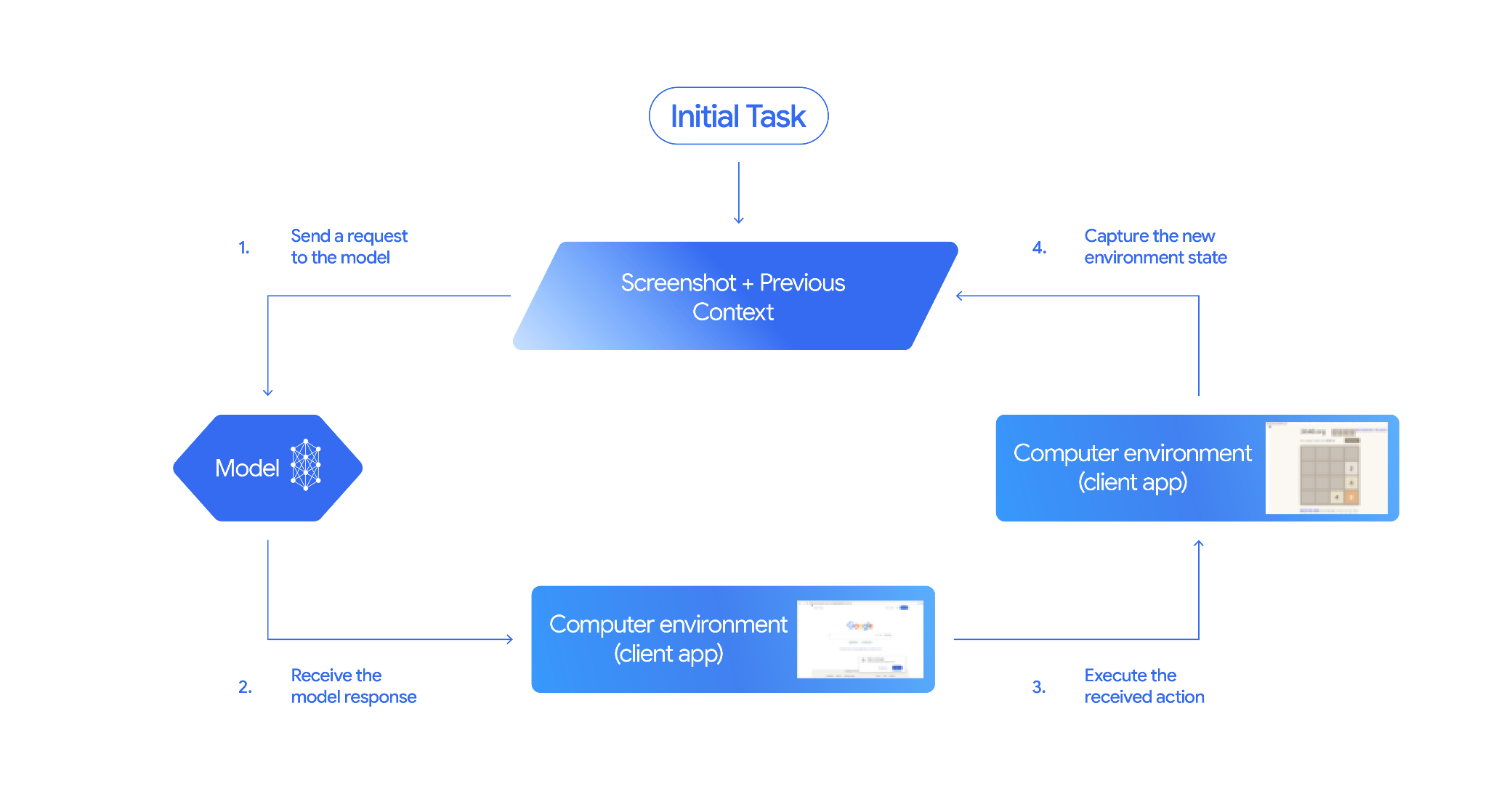
如何实现“计算机使用”
在使用“电脑使用情况”工具进行构建之前,您需要设置以下内容:
- 安全执行环境:在沙盒虚拟机或容器中运行代理,以将其与主机系统隔离开来,并限制其潜在影响。参考实现包含一个可直接使用的基于 Docker 的沙盒,您可以从这里开始。
- 客户端操作处理程序:实现客户端逻辑,以执行坐标、输入文本和拍摄屏幕截图。
以下示例使用 Web 浏览器作为执行环境,并使用 Playwright 作为客户端处理程序。
0. 设置 Playwright
首先,安装所需的软件包:
pip install google-genai playwright
playwright install chromium
然后,初始化一个 Playwright 浏览器实例以供执行:
from playwright.sync_api import sync_playwright

# 1. Configure screen dimensions for the target environment
SCREEN_WIDTH = 1440
SCREEN_HEIGHT = 900

# 2. Start the Playwright browser
# In production, utilize a sandboxed environment.
playwright = sync_playwright().start()
# Set headless=False to see the actions performed on your screen
browser = playwright.chromium.launch(headless=False)

# 3. Create a context and page with the specified dimensions
context = browser.new_context(
    viewport={"width": SCREEN_WIDTH, "height": SCREEN_HEIGHT}
)
page = context.new_page()

# 4. Navigate to an initial page to start the task
page.goto("https://www.google.com")

# The 'page', 'SCREEN_WIDTH', and 'SCREEN_HEIGHT' variables
# will be used in the steps below.
1. 向模型发送请求
初始化客户端库并配置“计算机使用”工具。请注意,发出请求时无需指定显示大小;模型会预测缩放到屏幕高度和宽度的像素坐标。
Gemini 3.5 Flash(推荐)
Python
使用 google-genai Python SDK(版本 2.7.0 或更高版本)配置以浏览器环境为目标的请求:
from google import genai
from google.genai.types import (
    Content,
    Part,
    GenerateContentConfig,
    Tool,
    ComputerUse,
    Environment,
    ThinkingConfig,
)

client = genai.Client()

response = client.models.generate_content(
    model="gemini-3.5-flash",
    contents=[
        Content(
            role="user",
            parts=[
                Part(text="Find a flight from SF to Hawaii on Jun 30th, coming back on Jul 6th"),
            ],
        )
    ],
    config=GenerateContentConfig(
        tools=[
            Tool(
                computer_use=ComputerUse(
                    environment=Environment.ENVIRONMENT_BROWSER,
                    enable_prompt_injection_detection=True,
                ),
            ),
        ],
        thinking_config=ThinkingConfig(
            include_thoughts=True
        ),
    )
)

print(response.text)
JavaScript
使用 @google/genai Node.js SDK 配置以浏览器环境为目标的请求:
import { GoogleGenAI } from '@google/genai';

const ai = new GoogleGenAI();

const response = await ai.models.generateContent({
  model: 'gemini-3.5-flash',
  contents: [
    {
      role: 'user',
      parts: [{ text: "Find a flight from SF to Hawaii on Jun 30th, coming back on Jul 6th" }]
    }
  ],
  config: {
    tools: [{
      computerUse: {
        environment: "ENVIRONMENT_BROWSER",
        enable_prompt_injection_detection: true
      }
    }],
    thinkingConfig: {
      includeThoughts: true
    }
  }
});

console.log(response.text);
REST
使用 curl 发送请求:
curl -X POST \
  "https://generativelanguage.googleapis.com/v1beta/models/gemini-3.5-flash:generateContent?key=$GEMINI_API_KEY" \
  -H "Content-Type: application/json" \
  -d '{
    "contents": [
      {
        "role": "user",
        "parts": {
          "text": "Find me a flight from SF to Hawaii on Jun 30th, coming back on Jul 6th. Start by navigating directly to flights.google.com"
        }
      }
    ],
    "tools": [
      {
        "computer_use": {
          "environment": "ENVIRONMENT_BROWSER",
          "enable_prompt_injection_detection": true
        }
      }
    ]
  }'
Gemini 2.5(旧版)
Python
from google import genai
from google.genai import types
from google.genai.types import Content, Part

client = genai.Client()

# Specify predefined functions to exclude (optional)
excluded_functions = ["drag_and_drop"]

generate_content_config = genai.types.GenerateContentConfig(
    tools=[
        types.Tool(
            computer_use=types.ComputerUse(
                environment=types.Environment.ENVIRONMENT_BROWSER,
                excluded_predefined_functions=excluded_functions
                )
              ),
          ],
  )

contents=[
    Content(
        role="user",
        parts=[
            Part(text="Search for highly rated smart fridges on Google Shopping."),
        ],
    )
]

response = client.models.generate_content(
    model='gemini-2.5-computer-use-preview-10-2025',
    contents=contents,
    config=generate_content_config,
)

print(response)
JavaScript
import { GoogleGenAI } from '@google/genai';

const ai = new GoogleGenAI();

// Specify predefined functions to exclude (optional)
const excludedFunctions = ["drag_and_drop"];

const response = await ai.models.generateContent({
  model: 'gemini-2.5-computer-use-preview-10-2025',
  contents: [
    {
      role: 'user',
      parts: [{ text: "Search for highly rated smart fridges on Google Shopping." }]
    }
  ],
  config: {
    tools: [{
      computerUse: {
        environment: "ENVIRONMENT_BROWSER",
        excluded_predefined_functions: excludedFunctions
      }
    }]
  }
});

console.log(response);
2. 接收模型回答
响应模型建议进行函数调用。对于 Gemini 3.5 Flash,响应包含定制的推理意图以及坐标。以下示例展示了这两种响应:
Gemini 3.5 Flash
{
  "function_call": {
    "name": "click",
    "args": {
      "x": 450,
      "y": 120,
      "intent": "Click the search box to type the destination."
    }
  }
}
Gemini 2.5(旧版)
{
  "content": {
    "parts": [
      {
        "text": "I will type the search query into the search bar."
      },
      {
        "function_call": {
          "name": "type_text_at",
          "args": {
            "x": 371,
            "y": 470,
            "text": "highly rated smart fridges",
            "press_enter": true
          }
        }
      }
    ]
  }
}
3. 执行收到的操作
您的应用代码需要解析模型响应、执行操作并收集结果。
以下代码同时处理旧版工具命令(click_at、type_text_at)和 Gemini 3.5 Flash 精简命令(click、type)。
Python
from typing import Any, List, Tuple
import time

def denormalize_x(x: int, screen_width: int) -> int:
    """Convert normalized x coordinate (0-1000) to actual pixel coordinate."""
    return int(x / 1000 * screen_width)

def denormalize_y(y: int, screen_height: int) -> int:
    """Convert normalized y coordinate (0-1000) to actual pixel coordinate."""
    return int(y / 1000 * screen_height)

def execute_function_calls(interaction, page, screen_width, screen_height):
    results = []
    function_calls = []

    # Parse content parts (Handling legacy and Gemini 3 response structures)
    parts = candidate.content.parts if hasattr(candidate, 'content') else []
    if not parts and hasattr(candidate, 'function_calls'):
        function_calls = candidate.function_calls
    else:
        for part in parts:
            if part.function_call:
                function_calls.append(part.function_call)

    for function_call in function_calls:
        action_result = {}
        fname = function_call.name
        args = function_call.args
        print(f"  -> Executing: {fname} (Intent: {args.get('intent', 'N/A')})")

        try:
            if fname in ("open_web_browser", "open_app"):
                pass # Handled / already open
            elif fname in ("click", "click_at", "double_click", "triple_click", "middle_click", "right_click", "move", "long_press"):
                actual_x = denormalize_x(args["x"], screen_width)
                actual_y = denormalize_y(args["y"], screen_height)

                if fname in ("click", "click_at"):
                    page.mouse.click(actual_x, actual_y)
                elif fname == "double_click":
                    page.mouse.dblclick(actual_x, actual_y)
                elif fname == "right_click":
                    page.mouse.click(actual_x, actual_y, button="right")
                elif fname == "middle_click":
                    page.mouse.click(actual_x, actual_y, button="middle")
                elif fname == "move":
                    page.mouse.move(actual_x, actual_y)
            elif fname in ("type", "type_text_at"):
                actual_x = denormalize_x(args["x"], screen_width) if "x" in args else None
                actual_y = denormalize_y(args["y"], screen_height) if "y" in args else None
                text = args["text"]
                press_enter = args.get("press_enter", False)

                if actual_x is not None and actual_y is not None:
                    page.mouse.click(actual_x, actual_y)
                # Clear field first
                page.keyboard.press("Meta+A")
                page.keyboard.press("Backspace")
                page.keyboard.type(text)
                if press_enter:
                    page.keyboard.press("Enter")
            elif fname == "navigate":
                page.goto(args["url"])
            elif fname == "go_back":
                page.go_back()
            elif fname == "go_forward":
                page.go_forward()
            elif fname == "wait":
                time.sleep(args.get("seconds", 1))
            else:
                print(f"Warning: Custom or unhandled function {fname}")

            page.wait_for_load_state(timeout=5000)
            time.sleep(1)

        except Exception as e:
            print(f"Error executing {fname}: {e}")
            action_result = {"error": str(e)}

        results.append((fname, function_call.id, action_result))

    return results
JavaScript
function denormalizeX(x, screenWidth) {
    // Convert normalized x coordinate (0-1000) to actual pixel coordinate.
    return Math.floor((x / 1000) * screenWidth);
}

function denormalizeY(y, screenHeight) {
    // Convert normalized y coordinate (0-1000) to actual pixel coordinate.
    return Math.floor((y / 1000) * screenHeight);
}

async function executeFunctionCalls(candidate, page, screenWidth, screenHeight) {
    const results = [];
    let functionCalls = [];

    // Parse function calls from candidate response
    const parts = candidate.content?.parts || [];
    if (parts.length === 0 && candidate.functionCalls) {
        functionCalls = candidate.functionCalls;
    } else {
        for (const part of parts) {
            if (part.functionCall) {
                functionCalls.push(part.functionCall);
            }
        }
    }

    for (const functionCall of functionCalls) {
        const actionResult = {};
        const fname = functionCall.name;
        const args = functionCall.args;
        console.log(`  -> Executing: ${fname} (Intent: ${args.intent || 'N/A'})`);

        try {
            if (fname === "open_web_browser" || fname === "open_app") {
                // Handled / already open
            } else if (["click", "click_at", "double_click", "triple_click", "middle_click", "right_click", "move", "long_press"].includes(fname)) {
                const actualX = denormalizeX(args.x, screenWidth);
                const actualY = denormalizeY(args.y, screenHeight);

                if (fname === "click" || fname === "click_at") {
                    await page.mouse.click(actualX, actualY);
                } else if (fname === "double_click") {
                    await page.mouse.dblclick(actualX, actualY);
                } else if (fname === "right_click") {
                    await page.mouse.click(actualX, actualY, { button: "right" });
                } else if (fname === "middle_click") {
                    await page.mouse.click(actualX, actualY, { button: "middle" });
                } else if (fname === "move") {
                    await page.mouse.move(actualX, actualY);
                }
            } else if (fname === "type" || fname === "type_text_at") {
                const actualX = args.x !== undefined ? denormalizeX(args.x, screenWidth) : null;
                const actualY = args.y !== undefined ? denormalizeY(args.y, screenHeight) : null;
                const text = args.text;
                const pressEnter = args.press_enter || false;

                if (actualX !== null && actualY !== null) {
                    await page.mouse.click(actualX, actualY);
                }
                // Clear field first
                await page.keyboard.press("Meta+A");
                await page.keyboard.press("Backspace");
                await page.keyboard.type(text);
                if (pressEnter) {
                    await page.keyboard.press("Enter");
                }
            } else if (fname === "navigate") {
                await page.goto(args.url);
            } else if (fname === "go_back") {
                await page.goBack();
            } else if (fname === "go_forward") {
                await page.goForward();
            } else if (fname === "wait") {
                await new Promise(resolve => setTimeout(resolve, (args.seconds || 1) * 1000));
            } else {
                console.log(`Warning: Custom or unhandled function ${fname}`);
            }

            await page.waitForLoadState('load', { timeout: 5000 }).catch(() => {});
            await new Promise(resolve => setTimeout(resolve, 1000));
        } catch (e) {
            console.log(`Error executing ${fname}: ${e}`);
            actionResult.error = e.message;
        }

        results.push([fname, functionCall.id, actionResult]);
    }

    return results;
}
4. 捕获新环境状态
捕获屏幕表示形式并将其返回给模型。
Python
def get_function_responses(page, results):
    screenshot_bytes = page.screenshot(type="png")
    current_url = page.url
    function_responses = []
    for name, call_id, result in results:
        function_responses.append({
            "type": "function_result",
            "name": name,
            "call_id": call_id,
            "result": [
                {
                    "type": "text",
                    "text": json.dumps({"url": current_url, **result})
                },
                {
                    "type": "image",
                    "data": base64.b64encode(screenshot_bytes).decode("utf-8"),
                    "mime_type": "image/png"
                }
            ]
        })
    return function_responses
JavaScript
async function getFunctionResponses(page, results) {
    const screenshotBuffer = await page.screenshot({ type: 'png' });
    const screenshotBase64 = screenshotBuffer.toString('base64');
    const currentUrl = page.url();
    const functionResponses = [];

    for (const [name, callId, result] of results) {
        functionResponses.push({
            type: "function_result",
            name: name,
            call_id: callId,
            result: [
                {
                    type: "text",
                    text: JSON.stringify({ url: currentUrl, ...result })
                },
                {
                    type: "image",
                    data: screenshotBase64,
                    mime_type: "image/png"
                }
            ]
        });
    }
    return functionResponses;
}
定义如何捕获和设置环境状态的格式后,您可以将所有这些步骤组合成一个持续执行的循环。
构建代理循环
如需实现多步互动,请将如何实现计算机使用部分中的四个步骤合并为一个循环。此循环会一直请求操作并将结果反馈给模型,直到任务完成。
请务必正确管理对话记录,在每个步骤中将模型回答和函数回答都附加到记录中。
Python
import time
from typing import Any, List, Tuple
from playwright.sync_api import sync_playwright
from google import genai
from google.genai import types

client = genai.Client()

SCREEN_WIDTH = 1440
SCREEN_HEIGHT = 900

print("Initializing browser...")
playwright = sync_playwright().start()
browser = playwright.chromium.launch(headless=False)
context = browser.new_context(viewport={"width": SCREEN_WIDTH, "height": SCREEN_HEIGHT})
page = context.new_page()

# Paste helper functions execute_function_calls and get_function_responses here

try:
    page.goto("https://ai.google.dev/gemini-api/docs")

    config = types.GenerateContentConfig(
        tools=[types.Tool(computer_use=types.ComputerUse(
            environment=types.Environment.ENVIRONMENT_BROWSER,
            enable_prompt_injection_detection=True
        ))],
        thinking_config=types.ThinkingConfig(include_thoughts=True),
    )

    initial_screenshot = page.screenshot(type="png")
    USER_PROMPT = "Go to ai.google.dev/gemini-api/docs and search for pricing."
    print(f"Goal: {USER_PROMPT}")

    contents = [
        types.Content(role="user", parts=[
            types.Part(text=USER_PROMPT),
            types.Part.from_bytes(data=initial_screenshot, mime_type='image/png')
        ])
    ]

    # Agent Loop
    turn_limit = 5
    for i in range(turn_limit):
        print(f"\n--- Turn {i+1} ---")
        print("Thinking...")
        response = client.models.generate_content(
            model='gemini-3.5-flash',
            contents=contents,
            config=config,
        )

        candidate = response.candidates[0]
        contents.append(candidate.content)

        has_function_calls = any(part.function_call for part in candidate.content.parts)
        if not has_function_calls:
            text_response = " ".join(
                part.text for part in candidate.content.parts if hasattr(part, 'text')
            )
            print("Agent finished:", text_response)
            break

        print("Executing actions...")
        results = execute_function_calls(candidate, page, SCREEN_WIDTH, SCREEN_HEIGHT)

        print("Capturing state...")
        function_responses = get_function_responses(page, results)

        contents.append(
            types.Content(role="user", parts=[types.Part(function_response=fr) for fr in function_responses])
        )

finally:
    print("Closing browser...")
    browser.close()
    playwright.stop()
JavaScript
import { chromium } from 'playwright';
import { GoogleGenAI } from '@google/genai';

const ai = new GoogleGenAI();

// Constants for screen dimensions
const SCREEN_WIDTH = 1440;
const SCREEN_HEIGHT = 900;

console.log("Initializing browser...");
const browser = await chromium.launch({ headless: false });
const context = await browser.newContext({
    viewport: { width: SCREEN_WIDTH, height: SCREEN_HEIGHT }
});
const page = await context.newPage();

// Define helper functions. Copy/paste from steps 3 and 4:
// function denormalizeX(...)
// function denormalizeY(...)
// async function executeFunctionCalls(...)
// async function getFunctionResponses(...)

try {
    await page.goto("https://ai.google.dev/gemini-api/docs");

    const config = {
        tools: [{
            computerUse: {
                environment: "ENVIRONMENT_BROWSER",
                enable_prompt_injection_detection: true
            }
        }],
        thinkingConfig: { includeThoughts: true }
    };

    const initialScreenshotBuffer = await page.screenshot({ type: 'png' });
    const initialScreenshotBase64 = initialScreenshotBuffer.toString('base64');
    const USER_PROMPT = "Go to ai.google.dev/gemini-api/docs and search for pricing.";
    console.log(`Goal: ${USER_PROMPT}`);

    const contents = [
        {
            role: "user",
            parts: [
                { text: USER_PROMPT },
                {
                    inlineData: {
                        data: initialScreenshotBase64,
                        mimeType: "image/png"
                    }
                }
            ]
        }
    ];

    // Agent Loop
    const turnLimit = 5;
    for (let i = 0; i < turnLimit; i++) {
        console.log(`\n--- Turn ${i + 1} ---`);
        console.log("Thinking...");
        const response = await ai.models.generateContent({
            model: 'gemini-3.5-flash',
            contents: contents,
            config: config
        });

        const candidate = response.candidates[0];
        contents.push(candidate.content);

        const hasFunctionCalls = candidate.content.parts.some(part => part.functionCall);
        if (!hasFunctionCalls) {
            const textResponse = candidate.content.parts
                .filter(part => part.text)
                .map(part => part.text)
                .join(" ");
            console.log("Agent finished:", textResponse);
            break;
        }

        console.log("Executing actions...");
        const results = await executeFunctionCalls(candidate, page, SCREEN_WIDTH, SCREEN_HEIGHT);

        console.log("Capturing state...");
        const functionResponses = await getFunctionResponses(page, results);

        contents.push({
            role: "user",
            parts: functionResponses.map(fr => ({
                ...fr
            }))
        });
    }
} finally {
    console.log("Closing browser...");
    await browser.close();
}
支持的环境 (Gemini 3.5 Flash)
Gemini 3.5 Flash 支持 computer_use 配置中指定的三种环境:
浏览器环境 (ENVIRONMENT_BROWSER)
浏览器工具下的操作操作:
| 命令名称 | 说明 | 实参(在函数调用中) |
|---|---|---|
| click | 在相应坐标处点击左键。 | y:int (0-999)x:int (0-999)intent:str |
| double_click | 在相应坐标处双击。 | y:int (0-999)x:int (0-999)intent:str |
| triple_click | 在相应坐标处点击三次。 | y:int (0-999)x:int (0-999)intent:str |
| middle_click | 在相应坐标处点击鼠标中键。 | y:int (0-999)x:int (0-999)intent:str |
| right_click | 在相应坐标处进行右键点击。 | y:int (0-999)x:int (0-999)intent:str |
| mouse_down | 按住相应坐标处的鼠标按钮。 | y:int (0-999)x:int (0-999)intent:str |
| mouse_up | 在指定坐标处释放鼠标按钮。 | y:int (0-999)x:int (0-999)intent:str |
| move | 将光标移动到指定位置。 | y:int (0-999)x:int (0-999)intent:str |
| type | 输入文字。 | text:strpress_enter:bool(可选,默认值为 false)intent:str |
| drag_and_drop | 将商品从起始坐标拖动到结束坐标。 | start_y:int (0-999)start_x:int (0-999)end_y:int (0-999)end_x:int (0-999)intent:str |
| wait | 暂停执行指定秒数。 | seconds:int(可选,默认值为 1)intent:str |
| press_key | 按下并释放指定键。 | key:strintent:str |
| key_down | 按下并按住指定的键。 | key:strintent:str |
| key_up | 释放指定的键。 | key:strintent:str |
| 热键 | 按下指定的组合键。 | keys:List[str]intent:str |
| take_screenshot | 返回当前屏幕的屏幕截图。 | intent:str |
| scroll | 按像素距离在某个坐标处向上、向下、向左或向右滚动。 | y:int (0-999)x:int (0-999)direction:str("up"、"down"、"left"、"right")magnitude_in_pixels:int(0-999,可选,默认值为 300)intent:str |
| go_back | 返回到浏览器历史记录中的上一个网页。 | intent:str |
| navigate | 直接前往指定网址。 | url:strintent:str |
| go_forward | 在浏览器历史记录中向前导航到下一个网页。 | intent:str |
移动环境 (ENVIRONMENT_MOBILE)
Android 优化环境操作:
| 命令名称 | 说明 | 实参(在函数调用中) |
|---|---|---|
| open_app | 按名称打开应用。 | app_name:strintent:str |
| click | 在相应坐标处点击左键。 | y:int (0-999)x:int (0-999)intent:str |
| list_apps | 列出设备上可用的应用,并返回其名称和软件包名称。 | intent:str |
| wait | 暂停执行指定秒数。 | seconds:int(可选,默认值为 1)intent:str |
| go_back | 返回到上一个界面或网页。 | intent:str |
| type | 输入文字。 | text:strpress_enter:bool(可选,默认值为 false)intent:str |
| drag_and_drop | 将商品从起始坐标拖动到结束坐标。 | start_y:int (0-999)start_x:int (0-999)end_y:int (0-999)end_x:int (0-999)intent:str |
| long_press | 在屏幕上的某个坐标处执行长按操作。 | y:int (0-999)x:int (0-999)seconds:int(可选,默认值为 2)intent:str |
| press_key | 按下并释放指定键。 | key:strintent:str |
| take_screenshot | 返回当前屏幕的屏幕截图。 | intent:str |
桌面环境 (ENVIRONMENT_DESKTOP)
桌面环境操作系统级光标命令:
| 命令名称 | 说明 | 实参(在函数调用中) |
|---|---|---|
| click | 在相应坐标处点击左键。 | y:int (0-999)x:int (0-999)intent:str |
| double_click | 在相应坐标处双击。 | y:int (0-999)x:int (0-999)intent:str |
| triple_click | 在相应坐标处点击三次。 | y:int (0-999)x:int (0-999)intent:str |
| middle_click | 在相应坐标处点击鼠标中键。 | y:int (0-999)x:int (0-999)intent:str |
| right_click | 在相应坐标处进行右键点击。 | y:int (0-999)x:int (0-999)intent:str |
| mouse_down | 按住相应坐标处的鼠标按钮。 | y:int (0-999)x:int (0-999)intent:str |
| mouse_up | 在指定坐标处释放鼠标按钮。 | y:int (0-999)x:int (0-999)intent:str |
| move | 将光标移动到指定位置。 | y:int (0-999)x:int (0-999)intent:str |
| type | 输入文字。 | text:strpress_enter:bool(可选,默认值为 false)intent:str |
| drag_and_drop | 将商品从起始坐标拖动到结束坐标。 | start_y:int (0-999)start_x:int (0-999)end_y:int (0-999)end_x:int (0-999)intent:str |
| wait | 暂停执行指定秒数。 | seconds:int(可选,默认值为 1)intent:str |
| press_key | 按下并释放指定键。 | key:strintent:str |
| key_down | 按下并按住指定的键。 | key:strintent:str |
| key_up | 释放指定的键。 | key:strintent:str |
| 热键 | 按下指定的组合键。 | keys:List[str]intent:str |
| take_screenshot | 返回当前屏幕的屏幕截图。 | intent:str |
| scroll | 按像素距离在某个坐标处向上、向下、向左或向右滚动。 | y:int (0-999)x:int (0-999)direction:str("up"、"down"、"left"、"right")magnitude_in_pixels:int(0-999,可选,默认值为 300)intent:str |
旧版支持的界面操作 (Gemini 2.5)
对于旧版模型 (gemini-2.5-computer-use-preview-10-2025),支持以下操作:
| 命令名称 | 说明 | 实参(在函数调用中) | 函数调用示例 |
|---|---|---|---|
| open_web_browser | 打开网络浏览器。 | 无 | {"name": "open_web_browser", "args": {}} |
| wait_5_seconds | 暂停执行 5 秒。 | 无 | {"name": "wait_5_seconds", "args": {}} |
| go_back | 前往历史记录中的上一页。 | 无 | {"name": "go_back", "args": {}} |
| go_forward | 前往历史记录中的下一页。 | 无 | {"name": "go_forward", "args": {}} |
| search | 导航到默认搜索引擎。 | 无 | {"name": "search", "args": {}} |
| navigate | 直接将浏览器导航到指定网址。 | url:str |
{"name": "navigate", "args": {"url": "https://www.wikipedia.org"}} |
| click_at | 特定坐标处的点击次数。 | y:int (0-999),x:int (0-999) |
{"name": "click_at", "args": {"y": 300, "x": 500}} |
| hover_at | 将鼠标悬停在特定坐标处。 | y:int (0-999),x:int (0-999) |
{"name": "hover_at", "args": {"y": 150, "x": 250}} |
| type_text_at | 在某个坐标处输入文字。 | y:int (0-999),x:int (0-999),text:str,press_enter:bool(可选,默认值为 True),clear_before_typing:bool(可选,默认值为 True) |
{"name": "type_text_at", "args": {"y": 250, "x": 400, "text": "search", "press_enter": false}} |
| key_combination | 按相应按键或组合键。 | keys:str |
{"name": "key_combination", "args": {"keys": "Control+A"}} |
| scroll_document | 滚动浏览整个网页。 | direction:str |
{"name": "scroll_document", "args": {"direction": "down"}} |
| scroll_at | 在坐标 (x,y) 处滚动。 | y:int,x:int,direction:str,magnitude:int(可选,默认值为 800) |
{"name": "scroll_at", "args": {"y": 500, "x": 500, "direction": "down"}} |
| drag_and_drop | 在两个坐标之间拖动。 | y:int,x:int,destination_y:int,destination_x:int |
{"name": "drag_and_drop", "args": {"y": 100, "destination_y": 500, "destination_x": 500, "x": 100}} |
自定义用户定义的函数
您可以通过添加自定义的用户定义的函数来扩展模型的功能。例如,在人机协同 (HITL) 场景中,您可以排除默认的预定义操作并注册自定义操作。
Gemini 3.5 Flash 自定义工具
Python
排除标准预定义的浏览器操作(例如 click),并注册自定义 yield_to_user 工具:
from google import genai
from google.genai import types

client = genai.Client()

yield_to_user_tool = types.FunctionDeclaration(
    name="yield_to_user",
    description="Yields control back to the user for assistance or verification when an automated action is unsafe or ambiguous.",
    parameters=types.Schema(
        type="OBJECT",
        properties={
            "reason": types.Schema(
                type="STRING",
                description="The reason why the agent is yielding control to the human."
            )
        },
        required=["reason"]
    )
)

response = client.models.generate_content(
    model="gemini-3.5-flash",
    contents="Click the submit button. If you need a second factor authentication code, ask me.",
    config=types.GenerateContentConfig(
        tools=[
            types.Tool(
                computer_use=types.ComputerUse(
                    environment="ENVIRONMENT_MOBILE",
                    excluded_predefined_functions=["click"]
                )
            ),
            yield_to_user_tool
        ]
    )
)
Gemini 2.5(旧版)自定义工具
Python
from typing import Optional, Dict, Any
from google import genai
from google.genai import types

client = genai.Client()

# Define custom tools here
custom_functions = [...] # Describe parameters as FunctionDeclaration object

def make_generate_content_config():
    excluded_functions = ["open_web_browser", "wait_5_seconds", "go_back", "go_forward", "search", "navigate", "hover_at", "scroll_document", "key_combination", "drag_and_drop"]
    generate_content_config = types.GenerateContentConfig(
        tools=[
            types.Tool(
                computer_use=types.ComputerUse(
                    environment=types.Environment.ENVIRONMENT_BROWSER,
                    excluded_predefined_functions=excluded_functions
                )
            ),
            types.Tool(function_declarations=custom_functions)
        ]
    )
    return generate_content_config
管理思维水平 (Gemini 3.5 Flash)
对于计算机使用代理,您可以配置不同的思考级别,以平衡行动质量和执行速度。较低的思考水平通常可以在标准自动化任务中实现良好的平衡。
安全
配置安全政策 (Gemini 3.5 Flash)
Gemini 3.5 Flash 模型包含内置的安全服务类别,可自动确定是否需要用户确认。
| 安全政策类别 | 说明 |
|---|---|
FINANCIAL_TRANSACTIONS |
阻止或触发涉及付款、零售结账或管制商品的交易的确认。 |
SENSITIVE_DATA_MODIFICATION |
保护健康记录、财务记录或政府记录免遭未经授权的修改。 |
COMMUNICATION_TOOL |
限制代理自主发送电子邮件、聊天消息或草稿。 |
ACCOUNT_CREATION |
限制代理在网站上自主注册新账号。 |
DATA_MODIFICATION |
用于规范整体文件系统修改、数据共享和存储删除。 |
USER_CONSENT_MANAGEMENT |
需要用户接管 Cookie 意见征求横幅和隐私权提示。 |
LEGAL_TERMS_AND_AGREEMENTS |
防止模型自主接受服务条款或具有法律约束力的合同。 |
安全替换项
您可以通过传递替换项来替换所选政策:
Python
from google import genai
from google.genai import types

client = genai.Client()

response = client.models.generate_content(
    model="gemini-3.5-flash",
    contents="Clean up the local folder by archiving old logs.",
    config=types.GenerateContentConfig(
        tools=[
            types.Tool(
                computer_use=types.ComputerUse(
                    environment=types.Environment.ENVIRONMENT_DESKTOP,
                    safety_policy_overrides=[
                        types.SafetyPolicyOverride(category="DATA_MODIFICATION")
                    ]
                )
            )
        ]
    )
)
JavaScript
import { GoogleGenAI } from '@google/genai';

const ai = new GoogleGenAI();

const response = await ai.models.generateContent({
  model: 'gemini-3.5-flash',
  contents: "Clean up the local folder by archiving old logs.",
  config: {
    tools: [{
      computerUse: {
        environment: "ENVIRONMENT_DESKTOP",
        safety_policy_overrides: [
          { category: "DATA_MODIFICATION" }
        ]
      }
    }]
  }
});
提示注入检测 (Gemini 3.5 Flash)
一种选择启用的安全机制,可扫描屏幕截图像素,查找隐藏的对抗性提示指令(例如“忽略之前的命令”),并在检测到时阻止执行。
确认安全决策(Gemini 2.5 旧版)
对于旧版模型,响应可能包含 safety_decision 参数:
{
  "function_call": {
    "name": "click_at",
    "args": {
      "x": 60,
      "y": 100,
      "safety_decision": {
        "explanation": "Must check check-box",
        "decision": "require_confirmation"
      }
    }
  }
}
如果 safety_decision 为 require_confirmation,则提示最终用户。如果用户确认,请在 FunctionResponse 中设置 safety_acknowledgement。
Python
def get_safety_confirmation(safety_decision):
    # Prompt user
    return "CONTINUE" # Or TERMINATE

# Inside execute_function_calls:
if 'safety_decision' in function_call.args:
    decision = get_safety_confirmation(function_call.args['safety_decision'])
    if decision == "TERMINATE":
        break
    extra_fr_fields["safety_acknowledgement"] = "true"
有关安全的最佳实践
计算机使用会带来独特的安全和操作风险,因为代表用户执行操作的模型可能会遇到屏幕上的不受信任的内容,或者在执行操作时出错。实施以下最佳实践,以保护用户数据和系统:
人机协同 (HITL):
- 强制要求用户确认:当安全响应指示为
require_confirmation(或旧版安全决策要求这样做)时,提示用户进行审批。 提供自定义安全指令:实现自定义系统指令,以定义和强制执行您自己的安全边界。例如:
Python
from google import genai
from google.genai import types

system_instruction = """
## **RULE 1: Seek User Confirmation (USER_CONFIRMATION)**

This is your first and most important check. If the next required action falls
into any of the following categories, you MUST stop immediately, and seek the
user's explicit permission.

**Procedure for Seeking Confirmation:**
* **For Consequential Actions:** Perform all preparatory steps (e.g., navigating,
  filling out forms, typing a message). You will ask for confirmation **AFTER**
  all necessary information is entered on the screen, but **BEFORE** you perform
  the final, irreversible action (e.g., before clicking "Send", "Submit",
  "Confirm Purchase", "Share").
* **For Prohibited Actions:** If the action is strictly forbidden (e.g., accepting
  legal terms, solving a CAPTCHA), you must first inform the user about the
  required action and ask for their confirmation to proceed.

**USER_CONFIRMATION Categories:**

*   **Consent and Agreements:** You are FORBIDDEN from accepting, selecting, or
    agreeing to any of the following on the user's behalf. You must ask the
    user to confirm before performing these actions.
    *   Terms of Service
    *   Privacy Policies
    *   Cookie consent banners
    *   End User License Agreements (EULAs)
    *   Any other legally significant contracts or agreements.
*   **Robot Detection:** You MUST NEVER attempt to solve or bypass the
    following. You must ask the user to confirm before performing these actions.
    *   CAPTCHAs (of any kind)
    *   Any other anti-robot or human-verification mechanisms, even if you are
        capable.
*   **Financial Transactions:**
    *   Completing any purchase.
    *   Managing or moving money (e.g., transfers, payments).
    *   Purchasing regulated goods or participating in gambling.
*   **Sending Communications:**
    *   Sending emails.
    *   Sending messages on any platform (e.g., social media, chat apps).
    *   Posting content on social media or forums.
*   **Accessing or Modifying Sensitive Information:**
    *   Health, financial, or government records (e.g., medical history, tax
        forms, passport status).
    *   Revealing or modifying sensitive personal identifiers (e.g., SSN, bank
        account number, credit card number).
*   **User Data Management:**
    *   Accessing, downloading, or saving files from the web.
    *   Sharing or sending files/data to any third party.
    *   Transferring user data between systems.
*   **Browser Data Usage:**
    *   Accessing or managing Chrome browsing history, bookmarks, autofill data,
        or saved passwords.
*   **Security and Identity:**
    *   Logging into any user account.
    *   Any action that involves misrepresentation or impersonation (e.g.,
        creating a fan account, posting as someone else).
*   **Insurmountable Obstacles:** If you are technically unable to interact with
    a user interface element or are stuck in a loop you cannot resolve, ask the
    user to take over.
---

## **RULE 2: Default Behavior (ACTUATE)**

If an action does **NOT** fall under the conditions for `USER_CONFIRMATION`,
your default behavior is to **Actuate**.

**Actuation Means:**  You MUST proactively perform all necessary steps to move
the user's request forward. Continue to actuate until you either complete the
non-consequential task or encounter a condition defined in Rule 1.

*   **Example 1:** If asked to send money, you will navigate to the payment
    portal, enter the recipient's details, and enter the amount. You will then
    **STOP** as per Rule 1 and ask for confirmation before clicking the final
    "Send" button.
*   **Example 2:** If asked to post a message, you will navigate to the site,
    open the post composition window, and write the full message. You will then
    **STOP** as per Rule 1 and ask for confirmation before clicking the final
    "Post" button.

    After the user has confirmed, remember to get the user's latest screen
    before continuing to perform actions.

# Final Response Guidelines:
Write final response to the user in the following cases:
- User confirmation
- When the task is complete or you have enough information to respond to the user
"""

client = genai.Client()
response = client.models.generate_content(
    model="gemini-3.5-flash",
    contents="Prepare a draft but do not send.",
    config=types.GenerateContentConfig(
        system_instruction=system_instruction,
        tools=[types.Tool(computer_use=types.ComputerUse(environment="ENVIRONMENT_BROWSER"))]
    )
)
JavaScript
import { GoogleGenAI } from '@google/genai';

const ai = new GoogleGenAI();

const systemInstruction = `
## **RULE 1: Seek User Confirmation (USER_CONFIRMATION)**

This is your first and most important check. If the next required action falls
into any of the following categories, you MUST stop immediately, and seek the
user's explicit permission.

**Procedure for Seeking Confirmation:**
* **For Consequential Actions:** Perform all preparatory steps (e.g., navigating,
  filling out forms, typing a message). You will ask for confirmation **AFTER**
  all necessary information is entered on the screen, but **BEFORE** you perform
  the final, irreversible action (e.g., before clicking "Send", "Submit",
  "Confirm Purchase", "Share").
* **For Prohibited Actions:** If the action is strictly forbidden (e.g., accepting
  legal terms, solving a CAPTCHA), you must first inform the user about the
  required action and ask for their confirmation to proceed.

**USER_CONFIRMATION Categories:**

*   **Consent and Agreements:** You are FORBIDDEN from accepting, selecting, or
    agreeing to any of the following on the user's behalf. You must ask the
    user to confirm before performing these actions.
    *   Terms of Service
    *   Privacy Policies
    *   Cookie consent banners
    *   End User License Agreements (EULAs)
    *   Any other legally significant contracts or agreements.
*   **Robot Detection:** You MUST NEVER attempt to solve or bypass the
    following. You must ask the user to confirm before performing these actions.
    *   CAPTCHAs (of any kind)
    *   Any other anti-robot or human-verification mechanisms, even if you are
        capable.
*   **Financial Transactions:**
    *   Compleying any purchase.
    *   Managing or moving money (e.g., transfers, payments).
    *   Purchasing regulated goods or participating in gambling.
*   **Sending Communications:**
    *   Sending emails.
    *   Sending messages on any platform (e.g., social media, chat apps).
    *   Posting content on social media or forums.
*   **Accessing or Modifying Sensitive Information:**
    *   Health, financial, or government records (e.g., medical history, tax
        forms, passport status).
    *   Revealing or modifying sensitive personal identifiers (e.g., SSN, bank
        account number, credit card number).
*   **User Data Management:**
    *   Accessing, downloading, or saving files from the web.
    *   Sharing or sending files/data to any third party.
    *   Transferring user data between systems.
*   **Browser Data Usage:**
    *   Accessing or managing Chrome browsing history, bookmarks, autofill data,
        or saved passwords.
*   **Security and Identity:**
    *   Logging into any user account.
    *   Any action that involves misrepresentation or impersonation (e.g.,
        creating a fan account, posting as someone else).
*   **Insurmountable Obstacles:** If you are technically unable to interact with
    a user interface element or are stuck in a loop you cannot resolve, ask the
    user to take over.
---

## **RULE 2: Default Behavior (ACTUATE)**

If an action does **NOT** fall under the conditions for `USER_CONFIRMATION`,
your default behavior is to **Actuate**.

**Actuation Means:**  You MUST proactively perform all necessary steps to move
the user's request forward. Continue to actuate until you either complete the
non-consequential task or encounter a condition defined in Rule 1.

*   **Example 1:** If asked to send money, you will navigate to the payment
    portal, enter the recipient's details, and enter the amount. You will then
    **STOP** as per Rule 1 and ask for confirmation before clicking the final
    "Send" button.
*   **Example 2:** If asked to post a message, you will navigate to the site,
    open the post composition window, and write the full message. You will then
    **STOP** as per Rule 1 and ask for confirmation before clicking the final
    "Post" button.

    After the user has confirmed, remember to get the user's latest screen
    before continuing to perform actions.

# Final Response Guidelines:
Write final response to the user in the following cases:
- User confirmation
- When the task is complete or you have enough information to respond to the user
`;

const response = await ai.models.generateContent({
  model: 'gemini-3.5-flash',
  contents: "Prepare a draft but do not send.",
  config: {
    systemInstruction: systemInstruction,
    tools: [{
      computerUse: {
        environment: "ENVIRONMENT_BROWSER"
      }
    }]
  }
});
- 强制要求用户确认:当安全响应指示为
安全执行环境:在安全的沙盒环境中运行代理,以限制其潜在影响。这可以是沙盒虚拟机 (VM)、容器(例如 Docker)或权限有限的专用浏览器配置文件。如需了解使用 Docker 设置沙盒的指南,请参阅 GitHub 参考实现。
输入内容清理:清理提示中的所有用户生成的文本,以降低意外指令或提示注入的风险。这是一个有用的安全层,但不能替代安全执行环境。
内容安全措施:使用安全措施和内容安全 API 来评估用户输入、工具输入和输出以及代理的回答是否合适,并检测提示注入和越狱攻击。
许可名单和屏蔽名单:实现过滤机制,以控制模型可以访问的网站以及可以执行的操作。禁止访问的网站的屏蔽名单是一个不错的起点,而限制性更强的许可名单则更加安全。
可观测性和日志记录:维护详细的日志,以便进行调试、审核和突发事件响应。您的客户端应记录提示、屏幕截图、模型建议的操作 (
function_call)、安全响应以及客户端最终执行的所有操作。环境管理:确保 GUI 环境保持一致。 意外的弹出式窗口、通知或布局变化可能会让模型感到困惑。尽可能从已知干净状态开始执行每个新任务。
模型版本
您可以在以下模型上使用“计算机使用”工具:
- Gemini 3.5 Flash (
gemini-3.5-flash):推荐用于计算机的模型,具有精简的意图操作、支持浏览器、移动设备和桌面环境、可配置的安全政策以及提示注入检测功能。 - Gemini 3 Flash 预览版 (
gemini-3-flash-preview):支持在电脑上使用的预览版模型。 - Gemini 2.5(旧版预览版)(
gemini-2.5-computer-use-preview-10-2025):针对基于浏览器的计算机使用场景优化的旧版预览模型。
后续步骤
- 在 Browserbase 演示环境中尝试使用计算机。
- 如需查看示例代码,请参阅参考实现。
- 了解其他 Gemini API 工具: