

La herramienta Uso de la computadora te permite crear agentes de control para navegadores, dispositivos móviles y computadoras de escritorio que interactúan con tareas y las automatizan. Con las capturas de pantalla, el modelo puede "ver" una pantalla de computadora y "actuar" generando acciones específicas de la IU, como clics del mouse y entradas del teclado. Al igual que con la llamada a funciones, deberás implementar el entorno de ejecución del cliente para recibir y ejecutar las acciones de uso de la computadora.
Gemini 3.5 Flash es el modelo recomendado para el uso en computadoras y presenta varias capacidades nuevas:
- Compatibilidad con múltiples entornos: Agentes de compilación para entornos de navegador, dispositivos móviles y computadoras
- Acciones optimizadas con intents: Las acciones incluyen un campo
intentque explica el razonamiento del modelo detrás de cada paso. - Políticas de seguridad configurables: Ajusta el comportamiento de seguridad con categorías de políticas y anulaciones integradas.
- Detección de inyección de instrucciones: Habilita la exploración de capturas de pantalla para detectar instrucciones adversarias ocultas.
Con Computer Use, puedes compilar agentes que hagan lo siguiente:
- Automatiza el ingreso de datos repetitivos o el llenado de formularios en sitios web.
- Realiza pruebas automatizadas de aplicaciones web y flujos de usuarios
- Realizar investigaciones en varios sitios web (p.ej., recopilar información de productos, precios y opiniones de sitios de comercio electrónico para tomar una decisión de compra)
A continuación, se muestra un ejemplo mínimo para habilitar la herramienta Uso de la computadora:
Python
from google import genai
from google.genai import types

client = genai.Client()

response = client.models.generate_content(
    model="gemini-3.5-flash",
    contents="Search for 'Gemini API' on Google.",
    config=types.GenerateContentConfig(
        tools=[types.Tool(
            computer_use=types.ComputerUse(
                environment=types.Environment.ENVIRONMENT_BROWSER,
            )
        )]
    )
)

print(response.text)
JavaScript
import { GoogleGenAI } from '@google/genai';

const ai = new GoogleGenAI();

const response = await ai.models.generateContent({
  model: 'gemini-3.5-flash',
  contents: "Search for 'Gemini API' on Google.",
  config: {
    tools: [{
      computerUse: {
        environment: "ENVIRONMENT_BROWSER",
      }
    }]
  }
});

console.log(response.text);
Cómo funciona el uso de la computadora
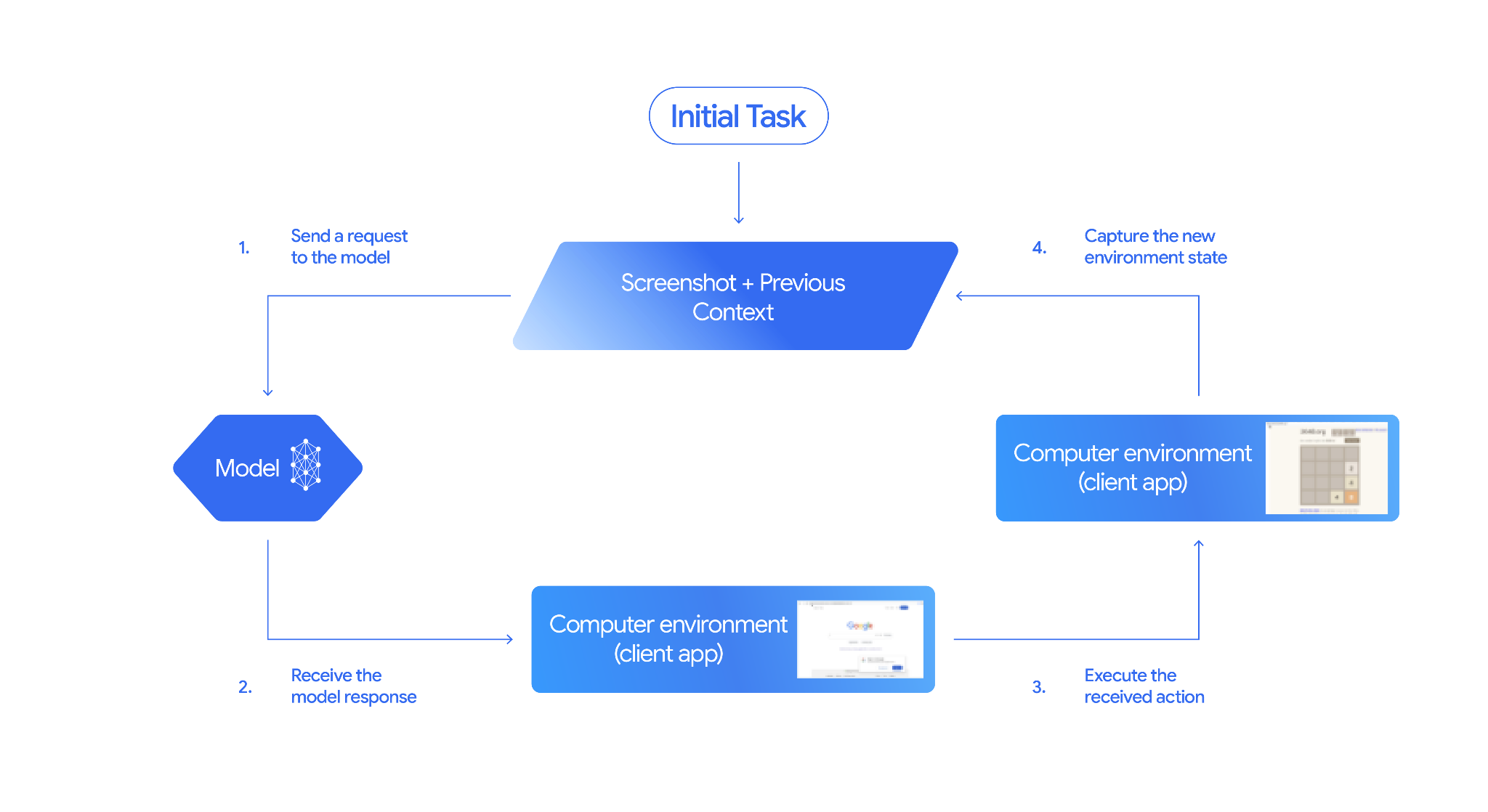
Para compilar un agente con el modelo de Computer Use, debes configurar un bucle continuo entre tu aplicación y la API. Esto es lo que hará tu código en cada paso:
- Envía una solicitud al modelo
- Tu aplicación envía una solicitud a la API que contiene la herramienta Uso de la computadora, tu configuración (como el entorno de destino), la instrucción del usuario y una captura de pantalla de la pantalla actual.
- Recibe la respuesta del modelo
- El modelo analiza la pantalla y la instrucción, y devuelve una respuesta que incluye un
function_callsugerido que representa una acción de la IU (como un clic, un desplazamiento o una pulsación de tecla). - En el caso de Gemini 3.5 Flash, la respuesta también incluye un razonamiento
intentque explica por qué el modelo eligió esa acción. - La respuesta también puede incluir un
safety_decisionde un sistema de seguridad interno que clasifica la acción como normal/permitida,require_confirmation(que requiere la aprobación del usuario) o bloqueada.
- El modelo analiza la pantalla y la instrucción, y devuelve una respuesta que incluye un
- Ejecuta la acción recibida
- Si se permite la acción (o el usuario la confirma), tu código del cliente analiza el objeto
function_call, ajusta las coordenadas normalizadas para que coincidan con tu viewport y ejecuta la acción en tu entorno de destino con herramientas de automatización (como Playwright). Si la acción está bloqueada, tu cliente debe detener la ejecución o controlar la interrupción.
- Si se permite la acción (o el usuario la confirma), tu código del cliente analiza el objeto
- Captura el estado del entorno nuevo
- Después de que la acción termina de ejecutarse, tu aplicación captura una nueva captura de pantalla y la envía de vuelta al modelo en un
function_resultpara solicitar el siguiente paso.
- Después de que la acción termina de ejecutarse, tu aplicación captura una nueva captura de pantalla y la envía de vuelta al modelo en un
Luego, este proceso se repite desde el paso 2, y se solicita continuamente la siguiente acción del modelo hasta que se completa o finaliza la tarea.
Cómo implementar el uso de la computadora
Antes de compilar con la herramienta Uso de la computadora, deberás configurar lo siguiente:
- Entorno de ejecución seguro: Ejecuta tu agente en una VM o un contenedor de zona de pruebas para aislarlo de tu sistema host y limitar su impacto potencial. La implementación de referencia incluye un entorno de pruebas basado en Docker listo para usar que puedes utilizar como punto de partida.
- Controlador de acciones del cliente: Implementa la lógica del cliente para ejecutar coordenadas, escribir texto y tomar capturas de pantalla.
En los siguientes ejemplos, se usa un navegador web como entorno de ejecución y Playwright como controlador del cliente.
0. Configura Playwright
Primero, instala los paquetes requeridos:
pip install google-genai playwright
playwright install chromium
Luego, inicializa una instancia del navegador Playwright para usarla en la ejecución:
from playwright.sync_api import sync_playwright

# 1. Configure screen dimensions for the target environment
SCREEN_WIDTH = 1440
SCREEN_HEIGHT = 900

# 2. Start the Playwright browser
# In production, utilize a sandboxed environment.
playwright = sync_playwright().start()
# Set headless=False to see the actions performed on your screen
browser = playwright.chromium.launch(headless=False)

# 3. Create a context and page with the specified dimensions
context = browser.new_context(
    viewport={"width": SCREEN_WIDTH, "height": SCREEN_HEIGHT}
)
page = context.new_page()

# 4. Navigate to an initial page to start the task
page.goto("https://www.google.com")

# The 'page', 'SCREEN_WIDTH', and 'SCREEN_HEIGHT' variables
# will be used in the steps below.
1. Envía una solicitud al modelo
Inicializa la biblioteca cliente y configura la herramienta Computer Use. Ten en cuenta que no es necesario especificar el tamaño de visualización cuando se envía una solicitud. El modelo predice las coordenadas de píxeles ajustadas a la altura y el ancho de la pantalla.
Gemini 3.5 Flash (recomendado)
Python
Usa el SDK de google-genai de Python (versión 2.7.0 o posterior) para configurar una solicitud que se oriente al entorno del navegador:
from google import genai
from google.genai.types import (
    Content,
    Part,
    GenerateContentConfig,
    Tool,
    ComputerUse,
    Environment,
    ThinkingConfig,
)

client = genai.Client()

response = client.models.generate_content(
    model="gemini-3.5-flash",
    contents=[
        Content(
            role="user",
            parts=[
                Part(text="Find a flight from SF to Hawaii on Jun 30th, coming back on Jul 6th"),
            ],
        )
    ],
    config=GenerateContentConfig(
        tools=[
            Tool(
                computer_use=ComputerUse(
                    environment=Environment.ENVIRONMENT_BROWSER,
                    enable_prompt_injection_detection=True,
                ),
            ),
        ],
        thinking_config=ThinkingConfig(
            include_thoughts=True
        ),
    )
)

print(response.text)
JavaScript
Usa el SDK de Node.js de @google/genai para configurar una solicitud que se oriente al entorno del navegador:
import { GoogleGenAI } from '@google/genai';

const ai = new GoogleGenAI();

const response = await ai.models.generateContent({
  model: 'gemini-3.5-flash',
  contents: [
    {
      role: 'user',
      parts: [{ text: "Find a flight from SF to Hawaii on Jun 30th, coming back on Jul 6th" }]
    }
  ],
  config: {
    tools: [{
      computerUse: {
        environment: "ENVIRONMENT_BROWSER",
        enable_prompt_injection_detection: true
      }
    }],
    thinkingConfig: {
      includeThoughts: true
    }
  }
});

console.log(response.text);
REST
Usa curl para enviar una solicitud:
curl -X POST \
  "https://generativelanguage.googleapis.com/v1beta/models/gemini-3.5-flash:generateContent?key=$GEMINI_API_KEY" \
  -H "Content-Type: application/json" \
  -d '{
    "contents": [
      {
        "role": "user",
        "parts": {
          "text": "Find me a flight from SF to Hawaii on Jun 30th, coming back on Jul 6th. Start by navigating directly to flights.google.com"
        }
      }
    ],
    "tools": [
      {
        "computer_use": {
          "environment": "ENVIRONMENT_BROWSER",
          "enable_prompt_injection_detection": true
        }
      }
    ]
  }'
Gemini 2.5 (heredado)
Python
from google import genai
from google.genai import types
from google.genai.types import Content, Part

client = genai.Client()

# Specify predefined functions to exclude (optional)
excluded_functions = ["drag_and_drop"]

generate_content_config = genai.types.GenerateContentConfig(
    tools=[
        types.Tool(
            computer_use=types.ComputerUse(
                environment=types.Environment.ENVIRONMENT_BROWSER,
                excluded_predefined_functions=excluded_functions
                )
              ),
          ],
  )

contents=[
    Content(
        role="user",
        parts=[
            Part(text="Search for highly rated smart fridges on Google Shopping."),
        ],
    )
]

response = client.models.generate_content(
    model='gemini-2.5-computer-use-preview-10-2025',
    contents=contents,
    config=generate_content_config,
)

print(response)
JavaScript
import { GoogleGenAI } from '@google/genai';

const ai = new GoogleGenAI();

// Specify predefined functions to exclude (optional)
const excludedFunctions = ["drag_and_drop"];

const response = await ai.models.generateContent({
  model: 'gemini-2.5-computer-use-preview-10-2025',
  contents: [
    {
      role: 'user',
      parts: [{ text: "Search for highly rated smart fridges on Google Shopping." }]
    }
  ],
  config: {
    tools: [{
      computerUse: {
        environment: "ENVIRONMENT_BROWSER",
        excluded_predefined_functions: excludedFunctions
      }
    }]
  }
});

console.log(response);
2. Recibe la respuesta del modelo
El modelo de respuesta sugiere una llamada a función. En el caso de Gemini 3.5 Flash, la respuesta contiene un intent de razonamiento personalizado junto con las coordenadas. A continuación, se muestran ejemplos de ambas respuestas:
Gemini 3.5 Flash
{
  "function_call": {
    "name": "click",
    "args": {
      "x": 450,
      "y": 120,
      "intent": "Click the search box to type the destination."
    }
  }
}
Gemini 2.5 (heredado)
{
  "content": {
    "parts": [
      {
        "text": "I will type the search query into the search bar."
      },
      {
        "function_call": {
          "name": "type_text_at",
          "args": {
            "x": 371,
            "y": 470,
            "text": "highly rated smart fridges",
            "press_enter": true
          }
        }
      }
    ]
  }
}
3. Ejecuta las acciones recibidas
El código de tu aplicación debe analizar la respuesta del modelo, ejecutar las acciones y recopilar los resultados.
El siguiente código controla los comandos de herramientas heredados (click_at, type_text_at) y los comandos optimizados de Gemini 3.5 Flash (click, type).
Python
from typing import Any, List, Tuple
import time

def denormalize_x(x: int, screen_width: int) -> int:
    """Convert normalized x coordinate (0-1000) to actual pixel coordinate."""
    return int(x / 1000 * screen_width)

def denormalize_y(y: int, screen_height: int) -> int:
    """Convert normalized y coordinate (0-1000) to actual pixel coordinate."""
    return int(y / 1000 * screen_height)

def execute_function_calls(interaction, page, screen_width, screen_height):
    results = []
    function_calls = []

    # Parse content parts (Handling legacy and Gemini 3 response structures)
    parts = candidate.content.parts if hasattr(candidate, 'content') else []
    if not parts and hasattr(candidate, 'function_calls'):
        function_calls = candidate.function_calls
    else:
        for part in parts:
            if part.function_call:
                function_calls.append(part.function_call)

    for function_call in function_calls:
        action_result = {}
        fname = function_call.name
        args = function_call.args
        print(f"  -> Executing: {fname} (Intent: {args.get('intent', 'N/A')})")

        try:
            if fname in ("open_web_browser", "open_app"):
                pass # Handled / already open
            elif fname in ("click", "click_at", "double_click", "triple_click", "middle_click", "right_click", "move", "long_press"):
                actual_x = denormalize_x(args["x"], screen_width)
                actual_y = denormalize_y(args["y"], screen_height)

                if fname in ("click", "click_at"):
                    page.mouse.click(actual_x, actual_y)
                elif fname == "double_click":
                    page.mouse.dblclick(actual_x, actual_y)
                elif fname == "right_click":
                    page.mouse.click(actual_x, actual_y, button="right")
                elif fname == "middle_click":
                    page.mouse.click(actual_x, actual_y, button="middle")
                elif fname == "move":
                    page.mouse.move(actual_x, actual_y)
            elif fname in ("type", "type_text_at"):
                actual_x = denormalize_x(args["x"], screen_width) if "x" in args else None
                actual_y = denormalize_y(args["y"], screen_height) if "y" in args else None
                text = args["text"]
                press_enter = args.get("press_enter", False)

                if actual_x is not None and actual_y is not None:
                    page.mouse.click(actual_x, actual_y)
                # Clear field first
                page.keyboard.press("Meta+A")
                page.keyboard.press("Backspace")
                page.keyboard.type(text)
                if press_enter:
                    page.keyboard.press("Enter")
            elif fname == "navigate":
                page.goto(args["url"])
            elif fname == "go_back":
                page.go_back()
            elif fname == "go_forward":
                page.go_forward()
            elif fname == "wait":
                time.sleep(args.get("seconds", 1))
            else:
                print(f"Warning: Custom or unhandled function {fname}")

            page.wait_for_load_state(timeout=5000)
            time.sleep(1)

        except Exception as e:
            print(f"Error executing {fname}: {e}")
            action_result = {"error": str(e)}

        results.append((fname, function_call.id, action_result))

    return results
JavaScript
function denormalizeX(x, screenWidth) {
    // Convert normalized x coordinate (0-1000) to actual pixel coordinate.
    return Math.floor((x / 1000) * screenWidth);
}

function denormalizeY(y, screenHeight) {
    // Convert normalized y coordinate (0-1000) to actual pixel coordinate.
    return Math.floor((y / 1000) * screenHeight);
}

async function executeFunctionCalls(candidate, page, screenWidth, screenHeight) {
    const results = [];
    let functionCalls = [];

    // Parse function calls from candidate response
    const parts = candidate.content?.parts || [];
    if (parts.length === 0 && candidate.functionCalls) {
        functionCalls = candidate.functionCalls;
    } else {
        for (const part of parts) {
            if (part.functionCall) {
                functionCalls.push(part.functionCall);
            }
        }
    }

    for (const functionCall of functionCalls) {
        const actionResult = {};
        const fname = functionCall.name;
        const args = functionCall.args;
        console.log(`  -> Executing: ${fname} (Intent: ${args.intent || 'N/A'})`);

        try {
            if (fname === "open_web_browser" || fname === "open_app") {
                // Handled / already open
            } else if (["click", "click_at", "double_click", "triple_click", "middle_click", "right_click", "move", "long_press"].includes(fname)) {
                const actualX = denormalizeX(args.x, screenWidth);
                const actualY = denormalizeY(args.y, screenHeight);

                if (fname === "click" || fname === "click_at") {
                    await page.mouse.click(actualX, actualY);
                } else if (fname === "double_click") {
                    await page.mouse.dblclick(actualX, actualY);
                } else if (fname === "right_click") {
                    await page.mouse.click(actualX, actualY, { button: "right" });
                } else if (fname === "middle_click") {
                    await page.mouse.click(actualX, actualY, { button: "middle" });
                } else if (fname === "move") {
                    await page.mouse.move(actualX, actualY);
                }
            } else if (fname === "type" || fname === "type_text_at") {
                const actualX = args.x !== undefined ? denormalizeX(args.x, screenWidth) : null;
                const actualY = args.y !== undefined ? denormalizeY(args.y, screenHeight) : null;
                const text = args.text;
                const pressEnter = args.press_enter || false;

                if (actualX !== null && actualY !== null) {
                    await page.mouse.click(actualX, actualY);
                }
                // Clear field first
                await page.keyboard.press("Meta+A");
                await page.keyboard.press("Backspace");
                await page.keyboard.type(text);
                if (pressEnter) {
                    await page.keyboard.press("Enter");
                }
            } else if (fname === "navigate") {
                await page.goto(args.url);
            } else if (fname === "go_back") {
                await page.goBack();
            } else if (fname === "go_forward") {
                await page.goForward();
            } else if (fname === "wait") {
                await new Promise(resolve => setTimeout(resolve, (args.seconds || 1) * 1000));
            } else {
                console.log(`Warning: Custom or unhandled function ${fname}`);
            }

            await page.waitForLoadState('load', { timeout: 5000 }).catch(() => {});
            await new Promise(resolve => setTimeout(resolve, 1000));
        } catch (e) {
            console.log(`Error executing ${fname}: ${e}`);
            actionResult.error = e.message;
        }

        results.push([fname, functionCall.id, actionResult]);
    }

    return results;
}
4. Captura el estado del entorno nuevo
Captura una representación de la pantalla y la devuelve al modelo.
Python
def get_function_responses(page, results):
    screenshot_bytes = page.screenshot(type="png")
    current_url = page.url
    function_responses = []
    for name, call_id, result in results:
        function_responses.append({
            "type": "function_result",
            "name": name,
            "call_id": call_id,
            "result": [
                {
                    "type": "text",
                    "text": json.dumps({"url": current_url, **result})
                },
                {
                    "type": "image",
                    "data": base64.b64encode(screenshot_bytes).decode("utf-8"),
                    "mime_type": "image/png"
                }
            ]
        })
    return function_responses
JavaScript
async function getFunctionResponses(page, results) {
    const screenshotBuffer = await page.screenshot({ type: 'png' });
    const screenshotBase64 = screenshotBuffer.toString('base64');
    const currentUrl = page.url();
    const functionResponses = [];

    for (const [name, callId, result] of results) {
        functionResponses.push({
            type: "function_result",
            name: name,
            call_id: callId,
            result: [
                {
                    type: "text",
                    text: JSON.stringify({ url: currentUrl, ...result })
                },
                {
                    type: "image",
                    data: screenshotBase64,
                    mime_type: "image/png"
                }
            ]
        });
    }
    return functionResponses;
}
Una vez que hayas definido cómo capturar y dar formato al estado del entorno, puedes combinar todos estos pasos en un bucle de ejecución continua.
Crea un bucle de agente
Para habilitar las interacciones de varios pasos, combina los cuatro pasos de la sección Cómo implementar el uso de la computadora en un solo bucle. Este bucle continúa solicitando acciones y enviando los resultados al modelo hasta que se completa la tarea.
Recuerda administrar el historial de conversación correctamente agregando las respuestas del modelo y las respuestas de la función al historial en cada paso.
Python
import time
from typing import Any, List, Tuple
from playwright.sync_api import sync_playwright
from google import genai
from google.genai import types

client = genai.Client()

SCREEN_WIDTH = 1440
SCREEN_HEIGHT = 900

print("Initializing browser...")
playwright = sync_playwright().start()
browser = playwright.chromium.launch(headless=False)
context = browser.new_context(viewport={"width": SCREEN_WIDTH, "height": SCREEN_HEIGHT})
page = context.new_page()

# Paste helper functions execute_function_calls and get_function_responses here

try:
    page.goto("https://ai.google.dev/gemini-api/docs")

    config = types.GenerateContentConfig(
        tools=[types.Tool(computer_use=types.ComputerUse(
            environment=types.Environment.ENVIRONMENT_BROWSER,
            enable_prompt_injection_detection=True
        ))],
        thinking_config=types.ThinkingConfig(include_thoughts=True),
    )

    initial_screenshot = page.screenshot(type="png")
    USER_PROMPT = "Go to ai.google.dev/gemini-api/docs and search for pricing."
    print(f"Goal: {USER_PROMPT}")

    contents = [
        types.Content(role="user", parts=[
            types.Part(text=USER_PROMPT),
            types.Part.from_bytes(data=initial_screenshot, mime_type='image/png')
        ])
    ]

    # Agent Loop
    turn_limit = 5
    for i in range(turn_limit):
        print(f"\n--- Turn {i+1} ---")
        print("Thinking...")
        response = client.models.generate_content(
            model='gemini-3.5-flash',
            contents=contents,
            config=config,
        )

        candidate = response.candidates[0]
        contents.append(candidate.content)

        has_function_calls = any(part.function_call for part in candidate.content.parts)
        if not has_function_calls:
            text_response = " ".join(
                part.text for part in candidate.content.parts if hasattr(part, 'text')
            )
            print("Agent finished:", text_response)
            break

        print("Executing actions...")
        results = execute_function_calls(candidate, page, SCREEN_WIDTH, SCREEN_HEIGHT)

        print("Capturing state...")
        function_responses = get_function_responses(page, results)

        contents.append(
            types.Content(role="user", parts=[types.Part(function_response=fr) for fr in function_responses])
        )

finally:
    print("Closing browser...")
    browser.close()
    playwright.stop()
JavaScript
import { chromium } from 'playwright';
import { GoogleGenAI } from '@google/genai';

const ai = new GoogleGenAI();

// Constants for screen dimensions
const SCREEN_WIDTH = 1440;
const SCREEN_HEIGHT = 900;

console.log("Initializing browser...");
const browser = await chromium.launch({ headless: false });
const context = await browser.newContext({
    viewport: { width: SCREEN_WIDTH, height: SCREEN_HEIGHT }
});
const page = await context.newPage();

// Define helper functions. Copy/paste from steps 3 and 4:
// function denormalizeX(...)
// function denormalizeY(...)
// async function executeFunctionCalls(...)
// async function getFunctionResponses(...)

try {
    await page.goto("https://ai.google.dev/gemini-api/docs");

    const config = {
        tools: [{
            computerUse: {
                environment: "ENVIRONMENT_BROWSER",
                enable_prompt_injection_detection: true
            }
        }],
        thinkingConfig: { includeThoughts: true }
    };

    const initialScreenshotBuffer = await page.screenshot({ type: 'png' });
    const initialScreenshotBase64 = initialScreenshotBuffer.toString('base64');
    const USER_PROMPT = "Go to ai.google.dev/gemini-api/docs and search for pricing.";
    console.log(`Goal: ${USER_PROMPT}`);

    const contents = [
        {
            role: "user",
            parts: [
                { text: USER_PROMPT },
                {
                    inlineData: {
                        data: initialScreenshotBase64,
                        mimeType: "image/png"
                    }
                }
            ]
        }
    ];

    // Agent Loop
    const turnLimit = 5;
    for (let i = 0; i < turnLimit; i++) {
        console.log(`\n--- Turn ${i + 1} ---`);
        console.log("Thinking...");
        const response = await ai.models.generateContent({
            model: 'gemini-3.5-flash',
            contents: contents,
            config: config
        });

        const candidate = response.candidates[0];
        contents.push(candidate.content);

        const hasFunctionCalls = candidate.content.parts.some(part => part.functionCall);
        if (!hasFunctionCalls) {
            const textResponse = candidate.content.parts
                .filter(part => part.text)
                .map(part => part.text)
                .join(" ");
            console.log("Agent finished:", textResponse);
            break;
        }

        console.log("Executing actions...");
        const results = await executeFunctionCalls(candidate, page, SCREEN_WIDTH, SCREEN_HEIGHT);

        console.log("Capturing state...");
        const functionResponses = await getFunctionResponses(page, results);

        contents.push({
            role: "user",
            parts: functionResponses.map(fr => ({
                ...fr
            }))
        });
    }
} finally {
    console.log("Closing browser...");
    await browser.close();
}
Entornos compatibles (Gemini 3.5 Flash)
Gemini 3.5 Flash admite tres entornos especificados en los parámetros de configuración de computer_use:
Entorno del navegador (ENVIRONMENT_BROWSER)
Acciones de acción en la herramienta del navegador:
| Nombre del comando | Descripción | Argumentos (en la llamada a la función) |
|---|---|---|
| click | Hace clic con el botón izquierdo en la coordenada. | y: int (0-999)x: int (0-999)intent: str |
| double_click | Hace doble clic en la coordenada. | y: int (0-999)x: int (0-999)intent: str |
| triple_click | Hace tres clics en la coordenada. | y: int (0-999)x: int (0-999)intent: str |
| middle_click | Se hace clic con el botón central en la coordenada. | y: int (0-999)x: int (0-999)intent: str |
| right_click | Haz clic con el botón derecho en la coordenada. | y: int (0-999)x: int (0-999)intent: str |
| mouse_down | Presiona y mantiene presionado el botón del mouse en la coordenada. | y: int (0-999)x: int (0-999)intent: str |
| mouse_up | Suelta el botón del mouse en la coordenada. | y: int (0-999)x: int (0-999)intent: str |
| move | Mueve el cursor a la posición especificada. | y: int (0-999)x: int (0-999)intent: str |
| type | Escribe texto. | text: strpress_enter: bool (opcional, valor predeterminado false)intent: str |
| drag_and_drop | Arrastra un elemento desde la coordenada de inicio hasta la coordenada de finalización. | start_y: int (0-999)start_x: int (0-999)end_y: int (0-999)end_x: int (0-999)intent: str |
| wait | Pausa la ejecución durante una cantidad específica de segundos. | seconds: int (opcional, valor predeterminado 1)intent: str |
| press_key | Presiona la tecla especificada y la suelta. | key: strintent: str |
| key_down | Presiona y mantiene presionada la tecla especificada. | key: strintent: str |
| key_up | Suelta la tecla especificada. | key: strintent: str |
| Tecla de acceso rápido | Presiona la combinación de teclas especificada. | keys: List[str]intent: str |
| take_screenshot | Devuelve una captura de pantalla de la pantalla actual. | intent: str |
| scroll | Se desplaza hacia arriba, abajo, izquierda o derecha en una coordenada por una distancia de píxeles. | y: int (0-999)x: int (0-999)direction: str ("up", "down", "left", "right")magnitude_in_pixels: int (0-999, opcional, valor predeterminado 300)intent: str |
| go_back | Navega a la página web anterior en el historial del navegador. | intent: str |
| navegar | Navega directamente a una URL especificada. | url: strintent: str |
| go_forward | Navega hacia adelante a la siguiente página web en el historial del navegador. | intent: str |
Entorno móvil (ENVIRONMENT_MOBILE)
Acciones del entorno optimizado para Android:
| Nombre del comando | Descripción | Argumentos (en la llamada a la función) |
|---|---|---|
| open_app | Abre una aplicación por su nombre. | app_name: strintent: str |
| click | Hace clic con el botón izquierdo en la coordenada. | y: int (0-999)x: int (0-999)intent: str |
| list_apps | Enumera las aplicaciones disponibles en el dispositivo y muestra sus nombres y nombres de paquete. | intent: str |
| wait | Pausa la ejecución durante una cantidad específica de segundos. | seconds: int (opcional, valor predeterminado 1)intent: str |
| go_back | Navega de vuelta a la pantalla o página web anterior. | intent: str |
| type | Escribe texto. | text: strpress_enter: bool (opcional, valor predeterminado false)intent: str |
| drag_and_drop | Arrastra un elemento desde la coordenada de inicio hasta la coordenada de finalización. | start_y: int (0-999)start_x: int (0-999)end_y: int (0-999)end_x: int (0-999)intent: str |
| long_press | Realiza una presión prolongada en una coordenada de la pantalla. | y: int (0-999)x: int (0-999)seconds: int (opcional, valor predeterminado 2)intent: str |
| press_key | Presiona la tecla especificada y la suelta. | key: strintent: str |
| take_screenshot | Devuelve una captura de pantalla de la pantalla actual. | intent: str |
Entorno de escritorio (ENVIRONMENT_DESKTOP)
Comandos del cursor a nivel del SO de los entornos de escritorio:
| Nombre del comando | Descripción | Argumentos (en la llamada a la función) |
|---|---|---|
| click | Hace clic con el botón izquierdo en la coordenada. | y: int (0-999)x: int (0-999)intent: str |
| double_click | Hace doble clic en la coordenada. | y: int (0-999)x: int (0-999)intent: str |
| triple_click | Hace tres clics en la coordenada. | y: int (0-999)x: int (0-999)intent: str |
| middle_click | Se hace clic con el botón central en la coordenada. | y: int (0-999)x: int (0-999)intent: str |
| right_click | Haz clic con el botón derecho en la coordenada. | y: int (0-999)x: int (0-999)intent: str |
| mouse_down | Presiona y mantiene presionado el botón del mouse en la coordenada. | y: int (0-999)x: int (0-999)intent: str |
| mouse_up | Suelta el botón del mouse en la coordenada. | y: int (0-999)x: int (0-999)intent: str |
| move | Mueve el cursor a la posición especificada. | y: int (0-999)x: int (0-999)intent: str |
| type | Escribe texto. | text: strpress_enter: bool (opcional, valor predeterminado false)intent: str |
| drag_and_drop | Arrastra un elemento desde la coordenada de inicio hasta la coordenada de finalización. | start_y: int (0-999)start_x: int (0-999)end_y: int (0-999)end_x: int (0-999)intent: str |
| wait | Pausa la ejecución durante una cantidad específica de segundos. | seconds: int (opcional, valor predeterminado 1)intent: str |
| press_key | Presiona la tecla especificada y la suelta. | key: strintent: str |
| key_down | Presiona y mantiene presionada la tecla especificada. | key: strintent: str |
| key_up | Suelta la tecla especificada. | key: strintent: str |
| Tecla de acceso rápido | Presiona la combinación de teclas especificada. | keys: List[str]intent: str |
| take_screenshot | Devuelve una captura de pantalla de la pantalla actual. | intent: str |
| scroll | Se desplaza hacia arriba, abajo, izquierda o derecha en una coordenada por una distancia de píxeles. | y: int (0-999)x: int (0-999)direction: str ("up", "down", "left", "right")magnitude_in_pixels: int (0-999, opcional, valor predeterminado 300)intent: str |
Acciones de la IU compatibles heredadas (Gemini 2.5)
Para los modelos heredados (gemini-2.5-computer-use-preview-10-2025), se admiten las siguientes acciones:
| Nombre del comando | Descripción | Argumentos (en la llamada a la función) | Ejemplo de llamada a función |
|---|---|---|---|
| open_web_browser | Abre el navegador web. | Ninguno | {"name": "open_web_browser", "args": {}} |
| wait_5_seconds | Pausa la ejecución durante 5 segundos. | Ninguno | {"name": "wait_5_seconds", "args": {}} |
| go_back | Navega a la página anterior del historial. | Ninguno | {"name": "go_back", "args": {}} |
| go_forward | Navega a la página siguiente del historial. | Ninguno | {"name": "go_forward", "args": {}} |
| search | Navega al motor de búsqueda predeterminado. | Ninguno | {"name": "search", "args": {}} |
| navegar | Navega el navegador directamente a la URL especificada. | url: str |
{"name": "navigate", "args": {"url": "https://www.wikipedia.org"}} |
| click_at | Hace clic en una coordenada específica. | y: int (0-999), x: int (0-999) |
{"name": "click_at", "args": {"y": 300, "x": 500}} |
| hover_at | Coloca el cursor en una coordenada específica. | y: int (0-999), x: int (0-999) |
{"name": "hover_at", "args": {"y": 150, "x": 250}} |
| type_text_at | Escribe texto en una coordenada. | y: int (0 a 999), x: int (0 a 999), text: str, press_enter: bool (opcional, valor predeterminado es True), clear_before_typing: bool (opcional, valor predeterminado es True) |
{"name": "type_text_at", "args": {"y": 250, "x": 400, "text": "search", "press_enter": false}} |
| key_combination | Presiona teclas o combinaciones. | keys: str |
{"name": "key_combination", "args": {"keys": "Control+A"}} |
| scroll_document | Desplaza toda la página web. | direction: str |
{"name": "scroll_document", "args": {"direction": "down"}} |
| scroll_at | Se desplaza en la coordenada (x,y). | y: int, x: int, direction: str, magnitude: int (opcional, valor predeterminado 800) |
{"name": "scroll_at", "args": {"y": 500, "x": 500, "direction": "down"}} |
| drag_and_drop | Arrastra entre dos coordenadas. | y: int, x: int, destination_y: int, destination_x: int |
{"name": "drag_and_drop", "args": {"y": 100, "destination_y": 500, "destination_x": 500, "x": 100}} |
Funciones personalizadas definidas por el usuario
Puedes extender la funcionalidad del modelo incluyendo funciones definidas por el usuario personalizadas. Por ejemplo, en situaciones de interacción humana (HITL), puedes excluir acciones predefinidas predeterminadas y registrar acciones personalizadas.
Herramientas personalizadas de Gemini 3.5 Flash
Python
Excluye las acciones predefinidas estándar del navegador (como click) y registra una herramienta yield_to_user personalizada:
from google import genai
from google.genai import types

client = genai.Client()

yield_to_user_tool = types.FunctionDeclaration(
    name="yield_to_user",
    description="Yields control back to the user for assistance or verification when an automated action is unsafe or ambiguous.",
    parameters=types.Schema(
        type="OBJECT",
        properties={
            "reason": types.Schema(
                type="STRING",
                description="The reason why the agent is yielding control to the human."
            )
        },
        required=["reason"]
    )
)

response = client.models.generate_content(
    model="gemini-3.5-flash",
    contents="Click the submit button. If you need a second factor authentication code, ask me.",
    config=types.GenerateContentConfig(
        tools=[
            types.Tool(
                computer_use=types.ComputerUse(
                    environment="ENVIRONMENT_MOBILE",
                    excluded_predefined_functions=["click"]
                )
            ),
            yield_to_user_tool
        ]
    )
)
Herramientas personalizadas de Gemini 2.5 (heredado)
Python
from typing import Optional, Dict, Any
from google import genai
from google.genai import types

client = genai.Client()

# Define custom tools here
custom_functions = [...] # Describe parameters as FunctionDeclaration object

def make_generate_content_config():
    excluded_functions = ["open_web_browser", "wait_5_seconds", "go_back", "go_forward", "search", "navigate", "hover_at", "scroll_document", "key_combination", "drag_and_drop"]
    generate_content_config = types.GenerateContentConfig(
        tools=[
            types.Tool(
                computer_use=types.ComputerUse(
                    environment=types.Environment.ENVIRONMENT_BROWSER,
                    excluded_predefined_functions=excluded_functions
                )
            ),
            types.Tool(function_declarations=custom_functions)
        ]
    )
    return generate_content_config
Cómo administrar los niveles de pensamiento (Gemini 3.5 Flash)
En el caso de los agentes de uso de la computadora, puedes configurar diferentes niveles de pensamiento para equilibrar la calidad de la acción y la velocidad de ejecución. Por lo general, los niveles de pensamiento más bajos logran un buen equilibrio para las tareas de automatización estándar.
Seguridad y protección
Configuración de políticas de seguridad (Gemini 3.5 Flash)
El modelo Gemini 3.5 Flash incluye categorías de servicios de seguridad integradas que determinan automáticamente si se requiere la confirmación del usuario.
| Categoría de la política de seguridad | Descripción |
|---|---|
FINANCIAL_TRANSACTIONS |
Bloquea o activa la confirmación de acciones que involucran pagos, compras en tiendas o bienes regulados. |
SENSITIVE_DATA_MODIFICATION |
Protege los registros de salud, financieros o gubernamentales contra modificaciones no autorizadas. |
COMMUNICATION_TOOL |
Restringe la capacidad del agente para enviar correos electrónicos, mensajes de chat o borradores de forma autónoma. |
ACCOUNT_CREATION |
Restringe al agente para que no registre de forma autónoma cuentas nuevas en sitios web. |
DATA_MODIFICATION |
Regula las modificaciones generales del sistema de archivos, el uso compartido de datos y la eliminación del almacenamiento. |
USER_CONSENT_MANAGEMENT |
Requiere la intervención del usuario para los banners de consentimiento de uso de cookies y los mensajes de privacidad. |
LEGAL_TERMS_AND_AGREEMENTS |
Evita que el modelo acepte de forma autónoma las Condiciones del Servicio o los contratos legalmente vinculantes. |
Anulaciones de seguridad
Puedes anular políticas seleccionadas pasando anulaciones:
Python
from google import genai
from google.genai import types

client = genai.Client()

response = client.models.generate_content(
    model="gemini-3.5-flash",
    contents="Clean up the local folder by archiving old logs.",
    config=types.GenerateContentConfig(
        tools=[
            types.Tool(
                computer_use=types.ComputerUse(
                    environment=types.Environment.ENVIRONMENT_DESKTOP,
                    disabled_safety_policies=[
                        types.SafetyPolicy.DATA_MODIFICATION
                    ]
                )
            )
        ]
    )
)
JavaScript
import { GoogleGenAI } from '@google/genai';

const ai = new GoogleGenAI();

const response = await ai.models.generateContent({
  model: 'gemini-3.5-flash',
  contents: "Clean up the local folder by archiving old logs.",
  config: {
    tools: [{
      computerUse: {
        environment: "ENVIRONMENT_DESKTOP",
        disabledSafetyPolicies: [
          "DATA_MODIFICATION"
        ]
      }
    }]
  }
});
Detección de inyección de instrucciones (Gemini 3.5 Flash)
Es un mecanismo de seguridad opcional que analiza los píxeles de las capturas de pantalla en busca de instrucciones ocultas de instrucciones adversarias (p.ej., "Ignora los comandos anteriores") y bloquea la ejecución cuando se detectan.
Confirma la decisión de seguridad
La respuesta puede incluir un parámetro safety_decision en los argumentos de la llamada a la función:
{
  "function_call": {
    "name": "click_at",
    "args": {
      "x": 60,
      "y": 100,
      "safety_decision": {
        "explanation": "Must check check-box",
        "decision": "require_confirmation"
      }
    }
  }
}
Si safety_decision es require_confirmation, muestra un mensaje al usuario final. Si el usuario confirma, establece safety_acknowledgement en FunctionResponse.
Python
def get_safety_confirmation(safety_decision):
    # Prompt user for confirmation
    print(f"Safety confirmation required: {safety_decision.get('explanation', '')}")
    return "CONTINUE" # Or TERMINATE

# Inside execute_function_calls, check for safety_decision:
if 'safety_decision' in function_call.args:
    decision = get_safety_confirmation(function_call.args['safety_decision'])
    if decision == "TERMINATE":
        break
    # Include safety_acknowledgement inside the action result
    action_result["safety_acknowledgement"] = True
Prácticas recomendadas de seguridad
El uso de la computadora presenta riesgos operativos y de seguridad únicos, ya que un modelo que actúa en nombre de un usuario puede encontrar contenido no confiable en las pantallas o cometer errores al ejecutar acciones. Implementa las siguientes prácticas recomendadas para proteger los datos y los sistemas de los usuarios:
Interacción humana (HITL):
- Exige la confirmación del usuario: Cuando la respuesta de seguridad indica
require_confirmation(o la decisión de seguridad heredada lo requiere), solicita la aprobación del usuario. Proporciona instrucciones de seguridad personalizadas: Implementa una instrucción del sistema personalizada para definir y aplicar tus propios límites de seguridad. Por ejemplo:
Python
from google import genai
from google.genai import types

system_instruction = """
## **RULE 1: Seek User Confirmation (USER_CONFIRMATION)**

This is your first and most important check. If the next required action falls
into any of the following categories, you MUST stop immediately, and seek the
user's explicit permission.

**Procedure for Seeking Confirmation:**
* **For Consequential Actions:** Perform all preparatory steps (e.g., navigating,
  filling out forms, typing a message). You will ask for confirmation **AFTER**
  all necessary information is entered on the screen, but **BEFORE** you perform
  the final, irreversible action (e.g., before clicking "Send", "Submit",
  "Confirm Purchase", "Share").
* **For Prohibited Actions:** If the action is strictly forbidden (e.g., accepting
  legal terms, solving a CAPTCHA), you must first inform the user about the
  required action and ask for their confirmation to proceed.

**USER_CONFIRMATION Categories:**

*   **Consent and Agreements:** You are FORBIDDEN from accepting, selecting, or
    agreeing to any of the following on the user's behalf. You must ask the
    user to confirm before performing these actions.
    *   Terms of Service
    *   Privacy Policies
    *   Cookie consent banners
    *   End User License Agreements (EULAs)
    *   Any other legally significant contracts or agreements.
*   **Robot Detection:** You MUST NEVER attempt to solve or bypass the
    following. You must ask the user to confirm before performing these actions.
    *   CAPTCHAs (of any kind)
    *   Any other anti-robot or human-verification mechanisms, even if you are
        capable.
*   **Financial Transactions:**
    *   Completing any purchase.
    *   Managing or moving money (e.g., transfers, payments).
    *   Purchasing regulated goods or participating in gambling.
*   **Sending Communications:**
    *   Sending emails.
    *   Sending messages on any platform (e.g., social media, chat apps).
    *   Posting content on social media or forums.
*   **Accessing or Modifying Sensitive Information:**
    *   Health, financial, or government records (e.g., medical history, tax
        forms, passport status).
    *   Revealing or modifying sensitive personal identifiers (e.g., SSN, bank
        account number, credit card number).
*   **User Data Management:**
    *   Accessing, downloading, or saving files from the web.
    *   Sharing or sending files/data to any third party.
    *   Transferring user data between systems.
*   **Browser Data Usage:**
    *   Accessing or managing Chrome browsing history, bookmarks, autofill data,
        or saved passwords.
*   **Security and Identity:**
    *   Logging into any user account.
    *   Any action that involves misrepresentation or impersonation (e.g.,
        creating a fan account, posting as someone else).
*   **Insurmountable Obstacles:** If you are technically unable to interact with
    a user interface element or are stuck in a loop you cannot resolve, ask the
    user to take over.
---

## **RULE 2: Default Behavior (ACTUATE)**

If an action does **NOT** fall under the conditions for `USER_CONFIRMATION`,
your default behavior is to **Actuate**.

**Actuation Means:**  You MUST proactively perform all necessary steps to move
the user's request forward. Continue to actuate until you either complete the
non-consequential task or encounter a condition defined in Rule 1.

*   **Example 1:** If asked to send money, you will navigate to the payment
    portal, enter the recipient's details, and enter the amount. You will then
    **STOP** as per Rule 1 and ask for confirmation before clicking the final
    "Send" button.
*   **Example 2:** If asked to post a message, you will navigate to the site,
    open the post composition window, and write the full message. You will then
    **STOP** as per Rule 1 and ask for confirmation before clicking the final
    "Post" button.

    After the user has confirmed, remember to get the user's latest screen
    before continuing to perform actions.

# Final Response Guidelines:
Write final response to the user in the following cases:
- User confirmation
- When the task is complete or you have enough information to respond to the user
"""

client = genai.Client()
response = client.models.generate_content(
    model="gemini-3.5-flash",
    contents="Prepare a draft but do not send.",
    config=types.GenerateContentConfig(
        system_instruction=system_instruction,
        tools=[types.Tool(computer_use=types.ComputerUse(environment="ENVIRONMENT_BROWSER"))]
    )
)
JavaScript
import { GoogleGenAI } from '@google/genai';

const ai = new GoogleGenAI();

const systemInstruction = `
## **RULE 1: Seek User Confirmation (USER_CONFIRMATION)**

This is your first and most important check. If the next required action falls
into any of the following categories, you MUST stop immediately, and seek the
user's explicit permission.

**Procedure for Seeking Confirmation:**
* **For Consequential Actions:** Perform all preparatory steps (e.g., navigating,
  filling out forms, typing a message). You will ask for confirmation **AFTER**
  all necessary information is entered on the screen, but **BEFORE** you perform
  the final, irreversible action (e.g., before clicking "Send", "Submit",
  "Confirm Purchase", "Share").
* **For Prohibited Actions:** If the action is strictly forbidden (e.g., accepting
  legal terms, solving a CAPTCHA), you must first inform the user about the
  required action and ask for their confirmation to proceed.

**USER_CONFIRMATION Categories:**

*   **Consent and Agreements:** You are FORBIDDEN from accepting, selecting, or
    agreeing to any of the following on the user's behalf. You must ask the
    user to confirm before performing these actions.
    *   Terms of Service
    *   Privacy Policies
    *   Cookie consent banners
    *   End User License Agreements (EULAs)
    *   Any other legally significant contracts or agreements.
*   **Robot Detection:** You MUST NEVER attempt to solve or bypass the
    following. You must ask the user to confirm before performing these actions.
    *   CAPTCHAs (of any kind)
    *   Any other anti-robot or human-verification mechanisms, even if you are
        capable.
*   **Financial Transactions:**
    *   Compleying any purchase.
    *   Managing or moving money (e.g., transfers, payments).
    *   Purchasing regulated goods or participating in gambling.
*   **Sending Communications:**
    *   Sending emails.
    *   Sending messages on any platform (e.g., social media, chat apps).
    *   Posting content on social media or forums.
*   **Accessing or Modifying Sensitive Information:**
    *   Health, financial, or government records (e.g., medical history, tax
        forms, passport status).
    *   Revealing or modifying sensitive personal identifiers (e.g., SSN, bank
        account number, credit card number).
*   **User Data Management:**
    *   Accessing, downloading, or saving files from the web.
    *   Sharing or sending files/data to any third party.
    *   Transferring user data between systems.
*   **Browser Data Usage:**
    *   Accessing or managing Chrome browsing history, bookmarks, autofill data,
        or saved passwords.
*   **Security and Identity:**
    *   Logging into any user account.
    *   Any action that involves misrepresentation or impersonation (e.g.,
        creating a fan account, posting as someone else).
*   **Insurmountable Obstacles:** If you are technically unable to interact with
    a user interface element or are stuck in a loop you cannot resolve, ask the
    user to take over.
---

## **RULE 2: Default Behavior (ACTUATE)**

If an action does **NOT** fall under the conditions for `USER_CONFIRMATION`,
your default behavior is to **Actuate**.

**Actuation Means:**  You MUST proactively perform all necessary steps to move
the user's request forward. Continue to actuate until you either complete the
non-consequential task or encounter a condition defined in Rule 1.

*   **Example 1:** If asked to send money, you will navigate to the payment
    portal, enter the recipient's details, and enter the amount. You will then
    **STOP** as per Rule 1 and ask for confirmation before clicking the final
    "Send" button.
*   **Example 2:** If asked to post a message, you will navigate to the site,
    open the post composition window, and write the full message. You will then
    **STOP** as per Rule 1 and ask for confirmation before clicking the final
    "Post" button.

    After the user has confirmed, remember to get the user's latest screen
    before continuing to perform actions.

# Final Response Guidelines:
Write final response to the user in the following cases:
- User confirmation
- When the task is complete or you have enough information to respond to the user
`;

const response = await ai.models.generateContent({
  model: 'gemini-3.5-flash',
  contents: "Prepare a draft but do not send.",
  config: {
    systemInstruction: systemInstruction,
    tools: [{
      computerUse: {
        environment: "ENVIRONMENT_BROWSER"
      }
    }]
  }
});
- Exige la confirmación del usuario: Cuando la respuesta de seguridad indica
Entorno de ejecución seguro: Ejecuta tu agente en un entorno seguro de zona de pruebas para limitar su impacto potencial. Puede ser una máquina virtual (VM) en zona de pruebas, un contenedor (p.ej., Docker) o un perfil de navegador dedicado con permisos limitados. Consulta la implementación de referencia de GitHub para obtener orientación sobre la configuración de la zona de pruebas con Docker.
Limpieza de entradas: Limpia todo el texto generado por el usuario en las instrucciones para mitigar el riesgo de instrucciones no deseadas o inyección de instrucciones. Esta es una capa de seguridad útil, pero no reemplaza un entorno de ejecución seguro.
Barreras de seguridad de contenido: Usa barreras de seguridad y APIs de seguridad del contenido para evaluar la adecuación, la inyección de instrucciones y la detección de jailbreak de las entradas del usuario, las entradas y salidas de las herramientas, y las respuestas del agente.
Listas de entidades permitidas y bloqueadas: Implementa mecanismos de filtrado para controlar dónde puede navegar el modelo y qué puede hacer. Una lista de entidades bloqueadas de sitios web prohibidos es un buen punto de partida, mientras que una lista de entidades permitidas más restrictiva es aún más segura.
Observabilidad y registro: Mantén registros detallados para la depuración, la auditoría y la respuesta ante incidentes. Tu cliente debe registrar las instrucciones, las capturas de pantalla, las acciones sugeridas por el modelo (
function_call), las respuestas de seguridad y todas las acciones que, en última instancia, ejecute el cliente.Administración del entorno: Asegúrate de que el entorno de la GUI sea coherente. Las ventanas emergentes, las notificaciones o los cambios en el diseño inesperados pueden confundir al modelo. Si es posible, comienza cada tarea nueva desde un estado limpio y conocido.
Versiones del modelo
Puedes usar Uso del equipo con los siguientes modelos:
- Gemini 3.5 Flash (
gemini-3.5-flash): Es el modelo recomendado para el uso en computadoras, ya que incluye acciones optimizadas con intenciones, compatibilidad con entornos de navegador, dispositivos móviles y computadoras, políticas de seguridad configurables y detección de inyección de instrucciones. - Versión preliminar de Gemini 3 Flash (
gemini-3-flash-preview): Modelo de versión preliminar que admite el uso de la computadora. - Gemini 2.5 (versión preliminar heredada) (
gemini-2.5-computer-use-preview-10-2025): Es un modelo de versión preliminar heredada optimizado para el uso de computadoras basadas en navegadores.
¿Qué sigue?
- Experimenta con el uso de la computadora en el entorno de demostración de Browserbase.
- Consulta la implementación de referencia para ver un ejemplo de código.
- Obtén más información sobre otras herramientas de la API de Gemini: