

Gemini 3 は、最先端の推論を基盤として構築された、Google 史上最もインテリジェントなモデル ファミリーです。Agentic Workflows、自律型コーディング、複雑なマルチモーダル タスクをマスターして、あらゆるアイデアを実現できるように設計されています。このガイドでは、Gemini 3 モデル ファミリーの主な機能と、その機能を最大限に活用する方法について説明します。
Gemini 3 アプリのコレクションで、高度な推論、自律的なコーディング、複雑なマルチモーダル タスクをモデルがどのように処理するかをご確認ください。
数行のコードで開始できます。
Python
from google import genai

client = genai.Client()

interaction = client.interactions.create(
    model="gemini-3.1-pro-preview",
    input="Find the race condition in this multi-threaded C++ snippet: [code here]",
)

print(interaction.output_text)
JavaScript
import { GoogleGenAI } from "@google/genai";

const client = new GoogleGenAI({});

async function run() {
  const interaction = await client.interactions.create({
    model: "gemini-3.1-pro-preview",
    input: "Find the race condition in this multi-threaded C++ snippet: [code here]",
  });

  console.log(interaction.output_text);
}

run();
Java
import com.google.genai.Client;
import com.google.genai.gaos.models.interactions.CreateModelInteraction;
import com.google.genai.gaos.models.interactions.Interaction;
import com.google.genai.gaos.models.interactions.InteractionsInput;
import com.google.genai.gaos.models.interactions.Model;
import com.google.genai.gaos.models.operations.CreateInteractionRequestBody;

Client client = new Client();

CreateModelInteraction request =
    CreateModelInteraction.builder()
        .model(Model.of("gemini-3.1-pro-preview"))
        .input(
            InteractionsInput.of(
                "Find the race condition in this multi-threaded C++ snippet: [code here]"))
        .build();

Interaction interaction =
    client.interactions.create(CreateInteractionRequestBody.of(request)).interaction().get();

System.out.println(interaction.outputText().orElse(""));
Go
package main

import (
    "context"
    "fmt"
    "log"

    "google.golang.org/genai"
    "google.golang.org/genai/interactions/models/interactions"
    "google.golang.org/genai/interactions/models/operations"
)

func main() {
    ctx := context.Background()
    client, err := genai.NewClient(ctx, nil)
    if err != nil {
        log.Fatal(err)
    }

    res, err := client.Interactions.Create(ctx, operations.CreateInteractionRequest{
        Body: operations.NewCreateInteractionRequestBody(interactions.CreateModelInteraction{
            Model: interactions.Model("gemini-3.1-pro-preview"),
            Input: interactions.NewInteractionsInput("Find the race condition in this multi-threaded C++ snippet: [code here]"),
        }),
    })
    if err != nil {
        log.Fatal(err)
    }
    if res.Interaction.OutputText != nil {
        fmt.Println(*res.Interaction.OutputText)
    }
}
REST
curl -X POST "https://generativelanguage.googleapis.com/v1beta/interactions" \
  -H "x-goog-api-key: $GEMINI_API_KEY" \
  -H 'Content-Type: application/json' \
  -d '{
    "model": "gemini-3.1-pro-preview",
    "input": "Find the race condition in this multi-threaded C++ snippet: [code here]"
  }'
Gemini 3 シリーズのご紹介
Gemini 3.1 Pro は、幅広い世界知識と高度な推論を必要とする複雑なタスクに最適です。
Gemini 3 Flash は、最新の 3 シリーズ モデルです。Flash のスピードと価格で Pro レベルのインテリジェンスを実現します。
Nano Banana Pro(Gemini 3 Pro Image とも呼ばれます)は、最高品質の画像生成モデルです。Nano Banana 2(Gemini 3.1 Flash Image とも呼ばれます)は、大容量、高効率、低価格の同等モデルです。
Gemini 3.1 Flash-Lite は、費用対効果と大量のタスク向けに構築された主力モデルです。
Gemini 3 モデルはすべて現在プレビュー版です。
| モデル ID | コンテキスト ウィンドウ(入力 / 出力) | ナレッジ カットオフ | 料金(入力 / 出力)* |
|---|---|---|---|
| gemini-3.1-flash-lite | 1M / 64k | 2025 年 1 月 | $0.25(テキスト、画像、動画)、$0.50(音声) / $1.50 |
| gemini-3.1-flash-image-preview | 128k / 32k | 2025 年 1 月 | $0.25(テキスト入力) / $0.067(画像出力)** |
| gemini-3.1-pro-preview | 1M / 64k | 2025 年 1 月 | $2 / $12(<20 万トークン) $4 / $18(>20 万トークン) |
| gemini-3-flash-preview | 1M / 64k | 2025 年 1 月 | $0.50 / $3 |
| gemini-3-pro-image-preview | 65k / 32k | 2025 年 1 月 | $2(テキスト入力)/ $0.134(画像出力)** |
* 特に記載のない限り、料金は 100 万トークンあたりです。** 画像の料金は解像度によって異なります。詳細については、料金ページをご覧ください。
上限、料金、その他の詳細については、モデルのページをご覧ください。
Gemini 3 の新しい API 機能
Gemini 3 では、デベロッパーがレイテンシ、費用、マルチモーダルの忠実度をより細かく制御できるように設計された新しいパラメータが導入されています。
思考レベル
Gemini 3 シリーズのモデルは、デフォルトで動的思考を使用してプロンプトを推論します。thinking_level パラメータを使用できます。このパラメータは、モデルがレスポンスを生成する前の内部推論プロセスの最大深度を制御します。Gemini 3 では、これらのレベルは厳密なトークン保証ではなく、思考の相対的な許容値として扱われます。
thinking_level が指定されていない場合、Gemini 3 はデフォルトで high になります。複雑な推論が必要ない場合に、より高速で低レイテンシのレスポンスを得るには、モデルの思考レベルを low に制約します。
| 思考レベル | Gemini 3.1 Pro | Gemini 3.1 Flash-Lite | Gemini 3 Flash | 説明 |
|---|---|---|---|---|
minimal |
サポート対象外 | サポート対象(デフォルト) | サポート対象 | ほとんどのクエリで「思考なし」の設定と一致します。複雑なコーディング タスクに対して、モデルの思考が最小限になる可能性があります。チャットや高スループット アプリケーションのレイテンシを最小限に抑えます。なお、minimal は思考がオフになることを保証するものではありません。 |
low |
サポート対象 | サポート対象 | サポート対象 | レイテンシと費用を最小限に抑えます。シンプルな指示の実行、チャット、高スループット アプリケーションに最適です。 |
medium |
サポート対象 | サポート対象 | サポート対象 | ほとんどのタスクでバランスの取れた思考。 |
high |
サポート対象(デフォルト、動的) | サポート対象(動的) | サポート対象(デフォルト、動的) | 推論の深さを最大化します。最初の(思考以外の)出力トークンに到達するまでに時間がかかることがありますが、出力はより慎重に推論されます。 |
Python
from google import genai

client = genai.Client()

interaction = client.interactions.create(
    model="gemini-3.1-pro-preview",
    input="How does AI work?",
    generation_config={"thinking_level": "low"},
)

print(interaction.output_text)
JavaScript
import { GoogleGenAI } from "@google/genai";

const client = new GoogleGenAI({});

const interaction = await client.interactions.create({
    model: "gemini-3.1-pro-preview",
    input: "How does AI work?",
    generation_config: {
      thinking_level: "low",
    },
  });

console.log(interaction.output_text);
Java
import com.google.genai.Client;
import com.google.genai.gaos.models.interactions.CreateModelInteraction;
import com.google.genai.gaos.models.interactions.GenerationConfig;
import com.google.genai.gaos.models.interactions.Interaction;
import com.google.genai.gaos.models.interactions.InteractionsInput;
import com.google.genai.gaos.models.interactions.Model;
import com.google.genai.gaos.models.interactions.ThinkingLevel;
import com.google.genai.gaos.models.operations.CreateInteractionRequestBody;

Client client = new Client();

CreateModelInteraction request =
    CreateModelInteraction.builder()
        .model(Model.of("gemini-3.1-pro-preview"))
        .input(InteractionsInput.of("How does AI work?"))
        .generationConfig(
            GenerationConfig.builder()
                .thinkingLevel(ThinkingLevel.LOW)
                .build())
        .build();

Interaction interaction =
    client.interactions.create(CreateInteractionRequestBody.of(request)).interaction().get();

System.out.println(interaction.outputText().orElse(""));
Go
package main

import (
    "context"
    "fmt"
    "log"

    "google.golang.org/genai"
    "google.golang.org/genai/interactions/models/interactions"
    "google.golang.org/genai/interactions/models/operations"
)

func main() {
    ctx := context.Background()
    client, err := genai.NewClient(ctx, nil)
    if err != nil {
        log.Fatal(err)
    }

    res, err := client.Interactions.Create(ctx, operations.CreateInteractionRequest{
        Body: operations.NewCreateInteractionRequestBody(interactions.CreateModelInteraction{
            Model: interactions.Model("gemini-3.1-pro-preview"),
            Input: interactions.NewInteractionsInput("How does AI work?"),
            GenerationConfig: &interactions.GenerationConfig{
                ThinkingLevel: interactions.ThinkingLevelLow.ToPointer(),
            },
        }),
    })
    if err != nil {
        log.Fatal(err)
    }
    if res.Interaction.OutputText != nil {
        fmt.Println(*res.Interaction.OutputText)
    }
}
REST
curl -X POST "https://generativelanguage.googleapis.com/v1beta/interactions" \
  -H "x-goog-api-key: $GEMINI_API_KEY" \
  -H 'Content-Type: application/json' \
  -d '{
    "model": "gemini-3.1-pro-preview",
    "input": "How does AI work?",
    "generation_config": {
      "thinking_level": "low"
    }
  }'
温度
すべての Gemini 3 モデルで、温度パラメータをデフォルト値の 1.0 に維持することを強くおすすめします。
以前のモデルでは、多くの場合、温度をチューニングして創造性と決定論を制御することでメリットが得られました。しかし、Gemini 3 の推論機能はデフォルト設定用に最適化されています。温度を変更する(1.0 未満に設定する)と、特に複雑な数学的タスクや推論タスクで、ループやパフォーマンスの低下などの予期しない動作が発生する可能性があります。
思考シグネチャ
Gemini 3 モデルは、思考シグネチャを使用して API 呼び出し全体で推論コンテキストを維持します。これらのシグネチャは、モデルの内部的な思考プロセスを暗号化したものです。
- ステートフル モード(推奨): ステートフル モードで Interactions API を使用する場合(
previous_interaction_idを提供する場合)、サーバーは会話履歴と思考シグネチャを自動的に管理します。 - ステートレス モード: 会話履歴を手動で管理する場合は、後続のリクエストに思考ブロックとそのシグネチャを含めて、信頼性を検証する必要があります。
詳細については、思考シグネチャのページをご覧ください。
ツールを使用した構造化出力
Gemini 3 モデルでは、構造化出力を、Google 検索によるグラウンディング、URL コンテキスト、コード実行、関数呼び出しなどの組み込みツールと組み合わせることができます。
Python
from google import genai
from pydantic import BaseModel, Field
from typing import List

class MatchResult(BaseModel):
    winner: str = Field(description="The name of the winner.")
    final_match_score: str = Field(description="The final match score.")
    scorers: List[str] = Field(description="The name of the scorer.")

client = genai.Client()

interaction = client.interactions.create(
    model="gemini-3.1-pro-preview",
    input="Search for all details for the latest Euro.",
    tools=[
        {"type": "google_search"},
        {"type": "url_context"}
    ],
    response_format={
        "type": "text",
        "mime_type": "application/json",
        "schema": MatchResult.model_json_schema()
    },
)

result = MatchResult.model_validate_json(interaction.output_text)
print(result)
JavaScript
import { GoogleGenAI } from "@google/genai";
import * as z from "zod";

const matchJsonSchema = {
  type: "object",
  properties: {
    winner: { type: "string", description: "The name of the winner." },
    final_match_score: { type: "string", description: "The final score." },
    scorers: {
      type: "array",
      items: { type: "string" },
      description: "The name of the scorer."
    }
  },
  required: ["winner", "final_match_score", "scorers"]
};

const matchSchema = z.fromJSONSchema(matchJsonSchema);

const client = new GoogleGenAI({});

async function run() {
  const interaction = await client.interactions.create({
    model: "gemini-3.1-pro-preview",
    input: "Search for all details for the latest Euro.",
    tools: [
      { type: "google_search" },
      { type: "url_context" }
    ],
    response_format: {
        type: "text",
        mime_type: "application/json",
        schema: matchJsonSchema
    },
  });

  const match = matchSchema.parse(JSON.parse(interaction.output_text));
  console.log(match);
}

run();
Java
import com.google.genai.Client;
import com.google.genai.gaos.models.interactions.CreateModelInteraction;
import com.google.genai.gaos.models.interactions.CreateModelInteractionResponseFormat;
import com.google.genai.gaos.models.interactions.GoogleSearch;
import com.google.genai.gaos.models.interactions.Interaction;
import com.google.genai.gaos.models.interactions.InteractionsInput;
import com.google.genai.gaos.models.interactions.Model;
import com.google.genai.gaos.models.interactions.ResponseFormat;
import com.google.genai.gaos.models.interactions.TextResponseFormat;
import com.google.genai.gaos.models.interactions.TextResponseFormatMimeType;
import com.google.genai.gaos.models.interactions.URLContext;
import com.google.genai.gaos.models.operations.CreateInteractionRequestBody;
import java.util.Arrays;
import java.util.HashMap;
import java.util.Map;

Client client = new Client();

Map<String, Object> properties = new HashMap<>();
properties.put("winner", Map.of("type", "string", "description", "The name of the winner."));
properties.put(
    "final_match_score", Map.of("type", "string", "description", "The final match score."));
properties.put(
    "scorers",
    Map.of(
        "type", "array",
        "items", Map.of("type", "string"),
        "description", "The name of the scorer."));

Map<String, Object> schema = new HashMap<>();
schema.put("type", "object");
schema.put("properties", properties);
schema.put("required", Arrays.asList("winner", "final_match_score", "scorers"));

CreateModelInteraction request =
    CreateModelInteraction.builder()
        .model(Model.of("gemini-3.1-pro-preview"))
        .input(InteractionsInput.of("Search for all details for the latest Euro."))
        .tools(Arrays.asList(GoogleSearch.builder().build(), URLContext.builder().build()))
        .responseFormat(
            CreateModelInteractionResponseFormat.of(
                ResponseFormat.of(
                    TextResponseFormat.builder()
                        .mimeType(TextResponseFormatMimeType.APPLICATION_JSON)
                        .schema(schema)
                        .build())))
        .build();

Interaction interaction =
    client.interactions.create(CreateInteractionRequestBody.of(request)).interaction().get();

System.out.println(interaction.outputText().orElse(""));
Go
package main

import (
    "context"
    "fmt"
    "log"

    "google.golang.org/genai"
    "google.golang.org/genai/interactions/models/interactions"
    "google.golang.org/genai/interactions/models/operations"
)

func main() {
    ctx := context.Background()
    client, err := genai.NewClient(ctx, nil)
    if err != nil {
        log.Fatal(err)
    }

    schema := map[string]any{
        "type": "object",
        "properties": map[string]any{
            "winner": map[string]any{
                "type":        "string",
                "description": "The name of the winner.",
            },
            "final_match_score": map[string]any{
                "type":        "string",
                "description": "The final match score.",
            },
            "scorers": map[string]any{
                "type":        "array",
                "items":       map[string]any{"type": "string"},
                "description": "The name of the scorer.",
            },
        },
        "required": []string{"winner", "final_match_score", "scorers"},
    }

    res, err := client.Interactions.Create(ctx, operations.CreateInteractionRequest{
        Body: operations.NewCreateInteractionRequestBody(interactions.CreateModelInteraction{
            Model: interactions.Model("gemini-3.1-pro-preview"),
            Input: interactions.NewInteractionsInput("Search for all details for the latest Euro."),
            Tools: []interactions.Tool{
                interactions.NewTool(interactions.GoogleSearch{}),
                interactions.NewTool(interactions.URLContext{}),
            },
            ResponseFormat: genai.Ptr(interactions.NewCreateModelInteractionResponseFormat(
                interactions.NewResponseFormat(interactions.TextResponseFormat{
                    MimeType: interactions.TextResponseFormatMimeType("application/json").ToPointer(),
                    Schema:   schema,
                }),
            )),
        }),
    })
    if err != nil {
        log.Fatal(err)
    }
    if res.Interaction.OutputText != nil {
        fmt.Println(*res.Interaction.OutputText)
    }
}
REST
curl -X POST "https://generativelanguage.googleapis.com/v1beta/interactions" \
  -H "x-goog-api-key: $GEMINI_API_KEY" \
  -H 'Content-Type: application/json' \
  -d '{
    "model": "gemini-3.1-pro-preview",
    "input": "Search for all details for the latest Euro.",
    "tools": [
      {"type": "google_search"},
      {"type": "url_context"}
    ],
    "response_format": {
        "type": "text",
        "mime_type": "application/json",
        "schema": {
            "type": "object",
            "properties": {
                "winner": {"type": "string", "description": "The name of the winner."},
                "final_match_score": {"type": "string", "description": "The final score."},
                "scorers": {
                    "type": "array",
                    "items": {"type": "string"},
                    "description": "The name of the scorer."
                }
            },
            "required": ["winner", "final_match_score", "scorers"]
        }
    }
  }'
画像生成
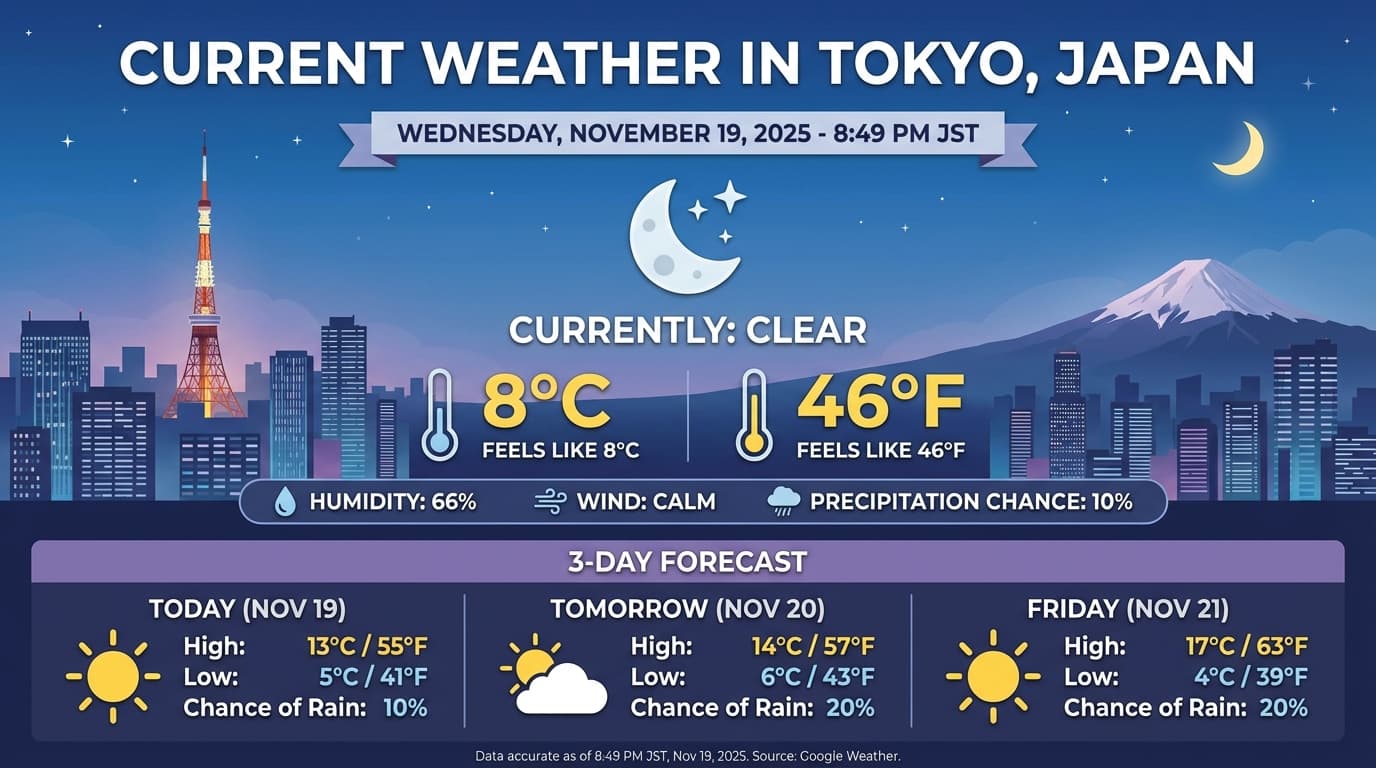
Gemini 3.1 Flash Image と Gemini 3 Pro Image を使用すると、テキスト プロンプトから画像を生成して編集できます。推論を使用してプロンプトを「考え」、天気予報や株価チャートなどのリアルタイム データを取得してから、Google 検索グラウンディングを使用して高精細な画像を生成します。
新機能と改善された機能:
- 4K とテキストのレンダリング: 最大 2K と 4K の解像度で、鮮明で判読しやすいテキストと図を生成します。
- グラウンディングされた生成:
google_searchツールを使用して事実を確認し、現実世界の情報に基づいて画像生成を行います。Gemini 3.1 Flash Image で Google 画像検索によるグラウンディングを利用できます。 - 会話型編集: 変更をリクエストするだけで(「背景を夕焼けにして」など)、マルチターンの画像編集ができます。このワークフローでは、思考シグネチャを使用して、ターン間で視覚的なコンテキストを保持します。
アスペクト比、編集ワークフロー、構成オプションの詳細については、画像生成ガイドをご覧ください。
Python
from google import genai
import base64

client = genai.Client()

interaction = client.interactions.create(
    model="gemini-3-pro-image-preview",
    input="Generate an infographic of the current weather in Tokyo.",
    tools=[{"type": "google_search"}],
    response_format={
        "type": "image",
        "aspect_ratio": "16:9",
        "image_size": "4K"
    }
)

from PIL import Image
import io

generated_image = interaction.output_image
if generated_image:
    image_data = base64.b64decode(generated_image.data)
    image = Image.open(io.BytesIO(image_data))
    image.save('weather_tokyo.png')
    image.show()
JavaScript
import { GoogleGenAI } from "@google/genai";
import * as fs from "node:fs";

const client = new GoogleGenAI({});

async function run() {
  const interaction = await client.interactions.create({
    model: "gemini-3-pro-image-preview",
    input: "Generate a visualization of the current weather in Tokyo.",
    tools: [{ type: "google_search" }],
    response_format: {
      type: "image",
      aspect_ratio: "16:9",
      image_size: "4K"
    }
  });

  const buffer = Buffer.from(interaction.output_image.data, 'base64');

  fs.writeFileSync('weather_tokyo.png', buffer);
}

run();
Java
import com.google.genai.Client;
import com.google.genai.gaos.models.interactions.CreateModelInteraction;
import com.google.genai.gaos.models.interactions.CreateModelInteractionResponseFormat;
import com.google.genai.gaos.models.interactions.GoogleSearch;
import com.google.genai.gaos.models.interactions.ImageContent;
import com.google.genai.gaos.models.interactions.ImageResponseFormat;
import com.google.genai.gaos.models.interactions.ImageResponseFormatAspectRatio;
import com.google.genai.gaos.models.interactions.ImageResponseFormatImageSize;
import com.google.genai.gaos.models.interactions.Interaction;
import com.google.genai.gaos.models.interactions.InteractionsInput;
import com.google.genai.gaos.models.interactions.Model;
import com.google.genai.gaos.models.interactions.ResponseFormat;
import com.google.genai.gaos.models.operations.CreateInteractionRequestBody;
import java.nio.file.Files;
import java.nio.file.Paths;
import java.util.Arrays;
import java.util.Base64;
import java.util.Optional;

Client client = new Client();

CreateModelInteraction request =
    CreateModelInteraction.builder()
        .model(Model.of("gemini-3-pro-image-preview"))
        .input(InteractionsInput.of("Generate an infographic of the current weather in Tokyo."))
        .tools(Arrays.asList(GoogleSearch.builder().build()))
        .responseFormat(
            CreateModelInteractionResponseFormat.of(
                ResponseFormat.of(
                    ImageResponseFormat.builder()
                        .aspectRatio(ImageResponseFormatAspectRatio.ONE_HUNDRED_AND_SIXTY_NINE)
                        .imageSize(ImageResponseFormatImageSize.FOUR_K)
                        .build())))
        .build();

Interaction interaction =
    client.interactions.create(CreateInteractionRequestBody.of(request)).interaction().get();

Optional<ImageContent> generatedImage = interaction.outputImage();
if (generatedImage.isPresent() && generatedImage.get().data().isPresent()) {
  byte[] imageBytes = Base64.getDecoder().decode(generatedImage.get().data().get());
  Files.write(Paths.get("weather_tokyo.png"), imageBytes);
}
Go
package main

import (
    "context"
    "encoding/base64"
    "log"
    "os"

    "google.golang.org/genai"
    "google.golang.org/genai/interactions/models/interactions"
    "google.golang.org/genai/interactions/models/operations"
)

func main() {
    ctx := context.Background()
    client, err := genai.NewClient(ctx, nil)
    if err != nil {
        log.Fatal(err)
    }

    res, err := client.Interactions.Create(ctx, operations.CreateInteractionRequest{
        Body: operations.NewCreateInteractionRequestBody(interactions.CreateModelInteraction{
            Model: interactions.Model("gemini-3-pro-image-preview"),
            Input: interactions.NewInteractionsInput("Generate an infographic of the current weather in Tokyo."),
            Tools: []interactions.Tool{
                interactions.NewTool(interactions.GoogleSearch{}),
            },
            ResponseFormat: genai.Ptr(interactions.NewCreateModelInteractionResponseFormat(
                interactions.NewResponseFormat(interactions.ImageResponseFormat{
                    AspectRatio: interactions.ImageResponseFormatAspectRatioOneHundredAndSixtyNine.ToPointer(),
                    ImageSize:   interactions.ImageResponseFormatImageSize("4K").ToPointer(),
                }),
            )),
        }),
    })
    if err != nil {
        log.Fatal(err)
    }

    if generatedImage := res.Interaction.GetOutputImage(); generatedImage != nil && generatedImage.Data != nil {
        imageBytes, err := base64.StdEncoding.DecodeString(*generatedImage.Data)
        if err != nil {
            log.Fatal(err)
        }
        if err := os.WriteFile("weather_tokyo.png", imageBytes, 0644); err != nil {
            log.Fatal(err)
        }
    }
}
REST
curl -X POST "https://generativelanguage.googleapis.com/v1beta/interactions" \
  -H "x-goog-api-key: $GEMINI_API_KEY" \
  -H 'Content-Type: application/json' \
  -d '{
    "model": "gemini-3-pro-image-preview",
    "input": "Generate a visualization of the current weather in Tokyo.",
    "tools": [{"type": "google_search"}],
    "response_format": {
        "type": "image",
        "aspect_ratio": "16:9",
        "image_size": "4K"
    }
  }'
レスポンスの例
画像を使用したコード実行
Gemini 3 Flash は、ビジョンを静的な一瞥としてではなく、アクティブな調査として扱うことができます。推論とコード実行を組み合わせることで、モデルは計画を立て、Python コードを記述して実行し、画像を段階的に拡大、切り抜き、注釈付け、操作して、回答を視覚的に根拠付けます。
使用例:
- ズームして検査する: モデルは、詳細が小さすぎる場合(遠くのゲージやシリアル番号を読み取るなど)を暗黙的に検出し、コードを記述して領域を切り抜き、より高い解像度で再検査します。
- 数式とプロットの視覚化: モデルは、コードを使用して複数ステップの計算を実行できます(例: 領収書の明細項目の合計、抽出したデータからの Matplotlib グラフの生成)。
- 画像アノテーション: モデルは、矢印、境界ボックス、その他のアノテーションを画像に直接描画して、「このアイテムはどこに置くべきですか?」などの空間に関する質問に回答できます。
視覚的思考を有効にするには、コード実行をツールとして構成します。モデルは、必要に応じてコードを使用して画像を操作します。
Python
from google import genai
from google.genai import types
import requests
from PIL import Image
import io
import base64

image_path = "https://goo.gle/instrument-img"
image_bytes = requests.get(image_path).content
image = types.Part.from_bytes(data=image_bytes, mime_type="image/jpeg")

client = genai.Client()

interaction = client.interactions.create(
    model="gemini-3-flash-preview",
    input=[
        image,
        "Zoom into the expression pedals and tell me how many pedals are there?"
    ],
    tools=[{"type": "code_execution"}],
)

from IPython.display import display
from PIL import Image
import io

for step in interaction.steps:
    if step.type == "model_output":
        for content_block in step.content:
            if content_block.type == "text":
                print(content_block.text)
            elif content_block.type == "image":
                 display(Image.open(io.BytesIO(base64.b64decode(content_block.data))))
    elif step.type == "code_execution_call":
        print(step.code)
    elif step.type == "code_execution_result":
        print(step.output)
JavaScript
import { GoogleGenAI } from "@google/genai";

const client = new GoogleGenAI({});

async function main() {
  const imageUrl = "https://goo.gle/instrument-img";
  const response = await fetch(imageUrl);
  const imageArrayBuffer = await response.arrayBuffer();
  const base64ImageData = Buffer.from(imageArrayBuffer).toString("base64");

  const interaction = await client.interactions.create({
    model: "gemini-3-flash-preview",
    input: [
      {
        type: "image",
        mime_type: "image/jpeg",
        data: base64ImageData,
      },
      {
        type: "text",
        text: "Zoom into the expression pedals and tell me how many pedals are there?",
      },
    ],
    tools: [{ type: "code_execution" }],
  });

  for (const step of interaction.steps) {
    if (step.type === "model_output") {
      for (const contentBlock of step.content) {
        if (contentBlock.type === "text") {
          console.log("Text:", contentBlock.text);
        }
      }
    } else if (step.type === "code_execution_call") {
      console.log("Code:", step.code);
    } else if (step.type === "code_execution_result") {
      console.log("Output:", step.output);
    }
  }
}

main();
Java
import com.google.genai.Client;
import com.google.genai.gaos.models.interactions.CodeExecution;
import com.google.genai.gaos.models.interactions.CodeExecutionCallStep;
import com.google.genai.gaos.models.interactions.CodeExecutionResultStep;
import com.google.genai.gaos.models.interactions.Content;
import com.google.genai.gaos.models.interactions.CreateModelInteraction;
import com.google.genai.gaos.models.interactions.ImageContent;
import com.google.genai.gaos.models.interactions.ImageContentMimeType;
import com.google.genai.gaos.models.interactions.Interaction;
import com.google.genai.gaos.models.interactions.InteractionsInput;
import com.google.genai.gaos.models.interactions.Model;
import com.google.genai.gaos.models.interactions.ModelOutputStep;
import com.google.genai.gaos.models.interactions.Step;
import com.google.genai.gaos.models.interactions.TextContent;
import com.google.genai.gaos.models.operations.CreateInteractionRequestBody;
import java.io.InputStream;
import java.net.URL;
import java.util.Arrays;
import java.util.Base64;
import java.util.Collections;

Client client = new Client();

URL url = new URL("https://goo.gle/instrument-img");
byte[] imageBytes;
try (InputStream is = url.openStream()) {
  imageBytes = is.readAllBytes();
}
String base64ImageData = Base64.getEncoder().encodeToString(imageBytes);

CreateModelInteraction request =
    CreateModelInteraction.builder()
        .model(Model.of("gemini-3-flash-preview"))
        .input(
            InteractionsInput.ofContent(
                Arrays.asList(
                    ImageContent.builder()
                        .mimeType(ImageContentMimeType.IMAGE_JPEG)
                        .data(base64ImageData)
                        .build(),
                    TextContent.builder()
                        .text("Zoom into the expression pedals and tell me how many pedals are there?")
                        .build())))
        .tools(Arrays.asList(CodeExecution.builder().build()))
        .build();

Interaction interaction =
    client.interactions.create(CreateInteractionRequestBody.of(request)).interaction().get();

for (Step step : interaction.steps().orElse(Collections.emptyList())) {
  if (step instanceof ModelOutputStep) {
    ModelOutputStep modelOutput = (ModelOutputStep) step;
    for (Content contentBlock : modelOutput.content().orElse(Collections.emptyList())) {
      if (contentBlock instanceof TextContent) {
        System.out.println("Text: " + ((TextContent) contentBlock).text().orElse(""));
      }
    }
  } else if (step instanceof CodeExecutionCallStep) {
    CodeExecutionCallStep callStep = (CodeExecutionCallStep) step;
    callStep.arguments().flatMap(args -> args.code()).ifPresent(code -> System.out.println("Code: " + code));
  } else if (step instanceof CodeExecutionResultStep) {
    CodeExecutionResultStep resultStep = (CodeExecutionResultStep) step;
    System.out.println("Output: " + resultStep.result().orElse(""));
  }
}
Go
package main

import (
    "context"
    "encoding/base64"
    "fmt"
    "io"
    "log"
    "net/http"

    "google.golang.org/genai"
    "google.golang.org/genai/interactions/models/interactions"
    "google.golang.org/genai/interactions/models/operations"
)

func main() {
    ctx := context.Background()
    client, err := genai.NewClient(ctx, nil)
    if err != nil {
        log.Fatal(err)
    }

    httpRes, err := http.Get("https://goo.gle/instrument-img")
    if err != nil {
        log.Fatal(err)
    }
    defer httpRes.Body.Close()
    imageBytes, err := io.ReadAll(httpRes.Body)
    if err != nil {
        log.Fatal(err)
    }
    base64ImageData := base64.StdEncoding.EncodeToString(imageBytes)

    res, err := client.Interactions.Create(ctx, operations.CreateInteractionRequest{
        Body: operations.NewCreateInteractionRequestBody(interactions.CreateModelInteraction{
            Model: interactions.Model("gemini-3-flash-preview"),
            Input: interactions.NewInteractionsInput([]interactions.Content{
                interactions.NewContent(interactions.ImageContent{
                    MimeType: interactions.ImageContentMimeType("image/jpeg").ToPointer(),
                    Data:     genai.Ptr(base64ImageData),
                }),
                interactions.NewContent(interactions.TextContent{
                    Text: "Zoom into the expression pedals and tell me how many pedals are there?",
                }),
            }),
            Tools: []interactions.Tool{
                interactions.NewTool(interactions.CodeExecution{}),
            },
        }),
    })
    if err != nil {
        log.Fatal(err)
    }

    for _, step := range res.Interaction.Steps {
        if modelOutput := step.ModelOutputStep; modelOutput != nil {
            for _, contentBlock := range modelOutput.Content {
                if textContent := contentBlock.TextContent; textContent != nil {
                    fmt.Println("Text:", textContent.Text)
                }
            }
        } else if callStep := step.CodeExecutionCallStep; callStep != nil {
            if callStep.Arguments.Code != nil {
                fmt.Println("Code:", *callStep.Arguments.Code)
            }
        } else if resultStep := step.CodeExecutionResultStep; resultStep != nil {
            fmt.Println("Output:", resultStep.Result)
        }
    }
}
REST
IMG_URL="https://goo.gle/instrument-img"
MODEL="gemini-3-flash-preview"

MIME_TYPE=$(curl -sIL "$IMG_URL" | grep -i '^content-type:' | awk -F ': ' '{print $2}' | sed 's/\r$//' | head -n 1)
if [[ -z "$MIME_TYPE" || ! "$MIME_TYPE" == image/* ]]; then
  MIME_TYPE="image/jpeg"
fi

if [[ "$(uname)" == "Darwin" ]]; then
  IMAGE_B64=$(curl -sL "$IMG_URL" | base64 -b 0)
elif [[ "$(base64 --version 2>&1)" = *"FreeBSD"* ]]; then
  IMAGE_B64=$(curl -sL "$IMG_URL" | base64)
else
  IMAGE_B64=$(curl -sL "$IMG_URL" | base64 -w0)
fi

curl -X POST "https://generativelanguage.googleapis.com/v1beta/interactions" \
    -H "x-goog-api-key: $GEMINI_API_KEY" \
    -H 'Content-Type: application/json' \
    -d '{
      "model": "'$MODEL'",
      "input": [
            {
              "type": "image",
              "mime_type":"'"$MIME_TYPE"'",
              "data": "'"$IMAGE_B64"'"
            },
            {"type": "text", "text": "Zoom into the expression pedals and tell me how many pedals are there?"}
      ],
      "tools": [{"type": "code_execution"}]
    }'
画像を使用したコード実行の詳細については、コード実行をご覧ください。
マルチモーダル関数レスポンス
マルチモーダル関数呼び出しを使用すると、マルチモーダル オブジェクトを含む関数レスポンスを取得できるため、モデルの関数呼び出し機能をより有効に活用できます。標準の関数呼び出しでは、テキストベースの関数レスポンスのみがサポートされます。
Python
# This will only work for SDK newer than 2.0.0
from google import genai
import requests
import base64

client = genai.Client()

# 1. Define the tool
get_image_tool = {
    "type": "function",
    "name": "get_image",
    "description": "Retrieves the image file reference for a specific order item.",
    "parameters": {
        "type": "object",
        "properties": {
            "item_name": {
                "type": "string",
                "description": "The name or description of the item ordered (e.g., 'instrument')."
            }
        },
        "required": ["item_name"],
    },
}

# 2. Send the request with tools
interaction_1 = client.interactions.create(
    model="gemini-3-flash-preview",
    input="Show me the instrument I ordered last month.",
    tools=[get_image_tool],
)

# 3. Find the function call step
fc_step = next(s for s in interaction_1.steps if s.type == "function_call")
print(f"Tool Call: {fc_step.name}({fc_step.arguments})")

# Execute tool (fetch image)
image_path = "https://goo.gle/instrument-img"
image_bytes = requests.get(image_path).content
image_b64 = base64.b64encode(image_bytes).decode("utf-8")

# 4. Send multimodal function result back
interaction_2 = client.interactions.create(
    model="gemini-3-flash-preview",
    previous_interaction_id=interaction_1.id,
    input=[{
        "type": "function_result",
        "name": fc_step.name,
        "call_id": fc_step.id,
        "result": [
            {"type": "text", "text": "instrument.jpg"},
            {
                "type": "image",
                "mime_type": "image/jpeg",
                "data": image_b64,
            }
        ]
    }],
    tools=[get_image_tool]
)

print(f"\nFinal model response: {interaction_2.output_text}")
JavaScript
import { GoogleGenAI } from '@google/genai';

const client = new GoogleGenAI({});

const getImageTool = {
    type: 'function',
    name: 'get_image',
    description: 'Retrieves the image file reference for a specific order item.',
    parameters: {
        type: 'object',
        properties: {
            item_name: {
                type: 'string',
                description: "The name or description of the item ordered (e.g., 'instrument').",
            },
        },
        required: ['item_name'],
    },
};

const interaction1 = await client.interactions.create({
    model: 'gemini-3-flash-preview',
    input: 'Use the get_image tool to show me the instrument I ordered last month.',
    tools: [getImageTool],
});

const fcStep = interaction1.steps.find(s => s.type === 'function_call');
console.log(`Tool Call: ${fcStep.name}(${JSON.stringify(fcStep.arguments)})`);

const imageUrl = 'https://goo.gle/instrument-img';
const response = await fetch(imageUrl);
const imageArrayBuffer = await response.arrayBuffer();
const base64ImageData = Buffer.from(imageArrayBuffer).toString('base64');

const interaction2 = await client.interactions.create({
    model: 'gemini-3-flash-preview',
    previous_interaction_id: interaction1.id,
    input: [{
        type: 'function_result',
        name: fcStep.name,
        call_id: fcStep.id,
        result: [
            { type: 'text', text: 'instrument.jpg' },
            {
                type: 'image',
                mime_type: 'image/jpeg',
                data: base64ImageData,
            }
        ]
    }],
    tools: [getImageTool]
});

console.log(`\nFinal model response: ${interaction2.output_text}`);
Java
import com.google.genai.Client;
import com.google.genai.gaos.models.interactions.CreateModelInteraction;
import com.google.genai.gaos.models.interactions.Function;
import com.google.genai.gaos.models.interactions.FunctionCallStep;
import com.google.genai.gaos.models.interactions.FunctionResultStep;
import com.google.genai.gaos.models.interactions.FunctionResultStepResultUnion;
import com.google.genai.gaos.models.interactions.FunctionResultSubcontent;
import com.google.genai.gaos.models.interactions.ImageContent;
import com.google.genai.gaos.models.interactions.ImageContentMimeType;
import com.google.genai.gaos.models.interactions.Interaction;
import com.google.genai.gaos.models.interactions.InteractionsInput;
import com.google.genai.gaos.models.interactions.Model;
import com.google.genai.gaos.models.interactions.Step;
import com.google.genai.gaos.models.interactions.TextContent;
import com.google.genai.gaos.models.operations.CreateInteractionRequestBody;
import java.io.InputStream;
import java.net.URL;
import java.util.ArrayList;
import java.util.Arrays;
import java.util.Base64;
import java.util.Collections;
import java.util.HashMap;
import java.util.List;
import java.util.Map;

Client client = new Client();

Map<String, Object> itemProp = new HashMap<>();
itemProp.put("type", "string");
itemProp.put("description", "The name or description of the item ordered (e.g., 'instrument').");

Map<String, Object> properties = new HashMap<>();
properties.put("item_name", itemProp);

Map<String, Object> parameters = new HashMap<>();
parameters.put("type", "object");
parameters.put("properties", properties);
parameters.put("required", Arrays.asList("item_name"));

Function getImageTool =
    Function.builder()
        .name("get_image")
        .description("Retrieves the image file reference for a specific order item.")
        .parameters(parameters)
        .build();

CreateModelInteraction req1 =
    CreateModelInteraction.builder()
        .model(Model.of("gemini-3-flash-preview"))
        .input(
            InteractionsInput.of(
                "Use the get_image tool to show me the instrument I ordered last month."))
        .tools(Arrays.asList(getImageTool))
        .build();

Interaction interaction1 =
    client.interactions.create(CreateInteractionRequestBody.of(req1)).interaction().get();

FunctionCallStep fcStep = null;
for (Step step : interaction1.steps().orElse(Collections.emptyList())) {
  if (step instanceof FunctionCallStep) {
    fcStep = (FunctionCallStep) step;
    break;
  }
}

if (fcStep != null) {
  System.out.println("Tool Call: " + fcStep.name().orElse(""));

  URL url = new URL("https://goo.gle/instrument-img");
  byte[] imageBytes;
  try (InputStream is = url.openStream()) {
    imageBytes = is.readAllBytes();
  }
  String base64ImageData = Base64.getEncoder().encodeToString(imageBytes);

  List<FunctionResultSubcontent> subcontents = new ArrayList<>();
  subcontents.add(TextContent.builder().text("instrument.jpg").build());
  subcontents.add(
      ImageContent.builder()
          .mimeType(ImageContentMimeType.IMAGE_JPEG)
          .data(base64ImageData)
          .build());

  FunctionResultStep funcResult =
      FunctionResultStep.builder()
          .name(fcStep.name().orElse(""))
          .callId(fcStep.id().orElse(""))
          .result(FunctionResultStepResultUnion.of(subcontents))
          .build();

  CreateModelInteraction req2 =
      CreateModelInteraction.builder()
          .model(Model.of("gemini-3-flash-preview"))
          .input(InteractionsInput.ofStep(Arrays.asList(funcResult)))
          .tools(Arrays.asList(getImageTool))
          .previousInteractionId(interaction1.id().orElse(""))
          .build();

  Interaction interaction2 =
      client.interactions.create(CreateInteractionRequestBody.of(req2)).interaction().get();
  System.out.println("Final model response: " + interaction2.outputText().orElse(""));
}
Go
package main

import (
    "context"
    "encoding/base64"
    "fmt"
    "io"
    "log"
    "net/http"

    "google.golang.org/genai"
    "google.golang.org/genai/interactions/models/interactions"
    "google.golang.org/genai/interactions/models/operations"
)

func main() {
    ctx := context.Background()
    client, err := genai.NewClient(ctx, nil)
    if err != nil {
        log.Fatal(err)
    }

    getImageTool := interactions.NewTool(interactions.Function{
        Name:        genai.Ptr("get_image"),
        Description: genai.Ptr("Retrieves the image file reference for a specific order item."),
        Parameters: map[string]any{
            "type": "object",
            "properties": map[string]any{
                "item_name": map[string]any{
                    "type":        "string",
                    "description": "The name or description of the item ordered (e.g., 'instrument').",
                },
            },
            "required": []string{"item_name"},
        },
    })

    res1, err := client.Interactions.Create(ctx, operations.CreateInteractionRequest{
        Body: operations.NewCreateInteractionRequestBody(interactions.CreateModelInteraction{
            Model: interactions.Model("gemini-3-flash-preview"),
            Input: interactions.NewInteractionsInput("Use the get_image tool to show me the instrument I ordered last month."),
            Tools: []interactions.Tool{getImageTool},
        }),
    })
    if err != nil {
        log.Fatal(err)
    }

    for _, step := range res1.Interaction.Steps {
        if fcStep := step.FunctionCallStep; fcStep != nil {
            fmt.Println("Tool Call:", fcStep.Name)

            httpRes, err := http.Get("https://goo.gle/instrument-img")
            if err != nil {
                log.Fatal(err)
            }
            defer httpRes.Body.Close()
            imageBytes, err := io.ReadAll(httpRes.Body)
            if err != nil {
                log.Fatal(err)
            }
            base64ImageData := base64.StdEncoding.EncodeToString(imageBytes)

            funcResult := interactions.NewStep(interactions.FunctionResultStep{
                Name:   genai.Ptr(fcStep.Name),
                CallID: fcStep.ID,
                Result: interactions.NewFunctionResultStepResultUnion([]interactions.FunctionResultSubcontent{
                    interactions.NewFunctionResultSubcontent(interactions.TextContent{
                        Text: "instrument.jpg",
                    }),
                    interactions.NewFunctionResultSubcontent(interactions.ImageContent{
                        MimeType: interactions.ImageContentMimeType("image/jpeg").ToPointer(),
                        Data:     genai.Ptr(base64ImageData),
                    }),
                }),
            })

            res2, err := client.Interactions.Create(ctx, operations.CreateInteractionRequest{
                Body: operations.NewCreateInteractionRequestBody(interactions.CreateModelInteraction{
                    Model:                 interactions.Model("gemini-3-flash-preview"),
                    PreviousInteractionID: res1.Interaction.ID,
                    Tools:                 []interactions.Tool{getImageTool},
                    Input:                 interactions.NewInteractionsInput([]interactions.Step{funcResult}),
                }),
            })
            if err != nil {
                log.Fatal(err)
            }
            if res2.Interaction.OutputText != nil {
                fmt.Println("Final model response:", *res2.Interaction.OutputText)
            }
            break
        }
    }
}
REST
IMG_URL="https://goo.gle/instrument-img"

MIME_TYPE=$(curl -sIL "$IMG_URL" | grep -i '^content-type:' | awk -F ': ' '{print $2}' | sed 's/\r$//' | head -n 1)
if [[ -z "$MIME_TYPE" || ! "$MIME_TYPE" == image/* ]]; then
  MIME_TYPE="image/jpeg"
fi

# Check for macOS
if [[ "$(uname)" == "Darwin" ]]; then
  IMAGE_B64=$(curl -sL "$IMG_URL" | base64 -b 0)
elif [[ "$(base64 --version 2>&1)" = *"FreeBSD"* ]]; then
  IMAGE_B64=$(curl -sL "$IMG_URL" | base64)
else
  IMAGE_B64=$(curl -sL "$IMG_URL" | base64 -w0)
fi

# 1. First interaction (triggers function call)
# curl -X POST "https://generativelanguage.googleapis.com/v1beta/interactions" \
#   -H "x-goog-api-key: $GEMINI_API_KEY" \
#   -H 'Content-Type: application/json' \
#   -d '{ "model": "gemini-3-flash-preview", "input": "Show me the instrument I ordered last month.", "tools": [...] }'

# 2. Send multimodal function result back (Replace INTERACTION_ID and CALL_ID)
curl -X POST "https://generativelanguage.googleapis.com/v1beta/interactions" \
  -H "x-goog-api-key: $GEMINI_API_KEY" \
  -H 'Content-Type: application/json' \
  -d '{
    "model": "gemini-3-flash-preview",
    "previous_interaction_id": "INTERACTION_ID",
    "input": [{
      "type": "function_result",
      "name": "get_image",
      "call_id": "CALL_ID",
      "result": [
        { "type": "text", "text": "instrument.jpg" },
        {
          "type": "image",
          "mime_type": "'"$MIME_TYPE"'",
          "data": "'"$IMAGE_B64"'"
        }
      ]
    }]
  }'
組み込みツールと関数呼び出しを組み合わせる
Gemini 3 では、同じ API 呼び出しで組み込みツール(Google 検索、URL コンテキストなど)とカスタムの関数呼び出しツールを使用できるため、より複雑なワークフローが可能になります。
Python
from google import genai
from google.genai import types

client = genai.Client()

getWeather = {
    "type": "function",
    "name": "getWeather",
    "description": "Gets the weather for a requested city.",
    "parameters": {
        "type": "object",
        "properties": {
            "city": {
                "type": "string",
                "description": "The city and state, e.g. Utqiaġvik, Alaska",
            },
        },
        "required": ["city"],
    },
}

interaction = client.interactions.create(
    model="gemini-3-flash-preview",
    input="What is the northernmost city in the United States? What's the weather like there today?",
    tools=[
        {"type": "google_search"},
        getWeather
    ],
)

fc_step = next((s for s in interaction.steps if s.type == "function_call"), None)

if fc_step:
    result = {"response": "Very cold. 22 degrees Fahrenheit."}

    final_interaction = client.interactions.create(
        model="gemini-3-flash-preview",
        input=[
            {"type": "function_result", "name": fc_step.name, "call_id": fc_step.id, "result": result}
        ],
        tools=[
            {"type": "google_search"},
            getWeather
        ],
        previous_interaction_id=interaction.id,
    )

    print(final_interaction.output_text)
JavaScript
import { GoogleGenAI, Type } from '@google/genai';

const client = new GoogleGenAI({});

const getWeatherDeclaration = {
  type: 'function',
  name: 'getWeather',
  description: 'Gets the weather for a requested city.',
  parameters: {
    type: Type.OBJECT,
    properties: {
      city: {
        type: Type.STRING,
        description: 'The city and state, e.g. Utqiaġvik, Alaska',
      },
    },
    required: ['city'],
  },
};

const interaction = await client.interactions.create({
  model: 'gemini-3-flash-preview',
  input: "What is the northernmost city in the United States? What's the weather like there today?",
  tools: [
    { type: "google_search" },
    getWeatherDeclaration
  ],
});

const fcStep = interaction.steps.find(s => s.type === 'function_call');

if (fcStep) {
  const result = { response: "Very cold. 22 degrees Fahrenheit." };

  const finalInteraction = await client.interactions.create({
    model: 'gemini-3-flash-preview',
    input: [
      { type: 'function_result', name: fcStep.name, call_id: fcStep.id, result: result }
    ],
    tools: [
      { type: "google_search" },
      getWeatherDeclaration
    ],
    previous_interaction_id: interaction.id,
  });

  console.log(finalInteraction.output_text);
}
Java
import com.google.genai.Client;
import com.google.genai.gaos.models.interactions.CreateModelInteraction;
import com.google.genai.gaos.models.interactions.Function;
import com.google.genai.gaos.models.interactions.FunctionCallStep;
import com.google.genai.gaos.models.interactions.FunctionResultStep;
import com.google.genai.gaos.models.interactions.FunctionResultStepResultUnion;
import com.google.genai.gaos.models.interactions.GoogleSearch;
import com.google.genai.gaos.models.interactions.Interaction;
import com.google.genai.gaos.models.interactions.InteractionsInput;
import com.google.genai.gaos.models.interactions.Model;
import com.google.genai.gaos.models.interactions.Step;
import com.google.genai.gaos.models.operations.CreateInteractionRequestBody;
import java.util.Arrays;
import java.util.Collections;
import java.util.HashMap;
import java.util.Map;

Client client = new Client();

Map<String, Object> cityProp = new HashMap<>();
cityProp.put("type", "string");
cityProp.put("description", "The city and state, e.g. Utqiaġvik, Alaska");

Map<String, Object> properties = new HashMap<>();
properties.put("city", cityProp);

Map<String, Object> parameters = new HashMap<>();
parameters.put("type", "object");
parameters.put("properties", properties);
parameters.put("required", Arrays.asList("city"));

Function getWeather =
    Function.builder()
        .name("getWeather")
        .description("Gets the weather for a requested city.")
        .parameters(parameters)
        .build();

CreateModelInteraction request =
    CreateModelInteraction.builder()
        .model(Model.of("gemini-3-flash-preview"))
        .input(
            InteractionsInput.of(
                "What is the northernmost city in the United States? What's the weather like there today?"))
        .tools(Arrays.asList(GoogleSearch.builder().build(), getWeather))
        .build();

Interaction interaction =
    client.interactions.create(CreateInteractionRequestBody.of(request)).interaction().get();

FunctionCallStep fcStep = null;
for (Step step : interaction.steps().orElse(Collections.emptyList())) {
  if (step instanceof FunctionCallStep) {
    fcStep = (FunctionCallStep) step;
    break;
  }
}

if (fcStep != null) {
  FunctionResultStep funcResult =
      FunctionResultStep.builder()
          .name(fcStep.name().orElse(""))
          .callId(fcStep.id().orElse(""))
          .result(
              FunctionResultStepResultUnion.of(
                  "{\"response\": \"Very cold. 22 degrees Fahrenheit.\"}"))
          .build();

  CreateModelInteraction finalRequest =
      CreateModelInteraction.builder()
          .model(Model.of("gemini-3-flash-preview"))
          .input(InteractionsInput.ofStep(Arrays.asList(funcResult)))
          .tools(Arrays.asList(GoogleSearch.builder().build(), getWeather))
          .previousInteractionId(interaction.id().orElse(""))
          .build();

  Interaction finalInteraction =
      client.interactions.create(CreateInteractionRequestBody.of(finalRequest)).interaction().get();
  System.out.println(finalInteraction.outputText().orElse(""));
}
Go
package main

import (
    "context"
    "fmt"
    "log"

    "google.golang.org/genai"
    "google.golang.org/genai/interactions/models/interactions"
    "google.golang.org/genai/interactions/models/operations"
)

func main() {
    ctx := context.Background()
    client, err := genai.NewClient(ctx, nil)
    if err != nil {
        log.Fatal(err)
    }

    getWeather := interactions.NewTool(interactions.Function{
        Name:        genai.Ptr("getWeather"),
        Description: genai.Ptr("Gets the weather for a requested city."),
        Parameters: map[string]any{
            "type": "object",
            "properties": map[string]any{
                "city": map[string]any{
                    "type":        "string",
                    "description": "The city and state, e.g. Utqiaġvik, Alaska",
                },
            },
            "required": []string{"city"},
        },
    })

    tools := []interactions.Tool{
        interactions.NewTool(interactions.GoogleSearch{}),
        getWeather,
    }

    res, err := client.Interactions.Create(ctx, operations.CreateInteractionRequest{
        Body: operations.NewCreateInteractionRequestBody(interactions.CreateModelInteraction{
            Model: interactions.Model("gemini-3-flash-preview"),
            Input: interactions.NewInteractionsInput("What is the northernmost city in the United States? What's the weather like there today?"),
            Tools: tools,
        }),
    })
    if err != nil {
        log.Fatal(err)
    }

    for _, step := range res.Interaction.Steps {
        if fcStep := step.FunctionCallStep; fcStep != nil {
            funcResult := interactions.NewStep(interactions.FunctionResultStep{
                Name:   genai.Ptr(fcStep.Name),
                CallID: fcStep.ID,
                Result: interactions.NewFunctionResultStepResultUnion(`{"response": "Very cold. 22 degrees Fahrenheit."}`),
            })

            finalRes, err := client.Interactions.Create(ctx, operations.CreateInteractionRequest{
                Body: operations.NewCreateInteractionRequestBody(interactions.CreateModelInteraction{
                    Model:                 interactions.Model("gemini-3-flash-preview"),
                    PreviousInteractionID: res.Interaction.ID,
                    Tools:                 tools,
                    Input:                 interactions.NewInteractionsInput([]interactions.Step{funcResult}),
                }),
            })
            if err != nil {
                log.Fatal(err)
            }
            if finalRes.Interaction.OutputText != nil {
                fmt.Println(*finalRes.Interaction.OutputText)
            }
            break
        }
    }
}
Gemini 2.5 からの移行
Gemini 3 は、これまでで最も高性能なモデル ファミリーであり、Gemini 2.5 から段階的に改善されています。移行する際は、次の点に注意してください。
- 思考: 以前に複雑なプロンプト エンジニアリング(思考の連鎖など)を使用して Gemini 2.5 に推論を強制していた場合は、
thinking_level: "high"と簡略化されたプロンプトで Gemini 3 を試してください。 - 温度設定: 既存のコードで温度が明示的に設定されている場合(特に決定論的出力が低い値に設定されている場合)、このパラメータを削除して Gemini 3 のデフォルトの 1.0 を使用することをおすすめします。これにより、複雑なタスクで発生する可能性のあるループの問題やパフォーマンスの低下を回避できます。
- PDF とドキュメントの理解:
高密度ドキュメントの解析で特定の動作に依存していた場合は、新しい
media_resolution_high設定をテストして、精度が維持されることを確認してください。 - トークンの使用量: Gemini 3 のデフォルトに移行すると、PDF のトークン使用量が増加する可能性がありますが、動画のトークン使用量は減少する可能性があります。デフォルトの解像度が高くなったことでリクエストがコンテキスト ウィンドウを超えるようになった場合は、メディアの解像度を明示的に下げることをおすすめします。
- 画像セグメンテーション: Gemini 3 Pro または Gemini 3 Flash では、画像セグメンテーション機能(オブジェクトのピクセルレベルのマスクを返す)はサポートされていません。組み込みの画像セグメンテーションを必要とするワークロードでは、思考を無効にした Gemini 2.5 Flash を引き続き使用することをおすすめします。
- コンピュータの使用: Gemini 3 Pro と Gemini 3 Flash は、コンピュータの使用をサポートしています。2.5 シリーズとは異なり、コンピュータ使用ツールにアクセスするために別のモデルを使用する必要はありません。
- ツールサポート: 組み込みツールと関数呼び出しの組み合わせが Gemini 3 モデルでサポートされるようになりました。Gemini 3 モデルで地図のグラウンディングもサポートされるようになりました。
OpenAI の互換性
OpenAI 互換性レイヤを使用している場合、標準パラメータ(OpenAI の reasoning_effort)は Gemini(thinking_level)の同等のパラメータに自動的にマッピングされます。
プロンプトのベスト プラクティス
Gemini 3 は推論モデルであるため、プロンプトの作成方法が変わります。
- 正確な指示: 入力プロンプトは簡潔にしてください。Gemini 3 は、明確で直接的な指示に最適に応答します。古いモデルで使用されている冗長または複雑すぎるプロンプト エンジニアリング手法では、過剰な分析になる可能性があります。
- 出力の冗長性: デフォルトでは、Gemini 3 は冗長性が低く、直接的で効率的な回答を好みます。ユースケースで会話調のペルソナが必要な場合は、プロンプトでモデルを明示的に誘導する必要があります(例: 「親しみやすく、おしゃべりなアシスタントとして説明してください」)。
- コンテキスト管理: 大規模なデータセット(書籍全体、コードベース、長い動画など)を扱う場合は、データ コンテキストの後に、プロンプトの末尾に具体的な指示や質問を配置します。「上記の情報に基づいて...」などのフレーズで質問を始め、モデルの推論を提示されたデータに固定します。
プロンプト設計戦略について詳しくは、プロンプト エンジニアリング ガイドをご覧ください。
よくある質問
Gemini 3 のナレッジ カットオフはいつですか?Gemini 3 モデルのナレッジ カットオフは 2025 年 1 月です。最新の情報については、検索グラウンディング ツールを使用してください。
コンテキスト ウィンドウの上限はどのくらいですか?Gemini 3 モデルは、100 万トークンの入力コンテキスト ウィンドウと最大 64,000 トークンの出力をサポートしています。
Gemini 3 の無料枠はありますか?Gemini 3 Flash
gemini-3-flash-previewには、Gemini API の無料枠があります。Google AI Studio では Gemini 3.1 Pro と 3 Flash を無料でお試しいただけますが、Gemini API のgemini-3.1-pro-previewには無料枠はありません。以前の
thinking_budgetコードは引き続き機能しますか?はい。thinking_budgetは下位互換性のために引き続きサポートされていますが、パフォーマンスの予測可能性を高めるためにthinking_levelへの移行をおすすめします。同じリクエストで両方を使用しないでください。Gemini 3 は Batch API をサポートしていますか?はい。Gemini 3 は Batch API をサポートしています。
コンテキスト キャッシュ保存はサポートされていますか?はい。Gemini 3 ではコンテキスト キャッシュ保存がサポートされています。
Gemini 3 でサポートされているツールを教えてください。Gemini 3 は、Google 検索、Google マップによるグラウンディング、ファイル検索、コード実行、URL コンテキストをサポートしています。また、独自のカスタムツールや組み込みツールとの組み合わせで、標準の関数呼び出しもサポートしています。
gemini-3.1-pro-preview-customtoolsとは何ですか?gemini-3.1-pro-previewを使用していて、モデルがカスタムツールを無視して bash コマンドを使用する場合は、代わりにgemini-3.1-pro-preview-customtoolsモデルを試してください。詳しくは、[こちら][customtools-model] をご覧ください。