

הכלי 'שימוש במחשב' מאפשר לכם ליצור סוכני בקרה לדפדפן, לנייד ולמחשב, שמבצעים אינטראקציות ומשימות אוטומטיות. באמצעות צילומי מסך, המודל יכול "לראות" מסך מחשב ו "לפעול" על ידי יצירת פעולות ספציפיות בממשק המשתמש, כמו לחיצות עכבר וקלט מהמקלדת. בדומה לקריאה לפונקציה, תצטרכו להטמיע את סביבת ההפעלה בצד הלקוח כדי לקבל ולהפעיל את הפעולות של השימוש במחשב.
Gemini 3.5 Flash הוא המודל המומלץ לשימוש במחשב, והוא כולל כמה יכולות חדשות:
- תמיכה בסביבות מרובות: אפשר ליצור סוכנים לסביבות דפדפן, נייד ומחשב.
- פעולות יעילות עם כוונות: הפעולות כוללות שדה
intentשמסביר את ההיגיון של המודל מאחורי כל שלב. - מדיניות בטיחות שאפשר להגדיר: אפשר לשנות את התנהגות הבטיחות באמצעות קטגוריות מדיניות מובנות ושינויים בהגדרות ברירת המחדל.
- זיהוי של הזרקת הנחיות: הפעלה של סריקת צילומי מסך כדי לזהות הנחיות נסתרות של יריבים.
באמצעות 'שימוש במחשב', אפשר ליצור סוכנים ש:
- להפוך לאוטומטיות משימות חוזרות של הזנת נתונים או מילוי טפסים באתרים.
- ביצוע בדיקות אוטומטיות של אפליקציות אינטרנט ותהליכי משתמש
- ביצוע מחקר באתרים שונים (למשל, איסוף מידע על מוצרים, מחירים וביקורות מאתרי מסחר אלקטרוני כדי לקבל החלטה לגבי רכישה)
זוהי דוגמה מינימלית להפעלת הכלי 'שימוש במחשב':
Python
from google import genai
from google.genai import types

client = genai.Client()

response = client.models.generate_content(
    model="gemini-3.5-flash",
    contents="Search for 'Gemini API' on Google.",
    config=types.GenerateContentConfig(
        tools=[types.Tool(
            computer_use=types.ComputerUse(
                environment=types.Environment.ENVIRONMENT_BROWSER,
            )
        )]
    )
)

print(response.text)
JavaScript
import { GoogleGenAI } from '@google/genai';

const ai = new GoogleGenAI();

const response = await ai.models.generateContent({
  model: 'gemini-3.5-flash',
  contents: "Search for 'Gemini API' on Google.",
  config: {
    tools: [{
      computerUse: {
        environment: "ENVIRONMENT_BROWSER",
      }
    }]
  }
});

console.log(response.text);
איך פועלת התכונה 'שימוש במחשב'
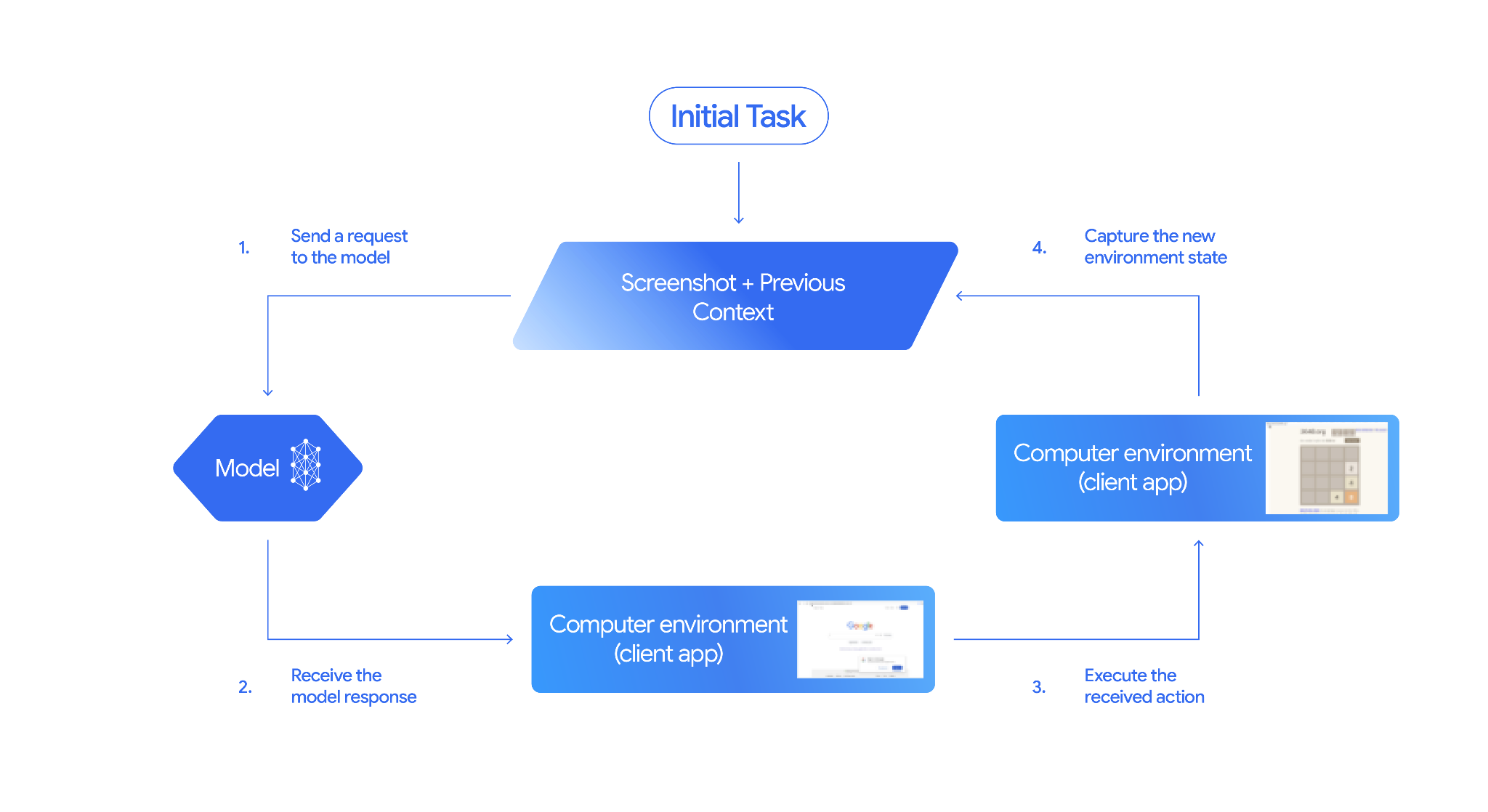
כדי ליצור סוכן באמצעות מודל השימוש במחשב, צריך להגדיר לולאה רציפה בין האפליקציה לבין ה-API. מה הקוד יעשה בכל שלב:
- שליחת בקשה למודל
- האפליקציה שולחת בקשת API שמכילה את הכלי לשימוש במחשב, את הגדרות התצורה (כמו סביבת היעד), את ההנחיה של המשתמש וצילום מסך של המסך הנוכחי.
- קבלת התשובה של המודל
- המודל מנתח את המסך ואת ההנחיה ומחזיר תשובה שכוללת
function_callשמייצג פעולה בממשק המשתמש (כמו קליק, גלילה או הקשה על מקש). - במקרה של Gemini 3.5 Flash, התשובה כוללת גם נימוק
intentשמסביר למה המודל בחר בפעולה הזו. - התגובה עשויה לכלול גם
safety_decisionממערכת בטיחות פנימית שמסווגת את הפעולה כרגילה/מותרת,require_confirmation(נדרש אישור משתמש) או חסומה.
- המודל מנתח את המסך ואת ההנחיה ומחזיר תשובה שכוללת
- מבצעים את הפעולה שקיבלתם
- אם הפעולה מותרת (או שהמשתמש מאשר אותה), הקוד בצד הלקוח מנתח את
function_call, משנה את קנה המידה של הקואורדינטות המנורמלות כך שיתאימו לאזור התצוגה, ומבצע את הפעולה בסביבת היעד באמצעות כלי אוטומציה (כמו Playwright). אם הפעולה חסומה, הלקוח צריך להפסיק את ההפעלה או לטפל בהפרעה.
- אם הפעולה מותרת (או שהמשתמש מאשר אותה), הקוד בצד הלקוח מנתח את
- תיעוד של מצב הסביבה החדשה
- אחרי שהפעולה מסתיימת, האפליקציה מצלמת צילום מסך חדש ושולחת אותו בחזרה למודל ב-
function_resultכדי לבקש את השלב הבא.
- אחרי שהפעולה מסתיימת, האפליקציה מצלמת צילום מסך חדש ושולחת אותו בחזרה למודל ב-
התהליך הזה חוזר על עצמו משלב 2, והמודל מתבקש שוב ושוב לבצע את הפעולה הבאה עד שהמשימה מסתיימת או שהתהליך מופסק.
איך מטמיעים את התכונה 'שימוש במחשב'
לפני שמתחילים להשתמש בכלי 'שימוש במחשב', צריך להגדיר:
- סביבת ביצוע מאובטחת: מריצים את הסוכן במכונה וירטואלית או במאגר מבודד כדי לבודד אותו ממערכת המארח ולהגביל את ההשפעה הפוטנציאלית שלו. הטמעה לדוגמה כוללת ארגז חול מבוסס Docker שמוכן לשימוש, ואפשר להשתמש בו כנקודת התחלה.
- הנדלר של פעולות מצד הלקוח: הטמעת לוגיקה מצד הלקוח כדי להפעיל קואורדינטות, להקליד טקסט ולצלם צילומי מסך.
בדוגמאות שבהמשך נעשה שימוש בדפדפן אינטרנט כסביבת ההפעלה וב-Playwright כמטפל בצד הלקוח.
0. הגדרת Playwright
קודם כול, מתקינים את החבילות הנדרשות:
pip install google-genai playwright
playwright install chromium
לאחר מכן, מאתחלים מופע של דפדפן Playwright לשימוש בהרצה:
from playwright.sync_api import sync_playwright

# 1. Configure screen dimensions for the target environment
SCREEN_WIDTH = 1440
SCREEN_HEIGHT = 900

# 2. Start the Playwright browser
# In production, utilize a sandboxed environment.
playwright = sync_playwright().start()
# Set headless=False to see the actions performed on your screen
browser = playwright.chromium.launch(headless=False)

# 3. Create a context and page with the specified dimensions
context = browser.new_context(
    viewport={"width": SCREEN_WIDTH, "height": SCREEN_HEIGHT}
)
page = context.new_page()

# 4. Navigate to an initial page to start the task
page.goto("https://www.google.com")

# The 'page', 'SCREEN_WIDTH', and 'SCREEN_HEIGHT' variables
# will be used in the steps below.
1. שליחת בקשה למודל
מאתחלים את ספריית הלקוח ומגדירים את הכלי 'שימוש במחשב'. שימו לב: אין צורך לציין את גודל התצוגה כששולחים בקשה. המודל חוזה את קואורדינטות הפיקסלים שמותאמות לגובה ולרוחב של המסך.
Gemini 3.5 Flash (מומלץ)
Python
משתמשים ב-google-genai Python SDK (גרסה 2.7.0 ואילך) כדי להגדיר בקשה לטירגוט סביבת הדפדפן:
from google import genai
from google.genai.types import (
    Content,
    Part,
    GenerateContentConfig,
    Tool,
    ComputerUse,
    Environment,
    ThinkingConfig,
)

client = genai.Client()

response = client.models.generate_content(
    model="gemini-3.5-flash",
    contents=[
        Content(
            role="user",
            parts=[
                Part(text="Find a flight from SF to Hawaii on Jun 30th, coming back on Jul 6th"),
            ],
        )
    ],
    config=GenerateContentConfig(
        tools=[
            Tool(
                computer_use=ComputerUse(
                    environment=Environment.ENVIRONMENT_BROWSER,
                    enable_prompt_injection_detection=True,
                ),
            ),
        ],
        thinking_config=ThinkingConfig(
            include_thoughts=True
        ),
    )
)

print(response.text)
JavaScript
משתמשים ב-Node.js SDK @google/genai כדי להגדיר בקשה שמטרגטת את סביבת הדפדפן:
import { GoogleGenAI } from '@google/genai';

const ai = new GoogleGenAI();

const response = await ai.models.generateContent({
  model: 'gemini-3.5-flash',
  contents: [
    {
      role: 'user',
      parts: [{ text: "Find a flight from SF to Hawaii on Jun 30th, coming back on Jul 6th" }]
    }
  ],
  config: {
    tools: [{
      computerUse: {
        environment: "ENVIRONMENT_BROWSER",
        enable_prompt_injection_detection: true
      }
    }],
    thinkingConfig: {
      includeThoughts: true
    }
  }
});

console.log(response.text);
REST
משתמשים ב-curl כדי לשלוח בקשה:
curl -X POST \
  "https://generativelanguage.googleapis.com/v1beta/models/gemini-3.5-flash:generateContent?key=$GEMINI_API_KEY" \
  -H "Content-Type: application/json" \
  -d '{
    "contents": [
      {
        "role": "user",
        "parts": {
          "text": "Find me a flight from SF to Hawaii on Jun 30th, coming back on Jul 6th. Start by navigating directly to flights.google.com"
        }
      }
    ],
    "tools": [
      {
        "computer_use": {
          "environment": "ENVIRONMENT_BROWSER",
          "enable_prompt_injection_detection": true
        }
      }
    ]
  }'
Gemini 2.5 (מדור קודם)
Python
from google import genai
from google.genai import types
from google.genai.types import Content, Part

client = genai.Client()

# Specify predefined functions to exclude (optional)
excluded_functions = ["drag_and_drop"]

generate_content_config = genai.types.GenerateContentConfig(
    tools=[
        types.Tool(
            computer_use=types.ComputerUse(
                environment=types.Environment.ENVIRONMENT_BROWSER,
                excluded_predefined_functions=excluded_functions
                )
              ),
          ],
  )

contents=[
    Content(
        role="user",
        parts=[
            Part(text="Search for highly rated smart fridges on Google Shopping."),
        ],
    )
]

response = client.models.generate_content(
    model='gemini-2.5-computer-use-preview-10-2025',
    contents=contents,
    config=generate_content_config,
)

print(response)
JavaScript
import { GoogleGenAI } from '@google/genai';

const ai = new GoogleGenAI();

// Specify predefined functions to exclude (optional)
const excludedFunctions = ["drag_and_drop"];

const response = await ai.models.generateContent({
  model: 'gemini-2.5-computer-use-preview-10-2025',
  contents: [
    {
      role: 'user',
      parts: [{ text: "Search for highly rated smart fridges on Google Shopping." }]
    }
  ],
  config: {
    tools: [{
      computerUse: {
        environment: "ENVIRONMENT_BROWSER",
        excluded_predefined_functions: excludedFunctions
      }
    }]
  }
});

console.log(response);
2. קבלת התשובה מהמודל
מודל התגובה מציע קריאה לפונקציה. במקרה של Gemini 3.5 Flash, התשובה מכילה כוונת הסקה מותאמת אישית לצד קואורדינטות. בדוגמה הבאה מוצגות שתי התשובות:
Gemini 3.5 Flash
{
  "function_call": {
    "name": "click",
    "args": {
      "x": 450,
      "y": 120,
      "intent": "Click the search box to type the destination."
    }
  }
}
Gemini 2.5 (מדור קודם)
{
  "content": {
    "parts": [
      {
        "text": "I will type the search query into the search bar."
      },
      {
        "function_call": {
          "name": "type_text_at",
          "args": {
            "x": 371,
            "y": 470,
            "text": "highly rated smart fridges",
            "press_enter": true
          }
        }
      }
    ]
  }
}
3. ביצוע הפעולות שהתקבלו
קוד האפליקציה צריך לנתח את תשובת המודל, לבצע את הפעולות ולאסוף את התוצאות.
הקוד שבהמשך מטפל גם בפקודות של כלי מדור קודם (click_at, type_text_at) וגם בפקודות יעילות של Gemini 3.5 Flash (click, type).
Python
from typing import Any, List, Tuple
import time

def denormalize_x(x: int, screen_width: int) -> int:
    """Convert normalized x coordinate (0-1000) to actual pixel coordinate."""
    return int(x / 1000 * screen_width)

def denormalize_y(y: int, screen_height: int) -> int:
    """Convert normalized y coordinate (0-1000) to actual pixel coordinate."""
    return int(y / 1000 * screen_height)

def execute_function_calls(interaction, page, screen_width, screen_height):
    results = []
    function_calls = []

    # Parse content parts (Handling legacy and Gemini 3 response structures)
    parts = candidate.content.parts if hasattr(candidate, 'content') else []
    if not parts and hasattr(candidate, 'function_calls'):
        function_calls = candidate.function_calls
    else:
        for part in parts:
            if part.function_call:
                function_calls.append(part.function_call)

    for function_call in function_calls:
        action_result = {}
        fname = function_call.name
        args = function_call.args
        print(f"  -> Executing: {fname} (Intent: {args.get('intent', 'N/A')})")

        try:
            if fname in ("open_web_browser", "open_app"):
                pass # Handled / already open
            elif fname in ("click", "click_at", "double_click", "triple_click", "middle_click", "right_click", "move", "long_press"):
                actual_x = denormalize_x(args["x"], screen_width)
                actual_y = denormalize_y(args["y"], screen_height)

                if fname in ("click", "click_at"):
                    page.mouse.click(actual_x, actual_y)
                elif fname == "double_click":
                    page.mouse.dblclick(actual_x, actual_y)
                elif fname == "right_click":
                    page.mouse.click(actual_x, actual_y, button="right")
                elif fname == "middle_click":
                    page.mouse.click(actual_x, actual_y, button="middle")
                elif fname == "move":
                    page.mouse.move(actual_x, actual_y)
            elif fname in ("type", "type_text_at"):
                actual_x = denormalize_x(args["x"], screen_width) if "x" in args else None
                actual_y = denormalize_y(args["y"], screen_height) if "y" in args else None
                text = args["text"]
                press_enter = args.get("press_enter", False)

                if actual_x is not None and actual_y is not None:
                    page.mouse.click(actual_x, actual_y)
                # Clear field first
                page.keyboard.press("Meta+A")
                page.keyboard.press("Backspace")
                page.keyboard.type(text)
                if press_enter:
                    page.keyboard.press("Enter")
            elif fname == "navigate":
                page.goto(args["url"])
            elif fname == "go_back":
                page.go_back()
            elif fname == "go_forward":
                page.go_forward()
            elif fname == "wait":
                time.sleep(args.get("seconds", 1))
            else:
                print(f"Warning: Custom or unhandled function {fname}")

            page.wait_for_load_state(timeout=5000)
            time.sleep(1)

        except Exception as e:
            print(f"Error executing {fname}: {e}")
            action_result = {"error": str(e)}

        results.append((fname, function_call.id, action_result))

    return results
JavaScript
function denormalizeX(x, screenWidth) {
    // Convert normalized x coordinate (0-1000) to actual pixel coordinate.
    return Math.floor((x / 1000) * screenWidth);
}

function denormalizeY(y, screenHeight) {
    // Convert normalized y coordinate (0-1000) to actual pixel coordinate.
    return Math.floor((y / 1000) * screenHeight);
}

async function executeFunctionCalls(candidate, page, screenWidth, screenHeight) {
    const results = [];
    let functionCalls = [];

    // Parse function calls from candidate response
    const parts = candidate.content?.parts || [];
    if (parts.length === 0 && candidate.functionCalls) {
        functionCalls = candidate.functionCalls;
    } else {
        for (const part of parts) {
            if (part.functionCall) {
                functionCalls.push(part.functionCall);
            }
        }
    }

    for (const functionCall of functionCalls) {
        const actionResult = {};
        const fname = functionCall.name;
        const args = functionCall.args;
        console.log(`  -> Executing: ${fname} (Intent: ${args.intent || 'N/A'})`);

        try {
            if (fname === "open_web_browser" || fname === "open_app") {
                // Handled / already open
            } else if (["click", "click_at", "double_click", "triple_click", "middle_click", "right_click", "move", "long_press"].includes(fname)) {
                const actualX = denormalizeX(args.x, screenWidth);
                const actualY = denormalizeY(args.y, screenHeight);

                if (fname === "click" || fname === "click_at") {
                    await page.mouse.click(actualX, actualY);
                } else if (fname === "double_click") {
                    await page.mouse.dblclick(actualX, actualY);
                } else if (fname === "right_click") {
                    await page.mouse.click(actualX, actualY, { button: "right" });
                } else if (fname === "middle_click") {
                    await page.mouse.click(actualX, actualY, { button: "middle" });
                } else if (fname === "move") {
                    await page.mouse.move(actualX, actualY);
                }
            } else if (fname === "type" || fname === "type_text_at") {
                const actualX = args.x !== undefined ? denormalizeX(args.x, screenWidth) : null;
                const actualY = args.y !== undefined ? denormalizeY(args.y, screenHeight) : null;
                const text = args.text;
                const pressEnter = args.press_enter || false;

                if (actualX !== null && actualY !== null) {
                    await page.mouse.click(actualX, actualY);
                }
                // Clear field first
                await page.keyboard.press("Meta+A");
                await page.keyboard.press("Backspace");
                await page.keyboard.type(text);
                if (pressEnter) {
                    await page.keyboard.press("Enter");
                }
            } else if (fname === "navigate") {
                await page.goto(args.url);
            } else if (fname === "go_back") {
                await page.goBack();
            } else if (fname === "go_forward") {
                await page.goForward();
            } else if (fname === "wait") {
                await new Promise(resolve => setTimeout(resolve, (args.seconds || 1) * 1000));
            } else {
                console.log(`Warning: Custom or unhandled function ${fname}`);
            }

            await page.waitForLoadState('load', { timeout: 5000 }).catch(() => {});
            await new Promise(resolve => setTimeout(resolve, 1000));
        } catch (e) {
            console.log(`Error executing ${fname}: ${e}`);
            actionResult.error = e.message;
        }

        results.push([fname, functionCall.id, actionResult]);
    }

    return results;
}
4. תיעוד של מצב הסביבה החדש
לצלם ייצוג של המסך ולהחזיר אותו למודל.
Python
def get_function_responses(page, results):
    screenshot_bytes = page.screenshot(type="png")
    current_url = page.url
    function_responses = []
    for name, call_id, result in results:
        function_responses.append({
            "type": "function_result",
            "name": name,
            "call_id": call_id,
            "result": [
                {
                    "type": "text",
                    "text": json.dumps({"url": current_url, **result})
                },
                {
                    "type": "image",
                    "data": base64.b64encode(screenshot_bytes).decode("utf-8"),
                    "mime_type": "image/png"
                }
            ]
        })
    return function_responses
JavaScript
async function getFunctionResponses(page, results) {
    const screenshotBuffer = await page.screenshot({ type: 'png' });
    const screenshotBase64 = screenshotBuffer.toString('base64');
    const currentUrl = page.url();
    const functionResponses = [];

    for (const [name, callId, result] of results) {
        functionResponses.push({
            type: "function_result",
            name: name,
            call_id: callId,
            result: [
                {
                    type: "text",
                    text: JSON.stringify({ url: currentUrl, ...result })
                },
                {
                    type: "image",
                    data: screenshotBase64,
                    mime_type: "image/png"
                }
            ]
        });
    }
    return functionResponses;
}
אחרי שמגדירים איך ללכוד את מצב הסביבה ולעצב אותו, אפשר לשלב את כל השלבים האלה בלולאת ביצוע רציפה.
יצירת לופ של סוכן
כדי להפעיל אינטראקציות מרובות שלבים, משלבים את ארבעת השלבים מהקטע איך מטמיעים את התכונה 'שימוש במחשב' בלולאה אחת. הלולאה הזו ממשיכה לבקש פעולות ולהעביר את התוצאות בחזרה למודל עד שהמשימה מסתיימת.
חשוב לזכור לנהל את היסטוריית השיחות בצורה נכונה על ידי הוספת התשובות של המודל והתשובות של הפונקציה להיסטוריה בכל שלב.
Python
import time
from typing import Any, List, Tuple
from playwright.sync_api import sync_playwright
from google import genai
from google.genai import types

client = genai.Client()

SCREEN_WIDTH = 1440
SCREEN_HEIGHT = 900

print("Initializing browser...")
playwright = sync_playwright().start()
browser = playwright.chromium.launch(headless=False)
context = browser.new_context(viewport={"width": SCREEN_WIDTH, "height": SCREEN_HEIGHT})
page = context.new_page()

# Paste helper functions execute_function_calls and get_function_responses here

try:
    page.goto("https://ai.google.dev/gemini-api/docs")

    config = types.GenerateContentConfig(
        tools=[types.Tool(computer_use=types.ComputerUse(
            environment=types.Environment.ENVIRONMENT_BROWSER,
            enable_prompt_injection_detection=True
        ))],
        thinking_config=types.ThinkingConfig(include_thoughts=True),
    )

    initial_screenshot = page.screenshot(type="png")
    USER_PROMPT = "Go to ai.google.dev/gemini-api/docs and search for pricing."
    print(f"Goal: {USER_PROMPT}")

    contents = [
        types.Content(role="user", parts=[
            types.Part(text=USER_PROMPT),
            types.Part.from_bytes(data=initial_screenshot, mime_type='image/png')
        ])
    ]

    # Agent Loop
    turn_limit = 5
    for i in range(turn_limit):
        print(f"\n--- Turn {i+1} ---")
        print("Thinking...")
        response = client.models.generate_content(
            model='gemini-3.5-flash',
            contents=contents,
            config=config,
        )

        candidate = response.candidates[0]
        contents.append(candidate.content)

        has_function_calls = any(part.function_call for part in candidate.content.parts)
        if not has_function_calls:
            text_response = " ".join(
                part.text for part in candidate.content.parts if hasattr(part, 'text')
            )
            print("Agent finished:", text_response)
            break

        print("Executing actions...")
        results = execute_function_calls(candidate, page, SCREEN_WIDTH, SCREEN_HEIGHT)

        print("Capturing state...")
        function_responses = get_function_responses(page, results)

        contents.append(
            types.Content(role="user", parts=[types.Part(function_response=fr) for fr in function_responses])
        )

finally:
    print("Closing browser...")
    browser.close()
    playwright.stop()
JavaScript
import { chromium } from 'playwright';
import { GoogleGenAI } from '@google/genai';

const ai = new GoogleGenAI();

// Constants for screen dimensions
const SCREEN_WIDTH = 1440;
const SCREEN_HEIGHT = 900;

console.log("Initializing browser...");
const browser = await chromium.launch({ headless: false });
const context = await browser.newContext({
    viewport: { width: SCREEN_WIDTH, height: SCREEN_HEIGHT }
});
const page = await context.newPage();

// Define helper functions. Copy/paste from steps 3 and 4:
// function denormalizeX(...)
// function denormalizeY(...)
// async function executeFunctionCalls(...)
// async function getFunctionResponses(...)

try {
    await page.goto("https://ai.google.dev/gemini-api/docs");

    const config = {
        tools: [{
            computerUse: {
                environment: "ENVIRONMENT_BROWSER",
                enable_prompt_injection_detection: true
            }
        }],
        thinkingConfig: { includeThoughts: true }
    };

    const initialScreenshotBuffer = await page.screenshot({ type: 'png' });
    const initialScreenshotBase64 = initialScreenshotBuffer.toString('base64');
    const USER_PROMPT = "Go to ai.google.dev/gemini-api/docs and search for pricing.";
    console.log(`Goal: ${USER_PROMPT}`);

    const contents = [
        {
            role: "user",
            parts: [
                { text: USER_PROMPT },
                {
                    inlineData: {
                        data: initialScreenshotBase64,
                        mimeType: "image/png"
                    }
                }
            ]
        }
    ];

    // Agent Loop
    const turnLimit = 5;
    for (let i = 0; i < turnLimit; i++) {
        console.log(`\n--- Turn ${i + 1} ---`);
        console.log("Thinking...");
        const response = await ai.models.generateContent({
            model: 'gemini-3.5-flash',
            contents: contents,
            config: config
        });

        const candidate = response.candidates[0];
        contents.push(candidate.content);

        const hasFunctionCalls = candidate.content.parts.some(part => part.functionCall);
        if (!hasFunctionCalls) {
            const textResponse = candidate.content.parts
                .filter(part => part.text)
                .map(part => part.text)
                .join(" ");
            console.log("Agent finished:", textResponse);
            break;
        }

        console.log("Executing actions...");
        const results = await executeFunctionCalls(candidate, page, SCREEN_WIDTH, SCREEN_HEIGHT);

        console.log("Capturing state...");
        const functionResponses = await getFunctionResponses(page, results);

        contents.push({
            role: "user",
            parts: functionResponses.map(fr => ({
                ...fr
            }))
        });
    }
} finally {
    console.log("Closing browser...");
    await browser.close();
}
סביבות נתמכות (Gemini 3.5 Flash)
Gemini 3.5 Flash תומך בשלוש סביבות שצוינו בהגדרות computer_use:
סביבת הדפדפן (ENVIRONMENT_BROWSER)
פעולות לגבי פעולות בכלי הדפדפן:
| שם הפקודה | תיאור | ארגומנטים (בבקשה להפעלת פונקציה) |
|---|---|---|
| קליק | קליקים שמאליים בקואורדינטה. | y: int (0-999)x: int (0-999)intent: str |
| double_click | לחיצות כפולות על הקואורדינטה. | y: int (0-999)x: int (0-999)intent: str |
| triple_click | לחיצות משולשות בקואורדינטה. | y: int (0-999)x: int (0-999)intent: str |
| middle_click | לחיצה אמצעית על הקואורדינטה. | y: int (0-999)x: int (0-999)intent: str |
| right_click | לחיצות ימניות בקואורדינטה. | y: int (0-999)x: int (0-999)intent: str |
| mouse_down | לחיצה ארוכה על כפתור העכבר בקואורדינטה. | y: int (0-999)x: int (0-999)intent: str |
| mouse_up | משחרר את לחצן העכבר בקואורדינטה. | y: int (0-999)x: int (0-999)intent: str |
| העברה | העברת הסמן למיקום שצוין. | y: int (0-999)x: int (0-999)intent: str |
| type | הקלדת טקסט. | text: strpress_enter: bool (Optional, default false)intent: str |
| drag_and_drop | גורר פריט מקואורדינטת ההתחלה לקואורדינטת הסיום. | start_y: int (0-999)start_x: int (0-999)end_y: int (0-999)end_x: int (0-999)intent: str |
| wait | הפסקת ההרצה למספר שניות שצוין. | seconds: int (אופציונלי, ברירת מחדל 1)intent: str |
| press_key | לחיצה על המקש שצוין ושחרור שלו. | key: strintent: str |
| key_down | לחיצה ארוכה על המקש שצוין. | key: strintent: str |
| key_up | משחרר את המקש שצוין. | key: strintent: str |
| מקש קיצור | לחיצה על שילוב המקשים שצוין. | keys: List[str]intent: str |
| take_screenshot | מחזירה צילום מסך של המסך הנוכחי. | intent: str |
| scroll | גלילה למעלה, למטה, שמאלה או ימינה בנקודה מסוימת בפיקסל אחד. | y: int (0-999)x: int (0-999)direction: str ("up", "down", "left", "right")magnitude_in_pixels: int (0-999, Optional, default 300)intent: str |
| go_back | חזרה לדף האינטרנט הקודם בהיסטוריית הדפדפן. | intent: str |
| navigate | ניווט ישירות לכתובת URL ספציפית. | url: strintent: str |
| go_forward | מעבר קדימה לדף האינטרנט הבא בהיסטוריית הגלישה. | intent: str |
סביבה לנייד (ENVIRONMENT_MOBILE)
פעולות בסביבה שעברה אופטימיזציה ל-Android:
| שם הפקודה | תיאור | ארגומנטים (בבקשה להפעלת פונקציה) |
|---|---|---|
| open_app | פותח אפליקציה לפי השם שלה. | app_name: strintent: str |
| קליק | קליקים שמאליים בקואורדינטה. | y: int (0-999)x: int (0-999)intent: str |
| list_apps | מציג רשימה של האפליקציות שזמינות במכשיר, ומחזיר את השמות ואת שמות החבילות שלהן. | intent: str |
| wait | הפסקת ההרצה למספר שניות שצוין. | seconds: int (אופציונלי, ברירת מחדל 1)intent: str |
| go_back | חזרה למסך הקודם או לדף האינטרנט הקודם. | intent: str |
| type | הקלדת טקסט. | text: strpress_enter: bool (Optional, default false)intent: str |
| drag_and_drop | גורר פריט מקואורדינטת ההתחלה לקואורדינטת הסיום. | start_y: int (0-999)start_x: int (0-999)end_y: int (0-999)end_x: int (0-999)intent: str |
| long_press | מבצע לחיצה ארוכה בקואורדינטה במסך. | y: int (0-999)x: int (0-999)seconds: int (אופציונלי, ברירת מחדל 2)intent: str |
| press_key | לחיצה על המקש שצוין ושחרור שלו. | key: strintent: str |
| take_screenshot | מחזירה צילום מסך של המסך הנוכחי. | intent: str |
סביבת שולחן עבודה (ENVIRONMENT_DESKTOP)
פקודות לשימוש בסמן ברמת מערכת ההפעלה בסביבות שולחן עבודה:
| שם הפקודה | תיאור | ארגומנטים (בבקשה להפעלת פונקציה) |
|---|---|---|
| קליק | קליקים שמאליים בקואורדינטה. | y: int (0-999)x: int (0-999)intent: str |
| double_click | לחיצות כפולות על הקואורדינטה. | y: int (0-999)x: int (0-999)intent: str |
| triple_click | לחיצות משולשות בקואורדינטה. | y: int (0-999)x: int (0-999)intent: str |
| middle_click | לחיצה אמצעית על הקואורדינטה. | y: int (0-999)x: int (0-999)intent: str |
| right_click | לחיצות ימניות בקואורדינטה. | y: int (0-999)x: int (0-999)intent: str |
| mouse_down | לחיצה ארוכה על כפתור העכבר בקואורדינטה. | y: int (0-999)x: int (0-999)intent: str |
| mouse_up | משחרר את לחצן העכבר בקואורדינטה. | y: int (0-999)x: int (0-999)intent: str |
| העברה | העברת הסמן למיקום שצוין. | y: int (0-999)x: int (0-999)intent: str |
| type | הקלדת טקסט. | text: strpress_enter: bool (Optional, default false)intent: str |
| drag_and_drop | גורר פריט מקואורדינטת ההתחלה לקואורדינטת הסיום. | start_y: int (0-999)start_x: int (0-999)end_y: int (0-999)end_x: int (0-999)intent: str |
| wait | הפסקת ההרצה למספר שניות שצוין. | seconds: int (אופציונלי, ברירת מחדל 1)intent: str |
| press_key | לחיצה על המקש שצוין ושחרור שלו. | key: strintent: str |
| key_down | לחיצה ארוכה על המקש שצוין. | key: strintent: str |
| key_up | משחרר את המקש שצוין. | key: strintent: str |
| מקש קיצור | לחיצה על שילוב המקשים שצוין. | keys: List[str]intent: str |
| take_screenshot | מחזירה צילום מסך של המסך הנוכחי. | intent: str |
| scroll | גלילה למעלה, למטה, שמאלה או ימינה בנקודה מסוימת בפיקסל אחד. | y: int (0-999)x: int (0-999)direction: str ("up", "down", "left", "right")magnitude_in_pixels: int (0-999, Optional, default 300)intent: str |
פעולות בממשק המשתמש שנתמכות בגרסאות קודמות (Gemini 2.5)
במודלים מדור קודם (gemini-2.5-computer-use-preview-10-2025), הפעולות הבאות נתמכות:
| שם הפקודה | תיאור | ארגומנטים (בבקשה להפעלת פונקציה) | דוגמה לבקשה להפעלת פונקציה |
|---|---|---|---|
| open_web_browser | הפעולה הזו תפתח את דפדפן האינטרנט. | ללא | {"name": "open_web_browser", "args": {}} |
| wait_5_seconds | הפקודה משהה את הביצוע למשך 5 שניות. | ללא | {"name": "wait_5_seconds", "args": {}} |
| go_back | מעבר לדף הקודם בהיסטוריה. | ללא | {"name": "go_back", "args": {}} |
| go_forward | מעבר לדף הבא בהיסטוריה. | ללא | {"name": "go_forward", "args": {}} |
| search | עוברים למנוע החיפוש שמוגדר כברירת מחדל. | ללא | {"name": "search", "args": {}} |
| navigate | הדפדפן עובר ישירות לכתובת ה-URL שצוינה. | url: str |
{"name": "navigate", "args": {"url": "https://www.wikipedia.org"}} |
| click_at | קליקים בקואורדינטה ספציפית. | y: int (0-999), x: int (0-999) |
{"name": "click_at", "args": {"y": 300, "x": 500}} |
| hover_at | העכבר מרחף מעל קואורדינטה ספציפית. | y: int (0-999), x: int (0-999) |
{"name": "hover_at", "args": {"y": 150, "x": 250}} |
| type_text_at | הקלדת טקסט בקואורדינטה. | y: int (0-999), x: int (0-999), text: str, press_enter: bool (אופציונלי, ברירת המחדל היא True), clear_before_typing: bool (אופציונלי, ברירת המחדל היא True) |
{"name": "type_text_at", "args": {"y": 250, "x": 400, "text": "search", "press_enter": false}} |
| key_combination | לוחצים על מקשים או על שילובים של מקשים. | keys: str |
{"name": "key_combination", "args": {"keys": "Control+A"}} |
| scroll_document | גלילה בכל דף האינטרנט. | direction: str |
{"name": "scroll_document", "args": {"direction": "down"}} |
| scroll_at | גלילה בקואורדינטות (x,y). | y: int, x: int, direction: str, magnitude: int (אופציונלי, ברירת מחדל 800) |
{"name": "scroll_at", "args": {"y": 500, "x": 500, "direction": "down"}} |
| drag_and_drop | גרירה בין שתי קואורדינטות. | y: int, x: int, destination_y: int, destination_x: int |
{"name": "drag_and_drop", "args": {"y": 100, "destination_y": 500, "destination_x": 500, "x": 100}} |
פונקציות מותאמות אישית בהגדרת המשתמש
אפשר להרחיב את הפונקציונליות של המודל באמצעות פונקציות מותאמות אישית בהגדרת המשתמש. לדוגמה, בתרחישים של התערבות אנושית (HITL), אפשר להחריג פעולות מוגדרות מראש ולרשום פעולות בהתאמה אישית.
Gemini 3.5 Flash Custom Tooling
Python
להחריג פעולות סטנדרטיות שהוגדרו מראש בדפדפן (כמו click) ולרשום כלי מותאם אישית yield_to_user:
from google import genai
from google.genai import types

client = genai.Client()

yield_to_user_tool = types.FunctionDeclaration(
    name="yield_to_user",
    description="Yields control back to the user for assistance or verification when an automated action is unsafe or ambiguous.",
    parameters=types.Schema(
        type="OBJECT",
        properties={
            "reason": types.Schema(
                type="STRING",
                description="The reason why the agent is yielding control to the human."
            )
        },
        required=["reason"]
    )
)

response = client.models.generate_content(
    model="gemini-3.5-flash",
    contents="Click the submit button. If you need a second factor authentication code, ask me.",
    config=types.GenerateContentConfig(
        tools=[
            types.Tool(
                computer_use=types.ComputerUse(
                    environment="ENVIRONMENT_MOBILE",
                    excluded_predefined_functions=["click"]
                )
            ),
            yield_to_user_tool
        ]
    )
)
כלים מותאמים אישית של Gemini 2.5 (גרסה מדור קודם)
Python
from typing import Optional, Dict, Any
from google import genai
from google.genai import types

client = genai.Client()

# Define custom tools here
custom_functions = [...] # Describe parameters as FunctionDeclaration object

def make_generate_content_config():
    excluded_functions = ["open_web_browser", "wait_5_seconds", "go_back", "go_forward", "search", "navigate", "hover_at", "scroll_document", "key_combination", "drag_and_drop"]
    generate_content_config = types.GenerateContentConfig(
        tools=[
            types.Tool(
                computer_use=types.ComputerUse(
                    environment=types.Environment.ENVIRONMENT_BROWSER,
                    excluded_predefined_functions=excluded_functions
                )
            ),
            types.Tool(function_declarations=custom_functions)
        ]
    )
    return generate_content_config
ניהול רמות החשיבה (Gemini 3.5 Flash)
בסוכנים לשימוש במחשב, אפשר להגדיר רמות חשיבה שונות כדי ליצור איזון בין איכות הפעולה למהירות הביצוע. בדרך כלל, רמות חשיבה נמוכות יותר מאפשרות להשיג איזון טוב במשימות אוטומציה רגילות.
בטיחות ואבטחה
הגדרת מדיניות אבטחה (Gemini 3.5 Flash)
מודל Gemini 3.5 Flash כולל קטגוריות מובנות של שירותי בטיחות שקובעות באופן אוטומטי אם נדרש אישור מהמשתמש.
| קטגוריית מדיניות בנושא בטיחות | תיאור |
|---|---|
FINANCIAL_TRANSACTIONS |
חסימה או הפעלה של אישור לפעולות שקשורות לתשלומים, לתשלום בקמעונאות או למוצרים מפוקחים. |
SENSITIVE_DATA_MODIFICATION |
הגנה על רשומות בריאותיות, פיננסיות או ממשלתיות מפני שינויים לא מורשים. |
COMMUNICATION_TOOL |
הגבלה של הסוכן כך שלא יוכל לשלוח אימיילים, הודעות צ'אט או טיוטות באופן אוטונומי. |
ACCOUNT_CREATION |
ההגדרה הזו מגבילה את היכולת של הסוכן לרשום באופן אוטונומי חשבונות חדשים באתרים. |
DATA_MODIFICATION |
ההרשאה הזו מסדירה שינויים במערכת הקבצים, שיתוף נתונים ומחיקת אחסון. |
USER_CONSENT_MANAGEMENT |
נדרשת השתלטות על המשתמשים כדי להציג באנרים לבקשת הסכמה לשימוש בקובצי Cookie והודעות בנושא פרטיות. |
LEGAL_TERMS_AND_AGREEMENTS |
מונעת מהמודל לאשר באופן אוטונומי תנאים והגבלות או חוזים מחייבים מבחינה משפטית. |
שינויים מברירת המחדל של האבטחה
אפשר לשנות מדיניות ספציפית על ידי העברת שינויים:
Python
from google import genai
from google.genai import types

client = genai.Client()

response = client.models.generate_content(
    model="gemini-3.5-flash",
    contents="Clean up the local folder by archiving old logs.",
    config=types.GenerateContentConfig(
        tools=[
            types.Tool(
                computer_use=types.ComputerUse(
                    environment=types.Environment.ENVIRONMENT_DESKTOP,
                    disabled_safety_policies=[
                        types.SafetyPolicy.DATA_MODIFICATION
                    ]
                )
            )
        ]
    )
)
JavaScript
import { GoogleGenAI } from '@google/genai';

const ai = new GoogleGenAI();

const response = await ai.models.generateContent({
  model: 'gemini-3.5-flash',
  contents: "Clean up the local folder by archiving old logs.",
  config: {
    tools: [{
      computerUse: {
        environment: "ENVIRONMENT_DESKTOP",
        disabledSafetyPolicies: [
          "DATA_MODIFICATION"
        ]
      }
    }]
  }
});
זיהוי של החדרת הנחיות (Gemini 3.5 Flash)
מנגנון בטיחות אופציונלי שסורק פיקסלים בצילומי מסך כדי לזהות הוראות הנחיה נסתרות של יריב (למשל, 'התעלם מהפקודות הקודמות') וחוסם את ההפעלה כשהוא מזהה אותן.
אישור החלטה בנושא בטיחות
התשובה יכולה לכלול את הפרמטר safety_decision בארגומנטים של קריאת הפונקציה:
{
  "function_call": {
    "name": "click_at",
    "args": {
      "x": 60,
      "y": 100,
      "safety_decision": {
        "explanation": "Must check check-box",
        "decision": "require_confirmation"
      }
    }
  }
}
אם הערך של safety_decision הוא require_confirmation, מציגים למשתמש הקצה הנחיה. אם המשתמש מאשר, מגדירים את safety_acknowledgement ב-FunctionResponse.
Python
def get_safety_confirmation(safety_decision):
    # Prompt user for confirmation
    print(f"Safety confirmation required: {safety_decision.get('explanation', '')}")
    return "CONTINUE" # Or TERMINATE

# Inside execute_function_calls, check for safety_decision:
if 'safety_decision' in function_call.args:
    decision = get_safety_confirmation(function_call.args['safety_decision'])
    if decision == "TERMINATE":
        break
    # Include safety_acknowledgement inside the action result
    action_result["safety_acknowledgement"] = True
שיטות מומלצות לשמירה על האבטחה
שימוש במחשב מציג סיכוני אבטחה ותפעול ייחודיים, כי מודל שפועל בשם משתמש עלול להיתקל בתוכן לא מהימן במסכים או לבצע שגיאות בהפעלת פעולות. כדי להגן על נתוני המשתמשים ועל המערכות, מומלץ להטמיע את השיטות המומלצות הבאות:
Human-in-the-Loop (HITL):
- אכיפת אישור המשתמש: אם התגובה בנושא בטיחות מציינת
require_confirmation(או אם נדרש אישור לפי החלטת הבטיחות הקודמת), המשתמש יתבקש לאשר. הוספת הוראות בטיחות בהתאמה אישית: אפשר להטמיע הוראת מערכת בהתאמה אישית כדי להגדיר ולאכוף את גבולות הבטיחות שלכם. לדוגמה:
Python
from google import genai
from google.genai import types

system_instruction = """
## **RULE 1: Seek User Confirmation (USER_CONFIRMATION)**

This is your first and most important check. If the next required action falls
into any of the following categories, you MUST stop immediately, and seek the
user's explicit permission.

**Procedure for Seeking Confirmation:**
* **For Consequential Actions:** Perform all preparatory steps (e.g., navigating,
  filling out forms, typing a message). You will ask for confirmation **AFTER**
  all necessary information is entered on the screen, but **BEFORE** you perform
  the final, irreversible action (e.g., before clicking "Send", "Submit",
  "Confirm Purchase", "Share").
* **For Prohibited Actions:** If the action is strictly forbidden (e.g., accepting
  legal terms, solving a CAPTCHA), you must first inform the user about the
  required action and ask for their confirmation to proceed.

**USER_CONFIRMATION Categories:**

*   **Consent and Agreements:** You are FORBIDDEN from accepting, selecting, or
    agreeing to any of the following on the user's behalf. You must ask the
    user to confirm before performing these actions.
    *   Terms of Service
    *   Privacy Policies
    *   Cookie consent banners
    *   End User License Agreements (EULAs)
    *   Any other legally significant contracts or agreements.
*   **Robot Detection:** You MUST NEVER attempt to solve or bypass the
    following. You must ask the user to confirm before performing these actions.
    *   CAPTCHAs (of any kind)
    *   Any other anti-robot or human-verification mechanisms, even if you are
        capable.
*   **Financial Transactions:**
    *   Completing any purchase.
    *   Managing or moving money (e.g., transfers, payments).
    *   Purchasing regulated goods or participating in gambling.
*   **Sending Communications:**
    *   Sending emails.
    *   Sending messages on any platform (e.g., social media, chat apps).
    *   Posting content on social media or forums.
*   **Accessing or Modifying Sensitive Information:**
    *   Health, financial, or government records (e.g., medical history, tax
        forms, passport status).
    *   Revealing or modifying sensitive personal identifiers (e.g., SSN, bank
        account number, credit card number).
*   **User Data Management:**
    *   Accessing, downloading, or saving files from the web.
    *   Sharing or sending files/data to any third party.
    *   Transferring user data between systems.
*   **Browser Data Usage:**
    *   Accessing or managing Chrome browsing history, bookmarks, autofill data,
        or saved passwords.
*   **Security and Identity:**
    *   Logging into any user account.
    *   Any action that involves misrepresentation or impersonation (e.g.,
        creating a fan account, posting as someone else).
*   **Insurmountable Obstacles:** If you are technically unable to interact with
    a user interface element or are stuck in a loop you cannot resolve, ask the
    user to take over.
---

## **RULE 2: Default Behavior (ACTUATE)**

If an action does **NOT** fall under the conditions for `USER_CONFIRMATION`,
your default behavior is to **Actuate**.

**Actuation Means:**  You MUST proactively perform all necessary steps to move
the user's request forward. Continue to actuate until you either complete the
non-consequential task or encounter a condition defined in Rule 1.

*   **Example 1:** If asked to send money, you will navigate to the payment
    portal, enter the recipient's details, and enter the amount. You will then
    **STOP** as per Rule 1 and ask for confirmation before clicking the final
    "Send" button.
*   **Example 2:** If asked to post a message, you will navigate to the site,
    open the post composition window, and write the full message. You will then
    **STOP** as per Rule 1 and ask for confirmation before clicking the final
    "Post" button.

    After the user has confirmed, remember to get the user's latest screen
    before continuing to perform actions.

# Final Response Guidelines:
Write final response to the user in the following cases:
- User confirmation
- When the task is complete or you have enough information to respond to the user
"""

client = genai.Client()
response = client.models.generate_content(
    model="gemini-3.5-flash",
    contents="Prepare a draft but do not send.",
    config=types.GenerateContentConfig(
        system_instruction=system_instruction,
        tools=[types.Tool(computer_use=types.ComputerUse(environment="ENVIRONMENT_BROWSER"))]
    )
)
JavaScript
import { GoogleGenAI } from '@google/genai';

const ai = new GoogleGenAI();

const systemInstruction = `
## **RULE 1: Seek User Confirmation (USER_CONFIRMATION)**

This is your first and most important check. If the next required action falls
into any of the following categories, you MUST stop immediately, and seek the
user's explicit permission.

**Procedure for Seeking Confirmation:**
* **For Consequential Actions:** Perform all preparatory steps (e.g., navigating,
  filling out forms, typing a message). You will ask for confirmation **AFTER**
  all necessary information is entered on the screen, but **BEFORE** you perform
  the final, irreversible action (e.g., before clicking "Send", "Submit",
  "Confirm Purchase", "Share").
* **For Prohibited Actions:** If the action is strictly forbidden (e.g., accepting
  legal terms, solving a CAPTCHA), you must first inform the user about the
  required action and ask for their confirmation to proceed.

**USER_CONFIRMATION Categories:**

*   **Consent and Agreements:** You are FORBIDDEN from accepting, selecting, or
    agreeing to any of the following on the user's behalf. You must ask the
    user to confirm before performing these actions.
    *   Terms of Service
    *   Privacy Policies
    *   Cookie consent banners
    *   End User License Agreements (EULAs)
    *   Any other legally significant contracts or agreements.
*   **Robot Detection:** You MUST NEVER attempt to solve or bypass the
    following. You must ask the user to confirm before performing these actions.
    *   CAPTCHAs (of any kind)
    *   Any other anti-robot or human-verification mechanisms, even if you are
        capable.
*   **Financial Transactions:**
    *   Compleying any purchase.
    *   Managing or moving money (e.g., transfers, payments).
    *   Purchasing regulated goods or participating in gambling.
*   **Sending Communications:**
    *   Sending emails.
    *   Sending messages on any platform (e.g., social media, chat apps).
    *   Posting content on social media or forums.
*   **Accessing or Modifying Sensitive Information:**
    *   Health, financial, or government records (e.g., medical history, tax
        forms, passport status).
    *   Revealing or modifying sensitive personal identifiers (e.g., SSN, bank
        account number, credit card number).
*   **User Data Management:**
    *   Accessing, downloading, or saving files from the web.
    *   Sharing or sending files/data to any third party.
    *   Transferring user data between systems.
*   **Browser Data Usage:**
    *   Accessing or managing Chrome browsing history, bookmarks, autofill data,
        or saved passwords.
*   **Security and Identity:**
    *   Logging into any user account.
    *   Any action that involves misrepresentation or impersonation (e.g.,
        creating a fan account, posting as someone else).
*   **Insurmountable Obstacles:** If you are technically unable to interact with
    a user interface element or are stuck in a loop you cannot resolve, ask the
    user to take over.
---

## **RULE 2: Default Behavior (ACTUATE)**

If an action does **NOT** fall under the conditions for `USER_CONFIRMATION`,
your default behavior is to **Actuate**.

**Actuation Means:**  You MUST proactively perform all necessary steps to move
the user's request forward. Continue to actuate until you either complete the
non-consequential task or encounter a condition defined in Rule 1.

*   **Example 1:** If asked to send money, you will navigate to the payment
    portal, enter the recipient's details, and enter the amount. You will then
    **STOP** as per Rule 1 and ask for confirmation before clicking the final
    "Send" button.
*   **Example 2:** If asked to post a message, you will navigate to the site,
    open the post composition window, and write the full message. You will then
    **STOP** as per Rule 1 and ask for confirmation before clicking the final
    "Post" button.

    After the user has confirmed, remember to get the user's latest screen
    before continuing to perform actions.

# Final Response Guidelines:
Write final response to the user in the following cases:
- User confirmation
- When the task is complete or you have enough information to respond to the user
`;

const response = await ai.models.generateContent({
  model: 'gemini-3.5-flash',
  contents: "Prepare a draft but do not send.",
  config: {
    systemInstruction: systemInstruction,
    tools: [{
      computerUse: {
        environment: "ENVIRONMENT_BROWSER"
      }
    }]
  }
});
- אכיפת אישור המשתמש: אם התגובה בנושא בטיחות מציינת
סביבת ביצוע מאובטחת: הפעלת הסוכן בסביבה מאובטחת של ארגז חול כדי להגביל את ההשפעה הפוטנציאלית שלו. יכול להיות שמדובר במכונה וירטואלית (VM) בסביבת ארגז חול, במאגר (למשל Docker) או בפרופיל דפדפן ייעודי עם הרשאות מוגבלות. הוראות להגדרת ארגז חול באמצעות Docker מופיעות בהטמעה לדוגמה ב-GitHub.
ניקוי קלט: ניקוי של כל הטקסט שנוצר על ידי משתמשים בהנחיות, כדי לצמצם את הסיכון להוראות לא מכוונות או להחדרת הנחיות. זו שכבת אבטחה מועילה, אבל היא לא תחליף לסביבת ביצוע מאובטחת.
אמצעי הגנה על תוכן: אפשר להשתמש באמצעי הגנה ובממשקי API של בטיחות תוכן כדי להעריך את הקלט של המשתמשים, את הקלט והפלט של כלי העזר ואת התשובות של הסוכן, ולבדוק אם הם מתאימים, אם יש בהם הזרקת הנחיות ואם הם מאפשרים עקיפת הגבלות.
רשימות היתרים ורשימות חסימה: כדאי להטמיע מנגנוני סינון כדי לשלוט במיקומים שבהם המודל יכול לנווט ובפעולות שהוא יכול לבצע. רשימת חסימה של אתרים אסורים היא נקודת התחלה טובה, אבל רשימת היתרים מגבילה יותר ומספקת אבטחה טובה יותר.
יכולת מעקב ורישום ביומן: שמירה של יומנים מפורטים לצורך ניפוי באגים, ביקורת ותגובה לאירועים. הלקוח צריך לתעד את ההנחיות, צילומי המסך, הפעולות שהמודל מציע (
function_call), התגובות בנושא בטיחות וכל הפעולות שהלקוח מבצע בסופו של דבר.ניהול סביבה: מוודאים שהסביבה של ממשק המשתמש הגרפי עקבית. חלונות קופצים, התראות או שינויים בפריסה שלא ציפיתם להם עלולים לבלבל את המודל. אם אפשר, מתחילים ממצב נקי ומוכר לכל משימה חדשה.
גרסאות המודלים
אפשר להשתמש ב'שימוש במחשב' עם הדגמים הבאים:
- Gemini 3.5 Flash (
gemini-3.5-flash): המודל המומלץ לשימוש במחשב, עם פעולות יעילות באמצעות כוונות, תמיכה בסביבות דפדפן, נייד ומחשב, מדיניות אבטחה שניתנת להגדרה וזיהוי של הזרקת הנחיות. - Gemini 3 Flash Preview (
gemini-3-flash-preview): מודל בתצוגה מקדימה עם תמיכה בשימוש במחשב. - Gemini 2.5 (גרסת טרום-השקה מדור קודם) (
gemini-2.5-computer-use-preview-10-2025): מודל טרום-השקה מדור קודם שעבר אופטימיזציה לשימוש במחשב מבוסס-דפדפן.
המאמרים הבאים
- אפשר להתנסות בשימוש במחשב בסביבת ההדגמה של Browserbase.
- בדף Reference implementation יש דוגמאות לקוד.
- מידע על כלים אחרים של Gemini API: