

La API de Gemini habilita la generación mejorada por recuperación ("RAG") a través de la herramienta de búsqueda de archivos. La Búsqueda de archivos importa, divide en fragmentos y, luego, indexa tus datos para permitir la recuperación rápida de información pertinente según una instrucción proporcionada. Luego, esta información recuperada se usa como contexto para el modelo, lo que le permite proporcionar respuestas más precisas y pertinentes. La búsqueda de archivos también puede proporcionar capacidades multimodales con incorporaciones de texto compatibles con gemini-embedding-001 y con incorporaciones de imágenes o multimodales compatibles con gemini-embedding-2.
El almacenamiento de archivos y la generación de embeddings en el momento de la búsqueda son gratuitos, y solo pagarás por crear embeddings cuando indexes tus archivos por primera vez y por el costo normal de los tokens de entrada y salida del modelo de Gemini. Este nuevo paradigma de facturación hace que la herramienta de búsqueda de archivos sea más fácil y rentable de desarrollar y escalar. Consulta la sección de precios para obtener más detalles.
Subir directamente a la tienda de Búsqueda de archivos
En este ejemplo, se muestra cómo subir directamente un archivo al almacén de búsqueda de archivos:
Python
from google import genai
from google.genai import types
import time

client = genai.Client()

file_search_store = client.file_search_stores.create(
    config={
        'display_name': 'your-fileSearchStore-name',
        'embedding_model': 'models/gemini-embedding-2'
    }
)

operation = client.file_search_stores.upload_to_file_search_store(
  file='sample.txt',
  file_search_store_name=file_search_store.name,
  config={
      'display_name' : 'display-file-name',
  }
)

while not operation.done:
    time.sleep(5)
    operation = client.operations.get(operation)

interaction = client.interactions.create(
    model="gemini-3.8-flash",
    input="Can you tell me about [insert question]",
    tools=[{
        "type": "file_search",
        "file_search_store_names": [file_search_store.name]
    }]
)

for step in interaction.steps:
    if step.type == "model_output":
        for content_block in step.content:
            if content_block.type == "text":
                print(content_block.text)
                if content_block.annotations:
                    print("\nSources:")
                    for annotation in content_block.annotations:
                        if annotation.type == "file_citation":
                            print(f"  - {annotation.file_name}: {annotation.source}")
JavaScript
import { GoogleGenAI } from '@google/genai';

const ai = new GoogleGenAI({});

async function run() {
  const fileSearchStore = await ai.fileSearchStores.create({
    config: {
      displayName: 'your-fileSearchStore-name',
      embeddingModel: 'models/gemini-embedding-2'
    }
  });

  let operation = await ai.fileSearchStores.uploadToFileSearchStore({
    file: 'file.txt',
    fileSearchStoreName: fileSearchStore.name,
    config: {
      displayName: 'file-name',
    }
  });

  while (!operation.done) {
    await new Promise(resolve => setTimeout(resolve, 5000));
    operation = await ai.operations.get({ operation });
  }

  const interaction = await ai.interactions.create({
    model: "gemini-3.8-flash",
    input: "Can you tell me about [insert question]",
    tools: [{
      type: "file_search",
      file_search_store_names: [fileSearchStore.name]
    }]
  });

  for (const step of interaction.steps) {
    if (step.type === 'model_output') {
      for (const contentBlock of step.content) {
        if (contentBlock.type === 'text') {
          console.log(contentBlock.text);
          if (contentBlock.annotations) {
            console.log("\nSources:");
            for (const annotation of contentBlock.annotations) {
              if (annotation.type === 'file_citation') {
                console.log(`  - ${annotation.file_name}: ${annotation.source}`);
              }
            }
          }
        }
      }
    }
  }
}

run();
Java
import com.google.genai.Client;
import com.google.genai.gaos.models.interactions.Annotation;
import com.google.genai.gaos.models.interactions.Content;
import com.google.genai.gaos.models.interactions.CreateModelInteraction;
import com.google.genai.gaos.models.interactions.FileCitation;
import com.google.genai.gaos.models.interactions.FileSearch;
import com.google.genai.gaos.models.interactions.Interaction;
import com.google.genai.gaos.models.interactions.InteractionsInput;
import com.google.genai.gaos.models.interactions.Model;
import com.google.genai.gaos.models.interactions.ModelOutputStep;
import com.google.genai.gaos.models.interactions.Step;
import com.google.genai.gaos.models.interactions.TextContent;
import com.google.genai.gaos.models.operations.CreateInteractionRequestBody;
import com.google.genai.types.CreateFileSearchStoreConfig;
import com.google.genai.types.FileSearchStore;
import com.google.genai.types.UploadToFileSearchStoreConfig;
import com.google.genai.types.UploadToFileSearchStoreOperation;
import java.util.Arrays;

Client client = new Client();

FileSearchStore fileSearchStore =
    client.fileSearchStores.create(
        CreateFileSearchStoreConfig.builder()
            .displayName("your-fileSearchStore-name")
            .embeddingModel("models/gemini-embedding-2")
            .build());

UploadToFileSearchStoreOperation operation =
    client.fileSearchStores.uploadToFileSearchStore(
        fileSearchStore.name().get(),
        "sample.txt",
        UploadToFileSearchStoreConfig.builder().displayName("display-file-name").build());

while (!operation.done().orElse(false)) {
  Thread.sleep(5000);
  operation = client.operations.get(operation, null);
}

CreateModelInteraction params =
    CreateModelInteraction.builder()
        .model(Model.of("gemini-3.8-flash"))
        .input(InteractionsInput.of("Can you tell me about [insert question]"))
        .tools(
            Arrays.asList(
                FileSearch.builder()
                    .fileSearchStoreNames(Arrays.asList(fileSearchStore.name().get()))
                    .build()))
        .build();

Interaction interaction =
    client.interactions.create(CreateInteractionRequestBody.of(params)).interaction().get();

if (interaction.steps().isPresent()) {
  for (Step step : interaction.steps().get()) {
    if (step instanceof ModelOutputStep) {
      ModelOutputStep outputStep = (ModelOutputStep) step;
      if (outputStep.content().isPresent()) {
        for (Content contentBlock : outputStep.content().get()) {
          if (contentBlock instanceof TextContent) {
            TextContent textContent = (TextContent) contentBlock;
            System.out.println(textContent.text().orElse(""));
            if (textContent.annotations().isPresent()
                && !textContent.annotations().get().isEmpty()) {
              System.out.println("\nSources:");
              for (Annotation annotation : textContent.annotations().get()) {
                if (annotation instanceof FileCitation) {
                  FileCitation citation = (FileCitation) annotation;
                  System.out.printf(
                      "  - %s: %s%n",
                      citation.fileName().orElse(""), citation.source().orElse(""));
                }
              }
            }
          }
        }
      }
    }
  }
}
Go
package main

import (
    "context"
    "fmt"
    "log"
    "time"

    "google.golang.org/genai"
    "google.golang.org/genai/interactions/models/interactions"
    "google.golang.org/genai/interactions/models/operations"
)

func main() {
    ctx := context.Background()
    client, err := genai.NewClient(ctx, nil)
    if err != nil {
        log.Fatal(err)
    }

    fileSearchStore, err := client.FileSearchStores.Create(ctx, &genai.CreateFileSearchStoreConfig{
        DisplayName:    "your-fileSearchStore-name",
        EmbeddingModel: "models/gemini-embedding-2",
    })
    if err != nil {
        log.Fatal(err)
    }

    operation, err := client.FileSearchStores.UploadToFileSearchStoreFromPath(
        ctx,
        "sample.txt",
        fileSearchStore.Name,
        &genai.UploadToFileSearchStoreConfig{
            DisplayName: "display-file-name",
        },
    )
    if err != nil {
        log.Fatal(err)
    }

    for !operation.Done {
        time.Sleep(5 * time.Second)
        operation, err = client.Operations.GetUploadToFileSearchStoreOperation(ctx, operation, nil)
        if err != nil {
            log.Fatal(err)
        }
    }

    resp, err := client.Interactions.Create(ctx, operations.CreateInteractionRequest{
        Body: operations.NewCreateInteractionRequestBody(
            interactions.CreateModelInteraction{
                Model: interactions.Model("gemini-3.8-flash"),
                Input: interactions.NewInteractionsInput("Can you tell me about [insert question]"),
                Tools: []interactions.Tool{
                    interactions.NewTool(interactions.FileSearch{
                        FileSearchStoreNames: []string{fileSearchStore.Name},
                    }),
                },
            },
        ),
    })
    if err != nil {
        log.Fatal(err)
    }

    for _, step := range resp.Interaction.Steps {
        if step.ModelOutputStep != nil {
            for _, content := range step.ModelOutputStep.Content {
                if content.TextContent != nil {
                    fmt.Println(content.TextContent.Text)
                    if len(content.TextContent.Annotations) > 0 {
                        fmt.Println("\nSources:")
                        for _, annotation := range content.TextContent.Annotations {
                            if annotation.FileCitation != nil {
                                c := annotation.FileCitation
                                fileName := ""
                                if c.FileName != nil {
                                    fileName = *c.FileName
                                }
                                source := ""
                                if c.Source != nil {
                                    source = *c.Source
                                }
                                fmt.Printf("  - %s: %s\n", fileName, source)
                            }
                        }
                    }
                }
            }
        }
    }
}
REST
# 1. Create a File Search store
curl -X POST "https://generativelanguage.googleapis.com/v1beta/fileSearchStores?key=$GEMINI_API_KEY" \
    -H "Content-Type: application/json" \
    -d '{
      "displayName": "your-file-search-store-name",
      "embeddingModel": "models/gemini-embedding-2"
    }' > store_res.json

FILE_SEARCH_STORE_NAME=$(jq -r ".name" store_res.json)

# 2. Upload directly to File Search store using resumable upload
NUM_BYTES=$(wc -c < "sample.txt")
curl "https://generativelanguage.googleapis.com/upload/v1beta/fileSearchStores/$FILE_SEARCH_STORE_NAME:uploadToFileSearchStore?key=$GEMINI_API_KEY" \
    -D upload-header.tmp \
    -H "X-Goog-Upload-Protocol: resumable" \
    -H "X-Goog-Upload-Command: start" \
    -H "X-Goog-Upload-Header-Content-Length: $NUM_BYTES" \
    -H "X-Goog-Upload-Header-Content-Type: text/plain" \
    -H "Content-Type: application/json" \
    -d '{"displayName": "sample.txt"}' 2> /dev/null

upload_url=$(grep -i "x-goog-upload-url: " upload-header.tmp | cut -d" " -f2 | tr -d "\r")
rm upload-header.tmp

curl "${upload_url}" \
    -H "Content-Length: $NUM_BYTES" \
    -H "X-Goog-Upload-Offset: 0" \
    -H "X-Goog-Upload-Command: upload, finalize" \
    --data-binary "@sample.txt" 2> /dev/null > upload_response.json

cat upload_response.json

# 3. Query using the File Search store
curl -X POST "https://generativelanguage.googleapis.com/v1beta/interactions" \
    -H "x-goog-api-key: $GEMINI_API_KEY" \
    -H "Content-Type: application/json" \
    -d '{
      "model": "gemini-3.8-flash",
      "input": "Can you tell me about [insert question]",
      "tools": [{
        "type": "file_search",
        "file_search_store_names": ["'"$FILE_SEARCH_STORE_NAME"'"]
      }]
    }'
Consulta la referencia de la API para uploadToFileSearchStore para obtener más información.
Importación de archivos
También puedes subir un archivo existente y importarlo a tu tienda de búsqueda de archivos:
Python
from google import genai
from google.genai import types
import time

client = genai.Client()

sample_file = client.files.upload(file='sample.txt', config={'display_name': 'display_file_name'})

file_search_store = client.file_search_stores.create(
    config={
        'display_name': 'your-fileSearchStore-name',
        'embedding_model': 'models/gemini-embedding-2'
    }
)

operation = client.file_search_stores.import_file(
    file_search_store_name=file_search_store.name,
    file_name=sample_file.name
)

while not operation.done:
    time.sleep(5)
    operation = client.operations.get(operation)

interaction = client.interactions.create(
    model="gemini-3.8-flash",
    input="Can you tell me about [insert question]",
    tools=[{
        "type": "file_search",
        "file_search_store_names": [file_search_store.name]
    }]
)

for step in interaction.steps:
    if step.type == "model_output":
        for content_block in step.content:
            if content_block.type == "text":
                print(content_block.text)
JavaScript
import { GoogleGenAI } from '@google/genai';

const ai = new GoogleGenAI({});

async function run() {
  const sampleFile = await ai.files.upload({
    file: 'sample.txt',
    config: { displayName: 'file-name' }
  });

  const fileSearchStore = await ai.fileSearchStores.create({
    config: {
      displayName: 'your-fileSearchStore-name',
      embeddingModel: 'models/gemini-embedding-2'
    }
  });

  let operation = await ai.fileSearchStores.importFile({
    fileSearchStoreName: fileSearchStore.name,
    fileName: sampleFile.name
  });

  while (!operation.done) {
    await new Promise(resolve => setTimeout(resolve, 5000));
    operation = await ai.operations.get({ operation: operation });
  }

  const interaction = await ai.interactions.create({
    model: "gemini-3.8-flash",
    input: "Can you tell me about [insert question]",
    tools: [{
      type: "file_search",
      file_search_store_names: [fileSearchStore.name]
    }]
  });

  for (const step of interaction.steps) {
    if (step.type === 'model_output') {
      for (const contentBlock of step.content) {
        if (contentBlock.type === 'text') {
          console.log(contentBlock.text);
        }
      }
    }
  }
}

run();
Java
import com.google.genai.Client;
import com.google.genai.gaos.models.interactions.Content;
import com.google.genai.gaos.models.interactions.CreateModelInteraction;
import com.google.genai.gaos.models.interactions.FileSearch;
import com.google.genai.gaos.models.interactions.Interaction;
import com.google.genai.gaos.models.interactions.InteractionsInput;
import com.google.genai.gaos.models.interactions.Model;
import com.google.genai.gaos.models.interactions.ModelOutputStep;
import com.google.genai.gaos.models.interactions.Step;
import com.google.genai.gaos.models.interactions.TextContent;
import com.google.genai.gaos.models.operations.CreateInteractionRequestBody;
import com.google.genai.types.CreateFileSearchStoreConfig;
import com.google.genai.types.File;
import com.google.genai.types.FileSearchStore;
import com.google.genai.types.ImportFileOperation;
import com.google.genai.types.UploadFileConfig;
import java.util.Arrays;

Client client = new Client();

File sampleFile =
    client.files.upload(
        "sample.txt", UploadFileConfig.builder().displayName("display_file_name").build());

FileSearchStore fileSearchStore =
    client.fileSearchStores.create(
        CreateFileSearchStoreConfig.builder()
            .displayName("your-fileSearchStore-name")
            .embeddingModel("models/gemini-embedding-2")
            .build());

ImportFileOperation operation =
    client.fileSearchStores.importFile(
        fileSearchStore.name().get(), sampleFile.name().get(), null);

while (!operation.done().orElse(false)) {
  Thread.sleep(5000);
  operation = client.operations.get(operation, null);
}

CreateModelInteraction params =
    CreateModelInteraction.builder()
        .model(Model.of("gemini-3.8-flash"))
        .input(InteractionsInput.of("Can you tell me about [insert question]"))
        .tools(
            Arrays.asList(
                FileSearch.builder()
                    .fileSearchStoreNames(Arrays.asList(fileSearchStore.name().get()))
                    .build()))
        .build();

Interaction interaction =
    client.interactions.create(CreateInteractionRequestBody.of(params)).interaction().get();

if (interaction.steps().isPresent()) {
  for (Step step : interaction.steps().get()) {
    if (step instanceof ModelOutputStep) {
      ModelOutputStep outputStep = (ModelOutputStep) step;
      if (outputStep.content().isPresent()) {
        for (Content contentBlock : outputStep.content().get()) {
          if (contentBlock instanceof TextContent) {
            TextContent textContent = (TextContent) contentBlock;
            System.out.println(textContent.text().orElse(""));
          }
        }
      }
    }
  }
}
Go
package main

import (
    "context"
    "fmt"
    "log"
    "time"

    "google.golang.org/genai"
    "google.golang.org/genai/interactions/models/interactions"
    "google.golang.org/genai/interactions/models/operations"
)

func main() {
    ctx := context.Background()
    client, err := genai.NewClient(ctx, nil)
    if err != nil {
        log.Fatal(err)
    }

    sampleFile, err := client.Files.UploadFromPath(ctx, "sample.txt", &genai.UploadFileConfig{
        DisplayName: "display_file_name",
    })
    if err != nil {
        log.Fatal(err)
    }

    fileSearchStore, err := client.FileSearchStores.Create(ctx, &genai.CreateFileSearchStoreConfig{
        DisplayName:    "your-fileSearchStore-name",
        EmbeddingModel: "models/gemini-embedding-2",
    })
    if err != nil {
        log.Fatal(err)
    }

    operation, err := client.FileSearchStores.ImportFile(ctx, fileSearchStore.Name, sampleFile.Name, nil)
    if err != nil {
        log.Fatal(err)
    }

    for !operation.Done {
        time.Sleep(5 * time.Second)
        operation, err = client.Operations.GetImportFileOperation(ctx, operation, nil)
        if err != nil {
            log.Fatal(err)
        }
    }

    resp, err := client.Interactions.Create(ctx, operations.CreateInteractionRequest{
        Body: operations.NewCreateInteractionRequestBody(
            interactions.CreateModelInteraction{
                Model: interactions.Model("gemini-3.8-flash"),
                Input: interactions.NewInteractionsInput("Can you tell me about [insert question]"),
                Tools: []interactions.Tool{
                    interactions.NewTool(interactions.FileSearch{
                        FileSearchStoreNames: []string{fileSearchStore.Name},
                    }),
                },
            },
        ),
    })
    if err != nil {
        log.Fatal(err)
    }

    for _, step := range resp.Interaction.Steps {
        if step.ModelOutputStep != nil {
            for _, content := range step.ModelOutputStep.Content {
                if content.TextContent != nil {
                    fmt.Println(content.TextContent.Text)
                }
            }
        }
    }
}
REST
# 1. Upload file using the Files API
NUM_BYTES=$(wc -c < "sample.txt")
curl "https://generativelanguage.googleapis.com/upload/v1beta/files?key=$GEMINI_API_KEY" \
    -D upload-header.tmp \
    -H "X-Goog-Upload-Protocol: resumable" \
    -H "X-Goog-Upload-Command: start" \
    -H "X-Goog-Upload-Header-Content-Length: $NUM_BYTES" \
    -H "X-Goog-Upload-Header-Content-Type: text/plain" \
    -H "Content-Type: application/json" \
    -d '{"file": {"displayName": "sample.txt"}}' 2> /dev/null

upload_url=$(grep -i "x-goog-upload-url: " upload-header.tmp | cut -d" " -f2 | tr -d "\r")
rm upload-header.tmp

curl "${upload_url}" \
    -H "Content-Length: $NUM_BYTES" \
    -H "X-Goog-Upload-Offset: 0" \
    -H "X-Goog-Upload-Command: upload, finalize" \
    --data-binary "@sample.txt" 2> /dev/null > file_info.json

FILE_NAME=$(jq -r ".file.name" file_info.json)

# 2. Create a File Search store
curl -X POST "https://generativelanguage.googleapis.com/v1beta/fileSearchStores?key=$GEMINI_API_KEY" \
    -H "Content-Type: application/json" \
    -d '{
      "displayName": "your-file-search-store-name",
      "embeddingModel": "models/gemini-embedding-2"
    }' > store_res.json

FILE_SEARCH_STORE_NAME=$(jq -r ".name" store_res.json)

# 3. Import the file into the File Search store
curl -X POST "https://generativelanguage.googleapis.com/v1beta/fileSearchStores/$FILE_SEARCH_STORE_NAME:importFile?key=$GEMINI_API_KEY" \
    -H "Content-Type: application/json" \
    -d '{"fileName": "'"$FILE_NAME"'"}'

# 4. Query using the File Search store
curl -X POST "https://generativelanguage.googleapis.com/v1beta/interactions" \
    -H "x-goog-api-key: $GEMINI_API_KEY" \
    -H "Content-Type: application/json" \
    -d '{
      "model": "gemini-3.8-flash",
      "input": "Can you tell me about [insert question]",
      "tools": [{
        "type": "file_search",
        "file_search_store_names": ["'"$FILE_SEARCH_STORE_NAME"'"]
      }]
    }'
Consulta la referencia de la API para importFile para obtener más información.
Configuración de fragmentación
Cuando importas un archivo a un almacén de File Search, se divide automáticamente en fragmentos, se incorpora, se indexa y se sube a tu almacén de File Search. Si necesitas más control sobre la estrategia de fragmentación, puedes especificar un parámetro de configuración chunking_config para establecer una cantidad máxima de tokens por fragmento y una cantidad máxima de tokens superpuestos.
Python
from google import genai
from google.genai import types
import time

client = genai.Client()

operation = client.file_search_stores.upload_to_file_search_store(
    file_search_store_name=file_search_store.name,
    file='sample.txt',
    config={
        'chunking_config': {
          'white_space_config': {
            'max_tokens_per_chunk': 200,
            'max_overlap_tokens': 20
          }
        }
    }
)

while not operation.done:
    time.sleep(5)
    operation = client.operations.get(operation)

print("Custom chunking complete.")
JavaScript
import { GoogleGenAI } from '@google/genai';

const ai = new GoogleGenAI({});

let operation = await ai.fileSearchStores.uploadToFileSearchStore({
  file: 'file.txt',
  fileSearchStoreName: fileSearchStore.name,
  config: {
    displayName: 'file-name',
    chunkingConfig: {
      whiteSpaceConfig: {
        maxTokensPerChunk: 200,
        maxOverlapTokens: 20
      }
    }
  }
});

while (!operation.done) {
  await new Promise(resolve => setTimeout(resolve, 5000));
  operation = await ai.operations.get({ operation });
}
console.log("Custom chunking complete.");
Java
import com.google.genai.Client;
import com.google.genai.types.ChunkingConfig;
import com.google.genai.types.UploadToFileSearchStoreConfig;
import com.google.genai.types.UploadToFileSearchStoreOperation;
import com.google.genai.types.WhiteSpaceConfig;

Client client = new Client();

UploadToFileSearchStoreOperation operation =
    client.fileSearchStores.uploadToFileSearchStore(
        "fileSearchStores/my-file-search-store",
        "sample.txt",
        UploadToFileSearchStoreConfig.builder()
            .displayName("file-name")
            .chunkingConfig(
                ChunkingConfig.builder()
                    .whiteSpaceConfig(
                        WhiteSpaceConfig.builder()
                            .maxTokensPerChunk(200)
                            .maxOverlapTokens(20)
                            .build())
                    .build())
            .build());

while (!operation.done().orElse(false)) {
  Thread.sleep(5000);
  operation = client.operations.get(operation, null);
}

System.out.println("Custom chunking complete.");
Go
package main

import (
    "context"
    "fmt"
    "log"
    "time"

    "google.golang.org/genai"
)

func main() {
    ctx := context.Background()
    client, err := genai.NewClient(ctx, nil)
    if err != nil {
        log.Fatal(err)
    }

    operation, err := client.FileSearchStores.UploadToFileSearchStoreFromPath(
        ctx,
        "sample.txt",
        "fileSearchStores/my-file-search-store",
        &genai.UploadToFileSearchStoreConfig{
            DisplayName: "file-name",
            ChunkingConfig: &genai.ChunkingConfig{
                WhiteSpaceConfig: &genai.WhiteSpaceConfig{
                    MaxTokensPerChunk: genai.Ptr(int32(200)),
                    MaxOverlapTokens:  genai.Ptr(int32(20)),
                },
            },
        },
    )
    if err != nil {
        log.Fatal(err)
    }

    for !operation.Done {
        time.Sleep(5 * time.Second)
        operation, err = client.Operations.GetUploadToFileSearchStoreOperation(ctx, operation, nil)
        if err != nil {
            log.Fatal(err)
        }
    }

    fmt.Println("Custom chunking complete.")
}
REST
NUM_BYTES=$(wc -c < "sample.txt")
curl "https://generativelanguage.googleapis.com/upload/v1beta/fileSearchStores/$FILE_SEARCH_STORE_NAME:uploadToFileSearchStore?key=$GEMINI_API_KEY" \
    -D upload-header.tmp \
    -H "X-Goog-Upload-Protocol: resumable" \
    -H "X-Goog-Upload-Command: start" \
    -H "X-Goog-Upload-Header-Content-Length: $NUM_BYTES" \
    -H "X-Goog-Upload-Header-Content-Type: text/plain" \
    -H "Content-Type: application/json" \
    -d '{
      "displayName": "sample.txt",
      "chunkingConfig": {
        "whiteSpaceConfig": {
          "maxTokensPerChunk": 200,
          "maxOverlapTokens": 20
        }
      }
    }' 2> /dev/null

upload_url=$(grep -i "x-goog-upload-url: " upload-header.tmp | cut -d" " -f2 | tr -d "\r")
rm upload-header.tmp

curl "${upload_url}" \
    -H "Content-Length: $NUM_BYTES" \
    -H "X-Goog-Upload-Offset: 0" \
    -H "X-Goog-Upload-Command: upload, finalize" \
    --data-binary "@sample.txt" 2> /dev/null > upload_response.json

cat upload_response.json
Para usar tu almacén de File Search, pásala como una herramienta al método interactions.create, como se muestra en los ejemplos de Upload y Import.
Cómo funciona
La Búsqueda de archivos usa una técnica llamada búsqueda semántica para encontrar información pertinente para la instrucción del usuario. A diferencia de la búsqueda estándar basada en palabras clave, la búsqueda semántica comprende el significado y el contexto de tu búsqueda.
Cuando importas un archivo, se convierte en representaciones numéricas llamadas embeddings, que capturan el significado semántico del contenido subido. Estos embeddings se almacenan en una base de datos especializada de File Search. Cuando haces una búsqueda, esta también se convierte en un embedding. Luego, el sistema realiza una búsqueda de archivos para encontrar los fragmentos de documentos más similares y relevantes del almacén de búsqueda de archivos.
No hay un tiempo de actividad (TTL) para las incorporaciones; estas persisten hasta que se borran de forma manual o cuando el modelo deja de estar disponible. Sin embargo, los archivos se borran después de 48 horas.
A continuación, se detalla el proceso para usar la API de File Search uploadToFileSearchStore:
Crea un almacén de File Search: Un almacén de File Search contiene los datos procesados de tus archivos. Es el contenedor persistente para los embeddings en los que operará la búsqueda semántica.
Sube un archivo y, luego, impórtalo a un almacén de Búsqueda de archivos: Sube un archivo y, luego, importa los resultados a tu almacén de Búsqueda de archivos de forma simultánea. Esto crea un objeto
Filetemporal, que es una referencia a tu documento sin procesar. Luego, esos datos se dividen en fragmentos, se convierten en embeddings de la Búsqueda de archivos y se indexan. El objetoFilese borra después de 48 horas, mientras que los datos importados en el almacén de la Búsqueda de archivos se almacenarán de forma indefinida hasta que decidas borrarlos.Consulta con la Búsqueda de archivos: Por último, usas la herramienta
FileSearchen una llamada agenerateContent. En la configuración de la herramienta, especificas unFileSearchRetrievalResource, que apunta alFileSearchStoreque deseas buscar. Esto le indica al modelo que realice una búsqueda semántica en ese almacén específico de File Search para encontrar información pertinente que fundamente su respuesta.
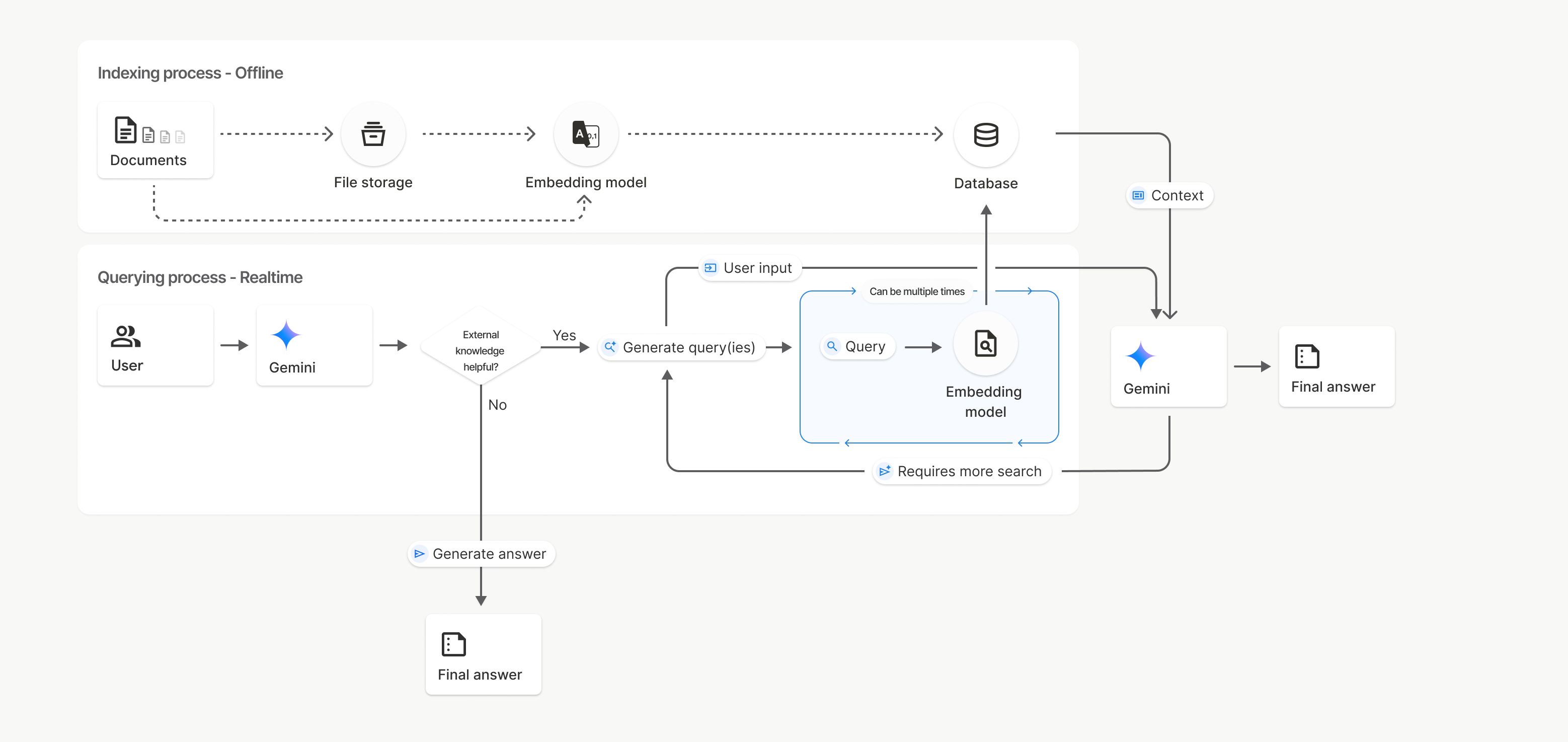
En este diagrama, la línea punteada de Documents a Embedding model (con gemini-embedding-001) representa la API de uploadToFileSearchStore (sin pasar por File storage).
De lo contrario, usar la API de Files para crear y, luego, importar archivos por separado traslada el proceso de indexación de Documentos a Almacenamiento de archivos y, luego, a Modelo de incorporación.
Almacenes de búsqueda de archivos
Un almacén de File Search es un contenedor para tus embeddings de documentos. Si bien los archivos sin procesar que se suben a través de la API de File se borran después de 48 horas, los datos que se importan a un almacén de File Search se almacenan de forma indefinida hasta que los borres de forma manual. Puedes crear varios almacenes de File Search para organizar tus documentos. La API de FileSearchStore te permite crear, enumerar, obtener y borrar para administrar tus almacenes de búsqueda de archivos. Los nombres de la tienda de la Búsqueda de archivos tienen un alcance global.
Estos son algunos ejemplos de cómo administrar tus tiendas de búsqueda de archivos:
Python
file_search_store = client.file_search_stores.create(
    config={
        'display_name': 'myfilesearchstore123',
        'embedding_model': 'models/gemini-embedding-2'
    }
)

for store in client.file_search_stores.list():
    print(store)

my_file_search_store = client.file_search_stores.get(name=file_search_store.name)

client.file_search_stores.delete(name=file_search_store.name, config={'force': True})
JavaScript
const fileSearchStore = await ai.fileSearchStores.create({
  config: {
    displayName: 'myfilesearchstore123',
    embeddingModel: 'models/gemini-embedding-2'
  }
});

const fileSearchStores = await ai.fileSearchStores.list();
for await (const store of fileSearchStores) {
  console.log(store);
}

const myFileSearchStore = await ai.fileSearchStores.get({
  name: fileSearchStore.name
});

await ai.fileSearchStores.delete({
  name: fileSearchStore.name,
  config: { force: true }
});
Java
import com.google.genai.Client;
import com.google.genai.types.CreateFileSearchStoreConfig;
import com.google.genai.types.DeleteFileSearchStoreConfig;
import com.google.genai.types.FileSearchStore;

Client client = new Client();

FileSearchStore fileSearchStore =
    client.fileSearchStores.create(
        CreateFileSearchStoreConfig.builder()
            .displayName("myfilesearchstore123")
            .embeddingModel("models/gemini-embedding-2")
            .build());

for (FileSearchStore store : client.fileSearchStores.list(null)) {
  System.out.println(store);
}

FileSearchStore myFileSearchStore =
    client.fileSearchStores.get(fileSearchStore.name().get(), null);

client.fileSearchStores.delete(
    fileSearchStore.name().get(), DeleteFileSearchStoreConfig.builder().force(true).build());
Go
package main

import (
    "context"
    "fmt"
    "log"

    "google.golang.org/genai"
)

func main() {
    ctx := context.Background()
    client, err := genai.NewClient(ctx, nil)
    if err != nil {
        log.Fatal(err)
    }

    fileSearchStore, err := client.FileSearchStores.Create(ctx, &genai.CreateFileSearchStoreConfig{
        DisplayName:    "myfilesearchstore123",
        EmbeddingModel: "models/gemini-embedding-2",
    })
    if err != nil {
        log.Fatal(err)
    }

    for store, err := range client.FileSearchStores.All(ctx) {
        if err != nil {
            log.Fatal(err)
        }
        fmt.Println(store)
    }

    myFileSearchStore, err := client.FileSearchStores.Get(ctx, fileSearchStore.Name, nil)
    if err != nil {
        log.Fatal(err)
    }
    _ = myFileSearchStore

    err = client.FileSearchStores.Delete(ctx, fileSearchStore.Name, &genai.DeleteFileSearchStoreConfig{
        Force: genai.Ptr(true),
    })
    if err != nil {
        log.Fatal(err)
    }
}
REST
curl -X POST "https://generativelanguage.googleapis.com/v1beta/fileSearchStores?key=${GEMINI_API_KEY}" \
    -H "Content-Type: application/json" \
    -d '{ "displayName": "My Store", "embedding_model": "models/gemini-embedding-2" }'

curl "https://generativelanguage.googleapis.com/v1beta/fileSearchStores?key=${GEMINI_API_KEY}"

curl "https://generativelanguage.googleapis.com/v1beta/fileSearchStores/myfilesearchstore123?key=${GEMINI_API_KEY}"

curl -X DELETE "https://generativelanguage.googleapis.com/v1beta/fileSearchStores/myfilesearchstore123?key=${GEMINI_API_KEY}"
Documentos de búsqueda de archivos
Puedes administrar documentos individuales en tus almacenes de archivos con la API de File Search Documents para list cada documento en un almacén de búsqueda de archivos, get información sobre un documento y delete un documento por nombre.
Python
for document_in_store in client.file_search_stores.documents.list(parent='fileSearchStores/myfilesearchstore123'):
  print(document_in_store)

file_search_document = client.file_search_stores.documents.get(name='fileSearchStores/myfilesearchstore123/documents/sampletxt123')
print(file_search_document)

client.file_search_stores.documents.delete(name='fileSearchStores/myfilesearchstore123/documents/sampletxt123', config={'force': True})
JavaScript
const documents = await ai.fileSearchStores.documents.list({
  parent: 'fileSearchStores/myfilesearchstore123'
});
for await (const doc of documents) {
  console.log(doc);
}

const fileSearchDocument = await ai.fileSearchStores.documents.get({
  name: 'fileSearchStores/myfilesearchstore123/documents/sampletxt123'
});

await ai.fileSearchStores.documents.delete({
  name: 'fileSearchStores/myfilesearchstore123/documents/sampletxt123',
  config: { force: true }
});
Java
import com.google.genai.Client;
import com.google.genai.types.DeleteDocumentConfig;
import com.google.genai.types.Document;

Client client = new Client();

for (Document documentInStore :
    client.fileSearchStores.documents.list("fileSearchStores/myfilesearchstore123", null)) {
  System.out.println(documentInStore);
}

Document fileSearchDocument =
    client.fileSearchStores.documents.get(
        "fileSearchStores/myfilesearchstore123/documents/sampletxt123", null);
System.out.println(fileSearchDocument);

client.fileSearchStores.documents.delete(
    "fileSearchStores/myfilesearchstore123/documents/sampletxt123",
    DeleteDocumentConfig.builder().force(true).build());
Go
package main

import (
    "context"
    "fmt"
    "log"

    "google.golang.org/genai"
)

func main() {
    ctx := context.Background()
    client, err := genai.NewClient(ctx, nil)
    if err != nil {
        log.Fatal(err)
    }

    for documentInStore, err := range client.FileSearchStores.Documents.All(ctx, "fileSearchStores/myfilesearchstore123") {
        if err != nil {
            log.Fatal(err)
        }
        fmt.Println(documentInStore)
    }

    fileSearchDocument, err := client.FileSearchStores.Documents.Get(ctx, "fileSearchStores/myfilesearchstore123/documents/sampletxt123", nil)
    if err != nil {
        log.Fatal(err)
    }
    fmt.Println(fileSearchDocument)

    err = client.FileSearchStores.Documents.Delete(ctx, "fileSearchStores/myfilesearchstore123/documents/sampletxt123", &genai.DeleteDocumentConfig{
        Force: genai.Ptr(true),
    })
    if err != nil {
        log.Fatal(err)
    }
}
REST
curl "https://generativelanguage.googleapis.com/v1beta/fileSearchStores/myfilesearchstore123/documents?key=${GEMINI_API_KEY}"

curl "https://generativelanguage.googleapis.com/v1beta/fileSearchStores/myfilesearchstore123/documents/sampletxt123?key=${GEMINI_API_KEY}"

curl -X DELETE "https://generativelanguage.googleapis.com/v1beta/fileSearchStores/myfilesearchstore123/documents/sampletxt123?key=${GEMINI_API_KEY}&force=true"
Metadatos de archivos
Puedes agregar metadatos personalizados a tus archivos para filtrarlos o proporcionar contexto adicional. Los metadatos son un conjunto de pares clave-valor.
Python
op = client.file_search_stores.import_file(
    file_search_store_name=file_search_store.name,
    file_name=sample_file.name,
    config={
        'custom_metadata': [
            {"key": "author", "string_value": "Robert Graves"},
            {"key": "year", "numeric_value": 1934}
        ]
    }
)
JavaScript
let operation = await ai.fileSearchStores.importFile({
  fileSearchStoreName: fileSearchStore.name,
  fileName: sampleFile.name,
  config: {
    customMetadata: [
      { key: "author", stringValue: "Robert Graves" },
      { key: "year", numericValue: 1934 }
    ]
  }
});
Java
import com.google.genai.Client;
import com.google.genai.types.CustomMetadata;
import com.google.genai.types.ImportFileConfig;
import com.google.genai.types.ImportFileOperation;
import java.util.Arrays;

Client client = new Client();

ImportFileOperation op =
    client.fileSearchStores.importFile(
        "fileSearchStores/myfilesearchstore123",
        "files/samplefile123",
        ImportFileConfig.builder()
            .customMetadata(
                Arrays.asList(
                    CustomMetadata.builder().key("author").stringValue("Robert Graves").build(),
                    CustomMetadata.builder().key("year").numericValue(1934f).build()))
            .build());
Go
package main

import (
    "context"
    "log"

    "google.golang.org/genai"
)

func main() {
    ctx := context.Background()
    client, err := genai.NewClient(ctx, nil)
    if err != nil {
        log.Fatal(err)
    }

    op, err := client.FileSearchStores.ImportFile(
        ctx,
        "fileSearchStores/myfilesearchstore123",
        "files/samplefile123",
        &genai.ImportFileConfig{
            CustomMetadata: []*genai.CustomMetadata{
                {Key: "author", StringValue: "Robert Graves"},
                {Key: "year", NumericValue: genai.Ptr(float32(1934))},
            },
        },
    )
    if err != nil {
        log.Fatal(err)
    }
    _ = op
}
Esto es útil cuando tienes varios documentos en un almacén de Búsqueda de archivos y deseas buscar solo un subconjunto de ellos.
Python
interaction = client.interactions.create(
    model="gemini-3.8-flash",
    input="Tell me about the book 'I, Claudius'",
    tools=[{
        "type": "file_search",
        "file_search_store_names": [file_search_store.name],
        "metadata_filter": 'author="Robert Graves"',
    }]
)

for step in interaction.steps:
    if step.type == "model_output":
        for content_block in step.content:
            if content_block.type == "text":
                print(content_block.text)
JavaScript
const interaction = await ai.interactions.create({
  model: "gemini-3.8-flash",
  input: "Tell me about the book 'I, Claudius'",
  tools: [{
    type: "file_search",
    file_search_store_names: [fileSearchStore.name],
    metadata_filter: 'author="Robert Graves"',
  }]
});

for (const step of interaction.steps) {
  if (step.type === 'model_output') {
    for (const contentBlock of step.content) {
      if (contentBlock.type === 'text') {
        console.log(contentBlock.text);
      }
    }
  }
}
Java
import com.google.genai.Client;
import com.google.genai.gaos.models.interactions.Content;
import com.google.genai.gaos.models.interactions.CreateModelInteraction;
import com.google.genai.gaos.models.interactions.FileSearch;
import com.google.genai.gaos.models.interactions.Interaction;
import com.google.genai.gaos.models.interactions.InteractionsInput;
import com.google.genai.gaos.models.interactions.Model;
import com.google.genai.gaos.models.interactions.ModelOutputStep;
import com.google.genai.gaos.models.interactions.Step;
import com.google.genai.gaos.models.interactions.TextContent;
import com.google.genai.gaos.models.operations.CreateInteractionRequestBody;
import java.util.Arrays;

Client client = new Client();

CreateModelInteraction params =
    CreateModelInteraction.builder()
        .model(Model.of("gemini-3.8-flash"))
        .input(InteractionsInput.of("Tell me about the book 'I, Claudius'"))
        .tools(
            Arrays.asList(
                FileSearch.builder()
                    .fileSearchStoreNames(Arrays.asList("fileSearchStores/myfilesearchstore123"))
                    .metadataFilter("author=\"Robert Graves\"")
                    .build()))
        .build();

Interaction interaction =
    client.interactions.create(CreateInteractionRequestBody.of(params)).interaction().get();

if (interaction.steps().isPresent()) {
  for (Step step : interaction.steps().get()) {
    if (step instanceof ModelOutputStep) {
      ModelOutputStep outputStep = (ModelOutputStep) step;
      if (outputStep.content().isPresent()) {
        for (Content contentBlock : outputStep.content().get()) {
          if (contentBlock instanceof TextContent) {
            TextContent textContent = (TextContent) contentBlock;
            System.out.println(textContent.text().orElse(""));
          }
        }
      }
    }
  }
}
Go
package main

import (
    "context"
    "fmt"
    "log"

    "google.golang.org/genai"
    "google.golang.org/genai/interactions/models/interactions"
    "google.golang.org/genai/interactions/models/operations"
)

func main() {
    ctx := context.Background()
    client, err := genai.NewClient(ctx, nil)
    if err != nil {
        log.Fatal(err)
    }

    resp, err := client.Interactions.Create(ctx, operations.CreateInteractionRequest{
        Body: operations.NewCreateInteractionRequestBody(
            interactions.CreateModelInteraction{
                Model: interactions.Model("gemini-3.8-flash"),
                Input: interactions.NewInteractionsInput("Tell me about the book 'I, Claudius'"),
                Tools: []interactions.Tool{
                    interactions.NewTool(interactions.FileSearch{
                        FileSearchStoreNames: []string{"fileSearchStores/myfilesearchstore123"},
                        MetadataFilter:       genai.Ptr(`author="Robert Graves"`),
                    }),
                },
            },
        ),
    })
    if err != nil {
        log.Fatal(err)
    }

    for _, step := range resp.Interaction.Steps {
        if step.ModelOutputStep != nil {
            for _, content := range step.ModelOutputStep.Content {
                if content.TextContent != nil {
                    fmt.Println(content.TextContent.Text)
                }
            }
        }
    }
}
REST
curl "https://generativelanguage.googleapis.com/v1beta/interactions" \
    -H "x-goog-api-key: $GEMINI_API_KEY" \
    -H 'Content-Type: application/json' \
    -X POST \
    -d '{
            "model": "gemini-3.8-flash",
            "input": [{"type": "text", "text": "Tell me about the book I, Claudius"}],
            "tools": [{
                "type": "file_search",
                "file_search_store_names": ["'$STORE_NAME'"],
                "metadata_filter": "author = \"Robert Graves\""
            }]
        }' 2> /dev/null > response.json

cat response.json
Puedes encontrar orientación para implementar la sintaxis del filtro de lista para metadata_filter en google.aip.dev/160.
Búsqueda de archivos multimodal
La búsqueda de archivos multimodal te permite incorporar y buscar imágenes de forma nativa, lo que habilita aplicaciones de RAG multimodales enriquecidas.
Configura el modelo de embedding
Cuando creas un FileSearchStore, debes anular el modelo de incorporación predeterminado solo de texto para usar un modelo multimodal. Usa models/gemini-embedding-2 para procesar texto e imágenes.
Python
store = client.file_search_stores.create(
    config={
        "display_name": "Multimodal Catalog",
        "embedding_model": "models/gemini-embedding-2",
    }
)
JavaScript
const fileSearchStore = await ai.fileSearchStores.create({
  config: {
    displayName: "Multimodal Catalog",
    embeddingModel: "models/gemini-embedding-2",
  },
});
Java
import com.google.genai.Client;
import com.google.genai.types.CreateFileSearchStoreConfig;
import com.google.genai.types.FileSearchStore;

Client client = new Client();

FileSearchStore store =
    client.fileSearchStores.create(
        CreateFileSearchStoreConfig.builder()
            .displayName("Multimodal Catalog")
            .embeddingModel("models/gemini-embedding-2")
            .build());
Go
package main

import (
    "context"
    "log"

    "google.golang.org/genai"
)

func main() {
    ctx := context.Background()
    client, err := genai.NewClient(ctx, nil)
    if err != nil {
        log.Fatal(err)
    }

    store, err := client.FileSearchStores.Create(ctx, &genai.CreateFileSearchStoreConfig{
        DisplayName:    "Multimodal Catalog",
        EmbeddingModel: "models/gemini-embedding-2",
    })
    if err != nil {
        log.Fatal(err)
    }
    _ = store
}
REST
curl -X POST "https://generativelanguage.googleapis.com/v1beta/fileSearchStores?key=$GEMINI_API_KEY" \
    -H "Content-Type: application/json" \
    -d '{
      "display_name": "Multimodal Catalog",
      "embedding_model": "models/gemini-embedding-2"
    }'
Sube imágenes
Después de crear el almacén con un modelo de incorporación multimodal, puedes subir archivos de imagen directamente con las mismas APIs de carga que se describen en Cómo subir archivos directamente al almacén de File Search o Cómo importar archivos.
Requisitos de los archivos de imagen:
- Los archivos de imagen deben tener una resolución máxima de 4K x 4K píxeles.
- Los formatos admitidos son PNG y JPEG.
Citas
Cuando usas la Búsqueda de archivos, la respuesta del modelo puede incluir citas que especifican qué partes de los documentos que subiste se usaron para generar la respuesta. Esto ayuda con la verificación de datos.
Puedes acceder a la información de citas a través del atributo annotations dentro de los bloques content del paso model_output de la respuesta.
Python
for step in interaction.steps:
    if step.type == 'model_output':
        for content in step.content:
            if content.type == 'text' and content.annotations:
                print(content.annotations)
JavaScript
for (const step of interaction.steps) {
  if (step.type === 'model_output') {
    for (const contentBlock of step.content) {
      if (contentBlock.type === 'text' && contentBlock.annotations) {
        console.log(JSON.stringify(contentBlock.annotations, null, 2));
      }
    }
  }
}
Java
import com.google.genai.Client;
import com.google.genai.gaos.models.interactions.Content;
import com.google.genai.gaos.models.interactions.CreateModelInteraction;
import com.google.genai.gaos.models.interactions.FileSearch;
import com.google.genai.gaos.models.interactions.Interaction;
import com.google.genai.gaos.models.interactions.InteractionsInput;
import com.google.genai.gaos.models.interactions.Model;
import com.google.genai.gaos.models.interactions.ModelOutputStep;
import com.google.genai.gaos.models.interactions.Step;
import com.google.genai.gaos.models.interactions.TextContent;
import com.google.genai.gaos.models.operations.CreateInteractionRequestBody;
import java.util.Arrays;

Client client = new Client();

CreateModelInteraction params =
    CreateModelInteraction.builder()
        .model(Model.of("gemini-3.8-flash"))
        .input(InteractionsInput.of("Can you tell me about [insert question]"))
        .tools(
            Arrays.asList(
                FileSearch.builder()
                    .fileSearchStoreNames(Arrays.asList("fileSearchStores/myfilesearchstore123"))
                    .build()))
        .build();

Interaction interaction =
    client.interactions.create(CreateInteractionRequestBody.of(params)).interaction().get();

if (interaction.steps().isPresent()) {
  for (Step step : interaction.steps().get()) {
    if (step instanceof ModelOutputStep) {
      ModelOutputStep outputStep = (ModelOutputStep) step;
      if (outputStep.content().isPresent()) {
        for (Content content : outputStep.content().get()) {
          if (content instanceof TextContent) {
            TextContent textContent = (TextContent) content;
            if (textContent.annotations().isPresent()) {
              System.out.println(textContent.annotations().get());
            }
          }
        }
      }
    }
  }
}
Go
package main

import (
    "context"
    "fmt"
    "log"

    "google.golang.org/genai"
    "google.golang.org/genai/interactions/models/interactions"
    "google.golang.org/genai/interactions/models/operations"
)

func main() {
    ctx := context.Background()
    client, err := genai.NewClient(ctx, nil)
    if err != nil {
        log.Fatal(err)
    }

    resp, err := client.Interactions.Create(ctx, operations.CreateInteractionRequest{
        Body: operations.NewCreateInteractionRequestBody(
            interactions.CreateModelInteraction{
                Model: interactions.Model("gemini-3.8-flash"),
                Input: interactions.NewInteractionsInput("Can you tell me about [insert question]"),
                Tools: []interactions.Tool{
                    interactions.NewTool(interactions.FileSearch{
                        FileSearchStoreNames: []string{"fileSearchStores/myfilesearchstore123"},
                    }),
                },
            },
        ),
    })
    if err != nil {
        log.Fatal(err)
    }

    for _, step := range resp.Interaction.Steps {
        if step.ModelOutputStep != nil {
            for _, content := range step.ModelOutputStep.Content {
                if content.TextContent != nil && len(content.TextContent.Annotations) > 0 {
                    fmt.Println(content.TextContent.Annotations)
                }
            }
        }
    }
}
REST
{
  "steps": [
    {
      "type": "model_output",
      "content": [
        {
          "type": "text",
          "text": "...",
          "annotations": [
            {
              "type": "file_citation",
              "file_name": "sample.txt",
              "source": "..."
            }
          ]
        }
      ]
    }
  ]
}
Para obtener información detallada sobre la estructura de las citas, consulta la referencia de la API de Interactions.
Números de página
Cuando usas la Búsqueda de archivos con documentos que tienen páginas (como los PDFs), la respuesta del modelo puede incluir el número de página en el que se encontró la información.
Puedes acceder a esta información a través del atributo page_number de una anotación file_citation.
Python
for step in interaction.steps:
    if step.type == "model_output":
        for content in step.content:
            if content.type == "text" and content.annotations:
                for annotation in content.annotations:
                    if annotation.type == "file_citation" and annotation.page_number:
                        print(f"Cited Page: {annotation.page_number}")
JavaScript
for (const step of interaction.steps) {
  if (step.type === 'model_output') {
    for (const block of step.content) {
      if (block.type === 'text' && block.annotations) {
        for (const annotation of block.annotations) {
          if (annotation.type === 'file_citation' && annotation.pageNumber) {
            console.log(`Cited Page: ${annotation.pageNumber}`);
          }
        }
      }
    }
  }
}
Java
import com.google.genai.Client;
import com.google.genai.gaos.models.interactions.Annotation;
import com.google.genai.gaos.models.interactions.Content;
import com.google.genai.gaos.models.interactions.CreateModelInteraction;
import com.google.genai.gaos.models.interactions.FileCitation;
import com.google.genai.gaos.models.interactions.FileSearch;
import com.google.genai.gaos.models.interactions.Interaction;
import com.google.genai.gaos.models.interactions.InteractionsInput;
import com.google.genai.gaos.models.interactions.Model;
import com.google.genai.gaos.models.interactions.ModelOutputStep;
import com.google.genai.gaos.models.interactions.Step;
import com.google.genai.gaos.models.interactions.TextContent;
import com.google.genai.gaos.models.operations.CreateInteractionRequestBody;
import java.util.Arrays;

Client client = new Client();

CreateModelInteraction params =
    CreateModelInteraction.builder()
        .model(Model.of("gemini-3.8-flash"))
        .input(InteractionsInput.of("Can you tell me about [insert question]"))
        .tools(
            Arrays.asList(
                FileSearch.builder()
                    .fileSearchStoreNames(Arrays.asList("fileSearchStores/myfilesearchstore123"))
                    .build()))
        .build();

Interaction interaction =
    client.interactions.create(CreateInteractionRequestBody.of(params)).interaction().get();

if (interaction.steps().isPresent()) {
  for (Step step : interaction.steps().get()) {
    if (step instanceof ModelOutputStep) {
      ModelOutputStep outputStep = (ModelOutputStep) step;
      if (outputStep.content().isPresent()) {
        for (Content content : outputStep.content().get()) {
          if (content instanceof TextContent) {
            TextContent textContent = (TextContent) content;
            if (textContent.annotations().isPresent()) {
              for (Annotation annotation : textContent.annotations().get()) {
                if (annotation instanceof FileCitation) {
                  FileCitation citation = (FileCitation) annotation;
                  if (citation.pageNumber().isPresent()) {
                    System.out.println("Cited Page: " + citation.pageNumber().get());
                  }
                }
              }
            }
          }
        }
      }
    }
  }
}
Go
package main

import (
    "context"
    "fmt"
    "log"

    "google.golang.org/genai"
    "google.golang.org/genai/interactions/models/interactions"
    "google.golang.org/genai/interactions/models/operations"
)

func main() {
    ctx := context.Background()
    client, err := genai.NewClient(ctx, nil)
    if err != nil {
        log.Fatal(err)
    }

    resp, err := client.Interactions.Create(ctx, operations.CreateInteractionRequest{
        Body: operations.NewCreateInteractionRequestBody(
            interactions.CreateModelInteraction{
                Model: interactions.Model("gemini-3.8-flash"),
                Input: interactions.NewInteractionsInput("Can you tell me about [insert question]"),
                Tools: []interactions.Tool{
                    interactions.NewTool(interactions.FileSearch{
                        FileSearchStoreNames: []string{"fileSearchStores/myfilesearchstore123"},
                    }),
                },
            },
        ),
    })
    if err != nil {
        log.Fatal(err)
    }

    for _, step := range resp.Interaction.Steps {
        if step.ModelOutputStep != nil {
            for _, content := range step.ModelOutputStep.Content {
                if content.TextContent != nil {
                    for _, annotation := range content.TextContent.Annotations {
                        if annotation.FileCitation != nil && annotation.FileCitation.PageNumber != nil {
                            fmt.Println("Cited Page:", *annotation.FileCitation.PageNumber)
                        }
                    }
                }
            }
        }
    }
}
REST
{
  "steps": [
    {
      "type": "model_output",
      "content": [
        {
          "type": "text",
          "text": "...",
          "annotations": [
            {
              "type": "file_citation",
              "file_name": "document.pdf",
              "page_number": 1,
              "source": "..."
            }
          ]
        }
      ]
    }
  ]
}
Citas de medios
Cuando el modelo hace referencia a un fragmento de imagen durante la generación, la API devuelve una anotación de tipo file_citation en las anotaciones que incluye un media_id. Puedes usar este ID para descargar el fragmento de imagen exacto al que hizo referencia el modelo. Este media_id persiste en varias llamadas de búsqueda, lo que te permite recuperar de forma confiable la misma imagen o almacenarla en caché con el ID.
El siguiente fragmento es un ejemplo de un paso de respuesta de REST:
{
  "type": "model_output",
  "content": [
    {
      "type": "text",
      "text": "...",
      "annotations": [
        {
          "type": "file_citation",
          "file_name": "product_image",
          "media_id": "fileSearchStores/my-store-123/media/BlobId-456"
        }
      ]
    }
  ]
}
En los siguientes fragmentos de código, se muestra cómo recuperar el objeto media_id y descargar el contenido multimedia:
Python
for step in interaction.steps:
    if step.type == "model_output":
        for content in step.content:
            if content.type == "text" and content.annotations:
                for annotation in content.annotations:
                    if annotation.type == "file_citation" and annotation.media_id:
                        print(f"Cited Media ID: {annotation.media_id}")
                        blob_content = client.file_search_stores.download_media(
                            media_id=annotation.media_id
                        )
JavaScript
for (const step of interaction.steps) {
  if (step.type === 'model_output') {
    for (const block of step.content) {
      if (block.type === 'text' && block.annotations) {
        for (const annotation of block.annotations) {
          if (annotation.type === 'file_citation' && annotation.mediaId) {
            console.log(`Cited Media ID: ${annotation.mediaId}`);
            const blobContent = await ai.fileSearchStores.downloadMedia(annotation.mediaId);
          }
        }
      }
    }
  }
}
Java
import com.google.genai.Client;
import com.google.genai.gaos.models.interactions.Annotation;
import com.google.genai.gaos.models.interactions.Content;
import com.google.genai.gaos.models.interactions.CreateModelInteraction;
import com.google.genai.gaos.models.interactions.FileCitation;
import com.google.genai.gaos.models.interactions.FileSearch;
import com.google.genai.gaos.models.interactions.Interaction;
import com.google.genai.gaos.models.interactions.InteractionsInput;
import com.google.genai.gaos.models.interactions.Model;
import com.google.genai.gaos.models.interactions.ModelOutputStep;
import com.google.genai.gaos.models.interactions.Step;
import com.google.genai.gaos.models.interactions.TextContent;
import com.google.genai.gaos.models.operations.CreateInteractionRequestBody;
import java.util.Arrays;

Client client = new Client();

CreateModelInteraction params =
    CreateModelInteraction.builder()
        .model(Model.of("gemini-3.8-flash"))
        .input(InteractionsInput.of("Can you tell me about [insert question]"))
        .tools(
            Arrays.asList(
                FileSearch.builder()
                    .fileSearchStoreNames(Arrays.asList("fileSearchStores/myfilesearchstore123"))
                    .build()))
        .build();

Interaction interaction =
    client.interactions.create(CreateInteractionRequestBody.of(params)).interaction().get();

if (interaction.steps().isPresent()) {
  for (Step step : interaction.steps().get()) {
    if (step instanceof ModelOutputStep) {
      ModelOutputStep outputStep = (ModelOutputStep) step;
      if (outputStep.content().isPresent()) {
        for (Content content : outputStep.content().get()) {
          if (content instanceof TextContent) {
            TextContent textContent = (TextContent) content;
            if (textContent.annotations().isPresent()) {
              for (Annotation annotation : textContent.annotations().get()) {
                if (annotation instanceof FileCitation) {
                  FileCitation citation = (FileCitation) annotation;
                  if (citation.mediaId().isPresent()) {
                    System.out.println("Cited Media ID: " + citation.mediaId().get());
                    byte[] blobContent =
                        client.fileSearchStores.downloadMedia(citation.mediaId().get(), null);
                  }
                }
              }
            }
          }
        }
      }
    }
  }
}
Go
package main

import (
    "context"
    "fmt"
    "log"

    "google.golang.org/genai"
    "google.golang.org/genai/interactions/models/interactions"
    "google.golang.org/genai/interactions/models/operations"
)

func main() {
    ctx := context.Background()
    client, err := genai.NewClient(ctx, nil)
    if err != nil {
        log.Fatal(err)
    }

    resp, err := client.Interactions.Create(ctx, operations.CreateInteractionRequest{
        Body: operations.NewCreateInteractionRequestBody(
            interactions.CreateModelInteraction{
                Model: interactions.Model("gemini-3.8-flash"),
                Input: interactions.NewInteractionsInput("Can you tell me about [insert question]"),
                Tools: []interactions.Tool{
                    interactions.NewTool(interactions.FileSearch{
                        FileSearchStoreNames: []string{"fileSearchStores/myfilesearchstore123"},
                    }),
                },
            },
        ),
    })
    if err != nil {
        log.Fatal(err)
    }

    for _, step := range resp.Interaction.Steps {
        if step.ModelOutputStep != nil {
            for _, content := range step.ModelOutputStep.Content {
                if content.TextContent != nil {
                    for _, annotation := range content.TextContent.Annotations {
                        if annotation.FileCitation != nil && annotation.FileCitation.MediaID != nil {
                            fmt.Println("Cited Media ID:", *annotation.FileCitation.MediaID)
                            blobContent, err := client.FileSearchStores.DownloadMedia(ctx, *annotation.FileCitation.MediaID, nil)
                            if err != nil {
                                log.Fatal(err)
                            }
                            _ = blobContent
                        }
                    }
                }
            }
        }
    }
}
REST
curl -X GET "https://generativelanguage.googleapis.com/v1/fileSearchStores/my-store-123/media/BlobId-456" \
  -H "x-goog-api-key: $GEMINI_API_KEY"
Metadatos personalizados
Si agregaste metadatos personalizados a tus archivos, puedes acceder a ellos en las anotaciones de la respuesta del modelo. Esto es útil para pasar contexto adicional (como URLs, números de página o autores) de tus documentos fuente a la lógica de tu aplicación. Cada anotación de cita del tipo file_citation contiene estos metadatos personalizados.
Python
interaction = client.interactions.create(
    model="gemini-3.8-flash",
    input="Tell me about [insert question]",
    tools=[{
        "type": "file_search",
        "file_search_store_names": [file_search_store.name]
    }]
)

for step in interaction.steps:
    if step.type == "model_output":
        for content_block in step.content:
            if content_block.annotations:
                for annotation in content_block.annotations:
                    print(annotation)
JavaScript
const interaction = await ai.interactions.create({
  model: "gemini-3.8-flash",
  input: "Tell me about [insert question]",
  tools: [{
    type: "file_search",
    file_search_store_names: [fileSearchStore.name]
  }]
});

for (const step of interaction.steps) {
  if (step.type === 'model_output') {
    for (const contentBlock of step.content) {
      if (contentBlock.annotations) {
        contentBlock.annotations.forEach((annotation) => {
          console.log(annotation);
        });
      }
    }
  }
}
Java
import com.google.genai.Client;
import com.google.genai.gaos.models.interactions.Annotation;
import com.google.genai.gaos.models.interactions.Content;
import com.google.genai.gaos.models.interactions.CreateModelInteraction;
import com.google.genai.gaos.models.interactions.FileSearch;
import com.google.genai.gaos.models.interactions.Interaction;
import com.google.genai.gaos.models.interactions.InteractionsInput;
import com.google.genai.gaos.models.interactions.Model;
import com.google.genai.gaos.models.interactions.ModelOutputStep;
import com.google.genai.gaos.models.interactions.Step;
import com.google.genai.gaos.models.interactions.TextContent;
import com.google.genai.gaos.models.operations.CreateInteractionRequestBody;
import java.util.Arrays;

Client client = new Client();

CreateModelInteraction params =
    CreateModelInteraction.builder()
        .model(Model.of("gemini-3.8-flash"))
        .input(InteractionsInput.of("Tell me about [insert question]"))
        .tools(
            Arrays.asList(
                FileSearch.builder()
                    .fileSearchStoreNames(Arrays.asList("fileSearchStores/myfilesearchstore123"))
                    .build()))
        .build();

Interaction interaction =
    client.interactions.create(CreateInteractionRequestBody.of(params)).interaction().get();

if (interaction.steps().isPresent()) {
  for (Step step : interaction.steps().get()) {
    if (step instanceof ModelOutputStep) {
      ModelOutputStep outputStep = (ModelOutputStep) step;
      if (outputStep.content().isPresent()) {
        for (Content contentBlock : outputStep.content().get()) {
          if (contentBlock instanceof TextContent) {
            TextContent textContent = (TextContent) contentBlock;
            if (textContent.annotations().isPresent()) {
              for (Annotation annotation : textContent.annotations().get()) {
                System.out.println(annotation);
              }
            }
          }
        }
      }
    }
  }
}
Go
package main

import (
    "context"
    "fmt"
    "log"

    "google.golang.org/genai"
    "google.golang.org/genai/interactions/models/interactions"
    "google.golang.org/genai/interactions/models/operations"
)

func main() {
    ctx := context.Background()
    client, err := genai.NewClient(ctx, nil)
    if err != nil {
        log.Fatal(err)
    }

    resp, err := client.Interactions.Create(ctx, operations.CreateInteractionRequest{
        Body: operations.NewCreateInteractionRequestBody(
            interactions.CreateModelInteraction{
                Model: interactions.Model("gemini-3.8-flash"),
                Input: interactions.NewInteractionsInput("Tell me about [insert question]"),
                Tools: []interactions.Tool{
                    interactions.NewTool(interactions.FileSearch{
                        FileSearchStoreNames: []string{"fileSearchStores/myfilesearchstore123"},
                    }),
                },
            },
        ),
    })
    if err != nil {
        log.Fatal(err)
    }

    for _, step := range resp.Interaction.Steps {
        if step.ModelOutputStep != nil {
            for _, content := range step.ModelOutputStep.Content {
                if content.TextContent != nil {
                    for _, annotation := range content.TextContent.Annotations {
                        fmt.Println(annotation)
                    }
                }
            }
        }
    }
}
REST
{
  "steps": [
    {
      "type": "model_output",
      "content": [
        {
          "type": "text",
          "text": "...",
          "annotations": [
            {
              "file_name": "...",
              "source": "...",
              "custom_metadata": [
                {
                  "key": "author",
                  "string_value": "Robert Graves"
                },
                {
                  "key": "year",
                  "numeric_value": 1934
                }
              ]
            }
          ]
        }
      ]
    }
  ]
}
Resultados estructurados
A partir de los modelos de Gemini 3, puedes combinar la herramienta de búsqueda de archivos con resultados estructurados.
Python
from pydantic import BaseModel, Field

class Money(BaseModel):
    amount: str = Field(description="The numerical part of the amount.")
    currency: str = Field(description="The currency of amount.")

interaction = client.interactions.create(
    model="gemini-3.8-flash",
    input="What is the minimum hourly wage in Tokyo right now?",
    tools=[{
        "type": "file_search",
        "file_search_store_names": [file_search_store.name]
    }],
    response_format={
        "type": "text",
        "mime_type": "application/json",
        "schema": Money.model_json_schema()
    },
)
result = Money.model_validate_json(interaction.output_text)
print(result)
JavaScript
import { z } from "zod";

const moneyJsonSchema = {
  type: "object",
  properties: {
    amount: { type: "string", description: "The numerical part of the amount." },
    currency: { type: "string", description: "The currency of amount." }
  },
  required: ["amount", "currency"]
};

const moneySchema = z.fromJSONSchema(moneyJsonSchema);

async function run() {
  const interaction = await ai.interactions.create({
    model: "gemini-3.8-flash",
    input: "What is the minimum hourly wage in Tokyo right now?",
    tools: [{
      type: "file_search",
      file_search_store_names: [fileSearchStore.name],
    }],
    response_format: {
      type: 'text',
      mime_type: 'application/json',
      schema: moneyJsonSchema
    },
  });

  const result = moneySchema.parse(JSON.parse(interaction.output_text));
  console.log(result);
}

run();
Java
import com.google.genai.Client;
import com.google.genai.gaos.models.interactions.CreateModelInteraction;
import com.google.genai.gaos.models.interactions.CreateModelInteractionResponseFormat;
import com.google.genai.gaos.models.interactions.FileSearch;
import com.google.genai.gaos.models.interactions.Interaction;
import com.google.genai.gaos.models.interactions.InteractionsInput;
import com.google.genai.gaos.models.interactions.Model;
import com.google.genai.gaos.models.interactions.ResponseFormat;
import com.google.genai.gaos.models.interactions.TextResponseFormat;
import com.google.genai.gaos.models.interactions.TextResponseFormatMimeType;
import com.google.genai.gaos.models.operations.CreateInteractionRequestBody;
import java.util.Arrays;
import java.util.HashMap;
import java.util.Map;

Client client = new Client();

Map<String, Object> properties = new HashMap<>();

Map<String, Object> amountProp = new HashMap<>();
amountProp.put("type", "string");
amountProp.put("description", "The numerical part of the amount.");
properties.put("amount", amountProp);

Map<String, Object> currencyProp = new HashMap<>();
currencyProp.put("type", "string");
currencyProp.put("description", "The currency of amount.");
properties.put("currency", currencyProp);

Map<String, Object> moneyJsonSchema = new HashMap<>();
moneyJsonSchema.put("type", "object");
moneyJsonSchema.put("properties", properties);
moneyJsonSchema.put("required", Arrays.asList("amount", "currency"));

CreateModelInteractionResponseFormat format =
    CreateModelInteractionResponseFormat.of(
        ResponseFormat.of(
            TextResponseFormat.builder()
                .mimeType(TextResponseFormatMimeType.APPLICATION_JSON)
                .schema(moneyJsonSchema)
                .build()));

CreateModelInteraction params =
    CreateModelInteraction.builder()
        .model(Model.of("gemini-3.8-flash"))
        .input(InteractionsInput.of("What is the minimum hourly wage in Tokyo right now?"))
        .tools(
            Arrays.asList(
                FileSearch.builder()
                    .fileSearchStoreNames(Arrays.asList("fileSearchStores/myfilesearchstore123"))
                    .build()))
        .responseFormat(format)
        .build();

Interaction interaction =
    client.interactions.create(CreateInteractionRequestBody.of(params)).interaction().get();

System.out.println(interaction.outputText().orElse(""));
Go
package main

import (
    "context"
    "fmt"
    "log"

    "google.golang.org/genai"
    "google.golang.org/genai/interactions/models/interactions"
    "google.golang.org/genai/interactions/models/operations"
)

func main() {
    ctx := context.Background()
    client, err := genai.NewClient(ctx, nil)
    if err != nil {
        log.Fatal(err)
    }

    moneyJsonSchema := map[string]any{
        "type": "object",
        "properties": map[string]any{
            "amount": map[string]any{
                "type":        "string",
                "description": "The numerical part of the amount.",
            },
            "currency": map[string]any{
                "type":        "string",
                "description": "The currency of amount.",
            },
        },
        "required": []string{"amount", "currency"},
    }

    format := interactions.NewCreateModelInteractionResponseFormat(
        interactions.NewResponseFormat(interactions.TextResponseFormat{
            MimeType: interactions.TextResponseFormatMimeTypeApplicationJSON.ToPointer(),
            Schema:   moneyJsonSchema,
        }),
    )

    resp, err := client.Interactions.Create(ctx, operations.CreateInteractionRequest{
        Body: operations.NewCreateInteractionRequestBody(
            interactions.CreateModelInteraction{
                Model: interactions.Model("gemini-3.8-flash"),
                Input: interactions.NewInteractionsInput("What is the minimum hourly wage in Tokyo right now?"),
                Tools: []interactions.Tool{
                    interactions.NewTool(interactions.FileSearch{
                        FileSearchStoreNames: []string{"fileSearchStores/myfilesearchstore123"},
                    }),
                },
                ResponseFormat: &format,
            },
        ),
    })
    if err != nil {
        log.Fatal(err)
    }

    fmt.Println(resp.Interaction.GetOutputText())
}
REST
curl "https://generativelanguage.googleapis.com/v1beta/interactions" \
  -H "x-goog-api-key: $GEMINI_API_KEY" \
  -H 'Content-Type: application/json' \
  -X POST \
  -d '{
    "model": "gemini-3.8-flash",
    "input": "What is the minimum hourly wage in Tokyo right now?",
    "tools": [{
      "type": "file_search",
      "file_search_store_names": ["$FILE_SEARCH_STORE_NAME"]
    }],
    "response_format": {
      "type": "text",
      "mime_type": "application/json",
      "schema": {
        "type": "object",
        "properties": {
          "amount": {"type": "string", "description": "The numerical part of the amount."},
          "currency": {"type": "string", "description": "The currency of amount."}
        },
        "required": ["amount", "currency"]
      }
    }
  }'
Modelos compatibles
Los siguientes modelos admiten la Búsqueda de archivos:
| Modelo | Búsqueda de archivos |
|---|---|
| Gemini 3.8 Flash | ✔️ |
| Gemini 3.7 Flash | ✔️ |
| Gemini 3.6 Flash | ✔️ |
| Gemini 3.5 Flash-Lite | ✔️ |
| Gemini 3.5 Flash | ✔️ |
| Versión preliminar de Gemini 3.1 Pro | ✔️ |
| Gemini 3.1 Flash-Lite | ✔️ |
| Versión preliminar de Gemini 3 Flash | ✔️ |
Tipos de archivos admitidos
La Búsqueda de archivos admite una amplia variedad de formatos de archivo, que se indican en las siguientes secciones.
Tipos de archivos de aplicación
application/dartapplication/ecmascriptapplication/jsonapplication/ms-javaapplication/mswordapplication/pdfapplication/sqlapplication/typescriptapplication/vnd.curlapplication/vnd.dartapplication/vnd.ibm.secure-containerapplication/vnd.jupyterapplication/vnd.ms-excelapplication/vnd.oasis.opendocument.textapplication/vnd.openxmlformats-officedocument.presentationml.presentationapplication/vnd.openxmlformats-officedocument.spreadsheetml.sheetapplication/vnd.openxmlformats-officedocument.wordprocessingml.documentapplication/vnd.openxmlformats-officedocument.wordprocessingml.templateapplication/x-cshapplication/x-hwpapplication/x-hwp-v5application/x-latexapplication/x-phpapplication/x-powershellapplication/x-shapplication/x-shellscriptapplication/x-texapplication/x-zshapplication/xmlapplication/zip
Tipos de archivos de texto
text/1d-interleaved-parityfectext/REDtext/SGMLtext/cache-manifesttext/calendartext/cqltext/cql-extensiontext/cql-identifiertext/csstext/csvtext/csv-schematext/dnstext/encaprtptext/enrichedtext/exampletext/fhirpathtext/flexfectext/fwdredtext/gff3text/grammar-ref-listtext/hl7v2text/htmltext/javascripttext/jcr-cndtext/jsxtext/markdowntext/mizartext/n3text/parameterstext/parityfectext/phptext/plaintext/provenance-notationtext/prs.fallenstein.rsttext/prs.lines.tagtext/prs.prop.logictext/raptorfectext/rfc822-headerstext/rtftext/rtp-enc-aescm128text/rtploopbacktext/rtxtext/sgmltext/shaclctext/shextext/spdxtext/stringstext/t140text/tab-separated-valuestext/texmacstext/trofftext/tsvtext/tsxtext/turtletext/ulpfectext/uri-listtext/vcardtext/vnd.DMClientScripttext/vnd.IPTC.NITFtext/vnd.IPTC.NewsMLtext/vnd.atext/vnd.abctext/vnd.ascii-arttext/vnd.curltext/vnd.debian.copyrighttext/vnd.dvb.subtitletext/vnd.esmertec.theme-descriptortext/vnd.exchangeabletext/vnd.familysearch.gedcomtext/vnd.ficlab.flttext/vnd.flytext/vnd.fmi.flexstortext/vnd.gmltext/vnd.graphviztext/vnd.hanstext/vnd.hgltext/vnd.in3d.3dmltext/vnd.in3d.spottext/vnd.latex-ztext/vnd.motorola.reflextext/vnd.ms-mediapackagetext/vnd.net2phone.commcenter.commandtext/vnd.radisys.msml-basic-layouttext/vnd.senx.warpscripttext/vnd.sositext/vnd.sun.j2me.app-descriptortext/vnd.trolltech.linguisttext/vnd.wap.sitext/vnd.wap.sltext/vnd.wap.wmltext/vnd.wap.wmlscripttext/vtttext/wgsltext/x-asmtext/x-bibtextext/x-bootext/x-ctext/x-c++hdrtext/x-c++srctext/x-cassandratext/x-chdrtext/x-coffeescripttext/x-componenttext/x-cshtext/x-csharptext/x-csrctext/x-cudatext/x-dtext/x-difftext/x-dsrctext/x-emacs-lisptext/x-erlangtext/x-gff3text/x-gotext/x-haskelltext/x-javatext/x-java-propertiestext/x-java-sourcetext/x-kotlintext/x-lilypondtext/x-lisptext/x-literate-haskelltext/x-luatext/x-moctext/x-objcsrctext/x-pascaltext/x-pcs-gcdtext/x-perltext/x-perl-scripttext/x-pythontext/x-python-scripttext/x-r-markdowntext/x-rsrctext/x-rsttext/x-ruby-scripttext/x-rusttext/x-sasstext/x-scalatext/x-schemetext/x-script.pythontext/x-scsstext/x-setexttext/x-sfvtext/x-shtext/x-siestatext/x-sostext/x-sqltext/x-swifttext/x-tcltext/x-textext/x-vbasictext/x-vcalendartext/xmltext/xml-dtdtext/xml-external-parsed-entitytext/yaml
Limitaciones
- API en vivo: La búsqueda de archivos no es compatible con la API en vivo.
- Incompatibilidad de herramientas: Las herramientas de fundamentación integradas no se pueden combinar entre sí. Por ejemplo, la Búsqueda de archivos no se puede usar de forma simultánea con la Fundamentación con la Búsqueda de Google o el Contexto de URL en la misma solicitud.
Límites de frecuencia
La API de File Search tiene los siguientes límites para garantizar la estabilidad del servicio:
- Límite de tamaño de archivo o por documento: 100 MB
- Tamaño total de los almacenamientos de la Búsqueda de archivos del proyecto (según el nivel del usuario):
- Gratis: 1 GB
- Nivel 1: 10 GB
- Nivel 2: 100 GB
- Nivel 3: 1 TB
- Recomendación: Limita el tamaño de cada almacén de File Search a menos de 20 GB para garantizar latencias de recuperación óptimas.
Precios
- Se te cobrarán los precios de las incorporaciones existentes en el momento de la indexación.
- El almacenamiento no tiene costo.
- Los embeddings de tiempo de la búsqueda no tienen costo.
- Los tokens de documentos recuperados se cobran como tokens de contexto normales.
¿Qué sigue?
- Visita la referencia de la API de File Search Stores y Documents de File Search.