
The Computer Use tool lets you build browser, mobile, and desktop control agents that interact with and automate tasks. Using screenshots, the model can "see" a computer screen, and "act" by generating specific UI actions like mouse clicks and keyboard inputs. Similar to function calling, you will need to implement the client-side execution environment to receive and execute the Computer Use actions.
Gemini 3.5 Flash is the recommended model for Computer Use, and introduces several new capabilities:
- Multi-environment support: build agents for browser, mobile, and desktop environments.
- Streamlined actions with intents: actions include an
intentfield that explains the model's reasoning behind each step. - Configurable safety policies: fine-tune safety behavior with built-in policy categories and overrides.
- Prompt injection detection: opt-in screenshot scanning to detect hidden adversarial instructions.
With Computer Use, you can build agents that:
- Automate repetitive data entry or form filling on websites.
- Perform automated testing of web applications and user flows
- Conduct research across various websites (e.g., gathering product information, prices, and reviews from ecommerce sites to inform a purchase)
Here's a minimal example of enabling the Computer Use tool:
Python
from google import genai
from google.genai import types

client = genai.Client()

response = client.models.generate_content(
    model="gemini-3.5-flash",
    contents="Search for 'Gemini API' on Google.",
    config=types.GenerateContentConfig(
        tools=[types.Tool(
            computer_use=types.ComputerUse(
                environment=types.Environment.ENVIRONMENT_BROWSER,
            )
        )]
    )
)

print(response.text)
JavaScript
import { GoogleGenAI } from '@google/genai';

const ai = new GoogleGenAI();

const response = await ai.models.generateContent({
  model: 'gemini-3.5-flash',
  contents: "Search for 'Gemini API' on Google.",
  config: {
    tools: [{
      computerUse: {
        environment: "ENVIRONMENT_BROWSER",
      }
    }]
  }
});

console.log(response.text);
How Computer Use works
To build an agent with the Computer Use model, you need to set up a continuous loop between your application and the API. Here is what your code will do at each step:
- Send a request to the model
- Your application sends an API request containing the Computer Use tool, your configuration settings (like the target environment), the user's prompt, and a screenshot of the current screen.
- Receive the model response
- The model analyzes the screen and the prompt, returning a response
which includes a suggested
function_callrepresenting a UI action (such as a click, scroll, or keystroke). - For Gemini 3.5 Flash, the response also includes a reasoning
intentexplaining why the model chose that action. - For legacy models (such as
gemini-2.5-computer-use-preview-10-2025), the response may include asafety_decisionfrom an internal safety system that classifies the action as regular/allowed,require_confirmation(requiring user approval), or blocked.
- The model analyzes the screen and the prompt, returning a response
which includes a suggested
- Execute the received action
- If the action is allowed (or the user confirms it), your client-side
code parses the
function_call, scales the normalized coordinates to match your viewport, and executes the action in your target environment using automation tools (such as Playwright). If the action is blocked, your client should halt the execution or handle the interruption.
- If the action is allowed (or the user confirms it), your client-side
code parses the
- Capture the new environment state
- After the action finishes executing, your application captures a new
screenshot and sends it back to the model in a
function_resultto request the next step.
- After the action finishes executing, your application captures a new
screenshot and sends it back to the model in a
This process then repeats from step 2, continually soliciting the next action from the model until the task is completed or terminated.
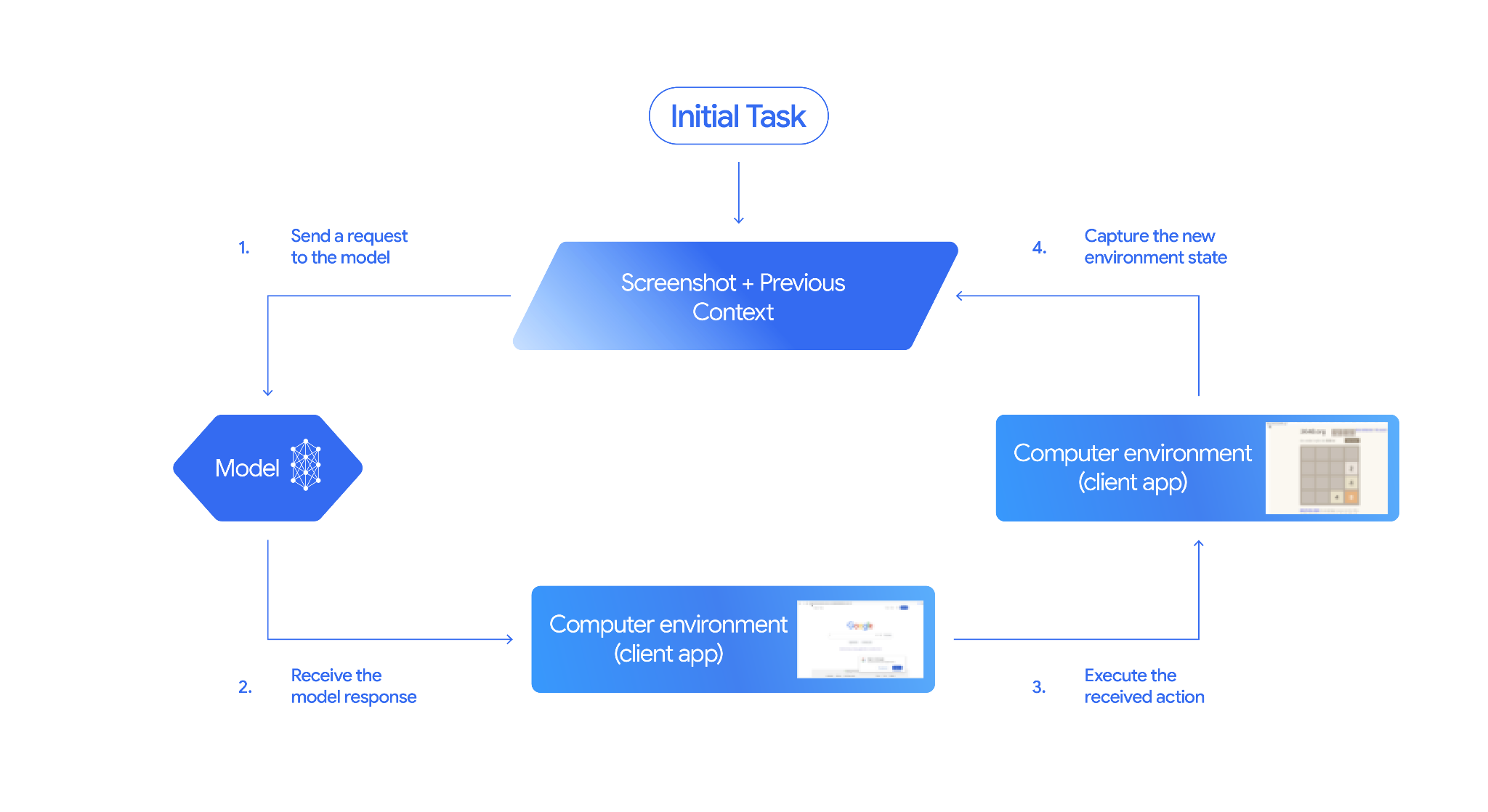
How to implement Computer Use
Before building with the Computer Use tool you will need to set up:
- Secure execution environment: Run your agent in a sandboxed VM or container to isolate it from your host system and limit its potential impact. The reference implementation includes a ready-to-use Docker-based sandbox you can use as a starting point.
- Client-side action handler: Implement client-side logic to execute coordinates, type text, and take screenshots.
The examples below use a web browser as the execution environment and Playwright as the client-side handler.
0. Set up Playwright
First, install the required packages:
pip install google-genai playwright
playwright install chromium
Then, initialize a Playwright browser instance to use for execution:
from playwright.sync_api import sync_playwright

# 1. Configure screen dimensions for the target environment
SCREEN_WIDTH = 1440
SCREEN_HEIGHT = 900

# 2. Start the Playwright browser
# In production, utilize a sandboxed environment.
playwright = sync_playwright().start()
# Set headless=False to see the actions performed on your screen
browser = playwright.chromium.launch(headless=False)

# 3. Create a context and page with the specified dimensions
context = browser.new_context(
    viewport={"width": SCREEN_WIDTH, "height": SCREEN_HEIGHT}
)
page = context.new_page()

# 4. Navigate to an initial page to start the task
page.goto("https://www.google.com")

# The 'page', 'SCREEN_WIDTH', and 'SCREEN_HEIGHT' variables
# will be used in the steps below.
1. Send a request to the model
Initialize the client library and configure the Computer Use tool. Note that there is no need to specify the display size when issuing a request; the model predicts pixel coordinates scaled to the height and width of the screen.
Gemini 3.5 Flash (Recommended)
Python
Use the google-genai Python SDK (version 2.7.0 or higher) to configure a request targeting the browser environment:
from google import genai
from google.genai.types import (
    Content,
    Part,
    GenerateContentConfig,
    Tool,
    ComputerUse,
    Environment,
    ThinkingConfig,
)

client = genai.Client()

response = client.models.generate_content(
    model="gemini-3.5-flash",
    contents=[
        Content(
            role="user",
            parts=[
                Part(text="Find a flight from SF to Hawaii on Jun 30th, coming back on Jul 6th"),
            ],
        )
    ],
    config=GenerateContentConfig(
        tools=[
            Tool(
                computer_use=ComputerUse(
                    environment=Environment.ENVIRONMENT_BROWSER,
                    enable_prompt_injection_detection=True,
                ),
            ),
        ],
        thinking_config=ThinkingConfig(
            include_thoughts=True
        ),
    )
)

print(response.text)
JavaScript
Use the @google/genai Node.js SDK to configure a request targeting the browser environment:
import { GoogleGenAI } from '@google/genai';

const ai = new GoogleGenAI();

const response = await ai.models.generateContent({
  model: 'gemini-3.5-flash',
  contents: [
    {
      role: 'user',
      parts: [{ text: "Find a flight from SF to Hawaii on Jun 30th, coming back on Jul 6th" }]
    }
  ],
  config: {
    tools: [{
      computerUse: {
        environment: "ENVIRONMENT_BROWSER",
        enable_prompt_injection_detection: true
      }
    }],
    thinkingConfig: {
      includeThoughts: true
    }
  }
});

console.log(response.text);
REST
Use curl to send a request:
curl -X POST \
  "https://generativelanguage.googleapis.com/v1beta/models/gemini-3.5-flash:generateContent?key=$GEMINI_API_KEY" \
  -H "Content-Type: application/json" \
  -d '{
    "contents": [
      {
        "role": "user",
        "parts": {
          "text": "Find me a flight from SF to Hawaii on Jun 30th, coming back on Jul 6th. Start by navigating directly to flights.google.com"
        }
      }
    ],
    "tools": [
      {
        "computer_use": {
          "environment": "ENVIRONMENT_BROWSER",
          "enable_prompt_injection_detection": true
        }
      }
    ]
  }'
Gemini 2.5 (Legacy)
Python
from google import genai
from google.genai import types
from google.genai.types import Content, Part

client = genai.Client()

# Specify predefined functions to exclude (optional)
excluded_functions = ["drag_and_drop"]

generate_content_config = genai.types.GenerateContentConfig(
    tools=[
        types.Tool(
            computer_use=types.ComputerUse(
                environment=types.Environment.ENVIRONMENT_BROWSER,
                excluded_predefined_functions=excluded_functions
                )
              ),
          ],
  )

contents=[
    Content(
        role="user",
        parts=[
            Part(text="Search for highly rated smart fridges on Google Shopping."),
        ],
    )
]

response = client.models.generate_content(
    model='gemini-2.5-computer-use-preview-10-2025',
    contents=contents,
    config=generate_content_config,
)

print(response)
JavaScript
import { GoogleGenAI } from '@google/genai';

const ai = new GoogleGenAI();

// Specify predefined functions to exclude (optional)
const excludedFunctions = ["drag_and_drop"];

const response = await ai.models.generateContent({
  model: 'gemini-2.5-computer-use-preview-10-2025',
  contents: [
    {
      role: 'user',
      parts: [{ text: "Search for highly rated smart fridges on Google Shopping." }]
    }
  ],
  config: {
    tools: [{
      computerUse: {
        environment: "ENVIRONMENT_BROWSER",
        excluded_predefined_functions: excludedFunctions
      }
    }]
  }
});

console.log(response);
2. Receive the model response
The response model suggests a function call. For Gemini 3.5 Flash, the response contains a tailored reasoning intent alongside coordinates. The following shows examples of both responses:
Gemini 3.5 Flash
{
  "function_call": {
    "name": "click",
    "args": {
      "x": 450,
      "y": 120,
      "intent": "Click the search box to type the destination."
    }
  }
}
Gemini 2.5 (Legacy)
{
  "content": {
    "parts": [
      {
        "text": "I will type the search query into the search bar."
      },
      {
        "function_call": {
          "name": "type_text_at",
          "args": {
            "x": 371,
            "y": 470,
            "text": "highly rated smart fridges",
            "press_enter": true
          }
        }
      }
    ]
  }
}
3. Execute the received actions
Your application code needs to parse the model response, execute the actions, and collect the results.
The code below handles both legacy tool commands (click_at, type_text_at) and Gemini 3.5 Flash streamlined commands (click, type).
Python
from typing import Any, List, Tuple
import time

def denormalize_x(x: int, screen_width: int) -> int:
    """Convert normalized x coordinate (0-1000) to actual pixel coordinate."""
    return int(x / 1000 * screen_width)

def denormalize_y(y: int, screen_height: int) -> int:
    """Convert normalized y coordinate (0-1000) to actual pixel coordinate."""
    return int(y / 1000 * screen_height)

def execute_function_calls(interaction, page, screen_width, screen_height):
    results = []
    function_calls = []

    # Parse content parts (Handling legacy and Gemini 3 response structures)
    parts = candidate.content.parts if hasattr(candidate, 'content') else []
    if not parts and hasattr(candidate, 'function_calls'):
        function_calls = candidate.function_calls
    else:
        for part in parts:
            if part.function_call:
                function_calls.append(part.function_call)

    for function_call in function_calls:
        action_result = {}
        fname = function_call.name
        args = function_call.args
        print(f"  -> Executing: {fname} (Intent: {args.get('intent', 'N/A')})")

        try:
            if fname in ("open_web_browser", "open_app"):
                pass # Handled / already open
            elif fname in ("click", "click_at", "double_click", "triple_click", "middle_click", "right_click", "move", "long_press"):
                actual_x = denormalize_x(args["x"], screen_width)
                actual_y = denormalize_y(args["y"], screen_height)

                if fname in ("click", "click_at"):
                    page.mouse.click(actual_x, actual_y)
                elif fname == "double_click":
                    page.mouse.dblclick(actual_x, actual_y)
                elif fname == "right_click":
                    page.mouse.click(actual_x, actual_y, button="right")
                elif fname == "middle_click":
                    page.mouse.click(actual_x, actual_y, button="middle")
                elif fname == "move":
                    page.mouse.move(actual_x, actual_y)
            elif fname in ("type", "type_text_at"):
                actual_x = denormalize_x(args["x"], screen_width) if "x" in args else None
                actual_y = denormalize_y(args["y"], screen_height) if "y" in args else None
                text = args["text"]
                press_enter = args.get("press_enter", False)

                if actual_x is not None and actual_y is not None:
                    page.mouse.click(actual_x, actual_y)
                # Clear field first
                page.keyboard.press("Meta+A")
                page.keyboard.press("Backspace")
                page.keyboard.type(text)
                if press_enter:
                    page.keyboard.press("Enter")
            elif fname == "navigate":
                page.goto(args["url"])
            elif fname == "go_back":
                page.go_back()
            elif fname == "go_forward":
                page.go_forward()
            elif fname == "wait":
                time.sleep(args.get("seconds", 1))
            else:
                print(f"Warning: Custom or unhandled function {fname}")

            page.wait_for_load_state(timeout=5000)
            time.sleep(1)

        except Exception as e:
            print(f"Error executing {fname}: {e}")
            action_result = {"error": str(e)}

        results.append((fname, function_call.id, action_result))

    return results
JavaScript
function denormalizeX(x, screenWidth) {
    // Convert normalized x coordinate (0-1000) to actual pixel coordinate.
    return Math.floor((x / 1000) * screenWidth);
}

function denormalizeY(y, screenHeight) {
    // Convert normalized y coordinate (0-1000) to actual pixel coordinate.
    return Math.floor((y / 1000) * screenHeight);
}

async function executeFunctionCalls(candidate, page, screenWidth, screenHeight) {
    const results = [];
    let functionCalls = [];

    // Parse function calls from candidate response
    const parts = candidate.content?.parts || [];
    if (parts.length === 0 && candidate.functionCalls) {
        functionCalls = candidate.functionCalls;
    } else {
        for (const part of parts) {
            if (part.functionCall) {
                functionCalls.push(part.functionCall);
            }
        }
    }

    for (const functionCall of functionCalls) {
        const actionResult = {};
        const fname = functionCall.name;
        const args = functionCall.args;
        console.log(`  -> Executing: ${fname} (Intent: ${args.intent || 'N/A'})`);

        try {
            if (fname === "open_web_browser" || fname === "open_app") {
                // Handled / already open
            } else if (["click", "click_at", "double_click", "triple_click", "middle_click", "right_click", "move", "long_press"].includes(fname)) {
                const actualX = denormalizeX(args.x, screenWidth);
                const actualY = denormalizeY(args.y, screenHeight);

                if (fname === "click" || fname === "click_at") {
                    await page.mouse.click(actualX, actualY);
                } else if (fname === "double_click") {
                    await page.mouse.dblclick(actualX, actualY);
                } else if (fname === "right_click") {
                    await page.mouse.click(actualX, actualY, { button: "right" });
                } else if (fname === "middle_click") {
                    await page.mouse.click(actualX, actualY, { button: "middle" });
                } else if (fname === "move") {
                    await page.mouse.move(actualX, actualY);
                }
            } else if (fname === "type" || fname === "type_text_at") {
                const actualX = args.x !== undefined ? denormalizeX(args.x, screenWidth) : null;
                const actualY = args.y !== undefined ? denormalizeY(args.y, screenHeight) : null;
                const text = args.text;
                const pressEnter = args.press_enter || false;

                if (actualX !== null && actualY !== null) {
                    await page.mouse.click(actualX, actualY);
                }
                // Clear field first
                await page.keyboard.press("Meta+A");
                await page.keyboard.press("Backspace");
                await page.keyboard.type(text);
                if (pressEnter) {
                    await page.keyboard.press("Enter");
                }
            } else if (fname === "navigate") {
                await page.goto(args.url);
            } else if (fname === "go_back") {
                await page.goBack();
            } else if (fname === "go_forward") {
                await page.goForward();
            } else if (fname === "wait") {
                await new Promise(resolve => setTimeout(resolve, (args.seconds || 1) * 1000));
            } else {
                console.log(`Warning: Custom or unhandled function ${fname}`);
            }

            await page.waitForLoadState('load', { timeout: 5000 }).catch(() => {});
            await new Promise(resolve => setTimeout(resolve, 1000));
        } catch (e) {
            console.log(`Error executing ${fname}: ${e}`);
            actionResult.error = e.message;
        }

        results.push([fname, functionCall.id, actionResult]);
    }

    return results;
}
4. Capture the new environment state
Capture a screen representation and return it to the model.
Python
def get_function_responses(page, results):
    screenshot_bytes = page.screenshot(type="png")
    current_url = page.url
    function_responses = []
    for name, call_id, result in results:
        function_responses.append({
            "type": "function_result",
            "name": name,
            "call_id": call_id,
            "result": [
                {
                    "type": "text",
                    "text": json.dumps({"url": current_url, **result})
                },
                {
                    "type": "image",
                    "data": base64.b64encode(screenshot_bytes).decode("utf-8"),
                    "mime_type": "image/png"
                }
            ]
        })
    return function_responses
JavaScript
async function getFunctionResponses(page, results) {
    const screenshotBuffer = await page.screenshot({ type: 'png' });
    const screenshotBase64 = screenshotBuffer.toString('base64');
    const currentUrl = page.url();
    const functionResponses = [];

    for (const [name, callId, result] of results) {
        functionResponses.push({
            type: "function_result",
            name: name,
            call_id: callId,
            result: [
                {
                    type: "text",
                    text: JSON.stringify({ url: currentUrl, ...result })
                },
                {
                    type: "image",
                    data: screenshotBase64,
                    mime_type: "image/png"
                }
            ]
        });
    }
    return functionResponses;
}
Once you have defined how to capture and format the environment state, you can combine all these steps into a continuous execution loop.
Build an agent loop
To enable multi-step interactions, combine the four steps from the How to implement Computer Use section into a single loop. This loop continues requesting actions and feeding the results back to the model until the task is complete.
Remember to manage the conversation history correctly by appending both the model responses and your function responses to the history at each step.
Python
import time
from typing import Any, List, Tuple
from playwright.sync_api import sync_playwright
from google import genai
from google.genai import types

client = genai.Client()

SCREEN_WIDTH = 1440
SCREEN_HEIGHT = 900

print("Initializing browser...")
playwright = sync_playwright().start()
browser = playwright.chromium.launch(headless=False)
context = browser.new_context(viewport={"width": SCREEN_WIDTH, "height": SCREEN_HEIGHT})
page = context.new_page()

# Paste helper functions execute_function_calls and get_function_responses here

try:
    page.goto("https://ai.google.dev/gemini-api/docs")

    config = types.GenerateContentConfig(
        tools=[types.Tool(computer_use=types.ComputerUse(
            environment=types.Environment.ENVIRONMENT_BROWSER,
            enable_prompt_injection_detection=True
        ))],
        thinking_config=types.ThinkingConfig(include_thoughts=True),
    )

    initial_screenshot = page.screenshot(type="png")
    USER_PROMPT = "Go to ai.google.dev/gemini-api/docs and search for pricing."
    print(f"Goal: {USER_PROMPT}")

    contents = [
        types.Content(role="user", parts=[
            types.Part(text=USER_PROMPT),
            types.Part.from_bytes(data=initial_screenshot, mime_type='image/png')
        ])
    ]

    # Agent Loop
    turn_limit = 5
    for i in range(turn_limit):
        print(f"\n--- Turn {i+1} ---")
        print("Thinking...")
        response = client.models.generate_content(
            model='gemini-3.5-flash',
            contents=contents,
            config=config,
        )

        candidate = response.candidates[0]
        contents.append(candidate.content)

        has_function_calls = any(part.function_call for part in candidate.content.parts)
        if not has_function_calls:
            text_response = " ".join(
                part.text for part in candidate.content.parts if hasattr(part, 'text')
            )
            print("Agent finished:", text_response)
            break

        print("Executing actions...")
        results = execute_function_calls(candidate, page, SCREEN_WIDTH, SCREEN_HEIGHT)

        print("Capturing state...")
        function_responses = get_function_responses(page, results)

        contents.append(
            types.Content(role="user", parts=[types.Part(function_response=fr) for fr in function_responses])
        )

finally:
    print("Closing browser...")
    browser.close()
    playwright.stop()
JavaScript
import { chromium } from 'playwright';
import { GoogleGenAI } from '@google/genai';

const ai = new GoogleGenAI();

// Constants for screen dimensions
const SCREEN_WIDTH = 1440;
const SCREEN_HEIGHT = 900;

console.log("Initializing browser...");
const browser = await chromium.launch({ headless: false });
const context = await browser.newContext({
    viewport: { width: SCREEN_WIDTH, height: SCREEN_HEIGHT }
});
const page = await context.newPage();

// Define helper functions. Copy/paste from steps 3 and 4:
// function denormalizeX(...)
// function denormalizeY(...)
// async function executeFunctionCalls(...)
// async function getFunctionResponses(...)

try {
    await page.goto("https://ai.google.dev/gemini-api/docs");

    const config = {
        tools: [{
            computerUse: {
                environment: "ENVIRONMENT_BROWSER",
                enable_prompt_injection_detection: true
            }
        }],
        thinkingConfig: { includeThoughts: true }
    };

    const initialScreenshotBuffer = await page.screenshot({ type: 'png' });
    const initialScreenshotBase64 = initialScreenshotBuffer.toString('base64');
    const USER_PROMPT = "Go to ai.google.dev/gemini-api/docs and search for pricing.";
    console.log(`Goal: ${USER_PROMPT}`);

    const contents = [
        {
            role: "user",
            parts: [
                { text: USER_PROMPT },
                {
                    inlineData: {
                        data: initialScreenshotBase64,
                        mimeType: "image/png"
                    }
                }
            ]
        }
    ];

    // Agent Loop
    const turnLimit = 5;
    for (let i = 0; i < turnLimit; i++) {
        console.log(`\n--- Turn ${i + 1} ---`);
        console.log("Thinking...");
        const response = await ai.models.generateContent({
            model: 'gemini-3.5-flash',
            contents: contents,
            config: config
        });

        const candidate = response.candidates[0];
        contents.push(candidate.content);

        const hasFunctionCalls = candidate.content.parts.some(part => part.functionCall);
        if (!hasFunctionCalls) {
            const textResponse = candidate.content.parts
                .filter(part => part.text)
                .map(part => part.text)
                .join(" ");
            console.log("Agent finished:", textResponse);
            break;
        }

        console.log("Executing actions...");
        const results = await executeFunctionCalls(candidate, page, SCREEN_WIDTH, SCREEN_HEIGHT);

        console.log("Capturing state...");
        const functionResponses = await getFunctionResponses(page, results);

        contents.push({
            role: "user",
            parts: functionResponses.map(fr => ({
                ...fr
            }))
        });
    }
} finally {
    console.log("Closing browser...");
    await browser.close();
}
Supported environments (Gemini 3.5 Flash)
Gemini 3.5 Flash supports three environments specified in the computer_use configurations:
Browser environment (ENVIRONMENT_BROWSER)
Action actions under browser tool:
| Command name | Description | Arguments (in function call) |
|---|---|---|
| click | Left clicks at the coordinate. | y: int (0-999)x: int (0-999)intent: str |
| double_click | Double clicks at the coordinate. | y: int (0-999)x: int (0-999)intent: str |
| triple_click | Triple clicks at the coordinate. | y: int (0-999)x: int (0-999)intent: str |
| middle_click | Middle clicks at the coordinate. | y: int (0-999)x: int (0-999)intent: str |
| right_click | Right clicks at the coordinate. | y: int (0-999)x: int (0-999)intent: str |
| mouse_down | Presses and holds the mouse button at the coordinate. | y: int (0-999)x: int (0-999)intent: str |
| mouse_up | Releases the mouse button at the coordinate. | y: int (0-999)x: int (0-999)intent: str |
| move | Moves the cursor to the specified position. | y: int (0-999)x: int (0-999)intent: str |
| type | Types text. | text: strpress_enter: bool (Optional, default false)intent: str |
| drag_and_drop | Drags an item from the start coordinate to the end coordinate. | start_y: int (0-999)start_x: int (0-999)end_y: int (0-999)end_x: int (0-999)intent: str |
| wait | Pauses execution for a specified number of seconds. | seconds: int (Optional, default 1)intent: str |
| press_key | Presses the specified key and releases it. | key: strintent: str |
| key_down | Presses and holds the specified key. | key: strintent: str |
| key_up | Releases the specified key. | key: strintent: str |
| hotkey | Presses the specified key combination. | keys: List[str]intent: str |
| take_screenshot | Returns a screenshot of the current screen. | intent: str |
| scroll | Scrolls up, down, left, or right at a coordinate by a pixel distance. | y: int (0-999)x: int (0-999)direction: str ("up", "down", "left", "right")magnitude_in_pixels: int (0-999, Optional, default 300)intent: str |
| go_back | Navigates back to the previous webpage in the browser history. | intent: str |
| navigate | Navigates directly to a specified URL. | url: strintent: str |
| go_forward | Navigates forward to the next webpage in the browser history. | intent: str |
Mobile environment (ENVIRONMENT_MOBILE)
Android-optimized environment actions:
| Command name | Description | Arguments (in function call) |
|---|---|---|
| open_app | Opens an application by its name. | app_name: strintent: str |
| click | Left clicks at the coordinate. | y: int (0-999)x: int (0-999)intent: str |
| list_apps | Lists available applications on the device, returning their names and package names. | intent: str |
| wait | Pauses execution for a specified number of seconds. | seconds: int (Optional, default 1)intent: str |
| go_back | Navigates back to the previous screen or webpage. | intent: str |
| type | Types text. | text: strpress_enter: bool (Optional, default false)intent: str |
| drag_and_drop | Drags an item from the start coordinate to the end coordinate. | start_y: int (0-999)start_x: int (0-999)end_y: int (0-999)end_x: int (0-999)intent: str |
| long_press | Performs a long press at a coordinate on the screen. | y: int (0-999)x: int (0-999)seconds: int (Optional, default 2)intent: str |
| press_key | Presses the specified key and releases it. | key: strintent: str |
| take_screenshot | Returns a screenshot of the current screen. | intent: str |
Desktop environment (ENVIRONMENT_DESKTOP)
Desktop environments OS-level cursor commands:
| Command name | Description | Arguments (in function call) |
|---|---|---|
| click | Left clicks at the coordinate. | y: int (0-999)x: int (0-999)intent: str |
| double_click | Double clicks at the coordinate. | y: int (0-999)x: int (0-999)intent: str |
| triple_click | Triple clicks at the coordinate. | y: int (0-999)x: int (0-999)intent: str |
| middle_click | Middle clicks at the coordinate. | y: int (0-999)x: int (0-999)intent: str |
| right_click | Right clicks at the coordinate. | y: int (0-999)x: int (0-999)intent: str |
| mouse_down | Presses and holds the mouse button at the coordinate. | y: int (0-999)x: int (0-999)intent: str |
| mouse_up | Releases the mouse button at the coordinate. | y: int (0-999)x: int (0-999)intent: str |
| move | Moves the cursor to the specified position. | y: int (0-999)x: int (0-999)intent: str |
| type | Types text. | text: strpress_enter: bool (Optional, default false)intent: str |
| drag_and_drop | Drags an item from the start coordinate to the end coordinate. | start_y: int (0-999)start_x: int (0-999)end_y: int (0-999)end_x: int (0-999)intent: str |
| wait | Pauses execution for a specified number of seconds. | seconds: int (Optional, default 1)intent: str |
| press_key | Presses the specified key and releases it. | key: strintent: str |
| key_down | Presses and holds the specified key. | key: strintent: str |
| key_up | Releases the specified key. | key: strintent: str |
| hotkey | Presses the specified key combination. | keys: List[str]intent: str |
| take_screenshot | Returns a screenshot of the current screen. | intent: str |
| scroll | Scrolls up, down, left, or right at a coordinate by a pixel distance. | y: int (0-999)x: int (0-999)direction: str ("up", "down", "left", "right")magnitude_in_pixels: int (0-999, Optional, default 300)intent: str |
Legacy Supported UI actions (Gemini 2.5)
For legacy models (gemini-2.5-computer-use-preview-10-2025), the following actions are supported:
| Command name | Description | Arguments (in function call) | Example function call |
|---|---|---|---|
| open_web_browser | Opens the web browser. | None | {"name": "open_web_browser", "args": {}} |
| wait_5_seconds | Pauses execution for 5 seconds. | None | {"name": "wait_5_seconds", "args": {}} |
| go_back | Navigates to the previous page in history. | None | {"name": "go_back", "args": {}} |
| go_forward | Navigates to the next page in history. | None | {"name": "go_forward", "args": {}} |
| search | Navigates to default search engine. | None | {"name": "search", "args": {}} |
| navigate | Navigates the browser directly to the specified URL. | url: str |
{"name": "navigate", "args": {"url": "https://www.wikipedia.org"}} |
| click_at | Clicks at a specific coordinate. | y: int (0-999), x: int (0-999) |
{"name": "click_at", "args": {"y": 300, "x": 500}} |
| hover_at | Hovers mouse at a specific coordinate. | y: int (0-999), x: int (0-999) |
{"name": "hover_at", "args": {"y": 150, "x": 250}} |
| type_text_at | Types text at a coordinate. | y: int (0-999), x: int (0-999), text: str, press_enter: bool (Optional, default True), clear_before_typing: bool (Optional, default True) |
{"name": "type_text_at", "args": {"y": 250, "x": 400, "text": "search", "press_enter": false}} |
| key_combination | Press keys or combinations. | keys: str |
{"name": "key_combination", "args": {"keys": "Control+A"}} |
| scroll_document | Scrolls the entire webpage. | direction: str |
{"name": "scroll_document", "args": {"direction": "down"}} |
| scroll_at | Scrolls at coordinate (x,y). | y: int, x: int, direction: str, magnitude: int (Optional, default 800) |
{"name": "scroll_at", "args": {"y": 500, "x": 500, "direction": "down"}} |
| drag_and_drop | Drags between two coordinates. | y: int, x: int, destination_y: int, destination_x: int |
{"name": "drag_and_drop", "args": {"y": 100, "destination_y": 500, "destination_x": 500, "x": 100}} |
Custom user-defined functions
You can extend the functionality of the model by including custom user-defined functions. For example, in human-in-the-loop (HITL) scenarios you can exclude default predefined actions and register custom actions.
Gemini 3.5 Flash Custom Tooling
Python
Exclude standard predefined browser actions (such as click) and register a custom yield_to_user tool:
from google import genai
from google.genai import types

client = genai.Client()

yield_to_user_tool = types.FunctionDeclaration(
    name="yield_to_user",
    description="Yields control back to the user for assistance or verification when an automated action is unsafe or ambiguous.",
    parameters=types.Schema(
        type="OBJECT",
        properties={
            "reason": types.Schema(
                type="STRING",
                description="The reason why the agent is yielding control to the human."
            )
        },
        required=["reason"]
    )
)

response = client.models.generate_content(
    model="gemini-3.5-flash",
    contents="Click the submit button. If you need a second factor authentication code, ask me.",
    config=types.GenerateContentConfig(
        tools=[
            types.Tool(
                computer_use=types.ComputerUse(
                    environment="ENVIRONMENT_MOBILE",
                    excluded_predefined_functions=["click"]
                )
            ),
            yield_to_user_tool
        ]
    )
)
Gemini 2.5 (Legacy) Custom Tooling
Python
from typing import Optional, Dict, Any
from google import genai
from google.genai import types

client = genai.Client()

# Define custom tools here
custom_functions = [...] # Describe parameters as FunctionDeclaration object

def make_generate_content_config():
    excluded_functions = ["open_web_browser", "wait_5_seconds", "go_back", "go_forward", "search", "navigate", "hover_at", "scroll_document", "key_combination", "drag_and_drop"]
    generate_content_config = types.GenerateContentConfig(
        tools=[
            types.Tool(
                computer_use=types.ComputerUse(
                    environment=types.Environment.ENVIRONMENT_BROWSER,
                    excluded_predefined_functions=excluded_functions
                )
            ),
            types.Tool(function_declarations=custom_functions)
        ]
    )
    return generate_content_config
Managing thinking levels (Gemini 3.5 Flash)
For computer use agents, you can configure different thinking levels to balance action quality and execution speed. Lower thinking levels generally achieve a good balance for standard automation tasks.
Safety and security
Configuring safety policies (Gemini 3.5 Flash)
The Gemini 3.5 Flash model includes a built-in safety service categories that automatically determine if user confirmation is required.
| Safety policy category | Description |
|---|---|
FINANCIAL_TRANSACTIONS |
Blocks or triggers confirmation for actions involving payments, retail checkout, or regulated goods. |
SENSITIVE_DATA_MODIFICATION |
Protects health, financial, or government records from unauthorized modification. |
COMMUNICATION_TOOL |
Restricts the agent from autonomously sending emails, chat messages, or drafts. |
ACCOUNT_CREATION |
Restricts the agent from autonomously registering new accounts on websites. |
DATA_MODIFICATION |
Regulates overall file system modifications, data sharing, and storage deletion. |
USER_CONSENT_MANAGEMENT |
Requires user takeover for cookie consent banners and privacy prompts. |
LEGAL_TERMS_AND_AGREEMENTS |
Prevents the model from autonomously accepting Terms of Service or legally binding contracts. |
Safety overrides
You can override select policies by passing overrides:
Python
from google import genai
from google.genai import types

client = genai.Client()

response = client.models.generate_content(
    model="gemini-3.5-flash",
    contents="Clean up the local folder by archiving old logs.",
    config=types.GenerateContentConfig(
        tools=[
            types.Tool(
                computer_use=types.ComputerUse(
                    environment=types.Environment.ENVIRONMENT_DESKTOP,
                    safety_policy_overrides=[
                        types.SafetyPolicyOverride(category="DATA_MODIFICATION")
                    ]
                )
            )
        ]
    )
)
JavaScript
import { GoogleGenAI } from '@google/genai';

const ai = new GoogleGenAI();

const response = await ai.models.generateContent({
  model: 'gemini-3.5-flash',
  contents: "Clean up the local folder by archiving old logs.",
  config: {
    tools: [{
      computerUse: {
        environment: "ENVIRONMENT_DESKTOP",
        safety_policy_overrides: [
          { category: "DATA_MODIFICATION" }
        ]
      }
    }]
  }
});
Prompt injection detection (Gemini 3.5 Flash)
Opt-in safety mechanism that scans screenshot pixels for hidden adversarial prompt instructions (e.g. "Ignore previous commands") and blocks execution when detected.
Acknowledge safety decision (Gemini 2.5 Legacy)
For legacy models, the response may include a safety_decision parameter:
{
  "function_call": {
    "name": "click_at",
    "args": {
      "x": 60,
      "y": 100,
      "safety_decision": {
        "explanation": "Must check check-box",
        "decision": "require_confirmation"
      }
    }
  }
}
If the safety_decision is require_confirmation, prompt the end user. If the user confirms, set safety_acknowledgement in FunctionResponse.
Python
def get_safety_confirmation(safety_decision):
    # Prompt user
    return "CONTINUE" # Or TERMINATE

# Inside execute_function_calls:
if 'safety_decision' in function_call.args:
    decision = get_safety_confirmation(function_call.args['safety_decision'])
    if decision == "TERMINATE":
        break
    extra_fr_fields["safety_acknowledgement"] = "true"
Safety best practices
Computer Use presents unique security and operational risks, as a model acting on a user's behalf might encounter untrusted content on screens or make errors in executing actions. Implement the following best practices to protect user data and systems:
Human-in-the-Loop (HITL):
- Enforce user confirmation: When the safety response indicates
require_confirmation(or legacy safety decision requires it), prompt the user for approval. Provide custom safety instructions: Implement a custom system instruction to define and enforce your own safety boundaries. For example:
Python
from google import genai
from google.genai import types

system_instruction = """
## **RULE 1: Seek User Confirmation (USER_CONFIRMATION)**

This is your first and most important check. If the next required action falls
into any of the following categories, you MUST stop immediately, and seek the
user's explicit permission.

**Procedure for Seeking Confirmation:**
* **For Consequential Actions:** Perform all preparatory steps (e.g., navigating,
  filling out forms, typing a message). You will ask for confirmation **AFTER**
  all necessary information is entered on the screen, but **BEFORE** you perform
  the final, irreversible action (e.g., before clicking "Send", "Submit",
  "Confirm Purchase", "Share").
* **For Prohibited Actions:** If the action is strictly forbidden (e.g., accepting
  legal terms, solving a CAPTCHA), you must first inform the user about the
  required action and ask for their confirmation to proceed.

**USER_CONFIRMATION Categories:**

*   **Consent and Agreements:** You are FORBIDDEN from accepting, selecting, or
    agreeing to any of the following on the user's behalf. You must ask the
    user to confirm before performing these actions.
    *   Terms of Service
    *   Privacy Policies
    *   Cookie consent banners
    *   End User License Agreements (EULAs)
    *   Any other legally significant contracts or agreements.
*   **Robot Detection:** You MUST NEVER attempt to solve or bypass the
    following. You must ask the user to confirm before performing these actions.
    *   CAPTCHAs (of any kind)
    *   Any other anti-robot or human-verification mechanisms, even if you are
        capable.
*   **Financial Transactions:**
    *   Completing any purchase.
    *   Managing or moving money (e.g., transfers, payments).
    *   Purchasing regulated goods or participating in gambling.
*   **Sending Communications:**
    *   Sending emails.
    *   Sending messages on any platform (e.g., social media, chat apps).
    *   Posting content on social media or forums.
*   **Accessing or Modifying Sensitive Information:**
    *   Health, financial, or government records (e.g., medical history, tax
        forms, passport status).
    *   Revealing or modifying sensitive personal identifiers (e.g., SSN, bank
        account number, credit card number).
*   **User Data Management:**
    *   Accessing, downloading, or saving files from the web.
    *   Sharing or sending files/data to any third party.
    *   Transferring user data between systems.
*   **Browser Data Usage:**
    *   Accessing or managing Chrome browsing history, bookmarks, autofill data,
        or saved passwords.
*   **Security and Identity:**
    *   Logging into any user account.
    *   Any action that involves misrepresentation or impersonation (e.g.,
        creating a fan account, posting as someone else).
*   **Insurmountable Obstacles:** If you are technically unable to interact with
    a user interface element or are stuck in a loop you cannot resolve, ask the
    user to take over.
---

## **RULE 2: Default Behavior (ACTUATE)**

If an action does **NOT** fall under the conditions for `USER_CONFIRMATION`,
your default behavior is to **Actuate**.

**Actuation Means:**  You MUST proactively perform all necessary steps to move
the user's request forward. Continue to actuate until you either complete the
non-consequential task or encounter a condition defined in Rule 1.

*   **Example 1:** If asked to send money, you will navigate to the payment
    portal, enter the recipient's details, and enter the amount. You will then
    **STOP** as per Rule 1 and ask for confirmation before clicking the final
    "Send" button.
*   **Example 2:** If asked to post a message, you will navigate to the site,
    open the post composition window, and write the full message. You will then
    **STOP** as per Rule 1 and ask for confirmation before clicking the final
    "Post" button.

    After the user has confirmed, remember to get the user's latest screen
    before continuing to perform actions.

# Final Response Guidelines:
Write final response to the user in the following cases:
- User confirmation
- When the task is complete or you have enough information to respond to the user
"""

client = genai.Client()
response = client.models.generate_content(
    model="gemini-3.5-flash",
    contents="Prepare a draft but do not send.",
    config=types.GenerateContentConfig(
        system_instruction=system_instruction,
        tools=[types.Tool(computer_use=types.ComputerUse(environment="ENVIRONMENT_BROWSER"))]
    )
)
JavaScript
import { GoogleGenAI } from '@google/genai';

const ai = new GoogleGenAI();

const systemInstruction = `
## **RULE 1: Seek User Confirmation (USER_CONFIRMATION)**

This is your first and most important check. If the next required action falls
into any of the following categories, you MUST stop immediately, and seek the
user's explicit permission.

**Procedure for Seeking Confirmation:**
* **For Consequential Actions:** Perform all preparatory steps (e.g., navigating,
  filling out forms, typing a message). You will ask for confirmation **AFTER**
  all necessary information is entered on the screen, but **BEFORE** you perform
  the final, irreversible action (e.g., before clicking "Send", "Submit",
  "Confirm Purchase", "Share").
* **For Prohibited Actions:** If the action is strictly forbidden (e.g., accepting
  legal terms, solving a CAPTCHA), you must first inform the user about the
  required action and ask for their confirmation to proceed.

**USER_CONFIRMATION Categories:**

*   **Consent and Agreements:** You are FORBIDDEN from accepting, selecting, or
    agreeing to any of the following on the user's behalf. You must ask the
    user to confirm before performing these actions.
    *   Terms of Service
    *   Privacy Policies
    *   Cookie consent banners
    *   End User License Agreements (EULAs)
    *   Any other legally significant contracts or agreements.
*   **Robot Detection:** You MUST NEVER attempt to solve or bypass the
    following. You must ask the user to confirm before performing these actions.
    *   CAPTCHAs (of any kind)
    *   Any other anti-robot or human-verification mechanisms, even if you are
        capable.
*   **Financial Transactions:**
    *   Compleying any purchase.
    *   Managing or moving money (e.g., transfers, payments).
    *   Purchasing regulated goods or participating in gambling.
*   **Sending Communications:**
    *   Sending emails.
    *   Sending messages on any platform (e.g., social media, chat apps).
    *   Posting content on social media or forums.
*   **Accessing or Modifying Sensitive Information:**
    *   Health, financial, or government records (e.g., medical history, tax
        forms, passport status).
    *   Revealing or modifying sensitive personal identifiers (e.g., SSN, bank
        account number, credit card number).
*   **User Data Management:**
    *   Accessing, downloading, or saving files from the web.
    *   Sharing or sending files/data to any third party.
    *   Transferring user data between systems.
*   **Browser Data Usage:**
    *   Accessing or managing Chrome browsing history, bookmarks, autofill data,
        or saved passwords.
*   **Security and Identity:**
    *   Logging into any user account.
    *   Any action that involves misrepresentation or impersonation (e.g.,
        creating a fan account, posting as someone else).
*   **Insurmountable Obstacles:** If you are technically unable to interact with
    a user interface element or are stuck in a loop you cannot resolve, ask the
    user to take over.
---

## **RULE 2: Default Behavior (ACTUATE)**

If an action does **NOT** fall under the conditions for `USER_CONFIRMATION`,
your default behavior is to **Actuate**.

**Actuation Means:**  You MUST proactively perform all necessary steps to move
the user's request forward. Continue to actuate until you either complete the
non-consequential task or encounter a condition defined in Rule 1.

*   **Example 1:** If asked to send money, you will navigate to the payment
    portal, enter the recipient's details, and enter the amount. You will then
    **STOP** as per Rule 1 and ask for confirmation before clicking the final
    "Send" button.
*   **Example 2:** If asked to post a message, you will navigate to the site,
    open the post composition window, and write the full message. You will then
    **STOP** as per Rule 1 and ask for confirmation before clicking the final
    "Post" button.

    After the user has confirmed, remember to get the user's latest screen
    before continuing to perform actions.

# Final Response Guidelines:
Write final response to the user in the following cases:
- User confirmation
- When the task is complete or you have enough information to respond to the user
`;

const response = await ai.models.generateContent({
  model: 'gemini-3.5-flash',
  contents: "Prepare a draft but do not send.",
  config: {
    systemInstruction: systemInstruction,
    tools: [{
      computerUse: {
        environment: "ENVIRONMENT_BROWSER"
      }
    }]
  }
});
- Enforce user confirmation: When the safety response indicates
Secure execution environment: Run your agent in a secure, sandboxed environment to limit its potential impact. This can be a sandboxed virtual machine (VM), a container (e.g., Docker), or a dedicated browser profile with limited permissions. See the GitHub reference implementation for sandbox setup guidance using Docker.
Input sanitization: Sanitize all user-generated text in prompts to mitigate the risk of unintended instructions or prompt injection. This is a helpful layer of security, but not a replacement for a secure execution environment.
Content guardrails: Use guardrails and content safety APIs to evaluate user inputs, tool inputs and outputs, and the agent's responses for appropriateness, prompt injection, and jailbreak detection.
Allowlists and blocklists: Implement filtering mechanisms to control where the model can navigate and what it can do. A blocklist of prohibited websites is a good starting point, while a more restrictive allowlist is even more secure.
Observability and logging: Maintain detailed logs for debugging, auditing, and incident response. Your client should log prompts, screenshots, model-suggested actions (
function_call), safety responses, and all actions ultimately executed by the client.Environment management: Ensure the GUI environment is consistent. Unexpected pop-ups, notifications, or changes in layout can confuse the model. Start from a known, clean state for each new task if possible.
Model versions
You can use Computer Use with the following models:
- Gemini 3.5 Flash (
gemini-3.5-flash): The recommended model for computer use, featuring streamlined actions with intents, support for browser, mobile, and desktop environments, configurable safety policies, and prompt injection detection. - Gemini 3 Flash Preview (
gemini-3-flash-preview): Preview model supporting computer use. - Gemini 2.5 (Legacy Preview) (
gemini-2.5-computer-use-preview-10-2025): Legacy preview model optimized for browser-based computer use.
What's next
- Experiment with Computer Use in the Browserbase demo environment.
- Check out the Reference implementation for example code.
- Learn about other Gemini API tools: