
Gemini Robotics ER models can write and execute Python code to manipulate images and apply logic before answering. This page covers code execution examples: object detection with zoom and crop, instrument reading, fluid measurement, circuit board reading, and image annotation.
To adapt these examples to your own use case, replace the prompt text and the
uploaded image file with your own. You can also adjust the requested JSON
schema in the prompt to match the output structure your application needs, or
add a system_instruction to enforce output format and precision.
For full runnable code, see the Robotics cookbook.
Thinking level
You can control the thinking level to trade latency for accuracy. Spatial tasks like object detection perform well with a low thinking level. Complex tasks like counting or weight estimation benefit from a higher thinking level.
The following example sets the thinking level to high for a complex counting task:
Python
from google import genai
from google.genai import types

client = genai.Client()

with open('scene.jpeg', 'rb') as f:
    image_bytes = f.read()

response = client.models.generate_content(
    model="gemini-robotics-er-2-preview",
    contents=[
        types.Part.from_bytes(
            data=image_bytes,
            mime_type='image/jpeg',
        ),
        "Identify and count all objects on the table."
    ],
    config=types.GenerateContentConfig(
        thinking_config=types.ThinkingConfig(thinking_level="high")
    )
)

print(response.text)
See Thinking for details.
Object detection (Zoom and crop)
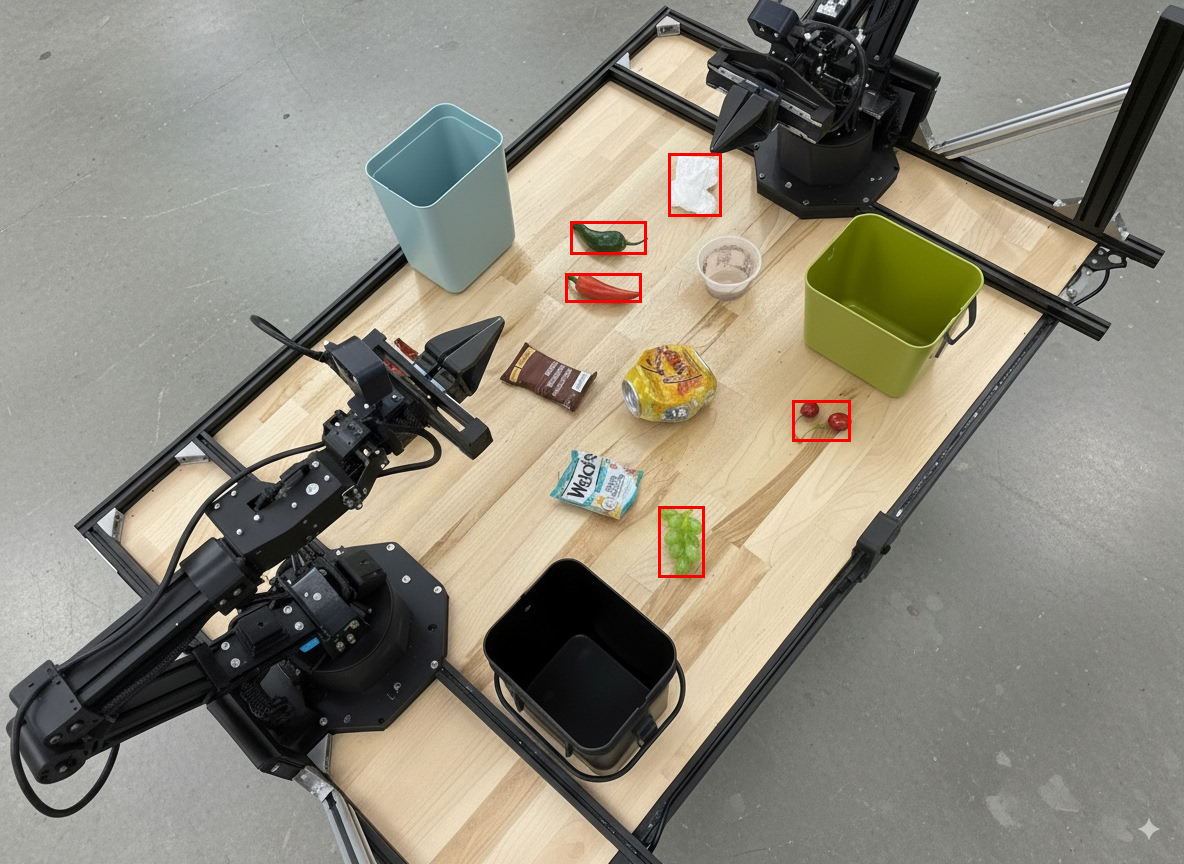
The following example demonstrates how to use code execution to zoom and crop an image for a clearer view when detecting objects and returning bounding boxes.
Python
from google import genai
from google.genai import types

client = genai.Client()

# Load your image
with open('sorting.jpeg', 'rb') as f:
    image_bytes = f.read()

prompt = """
Return JSON in the format {label: val, y: val, x: val, y2: val, x2: val} for
the compostable objects in this scene. Please Zoom and crop the image for a
clearer view. Return an annotated image of the final result with the bounding
boxes drawn on it to the API caller as a part of your process.
"""

response = client.models.generate_content(
    model="gemini-robotics-er-2-preview",
    contents=[
        types.Part.from_bytes(
            data=image_bytes,
            mime_type='image/jpeg',
        ),
        prompt
    ],
    config = types.GenerateContentConfig(
        tools=[types.Tool(code_execution=types.ToolCodeExecution)],
    )
)

print(response.text)
The model output would be similar to the following json response:
[
  {"label": "compostable", "y": 256, "x": 482, "y2": 295, "x2": 546},
  {"label": "compostable", "y": 317, "x": 478, "y2": 350, "x2": 542},
  {"label": "compostable", "y": 586, "x": 556, "y2": 668, "x2": 595},
  {"label": "compostable", "y": 463, "x": 669, "y2": 511, "x2": 718},
  {"label": "compostable", "y": 178, "x": 565, "y2": 250, "x2": 609}
]
The following image displays the boxes returned from the model.
Read an analog gauge and apply logic
The following example demonstrates how to use the model to read an analog gauge and perform time calculations. It uses a system instruction to enforce a JSON output.
Python
from google import genai
from google.genai import types

client = genai.Client()

with open('gauge.jpeg', 'rb') as f:
    image_bytes = f.read()

system_instruction = "Be precise. When JSON is requested, reply with ONLY that JSON (no preface, no code block)."

response = client.models.generate_content(
    model="gemini-robotics-er-2-preview",
    contents=[
        types.Part.from_bytes(
            data=image_bytes,
            mime_type='image/jpeg',
        ),
        """Read the current value from this gauge. Then, calculate how long
        it will take at the current rate for the value to reach maximum.
        Reply in JSON: {"current_value": val, "max_value": val,
        "time_to_max_minutes": val}"""
    ],
    config = types.GenerateContentConfig(
        system_instruction=system_instruction,
        tools=[types.Tool(code_execution=types.ToolCodeExecution)],
    )
)

print(response.text)
Measure fluid in a container
The following example demonstrates how to use code execution to measure the level of fluid in a container.
Python
from google import genai
from google.genai import types

client = genai.Client()

with open('fluid.jpeg', 'rb') as f:
    image_bytes = f.read()

system_instruction = "Be precise. When JSON is requested, reply with ONLY that JSON (no preface, no code block)."

response = client.models.generate_content(
    model="gemini-robotics-er-2-preview",
    contents=[
        types.Part.from_bytes(
            data=image_bytes,
            mime_type='image/jpeg',
        ),
        """Measure the amount of fluid in the container. Reply in JSON:
        {"fluid_level_ml": val, "container_capacity_ml": val,
        "percentage_full": val}"""
    ],
    config = types.GenerateContentConfig(
        system_instruction=system_instruction,
        tools=[types.Tool(code_execution=types.ToolCodeExecution)],
    )
)

print(response.text)
Read markings on a circuit board
The following example demonstrates how to use code execution to read the markings on a circuit board.
Python
from google import genai
from google.genai import types

client = genai.Client()

with open('circuit_board.jpeg', 'rb') as f:
    image_bytes = f.read()

system_instruction = "Be precise. When JSON is requested, reply with ONLY that JSON (no preface, no code block)."

response = client.models.generate_content(
    model="gemini-robotics-er-2-preview",
    contents=[
        types.Part.from_bytes(
            data=image_bytes,
            mime_type='image/jpeg',
        ),
        """Read all visible component labels and markings on this circuit
        board. Reply in JSON: {"components": [{"label": val,
        "location": [y, x]}]}"""
    ],
    config = types.GenerateContentConfig(
        system_instruction=system_instruction,
        tools=[types.Tool(code_execution=types.ToolCodeExecution)],
    )
)

print(response.text)
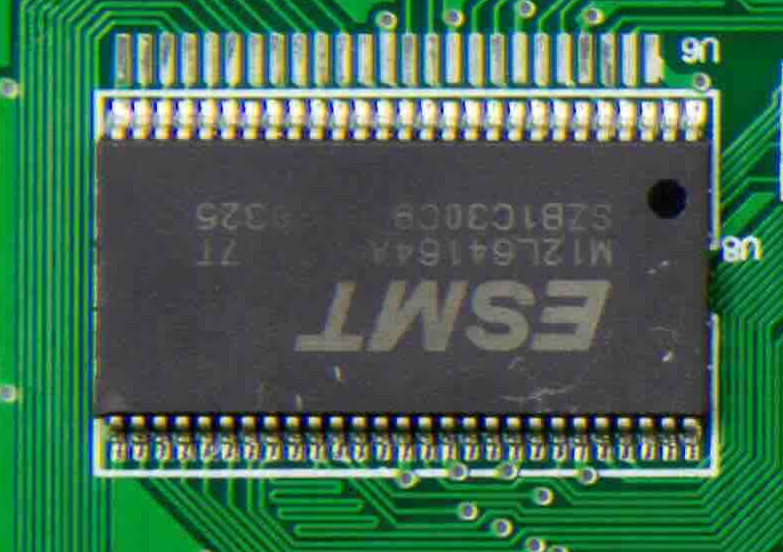
Image annotation
The following example demonstrates how to use code execution to annotate an image (e.g., drawing arrows for disposal instructions) and return the modified image.
Python
from google import genai
from google.genai import types

client = genai.Client()

# Load your image
with open('sorting.jpeg', 'rb') as f:
    image_bytes = f.read()

prompt = """
Look at this image and return it as an annotated version using arrows of
different colors to represent which items should go in which bins for
disposal. You must return the final image to the API caller.
"""

response = client.models.generate_content(
    model="gemini-robotics-er-2-preview",
    contents=[
        types.Part.from_bytes(
            data=image_bytes,
            mime_type='image/jpeg',
        ),
        prompt
    ],
    config = types.GenerateContentConfig(
        tools=[types.Tool(code_execution=types.ToolCodeExecution)],
    )
)

print(response.text)
The following is an example image input.
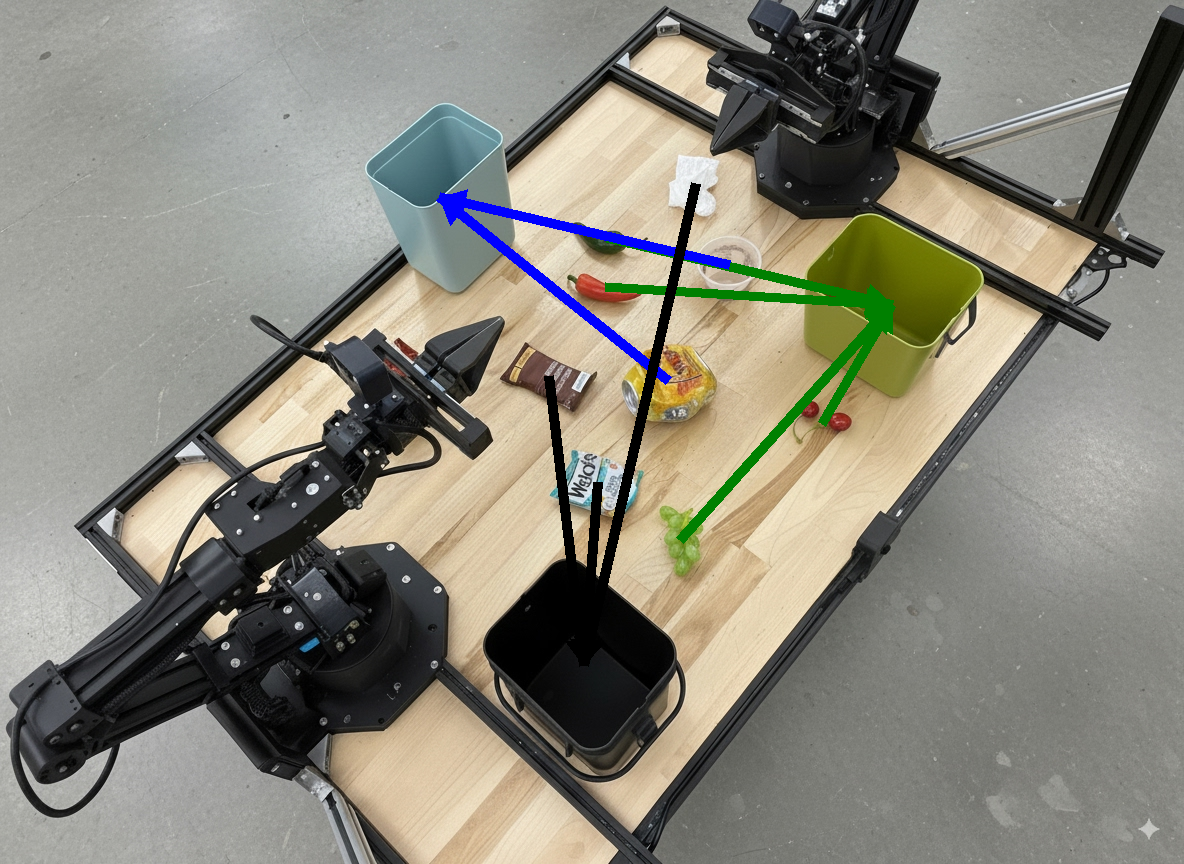
The model output would be similar to the following:
  The annotated image shows the suggested disposal locations for the items on the table:
  - **Green bin (Compost/Organic)**: Green chili, red chili, grapes, and cherries.
  - **Blue bin (Recycling)**: Yellow crushed can and plastic container.
  - **Black bin (Trash)**: Chocolate bar wrapper, Welch's packet, and white tissue.
What's next
- Task orchestration — long-horizon tasks with custom robot APIs.
- Robotics with streaming — real-time bidirectional streaming (Gemini Robotics ER 2 only).
- Video understanding — moment finding and progress classification (Gemini Robotics ER 2 only).