

Gemini Robotics ER(具身推理)模型是一种视觉-语言模型 (VLM),可让机器人感知物理世界并与之互动。它们可以解读视觉数据、执行空间和时间推理、规划多步骤任务,以及协调机器人和工具。
模型
Gemini Robotics ER 2 模型是 Gemini Robotics 中的最新模型。 这是我们更新后的推理模型,可让机器人精确了解其环境。它专注于具身推理能力,例如机器人(例如使用 VLA)的智能体编排、机器人视频理解(包括进度理解和成功检测)、仪表读数、指点和空间推理。
Gemini Robotics ER 2 模型引入了两个模型端点:
gemini-robotics-er-2-preview:标准 ER 2 模型。以 Gemini 3.5 Flash 为基础,在空间推理、视频精彩片段查找、视频进度分类、多机器人编排和多步工具使用方面有所改进。gemini-robotics-er-2-streaming-preview:通过 Live API 针对实时流式传输进行了优化。此模型适用于处理连续音频和视频输入的低延迟机器人代理。
如果您使用的是 Gemini Robotics ER 1.6,请将 API 调用中的 model="gemini-robotics-er-1.6-preview" 替换为 model="gemini-robotics-er-2-preview" 或 model="gemini-robotics-er-2-streaming-preview",以升级到 Gemini Robotics ER 2。请注意,Gemini Robotics ER 1.6 模型将于 8 月底关停。
在 Google AI Studio 中试用 Gemini Robotics ER 2
机器人功能
Gemini Robotics ER 支持一系列具身推理功能。选择一项功能即可了解详情:
| 能力 | 说明 | 指南 |
|---|---|---|
| 空间推理 | 指向对象、在视频中跟踪对象、使用边界框进行检测、规划轨迹。 | 空间推理 |
| Agentic Vision | 利用图片处理工具,通过代码执行来增强其他功能。 | 智能体视觉 |
| 任务编排 | 将空间推理与自定义机器人 API 相结合,完成长时程任务。 | 任务编排 |
| 流式传输(仅限 Gemini Robotics ER 2 流式传输端点) | 双向流式传输,可实现低延迟的实时机器人代理函数调用。 | 机器人流式传输 |
| 视频进度(仅限 Gemini Robotics ER 2) | 从连续视频源中查找精彩瞬间并对进度进行分类。 | 视频理解 |
使用入门
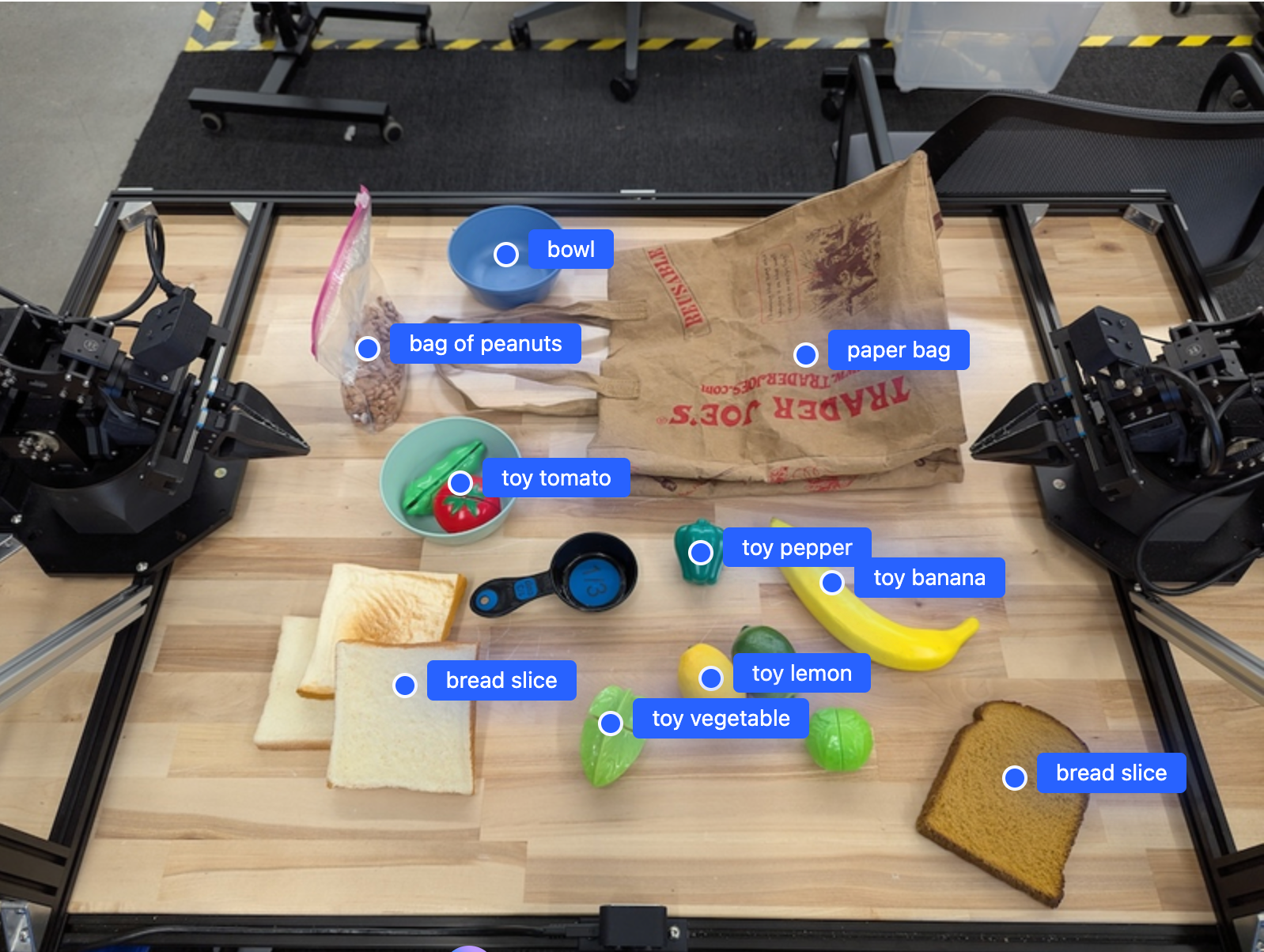
以下示例用于查找图片中的对象并返回其归一化的二维坐标和标签。您可以将此输出直接传递给机器人 API 或 VLA 模型,以生成机器人动作。
Python
from google import genai

PROMPT = """
          Point to no more than 10 items in the image. The label returned
          should be an identifying name for the object detected.
          The answer should follow the json format: [{"point": <point>,
          "label": <label1>}, ...]. The points are in [y, x] format
          normalized to 0-1000.
        """
client = genai.Client()

uploaded_file = client.files.upload(file="my-image.png")

image_response = client.interactions.create(
    model="gemini-robotics-er-2-preview",
    input=[
        {
            "type": "image",
            "uri": uploaded_file.uri,
            "mime_type": uploaded_file.mime_type
        },
        {"type": "text", "text": PROMPT}
    ],
    generation_config={"thinking_level": "high"},
)

print(image_response.output_text)
JavaScript
import { GoogleGenAI } from "@google/genai";

const PROMPT = `
  Point to no more than 10 items in the image. The label returned
  should be an identifying name for the object detected.
  The answer should follow the json format: [{"point": <point>,
  "label": <label1>}, ...]. The points are in [y, x] format
  normalized to 0-1000.
`;
const client = new GoogleGenAI();

const uploadedFile = await client.files.upload({ file: "my-image.png" });

const imageResponse = await client.interactions.create({
  model: "gemini-robotics-er-2-preview",
  input: [
    {
      type: "image",
      uri: uploadedFile.uri,
      mime_type: uploadedFile.mimeType,
    },
    { type: "text", text: PROMPT },
  ],
  generation_config: { thinking_level: "high" },
});

console.log(imageResponse.output_text);
Java
import com.google.genai.Client;
import com.google.genai.gaos.models.interactions.Content;
import com.google.genai.gaos.models.interactions.CreateModelInteraction;
import com.google.genai.gaos.models.interactions.GenerationConfig;
import com.google.genai.gaos.models.interactions.ImageContent;
import com.google.genai.gaos.models.interactions.ImageContentMimeType;
import com.google.genai.gaos.models.interactions.Interaction;
import com.google.genai.gaos.models.interactions.InteractionsInput;
import com.google.genai.gaos.models.interactions.Model;
import com.google.genai.gaos.models.interactions.TextContent;
import com.google.genai.gaos.models.interactions.ThinkingLevel;
import com.google.genai.gaos.models.operations.CreateInteractionRequestBody;
import com.google.genai.types.File;
import com.google.genai.types.UploadFileConfig;
import java.util.List;

Client client = new Client();

String prompt =
    "Point to no more than 10 items in the image. The label returned "
        + "should be an identifying name for the object detected. "
        + "The answer should follow the json format: [{\"point\": <point>, "
        + "\"label\": <label1>}, ...]. The points are in [y, x] format "
        + "normalized to 0-1000.";

File uploadedFile =
    client.files.upload(
        new java.io.File("my-image.png"),
        UploadFileConfig.builder().mimeType("image/png").build());

Content imageContent =
    ImageContent.builder()
        .uri(uploadedFile.uri().orElse(""))
        .mimeType(ImageContentMimeType.of(uploadedFile.mimeType().orElse("image/png")))
        .build();
Content textContent = TextContent.builder().text(prompt).build();

CreateModelInteraction params =
    CreateModelInteraction.builder()
        .model(Model.of("gemini-robotics-er-2-preview"))
        .input(InteractionsInput.ofContent(List.of(imageContent, textContent)))
        .generationConfig(
            GenerationConfig.builder().thinkingLevel(ThinkingLevel.HIGH).build())
        .build();

Interaction imageResponse =
    client.interactions.create(CreateInteractionRequestBody.of(params)).interaction().get();

System.out.println(imageResponse.outputText().orElse(""));
Go
package main

import (
    "context"
    "fmt"
    "log"

    "google.golang.org/genai"
    "google.golang.org/genai/interactions/models/interactions"
    "google.golang.org/genai/interactions/models/operations"
)

func main() {
    ctx := context.Background()
    client, err := genai.NewClient(ctx, nil)
    if err != nil {
        log.Fatal(err)
    }

    prompt := `Point to no more than 10 items in the image. The label returned
should be an identifying name for the object detected.
The answer should follow the json format: [{"point": <point>,
"label": <label1>}, ...]. The points are in [y, x] format
normalized to 0-1000.`

    uploadedFile, err := client.Files.UploadFromPath(ctx, "my-image.png", &genai.UploadFileConfig{
        MIMEType: "image/png",
    })
    if err != nil {
        log.Fatal(err)
    }

    res, err := client.Interactions.Create(ctx, operations.CreateInteractionRequest{
        Body: operations.NewCreateInteractionRequestBody(interactions.CreateModelInteraction{
            Model: interactions.Model("gemini-robotics-er-2-preview"),
            Input: interactions.NewInteractionsInput([]interactions.Content{
                interactions.NewContent(interactions.ImageContent{
                    URI:      genai.Ptr(uploadedFile.URI),
                    MimeType: genai.Ptr(interactions.ImageMimeTypeImagePng),
                }),
                interactions.NewContent(interactions.TextContent{
                    Text: prompt,
                }),
            }),
            GenerationConfig: &interactions.GenerationConfig{
                ThinkingLevel: interactions.ThinkingLevelHigh.ToPointer(),
            },
        }),
    })
    if err != nil {
        log.Fatal(err)
    }
    if res.Interaction.OutputText != nil {
        fmt.Println(*res.Interaction.OutputText)
    }
}
REST
# First, ensure you have the image file locally.
# Encode the image to base64
IMAGE_BASE64=$(base64 -w 0 my-image.png)

curl -X POST \
  "https://generativelanguage.googleapis.com/v1beta/interactions" \
  -H "x-goog-api-key: $GEMINI_API_KEY" \
  -H "Content-Type: application/json" \
  -d '{
    "model": "gemini-robotics-er-2-preview",
    "input": {
      "parts": [
        {
          "inlineData": {
            "mimeType": "image/png",
            "data": "'"${IMAGE_BASE64}"'"
          }
        },
        {
          "text": "Point to no more than 10 items in the image. The label returned should be an identifying name for the object detected. The answer should follow the json format: [{\"point\": [y, x], \"label\": <label1>}, ...]. The points are in [y, x] format normalized to 0-1000."
        }
      ]
    },
    "generation_config": {
      "thinking_config": {
        "thinking_level": "high"
      }
    }
  }'
输出将是一个包含对象的 JSON 数组,每个对象都包含一个 point(归一化的 [y, x] 坐标)和一个用于标识对象的 label。
JSON
[
  {"point": [376, 508], "label": "small banana"},
  {"point": [287, 609], "label": "larger banana"},
  {"point": [223, 303], "label": "pink starfruit"},
  {"point": [435, 172], "label": "paper bag"},
  {"point": [270, 786], "label": "green plastic bowl"},
  {"point": [488, 775], "label": "metal measuring cup"},
  {"point": [673, 580], "label": "dark blue bowl"},
  {"point": [471, 353], "label": "light blue bowl"},
  {"point": [492, 497], "label": "bread"},
  {"point": [525, 429], "label": "lime"}
]
下图展示了如何显示这些点:
运作方式
Gemini Robotics ER 接受自然语言提示,并以图片、视频或音频作为输入。该模型可识别对象、推理场景上下文和空间关系,并返回坐标或边界框等结构化输出。
Gemini Robotics ER 也是智能体:它会将复杂任务分解为子任务,并通过调用机器人函数或运行生成的代码来执行这些子任务。例如,“把苹果放到碗里”这个任务会变成一系列定位、抓取和放置步骤。
如需详细了解 Gemini 如何执行工具调用,请参阅函数调用。
安全
虽然 Gemini Robotics ER 在设计时就考虑到了安全性,但您有责任确保机器人周围的环境安全。生成式 AI 模型可能会出错,而实体机器人可能会造成损坏。如需了解详情,请访问 Google DeepMind 机器人技术安全页面。
最佳做法
使用简单自然的语言。像对人说话一样,描述您希望机器人执行的操作。如果某个字词不起作用,请尝试使用常用的同义词。
优化视觉输入。在发送图片之前,先剪裁或放大图片中较小或不清晰的对象。光线和低颜色对比度可能会影响检测。
将复杂任务分解为多个步骤。将每个步骤作为单独的提示发送,以使模型保持专注并提高准确性。
多次查询并对结果求平均值,以执行高精度任务。这种一致性方法可减少空间输出的方差。
限制
使用 Gemini Robotics ER 进行开发时,请考虑以下限制:
- API 密钥限制:Gemini API 不接受来自不受限 API 密钥的请求,并返回
403 Forbidden错误。在 AI Studio 中添加限制,确保 API 密钥安全无虞。 如需了解详情,请参阅保护不受限制的 API 密钥。 - 延迟时间与性能:复杂的查询、高分辨率输入或高思考水平可能会导致处理时间增加。对于思考级别,请使用中等,以便在延迟时间和性能之间取得良好的平衡。
- 幻觉:与所有大语言模型一样,Gemini Robotics ER 模型有时也会产生“幻觉”或提供不正确的信息,尤其是在提示不明确或输入超出分布范围时。
- 对提示质量的依赖性:输出质量取决于输入提示的清晰度。使用具体且结构合理的提示。
- 计算成本:运行模型(尤其是使用视频输入或高
thinking_budget时)会消耗计算资源并产生费用。如需了解详情,请参阅思考页面。 - 输入类型:如需详细了解每种模式的限制,请参阅以下主题。
隐私权声明
您确认,本文档中提及的机器人模型(以下简称“机器人模型”)会利用视频和音频数据来根据您的指令操作和移动硬件。因此,您可能会操作机器人模型,以便机器人模型收集可识别个人的数据,例如语音、图像和肖像数据(“个人数据”)。如果您选择以会收集个人数据的方式操作机器人模型,则表示您同意,除非且直到可识别身份的个人充分了解并同意其个人数据可能会按照 https://ai.google.dev/gemini-api/terms(以下简称“条款”)中所述的方式提供给 Google 并由 Google 使用(包括根据标题为“Google 如何使用您的数据”的部分),否则您不得允许任何可识别身份的个人与机器人模型互动或出现在机器人模型周围的区域。您应确保此类通知允许按照本条款的规定收集和使用个人数据,并应尽商业上合理的努力,通过使用面部模糊处理等技术以及在不包含可识别人员的区域运行机器人模型,尽可能减少个人数据的收集和分发。
价格
如需详细了解价格和可用地区,请参阅价格页面。
模型端点
Gemini Robotics ER 2 预览版
| 属性 | 说明 |
|---|---|
| 模型代码 | gemini-robotics-er-2-preview |
| 支持的数据类型 |
输入源 文本、图片、视频、音频 输出 文本 |
| 令牌限制[*] |
输入 token 限制 131,072 输出 token 限制 65536 |
| 功能 | 不受支持 支持 支持 支持 支持 支持 支持 不受支持 不受支持 支持 支持 支持 支持 |
| 使用选项 |
支持 不受支持 不受支持 |
| 版本 |
|
| 最新更新 | 2026 年 7 月 |
| 模型卡片 | 模型卡片 |
Gemini Robotics ER 2 Streaming 预览版
| 属性 | 说明 |
|---|---|
| 模型代码 | gemini-robotics-er-2-streaming-preview |
| 支持的数据类型 |
输入源 文本、图片、视频、音频 输出 文本 |
| 令牌限制[*] |
输入 token 限制 131,072 输出 token 限制 65536 |
| 功能 | 不受支持 不受支持 不受支持 不受支持 不受支持 支持 不受支持 不受支持 支持 支持 不受支持 支持 不受支持 |
| 使用选项 |
不受支持 不受支持 不受支持 |
| 版本 |
|
| 最新更新 | 2026 年 7 月 |
| 模型卡片 | 模型卡片 |
Gemini Robotics ER 1.6 预览版
| 属性 | 说明 |
|---|---|
| 模型代码 | gemini-robotics-er-1.6-preview |
| 支持的数据类型 |
输入源 文本、图片、视频、音频 输出 文本 |
| 令牌限制[*] |
输入 token 限制 131,072 输出 token 限制 65536 |
| 功能 | 不受支持 支持 支持 支持 支持 支持 支持 不受支持 不受支持 支持 支持 支持 支持 |
| 使用选项 |
支持 不受支持 不受支持 |
| 版本 |
|
| 最新更新 | 2025 年 12 月 |
| 知识截点 | 2025 年 1 月 |
后续步骤
- 空间推理 - 指向、跟踪、边界框、轨迹。
- 智能体功能 - 代码执行、乐器读谱、图片注释。
- 任务编排 - 具有自定义机器人 API 的长周期任务。
- 支持流式传输的机器人 - 实时双向流式传输(仅限 Gemini Robotics ER 2)。
- 视频理解 - 时刻查找和进度分类(仅限 Gemini Robotics ER 2)。
- Google DeepMind 机器人安全性 - 模型系列背后的安全研究。