Gemini Robotics-ER 1.5

Gemini Robotics-ER 1.5 は、Gemini のエージェント機能をロボットに提供するビジョン言語モデル(VLM)です。物理世界での高度な推論を行うように設計されており、ロボットが複雑な視覚データを解釈し、空間推論を実行し、自然言語コマンドからアクションを計画できるようにします。

主な機能と特典:

  • 自律性の強化: ロボットは、オープンエンドな環境の変化を推論、適応、対応できます。
  • 自然言語による操作: 自然言語を使用して複雑なタスクを割り当てることができるため、ロボットを簡単に使用できます。
  • タスクのオーケストレーション: 自然言語コマンドをサブタスクに分解し、既存のロボット コントローラと動作を統合して、長期的なタスクを完了します。
  • 多用途な機能: オブジェクトの特定と識別、オブジェクト間の関係の理解、把握と軌道の計画、動的なシーンの解釈を行います。

このドキュメントでは、モデルの機能について説明し、モデルの エージェント機能に焦点を当てたをいくつか紹介します。

すぐに試したい場合は、Google AI Studio でモデルを試すことができます。

Google AI Studio で試す

安全性

Gemini Robotics-ER 1.5 は安全性を考慮して構築されていますが、ロボット周辺の安全な環境を維持する責任はお客様にあります。生成 AI モデルは間違いを犯す可能性があり、物理的なロボットは損傷を引き起こす可能性があります。安全性は最優先事項であり、現実世界のロボット工学で使用される生成 AI モデルの安全性を高めることは、Google の研究の活発かつ重要な分野です。詳細については、 Google DeepMind のロボット工学の安全に関するページをご覧ください。

はじめに: シーン内のオブジェクトを見つける

次の例は、一般的なロボット工学のユースケースを示しています。`generateContent` メソッドを使用して画像とテキスト プロンプトをモデルに渡し、対応する 2D ポイントを含む識別されたオブジェクトのリストを取得する方法を示します。generateContentモデルは、画像内で識別されたアイテムのポイントを返し、正規化された 2D 座標とラベルを返します。

この出力は、ロボット工学 API で使用することも、ビジョン言語アクション(VLA)モデルやその他のサードパーティのユーザー定義関数を呼び出して、ロボットが実行するアクションを生成することもできます。

Python

from google import genai
from google.genai import types

PROMPT = """
          Point to no more than 10 items in the image. The label returned
          should be an identifying name for the object detected.
          The answer should follow the json format: [{"point": <point>,
          "label": <label1>}, ...]. The points are in [y, x] format
          normalized to 0-1000.
        """
client = genai.Client()

# Load your image
with open("my-image.png", 'rb') as f:
    image_bytes = f.read()

image_response = client.models.generate_content(
    model="gemini-robotics-er-1.5-preview",
    contents=[
        types.Part.from_bytes(
            data=image_bytes,
            mime_type='image/png',
        ),
        PROMPT
    ],
    config = types.GenerateContentConfig(
        temperature=0.5,
        thinking_config=types.ThinkingConfig(thinking_budget=0)
    )
)

print(image_response.text)

REST

# First, ensure you have the image file locally.
# Encode the image to base64
IMAGE_BASE64=$(base64 -w 0 my-image.png)

curl -X POST \
  "https://generativelanguage.googleapis.com/v1beta/models/gemini-robotics-er-1.5-preview:generateContent \
  -H "x-goog-api-key: $GEMINI_API_KEY" \
  -H "Content-Type: application/json" \
  -d '{
    "contents": [
      {
        "parts": [
          {
            "inlineData": {
              "mimeType": "image/png",
              "data": "'"${IMAGE_BASE64}"'"
            }
          },
          {
            "text": "Point to no more than 10 items in the image. The label returned should be an identifying name for the object detected. The answer should follow the json format: [{\"point\": [y, x], \"label\": <label1>}, ...]. The points are in [y, x] format normalized to 0-1000."
          }
        ]
      }
    ],
    "generationConfig": {
      "temperature": 0.5,
      "thinkingConfig": {
        "thinkingBudget": 0
      }
    }
  }'

出力は、オブジェクトを含む JSON 配列になります。各オブジェクトには、point(正規化された [y, x] 座標)と、オブジェクトを識別する label が含まれます。

JSON

[
  {"point": [376, 508], "label": "small banana"},
  {"point": [287, 609], "label": "larger banana"},
  {"point": [223, 303], "label": "pink starfruit"},
  {"point": [435, 172], "label": "paper bag"},
  {"point": [270, 786], "label": "green plastic bowl"},
  {"point": [488, 775], "label": "metal measuring cup"},
  {"point": [673, 580], "label": "dark blue bowl"},
  {"point": [471, 353], "label": "light blue bowl"},
  {"point": [492, 497], "label": "bread"},
  {"point": [525, 429], "label": "lime"}
]

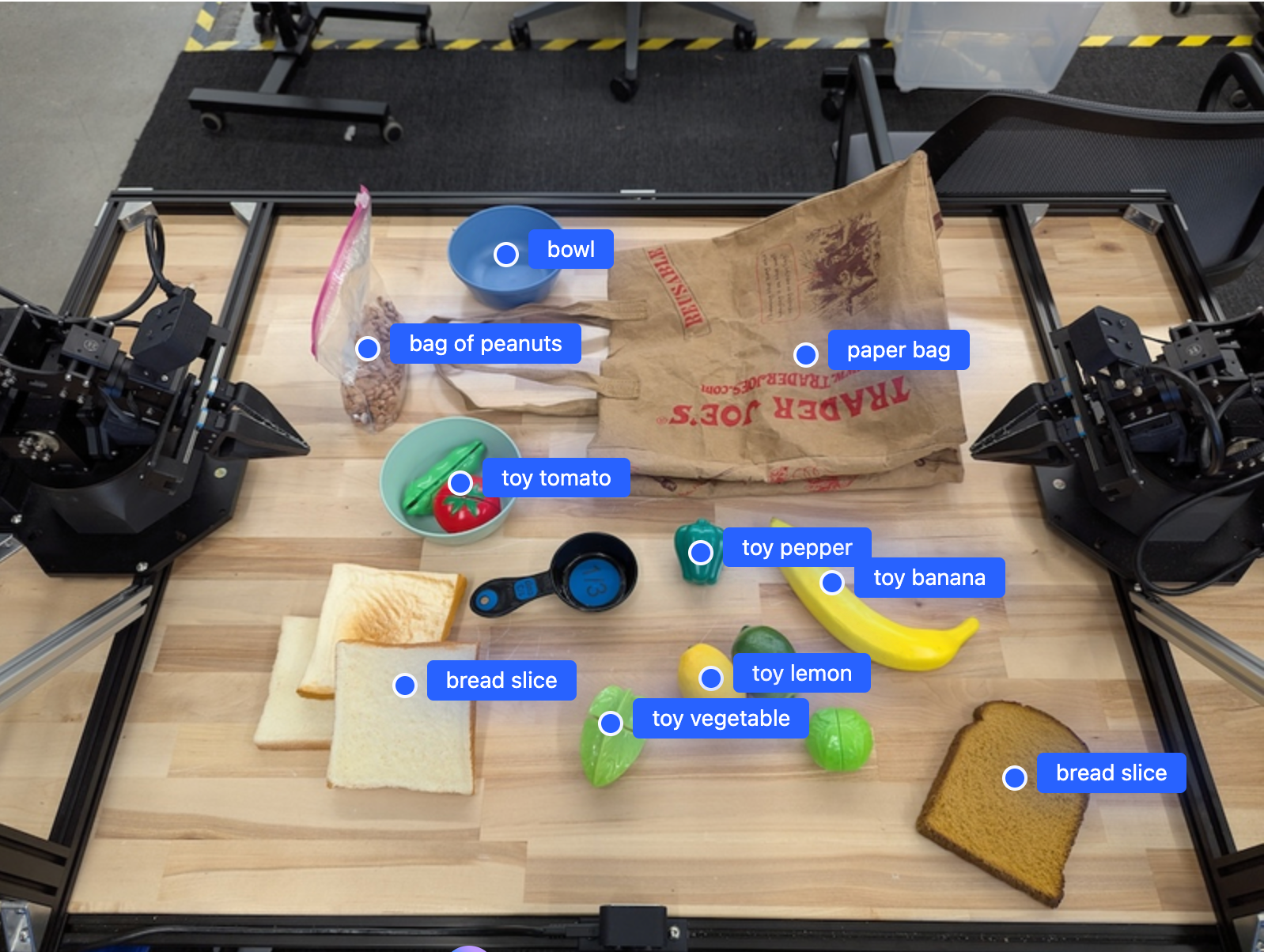
次の画像は、これらのポイントを表示する方法の例です。

画像内のオブジェクトのポイントを表示する例

仕組み

Gemini Robotics-ER 1.5 を使用すると、ロボットは空間認識を使用して物理世界をコンテキスト化し、作業できます。画像、動画、音声の入力と自然言語プロンプトを受け取り、次の処理を行います。

  • オブジェクトとシーンのコンテキストを理解する: オブジェクトを識別し、アフォーダンスなど、シーンとの関係を 推論します。
  • タスクの指示を理解する : 「バナナを見つける」などの自然言語で指定されたタスクを解釈します。
  • 空間的および時間的に推論する: アクションのシーケンスと、 オブジェクトが時間とともにシーンとどのようにやり取りするかを理解します。
  • 構造化された出力を提供する: オブジェクトの位置を表す座標(ポイントまたは境界ボックス)を返します。

これにより、ロボットは環境をプログラムで「見て」「理解」できます。

Gemini Robotics-ER 1.5 はエージェント機能も備えているため、「リンゴをボウルに入れる」などの複雑なタスクをサブタスクに分割して、長期的なタスクをオーケストレーションできます。

  • サブタスクの順序付け: コマンドを論理的なステップのシーケンスに分解します。
  • 関数呼び出し/コードの実行: 既存の ロボット関数/ツールを呼び出すか、生成されたコードを実行してステップを実行します。

Gemini での関数呼び出しの仕組みについて詳しくは、関数呼び出し のページをご覧ください。

Gemini Robotics-ER 1.5 で思考予算を使用する

Gemini Robotics-ER 1.5 には柔軟な思考予算があり、レイテンシと精度のトレードオフを制御できます。オブジェクト検出などの空間認識タスクの場合、モデルは少ない思考予算で高いパフォーマンスを実現できます。カウントや重量推定などのより複雑な推論タスクでは、思考予算を増やすと効果的です。これにより、より難しいタスクで、低レイテンシのレスポンスと高精度の結果のバランスを取ることができます。

思考予算の詳細については、 思考モード のコア機能のページをご覧ください。

ロボット工学のエージェント機能

このセクションでは、Gemini Robotics-ER 1.5 のさまざまな機能について説明し、ロボットの知覚、推論、プランニング アプリケーションでモデルを使用する方法を示します。

このセクションの例では、画像内のオブジェクトのポイントと検出から、軌道の計画と長期的なタスクのオーケストレーションまで、さまざまな機能を示します。わかりやすくするため、コード スニペットはプロンプトと generate_content API の呼び出しを示すように短縮されています。実行可能な完全なコードと 追加の例については、 ロボット工学のクックブックをご覧ください。

オブジェクトを指す

画像や動画フレーム内のオブジェクトを指して検索することは、ロボット工学におけるビジョン言語モデル(VLM)の一般的なユースケースです。次の例では、画像内の特定のオブジェクトを検索し、画像内の座標を返すようにモデルに指示します。

Python

from google import genai
from google.genai import types

client = genai.Client()

# Load your image and set up your prompt
with open('path/to/image-with-objects.jpg', 'rb') as f:
    image_bytes = f.read()

queries = [
    "bread",
    "starfruit",
    "banana",
]

prompt = f"""
    Get all points matching the following objects: {', '.join(queries)}. The
    label returned should be an identifying name for the object detected.
    The answer should follow the json format:

    [{{"point": , "label": }}, ...]. The points are in

    [y, x] format normalized to 0-1000.
    """

image_response = client.models.generate_content(
  model="gemini-robotics-er-1.5-preview",
  contents=[
    types.Part.from_bytes(
      data=image_bytes,
      mime_type='image/jpeg',
    ),
    prompt
  ],
  config = types.GenerateContentConfig(
      temperature=0.5,
      thinking_config=types.ThinkingConfig(thinking_budget=0)
  )
)

print(image_response.text)

出力は、はじめにの例と同様に、検出されたオブジェクトの座標とそのラベルを含む JSON になります。

[
  {"point": [671, 317], "label": "bread"},
  {"point": [738, 307], "label": "bread"},
  {"point": [702, 237], "label": "bread"},
  {"point": [629, 307], "label": "bread"},
  {"point": [833, 800], "label": "bread"},
  {"point": [609, 663], "label": "banana"},
  {"point": [770, 483], "label": "starfruit"}
]

画像内で識別されたオブジェクトのポイントを表示する例

次のプロンプトを使用して、「果物」などの抽象的なカテゴリを解釈し、画像内のすべてのインスタンスを特定するようにモデルにリクエストします。

Python

prompt = f"""
        Get all points for fruit. The label returned should be an identifying
        name for the object detected.
        """ + """The answer should follow the json format:
        [{"point": <point>, "label": <label1>}, ...]. The points are in
        [y, x] format normalized to 0-1000."""

その他の画像処理手法については、画像理解のページを ご覧ください。

動画内のオブジェクトのトラッキング

Gemini Robotics-ER 1.5 は、動画フレームを分析してオブジェクトを時間経過とともにトラッキングすることもできます。サポートされている動画形式の一覧については、動画入力 をご覧ください。

モデルが分析する各フレーム内の特定のオブジェクトを検索するために使用される基本プロンプトは次のとおりです。

Python

# Define the objects to find
queries = [
    "pen (on desk)",
    "pen (in robot hand)",
    "laptop (opened)",
    "laptop (closed)",
]

base_prompt = f"""
  Point to the following objects in the provided image: {', '.join(queries)}.
  The answer should follow the json format:

  [{{"point": , "label": }}, ...].

  The points are in [y, x] format normalized to 0-1000.
  If no objects are found, return an empty JSON list [].
  """

出力には、動画フレーム全体でペンとノートパソコンがトラッキングされていることが示されます。

GIF のフレームでオブジェクトが追跡されている例

実行可能な完全なコードについては、 ロボット工学のクックブックをご覧ください。

オブジェクト検出と境界ボックス

モデルは、単一のポイントだけでなく、2D 境界ボックスを返すこともできます。これは、オブジェクトを囲む長方形の領域です。

この例では、テーブル上の識別可能なオブジェクトの 2D 境界ボックスをリクエストします。モデルは、出力を 25 個のオブジェクトに制限し、複数のインスタンスに一意の名前を付けるように指示されます。

Python

from google import genai
from google.genai import types

client = genai.Client()

# Load your image and set up your prompt
with open('path/to/image-with-objects.jpg', 'rb') as f:
    image_bytes = f.read()

prompt = """
      Return bounding boxes as a JSON array with labels. Never return masks
      or code fencing. Limit to 25 objects. Include as many objects as you
      can identify on the table.
      If an object is present multiple times, name them according to their
      unique characteristic (colors, size, position, unique characteristics, etc..).
      The format should be as follows: [{"box_2d": [ymin, xmin, ymax, xmax],
      "label": <label for the object>}] normalized to 0-1000. The values in
      box_2d must only be integers
      """

image_response = client.models.generate_content(
  model="gemini-robotics-er-1.5-preview",
  contents=[
    types.Part.from_bytes(
      data=image_bytes,
      mime_type='image/jpeg',
    ),
    prompt
  ],
  config = types.GenerateContentConfig(
      temperature=0.5,
      thinking_config=types.ThinkingConfig(thinking_budget=0)
  )
)

print(image_response.text)

以下に、モデルから返されたボックスを示します。

検出されたオブジェクトの境界ボックスを示す例

実行可能な完全なコードについては、ロボット工学 クックブックをご覧ください。 画像理解のページには、 セグメンテーションやオブジェクト検出などの視覚タスクの追加の例もあります。

境界ボックスのその他の例については、 画像理解のページをご覧ください。

軌道

Gemini Robotics-ER 1.5 は、軌道を定義するポイントのシーケンスを生成できます。これは、ロボットの動きをガイドするのに役立ちます。

この例では、赤いペンをオーガナイザーに移動する軌道をリクエストします。これには、出発地と一連の中間点が含まれます。

Python

from google import genai
from google.genai import types

client = genai.Client()

# Load your image and set up your prompt
with open('path/to/image-with-objects.jpg', 'rb') as f:
    image_bytes = f.read()

points_data = []
prompt = """
        Place a point on the red pen, then 15 points for the trajectory of
        moving the red pen to the top of the organizer on the left.
        The points should be labeled by order of the trajectory, from '0'
        (start point at left hand) to <n> (final point)
        The answer should follow the json format:
        [{"point": <point>, "label": <label1>}, ...].
        The points are in [y, x] format normalized to 0-1000.
        """

image_response = client.models.generate_content(
  model="gemini-robotics-er-1.5-preview",
  contents=[
    types.Part.from_bytes(
      data=image_bytes,
      mime_type='image/jpeg',
    ),
    prompt
  ],
  config = types.GenerateContentConfig(
      temperature=0.5,
  )
)

print(image_response.text)

レスポンスは、赤いペンがオーガナイザーの上に移動するタスクを完了するためにたどるパスの軌道を表す座標のセットです。

[
  {"point": [550, 610], "label": "0"},
  {"point": [500, 600], "label": "1"},
  {"point": [450, 590], "label": "2"},
  {"point": [400, 580], "label": "3"},
  {"point": [350, 550], "label": "4"},
  {"point": [300, 520], "label": "5"},
  {"point": [250, 490], "label": "6"},
  {"point": [200, 460], "label": "7"},
  {"point": [180, 430], "label": "8"},
  {"point": [160, 400], "label": "9"},
  {"point": [140, 370], "label": "10"},
  {"point": [120, 340], "label": "11"},
  {"point": [110, 320], "label": "12"},
  {"point": [105, 310], "label": "13"},
  {"point": [100, 305], "label": "14"},
  {"point": [100, 300], "label": "15"}
]

計画された軌道を示す例

オーケストレーション

Gemini Robotics-ER 1.5 は、より高度な空間推論を実行し、コンテキストの理解に基づいてアクションを推測したり、最適な場所を特定したりできます。

ノートパソコンのスペースを作る

この例では、Gemini Robotics-ER が空間について推論する方法を示します。プロンプトは、別のアイテムのスペースを作成するために移動する必要があるオブジェクトを特定するようにモデルに指示します。

Python

from google import genai
from google.genai import types

client = genai.Client()

# Load your image and set up your prompt
with open('path/to/image-with-objects.jpg', 'rb') as f:
    image_bytes = f.read()

prompt = """
          Point to the object that I need to remove to make room for my laptop
          The answer should follow the json format: [{"point": <point>,
          "label": <label1>}, ...]. The points are in [y, x] format normalized to 0-1000.
        """

image_response = client.models.generate_content(
  model="gemini-robotics-er-1.5-preview",
  contents=[
    types.Part.from_bytes(
      data=image_bytes,
      mime_type='image/jpeg',
    ),
    prompt
  ],
  config = types.GenerateContentConfig(
      temperature=0.5,
      thinking_config=types.ThinkingConfig(thinking_budget=0)
  )
)

print(image_response.text)

レスポンスには、ユーザーの質問に答えるオブジェクトの 2D 座標が含まれます。この場合、ノートパソコンのスペースを作るために移動する必要があるオブジェクトです。

[
  {"point": [672, 301], "label": "The object that I need to remove to make room for my laptop"}
]

別のオブジェクトのために移動する必要があるオブジェクトを示す例

ランチの準備

モデルは、複数ステップのタスクの手順を提供し、各ステップに関連するオブジェクトを指すこともできます。この例では、モデルがランチバッグを詰める一連のステップを計画する方法を示します。

Python

from google import genai
from google.genai import types

client = genai.Client()

# Load your image and set up your prompt
with open('path/to/image-of-lunch.jpg', 'rb') as f:
    image_bytes = f.read()

prompt = """
          Explain how to pack the lunch box and lunch bag. Point to each
          object that you refer to. Each point should be in the format:
          [{"point": [y, x], "label": }], where the coordinates are
          normalized between 0-1000.
        """

image_response = client.models.generate_content(
  model="gemini-robotics-er-1.5-preview",
  contents=[
    types.Part.from_bytes(
      data=image_bytes,
      mime_type='image/jpeg',
    ),
    prompt
  ],
  config = types.GenerateContentConfig(
      temperature=0.5,
      thinking_config=types.ThinkingConfig(thinking_budget=0)
  )
)

print(image_response.text)

このプロンプトのレスポンスは、画像入力からランチバッグを詰める方法に関するステップごとの手順のセットです。

入力画像

弁当箱と弁当箱に入れるものの画像

モデル出力

Based on the image, here is a plan to pack the lunch box and lunch bag:

1.  **Pack the fruit into the lunch box.** Place the [apple](apple), [banana](banana), [red grapes](red grapes), and [green grapes](green grapes) into the [blue lunch box](blue lunch box).
2.  **Add the spoon to the lunch box.** Put the [blue spoon](blue spoon) inside the lunch box as well.
3.  **Close the lunch box.** Secure the lid on the [blue lunch box](blue lunch box).
4.  **Place the lunch box inside the lunch bag.** Put the closed [blue lunch box](blue lunch box) into the [brown lunch bag](brown lunch bag).
5.  **Pack the remaining items into the lunch bag.** Place the [blue snack bar](blue snack bar) and the [brown snack bar](brown snack bar) into the [brown lunch bag](brown lunch bag).

Here is the list of objects and their locations:
*   [{"point": [899, 440], "label": "apple"}]
*   [{"point": [814, 363], "label": "banana"}]
*   [{"point": [727, 470], "label": "red grapes"}]
*   [{"point": [675, 608], "label": "green grapes"}]
*   [{"point": [706, 529], "label": "blue lunch box"}]
*   [{"point": [864, 517], "label": "blue spoon"}]
*   [{"point": [499, 401], "label": "blue snack bar"}]
*   [{"point": [614, 705], "label": "brown snack bar"}]
*   [{"point": [448, 501], "label": "brown lunch bag"}]

カスタム ロボット API の呼び出し

この例では、カスタム ロボット API を使用したタスクのオーケストレーションを示します。ピックアンドプレース オペレーション用に設計されたモック API を紹介します。タスクは、青いブロックを拾い上げてオレンジ色のボウルに入れることです。

ブロックとボウルの画像

このページの他の例と同様に、実行可能な完全なコードは ロボット工学のクックブックで入手できます。

最初のステップは、次のプロンプトを使用して両方のアイテムを見つけることです。

Python

prompt = """
            Locate and point to the blue block and the orange bowl. The label
            returned should be an identifying name for the object detected.
            The answer should follow the json format: [{"point": <point>, "label": <label1>}, ...].
            The points are in [y, x] format normalized to 0-1000.
          """

モデルのレスポンスには、ブロックとボウルの正規化された座標が含まれます。

[
  {"point": [389, 252], "label": "orange bowl"},
  {"point": [727, 659], "label": "blue block"}
]

この例では、次のモック ロボット API を使用します。

Python

def move(x, y, high):
  print(f"moving to coordinates: {x}, {y}, {15 if high else 5}")

def setGripperState(opened):
  print("Opening gripper" if opened else "Closing gripper")

def returnToOrigin():
  print("Returning to origin pose")

次のステップでは、アクションを実行するために必要なロジックを使用して、API 関数のシーケンスを呼び出します。次のプロンプトには、このタスクをオーケストレーションするときにモデルが使用するロボット API の説明が含まれています。

Python

prompt = f"""
    You are a robotic arm with six degrees-of-freedom. You have the
    following functions available to you:

    def move(x, y, high):
      # moves the arm to the given coordinates. The boolean value 'high' set
      to True means the robot arm should be lifted above the scene for
      avoiding obstacles during motion. 'high' set to False means the robot
      arm should have the gripper placed on the surface for interacting with
      objects.

    def setGripperState(opened):
      # Opens the gripper if opened set to true, otherwise closes the gripper

    def returnToOrigin():
      # Returns the robot to an initial state. Should be called as a cleanup
      operation.

    The origin point for calculating the moves is at normalized point
    y={robot_origin_y}, x={robot_origin_x}. Use this as the new (0,0) for
    calculating moves, allowing x and y to be negative.
    Perform a pick and place operation where you pick up the blue block at
    normalized coordinates ({block_x}, {block_y}) (relative coordinates:
    {block_relative_x}, {block_relative_y}) and place it into the orange
    bowl at normalized coordinates ({bowl_x}, {bowl_y})
    (relative coordinates: {bowl_relative_x}, {bowl_relative_y}).
    Provide the sequence of function calls as a JSON list of objects, where
    each object has a "function" key (the function name) and an "args" key
    (a list of arguments for the function).
    Also, include your reasoning before the JSON output.
    For example:
    Reasoning: To pick up the block, I will first move the arm to a high
    position above the block, open the gripper, move down to the block,
    close the gripper, lift the arm, move to a high position above the bowl,
    move down to the bowl, open the gripper, and then lift the arm back to
    a high position.
"""

以下に、プロンプトとモック ロボット API に基づくモデルの出力例を示します。出力には、モデルの思考プロセスと、その結果として計画されたタスクが含まれます。また、モデルが順序付けたロボット関数呼び出しの出力も示します。

Reasoning: To perform the pick and place operation, I will first move the
robotic arm to a high position above the blue block to ensure clearance. Then, I
will open the gripper in preparation for grasping. Next, I will lower the arm to
the surface level to position the gripper around the block and close the gripper
to secure it. After picking up the block, I will lift the arm to clear the
surface and move towards the orange bowl, maintaining a high position to avoid
collisions. Once positioned above the bowl, I will lower the arm to place the
block inside. I will then open the gripper to release the block. Finally, I will
lift the arm out of the bowl and call `returnToOrigin` to reset the robot's
state.

[
  {
    "function": "move",
    "args": [
      163,
      427,
      true
    ]
  },
  {
    "function": "setGripperState",
    "args": [
      true
    ]
  },
  {
    "function": "move",
    "args": [
      163,
      427,
      false
    ]
  },
  {
    "function": "setGripperState",
    "args": [
      false
    ]
  },
  {
    "function": "move",
    "args": [
      163,
      427,
      true
    ]
  },
  {
    "function": "move",
    "args": [
      -247,
      90,
      true
    ]
  },
  {
    "function": "move",
    "args": [
      -247,
      90,
      false
    ]
  },
  {
    "function": "setGripperState",
    "args": [
      true
    ]
  },
  {
    "function": "move",
    "args": [
      -247,
      90,
      true
    ]
  },
  {
    "function": "returnToOrigin",
    "args": []
  }
]


Executing Function Calls:
moving to coordinates: 163, 427, 15
Opening gripper
moving to coordinates: 163, 427, 5
Closing gripper
moving to coordinates: 163, 427, 15
moving to coordinates: -247, 90, 15
moving to coordinates: -247, 90, 5
Opening gripper
moving to coordinates: -247, 90, 15
Returning to origin pose

コードの実行

Gemini Robotics-ER 1.5 は、画像領域を拡大して詳細を確認するなど、動的なアクションを必要とするタスクを実行するための Python コードを提案して実行できます。

この例では、モデルが コード実行ツールを使用して画像の特定の 領域を「拡大」することを提案し、それを実行してユーザーの質問に回答する方法を示します。

Python

from google import genai
from google.genai import types

client = genai.Client()

# Load your image and set up your prompt
with open('path/to/image-of-object.jpg', 'rb') as f:
    image_bytes = f.read()
prompt = """
          What is the air quality reading? Using the code execution feature,
          zoom in on the image to take a closer look.
        """

response = client.models.generate_content(
    model="gemini-robotics-er-1.5-preview",
    contents=[
        types.Part.from_bytes(
            data=image_bytes,
            mime_type='image/jpeg',
        ),
        prompt
    ],
    config = types.GenerateContentConfig(
        temperature=0.5,
        tools=[types.Tool(code_execution=types.ToolCodeExecution)]
    )
)

for part in response.candidates[0].content.parts:
    if part.text is not None:
        print(part.text)
    if part.executable_code is not None:
        print(part.executable_code.code)
    if part.code_execution_result is not None:
        print(part.code_execution_result.output)

以下に、このタスクに対するモデルのレスポンスの例を示します。出力には、画面をより適切に読み取るために画像を拡大するコードをモデルが生成していることが示されています。また、トリミングの調整に関する思考プロセスも示します。完全なサンプル出力については、ロボット工学 クックブックをご覧ください。

# Detect relevant objects and output in json format
# [{"box_2d": [379, 407, 481, 553], "label": "display"}]
from PIL import Image

# Open the image
img = Image.open("input_file_0.jpeg")

# Define the coordinates for cropping (normalized to 0-1000)
# Based on visual inspection, the display is roughly centered around [430, 430] to [500, 500] in a 1000x1000 scale.
# Let's try to zoom in on the display area.
# Bounding box for display: [ymin, xmin, ymax, xmax] in pixels.
# From visual inspection of the original image (size 90489 bytes, resolution
unknown but let's assume a standard aspect ratio and roughly 1000x1000 for
relative positioning),
# the display is located at approximately y=380-480, x=410-540.
# Let's define a larger area around it for context.
# Let's say we want to crop from y=350 to y=550 and x=350 to x=650.

...

thought
The crop was too tight and only captured part of the display. Let's adjust the bounding box.
The previous crop was `img.crop((400, 350, 600, 500))`. This means xmin=400, ymin=350, xmax=600, ymax=500.
The display is centered around x=480, y=430.
The previous crop captured the left side of the display.
Let's expand the x range to the right and y range to cover the whole circle.
New bounding box estimate: ymin=370, xmin=400, ymax=500, xmax=600.
Let's try again with a wider crop.
# Detect relevant objects and output in json format
# [{"box_2d": [379, 407, 481, 553], "label": "display"}]
from PIL import Image

# Open the image
img = Image.open("input_file_0.jpeg")

# Define the coordinates for cropping (normalized to 0-1000)
…

The reading of 14 falls into the "Moderate" category.
The prompt asks for the "air quality reading", which can be interpreted as
either the numerical value or the categorical description. Given the numerical
value is explicitly displayed, it's the primary reading.

Let's provide the numerical value as the reading.
The reading is 014.
Based on the display on the air purifier, the air quality reading is **014**.

ベスト プラクティス

ロボット工学アプリケーションのパフォーマンスと精度を最適化するには、Gemini モデルを効果的に操作する方法を理解することが重要です。このセクションでは、最も信頼性の高い結果を得るためのプロンプトの作成、視覚データの処理、タスクの構造化に関するベスト プラクティスと重要な戦略について説明します。

  1. 明確でわかりやすい言葉を使いましょう。

    • 自然言語を活用する: Gemini モデルは、 自然な会話型言語を理解するように設計されています。プロンプトは、意味的に明確で、人が自然に指示を出す方法を反映するように構成します。

    • 日常的な用語を使用する: 専門用語や特殊な専門用語ではなく、一般的な日常言語を選択します。特定の用語に対してモデルが期待どおりに反応しない場合は、より一般的な同義語で言い換えてみてください。

  2. 視覚入力を最適化します。

    • 詳細を確認するために拡大する: ワイドショットで小さすぎるオブジェクトや 判別しにくいオブジェクトを扱う場合は、境界ボックス関数を使用して 目的のオブジェクトを分離します。次に、この選択範囲に合わせて画像を切り抜き、新しいフォーカスされた画像をモデルに送信して、より詳細な分析を行います。

    • 照明と色を試す: モデルの認識は、 照明条件が悪い場合や色のコントラストが低い場合に影響を受ける可能性があります。

  3. 複雑な問題を小さなステップに分割します。小さなステップごとに個別に対処することで、モデルをより正確で成功した結果に導くことができます。

  4. コンセンサスを通じて精度を向上させます。高い精度が求められるタスクの場合は、同じプロンプトでモデルに複数回クエリを実行できます。返された結果を平均することで、多くの場合、より正確で信頼性の高い「コンセンサス」に到達できます。

制限事項

Gemini Robotics-ER 1.5 を使用して開発する場合は、次の制限事項を考慮してください。

  • プレビュー ステータス: このモデルは現在プレビュー版 です。API と機能は変更される可能性があり、十分なテストを行わないと、本番環境で重要なアプリケーションには適していない可能性があります。
  • レイテンシ: 複雑なクエリ、高解像度の入力、または大規模な thinking_budget により、処理時間が長くなる可能性があります。
  • ハルシネーション: すべての大規模言語モデルと同様に、Gemini Robotics-ER 1.5 は、特に曖昧なプロンプトや分布外の入力の場合に、誤った情報を「ハルシネーション」したり、提供したりすることがあります。
  • プロンプトの品質への依存: モデルの出力の品質は、入力プロンプトの明確さと具体性に大きく依存します。曖昧なプロンプトや構造化されていないプロンプトは、最適な結果が得られない可能性があります。
  • コンピューティング コスト: モデルの実行には、特に動画入力や高い thinking_budget を使用する場合、コンピューティング リソースが消費され、費用が発生します。 詳細については、思考モードのページをご覧ください。
  • 入力タイプ: 各モードの制限事項の詳細については、次のトピックをご覧ください。

プライバシーに関するお知らせ

お客様は、このドキュメントで言及されているモデル(以下「ロボット工学モデル」)が、お客様の指示に従ってハードウェアを操作および移動するために、動画データと音声データを活用していることを理解し、同意するものとします。したがって、お客様は、音声、画像、肖像データ(以下「個人データ」)など、識別可能な人物のデータがロボット工学モデルによって収集されるように、ロボット工学モデルを操作できます。個人データを収集する方法でロボット工学モデルを操作する場合、お客様は、識別可能な人物が、https://ai.google.dev/gemini-api/termsに記載されている Gemini API 追加利用規約(以下「本規約」)に記載されているとおり、個人データが Google に提供され、Google によって使用される可能性があることを十分に通知され、同意するまで、識別可能な人物がロボット工学モデルとやり取りしたり、ロボット工学モデルの周囲に存在したりすることを許可しないことに同意するものとします。これには、「Google によるデータの使用方法」というセクションに従うことも含まれます。お客様は、かかる通知が本規約に記載されている個人データの収集と使用を許可することを保証し、顔のぼかしなどの手法を使用し、特定できる人物が含まれない領域でロボット工学モデルを操作することで、可能な限り個人データの収集と配布を最小限に抑えるために商業上合理的な努力を払うものとします。

料金

料金と利用可能なリージョンの詳細については、 料金ページをご覧ください。

モデル バージョン

プロパティ 説明
モデルコード gemini-robotics-er-1.5-preview
サポートされるデータタイプ

入力

テキスト、画像、動画、音声

出力

テキスト

トークン上限[*]

入力トークンの上限

1,048,576

出力トークンの上限

65,536

機能

音声生成

サポート対象外

Batch API

サポート対象外

キャッシュ保存

サポート対象外

コードの実行

サポート対象

関数呼び出し

サポート対象

Google マップによるグラウンディング

サポート対象外

画像生成

サポート対象外

Live API

サポート対象外

検索によるグラウンディング

サポート対象

構造化出力

サポート対象

思考モード

サポート対象

URL コンテキスト

サポート対象

バージョン
詳細については、モデル バージョンのパターンをご覧ください。
  • プレビュー: gemini-robotics-er-1.5-preview
最新の更新 2025 年 9 月
ナレッジ カットオフ 2025 年 1 月

次のステップ