Gemini Robotics-ER 1.6

Gemini Robotics-ER 1.6, विज़न-लैंग्वेज मॉडल (वीएलएम) है. यह रोबोटिक्स में Gemini की एजेंटिक क्षमताओं को शामिल करता है. इसे असली दुनिया में बेहतर तरीके से काम करने के लिए डिज़ाइन किया गया है. इससे रोबोट, मुश्किल विज़ुअल डेटा को समझ पाते हैं, जगह के हिसाब से तर्क कर पाते हैं, और नैचुरल लैंग्वेज में दिए गए निर्देशों के हिसाब से काम कर पाते हैं.

मुख्य सुविधाएं और फ़ायदे:

  • बेहतर स्वायत्तता: रोबोट, ओपन-एंडेड एनवायरमेंट में बदलावों के हिसाब से काम कर सकते हैं, उनमें बदलाव कर सकते हैं, और उनके हिसाब से जवाब दे सकते हैं.
  • नैचुरल लैंग्वेज इंटरैक्शन: इससे रोबोट का इस्तेमाल करना आसान हो जाता है. साथ ही, नैचुरल लैंग्वेज का इस्तेमाल करके मुश्किल टास्क असाइन किए जा सकते हैं.
  • टास्क ऑर्केस्ट्रेशन: यह सुविधा, नैचुरल लैंग्वेज में दिए गए निर्देशों को सबटास्क में बांटती है. साथ ही, लंबे समय तक चलने वाले टास्क को पूरा करने के लिए, मौजूदा रोबोट कंट्रोलर और व्यवहारों के साथ इंटिग्रेट होती है.
  • कई तरह की सुविधाएं: यह ऑब्जेक्ट का पता लगाता है और उनकी पहचान करता है. साथ ही, ऑब्जेक्ट के बीच के संबंध को समझता है, उन्हें पकड़ने और उनकी दिशा तय करने की योजना बनाता है, और डाइनैमिक सीन को समझता है.

इस दस्तावेज़ में बताया गया है कि मॉडल क्या करता है. साथ ही, इसमें कई उदाहरण दिए गए हैं, जिनसे मॉडल की एजेंट के तौर पर काम करने की क्षमताओं के बारे में पता चलता है.

अगर आपको तुरंत इस मॉडल का इस्तेमाल शुरू करना है, तो Google AI Studio में जाकर इसे आज़माएं.

Google AI Studio में आज़माएं

सुरक्षा

Gemini Robotics-ER 1.6 को सुरक्षा को ध्यान में रखकर बनाया गया है. हालांकि, यह आपकी ज़िम्मेदारी है कि आप रोबोट के आस-पास सुरक्षित माहौल बनाए रखें. जनरेटिव एआई मॉडल से गलतियां हो सकती हैं. साथ ही, फ़िज़िकल रोबोट से नुकसान हो सकता है. सुरक्षा हमारी प्राथमिकता है. साथ ही, असल दुनिया में रोबोटिक्स के साथ जनरेटिव एआई मॉडल का इस्तेमाल करते समय, उन्हें सुरक्षित बनाना हमारी रिसर्च का एक अहम हिस्सा है. ज़्यादा जानने के लिए, Google DeepMind के रोबोटिक्स की सुरक्षा से जुड़ा पेज पर जाएं.

शुरू करना: किसी सीन में ऑब्जेक्ट ढूंढना

इस उदाहरण में, रोबोटिक्स के इस्तेमाल का एक सामान्य उदाहरण दिखाया गया है. इसमें, generateContent तरीके का इस्तेमाल करके, मॉडल को इमेज और टेक्स्ट प्रॉम्प्ट पास करने का तरीका बताया गया है. इससे, पहचाने गए ऑब्जेक्ट की सूची और उनके 2D पॉइंट मिलते हैं. मॉडल, इमेज में पहचाने गए आइटम के लिए पॉइंट दिखाता है. साथ ही, उनके सामान्य किए गए 2D कोऑर्डिनेट और लेबल दिखाता है.

इस आउटपुट का इस्तेमाल, रोबोटिक्स एपीआई के साथ किया जा सकता है. इसके अलावा, विज़न-लैंग्वेज-ऐक्शन (वीएलए) मॉडल या तीसरे पक्ष के किसी अन्य उपयोगकर्ता के तय किए गए फ़ंक्शन को कॉल करके, रोबोट के लिए कार्रवाइयां जनरेट की जा सकती हैं.

Python

from google import genai
from google.genai import types

PROMPT = """
          Point to no more than 10 items in the image. The label returned
          should be an identifying name for the object detected.
          The answer should follow the json format: [{"point": <point>,
          "label": <label1>}, ...]. The points are in [y, x] format
          normalized to 0-1000.
        """
client = genai.Client()

# Load your image
with open("my-image.png", 'rb') as f:
    image_bytes = f.read()

image_response = client.models.generate_content(
    model="gemini-robotics-er-1.6-preview",
    contents=[
        types.Part.from_bytes(
            data=image_bytes,
            mime_type='image/png',
        ),
        PROMPT
    ],
    config = types.GenerateContentConfig(
        temperature=1.0,
        thinking_config=types.ThinkingConfig(thinking_budget=0)
    )
)

print(image_response.text)

REST

# First, ensure you have the image file locally.
# Encode the image to base64
IMAGE_BASE64=$(base64 -w 0 my-image.png)

curl -X POST \
  "https://generativelanguage.googleapis.com/v1beta/models/gemini-robotics-er-1.6-preview:generateContent \
  -H "x-goog-api-key: $GEMINI_API_KEY" \
  -H "Content-Type: application/json" \
  -d '{
    "contents": [
      {
        "parts": [
          {
            "inlineData": {
              "mimeType": "image/png",
              "data": "'"${IMAGE_BASE64}"'"
            }
          },
          {
            "text": "Point to no more than 10 items in the image. The label returned should be an identifying name for the object detected. The answer should follow the json format: [{\"point\": [y, x], \"label\": <label1>}, ...]. The points are in [y, x] format normalized to 0-1000."
          }
        ]
      }
    ],
    "generationConfig": {
      "temperature": 0.5,
      "thinkingConfig": {
        "thinkingBudget": 0
      }
    }
  }'

आउटपुट के तौर पर एक JSON कलेक्शन मिलेगा. इसमें ऑब्जेक्ट शामिल होंगे. हर ऑब्जेक्ट में point (सामान्य किए गए [y, x] कोऑर्डिनेट) और ऑब्जेक्ट की पहचान करने वाला label होगा.

JSON

[
  {"point": [376, 508], "label": "small banana"},
  {"point": [287, 609], "label": "larger banana"},
  {"point": [223, 303], "label": "pink starfruit"},
  {"point": [435, 172], "label": "paper bag"},
  {"point": [270, 786], "label": "green plastic bowl"},
  {"point": [488, 775], "label": "metal measuring cup"},
  {"point": [673, 580], "label": "dark blue bowl"},
  {"point": [471, 353], "label": "light blue bowl"},
  {"point": [492, 497], "label": "bread"},
  {"point": [525, 429], "label": "lime"}
]

नीचे दी गई इमेज में, इन पॉइंट को दिखाने का तरीका बताया गया है:
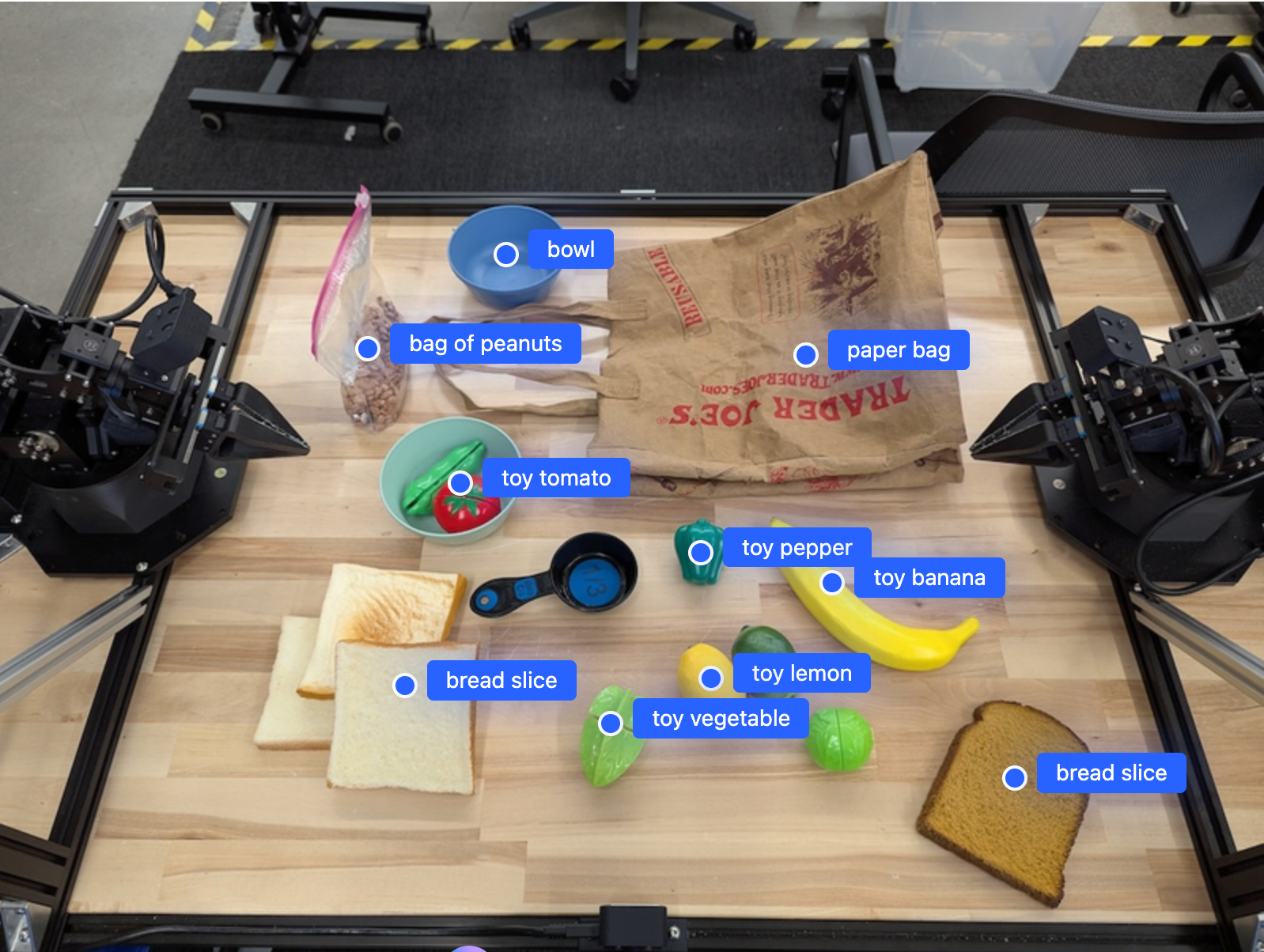
इमेज में मौजूद ऑब्जेक्ट के पॉइंट दिखाने वाला उदाहरण

यह कैसे काम करता है

Gemini Robotics-ER 1.6 की मदद से, आपके रोबोट कॉन्टेक्स्ट के हिसाब से काम कर सकते हैं. साथ ही, वे स्पेशल समझ का इस्तेमाल करके, फ़िज़िकल दुनिया में काम कर सकते हैं. यह इमेज/वीडियो/ऑडियो इनपुट और नैचुरल लैंग्वेज प्रॉम्प्ट लेता है, ताकि:

  • ऑब्जेक्ट और सीन के कॉन्टेक्स्ट को समझना: यह ऑब्जेक्ट की पहचान करता है और सीन के साथ उनके संबंध के बारे में बताता है. इसमें यह भी शामिल है कि ऑब्जेक्ट का इस्तेमाल कैसे किया जा सकता है.
  • टास्क के निर्देशों को समझना: बोलचाल की भाषा में दिए गए टास्क को समझना, जैसे कि "केला ढूंढो".
  • स्पेशल और टेम्परल रीज़निंग: कार्रवाइयों के क्रम और समय के साथ किसी सीन में ऑब्जेक्ट किस तरह इंटरैक्ट करते हैं, यह समझना.
  • स्ट्रक्चर्ड आउटपुट उपलब्ध कराता है: इससे ऑब्जेक्ट की जगहों को दिखाने वाले कोऑर्डिनेट (पॉइंट या बाउंडिंग बॉक्स) मिलते हैं.

इससे रोबोट, प्रोग्राम के हिसाब से अपने आस-पास के माहौल को "देख" और "समझ" पाते हैं.

Gemini Robotics-ER 1.6 भी एजेंटिक है. इसका मतलब है कि यह मुश्किल टास्क (जैसे, "सेब को कटोरे में रखो") को उप-टास्क में बांट सकता है, ताकि लंबे समय तक चलने वाले टास्क को मैनेज किया जा सके:

  • उप-टास्क को क्रम से लगाना: यह कमांड को चरणों के लॉजिकल सीक्वेंस में बांटता है.
  • फ़ंक्शन कॉल/कोड को लागू करना: यह सुविधा, आपके मौजूदा रोबोट फ़ंक्शन/टूल को कॉल करके या जनरेट किए गए कोड को लागू करके चरणों को पूरा करती है.

फ़ंक्शन कॉलिंग पेज पर जाकर, इस बारे में ज़्यादा जानें कि Gemini के साथ फ़ंक्शन कॉलिंग कैसे काम करती है.

Gemini Robotics-ER 1.6 के साथ थिंकिंग बजट का इस्तेमाल करना

Gemini Robotics-ER 1.6 में, थिंकिंग बजट की सुविधा उपलब्ध है. इससे आपको यह तय करने में मदद मिलती है कि जवाब देने में कितना समय लगना चाहिए और जवाब कितना सटीक होना चाहिए. स्पेशल अंडरस्टैंडिंग वाले टास्क, जैसे कि ऑब्जेक्ट का पता लगाना, मॉडल कम थिंकिंग बजट के साथ अच्छी परफ़ॉर्मेंस दे सकता है. गिनती करने और वज़न का अनुमान लगाने जैसे मुश्किल कामों के लिए, ज़्यादा थिंकिंग बजट फ़ायदेमंद होता है. इससे आपको मुश्किल टास्क के लिए, कम समय में मिलने वाले जवाबों और ज़्यादा सटीक नतीजों के बीच संतुलन बनाने में मदद मिलती है.

थिंकिंग बजट के बारे में ज़्यादा जानने के लिए, थिंकिंग की मुख्य क्षमताओं वाला पेज देखें.

स्पैशियल रीज़निंग की स्टैंडर्ड सुविधा

यहां दिए गए उदाहरणों में, नैचुरल लैंग्वेज प्रॉम्प्ट का इस्तेमाल करके रोबोटिक परसेप्शन और स्पेशल रीज़निंग से जुड़े टास्क दिखाए गए हैं. इनमें इमेज में ऑब्जेक्ट को पॉइंट करना और ढूंढना, साथ ही ट्रैजेक्ट्री की योजना बनाना शामिल है. आसानी से समझने के लिए, इन उदाहरणों में दिए गए कोड स्निपेट को छोटा कर दिया गया है. इनमें सिर्फ़ प्रॉम्प्ट और generate_content एपीआई को कॉल करने की जानकारी दिखाई गई है.

पूरा कोड और अन्य उदाहरण, रोबोटिक्स कुकबुक में देखे जा सकते हैं.

ऑब्जेक्ट की ओर इशारा करना

रोबोटिक्स में, विज़न-एंड-लैंग्वेज मॉडल (वीएलएम) का इस्तेमाल आम तौर पर इमेज या वीडियो फ़्रेम में मौजूद चीज़ों की पहचान करने के लिए किया जाता है. यहां दिए गए उदाहरण में, मॉडल से किसी इमेज में मौजूद खास ऑब्जेक्ट ढूंढने और उनके कोऑर्डिनेट देने के लिए कहा गया है.

Python

from google import genai
from google.genai import types

client = genai.Client()

# Load your image and set up your prompt
with open('path/to/image-with-objects.jpg', 'rb') as f:
    image_bytes = f.read()

queries = [
    "bread",
    "starfruit",
    "banana",
]

prompt = f"""
    Get all points matching the following objects: {', '.join(queries)}. The
    label returned should be an identifying name for the object detected.
    The answer should follow the json format:

    [{{"point": , "label": }}, ...]. The points are in

    [y, x] format normalized to 0-1000.
    """

image_response = client.models.generate_content(
  model="gemini-robotics-er-1.6-preview",
  contents=[
    types.Part.from_bytes(
      data=image_bytes,
      mime_type='image/jpeg',
    ),
    prompt
  ],
  config = types.GenerateContentConfig(
      temperature=1.0,
      thinking_config=types.ThinkingConfig(thinking_budget=0)
  )
)

print(image_response.text)

आउटपुट, 'शुरू करें' सेक्शन में दिए गए उदाहरण की तरह होगा. यह एक JSON होगा, जिसमें ऑब्जेक्ट के कोऑर्डिनेट और उनके लेबल शामिल होंगे.

[
  {"point": [671, 317], "label": "bread"},
  {"point": [738, 307], "label": "bread"},
  {"point": [702, 237], "label": "bread"},
  {"point": [629, 307], "label": "bread"},
  {"point": [833, 800], "label": "bread"},
  {"point": [609, 663], "label": "banana"},
  {"point": [770, 483], "label": "starfruit"}
]

इमेज में पहचाने गए ऑब्जेक्ट के पॉइंट दिखाने वाला उदाहरण

मॉडल से, किसी इमेज में मौजूद सभी चीज़ों की पहचान करने और उन्हें "फल" जैसी सामान्य कैटगरी में रखने का अनुरोध करने के लिए, यहां दिया गया प्रॉम्प्ट इस्तेमाल करें.

Python

prompt = f"""
        Get all points for fruit. The label returned should be an identifying
        name for the object detected.
        """ + """The answer should follow the json format:
        [{"point": <point>, "label": <label1>}, ...]. The points are in
        [y, x] format normalized to 0-1000."""

इमेज को प्रोसेस करने की अन्य तकनीकों के बारे में जानने के लिए, इमेज को समझना पेज पर जाएं.

वीडियो में ऑब्जेक्ट ट्रैक करना

Gemini Robotics-ER 1.6, वीडियो फ़्रेम का विश्लेषण करके समय के साथ ऑब्जेक्ट को ट्रैक भी कर सकता है. काम करने वाले वीडियो फ़ॉर्मैट की सूची देखने के लिए, वीडियो इनपुट देखें.

मॉडल जिस फ़्रेम का विश्लेषण करता है उसमें मौजूद खास ऑब्जेक्ट का पता लगाने के लिए, इस प्रॉम्प्ट का इस्तेमाल किया जाता है:

Python

# Define the objects to find
queries = [
    "pen (on desk)",
    "pen (in robot hand)",
    "laptop (opened)",
    "laptop (closed)",
]

base_prompt = f"""
  Point to the following objects in the provided image: {', '.join(queries)}.
  The answer should follow the json format:

  [{{"point": , "label": }}, ...].

  The points are in [y, x] format normalized to 0-1000.
  If no objects are found, return an empty JSON list [].
  """

इस आउटपुट में, वीडियो फ़्रेम में पेन और लैपटॉप को ट्रैक किया गया है.

GIF में फ़्रेम के ज़रिए ट्रैक किए जा रहे ऑब्जेक्ट दिखाने वाला उदाहरण

पूरे रन करने लायक कोड के लिए, रोबोटिक्स कुकबुक देखें.

ऑब्जेक्ट का पता लगाना और बाउंडिंग बॉक्स

मॉडल, सिंगल पॉइंट के अलावा 2D बाउंडिंग बॉक्स भी दिखा सकता है. इससे किसी ऑब्जेक्ट के चारों ओर आयताकार क्षेत्र दिखता है.

इस उदाहरण में, टेबल पर मौजूद पहचाने जा सकने वाले ऑब्जेक्ट के लिए 2D बाउंडिंग बॉक्स का अनुरोध किया गया है. मॉडल को यह निर्देश दिया गया है कि वह आउटपुट में ज़्यादा से ज़्यादा 25 ऑब्जेक्ट शामिल करे और एक से ज़्यादा इंस्टेंस को यूनीक नाम दे.

Python

from google import genai
from google.genai import types

client = genai.Client()

# Load your image and set up your prompt
with open('path/to/image-with-objects.jpg', 'rb') as f:
    image_bytes = f.read()

prompt = """
      Return bounding boxes as a JSON array with labels. Never return masks
      or code fencing. Limit to 25 objects. Include as many objects as you
      can identify on the table.
      If an object is present multiple times, name them according to their
      unique characteristic (colors, size, position, unique characteristics, etc..).
      The format should be as follows: [{"box_2d": [ymin, xmin, ymax, xmax],
      "label": <label for the object>}] normalized to 0-1000. The values in
      box_2d must only be integers
      """

image_response = client.models.generate_content(
  model="gemini-robotics-er-1.6-preview",
  contents=[
    types.Part.from_bytes(
      data=image_bytes,
      mime_type='image/jpeg',
    ),
    prompt
  ],
  config = types.GenerateContentConfig(
      temperature=1.0,
      thinking_config=types.ThinkingConfig(thinking_budget=0)
  )
)

print(image_response.text)

यहां मॉडल से मिले बॉक्स दिखाए गए हैं.

मिली हुई चीज़ों के लिए बाउंडिंग बॉक्स दिखाने वाला उदाहरण

पूरा कोड देखने के लिए, Robotics cookbook देखें. इमेज को समझना पेज पर, विज़ुअल टास्क के अन्य उदाहरण भी दिए गए हैं. जैसे, सेगमेंटेशन, ऑब्जेक्ट डिटेक्शन, और बाउंडिंग बॉक्स के उदाहरण.

ट्रैजेक्ट्री

Gemini Robotics-ER 1.6, ऐसे पॉइंट के सीक्वेंस जनरेट कर सकता है जो किसी ट्रैजेक्ट्री को तय करते हैं. ये पॉइंट, रोबोट के मूवमेंट को गाइड करने के लिए फ़ायदेमंद होते हैं.

इस उदाहरण में, लाल पेन को किसी ऑर्गेनाइज़र पर ले जाने के लिए ट्रैजेक्ट्री का अनुरोध किया गया है. इसमें शुरुआती पॉइंट और बीच के कई पॉइंट शामिल हैं.

Python

from google import genai
from google.genai import types

client = genai.Client()

# Load your image and set up your prompt
with open('path/to/image-with-objects.jpg', 'rb') as f:
    image_bytes = f.read()

points_data = []
prompt = """
        Place a point on the red pen, then 15 points for the trajectory of
        moving the red pen to the top of the organizer on the left.
        The points should be labeled by order of the trajectory, from '0'
        (start point at left hand) to <n> (final point)
        The answer should follow the json format:
        [{"point": <point>, "label": <label1>}, ...].
        The points are in [y, x] format normalized to 0-1000.
        """

image_response = client.models.generate_content(
  model="gemini-robotics-er-1.6-preview",
  contents=[
    types.Part.from_bytes(
      data=image_bytes,
      mime_type='image/jpeg',
    ),
    prompt
  ],
  config = types.GenerateContentConfig(
      temperature=1.0,
  )
)

print(image_response.text)

जवाब में, कोऑर्डिनेट का एक सेट दिया गया है. इसमें उस पाथ के बारे में बताया गया है जिस पर लाल पेन को चलना चाहिए, ताकि वह ऑर्गेनाइज़र के ऊपर पहुंच सके:

[
  {"point": [550, 610], "label": "0"},
  {"point": [500, 600], "label": "1"},
  {"point": [450, 590], "label": "2"},
  {"point": [400, 580], "label": "3"},
  {"point": [350, 550], "label": "4"},
  {"point": [300, 520], "label": "5"},
  {"point": [250, 490], "label": "6"},
  {"point": [200, 460], "label": "7"},
  {"point": [180, 430], "label": "8"},
  {"point": [160, 400], "label": "9"},
  {"point": [140, 370], "label": "10"},
  {"point": [120, 340], "label": "11"},
  {"point": [110, 320], "label": "12"},
  {"point": [105, 310], "label": "13"},
  {"point": [100, 305], "label": "14"},
  {"point": [100, 300], "label": "15"}
]

तय की गई दिशा दिखाने वाला उदाहरण

एजेंटिक एआई की सुविधाएं

यहां दिए गए उदाहरणों में, मॉडल की एजेंटिक क्षमताओं का इस्तेमाल करके, ऐडवांस रोबोटिक रीज़निंग के बारे में बताया गया है. खास तौर पर, कोड एक्ज़ीक्यूशन के बारे में. इन स्थितियों में, मॉडल जवाब देने से पहले, इमेज में बदलाव करने के लिए Python कोड लिख सकता है और उसे लागू कर सकता है. जैसे, ज़ूम इन करना, काटना या घुमाना. इससे, जवाब में मौजूद अस्पष्टता को दूर किया जा सकता है या उसे ज़्यादा सटीक बनाया जा सकता है.

ऑब्जेक्ट का पता लगाना (ज़ूम और काटना)

यहां दिए गए उदाहरण में बताया गया है कि ऑब्जेक्ट का पता लगाने और बाउंडिंग बॉक्स दिखाने के दौरान, इमेज को ज़ूम और क्रॉप करने के लिए कोड एक्ज़ीक्यूशन का इस्तेमाल कैसे किया जाता है, ताकि इमेज साफ़ तौर पर दिखे.

Python

from google import genai
from google.genai import types

client = genai.Client()

# Load your image
with open('sorting.jpeg', 'rb') as f:
    image_bytes = f.read()

prompt = """
Return JSON in the format {label: val, y: val, x: val, y2: val, x2: val} for
the compostable objects in this scene. Please Zoom and crop the image for a
clearer view. Return an annotated image of the final result with the bounding
boxes drawn on it to the API caller as a part of your process.
"""

response = client.models.generate_content(
    model="gemini-robotics-er-1.6-preview",
    contents=[
        types.Part.from_bytes(
            data=image_bytes,
            mime_type='image/jpeg',
        ),
        prompt
    ],
    config = types.GenerateContentConfig(
        temperature=1.0,
        tools=[types.Tool(code_execution=types.ToolCodeExecution)],
    )
)

print(response.text)

मॉडल का आउटपुट इस तरह का होगा:

[
  {"label": "compostable", "y": 256, "x": 482, "y2": 295, "x2": 546},
  {"label": "compostable", "y": 317, "x": 478, "y2": 350, "x2": 542},
  {"label": "compostable", "y": 586, "x": 556, "y2": 668, "x2": 595},
  {"label": "compostable", "y": 463, "x": 669, "y2": 511, "x2": 718},
  {"label": "compostable", "y": 178, "x": 565, "y2": 250, "x2": 609}
]

यहां मॉडल से मिले बॉक्स दिखाए गए हैं.

मिली हुई चीज़ों के लिए बाउंडिंग बॉक्स दिखाने वाला उदाहरण

एनालॉग गेज को पढ़ना और लॉजिक लागू करना

यहां दिए गए उदाहरण में, मॉडल का इस्तेमाल करके ऐनलॉग गेज को पढ़ने और समय की गणना करने का तरीका बताया गया है. यह JSON आउटपुट को लागू करने के लिए, सिस्टम के निर्देश का इस्तेमाल करता है.

Python

from google import genai
from google.genai import types

client = genai.Client()

# Load your image
with open('clock.jpg', 'rb') as f:
    image_bytes = f.read()

q_time = """
Tell me what the value is. Please respond in the following JSON format:\n {\n "hours": X,\n  "minutes": Y,\n}. Zoom in or crop as necessary to confirm location of the clock hands.
"""

system_instruction = "Be precise. When JSON is requested, reply with ONLY that JSON (no preface, no code block)."

response = client.models.generate_content(
    model="gemini-robotics-er-1.6-preview",
    contents=[
        types.Part.from_bytes(
            data=image_bytes,
            mime_type='image/jpeg',
        ),
        system_instruction + " " + q_time
    ],
    config = types.GenerateContentConfig(
        temperature=1.0,
    )
)

print(response.text)

यहाँ इमेज इनपुट का एक उदाहरण दिया गया है.

पढ़ने के लिए घड़ी दिखाने वाला उदाहरण

मॉडल का आउटपुट इस तरह का होगा:

Time Response:  {
  "hours": 12,
  "minutes": 46
 }

किसी कंटेनर में मौजूद तरल पदार्थ को मापना

नीचे दिए गए उदाहरण में, कोड को लागू करके मीटर को पढ़ने और लिक्विड के लेवल को प्रतिशत के तौर पर कैलकुलेट करने का तरीका बताया गया है.

Python

from google import genai
from google.genai import types

client = genai.Client()

# Load your image
with open('meter.jpeg', 'rb') as f:
    image_bytes = f.read()

prompt = """
How full is the meter of liquid?
To read it,
1) Find the points for the top of the sight window, bottom of the sight window and the liquid level, formatted as [y, x] with values ranging from 0-1000;
2) Use math to determine the liquid level as a percentage;
3) Output "Answer: ??" on a separate line, where ?? is a number without % or unit.
"""

response = client.models.generate_content(
    model="gemini-robotics-er-1.6-preview",
    contents=[
        types.Part.from_bytes(
            data=image_bytes,
            mime_type='image/jpeg',
        ),
        prompt
    ],
    config = types.GenerateContentConfig(
        temperature=1.0,
        tools=[types.Tool(code_execution=types.ToolCodeExecution)],
    )
)

print(response.text)

यहां इनपुट की ज़ूम इन की गई इमेज दी गई है.

पढ़ने के लिए घड़ी दिखाने वाला उदाहरण

सर्किट बोर्ड पर मौजूद निशान पढ़ना

यहां दिए गए उदाहरण में, कोड एक्ज़ीक्यूशन का इस्तेमाल करके सर्किट बोर्ड चिप पर मौजूद टेक्स्ट को पढ़ने का तरीका दिखाया गया है. इससे मॉडल को ज़रूरत के हिसाब से इमेज को ज़ूम, काटना, और घुमाने की अनुमति मिलती है.

Python

from google import genai
from google.genai import types

client = genai.Client()

# Load your image
with open('circuit_board.jpeg', 'rb') as f:
    image_bytes = f.read()

prompt = "What is the number on the ESMT chip? Zoom, crop, and rotate if needed."

response = client.models.generate_content(
    model="gemini-robotics-er-1.6-preview",
    contents=[
        types.Part.from_bytes(
            data=image_bytes,
            mime_type='image/jpeg',
        ),
        prompt
    ],
    config = types.GenerateContentConfig(
        temperature=1.0,
        tools=[types.Tool(code_execution=types.ToolCodeExecution)],
    )
)

print(response.text)

यहां इनपुट की ज़ूम इन की गई इमेज दी गई है.

पढ़ने के लिए घड़ी दिखाने वाला उदाहरण

इमेज एनोटेशन

नीचे दिए गए उदाहरण में, कोड को लागू करके किसी इमेज में एनोटेशन जोड़ने का तरीका बताया गया है. जैसे, डिस्पोज़ल के निर्देशों के लिए ऐरो बनाना और बदली गई इमेज को वापस लाना.

Python

from google import genai
from google.genai import types

client = genai.Client()

# Load your image
with open('sorting.jpeg', 'rb') as f:
    image_bytes = f.read()

prompt = """
Look at this image and return it as an annotated version using arrows of
different colors to represent which items should go in which bins for
disposal. You must return the final image to the API caller.
"""

response = client.models.generate_content(
    model="gemini-robotics-er-1.6-preview",
    contents=[
        types.Part.from_bytes(
            data=image_bytes,
            mime_type='image/jpeg',
        ),
        prompt
    ],
    config = types.GenerateContentConfig(
        temperature=1.0,
        tools=[types.Tool(code_execution=types.ToolCodeExecution)],
    )
)

print(response.text)

यहाँ इमेज इनपुट का एक उदाहरण दिया गया है.

पढ़ने के लिए घड़ी दिखाने वाला उदाहरण

मॉडल का आउटपुट इस तरह का होगा:

The annotated image shows the suggested disposal locations for the items on the table:
- **Green bin (Compost/Organic)**: Green chili, red chili, grapes, and cherries.
- **Blue bin (Recycling)**: Yellow crushed can and plastic container.
- **Black bin (Trash)**: Chocolate bar wrapper, Welch's packet, and white tissue.

आयोजन सेवाएं

Gemini Robotics-ER 1.6, टास्क प्लान बना सकता है. साथ ही, यह किसी जगह के बारे में बेहतर तरीके से सोच-समझ सकता है. यह कॉन्टेक्स्ट को समझकर, कार्रवाइयों का अनुमान लगा सकता है या सबसे सही जगहों की पहचान कर सकता है. इससे यह लंबे समय तक चलने वाले टास्क को मैनेज कर सकता है.

लैपटॉप रखने के लिए जगह बनाना

इस उदाहरण में दिखाया गया है कि Gemini Robotics-ER, किसी जगह के बारे में कैसे तर्क दे सकता है. प्रॉम्प्ट में मॉडल से पूछा गया है कि किस ऑब्जेक्ट को हटाकर दूसरी चीज़ के लिए जगह बनानी है.

Python

from google import genai
from google.genai import types

client = genai.Client()

# Load your image and set up your prompt
with open('path/to/image-with-objects.jpg', 'rb') as f:
    image_bytes = f.read()

prompt = """
          Point to the object that I need to remove to make room for my laptop
          The answer should follow the json format: [{"point": <point>,
          "label": <label1>}, ...]. The points are in [y, x] format normalized to 0-1000.
        """

image_response = client.models.generate_content(
  model="gemini-robotics-er-1.6-preview",
  contents=[
    types.Part.from_bytes(
      data=image_bytes,
      mime_type='image/jpeg',
    ),
    prompt
  ],
  config = types.GenerateContentConfig(
      temperature=1.0,
      thinking_config=types.ThinkingConfig(thinking_budget=0)
  )
)

print(image_response.text)

जवाब में, उस ऑब्जेक्ट का 2D कोऑर्डिनेट होता है जो उपयोगकर्ता के सवाल का जवाब देता है. इस मामले में, वह ऑब्जेक्ट जो लैपटॉप रखने के लिए जगह बनाने के लिए हिलना चाहिए.

[
  {"point": [672, 301], "label": "The object that I need to remove to make room for my laptop"}
]

एक उदाहरण, जिसमें यह दिखाया गया है कि किसी ऑब्जेक्ट को दूसरे ऑब्जेक्ट के लिए कहां ले जाना है

लंच पैक करना

यह मॉडल, एक से ज़्यादा चरणों वाले टास्क के लिए निर्देश भी दे सकता है. साथ ही, हर चरण के लिए काम की चीज़ों की ओर इशारा कर सकता है. इस उदाहरण में दिखाया गया है कि मॉडल, लंच बैग पैक करने के लिए सिलसिलेवार तरीके से कैसे प्लान करता है.

Python

from google import genai
from google.genai import types

client = genai.Client()

# Load your image and set up your prompt
with open('path/to/image-of-lunch.jpg', 'rb') as f:
    image_bytes = f.read()

prompt = """
          Explain how to pack the lunch box and lunch bag. Point to each
          object that you refer to. Each point should be in the format:
          [{"point": [y, x], "label": }], where the coordinates are
          normalized between 0-1000.
        """

image_response = client.models.generate_content(
  model="gemini-robotics-er-1.6-preview",
  contents=[
    types.Part.from_bytes(
      data=image_bytes,
      mime_type='image/jpeg',
    ),
    prompt
  ],
  config = types.GenerateContentConfig(
      temperature=1.0,
      thinking_config=types.ThinkingConfig(thinking_budget=0)
  )
)

print(image_response.text)

इस प्रॉम्प्ट के जवाब में, इमेज इनपुट से लंच बैग पैक करने के बारे में सिलसिलेवार निर्देश दिए गए हैं.

इनपुट इमेज

लंच बॉक्स और उसमें रखने के लिए चीज़ों की इमेज

मॉडल का आउटपुट

Based on the image, here is a plan to pack the lunch box and lunch bag:

1.  **Pack the fruit into the lunch box.** Place the [apple](apple), [banana](banana), [red grapes](red grapes), and [green grapes](green grapes) into the [blue lunch box](blue lunch box).
2.  **Add the spoon to the lunch box.** Put the [blue spoon](blue spoon) inside the lunch box as well.
3.  **Close the lunch box.** Secure the lid on the [blue lunch box](blue lunch box).
4.  **Place the lunch box inside the lunch bag.** Put the closed [blue lunch box](blue lunch box) into the [brown lunch bag](brown lunch bag).
5.  **Pack the remaining items into the lunch bag.** Place the [blue snack bar](blue snack bar) and the [brown snack bar](brown snack bar) into the [brown lunch bag](brown lunch bag).

Here is the list of objects and their locations:
*   [{"point": [899, 440], "label": "apple"}]
*   [{"point": [814, 363], "label": "banana"}]
*   [{"point": [727, 470], "label": "red grapes"}]
*   [{"point": [675, 608], "label": "green grapes"}]
*   [{"point": [706, 529], "label": "blue lunch box"}]
*   [{"point": [864, 517], "label": "blue spoon"}]
*   [{"point": [499, 401], "label": "blue snack bar"}]
*   [{"point": [614, 705], "label": "brown snack bar"}]
*   [{"point": [448, 501], "label": "brown lunch bag"}]

कस्टम रोबोट एपीआई को कॉल करना

इस उदाहरण में, कस्टम रोबोट एपीआई की मदद से टास्क ऑर्केस्ट्रेशन के बारे में बताया गया है. इसमें पिक-एंड-प्लेस ऑपरेशन के लिए डिज़ाइन किया गया मॉक एपीआई शामिल है. टास्क में, नीले रंग के ब्लॉक को उठाकर नारंगी रंग के कटोरे में रखना है:

ब्लॉक और कटोरे की इमेज

इस पेज पर दिए गए अन्य उदाहरणों की तरह, पूरा कोड Robotics cookbook में उपलब्ध है.

सबसे पहले, इन दोनों आइटम का पता लगाएं. इसके लिए, यह प्रॉम्प्ट इस्तेमाल करें:

Python

prompt = """
            Locate and point to the blue block and the orange bowl. The label
            returned should be an identifying name for the object detected.
            The answer should follow the json format: [{"point": <point>, "label": <label1>}, ...].
            The points are in [y, x] format normalized to 0-1000.
          """

मॉडल के जवाब में, ब्लॉक और कटोरे के सामान्य किए गए कोऑर्डिनेट शामिल हैं:

[
  {"point": [389, 252], "label": "orange bowl"},
  {"point": [727, 659], "label": "blue block"}
]

इस उदाहरण में, रोबोट के इस मॉक एपीआई का इस्तेमाल किया गया है:

Python

def move(x, y, high):
  print(f"moving to coordinates: {x}, {y}, {15 if high else 5}")

def setGripperState(opened):
  print("Opening gripper" if opened else "Closing gripper")

def returnToOrigin():
  print("Returning to origin pose")

अगला चरण, कार्रवाई को पूरा करने के लिए ज़रूरी लॉजिक के साथ एपीआई फ़ंक्शन के क्रम को कॉल करना है. इस प्रॉम्प्ट में, रोबोट एपीआई के बारे में जानकारी दी गई है. इस टास्क को पूरा करने के लिए, मॉडल को इस एपीआई का इस्तेमाल करना चाहिए.

Python

prompt = f"""
    You are a robotic arm with six degrees-of-freedom. You have the
    following functions available to you:

    def move(x, y, high):
      # moves the arm to the given coordinates. The boolean value 'high' set
      to True means the robot arm should be lifted above the scene for
      avoiding obstacles during motion. 'high' set to False means the robot
      arm should have the gripper placed on the surface for interacting with
      objects.

    def setGripperState(opened):
      # Opens the gripper if opened set to true, otherwise closes the gripper

    def returnToOrigin():
      # Returns the robot to an initial state. Should be called as a cleanup
      operation.

    The origin point for calculating the moves is at normalized point
    y={robot_origin_y}, x={robot_origin_x}. Use this as the new (0,0) for
    calculating moves, allowing x and y to be negative.
    Perform a pick and place operation where you pick up the blue block at
    normalized coordinates ({block_x}, {block_y}) (relative coordinates:
    {block_relative_x}, {block_relative_y}) and place it into the orange
    bowl at normalized coordinates ({bowl_x}, {bowl_y})
    (relative coordinates: {bowl_relative_x}, {bowl_relative_y}).
    Provide the sequence of function calls as a JSON list of objects, where
    each object has a "function" key (the function name) and an "args" key
    (a list of arguments for the function).
    Also, include your reasoning before the JSON output.
    For example:
    Reasoning: To pick up the block, I will first move the arm to a high
    position above the block, open the gripper, move down to the block,
    close the gripper, lift the arm, move to a high position above the bowl,
    move down to the bowl, open the gripper, and then lift the arm back to
    a high position.
"""

यहां प्रॉम्प्ट और मॉक रोबोट एपीआई के आधार पर, मॉडल से मिलने वाला संभावित आउटपुट दिखाया गया है. आउटपुट में, मॉडल की सोचने की प्रोसेस और उन टास्क के बारे में जानकारी शामिल होती है जिन्हें मॉडल ने प्लान किया है. इसमें, रोबोट के फ़ंक्शन कॉल का आउटपुट भी दिखता है. मॉडल ने इन फ़ंक्शन कॉल को एक साथ क्रम से लगाया है.

Reasoning: To perform the pick and place operation, I will first move the
robotic arm to a high position above the blue block to ensure clearance. Then, I
will open the gripper in preparation for grasping. Next, I will lower the arm to
the surface level to position the gripper around the block and close the gripper
to secure it. After picking up the block, I will lift the arm to clear the
surface and move towards the orange bowl, maintaining a high position to avoid
collisions. Once positioned above the bowl, I will lower the arm to place the
block inside. I will then open the gripper to release the block. Finally, I will
lift the arm out of the bowl and call `returnToOrigin` to reset the robot's
state.

[
  {
    "function": "move",
    "args": [
      163,
      427,
      true
    ]
  },
  {
    "function": "setGripperState",
    "args": [
      true
    ]
  },
  {
    "function": "move",
    "args": [
      163,
      427,
      false
    ]
  },
  {
    "function": "setGripperState",
    "args": [
      false
    ]
  },
  {
    "function": "move",
    "args": [
      163,
      427,
      true
    ]
  },
  {
    "function": "move",
    "args": [
      -247,
      90,
      true
    ]
  },
  {
    "function": "move",
    "args": [
      -247,
      90,
      false
    ]
  },
  {
    "function": "setGripperState",
    "args": [
      true
    ]
  },
  {
    "function": "move",
    "args": [
      -247,
      90,
      true
    ]
  },
  {
    "function": "returnToOrigin",
    "args": []
  }
]


Executing Function Calls:
moving to coordinates: 163, 427, 15
Opening gripper
moving to coordinates: 163, 427, 5
Closing gripper
moving to coordinates: 163, 427, 15
moving to coordinates: -247, 90, 15
moving to coordinates: -247, 90, 5
Opening gripper
moving to coordinates: -247, 90, 15
Returning to origin pose

सबसे सही तरीके

अपने रोबोटिक्स ऐप्लिकेशन की परफ़ॉर्मेंस और सटीकता को ऑप्टिमाइज़ करने के लिए, Gemini मॉडल के साथ असरदार तरीके से इंटरैक्ट करने का तरीका समझना ज़रूरी है. इस सेक्शन में, प्रॉम्प्ट बनाने, विज़ुअल डेटा को मैनेज करने, और टास्क को स्ट्रक्चर करने के सबसे सही तरीकों और अहम रणनीतियों के बारे में बताया गया है, ताकि सबसे भरोसेमंद नतीजे मिल सकें.

  1. आसान और साफ़ भाषा का इस्तेमाल करें.

    • नैचुरल लैंग्वेज का इस्तेमाल करें: Gemini मॉडल को नैचुरल लैंग्वेज में बातचीत को समझने के लिए डिज़ाइन किया गया है. अपने प्रॉम्प्ट को इस तरह से स्ट्रक्चर करें कि वे सिमैंटिक तौर पर साफ़ हों. साथ ही, वे इस तरह से लिखे गए हों जैसे कोई व्यक्ति स्वाभाविक रूप से निर्देश देता है.

    • रोज़मर्रा के शब्दों का इस्तेमाल करें: तकनीकी या खास शब्दों के बजाय, आम बोलचाल की भाषा का इस्तेमाल करें. अगर मॉडल किसी शब्द का जवाब आपकी उम्मीद के मुताबिक नहीं दे रहा है, तो उस शब्द को किसी ऐसे शब्द से बदलें जो आम तौर पर इस्तेमाल किया जाता है.

  2. विज़ुअल इनपुट को ऑप्टिमाइज़ करें.

    • ज़्यादा जानकारी के लिए ज़ूम इन करें: जब छोटे ऑब्जेक्ट या वाइड शॉट में पहचान करने में मुश्किल होने वाले ऑब्जेक्ट के साथ काम किया जा रहा हो, तो बाउंडिंग बॉक्स फ़ंक्शन का इस्तेमाल करके, काम के ऑब्जेक्ट को अलग करें. इसके बाद, इमेज को इस हिस्से के हिसाब से क्रॉप किया जा सकता है. साथ ही, ज़्यादा बारीकी से विश्लेषण करने के लिए, मॉडल को फ़ोकस की गई नई इमेज भेजी जा सकती है.

    • रोशनी और रंग के साथ एक्सपेरिमेंट करें: रोशनी की मुश्किल स्थितियों और रंग के खराब कंट्रास्ट की वजह से, मॉडल की परफ़ॉर्मेंस पर असर पड़ सकता है.

  3. मुश्किल समस्याओं को छोटे-छोटे चरणों में बांटें. हर छोटे चरण को अलग-अलग तरीके से हल करके, मॉडल को ज़्यादा सटीक और बेहतर नतीजे पाने में मदद की जा सकती है.

  4. सहमति के आधार पर, जवाब को ज़्यादा सटीक बनाना. जिन टास्क के लिए सटीक जवाब की ज़रूरत होती है उनके लिए, एक ही प्रॉम्प्ट का इस्तेमाल करके मॉडल से कई बार क्वेरी की जा सकती है. जवाबों का औसत निकालकर, "सहमति" पर पहुंचा जा सकता है. यह अक्सर ज़्यादा सटीक और भरोसेमंद होती है.

सीमाएं

Gemini Robotics-ER 1.6 का इस्तेमाल करके डेवलपमेंट करते समय, इन सीमाओं का ध्यान रखें:

  • प्रीव्यू की स्थिति: मॉडल फ़िलहाल प्रीव्यू में है. एपीआई और सुविधाओं में बदलाव हो सकता है. साथ ही, बिना पूरी तरह से जांच किए, प्रोडक्शन के लिए ज़रूरी ऐप्लिकेशन के लिए यह सही नहीं हो सकता.
  • लेटेंसी: मुश्किल क्वेरी, हाई रिज़ॉल्यूशन वाले इनपुट या बड़े पैमाने पर thinking_budget की वजह से, प्रोसेस होने में ज़्यादा समय लग सकता है.
  • गलत जानकारी: सभी लार्ज लैंग्वेज मॉडल की तरह, Gemini Robotics-ER 1.6 कभी-कभी "गलत जानकारी" दे सकता है. खास तौर पर, ऐसे प्रॉम्प्ट के लिए जो साफ़ तौर पर नहीं बताए गए हैं या जो इनपुट डिस्ट्रिब्यूशन से बाहर हैं.
  • प्रॉम्प्ट की क्वालिटी पर निर्भरता: मॉडल का आउटपुट, इनपुट प्रॉम्प्ट की क्वालिटी पर बहुत ज़्यादा निर्भर करता है. अस्पष्ट या खराब तरीके से स्ट्रक्चर किए गए प्रॉम्प्ट से, उम्मीद के मुताबिक नतीजे नहीं मिलते.
  • कैलकुलेशन में लगने वाला समय: मॉडल को चलाने में समय लगता है. खास तौर पर, वीडियो इनपुट या ज़्यादा thinking_budget के साथ मॉडल को चलाने में समय लगता है. इससे कैलकुलेशन के संसाधनों का इस्तेमाल होता है और लागत लगती है. ज़्यादा जानकारी के लिए, सोचना पेज देखें.
  • इनपुट टाइप: हर मोड की सीमाओं के बारे में जानने के लिए, यहां दिए गए विषय देखें.

निजता सूचना

आप स्वीकार करते हैं कि इस दस्तावेज़ में बताए गए मॉडल ("रोबोटिक्स मॉडल") को चलाने और आपके निर्देशों के मुताबिक आपके हार्डवेयर को मूव करने के लिए, वीडियो और ऑडियो डेटा का इस्तेमाल किया जाता है. इसलिए, आपके पास रोबोटिक्स मॉडल को इस तरह से चलाने का विकल्प होता है कि रोबोटिक्स मॉडल, पहचान ज़ाहिर करने वाले लोगों का डेटा इकट्ठा कर सकें. जैसे, आवाज़, इमेज, और मिलते-जुलते डेटा ("निजी डेटा"). अगर आपको रोबोटिक मॉडल को इस तरह से इस्तेमाल करना है कि वह निजी डेटा इकट्ठा करे, तो आपको यह पक्का करना होगा कि किसी भी ऐसे व्यक्ति को रोबोटिक मॉडल के साथ इंटरैक्ट करने या उसके आस-पास मौजूद रहने की अनुमति न दी जाए जिसकी पहचान की जा सकती है. ऐसा तब तक करना होगा, जब तक ऐसे लोगों को यह सूचना न मिल जाए कि उनका निजी डेटा, Google को दिया जा सकता है और Google उसका इस्तेमाल कर सकता है. यह सूचना, Gemini API की सेवा की अतिरिक्त शर्तों के मुताबिक होनी चाहिए. ये शर्तें, https://ai.google.dev/gemini-api/terms पर उपलब्ध हैं. इन्हें "शर्तें" कहा जाता है. इनमें "Google आपके डेटा का इस्तेमाल कैसे करता है" सेक्शन में दी गई जानकारी भी शामिल है. आपको यह पक्का करना होगा कि इस तरह की सूचना में, शर्तों में बताए गए तरीके से निजी डेटा को इकट्ठा करने और इस्तेमाल करने की अनुमति दी गई हो. साथ ही, आपको व्यावसायिक तौर पर उचित प्रयास करने होंगे, ताकि निजी डेटा को कम से कम इकट्ठा किया जा सके और उसे कम से कम डिस्ट्रिब्यूट किया जा सके. इसके लिए, आपको चेहरे को धुंधला करने जैसी तकनीकों का इस्तेमाल करना होगा. साथ ही, रोबोटिक्स मॉडल को ऐसे इलाकों में चलाना होगा जहां लोगों की पहचान ज़ाहिर न हो.

कीमत

कीमत और उपलब्ध क्षेत्रों के बारे में ज़्यादा जानकारी के लिए, कीमत पेज पर जाएं.

मॉडल के वर्शन

Robotics-ER 1.6 की झलक

प्रॉपर्टी ब्यौरा
मॉडल कोड gemini-robotics-er-1.6-preview
इस्तेमाल किए जा सकने वाले डेटा टाइप

इनपुट

टेक्स्ट, इमेज, वीडियो, ऑडियो

आउटपुट

टेक्स्ट

टोकन की सीमाएं[*]

इनपुट टोकन की सीमा

1,048,576

आउटपुट टोकन की सीमा

65,536

सुविधाएँ

ऑडियो जनरेट करने की सुविधा

काम नहीं करता है

Batch API

काम करता है

कैश मेमोरी में सेव होना

काम करता है

कोड को चलाने की सुविधा

काम करता है

कंप्यूटर का इस्तेमाल

काम करता है

फ़ाइल खोजना

काम करता है

फ़्लेक्स इन्फ़रेंस

काम करता है

फ़ंक्शन कॉलिंग

काम करता है

Google Maps की मदद से जवाब पाना

काम करता है

इमेज जनरेट करना

काम नहीं करता है

Live API

काम नहीं करता है

प्राथमिकता का अनुमान लगाना

काम करता है

भरोसेमंद स्रोतों से जानकारी लेना

काम करता है

स्ट्रक्चर्ड आउटपुट

काम करता है

सोच-विचार करना

काम करता है

यूआरएल का कॉन्टेक्स्ट

काम करता है

वर्शन
ज़्यादा जानकारी के लिए, मॉडल वर्शन के पैटर्न पढ़ें.
  • झलक देखें: gemini-robotics-er-1.6-preview
नया अपडेट दिसंबर 2025
जानकारी न मिलना जनवरी 2025

Robotics-ER 1.5 की झलक

प्रॉपर्टी ब्यौरा
मॉडल कोड gemini-robotics-er-1.5-preview
इस्तेमाल किए जा सकने वाले डेटा टाइप

इनपुट

टेक्स्ट, इमेज, वीडियो, ऑडियो

आउटपुट

टेक्स्ट

टोकन की सीमाएं[*]

इनपुट टोकन की सीमा

1,048,576

आउटपुट टोकन की सीमा

65,536

सुविधाएँ

ऑडियो जनरेट करने की सुविधा

काम नहीं करता है

Batch API

काम नहीं करता है

कैश मेमोरी में सेव होना

काम नहीं करता है

कोड को चलाने की सुविधा

काम करता है

फ़ंक्शन कॉलिंग

काम करता है

Google Maps की मदद से जवाब पाना

काम नहीं करता है

इमेज जनरेट करना

काम नहीं करता है

Live API

काम नहीं करता है

भरोसेमंद स्रोतों से जानकारी लेना

काम करता है

स्ट्रक्चर्ड आउटपुट

काम करता है

सोच-विचार करना

काम करता है

यूआरएल का कॉन्टेक्स्ट

काम करता है

वर्शन
ज़्यादा जानकारी के लिए, मॉडल वर्शन के पैटर्न पढ़ें.
  • झलक देखें: gemini-robotics-er-1.5-preview
नया अपडेट सितंबर 2025
जानकारी न मिलना जनवरी 2025

अगले चरण

  • Gemini Robotics-ER 1.6 की अन्य क्षमताओं के बारे में जानें. साथ ही, अलग-अलग प्रॉम्प्ट और इनपुट का इस्तेमाल करके एक्सपेरिमेंट जारी रखें, ताकि आपको इसके अन्य इस्तेमाल के बारे में पता चल सके. ज़्यादा उदाहरणों के लिए, Robotics getting started colab देखें.
  • जानें कि Gemini Robotics मॉडल को सुरक्षा को ध्यान में रखकर कैसे बनाया गया है. इसके लिए, Google DeepMind के रोबोटिक्स की सुरक्षा से जुड़े पेज पर जाएं.
  • Gemini Robotics के लैंडिंग पेज पर जाकर, Gemini Robotics के मॉडल से जुड़े नए अपडेट के बारे में पढ़ें.