

Gemini 3 เป็นตระกูลโมเดลที่ชาญฉลาดที่สุดของเราในปัจจุบัน ซึ่งสร้างขึ้นบนพื้นฐานของ การให้เหตุผลที่ล้ำสมัย โดยออกแบบมาเพื่อทำให้ไอเดียใดๆ เป็นจริงได้ด้วยการ เชี่ยวชาญเวิร์กโฟลว์แบบ Agent การเขียนโค้ดแบบอัตโนมัติ และงานแบบ Multimodal ที่ซับซ้อน คู่มือนี้จะครอบคลุมฟีเจอร์หลักของกลุ่มผลิตภัณฑ์โมเดล Gemini 3 และวิธีใช้ประโยชน์จากโมเดลนี้ให้ได้มากที่สุด
สำรวจคอลเล็กชันแอป Gemini 3 เพื่อดูว่าโมเดลจัดการการให้เหตุผลขั้นสูง การเขียนโค้ดอัตโนมัติ และงานมัลติโมดัลที่ซับซ้อนได้อย่างไร
เริ่มต้นใช้งานด้วยโค้ด 2-3 บรรทัด
Python
from google import genai

client = genai.Client()

interaction = client.interactions.create(
    model="gemini-3.1-pro-preview",
    input="Find the race condition in this multi-threaded C++ snippet: [code here]",
)

print(interaction.output_text)
JavaScript
import { GoogleGenAI } from "@google/genai";

const client = new GoogleGenAI({});

async function run() {
  const interaction = await client.interactions.create({
    model: "gemini-3.1-pro-preview",
    input: "Find the race condition in this multi-threaded C++ snippet: [code here]",
  });

  console.log(interaction.output_text);
}

run();
Java
import com.google.genai.Client;
import com.google.genai.gaos.models.interactions.CreateModelInteraction;
import com.google.genai.gaos.models.interactions.Interaction;
import com.google.genai.gaos.models.interactions.InteractionsInput;
import com.google.genai.gaos.models.interactions.Model;
import com.google.genai.gaos.models.operations.CreateInteractionRequestBody;

Client client = new Client();

CreateModelInteraction request =
    CreateModelInteraction.builder()
        .model(Model.of("gemini-3.1-pro-preview"))
        .input(
            InteractionsInput.of(
                "Find the race condition in this multi-threaded C++ snippet: [code here]"))
        .build();

Interaction interaction =
    client.interactions.create(CreateInteractionRequestBody.of(request)).interaction().get();

System.out.println(interaction.outputText().orElse(""));
Go
package main

import (
    "context"
    "fmt"
    "log"

    "google.golang.org/genai"
    "google.golang.org/genai/interactions/models/interactions"
    "google.golang.org/genai/interactions/models/operations"
)

func main() {
    ctx := context.Background()
    client, err := genai.NewClient(ctx, nil)
    if err != nil {
        log.Fatal(err)
    }

    res, err := client.Interactions.Create(ctx, operations.CreateInteractionRequest{
        Body: operations.NewCreateInteractionRequestBody(interactions.CreateModelInteraction{
            Model: interactions.Model("gemini-3.1-pro-preview"),
            Input: interactions.NewInteractionsInput("Find the race condition in this multi-threaded C++ snippet: [code here]"),
        }),
    })
    if err != nil {
        log.Fatal(err)
    }
    if res.Interaction.OutputText != nil {
        fmt.Println(*res.Interaction.OutputText)
    }
}
REST
curl -X POST "https://generativelanguage.googleapis.com/v1beta/interactions" \
  -H "x-goog-api-key: $GEMINI_API_KEY" \
  -H 'Content-Type: application/json' \
  -d '{
    "model": "gemini-3.1-pro-preview",
    "input": "Find the race condition in this multi-threaded C++ snippet: [code here]"
  }'
พบกับซีรีส์ Gemini 3
Gemini 3.1 Pro เหมาะที่สุดสำหรับงานที่ซับซ้อนซึ่ง ต้องใช้ความรู้เกี่ยวกับโลกในวงกว้างและการให้เหตุผลขั้นสูงในรูปแบบต่างๆ
Gemini 3 Flash เป็นโมเดลซีรีส์ 3 ล่าสุดของเราที่มีความสามารถอันชาญฉลาดระดับ Pro ใน ความเร็วและราคาของ Flash
Nano Banana Pro (หรือที่เรียกว่ารูปภาพ Gemini 3 Pro) คือโมเดลการสร้างรูปภาพคุณภาพสูงสุดของเรา และ Nano Banana 2 (หรือที่เรียกว่ารูปภาพ Gemini 3.1 Flash) คือโมเดลที่มีปริมาณมาก ประสิทธิภาพสูง และมีจุดราคาที่ต่ำกว่า
Gemini 3.1 Flash-Lite คือโมเดลที่ใช้งานได้จริงของเรา ซึ่งสร้างขึ้นเพื่อโมเดลที่คุ้มค่าและ งานที่มีปริมาณมาก
ปัจจุบันโมเดล Gemini 3 ทั้งหมดอยู่ในเวอร์ชันตัวอย่าง
| รหัสโมเดล | หน้าต่างบริบท (เข้า / ออก) | การตัดข้อมูล | การกำหนดราคา (อินพุต / เอาต์พุต)* |
|---|---|---|---|
| gemini-3.1-flash-lite | 1M / 64k | มกราคม 2025 | $0.25 (ข้อความ รูปภาพ วิดีโอ), $0.50 (เสียง) / $1.50 |
| gemini-3.1-flash-image-preview | 128k / 32k | มกราคม 2025 | $0.25 (อินพุตข้อความ) / $0.067 (เอาต์พุตรูปภาพ)** |
| gemini-3.1-pro-preview | 1M / 64k | มกราคม 2025 | $2 / $12 (<200,000 โทเค็น) $4 / $18 (>200,000 โทเค็น) |
| gemini-3-flash-preview | 1M / 64k | มกราคม 2025 | $0.50 / $3 |
| gemini-3-pro-image-preview | 65,000 / 32,000 | มกราคม 2025 | $2 (ป้อนข้อความ) / $0.134 (เอาต์พุตรูปภาพ)** |
* ราคาต่อโทเค็น 1 ล้านรายการ เว้นแต่จะระบุไว้เป็นอย่างอื่น ** ราคาของรูปภาพจะแตกต่างกันไปตามความละเอียด ดูรายละเอียดได้ที่หน้าราคา
ดูขีดจำกัดโดยละเอียด ราคา และข้อมูลเพิ่มเติมได้ที่หน้าโมเดล
ฟีเจอร์ใหม่ของ API ใน Gemini 3
Gemini 3 มีพารามิเตอร์ใหม่ที่ออกแบบมาเพื่อช่วยให้นักพัฒนาแอปควบคุมเวลาในการตอบสนอง ต้นทุน และความเที่ยงตรงของโมเดลหลายรูปแบบได้มากขึ้น
ระดับการคิด
โมเดลชุด Gemini 3 ใช้การคิดแบบไดนามิกโดยค่าเริ่มต้นเพื่อหาเหตุผลผ่าน
พรอมต์ คุณใช้พารามิเตอร์ thinking_level ได้ ซึ่งจะควบคุมระดับสูงสุดของกระบวนการให้เหตุผลภายในของโมเดลก่อนที่จะสร้างคำตอบ Gemini 3 จะถือว่าระดับเหล่านี้เป็นค่าเผื่อสัมพัทธ์สำหรับการคิด
มากกว่าการรับประกันโทเค็นที่เข้มงวด
หากไม่ได้ระบุ thinking_level ไว้ Gemini 3 จะใช้ high เป็นค่าเริ่มต้น หากต้องการให้โมเดลตอบกลับเร็วขึ้นและมีเวลาในการตอบสนองที่ต่ำลงเมื่อไม่จำเป็นต้องใช้การให้เหตุผลที่ซับซ้อน คุณสามารถจำกัดระดับการคิดของโมเดลไว้ที่ low ได้
| ระดับการคิด | Gemini 3.1 Pro | Gemini 3.1 Flash-Lite | Gemini 3 Flash | คำอธิบาย |
|---|---|---|---|---|
minimal |
สิ่งที่ทำไม่ได้ | รองรับ (ค่าเริ่มต้น) | สิ่งที่ทำได้ | ตรงกับการตั้งค่า "ไม่ต้องคิด" สำหรับคำค้นหาส่วนใหญ่ โมเดลอาจคิดน้อยมากสำหรับงานการเขียนโค้ดที่ซับซ้อน ลดเวลาในการตอบสนองสำหรับแอปพลิเคชันแชทหรือแอปพลิเคชันที่มีการส่งข้อความปริมาณมาก โปรดทราบว่า minimal ไม่ได้รับประกันว่าการคิดจะหยุดทำงาน |
low |
สิ่งที่ทำได้ | สิ่งที่ทำได้ | สิ่งที่ทำได้ | ลดเวลาในการตอบสนองและค่าใช้จ่าย เหมาะที่สุดสำหรับการทำตามคำสั่งง่ายๆ แชท หรือแอปพลิเคชันที่มีปริมาณงานสูง |
medium |
สิ่งที่ทำได้ | สิ่งที่ทำได้ | สิ่งที่ทำได้ | การคิดแบบสมดุลสำหรับงานส่วนใหญ่ |
high |
รองรับ (ค่าเริ่มต้น, ไดนามิก) | รองรับ (ไดนามิก) | รองรับ (ค่าเริ่มต้น, ไดนามิก) | เพิ่มความลึกของการให้เหตุผลสูงสุด โมเดลอาจใช้เวลานานขึ้นอย่างมาก ในการสร้างโทเค็นเอาต์พุตแรก (ที่ไม่ใช่การคิด) แต่เอาต์พุตจะได้รับการพิจารณาอย่างรอบคอบมากขึ้น |
Python
from google import genai

client = genai.Client()

interaction = client.interactions.create(
    model="gemini-3.1-pro-preview",
    input="How does AI work?",
    generation_config={"thinking_level": "low"},
)

print(interaction.output_text)
JavaScript
import { GoogleGenAI } from "@google/genai";

const client = new GoogleGenAI({});

const interaction = await client.interactions.create({
    model: "gemini-3.1-pro-preview",
    input: "How does AI work?",
    generation_config: {
      thinking_level: "low",
    },
  });

console.log(interaction.output_text);
Java
import com.google.genai.Client;
import com.google.genai.gaos.models.interactions.CreateModelInteraction;
import com.google.genai.gaos.models.interactions.GenerationConfig;
import com.google.genai.gaos.models.interactions.Interaction;
import com.google.genai.gaos.models.interactions.InteractionsInput;
import com.google.genai.gaos.models.interactions.Model;
import com.google.genai.gaos.models.interactions.ThinkingLevel;
import com.google.genai.gaos.models.operations.CreateInteractionRequestBody;

Client client = new Client();

CreateModelInteraction request =
    CreateModelInteraction.builder()
        .model(Model.of("gemini-3.1-pro-preview"))
        .input(InteractionsInput.of("How does AI work?"))
        .generationConfig(
            GenerationConfig.builder()
                .thinkingLevel(ThinkingLevel.LOW)
                .build())
        .build();

Interaction interaction =
    client.interactions.create(CreateInteractionRequestBody.of(request)).interaction().get();

System.out.println(interaction.outputText().orElse(""));
Go
package main

import (
    "context"
    "fmt"
    "log"

    "google.golang.org/genai"
    "google.golang.org/genai/interactions/models/interactions"
    "google.golang.org/genai/interactions/models/operations"
)

func main() {
    ctx := context.Background()
    client, err := genai.NewClient(ctx, nil)
    if err != nil {
        log.Fatal(err)
    }

    res, err := client.Interactions.Create(ctx, operations.CreateInteractionRequest{
        Body: operations.NewCreateInteractionRequestBody(interactions.CreateModelInteraction{
            Model: interactions.Model("gemini-3.1-pro-preview"),
            Input: interactions.NewInteractionsInput("How does AI work?"),
            GenerationConfig: &interactions.GenerationConfig{
                ThinkingLevel: interactions.ThinkingLevelLow.ToPointer(),
            },
        }),
    })
    if err != nil {
        log.Fatal(err)
    }
    if res.Interaction.OutputText != nil {
        fmt.Println(*res.Interaction.OutputText)
    }
}
REST
curl -X POST "https://generativelanguage.googleapis.com/v1beta/interactions" \
  -H "x-goog-api-key: $GEMINI_API_KEY" \
  -H 'Content-Type: application/json' \
  -d '{
    "model": "gemini-3.1-pro-preview",
    "input": "How does AI work?",
    "generation_config": {
      "thinking_level": "low"
    }
  }'
อุณหภูมิ
สำหรับโมเดล Gemini 3 ทุกรุ่น เราขอแนะนำอย่างยิ่งให้คงพารามิเตอร์อุณหภูมิ
ไว้ที่ค่าเริ่มต้น 1.0
แม้ว่าโมเดลก่อนหน้ามักจะได้รับประโยชน์จากการปรับอุณหภูมิเพื่อควบคุม ความคิดสร้างสรรค์เทียบกับความแน่นอน แต่ความสามารถในการให้เหตุผลของ Gemini 3 ได้รับการเพิ่มประสิทธิภาพ สำหรับการตั้งค่าเริ่มต้น การเปลี่ยนอุณหภูมิ (ตั้งค่าต่ำกว่า 1.0) อาจ ทำให้เกิดลักษณะการทำงานที่ไม่คาดคิด เช่น การวนซ้ำหรือประสิทธิภาพลดลง โดยเฉพาะอย่างยิ่งในงานทางคณิตศาสตร์หรือการให้เหตุผลที่ซับซ้อน
ลายเซ็นความคิด
โมเดล Gemini 3 ใช้ลายเซ็นความคิดเพื่อรักษาบริบทการให้เหตุผลในการเรียก API ลายเซ็นเหล่านี้คือการแสดงที่เข้ารหัสของกระบวนการคิดภายในของโมเดล
- โหมด Stateful (แนะนํา): เมื่อใช้ Interactions API ในโหมด Stateful (ระบุ
previous_interaction_id) เซิร์ฟเวอร์จะจัดการประวัติการสนทนาและลายเซ็นความคิดโดยอัตโนมัติ - โหมดไม่เก็บสถานะ: หากคุณจัดการประวัติการสนทนาด้วยตนเอง คุณต้องรวมบล็อกความคิดพร้อมลายเซ็นไว้ในคำขอที่ตามมาเพื่อตรวจสอบความถูกต้อง
ดูข้อมูลโดยละเอียดได้ที่หน้าลายเซ็นความคิด
เอาต์พุตที่มีโครงสร้างด้วยเครื่องมือ
โมเดล Gemini 3 ช่วยให้คุณรวมเอาต์พุตที่มีโครงสร้างเข้ากับเครื่องมือในตัวได้ ซึ่งรวมถึง การเชื่อมต่อแหล่งข้อมูลกับ Google Search, บริบท URL, การเรียกใช้โค้ด และการเรียกใช้ฟังก์ชัน
Python
from google import genai
from pydantic import BaseModel, Field
from typing import List

class MatchResult(BaseModel):
    winner: str = Field(description="The name of the winner.")
    final_match_score: str = Field(description="The final match score.")
    scorers: List[str] = Field(description="The name of the scorer.")

client = genai.Client()

interaction = client.interactions.create(
    model="gemini-3.1-pro-preview",
    input="Search for all details for the latest Euro.",
    tools=[
        {"type": "google_search"},
        {"type": "url_context"}
    ],
    response_format={
        "type": "text",
        "mime_type": "application/json",
        "schema": MatchResult.model_json_schema()
    },
)

result = MatchResult.model_validate_json(interaction.output_text)
print(result)
JavaScript
import { GoogleGenAI } from "@google/genai";
import * as z from "zod";

const matchJsonSchema = {
  type: "object",
  properties: {
    winner: { type: "string", description: "The name of the winner." },
    final_match_score: { type: "string", description: "The final score." },
    scorers: {
      type: "array",
      items: { type: "string" },
      description: "The name of the scorer."
    }
  },
  required: ["winner", "final_match_score", "scorers"]
};

const matchSchema = z.fromJSONSchema(matchJsonSchema);

const client = new GoogleGenAI({});

async function run() {
  const interaction = await client.interactions.create({
    model: "gemini-3.1-pro-preview",
    input: "Search for all details for the latest Euro.",
    tools: [
      { type: "google_search" },
      { type: "url_context" }
    ],
    response_format: {
        type: "text",
        mime_type: "application/json",
        schema: matchJsonSchema
    },
  });

  const match = matchSchema.parse(JSON.parse(interaction.output_text));
  console.log(match);
}

run();
Java
import com.google.genai.Client;
import com.google.genai.gaos.models.interactions.CreateModelInteraction;
import com.google.genai.gaos.models.interactions.CreateModelInteractionResponseFormat;
import com.google.genai.gaos.models.interactions.GoogleSearch;
import com.google.genai.gaos.models.interactions.Interaction;
import com.google.genai.gaos.models.interactions.InteractionsInput;
import com.google.genai.gaos.models.interactions.Model;
import com.google.genai.gaos.models.interactions.ResponseFormat;
import com.google.genai.gaos.models.interactions.TextResponseFormat;
import com.google.genai.gaos.models.interactions.TextResponseFormatMimeType;
import com.google.genai.gaos.models.interactions.URLContext;
import com.google.genai.gaos.models.operations.CreateInteractionRequestBody;
import java.util.Arrays;
import java.util.HashMap;
import java.util.Map;

Client client = new Client();

Map<String, Object> properties = new HashMap<>();
properties.put("winner", Map.of("type", "string", "description", "The name of the winner."));
properties.put(
    "final_match_score", Map.of("type", "string", "description", "The final match score."));
properties.put(
    "scorers",
    Map.of(
        "type", "array",
        "items", Map.of("type", "string"),
        "description", "The name of the scorer."));

Map<String, Object> schema = new HashMap<>();
schema.put("type", "object");
schema.put("properties", properties);
schema.put("required", Arrays.asList("winner", "final_match_score", "scorers"));

CreateModelInteraction request =
    CreateModelInteraction.builder()
        .model(Model.of("gemini-3.1-pro-preview"))
        .input(InteractionsInput.of("Search for all details for the latest Euro."))
        .tools(Arrays.asList(GoogleSearch.builder().build(), URLContext.builder().build()))
        .responseFormat(
            CreateModelInteractionResponseFormat.of(
                ResponseFormat.of(
                    TextResponseFormat.builder()
                        .mimeType(TextResponseFormatMimeType.APPLICATION_JSON)
                        .schema(schema)
                        .build())))
        .build();

Interaction interaction =
    client.interactions.create(CreateInteractionRequestBody.of(request)).interaction().get();

System.out.println(interaction.outputText().orElse(""));
Go
package main

import (
    "context"
    "fmt"
    "log"

    "google.golang.org/genai"
    "google.golang.org/genai/interactions/models/interactions"
    "google.golang.org/genai/interactions/models/operations"
)

func main() {
    ctx := context.Background()
    client, err := genai.NewClient(ctx, nil)
    if err != nil {
        log.Fatal(err)
    }

    schema := map[string]any{
        "type": "object",
        "properties": map[string]any{
            "winner": map[string]any{
                "type":        "string",
                "description": "The name of the winner.",
            },
            "final_match_score": map[string]any{
                "type":        "string",
                "description": "The final match score.",
            },
            "scorers": map[string]any{
                "type":        "array",
                "items":       map[string]any{"type": "string"},
                "description": "The name of the scorer.",
            },
        },
        "required": []string{"winner", "final_match_score", "scorers"},
    }

    res, err := client.Interactions.Create(ctx, operations.CreateInteractionRequest{
        Body: operations.NewCreateInteractionRequestBody(interactions.CreateModelInteraction{
            Model: interactions.Model("gemini-3.1-pro-preview"),
            Input: interactions.NewInteractionsInput("Search for all details for the latest Euro."),
            Tools: []interactions.Tool{
                interactions.NewTool(interactions.GoogleSearch{}),
                interactions.NewTool(interactions.URLContext{}),
            },
            ResponseFormat: genai.Ptr(interactions.NewCreateModelInteractionResponseFormat(
                interactions.NewResponseFormat(interactions.TextResponseFormat{
                    MimeType: interactions.TextResponseFormatMimeType("application/json").ToPointer(),
                    Schema:   schema,
                }),
            )),
        }),
    })
    if err != nil {
        log.Fatal(err)
    }
    if res.Interaction.OutputText != nil {
        fmt.Println(*res.Interaction.OutputText)
    }
}
REST
curl -X POST "https://generativelanguage.googleapis.com/v1beta/interactions" \
  -H "x-goog-api-key: $GEMINI_API_KEY" \
  -H 'Content-Type: application/json' \
  -d '{
    "model": "gemini-3.1-pro-preview",
    "input": "Search for all details for the latest Euro.",
    "tools": [
      {"type": "google_search"},
      {"type": "url_context"}
    ],
    "response_format": {
        "type": "text",
        "mime_type": "application/json",
        "schema": {
            "type": "object",
            "properties": {
                "winner": {"type": "string", "description": "The name of the winner."},
                "final_match_score": {"type": "string", "description": "The final score."},
                "scorers": {
                    "type": "array",
                    "items": {"type": "string"},
                    "description": "The name of the scorer."
                }
            },
            "required": ["winner", "final_match_score", "scorers"]
        }
    }
  }'
การสร้างรูปภาพ
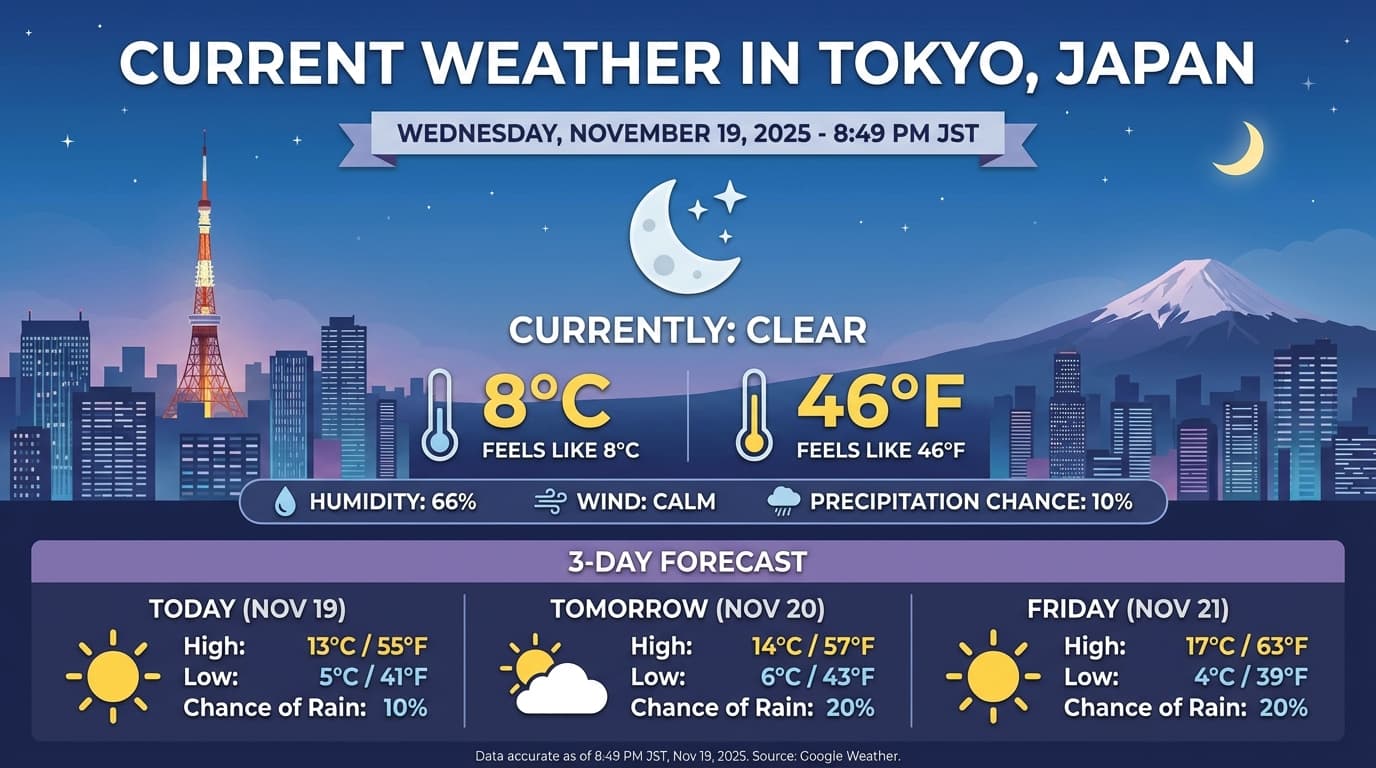
Gemini 3.1 Flash สำหรับรูปภาพและ Gemini 3 Pro สำหรับรูปภาพช่วยให้คุณสร้างและแก้ไขรูปภาพ จากพรอมต์ข้อความได้ โดยจะใช้การให้เหตุผลเพื่อ "คิด" ตามพรอมต์ และสามารถดึงข้อมูลแบบเรียลไทม์ เช่น พยากรณ์อากาศหรือแผนภูมิหุ้น ก่อนที่จะใช้การอ้างอิงจาก Google Search ก่อนที่จะสร้างรูปภาพที่มีความเที่ยงตรงสูง
ความสามารถใหม่และที่ได้รับการปรับปรุง
- การแสดงข้อความและ 4K: สร้างข้อความและไดอะแกรมที่คมชัดและอ่านได้ด้วยความละเอียดสูงสุด 2K และ 4K
- การสร้างโดยอิงตามแหล่งข้อมูล: ใช้
google_searchเครื่องมือเพื่อยืนยันข้อเท็จจริงและสร้างภาพจาก Generative AI ตามข้อมูลในโลกแห่งความเป็นจริง การอ้างอิงด้วย Google Image Search พร้อมใช้งานสำหรับรูปภาพ Gemini 3.1 Flash - การแก้ไขโดยใช้การสนทนา: การแก้ไขรูปภาพแบบผ่านการสนทนาไปมาโดยเพียงแค่ขอให้ เปลี่ยนแปลง (เช่น "เปลี่ยนพื้นหลังเป็นภาพพระอาทิตย์ตก") เวิร์กโฟลว์นี้ใช้ลายเซ็นความคิดเพื่อรักษาบริบทภาพระหว่างการเลี้ยว
ดูรายละเอียดทั้งหมดเกี่ยวกับสัดส่วนการแสดงผล เวิร์กโฟลว์การแก้ไข และตัวเลือกการกำหนดค่าได้ในคู่มือการสร้างรูปภาพ
Python
from google import genai
import base64

client = genai.Client()

interaction = client.interactions.create(
    model="gemini-3-pro-image-preview",
    input="Generate an infographic of the current weather in Tokyo.",
    tools=[{"type": "google_search"}],
    response_format={
        "type": "image",
        "aspect_ratio": "16:9",
        "image_size": "4K"
    }
)

from PIL import Image
import io

generated_image = interaction.output_image
if generated_image:
    image_data = base64.b64decode(generated_image.data)
    image = Image.open(io.BytesIO(image_data))
    image.save('weather_tokyo.png')
    image.show()
JavaScript
import { GoogleGenAI } from "@google/genai";
import * as fs from "node:fs";

const client = new GoogleGenAI({});

async function run() {
  const interaction = await client.interactions.create({
    model: "gemini-3-pro-image-preview",
    input: "Generate a visualization of the current weather in Tokyo.",
    tools: [{ type: "google_search" }],
    response_format: {
      type: "image",
      aspect_ratio: "16:9",
      image_size: "4K"
    }
  });

  const buffer = Buffer.from(interaction.output_image.data, 'base64');

  fs.writeFileSync('weather_tokyo.png', buffer);
}

run();
Java
import com.google.genai.Client;
import com.google.genai.gaos.models.interactions.CreateModelInteraction;
import com.google.genai.gaos.models.interactions.CreateModelInteractionResponseFormat;
import com.google.genai.gaos.models.interactions.GoogleSearch;
import com.google.genai.gaos.models.interactions.ImageContent;
import com.google.genai.gaos.models.interactions.ImageResponseFormat;
import com.google.genai.gaos.models.interactions.ImageResponseFormatAspectRatio;
import com.google.genai.gaos.models.interactions.ImageResponseFormatImageSize;
import com.google.genai.gaos.models.interactions.Interaction;
import com.google.genai.gaos.models.interactions.InteractionsInput;
import com.google.genai.gaos.models.interactions.Model;
import com.google.genai.gaos.models.interactions.ResponseFormat;
import com.google.genai.gaos.models.operations.CreateInteractionRequestBody;
import java.nio.file.Files;
import java.nio.file.Paths;
import java.util.Arrays;
import java.util.Base64;
import java.util.Optional;

Client client = new Client();

CreateModelInteraction request =
    CreateModelInteraction.builder()
        .model(Model.of("gemini-3-pro-image-preview"))
        .input(InteractionsInput.of("Generate an infographic of the current weather in Tokyo."))
        .tools(Arrays.asList(GoogleSearch.builder().build()))
        .responseFormat(
            CreateModelInteractionResponseFormat.of(
                ResponseFormat.of(
                    ImageResponseFormat.builder()
                        .aspectRatio(ImageResponseFormatAspectRatio.ONE_HUNDRED_AND_SIXTY_NINE)
                        .imageSize(ImageResponseFormatImageSize.FOUR_K)
                        .build())))
        .build();

Interaction interaction =
    client.interactions.create(CreateInteractionRequestBody.of(request)).interaction().get();

Optional<ImageContent> generatedImage = interaction.outputImage();
if (generatedImage.isPresent() && generatedImage.get().data().isPresent()) {
  byte[] imageBytes = Base64.getDecoder().decode(generatedImage.get().data().get());
  Files.write(Paths.get("weather_tokyo.png"), imageBytes);
}
Go
package main

import (
    "context"
    "encoding/base64"
    "log"
    "os"

    "google.golang.org/genai"
    "google.golang.org/genai/interactions/models/interactions"
    "google.golang.org/genai/interactions/models/operations"
)

func main() {
    ctx := context.Background()
    client, err := genai.NewClient(ctx, nil)
    if err != nil {
        log.Fatal(err)
    }

    res, err := client.Interactions.Create(ctx, operations.CreateInteractionRequest{
        Body: operations.NewCreateInteractionRequestBody(interactions.CreateModelInteraction{
            Model: interactions.Model("gemini-3-pro-image-preview"),
            Input: interactions.NewInteractionsInput("Generate an infographic of the current weather in Tokyo."),
            Tools: []interactions.Tool{
                interactions.NewTool(interactions.GoogleSearch{}),
            },
            ResponseFormat: genai.Ptr(interactions.NewCreateModelInteractionResponseFormat(
                interactions.NewResponseFormat(interactions.ImageResponseFormat{
                    AspectRatio: interactions.ImageResponseFormatAspectRatioOneHundredAndSixtyNine.ToPointer(),
                    ImageSize:   interactions.ImageResponseFormatImageSize("4K").ToPointer(),
                }),
            )),
        }),
    })
    if err != nil {
        log.Fatal(err)
    }

    if generatedImage := res.Interaction.GetOutputImage(); generatedImage != nil && generatedImage.Data != nil {
        imageBytes, err := base64.StdEncoding.DecodeString(*generatedImage.Data)
        if err != nil {
            log.Fatal(err)
        }
        if err := os.WriteFile("weather_tokyo.png", imageBytes, 0644); err != nil {
            log.Fatal(err)
        }
    }
}
REST
curl -X POST "https://generativelanguage.googleapis.com/v1beta/interactions" \
  -H "x-goog-api-key: $GEMINI_API_KEY" \
  -H 'Content-Type: application/json' \
  -d '{
    "model": "gemini-3-pro-image-preview",
    "input": "Generate a visualization of the current weather in Tokyo.",
    "tools": [{"type": "google_search"}],
    "response_format": {
        "type": "image",
        "aspect_ratio": "16:9",
        "image_size": "4K"
    }
  }'
ตัวอย่างคำตอบ
การเรียกใช้โค้ดด้วยรูปภาพ
Gemini 3 Flash สามารถมองเห็นเป็นการตรวจสอบที่ใช้งานอยู่ ไม่ใช่แค่การมองแบบคงที่ การผสานการให้เหตุผลเข้ากับการเรียกใช้โค้ดทำให้โมเดลวางแผน จากนั้นเขียนและ เรียกใช้โค้ด Python เพื่อซูมเข้า ครอบตัด ใส่คำอธิบายประกอบ หรือปรับแต่งรูปภาพ ทีละขั้นตอนเพื่ออ้างอิงคำตอบด้วยภาพ
กรณีการใช้งาน
- ซูมและตรวจสอบ: โมเดลจะตรวจหาโดยนัยเมื่อรายละเอียดมีขนาดเล็กเกินไป (เช่น การอ่านเกจหรือหมายเลขซีเรียลที่อยู่ไกล) และเขียนโค้ดเพื่อครอบตัดและตรวจสอบพื้นที่อีกครั้งที่ความละเอียดสูงขึ้น
- คณิตศาสตร์และการลงจุดแบบภาพ: โมเดลสามารถทำการคำนวณหลายขั้นตอนโดยใช้โค้ด (เช่น การรวมบรรทัดรายการในใบเสร็จ หรือการสร้างแผนภูมิ Matplotlib จากข้อมูลที่ดึงออกมา)
- การอธิบายประกอบรูปภาพ: โมเดลสามารถวาดลูกศร กรอบล้อม หรือคำอธิบายประกอบอื่นๆ ลงในรูปภาพโดยตรงเพื่อตอบคำถามเชิงพื้นที่ เช่น "ควรวาง รายการนี้ไว้ที่ไหน"
หากต้องการเปิดใช้การคิดเชิงภาพ ให้กำหนดค่าการเรียกใช้โค้ดเป็นเครื่องมือ โมเดลจะใช้โค้ดเพื่อปรับแต่งรูปภาพโดยอัตโนมัติเมื่อจำเป็น
Python
from google import genai
from google.genai import types
import requests
from PIL import Image
import io
import base64

image_path = "https://goo.gle/instrument-img"
image_bytes = requests.get(image_path).content
image = types.Part.from_bytes(data=image_bytes, mime_type="image/jpeg")

client = genai.Client()

interaction = client.interactions.create(
    model="gemini-3-flash-preview",
    input=[
        image,
        "Zoom into the expression pedals and tell me how many pedals are there?"
    ],
    tools=[{"type": "code_execution"}],
)

from IPython.display import display
from PIL import Image
import io

for step in interaction.steps:
    if step.type == "model_output":
        for content_block in step.content:
            if content_block.type == "text":
                print(content_block.text)
            elif content_block.type == "image":
                 display(Image.open(io.BytesIO(base64.b64decode(content_block.data))))
    elif step.type == "code_execution_call":
        print(step.code)
    elif step.type == "code_execution_result":
        print(step.output)
JavaScript
import { GoogleGenAI } from "@google/genai";

const client = new GoogleGenAI({});

async function main() {
  const imageUrl = "https://goo.gle/instrument-img";
  const response = await fetch(imageUrl);
  const imageArrayBuffer = await response.arrayBuffer();
  const base64ImageData = Buffer.from(imageArrayBuffer).toString("base64");

  const interaction = await client.interactions.create({
    model: "gemini-3-flash-preview",
    input: [
      {
        type: "image",
        mime_type: "image/jpeg",
        data: base64ImageData,
      },
      {
        type: "text",
        text: "Zoom into the expression pedals and tell me how many pedals are there?",
      },
    ],
    tools: [{ type: "code_execution" }],
  });

  for (const step of interaction.steps) {
    if (step.type === "model_output") {
      for (const contentBlock of step.content) {
        if (contentBlock.type === "text") {
          console.log("Text:", contentBlock.text);
        }
      }
    } else if (step.type === "code_execution_call") {
      console.log("Code:", step.code);
    } else if (step.type === "code_execution_result") {
      console.log("Output:", step.output);
    }
  }
}

main();
Java
import com.google.genai.Client;
import com.google.genai.gaos.models.interactions.CodeExecution;
import com.google.genai.gaos.models.interactions.CodeExecutionCallStep;
import com.google.genai.gaos.models.interactions.CodeExecutionResultStep;
import com.google.genai.gaos.models.interactions.Content;
import com.google.genai.gaos.models.interactions.CreateModelInteraction;
import com.google.genai.gaos.models.interactions.ImageContent;
import com.google.genai.gaos.models.interactions.ImageContentMimeType;
import com.google.genai.gaos.models.interactions.Interaction;
import com.google.genai.gaos.models.interactions.InteractionsInput;
import com.google.genai.gaos.models.interactions.Model;
import com.google.genai.gaos.models.interactions.ModelOutputStep;
import com.google.genai.gaos.models.interactions.Step;
import com.google.genai.gaos.models.interactions.TextContent;
import com.google.genai.gaos.models.operations.CreateInteractionRequestBody;
import java.io.InputStream;
import java.net.URL;
import java.util.Arrays;
import java.util.Base64;
import java.util.Collections;

Client client = new Client();

URL url = new URL("https://goo.gle/instrument-img");
byte[] imageBytes;
try (InputStream is = url.openStream()) {
  imageBytes = is.readAllBytes();
}
String base64ImageData = Base64.getEncoder().encodeToString(imageBytes);

CreateModelInteraction request =
    CreateModelInteraction.builder()
        .model(Model.of("gemini-3-flash-preview"))
        .input(
            InteractionsInput.ofContent(
                Arrays.asList(
                    ImageContent.builder()
                        .mimeType(ImageContentMimeType.IMAGE_JPEG)
                        .data(base64ImageData)
                        .build(),
                    TextContent.builder()
                        .text("Zoom into the expression pedals and tell me how many pedals are there?")
                        .build())))
        .tools(Arrays.asList(CodeExecution.builder().build()))
        .build();

Interaction interaction =
    client.interactions.create(CreateInteractionRequestBody.of(request)).interaction().get();

for (Step step : interaction.steps().orElse(Collections.emptyList())) {
  if (step instanceof ModelOutputStep) {
    ModelOutputStep modelOutput = (ModelOutputStep) step;
    for (Content contentBlock : modelOutput.content().orElse(Collections.emptyList())) {
      if (contentBlock instanceof TextContent) {
        System.out.println("Text: " + ((TextContent) contentBlock).text().orElse(""));
      }
    }
  } else if (step instanceof CodeExecutionCallStep) {
    CodeExecutionCallStep callStep = (CodeExecutionCallStep) step;
    callStep.arguments().flatMap(args -> args.code()).ifPresent(code -> System.out.println("Code: " + code));
  } else if (step instanceof CodeExecutionResultStep) {
    CodeExecutionResultStep resultStep = (CodeExecutionResultStep) step;
    System.out.println("Output: " + resultStep.result().orElse(""));
  }
}
Go
package main

import (
    "context"
    "encoding/base64"
    "fmt"
    "io"
    "log"
    "net/http"

    "google.golang.org/genai"
    "google.golang.org/genai/interactions/models/interactions"
    "google.golang.org/genai/interactions/models/operations"
)

func main() {
    ctx := context.Background()
    client, err := genai.NewClient(ctx, nil)
    if err != nil {
        log.Fatal(err)
    }

    httpRes, err := http.Get("https://goo.gle/instrument-img")
    if err != nil {
        log.Fatal(err)
    }
    defer httpRes.Body.Close()
    imageBytes, err := io.ReadAll(httpRes.Body)
    if err != nil {
        log.Fatal(err)
    }
    base64ImageData := base64.StdEncoding.EncodeToString(imageBytes)

    res, err := client.Interactions.Create(ctx, operations.CreateInteractionRequest{
        Body: operations.NewCreateInteractionRequestBody(interactions.CreateModelInteraction{
            Model: interactions.Model("gemini-3-flash-preview"),
            Input: interactions.NewInteractionsInput([]interactions.Content{
                interactions.NewContent(interactions.ImageContent{
                    MimeType: interactions.ImageContentMimeType("image/jpeg").ToPointer(),
                    Data:     genai.Ptr(base64ImageData),
                }),
                interactions.NewContent(interactions.TextContent{
                    Text: "Zoom into the expression pedals and tell me how many pedals are there?",
                }),
            }),
            Tools: []interactions.Tool{
                interactions.NewTool(interactions.CodeExecution{}),
            },
        }),
    })
    if err != nil {
        log.Fatal(err)
    }

    for _, step := range res.Interaction.Steps {
        if modelOutput := step.ModelOutputStep; modelOutput != nil {
            for _, contentBlock := range modelOutput.Content {
                if textContent := contentBlock.TextContent; textContent != nil {
                    fmt.Println("Text:", textContent.Text)
                }
            }
        } else if callStep := step.CodeExecutionCallStep; callStep != nil {
            if callStep.Arguments.Code != nil {
                fmt.Println("Code:", *callStep.Arguments.Code)
            }
        } else if resultStep := step.CodeExecutionResultStep; resultStep != nil {
            fmt.Println("Output:", resultStep.Result)
        }
    }
}
REST
IMG_URL="https://goo.gle/instrument-img"
MODEL="gemini-3-flash-preview"

MIME_TYPE=$(curl -sIL "$IMG_URL" | grep -i '^content-type:' | awk -F ': ' '{print $2}' | sed 's/\r$//' | head -n 1)
if [[ -z "$MIME_TYPE" || ! "$MIME_TYPE" == image/* ]]; then
  MIME_TYPE="image/jpeg"
fi

if [[ "$(uname)" == "Darwin" ]]; then
  IMAGE_B64=$(curl -sL "$IMG_URL" | base64 -b 0)
elif [[ "$(base64 --version 2>&1)" = *"FreeBSD"* ]]; then
  IMAGE_B64=$(curl -sL "$IMG_URL" | base64)
else
  IMAGE_B64=$(curl -sL "$IMG_URL" | base64 -w0)
fi

curl -X POST "https://generativelanguage.googleapis.com/v1beta/interactions" \
    -H "x-goog-api-key: $GEMINI_API_KEY" \
    -H 'Content-Type: application/json' \
    -d '{
      "model": "'$MODEL'",
      "input": [
            {
              "type": "image",
              "mime_type":"'"$MIME_TYPE"'",
              "data": "'"$IMAGE_B64"'"
            },
            {"type": "text", "text": "Zoom into the expression pedals and tell me how many pedals are there?"}
      ],
      "tools": [{"type": "code_execution"}]
    }'
ดูรายละเอียดเพิ่มเติมเกี่ยวกับการเรียกใช้โค้ดด้วยรูปภาพได้ที่การรันโค้ด
คำตอบฟังก์ชันหลายรูปแบบ
การเรียกใช้ฟังก์ชันแบบหลายรูปแบบ ช่วยให้ผู้ใช้ได้รับคำตอบของฟังก์ชันที่มี ออบเจ็กต์แบบหลายรูปแบบ ซึ่งช่วยให้ใช้ความสามารถในการเรียกใช้ฟังก์ชันของโมเดลได้ดียิ่งขึ้น การเรียกใช้ฟังก์ชันมาตรฐานรองรับเฉพาะการตอบกลับฟังก์ชันที่เป็นข้อความ เท่านั้น
Python
# This will only work for SDK newer than 2.0.0
from google import genai
import requests
import base64

client = genai.Client()

# 1. Define the tool
get_image_tool = {
    "type": "function",
    "name": "get_image",
    "description": "Retrieves the image file reference for a specific order item.",
    "parameters": {
        "type": "object",
        "properties": {
            "item_name": {
                "type": "string",
                "description": "The name or description of the item ordered (e.g., 'instrument')."
            }
        },
        "required": ["item_name"],
    },
}

# 2. Send the request with tools
interaction_1 = client.interactions.create(
    model="gemini-3-flash-preview",
    input="Show me the instrument I ordered last month.",
    tools=[get_image_tool],
)

# 3. Find the function call step
fc_step = next(s for s in interaction_1.steps if s.type == "function_call")
print(f"Tool Call: {fc_step.name}({fc_step.arguments})")

# Execute tool (fetch image)
image_path = "https://goo.gle/instrument-img"
image_bytes = requests.get(image_path).content
image_b64 = base64.b64encode(image_bytes).decode("utf-8")

# 4. Send multimodal function result back
interaction_2 = client.interactions.create(
    model="gemini-3-flash-preview",
    previous_interaction_id=interaction_1.id,
    input=[{
        "type": "function_result",
        "name": fc_step.name,
        "call_id": fc_step.id,
        "result": [
            {"type": "text", "text": "instrument.jpg"},
            {
                "type": "image",
                "mime_type": "image/jpeg",
                "data": image_b64,
            }
        ]
    }],
    tools=[get_image_tool]
)

print(f"\nFinal model response: {interaction_2.output_text}")
JavaScript
import { GoogleGenAI } from '@google/genai';

const client = new GoogleGenAI({});

const getImageTool = {
    type: 'function',
    name: 'get_image',
    description: 'Retrieves the image file reference for a specific order item.',
    parameters: {
        type: 'object',
        properties: {
            item_name: {
                type: 'string',
                description: "The name or description of the item ordered (e.g., 'instrument').",
            },
        },
        required: ['item_name'],
    },
};

const interaction1 = await client.interactions.create({
    model: 'gemini-3-flash-preview',
    input: 'Use the get_image tool to show me the instrument I ordered last month.',
    tools: [getImageTool],
});

const fcStep = interaction1.steps.find(s => s.type === 'function_call');
console.log(`Tool Call: ${fcStep.name}(${JSON.stringify(fcStep.arguments)})`);

const imageUrl = 'https://goo.gle/instrument-img';
const response = await fetch(imageUrl);
const imageArrayBuffer = await response.arrayBuffer();
const base64ImageData = Buffer.from(imageArrayBuffer).toString('base64');

const interaction2 = await client.interactions.create({
    model: 'gemini-3-flash-preview',
    previous_interaction_id: interaction1.id,
    input: [{
        type: 'function_result',
        name: fcStep.name,
        call_id: fcStep.id,
        result: [
            { type: 'text', text: 'instrument.jpg' },
            {
                type: 'image',
                mime_type: 'image/jpeg',
                data: base64ImageData,
            }
        ]
    }],
    tools: [getImageTool]
});

console.log(`\nFinal model response: ${interaction2.output_text}`);
Java
import com.google.genai.Client;
import com.google.genai.gaos.models.interactions.CreateModelInteraction;
import com.google.genai.gaos.models.interactions.Function;
import com.google.genai.gaos.models.interactions.FunctionCallStep;
import com.google.genai.gaos.models.interactions.FunctionResultStep;
import com.google.genai.gaos.models.interactions.FunctionResultStepResultUnion;
import com.google.genai.gaos.models.interactions.FunctionResultSubcontent;
import com.google.genai.gaos.models.interactions.ImageContent;
import com.google.genai.gaos.models.interactions.ImageContentMimeType;
import com.google.genai.gaos.models.interactions.Interaction;
import com.google.genai.gaos.models.interactions.InteractionsInput;
import com.google.genai.gaos.models.interactions.Model;
import com.google.genai.gaos.models.interactions.Step;
import com.google.genai.gaos.models.interactions.TextContent;
import com.google.genai.gaos.models.operations.CreateInteractionRequestBody;
import java.io.InputStream;
import java.net.URL;
import java.util.ArrayList;
import java.util.Arrays;
import java.util.Base64;
import java.util.Collections;
import java.util.HashMap;
import java.util.List;
import java.util.Map;

Client client = new Client();

Map<String, Object> itemProp = new HashMap<>();
itemProp.put("type", "string");
itemProp.put("description", "The name or description of the item ordered (e.g., 'instrument').");

Map<String, Object> properties = new HashMap<>();
properties.put("item_name", itemProp);

Map<String, Object> parameters = new HashMap<>();
parameters.put("type", "object");
parameters.put("properties", properties);
parameters.put("required", Arrays.asList("item_name"));

Function getImageTool =
    Function.builder()
        .name("get_image")
        .description("Retrieves the image file reference for a specific order item.")
        .parameters(parameters)
        .build();

CreateModelInteraction req1 =
    CreateModelInteraction.builder()
        .model(Model.of("gemini-3-flash-preview"))
        .input(
            InteractionsInput.of(
                "Use the get_image tool to show me the instrument I ordered last month."))
        .tools(Arrays.asList(getImageTool))
        .build();

Interaction interaction1 =
    client.interactions.create(CreateInteractionRequestBody.of(req1)).interaction().get();

FunctionCallStep fcStep = null;
for (Step step : interaction1.steps().orElse(Collections.emptyList())) {
  if (step instanceof FunctionCallStep) {
    fcStep = (FunctionCallStep) step;
    break;
  }
}

if (fcStep != null) {
  System.out.println("Tool Call: " + fcStep.name().orElse(""));

  URL url = new URL("https://goo.gle/instrument-img");
  byte[] imageBytes;
  try (InputStream is = url.openStream()) {
    imageBytes = is.readAllBytes();
  }
  String base64ImageData = Base64.getEncoder().encodeToString(imageBytes);

  List<FunctionResultSubcontent> subcontents = new ArrayList<>();
  subcontents.add(TextContent.builder().text("instrument.jpg").build());
  subcontents.add(
      ImageContent.builder()
          .mimeType(ImageContentMimeType.IMAGE_JPEG)
          .data(base64ImageData)
          .build());

  FunctionResultStep funcResult =
      FunctionResultStep.builder()
          .name(fcStep.name().orElse(""))
          .callId(fcStep.id().orElse(""))
          .result(FunctionResultStepResultUnion.of(subcontents))
          .build();

  CreateModelInteraction req2 =
      CreateModelInteraction.builder()
          .model(Model.of("gemini-3-flash-preview"))
          .input(InteractionsInput.ofStep(Arrays.asList(funcResult)))
          .tools(Arrays.asList(getImageTool))
          .previousInteractionId(interaction1.id().orElse(""))
          .build();

  Interaction interaction2 =
      client.interactions.create(CreateInteractionRequestBody.of(req2)).interaction().get();
  System.out.println("Final model response: " + interaction2.outputText().orElse(""));
}
Go
package main

import (
    "context"
    "encoding/base64"
    "fmt"
    "io"
    "log"
    "net/http"

    "google.golang.org/genai"
    "google.golang.org/genai/interactions/models/interactions"
    "google.golang.org/genai/interactions/models/operations"
)

func main() {
    ctx := context.Background()
    client, err := genai.NewClient(ctx, nil)
    if err != nil {
        log.Fatal(err)
    }

    getImageTool := interactions.NewTool(interactions.Function{
        Name:        genai.Ptr("get_image"),
        Description: genai.Ptr("Retrieves the image file reference for a specific order item."),
        Parameters: map[string]any{
            "type": "object",
            "properties": map[string]any{
                "item_name": map[string]any{
                    "type":        "string",
                    "description": "The name or description of the item ordered (e.g., 'instrument').",
                },
            },
            "required": []string{"item_name"},
        },
    })

    res1, err := client.Interactions.Create(ctx, operations.CreateInteractionRequest{
        Body: operations.NewCreateInteractionRequestBody(interactions.CreateModelInteraction{
            Model: interactions.Model("gemini-3-flash-preview"),
            Input: interactions.NewInteractionsInput("Use the get_image tool to show me the instrument I ordered last month."),
            Tools: []interactions.Tool{getImageTool},
        }),
    })
    if err != nil {
        log.Fatal(err)
    }

    for _, step := range res1.Interaction.Steps {
        if fcStep := step.FunctionCallStep; fcStep != nil {
            fmt.Println("Tool Call:", fcStep.Name)

            httpRes, err := http.Get("https://goo.gle/instrument-img")
            if err != nil {
                log.Fatal(err)
            }
            defer httpRes.Body.Close()
            imageBytes, err := io.ReadAll(httpRes.Body)
            if err != nil {
                log.Fatal(err)
            }
            base64ImageData := base64.StdEncoding.EncodeToString(imageBytes)

            funcResult := interactions.NewStep(interactions.FunctionResultStep{
                Name:   genai.Ptr(fcStep.Name),
                CallID: fcStep.ID,
                Result: interactions.NewFunctionResultStepResultUnion([]interactions.FunctionResultSubcontent{
                    interactions.NewFunctionResultSubcontent(interactions.TextContent{
                        Text: "instrument.jpg",
                    }),
                    interactions.NewFunctionResultSubcontent(interactions.ImageContent{
                        MimeType: interactions.ImageContentMimeType("image/jpeg").ToPointer(),
                        Data:     genai.Ptr(base64ImageData),
                    }),
                }),
            })

            res2, err := client.Interactions.Create(ctx, operations.CreateInteractionRequest{
                Body: operations.NewCreateInteractionRequestBody(interactions.CreateModelInteraction{
                    Model:                 interactions.Model("gemini-3-flash-preview"),
                    PreviousInteractionID: res1.Interaction.ID,
                    Tools:                 []interactions.Tool{getImageTool},
                    Input:                 interactions.NewInteractionsInput([]interactions.Step{funcResult}),
                }),
            })
            if err != nil {
                log.Fatal(err)
            }
            if res2.Interaction.OutputText != nil {
                fmt.Println("Final model response:", *res2.Interaction.OutputText)
            }
            break
        }
    }
}
REST
IMG_URL="https://goo.gle/instrument-img"

MIME_TYPE=$(curl -sIL "$IMG_URL" | grep -i '^content-type:' | awk -F ': ' '{print $2}' | sed 's/\r$//' | head -n 1)
if [[ -z "$MIME_TYPE" || ! "$MIME_TYPE" == image/* ]]; then
  MIME_TYPE="image/jpeg"
fi

# Check for macOS
if [[ "$(uname)" == "Darwin" ]]; then
  IMAGE_B64=$(curl -sL "$IMG_URL" | base64 -b 0)
elif [[ "$(base64 --version 2>&1)" = *"FreeBSD"* ]]; then
  IMAGE_B64=$(curl -sL "$IMG_URL" | base64)
else
  IMAGE_B64=$(curl -sL "$IMG_URL" | base64 -w0)
fi

# 1. First interaction (triggers function call)
# curl -X POST "https://generativelanguage.googleapis.com/v1beta/interactions" \
#   -H "x-goog-api-key: $GEMINI_API_KEY" \
#   -H 'Content-Type: application/json' \
#   -d '{ "model": "gemini-3-flash-preview", "input": "Show me the instrument I ordered last month.", "tools": [...] }'

# 2. Send multimodal function result back (Replace INTERACTION_ID and CALL_ID)
curl -X POST "https://generativelanguage.googleapis.com/v1beta/interactions" \
  -H "x-goog-api-key: $GEMINI_API_KEY" \
  -H 'Content-Type: application/json' \
  -d '{
    "model": "gemini-3-flash-preview",
    "previous_interaction_id": "INTERACTION_ID",
    "input": [{
      "type": "function_result",
      "name": "get_image",
      "call_id": "CALL_ID",
      "result": [
        { "type": "text", "text": "instrument.jpg" },
        {
          "type": "image",
          "mime_type": "'"$MIME_TYPE"'",
          "data": "'"$IMAGE_B64"'"
        }
      ]
    }]
  }'
รวมเครื่องมือในตัวและการเรียกใช้ฟังก์ชัน
Gemini 3 อนุญาตให้ใช้เครื่องมือในตัว (เช่น Google Search, บริบท URL และอื่นๆ) และเครื่องมือการเรียกใช้ฟังก์ชันที่กำหนดเองในการเรียก API เดียวกัน ซึ่งช่วยให้เวิร์กโฟลว์มีความซับซ้อนมากขึ้น
Python
from google import genai
from google.genai import types

client = genai.Client()

getWeather = {
    "type": "function",
    "name": "getWeather",
    "description": "Gets the weather for a requested city.",
    "parameters": {
        "type": "object",
        "properties": {
            "city": {
                "type": "string",
                "description": "The city and state, e.g. Utqiaġvik, Alaska",
            },
        },
        "required": ["city"],
    },
}

interaction = client.interactions.create(
    model="gemini-3-flash-preview",
    input="What is the northernmost city in the United States? What's the weather like there today?",
    tools=[
        {"type": "google_search"},
        getWeather
    ],
)

fc_step = next((s for s in interaction.steps if s.type == "function_call"), None)

if fc_step:
    result = {"response": "Very cold. 22 degrees Fahrenheit."}

    final_interaction = client.interactions.create(
        model="gemini-3-flash-preview",
        input=[
            {"type": "function_result", "name": fc_step.name, "call_id": fc_step.id, "result": result}
        ],
        tools=[
            {"type": "google_search"},
            getWeather
        ],
        previous_interaction_id=interaction.id,
    )

    print(final_interaction.output_text)
JavaScript
import { GoogleGenAI, Type } from '@google/genai';

const client = new GoogleGenAI({});

const getWeatherDeclaration = {
  type: 'function',
  name: 'getWeather',
  description: 'Gets the weather for a requested city.',
  parameters: {
    type: Type.OBJECT,
    properties: {
      city: {
        type: Type.STRING,
        description: 'The city and state, e.g. Utqiaġvik, Alaska',
      },
    },
    required: ['city'],
  },
};

const interaction = await client.interactions.create({
  model: 'gemini-3-flash-preview',
  input: "What is the northernmost city in the United States? What's the weather like there today?",
  tools: [
    { type: "google_search" },
    getWeatherDeclaration
  ],
});

const fcStep = interaction.steps.find(s => s.type === 'function_call');

if (fcStep) {
  const result = { response: "Very cold. 22 degrees Fahrenheit." };

  const finalInteraction = await client.interactions.create({
    model: 'gemini-3-flash-preview',
    input: [
      { type: 'function_result', name: fcStep.name, call_id: fcStep.id, result: result }
    ],
    tools: [
      { type: "google_search" },
      getWeatherDeclaration
    ],
    previous_interaction_id: interaction.id,
  });

  console.log(finalInteraction.output_text);
}
Java
import com.google.genai.Client;
import com.google.genai.gaos.models.interactions.CreateModelInteraction;
import com.google.genai.gaos.models.interactions.Function;
import com.google.genai.gaos.models.interactions.FunctionCallStep;
import com.google.genai.gaos.models.interactions.FunctionResultStep;
import com.google.genai.gaos.models.interactions.FunctionResultStepResultUnion;
import com.google.genai.gaos.models.interactions.GoogleSearch;
import com.google.genai.gaos.models.interactions.Interaction;
import com.google.genai.gaos.models.interactions.InteractionsInput;
import com.google.genai.gaos.models.interactions.Model;
import com.google.genai.gaos.models.interactions.Step;
import com.google.genai.gaos.models.operations.CreateInteractionRequestBody;
import java.util.Arrays;
import java.util.Collections;
import java.util.HashMap;
import java.util.Map;

Client client = new Client();

Map<String, Object> cityProp = new HashMap<>();
cityProp.put("type", "string");
cityProp.put("description", "The city and state, e.g. Utqiaġvik, Alaska");

Map<String, Object> properties = new HashMap<>();
properties.put("city", cityProp);

Map<String, Object> parameters = new HashMap<>();
parameters.put("type", "object");
parameters.put("properties", properties);
parameters.put("required", Arrays.asList("city"));

Function getWeather =
    Function.builder()
        .name("getWeather")
        .description("Gets the weather for a requested city.")
        .parameters(parameters)
        .build();

CreateModelInteraction request =
    CreateModelInteraction.builder()
        .model(Model.of("gemini-3-flash-preview"))
        .input(
            InteractionsInput.of(
                "What is the northernmost city in the United States? What's the weather like there today?"))
        .tools(Arrays.asList(GoogleSearch.builder().build(), getWeather))
        .build();

Interaction interaction =
    client.interactions.create(CreateInteractionRequestBody.of(request)).interaction().get();

FunctionCallStep fcStep = null;
for (Step step : interaction.steps().orElse(Collections.emptyList())) {
  if (step instanceof FunctionCallStep) {
    fcStep = (FunctionCallStep) step;
    break;
  }
}

if (fcStep != null) {
  FunctionResultStep funcResult =
      FunctionResultStep.builder()
          .name(fcStep.name().orElse(""))
          .callId(fcStep.id().orElse(""))
          .result(
              FunctionResultStepResultUnion.of(
                  "{\"response\": \"Very cold. 22 degrees Fahrenheit.\"}"))
          .build();

  CreateModelInteraction finalRequest =
      CreateModelInteraction.builder()
          .model(Model.of("gemini-3-flash-preview"))
          .input(InteractionsInput.ofStep(Arrays.asList(funcResult)))
          .tools(Arrays.asList(GoogleSearch.builder().build(), getWeather))
          .previousInteractionId(interaction.id().orElse(""))
          .build();

  Interaction finalInteraction =
      client.interactions.create(CreateInteractionRequestBody.of(finalRequest)).interaction().get();
  System.out.println(finalInteraction.outputText().orElse(""));
}
Go
package main

import (
    "context"
    "fmt"
    "log"

    "google.golang.org/genai"
    "google.golang.org/genai/interactions/models/interactions"
    "google.golang.org/genai/interactions/models/operations"
)

func main() {
    ctx := context.Background()
    client, err := genai.NewClient(ctx, nil)
    if err != nil {
        log.Fatal(err)
    }

    getWeather := interactions.NewTool(interactions.Function{
        Name:        genai.Ptr("getWeather"),
        Description: genai.Ptr("Gets the weather for a requested city."),
        Parameters: map[string]any{
            "type": "object",
            "properties": map[string]any{
                "city": map[string]any{
                    "type":        "string",
                    "description": "The city and state, e.g. Utqiaġvik, Alaska",
                },
            },
            "required": []string{"city"},
        },
    })

    tools := []interactions.Tool{
        interactions.NewTool(interactions.GoogleSearch{}),
        getWeather,
    }

    res, err := client.Interactions.Create(ctx, operations.CreateInteractionRequest{
        Body: operations.NewCreateInteractionRequestBody(interactions.CreateModelInteraction{
            Model: interactions.Model("gemini-3-flash-preview"),
            Input: interactions.NewInteractionsInput("What is the northernmost city in the United States? What's the weather like there today?"),
            Tools: tools,
        }),
    })
    if err != nil {
        log.Fatal(err)
    }

    for _, step := range res.Interaction.Steps {
        if fcStep := step.FunctionCallStep; fcStep != nil {
            funcResult := interactions.NewStep(interactions.FunctionResultStep{
                Name:   genai.Ptr(fcStep.Name),
                CallID: fcStep.ID,
                Result: interactions.NewFunctionResultStepResultUnion(`{"response": "Very cold. 22 degrees Fahrenheit."}`),
            })

            finalRes, err := client.Interactions.Create(ctx, operations.CreateInteractionRequest{
                Body: operations.NewCreateInteractionRequestBody(interactions.CreateModelInteraction{
                    Model:                 interactions.Model("gemini-3-flash-preview"),
                    PreviousInteractionID: res.Interaction.ID,
                    Tools:                 tools,
                    Input:                 interactions.NewInteractionsInput([]interactions.Step{funcResult}),
                }),
            })
            if err != nil {
                log.Fatal(err)
            }
            if finalRes.Interaction.OutputText != nil {
                fmt.Println(*finalRes.Interaction.OutputText)
            }
            break
        }
    }
}
การย้ายข้อมูลจาก Gemini 2.5
Gemini 3 เป็นตระกูลโมเดลที่มากความสามารถที่สุดของเราในปัจจุบัน และมีการปรับปรุงทีละขั้น เมื่อเทียบกับ Gemini 2.5 เมื่อย้ายข้อมูล ให้พิจารณาสิ่งต่อไปนี้
- การคิด: หากก่อนหน้านี้คุณใช้วิศวกรรมพรอมต์ที่ซับซ้อน (เช่น
เชนออฟทอท) เพื่อบังคับให้ Gemini 2.5 ให้เหตุผล ให้ลองใช้ Gemini 3 กับ
thinking_level: "high"และพรอมต์ที่เรียบง่าย - การตั้งค่าอุณหภูมิ: หากโค้ดที่มีอยู่ตั้งค่าอุณหภูมิอย่างชัดเจน (โดยเฉพาะค่าต่ำสำหรับเอาต์พุตเชิงกำหนด) เราขอแนะนำให้นำพารามิเตอร์นี้ออก และใช้ค่าเริ่มต้นของ Gemini 3 ซึ่งคือ 1.0 เพื่อหลีกเลี่ยงปัญหาการวนซ้ำที่อาจเกิดขึ้น หรือประสิทธิภาพลดลงในงานที่ซับซ้อน
- การทำความเข้าใจ PDF และเอกสาร:
หากคุณอาศัยลักษณะการทำงานที่เฉพาะเจาะจงสำหรับการแยกวิเคราะห์เอกสารที่มีข้อมูลหนาแน่น ให้ทดสอบการตั้งค่า
media_resolution_highใหม่เพื่อให้มั่นใจว่ายังคงมีความแม่นยำ - การใช้โทเค็น: การย้ายข้อมูลไปใช้ค่าเริ่มต้นของ Gemini 3 อาจเพิ่มการใช้โทเค็นสำหรับ PDF แต่ลดการใช้โทเค็นสำหรับวิดีโอ หากคำขอเกินหน้าต่างบริบทเนื่องจากความละเอียดเริ่มต้นสูงขึ้น เราขอแนะนำให้ลดความละเอียดของสื่ออย่างชัดเจน
- การแบ่งกลุ่มรูปภาพ: Gemini 3 Pro หรือ Gemini 3 Flash ไม่รองรับความสามารถในการแบ่งกลุ่มรูปภาพ (การแสดงผลมาสก์ระดับพิกเซลสำหรับออบเจ็กต์) สำหรับ เวิร์กโหลดที่ต้องใช้การแบ่งกลุ่มรูปภาพในตัว เราขอแนะนำให้ใช้ Gemini 2.5 Flash ต่อไปโดยปิดการคิด
- การใช้คอมพิวเตอร์: Gemini 3 Pro และ Gemini 3 Flash รองรับการใช้คอมพิวเตอร์ คุณไม่จำเป็นต้องใช้โมเดลแยกต่างหากเพื่อเข้าถึงเครื่องมือการใช้งานคอมพิวเตอร์ ซึ่งต่างจากซีรีส์ 2.5
- การรองรับเครื่องมือ: ตอนนี้โมเดล Gemini 3 รองรับการรวมเครื่องมือในตัวเข้ากับการเรียกใช้ฟังก์ชันแล้ว นอกจากนี้ โมเดล Gemini 3 ยังรองรับการอ้างอิงจาก Maps ด้วย
ความเข้ากันได้กับ OpenAI
สำหรับผู้ใช้ที่ใช้เลเยอร์ความเข้ากันได้กับ OpenAI ระบบจะแมปพารามิเตอร์มาตรฐาน (reasoning_effort ของ OpenAI) กับพารามิเตอร์ที่เทียบเท่าใน Gemini (thinking_level) โดยอัตโนมัติ
แนวทางปฏิบัติแนะนำในการเขียนพรอมต์
Gemini 3 เป็นโมเดลการให้เหตุผล ซึ่งจะเปลี่ยนวิธีที่คุณควรใช้พรอมต์
- วิธีการที่ชัดเจน: ระบุพรอมต์อินพุตให้กระชับ Gemini 3 ตอบสนองต่อคำสั่งที่ชัดเจนและตรงไปตรงมาได้ดีที่สุด ซึ่งอาจวิเคราะห์เทคนิควิศวกรรมพรอมต์ (Prompt Engineering) ที่ซับซ้อนหรือมีรายละเอียดมากเกินไปที่ใช้กับโมเดลรุ่นเก่ามากเกินไป
- ความละเอียดของเอาต์พุต: โดยค่าเริ่มต้น Gemini 3 จะมีความละเอียดน้อยกว่าและชอบ ให้คำตอบที่ตรงไปตรงมาและมีประสิทธิภาพ หาก Use Case ของคุณต้องใช้บุคลิกที่ชอบสนทนาหรือ "ช่างพูด" มากขึ้น คุณต้องชี้นำโมเดลอย่างชัดเจนในพรอมต์ (เช่น "อธิบายสิ่งนี้ในฐานะผู้ช่วยที่เป็นมิตรและช่างพูด")
- การจัดการบริบท: เมื่อทำงานกับชุดข้อมูลขนาดใหญ่ (เช่น หนังสือทั้งเล่ม ฐานโค้ด หรือวิดีโอยาว) ให้วางคำสั่งหรือคำถามที่เฉพาะเจาะจงไว้ที่ ท้ายพรอมต์หลังจากบริบทของข้อมูล ยึดตรรกะของโมเดลกับข้อมูลที่ให้ไว้โดยเริ่มคำถามด้วยวลี เช่น "จากข้อมูลข้างต้น..."
ดูข้อมูลเพิ่มเติมเกี่ยวกับกลยุทธ์การออกแบบพรอมต์ได้ในคู่มือวิศวกรรมพรอมต์ (Prompt Engineering)
คำถามที่พบบ่อย
Gemini 3 มีการตัดข้อมูลความรู้ไว้ที่ช่วงใด โมเดล Gemini 3 มี ข้อมูลล่าสุด ณ เดือนมกราคม 2025 ดูข้อมูลล่าสุดได้ที่เครื่องมือการอ้างอิงของ Search
ขีดจำกัดของหน้าต่างบริบทคืออะไร โมเดล Gemini 3 รองรับหน้าต่างบริบทของอินพุตขนาด 1 ล้าน โทเค็นและเอาต์พุตสูงสุด 64,000 โทเค็น
Gemini 3 มีรุ่นฟรีไหม Gemini 3 Flash
gemini-3-flash-previewมีรุ่นฟรีใน Gemini API คุณสามารถทดลองใช้ Gemini 3.1 Pro และ 3 Flash ได้โดยไม่มีค่าใช้จ่ายใน Google AI Studio แต่จะไม่มี รุ่นฟรีสำหรับgemini-3.1-pro-previewใน Gemini APIthinking_budgetโค้ดเก่าของฉันจะยังใช้งานได้ไหม ได้thinking_budgetยังคงรองรับการทำงานร่วมกับเวอร์ชันก่อนหน้า แต่เราขอแนะนำให้ย้ายข้อมูลไปยังthinking_levelเพื่อให้ได้ประสิทธิภาพที่คาดการณ์ได้มากขึ้น แต่อย่าใช้ทั้ง 2 อย่างในคำขอเดียวกันGemini 3 รองรับ Batch API ไหม ได้ Gemini 3 รองรับ Batch API
ฟีเจอร์นี้รองรับการแคชบริบทไหม ได้ Gemini 3 รองรับการแคชบริบท
Gemini 3 รองรับเครื่องมือใดบ้าง Gemini 3 รองรับ Google Search การเชื่อมต่อแหล่งข้อมูลกับ Google Maps การค้นหาไฟล์ การเรียกใช้โค้ด และ บริบท URL นอกจากนี้ยังรองรับการเรียกใช้ฟังก์ชันมาตรฐานสำหรับเครื่องมือที่กำหนดเองของคุณเอง และใช้ร่วมกับเครื่องมือในตัว
gemini-3.1-pro-preview-customtoolsคืออะไร หากคุณใช้gemini-3.1-pro-previewและโมเดลไม่สนใจเครื่องมือที่กำหนดเองของคุณเพื่อใช้คำสั่ง Bash ให้ลองใช้โมเดลgemini-3.1-pro-preview-customtoolsแทน ดูข้อมูลเพิ่มเติมได้[ที่นี่][customtools-model]