

تتيح لك أداة "استخدام الكمبيوتر" إنشاء وكلاء تحكّم في المتصفّح والأجهزة الجوّالة وأجهزة الكمبيوتر المكتبي تتفاعل مع المهام وتنفّذها آليًا. باستخدام لقطات الشاشة، يمكن للنموذج "رؤية" شاشة الكمبيوتر و "التصرف" من خلال إنشاء إجراءات محدّدة في واجهة المستخدم، مثل نقرات الماوس وإدخالات لوحة المفاتيح. على غرار ميزة "استدعاء الدوال"، عليك تنفيذ بيئة التنفيذ من جهة العميل لتلقّي إجراءات "استخدام الكمبيوتر" وتنفيذها.
للاطّلاع على قائمة الطُرز المتوافقة، يُرجى الانتقال إلى إصدارات الطُرز. تتوفّر في نماذج Gemini 3.x عدة إمكانات متقدّمة:
- التوافق مع بيئات متعددة: يمكنك إنشاء وكلاء لبيئات المتصفّح والأجهزة الجوّالة وأجهزة الكمبيوتر.
- إجراءات مبسطة مع الأهداف: تتضمّن الإجراءات الحقل
intentالذي يوضّح الأساس المنطقي للنموذج وراء كل خطوة. - سياسات الأمان القابلة للإعداد: يمكنك تحسين سلوك الأمان باستخدام فئات السياسات وعناصر التجاوز المضمّنة.
- رصد هجمات حقن الطلبات: فعِّل ميزة فحص لقطات الشاشة لرصد التعليمات الخفية التي تهدف إلى خداع الذكاء الاصطناعي.
باستخدام أداة "استخدام الكمبيوتر"، يمكنك إنشاء وكلاء يمكنهم إجراء ما يلي:
- أتمتة إدخال البيانات المتكرّر أو ملء النماذج على المواقع الإلكترونية
- إجراء اختبار آلي لتطبيقات الويب وتفاعلات المستخدمين
- إجراء بحث على مواقع إلكترونية مختلفة (مثل جمع معلومات عن المنتجات وأسعارها ومراجعاتها من مواقع التجارة الإلكترونية لاتخاذ قرار بشأن الشراء)
في ما يلي مثال بسيط على تفعيل أداة "استخدام الكمبيوتر":
Python
from google import genai
from google.genai import types

client = genai.Client()

response = client.models.generate_content(
    model="gemini-3.8-flash",
    contents="Search for 'Gemini API' on Google.",
    config=types.GenerateContentConfig(
        tools=[types.Tool(
            computer_use=types.ComputerUse(
                environment=types.Environment.ENVIRONMENT_BROWSER,
            )
        )]
    )
)

print(response.text)
JavaScript
import { GoogleGenAI } from '@google/genai';

const ai = new GoogleGenAI();

const response = await ai.models.generateContent({
  model: 'gemini-3.8-flash',
  contents: "Search for 'Gemini API' on Google.",
  config: {
    tools: [{
      computerUse: {
        environment: "ENVIRONMENT_BROWSER",
      }
    }]
  }
});

console.log(response.text);
طريقة عمل ميزة "استخدام الكمبيوتر"
لإنشاء وكيل باستخدام نموذج "استخدام الكمبيوتر"، عليك إعداد حلقة متواصلة بين تطبيقك وواجهة برمجة التطبيقات. في ما يلي ما سيفعله الرمز البرمجي في كل خطوة:
- إرسال طلب إلى النموذج
- يرسل تطبيقك طلبًا إلى واجهة برمجة التطبيقات يتضمّن أداة "استخدام الكمبيوتر"، وإعداداتك (مثل البيئة المستهدَفة)، وطلب المستخدم، ولقطة شاشة للشاشة الحالية.
- تلقّي ردّ النموذج
- يحلّل النموذج الشاشة والطلب، ويعرض ردًا يتضمّن
function_callمقترَحًا يمثّل إجراءً في واجهة المستخدم (مثل النقر أو التمرير أو ضغط المفاتيح). - بالنسبة إلى نماذج Gemini 3.x، يتضمّن الردّ أيضًا
intentاستدلالاً يوضّح سبب اختيار النموذج لهذا الإجراء. - قد يتضمّن الرد أيضًا
safety_decisionمن نظام أمان داخلي يصنّف الإجراء على أنّه عادي/مسموح به، أوrequire_confirmation(يتطلّب موافقة المستخدم)، أو محظور.
- يحلّل النموذج الشاشة والطلب، ويعرض ردًا يتضمّن
- تنفيذ الإجراء الذي تم تلقّيه
- في حال السماح بالإجراء (أو إذا أكّده المستخدم)، يحلّل الرمز البرمجي من جهة العميل
function_call، ويغيّر حجم الإحداثيات العادية لتتطابق مع إطار العرض، وينفّذ الإجراء في البيئة المستهدَفة باستخدام أدوات التشغيل الآلي (مثل Playwright). إذا تم حظر الإجراء، على العميل إيقاف التنفيذ أو التعامل مع الانقطاع.
- في حال السماح بالإجراء (أو إذا أكّده المستخدم)، يحلّل الرمز البرمجي من جهة العميل
- تسجيل حالة البيئة الجديدة
- بعد انتهاء تنفيذ الإجراء، يلتقط تطبيقك لقطة شاشة جديدة ويرسلها مرة أخرى إلى النموذج في
function_resultلطلب الخطوة التالية.
- بعد انتهاء تنفيذ الإجراء، يلتقط تطبيقك لقطة شاشة جديدة ويرسلها مرة أخرى إلى النموذج في
ثم تتكرر هذه العملية بدءًا من الخطوة 2، وتطلب باستمرار الإجراء التالي من النموذج إلى أن تكتمل المهمة أو يتم إنهاؤها.
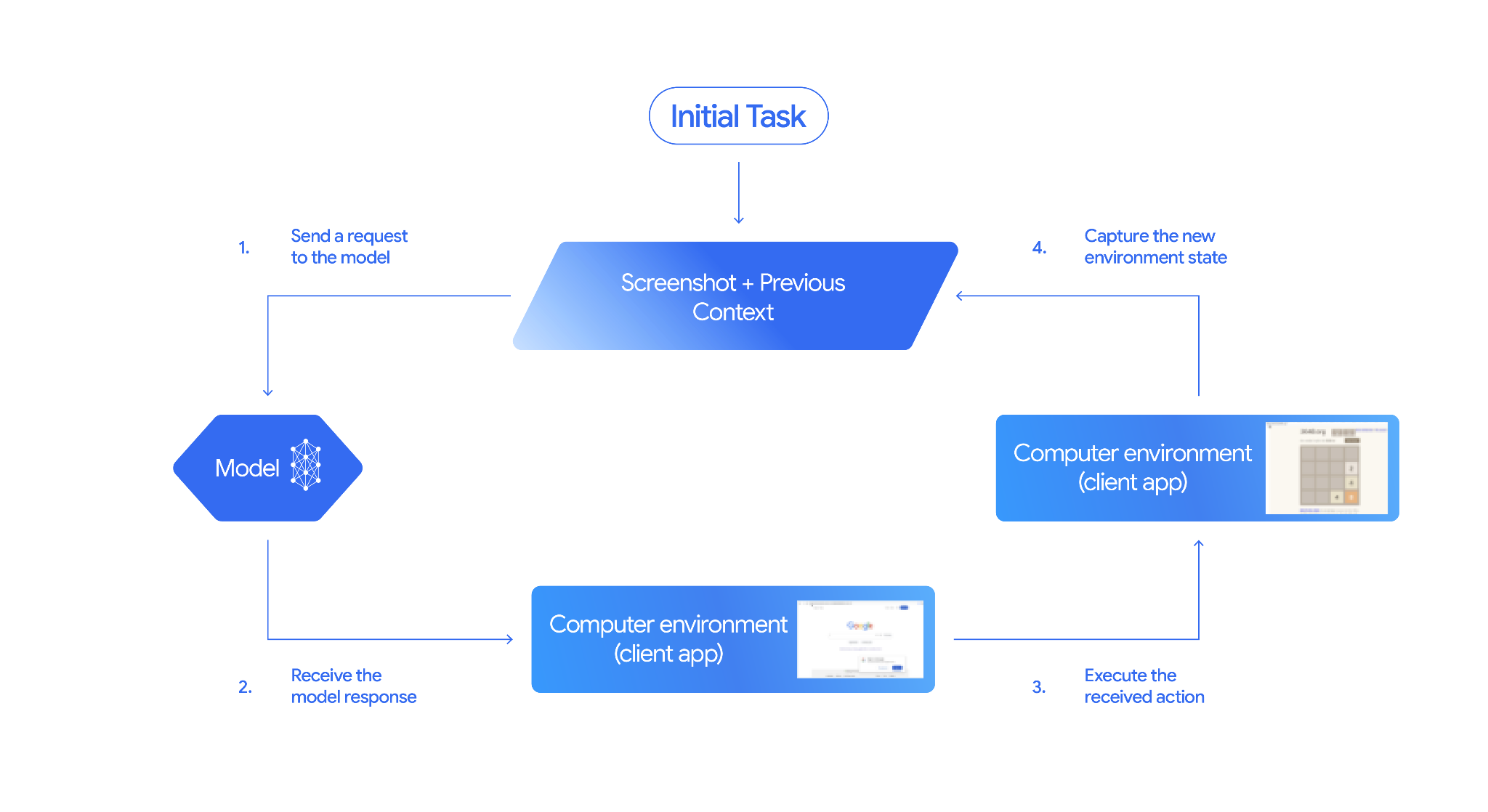
كيفية تنفيذ ميزة "استخدام الكمبيوتر"
قبل استخدام أداة "استخدام الكمبيوتر"، عليك إعداد ما يلي:
- بيئة التنفيذ الآمنة: شغِّل وكيلك في جهاز افتراضي أو حاوية في وضع الحماية لعزله عن نظامك المضيف والحدّ من تأثيره المحتمل. يتضمّن التنفيذ المرجعي بيئة اختبار معزولة جاهزة للاستخدام تستند إلى Docker ويمكنك استخدامها كنقطة بداية.
- معالج الإجراءات من جهة العميل: نفِّذ منطقًا من جهة العميل لتنفيذ الإحداثيات وكتابة النص وأخذ لقطات شاشة.
تستخدِم الأمثلة أدناه متصفّح ويب كبيئة تنفيذ وPlaywright كمعالج من جهة العميل.
0. إعداد Playwright
أولاً، ثبِّت الحِزم المطلوبة:
pip install google-genai playwright
playwright install chromium
بعد ذلك، عليك إعداد مثيل متصفّح Playwright لاستخدامه في التنفيذ:
from playwright.sync_api import sync_playwright

# 1. Configure screen dimensions for the target environment
SCREEN_WIDTH = 1440
SCREEN_HEIGHT = 900

# 2. Start the Playwright browser
# In production, utilize a sandboxed environment.
playwright = sync_playwright().start()
# Set headless=False to see the actions performed on your screen
browser = playwright.chromium.launch(headless=False)

# 3. Create a context and page with the specified dimensions
context = browser.new_context(
    viewport={"width": SCREEN_WIDTH, "height": SCREEN_HEIGHT}
)
page = context.new_page()

# 4. Navigate to an initial page to start the task
page.goto("https://www.google.com")

# The 'page', 'SCREEN_WIDTH', and 'SCREEN_HEIGHT' variables
# will be used in the steps below.
1. إرسال طلب إلى النموذج
إعداد مكتبة البرامج وضبط أداة "استخدام الكمبيوتر" يُرجى العِلم أنّه ليس من الضروري تحديد حجم العرض عند إرسال طلب، فالنموذج يتوقّع إحداثيات البكسل التي تم تغيير حجمها لتناسب ارتفاع الشاشة وعرضها.
Python
استخدِم حزمة تطوير البرامج (SDK) google-genai Python (الإصدار 2.7.0 أو إصدار أحدث) لإعداد طلب يستهدف بيئة المتصفّح:
from google import genai
from google.genai.types import (
    Content,
    Part,
    GenerateContentConfig,
    Tool,
    ComputerUse,
    Environment,
    ThinkingConfig,
)

client = genai.Client()

response = client.models.generate_content(
    model="gemini-3.8-flash",
    contents=[
        Content(
            role="user",
            parts=[
                Part(text="Find a flight from SF to Hawaii on Jun 30th, coming back on Jul 6th"),
            ],
        )
    ],
    config=GenerateContentConfig(
        tools=[
            Tool(
                computer_use=ComputerUse(
                    environment=Environment.ENVIRONMENT_BROWSER,
                    enable_prompt_injection_detection=True,
                ),
            ),
        ],
        thinking_config=ThinkingConfig(
            include_thoughts=True
        ),
    )
)

print(response.text)
JavaScript
استخدِم حزمة تطوير البرامج (SDK) @google/genai Node.js لضبط طلب يستهدف بيئة المتصفّح:
import { GoogleGenAI } from '@google/genai';

const ai = new GoogleGenAI();

const response = await ai.models.generateContent({
  model: 'gemini-3.8-flash',
  contents: [
    {
      role: 'user',
      parts: [{ text: "Find a flight from SF to Hawaii on Jun 30th, coming back on Jul 6th" }]
    }
  ],
  config: {
    tools: [{
      computerUse: {
        environment: "ENVIRONMENT_BROWSER",
        enable_prompt_injection_detection: true
      }
    }],
    thinkingConfig: {
      includeThoughts: true
    }
  }
});

console.log(response.text);
REST
استخدِم curl لإرسال طلب:
curl -X POST \
  "https://generativelanguage.googleapis.com/v1beta/models/gemini-3.8-flash:generateContent?key=$GEMINI_API_KEY" \
  -H "Content-Type: application/json" \
  -d '{
    "contents": [
      {
        "role": "user",
        "parts": {
          "text": "Find me a flight from SF to Hawaii on Jun 30th, coming back on Jul 6th. Start by navigating directly to flights.google.com"
        }
      }
    ],
    "tools": [
      {
        "computer_use": {
          "environment": "ENVIRONMENT_BROWSER",
          "enable_prompt_injection_detection": true
        }
      }
    ]
  }'
2. تلقّي ردّ النموذج
تقترح استجابة النموذج استدعاء دالة يتضمّن إحداثيات ونيّة تقديم استنتاج مخصّص يشرح الإجراء:
{
  "function_call": {
    "name": "click",
    "args": {
      "x": 450,
      "y": 120,
      "intent": "Click the search box to type the destination."
    }
  }
}
3- تنفيذ الإجراءات التي تم تلقّيها
يجب أن يحلّل الرمز البرمجي لتطبيقك استجابة النموذج، وينفّذ الإجراءات، ويجمع النتائج.
Python
from typing import Any, List, Tuple
import time

def denormalize_x(x: int, screen_width: int) -> int:
    """Convert normalized x coordinate (0-1000) to actual pixel coordinate."""
    return int(x / 1000 * screen_width)

def denormalize_y(y: int, screen_height: int) -> int:
    """Convert normalized y coordinate (0-1000) to actual pixel coordinate."""
    return int(y / 1000 * screen_height)

def execute_function_calls(interaction, page, screen_width, screen_height):
    results = []
    function_calls = []

    # Parse function calls from candidate response
    parts = candidate.content.parts if hasattr(candidate, 'content') else []
    if not parts and hasattr(candidate, 'function_calls'):
        function_calls = candidate.function_calls
    else:
        for part in parts:
            if part.function_call:
                function_calls.append(part.function_call)

    for function_call in function_calls:
        action_result = {}
        fname = function_call.name
        args = function_call.args
        print(f"  -> Executing: {fname} (Intent: {args.get('intent', 'N/A')})")

        try:
            if fname == "open_app":
                pass # Handled / already open
            elif fname in ("click", "double_click", "triple_click", "middle_click", "right_click", "move", "long_press"):
                actual_x = denormalize_x(args["x"], screen_width)
                actual_y = denormalize_y(args["y"], screen_height)

                if fname == "click":
                    page.mouse.click(actual_x, actual_y)
                elif fname == "double_click":
                    page.mouse.dblclick(actual_x, actual_y)
                elif fname == "right_click":
                    page.mouse.click(actual_x, actual_y, button="right")
                elif fname == "middle_click":
                    page.mouse.click(actual_x, actual_y, button="middle")
                elif fname == "move":
                    page.mouse.move(actual_x, actual_y)
            elif fname == "type":
                actual_x = denormalize_x(args["x"], screen_width) if "x" in args else None
                actual_y = denormalize_y(args["y"], screen_height) if "y" in args else None
                text = args["text"]
                press_enter = args.get("press_enter", False)

                if actual_x is not None and actual_y is not None:
                    page.mouse.click(actual_x, actual_y)
                # Clear field first
                page.keyboard.press("Meta+A")
                page.keyboard.press("Backspace")
                page.keyboard.type(text)
                if press_enter:
                    page.keyboard.press("Enter")
            elif fname == "navigate":
                page.goto(args["url"])
            elif fname == "go_back":
                page.go_back()
            elif fname == "go_forward":
                page.go_forward()
            elif fname == "wait":
                time.sleep(args.get("seconds", 1))
            else:
                print(f"Warning: Custom or unhandled function {fname}")

            page.wait_for_load_state(timeout=5000)
            time.sleep(1)

        except Exception as e:
            print(f"Error executing {fname}: {e}")
            action_result = {"error": str(e)}

        results.append((fname, function_call.id, action_result))

    return results
JavaScript
function denormalizeX(x, screenWidth) {
    // Convert normalized x coordinate (0-1000) to actual pixel coordinate.
    return Math.floor((x / 1000) * screenWidth);
}

function denormalizeY(y, screenHeight) {
    // Convert normalized y coordinate (0-1000) to actual pixel coordinate.
    return Math.floor((y / 1000) * screenHeight);
}

async function executeFunctionCalls(candidate, page, screenWidth, screenHeight) {
    const results = [];
    let functionCalls = [];

    // Parse function calls from candidate response
    const parts = candidate.content?.parts || [];
    if (parts.length === 0 && candidate.functionCalls) {
        functionCalls = candidate.functionCalls;
    } else {
        for (const part of parts) {
            if (part.functionCall) {
                functionCalls.push(part.functionCall);
            }
        }
    }

    for (const functionCall of functionCalls) {
        const actionResult = {};
        const fname = functionCall.name;
        const args = functionCall.args;
        console.log(`  -> Executing: ${fname} (Intent: ${args.intent || 'N/A'})`);

        try {
            if (fname === "open_app") {
                // Handled / already open
            } else if (["click", "double_click", "triple_click", "middle_click", "right_click", "move", "long_press"].includes(fname)) {
                const actualX = denormalizeX(args.x, screenWidth);
                const actualY = denormalizeY(args.y, screenHeight);

                if (fname === "click") {
                    await page.mouse.click(actualX, actualY);
                } else if (fname === "double_click") {
                    await page.mouse.dblclick(actualX, actualY);
                } else if (fname === "right_click") {
                    await page.mouse.click(actualX, actualY, { button: "right" });
                } else if (fname === "middle_click") {
                    await page.mouse.click(actualX, actualY, { button: "middle" });
                } else if (fname === "move") {
                    await page.mouse.move(actualX, actualY);
                }
            } else if (fname === "type") {
                const actualX = args.x !== undefined ? denormalizeX(args.x, screenWidth) : null;
                const actualY = args.y !== undefined ? denormalizeY(args.y, screenHeight) : null;
                const text = args.text;
                const pressEnter = args.press_enter || false;

                if (actualX !== null && actualY !== null) {
                    await page.mouse.click(actualX, actualY);
                }
                // Clear field first
                await page.keyboard.press("Meta+A");
                await page.keyboard.press("Backspace");
                await page.keyboard.type(text);
                if (pressEnter) {
                    await page.keyboard.press("Enter");
                }
            } else if (fname === "navigate") {
                await page.goto(args.url);
            } else if (fname === "go_back") {
                await page.goBack();
            } else if (fname === "go_forward") {
                await page.goForward();
            } else if (fname === "wait") {
                await new Promise(resolve => setTimeout(resolve, (args.seconds || 1) * 1000));
            } else {
                console.log(`Warning: Custom or unhandled function ${fname}`);
            }

            await page.waitForLoadState('load', { timeout: 5000 }).catch(() => {});
            await new Promise(resolve => setTimeout(resolve, 1000));
        } catch (e) {
            console.log(`Error executing ${fname}: ${e}`);
            actionResult.error = e.message;
        }

        results.push([fname, functionCall.id, actionResult]);
    }

    return results;
}
4. تسجيل حالة البيئة الجديدة
التقِط تمثيلاً للشاشة وأعِده إلى النموذج.
Python
def get_function_responses(page, results):
    screenshot_bytes = page.screenshot(type="png")
    current_url = page.url
    function_responses = []
    for name, call_id, result in results:
        function_responses.append({
            "type": "function_result",
            "name": name,
            "call_id": call_id,
            "result": [
                {
                    "type": "text",
                    "text": json.dumps({"url": current_url, **result})
                },
                {
                    "type": "image",
                    "data": base64.b64encode(screenshot_bytes).decode("utf-8"),
                    "mime_type": "image/png"
                }
            ]
        })
    return function_responses
JavaScript
async function getFunctionResponses(page, results) {
    const screenshotBuffer = await page.screenshot({ type: 'png' });
    const screenshotBase64 = screenshotBuffer.toString('base64');
    const currentUrl = page.url();
    const functionResponses = [];

    for (const [name, callId, result] of results) {
        functionResponses.push({
            type: "function_result",
            name: name,
            call_id: callId,
            result: [
                {
                    type: "text",
                    text: JSON.stringify({ url: currentUrl, ...result })
                },
                {
                    type: "image",
                    data: screenshotBase64,
                    mime_type: "image/png"
                }
            ]
        });
    }
    return functionResponses;
}
بعد تحديد كيفية تسجيل حالة البيئة وتنسيقها، يمكنك دمج كل هذه الخطوات في حلقة تنفيذ مستمرة.
إنشاء حلقة وكيل
لتفعيل التفاعلات المتعدّدة الخطوات، ادمِج الخطوات الأربع من قسم كيفية تنفيذ ميزة "استخدام الكمبيوتر" في حلقة واحدة. تستمر هذه الحلقة في طلب الإجراءات وإعادة النتائج إلى النموذج إلى أن تكتمل المهمة.
تذكَّر إدارة سجلّ المحادثات بشكل صحيح من خلال إضافة ردود النموذج وردود الوظائف إلى السجلّ في كل خطوة.
Python
import time
from typing import Any, List, Tuple
from playwright.sync_api import sync_playwright
from google import genai
from google.genai import types

client = genai.Client()

SCREEN_WIDTH = 1440
SCREEN_HEIGHT = 900

print("Initializing browser...")
playwright = sync_playwright().start()
browser = playwright.chromium.launch(headless=False)
context = browser.new_context(viewport={"width": SCREEN_WIDTH, "height": SCREEN_HEIGHT})
page = context.new_page()

# Paste helper functions execute_function_calls and get_function_responses here

try:
    page.goto("https://ai.google.dev/gemini-api/docs")

    config = types.GenerateContentConfig(
        tools=[types.Tool(computer_use=types.ComputerUse(
            environment=types.Environment.ENVIRONMENT_BROWSER,
            enable_prompt_injection_detection=True
        ))],
        thinking_config=types.ThinkingConfig(include_thoughts=True),
    )

    initial_screenshot = page.screenshot(type="png")
    USER_PROMPT = "Go to ai.google.dev/gemini-api/docs and search for pricing."
    print(f"Goal: {USER_PROMPT}")

    contents = [
        types.Content(role="user", parts=[
            types.Part(text=USER_PROMPT),
            types.Part.from_bytes(data=initial_screenshot, mime_type='image/png')
        ])
    ]

    # Agent Loop
    turn_limit = 5
    for i in range(turn_limit):
        print(f"\n--- Turn {i+1} ---")
        print("Thinking...")
        response = client.models.generate_content(
            model='gemini-3.8-flash',
            contents=contents,
            config=config,
        )

        candidate = response.candidates[0]
        contents.append(candidate.content)

        has_function_calls = any(part.function_call for part in candidate.content.parts)
        if not has_function_calls:
            text_response = " ".join(
                part.text for part in candidate.content.parts if hasattr(part, 'text')
            )
            print("Agent finished:", text_response)
            break

        print("Executing actions...")
        results = execute_function_calls(candidate, page, SCREEN_WIDTH, SCREEN_HEIGHT)

        print("Capturing state...")
        function_responses = get_function_responses(page, results)

        contents.append(
            types.Content(role="user", parts=[types.Part(function_response=fr) for fr in function_responses])
        )

finally:
    print("Closing browser...")
    browser.close()
    playwright.stop()
JavaScript
import { chromium } from 'playwright';
import { GoogleGenAI } from '@google/genai';

const ai = new GoogleGenAI();

// Constants for screen dimensions
const SCREEN_WIDTH = 1440;
const SCREEN_HEIGHT = 900;

console.log("Initializing browser...");
const browser = await chromium.launch({ headless: false });
const context = await browser.newContext({
    viewport: { width: SCREEN_WIDTH, height: SCREEN_HEIGHT }
});
const page = await context.newPage();

// Define helper functions. Copy/paste from steps 3 and 4:
// function denormalizeX(...)
// function denormalizeY(...)
// async function executeFunctionCalls(...)
// async function getFunctionResponses(...)

try {
    await page.goto("https://ai.google.dev/gemini-api/docs");

    const config = {
        tools: [{
            computerUse: {
                environment: "ENVIRONMENT_BROWSER",
                enable_prompt_injection_detection: true
            }
        }],
        thinkingConfig: { includeThoughts: true }
    };

    const initialScreenshotBuffer = await page.screenshot({ type: 'png' });
    const initialScreenshotBase64 = initialScreenshotBuffer.toString('base64');
    const USER_PROMPT = "Go to ai.google.dev/gemini-api/docs and search for pricing.";
    console.log(`Goal: ${USER_PROMPT}`);

    const contents = [
        {
            role: "user",
            parts: [
                { text: USER_PROMPT },
                {
                    inlineData: {
                        data: initialScreenshotBase64,
                        mimeType: "image/png"
                    }
                }
            ]
        }
    ];

    // Agent Loop
    const turnLimit = 5;
    for (let i = 0; i < turnLimit; i++) {
        console.log(`\n--- Turn ${i + 1} ---`);
        console.log("Thinking...");
        const response = await ai.models.generateContent({
            model: 'gemini-3.8-flash',
            contents: contents,
            config: config
        });

        const candidate = response.candidates[0];
        contents.push(candidate.content);

        const hasFunctionCalls = candidate.content.parts.some(part => part.functionCall);
        if (!hasFunctionCalls) {
            const textResponse = candidate.content.parts
                .filter(part => part.text)
                .map(part => part.text)
                .join(" ");
            console.log("Agent finished:", textResponse);
            break;
        }

        console.log("Executing actions...");
        const results = await executeFunctionCalls(candidate, page, SCREEN_WIDTH, SCREEN_HEIGHT);

        console.log("Capturing state...");
        const functionResponses = await getFunctionResponses(page, results);

        contents.push({
            role: "user",
            parts: functionResponses.map(fr => ({
                ...fr
            }))
        });
    }
} finally {
    console.log("Closing browser...");
    await browser.close();
}
البيئات المتوافقة
تتيح نماذج Gemini 3.x ثلاث بيئات محدّدة في إعدادات computer_use:
بيئة المتصفّح (ENVIRONMENT_BROWSER)
إجراءات الأزرار ضمن أداة المتصفّح:
| اسم الأمر | الوصف | الوسيطات (في استدعاء الدالة) |
|---|---|---|
| click | انقر بزر الماوس الأيسر على الإحداثيات. | y: عدد صحيح (0-999)x: عدد صحيح (0-999)intent: سلسلة |
| double_click | انقر مرّتين على الإحداثيات. | y: عدد صحيح (0-999)x: عدد صحيح (0-999)intent: سلسلة |
| triple_click | النقر ثلاث مرات على الإحداثيات | y: عدد صحيح (0-999)x: عدد صحيح (0-999)intent: سلسلة |
| middle_click | نقرات بالزر الأوسط للماوس عند الإحداثيات | y: عدد صحيح (0-999)x: عدد صحيح (0-999)intent: سلسلة |
| right_click | انقر بزر الماوس الأيمن على الإحداثيات. | y: عدد صحيح (0-999)x: عدد صحيح (0-999)intent: سلسلة |
| mouse_down | يضغط مع الاستمرار على زر الماوس عند الإحداثيات. | y: عدد صحيح (0-999)x: عدد صحيح (0-999)intent: سلسلة |
| mouse_up | يرفع إصبعك عن زر الماوس عند الإحداثيات. | y: عدد صحيح (0-999)x: عدد صحيح (0-999)intent: سلسلة |
| نقل | ينقل المؤشر إلى الموضع المحدّد. | y: عدد صحيح (0-999)x: عدد صحيح (0-999)intent: سلسلة |
| type | كتابة النص | text: strpress_enter: bool (اختياري، القيمة التلقائية false)intent: str |
| drag_and_drop | يسحب عنصرًا من إحداثيات البداية إلى إحداثيات النهاية. | start_y: عدد صحيح (0-999)start_x: عدد صحيح (0-999)end_y: عدد صحيح (0-999)end_x: عدد صحيح (0-999)intent: سلسلة |
| wait | يوقف التنفيذ مؤقتًا لعدد محدّد من الثواني. | seconds: عدد صحيح (اختياري، القيمة التلقائية هي 1)intent: سلسلة |
| press_key | يضغط على المفتاح المحدّد ثم يحرّره. | key: strintent: str |
| key_down | يضغط مع الاستمرار على المفتاح المحدّد. | key: strintent: str |
| key_up | يحرّر المفتاح المحدّد. | key: strintent: str |
| hotkey | يضغط على مجموعة المفاتيح المحدّدة. | keys: List[str]intent: str |
| take_screenshot | تعرض هذه الدالة لقطة شاشة للشاشة الحالية. | intent: str |
| scroll | التمرير للأعلى أو للأسفل أو لليسار أو لليمين عند إحداثية معيّنة بمسافة بكسل | y: عدد صحيح (0-999)x: عدد صحيح (0-999)direction: سلسلة ("up"، "down"، "left"، "right")magnitude_in_pixels: عدد صحيح (0-999، اختياري، القيمة التلقائية 300)intent: سلسلة |
| go_back | للرجوع إلى صفحة الويب السابقة في سجلّ المتصفّح | intent: str |
| navigate | ينتقِل مباشرةً إلى عنوان URL محدّد. | url: strintent: str |
| go_forward | ينتقِل إلى الأمام إلى صفحة الويب التالية في سجلّ المتصفّح. | intent: str |
بيئة الأجهزة الجوّالة (ENVIRONMENT_MOBILE)
إجراءات البيئة المحسّنة لنظام التشغيل Android:
| اسم الأمر | الوصف | الوسيطات (في استدعاء الدالة) |
|---|---|---|
| open_app | يفتح تطبيقًا باسمه. | app_name: strintent: str |
| click | انقر بزر الماوس الأيسر على الإحداثيات. | y: عدد صحيح (0-999)x: عدد صحيح (0-999)intent: سلسلة |
| list_apps | تعرض هذه الطريقة التطبيقات المتاحة على الجهاز، وتعرض أسماءها وأسماء حِزمها. | intent: str |
| wait | يوقف التنفيذ مؤقتًا لعدد محدّد من الثواني. | seconds: عدد صحيح (اختياري، القيمة التلقائية هي 1)intent: سلسلة |
| go_back | للرجوع إلى الشاشة أو صفحة الويب السابقة | intent: str |
| type | كتابة النص | text: strpress_enter: bool (اختياري، القيمة التلقائية false)intent: str |
| drag_and_drop | يسحب عنصرًا من إحداثيات البداية إلى إحداثيات النهاية. | start_y: عدد صحيح (0-999)start_x: عدد صحيح (0-999)end_y: عدد صحيح (0-999)end_x: عدد صحيح (0-999)intent: سلسلة |
| long_press | تنفّذ هذه الطريقة ضغطة مع الاستمرار في إحداثيات معيّنة على الشاشة. | y: عدد صحيح (0-999)x: عدد صحيح (0-999)seconds: عدد صحيح (اختياري، القيمة التلقائية 2)intent: سلسلة |
| press_key | يضغط على المفتاح المحدّد ثم يحرّره. | key: strintent: str |
| take_screenshot | تعرض هذه الدالة لقطة شاشة للشاشة الحالية. | intent: str |
بيئة سطح المكتب (ENVIRONMENT_DESKTOP)
أوامر المؤشر على مستوى نظام التشغيل في بيئات سطح المكتب:
| اسم الأمر | الوصف | الوسيطات (في استدعاء الدالة) |
|---|---|---|
| click | انقر بزر الماوس الأيسر على الإحداثيات. | y: عدد صحيح (0-999)x: عدد صحيح (0-999)intent: سلسلة |
| double_click | انقر مرّتين على الإحداثيات. | y: عدد صحيح (0-999)x: عدد صحيح (0-999)intent: سلسلة |
| triple_click | النقر ثلاث مرات على الإحداثيات | y: عدد صحيح (0-999)x: عدد صحيح (0-999)intent: سلسلة |
| middle_click | نقرات بالزر الأوسط للماوس عند الإحداثيات | y: عدد صحيح (0-999)x: عدد صحيح (0-999)intent: سلسلة |
| right_click | انقر بزر الماوس الأيمن على الإحداثيات. | y: عدد صحيح (0-999)x: عدد صحيح (0-999)intent: سلسلة |
| mouse_down | يضغط مع الاستمرار على زر الماوس عند الإحداثيات. | y: عدد صحيح (0-999)x: عدد صحيح (0-999)intent: سلسلة |
| mouse_up | يرفع إصبعك عن زر الماوس عند الإحداثيات. | y: عدد صحيح (0-999)x: عدد صحيح (0-999)intent: سلسلة |
| نقل | ينقل المؤشر إلى الموضع المحدّد. | y: عدد صحيح (0-999)x: عدد صحيح (0-999)intent: سلسلة |
| type | كتابة النص | text: strpress_enter: bool (اختياري، القيمة التلقائية false)intent: str |
| drag_and_drop | يسحب عنصرًا من إحداثيات البداية إلى إحداثيات النهاية. | start_y: عدد صحيح (0-999)start_x: عدد صحيح (0-999)end_y: عدد صحيح (0-999)end_x: عدد صحيح (0-999)intent: سلسلة |
| wait | يوقف التنفيذ مؤقتًا لعدد محدّد من الثواني. | seconds: عدد صحيح (اختياري، القيمة التلقائية هي 1)intent: سلسلة |
| press_key | يضغط على المفتاح المحدّد ثم يحرّره. | key: strintent: str |
| key_down | يضغط مع الاستمرار على المفتاح المحدّد. | key: strintent: str |
| key_up | يحرّر المفتاح المحدّد. | key: strintent: str |
| hotkey | يضغط على مجموعة المفاتيح المحدّدة. | keys: List[str]intent: str |
| take_screenshot | تعرض هذه الدالة لقطة شاشة للشاشة الحالية. | intent: str |
| scroll | التمرير للأعلى أو للأسفل أو لليسار أو لليمين عند إحداثية معيّنة بمسافة بكسل | y: عدد صحيح (0-999)x: عدد صحيح (0-999)direction: سلسلة ("up"، "down"، "left"، "right")magnitude_in_pixels: عدد صحيح (0-999، اختياري، القيمة التلقائية 300)intent: سلسلة |
الدوال المخصّصة التي يحدّدها المستخدم
يمكنك توسيع وظائف النموذج من خلال تضمين دوال مخصّصة يحدّدها المستخدم. على سبيل المثال، في سيناريوهات "المشاركة البشرية" (HITL)، يمكنك استبعاد الإجراءات التلقائية المحدّدة مسبقًا وتسجيل إجراءات مخصّصة.
Python
استبعِد إجراءات المتصفّح العادية المحدّدة مسبقًا (مثل click) وسجِّل أداة yield_to_user مخصّصة:
from google import genai
from google.genai import types

client = genai.Client()

yield_to_user_tool = types.FunctionDeclaration(
    name="yield_to_user",
    description="Yields control back to the user for assistance or verification when an automated action is unsafe or ambiguous.",
    parameters=types.Schema(
        type="OBJECT",
        properties={
            "reason": types.Schema(
                type="STRING",
                description="The reason why the agent is yielding control to the human."
            )
        },
        required=["reason"]
    )
)

response = client.models.generate_content(
    model="gemini-3.8-flash",
    contents="Click the submit button. If you need a second factor authentication code, ask me.",
    config=types.GenerateContentConfig(
        tools=[
            types.Tool(
                computer_use=types.ComputerUse(
                    environment="ENVIRONMENT_MOBILE",
                    excluded_predefined_functions=["click"]
                )
            ),
            yield_to_user_tool
        ]
    )
)
إدارة مستويات التفكير
بالنسبة إلى وكلاء استخدام الكمبيوتر، يمكنك ضبط مستويات تفكير مختلفة لتحقيق التوازن بين جودة الإجراء وسرعة التنفيذ. تحقّق مستويات التفكير المنخفضة بشكل عام توازنًا جيدًا لمهام التشغيل الآلي العادية.
السلامة والأمان
ضبط سياسات السلامة
تتضمّن نماذج Gemini 3.x فئات خدمات أمان مضمّنة تساعد في تحديد ما إذا كان تأكيد المستخدم مطلوبًا.
| فئة سياسة السلامة | الوصف |
|---|---|
FINANCIAL_TRANSACTIONS |
يحظر أو يفعّل تأكيد الإجراءات التي تتضمّن دفعات أو إتمام عملية شراء أو سلع خاضعة للرقابة. |
SENSITIVE_DATA_MODIFICATION |
يحمي السجلات الصحية أو المالية أو الحكومية من التعديل غير المصرّح به. |
COMMUNICATION_TOOL |
يمنع الوكيل من إرسال رسائل إلكترونية أو رسائل محادثة أو مسودات بشكل مستقل. |
ACCOUNT_CREATION |
يمنع الوكيل من تسجيل حسابات جديدة تلقائيًا على المواقع الإلكترونية. |
DATA_MODIFICATION |
تنظّم هذه السياسة التعديلات العامة على نظام الملفات ومشاركة البيانات وحذف مساحة التخزين. |
USER_CONSENT_MANAGEMENT |
يتطلّب ذلك أن يتولّى المستخدم إدارة بانرات طلب الموافقة على ملفات تعريف الارتباط وإشعارات الخصوصية. |
LEGAL_TERMS_AND_AGREEMENTS |
يمنع النموذج من قبول بنود الخدمة أو العقود الملزمة قانونًا بشكل مستقل. |
تجاهل إعدادات السلامة
يمكنك إلغاء سياسات محدّدة من خلال تمرير عمليات الإلغاء:
Python
from google import genai
from google.genai import types

client = genai.Client()

response = client.models.generate_content(
    model="gemini-3.8-flash",
    contents="Clean up the local folder by archiving old logs.",
    config=types.GenerateContentConfig(
        tools=[
            types.Tool(
                computer_use=types.ComputerUse(
                    environment=types.Environment.ENVIRONMENT_DESKTOP,
                    disabled_safety_policies=[
                        types.SafetyPolicy.DATA_MODIFICATION
                    ]
                )
            )
        ]
    )
)
JavaScript
import { GoogleGenAI } from '@google/genai';

const ai = new GoogleGenAI();

const response = await ai.models.generateContent({
  model: 'gemini-3.8-flash',
  contents: "Clean up the local folder by archiving old logs.",
  config: {
    tools: [{
      computerUse: {
        environment: "ENVIRONMENT_DESKTOP",
        disabledSafetyPolicies: [
          "DATA_MODIFICATION"
        ]
      }
    }]
  }
});
رصد هجمات حقن الطلبات
تتضمّن ميزة "استخدام الكمبيوتر" في Gemini 3.5 Flash أو الإصدارات الأحدث آلية أمان متقدّمة لرصد هجمات حقن الطلبات. عند تفعيل هذه الميزة، تتحقّق مما إذا كانت لقطة الشاشة المضمّنة تحتوي على تعليمات معادية مخفية (مثل "تجاهل الأوامر السابقة") وتحظر التنفيذ عند رصدها.
ميزة "رصد هجمات حقن الطلبات" هي ميزة اختيارية. القيمة التلقائية هي false.
توضّح الأمثلة التالية كيفية تفعيل ميزة رصد عمليات حقن الطلبات في إعدادات أداة "استخدام الكمبيوتر":
Python
from google import genai
from google.genai import types

client = genai.Client()

response = client.models.generate_content(
    model="gemini-3.5-flash",
    contents="Search for flight deals and summarize top results.",
    config=types.GenerateContentConfig(
        tools=[
            types.Tool(
                computer_use=types.ComputerUse(
                    environment="ENVIRONMENT_DESKTOP",
                    enable_prompt_injection_detection=True,
                )
            )
        ]
    ),
)
JavaScript
import { GoogleGenAI } from '@google/genai';

const ai = new GoogleGenAI();

const response = await ai.models.generateContent({
    model: "gemini-3.5-flash",
    contents: "Search for flight deals and summarize top results.",
    config: {
        tools: [{
            computerUse: {
                environment: "ENVIRONMENT_DESKTOP",
                enablePromptInjectionDetection: true,
            }
        }]
    }
});
cURL
curl "https://generativelanguage.googleapis.com/v1beta/models/gemini-3.5-flash:generateContent?key=${GEMINI_API_KEY}" \
-H 'Content-Type: application/json' \
-d '{
  "contents": [{
    "parts": [{"text": "Search for flight deals and summarize top results."}]
  }],
  "tools": [{
    "computer_use": {
      "environment": "ENVIRONMENT_DESKTOP",
      "enable_prompt_injection_detection": true
    }
  }]
}'
تأكيد قرار الأمان
قد يتضمّن الردّ المَعلمة safety_decision في وسيطات استدعاء الدالة:
{
  "function_call": {
    "name": "click",
    "args": {
      "x": 60,
      "y": 100,
      "safety_decision": {
        "explanation": "Must check check-box",
        "decision": "require_confirmation"
      }
    }
  }
}
إذا كانت قيمة safety_decision هي require_confirmation، اطلب من المستخدم النهائي اتّخاذ إجراء. إذا أكّد المستخدم ذلك، اضبط safety_acknowledgement في FunctionResponse.
Python
def get_safety_confirmation(safety_decision):
    # Prompt user for confirmation
    print(f"Safety confirmation required: {safety_decision.get('explanation', '')}")
    return "CONTINUE" # Or TERMINATE

# Inside execute_function_calls, check for safety_decision:
if 'safety_decision' in function_call.args:
    decision = get_safety_confirmation(function_call.args['safety_decision'])
    if decision == "TERMINATE":
        break
    # Include safety_acknowledgement inside the action result
    action_result["safety_acknowledgement"] = True
أفضل الممارسات المتعلقة بالأمان
تتضمّن ميزة "استخدام الكمبيوتر" مخاطر فريدة تتعلّق بالأمان والتشغيل، إذ قد يواجه النموذج محتوًى غير موثوق به على الشاشات أو يرتكب أخطاءً في تنفيذ الإجراءات نيابةً عن المستخدم. اتّبِع أفضل الممارسات التالية لحماية بيانات المستخدمين وأنظمتهم:
المشاركة البشرية (HITL):
- فرض تأكيد المستخدم: عندما يشير الردّ الآمن إلى
require_confirmation، اطلب من المستخدم الموافقة. تقديم تعليمات أمان مخصّصة: يمكنك تنفيذ تعليمات نظام مخصّصة لتحديد حدود الأمان الخاصة بك وفرضها. على سبيل المثال:
Python
from google import genai
from google.genai import types

system_instruction = """
## **RULE 1: Seek User Confirmation (USER_CONFIRMATION)**

This is your first and most important check. If the next required action falls
into any of the following categories, you MUST stop immediately, and seek the
user's explicit permission.

**Procedure for Seeking Confirmation:**
* **For Consequential Actions:** Perform all preparatory steps (e.g., navigating,
  filling out forms, typing a message). You will ask for confirmation **AFTER**
  all necessary information is entered on the screen, but **BEFORE** you perform
  the final, irreversible action (e.g., before clicking "Send", "Submit",
  "Confirm Purchase", "Share").
* **For Prohibited Actions:** If the action is strictly forbidden (e.g., accepting
  legal terms, solving a CAPTCHA), you must first inform the user about the
  required action and ask for their confirmation to proceed.

**USER_CONFIRMATION Categories:**

*   **Consent and Agreements:** You are FORBIDDEN from accepting, selecting, or
    agreeing to any of the following on the user's behalf. You must ask the
    user to confirm before performing these actions.
    *   Terms of Service
    *   Privacy Policies
    *   Cookie consent banners
    *   End User License Agreements (EULAs)
    *   Any other legally significant contracts or agreements.
*   **Robot Detection:** You MUST NEVER attempt to solve or bypass the
    following. You must ask the user to confirm before performing these actions.
    *   CAPTCHAs (of any kind)
    *   Any other anti-robot or human-verification mechanisms, even if you are
        capable.
*   **Financial Transactions:**
    *   Completing any purchase.
    *   Managing or moving money (e.g., transfers, payments).
    *   Purchasing regulated goods or participating in gambling.
*   **Sending Communications:**
    *   Sending emails.
    *   Sending messages on any platform (e.g., social media, chat apps).
    *   Posting content on social media or forums.
*   **Accessing or Modifying Sensitive Information:**
    *   Health, financial, or government records (e.g., medical history, tax
        forms, passport status).
    *   Revealing or modifying sensitive personal identifiers (e.g., SSN, bank
        account number, credit card number).
*   **User Data Management:**
    *   Accessing, downloading, or saving files from the web.
    *   Sharing or sending files/data to any third party.
    *   Transferring user data between systems.
*   **Browser Data Usage:**
    *   Accessing or managing Chrome browsing history, bookmarks, autofill data,
        or saved passwords.
*   **Security and Identity:**
    *   Logging into any user account.
    *   Any action that involves misrepresentation or impersonation (e.g.,
        creating a fan account, posting as someone else).
*   **Insurmountable Obstacles:** If you are technically unable to interact with
    a user interface element or are stuck in a loop you cannot resolve, ask the
    user to take over.
---

## **RULE 2: Default Behavior (ACTUATE)**

If an action does **NOT** fall under the conditions for `USER_CONFIRMATION`,
your default behavior is to **Actuate**.

**Actuation Means:**  You MUST proactively perform all necessary steps to move
the user's request forward. Continue to actuate until you either complete the
non-consequential task or encounter a condition defined in Rule 1.

*   **Example 1:** If asked to send money, you will navigate to the payment
    portal, enter the recipient's details, and enter the amount. You will then
    **STOP** as per Rule 1 and ask for confirmation before clicking the final
    "Send" button.
*   **Example 2:** If asked to post a message, you will navigate to the site,
    open the post composition window, and write the full message. You will then
    **STOP** as per Rule 1 and ask for confirmation before clicking the final
    "Post" button.

    After the user has confirmed, remember to get the user's latest screen
    before continuing to perform actions.

# Final Response Guidelines:
Write final response to the user in the following cases:
- User confirmation
- When the task is complete or you have enough information to respond to the user
"""

client = genai.Client()
response = client.models.generate_content(
    model="gemini-3.8-flash",
    contents="Prepare a draft but do not send.",
    config=types.GenerateContentConfig(
        system_instruction=system_instruction,
        tools=[types.Tool(computer_use=types.ComputerUse(environment="ENVIRONMENT_BROWSER"))]
    )
)
JavaScript
import { GoogleGenAI } from '@google/genai';

const ai = new GoogleGenAI();

const systemInstruction = `
## **RULE 1: Seek User Confirmation (USER_CONFIRMATION)**

This is your first and most important check. If the next required action falls
into any of the following categories, you MUST stop immediately, and seek the
user's explicit permission.

**Procedure for Seeking Confirmation:**
* **For Consequential Actions:** Perform all preparatory steps (e.g., navigating,
  filling out forms, typing a message). You will ask for confirmation **AFTER**
  all necessary information is entered on the screen, but **BEFORE** you perform
  the final, irreversible action (e.g., before clicking "Send", "Submit",
  "Confirm Purchase", "Share").
* **For Prohibited Actions:** If the action is strictly forbidden (e.g., accepting
  legal terms, solving a CAPTCHA), you must first inform the user about the
  required action and ask for their confirmation to proceed.

**USER_CONFIRMATION Categories:**

*   **Consent and Agreements:** You are FORBIDDEN from accepting, selecting, or
    agreeing to any of the following on the user's behalf. You must ask the
    user to confirm before performing these actions.
    *   Terms of Service
    *   Privacy Policies
    *   Cookie consent banners
    *   End User License Agreements (EULAs)
    *   Any other legally significant contracts or agreements.
*   **Robot Detection:** You MUST NEVER attempt to solve or bypass the
    following. You must ask the user to confirm before performing these actions.
    *   CAPTCHAs (of any kind)
    *   Any other anti-robot or human-verification mechanisms, even if you are
        capable.
*   **Financial Transactions:**
    *   Compleying any purchase.
    *   Managing or moving money (e.g., transfers, payments).
    *   Purchasing regulated goods or participating in gambling.
*   **Sending Communications:**
    *   Sending emails.
    *   Sending messages on any platform (e.g., social media, chat apps).
    *   Posting content on social media or forums.
*   **Accessing or Modifying Sensitive Information:**
    *   Health, financial, or government records (e.g., medical history, tax
        forms, passport status).
    *   Revealing or modifying sensitive personal identifiers (e.g., SSN, bank
        account number, credit card number).
*   **User Data Management:**
    *   Accessing, downloading, or saving files from the web.
    *   Sharing or sending files/data to any third party.
    *   Transferring user data between systems.
*   **Browser Data Usage:**
    *   Accessing or managing Chrome browsing history, bookmarks, autofill data,
        or saved passwords.
*   **Security and Identity:**
    *   Logging into any user account.
    *   Any action that involves misrepresentation or impersonation (e.g.,
        creating a fan account, posting as someone else).
*   **Insurmountable Obstacles:** If you are technically unable to interact with
    a user interface element or are stuck in a loop you cannot resolve, ask the
    user to take over.
---

## **RULE 2: Default Behavior (ACTUATE)**

If an action does **NOT** fall under the conditions for \`USER_CONFIRMATION\`,
your default behavior is to **Actuate**.

**Actuation Means:**  You MUST proactively perform all necessary steps to move
the user's request forward. Continue to actuate until you either complete the
non-consequential task or encounter a condition defined in Rule 1.

*   **Example 1:** If asked to send money, you will navigate to the payment
    portal, enter the recipient's details, and enter the amount. You will then
    **STOP** as per Rule 1 and ask for confirmation before clicking the final
    "Send" button.
*   **Example 2:** If asked to post a message, you will navigate to the site,
    open the post composition window, and write the full message. You will then
    **STOP** as per Rule 1 and ask for confirmation before clicking the final
    "Post" button.

    After the user has confirmed, remember to get the user's latest screen
    before continuing to perform actions.

# Final Response Guidelines:
Write final response to the user in the following cases:
- User confirmation
- When the task is complete or you have enough information to respond to the user
`;

const response = await ai.models.generateContent({
  model: 'gemini-3.8-flash',
  contents: "Prepare a draft but do not send.",
  config: {
    systemInstruction: systemInstruction,
    tools: [{
      computerUse: {
        environment: "ENVIRONMENT_BROWSER"
      }
    }]
  }
});
- فرض تأكيد المستخدم: عندما يشير الردّ الآمن إلى
بيئة التنفيذ الآمنة: شغِّل الوكيل في بيئة آمنة ومحمية للحدّ من تأثيره المحتمَل. ويمكن أن يكون ذلك عبارة عن آلة افتراضية (VM) معزولة، أو حاوية (مثل Docker)، أو ملف شخصي مخصّص للمتصفّح مع أذونات محدودة. يمكنك الاطّلاع على التنفيذ المرجعي على GitHub للحصول على إرشادات حول إعداد بيئة الاختبار باستخدام Docker.
تنقية البيانات المدخلة: يجب تنقية جميع النصوص التي ينشئها المستخدمون في الطلبات للحد من خطر التعليمات غير المقصودة أو هجمات حقن الطلبات. هذه طبقة أمان مفيدة، ولكنّها ليست بديلاً عن بيئة تنفيذ آمنة.
ضوابط المحتوى: استخدِم ضوابط المحتوى وواجهات برمجة التطبيقات الخاصة بسلامة المحتوى لتقييم مدى ملاءمة مدخلات المستخدمين ومدخلات الأدوات ومخرجاتها وردود الوكيل، بالإضافة إلى رصد عمليات حقن التعليمات البرمجية وعمليات تجاوز القيود.
القوائم المسموح بها والقوائم المحظورة: استخدِم آليات فلترة للتحكّم في الأماكن التي يمكن للنموذج الانتقال إليها والإجراءات التي يمكنه تنفيذها. تُعدّ القائمة المحظورة التي تتضمّن المواقع الإلكترونية المحظورة نقطة بداية جيدة، بينما تكون القائمة المسموح بها الأكثر تقييدًا أكثر أمانًا.
إمكانية المراقبة والتسجيل: احتفِظ بسجلّات مفصّلة لتصحيح الأخطاء والتدقيق والاستجابة للحوادث. على البرنامج تسجيل الطلبات، ولقطات الشاشة، والإجراءات التي تقترحها النماذج (
function_call)، والردود الآمنة، وجميع الإجراءات التي ينفّذها البرنامج في النهاية.إدارة البيئة: تأكَّد من اتساق بيئة واجهة المستخدم الرسومية. قد تؤدي النوافذ المنبثقة أو الإشعارات أو التغييرات غير المتوقّعة في التنسيق إلى إرباك النموذج. ابدأ من حالة معروفة ونظيفة لكل مهمة جديدة إذا أمكن ذلك.
إصدارات النموذج
يمكنك استخدام ميزة "استخدام الكمبيوتر" مع الطُرز التالية:
- Gemini 3.8 Flash (
gemini-3.8-flash): النموذج المقترَح للاستخدام على الكمبيوتر، ويتميّز بتفاعل عالي الدقة مع واجهة المستخدم واستخدام موثوق للأدوات. - Gemini 3.7 Flash (
gemini-3.7-flash): النموذج الثابت السابق للاستخدام على الكمبيوتر، ويتضمّن إجراءات مبسطة مع نوايا، ويتوافق مع المتصفح والأجهزة الجوّالة وبيئات سطح المكتب، ويتضمّن سياسات أمان قابلة للضبط، ويتيح رصد عمليات حقن الطلبات. - Gemini 3.5 Flash-Lite (
gemini-3.5-flash-lite): نموذج منخفض الاستجابة وفعّال من حيث التكلفة ومناسب للاستخدام على أجهزة الكمبيوتر. - Gemini 3.5 Flash (
gemini-3.5-flash): هو النموذج الثابت السابق الذي يتيح استخدام الكمبيوتر. - معاينة Gemini 3 Flash (
gemini-3-flash-preview): نموذج معاينة متوافق مع أجهزة الكمبيوتر
الخطوات التالية
- جرِّب استخدام الكمبيوتر في بيئة العرض التوضيحي في Browserbase.
- اطّلِع على التنفيذ المرجعي للحصول على مثال على الرمز البرمجي.
- مزيد من المعلومات حول أدوات Gemini API الأخرى: