

ابزار «استفاده از رایانه» به شما امکان میدهد عاملهای کنترل مرورگر، تلفن همراه، و رایانه رومیزی بسازید که با تکالیف تعامل برقرار میکنند و آنها را خودکارسازی میکنند. بااستفاده از نماگرفتها، مدل میتواند صفحه رایانه را «ببیند» و با تولید کنشهای خاص میانای کاربر مثل کلیکهای موشواره و ورودیهای صفحهکلید «عمل کند». مشابه با فراخوانی تابع، باید محیط اجرای سمت مشتری را برای دریافت و اجرای کنشهای «استفاده از رایانه» پیادهسازی کنید.
برای فهرست مدلهای پشتیبانیشده، نسخههای مدل را ببینید. مدلهای Gemini 3.x از چندین قابلیت پیشرفته پشتیبانی میکنند:
- پشتیبانی از چند محیط: برای محیطهای مرورگر، تلفن همراه، و رایانه عامل بسازید.
- کنشهای سادهشده با هدفها: کنشها شامل فیلد
intentاست که استدلال مدل را برای هر مرحله توضیح میدهد. - خطمشیهای ایمنی پیکربندیپذیر: رفتار ایمنی را با دستهبندیهای خطمشی داخلی و ملغیسازیها تنظیم دقیق کنید.
- تشخیص تزریق پیامواره: موافقت با اسکن نماگرفت برای تشخیص دستورالعملهای خصمانه پنهان.
با «استفاده از رایانه» میتوانید کارگزارانی بسازید که:
- ورود دادههای تکراری یا تکمیل فرم در وبسایتها را خودکارسازی کنید.
- انجام آزمایش خودکار برنامههای وب و جریانهای کاربر
- انجام پژوهش در وبسایتهای مختلف (برای نمونه، جمعآوری اطلاعات محصول، قیمتها، و مرورها از سایتهای تجارت الکترونیک برای اطلاعرسانی درباره خرید)
در اینجا نمونهای حداقلی از فعال کردن ابزار «استفاده از رایانه» آورده شده است:
Python
from google import genai
from google.genai import types

client = genai.Client()

response = client.models.generate_content(
    model="gemini-3.8-flash",
    contents="Search for 'Gemini API' on Google.",
    config=types.GenerateContentConfig(
        tools=[types.Tool(
            computer_use=types.ComputerUse(
                environment=types.Environment.ENVIRONMENT_BROWSER,
            )
        )]
    )
)

print(response.text)
JavaScript
import { GoogleGenAI } from '@google/genai';

const ai = new GoogleGenAI();

const response = await ai.models.generateContent({
  model: 'gemini-3.8-flash',
  contents: "Search for 'Gemini API' on Google.",
  config: {
    tools: [{
      computerUse: {
        environment: "ENVIRONMENT_BROWSER",
      }
    }]
  }
});

console.log(response.text);
نحوه عملکرد «استفاده از رایانه»
برای ساختن عامل با مدل «استفاده از رایانه»، باید حلقه پیوستهای بین برنامهتان و میانای برنامهسازی کاربردی راهاندازی کنید. در اینجا آنچه کد شما در هر مرحله انجام خواهد داد آمده است:
- ارسال درخواست به مدل
- برنامه شما درخواست میانای برنامهسازی کاربردی حاوی ابزار «استفاده از رایانه»، تنظیمات پیکربندی شما (مثل محیط هدف)، پیامواره کاربر، و نماگرفتی از صفحه فعلی ارسال میکند.
- دریافت پاسخ مدل
- مدل صفحه و پیامواره را تجزیهوتحلیل میکند و پاسخی برمیگرداند که شامل
function_callپیشنهادی است که کنش رابط کاربری را نشان میدهد (مثل کلیک، پیمایش، یا ضربه کلید). - برای مدلهای Gemini 3.x، پاسخ همچنین شامل استدلال
intentتوضیح میدهد که چرا مدل آن کنش را انتخاب کرده است. - پاسخ ممکن است شامل
safety_decisionاز سیستم ایمنی داخلی باشد که کنش را بهعنوان عادی/مجاز،require_confirmation(نیازمند تأیید کاربر)، یا مسدود طبقهبندی میکند.
- مدل صفحه و پیامواره را تجزیهوتحلیل میکند و پاسخی برمیگرداند که شامل
- اجرای کنش دریافتی
- اگر کنش مجاز باشد (یا کاربر آن را تأیید کند)، کد سمت مشتری شما
function_callرا تجزیه میکند، مختصات عادیسازیشده را مقیاسبندی میکند تا با درگاه دید شما مطابقت داشته باشد، و کنش را در محیط هدف بااستفاده از ابزارهای خودکارسازی (مثل Playwright) اجرا میکند. اگر کنش مسدود شد، کارخواه شما باید اجرا را متوقف کند یا وقفه را مدیریت کند.
- اگر کنش مجاز باشد (یا کاربر آن را تأیید کند)، کد سمت مشتری شما
- ثبت وضعیت محیط جدید
- پساز اینکه کنش اجرا شد، برنامه شما نماگرفت جدیدی میگیرد و آن را در
function_resultبه مدل برمیگرداند تا مرحله بعدی را درخواست کند.
- پساز اینکه کنش اجرا شد، برنامه شما نماگرفت جدیدی میگیرد و آن را در
این فرایند سپس از مرحله ۲ تکرار میشود و بهطور مداوم کنش بعدی را از مدل درخواست میکند تا زمانی که تکلیف تکمیل یا خاتمه یابد.
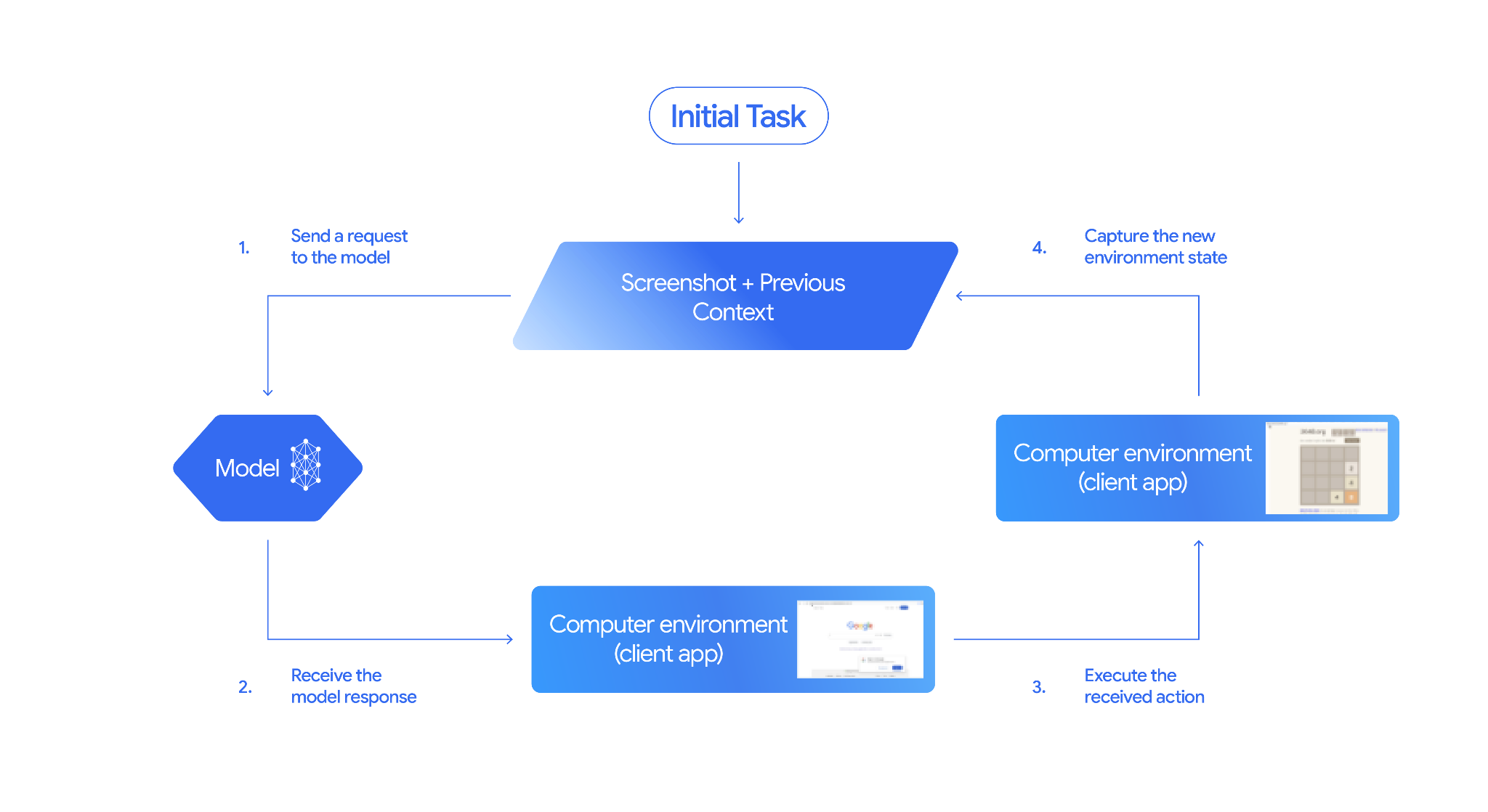
نحوه پیادهسازی «استفاده از رایانه»
قبلاز ساختن با ابزار «استفاده از رایانه»، باید موارد زیر را راهاندازی کنید:
- محیط اجرای امن: نمایندهتان را در ماشین مجازی یا محفظه جعبه شنی اجرا کنید تا آن را از سیستم میزبان خود جدا کنید و تأثیر بالقوه آن را محدود کنید. پیادهسازی مرجع شامل یک جعبه ایمنی مبتنی بر Docker آماده استفاده است که میتوانید از آن بهعنوان نقطه شروع استفاده کنید.
- مدیر کنش سمت کارخواه: منطق سمت کارخواه را برای اجرای مختصات، تایپ نوشتار، و گرفتن نماگرفت پیادهسازی کنید.
نمونههای زیر از مرورگر وب بهعنوان محیط اجرا و Playwright بهعنوان مدیریتکننده سمت مشتری استفاده میکنند.
۰. راهاندازی Playwright
ابتدا بستههای موردنیاز را نصب کنید:
pip install google-genai playwright
playwright install chromium
سپس، نمونه مرورگر Playwright را برای استفاده در اجرا مقداردهی اولیه کنید:
from playwright.sync_api import sync_playwright

# 1. Configure screen dimensions for the target environment
SCREEN_WIDTH = 1440
SCREEN_HEIGHT = 900

# 2. Start the Playwright browser
# In production, utilize a sandboxed environment.
playwright = sync_playwright().start()
# Set headless=False to see the actions performed on your screen
browser = playwright.chromium.launch(headless=False)

# 3. Create a context and page with the specified dimensions
context = browser.new_context(
    viewport={"width": SCREEN_WIDTH, "height": SCREEN_HEIGHT}
)
page = context.new_page()

# 4. Navigate to an initial page to start the task
page.goto("https://www.google.com")

# The 'page', 'SCREEN_WIDTH', and 'SCREEN_HEIGHT' variables
# will be used in the steps below.
۱. ارسال درخواست به مدل
کتابخانه کارخواه را مقداردهی اولیه کنید و ابزار «استفاده از رایانه» را پیکربندی کنید. توجه داشته باشید که هنگام صدور درخواست نیازی به تعیین اندازه نمایشگر نیست؛ مدل مختصات پیکسلی را که با ارتفاع و عرض صفحه مقیاسبندی شده است پیشبینی میکند.
Python
برای پیکربندی درخواست هدفیابی محیط مرورگر، از «کیت توسعه نرمافزار google-genai Python» (نسخه 2.7.0 یا بالاتر) استفاده کنید:
from google import genai
from google.genai.types import (
    Content,
    Part,
    GenerateContentConfig,
    Tool,
    ComputerUse,
    Environment,
    ThinkingConfig,
)

client = genai.Client()

response = client.models.generate_content(
    model="gemini-3.8-flash",
    contents=[
        Content(
            role="user",
            parts=[
                Part(text="Find a flight from SF to Hawaii on Jun 30th, coming back on Jul 6th"),
            ],
        )
    ],
    config=GenerateContentConfig(
        tools=[
            Tool(
                computer_use=ComputerUse(
                    environment=Environment.ENVIRONMENT_BROWSER,
                    enable_prompt_injection_detection=True,
                ),
            ),
        ],
        thinking_config=ThinkingConfig(
            include_thoughts=True
        ),
    )
)

print(response.text)
JavaScript
از کیت توسعه نرمافزار @google/genai Node.js برای پیکربندی درخواست هدفیابی محیط مرورگر استفاده کنید:
import { GoogleGenAI } from '@google/genai';

const ai = new GoogleGenAI();

const response = await ai.models.generateContent({
  model: 'gemini-3.8-flash',
  contents: [
    {
      role: 'user',
      parts: [{ text: "Find a flight from SF to Hawaii on Jun 30th, coming back on Jul 6th" }]
    }
  ],
  config: {
    tools: [{
      computerUse: {
        environment: "ENVIRONMENT_BROWSER",
        enable_prompt_injection_detection: true
      }
    }],
    thinkingConfig: {
      includeThoughts: true
    }
  }
});

console.log(response.text);
REST
برای ارسال درخواست از curl استفاده کنید:
curl -X POST \
  "https://generativelanguage.googleapis.com/v1beta/models/gemini-3.8-flash:generateContent?key=$GEMINI_API_KEY" \
  -H "Content-Type: application/json" \
  -d '{
    "contents": [
      {
        "role": "user",
        "parts": {
          "text": "Find me a flight from SF to Hawaii on Jun 30th, coming back on Jul 6th. Start by navigating directly to flights.google.com"
        }
      }
    ],
    "tools": [
      {
        "computer_use": {
          "environment": "ENVIRONMENT_BROWSER",
          "enable_prompt_injection_detection": true
        }
      }
    ]
  }'
۲. دریافت پاسخ مدل
پاسخ مدل فراخوانی تابعی را پیشنهاد میدهد که حاوی مختصات و هدف استدلال سفارشی برای توضیح کنش است:
{
  "function_call": {
    "name": "click",
    "args": {
      "x": 450,
      "y": 120,
      "intent": "Click the search box to type the destination."
    }
  }
}
۳. اجرای کنشهای دریافتی
کد برنامه شما باید پاسخ مدل را تجزیه کند، کنشها را اجرا کند، و نتایج را جمعآوری کند.
Python
from typing import Any, List, Tuple
import time

def denormalize_x(x: int, screen_width: int) -> int:
    """Convert normalized x coordinate (0-1000) to actual pixel coordinate."""
    return int(x / 1000 * screen_width)

def denormalize_y(y: int, screen_height: int) -> int:
    """Convert normalized y coordinate (0-1000) to actual pixel coordinate."""
    return int(y / 1000 * screen_height)

def execute_function_calls(interaction, page, screen_width, screen_height):
    results = []
    function_calls = []

    # Parse function calls from candidate response
    parts = candidate.content.parts if hasattr(candidate, 'content') else []
    if not parts and hasattr(candidate, 'function_calls'):
        function_calls = candidate.function_calls
    else:
        for part in parts:
            if part.function_call:
                function_calls.append(part.function_call)

    for function_call in function_calls:
        action_result = {}
        fname = function_call.name
        args = function_call.args
        print(f"  -> Executing: {fname} (Intent: {args.get('intent', 'N/A')})")

        try:
            if fname == "open_app":
                pass # Handled / already open
            elif fname in ("click", "double_click", "triple_click", "middle_click", "right_click", "move", "long_press"):
                actual_x = denormalize_x(args["x"], screen_width)
                actual_y = denormalize_y(args["y"], screen_height)

                if fname == "click":
                    page.mouse.click(actual_x, actual_y)
                elif fname == "double_click":
                    page.mouse.dblclick(actual_x, actual_y)
                elif fname == "right_click":
                    page.mouse.click(actual_x, actual_y, button="right")
                elif fname == "middle_click":
                    page.mouse.click(actual_x, actual_y, button="middle")
                elif fname == "move":
                    page.mouse.move(actual_x, actual_y)
            elif fname == "type":
                actual_x = denormalize_x(args["x"], screen_width) if "x" in args else None
                actual_y = denormalize_y(args["y"], screen_height) if "y" in args else None
                text = args["text"]
                press_enter = args.get("press_enter", False)

                if actual_x is not None and actual_y is not None:
                    page.mouse.click(actual_x, actual_y)
                # Clear field first
                page.keyboard.press("Meta+A")
                page.keyboard.press("Backspace")
                page.keyboard.type(text)
                if press_enter:
                    page.keyboard.press("Enter")
            elif fname == "navigate":
                page.goto(args["url"])
            elif fname == "go_back":
                page.go_back()
            elif fname == "go_forward":
                page.go_forward()
            elif fname == "wait":
                time.sleep(args.get("seconds", 1))
            else:
                print(f"Warning: Custom or unhandled function {fname}")

            page.wait_for_load_state(timeout=5000)
            time.sleep(1)

        except Exception as e:
            print(f"Error executing {fname}: {e}")
            action_result = {"error": str(e)}

        results.append((fname, function_call.id, action_result))

    return results
JavaScript
function denormalizeX(x, screenWidth) {
    // Convert normalized x coordinate (0-1000) to actual pixel coordinate.
    return Math.floor((x / 1000) * screenWidth);
}

function denormalizeY(y, screenHeight) {
    // Convert normalized y coordinate (0-1000) to actual pixel coordinate.
    return Math.floor((y / 1000) * screenHeight);
}

async function executeFunctionCalls(candidate, page, screenWidth, screenHeight) {
    const results = [];
    let functionCalls = [];

    // Parse function calls from candidate response
    const parts = candidate.content?.parts || [];
    if (parts.length === 0 && candidate.functionCalls) {
        functionCalls = candidate.functionCalls;
    } else {
        for (const part of parts) {
            if (part.functionCall) {
                functionCalls.push(part.functionCall);
            }
        }
    }

    for (const functionCall of functionCalls) {
        const actionResult = {};
        const fname = functionCall.name;
        const args = functionCall.args;
        console.log(`  -> Executing: ${fname} (Intent: ${args.intent || 'N/A'})`);

        try {
            if (fname === "open_app") {
                // Handled / already open
            } else if (["click", "double_click", "triple_click", "middle_click", "right_click", "move", "long_press"].includes(fname)) {
                const actualX = denormalizeX(args.x, screenWidth);
                const actualY = denormalizeY(args.y, screenHeight);

                if (fname === "click") {
                    await page.mouse.click(actualX, actualY);
                } else if (fname === "double_click") {
                    await page.mouse.dblclick(actualX, actualY);
                } else if (fname === "right_click") {
                    await page.mouse.click(actualX, actualY, { button: "right" });
                } else if (fname === "middle_click") {
                    await page.mouse.click(actualX, actualY, { button: "middle" });
                } else if (fname === "move") {
                    await page.mouse.move(actualX, actualY);
                }
            } else if (fname === "type") {
                const actualX = args.x !== undefined ? denormalizeX(args.x, screenWidth) : null;
                const actualY = args.y !== undefined ? denormalizeY(args.y, screenHeight) : null;
                const text = args.text;
                const pressEnter = args.press_enter || false;

                if (actualX !== null && actualY !== null) {
                    await page.mouse.click(actualX, actualY);
                }
                // Clear field first
                await page.keyboard.press("Meta+A");
                await page.keyboard.press("Backspace");
                await page.keyboard.type(text);
                if (pressEnter) {
                    await page.keyboard.press("Enter");
                }
            } else if (fname === "navigate") {
                await page.goto(args.url);
            } else if (fname === "go_back") {
                await page.goBack();
            } else if (fname === "go_forward") {
                await page.goForward();
            } else if (fname === "wait") {
                await new Promise(resolve => setTimeout(resolve, (args.seconds || 1) * 1000));
            } else {
                console.log(`Warning: Custom or unhandled function ${fname}`);
            }

            await page.waitForLoadState('load', { timeout: 5000 }).catch(() => {});
            await new Promise(resolve => setTimeout(resolve, 1000));
        } catch (e) {
            console.log(`Error executing ${fname}: ${e}`);
            actionResult.error = e.message;
        }

        results.push([fname, functionCall.id, actionResult]);
    }

    return results;
}
۴. وضعیت محیط جدید را ضبط کنید
نمایشی از صفحهنمایش را ضبط میکند و آن را به مدل برمیگرداند.
Python
def get_function_responses(page, results):
    screenshot_bytes = page.screenshot(type="png")
    current_url = page.url
    function_responses = []
    for name, call_id, result in results:
        function_responses.append({
            "type": "function_result",
            "name": name,
            "call_id": call_id,
            "result": [
                {
                    "type": "text",
                    "text": json.dumps({"url": current_url, **result})
                },
                {
                    "type": "image",
                    "data": base64.b64encode(screenshot_bytes).decode("utf-8"),
                    "mime_type": "image/png"
                }
            ]
        })
    return function_responses
JavaScript
async function getFunctionResponses(page, results) {
    const screenshotBuffer = await page.screenshot({ type: 'png' });
    const screenshotBase64 = screenshotBuffer.toString('base64');
    const currentUrl = page.url();
    const functionResponses = [];

    for (const [name, callId, result] of results) {
        functionResponses.push({
            type: "function_result",
            name: name,
            call_id: callId,
            result: [
                {
                    type: "text",
                    text: JSON.stringify({ url: currentUrl, ...result })
                },
                {
                    type: "image",
                    data: screenshotBase64,
                    mime_type: "image/png"
                }
            ]
        });
    }
    return functionResponses;
}
پساز اینکه نحوه ضبط و قالببندی وضعیت محیط را تعریف کردید، میتوانید همه این مراحل را در یک حلقه اجرای پیوسته ترکیب کنید.
ساختن حلقه عامل
برای فعال کردن تعاملهای چندمرحلهای، چهار مرحله بخش نحوه پیادهسازی استفاده از رایانه را در یک حلقه واحد ترکیب کنید. این حلقه تا زمانی که تکلیف تکمیل شود، به درخواست کنشها و برگرداندن نتایج به مدل ادامه میدهد.
بهیاد داشته باشید که سابقه مکالمه را بهدرستی مدیریت کنید و در هر مرحله، هم پاسخهای مدل و هم پاسخهای تابع خودتان را به سابقه اضافه کنید.
Python
import time
from typing import Any, List, Tuple
from playwright.sync_api import sync_playwright
from google import genai
from google.genai import types

client = genai.Client()

SCREEN_WIDTH = 1440
SCREEN_HEIGHT = 900

print("Initializing browser...")
playwright = sync_playwright().start()
browser = playwright.chromium.launch(headless=False)
context = browser.new_context(viewport={"width": SCREEN_WIDTH, "height": SCREEN_HEIGHT})
page = context.new_page()

# Paste helper functions execute_function_calls and get_function_responses here

try:
    page.goto("https://ai.google.dev/gemini-api/docs")

    config = types.GenerateContentConfig(
        tools=[types.Tool(computer_use=types.ComputerUse(
            environment=types.Environment.ENVIRONMENT_BROWSER,
            enable_prompt_injection_detection=True
        ))],
        thinking_config=types.ThinkingConfig(include_thoughts=True),
    )

    initial_screenshot = page.screenshot(type="png")
    USER_PROMPT = "Go to ai.google.dev/gemini-api/docs and search for pricing."
    print(f"Goal: {USER_PROMPT}")

    contents = [
        types.Content(role="user", parts=[
            types.Part(text=USER_PROMPT),
            types.Part.from_bytes(data=initial_screenshot, mime_type='image/png')
        ])
    ]

    # Agent Loop
    turn_limit = 5
    for i in range(turn_limit):
        print(f"\n--- Turn {i+1} ---")
        print("Thinking...")
        response = client.models.generate_content(
            model='gemini-3.8-flash',
            contents=contents,
            config=config,
        )

        candidate = response.candidates[0]
        contents.append(candidate.content)

        has_function_calls = any(part.function_call for part in candidate.content.parts)
        if not has_function_calls:
            text_response = " ".join(
                part.text for part in candidate.content.parts if hasattr(part, 'text')
            )
            print("Agent finished:", text_response)
            break

        print("Executing actions...")
        results = execute_function_calls(candidate, page, SCREEN_WIDTH, SCREEN_HEIGHT)

        print("Capturing state...")
        function_responses = get_function_responses(page, results)

        contents.append(
            types.Content(role="user", parts=[types.Part(function_response=fr) for fr in function_responses])
        )

finally:
    print("Closing browser...")
    browser.close()
    playwright.stop()
JavaScript
import { chromium } from 'playwright';
import { GoogleGenAI } from '@google/genai';

const ai = new GoogleGenAI();

// Constants for screen dimensions
const SCREEN_WIDTH = 1440;
const SCREEN_HEIGHT = 900;

console.log("Initializing browser...");
const browser = await chromium.launch({ headless: false });
const context = await browser.newContext({
    viewport: { width: SCREEN_WIDTH, height: SCREEN_HEIGHT }
});
const page = await context.newPage();

// Define helper functions. Copy/paste from steps 3 and 4:
// function denormalizeX(...)
// function denormalizeY(...)
// async function executeFunctionCalls(...)
// async function getFunctionResponses(...)

try {
    await page.goto("https://ai.google.dev/gemini-api/docs");

    const config = {
        tools: [{
            computerUse: {
                environment: "ENVIRONMENT_BROWSER",
                enable_prompt_injection_detection: true
            }
        }],
        thinkingConfig: { includeThoughts: true }
    };

    const initialScreenshotBuffer = await page.screenshot({ type: 'png' });
    const initialScreenshotBase64 = initialScreenshotBuffer.toString('base64');
    const USER_PROMPT = "Go to ai.google.dev/gemini-api/docs and search for pricing.";
    console.log(`Goal: ${USER_PROMPT}`);

    const contents = [
        {
            role: "user",
            parts: [
                { text: USER_PROMPT },
                {
                    inlineData: {
                        data: initialScreenshotBase64,
                        mimeType: "image/png"
                    }
                }
            ]
        }
    ];

    // Agent Loop
    const turnLimit = 5;
    for (let i = 0; i < turnLimit; i++) {
        console.log(`\n--- Turn ${i + 1} ---`);
        console.log("Thinking...");
        const response = await ai.models.generateContent({
            model: 'gemini-3.8-flash',
            contents: contents,
            config: config
        });

        const candidate = response.candidates[0];
        contents.push(candidate.content);

        const hasFunctionCalls = candidate.content.parts.some(part => part.functionCall);
        if (!hasFunctionCalls) {
            const textResponse = candidate.content.parts
                .filter(part => part.text)
                .map(part => part.text)
                .join(" ");
            console.log("Agent finished:", textResponse);
            break;
        }

        console.log("Executing actions...");
        const results = await executeFunctionCalls(candidate, page, SCREEN_WIDTH, SCREEN_HEIGHT);

        console.log("Capturing state...");
        const functionResponses = await getFunctionResponses(page, results);

        contents.push({
            role: "user",
            parts: functionResponses.map(fr => ({
                ...fr
            }))
        });
    }
} finally {
    console.log("Closing browser...");
    await browser.close();
}
محیطهای پشتیبانیشده
مدلهای Gemini 3.x از سه محیط مشخصشده در پیکربندیهای computer_use پشتیبانی میکنند:
محیط مرورگر (ENVIRONMENT_BROWSER)
کنشهای کنش در ابزار مرورگر:
| نام فرمان | شرح | متغیرهای مستقل (در فراخوانی تابع) |
|---|---|---|
| کلیک کنید | در مختصات کلیک چپ میکند. | y: عدد صحیح (۰ تا ۹۹۹)x: عدد صحیح (۰ تا ۹۹۹)intent: رشته |
| double_click | در مختصات دوکلیک میکند. | y: عدد صحیح (۰ تا ۹۹۹)x: عدد صحیح (۰ تا ۹۹۹)intent: رشته |
| triple_click | سهکلیک در مختصات. | y: عدد صحیح (۰ تا ۹۹۹)x: عدد صحیح (۰ تا ۹۹۹)intent: رشته |
| middle_click | در مختصات، کلیک میانی انجام میدهد. | y: عدد صحیح (۰ تا ۹۹۹)x: عدد صحیح (۰ تا ۹۹۹)intent: رشته |
| right_click | در مختصات موردنظر کلیک راست میکند. | y: عدد صحیح (۰ تا ۹۹۹)x: عدد صحیح (۰ تا ۹۹۹)intent: رشته |
| mouse_down | دکمه موشواره را در مختصات فشار میدهد و نگه میدارد. | y: عدد صحیح (۰ تا ۹۹۹)x: عدد صحیح (۰ تا ۹۹۹)intent: رشته |
| mouse_up | دکمه موشواره را در مختصات رها میکند. | y: عدد صحیح (۰ تا ۹۹۹)x: عدد صحیح (۰ تا ۹۹۹)intent: رشته |
| انتقال | مکاننما را به موقعیت مشخصشده منتقل میکند. | y: عدد صحیح (۰ تا ۹۹۹)x: عدد صحیح (۰ تا ۹۹۹)intent: رشته |
| نوع | نوشتار را تایپ میکند. | text: strpress_enter: bool (اختیاری، پیشفرض false)intent: str |
| drag_and_drop | موردی را از مختصات شروع به مختصات پایان میکشاند. | start_y: int (0-999)start_x: int (0-999)end_y: int (0-999)end_x: int (0-999)intent: str |
| انتظار | اجرا را برای تعداد مشخصی ثانیه موقتاً متوقف میکند. | seconds: عدد صحیح (اختیاری، پیشفرض 1)intent: رشته |
| press_key | کلید مشخصشده را فشار میدهد و آن را رها میکند. | key: strintent: str |
| key_down | کلید مشخصشده را فشار میدهد و نگه میدارد. | key: strintent: str |
| key_up | کلید مشخصشده را رها میکند. | key: strintent: str |
| کلید میانبر | ترکیب کلید مشخصشده را فشار میدهد. | keys: List[str]intent: str |
| take_screenshot | نماگرفتی از صفحه فعلی برمیگرداند. | intent: str |
| پیمایش | در مختصاتی با فاصله پیکسلی به بالا، پایین، چپ، یا راست پیمایش میکند. | y: عدد صحیح (۰ تا ۹۹۹)x: عدد صحیح (۰ تا ۹۹۹)direction: رشته ("up"، "down"، "left"، "right")magnitude_in_pixels: عدد صحیح (۰ تا ۹۹۹، اختیاری، پیشفرض 300)intent: رشته |
| go_back | به صفحه وب قبلی در سابقه مرورگر برمیگردد. | intent: str |
| پیمایش | مستقیماً به نشانی وب مشخصشدهای پیمایش میکند. | url: strintent: str |
| go_forward | به صفحه وب بعدی در سابقه مرورگر پیمایش میکند. | intent: str |
محیط تلفن همراه (ENVIRONMENT_MOBILE)
کنشهای محیط بهینهسازیشده برای Android:
| نام فرمان | شرح | متغیرهای مستقل (در فراخوانی تابع) |
|---|---|---|
| open_app | برنامهای را با نامش باز میکند. | app_name: strintent: str |
| کلیک کنید | در مختصات کلیک چپ میکند. | y: عدد صحیح (۰ تا ۹۹۹)x: عدد صحیح (۰ تا ۹۹۹)intent: رشته |
| list_apps | برنامههای دردسترس در دستگاه را فهرست میکند و نام و نام بسته آنها را برمیگرداند. | intent: str |
| انتظار | اجرا را برای تعداد مشخصی ثانیه موقتاً متوقف میکند. | seconds: عدد صحیح (اختیاری، پیشفرض 1)intent: رشته |
| go_back | به صفحه یا صفحه وب قبلی برمیگردد. | intent: str |
| نوع | نوشتار را تایپ میکند. | text: strpress_enter: bool (اختیاری، پیشفرض false)intent: str |
| drag_and_drop | موردی را از مختصات شروع به مختصات پایان میکشاند. | start_y: int (0-999)start_x: int (0-999)end_y: int (0-999)end_x: int (0-999)intent: str |
| long_press | فشار طولانی در مختصات روی صفحهنمایش انجام میدهد. | y: عدد صحیح (۰ تا ۹۹۹)x: عدد صحیح (۰ تا ۹۹۹)seconds: عدد صحیح (اختیاری، پیشفرض 2)intent: رشته |
| press_key | کلید مشخصشده را فشار میدهد و آن را رها میکند. | key: strintent: str |
| take_screenshot | نماگرفتی از صفحه فعلی برمیگرداند. | intent: str |
محیط رایانه رومیزی (ENVIRONMENT_DESKTOP)
فرمانهای مکاننمای سطح سیستمعامل محیطهای میز کار:
| نام فرمان | شرح | متغیرهای مستقل (در فراخوانی تابع) |
|---|---|---|
| کلیک کنید | در مختصات کلیک چپ میکند. | y: عدد صحیح (۰ تا ۹۹۹)x: عدد صحیح (۰ تا ۹۹۹)intent: رشته |
| double_click | در مختصات دوکلیک میکند. | y: عدد صحیح (۰ تا ۹۹۹)x: عدد صحیح (۰ تا ۹۹۹)intent: رشته |
| triple_click | سهکلیک در مختصات. | y: عدد صحیح (۰ تا ۹۹۹)x: عدد صحیح (۰ تا ۹۹۹)intent: رشته |
| middle_click | در مختصات، کلیک میانی انجام میدهد. | y: عدد صحیح (۰ تا ۹۹۹)x: عدد صحیح (۰ تا ۹۹۹)intent: رشته |
| right_click | در مختصات موردنظر کلیک راست میکند. | y: عدد صحیح (۰ تا ۹۹۹)x: عدد صحیح (۰ تا ۹۹۹)intent: رشته |
| mouse_down | دکمه موشواره را در مختصات فشار میدهد و نگه میدارد. | y: عدد صحیح (۰ تا ۹۹۹)x: عدد صحیح (۰ تا ۹۹۹)intent: رشته |
| mouse_up | دکمه موشواره را در مختصات رها میکند. | y: عدد صحیح (۰ تا ۹۹۹)x: عدد صحیح (۰ تا ۹۹۹)intent: رشته |
| انتقال | مکاننما را به موقعیت مشخصشده منتقل میکند. | y: عدد صحیح (۰ تا ۹۹۹)x: عدد صحیح (۰ تا ۹۹۹)intent: رشته |
| نوع | نوشتار را تایپ میکند. | text: strpress_enter: bool (اختیاری، پیشفرض false)intent: str |
| drag_and_drop | موردی را از مختصات شروع به مختصات پایان میکشاند. | start_y: int (0-999)start_x: int (0-999)end_y: int (0-999)end_x: int (0-999)intent: str |
| انتظار | اجرا را برای تعداد مشخصی ثانیه موقتاً متوقف میکند. | seconds: عدد صحیح (اختیاری، پیشفرض 1)intent: رشته |
| press_key | کلید مشخصشده را فشار میدهد و آن را رها میکند. | key: strintent: str |
| key_down | کلید مشخصشده را فشار میدهد و نگه میدارد. | key: strintent: str |
| key_up | کلید مشخصشده را رها میکند. | key: strintent: str |
| کلید میانبر | ترکیب کلید مشخصشده را فشار میدهد. | keys: List[str]intent: str |
| take_screenshot | نماگرفتی از صفحه فعلی برمیگرداند. | intent: str |
| پیمایش | در مختصاتی با فاصله پیکسلی به بالا، پایین، چپ، یا راست پیمایش میکند. | y: عدد صحیح (۰ تا ۹۹۹)x: عدد صحیح (۰ تا ۹۹۹)direction: رشته ("up"، "down"، "left"، "right")magnitude_in_pixels: عدد صحیح (۰ تا ۹۹۹، اختیاری، پیشفرض 300)intent: رشته |
توابع سفارشی تعریفشده توسط کاربر
با افزودن توابع سفارشی تعریفشده توسط کاربر میتوانید عملکرد مدل را گسترش دهید. برای مثال، در سناریوهای انسان در حلقه (HITL) میتوانید کنشهای پیشفرض ازپیش تعریفشده را کنار بگذارید و کنشهای سفارشی را ثبت کنید.
Python
کنشهای مرورگر ازپیش تعریفشده استاندارد (مثل click) را مستثنا کنید و ابزار سفارشی yield_to_user را ثبت کنید:
from google import genai
from google.genai import types

client = genai.Client()

yield_to_user_tool = types.FunctionDeclaration(
    name="yield_to_user",
    description="Yields control back to the user for assistance or verification when an automated action is unsafe or ambiguous.",
    parameters=types.Schema(
        type="OBJECT",
        properties={
            "reason": types.Schema(
                type="STRING",
                description="The reason why the agent is yielding control to the human."
            )
        },
        required=["reason"]
    )
)

response = client.models.generate_content(
    model="gemini-3.8-flash",
    contents="Click the submit button. If you need a second factor authentication code, ask me.",
    config=types.GenerateContentConfig(
        tools=[
            types.Tool(
                computer_use=types.ComputerUse(
                    environment="ENVIRONMENT_MOBILE",
                    excluded_predefined_functions=["click"]
                )
            ),
            yield_to_user_tool
        ]
    )
)
مدیریت سطوح اندیشیدن
برای کارگزاران استفاده از رایانه، میتوانید سطوح تفکر مختلفی را پیکربندی کنید تا بین کیفیت کنش و سرعت اجرا تعادل برقرار کنید. سطوح پایینتر اندیشیدن معمولاً برای وظایف خودکارسازی استاندارد تعادل خوبی ایجاد میکنند.
ایمنی و امنیت
درحال پیکربندی خطمشیهای ایمنی
مدلهای Gemini 3.x شامل دستههای سرویس ایمنی داخلی است که به تعیین اینکه آیا تأیید کاربر لازم است یا نه کمک میکند.
| دسته خطمشی ایمنی | شرح |
|---|---|
FINANCIAL_TRANSACTIONS |
تأیید کنشهای مربوط به پرداختها، تسویهحساب خردهفروشی، یا کالاهای تحت نظارت را مسدود یا راهاندازی میکند. |
SENSITIVE_DATA_MODIFICATION |
از سوابق بهداشتی، مالی، یا دولتی دربرابر تغییرات غیرمجاز محافظت میکند. |
COMMUNICATION_TOOL |
نماینده را از ارسال خودکار ایمیل، پیام گپ، یا پیشنویس منع میکند. |
ACCOUNT_CREATION |
عامل را از ثبت خودکار حسابهای جدید در وبسایتها محدود میکند. |
DATA_MODIFICATION |
اصلاحات کلی سیستم فایل، همرسانی دادهها، و حذف فضای ذخیرهسازی را تنظیم میکند. |
USER_CONSENT_MANAGEMENT |
برای برنماهای موافقت با کوکی و پیاموارههای حریم خصوصی، نیاز به تسلط کاربر دارد. |
LEGAL_TERMS_AND_AGREEMENTS |
از پذیرش خودکار «شرایط خدمات» یا قراردادهای الزامآور قانونی توسط مدل جلوگیری میکند. |
ملغی کردن ایمنی
میتوانید با گذراندن ملغیسازیها، خطمشیهای انتخابی را ملغی کنید:
Python
from google import genai
from google.genai import types

client = genai.Client()

response = client.models.generate_content(
    model="gemini-3.8-flash",
    contents="Clean up the local folder by archiving old logs.",
    config=types.GenerateContentConfig(
        tools=[
            types.Tool(
                computer_use=types.ComputerUse(
                    environment=types.Environment.ENVIRONMENT_DESKTOP,
                    disabled_safety_policies=[
                        types.SafetyPolicy.DATA_MODIFICATION
                    ]
                )
            )
        ]
    )
)
JavaScript
import { GoogleGenAI } from '@google/genai';

const ai = new GoogleGenAI();

const response = await ai.models.generateContent({
  model: 'gemini-3.8-flash',
  contents: "Clean up the local folder by archiving old logs.",
  config: {
    tools: [{
      computerUse: {
        environment: "ENVIRONMENT_DESKTOP",
        disabledSafetyPolicies: [
          "DATA_MODIFICATION"
        ]
      }
    }]
  }
});
تشخیص تزریق پیامواره
«استفاده از رایانه» برای Gemini 3.5 Flash-Lite یا نسخههای جدیدتر از سازوکار ایمنی پیشرفتهای برای شناسایی حملات تزریق پیامواره پشتیبانی میکند. وقتی فعال باشد، این ویژگی بررسی میکند که آیا نماگرفت اضافهشده حاوی دستورالعملهای خصمانه پنهان (برای مثال، «دستورات قبلی را نادیده بگیر») است یا نه و درصورت شناسایی، اجرای آن را مسدود میکند.
تشخیص تزریق پیامواره ویژگیای است که باید با آن موافقت کنید. پیشفرض false است.
مثالهای زیر نشان میدهد چگونه تشخیص تزریق پیامواره را در پیکربندی ابزار «استفاده از رایانه» فعال کنید:
Python
from google import genai
from google.genai import types

client = genai.Client()

response = client.models.generate_content(
    model="gemini-3.8-flash",
    contents="Search for flight deals and summarize top results.",
    config=types.GenerateContentConfig(
        tools=[
            types.Tool(
                computer_use=types.ComputerUse(
                    environment="ENVIRONMENT_DESKTOP",
                    enable_prompt_injection_detection=True,
                )
            )
        ]
    ),
)
JavaScript
import { GoogleGenAI } from '@google/genai';

const ai = new GoogleGenAI();

const response = await ai.models.generateContent({
    model: "gemini-3.8-flash",
    contents: "Search for flight deals and summarize top results.",
    config: {
        tools: [{
            computerUse: {
                environment: "ENVIRONMENT_DESKTOP",
                enablePromptInjectionDetection: true,
            }
        }]
    }
});
cURL
curl "https://generativelanguage.googleapis.com/v1beta/models/gemini-3.8-flash:generateContent?key=${GEMINI_API_KEY}" \
-H 'Content-Type: application/json' \
-d '{
  "contents": [{
    "parts": [{"text": "Search for flight deals and summarize top results."}]
  }],
  "tools": [{
    "computer_use": {
      "environment": "ENVIRONMENT_DESKTOP",
      "enable_prompt_injection_detection": true
    }
  }]
}'
تأیید تصمیم ایمنی
پاسخ ممکن است شامل پارامتر safety_decision در آرگومانهای فراخوانی تابع باشد:
{
  "function_call": {
    "name": "click",
    "args": {
      "x": 60,
      "y": 100,
      "safety_decision": {
        "explanation": "Must check check-box",
        "decision": "require_confirmation"
      }
    }
  }
}
اگر safety_decision require_confirmation است، از کاربر نهایی درخواست کنید. اگر کاربر تأیید کرد، safety_acknowledgement را در FunctionResponse تنظیم کن.
Python
def get_safety_confirmation(safety_decision):
    # Prompt user for confirmation
    print(f"Safety confirmation required: {safety_decision.get('explanation', '')}")
    return "CONTINUE" # Or TERMINATE

# Inside execute_function_calls, check for safety_decision:
if 'safety_decision' in function_call.args:
    decision = get_safety_confirmation(function_call.args['safety_decision'])
    if decision == "TERMINATE":
        break
    # Include safety_acknowledgement inside the action result
    action_result["safety_acknowledgement"] = True
روالهای مطلوب ایمنی
«استفاده از رایانه» خطرات امنیتی و عملیاتی منحصربهفردی دارد، زیرا مدلی که ازطرف کاربر عمل میکند ممکن است با محتوای غیرقابلاعتماد در صفحهها مواجه شود یا در اجرای کنشها دچار خطا شود. برای محافظت از دادههای کاربر و سیستمها، روالهای مطلوب زیر را پیادهسازی کنید:
انسان در حلقه (HITL):
- اجرای تأیید کاربر: وقتی پاسخ ایمنی نشان میدهد
require_confirmation، از کاربر بخواهید تأیید کند. ارائه دستورالعملهای ایمنی سفارشی: دستورالعمل سیستم سفارشی را برای تعریف و اجرای مرزهای ایمنی خود پیادهسازی کنید. برای مثال:
Python
from google import genai
from google.genai import types

system_instruction = """
## **RULE 1: Seek User Confirmation (USER_CONFIRMATION)**

This is your first and most important check. If the next required action falls
into any of the following categories, you MUST stop immediately, and seek the
user's explicit permission.

**Procedure for Seeking Confirmation:**
* **For Consequential Actions:** Perform all preparatory steps (e.g., navigating,
  filling out forms, typing a message). You will ask for confirmation **AFTER**
  all necessary information is entered on the screen, but **BEFORE** you perform
  the final, irreversible action (e.g., before clicking "Send", "Submit",
  "Confirm Purchase", "Share").
* **For Prohibited Actions:** If the action is strictly forbidden (e.g., accepting
  legal terms, solving a CAPTCHA), you must first inform the user about the
  required action and ask for their confirmation to proceed.

**USER_CONFIRMATION Categories:**

*   **Consent and Agreements:** You are FORBIDDEN from accepting, selecting, or
    agreeing to any of the following on the user's behalf. You must ask the
    user to confirm before performing these actions.
    *   Terms of Service
    *   Privacy Policies
    *   Cookie consent banners
    *   End User License Agreements (EULAs)
    *   Any other legally significant contracts or agreements.
*   **Robot Detection:** You MUST NEVER attempt to solve or bypass the
    following. You must ask the user to confirm before performing these actions.
    *   CAPTCHAs (of any kind)
    *   Any other anti-robot or human-verification mechanisms, even if you are
        capable.
*   **Financial Transactions:**
    *   Completing any purchase.
    *   Managing or moving money (e.g., transfers, payments).
    *   Purchasing regulated goods or participating in gambling.
*   **Sending Communications:**
    *   Sending emails.
    *   Sending messages on any platform (e.g., social media, chat apps).
    *   Posting content on social media or forums.
*   **Accessing or Modifying Sensitive Information:**
    *   Health, financial, or government records (e.g., medical history, tax
        forms, passport status).
    *   Revealing or modifying sensitive personal identifiers (e.g., SSN, bank
        account number, credit card number).
*   **User Data Management:**
    *   Accessing, downloading, or saving files from the web.
    *   Sharing or sending files/data to any third party.
    *   Transferring user data between systems.
*   **Browser Data Usage:**
    *   Accessing or managing Chrome browsing history, bookmarks, autofill data,
        or saved passwords.
*   **Security and Identity:**
    *   Logging into any user account.
    *   Any action that involves misrepresentation or impersonation (e.g.,
        creating a fan account, posting as someone else).
*   **Insurmountable Obstacles:** If you are technically unable to interact with
    a user interface element or are stuck in a loop you cannot resolve, ask the
    user to take over.
---

## **RULE 2: Default Behavior (ACTUATE)**

If an action does **NOT** fall under the conditions for `USER_CONFIRMATION`,
your default behavior is to **Actuate**.

**Actuation Means:**  You MUST proactively perform all necessary steps to move
the user's request forward. Continue to actuate until you either complete the
non-consequential task or encounter a condition defined in Rule 1.

*   **Example 1:** If asked to send money, you will navigate to the payment
    portal, enter the recipient's details, and enter the amount. You will then
    **STOP** as per Rule 1 and ask for confirmation before clicking the final
    "Send" button.
*   **Example 2:** If asked to post a message, you will navigate to the site,
    open the post composition window, and write the full message. You will then
    **STOP** as per Rule 1 and ask for confirmation before clicking the final
    "Post" button.

    After the user has confirmed, remember to get the user's latest screen
    before continuing to perform actions.

# Final Response Guidelines:
Write final response to the user in the following cases:
- User confirmation
- When the task is complete or you have enough information to respond to the user
"""

client = genai.Client()
response = client.models.generate_content(
    model="gemini-3.8-flash",
    contents="Prepare a draft but do not send.",
    config=types.GenerateContentConfig(
        system_instruction=system_instruction,
        tools=[types.Tool(computer_use=types.ComputerUse(environment="ENVIRONMENT_BROWSER"))]
    )
)
JavaScript
import { GoogleGenAI } from '@google/genai';

const ai = new GoogleGenAI();

const systemInstruction = `
## **RULE 1: Seek User Confirmation (USER_CONFIRMATION)**

This is your first and most important check. If the next required action falls
into any of the following categories, you MUST stop immediately, and seek the
user's explicit permission.

**Procedure for Seeking Confirmation:**
* **For Consequential Actions:** Perform all preparatory steps (e.g., navigating,
  filling out forms, typing a message). You will ask for confirmation **AFTER**
  all necessary information is entered on the screen, but **BEFORE** you perform
  the final, irreversible action (e.g., before clicking "Send", "Submit",
  "Confirm Purchase", "Share").
* **For Prohibited Actions:** If the action is strictly forbidden (e.g., accepting
  legal terms, solving a CAPTCHA), you must first inform the user about the
  required action and ask for their confirmation to proceed.

**USER_CONFIRMATION Categories:**

*   **Consent and Agreements:** You are FORBIDDEN from accepting, selecting, or
    agreeing to any of the following on the user's behalf. You must ask the
    user to confirm before performing these actions.
    *   Terms of Service
    *   Privacy Policies
    *   Cookie consent banners
    *   End User License Agreements (EULAs)
    *   Any other legally significant contracts or agreements.
*   **Robot Detection:** You MUST NEVER attempt to solve or bypass the
    following. You must ask the user to confirm before performing these actions.
    *   CAPTCHAs (of any kind)
    *   Any other anti-robot or human-verification mechanisms, even if you are
        capable.
*   **Financial Transactions:**
    *   Compleying any purchase.
    *   Managing or moving money (e.g., transfers, payments).
    *   Purchasing regulated goods or participating in gambling.
*   **Sending Communications:**
    *   Sending emails.
    *   Sending messages on any platform (e.g., social media, chat apps).
    *   Posting content on social media or forums.
*   **Accessing or Modifying Sensitive Information:**
    *   Health, financial, or government records (e.g., medical history, tax
        forms, passport status).
    *   Revealing or modifying sensitive personal identifiers (e.g., SSN, bank
        account number, credit card number).
*   **User Data Management:**
    *   Accessing, downloading, or saving files from the web.
    *   Sharing or sending files/data to any third party.
    *   Transferring user data between systems.
*   **Browser Data Usage:**
    *   Accessing or managing Chrome browsing history, bookmarks, autofill data,
        or saved passwords.
*   **Security and Identity:**
    *   Logging into any user account.
    *   Any action that involves misrepresentation or impersonation (e.g.,
        creating a fan account, posting as someone else).
*   **Insurmountable Obstacles:** If you are technically unable to interact with
    a user interface element or are stuck in a loop you cannot resolve, ask the
    user to take over.
---

## **RULE 2: Default Behavior (ACTUATE)**

If an action does **NOT** fall under the conditions for \`USER_CONFIRMATION\`,
your default behavior is to **Actuate**.

**Actuation Means:**  You MUST proactively perform all necessary steps to move
the user's request forward. Continue to actuate until you either complete the
non-consequential task or encounter a condition defined in Rule 1.

*   **Example 1:** If asked to send money, you will navigate to the payment
    portal, enter the recipient's details, and enter the amount. You will then
    **STOP** as per Rule 1 and ask for confirmation before clicking the final
    "Send" button.
*   **Example 2:** If asked to post a message, you will navigate to the site,
    open the post composition window, and write the full message. You will then
    **STOP** as per Rule 1 and ask for confirmation before clicking the final
    "Post" button.

    After the user has confirmed, remember to get the user's latest screen
    before continuing to perform actions.

# Final Response Guidelines:
Write final response to the user in the following cases:
- User confirmation
- When the task is complete or you have enough information to respond to the user
`;

const response = await ai.models.generateContent({
  model: 'gemini-3.8-flash',
  contents: "Prepare a draft but do not send.",
  config: {
    systemInstruction: systemInstruction,
    tools: [{
      computerUse: {
        environment: "ENVIRONMENT_BROWSER"
      }
    }]
  }
});
- اجرای تأیید کاربر: وقتی پاسخ ایمنی نشان میدهد
محیط اجرای امن: نمایندهتان را در محیطی امن و جعبهشنی اجرا کنید تا تأثیر بالقوه آن محدود شود. این میتواند ماشین مجازی (VM) جعبه شنی، ظرف (برای نمونه، Docker)، یا نمایه مرورگر اختصاصی با اجازههای محدود باشد. برای راهنمایی درباره راهاندازی جعبه شنی بااستفاده از Docker، به پیادهسازی مرجع GitHub مراجعه کنید.
پاکسازی ورودی: همه نوشتارهای تولیدشده توسط کاربر در پیاموارهها را پاکسازی کنید تا خطر دستورالعملهای ناخواسته یا تزریق پیامواره را کاهش دهید. این یک لایه امنیتی مفید است، اما جایگزین محیط اجرای امن نیست.
نردههای محافظ محتوا: از نردههای محافظ و «میاناهای برنامهسازی کاربردی ایمنی محتوا» برای ارزیابی دروندادهای کاربر، دروندادها و بروندادهای ابزار، و پاسخهای عامل ازنظر مناسب بودن، تزریق پیامواره، و تشخیص گریز از محدودیت استفاده کنید.
فهرستهای مجاز و فهرستهای مسدود: سازوکارهای فیلتر کردن را برای کنترل اینکه مدل در کجا میتواند پیمایش کند و چه کارهایی میتواند انجام دهد پیادهسازی کنید. فهرست مسدود وبسایتهای ممنوعه نقطه شروع خوبی است، درحالیکه فهرست مجاز محدودتر حتی امنتر است.
قابلیت مشاهده و ثبت وقایع: گزارشهای دقیق برای اشکالزدایی، حسابرسی، و پاسخ به حادثه را حفظ کنید. کارخواه شما باید پیاموارهها، نماگرفتها، کنشهای پیشنهادی مدل (
function_call)، پاسخهای ایمنی، و همه کنشهایی را که درنهایت توسط کارخواه اجرا میشوند گزارش کند.مدیریت محیط: مطمئن شوید محیط «میانای گرافیکی کاربر» یکپارچه باشد. بالاپرهای غیرمنتظره، اعلانها، یا تغییرات در چیدمان میتواند مدل را گیج کند. درصورت امکان، هر تکلیف جدید را از حالت پاک و شناختهشدهای شروع کنید.
نسخههای مدل
میتوانید از «استفاده از رایانه» با مدلهای زیر استفاده کنید:
- Gemini 3.8 Flash (
gemini-3.8-flash): مدل توصیهشده برای استفاده در رایانه، با ویژگیهای تعامل واسط کاربر با دقت بالا و فراخوانی ابزار قابلاعتماد. - Gemini 3.5 Flash-Lite (
gemini-3.5-flash-lite): مدلی با تأخیر کم و مقرونبهصرفه که از استفاده در رایانه پشتیبانی میکند. - پیشنمایش Gemini 3 Flash (
gemini-3-flash-preview): مدل پیشنمایش پشتیبانی از استفاده در رایانه.
قدم بعدی چیست
- در محیط نمایشی Browserbase، «استفاده از رایانه» را آزمایش کنید.
- برای نمونه کد، پیادهسازی مرجع را بررسی کنید.
- با ابزارهای دیگر «میانای برنامهسازی کاربردی Gemini» آشنا شوید: