

Bilgisayar Kullanımı aracı, tarayıcı, mobil ve masaüstü kontrol temsilcileri oluşturmanıza olanak tanır. Bu temsilciler, görevlerle etkileşim kurup görevleri otomatikleştirir. Model, ekran görüntülerini kullanarak bilgisayar ekranını "görebilir" ve fare tıklamaları ile klavye girişleri gibi belirli kullanıcı arayüzü işlemleri oluşturarak "hareket edebilir". İşlev çağrısına benzer şekilde, Bilgisayar Kullanımı işlemlerini almak ve yürütmek için istemci tarafı yürütme ortamını uygulamanız gerekir.
Desteklenen modellerin listesi için Model sürümleri başlıklı makaleyi inceleyin. Gemini 3.x modelleri, çeşitli gelişmiş özellikleri destekler:
- Çoklu ortam desteği: Tarayıcı, mobil ve masaüstü ortamları için aracı oluşturun.
- Intent'lerle basitleştirilmiş işlemler: İşlemlerde, modelin her adımın arkasındaki mantığını açıklayan bir
intentalanı bulunur. - Yapılandırılabilir güvenlik politikaları: Yerleşik politika kategorileri ve geçersiz kılma işlemleriyle güvenlik davranışını hassas bir şekilde ayarlayın.
- İstem enjeksiyonu tespiti: Gizli saldırı talimatlarını tespit etmek için ekran görüntüsü taramayı etkinleştirin.
Bilgisayar Kullanımı ile şunları yapabilen temsilciler oluşturabilirsiniz:
- Web sitelerinde tekrarlayan veri girişini veya form doldurma işlemlerini otomatikleştirme
- Web uygulamalarının ve kullanıcı akışlarının otomatik testini gerçekleştirme
- Çeşitli web sitelerinde araştırma yapma (ör. satın alma işlemi hakkında bilgi vermek için e-ticaret sitelerinden ürün bilgileri, fiyatlar ve yorumlar toplama)
Bilgisayar Kullanımı aracını etkinleştirmeyle ilgili minimum örneği aşağıda bulabilirsiniz:
Python
from google import genai
from google.genai import types

client = genai.Client()

response = client.models.generate_content(
    model="gemini-3.8-flash",
    contents="Search for 'Gemini API' on Google.",
    config=types.GenerateContentConfig(
        tools=[types.Tool(
            computer_use=types.ComputerUse(
                environment=types.Environment.ENVIRONMENT_BROWSER,
            )
        )]
    )
)

print(response.text)
JavaScript
import { GoogleGenAI } from '@google/genai';

const ai = new GoogleGenAI();

const response = await ai.models.generateContent({
  model: 'gemini-3.8-flash',
  contents: "Search for 'Gemini API' on Google.",
  config: {
    tools: [{
      computerUse: {
        environment: "ENVIRONMENT_BROWSER",
      }
    }]
  }
});

console.log(response.text);
Bilgisayar Kullanımı özelliği nasıl çalışır?
Bilgisayar Kullanımı modeliyle bir aracı oluşturmak için uygulamanız ile API arasında sürekli bir döngü oluşturmanız gerekir. Kodunuzun her adımda ne yapacağını aşağıda bulabilirsiniz:
- Modele istek gönderme
- Uygulamanız, Bilgisayar Kullanımı aracını, yapılandırma ayarlarınızı (ör. hedef ortam), kullanıcının istemini ve mevcut ekranın ekran görüntüsünü içeren bir API isteği gönderir.
- Model yanıtını alma
- Model, ekranı ve istemi analiz ederek bir yanıt döndürür. Bu yanıtta, kullanıcı arayüzü işlemini (ör. tıklama, kaydırma veya tuş vuruşu) temsil eden önerilen bir
function_callyer alır. - Gemini 3.x modellerinde yanıt, modelin bu işlemi neden seçtiğini açıklayan bir gerekçe de içerir.
intent - Yanıt, işlemi normal/izin verilen,
safety_decision(kullanıcı onayı gerektiren) veya engellenen olarak sınıflandıran bir dahili güvenlik sistemindenrequire_confirmationde içerebilir.
- Model, ekranı ve istemi analiz ederek bir yanıt döndürür. Bu yanıtta, kullanıcı arayüzü işlemini (ör. tıklama, kaydırma veya tuş vuruşu) temsil eden önerilen bir
- Alınan işlemi yürütün
- İşleme izin verildiyse (veya kullanıcı işlemi onayladıysa) istemci tarafı kodunuz
function_callöğesini ayrıştırır, normalleştirilmiş koordinatları görünüm alanınızla eşleşecek şekilde ölçeklendirir ve otomasyon araçlarını (ör. Playwright) kullanarak hedef ortamınızda işlemi yürütür. İşlem engellenirse istemciniz yürütmeyi durdurmalı veya kesintiyi işlemelidir.
- İşleme izin verildiyse (veya kullanıcı işlemi onayladıysa) istemci tarafı kodunuz
- Yeni ortam durumunu yakalama
- İşlem yürütülmeyi tamamladıktan sonra uygulamanız yeni bir ekran görüntüsü alır ve bir sonraki adımı istemek için
function_resultiçinde modele geri gönderir.
- İşlem yürütülmeyi tamamladıktan sonra uygulamanız yeni bir ekran görüntüsü alır ve bir sonraki adımı istemek için
Bu işlem daha sonra 2. adımdan itibaren tekrarlanır ve görev tamamlanana veya sonlandırılana kadar modelden sürekli olarak bir sonraki işlem istenir.
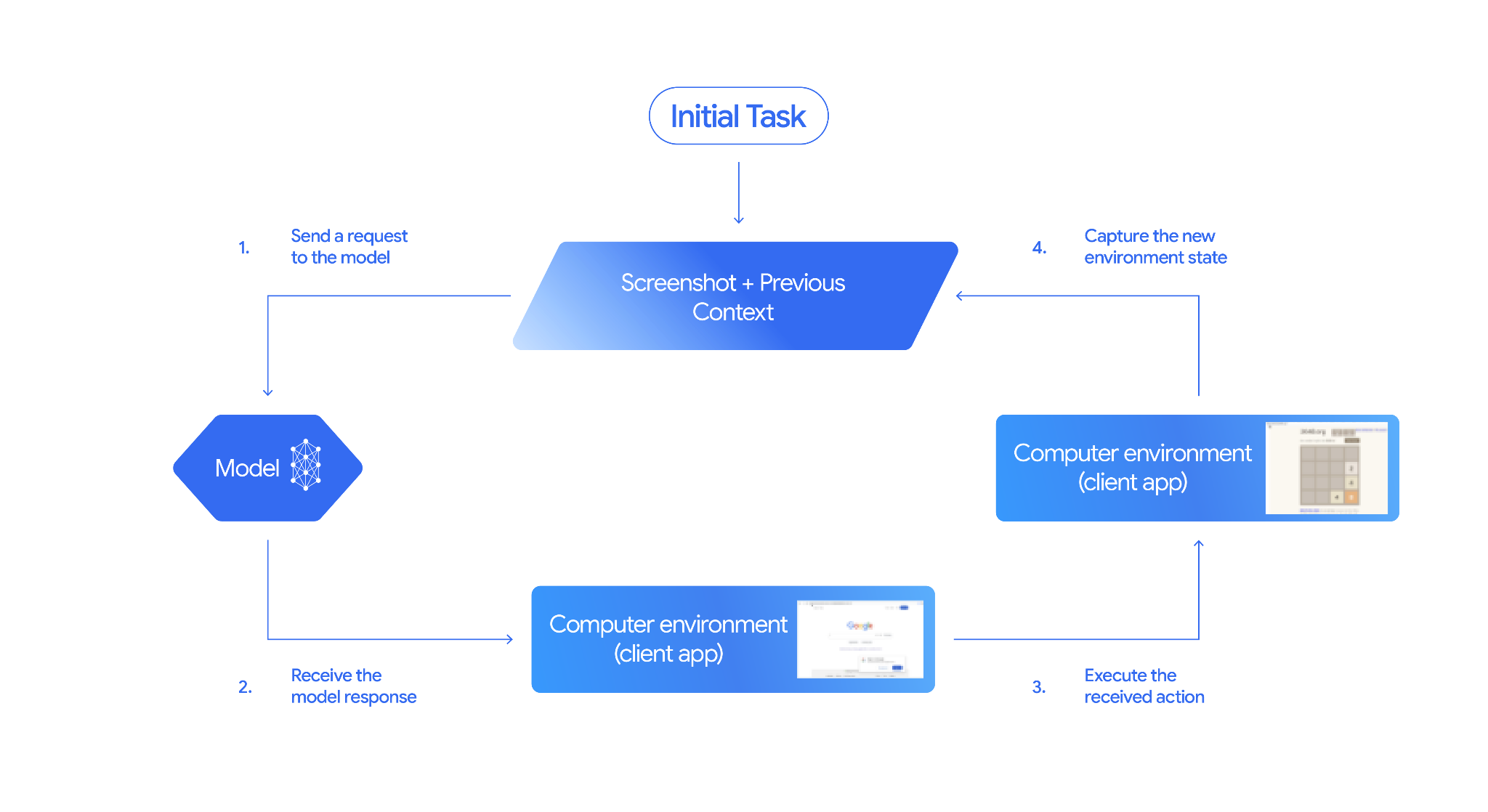
Bilgisayar Kullanımı'nı uygulama
Bilgisayar Kullanımı aracıyla oluşturmaya başlamadan önce şunları ayarlamanız gerekir:
- Güvenli yürütme ortamı: Aracılarınızı, ana makine sisteminizden izole etmek ve olası etkilerini sınırlamak için korumalı alanda sanallaştırılmış bir makinede veya kapsayıcıda çalıştırın. Referans uygulama, başlangıç noktası olarak kullanabileceğiniz, kullanıma hazır Docker tabanlı bir sanal alan içerir.
- İstemci tarafı işlem işleyici: Koordinatları yürütmek, metin yazmak ve ekran görüntüsü almak için istemci tarafı mantığını uygulayın.
Aşağıdaki örneklerde yürütme ortamı olarak web tarayıcısı, istemci tarafı işleyici olarak ise Playwright kullanılır.
0. Playwright'ı ayarlama
Öncelikle gerekli paketleri yükleyin:
pip install google-genai playwright
playwright install chromium
Ardından, yürütme için kullanılacak bir Playwright tarayıcı örneğini başlatın:
from playwright.sync_api import sync_playwright

# 1. Configure screen dimensions for the target environment
SCREEN_WIDTH = 1440
SCREEN_HEIGHT = 900

# 2. Start the Playwright browser
# In production, utilize a sandboxed environment.
playwright = sync_playwright().start()
# Set headless=False to see the actions performed on your screen
browser = playwright.chromium.launch(headless=False)

# 3. Create a context and page with the specified dimensions
context = browser.new_context(
    viewport={"width": SCREEN_WIDTH, "height": SCREEN_HEIGHT}
)
page = context.new_page()

# 4. Navigate to an initial page to start the task
page.goto("https://www.google.com")

# The 'page', 'SCREEN_WIDTH', and 'SCREEN_HEIGHT' variables
# will be used in the steps below.
1. Modele istek gönderme
İstemci kitaplığını başlatın ve Bilgisayar Kullanımı aracını yapılandırın. İstek gönderirken ekran boyutunu belirtmenize gerek olmadığını unutmayın. Model, piksel koordinatlarını ekranın yüksekliğine ve genişliğine göre ölçekleyerek tahmin eder.
Python
Tarayıcı ortamını hedefleyen bir isteği yapılandırmak için google-genai Python SDK'sını (2.7.0 veya sonraki bir sürüm) kullanın:
from google import genai
from google.genai.types import (
    Content,
    Part,
    GenerateContentConfig,
    Tool,
    ComputerUse,
    Environment,
    ThinkingConfig,
)

client = genai.Client()

response = client.models.generate_content(
    model="gemini-3.8-flash",
    contents=[
        Content(
            role="user",
            parts=[
                Part(text="Find a flight from SF to Hawaii on Jun 30th, coming back on Jul 6th"),
            ],
        )
    ],
    config=GenerateContentConfig(
        tools=[
            Tool(
                computer_use=ComputerUse(
                    environment=Environment.ENVIRONMENT_BROWSER,
                    enable_prompt_injection_detection=True,
                ),
            ),
        ],
        thinking_config=ThinkingConfig(
            include_thoughts=True
        ),
    )
)

print(response.text)
JavaScript
Tarayıcı ortamını hedefleyen bir isteği yapılandırmak için @google/genai Node.js SDK'sını kullanın:
import { GoogleGenAI } from '@google/genai';

const ai = new GoogleGenAI();

const response = await ai.models.generateContent({
  model: 'gemini-3.8-flash',
  contents: [
    {
      role: 'user',
      parts: [{ text: "Find a flight from SF to Hawaii on Jun 30th, coming back on Jul 6th" }]
    }
  ],
  config: {
    tools: [{
      computerUse: {
        environment: "ENVIRONMENT_BROWSER",
        enable_prompt_injection_detection: true
      }
    }],
    thinkingConfig: {
      includeThoughts: true
    }
  }
});

console.log(response.text);
REST
İstek göndermek için curl'ü kullanın:
curl -X POST \
  "https://generativelanguage.googleapis.com/v1beta/models/gemini-3.8-flash:generateContent?key=$GEMINI_API_KEY" \
  -H "Content-Type: application/json" \
  -d '{
    "contents": [
      {
        "role": "user",
        "parts": {
          "text": "Find me a flight from SF to Hawaii on Jun 30th, coming back on Jul 6th. Start by navigating directly to flights.google.com"
        }
      }
    ],
    "tools": [
      {
        "computer_use": {
          "environment": "ENVIRONMENT_BROWSER",
          "enable_prompt_injection_detection": true
        }
      }
    ]
  }'
2. Model yanıtını alma
Model yanıtı, koordinatları ve işlemi açıklayan özel bir gerekçelendirme amacı içeren bir işlev çağrısı öneriyor:
{
  "function_call": {
    "name": "click",
    "args": {
      "x": 450,
      "y": 120,
      "intent": "Click the search box to type the destination."
    }
  }
}
3. Alınan işlemleri yürütme
Uygulama kodunuzun model yanıtını ayrıştırması, işlemleri yürütmesi ve sonuçları toplaması gerekir.
Python
from typing import Any, List, Tuple
import time

def denormalize_x(x: int, screen_width: int) -> int:
    """Convert normalized x coordinate (0-1000) to actual pixel coordinate."""
    return int(x / 1000 * screen_width)

def denormalize_y(y: int, screen_height: int) -> int:
    """Convert normalized y coordinate (0-1000) to actual pixel coordinate."""
    return int(y / 1000 * screen_height)

def execute_function_calls(interaction, page, screen_width, screen_height):
    results = []
    function_calls = []

    # Parse function calls from candidate response
    parts = candidate.content.parts if hasattr(candidate, 'content') else []
    if not parts and hasattr(candidate, 'function_calls'):
        function_calls = candidate.function_calls
    else:
        for part in parts:
            if part.function_call:
                function_calls.append(part.function_call)

    for function_call in function_calls:
        action_result = {}
        fname = function_call.name
        args = function_call.args
        print(f"  -> Executing: {fname} (Intent: {args.get('intent', 'N/A')})")

        try:
            if fname == "open_app":
                pass # Handled / already open
            elif fname in ("click", "double_click", "triple_click", "middle_click", "right_click", "move", "long_press"):
                actual_x = denormalize_x(args["x"], screen_width)
                actual_y = denormalize_y(args["y"], screen_height)

                if fname == "click":
                    page.mouse.click(actual_x, actual_y)
                elif fname == "double_click":
                    page.mouse.dblclick(actual_x, actual_y)
                elif fname == "right_click":
                    page.mouse.click(actual_x, actual_y, button="right")
                elif fname == "middle_click":
                    page.mouse.click(actual_x, actual_y, button="middle")
                elif fname == "move":
                    page.mouse.move(actual_x, actual_y)
            elif fname == "type":
                actual_x = denormalize_x(args["x"], screen_width) if "x" in args else None
                actual_y = denormalize_y(args["y"], screen_height) if "y" in args else None
                text = args["text"]
                press_enter = args.get("press_enter", False)

                if actual_x is not None and actual_y is not None:
                    page.mouse.click(actual_x, actual_y)
                # Clear field first
                page.keyboard.press("Meta+A")
                page.keyboard.press("Backspace")
                page.keyboard.type(text)
                if press_enter:
                    page.keyboard.press("Enter")
            elif fname == "navigate":
                page.goto(args["url"])
            elif fname == "go_back":
                page.go_back()
            elif fname == "go_forward":
                page.go_forward()
            elif fname == "wait":
                time.sleep(args.get("seconds", 1))
            else:
                print(f"Warning: Custom or unhandled function {fname}")

            page.wait_for_load_state(timeout=5000)
            time.sleep(1)

        except Exception as e:
            print(f"Error executing {fname}: {e}")
            action_result = {"error": str(e)}

        results.append((fname, function_call.id, action_result))

    return results
JavaScript
function denormalizeX(x, screenWidth) {
    // Convert normalized x coordinate (0-1000) to actual pixel coordinate.
    return Math.floor((x / 1000) * screenWidth);
}

function denormalizeY(y, screenHeight) {
    // Convert normalized y coordinate (0-1000) to actual pixel coordinate.
    return Math.floor((y / 1000) * screenHeight);
}

async function executeFunctionCalls(candidate, page, screenWidth, screenHeight) {
    const results = [];
    let functionCalls = [];

    // Parse function calls from candidate response
    const parts = candidate.content?.parts || [];
    if (parts.length === 0 && candidate.functionCalls) {
        functionCalls = candidate.functionCalls;
    } else {
        for (const part of parts) {
            if (part.functionCall) {
                functionCalls.push(part.functionCall);
            }
        }
    }

    for (const functionCall of functionCalls) {
        const actionResult = {};
        const fname = functionCall.name;
        const args = functionCall.args;
        console.log(`  -> Executing: ${fname} (Intent: ${args.intent || 'N/A'})`);

        try {
            if (fname === "open_app") {
                // Handled / already open
            } else if (["click", "double_click", "triple_click", "middle_click", "right_click", "move", "long_press"].includes(fname)) {
                const actualX = denormalizeX(args.x, screenWidth);
                const actualY = denormalizeY(args.y, screenHeight);

                if (fname === "click") {
                    await page.mouse.click(actualX, actualY);
                } else if (fname === "double_click") {
                    await page.mouse.dblclick(actualX, actualY);
                } else if (fname === "right_click") {
                    await page.mouse.click(actualX, actualY, { button: "right" });
                } else if (fname === "middle_click") {
                    await page.mouse.click(actualX, actualY, { button: "middle" });
                } else if (fname === "move") {
                    await page.mouse.move(actualX, actualY);
                }
            } else if (fname === "type") {
                const actualX = args.x !== undefined ? denormalizeX(args.x, screenWidth) : null;
                const actualY = args.y !== undefined ? denormalizeY(args.y, screenHeight) : null;
                const text = args.text;
                const pressEnter = args.press_enter || false;

                if (actualX !== null && actualY !== null) {
                    await page.mouse.click(actualX, actualY);
                }
                // Clear field first
                await page.keyboard.press("Meta+A");
                await page.keyboard.press("Backspace");
                await page.keyboard.type(text);
                if (pressEnter) {
                    await page.keyboard.press("Enter");
                }
            } else if (fname === "navigate") {
                await page.goto(args.url);
            } else if (fname === "go_back") {
                await page.goBack();
            } else if (fname === "go_forward") {
                await page.goForward();
            } else if (fname === "wait") {
                await new Promise(resolve => setTimeout(resolve, (args.seconds || 1) * 1000));
            } else {
                console.log(`Warning: Custom or unhandled function ${fname}`);
            }

            await page.waitForLoadState('load', { timeout: 5000 }).catch(() => {});
            await new Promise(resolve => setTimeout(resolve, 1000));
        } catch (e) {
            console.log(`Error executing ${fname}: ${e}`);
            actionResult.error = e.message;
        }

        results.push([fname, functionCall.id, actionResult]);
    }

    return results;
}
4. Yeni ortam durumunu yakalama
Ekranın bir temsilini yakalayıp modele geri gönderin.
Python
def get_function_responses(page, results):
    screenshot_bytes = page.screenshot(type="png")
    current_url = page.url
    function_responses = []
    for name, call_id, result in results:
        function_responses.append({
            "type": "function_result",
            "name": name,
            "call_id": call_id,
            "result": [
                {
                    "type": "text",
                    "text": json.dumps({"url": current_url, **result})
                },
                {
                    "type": "image",
                    "data": base64.b64encode(screenshot_bytes).decode("utf-8"),
                    "mime_type": "image/png"
                }
            ]
        })
    return function_responses
JavaScript
async function getFunctionResponses(page, results) {
    const screenshotBuffer = await page.screenshot({ type: 'png' });
    const screenshotBase64 = screenshotBuffer.toString('base64');
    const currentUrl = page.url();
    const functionResponses = [];

    for (const [name, callId, result] of results) {
        functionResponses.push({
            type: "function_result",
            name: name,
            call_id: callId,
            result: [
                {
                    type: "text",
                    text: JSON.stringify({ url: currentUrl, ...result })
                },
                {
                    type: "image",
                    data: screenshotBase64,
                    mime_type: "image/png"
                }
            ]
        });
    }
    return functionResponses;
}
Ortam durumunun nasıl yakalanacağını ve biçimlendirileceğini tanımladıktan sonra tüm bu adımları sürekli bir yürütme döngüsünde birleştirebilirsiniz.
Ajan döngüsü oluşturma
Çok adımlı etkileşimleri etkinleştirmek için Bilgisayar Kullanımı nasıl uygulanır? bölümündeki dört adımı tek bir döngüde birleştirin. Bu döngü, görev tamamlanana kadar işlem isteğinde bulunmaya ve sonuçları modele geri göndermeye devam eder.
Her adımda hem model yanıtlarını hem de işlev yanıtlarınızı geçmişe ekleyerek görüşme geçmişini doğru şekilde yönetmeyi unutmayın.
Python
import time
from typing import Any, List, Tuple
from playwright.sync_api import sync_playwright
from google import genai
from google.genai import types

client = genai.Client()

SCREEN_WIDTH = 1440
SCREEN_HEIGHT = 900

print("Initializing browser...")
playwright = sync_playwright().start()
browser = playwright.chromium.launch(headless=False)
context = browser.new_context(viewport={"width": SCREEN_WIDTH, "height": SCREEN_HEIGHT})
page = context.new_page()

# Paste helper functions execute_function_calls and get_function_responses here

try:
    page.goto("https://ai.google.dev/gemini-api/docs")

    config = types.GenerateContentConfig(
        tools=[types.Tool(computer_use=types.ComputerUse(
            environment=types.Environment.ENVIRONMENT_BROWSER,
            enable_prompt_injection_detection=True
        ))],
        thinking_config=types.ThinkingConfig(include_thoughts=True),
    )

    initial_screenshot = page.screenshot(type="png")
    USER_PROMPT = "Go to ai.google.dev/gemini-api/docs and search for pricing."
    print(f"Goal: {USER_PROMPT}")

    contents = [
        types.Content(role="user", parts=[
            types.Part(text=USER_PROMPT),
            types.Part.from_bytes(data=initial_screenshot, mime_type='image/png')
        ])
    ]

    # Agent Loop
    turn_limit = 5
    for i in range(turn_limit):
        print(f"\n--- Turn {i+1} ---")
        print("Thinking...")
        response = client.models.generate_content(
            model='gemini-3.8-flash',
            contents=contents,
            config=config,
        )

        candidate = response.candidates[0]
        contents.append(candidate.content)

        has_function_calls = any(part.function_call for part in candidate.content.parts)
        if not has_function_calls:
            text_response = " ".join(
                part.text for part in candidate.content.parts if hasattr(part, 'text')
            )
            print("Agent finished:", text_response)
            break

        print("Executing actions...")
        results = execute_function_calls(candidate, page, SCREEN_WIDTH, SCREEN_HEIGHT)

        print("Capturing state...")
        function_responses = get_function_responses(page, results)

        contents.append(
            types.Content(role="user", parts=[types.Part(function_response=fr) for fr in function_responses])
        )

finally:
    print("Closing browser...")
    browser.close()
    playwright.stop()
JavaScript
import { chromium } from 'playwright';
import { GoogleGenAI } from '@google/genai';

const ai = new GoogleGenAI();

// Constants for screen dimensions
const SCREEN_WIDTH = 1440;
const SCREEN_HEIGHT = 900;

console.log("Initializing browser...");
const browser = await chromium.launch({ headless: false });
const context = await browser.newContext({
    viewport: { width: SCREEN_WIDTH, height: SCREEN_HEIGHT }
});
const page = await context.newPage();

// Define helper functions. Copy/paste from steps 3 and 4:
// function denormalizeX(...)
// function denormalizeY(...)
// async function executeFunctionCalls(...)
// async function getFunctionResponses(...)

try {
    await page.goto("https://ai.google.dev/gemini-api/docs");

    const config = {
        tools: [{
            computerUse: {
                environment: "ENVIRONMENT_BROWSER",
                enable_prompt_injection_detection: true
            }
        }],
        thinkingConfig: { includeThoughts: true }
    };

    const initialScreenshotBuffer = await page.screenshot({ type: 'png' });
    const initialScreenshotBase64 = initialScreenshotBuffer.toString('base64');
    const USER_PROMPT = "Go to ai.google.dev/gemini-api/docs and search for pricing.";
    console.log(`Goal: ${USER_PROMPT}`);

    const contents = [
        {
            role: "user",
            parts: [
                { text: USER_PROMPT },
                {
                    inlineData: {
                        data: initialScreenshotBase64,
                        mimeType: "image/png"
                    }
                }
            ]
        }
    ];

    // Agent Loop
    const turnLimit = 5;
    for (let i = 0; i < turnLimit; i++) {
        console.log(`\n--- Turn ${i + 1} ---`);
        console.log("Thinking...");
        const response = await ai.models.generateContent({
            model: 'gemini-3.8-flash',
            contents: contents,
            config: config
        });

        const candidate = response.candidates[0];
        contents.push(candidate.content);

        const hasFunctionCalls = candidate.content.parts.some(part => part.functionCall);
        if (!hasFunctionCalls) {
            const textResponse = candidate.content.parts
                .filter(part => part.text)
                .map(part => part.text)
                .join(" ");
            console.log("Agent finished:", textResponse);
            break;
        }

        console.log("Executing actions...");
        const results = await executeFunctionCalls(candidate, page, SCREEN_WIDTH, SCREEN_HEIGHT);

        console.log("Capturing state...");
        const functionResponses = await getFunctionResponses(page, results);

        contents.push({
            role: "user",
            parts: functionResponses.map(fr => ({
                ...fr
            }))
        });
    }
} finally {
    console.log("Closing browser...");
    await browser.close();
}
Desteklenen ortamlar
Gemini 3.x modelleri, computer_use yapılandırmalarında belirtilen üç ortamı destekler:
Tarayıcı ortamı (ENVIRONMENT_BROWSER)
Tarayıcı aracındaki işlem işlemleri:
| Komut adı | Açıklama | Bağımsız değişkenler (işlev çağrısında) |
|---|---|---|
| tıklama | Koordinatta sol tıklama. | y: int (0-999)x: int (0-999)intent: str |
| double_click | Koordinatı çift tıklayın. | y: int (0-999)x: int (0-999)intent: str |
| triple_click | Koordinatta üç kez tıklama | y: int (0-999)x: int (0-999)intent: str |
| middle_click | Orta tıklama ile koordinat seçilir. | y: int (0-999)x: int (0-999)intent: str |
| right_click | Koordinatta sağ tıklamalar. | y: int (0-999)x: int (0-999)intent: str |
| mouse_down | Fare düğmesini koordinatta basar ve basılı tutar. | y: int (0-999)x: int (0-999)intent: str |
| mouse_up | Fare düğmesini koordinatta bırakır. | y: int (0-999)x: int (0-999)intent: str |
| move | İmleci belirtilen konuma taşır. | y: int (0-999)x: int (0-999)intent: str |
| type | Metin yazma | text: strpress_enter: bool (İsteğe bağlı, varsayılan false)intent: str |
| drag_and_drop | Bir öğeyi başlangıç koordinatından bitiş koordinatına sürükler. | start_y: int (0-999)start_x: int (0-999)end_y: int (0-999)end_x: int (0-999)intent: str |
| wait | Yürütmeyi belirtilen saniye sayısı kadar duraklatır. | seconds: int (İsteğe bağlı, varsayılan 1)intent: str |
| press_key | Belirtilen tuşa basar ve tuşu bırakır. | key: strintent: str |
| key_down | Belirtilen tuşa basar ve basılı tutar. | key: strintent: str |
| key_up | Belirtilen anahtarı serbest bırakır. | key: strintent: str |
| hotkey | Belirtilen tuş kombinasyonuna basar. | keys: List[str]intent: str |
| take_screenshot | Mevcut ekranın ekran görüntüsünü döndürür. | intent: str |
| scroll | Bir koordinatta yukarı, aşağı, sola veya sağa bir piksel mesafede kaydırır. | y: int (0-999)x: int (0-999)direction: str ("up", "down", "left", "right")magnitude_in_pixels: int (0-999, İsteğe bağlı, varsayılan 300)intent: str |
| go_back | Tarayıcı geçmişindeki önceki web sayfasına geri döner. | intent: str |
| navigate | Belirtilen bir URL'ye doğrudan gider. | url: strintent: str |
| go_forward | Tarayıcı geçmişindeki sonraki web sayfasına gider. | intent: str |
Mobil ortam (ENVIRONMENT_MOBILE)
Android için optimize edilmiş ortam işlemleri:
| Komut adı | Açıklama | Bağımsız değişkenler (işlev çağrısında) |
|---|---|---|
| open_app | Bir uygulamayı adına göre açar. | app_name: strintent: str |
| tıklama | Koordinatta sol tıklama. | y: int (0-999)x: int (0-999)intent: str |
| list_apps | Cihazdaki kullanılabilir uygulamaları adları ve paket adlarıyla birlikte listeler. | intent: str |
| wait | Yürütmeyi belirtilen saniye sayısı kadar duraklatır. | seconds: int (İsteğe bağlı, varsayılan 1)intent: str |
| go_back | Önceki ekrana veya web sayfasına geri döner. | intent: str |
| type | Metin yazma | text: strpress_enter: bool (İsteğe bağlı, varsayılan false)intent: str |
| drag_and_drop | Bir öğeyi başlangıç koordinatından bitiş koordinatına sürükler. | start_y: int (0-999)start_x: int (0-999)end_y: int (0-999)end_x: int (0-999)intent: str |
| long_press | Ekranda bir koordinata uzun basma işlemi gerçekleştirir. | y: int (0-999)x: int (0-999)seconds: int (İsteğe bağlı, varsayılan 2)intent: str |
| press_key | Belirtilen tuşa basar ve tuşu bırakır. | key: strintent: str |
| take_screenshot | Mevcut ekranın ekran görüntüsünü döndürür. | intent: str |
Masaüstü ortamı (ENVIRONMENT_DESKTOP)
Masaüstü ortamları işletim sistemi düzeyinde imleç komutları:
| Komut adı | Açıklama | Bağımsız değişkenler (işlev çağrısında) |
|---|---|---|
| tıklama | Koordinatta sol tıklama. | y: int (0-999)x: int (0-999)intent: str |
| double_click | Koordinatı çift tıklayın. | y: int (0-999)x: int (0-999)intent: str |
| triple_click | Koordinatta üç kez tıklama | y: int (0-999)x: int (0-999)intent: str |
| middle_click | Orta tıklama ile koordinat seçilir. | y: int (0-999)x: int (0-999)intent: str |
| right_click | Koordinatta sağ tıklamalar. | y: int (0-999)x: int (0-999)intent: str |
| mouse_down | Fare düğmesini koordinatta basar ve basılı tutar. | y: int (0-999)x: int (0-999)intent: str |
| mouse_up | Fare düğmesini koordinatta bırakır. | y: int (0-999)x: int (0-999)intent: str |
| move | İmleci belirtilen konuma taşır. | y: int (0-999)x: int (0-999)intent: str |
| type | Metin yazma | text: strpress_enter: bool (İsteğe bağlı, varsayılan false)intent: str |
| drag_and_drop | Bir öğeyi başlangıç koordinatından bitiş koordinatına sürükler. | start_y: int (0-999)start_x: int (0-999)end_y: int (0-999)end_x: int (0-999)intent: str |
| wait | Yürütmeyi belirtilen saniye sayısı kadar duraklatır. | seconds: int (İsteğe bağlı, varsayılan 1)intent: str |
| press_key | Belirtilen tuşa basar ve tuşu bırakır. | key: strintent: str |
| key_down | Belirtilen tuşa basar ve basılı tutar. | key: strintent: str |
| key_up | Belirtilen anahtarı serbest bırakır. | key: strintent: str |
| hotkey | Belirtilen tuş kombinasyonuna basar. | keys: List[str]intent: str |
| take_screenshot | Mevcut ekranın ekran görüntüsünü döndürür. | intent: str |
| scroll | Bir koordinatta yukarı, aşağı, sola veya sağa bir piksel mesafede kaydırır. | y: int (0-999)x: int (0-999)direction: str ("up", "down", "left", "right")magnitude_in_pixels: int (0-999, İsteğe bağlı, varsayılan 300)intent: str |
Kullanıcı tanımlı özel işlevler
Özel kullanıcı tanımlı işlevler ekleyerek modelin işlevselliğini genişletebilirsiniz. Örneğin, insan müdahalesi içeren (HITL) senaryolarda önceden tanımlanmış varsayılan işlemleri hariç tutabilir ve özel işlemleri kaydedebilirsiniz.
Python
Standart önceden tanımlanmış tarayıcı işlemlerini (ör. click) hariç tutun ve özel bir yield_to_user aracı kaydedin:
from google import genai
from google.genai import types

client = genai.Client()

yield_to_user_tool = types.FunctionDeclaration(
    name="yield_to_user",
    description="Yields control back to the user for assistance or verification when an automated action is unsafe or ambiguous.",
    parameters=types.Schema(
        type="OBJECT",
        properties={
            "reason": types.Schema(
                type="STRING",
                description="The reason why the agent is yielding control to the human."
            )
        },
        required=["reason"]
    )
)

response = client.models.generate_content(
    model="gemini-3.8-flash",
    contents="Click the submit button. If you need a second factor authentication code, ask me.",
    config=types.GenerateContentConfig(
        tools=[
            types.Tool(
                computer_use=types.ComputerUse(
                    environment="ENVIRONMENT_MOBILE",
                    excluded_predefined_functions=["click"]
                )
            ),
            yield_to_user_tool
        ]
    )
)
Düşünme düzeylerini yönetme
Bilgisayar kullanımına yönelik aracıların eylem kalitesi ile yürütme hızını dengelemek için farklı düşünme düzeyleri yapılandırabilirsiniz. Daha düşük düşünme seviyeleri, standart otomasyon görevlerinde genellikle iyi bir denge sağlar.
Güvenlik
Güvenlik politikalarını yapılandırma
Gemini 3.x modellerinde, kullanıcı onayı gerekip gerekmediğini belirlemeye yardımcı olan yerleşik güvenlik hizmeti kategorileri bulunur.
| Güvenlik politikası kategorisi | Açıklama |
|---|---|
FINANCIAL_TRANSACTIONS |
Ödemeler, perakende ödemesi veya yasal düzenlemelere tabi ürünlerle ilgili işlemlerde onay sürecini engeller ya da başlatır. |
SENSITIVE_DATA_MODIFICATION |
Sağlık, finans veya devlet kayıtlarını yetkisiz değişikliklere karşı korur. |
COMMUNICATION_TOOL |
Aracının bağımsız olarak e-posta, sohbet mesajı veya taslak göndermesini kısıtlar. |
ACCOUNT_CREATION |
Temsilcinin web sitelerinde bağımsız olarak yeni hesap kaydetmesini kısıtlar. |
DATA_MODIFICATION |
Genel dosya sistemi değişikliklerini, veri paylaşımını ve depolama silme işlemlerini düzenler. |
USER_CONSENT_MANAGEMENT |
Çerez izni banner'ları ve gizlilik istemleri için kullanıcı devralma işlemi gerektirir. |
LEGAL_TERMS_AND_AGREEMENTS |
Modelin, Hizmet Şartları'nı veya yasal olarak bağlayıcı sözleşmeleri bağımsız olarak kabul etmesini engeller. |
Güvenlik geçersiz kılmaları
Geçersiz kılmalar ileterek belirli politikaları geçersiz kılabilirsiniz:
Python
from google import genai
from google.genai import types

client = genai.Client()

response = client.models.generate_content(
    model="gemini-3.8-flash",
    contents="Clean up the local folder by archiving old logs.",
    config=types.GenerateContentConfig(
        tools=[
            types.Tool(
                computer_use=types.ComputerUse(
                    environment=types.Environment.ENVIRONMENT_DESKTOP,
                    disabled_safety_policies=[
                        types.SafetyPolicy.DATA_MODIFICATION
                    ]
                )
            )
        ]
    )
)
JavaScript
import { GoogleGenAI } from '@google/genai';

const ai = new GoogleGenAI();

const response = await ai.models.generateContent({
  model: 'gemini-3.8-flash',
  contents: "Clean up the local folder by archiving old logs.",
  config: {
    tools: [{
      computerUse: {
        environment: "ENVIRONMENT_DESKTOP",
        disabledSafetyPolicies: [
          "DATA_MODIFICATION"
        ]
      }
    }]
  }
});
İstem enjeksiyonu tespiti
Gemini 3.5 Flash veya sonraki sürümler için bilgisayar kullanımı, istem enjeksiyonu saldırılarını tespit etmek üzere gelişmiş bir güvenlik mekanizmasını destekler. Bu özellik etkinleştirildiğinde, eklenen ekran görüntüsünde gizli saldırgan talimatlar (örneğin, "Önceki komutları yoksay") olup olmadığını kontrol eder ve algılandığında yürütmeyi engeller.
İstem enjeksiyonu tespiti, etkinleştirilmesi gereken bir özelliktir. Varsayılan değer: false.
Aşağıdaki örneklerde, Bilgisayar Kullanımı aracı yapılandırmanızda istem enjeksiyonu tespitinin nasıl etkinleştirileceği gösterilmektedir:
Python
from google import genai
from google.genai import types

client = genai.Client()

response = client.models.generate_content(
    model="gemini-3.5-flash",
    contents="Search for flight deals and summarize top results.",
    config=types.GenerateContentConfig(
        tools=[
            types.Tool(
                computer_use=types.ComputerUse(
                    environment="ENVIRONMENT_DESKTOP",
                    enable_prompt_injection_detection=True,
                )
            )
        ]
    ),
)
JavaScript
import { GoogleGenAI } from '@google/genai';

const ai = new GoogleGenAI();

const response = await ai.models.generateContent({
    model: "gemini-3.5-flash",
    contents: "Search for flight deals and summarize top results.",
    config: {
        tools: [{
            computerUse: {
                environment: "ENVIRONMENT_DESKTOP",
                enablePromptInjectionDetection: true,
            }
        }]
    }
});
cURL
curl "https://generativelanguage.googleapis.com/v1beta/models/gemini-3.5-flash:generateContent?key=${GEMINI_API_KEY}" \
-H 'Content-Type: application/json' \
-d '{
  "contents": [{
    "parts": [{"text": "Search for flight deals and summarize top results."}]
  }],
  "tools": [{
    "computer_use": {
      "environment": "ENVIRONMENT_DESKTOP",
      "enable_prompt_injection_detection": true
    }
  }]
}'
Güvenlik kararını onaylama
Yanıt, işlev çağrısı bağımsız değişkenlerinde bir safety_decision parametresi içerebilir:
{
  "function_call": {
    "name": "click",
    "args": {
      "x": 60,
      "y": 100,
      "safety_decision": {
        "explanation": "Must check check-box",
        "decision": "require_confirmation"
      }
    }
  }
}
safety_decision require_confirmation ise son kullanıcıya istem gösterin. Kullanıcı onaylarsa safety_acknowledgement değerini FunctionResponse olarak ayarlayın.
Python
def get_safety_confirmation(safety_decision):
    # Prompt user for confirmation
    print(f"Safety confirmation required: {safety_decision.get('explanation', '')}")
    return "CONTINUE" # Or TERMINATE

# Inside execute_function_calls, check for safety_decision:
if 'safety_decision' in function_call.args:
    decision = get_safety_confirmation(function_call.args['safety_decision'])
    if decision == "TERMINATE":
        break
    # Include safety_acknowledgement inside the action result
    action_result["safety_acknowledgement"] = True
Güvenlikle ilgili en iyi uygulamalar
Kullanıcı adına hareket eden bir model, ekranlarda güvenilmeyen içeriklerle karşılaşabileceği veya işlemleri yürütürken hatalar yapabileceği için Bilgisayar Kullanımı, benzersiz güvenlik ve operasyonel riskler barındırır. Kullanıcı verilerini ve sistemlerini korumak için aşağıdaki en iyi uygulamaları kullanın:
İnsanların dahil edilmesi (HITL):
- Kullanıcı onayını zorunlu kılma: Güvenlik yanıtı
require_confirmationgösterdiğinde kullanıcıdan onay isteyin. Özel güvenlik talimatları sağlama: Kendi güvenlik sınırlarınızı tanımlamak ve uygulamak için özel bir sistem talimatı uygulayın. Örneğin:
Python
from google import genai
from google.genai import types

system_instruction = """
## **RULE 1: Seek User Confirmation (USER_CONFIRMATION)**

This is your first and most important check. If the next required action falls
into any of the following categories, you MUST stop immediately, and seek the
user's explicit permission.

**Procedure for Seeking Confirmation:**
* **For Consequential Actions:** Perform all preparatory steps (e.g., navigating,
  filling out forms, typing a message). You will ask for confirmation **AFTER**
  all necessary information is entered on the screen, but **BEFORE** you perform
  the final, irreversible action (e.g., before clicking "Send", "Submit",
  "Confirm Purchase", "Share").
* **For Prohibited Actions:** If the action is strictly forbidden (e.g., accepting
  legal terms, solving a CAPTCHA), you must first inform the user about the
  required action and ask for their confirmation to proceed.

**USER_CONFIRMATION Categories:**

*   **Consent and Agreements:** You are FORBIDDEN from accepting, selecting, or
    agreeing to any of the following on the user's behalf. You must ask the
    user to confirm before performing these actions.
    *   Terms of Service
    *   Privacy Policies
    *   Cookie consent banners
    *   End User License Agreements (EULAs)
    *   Any other legally significant contracts or agreements.
*   **Robot Detection:** You MUST NEVER attempt to solve or bypass the
    following. You must ask the user to confirm before performing these actions.
    *   CAPTCHAs (of any kind)
    *   Any other anti-robot or human-verification mechanisms, even if you are
        capable.
*   **Financial Transactions:**
    *   Completing any purchase.
    *   Managing or moving money (e.g., transfers, payments).
    *   Purchasing regulated goods or participating in gambling.
*   **Sending Communications:**
    *   Sending emails.
    *   Sending messages on any platform (e.g., social media, chat apps).
    *   Posting content on social media or forums.
*   **Accessing or Modifying Sensitive Information:**
    *   Health, financial, or government records (e.g., medical history, tax
        forms, passport status).
    *   Revealing or modifying sensitive personal identifiers (e.g., SSN, bank
        account number, credit card number).
*   **User Data Management:**
    *   Accessing, downloading, or saving files from the web.
    *   Sharing or sending files/data to any third party.
    *   Transferring user data between systems.
*   **Browser Data Usage:**
    *   Accessing or managing Chrome browsing history, bookmarks, autofill data,
        or saved passwords.
*   **Security and Identity:**
    *   Logging into any user account.
    *   Any action that involves misrepresentation or impersonation (e.g.,
        creating a fan account, posting as someone else).
*   **Insurmountable Obstacles:** If you are technically unable to interact with
    a user interface element or are stuck in a loop you cannot resolve, ask the
    user to take over.
---

## **RULE 2: Default Behavior (ACTUATE)**

If an action does **NOT** fall under the conditions for `USER_CONFIRMATION`,
your default behavior is to **Actuate**.

**Actuation Means:**  You MUST proactively perform all necessary steps to move
the user's request forward. Continue to actuate until you either complete the
non-consequential task or encounter a condition defined in Rule 1.

*   **Example 1:** If asked to send money, you will navigate to the payment
    portal, enter the recipient's details, and enter the amount. You will then
    **STOP** as per Rule 1 and ask for confirmation before clicking the final
    "Send" button.
*   **Example 2:** If asked to post a message, you will navigate to the site,
    open the post composition window, and write the full message. You will then
    **STOP** as per Rule 1 and ask for confirmation before clicking the final
    "Post" button.

    After the user has confirmed, remember to get the user's latest screen
    before continuing to perform actions.

# Final Response Guidelines:
Write final response to the user in the following cases:
- User confirmation
- When the task is complete or you have enough information to respond to the user
"""

client = genai.Client()
response = client.models.generate_content(
    model="gemini-3.8-flash",
    contents="Prepare a draft but do not send.",
    config=types.GenerateContentConfig(
        system_instruction=system_instruction,
        tools=[types.Tool(computer_use=types.ComputerUse(environment="ENVIRONMENT_BROWSER"))]
    )
)
JavaScript
import { GoogleGenAI } from '@google/genai';

const ai = new GoogleGenAI();

const systemInstruction = `
## **RULE 1: Seek User Confirmation (USER_CONFIRMATION)**

This is your first and most important check. If the next required action falls
into any of the following categories, you MUST stop immediately, and seek the
user's explicit permission.

**Procedure for Seeking Confirmation:**
* **For Consequential Actions:** Perform all preparatory steps (e.g., navigating,
  filling out forms, typing a message). You will ask for confirmation **AFTER**
  all necessary information is entered on the screen, but **BEFORE** you perform
  the final, irreversible action (e.g., before clicking "Send", "Submit",
  "Confirm Purchase", "Share").
* **For Prohibited Actions:** If the action is strictly forbidden (e.g., accepting
  legal terms, solving a CAPTCHA), you must first inform the user about the
  required action and ask for their confirmation to proceed.

**USER_CONFIRMATION Categories:**

*   **Consent and Agreements:** You are FORBIDDEN from accepting, selecting, or
    agreeing to any of the following on the user's behalf. You must ask the
    user to confirm before performing these actions.
    *   Terms of Service
    *   Privacy Policies
    *   Cookie consent banners
    *   End User License Agreements (EULAs)
    *   Any other legally significant contracts or agreements.
*   **Robot Detection:** You MUST NEVER attempt to solve or bypass the
    following. You must ask the user to confirm before performing these actions.
    *   CAPTCHAs (of any kind)
    *   Any other anti-robot or human-verification mechanisms, even if you are
        capable.
*   **Financial Transactions:**
    *   Compleying any purchase.
    *   Managing or moving money (e.g., transfers, payments).
    *   Purchasing regulated goods or participating in gambling.
*   **Sending Communications:**
    *   Sending emails.
    *   Sending messages on any platform (e.g., social media, chat apps).
    *   Posting content on social media or forums.
*   **Accessing or Modifying Sensitive Information:**
    *   Health, financial, or government records (e.g., medical history, tax
        forms, passport status).
    *   Revealing or modifying sensitive personal identifiers (e.g., SSN, bank
        account number, credit card number).
*   **User Data Management:**
    *   Accessing, downloading, or saving files from the web.
    *   Sharing or sending files/data to any third party.
    *   Transferring user data between systems.
*   **Browser Data Usage:**
    *   Accessing or managing Chrome browsing history, bookmarks, autofill data,
        or saved passwords.
*   **Security and Identity:**
    *   Logging into any user account.
    *   Any action that involves misrepresentation or impersonation (e.g.,
        creating a fan account, posting as someone else).
*   **Insurmountable Obstacles:** If you are technically unable to interact with
    a user interface element or are stuck in a loop you cannot resolve, ask the
    user to take over.
---

## **RULE 2: Default Behavior (ACTUATE)**

If an action does **NOT** fall under the conditions for \`USER_CONFIRMATION\`,
your default behavior is to **Actuate**.

**Actuation Means:**  You MUST proactively perform all necessary steps to move
the user's request forward. Continue to actuate until you either complete the
non-consequential task or encounter a condition defined in Rule 1.

*   **Example 1:** If asked to send money, you will navigate to the payment
    portal, enter the recipient's details, and enter the amount. You will then
    **STOP** as per Rule 1 and ask for confirmation before clicking the final
    "Send" button.
*   **Example 2:** If asked to post a message, you will navigate to the site,
    open the post composition window, and write the full message. You will then
    **STOP** as per Rule 1 and ask for confirmation before clicking the final
    "Post" button.

    After the user has confirmed, remember to get the user's latest screen
    before continuing to perform actions.

# Final Response Guidelines:
Write final response to the user in the following cases:
- User confirmation
- When the task is complete or you have enough information to respond to the user
`;

const response = await ai.models.generateContent({
  model: 'gemini-3.8-flash',
  contents: "Prepare a draft but do not send.",
  config: {
    systemInstruction: systemInstruction,
    tools: [{
      computerUse: {
        environment: "ENVIRONMENT_BROWSER"
      }
    }]
  }
});
- Kullanıcı onayını zorunlu kılma: Güvenlik yanıtı
Güvenli yürütme ortamı: Potansiyel etkisini sınırlamak için aracınızı güvenli ve korumalı bir ortamda çalıştırın. Bu, sanal makine (VM), kapsayıcı (ör. Docker) veya sınırlı izinlere sahip özel bir tarayıcı profili olabilir. Docker kullanarak sanal alan kurulumuyla ilgili rehberlik için GitHub referans uygulamasını inceleyin.
Giriş temizleme: İstemlerdeki tüm kullanıcı tarafından oluşturulan metinleri temizleyerek istenmeyen talimatlar veya istem enjeksiyonu riskini azaltın. Bu, faydalı bir güvenlik katmanı olsa da güvenli bir yürütme ortamının yerini almaz.
İçerik koruma sınırları: Kullanıcı girişlerini, araç girişlerini ve çıkışlarını, aracının yanıtlarını uygunluk, istem enjeksiyonu ve jailbreak tespiti açısından değerlendirmek için koruma sınırlarını ve içerik güvenliği API'lerini kullanın.
İzin verilenler ve engellenenler listeleri: Modelin nerelere gidebileceğini ve neler yapabileceğini kontrol etmek için filtreleme mekanizmalarını uygulayın. Yasaklanmış web sitelerinin engellenenler listesi iyi bir başlangıç noktasıdır. Daha kısıtlayıcı bir izin verilenler listesi ise daha da güvenlidir.
Gözlemlenebilirlik ve günlük kaydı: Hata ayıklama, denetleme ve olay müdahalesi için ayrıntılı günlükler tutun. Müşteriniz istemleri, ekran görüntülerini, model tarafından önerilen işlemleri (
function_call), güvenlik yanıtlarını ve sonuç olarak müşteri tarafından gerçekleştirilen tüm işlemleri kaydetmelidir.Ortam yönetimi: GUI ortamının tutarlı olmasını sağlayın. Beklenmedik pop-up'lar, bildirimler veya düzendeki değişiklikler modelin kafasını karıştırabilir. Mümkünse her yeni görev için bilinen ve temiz bir durumdan başlayın.
Model sürümleri
Bilgisayar Kullanımı'nı aşağıdaki modellerle kullanabilirsiniz:
- Gemini 3.8 Flash (
gemini-3.8-flash): Yüksek doğrulukta kullanıcı arayüzü etkileşimi ve güvenilir araç çağrısı özelliklerine sahip olan bu model, bilgisayar kullanımı için önerilir. - Gemini 3.7 Flash (
gemini-3.7-flash): Bilgisayar kullanımına yönelik önceki kararlı model. Amaçlarla basitleştirilmiş işlemler, tarayıcı, mobil ve masaüstü ortamları için destek, yapılandırılabilir güvenlik politikaları ve istem enjeksiyonu tespiti özelliklerine sahiptir. - Gemini 3.5 Flash-Lite (
gemini-3.5-flash-lite): Bilgisayar kullanımını destekleyen, düşük gecikmeli ve uygun maliyetli bir modeldir. - Gemini 3.5 Flash (
gemini-3.5-flash): Bilgisayar kullanımını destekleyen önceki kararlı model. - Gemini 3 Flash Preview (
gemini-3-flash-preview): Bilgisayar kullanımını destekleyen önizleme modeli.
Sırada ne var?
- Browserbase demo ortamında bilgisayar kullanımıyla ilgili denemeler yapın.
- Örnek kod için Referans uygulama bölümünü inceleyin.
- Diğer Gemini API araçları hakkında bilgi edinin: