

Los modelos ER de Gemini Robotics pueden escribir y ejecutar código de Python para manipular imágenes y aplicar lógica antes de responder. En esta página, se incluyen ejemplos de ejecución de código: detección de objetos con zoom y recorte, lectura de instrumentos, medición de fluidos, lectura de placas de circuitos y anotación de imágenes.
Para adaptar estos ejemplos a tu caso de uso, reemplaza el texto de la instrucción y el archivo de imagen subido por los tuyos. También puedes ajustar el esquema JSON solicitado en la instrucción para que coincida con la estructura de salida que necesita tu aplicación o agregar una system_instruction para aplicar el formato y la precisión de la salida.
Para obtener el código ejecutable completo, consulta el libro de recetas de Robotics.
Nivel de pensamiento
Puedes controlar el nivel de pensamiento para intercambiar latencia por precisión. Las tareas espaciales, como la detección de objetos, funcionan bien con un nivel de pensamiento bajo. Las tareas complejas, como el recuento o la estimación de peso, se benefician de un nivel de pensamiento más alto.
En el siguiente ejemplo, se establece el nivel de pensamiento en high para una tarea de recuento compleja:
Python
from google import genai
from google.genai import types

client = genai.Client()

with open('scene.jpeg', 'rb') as f:
    image_bytes = f.read()

response = client.models.generate_content(
    model="gemini-robotics-er-2-preview",
    contents=[
        types.Part.from_bytes(
            data=image_bytes,
            mime_type='image/jpeg',
        ),
        "Identify and count all objects on the table."
    ],
    config=types.GenerateContentConfig(
        thinking_config=types.ThinkingConfig(thinking_level="high")
    )
)

print(response.text)
Consulta Pensamiento para obtener más detalles.
Detección de objetos (zoom y recorte)
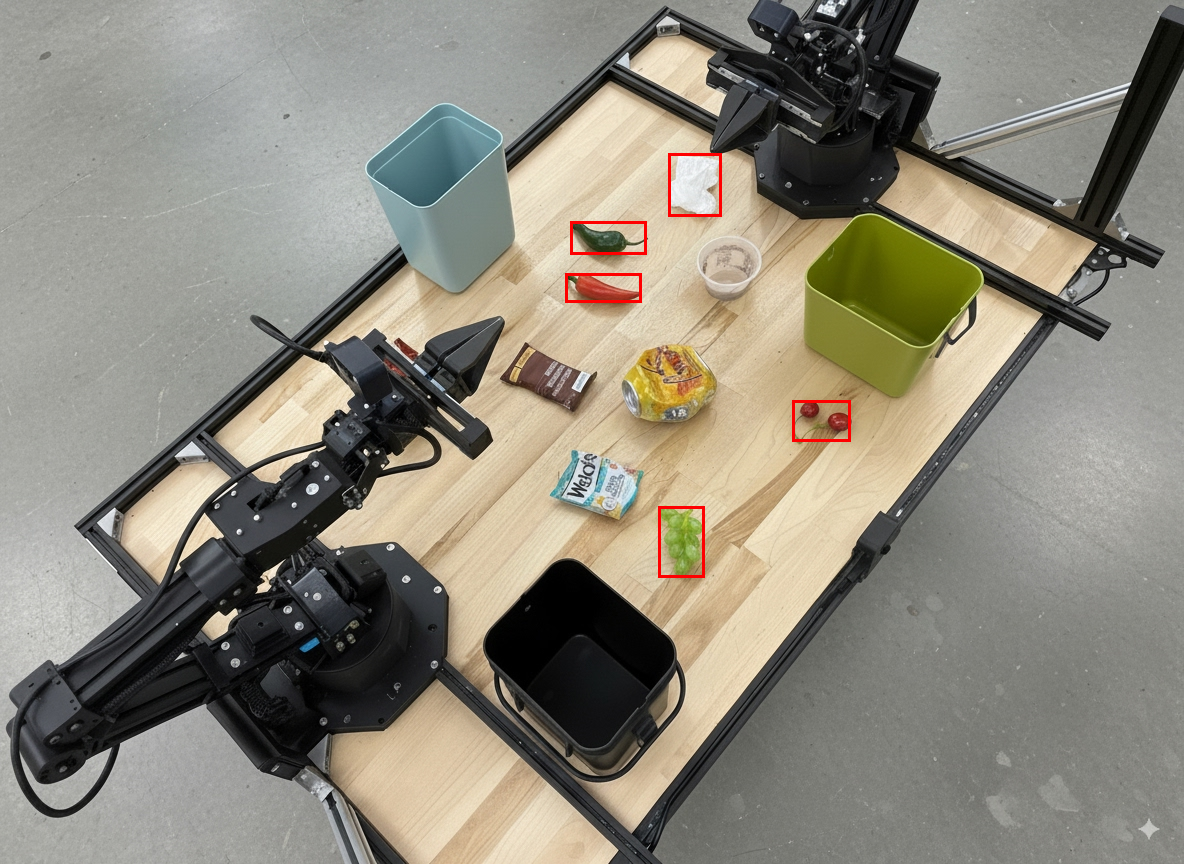
En el siguiente ejemplo, se muestra cómo usar la ejecución de código para acercar y recortar una imagen para obtener una vista más clara cuando se detectan objetos y se muestran cuadros delimitadores.
Python
from google import genai
from google.genai import types

client = genai.Client()

# Load your image
with open('sorting.jpeg', 'rb') as f:
    image_bytes = f.read()

prompt = """
Return JSON in the format {label: val, y: val, x: val, y2: val, x2: val} for
the compostable objects in this scene. Please Zoom and crop the image for a
clearer view. Return an annotated image of the final result with the bounding
boxes drawn on it to the API caller as a part of your process.
"""

response = client.models.generate_content(
    model="gemini-robotics-er-2-preview",
    contents=[
        types.Part.from_bytes(
            data=image_bytes,
            mime_type='image/jpeg',
        ),
        prompt
    ],
    config = types.GenerateContentConfig(
        tools=[types.Tool(code_execution=types.ToolCodeExecution)],
    )
)

print(response.text)
El resultado del modelo sería similar a la siguiente respuesta JSON:
[
  {"label": "compostable", "y": 256, "x": 482, "y2": 295, "x2": 546},
  {"label": "compostable", "y": 317, "x": 478, "y2": 350, "x2": 542},
  {"label": "compostable", "y": 586, "x": 556, "y2": 668, "x2": 595},
  {"label": "compostable", "y": 463, "x": 669, "y2": 511, "x2": 718},
  {"label": "compostable", "y": 178, "x": 565, "y2": 250, "x2": 609}
]
En la siguiente imagen, se muestran los cuadros que muestra el modelo.
Leer un indicador analógico y aplicar lógica
En el siguiente ejemplo, se muestra cómo usar el modelo para leer un indicador analógico y realizar cálculos de tiempo. Usa una instrucción del sistema para aplicar una salida JSON.
Python
from google import genai
from google.genai import types

client = genai.Client()

with open('gauge.jpeg', 'rb') as f:
    image_bytes = f.read()

system_instruction = "Be precise. When JSON is requested, reply with ONLY that JSON (no preface, no code block)."

response = client.models.generate_content(
    model="gemini-robotics-er-2-preview",
    contents=[
        types.Part.from_bytes(
            data=image_bytes,
            mime_type='image/jpeg',
        ),
        """Read the current value from this gauge. Then, calculate how long
        it will take at the current rate for the value to reach maximum.
        Reply in JSON: {"current_value": val, "max_value": val,
        "time_to_max_minutes": val}"""
    ],
    config = types.GenerateContentConfig(
        system_instruction=system_instruction,
        tools=[types.Tool(code_execution=types.ToolCodeExecution)],
    )
)

print(response.text)
Medir el fluido en un contenedor
En el siguiente ejemplo, se muestra cómo usar la ejecución de código para medir el nivel de fluido en un contenedor.
Python
from google import genai
from google.genai import types

client = genai.Client()

with open('fluid.jpeg', 'rb') as f:
    image_bytes = f.read()

system_instruction = "Be precise. When JSON is requested, reply with ONLY that JSON (no preface, no code block)."

response = client.models.generate_content(
    model="gemini-robotics-er-2-preview",
    contents=[
        types.Part.from_bytes(
            data=image_bytes,
            mime_type='image/jpeg',
        ),
        """Measure the amount of fluid in the container. Reply in JSON:
        {"fluid_level_ml": val, "container_capacity_ml": val,
        "percentage_full": val}"""
    ],
    config = types.GenerateContentConfig(
        system_instruction=system_instruction,
        tools=[types.Tool(code_execution=types.ToolCodeExecution)],
    )
)

print(response.text)
Leer marcas en una placa de circuitos
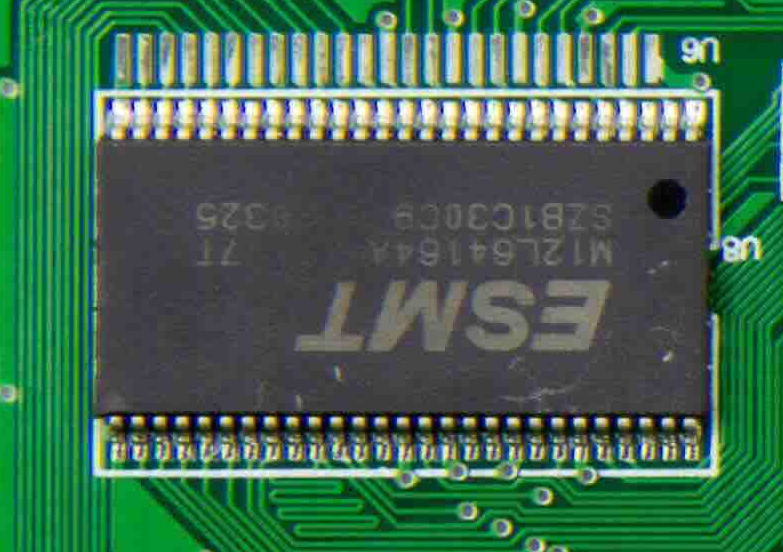
En el siguiente ejemplo, se muestra cómo usar la ejecución de código para leer las marcas en una placa de circuitos.
Python
from google import genai
from google.genai import types

client = genai.Client()

with open('circuit_board.jpeg', 'rb') as f:
    image_bytes = f.read()

system_instruction = "Be precise. When JSON is requested, reply with ONLY that JSON (no preface, no code block)."

response = client.models.generate_content(
    model="gemini-robotics-er-2-preview",
    contents=[
        types.Part.from_bytes(
            data=image_bytes,
            mime_type='image/jpeg',
        ),
        """Read all visible component labels and markings on this circuit
        board. Reply in JSON: {"components": [{"label": val,
        "location": [y, x]}]}"""
    ],
    config = types.GenerateContentConfig(
        system_instruction=system_instruction,
        tools=[types.Tool(code_execution=types.ToolCodeExecution)],
    )
)

print(response.text)
Anotación de la imagen
En el siguiente ejemplo, se muestra cómo usar la ejecución de código para anotar una imagen (p.ej., dibujar flechas para las instrucciones de eliminación) y mostrar la imagen modificada.
Python
from google import genai
from google.genai import types

client = genai.Client()

# Load your image
with open('sorting.jpeg', 'rb') as f:
    image_bytes = f.read()

prompt = """
Look at this image and return it as an annotated version using arrows of
different colors to represent which items should go in which bins for
disposal. You must return the final image to the API caller.
"""

response = client.models.generate_content(
    model="gemini-robotics-er-2-preview",
    contents=[
        types.Part.from_bytes(
            data=image_bytes,
            mime_type='image/jpeg',
        ),
        prompt
    ],
    config = types.GenerateContentConfig(
        tools=[types.Tool(code_execution=types.ToolCodeExecution)],
    )
)

print(response.text)
A continuación, se muestra un ejemplo de entrada de imagen.
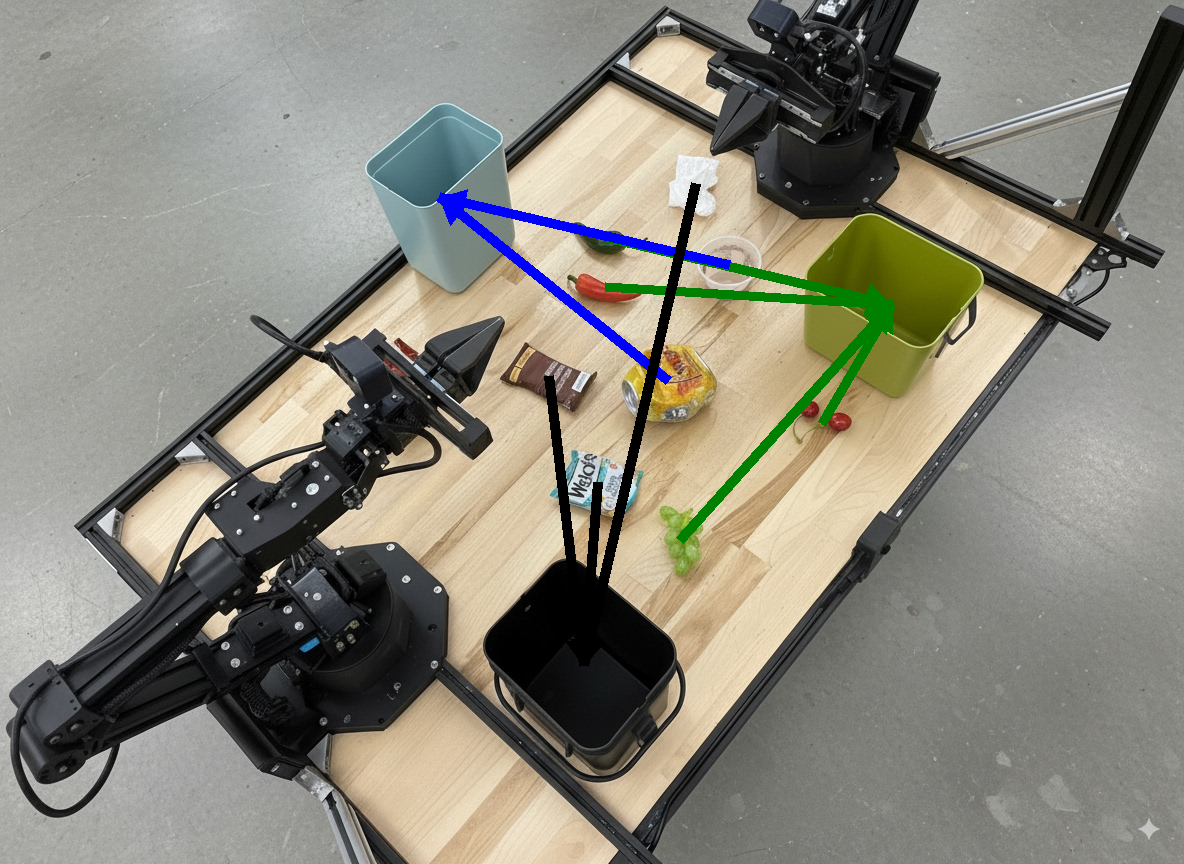
El resultado del modelo sería similar al siguiente:
  The annotated image shows the suggested disposal locations for the items on the table:
  - **Green bin (Compost/Organic)**: Green chili, red chili, grapes, and cherries.
  - **Blue bin (Recycling)**: Yellow crushed can and plastic container.
  - **Black bin (Trash)**: Chocolate bar wrapper, Welch's packet, and white tissue.
¿Qué sigue?
- Orquestación de tareas: tareas de largo plazo con APIs de robot personalizadas
- Robótica con transmisión: transmisión bidireccional en tiempo real (solo Gemini Robotics ER 2).
- Comprensión de video: búsqueda de momentos y clasificación de progreso (solo Gemini Robotics ER 2)