

โมเดล Gemini Robotics ER สามารถชี้ไปยังออบเจ็กต์ ติดตามออบเจ็กต์ในวิดีโอ ตรวจจับออบเจ็กต์ด้วยกรอบล้อมรอบ และสร้างเส้นทางการเคลื่อนที่ ตัวอย่างทั้งหมดในหน้านี้ใช้พรอมต์ภาษาธรรมชาติกับ generateContent
ดูโค้ดที่เรียกใช้ได้ทั้งหมดที่ Cookbook สำหรับ Robotics
ชี้ไปยังออบเจ็กต์
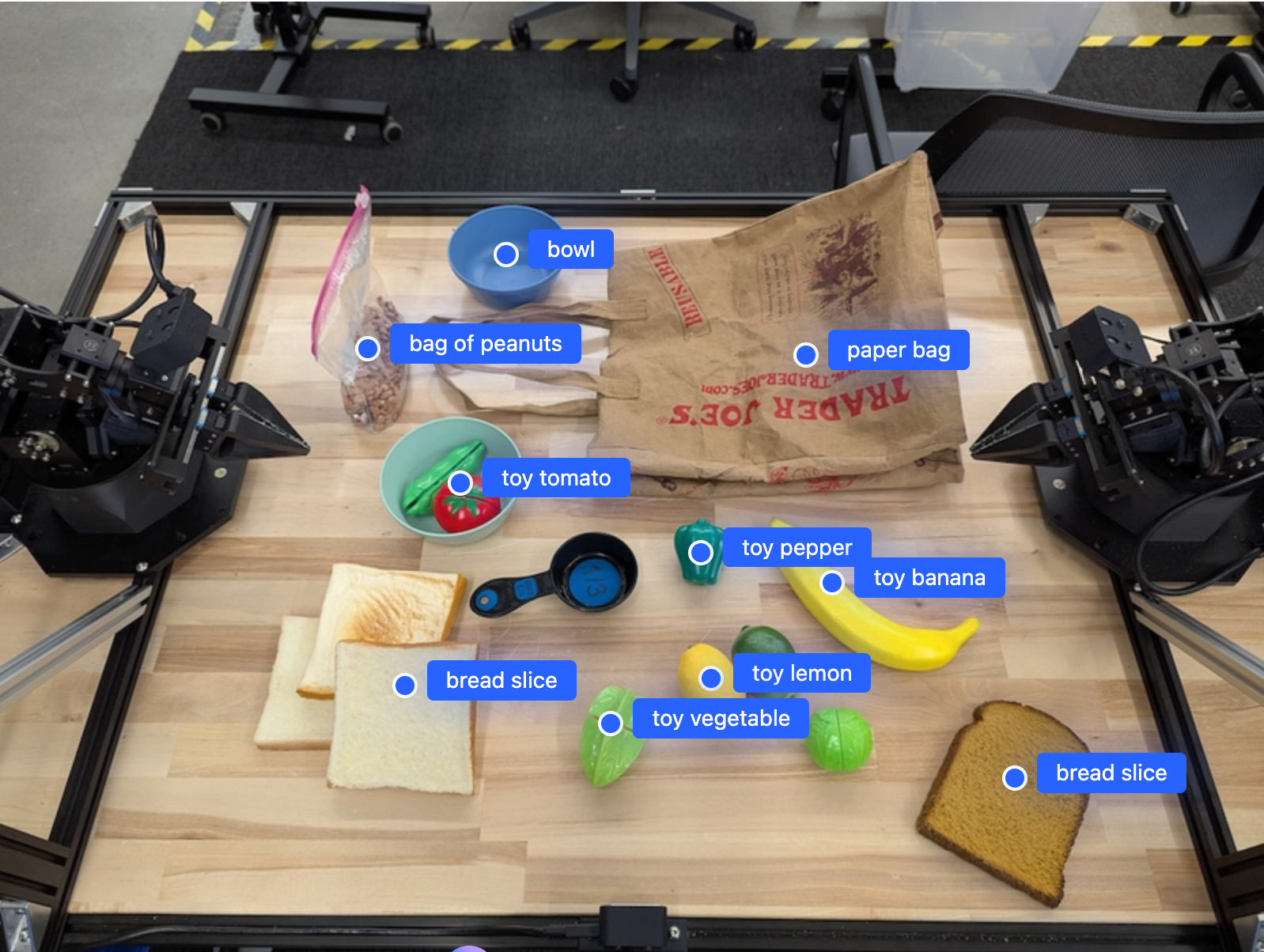
ตัวอย่างต่อไปนี้จะค้นหาออบเจ็กต์ที่เฉพาะเจาะจงในรูปภาพและแสดงผลพิกัด [y, x] ที่เป็นค่าปกติ
Python
from google import genai
from google.genai import types

PROMPT = """
          Point to no more than 10 items in the image. The label returned
          should be an identifying name for the object detected.
          The answer should follow the json format: [{"point": <point>,
          "label": <label1>}, ...]. The points are in [y, x] format
          normalized to 0-1000.
        """
client = genai.Client()

# Load your image
with open("my-image.png", 'rb') as f:
    image_bytes = f.read()

image_response = client.models.generate_content(
    model="gemini-robotics-er-2-preview",
    contents=[
        types.Part.from_bytes(
            data=image_bytes,
            mime_type='image/png',
        ),
        PROMPT
    ],
    config = types.GenerateContentConfig(
        thinking_config=types.ThinkingConfig(thinking_level="high")
    )
)

print(image_response.text)
REST
# First, ensure you have the image file locally.
# Encode the image to base64
IMAGE_BASE64=$(base64 -w 0 my-image.png)

curl -X POST \
  "https://generativelanguage.googleapis.com/v1beta/models/gemini-robotics-er-2-preview:generateContent \
  -H "x-goog-api-key: $GEMINI_API_KEY" \
  -H "Content-Type: application/json" \
  -d '{
    "contents": [
      {
        "parts": [
          {
            "inlineData": {
              "mimeType": "image/png",
              "data": "'"${IMAGE_BASE64}"'"
            }
          },
          {
            "text": "Point to no more than 10 items in the image. The label returned should be an identifying name for the object detected. The answer should follow the json format: [{\"point\": [y, x], \"label\": <label1>}, ...]. The points are in [y, x] format normalized to 0-1000."
          }
        ]
      }
    ],
    "generationConfig": {
      "thinkingConfig": {
        "thinkingLevel": "high"
      }
    }
  }'
เอาต์พุตจะเป็นอาร์เรย์ JSON ที่มีออบเจ็กต์ ซึ่งแต่ละออบเจ็กต์จะมี point (พิกัด [y, x] ที่เป็นค่าปกติ) และ label ที่ระบุออบเจ็กต์
JSON
[
  {"point": [376, 508], "label": "small banana"},
  {"point": [287, 609], "label": "larger banana"},
  {"point": [223, 303], "label": "pink starfruit"},
  {"point": [435, 172], "label": "paper bag"},
  {"point": [270, 786], "label": "green plastic bowl"},
  {"point": [488, 775], "label": "metal measuring cup"},
  {"point": [673, 580], "label": "dark blue bowl"},
  {"point": [471, 353], "label": "light blue bowl"},
  {"point": [492, 497], "label": "bread"},
  {"point": [525, 429], "label": "lime"}
]
รูปภาพต่อไปนี้แสดงตัวอย่างวิธีแสดงจุดเหล่านี้
การติดตามออบเจ็กต์ในวิดีโอ
Gemini Robotics ER 2 ยังวิเคราะห์เฟรมวิดีโอเพื่อติดตามออบเจ็กต์เมื่อเวลาผ่านไปได้ด้วย ดูรายการรูปแบบวิดีโอที่รองรับได้ที่ อินพุตวิดีโอ
Python
from google import genai
from google.genai import types

client = genai.Client()

# Load your video
with open("my-video.mp4", 'rb') as f:
    video_bytes = f.read()

prompt = """
          Point to the red ball in every frame where it appears.
          The answer should follow the json format: [{"point": [y, x],
          "label": <label>}, ...]. The points are in [y, x] format
          normalized to 0-1000. Return one entry per frame that contains
          the object.
        """

image_response = client.models.generate_content(
  model="gemini-robotics-er-2-preview",
  contents=[
    types.Part.from_bytes(
      data=video_bytes,
      mime_type='video/mp4',
    ),
    prompt
  ],
  config = types.GenerateContentConfig(
      thinking_config=types.ThinkingConfig(thinking_level="high")
  )
)

print(image_response.text)
การตรวจจับออบเจ็กต์และกรอบล้อมรอบ
นอกเหนือจากจุดแล้ว คุณยังสามารถพรอมต์ให้โมเดลแสดงผลกรอบล้อมรอบ 2 มิติ ซึ่งให้รายละเอียดเชิงพื้นที่เพิ่มเติมสำหรับออบเจ็กต์ที่ตรวจพบ
Python
from google import genai
from google.genai import types

client = genai.Client()

with open("my-image.png", 'rb') as f:
    image_bytes = f.read()

prompt = """
          Detect all objects in this image and return bounding boxes.
          The answer should follow the JSON format:
          [{"label": <label>, "y": <y_min>, "x": <x_min>,
            "y2": <y_max>, "x2": <x_max>}, ...]
          where coordinates are normalized to 0-1000.
        """

image_response = client.models.generate_content(
  model="gemini-robotics-er-2-preview",
  contents=[
    types.Part.from_bytes(
      data=image_bytes,
      mime_type='image/png',
    ),
    prompt
  ],
  config = types.GenerateContentConfig(
      thinking_config=types.ThinkingConfig(thinking_level="low")
  )
)

print(image_response.text)
เส้นทาง
Gemini Robotics ER 2 สามารถสร้างลำดับของจุดที่กำหนดเส้นทาง ซึ่งมีประโยชน์สำหรับการนำทางการเคลื่อนที่ของหุ่นยนต์
ตัวอย่างนี้ขอเส้นทางเพื่อย้ายปากกาสีแดงไปยังกล่องใส่เครื่องเขียน รวมถึงการประมาณจุดอ้างอิงระหว่างทาง เราได้ลดโค้ดลงเพื่อแสดงเฉพาะพรอมต์
Python
prompt = """
          Generate a trajectory for the robotic arm to pick up the red pen
          and place it in the organizer. Return a list of waypoints as JSON:
          [{"step": <int>, "point": [y, x], "action": <description>}, ...]
          where coordinates are normalized to 0-1000.
        """
การจัดพื้นที่สำหรับแล็ปท็อป
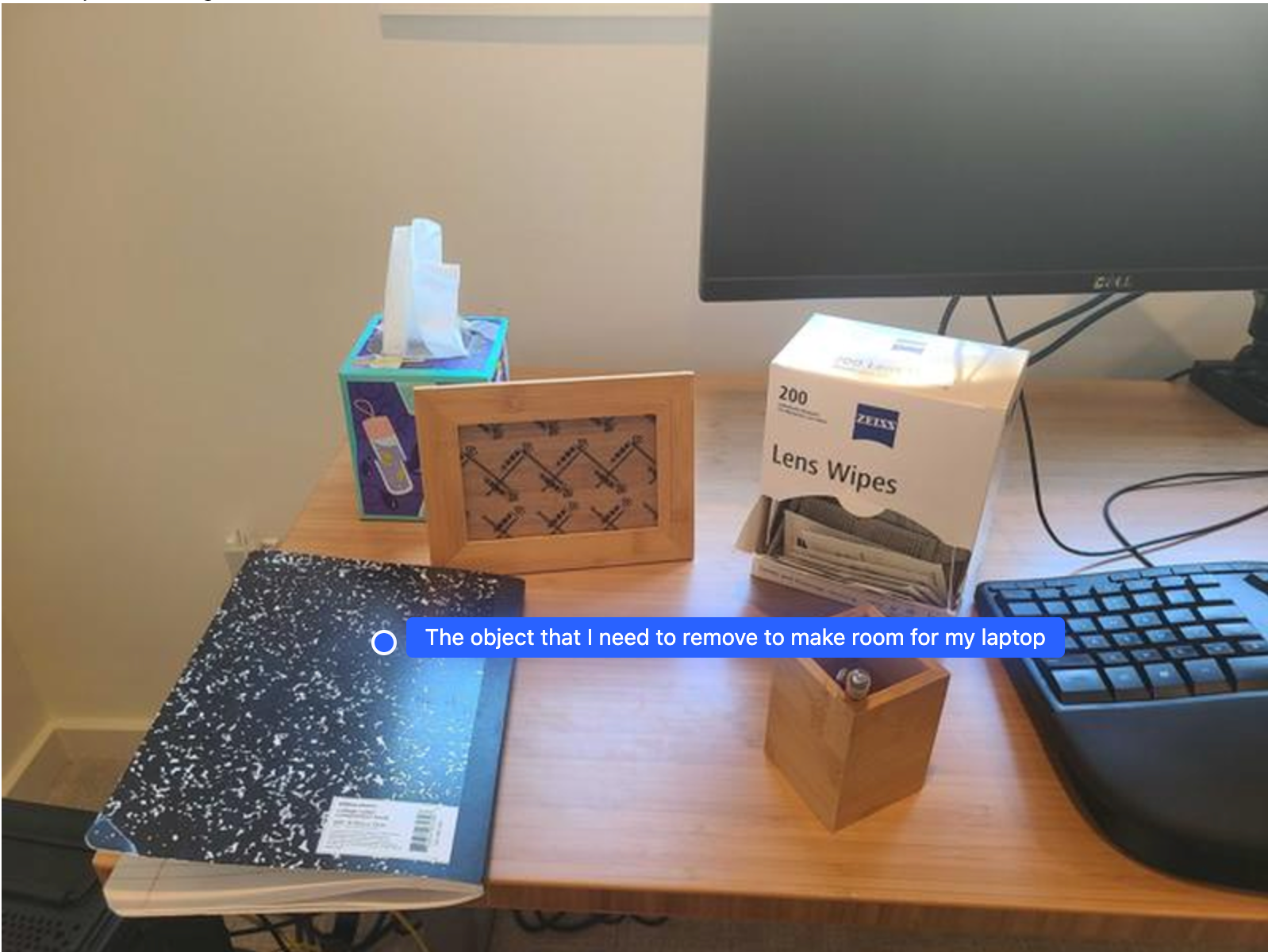
ตัวอย่างนี้แสดงวิธีที่ Gemini Robotics ER สามารถให้เหตุผลเกี่ยวกับพื้นที่ พรอมต์ขอให้โมเดลระบุออบเจ็กต์ที่ต้องย้ายเพื่อสร้างพื้นที่สำหรับรายการอื่น
Python
from google import genai
from google.genai import types

client = genai.Client()

with open('path/to/image-with-objects.jpg', 'rb') as f:
    image_bytes = f.read()

prompt = """
          Point to the object that I need to remove to make room for my laptop
          The answer should follow the JSON format: [{"point": <point>,
          "label": <label1>}, ...]. The points are in [y, x] format normalized to 0-1000.
        """

image_response = client.models.generate_content(
  model="gemini-robotics-er-2-preview",
  contents=[
    types.Part.from_bytes(
      data=image_bytes,
      mime_type='image/jpeg',
    ),
    prompt
  ],
  config=types.GenerateContentConfig(
      thinking_config=types.ThinkingConfig(thinking_level="high")
  )
)

print(image_response.text)
การตอบกลับจะมีพิกัด 2 มิติของออบเจ็กต์ที่ตอบคำถามของผู้ใช้ ซึ่งในกรณีนี้คือออบเจ็กต์ที่ควรย้ายเพื่อให้มีพื้นที่สำหรับแล็ปท็อป
[
  {"point": [672, 301], "label": "The object that I need to remove to make room for my laptop"}
]
การจัดเตรียมอาหารกลางวัน
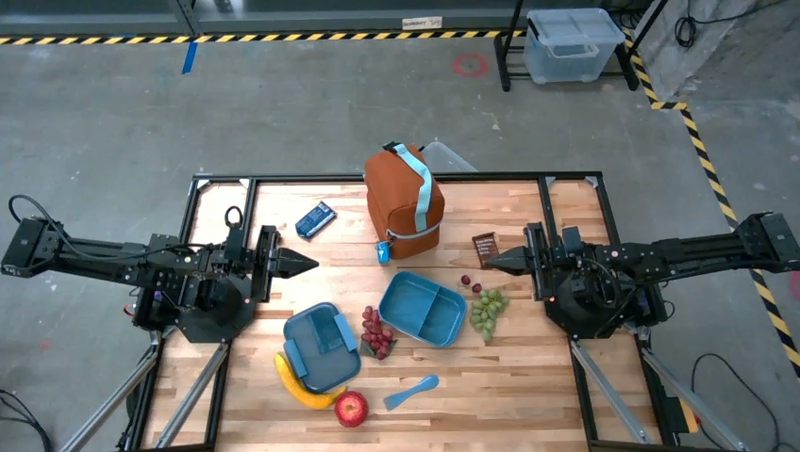
โมเดลยังสามารถให้คำแนะนำสำหรับงานหลายขั้นตอนและชี้ไปยังออบเจ็กต์ที่เกี่ยวข้องสำหรับแต่ละขั้นตอนได้ด้วย ตัวอย่างนี้แสดงวิธีที่โมเดลวางแผนชุดขั้นตอนเพื่อจัดเตรียมอาหารกลางวันใส่กระเป๋า
Python
from google import genai
from google.genai import types

client = genai.Client()

with open('path/to/image-of-lunch.jpg', 'rb') as f:
    image_bytes = f.read()

prompt = """
          Explain how to pack the lunch box and lunch bag. Point to each
          object that you refer to. Each point should be in the format:
          [{"point": [y, x], "label": }], where the coordinates are
          normalized between 0-1000.
        """

image_response = client.models.generate_content(
  model="gemini-robotics-er-2-preview",
  contents=[
    types.Part.from_bytes(
      data=image_bytes,
      mime_type='image/jpeg',
    ),
    prompt
  ],
  config=types.GenerateContentConfig(
      thinking_config=types.ThinkingConfig(thinking_level="high")
  )
)

print(image_response.text)
การตอบกลับของพรอมต์นี้คือชุดคำแนะนำทีละขั้นตอนเกี่ยวกับวิธีจัดเตรียมอาหารกลางวันใส่กระเป๋าจากรูปภาพอินพุต
รูปภาพอินพุต
เอาต์พุตโมเดล
Based on the image, here is a plan to pack the lunch box and lunch bag:

1.  **Pack the fruit into the lunch box.** Place the [apple](apple), [banana](banana), [red grapes](red grapes), and [green grapes](green grapes) into the [blue lunch box](blue lunch box).
2.  **Add the spoon to the lunch box.** Put the [blue spoon](blue spoon) inside the lunch box as well.
3.  **Close the lunch box.** Secure the lid on the [blue lunch box](blue lunch box).
4.  **Place the lunch box inside the lunch bag.** Put the closed [blue lunch box](blue lunch box) into the [brown lunch bag](brown lunch bag).
5.  **Pack the remaining items into the lunch bag.** Place the [blue snack bar](blue snack bar) and the [brown snack bar](brown snack bar) into the [brown lunch bag](brown lunch bag).

Here is the list of objects and their locations:
*   [{"point": [899, 440], "label": "apple"}]
*   [{"point": [814, 363], "label": "banana"}]
*   [{"point": [727, 470], "label": "red grapes"}]
*   [{"point": [675, 608], "label": "green grapes"}]
*   [{"point": [706, 529], "label": "blue lunch box"}]
*   [{"point": [864, 517], "label": "blue spoon"}]
*   [{"point": [499, 401], "label": "blue snack bar"}]
*   [{"point": [614, 705], "label": "brown snack bar"}]
*   [{"point": [448, 501], "label": "brown lunch bag"}]
ขั้นตอนถัดไป
- ความสามารถด้าน Agentic AI — การเรียกใช้โค้ด การอ่านเครื่องมือ การใส่คำอธิบายประกอบรูปภาพ
- การจัดระเบียบงาน — งานระยะยาวที่มี API ของหุ่นยนต์ที่กำหนดเอง
- Robotics พร้อมการสตรีม — การสตรีมแบบ 2 ทางแบบเรียลไทม์ (Gemini Robotics ER 2 เท่านั้น)
- ความเข้าใจวิดีโอ — การค้นหาช่วงเวลาและการจัดประเภทความคืบหน้า (Gemini Robotics ER 2 เท่านั้น)