
The Gemini API provides safety settings that you can adjust during the prototyping stage to determine if your application requires a more or less restrictive safety configuration. You can adjust these settings across filter categories to restrict or allow certain types of content.
This guide covers how to set safety settings on an interaction, what happens when content is blocked, and which categories and thresholds you can use.
Set safety settings
Pass a list of safety_settings when you create an interaction. Each setting
pairs a harm category (type) with a block threshold (threshold).
The following example sets the hate speech (hate_speech) category to
block_low_and_above, which blocks any content that has a low or higher
probability of being hate speech:
Python
from google import genai

client = genai.Client()

interaction = client.interactions.create(
    model="gemini-3.8-flash",
    input="Some potentially unsafe prompt.",
    safety_settings=[
        {
            "type": "hate_speech",
            "threshold": "block_low_and_above",
        }
    ],
)

print(interaction.output_text)
JavaScript
import { GoogleGenAI } from "@google/genai";

const ai = new GoogleGenAI({});

async function main() {
  const interaction = await ai.interactions.create({
    model: "gemini-3.8-flash",
    input: "Some potentially unsafe prompt.",
    safety_settings: [
      {
        type: "hate_speech",
        threshold: "block_low_and_above",
      },
    ],
  });
  console.log(interaction.output_text);
}

await main();
Java
import com.google.genai.Client;
import com.google.genai.gaos.models.interactions.CreateModelInteraction;
import com.google.genai.gaos.models.interactions.HarmCategory;
import com.google.genai.gaos.models.interactions.Interaction;
import com.google.genai.gaos.models.interactions.InteractionsInput;
import com.google.genai.gaos.models.interactions.Model;
import com.google.genai.gaos.models.interactions.SafetySetting;
import com.google.genai.gaos.models.interactions.Threshold;
import com.google.genai.gaos.models.operations.CreateInteractionRequestBody;
import java.util.List;

Client client = new Client();

SafetySetting hateSpeechSafety =
    SafetySetting.builder()
        .type(HarmCategory.HATE_SPEECH)
        .threshold(Threshold.BLOCK_LOW_AND_ABOVE)
        .build();

CreateModelInteraction params =
    CreateModelInteraction.builder()
        .model(Model.of("gemini-3.8-flash"))
        .input(InteractionsInput.of("Some potentially unsafe prompt."))
        .safetySettings(List.of(hateSpeechSafety))
        .build();

Interaction interaction =
    client.interactions.create(CreateInteractionRequestBody.of(params)).interaction().get();

System.out.println(interaction.outputText().orElse(""));
Go
package main

import (
    "context"
    "fmt"
    "log"

    "google.golang.org/genai"
    "google.golang.org/genai/interactions/models/interactions"
    "google.golang.org/genai/interactions/models/operations"
)

func main() {
    ctx := context.Background()
    client, err := genai.NewClient(ctx, nil)
    if err != nil {
        log.Fatal(err)
    }

    res, err := client.Interactions.Create(ctx, operations.CreateInteractionRequest{
        Body: operations.NewCreateInteractionRequestBody(interactions.CreateModelInteraction{
            Model: interactions.Model("gemini-3.8-flash"),
            Input: interactions.NewInteractionsInput("Some potentially unsafe prompt."),
            SafetySettings: []interactions.SafetySetting{
                {
                    Type:      interactions.HarmCategoryHateSpeech,
                    Threshold: interactions.ThresholdBlockLowAndAbove,
                },
            },
        }),
    })
    if err != nil {
        log.Fatal(err)
    }

    if res.Interaction.OutputText != nil {
        fmt.Println(*res.Interaction.OutputText)
    }
}
REST
curl -X POST "https://generativelanguage.googleapis.com/v1beta/interactions" \
  -H "x-goog-api-key: $GEMINI_API_KEY" \
  -H 'Content-Type: application/json' \
  -H "Api-Revision: 2026-05-20" \
  -d '{
    "model": "gemini-3.8-flash",
    "input": "Some potentially unsafe prompt.",
    "safety_settings": [
      {"type": "hate_speech", "threshold": "block_low_and_above"}
    ]
  }'
You can include one setting per category. Categories you don't set use the default threshold, which is Off for Gemini 2.5 and later models.
When content is blocked
If a safety filter blocks the input or the model's response, the interaction
fails with an HTTP 400 error. The blocked content isn't returned.
The error code tells you why the request was blocked:
safety: The input or response was blocked by a safety filter.jailbreak,prohibited_content, orblocklist: The input was blocked for that reason. The errormessagestarts withInput blocked:.
For example:
{
  "error": {
    "code": "safety",
    "message": "Request blocked due to safety violations (harmful content). Please modify your input and retry."
  }
}
For background interactions (background=true), the interaction's status is
set to failed, and the same code and message appear in its errors list.
When streaming, the error arrives as an error event.
Safety filters
The Gemini API's adjustable safety filters cover the following categories:
| Category | Value (API) | Description |
|---|---|---|
| Harassment | harassment |
Abusive, threatening, or content intended to bully, torment, or ridicule. |
| Hate speech | hate_speech |
Content that promotes violence or incites hatred against individuals or groups based on certain attributes. |
| Sexually explicit | sexually_explicit |
Content that contains sexually explicit material. |
| Dangerous | dangerous_content |
Content that promotes, facilitates, or enables dangerous activities. |
| Jailbreak | jailbreak |
Prompts designed to bypass safety filters. |
You can use these filters to adjust what's appropriate for your use case. For example, if you're building video game dialogue, you may deem it acceptable to allow more content that's rated as Dangerous due to the nature of the game.
In addition to the adjustable safety filters, the Gemini API has built-in protections against core harms, such as content that endangers child safety. These types of harm are always blocked and cannot be adjusted.
Block thresholds
Due to the model's inherent safety, additional filters are Off by default. The default model behavior covers most use cases, so you should only adjust these settings if it's consistently required for your application.
The following table describes the thresholds you can set for each category. For
example, if you set Hate speech to Block few (block_only_high),
content with a high probability of being hate speech is blocked, and anything
with a lower probability is allowed.
| Threshold (Google AI Studio) | Threshold (API) | Description |
|---|---|---|
| Off | off |
Turn off the safety filter |
| Block few | block_only_high |
Block when high probability of unsafe content |
| Block some | block_medium_and_above |
Block when medium or high probability of unsafe content |
| Block most | block_low_and_above |
Block when low, medium or high probability of unsafe content |
Probability versus severity
The Gemini API rates the probability of content being unsafe as high, medium, low, or negligible. It blocks content based on that probability, not on the severity of the harm. Some content can have a low probability of being unsafe even though the harm could be severe. For example, compare these sentences:
- The robot punched me.
- The robot slashed me up.
The first sentence might have a higher probability of being unsafe, but you might consider the second more severe. Test carefully to find the level of blocking that supports your use case while minimizing harm to end users.
Adjust safety settings in Google AI Studio
Click Safety settings under Advanced settings in the Run settings panel to open the Run safety settings modal. In the modal, you can use the sliders to adjust the content filtering level per safety category:
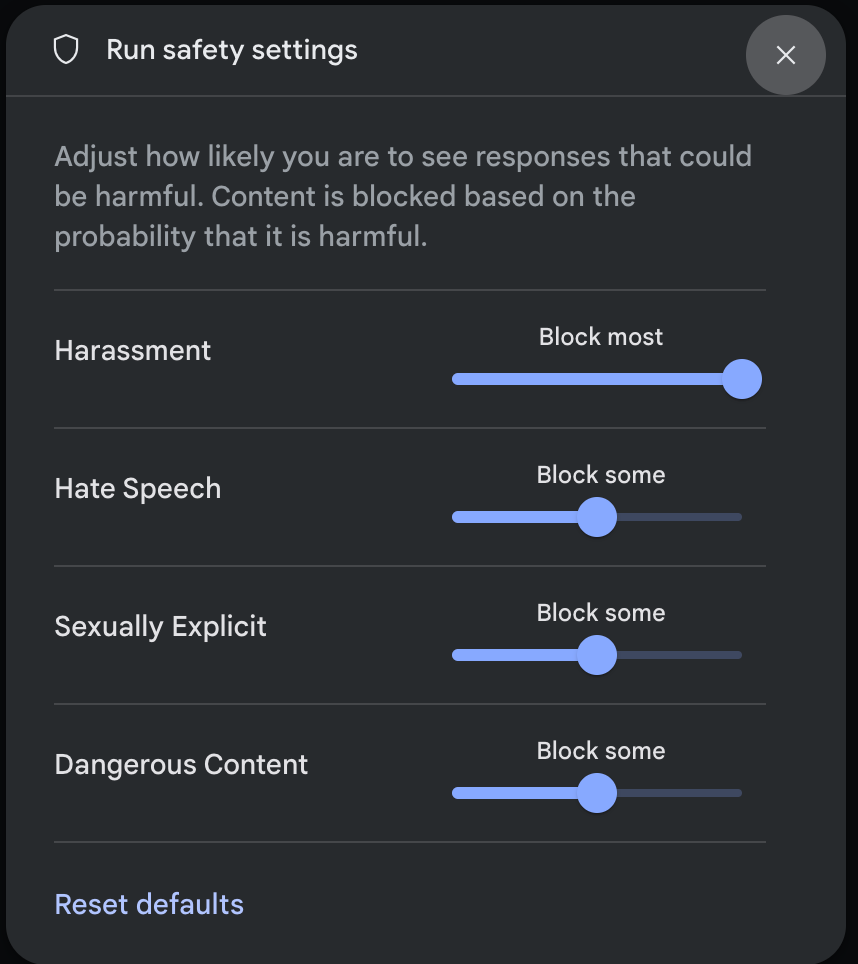
When you send a request (for example, by asking the model a question), a Content blocked message appears if the request's content is blocked. To see more details, hold the pointer over the Content blocked text to see the category and the probability of the harm classification.
Next steps
- See the Interactions API reference to learn more about the full API.
- Review the safety guidance for a general look at safety considerations when developing with LLMs.
- Learn more about assessing probability versus severity from the Jigsaw team.
- Learn more about the products that contribute to safety solutions like the Perspective API.