

Mit dem Tool „Computernutzung“ können Sie Browser-, Mobil- und Desktop-Steuerungs-Agents erstellen, die mit Aufgaben interagieren und diese automatisieren. Mithilfe von Screenshots kann das Modell einen Computerbildschirm „sehen“ und „handeln“, indem es bestimmte UI-Aktionen wie Mausklicks und Tastatureingaben generiert. Ähnlich wie beim Funktionsaufruf müssen Sie die clientseitige Ausführungsumgebung implementieren, um die Computer Use-Aktionen zu empfangen und auszuführen.
Eine Liste der unterstützten Modelle finden Sie unter Modellversionen. Die Gemini 3.x-Modelle unterstützen mehrere erweiterte Funktionen:
- Unterstützung mehrerer Umgebungen: Erstellen Sie Agenten für Browser-, Mobil- und Desktop-Umgebungen.
- Optimierte Aktionen mit Intents: Aktionen enthalten ein
intent-Feld, in dem die Begründung des Modells für jeden Schritt erläutert wird. - Konfigurierbare Sicherheitsrichtlinien: Mit integrierten Richtlinienkategorien und Überschreibungen können Sie das Sicherheitsverhalten optimieren.
- Prompt-Injection-Erkennung:Screenshot-Scans, die Sie aktivieren können, um versteckte schädliche Anweisungen zu erkennen.
Mit der Computernutzung können Sie KI-Agenten erstellen, die:
- Wiederholte Dateneingaben oder das Ausfüllen von Formularen auf Websites automatisieren
- Automatisierte Tests von Webanwendungen und User-Flows durchführen
- Recherchen auf verschiedenen Websites durchführen (z.B. Produktinformationen, Preise und Rezensionen auf E-Commerce-Websites sammeln, um eine Kaufentscheidung zu treffen)
Hier ist ein Minimalbeispiel für die Initialisierung des Clients und das Senden eines Prompts an das Modell mit dem Tool computer_use, das für eine Browserumgebung aktiviert ist:
Python
from google import genai

client = genai.Client()

interaction = client.interactions.create(
    model="gemini-3.8-flash",
    input="Search for 'Gemini API' on Google.",
    tools=[{"type": "computer_use", "environment": "browser"}]
)

print(interaction)
JavaScript
import { GoogleGenAI } from '@google/genai';

const ai = new GoogleGenAI();

const interaction = await ai.interactions.create({
  model: 'gemini-3.8-flash',
  input: "Search for 'Gemini API' on Google.",
  tools: [{ type: "computer_use", environment: "browser" }]
});

console.log(interaction);
Java
import com.google.genai.Client;
import com.google.genai.gaos.models.interactions.ComputerUse;
import com.google.genai.gaos.models.interactions.CreateModelInteraction;
import com.google.genai.gaos.models.interactions.EnvironmentEnum;
import com.google.genai.gaos.models.interactions.Interaction;
import com.google.genai.gaos.models.interactions.InteractionsInput;
import com.google.genai.gaos.models.operations.CreateInteractionRequestBody;
import java.util.Arrays;

Client client = new Client();

CreateModelInteraction params =
    CreateModelInteraction.builder()
        .model("gemini-3.8-flash")
        .input(InteractionsInput.of("Search for 'Gemini API' on Google."))
        .tools(
            Arrays.asList(
                ComputerUse.builder().environment(EnvironmentEnum.BROWSER).build()))
        .build();

Interaction interaction =
    client.interactions.create(CreateInteractionRequestBody.of(params)).interaction().get();

System.out.println(interaction);
Ok
package main

import (
    "context"
    "fmt"
    "log"

    "google.golang.org/genai"
    "google.golang.org/genai/interactions/models/interactions"
    "google.golang.org/genai/interactions/models/operations"
)

func main() {
    ctx := context.Background()
    client, err := genai.NewClient(ctx, nil)
    if err != nil {
        log.Fatal(err)
    }

    res, err := client.Interactions.Create(ctx, operations.CreateInteractionRequest{
        Body: operations.NewCreateInteractionRequestBody(interactions.CreateModelInteraction{
            Model: interactions.Model("gemini-3.8-flash"),
            Input: interactions.NewInteractionsInput("Search for 'Gemini API' on Google."),
            Tools: []interactions.Tool{
                interactions.NewTool(interactions.ComputerUse{
                    Environment: interactions.EnvironmentEnumBrowser.ToPointer(),
                }),
            },
        }),
    })
    if err != nil {
        log.Fatal(err)
    }

    fmt.Println(res.Interaction)
}
So funktioniert die Computernutzung
Wenn Sie einen Agent mit dem Modell „Computer Use“ erstellen möchten, müssen Sie eine Endlosschleife zwischen Ihrer Anwendung und der API einrichten. Das bewirkt Ihr Code bei jedem Schritt:
- Anfrage an das Modell senden
- Ihre Anwendung sendet eine API-Anfrage, die das Tool zur Computernutzung, Ihre Konfigurationseinstellungen (z. B. die Zielumgebung), den Prompt des Nutzers und einen Screenshot des aktuellen Bildschirms enthält.
- Modellantwort erhalten
- Das Modell analysiert den Bildschirm und den Prompt und gibt eine Antwort zurück, die eine vorgeschlagene
function_callenthält, die eine UI-Aktion (z. B. Klicken, Scrollen oder Tastendruck) darstellt. - Bei Gemini 3.x-Modellen enthält die Antwort auch eine Begründung
intent, in der erklärt wird, warum das Modell diese Aktion ausgewählt hat. - Die Antwort kann auch eine
safety_decisionvon einem internen Sicherheitssystem enthalten, das die Aktion als regulär/zulässig,require_confirmation(erfordert Nutzergenehmigung) oder blockiert klassifiziert.
- Das Modell analysiert den Bildschirm und den Prompt und gibt eine Antwort zurück, die eine vorgeschlagene
- Empfangene Aktion ausführen
- Wenn die Aktion zulässig ist (oder der Nutzer sie bestätigt), parst Ihr clientseitiger Code die
function_call, skaliert die normalisierten Koordinaten entsprechend Ihrem Darstellungsbereich und führt die Aktion in Ihrer Zielumgebung mit Automatisierungstools (z. B. Playwright) aus. Wenn die Aktion blockiert wird, sollte Ihr Client die Ausführung beenden oder die Unterbrechung verarbeiten.
- Wenn die Aktion zulässig ist (oder der Nutzer sie bestätigt), parst Ihr clientseitiger Code die
- Neuen Umgebungsstatus erfassen
- Nachdem die Aktion ausgeführt wurde, erstellt Ihre Anwendung einen neuen Screenshot und sendet ihn in einem
function_resultan das Modell zurück, um den nächsten Schritt anzufordern.
- Nachdem die Aktion ausgeführt wurde, erstellt Ihre Anwendung einen neuen Screenshot und sendet ihn in einem
Dieser Prozess wird dann ab Schritt 2 wiederholt. Das Modell wird kontinuierlich nach der nächsten Aktion gefragt, bis die Aufgabe abgeschlossen oder beendet ist.
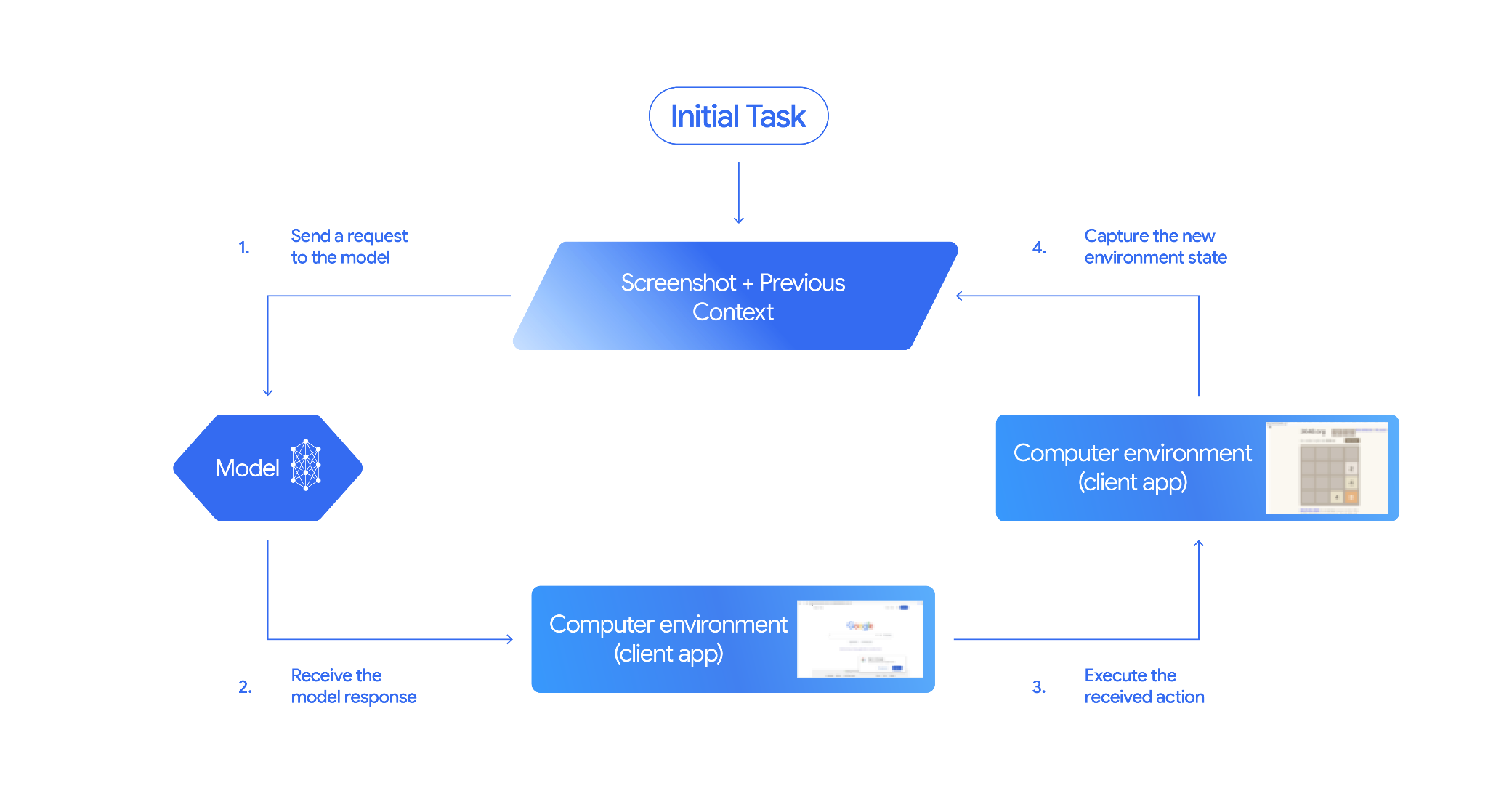
Computernutzung implementieren
Bevor Sie mit dem Tool „Computer Use“ entwickeln können, müssen Sie Folgendes einrichten:
- Sichere Ausführungsumgebung: Führen Sie Ihren Agenten in einer Sandbox-VM oder einem Sandbox-Container aus, um ihn von Ihrem Hostsystem zu isolieren und seine potenziellen Auswirkungen zu begrenzen. Die Referenzimplementierung enthält eine sofort einsatzbereite Docker-basierte Sandbox, die Sie als Ausgangspunkt verwenden können.
- Clientseitiger Aktionshandler:Implementieren Sie clientseitige Logik, um Koordinaten auszuführen, Text einzugeben und Screenshots zu erstellen.
In den folgenden Beispielen wird ein Webbrowser als Ausführungsumgebung und Playwright als clientseitiger Handler verwendet.
0. Playwright einrichten
Installieren Sie zuerst die erforderlichen Pakete:
pip install google-genai playwright
playwright install chromium
Initialisieren Sie dann eine Playwright-Browserinstanz, die für die Ausführung verwendet werden soll:
from playwright.sync_api import sync_playwright

# 1. Configure screen dimensions for the target environment
SCREEN_WIDTH = 1440
SCREEN_HEIGHT = 900

# 2. Start the Playwright browser
# In production, utilize a sandboxed environment.
playwright = sync_playwright().start()
# Set headless=False to see the actions performed on your screen
browser = playwright.chromium.launch(headless=False)

# 3. Create a context and page with the specified dimensions
context = browser.new_context(
    viewport={"width": SCREEN_WIDTH, "height": SCREEN_HEIGHT}
)
page = context.new_page()

# 4. Navigate to an initial page to start the task
page.goto("https://www.google.com")

# The 'page', 'SCREEN_WIDTH', and 'SCREEN_HEIGHT' variables
# will be used in the steps below.
1. Anfrage an das Modell senden
Initialisieren Sie die Clientbibliothek und konfigurieren Sie das Tool „Computer Use“. Beachten Sie, dass die Anzeigegröße bei einer Anfrage nicht angegeben werden muss. Das Modell sagt Pixelkoordinaten voraus, die auf die Höhe und Breite des Bildschirms skaliert sind.
Python
Verwenden Sie das google-genai Python SDK (Version 2.7.0 oder höher), um eine Anfrage für die Browserumgebung zu konfigurieren:
from google import genai

client = genai.Client()

interaction = client.interactions.create(
    model='gemini-3.8-flash',
    input="Find a flight from SF to Hawaii on Jun 30th, coming back on Jul 6th",
    tools=[
        {
            "type": "computer_use",
            "environment": "browser",
            "enable_prompt_injection_detection": True
        }
    ]
)

print(interaction)
JavaScript
Verwenden Sie das @google/genai Node.js SDK, um eine Anfrage für die Browserumgebung zu konfigurieren:
import { GoogleGenAI } from '@google/genai';

const ai = new GoogleGenAI();

const interaction = await ai.interactions.create({
  model: 'gemini-3.8-flash',
  input: "Find a flight from SF to Hawaii on Jun 30th, coming back on Jul 6th",
  tools: [
    {
      type: "computer_use",
      environment: "browser",
      enable_prompt_injection_detection: true
    }
  ]
});

console.log(interaction);
Java
import com.google.genai.Client;
import com.google.genai.gaos.models.interactions.ComputerUse;
import com.google.genai.gaos.models.interactions.CreateModelInteraction;
import com.google.genai.gaos.models.interactions.EnvironmentEnum;
import com.google.genai.gaos.models.interactions.Interaction;
import com.google.genai.gaos.models.interactions.InteractionsInput;
import com.google.genai.gaos.models.operations.CreateInteractionRequestBody;
import java.util.Arrays;

Client client = new Client();

CreateModelInteraction params =
    CreateModelInteraction.builder()
        .model("gemini-3.8-flash")
        .input(
            InteractionsInput.of(
                "Find a flight from SF to Hawaii on Jun 30th, coming back on Jul 6th"))
        .tools(
            Arrays.asList(
                ComputerUse.builder()
                    .environment(EnvironmentEnum.BROWSER)
                    .enablePromptInjectionDetection(true)
                    .build()))
        .build();

Interaction interaction =
    client.interactions.create(CreateInteractionRequestBody.of(params)).interaction().get();

System.out.println(interaction);
Go
package main

import (
    "context"
    "fmt"
    "log"

    "google.golang.org/genai"
    "google.golang.org/genai/interactions/models/interactions"
    "google.golang.org/genai/interactions/models/operations"
)

func main() {
    ctx := context.Background()
    client, err := genai.NewClient(ctx, nil)
    if err != nil {
        log.Fatal(err)
    }

    res, err := client.Interactions.Create(ctx, operations.CreateInteractionRequest{
        Body: operations.NewCreateInteractionRequestBody(interactions.CreateModelInteraction{
            Model: interactions.Model("gemini-3.8-flash"),
            Input: interactions.NewInteractionsInput("Find a flight from SF to Hawaii on Jun 30th, coming back on Jul 6th"),
            Tools: []interactions.Tool{
                interactions.NewTool(interactions.ComputerUse{
                    Environment:                    interactions.EnvironmentEnumBrowser.ToPointer(),
                    EnablePromptInjectionDetection: genai.Ptr(true),
                }),
            },
        }),
    })
    if err != nil {
        log.Fatal(err)
    }

    fmt.Println(res.Interaction)
}
REST
So senden Sie eine Anfrage mit curl:
curl -X POST \
  "https://generativelanguage.googleapis.com/v1beta/interactions" \
  -H "x-goog-api-key: $GEMINI_API_KEY" \
  -H "Content-Type: application/json" \
  -d '{
    "model": "gemini-3.8-flash",
    "input": "Find me a flight from SF to Hawaii on Jun 30th, coming back on Jul 6th. Start by navigating directly to flights.google.com",
    "tools": [
      {
        "type": "computer_use",
        "environment": "browser",
        "enable_prompt_injection_detection": true
      }
    ]
  }'
2. Modellantwort erhalten
Die Antwort des Modells schlägt einen Funktionsaufruf mit Koordinaten und einer maßgeschneiderten Begründungsabsicht vor, die die Aktion erklärt:
{
  "steps": [
    {
      "type": "function_call",
      "name": "click",
      "arguments": {
        "x": 450,
        "y": 120,
        "intent": "Click the search box to type the destination."
      }
    }
  ]
}
3. Empfangene Aktionen ausführen
Ihre Anwendung muss die Antwortkoordinaten parsen, sie von den normalisierten 1000x1000-Koordinaten skalieren und die Aktion ausführen:
Python
from typing import Any, List, Tuple
import time

def denormalize_x(x: int, screen_width: int) -> int:
    """Convert normalized x coordinate (0-1000) to actual pixel coordinate."""
    return int(x / 1000 * screen_width)

def denormalize_y(y: int, screen_height: int) -> int:
    """Convert normalized y coordinate (0-1000) to actual pixel coordinate."""
    return int(y / 1000 * screen_height)

def execute_function_calls(interaction, page, screen_width, screen_height):
    results = []
    function_calls = [
        step for step in interaction.steps if step.type == "function_call"
    ]

    for function_call in function_calls:
        action_result = {}
        fname = function_call.name
        args = function_call.arguments
        print(f"  -> Executing: {fname} (Intent: {args.get('intent', 'N/A')})")

        try:
            if fname == "open_app":
                pass # Handled / already open
            elif fname in ("click", "double_click", "triple_click", "middle_click", "right_click", "move", "long_press"):
                actual_x = denormalize_x(args["x"], screen_width)
                actual_y = denormalize_y(args["y"], screen_height)

                if fname == "click":
                    page.mouse.click(actual_x, actual_y)
                elif fname == "double_click":
                    page.mouse.dblclick(actual_x, actual_y)
                elif fname == "right_click":
                    page.mouse.click(actual_x, actual_y, button="right")
                elif fname == "middle_click":
                    page.mouse.click(actual_x, actual_y, button="middle")
                elif fname == "move":
                    page.mouse.move(actual_x, actual_y)
            elif fname == "type":
                actual_x = denormalize_x(args["x"], screen_width) if "x" in args else None
                actual_y = denormalize_y(args["y"], screen_height) if "y" in args else None
                text = args["text"]
                press_enter = args.get("press_enter", False)

                if actual_x is not None and actual_y is not None:
                    page.mouse.click(actual_x, actual_y)
                # Clear field first
                page.keyboard.press("Meta+A")
                page.keyboard.press("Backspace")
                page.keyboard.type(text)
                if press_enter:
                    page.keyboard.press("Enter")
            elif fname == "navigate":
                page.goto(args["url"])
            elif fname == "go_back":
                page.go_back()
            elif fname == "go_forward":
                page.go_forward()
            elif fname == "wait":
                time.sleep(args.get("seconds", 1))
            else:
                print(f"Warning: Custom or unhandled function {fname}")

            page.wait_for_load_state(timeout=5000)
            time.sleep(1)

        except Exception as e:
            print(f"Error executing {fname}: {e}")
            action_result = {"error": str(e)}

        results.append((fname, function_call.id, action_result))

    return results
JavaScript
function denormalizeX(x, screenWidth) {
    // Convert normalized x coordinate (0-1000) to actual pixel coordinate.
    return Math.floor((x / 1000) * screenWidth);
}

function denormalizeY(y, screenHeight) {
    // Convert normalized y coordinate (0-1000) to actual pixel coordinate.
    return Math.floor((y / 1000) * screenHeight);
}

async function executeFunctionCalls(interaction, page, screenWidth, screenHeight) {
    const results = [];
    const functionCalls = interaction.steps.filter(step => step.type === "function_call");

    for (const functionCall of functionCalls) {
        const actionResult = {};
        const fname = functionCall.name;
        const args = functionCall.arguments;
        console.log(`  -> Executing: ${fname} (Intent: ${args.intent || 'N/A'})`);

        try {
            if (fname === "open_app") {
                // Handled / already open
            } else if (["click", "double_click", "triple_click", "middle_click", "right_click", "move", "long_press"].includes(fname)) {
                const actualX = denormalizeX(args.x, screenWidth);
                const actualY = denormalizeY(args.y, screenHeight);

                if (fname === "click") {
                    await page.mouse.click(actualX, actualY);
                } else if (fname === "double_click") {
                    await page.mouse.dblclick(actualX, actualY);
                } else if (fname === "right_click") {
                    await page.mouse.click(actualX, actualY, { button: "right" });
                } else if (fname === "middle_click") {
                    await page.mouse.click(actualX, actualY, { button: "middle" });
                } else if (fname === "move") {
                    await page.mouse.move(actualX, actualY);
                }
            } else if (fname === "type") {
                const actualX = args.x !== undefined ? denormalizeX(args.x, screenWidth) : null;
                const actualY = args.y !== undefined ? denormalizeY(args.y, screenHeight) : null;
                const text = args.text;
                const pressEnter = args.press_enter || false;

                if (actualX !== null && actualY !== null) {
                    await page.mouse.click(actualX, actualY);
                }
                // Clear field first
                await page.keyboard.press("Meta+A");
                await page.keyboard.press("Backspace");
                await page.keyboard.type(text);
                if (pressEnter) {
                    await page.keyboard.press("Enter");
                }
            } else if (fname === "navigate") {
                await page.goto(args.url);
            } else if (fname === "go_back") {
                await page.goBack();
            } else if (fname === "go_forward") {
                await page.goForward();
            } else if (fname === "wait") {
                await new Promise(resolve => setTimeout(resolve, (args.seconds || 1) * 1000));
            } else {
                console.log(`Warning: Custom or unhandled function ${fname}`);
            }

            await page.waitForLoadState('load', { timeout: 5000 }).catch(() => {});
            await new Promise(resolve => setTimeout(resolve, 1000));
        } catch (e) {
            console.log(`Error executing ${fname}: ${e}`);
            actionResult.error = e.message;
        }

        results.push([fname, functionCall.id, actionResult]);
    }

    return results;
}
Java
import com.google.genai.gaos.models.interactions.FunctionCallStep;
import com.google.genai.gaos.models.interactions.Interaction;
import com.google.genai.gaos.models.interactions.Step;
import java.util.ArrayList;
import java.util.Collections;
import java.util.HashMap;
import java.util.List;
import java.util.Map;

class ActionExecutor {
  int denormalizeX(int x, int screenWidth) {
    return (int) (x / 1000.0 * screenWidth);
  }

  int denormalizeY(int y, int screenHeight) {
    return (int) (y / 1000.0 * screenHeight);
  }

  List<Map<String, Object>> executeFunctionCalls(
      Interaction interaction, int screenWidth, int screenHeight) {
    List<Map<String, Object>> results = new ArrayList<>();

    for (Step step : interaction.steps().orElse(Collections.emptyList())) {
      if (step instanceof FunctionCallStep) {
        FunctionCallStep functionCall = (FunctionCallStep) step;
        String fname = functionCall.name().orElse("");
        Map<String, Object> args = functionCall.arguments().orElse(Collections.emptyMap());
        Map<String, Object> actionResult = new HashMap<>();

        System.out.println(
            "  -> Executing: " + fname + " (Intent: " + args.getOrDefault("intent", "N/A") + ")");

        try {
          if (fname.equals("click")) {
            int actualX = denormalizeX(((Number) args.get("x")).intValue(), screenWidth);
            int actualY = denormalizeY(((Number) args.get("y")).intValue(), screenHeight);
            // Perform mouse click at (actualX, actualY) using your browser automation library
          } else if (fname.equals("type")) {
            String text = (String) args.get("text");
            // Type text into active element using your browser automation library
          } else if (fname.equals("navigate")) {
            String url = (String) args.get("url");
            // Navigate browser to url
          }
        } catch (Exception e) {
          actionResult.put("error", e.getMessage());
        }

        Map<String, Object> entry = new HashMap<>();
        entry.put("name", fname);
        entry.put("callId", functionCall.id().orElse(""));
        entry.put("result", actionResult);
        results.add(entry);
      }
    }
    return results;
  }
}
Ok
package main

import (
    "fmt"

    "google.golang.org/genai/interactions/models/interactions"
)

func denormalizeX(x, screenWidth int) int {
    return int(float64(x) / 1000.0 * float64(screenWidth))
}

func denormalizeY(y, screenHeight int) int {
    return int(float64(y) / 1000.0 * float64(screenHeight))
}

func executeFunctionCalls(interaction *interactions.Interaction, screenWidth, screenHeight int) []map[string]any {
    var results []map[string]any

    for _, step := range interaction.Steps {
        if functionCall := step.FunctionCallStep; functionCall != nil {
            fname := functionCall.Name
            args := functionCall.Arguments
            actionResult := map[string]any{}

            intent := args["intent"]
            if intent == nil {
                intent = "N/A"
            }
            fmt.Printf("  -> Executing: %s (Intent: %v)\n", fname, intent)

            switch fname {
            case "click":
                xVal, _ := args["x"].(float64)
                yVal, _ := args["y"].(float64)
                actualX := denormalizeX(int(xVal), screenWidth)
                actualY := denormalizeY(int(yVal), screenHeight)
                _ = actualX
                _ = actualY
                // Perform mouse click at (actualX, actualY) using your browser automation library
            case "type":
                text, _ := args["text"].(string)
                _ = text
                // Type text into active element using your browser automation library
            case "navigate":
                url, _ := args["url"].(string)
                _ = url
                // Navigate browser to url
            }

            results = append(results, map[string]any{
                "name":   fname,
                "callId": functionCall.ID,
                "result": actionResult,
            })
        }
    }
    return results
}

func main() {
    // Example helper usage with an Interaction response
}
4. Neuen Umgebungsstatus erfassen
Senden Sie nach dem Ausführen der Aktionen das Ergebnis der Funktionsausführung an das Modell zurück, damit es diese Informationen zum Generieren der nächsten Aktion verwenden kann. Wenn mehrere Aktionen (parallele Aufrufe) ausgeführt wurden, müssen Sie im nächsten Nutzer-Turn für jede Aktion ein function_result senden.
Python
import json
import base64

def get_function_responses(page, results):
    screenshot_bytes = page.screenshot(type="png")
    current_url = page.url
    function_responses = []
    for name, call_id, result in results:
        function_responses.append({
            "type": "function_result",
            "name": name,
            "call_id": call_id,
            "result": [
                {
                    "type": "text",
                    "text": json.dumps({"url": current_url, **result})
                },
                {
                    "type": "image",
                    "data": base64.b64encode(screenshot_bytes).decode("utf-8"),
                    "mime_type": "image/png"
                }
            ]
        })
    return function_responses
JavaScript
async function getFunctionResponses(page, results) {
    const screenshotBuffer = await page.screenshot({ type: 'png' });
    const screenshotBase64 = screenshotBuffer.toString('base64');
    const currentUrl = page.url();
    const functionResponses = [];

    for (const [name, callId, result] of results) {
        functionResponses.push({
            type: "function_result",
            name: name,
            call_id: callId,
            result: [
                {
                    type: "text",
                    text: JSON.stringify({ url: currentUrl, ...result })
                },
                {
                    type: "image",
                    data: screenshotBase64,
                    mime_type: "image/png"
                }
            ]
        });
    }
    return functionResponses;
}
Java
import com.google.genai.gaos.models.interactions.FunctionResultStep;
import com.google.genai.gaos.models.interactions.FunctionResultStepResultUnion;
import com.google.genai.gaos.models.interactions.ImageContent;
import com.google.genai.gaos.models.interactions.ImageContentMimeType;
import com.google.genai.gaos.models.interactions.Step;
import com.google.genai.gaos.models.interactions.TextContent;
import java.util.ArrayList;
import java.util.Arrays;
import java.util.Base64;
import java.util.List;
import java.util.Map;

class StateCapturer {
  List<Step> getFunctionResponses(
      byte[] screenshotBytes, String currentUrl, List<Map<String, Object>> results) {
    List<Step> functionResponses = new ArrayList<>();
    String base64Screenshot = Base64.getEncoder().encodeToString(screenshotBytes);

    for (Map<String, Object> entry : results) {
      String name = (String) entry.get("name");
      String callId = (String) entry.get("callId");
      String jsonResult = String.format("{\"url\": \"%s\"}", currentUrl);

      FunctionResultStep responseStep =
          FunctionResultStep.builder()
              .name(name)
              .callId(callId)
              .result(
                  FunctionResultStepResultUnion.of(
                      Arrays.asList(
                          TextContent.builder().text(jsonResult).build(),
                          ImageContent.builder()
                              .data(base64Screenshot)
                              .mimeType(ImageContentMimeType.IMAGE_PNG)
                              .build())))
              .build();
      functionResponses.add(responseStep);
    }
    return functionResponses;
  }
}
Ok
package main

import (
    "encoding/base64"
    "fmt"

    "google.golang.org/genai"
    "google.golang.org/genai/interactions/models/interactions"
)

func getFunctionResponses(screenshotBytes []byte, currentURL string, results []map[string]any) []interactions.Step {
    var functionResponses []interactions.Step
    base64Screenshot := base64.StdEncoding.EncodeToString(screenshotBytes)

    for _, entry := range results {
        name, _ := entry["name"].(string)
        callID, _ := entry["callId"].(string)
        jsonResult := fmt.Sprintf(`{"url": "%s"}`, currentURL)

        responseStep := interactions.NewStep(interactions.FunctionResultStep{
            Name:   genai.Ptr(name),
            CallID: callID,
            Result: interactions.NewFunctionResultStepResultUnion([]interactions.FunctionResultSubcontent{
                interactions.NewFunctionResultSubcontent(interactions.TextContent{
                    Text: jsonResult,
                }),
                interactions.NewFunctionResultSubcontent(interactions.ImageContent{
                    Data:     genai.Ptr(base64Screenshot),
                    MimeType: interactions.ImageContentMimeType("image/png").ToPointer(),
                }),
            }),
        })
        functionResponses = append(functionResponses, responseStep)
    }
    return functionResponses
}

func main() {
    // Example helper usage to build FunctionResultStep responses
}
Nachdem Sie festgelegt haben, wie der Umgebungsstatus erfasst und formatiert werden soll, können Sie alle diese Schritte in einer kontinuierlichen Ausführungsschleife kombinieren.
Agent-Schleife erstellen
Wenn Sie mehrstufige Interaktionen ermöglichen möchten, kombinieren Sie die vier Schritte aus dem Abschnitt Computer Use implementieren in einer einzigen Schleife. Diese Schleife fordert so lange Aktionen an und gibt die Ergebnisse an das Modell zurück, bis die Aufgabe abgeschlossen ist.
Denken Sie daran, den Unterhaltungsverlauf korrekt zu verwalten, indem Sie bei jedem Schritt sowohl die Modellantworten als auch die Funktionsantworten an den Verlauf anhängen.
Python
import time
from typing import Any, List, Tuple
from playwright.sync_api import sync_playwright

from google import genai

client = genai.Client()

# Constants for screen dimensions
SCREEN_WIDTH = 1440
SCREEN_HEIGHT = 900

# Setup Playwright
print("Initializing browser...")
playwright = sync_playwright().start()
browser = playwright.chromium.launch(headless=False)
context = browser.new_context(viewport={"width": SCREEN_WIDTH, "height": SCREEN_HEIGHT})
page = context.new_page()

# Define helper functions. Copy/paste from steps 3 and 4
# def denormalize_x(...)
# def denormalize_y(...)
# def execute_function_calls(...)
# def get_function_responses(...)

try:
    # Go to initial page
    page.goto("https://ai.google.dev/gemini-api/docs")

    # Take initial screenshot
    initial_screenshot = page.screenshot(type="png")
    USER_PROMPT = "Go to ai.google.dev/gemini-api/docs and search for pricing."
    print(f"Goal: {USER_PROMPT}")

    # First interaction
    interaction = client.interactions.create(
        model='gemini-3.8-flash',
        input=[
            {"type": "text", "text": USER_PROMPT},
            {"type": "image", "data": base64.b64encode(initial_screenshot).decode("utf-8"), "mime_type": "image/png"}
        ],
        tools=[{
            "type": "computer_use",
            "environment": "browser",
            "enable_prompt_injection_detection": True
        }]
    )

    # Agent Loop
    turn_limit = 5
    for i in range(turn_limit):
        print(f"\n--- Turn {i+1} ---")

        has_function_calls = any(
            step.type == "function_call"
            for step in interaction.steps
        )
        if not has_function_calls:
            text_response = " ".join([
                content_block.text for step in interaction.steps if step.type == "model_output"
                for content_block in step.content if content_block.type == "text"
            ])
            print("Agent finished:", text_response)
            break

        print("Executing actions...")
        results = execute_function_calls(interaction, page, SCREEN_WIDTH, SCREEN_HEIGHT)

        print("Capturing state...")
        function_responses = get_function_responses(page, results)

        # Continue conversation with function responses
        interaction = client.interactions.create(
            model='gemini-3.8-flash',
            previous_interaction_id=interaction.id,
            input=function_responses,
            tools=[{
                "type": "computer_use",
                "environment": "browser",
                "enable_prompt_injection_detection": True
            }]
        )

finally:
    # Cleanup
    print("\nClosing browser...")
    browser.close()
    playwright.stop()
JavaScript
import { chromium } from 'playwright';
import { GoogleGenAI } from '@google/genai';

const ai = new GoogleGenAI();

// Constants for screen dimensions
const SCREEN_WIDTH = 1440;
const SCREEN_HEIGHT = 900;

console.log("Initializing browser...");
const browser = await chromium.launch({ headless: false });
const context = await browser.newContext({
    viewport: { width: SCREEN_WIDTH, height: SCREEN_HEIGHT }
});
const page = await context.newPage();

// Define helper functions. Copy/paste from steps 3 and 4:
// function denormalizeX(...)
// function denormalizeY(...)
// async function executeFunctionCalls(...)
// async function getFunctionResponses(...)

try {
    // Go to initial page
    await page.goto("https://ai.google.dev/gemini-api/docs");

    // Take initial screenshot
    const initialScreenshotBuffer = await page.screenshot({ type: 'png' });
    const initialScreenshotBase64 = initialScreenshotBuffer.toString('base64');
    const USER_PROMPT = "Go to ai.google.dev/gemini-api/docs and search for pricing.";
    console.log(`Goal: ${USER_PROMPT}`);

    // First interaction
    let interaction = await ai.interactions.create({
        model: 'gemini-3.8-flash',
        input: [
            { type: 'text', text: USER_PROMPT },
            { type: 'image', data: initialScreenshotBase64, mime_type: 'image/png' }
        ],
        tools: [{
            type: 'computer_use',
            environment: 'browser',
            enable_prompt_injection_detection: true
        }]
    });

    // Agent Loop
    const turnLimit = 5;
    for (let i = 0; i < turnLimit; i++) {
        console.log(`\n--- Turn ${i + 1} ---`);

        const hasFunctionCalls = interaction.steps.some(step => step.type === "function_call");
        if (!hasFunctionCalls) {
            const textResponses = [];
            for (const step of interaction.steps) {
                if (step.type === "model_output") {
                    for (const contentBlock of step.content || []) {
                        if (contentBlock.type === "text") {
                            textResponses.push(contentBlock.text);
                        }
                    }
                }
            }
            console.log("Agent finished:", textResponses.join(" "));
            break;
        }

        console.log("Executing actions...");
        const results = await executeFunctionCalls(interaction, page, SCREEN_WIDTH, SCREEN_HEIGHT);

        console.log("Capturing state...");
        const functionResponses = await getFunctionResponses(page, results);

        // Continue conversation with function responses
        interaction = await ai.interactions.create({
            model: 'gemini-3.8-flash',
            previous_interaction_id: interaction.id,
            input: functionResponses,
            tools: [{
                type: 'computer_use',
                environment: 'browser',
                enable_prompt_injection_detection: true
            }]
        });
    }
} finally {
    // Cleanup
    console.log("\nClosing browser...");
    await browser.close();
}
Java
import com.google.genai.Client;
import com.google.genai.gaos.models.interactions.ComputerUse;
import com.google.genai.gaos.models.interactions.Content;
import com.google.genai.gaos.models.interactions.CreateModelInteraction;
import com.google.genai.gaos.models.interactions.EnvironmentEnum;
import com.google.genai.gaos.models.interactions.FunctionCallStep;
import com.google.genai.gaos.models.interactions.ImageContent;
import com.google.genai.gaos.models.interactions.ImageContentMimeType;
import com.google.genai.gaos.models.interactions.Interaction;
import com.google.genai.gaos.models.interactions.InteractionsInput;
import com.google.genai.gaos.models.interactions.ModelOutputStep;
import com.google.genai.gaos.models.interactions.Step;
import com.google.genai.gaos.models.interactions.TextContent;
import com.google.genai.gaos.models.operations.CreateInteractionRequestBody;
import java.util.ArrayList;
import java.util.Arrays;
import java.util.Base64;
import java.util.Collections;
import java.util.List;

Client client = new Client();

// Constants for screen dimensions
int screenWidth = 1440;
int screenHeight = 900;

// Capture initial screenshot from browser driver (e.g. Playwright)
byte[] initialScreenshot = new byte[0];
String base64Screenshot = Base64.getEncoder().encodeToString(initialScreenshot);
String userPrompt = "Go to ai.google.dev/gemini-api/docs and search for pricing.";
System.out.println("Goal: " + userPrompt);

ComputerUse computerUseTool =
    ComputerUse.builder()
        .environment(EnvironmentEnum.BROWSER)
        .enablePromptInjectionDetection(true)
        .build();

CreateModelInteraction initialParams =
    CreateModelInteraction.builder()
        .model("gemini-3.8-flash")
        .input(
            InteractionsInput.ofContent(
                Arrays.asList(
                    TextContent.builder().text(userPrompt).build(),
                    ImageContent.builder()
                        .data(base64Screenshot)
                        .mimeType(ImageContentMimeType.IMAGE_PNG)
                        .build())))
        .tools(Arrays.asList(computerUseTool))
        .build();

Interaction interaction =
    client.interactions.create(CreateInteractionRequestBody.of(initialParams)).interaction().get();

int turnLimit = 5;
for (int i = 0; i < turnLimit; i++) {
  System.out.println("\n--- Turn " + (i + 1) + " ---");

  boolean hasFunctionCalls =
      interaction.steps().orElse(Collections.emptyList()).stream()
          .anyMatch(step -> step instanceof FunctionCallStep);

  if (!hasFunctionCalls) {
    StringBuilder textResponse = new StringBuilder();
    for (Step step : interaction.steps().orElse(Collections.emptyList())) {
      if (step instanceof ModelOutputStep) {
        for (Content contentBlock :
            ((ModelOutputStep) step).content().orElse(Collections.emptyList())) {
          if (contentBlock instanceof TextContent) {
            textResponse.append(((TextContent) contentBlock).text().orElse("")).append(" ");
          }
        }
      }
    }
    System.out.println("Agent finished: " + textResponse.toString().trim());
    break;
  }

  System.out.println("Executing actions and capturing state...");
  // Execute function calls against browser driver and capture List<Step> functionResponses
  List<Step> functionResponses = new ArrayList<>();

  CreateModelInteraction nextParams =
      CreateModelInteraction.builder()
          .model("gemini-3.8-flash")
          .previousInteractionId(interaction.id().get())
          .input(InteractionsInput.ofStep(functionResponses))
          .tools(Arrays.asList(computerUseTool))
          .build();

  interaction =
      client.interactions.create(CreateInteractionRequestBody.of(nextParams)).interaction().get();
}
Ok
package main

import (
    "context"
    "encoding/base64"
    "fmt"
    "log"
    "strings"

    "google.golang.org/genai"
    "google.golang.org/genai/interactions/models/interactions"
    "google.golang.org/genai/interactions/models/operations"
)

func main() {
    ctx := context.Background()
    client, err := genai.NewClient(ctx, nil)
    if err != nil {
        log.Fatal(err)
    }

    // Constants for screen dimensions
    screenWidth := 1440
    screenHeight := 900
    _ = screenWidth
    _ = screenHeight

    // Capture initial screenshot from browser driver (e.g. Playwright)
    initialScreenshot := []byte{}
    base64Screenshot := base64.StdEncoding.EncodeToString(initialScreenshot)
    userPrompt := "Go to ai.google.dev/gemini-api/docs and search for pricing."
    fmt.Println("Goal:", userPrompt)

    computerUseTool := interactions.NewTool(interactions.ComputerUse{
        Environment:                    interactions.EnvironmentEnumBrowser.ToPointer(),
        EnablePromptInjectionDetection: genai.Ptr(true),
    })

    res, err := client.Interactions.Create(ctx, operations.CreateInteractionRequest{
        Body: operations.NewCreateInteractionRequestBody(interactions.CreateModelInteraction{
            Model: interactions.Model("gemini-3.8-flash"),
            Input: interactions.NewInteractionsInput([]interactions.Content{
                interactions.NewContent(interactions.TextContent{Text: userPrompt}),
                interactions.NewContent(interactions.ImageContent{
                    Data:     genai.Ptr(base64Screenshot),
                    MimeType: interactions.ImageContentMimeType("image/png").ToPointer(),
                }),
            }),
            Tools: []interactions.Tool{computerUseTool},
        }),
    })
    if err != nil {
        log.Fatal(err)
    }
    interaction := res.Interaction

    turnLimit := 5
    for i := 0; i < turnLimit; i++ {
        fmt.Printf("\n--- Turn %d ---\n", i+1)

        hasFunctionCalls := false
        for _, step := range interaction.Steps {
            if step.FunctionCallStep != nil {
                hasFunctionCalls = true
                break
            }
        }

        if !hasFunctionCalls {
            var parts []string
            for _, step := range interaction.Steps {
                if outStep := step.ModelOutputStep; outStep != nil {
                    for _, contentBlock := range outStep.Content {
                        if textContent := contentBlock.TextContent; textContent != nil {
                            parts = append(parts, textContent.GetText())
                        }
                    }
                }
            }
            fmt.Println("Agent finished:", strings.TrimSpace(strings.Join(parts, " ")))
            break
        }

        fmt.Println("Executing actions and capturing state...")
        // Execute function calls against browser driver and capture []interactions.Step functionResponses
        var functionResponses []interactions.Step

        nextRes, err := client.Interactions.Create(ctx, operations.CreateInteractionRequest{
            Body: operations.NewCreateInteractionRequestBody(interactions.CreateModelInteraction{
                Model:                 interactions.Model("gemini-3.8-flash"),
                PreviousInteractionID: interaction.ID,
                Input:                 interactions.NewInteractionsInput(functionResponses),
                Tools:                 []interactions.Tool{computerUseTool},
            }),
        })
        if err != nil {
            log.Fatal(err)
        }
        interaction = nextRes.Interaction
    }
}
Unterstützte Umgebungen
Gemini 3.x-Modelle unterstützen drei Umgebungen, die in den computer_use-Konfigurationen angegeben sind:
Browserumgebung (ENVIRONMENT_BROWSER)
Verfügbare Aktionen im Browser-Tool:
| Befehlsname | Beschreibung | Argumente (im Funktionsaufruf) |
|---|---|---|
| click | Klickt mit der linken Maustaste auf die Koordinate. | y: int (0–999)x: int (0–999)intent: str |
| double_click | Doppelklickt auf die Koordinate. | y: int (0–999)x: int (0–999)intent: str |
| triple_click | Dreifachklicks auf die Koordinate. | y: int (0–999)x: int (0–999)intent: str |
| middle_click | Mit der mittleren Maustaste auf die Koordinate klicken. | y: int (0–999)x: int (0–999)intent: str |
| right_click | Klickt mit der rechten Maustaste auf die Koordinate. | y: int (0–999)x: int (0–999)intent: str |
| mouse_down | Drückt die Maustaste an der Koordinate und hält sie gedrückt. | y: int (0–999)x: int (0–999)intent: str |
| mouse_up | Lässt die Maustaste an der Koordinate los. | y: int (0–999)x: int (0–999)intent: str |
| move | Der Cursor wird an die angegebene Position bewegt. | y: int (0–999)x: int (0–999)intent: str |
| type | Gibt Text ein. | text: strpress_enter: bool (optional, Standardwert false)intent: str |
| drag_and_drop | Zieht ein Element von der Startkoordinate zur Endkoordinate. | start_y: int (0-999)start_x: int (0-999)end_y: int (0-999)end_x: int (0-999)intent: str |
| wait | Pausiert die Ausführung für eine bestimmte Anzahl von Sekunden. | seconds: int (optional, Standardwert 1)intent: str |
| press_key | Drückt die angegebene Taste und lässt sie wieder los. | key: strintent: str |
| key_down | Drückt und hält die angegebene Taste. | key: strintent: str |
| key_up | Gibt die angegebene Taste frei. | key: strintent: str |
| Hotkey | Drückt die angegebene Tastenkombination. | keys: List[str]intent: str |
| take_screenshot | Gibt einen Screenshot des aktuellen Bildschirms zurück. | intent: str |
| scroll | Scrollt an einer Koordinate um eine Pixelentfernung nach oben, unten, links oder rechts. | y: int (0–999)x: int (0–999)direction: str ("up", "down", "left", "right")magnitude_in_pixels: int (0–999, optional, Standardwert 300)intent: str |
| go_back | Kehrt zur vorherigen Webseite im Browserverlauf zurück. | intent: str |
| navigate | Ruft direkt eine angegebene URL auf. | url: strintent: str |
| go_forward | Navigiert vorwärts zur nächsten Webseite im Browserverlauf. | intent: str |
Mobile Umgebung (ENVIRONMENT_MOBILE)
Aktionen für die Android-optimierte Umgebung:
| Befehlsname | Beschreibung | Argumente (im Funktionsaufruf) |
|---|---|---|
| open_app | Öffnet eine Anwendung anhand ihres Namens. | app_name: strintent: str |
| click | Klickt mit der linken Maustaste auf die Koordinate. | y: int (0–999)x: int (0–999)intent: str |
| list_apps | Listet die auf dem Gerät verfügbaren Anwendungen auf und gibt deren Namen und Paketnamen zurück. | intent: str |
| wait | Pausiert die Ausführung für eine bestimmte Anzahl von Sekunden. | seconds: int (optional, Standardwert: 1)intent: str |
| go_back | Kehrt zum vorherigen Bildschirm oder zur vorherigen Webseite zurück. | intent: str |
| type | Gibt Text ein. | text: strpress_enter: bool (optional, Standardwert false)intent: str |
| drag_and_drop | Zieht ein Element von der Startkoordinate zur Endkoordinate. | start_y: int (0-999)start_x: int (0-999)end_y: int (0-999)end_x: int (0-999)intent: str |
| long_press | Führt ein langes Drücken an einer Koordinate auf dem Bildschirm aus. | y: int (0–999)x: int (0–999)seconds: int (optional, Standardwert 2)intent: str |
| press_key | Drückt die angegebene Taste und lässt sie wieder los. | key: strintent: str |
| take_screenshot | Gibt einen Screenshot des aktuellen Bildschirms zurück. | intent: str |
Desktopumgebung (ENVIRONMENT_DESKTOP)
Betriebssystembezogene Cursorbefehle für Desktopumgebungen:
| Befehlsname | Beschreibung | Argumente (im Funktionsaufruf) |
|---|---|---|
| click | Klickt mit der linken Maustaste auf die Koordinate. | y: int (0–999)x: int (0–999)intent: str |
| double_click | Doppelklickt auf die Koordinate. | y: int (0–999)x: int (0–999)intent: str |
| triple_click | Dreifachklicks auf die Koordinate. | y: int (0–999)x: int (0–999)intent: str |
| middle_click | Mit der mittleren Maustaste auf die Koordinate klicken. | y: int (0–999)x: int (0–999)intent: str |
| right_click | Klickt mit der rechten Maustaste auf die Koordinate. | y: int (0–999)x: int (0–999)intent: str |
| mouse_down | Drückt die Maustaste an der Koordinate und hält sie gedrückt. | y: int (0–999)x: int (0–999)intent: str |
| mouse_up | Lässt die Maustaste an der Koordinate los. | y: int (0–999)x: int (0–999)intent: str |
| move | Der Cursor wird an die angegebene Position bewegt. | y: int (0–999)x: int (0–999)intent: str |
| type | Gibt Text ein. | text: strpress_enter: bool (optional, Standardwert false)intent: str |
| drag_and_drop | Zieht ein Element von der Startkoordinate zur Endkoordinate. | start_y: int (0-999)start_x: int (0-999)end_y: int (0-999)end_x: int (0-999)intent: str |
| wait | Pausiert die Ausführung für eine bestimmte Anzahl von Sekunden. | seconds: int (optional, Standardwert 1)intent: str |
| press_key | Drückt die angegebene Taste und lässt sie wieder los. | key: strintent: str |
| key_down | Drückt und hält die angegebene Taste. | key: strintent: str |
| key_up | Gibt die angegebene Taste frei. | key: strintent: str |
| Hotkey | Drückt die angegebene Tastenkombination. | keys: List[str]intent: str |
| take_screenshot | Gibt einen Screenshot des aktuellen Bildschirms zurück. | intent: str |
| scroll | Scrollt an einer Koordinate um eine Pixelentfernung nach oben, unten, links oder rechts. | y: int (0–999)x: int (0–999)direction: str ("up", "down", "left", "right")magnitude_in_pixels: int (0–999, optional, Standardwert 300)intent: str |
Benutzerdefinierte Funktionen
Sie können die Funktionalität des Modells erweitern, indem Sie benutzerdefinierte Funktionen einfügen. In Human-in-the-Loop-Szenarien (HITL) können Sie beispielsweise vordefinierte Standardaktionen ausschließen und benutzerdefinierte Aktionen registrieren.
Python
Schließen Sie standardmäßige vordefinierte Browseraktionen wie click aus und registrieren Sie ein benutzerdefiniertes yield_to_user-Tool:
from google import genai

client = genai.Client()

yield_to_user_tool = {
    "type": "function",
    "name": "yield_to_user",
    "description": "Yields control back to the user for assistance or verification when an automated action is unsafe or ambiguous.",
    "parameters": {
        "type": "object",
        "properties": {
            "reason": {
                "type": "string",
                "description": "The reason why the agent is yielding control to the human."
            }
        },
        "required": ["reason"]
    }
}

interaction = client.interactions.create(
    model="gemini-3.8-flash",
    input="Click the submit button. If you need a second factor authentication code, ask me.",
    tools=[
        {
            "type": "computer_use",
            "environment": "mobile",
            "excluded_predefined_functions": ["click"]
        },
        yield_to_user_tool
    ]
)
JavaScript
Schließen Sie standardmäßige vordefinierte Browseraktionen wie click aus und registrieren Sie ein benutzerdefiniertes yield_to_user-Tool:
import { GoogleGenAI } from '@google/genai';

const ai = new GoogleGenAI();

const yieldToUserTool = {
    type: "function",
    name: "yield_to_user",
    description: "Yields control back to the user for assistance or verification when an automated action is unsafe or ambiguous.",
    parameters: {
        type: "object",
        properties: {
            reason: {
                type: "string",
                description: "The reason why the agent is yielding control to the human."
            }
        },
        required: ["reason"]
    }
};

const interaction = await ai.interactions.create({
    model: "gemini-3.8-flash",
    input: "Click the submit button. If you need a second factor authentication code, ask me.",
    tools: [
        {
            type: "computer_use",
            environment: "mobile",
            excluded_predefined_functions: ["click"]
        },
        yieldToUserTool
    ]
});
Java
import com.google.genai.Client;
import com.google.genai.gaos.models.interactions.ComputerUse;
import com.google.genai.gaos.models.interactions.CreateModelInteraction;
import com.google.genai.gaos.models.interactions.EnvironmentEnum;
import com.google.genai.gaos.models.interactions.Function;
import com.google.genai.gaos.models.interactions.Interaction;
import com.google.genai.gaos.models.interactions.InteractionsInput;
import com.google.genai.gaos.models.operations.CreateInteractionRequestBody;
import java.util.Arrays;
import java.util.Collections;
import java.util.HashMap;
import java.util.Map;

Client client = new Client();

Map<String, Object> reasonProp = new HashMap<>();
reasonProp.put("type", "string");
reasonProp.put("description", "The reason why the agent is yielding control to the human.");

Map<String, Object> properties = new HashMap<>();
properties.put("reason", reasonProp);

Map<String, Object> parameters = new HashMap<>();
parameters.put("type", "object");
parameters.put("properties", properties);
parameters.put("required", Collections.singletonList("reason"));

Function yieldToUserTool =
    Function.builder()
        .name("yield_to_user")
        .description(
            "Yields control back to the user for assistance or verification when an automated action is unsafe or ambiguous.")
        .parameters(parameters)
        .build();

CreateModelInteraction params =
    CreateModelInteraction.builder()
        .model("gemini-3.8-flash")
        .input(
            InteractionsInput.of(
                "Click the submit button. If you need a second factor authentication code, ask me."))
        .tools(
            Arrays.asList(
                ComputerUse.builder()
                    .environment(EnvironmentEnum.MOBILE)
                    .excludedPredefinedFunctions(Arrays.asList("click"))
                    .build(),
                yieldToUserTool))
        .build();

Interaction interaction =
    client.interactions.create(CreateInteractionRequestBody.of(params)).interaction().get();
Ok
package main

import (
    "context"
    "log"

    "google.golang.org/genai"
    "google.golang.org/genai/interactions/models/interactions"
    "google.golang.org/genai/interactions/models/operations"
)

func main() {
    ctx := context.Background()
    client, err := genai.NewClient(ctx, nil)
    if err != nil {
        log.Fatal(err)
    }

    yieldToUserTool := interactions.NewTool(interactions.Function{
        Name:        genai.Ptr("yield_to_user"),
        Description: genai.Ptr("Yields control back to the user for assistance or verification when an automated action is unsafe or ambiguous."),
        Parameters: map[string]any{
            "type": "object",
            "properties": map[string]any{
                "reason": map[string]any{
                    "type":        "string",
                    "description": "The reason why the agent is yielding control to the human.",
                },
            },
            "required": []string{"reason"},
        },
    })

    _, err = client.Interactions.Create(ctx, operations.CreateInteractionRequest{
        Body: operations.NewCreateInteractionRequestBody(interactions.CreateModelInteraction{
            Model: interactions.Model("gemini-3.8-flash"),
            Input: interactions.NewInteractionsInput("Click the submit button. If you need a second factor authentication code, ask me."),
            Tools: []interactions.Tool{
                interactions.NewTool(interactions.ComputerUse{
                    Environment:                 interactions.EnvironmentEnumMobile.ToPointer(),
                    ExcludedPredefinedFunctions: []string{"click"},
                }),
                yieldToUserTool,
            },
        }),
    })
    if err != nil {
        log.Fatal(err)
    }
}
Denkaufwand verwalten
Für Computer Use-Agenten können Sie verschiedene Denkebenen konfigurieren, um die Qualität der Aktionen und die Ausführungsgeschwindigkeit in Einklang zu bringen. Niedrigere Denkebenen bieten in der Regel eine gute Balance für Standardautomatisierungsaufgaben.
Sicherheit
Sicherheitsrichtlinien konfigurieren
Gemini 3.x-Modelle enthalten integrierte Sicherheitsdienstkategorien, mit denen sich feststellen lässt, ob eine Bestätigung durch den Nutzer erforderlich ist.
| Kategorie der Sicherheitsrichtlinie | Beschreibung |
|---|---|
FINANCIAL_TRANSACTIONS |
Bestätigung für Aktionen mit Zahlungen, Einzelhandelskassen oder regulierten Waren blockieren oder auslösen |
SENSITIVE_DATA_MODIFICATION |
Schützt Gesundheits-, Finanz- oder Behördendaten vor unbefugten Änderungen. |
COMMUNICATION_TOOL |
Verhindert, dass der KI-Agent selbstständig E‑Mails, Chatnachrichten oder Entwürfe sendet. |
ACCOUNT_CREATION |
Verhindert, dass der Agent selbstständig neue Konten auf Websites registriert. |
DATA_MODIFICATION |
Regelt allgemeine Änderungen am Dateisystem, die Weitergabe von Daten und das Löschen von Speicher. |
USER_CONSENT_MANAGEMENT |
Erfordert die Übernahme durch den Nutzer für Cookie-Einwilligungsbanner und Datenschutzaufforderungen. |
LEGAL_TERMS_AND_AGREEMENTS |
Verhindert, dass das Modell selbstständig Nutzungsbedingungen oder rechtsverbindliche Verträge akzeptiert. |
Sicherheitsüberschreibungen
Sie können ausgewählte Richtlinien überschreiben, indem Sie Überschreibungen übergeben:
Python
from google import genai

client = genai.Client()

interaction = client.interactions.create(
    model="gemini-3.8-flash",
    input="Clean up the local folder by archiving old logs.",
    tools=[
        {
            "type": "computer_use",
            "environment": "desktop",
            "disabled_safety_policies": [
                "data_modification"
            ]
        }
    ]
)
JavaScript
import { GoogleGenAI } from '@google/genai';

const ai = new GoogleGenAI();

const interaction = await ai.interactions.create({
    model: "gemini-3.8-flash",
    input: "Clean up the local folder by archiving old logs.",
    tools: [
        {
            type: "computer_use",
            environment: "desktop",
            disabled_safety_policies: [
                "data_modification"
            ]
        }
    ]
});
Java
import com.google.genai.Client;
import com.google.genai.gaos.models.interactions.ComputerUse;
import com.google.genai.gaos.models.interactions.CreateModelInteraction;
import com.google.genai.gaos.models.interactions.DisabledSafetyPolicy;
import com.google.genai.gaos.models.interactions.EnvironmentEnum;
import com.google.genai.gaos.models.interactions.Interaction;
import com.google.genai.gaos.models.interactions.InteractionsInput;
import com.google.genai.gaos.models.operations.CreateInteractionRequestBody;
import java.util.Arrays;

Client client = new Client();

CreateModelInteraction params =
    CreateModelInteraction.builder()
        .model("gemini-3.8-flash")
        .input(InteractionsInput.of("Clean up the local folder by archiving old logs."))
        .tools(
            Arrays.asList(
                ComputerUse.builder()
                    .environment(EnvironmentEnum.DESKTOP)
                    .disabledSafetyPolicies(
                        Arrays.asList(DisabledSafetyPolicy.DATA_MODIFICATION))
                    .build()))
        .build();

Interaction interaction =
    client.interactions.create(CreateInteractionRequestBody.of(params)).interaction().get();
Ok
package main

import (
    "context"
    "log"

    "google.golang.org/genai"
    "google.golang.org/genai/interactions/models/interactions"
    "google.golang.org/genai/interactions/models/operations"
)

func main() {
    ctx := context.Background()
    client, err := genai.NewClient(ctx, nil)
    if err != nil {
        log.Fatal(err)
    }

    _, err = client.Interactions.Create(ctx, operations.CreateInteractionRequest{
        Body: operations.NewCreateInteractionRequestBody(interactions.CreateModelInteraction{
            Model: interactions.Model("gemini-3.8-flash"),
            Input: interactions.NewInteractionsInput("Clean up the local folder by archiving old logs."),
            Tools: []interactions.Tool{
                interactions.NewTool(interactions.ComputerUse{
                    Environment: interactions.EnvironmentEnumDesktop.ToPointer(),
                    DisabledSafetyPolicies: []interactions.DisabledSafetyPolicy{
                        interactions.DisabledSafetyPolicyDataModification,
                    },
                }),
            },
        }),
    })
    if err != nil {
        log.Fatal(err)
    }
}
Erkennung von Prompt Injection
Die Computernutzung für Gemini 3.5 Flash-Lite oder höher unterstützt einen erweiterten Sicherheitsmechanismus, um Prompt-Injection-Angriffe zu erkennen. Wenn diese Funktion aktiviert ist, wird geprüft, ob ein enthaltenes Bild verborgene gegnerische Anweisungen enthält (z. B. „Vorherige Befehle ignorieren“). Wenn solche Anweisungen erkannt werden, wird die Ausführung blockiert.
Die Prompt-Injection-Erkennung ist eine Opt-in-Funktion. Der Standardwert ist false.
In den folgenden Beispielen wird gezeigt, wie Sie die Prompt-Injection-Erkennung in der Konfiguration des Tools zur Computernutzung aktivieren:
Python
from google import genai

client = genai.Client()

interaction = client.interactions.create(
    model="gemini-3.8-flash",
    input="Search for flight deals and summarize top results.",
    tools=[
        {
            "type": "computer_use",
            "environment": "desktop",
            "enable_prompt_injection_detection": True,
        }
    ],
)
JavaScript
import { GoogleGenAI } from '@google/genai';

const ai = new GoogleGenAI();

const interaction = await ai.interactions.create({
    model: "gemini-3.8-flash",
    input: "Search for flight deals and summarize top results.",
    tools: [
        {
            type: "computer_use",
            environment: "desktop",
            enablePromptInjectionDetection: true,
        }
    ]
});
Java
import com.google.genai.Client;
import com.google.genai.gaos.models.interactions.ComputerUse;
import com.google.genai.gaos.models.interactions.CreateModelInteraction;
import com.google.genai.gaos.models.interactions.EnvironmentEnum;
import com.google.genai.gaos.models.interactions.Interaction;
import com.google.genai.gaos.models.interactions.InteractionsInput;
import com.google.genai.gaos.models.operations.CreateInteractionRequestBody;
import java.util.Arrays;

Client client = new Client();

CreateModelInteraction params =
    CreateModelInteraction.builder()
        .model("gemini-3.8-flash")
        .input(InteractionsInput.of("Search for flight deals and summarize top results."))
        .tools(
            Arrays.asList(
                ComputerUse.builder()
                    .environment(EnvironmentEnum.DESKTOP)
                    .enablePromptInjectionDetection(true)
                    .build()))
        .build();

Interaction interaction =
    client.interactions.create(CreateInteractionRequestBody.of(params)).interaction().get();
Ok
package main

import (
    "context"
    "log"

    "google.golang.org/genai"
    "google.golang.org/genai/interactions/models/interactions"
    "google.golang.org/genai/interactions/models/operations"
)

func main() {
    ctx := context.Background()
    client, err := genai.NewClient(ctx, nil)
    if err != nil {
        log.Fatal(err)
    }

    _, err = client.Interactions.Create(ctx, operations.CreateInteractionRequest{
        Body: operations.NewCreateInteractionRequestBody(interactions.CreateModelInteraction{
            Model: interactions.Model("gemini-3.8-flash"),
            Input: interactions.NewInteractionsInput("Search for flight deals and summarize top results."),
            Tools: []interactions.Tool{
                interactions.NewTool(interactions.ComputerUse{
                    Environment:                    interactions.EnvironmentEnumDesktop.ToPointer(),
                    EnablePromptInjectionDetection: genai.Ptr(true),
                }),
            },
        }),
    })
    if err != nil {
        log.Fatal(err)
    }
}
cURL
curl "https://generativelanguage.googleapis.com/v1beta/interactions?key=${GEMINI_API_KEY}" \
-H 'Content-Type: application/json' \
-d '{
  "model": "gemini-3.8-flash",
  "input": "Search for flight deals and summarize top results.",
  "tools": [
    {
      "type": "computer_use",
      "environment": "desktop",
      "enable_prompt_injection_detection": true
    }
  ]
}'
Sicherheitsentscheidung bestätigen
Die Antwort kann einen safety_decision-Parameter in den Argumenten des Funktionsaufrufs enthalten:
{
  "steps": [
    {
      "type": "function_call",
      "name": "click",
      "arguments": {
        "x": 60,
        "y": 100,
        "safety_decision": {
          "explanation": "Must check check-box",
          "decision": "require_confirmation"
        }
      }
    }
  ]
}
Wenn safety_decision gleich require_confirmation ist, fordere den Endnutzer auf. Wenn der Nutzer bestätigt, legen Sie safety_acknowledgement in function_result fest.
Python
def get_safety_confirmation(safety_decision):
    # Prompt user for confirmation
    print(f"Safety confirmation required: {safety_decision.get('explanation', '')}")
    return "CONTINUE" # Or TERMINATE

# Inside execute_function_calls, check for safety_decision:
if 'safety_decision' in function_call.arguments:
    decision = get_safety_confirmation(function_call.arguments['safety_decision'])
    if decision == "TERMINATE":
        break
    # Include safety_acknowledgement inside the action result
    action_result["safety_acknowledgement"] = True
Best Practices für die Sicherheit
Die Computernutzung birgt besondere Sicherheits- und Betriebsrisiken, da ein Modell, das im Namen eines Nutzers agiert, auf Bildschirmen auf nicht vertrauenswürdige Inhalte stoßen oder Fehler bei der Ausführung von Aktionen machen kann. Implementieren Sie die folgenden Best Practices, um Nutzerdaten und Systeme zu schützen:
- Human-in-the-Loop (HITL):
- Nutzerbestätigung erzwingen: Wenn die Sicherheitsantwort
require_confirmationlautet, fordern Sie den Nutzer zur Genehmigung auf. Benutzerdefinierte Sicherheitsanweisungen bereitstellen: Implementieren Sie eine benutzerdefinierte Systemanweisung, um Ihre eigenen Sicherheitsgrenzen zu definieren und durchzusetzen. Beispiel:
Python
from google import genai

client = genai.Client()

system_instruction = """
## **RULE 1: Seek User Confirmation (USER_CONFIRMATION)**

This is your first and most important check. If the next required action falls
into any of the following categories, you MUST stop immediately, and seek the
user's explicit permission.

**Procedure for Seeking Confirmation:**
* **For Consequential Actions:** Perform all preparatory steps (e.g., navigating,
  filling out forms, typing a message). You will ask for confirmation **AFTER**
  all necessary information is entered on the screen, but **BEFORE** you perform
  the final, irreversible action (e.g., before clicking "Send", "Submit",
  "Confirm Purchase", "Share").
* **For Prohibited Actions:** If the action is strictly forbidden (e.g., accepting
  legal terms, solving a CAPTCHA), you must first inform the user about the
  required action and ask for their confirmation to proceed.

**USER_CONFIRMATION Categories:**

*   **Consent and Agreements:** You are FORBIDDEN from accepting, selecting, or
    agreeing to any of the following on the user's behalf. You must ask the
    user to confirm before performing these actions.
    *   Terms of Service
    *   Privacy Policies
    *   Cookie consent banners
    *   End User License Agreements (EULAs)
    *   Any other legally significant contracts or agreements.
*   **Robot Detection:** You MUST NEVER attempt to solve or bypass the
    following. You must ask the user to confirm before performing these actions.
    *   CAPTCHAs (of any kind)
    *   Any other anti-robot or human-verification mechanisms, even if you are
        capable.
*   **Financial Transactions:**
    *   Completing any purchase.
    *   Managing or moving money (e.g., transfers, payments).
    *   Purchasing regulated goods or participating in gambling.
*   **Sending Communications:**
    *   Sending emails.
    *   Sending messages on any platform (e.g., social media, chat apps).
    *   Posting content on social media or forums.
*   **Accessing or Modifying Sensitive Information:**
    *   Health, financial, or government records (e.g., medical history, tax
        forms, passport status).
    *   Revealing or modifying sensitive personal identifiers (e.g., SSN, bank
        account number, credit card number).
*   **User Data Management:**
    *   Accessing, downloading, or saving files from the web.
    *   Sharing or sending files/data to any third party.
    *   Transferring user data between systems.
*   **Browser Data Usage:**
    *   Accessing or managing Chrome browsing history, bookmarks, autofill data,
        or saved passwords.
*   **Security and Identity:**
    *   Logging into any user account.
    *   Any action that involves misrepresentation or impersonation (e.g.,
        creating a fan account, posting as someone else).
*   **Insurmountable Obstacles:** If you are technically unable to interact with
    a user interface element or are stuck in a loop you cannot resolve, ask the
    user to take over.
---

## **RULE 2: Default Behavior (ACTUATE)**

If an action does **NOT** fall under the conditions for `USER_CONFIRMATION`,
your default behavior is to **Actuate**.

**Actuation Means:**  You MUST proactively perform all necessary steps to move
the user's request forward. Continue to actuate until you either complete the
non-consequential task or encounter a condition defined in Rule 1.

*   **Example 1:** If asked to send money, you will navigate to the payment
    portal, enter the recipient's details, and enter the amount. You will then
    **STOP** as per Rule 1 and ask for confirmation before clicking the final
    "Send" button.
*   **Example 2:** If asked to post a message, you will navigate to the site,
    open the post composition window, and write the full message. You will then
    **STOP** as per Rule 1 and ask for confirmation before clicking the final
    "Post" button.

    After the user has confirmed, remember to get the user's latest screen
    before continuing to perform actions.

# Final Response Guidelines:
Write final response to the user in the following cases:
- User confirmation
- When the task is complete or you have enough information to respond to the user
"""

interaction = client.interactions.create(
    model="gemini-3.8-flash",
    system_instruction=system_instruction,
    input="Prepare a draft but do not send.",
    tools=[{
        "type": "computer_use",
        "environment": "browser"
    }]
)
JavaScript
import { GoogleGenAI } from '@google/genai';

const ai = new GoogleGenAI();

const systemInstruction = `
## **RULE 1: Seek User Confirmation (USER_CONFIRMATION)**

This is your first and most important check. If the next required action falls
into any of the following categories, you MUST stop immediately, and seek the
user's explicit permission.

**Procedure for Seeking Confirmation:**
* **For Consequential Actions:** Perform all preparatory steps (e.g., navigating,
  filling out forms, typing a message). You will ask for confirmation **AFTER**
  all necessary information is entered on the screen, but **BEFORE** you perform
  the final, irreversible action (e.g., before clicking "Send", "Submit",
  "Confirm Purchase", "Share").
* **For Prohibited Actions:** If the action is strictly forbidden (e.g., accepting
  legal terms, solving a CAPTCHA), you must first inform the user about the
  required action and ask for their confirmation to proceed.

**USER_CONFIRMATION Categories:**

*   **Consent and Agreements:** You are FORBIDDEN from accepting, selecting, or
    agreeing to any of the following on the user's behalf. You must ask the
    user to confirm before performing these actions.
    *   Terms of Service
    *   Privacy Policies
    *   Cookie consent banners
    *   End User License Agreements (EULAs)
    *   Any other legally significant contracts or agreements.
*   **Robot Detection:** You MUST NEVER attempt to solve or bypass the
    following. You must ask the user to confirm before performing these actions.
    *   CAPTCHAs (of any kind)
    *   Any other anti-robot or human-verification mechanisms, even if you are
        capable.
*   **Financial Transactions:**
    *   Completing any purchase.
    *   Managing or moving money (e.g., transfers, payments).
    *   Purchasing regulated goods or participating in gambling.
*   **Sending Communications:**
    *   Sending emails.
    *   Sending messages on any platform (e.g., social media, chat apps).
    *   Posting content on social media or forums.
*   **Accessing or Modifying Sensitive Information:**
    *   Health, financial, or government records (e.g., medical history, tax
        forms, passport status).
    *   Revealing or modifying sensitive personal identifiers (e.g., SSN, bank
        account number, credit card number).
*   **User Data Management:**
    *   Accessing, downloading, or saving files from the web.
    *   Sharing or sending files/data to any third party.
    *   Transferring user data between systems.
*   **Browser Data Usage:**
    *   Accessing or managing Chrome browsing history, bookmarks, autofill data,
        or saved passwords.
*   **Security and Identity:**
    *   Logging into any user account.
    *   Any action that involves misrepresentation or impersonation (e.g.,
        creating a fan account, posting as someone else).
*   **Insurmountable Obstacles:** If you are technically unable to interact with
    a user interface element or are stuck in a loop you cannot resolve, ask the
    user to take over.
---

## **RULE 2: Default Behavior (ACTUATE)**

If an action does **NOT** fall under the conditions for \`USER_CONFIRMATION\`,
your default behavior is to **Actuate**.

**Actuation Means:**  You MUST proactively perform all necessary steps to move
the user's request forward. Continue to actuate until you either complete the
non-consequential task or encounter a condition defined in Rule 1.

*   **Example 1:** If asked to send money, you will navigate to the payment
    portal, enter the recipient's details, and enter the amount. You will then
    **STOP** as per Rule 1 and ask for confirmation before clicking the final
    "Send" button.
*   **Example 2:** If asked to post a message, you will navigate to the site,
    open the post composition window, and write the full message. You will then
    **STOP** as per Rule 1 and ask for confirmation before clicking the final
    "Post" button.

    After the user has confirmed, remember to get the user's latest screen
    before continuing to perform actions.

# Final Response Guidelines:
Write final response to the user in the following cases:
- User confirmation
- When the task is complete or you have enough information to respond to the user
`;

const interaction = await ai.interactions.create({
    model: "gemini-3.8-flash",
    system_instruction: systemInstruction,
    input: "Prepare a draft but do not send.",
    tools: [{
        type: "computer_use",
        environment: "browser"
    }]
});
- Nutzerbestätigung erzwingen: Wenn die Sicherheitsantwort
Java
import com.google.genai.Client;
import com.google.genai.gaos.models.interactions.ComputerUse;
import com.google.genai.gaos.models.interactions.CreateModelInteraction;
import com.google.genai.gaos.models.interactions.EnvironmentEnum;
import com.google.genai.gaos.models.interactions.Interaction;
import com.google.genai.gaos.models.interactions.InteractionsInput;
import com.google.genai.gaos.models.operations.CreateInteractionRequestBody;
import java.util.Arrays;

Client client = new Client();

String systemInstruction =
    "## **RULE 1: Seek User Confirmation (USER_CONFIRMATION)**\n\n"
        + "This is your first and most important check. If the next required action falls "
        + "into any of the following categories, you MUST stop immediately, and seek the "
        + "user's explicit permission.\n\n"
        + "## **RULE 2: Default Behavior (ACTUATE)**\n\n"
        + "If an action does **NOT** fall under the conditions for `USER_CONFIRMATION`, "
        + "your default behavior is to **Actuate**.";

CreateModelInteraction params =
    CreateModelInteraction.builder()
        .model("gemini-3.8-flash")
        .systemInstruction(systemInstruction)
        .input(InteractionsInput.of("Prepare a draft but do not send."))
        .tools(
            Arrays.asList(
                ComputerUse.builder().environment(EnvironmentEnum.BROWSER).build()))
        .build();

Interaction interaction =
    client.interactions.create(CreateInteractionRequestBody.of(params)).interaction().get();
Ok
package main

import (
    "context"
    "log"

    "google.golang.org/genai"
    "google.golang.org/genai/interactions/models/interactions"
    "google.golang.org/genai/interactions/models/operations"
)

func main() {
    ctx := context.Background()
    client, err := genai.NewClient(ctx, nil)
    if err != nil {
        log.Fatal(err)
    }

    systemInstruction := "## **RULE 1: Seek User Confirmation (USER_CONFIRMATION)**\n\n" +
        "This is your first and most important check. If the next required action falls " +
        "into any of the following categories, you MUST stop immediately, and seek the " +
        "user's explicit permission.\n\n" +
        "## **RULE 2: Default Behavior (ACTUATE)**\n\n" +
        "If an action does **NOT** fall under the conditions for `USER_CONFIRMATION`, " +
        "your default behavior is to **Actuate**."

    _, err = client.Interactions.Create(ctx, operations.CreateInteractionRequest{
        Body: operations.NewCreateInteractionRequestBody(interactions.CreateModelInteraction{
            Model:             interactions.Model("gemini-3.8-flash"),
            SystemInstruction: genai.Ptr(systemInstruction),
            Input:             interactions.NewInteractionsInput("Prepare a draft but do not send."),
            Tools: []interactions.Tool{
                interactions.NewTool(interactions.ComputerUse{
                    Environment: interactions.EnvironmentEnumBrowser.ToPointer(),
                }),
            },
        }),
    })
    if err != nil {
        log.Fatal(err)
    }
}
- Sichere Ausführungsumgebung: Führen Sie Ihren Agenten in einer sicheren Sandbox-Umgebung aus, um die potenziellen Auswirkungen zu begrenzen. Dies kann eine Sandbox-VM, ein Container (z.B. Docker) oder ein dediziertes Browserprofil mit eingeschränkten Berechtigungen sein. Eine Anleitung zum Einrichten der Sandbox mit Docker finden Sie in der GitHub-Referenzimplementierung.
- Eingabebereinigung:Bereinigen Sie alle von Nutzern generierten Texte in Prompts, um das Risiko unbeabsichtigter Anweisungen oder Prompt-Injection zu minimieren. Dies ist eine hilfreiche Sicherheitsebene, aber kein Ersatz für eine sichere Ausführungsumgebung.
- Inhaltsschutzmaßnahmen: Verwenden Sie Schutzmaßnahmen und APIs für die Inhaltssicherheit, um Nutzereingaben, Tooleingaben und -ausgaben sowie die Antworten des KI-Agenten auf Angemessenheit, Prompt Injection und Jailbreaking zu prüfen.
- Zulassungs- und Sperrlisten: Implementieren Sie Filtermechanismen, um zu steuern, wohin das Modell navigieren und was es tun kann. Eine Sperrliste mit verbotenen Websites ist ein guter Ausgangspunkt, während eine restriktivere Zulassungsliste noch sicherer ist.
- Beobachtbarkeit und Logging: Führen Sie detaillierte Logs für die Fehlerbehebung, Audits und die Incident Response. Der Client sollte Prompts, Screenshots, vom Modell vorgeschlagene Aktionen (
function_call), Sicherheitsantworten und alle letztendlich vom Client ausgeführten Aktionen protokollieren. - Umgebungsverwaltung: Sorgen Sie für eine konsistente GUI-Umgebung. Unerwartete Pop-ups, Benachrichtigungen oder Änderungen im Layout können das Modell verwirren. Beginnen Sie nach Möglichkeit jede neue Aufgabe mit einem bekannten, sauberen Zustand.
Modellversionen
Sie können die Computernutzung mit den folgenden Modellen verwenden:
- Gemini 4 Argon (
gemini-4-argon): Unser leistungsstärkstes Modell, das die Computernutzung für komplexe Schlussfolgerungen und agentische UI-Workflows unterstützt. - Gemini 3.8 Flash (
gemini-3.8-flash): Das empfohlene Modell für die Computernutzung mit hochpräziser UI-Interaktion und zuverlässigem Tool-Aufruf. - Gemini 3.5 Flash-Lite (
gemini-3.5-flash-lite): Ein kostengünstiges Modell mit niedriger Latenz, das die Computernutzung unterstützt. - Gemini 3 Flash (Vorabversion) (
gemini-3-flash-preview): Vorabversion des Modells, das die Computernutzung unterstützt.
Nächste Schritte
- In der Browserbase-Demo-Umgebung können Sie mit der Computerverwendung experimentieren.
- Beispielcode finden Sie in der Referenzimplementierung.
- Weitere Gemini API-Tools: