

La herramienta Uso de la computadora te permite crear agentes de control de navegadores, dispositivos móviles y computadoras que interactúan con tareas y las automatizan. Con capturas de pantalla, el modelo puede "ver" una pantalla de computadora y "actuar" generando acciones específicas de la IU, como clics del mouse y entradas de teclado. Al igual que con la llamada a función, deberás implementar el entorno de ejecución del cliente para recibir y ejecutar las acciones de Uso de la computadora.
Para obtener la lista de modelos compatibles, consulta Versiones de modelos. Los modelos de Gemini 3.x admiten varias capacidades avanzadas:
- Compatibilidad con varios entornos: Compila agentes para entornos de navegador, dispositivos móviles y computadoras de escritorio.
- Acciones optimizadas con intents: Las acciones incluyen un campo
intentque explica el razonamiento del modelo detrás de cada paso. - Políticas de seguridad configurables: Ajusta el comportamiento de seguridad con categorías de políticas y anulaciones integradas.
- Detección de inyección de instrucciones: Se trata de un análisis de capturas de pantalla opcional para detectar instrucciones adversarias ocultas.
Con Computer Use, puedes crear agentes que hagan lo siguiente:
- Automatizar la entrada de datos repetitiva o el llenado de formularios en sitios web
- Realizar pruebas automatizadas de aplicaciones web y flujos de usuarios
- Realizar investigaciones en varios sitios web (p.ej., recopilar información, precios y opiniones de productos de sitios de comercio electrónico para fundamentar una compra)
A continuación, se muestra un ejemplo mínimo de cómo inicializar el cliente y enviar una instrucción al modelo con la herramienta computer_use habilitada para un entorno de navegador:
Python
from google import genai

client = genai.Client()

interaction = client.interactions.create(
    model="gemini-3.8-flash",
    input="Search for 'Gemini API' on Google.",
    tools=[{"type": "computer_use", "environment": "browser"}]
)

print(interaction)
JavaScript
import { GoogleGenAI } from '@google/genai';

const ai = new GoogleGenAI();

const interaction = await ai.interactions.create({
  model: 'gemini-3.8-flash',
  input: "Search for 'Gemini API' on Google.",
  tools: [{ type: "computer_use", environment: "browser" }]
});

console.log(interaction);
Java
import com.google.genai.Client;
import com.google.genai.gaos.models.interactions.ComputerUse;
import com.google.genai.gaos.models.interactions.CreateModelInteraction;
import com.google.genai.gaos.models.interactions.EnvironmentEnum;
import com.google.genai.gaos.models.interactions.Interaction;
import com.google.genai.gaos.models.interactions.InteractionsInput;
import com.google.genai.gaos.models.operations.CreateInteractionRequestBody;
import java.util.Arrays;

Client client = new Client();

CreateModelInteraction params =
    CreateModelInteraction.builder()
        .model("gemini-3.8-flash")
        .input(InteractionsInput.of("Search for 'Gemini API' on Google."))
        .tools(
            Arrays.asList(
                ComputerUse.builder().environment(EnvironmentEnum.BROWSER).build()))
        .build();

Interaction interaction =
    client.interactions.create(CreateInteractionRequestBody.of(params)).interaction().get();

System.out.println(interaction);
Go
package main

import (
    "context"
    "fmt"
    "log"

    "google.golang.org/genai"
    "google.golang.org/genai/interactions/models/interactions"
    "google.golang.org/genai/interactions/models/operations"
)

func main() {
    ctx := context.Background()
    client, err := genai.NewClient(ctx, nil)
    if err != nil {
        log.Fatal(err)
    }

    res, err := client.Interactions.Create(ctx, operations.CreateInteractionRequest{
        Body: operations.NewCreateInteractionRequestBody(interactions.CreateModelInteraction{
            Model: interactions.Model("gemini-3.8-flash"),
            Input: interactions.NewInteractionsInput("Search for 'Gemini API' on Google."),
            Tools: []interactions.Tool{
                interactions.NewTool(interactions.ComputerUse{
                    Environment: interactions.EnvironmentEnumBrowser.ToPointer(),
                }),
            },
        }),
    })
    if err != nil {
        log.Fatal(err)
    }

    fmt.Println(res.Interaction)
}
Cómo funciona el Uso de la computadora
Para compilar un agente con el modelo de Computer Use, debes configurar un bucle continuo entre tu aplicación y la API. Esto es lo que hará tu código en cada paso:
- Envía una solicitud al modelo
- Tu aplicación envía una solicitud a la API que contiene la herramienta Uso de la computadora, tus parámetros de configuración (como el entorno de destino), la instrucción del usuario y una captura de la pantalla actual.
- Recibe la respuesta del modelo
- El modelo analiza la pantalla y la instrucción, y devuelve una respuesta
que incluye un
function_callsugerido que representa una acción de la IU (como un clic, un desplazamiento o una pulsación de tecla). - En el caso de los modelos de Gemini 3.x, la respuesta también incluye un razonamiento
intentque explica por qué el modelo eligió esa acción. - La respuesta también puede incluir un
safety_decisionde un sistema de seguridad interno que clasifica la acción como normal/permitida,require_confirmation(que requiere la aprobación del usuario) o bloqueada.
- El modelo analiza la pantalla y la instrucción, y devuelve una respuesta
que incluye un
- Ejecuta la acción recibida
- Si se permite la acción (o el usuario la confirma), tu código del cliente analiza el
function_call, ajusta las coordenadas normalizadas para que coincidan con tu viewport y ejecuta la acción en tu entorno de destino con herramientas de automatización (como Playwright). Si la acción está bloqueada, tu cliente debe detener la ejecución o controlar la interrupción.
- Si se permite la acción (o el usuario la confirma), tu código del cliente analiza el
- Captura el estado del entorno nuevo
- Una vez que finaliza la ejecución de la acción, tu aplicación captura una nueva
captura de pantalla y la envía de vuelta al modelo en un
function_resultpara solicitar el siguiente paso.
- Una vez que finaliza la ejecución de la acción, tu aplicación captura una nueva
captura de pantalla y la envía de vuelta al modelo en un
Luego, este proceso se repite desde el paso 2 y solicita continuamente la siguiente acción del modelo hasta que se completa o finaliza la tarea.
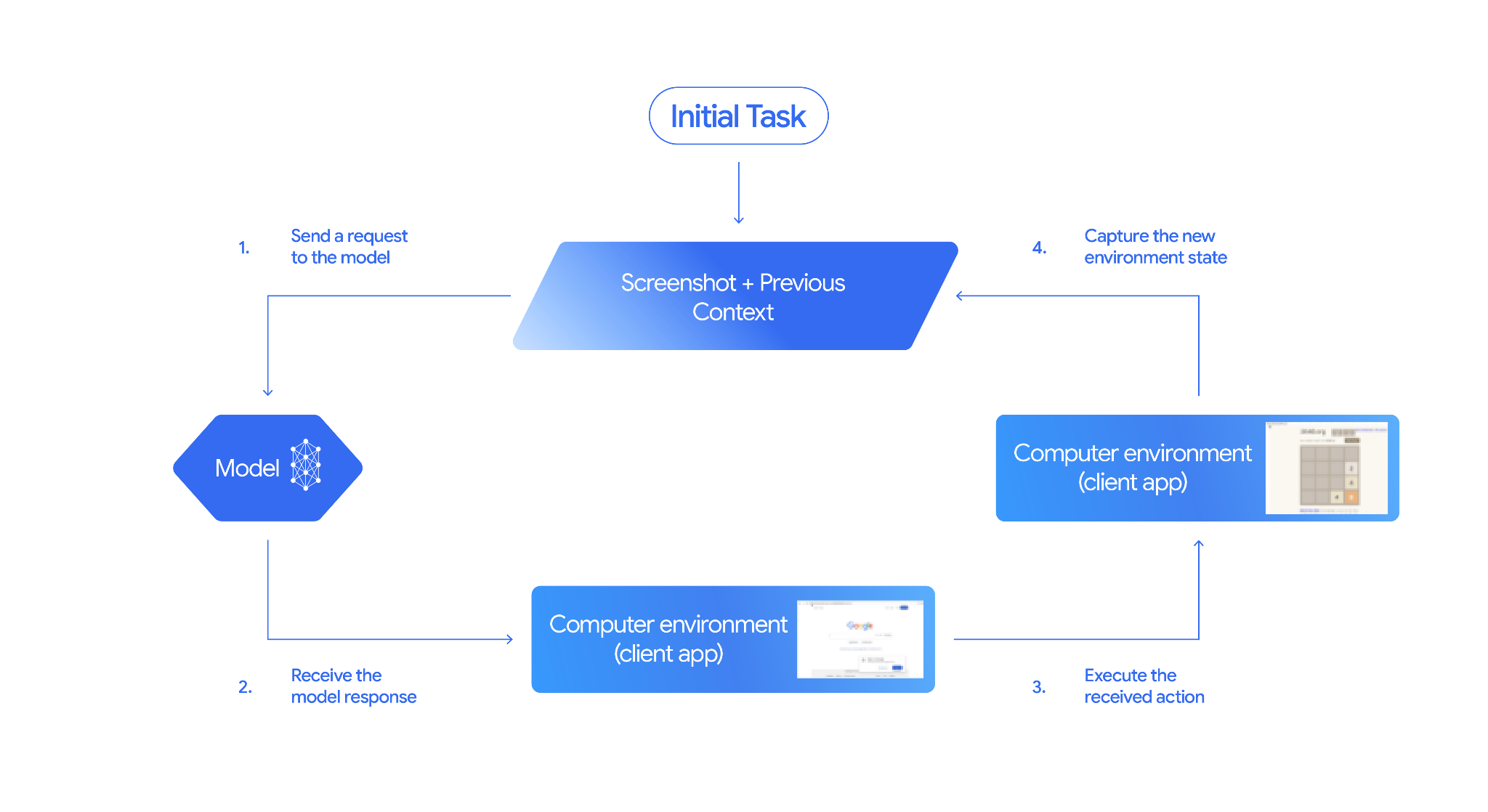
Cómo implementar el uso de la computadora
Antes de compilar con la herramienta de uso de computadoras, deberás configurar lo siguiente:
- Entorno de ejecución seguro: Ejecuta tu agente en una VM o un contenedor de zona de pruebas para aislarlo de tu sistema host y limitar su impacto potencial. La implementación de referencia incluye una zona de pruebas lista para usar basada en Docker que puedes usar como punto de partida.
- Controlador de acciones del cliente: Implementa la lógica del cliente para ejecutar coordenadas, escribir texto y tomar capturas de pantalla.
En los siguientes ejemplos, se usa un navegador web como entorno de ejecución y Playwright como controlador del cliente.
0. Configura Playwright
Primero, instala los paquetes obligatorios:
pip install google-genai playwright
playwright install chromium
Luego, inicializa una instancia del navegador de Playwright para usarla en la ejecución:
from playwright.sync_api import sync_playwright

# 1. Configure screen dimensions for the target environment
SCREEN_WIDTH = 1440
SCREEN_HEIGHT = 900

# 2. Start the Playwright browser
# In production, utilize a sandboxed environment.
playwright = sync_playwright().start()
# Set headless=False to see the actions performed on your screen
browser = playwright.chromium.launch(headless=False)

# 3. Create a context and page with the specified dimensions
context = browser.new_context(
    viewport={"width": SCREEN_WIDTH, "height": SCREEN_HEIGHT}
)
page = context.new_page()

# 4. Navigate to an initial page to start the task
page.goto("https://www.google.com")

# The 'page', 'SCREEN_WIDTH', and 'SCREEN_HEIGHT' variables
# will be used in the steps below.
1. Envía una solicitud al modelo
Inicializa la biblioteca cliente y configura la herramienta Computer Use. Ten en cuenta que no es necesario especificar el tamaño de la pantalla cuando se emite una solicitud. El modelo predice las coordenadas de píxeles ajustadas a la altura y el ancho de la pantalla.
Python
Usa el SDK de google-genai de Python (versión 2.7.0 o posterior) para configurar una solicitud que se oriente al entorno del navegador:
from google import genai

client = genai.Client()

interaction = client.interactions.create(
    model='gemini-3.8-flash',
    input="Find a flight from SF to Hawaii on Jun 30th, coming back on Jul 6th",
    tools=[
        {
            "type": "computer_use",
            "environment": "browser",
            "enable_prompt_injection_detection": True
        }
    ]
)

print(interaction)
JavaScript
Usa el SDK de @google/genai Node.js para configurar una solicitud que se oriente al entorno del navegador:
import { GoogleGenAI } from '@google/genai';

const ai = new GoogleGenAI();

const interaction = await ai.interactions.create({
  model: 'gemini-3.8-flash',
  input: "Find a flight from SF to Hawaii on Jun 30th, coming back on Jul 6th",
  tools: [
    {
      type: "computer_use",
      environment: "browser",
      enable_prompt_injection_detection: true
    }
  ]
});

console.log(interaction);
Java
import com.google.genai.Client;
import com.google.genai.gaos.models.interactions.ComputerUse;
import com.google.genai.gaos.models.interactions.CreateModelInteraction;
import com.google.genai.gaos.models.interactions.EnvironmentEnum;
import com.google.genai.gaos.models.interactions.Interaction;
import com.google.genai.gaos.models.interactions.InteractionsInput;
import com.google.genai.gaos.models.operations.CreateInteractionRequestBody;
import java.util.Arrays;

Client client = new Client();

CreateModelInteraction params =
    CreateModelInteraction.builder()
        .model("gemini-3.8-flash")
        .input(
            InteractionsInput.of(
                "Find a flight from SF to Hawaii on Jun 30th, coming back on Jul 6th"))
        .tools(
            Arrays.asList(
                ComputerUse.builder()
                    .environment(EnvironmentEnum.BROWSER)
                    .enablePromptInjectionDetection(true)
                    .build()))
        .build();

Interaction interaction =
    client.interactions.create(CreateInteractionRequestBody.of(params)).interaction().get();

System.out.println(interaction);
Go
package main

import (
    "context"
    "fmt"
    "log"

    "google.golang.org/genai"
    "google.golang.org/genai/interactions/models/interactions"
    "google.golang.org/genai/interactions/models/operations"
)

func main() {
    ctx := context.Background()
    client, err := genai.NewClient(ctx, nil)
    if err != nil {
        log.Fatal(err)
    }

    res, err := client.Interactions.Create(ctx, operations.CreateInteractionRequest{
        Body: operations.NewCreateInteractionRequestBody(interactions.CreateModelInteraction{
            Model: interactions.Model("gemini-3.8-flash"),
            Input: interactions.NewInteractionsInput("Find a flight from SF to Hawaii on Jun 30th, coming back on Jul 6th"),
            Tools: []interactions.Tool{
                interactions.NewTool(interactions.ComputerUse{
                    Environment:                    interactions.EnvironmentEnumBrowser.ToPointer(),
                    EnablePromptInjectionDetection: genai.Ptr(true),
                }),
            },
        }),
    })
    if err != nil {
        log.Fatal(err)
    }

    fmt.Println(res.Interaction)
}
REST
Usa curl para enviar una solicitud:
curl -X POST \
  "https://generativelanguage.googleapis.com/v1beta/interactions" \
  -H "x-goog-api-key: $GEMINI_API_KEY" \
  -H "Content-Type: application/json" \
  -d '{
    "model": "gemini-3.8-flash",
    "input": "Find me a flight from SF to Hawaii on Jun 30th, coming back on Jul 6th. Start by navigating directly to flights.google.com",
    "tools": [
      {
        "type": "computer_use",
        "environment": "browser",
        "enable_prompt_injection_detection": true
      }
    ]
  }'
2. Recibe la respuesta del modelo
La respuesta del modelo sugiere una llamada a función que contiene coordenadas y un intent de razonamiento personalizado que explica la acción:
{
  "steps": [
    {
      "type": "function_call",
      "name": "click",
      "arguments": {
        "x": 450,
        "y": 120,
        "intent": "Click the search box to type the destination."
      }
    }
  ]
}
3. Ejecuta las acciones recibidas
Tu aplicación debe analizar las coordenadas de respuesta, escalarlas a partir de las coordenadas normalizadas de 1000 x 1000 y ejecutar la acción:
Python
from typing import Any, List, Tuple
import time

def denormalize_x(x: int, screen_width: int) -> int:
    """Convert normalized x coordinate (0-1000) to actual pixel coordinate."""
    return int(x / 1000 * screen_width)

def denormalize_y(y: int, screen_height: int) -> int:
    """Convert normalized y coordinate (0-1000) to actual pixel coordinate."""
    return int(y / 1000 * screen_height)

def execute_function_calls(interaction, page, screen_width, screen_height):
    results = []
    function_calls = [
        step for step in interaction.steps if step.type == "function_call"
    ]

    for function_call in function_calls:
        action_result = {}
        fname = function_call.name
        args = function_call.arguments
        print(f"  -> Executing: {fname} (Intent: {args.get('intent', 'N/A')})")

        try:
            if fname == "open_app":
                pass # Handled / already open
            elif fname in ("click", "double_click", "triple_click", "middle_click", "right_click", "move", "long_press"):
                actual_x = denormalize_x(args["x"], screen_width)
                actual_y = denormalize_y(args["y"], screen_height)

                if fname == "click":
                    page.mouse.click(actual_x, actual_y)
                elif fname == "double_click":
                    page.mouse.dblclick(actual_x, actual_y)
                elif fname == "right_click":
                    page.mouse.click(actual_x, actual_y, button="right")
                elif fname == "middle_click":
                    page.mouse.click(actual_x, actual_y, button="middle")
                elif fname == "move":
                    page.mouse.move(actual_x, actual_y)
            elif fname == "type":
                actual_x = denormalize_x(args["x"], screen_width) if "x" in args else None
                actual_y = denormalize_y(args["y"], screen_height) if "y" in args else None
                text = args["text"]
                press_enter = args.get("press_enter", False)

                if actual_x is not None and actual_y is not None:
                    page.mouse.click(actual_x, actual_y)
                # Clear field first
                page.keyboard.press("Meta+A")
                page.keyboard.press("Backspace")
                page.keyboard.type(text)
                if press_enter:
                    page.keyboard.press("Enter")
            elif fname == "navigate":
                page.goto(args["url"])
            elif fname == "go_back":
                page.go_back()
            elif fname == "go_forward":
                page.go_forward()
            elif fname == "wait":
                time.sleep(args.get("seconds", 1))
            else:
                print(f"Warning: Custom or unhandled function {fname}")

            page.wait_for_load_state(timeout=5000)
            time.sleep(1)

        except Exception as e:
            print(f"Error executing {fname}: {e}")
            action_result = {"error": str(e)}

        results.append((fname, function_call.id, action_result))

    return results
JavaScript
function denormalizeX(x, screenWidth) {
    // Convert normalized x coordinate (0-1000) to actual pixel coordinate.
    return Math.floor((x / 1000) * screenWidth);
}

function denormalizeY(y, screenHeight) {
    // Convert normalized y coordinate (0-1000) to actual pixel coordinate.
    return Math.floor((y / 1000) * screenHeight);
}

async function executeFunctionCalls(interaction, page, screenWidth, screenHeight) {
    const results = [];
    const functionCalls = interaction.steps.filter(step => step.type === "function_call");

    for (const functionCall of functionCalls) {
        const actionResult = {};
        const fname = functionCall.name;
        const args = functionCall.arguments;
        console.log(`  -> Executing: ${fname} (Intent: ${args.intent || 'N/A'})`);

        try {
            if (fname === "open_app") {
                // Handled / already open
            } else if (["click", "double_click", "triple_click", "middle_click", "right_click", "move", "long_press"].includes(fname)) {
                const actualX = denormalizeX(args.x, screenWidth);
                const actualY = denormalizeY(args.y, screenHeight);

                if (fname === "click") {
                    await page.mouse.click(actualX, actualY);
                } else if (fname === "double_click") {
                    await page.mouse.dblclick(actualX, actualY);
                } else if (fname === "right_click") {
                    await page.mouse.click(actualX, actualY, { button: "right" });
                } else if (fname === "middle_click") {
                    await page.mouse.click(actualX, actualY, { button: "middle" });
                } else if (fname === "move") {
                    await page.mouse.move(actualX, actualY);
                }
            } else if (fname === "type") {
                const actualX = args.x !== undefined ? denormalizeX(args.x, screenWidth) : null;
                const actualY = args.y !== undefined ? denormalizeY(args.y, screenHeight) : null;
                const text = args.text;
                const pressEnter = args.press_enter || false;

                if (actualX !== null && actualY !== null) {
                    await page.mouse.click(actualX, actualY);
                }
                // Clear field first
                await page.keyboard.press("Meta+A");
                await page.keyboard.press("Backspace");
                await page.keyboard.type(text);
                if (pressEnter) {
                    await page.keyboard.press("Enter");
                }
            } else if (fname === "navigate") {
                await page.goto(args.url);
            } else if (fname === "go_back") {
                await page.goBack();
            } else if (fname === "go_forward") {
                await page.goForward();
            } else if (fname === "wait") {
                await new Promise(resolve => setTimeout(resolve, (args.seconds || 1) * 1000));
            } else {
                console.log(`Warning: Custom or unhandled function ${fname}`);
            }

            await page.waitForLoadState('load', { timeout: 5000 }).catch(() => {});
            await new Promise(resolve => setTimeout(resolve, 1000));
        } catch (e) {
            console.log(`Error executing ${fname}: ${e}`);
            actionResult.error = e.message;
        }

        results.push([fname, functionCall.id, actionResult]);
    }

    return results;
}
Java
import com.google.genai.gaos.models.interactions.FunctionCallStep;
import com.google.genai.gaos.models.interactions.Interaction;
import com.google.genai.gaos.models.interactions.Step;
import java.util.ArrayList;
import java.util.Collections;
import java.util.HashMap;
import java.util.List;
import java.util.Map;

class ActionExecutor {
  int denormalizeX(int x, int screenWidth) {
    return (int) (x / 1000.0 * screenWidth);
  }

  int denormalizeY(int y, int screenHeight) {
    return (int) (y / 1000.0 * screenHeight);
  }

  List<Map<String, Object>> executeFunctionCalls(
      Interaction interaction, int screenWidth, int screenHeight) {
    List<Map<String, Object>> results = new ArrayList<>();

    for (Step step : interaction.steps().orElse(Collections.emptyList())) {
      if (step instanceof FunctionCallStep) {
        FunctionCallStep functionCall = (FunctionCallStep) step;
        String fname = functionCall.name().orElse("");
        Map<String, Object> args = functionCall.arguments().orElse(Collections.emptyMap());
        Map<String, Object> actionResult = new HashMap<>();

        System.out.println(
            "  -> Executing: " + fname + " (Intent: " + args.getOrDefault("intent", "N/A") + ")");

        try {
          if (fname.equals("click")) {
            int actualX = denormalizeX(((Number) args.get("x")).intValue(), screenWidth);
            int actualY = denormalizeY(((Number) args.get("y")).intValue(), screenHeight);
            // Perform mouse click at (actualX, actualY) using your browser automation library
          } else if (fname.equals("type")) {
            String text = (String) args.get("text");
            // Type text into active element using your browser automation library
          } else if (fname.equals("navigate")) {
            String url = (String) args.get("url");
            // Navigate browser to url
          }
        } catch (Exception e) {
          actionResult.put("error", e.getMessage());
        }

        Map<String, Object> entry = new HashMap<>();
        entry.put("name", fname);
        entry.put("callId", functionCall.id().orElse(""));
        entry.put("result", actionResult);
        results.add(entry);
      }
    }
    return results;
  }
}
Go
package main

import (
    "fmt"

    "google.golang.org/genai/interactions/models/interactions"
)

func denormalizeX(x, screenWidth int) int {
    return int(float64(x) / 1000.0 * float64(screenWidth))
}

func denormalizeY(y, screenHeight int) int {
    return int(float64(y) / 1000.0 * float64(screenHeight))
}

func executeFunctionCalls(interaction *interactions.Interaction, screenWidth, screenHeight int) []map[string]any {
    var results []map[string]any

    for _, step := range interaction.Steps {
        if functionCall := step.FunctionCallStep; functionCall != nil {
            fname := functionCall.Name
            args := functionCall.Arguments
            actionResult := map[string]any{}

            intent := args["intent"]
            if intent == nil {
                intent = "N/A"
            }
            fmt.Printf("  -> Executing: %s (Intent: %v)\n", fname, intent)

            switch fname {
            case "click":
                xVal, _ := args["x"].(float64)
                yVal, _ := args["y"].(float64)
                actualX := denormalizeX(int(xVal), screenWidth)
                actualY := denormalizeY(int(yVal), screenHeight)
                _ = actualX
                _ = actualY
                // Perform mouse click at (actualX, actualY) using your browser automation library
            case "type":
                text, _ := args["text"].(string)
                _ = text
                // Type text into active element using your browser automation library
            case "navigate":
                url, _ := args["url"].(string)
                _ = url
                // Navigate browser to url
            }

            results = append(results, map[string]any{
                "name":   fname,
                "callId": functionCall.ID,
                "result": actionResult,
            })
        }
    }
    return results
}

func main() {
    // Example helper usage with an Interaction response
}
4. Captura el estado del entorno nuevo
Después de ejecutar las acciones, envía el resultado de la ejecución de la función al modelo para que pueda usar esta información y generar la siguiente acción. Si
se ejecutaron varias acciones (llamadas paralelas), debes enviar un
function_result para cada una en el turno de usuario posterior.
Python
import json
import base64

def get_function_responses(page, results):
    screenshot_bytes = page.screenshot(type="png")
    current_url = page.url
    function_responses = []
    for name, call_id, result in results:
        function_responses.append({
            "type": "function_result",
            "name": name,
            "call_id": call_id,
            "result": [
                {
                    "type": "text",
                    "text": json.dumps({"url": current_url, **result})
                },
                {
                    "type": "image",
                    "data": base64.b64encode(screenshot_bytes).decode("utf-8"),
                    "mime_type": "image/png"
                }
            ]
        })
    return function_responses
JavaScript
async function getFunctionResponses(page, results) {
    const screenshotBuffer = await page.screenshot({ type: 'png' });
    const screenshotBase64 = screenshotBuffer.toString('base64');
    const currentUrl = page.url();
    const functionResponses = [];

    for (const [name, callId, result] of results) {
        functionResponses.push({
            type: "function_result",
            name: name,
            call_id: callId,
            result: [
                {
                    type: "text",
                    text: JSON.stringify({ url: currentUrl, ...result })
                },
                {
                    type: "image",
                    data: screenshotBase64,
                    mime_type: "image/png"
                }
            ]
        });
    }
    return functionResponses;
}
Java
import com.google.genai.gaos.models.interactions.FunctionResultStep;
import com.google.genai.gaos.models.interactions.FunctionResultStepResultUnion;
import com.google.genai.gaos.models.interactions.ImageContent;
import com.google.genai.gaos.models.interactions.ImageContentMimeType;
import com.google.genai.gaos.models.interactions.Step;
import com.google.genai.gaos.models.interactions.TextContent;
import java.util.ArrayList;
import java.util.Arrays;
import java.util.Base64;
import java.util.List;
import java.util.Map;

class StateCapturer {
  List<Step> getFunctionResponses(
      byte[] screenshotBytes, String currentUrl, List<Map<String, Object>> results) {
    List<Step> functionResponses = new ArrayList<>();
    String base64Screenshot = Base64.getEncoder().encodeToString(screenshotBytes);

    for (Map<String, Object> entry : results) {
      String name = (String) entry.get("name");
      String callId = (String) entry.get("callId");
      String jsonResult = String.format("{\"url\": \"%s\"}", currentUrl);

      FunctionResultStep responseStep =
          FunctionResultStep.builder()
              .name(name)
              .callId(callId)
              .result(
                  FunctionResultStepResultUnion.of(
                      Arrays.asList(
                          TextContent.builder().text(jsonResult).build(),
                          ImageContent.builder()
                              .data(base64Screenshot)
                              .mimeType(ImageContentMimeType.IMAGE_PNG)
                              .build())))
              .build();
      functionResponses.add(responseStep);
    }
    return functionResponses;
  }
}
Go
package main

import (
    "encoding/base64"
    "fmt"

    "google.golang.org/genai"
    "google.golang.org/genai/interactions/models/interactions"
)

func getFunctionResponses(screenshotBytes []byte, currentURL string, results []map[string]any) []interactions.Step {
    var functionResponses []interactions.Step
    base64Screenshot := base64.StdEncoding.EncodeToString(screenshotBytes)

    for _, entry := range results {
        name, _ := entry["name"].(string)
        callID, _ := entry["callId"].(string)
        jsonResult := fmt.Sprintf(`{"url": "%s"}`, currentURL)

        responseStep := interactions.NewStep(interactions.FunctionResultStep{
            Name:   genai.Ptr(name),
            CallID: callID,
            Result: interactions.NewFunctionResultStepResultUnion([]interactions.FunctionResultSubcontent{
                interactions.NewFunctionResultSubcontent(interactions.TextContent{
                    Text: jsonResult,
                }),
                interactions.NewFunctionResultSubcontent(interactions.ImageContent{
                    Data:     genai.Ptr(base64Screenshot),
                    MimeType: interactions.ImageContentMimeType("image/png").ToPointer(),
                }),
            }),
        })
        functionResponses = append(functionResponses, responseStep)
    }
    return functionResponses
}

func main() {
    // Example helper usage to build FunctionResultStep responses
}
Una vez que hayas definido cómo capturar y dar formato al estado del entorno, puedes combinar todos estos pasos en un bucle de ejecución continuo.
Crea un bucle de agentes
Para habilitar las interacciones de varios pasos, combina los cuatro pasos de la sección Cómo implementar el uso de la computadora en un solo bucle. Este bucle continúa solicitando acciones y devolviendo los resultados al modelo hasta que se completa la tarea.
Recuerda administrar el historial de conversaciones de forma correcta agregando las respuestas del modelo y las respuestas de tu función al historial en cada paso.
Python
import time
from typing import Any, List, Tuple
from playwright.sync_api import sync_playwright

from google import genai

client = genai.Client()

# Constants for screen dimensions
SCREEN_WIDTH = 1440
SCREEN_HEIGHT = 900

# Setup Playwright
print("Initializing browser...")
playwright = sync_playwright().start()
browser = playwright.chromium.launch(headless=False)
context = browser.new_context(viewport={"width": SCREEN_WIDTH, "height": SCREEN_HEIGHT})
page = context.new_page()

# Define helper functions. Copy/paste from steps 3 and 4
# def denormalize_x(...)
# def denormalize_y(...)
# def execute_function_calls(...)
# def get_function_responses(...)

try:
    # Go to initial page
    page.goto("https://ai.google.dev/gemini-api/docs")

    # Take initial screenshot
    initial_screenshot = page.screenshot(type="png")
    USER_PROMPT = "Go to ai.google.dev/gemini-api/docs and search for pricing."
    print(f"Goal: {USER_PROMPT}")

    # First interaction
    interaction = client.interactions.create(
        model='gemini-3.8-flash',
        input=[
            {"type": "text", "text": USER_PROMPT},
            {"type": "image", "data": base64.b64encode(initial_screenshot).decode("utf-8"), "mime_type": "image/png"}
        ],
        tools=[{
            "type": "computer_use",
            "environment": "browser",
            "enable_prompt_injection_detection": True
        }]
    )

    # Agent Loop
    turn_limit = 5
    for i in range(turn_limit):
        print(f"\n--- Turn {i+1} ---")

        has_function_calls = any(
            step.type == "function_call"
            for step in interaction.steps
        )
        if not has_function_calls:
            text_response = " ".join([
                content_block.text for step in interaction.steps if step.type == "model_output"
                for content_block in step.content if content_block.type == "text"
            ])
            print("Agent finished:", text_response)
            break

        print("Executing actions...")
        results = execute_function_calls(interaction, page, SCREEN_WIDTH, SCREEN_HEIGHT)

        print("Capturing state...")
        function_responses = get_function_responses(page, results)

        # Continue conversation with function responses
        interaction = client.interactions.create(
            model='gemini-3.8-flash',
            previous_interaction_id=interaction.id,
            input=function_responses,
            tools=[{
                "type": "computer_use",
                "environment": "browser",
                "enable_prompt_injection_detection": True
            }]
        )

finally:
    # Cleanup
    print("\nClosing browser...")
    browser.close()
    playwright.stop()
JavaScript
import { chromium } from 'playwright';
import { GoogleGenAI } from '@google/genai';

const ai = new GoogleGenAI();

// Constants for screen dimensions
const SCREEN_WIDTH = 1440;
const SCREEN_HEIGHT = 900;

console.log("Initializing browser...");
const browser = await chromium.launch({ headless: false });
const context = await browser.newContext({
    viewport: { width: SCREEN_WIDTH, height: SCREEN_HEIGHT }
});
const page = await context.newPage();

// Define helper functions. Copy/paste from steps 3 and 4:
// function denormalizeX(...)
// function denormalizeY(...)
// async function executeFunctionCalls(...)
// async function getFunctionResponses(...)

try {
    // Go to initial page
    await page.goto("https://ai.google.dev/gemini-api/docs");

    // Take initial screenshot
    const initialScreenshotBuffer = await page.screenshot({ type: 'png' });
    const initialScreenshotBase64 = initialScreenshotBuffer.toString('base64');
    const USER_PROMPT = "Go to ai.google.dev/gemini-api/docs and search for pricing.";
    console.log(`Goal: ${USER_PROMPT}`);

    // First interaction
    let interaction = await ai.interactions.create({
        model: 'gemini-3.8-flash',
        input: [
            { type: 'text', text: USER_PROMPT },
            { type: 'image', data: initialScreenshotBase64, mime_type: 'image/png' }
        ],
        tools: [{
            type: 'computer_use',
            environment: 'browser',
            enable_prompt_injection_detection: true
        }]
    });

    // Agent Loop
    const turnLimit = 5;
    for (let i = 0; i < turnLimit; i++) {
        console.log(`\n--- Turn ${i + 1} ---`);

        const hasFunctionCalls = interaction.steps.some(step => step.type === "function_call");
        if (!hasFunctionCalls) {
            const textResponses = [];
            for (const step of interaction.steps) {
                if (step.type === "model_output") {
                    for (const contentBlock of step.content || []) {
                        if (contentBlock.type === "text") {
                            textResponses.push(contentBlock.text);
                        }
                    }
                }
            }
            console.log("Agent finished:", textResponses.join(" "));
            break;
        }

        console.log("Executing actions...");
        const results = await executeFunctionCalls(interaction, page, SCREEN_WIDTH, SCREEN_HEIGHT);

        console.log("Capturing state...");
        const functionResponses = await getFunctionResponses(page, results);

        // Continue conversation with function responses
        interaction = await ai.interactions.create({
            model: 'gemini-3.8-flash',
            previous_interaction_id: interaction.id,
            input: functionResponses,
            tools: [{
                type: 'computer_use',
                environment: 'browser',
                enable_prompt_injection_detection: true
            }]
        });
    }
} finally {
    // Cleanup
    console.log("\nClosing browser...");
    await browser.close();
}
Java
import com.google.genai.Client;
import com.google.genai.gaos.models.interactions.ComputerUse;
import com.google.genai.gaos.models.interactions.Content;
import com.google.genai.gaos.models.interactions.CreateModelInteraction;
import com.google.genai.gaos.models.interactions.EnvironmentEnum;
import com.google.genai.gaos.models.interactions.FunctionCallStep;
import com.google.genai.gaos.models.interactions.ImageContent;
import com.google.genai.gaos.models.interactions.ImageContentMimeType;
import com.google.genai.gaos.models.interactions.Interaction;
import com.google.genai.gaos.models.interactions.InteractionsInput;
import com.google.genai.gaos.models.interactions.ModelOutputStep;
import com.google.genai.gaos.models.interactions.Step;
import com.google.genai.gaos.models.interactions.TextContent;
import com.google.genai.gaos.models.operations.CreateInteractionRequestBody;
import java.util.ArrayList;
import java.util.Arrays;
import java.util.Base64;
import java.util.Collections;
import java.util.List;

Client client = new Client();

// Constants for screen dimensions
int screenWidth = 1440;
int screenHeight = 900;

// Capture initial screenshot from browser driver (e.g. Playwright)
byte[] initialScreenshot = new byte[0];
String base64Screenshot = Base64.getEncoder().encodeToString(initialScreenshot);
String userPrompt = "Go to ai.google.dev/gemini-api/docs and search for pricing.";
System.out.println("Goal: " + userPrompt);

ComputerUse computerUseTool =
    ComputerUse.builder()
        .environment(EnvironmentEnum.BROWSER)
        .enablePromptInjectionDetection(true)
        .build();

CreateModelInteraction initialParams =
    CreateModelInteraction.builder()
        .model("gemini-3.8-flash")
        .input(
            InteractionsInput.ofContent(
                Arrays.asList(
                    TextContent.builder().text(userPrompt).build(),
                    ImageContent.builder()
                        .data(base64Screenshot)
                        .mimeType(ImageContentMimeType.IMAGE_PNG)
                        .build())))
        .tools(Arrays.asList(computerUseTool))
        .build();

Interaction interaction =
    client.interactions.create(CreateInteractionRequestBody.of(initialParams)).interaction().get();

int turnLimit = 5;
for (int i = 0; i < turnLimit; i++) {
  System.out.println("\n--- Turn " + (i + 1) + " ---");

  boolean hasFunctionCalls =
      interaction.steps().orElse(Collections.emptyList()).stream()
          .anyMatch(step -> step instanceof FunctionCallStep);

  if (!hasFunctionCalls) {
    StringBuilder textResponse = new StringBuilder();
    for (Step step : interaction.steps().orElse(Collections.emptyList())) {
      if (step instanceof ModelOutputStep) {
        for (Content contentBlock :
            ((ModelOutputStep) step).content().orElse(Collections.emptyList())) {
          if (contentBlock instanceof TextContent) {
            textResponse.append(((TextContent) contentBlock).text().orElse("")).append(" ");
          }
        }
      }
    }
    System.out.println("Agent finished: " + textResponse.toString().trim());
    break;
  }

  System.out.println("Executing actions and capturing state...");
  // Execute function calls against browser driver and capture List<Step> functionResponses
  List<Step> functionResponses = new ArrayList<>();

  CreateModelInteraction nextParams =
      CreateModelInteraction.builder()
          .model("gemini-3.8-flash")
          .previousInteractionId(interaction.id().get())
          .input(InteractionsInput.ofStep(functionResponses))
          .tools(Arrays.asList(computerUseTool))
          .build();

  interaction =
      client.interactions.create(CreateInteractionRequestBody.of(nextParams)).interaction().get();
}
Go
package main

import (
    "context"
    "encoding/base64"
    "fmt"
    "log"
    "strings"

    "google.golang.org/genai"
    "google.golang.org/genai/interactions/models/interactions"
    "google.golang.org/genai/interactions/models/operations"
)

func main() {
    ctx := context.Background()
    client, err := genai.NewClient(ctx, nil)
    if err != nil {
        log.Fatal(err)
    }

    // Constants for screen dimensions
    screenWidth := 1440
    screenHeight := 900
    _ = screenWidth
    _ = screenHeight

    // Capture initial screenshot from browser driver (e.g. Playwright)
    initialScreenshot := []byte{}
    base64Screenshot := base64.StdEncoding.EncodeToString(initialScreenshot)
    userPrompt := "Go to ai.google.dev/gemini-api/docs and search for pricing."
    fmt.Println("Goal:", userPrompt)

    computerUseTool := interactions.NewTool(interactions.ComputerUse{
        Environment:                    interactions.EnvironmentEnumBrowser.ToPointer(),
        EnablePromptInjectionDetection: genai.Ptr(true),
    })

    res, err := client.Interactions.Create(ctx, operations.CreateInteractionRequest{
        Body: operations.NewCreateInteractionRequestBody(interactions.CreateModelInteraction{
            Model: interactions.Model("gemini-3.8-flash"),
            Input: interactions.NewInteractionsInput([]interactions.Content{
                interactions.NewContent(interactions.TextContent{Text: userPrompt}),
                interactions.NewContent(interactions.ImageContent{
                    Data:     genai.Ptr(base64Screenshot),
                    MimeType: interactions.ImageContentMimeType("image/png").ToPointer(),
                }),
            }),
            Tools: []interactions.Tool{computerUseTool},
        }),
    })
    if err != nil {
        log.Fatal(err)
    }
    interaction := res.Interaction

    turnLimit := 5
    for i := 0; i < turnLimit; i++ {
        fmt.Printf("\n--- Turn %d ---\n", i+1)

        hasFunctionCalls := false
        for _, step := range interaction.Steps {
            if step.FunctionCallStep != nil {
                hasFunctionCalls = true
                break
            }
        }

        if !hasFunctionCalls {
            var parts []string
            for _, step := range interaction.Steps {
                if outStep := step.ModelOutputStep; outStep != nil {
                    for _, contentBlock := range outStep.Content {
                        if textContent := contentBlock.TextContent; textContent != nil {
                            parts = append(parts, textContent.GetText())
                        }
                    }
                }
            }
            fmt.Println("Agent finished:", strings.TrimSpace(strings.Join(parts, " ")))
            break
        }

        fmt.Println("Executing actions and capturing state...")
        // Execute function calls against browser driver and capture []interactions.Step functionResponses
        var functionResponses []interactions.Step

        nextRes, err := client.Interactions.Create(ctx, operations.CreateInteractionRequest{
            Body: operations.NewCreateInteractionRequestBody(interactions.CreateModelInteraction{
                Model:                 interactions.Model("gemini-3.8-flash"),
                PreviousInteractionID: interaction.ID,
                Input:                 interactions.NewInteractionsInput(functionResponses),
                Tools:                 []interactions.Tool{computerUseTool},
            }),
        })
        if err != nil {
            log.Fatal(err)
        }
        interaction = nextRes.Interaction
    }
}
Entornos compatibles
Los modelos de Gemini 3.x admiten tres entornos especificados en las configuraciones de
computer_use:
Entorno del navegador (ENVIRONMENT_BROWSER)
Acciones disponibles en la herramienta del navegador:
| Nombre del comando | Descripción | Argumentos (en la llamada a función) |
|---|---|---|
| click | Hace clic con el botón izquierdo en la coordenada. | y: int (0-999)x: int (0-999)intent: str |
| double_click | Hace doble clic en la coordenada. | y: int (0-999)x: int (0-999)intent: str |
| triple_click | Se hace clic tres veces en la coordenada. | y: int (0-999)x: int (0-999)intent: str |
| middle_click | Se hace clic con el botón central en la coordenada. | y: int (0-999)x: int (0-999)intent: str |
| right_click | Hace clic con el botón derecho en la coordenada. | y: int (0-999)x: int (0-999)intent: str |
| mouse_down | Mantiene presionado el botón del mouse en la coordenada. | y: int (0-999)x: int (0-999)intent: str |
| mouse_up | Suelta el botón del mouse en la coordenada. | y: int (0-999)x: int (0-999)intent: str |
| move | Mueve el cursor a la posición especificada. | y: int (0-999)x: int (0-999)intent: str |
| type | Escribe texto. | text: strpress_enter: bool (opcional, el valor predeterminado es false)intent: str |
| drag_and_drop | Arrastra un elemento desde la coordenada de inicio hasta la coordenada de finalización. | start_y: int (0-999)start_x: int (0-999)end_y: int (0-999)end_x: int (0-999)intent: str |
| wait | Pausa la ejecución durante una cantidad de segundos especificada. | seconds: int (opcional, el valor predeterminado es 1)intent: str |
| press_key | Presiona la tecla especificada y la suelta. | key: strintent: str |
| key_down | Presiona y mantiene presionada la tecla especificada. | key: strintent: str |
| key_up | Suelta la tecla especificada. | key: strintent: str |
| atajo de teclado | Presiona la combinación de teclas especificada. | keys: List[str]intent: str |
| take_screenshot | Muestra una captura de pantalla de la pantalla actual. | intent: str |
| scroll | Se desplaza hacia arriba, abajo, izquierda o derecha en una coordenada por una distancia de píxeles. | y: int (0-999)x: int (0-999)direction: str ("up", "down", "left", "right")magnitude_in_pixels: int (0-999, opcional, valor predeterminado 300)intent: str |
| go_back | Vuelve a la página web anterior del historial de navegación. | intent: str |
| navigate | Navega directamente a una URL especificada. | url: strintent: str |
| go_forward | Navega hacia adelante a la siguiente página web en el historial de navegación. | intent: str |
Entorno para dispositivos móviles (ENVIRONMENT_MOBILE)
Acciones de entorno optimizadas para Android:
| Nombre del comando | Descripción | Argumentos (en la llamada a función) |
|---|---|---|
| open_app | Abre una aplicación por su nombre. | app_name: strintent: str |
| click | Hace clic con el botón izquierdo en la coordenada. | y: int (0-999)x: int (0-999)intent: str |
| list_apps | Muestra una lista de las aplicaciones disponibles en el dispositivo, con sus nombres y nombres de paquete. | intent: str |
| wait | Pausa la ejecución durante una cantidad de segundos especificada. | seconds: int (opcional, el valor predeterminado es 1)intent: str |
| go_back | Navega de vuelta a la pantalla o página web anterior. | intent: str |
| type | Escribe texto. | text: strpress_enter: bool (opcional, el valor predeterminado es false)intent: str |
| drag_and_drop | Arrastra un elemento desde la coordenada de inicio hasta la coordenada de finalización. | start_y: int (0-999)start_x: int (0-999)end_y: int (0-999)end_x: int (0-999)intent: str |
| long_press | Mantiene presionada una coordenada en la pantalla. | y: int (0-999)x: int (0-999)seconds: int (opcional, valor predeterminado 2)intent: str |
| press_key | Presiona la tecla especificada y la suelta. | key: strintent: str |
| take_screenshot | Muestra una captura de pantalla de la pantalla actual. | intent: str |
Entorno de escritorio (ENVIRONMENT_DESKTOP)
Comandos del cursor a nivel del SO para entornos de escritorio:
| Nombre del comando | Descripción | Argumentos (en la llamada a función) |
|---|---|---|
| click | Hace clic con el botón izquierdo en la coordenada. | y: int (0-999)x: int (0-999)intent: str |
| double_click | Hace doble clic en la coordenada. | y: int (0-999)x: int (0-999)intent: str |
| triple_click | Se hace clic tres veces en la coordenada. | y: int (0-999)x: int (0-999)intent: str |
| middle_click | Se hace clic con el botón central en la coordenada. | y: int (0-999)x: int (0-999)intent: str |
| right_click | Hace clic con el botón derecho en la coordenada. | y: int (0-999)x: int (0-999)intent: str |
| mouse_down | Mantiene presionado el botón del mouse en la coordenada. | y: int (0-999)x: int (0-999)intent: str |
| mouse_up | Suelta el botón del mouse en la coordenada. | y: int (0-999)x: int (0-999)intent: str |
| move | Mueve el cursor a la posición especificada. | y: int (0-999)x: int (0-999)intent: str |
| type | Escribe texto. | text: strpress_enter: bool (opcional, el valor predeterminado es false)intent: str |
| drag_and_drop | Arrastra un elemento desde la coordenada de inicio hasta la coordenada de finalización. | start_y: int (0-999)start_x: int (0-999)end_y: int (0-999)end_x: int (0-999)intent: str |
| wait | Pausa la ejecución durante una cantidad de segundos especificada. | seconds: int (opcional, el valor predeterminado es 1)intent: str |
| press_key | Presiona la tecla especificada y la suelta. | key: strintent: str |
| key_down | Presiona y mantiene presionada la tecla especificada. | key: strintent: str |
| key_up | Suelta la tecla especificada. | key: strintent: str |
| atajo de teclado | Presiona la combinación de teclas especificada. | keys: List[str]intent: str |
| take_screenshot | Muestra una captura de pantalla de la pantalla actual. | intent: str |
| scroll | Se desplaza hacia arriba, abajo, izquierda o derecha en una coordenada por una distancia de píxeles. | y: int (0-999)x: int (0-999)direction: str ("up", "down", "left", "right")magnitude_in_pixels: int (0-999, opcional, predeterminado 300)intent: str |
Funciones definidas por el usuario personalizadas
Puedes extender la funcionalidad del modelo incluyendo funciones definidas por el usuario personalizadas. Por ejemplo, en situaciones con intervención humana (HITL), puedes excluir las acciones predefinidas predeterminadas y registrar acciones personalizadas.
Python
Excluye las acciones predefinidas estándar del navegador (como click) y registra una herramienta yield_to_user personalizada:
from google import genai

client = genai.Client()

yield_to_user_tool = {
    "type": "function",
    "name": "yield_to_user",
    "description": "Yields control back to the user for assistance or verification when an automated action is unsafe or ambiguous.",
    "parameters": {
        "type": "object",
        "properties": {
            "reason": {
                "type": "string",
                "description": "The reason why the agent is yielding control to the human."
            }
        },
        "required": ["reason"]
    }
}

interaction = client.interactions.create(
    model="gemini-3.8-flash",
    input="Click the submit button. If you need a second factor authentication code, ask me.",
    tools=[
        {
            "type": "computer_use",
            "environment": "mobile",
            "excluded_predefined_functions": ["click"]
        },
        yield_to_user_tool
    ]
)
JavaScript
Excluye las acciones predefinidas estándar del navegador (como click) y registra una herramienta yield_to_user personalizada:
import { GoogleGenAI } from '@google/genai';

const ai = new GoogleGenAI();

const yieldToUserTool = {
    type: "function",
    name: "yield_to_user",
    description: "Yields control back to the user for assistance or verification when an automated action is unsafe or ambiguous.",
    parameters: {
        type: "object",
        properties: {
            reason: {
                type: "string",
                description: "The reason why the agent is yielding control to the human."
            }
        },
        required: ["reason"]
    }
};

const interaction = await ai.interactions.create({
    model: "gemini-3.8-flash",
    input: "Click the submit button. If you need a second factor authentication code, ask me.",
    tools: [
        {
            type: "computer_use",
            environment: "mobile",
            excluded_predefined_functions: ["click"]
        },
        yieldToUserTool
    ]
});
Java
import com.google.genai.Client;
import com.google.genai.gaos.models.interactions.ComputerUse;
import com.google.genai.gaos.models.interactions.CreateModelInteraction;
import com.google.genai.gaos.models.interactions.EnvironmentEnum;
import com.google.genai.gaos.models.interactions.Function;
import com.google.genai.gaos.models.interactions.Interaction;
import com.google.genai.gaos.models.interactions.InteractionsInput;
import com.google.genai.gaos.models.operations.CreateInteractionRequestBody;
import java.util.Arrays;
import java.util.Collections;
import java.util.HashMap;
import java.util.Map;

Client client = new Client();

Map<String, Object> reasonProp = new HashMap<>();
reasonProp.put("type", "string");
reasonProp.put("description", "The reason why the agent is yielding control to the human.");

Map<String, Object> properties = new HashMap<>();
properties.put("reason", reasonProp);

Map<String, Object> parameters = new HashMap<>();
parameters.put("type", "object");
parameters.put("properties", properties);
parameters.put("required", Collections.singletonList("reason"));

Function yieldToUserTool =
    Function.builder()
        .name("yield_to_user")
        .description(
            "Yields control back to the user for assistance or verification when an automated action is unsafe or ambiguous.")
        .parameters(parameters)
        .build();

CreateModelInteraction params =
    CreateModelInteraction.builder()
        .model("gemini-3.8-flash")
        .input(
            InteractionsInput.of(
                "Click the submit button. If you need a second factor authentication code, ask me."))
        .tools(
            Arrays.asList(
                ComputerUse.builder()
                    .environment(EnvironmentEnum.MOBILE)
                    .excludedPredefinedFunctions(Arrays.asList("click"))
                    .build(),
                yieldToUserTool))
        .build();

Interaction interaction =
    client.interactions.create(CreateInteractionRequestBody.of(params)).interaction().get();
Go
package main

import (
    "context"
    "log"

    "google.golang.org/genai"
    "google.golang.org/genai/interactions/models/interactions"
    "google.golang.org/genai/interactions/models/operations"
)

func main() {
    ctx := context.Background()
    client, err := genai.NewClient(ctx, nil)
    if err != nil {
        log.Fatal(err)
    }

    yieldToUserTool := interactions.NewTool(interactions.Function{
        Name:        genai.Ptr("yield_to_user"),
        Description: genai.Ptr("Yields control back to the user for assistance or verification when an automated action is unsafe or ambiguous."),
        Parameters: map[string]any{
            "type": "object",
            "properties": map[string]any{
                "reason": map[string]any{
                    "type":        "string",
                    "description": "The reason why the agent is yielding control to the human.",
                },
            },
            "required": []string{"reason"},
        },
    })

    _, err = client.Interactions.Create(ctx, operations.CreateInteractionRequest{
        Body: operations.NewCreateInteractionRequestBody(interactions.CreateModelInteraction{
            Model: interactions.Model("gemini-3.8-flash"),
            Input: interactions.NewInteractionsInput("Click the submit button. If you need a second factor authentication code, ask me."),
            Tools: []interactions.Tool{
                interactions.NewTool(interactions.ComputerUse{
                    Environment:                 interactions.EnvironmentEnumMobile.ToPointer(),
                    ExcludedPredefinedFunctions: []string{"click"},
                }),
                yieldToUserTool,
            },
        }),
    })
    if err != nil {
        log.Fatal(err)
    }
}
Administra los niveles de razonamiento
En el caso de los agentes de uso de computadoras, puedes configurar diferentes niveles de pensamiento para equilibrar la calidad de las acciones y la velocidad de ejecución. Por lo general, los niveles de pensamiento más bajos logran un buen equilibrio para las tareas de automatización estándar.
Seguridad y protección
Configura políticas de seguridad
Los modelos de Gemini 3.x incluyen categorías de servicios de seguridad integradas que ayudan a determinar si se requiere la confirmación del usuario.
| Categoría de la política de seguridad | Descripción |
|---|---|
FINANCIAL_TRANSACTIONS |
Bloquea o activa la confirmación de acciones que involucran pagos, confirmaciones de compras minoristas o bienes regulados. |
SENSITIVE_DATA_MODIFICATION |
Protege los registros de salud, financieros o gubernamentales de modificaciones no autorizadas. |
COMMUNICATION_TOOL |
Restringe la capacidad del agente para enviar correos electrónicos, mensajes de chat o borradores de forma autónoma. |
ACCOUNT_CREATION |
Restringe que el agente registre cuentas nuevas en sitios web de forma autónoma. |
DATA_MODIFICATION |
Regula las modificaciones generales del sistema de archivos, el uso compartido de datos y la eliminación del almacenamiento. |
USER_CONSENT_MANAGEMENT |
Requiere la intervención del usuario para los banners de consentimiento de uso de cookies y los mensajes de privacidad. |
LEGAL_TERMS_AND_AGREEMENTS |
Evita que el modelo acepte de forma autónoma las Condiciones del Servicio o los contratos legalmente vinculantes. |
Anulaciones de seguridad
Puedes anular políticas seleccionadas pasando anulaciones:
Python
from google import genai

client = genai.Client()

interaction = client.interactions.create(
    model="gemini-3.8-flash",
    input="Clean up the local folder by archiving old logs.",
    tools=[
        {
            "type": "computer_use",
            "environment": "desktop",
            "disabled_safety_policies": [
                "data_modification"
            ]
        }
    ]
)
JavaScript
import { GoogleGenAI } from '@google/genai';

const ai = new GoogleGenAI();

const interaction = await ai.interactions.create({
    model: "gemini-3.8-flash",
    input: "Clean up the local folder by archiving old logs.",
    tools: [
        {
            type: "computer_use",
            environment: "desktop",
            disabled_safety_policies: [
                "data_modification"
            ]
        }
    ]
});
Java
import com.google.genai.Client;
import com.google.genai.gaos.models.interactions.ComputerUse;
import com.google.genai.gaos.models.interactions.CreateModelInteraction;
import com.google.genai.gaos.models.interactions.DisabledSafetyPolicy;
import com.google.genai.gaos.models.interactions.EnvironmentEnum;
import com.google.genai.gaos.models.interactions.Interaction;
import com.google.genai.gaos.models.interactions.InteractionsInput;
import com.google.genai.gaos.models.operations.CreateInteractionRequestBody;
import java.util.Arrays;

Client client = new Client();

CreateModelInteraction params =
    CreateModelInteraction.builder()
        .model("gemini-3.8-flash")
        .input(InteractionsInput.of("Clean up the local folder by archiving old logs."))
        .tools(
            Arrays.asList(
                ComputerUse.builder()
                    .environment(EnvironmentEnum.DESKTOP)
                    .disabledSafetyPolicies(
                        Arrays.asList(DisabledSafetyPolicy.DATA_MODIFICATION))
                    .build()))
        .build();

Interaction interaction =
    client.interactions.create(CreateInteractionRequestBody.of(params)).interaction().get();
Go
package main

import (
    "context"
    "log"

    "google.golang.org/genai"
    "google.golang.org/genai/interactions/models/interactions"
    "google.golang.org/genai/interactions/models/operations"
)

func main() {
    ctx := context.Background()
    client, err := genai.NewClient(ctx, nil)
    if err != nil {
        log.Fatal(err)
    }

    _, err = client.Interactions.Create(ctx, operations.CreateInteractionRequest{
        Body: operations.NewCreateInteractionRequestBody(interactions.CreateModelInteraction{
            Model: interactions.Model("gemini-3.8-flash"),
            Input: interactions.NewInteractionsInput("Clean up the local folder by archiving old logs."),
            Tools: []interactions.Tool{
                interactions.NewTool(interactions.ComputerUse{
                    Environment: interactions.EnvironmentEnumDesktop.ToPointer(),
                    DisabledSafetyPolicies: []interactions.DisabledSafetyPolicy{
                        interactions.DisabledSafetyPolicyDataModification,
                    },
                }),
            },
        }),
    })
    if err != nil {
        log.Fatal(err)
    }
}
Detección de inyección de instrucciones
El uso de computadoras para Gemini 3.5 Flash-Lite o versiones posteriores admite un mecanismo de seguridad avanzado para detectar ataques de inyección de instrucciones. Cuando se habilita, esta función verifica si una captura de pantalla incluida contiene instrucciones adversarias ocultas (por ejemplo, "Ignora los comandos anteriores") y bloquea la ejecución cuando se detectan.
La detección de inyección de instrucciones es una función de habilitación. El valor predeterminado es false.
En los siguientes ejemplos, se muestra cómo habilitar la detección de inyección de instrucciones en la configuración de la herramienta de uso de la computadora:
Python
from google import genai

client = genai.Client()

interaction = client.interactions.create(
    model="gemini-3.8-flash",
    input="Search for flight deals and summarize top results.",
    tools=[
        {
            "type": "computer_use",
            "environment": "desktop",
            "enable_prompt_injection_detection": True,
        }
    ],
)
JavaScript
import { GoogleGenAI } from '@google/genai';

const ai = new GoogleGenAI();

const interaction = await ai.interactions.create({
    model: "gemini-3.8-flash",
    input: "Search for flight deals and summarize top results.",
    tools: [
        {
            type: "computer_use",
            environment: "desktop",
            enablePromptInjectionDetection: true,
        }
    ]
});
Java
import com.google.genai.Client;
import com.google.genai.gaos.models.interactions.ComputerUse;
import com.google.genai.gaos.models.interactions.CreateModelInteraction;
import com.google.genai.gaos.models.interactions.EnvironmentEnum;
import com.google.genai.gaos.models.interactions.Interaction;
import com.google.genai.gaos.models.interactions.InteractionsInput;
import com.google.genai.gaos.models.operations.CreateInteractionRequestBody;
import java.util.Arrays;

Client client = new Client();

CreateModelInteraction params =
    CreateModelInteraction.builder()
        .model("gemini-3.8-flash")
        .input(InteractionsInput.of("Search for flight deals and summarize top results."))
        .tools(
            Arrays.asList(
                ComputerUse.builder()
                    .environment(EnvironmentEnum.DESKTOP)
                    .enablePromptInjectionDetection(true)
                    .build()))
        .build();

Interaction interaction =
    client.interactions.create(CreateInteractionRequestBody.of(params)).interaction().get();
Go
package main

import (
    "context"
    "log"

    "google.golang.org/genai"
    "google.golang.org/genai/interactions/models/interactions"
    "google.golang.org/genai/interactions/models/operations"
)

func main() {
    ctx := context.Background()
    client, err := genai.NewClient(ctx, nil)
    if err != nil {
        log.Fatal(err)
    }

    _, err = client.Interactions.Create(ctx, operations.CreateInteractionRequest{
        Body: operations.NewCreateInteractionRequestBody(interactions.CreateModelInteraction{
            Model: interactions.Model("gemini-3.8-flash"),
            Input: interactions.NewInteractionsInput("Search for flight deals and summarize top results."),
            Tools: []interactions.Tool{
                interactions.NewTool(interactions.ComputerUse{
                    Environment:                    interactions.EnvironmentEnumDesktop.ToPointer(),
                    EnablePromptInjectionDetection: genai.Ptr(true),
                }),
            },
        }),
    })
    if err != nil {
        log.Fatal(err)
    }
}
cURL
curl "https://generativelanguage.googleapis.com/v1beta/interactions?key=${GEMINI_API_KEY}" \
-H 'Content-Type: application/json' \
-d '{
  "model": "gemini-3.8-flash",
  "input": "Search for flight deals and summarize top results.",
  "tools": [
    {
      "type": "computer_use",
      "environment": "desktop",
      "enable_prompt_injection_detection": true
    }
  ]
}'
Acepta la decisión de seguridad
La respuesta puede incluir un parámetro safety_decision en los argumentos de la llamada a función:
{
  "steps": [
    {
      "type": "function_call",
      "name": "click",
      "arguments": {
        "x": 60,
        "y": 100,
        "safety_decision": {
          "explanation": "Must check check-box",
          "decision": "require_confirmation"
        }
      }
    }
  ]
}
Si safety_decision es require_confirmation, muestra un mensaje al usuario final. Si el usuario confirma, establece safety_acknowledgement en function_result.
Python
def get_safety_confirmation(safety_decision):
    # Prompt user for confirmation
    print(f"Safety confirmation required: {safety_decision.get('explanation', '')}")
    return "CONTINUE" # Or TERMINATE

# Inside execute_function_calls, check for safety_decision:
if 'safety_decision' in function_call.arguments:
    decision = get_safety_confirmation(function_call.arguments['safety_decision'])
    if decision == "TERMINATE":
        break
    # Include safety_acknowledgement inside the action result
    action_result["safety_acknowledgement"] = True
Prácticas recomendadas de seguridad
El uso de la computadora presenta riesgos operativos y de seguridad únicos, ya que un modelo que actúa en nombre de un usuario puede encontrar contenido no confiable en las pantallas o cometer errores al ejecutar acciones. Implementa las siguientes prácticas recomendadas para proteger los datos y los sistemas de los usuarios:
- Con intervención humana (HITL):
- Aplicar la confirmación del usuario: Cuando la respuesta de seguridad indique
require_confirmation, solicita la aprobación del usuario. Proporciona instrucciones de seguridad personalizadas: Implementa una instrucción del sistema personalizada para definir y aplicar tus propios límites de seguridad. Por ejemplo:
Python
from google import genai

client = genai.Client()

system_instruction = """
## **RULE 1: Seek User Confirmation (USER_CONFIRMATION)**

This is your first and most important check. If the next required action falls
into any of the following categories, you MUST stop immediately, and seek the
user's explicit permission.

**Procedure for Seeking Confirmation:**
* **For Consequential Actions:** Perform all preparatory steps (e.g., navigating,
  filling out forms, typing a message). You will ask for confirmation **AFTER**
  all necessary information is entered on the screen, but **BEFORE** you perform
  the final, irreversible action (e.g., before clicking "Send", "Submit",
  "Confirm Purchase", "Share").
* **For Prohibited Actions:** If the action is strictly forbidden (e.g., accepting
  legal terms, solving a CAPTCHA), you must first inform the user about the
  required action and ask for their confirmation to proceed.

**USER_CONFIRMATION Categories:**

*   **Consent and Agreements:** You are FORBIDDEN from accepting, selecting, or
    agreeing to any of the following on the user's behalf. You must ask the
    user to confirm before performing these actions.
    *   Terms of Service
    *   Privacy Policies
    *   Cookie consent banners
    *   End User License Agreements (EULAs)
    *   Any other legally significant contracts or agreements.
*   **Robot Detection:** You MUST NEVER attempt to solve or bypass the
    following. You must ask the user to confirm before performing these actions.
    *   CAPTCHAs (of any kind)
    *   Any other anti-robot or human-verification mechanisms, even if you are
        capable.
*   **Financial Transactions:**
    *   Completing any purchase.
    *   Managing or moving money (e.g., transfers, payments).
    *   Purchasing regulated goods or participating in gambling.
*   **Sending Communications:**
    *   Sending emails.
    *   Sending messages on any platform (e.g., social media, chat apps).
    *   Posting content on social media or forums.
*   **Accessing or Modifying Sensitive Information:**
    *   Health, financial, or government records (e.g., medical history, tax
        forms, passport status).
    *   Revealing or modifying sensitive personal identifiers (e.g., SSN, bank
        account number, credit card number).
*   **User Data Management:**
    *   Accessing, downloading, or saving files from the web.
    *   Sharing or sending files/data to any third party.
    *   Transferring user data between systems.
*   **Browser Data Usage:**
    *   Accessing or managing Chrome browsing history, bookmarks, autofill data,
        or saved passwords.
*   **Security and Identity:**
    *   Logging into any user account.
    *   Any action that involves misrepresentation or impersonation (e.g.,
        creating a fan account, posting as someone else).
*   **Insurmountable Obstacles:** If you are technically unable to interact with
    a user interface element or are stuck in a loop you cannot resolve, ask the
    user to take over.
---

## **RULE 2: Default Behavior (ACTUATE)**

If an action does **NOT** fall under the conditions for `USER_CONFIRMATION`,
your default behavior is to **Actuate**.

**Actuation Means:**  You MUST proactively perform all necessary steps to move
the user's request forward. Continue to actuate until you either complete the
non-consequential task or encounter a condition defined in Rule 1.

*   **Example 1:** If asked to send money, you will navigate to the payment
    portal, enter the recipient's details, and enter the amount. You will then
    **STOP** as per Rule 1 and ask for confirmation before clicking the final
    "Send" button.
*   **Example 2:** If asked to post a message, you will navigate to the site,
    open the post composition window, and write the full message. You will then
    **STOP** as per Rule 1 and ask for confirmation before clicking the final
    "Post" button.

    After the user has confirmed, remember to get the user's latest screen
    before continuing to perform actions.

# Final Response Guidelines:
Write final response to the user in the following cases:
- User confirmation
- When the task is complete or you have enough information to respond to the user
"""

interaction = client.interactions.create(
    model="gemini-3.8-flash",
    system_instruction=system_instruction,
    input="Prepare a draft but do not send.",
    tools=[{
        "type": "computer_use",
        "environment": "browser"
    }]
)
JavaScript
import { GoogleGenAI } from '@google/genai';

const ai = new GoogleGenAI();

const systemInstruction = `
## **RULE 1: Seek User Confirmation (USER_CONFIRMATION)**

This is your first and most important check. If the next required action falls
into any of the following categories, you MUST stop immediately, and seek the
user's explicit permission.

**Procedure for Seeking Confirmation:**
* **For Consequential Actions:** Perform all preparatory steps (e.g., navigating,
  filling out forms, typing a message). You will ask for confirmation **AFTER**
  all necessary information is entered on the screen, but **BEFORE** you perform
  the final, irreversible action (e.g., before clicking "Send", "Submit",
  "Confirm Purchase", "Share").
* **For Prohibited Actions:** If the action is strictly forbidden (e.g., accepting
  legal terms, solving a CAPTCHA), you must first inform the user about the
  required action and ask for their confirmation to proceed.

**USER_CONFIRMATION Categories:**

*   **Consent and Agreements:** You are FORBIDDEN from accepting, selecting, or
    agreeing to any of the following on the user's behalf. You must ask the
    user to confirm before performing these actions.
    *   Terms of Service
    *   Privacy Policies
    *   Cookie consent banners
    *   End User License Agreements (EULAs)
    *   Any other legally significant contracts or agreements.
*   **Robot Detection:** You MUST NEVER attempt to solve or bypass the
    following. You must ask the user to confirm before performing these actions.
    *   CAPTCHAs (of any kind)
    *   Any other anti-robot or human-verification mechanisms, even if you are
        capable.
*   **Financial Transactions:**
    *   Completing any purchase.
    *   Managing or moving money (e.g., transfers, payments).
    *   Purchasing regulated goods or participating in gambling.
*   **Sending Communications:**
    *   Sending emails.
    *   Sending messages on any platform (e.g., social media, chat apps).
    *   Posting content on social media or forums.
*   **Accessing or Modifying Sensitive Information:**
    *   Health, financial, or government records (e.g., medical history, tax
        forms, passport status).
    *   Revealing or modifying sensitive personal identifiers (e.g., SSN, bank
        account number, credit card number).
*   **User Data Management:**
    *   Accessing, downloading, or saving files from the web.
    *   Sharing or sending files/data to any third party.
    *   Transferring user data between systems.
*   **Browser Data Usage:**
    *   Accessing or managing Chrome browsing history, bookmarks, autofill data,
        or saved passwords.
*   **Security and Identity:**
    *   Logging into any user account.
    *   Any action that involves misrepresentation or impersonation (e.g.,
        creating a fan account, posting as someone else).
*   **Insurmountable Obstacles:** If you are technically unable to interact with
    a user interface element or are stuck in a loop you cannot resolve, ask the
    user to take over.
---

## **RULE 2: Default Behavior (ACTUATE)**

If an action does **NOT** fall under the conditions for \`USER_CONFIRMATION\`,
your default behavior is to **Actuate**.

**Actuation Means:**  You MUST proactively perform all necessary steps to move
the user's request forward. Continue to actuate until you either complete the
non-consequential task or encounter a condition defined in Rule 1.

*   **Example 1:** If asked to send money, you will navigate to the payment
    portal, enter the recipient's details, and enter the amount. You will then
    **STOP** as per Rule 1 and ask for confirmation before clicking the final
    "Send" button.
*   **Example 2:** If asked to post a message, you will navigate to the site,
    open the post composition window, and write the full message. You will then
    **STOP** as per Rule 1 and ask for confirmation before clicking the final
    "Post" button.

    After the user has confirmed, remember to get the user's latest screen
    before continuing to perform actions.

# Final Response Guidelines:
Write final response to the user in the following cases:
- User confirmation
- When the task is complete or you have enough information to respond to the user
`;

const interaction = await ai.interactions.create({
    model: "gemini-3.8-flash",
    system_instruction: systemInstruction,
    input: "Prepare a draft but do not send.",
    tools: [{
        type: "computer_use",
        environment: "browser"
    }]
});
- Aplicar la confirmación del usuario: Cuando la respuesta de seguridad indique
Java
import com.google.genai.Client;
import com.google.genai.gaos.models.interactions.ComputerUse;
import com.google.genai.gaos.models.interactions.CreateModelInteraction;
import com.google.genai.gaos.models.interactions.EnvironmentEnum;
import com.google.genai.gaos.models.interactions.Interaction;
import com.google.genai.gaos.models.interactions.InteractionsInput;
import com.google.genai.gaos.models.operations.CreateInteractionRequestBody;
import java.util.Arrays;

Client client = new Client();

String systemInstruction =
    "## **RULE 1: Seek User Confirmation (USER_CONFIRMATION)**\n\n"
        + "This is your first and most important check. If the next required action falls "
        + "into any of the following categories, you MUST stop immediately, and seek the "
        + "user's explicit permission.\n\n"
        + "## **RULE 2: Default Behavior (ACTUATE)**\n\n"
        + "If an action does **NOT** fall under the conditions for `USER_CONFIRMATION`, "
        + "your default behavior is to **Actuate**.";

CreateModelInteraction params =
    CreateModelInteraction.builder()
        .model("gemini-3.8-flash")
        .systemInstruction(systemInstruction)
        .input(InteractionsInput.of("Prepare a draft but do not send."))
        .tools(
            Arrays.asList(
                ComputerUse.builder().environment(EnvironmentEnum.BROWSER).build()))
        .build();

Interaction interaction =
    client.interactions.create(CreateInteractionRequestBody.of(params)).interaction().get();
Go
package main

import (
    "context"
    "log"

    "google.golang.org/genai"
    "google.golang.org/genai/interactions/models/interactions"
    "google.golang.org/genai/interactions/models/operations"
)

func main() {
    ctx := context.Background()
    client, err := genai.NewClient(ctx, nil)
    if err != nil {
        log.Fatal(err)
    }

    systemInstruction := "## **RULE 1: Seek User Confirmation (USER_CONFIRMATION)**\n\n" +
        "This is your first and most important check. If the next required action falls " +
        "into any of the following categories, you MUST stop immediately, and seek the " +
        "user's explicit permission.\n\n" +
        "## **RULE 2: Default Behavior (ACTUATE)**\n\n" +
        "If an action does **NOT** fall under the conditions for `USER_CONFIRMATION`, " +
        "your default behavior is to **Actuate**."

    _, err = client.Interactions.Create(ctx, operations.CreateInteractionRequest{
        Body: operations.NewCreateInteractionRequestBody(interactions.CreateModelInteraction{
            Model:             interactions.Model("gemini-3.8-flash"),
            SystemInstruction: genai.Ptr(systemInstruction),
            Input:             interactions.NewInteractionsInput("Prepare a draft but do not send."),
            Tools: []interactions.Tool{
                interactions.NewTool(interactions.ComputerUse{
                    Environment: interactions.EnvironmentEnumBrowser.ToPointer(),
                }),
            },
        }),
    })
    if err != nil {
        log.Fatal(err)
    }
}
- Entorno de ejecución seguro: Ejecuta tu agente en un entorno seguro y aislado para limitar su impacto potencial. Puede ser una máquina virtual (VM) de zona de pruebas, un contenedor (p.ej., Docker) o un perfil de navegador dedicado con permisos limitados. Consulta la implementación de referencia de GitHub para obtener orientación sobre la configuración de la zona de pruebas con Docker.
- Limpieza de entradas: Limpia todo el texto generado por el usuario en las instrucciones para mitigar el riesgo de instrucciones no deseadas o inyección de instrucciones. Esta es una capa de seguridad útil, pero no reemplaza un entorno de ejecución seguro.
- Barreras de seguridad del contenido: Usa barreras de seguridad y APIs de seguridad del contenido para evaluar las entradas del usuario, las entradas y salidas de las herramientas, y las respuestas del agente para determinar si son apropiadas, si hay inyección de instrucciones y si se detecta jailbreak.
- Listas de entidades permitidas y bloqueadas: Implementa mecanismos de filtrado para controlar por dónde puede navegar el modelo y qué puede hacer. Una lista de entidades bloqueadas de sitios web prohibidos es un buen punto de partida, mientras que una lista de entidades permitidas más restrictiva es aún más segura.
- Observabilidad y registro: Mantén registros detallados para la depuración,
la auditoría y la respuesta ante incidentes. Tu cliente debe registrar las instrucciones, las capturas de pantalla, las acciones sugeridas por el modelo (
function_call), las respuestas de seguridad y todas las acciones que, en última instancia, ejecute el cliente. - Administración del entorno: Asegúrate de que el entorno de la GUI sea coherente. Las ventanas emergentes, las notificaciones o los cambios de diseño inesperados pueden confundir al modelo. Si es posible, comienza desde un estado conocido y limpio para cada tarea nueva.
Versiones del modelo
Puedes usar la función Uso de la computadora con los siguientes modelos:
- Gemini 4 Argon (
gemini-4-argon): Es nuestro modelo más capaz, que admite el uso de computadoras para razonamientos complejos y flujos de trabajo de IU de agentes. - Gemini 3.8 Flash (
gemini-3.8-flash): Es el modelo recomendado para el uso en computadoras, ya que ofrece una interacción con la IU de alta precisión y llamadas a herramientas confiables. - Gemini 3.5 Flash-Lite (
gemini-3.5-flash-lite): Es un modelo rentable de baja latencia que admite el uso de computadoras. - Versión preliminar de Gemini 3 Flash (
gemini-3-flash-preview): Modelo de versión preliminar que admite el uso de la computadora.
¿Qué sigue?
- Experimenta con el uso de la computadora en el entorno de demostración de Browserbase.
- Consulta la implementación de referencia para ver el código de ejemplo.
- Obtén más información sobre otras herramientas de la API de Gemini: