

Инструмент «Использование компьютера» позволяет создавать агенты управления для браузеров, мобильных устройств и настольных компьютеров, которые взаимодействуют с задачами и автоматизируют их. Используя снимки экрана, модель может «видеть» экран компьютера и «действовать», генерируя определенные действия пользовательского интерфейса, такие как щелчки мыши и ввод с клавиатуры. Аналогично вызову функций, вам потребуется реализовать среду выполнения на стороне клиента для получения и выполнения действий, выполняемых инструментом «Использование компьютера».
Список поддерживаемых моделей см. в разделе «Версии моделей» . Модели Gemini 3.x поддерживают ряд расширенных возможностей:
- Поддержка нескольких сред: создание агентов для браузеров, мобильных устройств и настольных компьютеров.
- Упрощенные действия с учетом намерений: действия включают поле
intent, которое объясняет логику модели, лежащую в основе каждого шага. - Настраиваемые политики безопасности: тонкая настройка поведения системы безопасности с помощью встроенных категорий политик и механизмов их переопределения.
- Обнаружение внедрения подсказок: сканирование скриншотов с возможностью включения этой функции для обнаружения скрытых враждебных инструкций.
С помощью Computer Use вы можете создавать агентов, которые:
- Автоматизируйте повторяющийся ввод данных или заполнение форм на веб-сайтах.
- Проведите автоматизированное тестирование веб-приложений и пользовательских сценариев.
- Проведите исследование на различных веб-сайтах (например, соберите информацию о товарах, ценах и отзывах на сайтах электронной коммерции, чтобы принять решение о покупке).
Вот минимальный пример инициализации клиента и отправки запроса модели с включенным инструментом computer_use для браузерной среды:
Python
from google import genai

client = genai.Client()

interaction = client.interactions.create(
    model="gemini-3.8-flash",
    input="Search for 'Gemini API' on Google.",
    tools=[{"type": "computer_use", "environment": "browser"}]
)

print(interaction)
JavaScript
import { GoogleGenAI } from '@google/genai';

const ai = new GoogleGenAI();

const interaction = await ai.interactions.create({
  model: 'gemini-3.8-flash',
  input: "Search for 'Gemini API' on Google.",
  tools: [{ type: "computer_use", environment: "browser" }]
});

console.log(interaction);
Java
import com.google.genai.Client;
import com.google.genai.gaos.models.interactions.ComputerUse;
import com.google.genai.gaos.models.interactions.CreateModelInteraction;
import com.google.genai.gaos.models.interactions.EnvironmentEnum;
import com.google.genai.gaos.models.interactions.Interaction;
import com.google.genai.gaos.models.interactions.InteractionsInput;
import com.google.genai.gaos.models.operations.CreateInteractionRequestBody;
import java.util.Arrays;

Client client = new Client();

CreateModelInteraction params =
    CreateModelInteraction.builder()
        .model("gemini-3.8-flash")
        .input(InteractionsInput.of("Search for 'Gemini API' on Google."))
        .tools(
            Arrays.asList(
                ComputerUse.builder().environment(EnvironmentEnum.BROWSER).build()))
        .build();

Interaction interaction =
    client.interactions.create(CreateInteractionRequestBody.of(params)).interaction().get();

System.out.println(interaction);
Как работает использование компьютера
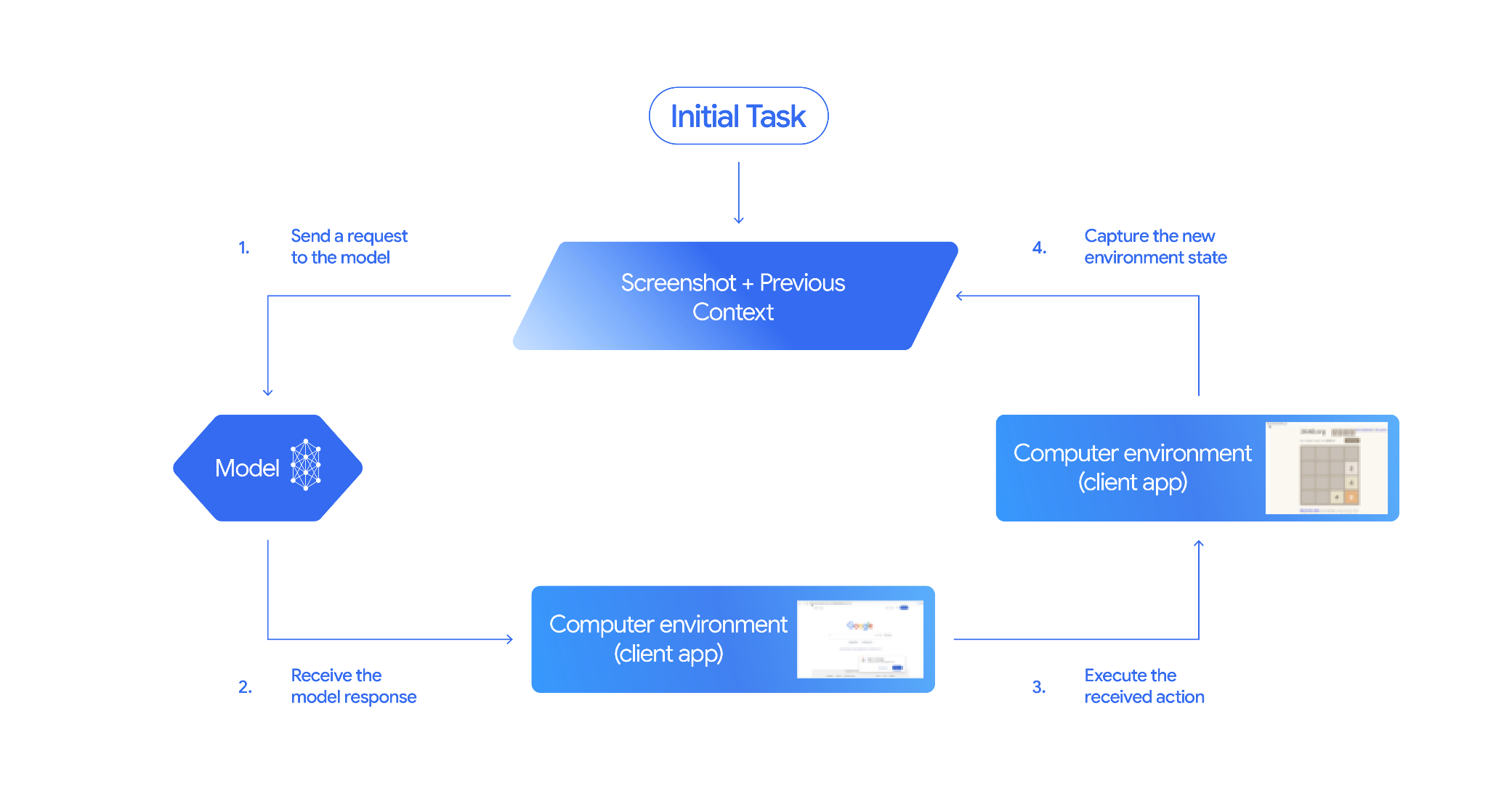
Для создания агента с моделью использования компьютера необходимо настроить непрерывный цикл между вашим приложением и API. Вот что будет делать ваш код на каждом шаге:
- Отправьте запрос модели
- Ваше приложение отправляет API-запрос, содержащий инструмент «Использование компьютера», ваши параметры конфигурации (например, целевую среду), подсказку пользователя и снимок экрана текущего экрана.
- Получите ответ модели.
- Модель анализирует экран и подсказку, возвращая ответ, который включает в себя предлагаемый
function_call, представляющий собой действие пользовательского интерфейса (например, щелчок, прокрутка или нажатие клавиши). - Для моделей Gemini 3.x ответ также включает в себя
intentвыбора данного действия. - В ответ также может быть включено
safety_decisionот внутренней системы безопасности, классифицирующее действие как обычное/разрешенное,require_confirmation(требующее одобрения пользователя) или заблокированное.
- Модель анализирует экран и подсказку, возвращая ответ, который включает в себя предлагаемый
- Выполните полученное действие
- If the action is allowed (or the user confirms it), your client-side code parses the
function_call, scales the normalized coordinates to match your viewport, and executes the action in your target environment using automation tools (such as Playwright). If the action is blocked, your client should halt the execution or handle the interruption.
- If the action is allowed (or the user confirms it), your client-side code parses the
- Зафиксировать новое состояние окружающей среды
- После завершения выполнения действия ваше приложение делает новый снимок экрана и отправляет его обратно в модель в
function_resultдля запроса следующего шага.
- После завершения выполнения действия ваше приложение делает новый снимок экрана и отправляет его обратно в модель в
Затем этот процесс повторяется, начиная с шага 2, постоянно запрашивая у модели следующее действие до тех пор, пока задача не будет выполнена или завершена.
Как внедрить использование компьютеров
Перед началом работы с инструментом «Использование компьютера» вам необходимо выполнить следующие настройки:
- Secure execution environment: Run your agent in a sandboxed VM or container to isolate it from your host system and limit its potential impact. The reference implementation includes a ready-to-use Docker-based sandbox you can use as a starting point.
- Обработчик действий на стороне клиента: Реализуйте логику на стороне клиента для выполнения операций ввода координат, ввода текста и создания снимков экрана.
В приведенных ниже примерах в качестве среды выполнения используется веб-браузер, а в качестве обработчика на стороне клиента — Playwright .
0. Настройка драматурга
Сначала установите необходимые пакеты:
pip install google-genai playwright
playwright install chromium
Затем инициализируйте экземпляр браузера Playwright для использования в процессе выполнения:
from playwright.sync_api import sync_playwright

# 1. Configure screen dimensions for the target environment
SCREEN_WIDTH = 1440
SCREEN_HEIGHT = 900

# 2. Start the Playwright browser
# In production, utilize a sandboxed environment.
playwright = sync_playwright().start()
# Set headless=False to see the actions performed on your screen
browser = playwright.chromium.launch(headless=False)

# 3. Create a context and page with the specified dimensions
context = browser.new_context(
    viewport={"width": SCREEN_WIDTH, "height": SCREEN_HEIGHT}
)
page = context.new_page()

# 4. Navigate to an initial page to start the task
page.goto("https://www.google.com")

# The 'page', 'SCREEN_WIDTH', and 'SCREEN_HEIGHT' variables
# will be used in the steps below.
1. Отправьте запрос модели.
Initialize the client library and configure the Computer Use tool. Note that there is no need to specify the display size when issuing a request; the model predicts pixel coordinates scaled to the height and width of the screen.
Близнецы 3.x
Python
Используйте Python SDK google-genai (версия 2.7.0 или выше) для настройки запроса, ориентированного на браузерную среду:
from google import genai

client = genai.Client()

interaction = client.interactions.create(
    model='gemini-3.8-flash',
    input="Find a flight from SF to Hawaii on Jun 30th, coming back on Jul 6th",
    tools=[
        {
            "type": "computer_use",
            "environment": "browser",
            "enable_prompt_injection_detection": True
        }
    ]
)

print(interaction)
JavaScript
Используйте SDK Node.js @google/genai для настройки запроса, ориентированного на среду браузера:
import { GoogleGenAI } from '@google/genai';

const ai = new GoogleGenAI();

const interaction = await ai.interactions.create({
  model: 'gemini-3.8-flash',
  input: "Find a flight from SF to Hawaii on Jun 30th, coming back on Jul 6th",
  tools: [
    {
      type: "computer_use",
      environment: "browser",
      enable_prompt_injection_detection: true
    }
  ]
});

console.log(interaction);
Java
import com.google.genai.Client;
import com.google.genai.gaos.models.interactions.ComputerUse;
import com.google.genai.gaos.models.interactions.CreateModelInteraction;
import com.google.genai.gaos.models.interactions.EnvironmentEnum;
import com.google.genai.gaos.models.interactions.Interaction;
import com.google.genai.gaos.models.interactions.InteractionsInput;
import com.google.genai.gaos.models.operations.CreateInteractionRequestBody;
import java.util.Arrays;

Client client = new Client();

CreateModelInteraction params =
    CreateModelInteraction.builder()
        .model("gemini-3.8-flash")
        .input(
            InteractionsInput.of(
                "Find a flight from SF to Hawaii on Jun 30th, coming back on Jul 6th"))
        .tools(
            Arrays.asList(
                ComputerUse.builder()
                    .environment(EnvironmentEnum.BROWSER)
                    .enablePromptInjectionDetection(true)
                    .build()))
        .build();

Interaction interaction =
    client.interactions.create(CreateInteractionRequestBody.of(params)).interaction().get();

System.out.println(interaction);
ОТДЫХ
Для отправки запроса используйте curl:
curl -X POST \
  "https://generativelanguage.googleapis.com/v1beta/interactions" \
  -H "x-goog-api-key: $GEMINI_API_KEY" \
  -H "Content-Type: application/json" \
  -d '{
    "model": "gemini-3.8-flash",
    "input": "Find me a flight from SF to Hawaii on Jun 30th, coming back on Jul 6th. Start by navigating directly to flights.google.com",
    "tools": [
      {
        "type": "computer_use",
        "environment": "browser",
        "enable_prompt_injection_detection": true
      }
    ]
  }'
Близнецы 2.5 (Наследие)
Python
from google import genai

client = genai.Client()

# Specify predefined functions to exclude (optional)
excluded_functions = ["drag_and_drop"]

interaction = client.interactions.create(
    model='gemini-2.5-computer-use-preview-10-2025',
    input="Search for highly rated smart fridges on Google Shopping.",
    tools=[
        {
            "type": "computer_use",
            "environment": "browser",
            "excluded_predefined_functions": excluded_functions
        }
    ]
)

print(interaction)
JavaScript
import { GoogleGenAI } from '@google/genai';

const ai = new GoogleGenAI();

// Specify predefined functions to exclude (optional)
const excludedFunctions = ["drag_and_drop"];

const interaction = await ai.interactions.create({
  model: 'gemini-2.5-computer-use-preview-10-2025',
  input: "Search for highly rated smart fridges on Google Shopping.",
  tools: [
    {
      type: "computer_use",
      environment: "browser",
      excluded_predefined_functions: excludedFunctions
    }
  ]
});

console.log(interaction);
Java
import com.google.genai.Client;
import com.google.genai.gaos.models.interactions.ComputerUse;
import com.google.genai.gaos.models.interactions.CreateModelInteraction;
import com.google.genai.gaos.models.interactions.EnvironmentEnum;
import com.google.genai.gaos.models.interactions.Interaction;
import com.google.genai.gaos.models.interactions.InteractionsInput;
import com.google.genai.gaos.models.operations.CreateInteractionRequestBody;
import java.util.Arrays;
import java.util.List;

Client client = new Client();

// Specify predefined functions to exclude (optional)
List<String> excludedFunctions = Arrays.asList("drag_and_drop");

CreateModelInteraction params =
    CreateModelInteraction.builder()
        .model("gemini-2.5-computer-use-preview-10-2025")
        .input(InteractionsInput.of("Search for highly rated smart fridges on Google Shopping."))
        .tools(
            Arrays.asList(
                ComputerUse.builder()
                    .environment(EnvironmentEnum.BROWSER)
                    .excludedPredefinedFunctions(excludedFunctions)
                    .build()))
        .build();

Interaction interaction =
    client.interactions.create(CreateInteractionRequestBody.of(params)).interaction().get();

System.out.println(interaction);
2. Получите ответ модели.
Модель ответа предлагает вызов функции. Для моделей Gemini 3.x ответ содержит специально разработанное логическое обоснование наряду с координатами. Ниже приведены примеры обоих типов ответов:
Близнецы 3.x
{
  "steps": [
    {
      "type": "function_call",
      "name": "click",
      "arguments": {
        "x": 450,
        "y": 120,
        "intent": "Click the search box to type the destination."
      }
    }
  ]
}
Близнецы 2.5 (Наследие)
{
  "steps": [
    {
      "type": "model_output",
      "content": [
        {
          "type": "text",
          "text": "I will type the search query into the search bar."
        }
      ]
    },
    {
      "type": "function_call",
      "name": "type_text_at",
      "arguments": {
        "x": 371,
        "y": 470,
        "text": "highly rated smart fridges",
        "press_enter": true
      }
    }
  ]
}
3. Выполните полученные действия.
Ваше приложение должно проанализировать координаты ответа, выполнить действие и масштабировать их на основе нормализованных координат размером 1000x1000.
Приведённый ниже код обрабатывает как устаревшие команды инструментов ( click_at , type_text_at ), так и современные упрощенные команды ( click , type ).
Python
from typing import Any, List, Tuple
import time

def denormalize_x(x: int, screen_width: int) -> int:
    """Convert normalized x coordinate (0-1000) to actual pixel coordinate."""
    return int(x / 1000 * screen_width)

def denormalize_y(y: int, screen_height: int) -> int:
    """Convert normalized y coordinate (0-1000) to actual pixel coordinate."""
    return int(y / 1000 * screen_height)

def execute_function_calls(interaction, page, screen_width, screen_height):
    results = []
    function_calls = [
        step for step in interaction.steps if step.type == "function_call"
    ]

    for function_call in function_calls:
        action_result = {}
        fname = function_call.name
        args = function_call.arguments
        print(f"  -> Executing: {fname} (Intent: {args.get('intent', 'N/A')})")

        try:
            if fname in ("open_web_browser", "open_app"):
                pass # Handled / already open
            elif fname in ("click", "click_at", "double_click", "triple_click", "middle_click", "right_click", "move", "long_press"):
                actual_x = denormalize_x(args["x"], screen_width)
                actual_y = denormalize_y(args["y"], screen_height)

                if fname in ("click", "click_at"):
                    page.mouse.click(actual_x, actual_y)
                elif fname == "double_click":
                    page.mouse.dblclick(actual_x, actual_y)
                elif fname == "right_click":
                    page.mouse.click(actual_x, actual_y, button="right")
                elif fname == "middle_click":
                    page.mouse.click(actual_x, actual_y, button="middle")
                elif fname == "move":
                    page.mouse.move(actual_x, actual_y)
            elif fname in ("type", "type_text_at"):
                actual_x = denormalize_x(args["x"], screen_width) if "x" in args else None
                actual_y = denormalize_y(args["y"], screen_height) if "y" in args else None
                text = args["text"]
                press_enter = args.get("press_enter", False)

                if actual_x is not None and actual_y is not None:
                    page.mouse.click(actual_x, actual_y)
                # Clear field first
                page.keyboard.press("Meta+A")
                page.keyboard.press("Backspace")
                page.keyboard.type(text)
                if press_enter:
                    page.keyboard.press("Enter")
            elif fname == "navigate":
                page.goto(args["url"])
            elif fname == "go_back":
                page.go_back()
            elif fname == "go_forward":
                page.go_forward()
            elif fname == "wait":
                time.sleep(args.get("seconds", 1))
            else:
                print(f"Warning: Custom or unhandled function {fname}")

            page.wait_for_load_state(timeout=5000)
            time.sleep(1)

        except Exception as e:
            print(f"Error executing {fname}: {e}")
            action_result = {"error": str(e)}

        results.append((fname, function_call.id, action_result))

    return results
JavaScript
function denormalizeX(x, screenWidth) {
    // Convert normalized x coordinate (0-1000) to actual pixel coordinate.
    return Math.floor((x / 1000) * screenWidth);
}

function denormalizeY(y, screenHeight) {
    // Convert normalized y coordinate (0-1000) to actual pixel coordinate.
    return Math.floor((y / 1000) * screenHeight);
}

async function executeFunctionCalls(interaction, page, screenWidth, screenHeight) {
    const results = [];
    const functionCalls = interaction.steps.filter(step => step.type === "function_call");

    for (const functionCall of functionCalls) {
        const actionResult = {};
        const fname = functionCall.name;
        const args = functionCall.arguments;
        console.log(`  -> Executing: ${fname} (Intent: ${args.intent || 'N/A'})`);

        try {
            if (fname === "open_web_browser" || fname === "open_app") {
                // Handled / already open
            } else if (["click", "click_at", "double_click", "triple_click", "middle_click", "right_click", "move", "long_press"].includes(fname)) {
                const actualX = denormalizeX(args.x, screenWidth);
                const actualY = denormalizeY(args.y, screenHeight);

                if (fname === "click" || fname === "click_at") {
                    await page.mouse.click(actualX, actualY);
                } else if (fname === "double_click") {
                    await page.mouse.dblclick(actualX, actualY);
                } else if (fname === "right_click") {
                    await page.mouse.click(actualX, actualY, { button: "right" });
                } else if (fname === "middle_click") {
                    await page.mouse.click(actualX, actualY, { button: "middle" });
                } else if (fname === "move") {
                    await page.mouse.move(actualX, actualY);
                }
            } else if (fname === "type" || fname === "type_text_at") {
                const actualX = args.x !== undefined ? denormalizeX(args.x, screenWidth) : null;
                const actualY = args.y !== undefined ? denormalizeY(args.y, screenHeight) : null;
                const text = args.text;
                const pressEnter = args.press_enter || false;

                if (actualX !== null && actualY !== null) {
                    await page.mouse.click(actualX, actualY);
                }
                // Clear field first
                await page.keyboard.press("Meta+A");
                await page.keyboard.press("Backspace");
                await page.keyboard.type(text);
                if (pressEnter) {
                    await page.keyboard.press("Enter");
                }
            } else if (fname === "navigate") {
                await page.goto(args.url);
            } else if (fname === "go_back") {
                await page.goBack();
            } else if (fname === "go_forward") {
                await page.goForward();
            } else if (fname === "wait") {
                await new Promise(resolve => setTimeout(resolve, (args.seconds || 1) * 1000));
            } else {
                console.log(`Warning: Custom or unhandled function ${fname}`);
            }

            await page.waitForLoadState('load', { timeout: 5000 }).catch(() => {});
            await new Promise(resolve => setTimeout(resolve, 1000));
        } catch (e) {
            console.log(`Error executing ${fname}: ${e}`);
            actionResult.error = e.message;
        }

        results.push([fname, functionCall.id, actionResult]);
    }

    return results;
}
Java
import com.google.genai.gaos.models.interactions.FunctionCallStep;
import com.google.genai.gaos.models.interactions.Interaction;
import com.google.genai.gaos.models.interactions.Step;
import java.util.ArrayList;
import java.util.Collections;
import java.util.HashMap;
import java.util.List;
import java.util.Map;

class ActionExecutor {
  int denormalizeX(int x, int screenWidth) {
    return (int) (x / 1000.0 * screenWidth);
  }

  int denormalizeY(int y, int screenHeight) {
    return (int) (y / 1000.0 * screenHeight);
  }

  List<Map<String, Object>> executeFunctionCalls(
      Interaction interaction, int screenWidth, int screenHeight) {
    List<Map<String, Object>> results = new ArrayList<>();

    for (Step step : interaction.steps().orElse(Collections.emptyList())) {
      if (step instanceof FunctionCallStep) {
        FunctionCallStep functionCall = (FunctionCallStep) step;
        String fname = functionCall.name().orElse("");
        Map<String, Object> args = functionCall.arguments().orElse(Collections.emptyMap());
        Map<String, Object> actionResult = new HashMap<>();

        System.out.println(
            "  -> Executing: " + fname + " (Intent: " + args.getOrDefault("intent", "N/A") + ")");

        try {
          if (fname.equals("click") || fname.equals("click_at")) {
            int actualX = denormalizeX(((Number) args.get("x")).intValue(), screenWidth);
            int actualY = denormalizeY(((Number) args.get("y")).intValue(), screenHeight);
            // Perform mouse click at (actualX, actualY) using your browser automation library
          } else if (fname.equals("type") || fname.equals("type_text_at")) {
            String text = (String) args.get("text");
            // Type text into active element using your browser automation library
          } else if (fname.equals("navigate")) {
            String url = (String) args.get("url");
            // Navigate browser to url
          }
        } catch (Exception e) {
          actionResult.put("error", e.getMessage());
        }

        Map<String, Object> entry = new HashMap<>();
        entry.put("name", fname);
        entry.put("callId", functionCall.id().orElse(""));
        entry.put("result", actionResult);
        results.add(entry);
      }
    }
    return results;
  }
}
4. Зафиксируйте новое состояние окружающей среды.
After executing the actions, send the result of the function execution back to the model so it can use this information to generate the next action. If multiple actions (parallel calls) were executed, you must send a function_result for each one in the subsequent user turn.
Python
import json
import base64

def get_function_responses(page, results):
    screenshot_bytes = page.screenshot(type="png")
    current_url = page.url
    function_responses = []
    for name, call_id, result in results:
        function_responses.append({
            "type": "function_result",
            "name": name,
            "call_id": call_id,
            "result": [
                {
                    "type": "text",
                    "text": json.dumps({"url": current_url, **result})
                },
                {
                    "type": "image",
                    "data": base64.b64encode(screenshot_bytes).decode("utf-8"),
                    "mime_type": "image/png"
                }
            ]
        })
    return function_responses
JavaScript
async function getFunctionResponses(page, results) {
    const screenshotBuffer = await page.screenshot({ type: 'png' });
    const screenshotBase64 = screenshotBuffer.toString('base64');
    const currentUrl = page.url();
    const functionResponses = [];

    for (const [name, callId, result] of results) {
        functionResponses.push({
            type: "function_result",
            name: name,
            call_id: callId,
            result: [
                {
                    type: "text",
                    text: JSON.stringify({ url: currentUrl, ...result })
                },
                {
                    type: "image",
                    data: screenshotBase64,
                    mime_type: "image/png"
                }
            ]
        });
    }
    return functionResponses;
}
Java
import com.google.genai.gaos.models.interactions.FunctionResultStep;
import com.google.genai.gaos.models.interactions.FunctionResultStepResultUnion;
import com.google.genai.gaos.models.interactions.ImageContent;
import com.google.genai.gaos.models.interactions.ImageContentMimeType;
import com.google.genai.gaos.models.interactions.Step;
import com.google.genai.gaos.models.interactions.TextContent;
import java.util.ArrayList;
import java.util.Arrays;
import java.util.Base64;
import java.util.List;
import java.util.Map;

class StateCapturer {
  List<Step> getFunctionResponses(
      byte[] screenshotBytes, String currentUrl, List<Map<String, Object>> results) {
    List<Step> functionResponses = new ArrayList<>();
    String base64Screenshot = Base64.getEncoder().encodeToString(screenshotBytes);

    for (Map<String, Object> entry : results) {
      String name = (String) entry.get("name");
      String callId = (String) entry.get("callId");
      String jsonResult = String.format("{\"url\": \"%s\"}", currentUrl);

      FunctionResultStep responseStep =
          FunctionResultStep.builder()
              .name(name)
              .callId(callId)
              .result(
                  FunctionResultStepResultUnion.of(
                      Arrays.asList(
                          TextContent.builder().text(jsonResult).build(),
                          ImageContent.builder()
                              .data(base64Screenshot)
                              .mimeType(ImageContentMimeType.IMAGE_PNG)
                              .build())))
              .build();
      functionResponses.add(responseStep);
    }
    return functionResponses;
  }
}
После того как вы определили, как фиксировать и форматировать состояние среды, вы можете объединить все эти шаги в непрерывный цикл выполнения.
Создайте цикл взаимодействия агентов.
To enable multi-step interactions, combine the four steps from the How to implement Computer Use section into a single loop. This loop continues requesting actions and feeding the results back to the model until the task is complete.
Не забудьте правильно управлять историей переписки, добавляя к ней на каждом шаге как ответы модели, так и ответы вашей функции.
Python
import time
from typing import Any, List, Tuple
from playwright.sync_api import sync_playwright

from google import genai

client = genai.Client()

# Constants for screen dimensions
SCREEN_WIDTH = 1440
SCREEN_HEIGHT = 900

# Setup Playwright
print("Initializing browser...")
playwright = sync_playwright().start()
browser = playwright.chromium.launch(headless=False)
context = browser.new_context(viewport={"width": SCREEN_WIDTH, "height": SCREEN_HEIGHT})
page = context.new_page()

# Define helper functions. Copy/paste from steps 3 and 4
# def denormalize_x(...)
# def denormalize_y(...)
# def execute_function_calls(...)
# def get_function_responses(...)

try:
    # Go to initial page
    page.goto("https://ai.google.dev/gemini-api/docs")

    # Take initial screenshot
    initial_screenshot = page.screenshot(type="png")
    USER_PROMPT = "Go to ai.google.dev/gemini-api/docs and search for pricing."
    print(f"Goal: {USER_PROMPT}")

    # First interaction
    interaction = client.interactions.create(
        model='gemini-3.8-flash',
        input=[
            {"type": "text", "text": USER_PROMPT},
            {"type": "image", "data": base64.b64encode(initial_screenshot).decode("utf-8"), "mime_type": "image/png"}
        ],
        tools=[{
            "type": "computer_use",
            "environment": "browser",
            "enable_prompt_injection_detection": True
        }]
    )

    # Agent Loop
    turn_limit = 5
    for i in range(turn_limit):
        print(f"\n--- Turn {i+1} ---")

        has_function_calls = any(
            step.type == "function_call"
            for step in interaction.steps
        )
        if not has_function_calls:
            text_response = " ".join([
                content_block.text for step in interaction.steps if step.type == "model_output"
                for content_block in step.content if content_block.type == "text"
            ])
            print("Agent finished:", text_response)
            break

        print("Executing actions...")
        results = execute_function_calls(interaction, page, SCREEN_WIDTH, SCREEN_HEIGHT)

        print("Capturing state...")
        function_responses = get_function_responses(page, results)

        # Continue conversation with function responses
        interaction = client.interactions.create(
            model='gemini-3.8-flash',
            previous_interaction_id=interaction.id,
            input=function_responses,
            tools=[{
                "type": "computer_use",
                "environment": "browser",
                "enable_prompt_injection_detection": True
            }]
        )

finally:
    # Cleanup
    print("\nClosing browser...")
    browser.close()
    playwright.stop()
JavaScript
import { chromium } from 'playwright';
import { GoogleGenAI } from '@google/genai';

const ai = new GoogleGenAI();

// Constants for screen dimensions
const SCREEN_WIDTH = 1440;
const SCREEN_HEIGHT = 900;

console.log("Initializing browser...");
const browser = await chromium.launch({ headless: false });
const context = await browser.newContext({
    viewport: { width: SCREEN_WIDTH, height: SCREEN_HEIGHT }
});
const page = await context.newPage();

// Define helper functions. Copy/paste from steps 3 and 4:
// function denormalizeX(...)
// function denormalizeY(...)
// async function executeFunctionCalls(...)
// async function getFunctionResponses(...)

try {
    // Go to initial page
    await page.goto("https://ai.google.dev/gemini-api/docs");

    // Take initial screenshot
    const initialScreenshotBuffer = await page.screenshot({ type: 'png' });
    const initialScreenshotBase64 = initialScreenshotBuffer.toString('base64');
    const USER_PROMPT = "Go to ai.google.dev/gemini-api/docs and search for pricing.";
    console.log(`Goal: ${USER_PROMPT}`);

    // First interaction
    let interaction = await ai.interactions.create({
        model: 'gemini-3.8-flash',
        input: [
            { type: 'text', text: USER_PROMPT },
            { type: 'image', data: initialScreenshotBase64, mime_type: 'image/png' }
        ],
        tools: [{
            type: 'computer_use',
            environment: 'browser',
            enable_prompt_injection_detection: true
        }]
    });

    // Agent Loop
    const turnLimit = 5;
    for (let i = 0; i < turnLimit; i++) {
        console.log(`\n--- Turn ${i + 1} ---`);

        const hasFunctionCalls = interaction.steps.some(step => step.type === "function_call");
        if (!hasFunctionCalls) {
            const textResponses = [];
            for (const step of interaction.steps) {
                if (step.type === "model_output") {
                    for (const contentBlock of step.content || []) {
                        if (contentBlock.type === "text") {
                            textResponses.push(contentBlock.text);
                        }
                    }
                }
            }
            console.log("Agent finished:", textResponses.join(" "));
            break;
        }

        console.log("Executing actions...");
        const results = await executeFunctionCalls(interaction, page, SCREEN_WIDTH, SCREEN_HEIGHT);

        console.log("Capturing state...");
        const functionResponses = await getFunctionResponses(page, results);

        // Continue conversation with function responses
        interaction = await ai.interactions.create({
            model: 'gemini-3.8-flash',
            previous_interaction_id: interaction.id,
            input: functionResponses,
            tools: [{
                type: 'computer_use',
                environment: 'browser',
                enable_prompt_injection_detection: true
            }]
        });
    }
} finally {
    // Cleanup
    console.log("\nClosing browser...");
    await browser.close();
}
Java
import com.google.genai.Client;
import com.google.genai.gaos.models.interactions.ComputerUse;
import com.google.genai.gaos.models.interactions.Content;
import com.google.genai.gaos.models.interactions.CreateModelInteraction;
import com.google.genai.gaos.models.interactions.EnvironmentEnum;
import com.google.genai.gaos.models.interactions.FunctionCallStep;
import com.google.genai.gaos.models.interactions.ImageContent;
import com.google.genai.gaos.models.interactions.ImageContentMimeType;
import com.google.genai.gaos.models.interactions.Interaction;
import com.google.genai.gaos.models.interactions.InteractionsInput;
import com.google.genai.gaos.models.interactions.ModelOutputStep;
import com.google.genai.gaos.models.interactions.Step;
import com.google.genai.gaos.models.interactions.TextContent;
import com.google.genai.gaos.models.operations.CreateInteractionRequestBody;
import java.util.ArrayList;
import java.util.Arrays;
import java.util.Base64;
import java.util.Collections;
import java.util.List;

Client client = new Client();

// Constants for screen dimensions
int screenWidth = 1440;
int screenHeight = 900;

// Capture initial screenshot from browser driver (e.g. Playwright)
byte[] initialScreenshot = new byte[0];
String base64Screenshot = Base64.getEncoder().encodeToString(initialScreenshot);
String userPrompt = "Go to ai.google.dev/gemini-api/docs and search for pricing.";
System.out.println("Goal: " + userPrompt);

ComputerUse computerUseTool =
    ComputerUse.builder()
        .environment(EnvironmentEnum.BROWSER)
        .enablePromptInjectionDetection(true)
        .build();

CreateModelInteraction initialParams =
    CreateModelInteraction.builder()
        .model("gemini-3.8-flash")
        .input(
            InteractionsInput.ofContent(
                Arrays.asList(
                    TextContent.builder().text(userPrompt).build(),
                    ImageContent.builder()
                        .data(base64Screenshot)
                        .mimeType(ImageContentMimeType.IMAGE_PNG)
                        .build())))
        .tools(Arrays.asList(computerUseTool))
        .build();

Interaction interaction =
    client.interactions.create(CreateInteractionRequestBody.of(initialParams)).interaction().get();

int turnLimit = 5;
for (int i = 0; i < turnLimit; i++) {
  System.out.println("\n--- Turn " + (i + 1) + " ---");

  boolean hasFunctionCalls =
      interaction.steps().orElse(Collections.emptyList()).stream()
          .anyMatch(step -> step instanceof FunctionCallStep);

  if (!hasFunctionCalls) {
    StringBuilder textResponse = new StringBuilder();
    for (Step step : interaction.steps().orElse(Collections.emptyList())) {
      if (step instanceof ModelOutputStep) {
        for (Content contentBlock :
            ((ModelOutputStep) step).content().orElse(Collections.emptyList())) {
          if (contentBlock instanceof TextContent) {
            textResponse.append(((TextContent) contentBlock).text().orElse("")).append(" ");
          }
        }
      }
    }
    System.out.println("Agent finished: " + textResponse.toString().trim());
    break;
  }

  System.out.println("Executing actions and capturing state...");
  // Execute function calls against browser driver and capture List<Step> functionResponses
  List<Step> functionResponses = new ArrayList<>();

  CreateModelInteraction nextParams =
      CreateModelInteraction.builder()
          .model("gemini-3.8-flash")
          .previousInteractionId(interaction.id().get())
          .input(InteractionsInput.ofStep(functionResponses))
          .tools(Arrays.asList(computerUseTool))
          .build();

  interaction =
      client.interactions.create(CreateInteractionRequestBody.of(nextParams)).interaction().get();
}
Поддерживаемые среды (Gemini 3.x)
Модели Gemini 3.x поддерживают три среды, указанные в конфигурации computer_use :
Окружение браузера ( ENVIRONMENT_BROWSER )
Доступные действия в инструменте браузера:
| Название команды | Описание | Аргументы (при вызове функции) |
|---|---|---|
| клик | Нажатие левой кнопкой мыши по указанной координате. | y : int (0-999)x : целое число (0-999)intent : строка |
| двойной_клик | Двойной щелчок по координатам. | y : int (0-999)x : целое число (0-999)intent : строка |
| тройной_клик | Тройной щелчок по координатам. | y : int (0-999)x : целое число (0-999)intent : строка |
| средний_клик | Нажатие средней кнопкой мыши на указанную координату. | y : int (0-999)x : целое число (0-999)intent : строка |
| правый_клик | Щелчок правой кнопкой мыши по координатам. | y : int (0-999)x : целое число (0-999)intent : строка |
| mouse_down | Нажимает и удерживает кнопку мыши в указанной координате. | y : int (0-999)x : целое число (0-999)intent : строка |
| mouse_up | Отпускает кнопку мыши в указанной координате. | y : int (0-999)x : целое число (0-999)intent : строка |
| двигаться | Перемещает курсор в указанную позицию. | y : int (0-999)x : целое число (0-999)intent : строка |
| тип | Вводит текст. | text : строкаpress_enter : bool (Необязательно, по умолчанию false )intent : строка |
| перетаскивание | Перетаскивает элемент из начальной координаты в конечную координату. | start_y : int (0-999)start_x : int (0-999)end_y : int (0-999)end_x : int (0-999)intent : строка |
| ждать | Приостанавливает выполнение на указанное количество секунд. | seconds : целое число (необязательно, по умолчанию 1 )intent : строка |
| нажмите_клавишу | Нажимает указанную клавишу и отпускает её. | key : строкаintent : строка |
| key_down | Нажимает и удерживает указанную клавишу. | key : строкаintent : строка |
| key_up | Освобождает указанную клавишу. | key : строкаintent : строка |
| горячая клавиша | Нажимает указанную комбинацию клавиш. | keys : List[str]intent : str |
| сделать_скриншот | Возвращает снимок экрана текущего экрана. | intent : строка |
| прокрутка | Прокрутка вверх, вниз, влево или вправо на заданную координату с шагом в один пиксель. | y : int (0-999)x : целое число (0-999)direction : str ( "up" , "down" , "left" , "right" )magnitude_in_pixels : int (0-999, Optional, default 300 )intent : строка |
| возвращаться | Возвращает на предыдущую веб-страницу из истории браузера. | intent : строка |
| навигация | Перенаправляет непосредственно на указанный URL-адрес. | url : strintent : строка |
| go_forward | Переход на следующую веб-страницу из истории браузера. | intent : строка |
Мобильная среда ( ENVIRONMENT_MOBILE )
Действия в среде, оптимизированной для Android:
| Название команды | Описание | Аргументы (при вызове функции) |
|---|---|---|
| открытое_приложение | Открывает приложение по его имени. | app_name : strintent : строка |
| клик | Нажатие левой кнопкой мыши по указанной координате. | y : int (0-999)x : целое число (0-999)intent : строка |
| список_приложений | Отображает список доступных на устройстве приложений, возвращая их названия и имена пакетов. | intent : строка |
| ждать | Приостанавливает выполнение на указанное количество секунд. | seconds : целое число (необязательно, по умолчанию 1 )intent : строка |
| возвращаться | Возвращает на предыдущий экран или веб-страницу. | intent : строка |
| тип | Вводит текст. | text : строкаpress_enter : bool (Необязательно, по умолчанию false )intent : строка |
| перетаскивание | Перетаскивает элемент из начальной координаты в конечную координату. | start_y : int (0-999)start_x : int (0-999)end_y : int (0-999)end_x : int (0-999)intent : строка |
| длинное нажатие | Выполняет длительное нажатие в указанной точке на экране. | y : int (0-999)x : целое число (0-999)seconds : целое число (необязательно, по умолчанию 2 )intent : строка |
| нажмите_клавишу | Нажимает указанную клавишу и отпускает её. | key : строкаintent : строка |
| сделать_скриншот | Возвращает снимок экрана текущего экрана. | intent : строка |
Рабочая среда ( ENVIRONMENT_DESKTOP )
Команды курсора на уровне операционной системы в средах рабочего стола:
| Название команды | Описание | Аргументы (при вызове функции) |
|---|---|---|
| клик | Нажатие левой кнопкой мыши по указанной координате. | y : int (0-999)x : целое число (0-999)intent : строка |
| двойной_клик | Двойной щелчок по координатам. | y : int (0-999)x : целое число (0-999)intent : строка |
| тройной_клик | Тройной щелчок по координатам. | y : int (0-999)x : целое число (0-999)intent : строка |
| средний_клик | Нажатие средней кнопкой мыши на указанную координату. | y : int (0-999)x : целое число (0-999)intent : строка |
| правый_клик | Щелчок правой кнопкой мыши по координатам. | y : int (0-999)x : целое число (0-999)intent : строка |
| mouse_down | Нажимает и удерживает кнопку мыши в указанной координате. | y : int (0-999)x : целое число (0-999)intent : строка |
| mouse_up | Отпускает кнопку мыши в указанной координате. | y : int (0-999)x : целое число (0-999)intent : строка |
| двигаться | Перемещает курсор в указанную позицию. | y : int (0-999)x : целое число (0-999)intent : строка |
| тип | Вводит текст. | text : строкаpress_enter : bool (Необязательно, по умолчанию false )intent : строка |
| перетаскивание | Перетаскивает элемент из начальной координаты в конечную координату. | start_y : int (0-999)start_x : int (0-999)end_y : int (0-999)end_x : int (0-999)intent : строка |
| ждать | Приостанавливает выполнение на указанное количество секунд. | seconds : целое число (необязательно, по умолчанию 1 )intent : строка |
| нажмите_клавишу | Нажимает указанную клавишу и отпускает её. | key : строкаintent : строка |
| key_down | Нажимает и удерживает указанную клавишу. | key : строкаintent : строка |
| key_up | Освобождает указанную клавишу. | key : строкаintent : строка |
| горячая клавиша | Нажимает указанную комбинацию клавиш. | keys : List[str]intent : str |
| сделать_скриншот | Возвращает снимок экрана текущего экрана. | intent : строка |
| прокрутка | Прокрутка вверх, вниз, влево или вправо на заданную координату с шагом в один пиксель. | y : int (0-999)x : целое число (0-999)direction : str ( "up" , "down" , "left" , "right" )magnitude_in_pixels : int (0-999, Optional, default 300 )intent : строка |
Поддерживаемые устаревшие действия пользовательского интерфейса (Gemini 2.5)
Для устаревших моделей ( gemini-2.5-computer-use-preview-10-2025 ) поддерживаются следующие действия:
| Название команды | Описание | Аргументы (при вызове функции) | Пример вызова функции |
|---|---|---|---|
| открытый_веб_браузер | Открывает веб-браузер. | Никто | {"name": "open_web_browser", "arguments": {}} |
| wait_5_seconds | Приостанавливает выполнение на 5 секунд. | Никто | {"name": "wait_5_seconds", "arguments": {}} |
| возвращаться | Переходит на предыдущую страницу в истории. | Никто | {"name": "go_back", "arguments": {}} |
| go_forward | Переход на следующую страницу истории. | Никто | {"name": "go_forward", "arguments": {}} |
| поиск | Перенаправляет на поисковую систему по умолчанию. | Никто | {"name": "search", "arguments": {}} |
| навигация | Перенаправляет браузер непосредственно на указанный URL-адрес. | url : str | {"name": "navigate", "arguments": {"url": "https://www.wikipedia.org"}} |
| click_at | Нажатие на определенную координату. | y : int (0-999), x : int (0-999) | {"name": "click_at", "arguments": {"y": 300, "x": 500}} |
| hover_at | Наводит курсор мыши на определенную координату. | y : int (0-999), x : int (0-999) | {"name": "hover_at", "arguments": {"y": 150, "x": 250}} |
| type_text_at | Вводит текст по координатам. | y : int (0-999), x : int (0-999), text : str, press_enter : bool (Необязательно, по умолчанию True), clear_before_typing : bool (Необязательно, по умолчанию True) | {"name": "type_text_at", "arguments": {"y": 250, "x": 400, "text": "search", "press_enter": false}} |
| комбинация клавиш | Нажимайте клавиши или комбинации клавиш. | keys : строка | {"name": "key_combination", "arguments": {"keys": "Control+A"}} |
| прокрутка_документа | Прокручивает всю веб-страницу. | direction : str | {"name": "scroll_document", "arguments": {"direction": "down"}} |
| scroll_at | Прокрутка в координатах (x,y). | y : целое число, x : целое число, direction : str, magnitude : целое число (необязательно, по умолчанию 800) | {"name": "scroll_at", "arguments": {"y": 500, "x": 500, "direction": "down"}} |
| перетаскивание | Перетаскивание курсора между двумя координатами. | y : int, x : int, destination_y : int, destination_x : int | {"name": "drag_and_drop", "arguments": {"y": 100, "destination_y": 500, "destination_x": 500, "x": 100}} |
Пользовательские функции, определяемые пользователем
You can extend the functionality of the model by including custom user-defined functions. For example, in human-in-the-loop (HITL) scenarios you can exclude default predefined actions and register custom actions.
Gemini 3.x Custom Tooling
Python
Исключите стандартные предопределенные действия браузера (например, click ) и зарегистрируйте пользовательский инструмент yield_to_user :
from google import genai

client = genai.Client()

yield_to_user_tool = {
    "type": "function",
    "name": "yield_to_user",
    "description": "Yields control back to the user for assistance or verification when an automated action is unsafe or ambiguous.",
    "parameters": {
        "type": "object",
        "properties": {
            "reason": {
                "type": "string",
                "description": "The reason why the agent is yielding control to the human."
            }
        },
        "required": ["reason"]
    }
}

interaction = client.interactions.create(
    model="gemini-3.8-flash",
    input="Click the submit button. If you need a second factor authentication code, ask me.",
    tools=[
        {
            "type": "computer_use",
            "environment": "mobile",
            "excluded_predefined_functions": ["click"]
        },
        yield_to_user_tool
    ]
)
JavaScript
Исключите стандартные предопределенные действия браузера (например, click ) и зарегистрируйте пользовательский инструмент yield_to_user :
import { GoogleGenAI } from '@google/genai';

const ai = new GoogleGenAI();

const yieldToUserTool = {
    type: "function",
    name: "yield_to_user",
    description: "Yields control back to the user for assistance or verification when an automated action is unsafe or ambiguous.",
    parameters: {
        type: "object",
        properties: {
            reason: {
                type: "string",
                description: "The reason why the agent is yielding control to the human."
            }
        },
        required: ["reason"]
    }
};

const interaction = await ai.interactions.create({
    model: "gemini-3.8-flash",
    input: "Click the submit button. If you need a second factor authentication code, ask me.",
    tools: [
        {
            type: "computer_use",
            environment: "mobile",
            excluded_predefined_functions: ["click"]
        },
        yieldToUserTool
    ]
});
Java
import com.google.genai.Client;
import com.google.genai.gaos.models.interactions.ComputerUse;
import com.google.genai.gaos.models.interactions.CreateModelInteraction;
import com.google.genai.gaos.models.interactions.EnvironmentEnum;
import com.google.genai.gaos.models.interactions.Function;
import com.google.genai.gaos.models.interactions.Interaction;
import com.google.genai.gaos.models.interactions.InteractionsInput;
import com.google.genai.gaos.models.operations.CreateInteractionRequestBody;
import java.util.Arrays;
import java.util.Collections;
import java.util.HashMap;
import java.util.Map;

Client client = new Client();

Map<String, Object> reasonProp = new HashMap<>();
reasonProp.put("type", "string");
reasonProp.put("description", "The reason why the agent is yielding control to the human.");

Map<String, Object> properties = new HashMap<>();
properties.put("reason", reasonProp);

Map<String, Object> parameters = new HashMap<>();
parameters.put("type", "object");
parameters.put("properties", properties);
parameters.put("required", Collections.singletonList("reason"));

Function yieldToUserTool =
    Function.builder()
        .name("yield_to_user")
        .description(
            "Yields control back to the user for assistance or verification when an automated action is unsafe or ambiguous.")
        .parameters(parameters)
        .build();

CreateModelInteraction params =
    CreateModelInteraction.builder()
        .model("gemini-3.8-flash")
        .input(
            InteractionsInput.of(
                "Click the submit button. If you need a second factor authentication code, ask me."))
        .tools(
            Arrays.asList(
                ComputerUse.builder()
                    .environment(EnvironmentEnum.MOBILE)
                    .excludedPredefinedFunctions(Arrays.asList("click"))
                    .build(),
                yieldToUserTool))
        .build();

Interaction interaction =
    client.interactions.create(CreateInteractionRequestBody.of(params)).interaction().get();
Gemini 2.5 (Legacy) Custom Tooling
Python
from google import genai

client = genai.Client()

# Define custom tools here
custom_functions = [...]  # Describe parameters as function declarations

excluded_functions = [
    "open_web_browser",
    "wait_5_seconds",
    "go_back",
    "go_forward",
    "search",
    "navigate",
    "hover_at",
    "scroll_document",
    "key_combination",
    "drag_and_drop",
]

interaction = client.interactions.create(
    model='gemini-2.5-computer-use-preview-10-2025',
    input="Open Chrome, then long-press at 200,400.",
    tools=[
        {
            "type": "computer_use",
            "environment": "browser",
            "excluded_predefined_functions": excluded_functions
        },
        *custom_functions
    ]
)

print(interaction)
JavaScript
import { GoogleGenAI } from '@google/genai';

const ai = new GoogleGenAI();

// Define custom tools here
const customFunctions = [...]; // Describe parameters as function declarations

const excludedFunctions = [
    "open_web_browser",
    "wait_5_seconds",
    "go_back",
    "go_forward",
    "search",
    "navigate",
    "hover_at",
    "scroll_document",
    "key_combination",
    "drag_and_drop",
];

const interaction = await ai.interactions.create({
    model: 'gemini-2.5-computer-use-preview-10-2025',
    input: "Open Chrome, then long-press at 200,400.",
    tools: [
        {
            type: "computer_use",
            environment: "browser",
            excluded_predefined_functions: excludedFunctions
        },
        ...customFunctions
    ]
});

console.log(interaction);
Java
import com.google.genai.Client;
import com.google.genai.gaos.models.interactions.ComputerUse;
import com.google.genai.gaos.models.interactions.CreateModelInteraction;
import com.google.genai.gaos.models.interactions.EnvironmentEnum;
import com.google.genai.gaos.models.interactions.Function;
import com.google.genai.gaos.models.interactions.Interaction;
import com.google.genai.gaos.models.interactions.InteractionsInput;
import com.google.genai.gaos.models.operations.CreateInteractionRequestBody;
import java.util.Arrays;
import java.util.List;

Client client = new Client();

// Define custom tools here
Function customFunction =
    Function.builder()
        .name("long_press_at")
        .description("Long-press at specified coordinates.")
        .build();

List<String> excludedFunctions =
    Arrays.asList(
        "open_web_browser",
        "wait_5_seconds",
        "go_back",
        "go_forward",
        "search",
        "navigate",
        "hover_at",
        "scroll_document",
        "key_combination",
        "drag_and_drop");

CreateModelInteraction params =
    CreateModelInteraction.builder()
        .model("gemini-2.5-computer-use-preview-10-2025")
        .input(InteractionsInput.of("Open Chrome, then long-press at 200,400."))
        .tools(
            Arrays.asList(
                ComputerUse.builder()
                    .environment(EnvironmentEnum.BROWSER)
                    .excludedPredefinedFunctions(excludedFunctions)
                    .build(),
                customFunction))
        .build();

Interaction interaction =
    client.interactions.create(CreateInteractionRequestBody.of(params)).interaction().get();

System.out.println(interaction);
Управление уровнями мышления (Близнецы 3.x)
For computer use agents, you can configure different thinking levels to balance action quality and execution speed. Lower thinking levels generally achieve a good balance for standard automation tasks.
Безопасность и охрана
Настройка политик безопасности (Gemini 3.x)
В моделях Gemini 3.x предусмотрены встроенные категории безопасности, которые автоматически определяют, требуется ли подтверждение пользователя.
| Категория политики безопасности | Описание |
|---|---|
FINANCIAL_TRANSACTIONS | Блокирует или инициирует подтверждение действий, связанных с платежами, оформлением покупок в розничной торговле или регулируемыми товарами. |
SENSITIVE_DATA_MODIFICATION | Защищает медицинские, финансовые или государственные документы от несанкционированного изменения. |
COMMUNICATION_TOOL | Запрещает агенту самостоятельно отправлять электронные письма, сообщения в чате или черновики. |
ACCOUNT_CREATION | Запрещает агенту самостоятельно регистрировать новые учетные записи на веб-сайтах. |
DATA_MODIFICATION | Регулирует общие изменения файловой системы, обмен данными и удаление данных из хранилища. |
USER_CONSENT_MANAGEMENT | Для отображения баннеров с согласием на использование файлов cookie и запросов о конфиденциальности требуется подтверждение пользователя. |
LEGAL_TERMS_AND_AGREEMENTS | Предотвращает автоматическое принятие моделью Условий предоставления услуг или юридически обязывающих договоров. |
Предохранительные отключения
Вы можете переопределить некоторые политики, передав соответствующие параметры:
Python
from google import genai

client = genai.Client()

interaction = client.interactions.create(
    model="gemini-3.8-flash",
    input="Clean up the local folder by archiving old logs.",
    tools=[
        {
            "type": "computer_use",
            "environment": "desktop",
            "disabled_safety_policies": [
                "data_modification"
            ]
        }
    ]
)
JavaScript
import { GoogleGenAI } from '@google/genai';

const ai = new GoogleGenAI();

const interaction = await ai.interactions.create({
    model: "gemini-3.8-flash",
    input: "Clean up the local folder by archiving old logs.",
    tools: [
        {
            type: "computer_use",
            environment: "desktop",
            disabled_safety_policies: [
                "data_modification"
            ]
        }
    ]
});
Java
import com.google.genai.Client;
import com.google.genai.gaos.models.interactions.ComputerUse;
import com.google.genai.gaos.models.interactions.CreateModelInteraction;
import com.google.genai.gaos.models.interactions.DisabledSafetyPolicy;
import com.google.genai.gaos.models.interactions.EnvironmentEnum;
import com.google.genai.gaos.models.interactions.Interaction;
import com.google.genai.gaos.models.interactions.InteractionsInput;
import com.google.genai.gaos.models.operations.CreateInteractionRequestBody;
import java.util.Arrays;

Client client = new Client();

CreateModelInteraction params =
    CreateModelInteraction.builder()
        .model("gemini-3.8-flash")
        .input(InteractionsInput.of("Clean up the local folder by archiving old logs."))
        .tools(
            Arrays.asList(
                ComputerUse.builder()
                    .environment(EnvironmentEnum.DESKTOP)
                    .disabledSafetyPolicies(
                        Arrays.asList(DisabledSafetyPolicy.DATA_MODIFICATION))
                    .build()))
        .build();

Interaction interaction =
    client.interactions.create(CreateInteractionRequestBody.of(params)).interaction().get();
Оперативное обнаружение инъекции (Gemini 3.x)
Computer Use for Gemini 3.5 Flash or later supports an advanced safety mechanism to detect prompt injection attacks. When enabled, this feature checks whether an included screenshot contains hidden adversarial instructions (for example, "Ignore previous commands") and blocks execution when detected.
Функция обнаружения оперативных инъекций является необязательной. По умолчанию установлено значение false .
Следующие примеры демонстрируют, как включить обнаружение внедрения подсказок в настройках инструмента «Использование компьютера»:
Python
from google import genai

client = genai.Client()

interaction = client.interactions.create(
    model="gemini-3.5-flash",
    input="Search for flight deals and summarize top results.",
    tools=[
        {
            "type": "computer_use",
            "environment": "desktop",
            "enable_prompt_injection_detection": True,
        }
    ],
)
JavaScript
import { GoogleGenAI } from '@google/genai';

const ai = new GoogleGenAI();

const interaction = await ai.interactions.create({
    model: "gemini-3.5-flash",
    input: "Search for flight deals and summarize top results.",
    tools: [
        {
            type: "computer_use",
            environment: "desktop",
            enablePromptInjectionDetection: true,
        }
    ]
});
Java
import com.google.genai.Client;
import com.google.genai.gaos.models.interactions.ComputerUse;
import com.google.genai.gaos.models.interactions.CreateModelInteraction;
import com.google.genai.gaos.models.interactions.EnvironmentEnum;
import com.google.genai.gaos.models.interactions.Interaction;
import com.google.genai.gaos.models.interactions.InteractionsInput;
import com.google.genai.gaos.models.operations.CreateInteractionRequestBody;
import java.util.Arrays;

Client client = new Client();

CreateModelInteraction params =
    CreateModelInteraction.builder()
        .model("gemini-3.5-flash")
        .input(InteractionsInput.of("Search for flight deals and summarize top results."))
        .tools(
            Arrays.asList(
                ComputerUse.builder()
                    .environment(EnvironmentEnum.DESKTOP)
                    .enablePromptInjectionDetection(true)
                    .build()))
        .build();

Interaction interaction =
    client.interactions.create(CreateInteractionRequestBody.of(params)).interaction().get();
cURL
curl "https://generativelanguage.googleapis.com/v1beta/interactions?key=${GEMINI_API_KEY}" \
-H 'Content-Type: application/json' \
-d '{
  "model": "gemini-3.5-flash",
  "input": "Search for flight deals and summarize top results.",
  "tools": [
    {
      "type": "computer_use",
      "environment": "desktop",
      "enable_prompt_injection_detection": true
    }
  ]
}'
Подтвердите решение, принятое в целях безопасности.
В ответе может содержаться параметр safety_decision в аргументах вызова функции:
{
  "steps": [
    {
      "type": "function_call",
      "name": "click_at",
      "arguments": {
        "x": 60,
        "y": 100,
        "safety_decision": {
          "explanation": "Must check check-box",
          "decision": "require_confirmation"
        }
      }
    }
  ]
}
Если значение параметра safety_decision равно require_confirmation , запросите подтверждение у конечного пользователя. Если пользователь подтвердит, установите safety_acknowledgement в function_result .
Python
def get_safety_confirmation(safety_decision):
    # Prompt user for confirmation
    print(f"Safety confirmation required: {safety_decision.get('explanation', '')}")
    return "CONTINUE" # Or TERMINATE

# Inside execute_function_calls, check for safety_decision:
if 'safety_decision' in function_call.arguments:
    decision = get_safety_confirmation(function_call.arguments['safety_decision'])
    if decision == "TERMINATE":
        break
    # Include safety_acknowledgement inside the action result
    action_result["safety_acknowledgement"] = True
Передовые методы обеспечения безопасности
Computer Use presents unique security and operational risks, as a model acting on a user's behalf might encounter untrusted content on screens or make errors in executing actions. Implement the following best practices to protect user data and systems:
- Человек в цикле событий (HITL):
- Обязательное подтверждение пользователя: если в ответе службы безопасности указано
require_confirmation(или это требуется в соответствии с устаревшим решением службы безопасности), запросите у пользователя подтверждение. Предоставьте пользовательские инструкции по технике безопасности: реализуйте пользовательскую системную инструкцию для определения и обеспечения соблюдения собственных границ безопасности. Например:
Python
from google import genai

client = genai.Client()

system_instruction = """
## **RULE 1: Seek User Confirmation (USER_CONFIRMATION)**

This is your first and most important check. If the next required action falls
into any of the following categories, you MUST stop immediately, and seek the
user's explicit permission.

**Procedure for Seeking Confirmation:**
* **For Consequential Actions:** Perform all preparatory steps (e.g., navigating,
  filling out forms, typing a message). You will ask for confirmation **AFTER**
  all necessary information is entered on the screen, but **BEFORE** you perform
  the final, irreversible action (e.g., before clicking "Send", "Submit",
  "Confirm Purchase", "Share").
* **For Prohibited Actions:** If the action is strictly forbidden (e.g., accepting
  legal terms, solving a CAPTCHA), you must first inform the user about the
  required action and ask for their confirmation to proceed.

**USER_CONFIRMATION Categories:**

*   **Consent and Agreements:** You are FORBIDDEN from accepting, selecting, or
    agreeing to any of the following on the user's behalf. You must ask the
    user to confirm before performing these actions.
    *   Terms of Service
    *   Privacy Policies
    *   Cookie consent banners
    *   End User License Agreements (EULAs)
    *   Any other legally significant contracts or agreements.
*   **Robot Detection:** You MUST NEVER attempt to solve or bypass the
    following. You must ask the user to confirm before performing these actions.
    *   CAPTCHAs (of any kind)
    *   Any other anti-robot or human-verification mechanisms, even if you are
        capable.
*   **Financial Transactions:**
    *   Completing any purchase.
    *   Managing or moving money (e.g., transfers, payments).
    *   Purchasing regulated goods or participating in gambling.
*   **Sending Communications:**
    *   Sending emails.
    *   Sending messages on any platform (e.g., social media, chat apps).
    *   Posting content on social media or forums.
*   **Accessing or Modifying Sensitive Information:**
    *   Health, financial, or government records (e.g., medical history, tax
        forms, passport status).
    *   Revealing or modifying sensitive personal identifiers (e.g., SSN, bank
        account number, credit card number).
*   **User Data Management:**
    *   Accessing, downloading, or saving files from the web.
    *   Sharing or sending files/data to any third party.
    *   Transferring user data between systems.
*   **Browser Data Usage:**
    *   Accessing or managing Chrome browsing history, bookmarks, autofill data,
        or saved passwords.
*   **Security and Identity:**
    *   Logging into any user account.
    *   Any action that involves misrepresentation or impersonation (e.g.,
        creating a fan account, posting as someone else).
*   **Insurmountable Obstacles:** If you are technically unable to interact with
    a user interface element or are stuck in a loop you cannot resolve, ask the
    user to take over.
---

## **RULE 2: Default Behavior (ACTUATE)**

If an action does **NOT** fall under the conditions for `USER_CONFIRMATION`,
your default behavior is to **Actuate**.

**Actuation Means:**  You MUST proactively perform all necessary steps to move
the user's request forward. Continue to actuate until you either complete the
non-consequential task or encounter a condition defined in Rule 1.

*   **Example 1:** If asked to send money, you will navigate to the payment
    portal, enter the recipient's details, and enter the amount. You will then
    **STOP** as per Rule 1 and ask for confirmation before clicking the final
    "Send" button.
*   **Example 2:** If asked to post a message, you will navigate to the site,
    open the post composition window, and write the full message. You will then
    **STOP** as per Rule 1 and ask for confirmation before clicking the final
    "Post" button.

    After the user has confirmed, remember to get the user's latest screen
    before continuing to perform actions.

# Final Response Guidelines:
Write final response to the user in the following cases:
- User confirmation
- When the task is complete or you have enough information to respond to the user
"""

interaction = client.interactions.create(
    model="gemini-3.8-flash",
    system_instruction=system_instruction,
    input="Prepare a draft but do not send.",
    tools=[{
        "type": "computer_use",
        "environment": "browser"
    }]
)
JavaScript
import { GoogleGenAI } from '@google/genai';

const ai = new GoogleGenAI();

const systemInstruction = `
## **RULE 1: Seek User Confirmation (USER_CONFIRMATION)**

This is your first and most important check. If the next required action falls
into any of the following categories, you MUST stop immediately, and seek the
user's explicit permission.

**Procedure for Seeking Confirmation:**
* **For Consequential Actions:** Perform all preparatory steps (e.g., navigating,
  filling out forms, typing a message). You will ask for confirmation **AFTER**
  all necessary information is entered on the screen, but **BEFORE** you perform
  the final, irreversible action (e.g., before clicking "Send", "Submit",
  "Confirm Purchase", "Share").
* **For Prohibited Actions:** If the action is strictly forbidden (e.g., accepting
  legal terms, solving a CAPTCHA), you must first inform the user about the
  required action and ask for their confirmation to proceed.

**USER_CONFIRMATION Categories:**

*   **Consent and Agreements:** You are FORBIDDEN from accepting, selecting, or
    agreeing to any of the following on the user's behalf. You must ask the
    user to confirm before performing these actions.
    *   Terms of Service
    *   Privacy Policies
    *   Cookie consent banners
    *   End User License Agreements (EULAs)
    *   Any other legally significant contracts or agreements.
*   **Robot Detection:** You MUST NEVER attempt to solve or bypass the
    following. You must ask the user to confirm before performing these actions.
    *   CAPTCHAs (of any kind)
    *   Any other anti-robot or human-verification mechanisms, even if you are
        capable.
*   **Financial Transactions:**
    *   Completing any purchase.
    *   Managing or moving money (e.g., transfers, payments).
    *   Purchasing regulated goods or participating in gambling.
*   **Sending Communications:**
    *   Sending emails.
    *   Sending messages on any platform (e.g., social media, chat apps).
    *   Posting content on social media or forums.
*   **Accessing or Modifying Sensitive Information:**
    *   Health, financial, or government records (e.g., medical history, tax
        forms, passport status).
    *   Revealing or modifying sensitive personal identifiers (e.g., SSN, bank
        account number, credit card number).
*   **User Data Management:**
    *   Accessing, downloading, or saving files from the web.
    *   Sharing or sending files/data to any third party.
    *   Transferring user data between systems.
*   **Browser Data Usage:**
    *   Accessing or managing Chrome browsing history, bookmarks, autofill data,
        or saved passwords.
*   **Security and Identity:**
    *   Logging into any user account.
    *   Any action that involves misrepresentation or impersonation (e.g.,
        creating a fan account, posting as someone else).
*   **Insurmountable Obstacles:** If you are technically unable to interact with
    a user interface element or are stuck in a loop you cannot resolve, ask the
    user to take over.
---

## **RULE 2: Default Behavior (ACTUATE)**

If an action does **NOT** fall under the conditions for \`USER_CONFIRMATION\`,
your default behavior is to **Actuate**.

**Actuation Means:**  You MUST proactively perform all necessary steps to move
the user's request forward. Continue to actuate until you either complete the
non-consequential task or encounter a condition defined in Rule 1.

*   **Example 1:** If asked to send money, you will navigate to the payment
    portal, enter the recipient's details, and enter the amount. You will then
    **STOP** as per Rule 1 and ask for confirmation before clicking the final
    "Send" button.
*   **Example 2:** If asked to post a message, you will navigate to the site,
    open the post composition window, and write the full message. You will then
    **STOP** as per Rule 1 and ask for confirmation before clicking the final
    "Post" button.

    After the user has confirmed, remember to get the user's latest screen
    before continuing to perform actions.

# Final Response Guidelines:
Write final response to the user in the following cases:
- User confirmation
- When the task is complete or you have enough information to respond to the user
`;

const interaction = await ai.interactions.create({
    model: "gemini-3.8-flash",
    system_instruction: systemInstruction,
    input: "Prepare a draft but do not send.",
    tools: [{
        type: "computer_use",
        environment: "browser"
    }]
});
- Обязательное подтверждение пользователя: если в ответе службы безопасности указано
Java
java import com.google.genai.Client; import com.google.genai.gaos.models.interactions.ComputerUse; import com.google.genai.gaos.models.interactions.CreateModelInteraction; import com.google.genai.gaos.models.interactions.EnvironmentEnum; import com.google.genai.gaos.models.interactions.Interaction; import com.google.genai.gaos.models.interactions.InteractionsInput; import com.google.genai.gaos.models.operations.CreateInteractionRequestBody; import java.util.Arrays; Client client = new Client(); String systemInstruction = "## **RULE 1: Seek User Confirmation (USER_CONFIRMATION)**\n\n" + "This is your first and most important check. If the next required action falls " + "into any of the following categories, you MUST stop immediately, and seek the " + "user's explicit permission.\n\n" + "## **RULE 2: Default Behavior (ACTUATE)**\n\n" + "If an action does **NOT** fall under the conditions for `USER_CONFIRMATION`, " + "your default behavior is to **Actuate**."; CreateModelInteraction params = CreateModelInteraction.builder() .model("gemini-3.8-flash") .systemInstruction(systemInstruction) .input(InteractionsInput.of("Prepare a draft but do not send.")) .tools( Arrays.asList( ComputerUse.builder().environment(EnvironmentEnum.BROWSER).build())) .build(); Interaction interaction = client.interactions.create(CreateInteractionRequestBody.of(params)).interaction().get();- Secure execution environment: Run your agent in a secure, sandboxed environment to limit its potential impact. This can be a sandboxed virtual machine (VM), a container (eg, Docker), or a dedicated browser profile with limited permissions. See the GitHub reference implementation for sandbox setup guidance using Docker.
- Input sanitization: Sanitize all user-generated text in prompts to mitigate the risk of unintended instructions or prompt injection. This is a helpful layer of security, but not a replacement for a secure execution environment.
- Content guardrails: Use guardrails and content safety APIs to evaluate user inputs, tool inputs and outputs, and the agent's responses for appropriateness, prompt injection, and jailbreak detection.
- Allowlists and blocklists: Implement filtering mechanisms to control where the model can navigate and what it can do. A blocklist of prohibited websites is a good starting point, while a more restrictive allowlist is even more secure.
- Observability and logging: Maintain detailed logs for debugging, auditing, and incident response. Your client should log prompts, screenshots, model-suggested actions (
function_call), safety responses, and all actions ultimately executed by the client. - Environment management: Ensure the GUI environment is consistent. Unexpected pop-ups, notifications, or changes in layout can confuse the model. Start from a known, clean state for each new task if possible.
Версии моделей
Вы можете использовать функцию «Использование компьютера» со следующими моделями:
- Gemini 3.8 Flash (
gemini-3.8-flash): Рекомендуемая модель для использования на компьютере, отличающаяся высокоточным взаимодействием с пользовательским интерфейсом и надежным вызовом инструментов. - Gemini 3.7 Flash (
gemini-3.7-flash): Previous stable model for computer use, featuring streamlined actions with intents, support for browser, mobile, and desktop environments, configurable safety policies, and prompt injection detection. - Gemini 3.5 Flash-Lite (
gemini-3.5-flash-lite): экономичная модель с низкой задержкой, предназначенная для использования на компьютере. - Gemini 3.5 Flash (
gemini-3.5-flash): Предыдущая стабильная модель, поддерживающая использование на компьютере. - Gemini 3 Flash Preview (
gemini-3-flash-preview): Предварительная версия, поддерживающая использование на компьютере. - Gemini 2.5 (предварительная версия для устаревших систем) (
gemini-2.5-computer-use-preview-10-2025): Предварительная версия для устаревших систем, оптимизированная для использования на компьютерах через браузер.
Что дальше?
- Поэкспериментируйте с использованием компьютера в демонстрационной среде Browserbase .
- Примеры кода можно найти в эталонной реализации .
- Узнайте о других инструментах Gemini API: