

Narzędzie Computer Use umożliwia tworzenie agentów sterujących przeglądarką, urządzeniami mobilnymi i komputerami, którzy wchodzą w interakcje z użytkownikami i automatyzują zadania. Dzięki zrzutom ekranu model może „widzieć” ekran komputera i „działać”, generując określone działania w interfejsie, takie jak kliknięcia myszą i wprowadzanie danych z klawiatury. Podobnie jak w przypadku wywoływania funkcji musisz wdrożyć środowisko wykonawcze po stronie klienta, aby otrzymywać i wykonywać działania związane z korzystaniem z komputera.
Listę obsługiwanych modeli znajdziesz w sekcji Wersje modeli. Modele Gemini 3.x obsługują kilka zaawansowanych funkcji:
- Obsługa wielu środowisk: twórz agentów dla środowisk przeglądarki, urządzeń mobilnych i komputerów.
- Uproszczone działania z intencjami: działania zawierają pole
intent, które wyjaśnia uzasadnienie modelu dla każdego kroku. - Konfigurowalne zasady bezpieczeństwa: dostosuj zachowanie związane z bezpieczeństwem za pomocą wbudowanych kategorii zasad i zastąpień.
- Wykrywanie wstrzykiwania promptów: włącz skanowanie zrzutów ekranu, aby wykrywać ukryte instrukcje wprowadzające w błąd.
Dzięki funkcji Computer Use możesz tworzyć agentów, którzy:
- automatyzować powtarzające się wprowadzanie danych lub wypełnianie formularzy w witrynach;
- przeprowadzanie automatycznych testów aplikacji internetowych i wzorców przeglądania;
- prowadzić badania w różnych witrynach (np. zbierać informacje o produktach, cenach i opiniach w witrynach e-commerce, aby podjąć decyzję o zakupie);
Oto minimalny przykład inicjowania klienta i wysyłania prompta do modelu z narzędziem computer_use włączonym w środowisku przeglądarki:
Python
from google import genai

client = genai.Client()

interaction = client.interactions.create(
    model="gemini-3.8-flash",
    input="Search for 'Gemini API' on Google.",
    tools=[{"type": "computer_use", "environment": "browser"}]
)

print(interaction)
JavaScript
import { GoogleGenAI } from '@google/genai';

const ai = new GoogleGenAI();

const interaction = await ai.interactions.create({
  model: 'gemini-3.8-flash',
  input: "Search for 'Gemini API' on Google.",
  tools: [{ type: "computer_use", environment: "browser" }]
});

console.log(interaction);
Java
import com.google.genai.Client;
import com.google.genai.gaos.models.interactions.ComputerUse;
import com.google.genai.gaos.models.interactions.CreateModelInteraction;
import com.google.genai.gaos.models.interactions.EnvironmentEnum;
import com.google.genai.gaos.models.interactions.Interaction;
import com.google.genai.gaos.models.interactions.InteractionsInput;
import com.google.genai.gaos.models.operations.CreateInteractionRequestBody;
import java.util.Arrays;

Client client = new Client();

CreateModelInteraction params =
    CreateModelInteraction.builder()
        .model("gemini-3.8-flash")
        .input(InteractionsInput.of("Search for 'Gemini API' on Google."))
        .tools(
            Arrays.asList(
                ComputerUse.builder().environment(EnvironmentEnum.BROWSER).build()))
        .build();

Interaction interaction =
    client.interactions.create(CreateInteractionRequestBody.of(params)).interaction().get();

System.out.println(interaction);
Go
package main

import (
    "context"
    "fmt"
    "log"

    "google.golang.org/genai"
    "google.golang.org/genai/interactions/models/interactions"
    "google.golang.org/genai/interactions/models/operations"
)

func main() {
    ctx := context.Background()
    client, err := genai.NewClient(ctx, nil)
    if err != nil {
        log.Fatal(err)
    }

    res, err := client.Interactions.Create(ctx, operations.CreateInteractionRequest{
        Body: operations.NewCreateInteractionRequestBody(interactions.CreateModelInteraction{
            Model: interactions.Model("gemini-3.8-flash"),
            Input: interactions.NewInteractionsInput("Search for 'Gemini API' on Google."),
            Tools: []interactions.Tool{
                interactions.NewTool(interactions.ComputerUse{
                    Environment: interactions.EnvironmentEnumBrowser.ToPointer(),
                }),
            },
        }),
    })
    if err != nil {
        log.Fatal(err)
    }

    fmt.Println(res.Interaction)
}
Jak działa korzystanie z komputera
Aby utworzyć agenta z modelem obsługi komputera, musisz skonfigurować ciągłą pętlę między aplikacją a interfejsem API. Oto co będzie robić Twój kod na każdym etapie:
- Wysyłanie żądania do modelu
- Aplikacja wysyła żądanie do interfejsu API zawierające narzędzie do obsługi komputera, ustawienia konfiguracji (np. środowisko docelowe), prompt użytkownika i zrzut bieżącego ekranu.
- Odbieranie odpowiedzi modelu
- Model analizuje ekran i prompt, a następnie zwraca odpowiedź, która zawiera sugerowany
function_callreprezentujący działanie w interfejsie (np. kliknięcie, przewinięcie lub naciśnięcie klawisza). - W przypadku modeli Gemini 3.x odpowiedź zawiera też uzasadnienie
intentwyjaśniające, dlaczego model wybrał dane działanie. - Odpowiedź może też zawierać
safety_decisionz wewnętrznego systemu bezpieczeństwa, który klasyfikuje działanie jako zwykłe/dozwolone,require_confirmation(wymagające zatwierdzenia przez użytkownika) lub zablokowane.
- Model analizuje ekran i prompt, a następnie zwraca odpowiedź, która zawiera sugerowany
- Wykonywanie otrzymanego działania
- Jeśli działanie jest dozwolone (lub użytkownik je potwierdzi), kod po stronie klienta analizuje
function_call, skaluje znormalizowane współrzędne, aby dopasować je do widocznego obszaru, i wykonuje działanie w środowisku docelowym za pomocą narzędzi do automatyzacji (takich jak Playwright). Jeśli działanie jest zablokowane, klient powinien zatrzymać wykonywanie lub obsłużyć przerwę.
- Jeśli działanie jest dozwolone (lub użytkownik je potwierdzi), kod po stronie klienta analizuje
- Przechwytywanie nowego stanu środowiska
- Po zakończeniu działania aplikacja robi nowy zrzut ekranu i wysyła go z powrotem do modelu w
function_result, aby poprosić o kolejny krok.
- Po zakończeniu działania aplikacja robi nowy zrzut ekranu i wysyła go z powrotem do modelu w
Następnie proces powtarza się od kroku 2, stale prosząc model o kolejne działanie, aż zadanie zostanie ukończone lub przerwane.
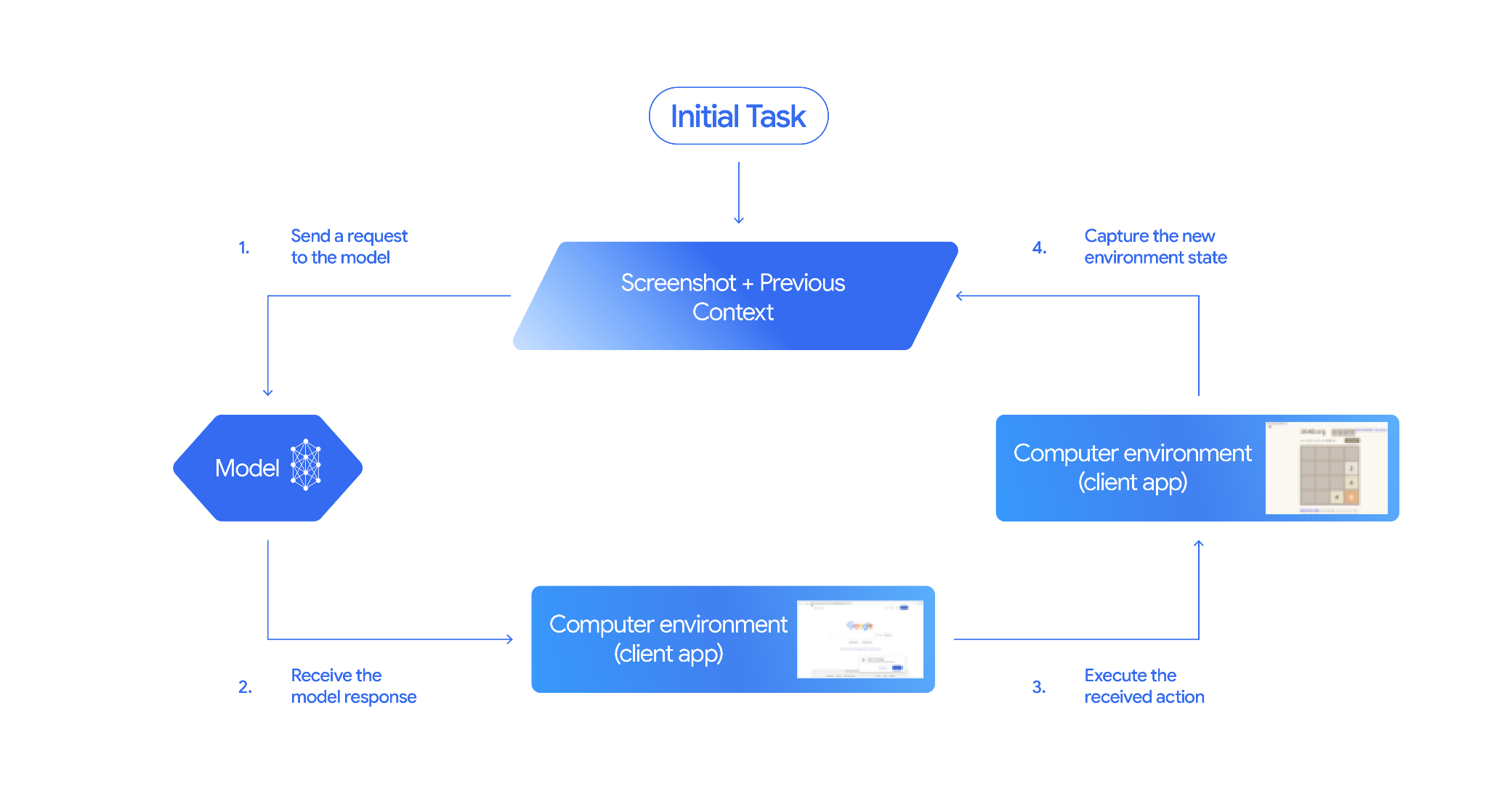
Jak wdrożyć korzystanie z komputera
Zanim zaczniesz tworzyć za pomocą narzędzia do obsługi komputera, musisz skonfigurować:
- Bezpieczne środowisko wykonawcze: uruchamiaj agenta w piaskownicy w maszynie wirtualnej lub kontenerze, aby odizolować go od systemu hosta i ograniczyć jego potencjalny wpływ. Implementacja referencyjna zawiera gotową do użycia piaskownicę opartą na Dockerze, której możesz użyć jako punktu wyjścia.
- Moduł obsługi działań po stronie klienta: wdróż logikę po stronie klienta, aby wykonywać współrzędne, wpisywać tekst i robić zrzuty ekranu.
W przykładach poniżej jako środowisko wykonawcze używana jest przeglądarka, a jako moduł obsługi po stronie klienta – Playwright.
0. Konfigurowanie Playwright
Najpierw zainstaluj wymagane pakiety:
pip install google-genai playwright
playwright install chromium
Następnie zainicjuj instancję przeglądarki Playwright, która będzie używana do wykonywania:
from playwright.sync_api import sync_playwright

# 1. Configure screen dimensions for the target environment
SCREEN_WIDTH = 1440
SCREEN_HEIGHT = 900

# 2. Start the Playwright browser
# In production, utilize a sandboxed environment.
playwright = sync_playwright().start()
# Set headless=False to see the actions performed on your screen
browser = playwright.chromium.launch(headless=False)

# 3. Create a context and page with the specified dimensions
context = browser.new_context(
    viewport={"width": SCREEN_WIDTH, "height": SCREEN_HEIGHT}
)
page = context.new_page()

# 4. Navigate to an initial page to start the task
page.goto("https://www.google.com")

# The 'page', 'SCREEN_WIDTH', and 'SCREEN_HEIGHT' variables
# will be used in the steps below.
1. Wysyłanie żądania do modelu
Zainicjuj bibliotekę klienta i skonfiguruj narzędzie Computer Use. Pamiętaj, że podczas wysyłania żądania nie musisz określać rozmiaru wyświetlacza. Model przewiduje współrzędne pikseli przeskalowane do wysokości i szerokości ekranu.
Python
Użyj pakietu SDK google-genai dla Pythona (w wersji 2.7.0 lub nowszej), aby skonfigurować żądanie kierowane na środowisko przeglądarki:
from google import genai

client = genai.Client()

interaction = client.interactions.create(
    model='gemini-3.8-flash',
    input="Find a flight from SF to Hawaii on Jun 30th, coming back on Jul 6th",
    tools=[
        {
            "type": "computer_use",
            "environment": "browser",
            "enable_prompt_injection_detection": True
        }
    ]
)

print(interaction)
JavaScript
Użyj pakietu SDK @google/genai Node.js, aby skonfigurować żądanie kierowane na środowisko przeglądarki:
import { GoogleGenAI } from '@google/genai';

const ai = new GoogleGenAI();

const interaction = await ai.interactions.create({
  model: 'gemini-3.8-flash',
  input: "Find a flight from SF to Hawaii on Jun 30th, coming back on Jul 6th",
  tools: [
    {
      type: "computer_use",
      environment: "browser",
      enable_prompt_injection_detection: true
    }
  ]
});

console.log(interaction);
Java
import com.google.genai.Client;
import com.google.genai.gaos.models.interactions.ComputerUse;
import com.google.genai.gaos.models.interactions.CreateModelInteraction;
import com.google.genai.gaos.models.interactions.EnvironmentEnum;
import com.google.genai.gaos.models.interactions.Interaction;
import com.google.genai.gaos.models.interactions.InteractionsInput;
import com.google.genai.gaos.models.operations.CreateInteractionRequestBody;
import java.util.Arrays;

Client client = new Client();

CreateModelInteraction params =
    CreateModelInteraction.builder()
        .model("gemini-3.8-flash")
        .input(
            InteractionsInput.of(
                "Find a flight from SF to Hawaii on Jun 30th, coming back on Jul 6th"))
        .tools(
            Arrays.asList(
                ComputerUse.builder()
                    .environment(EnvironmentEnum.BROWSER)
                    .enablePromptInjectionDetection(true)
                    .build()))
        .build();

Interaction interaction =
    client.interactions.create(CreateInteractionRequestBody.of(params)).interaction().get();

System.out.println(interaction);
Go
package main

import (
    "context"
    "fmt"
    "log"

    "google.golang.org/genai"
    "google.golang.org/genai/interactions/models/interactions"
    "google.golang.org/genai/interactions/models/operations"
)

func main() {
    ctx := context.Background()
    client, err := genai.NewClient(ctx, nil)
    if err != nil {
        log.Fatal(err)
    }

    res, err := client.Interactions.Create(ctx, operations.CreateInteractionRequest{
        Body: operations.NewCreateInteractionRequestBody(interactions.CreateModelInteraction{
            Model: interactions.Model("gemini-3.8-flash"),
            Input: interactions.NewInteractionsInput("Find a flight from SF to Hawaii on Jun 30th, coming back on Jul 6th"),
            Tools: []interactions.Tool{
                interactions.NewTool(interactions.ComputerUse{
                    Environment:                    interactions.EnvironmentEnumBrowser.ToPointer(),
                    EnablePromptInjectionDetection: genai.Ptr(true),
                }),
            },
        }),
    })
    if err != nil {
        log.Fatal(err)
    }

    fmt.Println(res.Interaction)
}
REST
Aby wysłać żądanie, użyj polecenia curl:
curl -X POST \
  "https://generativelanguage.googleapis.com/v1beta/interactions" \
  -H "x-goog-api-key: $GEMINI_API_KEY" \
  -H "Content-Type: application/json" \
  -d '{
    "model": "gemini-3.8-flash",
    "input": "Find me a flight from SF to Hawaii on Jun 30th, coming back on Jul 6th. Start by navigating directly to flights.google.com",
    "tools": [
      {
        "type": "computer_use",
        "environment": "browser",
        "enable_prompt_injection_detection": true
      }
    ]
  }'
2. Otrzymywanie odpowiedzi modelu
Odpowiedź modelu sugeruje wywołanie funkcji zawierające współrzędne i dostosowany zamiar rozumowania wyjaśniający działanie:
{
  "steps": [
    {
      "type": "function_call",
      "name": "click",
      "arguments": {
        "x": 450,
        "y": 120,
        "intent": "Click the search box to type the destination."
      }
    }
  ]
}
3. wykonywanie otrzymanych działań,
Aplikacja musi przeanalizować współrzędne odpowiedzi, przeskalować je ze znormalizowanych współrzędnych 1000 x 1000 i wykonać działanie:
Python
from typing import Any, List, Tuple
import time

def denormalize_x(x: int, screen_width: int) -> int:
    """Convert normalized x coordinate (0-1000) to actual pixel coordinate."""
    return int(x / 1000 * screen_width)

def denormalize_y(y: int, screen_height: int) -> int:
    """Convert normalized y coordinate (0-1000) to actual pixel coordinate."""
    return int(y / 1000 * screen_height)

def execute_function_calls(interaction, page, screen_width, screen_height):
    results = []
    function_calls = [
        step for step in interaction.steps if step.type == "function_call"
    ]

    for function_call in function_calls:
        action_result = {}
        fname = function_call.name
        args = function_call.arguments
        print(f"  -> Executing: {fname} (Intent: {args.get('intent', 'N/A')})")

        try:
            if fname == "open_app":
                pass # Handled / already open
            elif fname in ("click", "double_click", "triple_click", "middle_click", "right_click", "move", "long_press"):
                actual_x = denormalize_x(args["x"], screen_width)
                actual_y = denormalize_y(args["y"], screen_height)

                if fname == "click":
                    page.mouse.click(actual_x, actual_y)
                elif fname == "double_click":
                    page.mouse.dblclick(actual_x, actual_y)
                elif fname == "right_click":
                    page.mouse.click(actual_x, actual_y, button="right")
                elif fname == "middle_click":
                    page.mouse.click(actual_x, actual_y, button="middle")
                elif fname == "move":
                    page.mouse.move(actual_x, actual_y)
            elif fname == "type":
                actual_x = denormalize_x(args["x"], screen_width) if "x" in args else None
                actual_y = denormalize_y(args["y"], screen_height) if "y" in args else None
                text = args["text"]
                press_enter = args.get("press_enter", False)

                if actual_x is not None and actual_y is not None:
                    page.mouse.click(actual_x, actual_y)
                # Clear field first
                page.keyboard.press("Meta+A")
                page.keyboard.press("Backspace")
                page.keyboard.type(text)
                if press_enter:
                    page.keyboard.press("Enter")
            elif fname == "navigate":
                page.goto(args["url"])
            elif fname == "go_back":
                page.go_back()
            elif fname == "go_forward":
                page.go_forward()
            elif fname == "wait":
                time.sleep(args.get("seconds", 1))
            else:
                print(f"Warning: Custom or unhandled function {fname}")

            page.wait_for_load_state(timeout=5000)
            time.sleep(1)

        except Exception as e:
            print(f"Error executing {fname}: {e}")
            action_result = {"error": str(e)}

        results.append((fname, function_call.id, action_result))

    return results
JavaScript
function denormalizeX(x, screenWidth) {
    // Convert normalized x coordinate (0-1000) to actual pixel coordinate.
    return Math.floor((x / 1000) * screenWidth);
}

function denormalizeY(y, screenHeight) {
    // Convert normalized y coordinate (0-1000) to actual pixel coordinate.
    return Math.floor((y / 1000) * screenHeight);
}

async function executeFunctionCalls(interaction, page, screenWidth, screenHeight) {
    const results = [];
    const functionCalls = interaction.steps.filter(step => step.type === "function_call");

    for (const functionCall of functionCalls) {
        const actionResult = {};
        const fname = functionCall.name;
        const args = functionCall.arguments;
        console.log(`  -> Executing: ${fname} (Intent: ${args.intent || 'N/A'})`);

        try {
            if (fname === "open_app") {
                // Handled / already open
            } else if (["click", "double_click", "triple_click", "middle_click", "right_click", "move", "long_press"].includes(fname)) {
                const actualX = denormalizeX(args.x, screenWidth);
                const actualY = denormalizeY(args.y, screenHeight);

                if (fname === "click") {
                    await page.mouse.click(actualX, actualY);
                } else if (fname === "double_click") {
                    await page.mouse.dblclick(actualX, actualY);
                } else if (fname === "right_click") {
                    await page.mouse.click(actualX, actualY, { button: "right" });
                } else if (fname === "middle_click") {
                    await page.mouse.click(actualX, actualY, { button: "middle" });
                } else if (fname === "move") {
                    await page.mouse.move(actualX, actualY);
                }
            } else if (fname === "type") {
                const actualX = args.x !== undefined ? denormalizeX(args.x, screenWidth) : null;
                const actualY = args.y !== undefined ? denormalizeY(args.y, screenHeight) : null;
                const text = args.text;
                const pressEnter = args.press_enter || false;

                if (actualX !== null && actualY !== null) {
                    await page.mouse.click(actualX, actualY);
                }
                // Clear field first
                await page.keyboard.press("Meta+A");
                await page.keyboard.press("Backspace");
                await page.keyboard.type(text);
                if (pressEnter) {
                    await page.keyboard.press("Enter");
                }
            } else if (fname === "navigate") {
                await page.goto(args.url);
            } else if (fname === "go_back") {
                await page.goBack();
            } else if (fname === "go_forward") {
                await page.goForward();
            } else if (fname === "wait") {
                await new Promise(resolve => setTimeout(resolve, (args.seconds || 1) * 1000));
            } else {
                console.log(`Warning: Custom or unhandled function ${fname}`);
            }

            await page.waitForLoadState('load', { timeout: 5000 }).catch(() => {});
            await new Promise(resolve => setTimeout(resolve, 1000));
        } catch (e) {
            console.log(`Error executing ${fname}: ${e}`);
            actionResult.error = e.message;
        }

        results.push([fname, functionCall.id, actionResult]);
    }

    return results;
}
Java
import com.google.genai.gaos.models.interactions.FunctionCallStep;
import com.google.genai.gaos.models.interactions.Interaction;
import com.google.genai.gaos.models.interactions.Step;
import java.util.ArrayList;
import java.util.Collections;
import java.util.HashMap;
import java.util.List;
import java.util.Map;

class ActionExecutor {
  int denormalizeX(int x, int screenWidth) {
    return (int) (x / 1000.0 * screenWidth);
  }

  int denormalizeY(int y, int screenHeight) {
    return (int) (y / 1000.0 * screenHeight);
  }

  List<Map<String, Object>> executeFunctionCalls(
      Interaction interaction, int screenWidth, int screenHeight) {
    List<Map<String, Object>> results = new ArrayList<>();

    for (Step step : interaction.steps().orElse(Collections.emptyList())) {
      if (step instanceof FunctionCallStep) {
        FunctionCallStep functionCall = (FunctionCallStep) step;
        String fname = functionCall.name().orElse("");
        Map<String, Object> args = functionCall.arguments().orElse(Collections.emptyMap());
        Map<String, Object> actionResult = new HashMap<>();

        System.out.println(
            "  -> Executing: " + fname + " (Intent: " + args.getOrDefault("intent", "N/A") + ")");

        try {
          if (fname.equals("click")) {
            int actualX = denormalizeX(((Number) args.get("x")).intValue(), screenWidth);
            int actualY = denormalizeY(((Number) args.get("y")).intValue(), screenHeight);
            // Perform mouse click at (actualX, actualY) using your browser automation library
          } else if (fname.equals("type")) {
            String text = (String) args.get("text");
            // Type text into active element using your browser automation library
          } else if (fname.equals("navigate")) {
            String url = (String) args.get("url");
            // Navigate browser to url
          }
        } catch (Exception e) {
          actionResult.put("error", e.getMessage());
        }

        Map<String, Object> entry = new HashMap<>();
        entry.put("name", fname);
        entry.put("callId", functionCall.id().orElse(""));
        entry.put("result", actionResult);
        results.add(entry);
      }
    }
    return results;
  }
}
Go
package main

import (
    "fmt"

    "google.golang.org/genai/interactions/models/interactions"
)

func denormalizeX(x, screenWidth int) int {
    return int(float64(x) / 1000.0 * float64(screenWidth))
}

func denormalizeY(y, screenHeight int) int {
    return int(float64(y) / 1000.0 * float64(screenHeight))
}

func executeFunctionCalls(interaction *interactions.Interaction, screenWidth, screenHeight int) []map[string]any {
    var results []map[string]any

    for _, step := range interaction.Steps {
        if functionCall := step.FunctionCallStep; functionCall != nil {
            fname := functionCall.Name
            args := functionCall.Arguments
            actionResult := map[string]any{}

            intent := args["intent"]
            if intent == nil {
                intent = "N/A"
            }
            fmt.Printf("  -> Executing: %s (Intent: %v)\n", fname, intent)

            switch fname {
            case "click":
                xVal, _ := args["x"].(float64)
                yVal, _ := args["y"].(float64)
                actualX := denormalizeX(int(xVal), screenWidth)
                actualY := denormalizeY(int(yVal), screenHeight)
                _ = actualX
                _ = actualY
                // Perform mouse click at (actualX, actualY) using your browser automation library
            case "type":
                text, _ := args["text"].(string)
                _ = text
                // Type text into active element using your browser automation library
            case "navigate":
                url, _ := args["url"].(string)
                _ = url
                // Navigate browser to url
            }

            results = append(results, map[string]any{
                "name":   fname,
                "callId": functionCall.ID,
                "result": actionResult,
            })
        }
    }
    return results
}

func main() {
    // Example helper usage with an Interaction response
}
4. Przechwytywanie nowego stanu środowiska
Po wykonaniu działań wyślij wynik wykonania funkcji z powrotem do modelu, aby mógł on wykorzystać te informacje do wygenerowania następnego działania. Jeśli wykonano kilka działań (równoległych wywołań), w kolejnej turze użytkownika musisz wysłać function_result dla każdego z nich.
Python
import json
import base64

def get_function_responses(page, results):
    screenshot_bytes = page.screenshot(type="png")
    current_url = page.url
    function_responses = []
    for name, call_id, result in results:
        function_responses.append({
            "type": "function_result",
            "name": name,
            "call_id": call_id,
            "result": [
                {
                    "type": "text",
                    "text": json.dumps({"url": current_url, **result})
                },
                {
                    "type": "image",
                    "data": base64.b64encode(screenshot_bytes).decode("utf-8"),
                    "mime_type": "image/png"
                }
            ]
        })
    return function_responses
JavaScript
async function getFunctionResponses(page, results) {
    const screenshotBuffer = await page.screenshot({ type: 'png' });
    const screenshotBase64 = screenshotBuffer.toString('base64');
    const currentUrl = page.url();
    const functionResponses = [];

    for (const [name, callId, result] of results) {
        functionResponses.push({
            type: "function_result",
            name: name,
            call_id: callId,
            result: [
                {
                    type: "text",
                    text: JSON.stringify({ url: currentUrl, ...result })
                },
                {
                    type: "image",
                    data: screenshotBase64,
                    mime_type: "image/png"
                }
            ]
        });
    }
    return functionResponses;
}
Java
import com.google.genai.gaos.models.interactions.FunctionResultStep;
import com.google.genai.gaos.models.interactions.FunctionResultStepResultUnion;
import com.google.genai.gaos.models.interactions.ImageContent;
import com.google.genai.gaos.models.interactions.ImageContentMimeType;
import com.google.genai.gaos.models.interactions.Step;
import com.google.genai.gaos.models.interactions.TextContent;
import java.util.ArrayList;
import java.util.Arrays;
import java.util.Base64;
import java.util.List;
import java.util.Map;

class StateCapturer {
  List<Step> getFunctionResponses(
      byte[] screenshotBytes, String currentUrl, List<Map<String, Object>> results) {
    List<Step> functionResponses = new ArrayList<>();
    String base64Screenshot = Base64.getEncoder().encodeToString(screenshotBytes);

    for (Map<String, Object> entry : results) {
      String name = (String) entry.get("name");
      String callId = (String) entry.get("callId");
      String jsonResult = String.format("{\"url\": \"%s\"}", currentUrl);

      FunctionResultStep responseStep =
          FunctionResultStep.builder()
              .name(name)
              .callId(callId)
              .result(
                  FunctionResultStepResultUnion.of(
                      Arrays.asList(
                          TextContent.builder().text(jsonResult).build(),
                          ImageContent.builder()
                              .data(base64Screenshot)
                              .mimeType(ImageContentMimeType.IMAGE_PNG)
                              .build())))
              .build();
      functionResponses.add(responseStep);
    }
    return functionResponses;
  }
}
Go
package main

import (
    "encoding/base64"
    "fmt"

    "google.golang.org/genai"
    "google.golang.org/genai/interactions/models/interactions"
)

func getFunctionResponses(screenshotBytes []byte, currentURL string, results []map[string]any) []interactions.Step {
    var functionResponses []interactions.Step
    base64Screenshot := base64.StdEncoding.EncodeToString(screenshotBytes)

    for _, entry := range results {
        name, _ := entry["name"].(string)
        callID, _ := entry["callId"].(string)
        jsonResult := fmt.Sprintf(`{"url": "%s"}`, currentURL)

        responseStep := interactions.NewStep(interactions.FunctionResultStep{
            Name:   genai.Ptr(name),
            CallID: callID,
            Result: interactions.NewFunctionResultStepResultUnion([]interactions.FunctionResultSubcontent{
                interactions.NewFunctionResultSubcontent(interactions.TextContent{
                    Text: jsonResult,
                }),
                interactions.NewFunctionResultSubcontent(interactions.ImageContent{
                    Data:     genai.Ptr(base64Screenshot),
                    MimeType: interactions.ImageContentMimeType("image/png").ToPointer(),
                }),
            }),
        })
        functionResponses = append(functionResponses, responseStep)
    }
    return functionResponses
}

func main() {
    // Example helper usage to build FunctionResultStep responses
}
Po zdefiniowaniu sposobu rejestrowania i formatowania stanu środowiska możesz połączyć wszystkie te kroki w ciągłą pętlę wykonywania.
Tworzenie pętli agenta
Aby włączyć interakcje wieloetapowe, połącz 4 kroki z sekcji Jak wdrożyć korzystanie z komputera w jedną pętlę. Ta pętla będzie żądać działań i przekazywać wyniki z powrotem do modelu, dopóki zadanie nie zostanie ukończone.
Pamiętaj, aby prawidłowo zarządzać historią rozmów, dodając do niej na każdym etapie zarówno odpowiedzi modelu, jak i odpowiedzi funkcji.
Python
import time
from typing import Any, List, Tuple
from playwright.sync_api import sync_playwright

from google import genai

client = genai.Client()

# Constants for screen dimensions
SCREEN_WIDTH = 1440
SCREEN_HEIGHT = 900

# Setup Playwright
print("Initializing browser...")
playwright = sync_playwright().start()
browser = playwright.chromium.launch(headless=False)
context = browser.new_context(viewport={"width": SCREEN_WIDTH, "height": SCREEN_HEIGHT})
page = context.new_page()

# Define helper functions. Copy/paste from steps 3 and 4
# def denormalize_x(...)
# def denormalize_y(...)
# def execute_function_calls(...)
# def get_function_responses(...)

try:
    # Go to initial page
    page.goto("https://ai.google.dev/gemini-api/docs")

    # Take initial screenshot
    initial_screenshot = page.screenshot(type="png")
    USER_PROMPT = "Go to ai.google.dev/gemini-api/docs and search for pricing."
    print(f"Goal: {USER_PROMPT}")

    # First interaction
    interaction = client.interactions.create(
        model='gemini-3.8-flash',
        input=[
            {"type": "text", "text": USER_PROMPT},
            {"type": "image", "data": base64.b64encode(initial_screenshot).decode("utf-8"), "mime_type": "image/png"}
        ],
        tools=[{
            "type": "computer_use",
            "environment": "browser",
            "enable_prompt_injection_detection": True
        }]
    )

    # Agent Loop
    turn_limit = 5
    for i in range(turn_limit):
        print(f"\n--- Turn {i+1} ---")

        has_function_calls = any(
            step.type == "function_call"
            for step in interaction.steps
        )
        if not has_function_calls:
            text_response = " ".join([
                content_block.text for step in interaction.steps if step.type == "model_output"
                for content_block in step.content if content_block.type == "text"
            ])
            print("Agent finished:", text_response)
            break

        print("Executing actions...")
        results = execute_function_calls(interaction, page, SCREEN_WIDTH, SCREEN_HEIGHT)

        print("Capturing state...")
        function_responses = get_function_responses(page, results)

        # Continue conversation with function responses
        interaction = client.interactions.create(
            model='gemini-3.8-flash',
            previous_interaction_id=interaction.id,
            input=function_responses,
            tools=[{
                "type": "computer_use",
                "environment": "browser",
                "enable_prompt_injection_detection": True
            }]
        )

finally:
    # Cleanup
    print("\nClosing browser...")
    browser.close()
    playwright.stop()
JavaScript
import { chromium } from 'playwright';
import { GoogleGenAI } from '@google/genai';

const ai = new GoogleGenAI();

// Constants for screen dimensions
const SCREEN_WIDTH = 1440;
const SCREEN_HEIGHT = 900;

console.log("Initializing browser...");
const browser = await chromium.launch({ headless: false });
const context = await browser.newContext({
    viewport: { width: SCREEN_WIDTH, height: SCREEN_HEIGHT }
});
const page = await context.newPage();

// Define helper functions. Copy/paste from steps 3 and 4:
// function denormalizeX(...)
// function denormalizeY(...)
// async function executeFunctionCalls(...)
// async function getFunctionResponses(...)

try {
    // Go to initial page
    await page.goto("https://ai.google.dev/gemini-api/docs");

    // Take initial screenshot
    const initialScreenshotBuffer = await page.screenshot({ type: 'png' });
    const initialScreenshotBase64 = initialScreenshotBuffer.toString('base64');
    const USER_PROMPT = "Go to ai.google.dev/gemini-api/docs and search for pricing.";
    console.log(`Goal: ${USER_PROMPT}`);

    // First interaction
    let interaction = await ai.interactions.create({
        model: 'gemini-3.8-flash',
        input: [
            { type: 'text', text: USER_PROMPT },
            { type: 'image', data: initialScreenshotBase64, mime_type: 'image/png' }
        ],
        tools: [{
            type: 'computer_use',
            environment: 'browser',
            enable_prompt_injection_detection: true
        }]
    });

    // Agent Loop
    const turnLimit = 5;
    for (let i = 0; i < turnLimit; i++) {
        console.log(`\n--- Turn ${i + 1} ---`);

        const hasFunctionCalls = interaction.steps.some(step => step.type === "function_call");
        if (!hasFunctionCalls) {
            const textResponses = [];
            for (const step of interaction.steps) {
                if (step.type === "model_output") {
                    for (const contentBlock of step.content || []) {
                        if (contentBlock.type === "text") {
                            textResponses.push(contentBlock.text);
                        }
                    }
                }
            }
            console.log("Agent finished:", textResponses.join(" "));
            break;
        }

        console.log("Executing actions...");
        const results = await executeFunctionCalls(interaction, page, SCREEN_WIDTH, SCREEN_HEIGHT);

        console.log("Capturing state...");
        const functionResponses = await getFunctionResponses(page, results);

        // Continue conversation with function responses
        interaction = await ai.interactions.create({
            model: 'gemini-3.8-flash',
            previous_interaction_id: interaction.id,
            input: functionResponses,
            tools: [{
                type: 'computer_use',
                environment: 'browser',
                enable_prompt_injection_detection: true
            }]
        });
    }
} finally {
    // Cleanup
    console.log("\nClosing browser...");
    await browser.close();
}
Java
import com.google.genai.Client;
import com.google.genai.gaos.models.interactions.ComputerUse;
import com.google.genai.gaos.models.interactions.Content;
import com.google.genai.gaos.models.interactions.CreateModelInteraction;
import com.google.genai.gaos.models.interactions.EnvironmentEnum;
import com.google.genai.gaos.models.interactions.FunctionCallStep;
import com.google.genai.gaos.models.interactions.ImageContent;
import com.google.genai.gaos.models.interactions.ImageContentMimeType;
import com.google.genai.gaos.models.interactions.Interaction;
import com.google.genai.gaos.models.interactions.InteractionsInput;
import com.google.genai.gaos.models.interactions.ModelOutputStep;
import com.google.genai.gaos.models.interactions.Step;
import com.google.genai.gaos.models.interactions.TextContent;
import com.google.genai.gaos.models.operations.CreateInteractionRequestBody;
import java.util.ArrayList;
import java.util.Arrays;
import java.util.Base64;
import java.util.Collections;
import java.util.List;

Client client = new Client();

// Constants for screen dimensions
int screenWidth = 1440;
int screenHeight = 900;

// Capture initial screenshot from browser driver (e.g. Playwright)
byte[] initialScreenshot = new byte[0];
String base64Screenshot = Base64.getEncoder().encodeToString(initialScreenshot);
String userPrompt = "Go to ai.google.dev/gemini-api/docs and search for pricing.";
System.out.println("Goal: " + userPrompt);

ComputerUse computerUseTool =
    ComputerUse.builder()
        .environment(EnvironmentEnum.BROWSER)
        .enablePromptInjectionDetection(true)
        .build();

CreateModelInteraction initialParams =
    CreateModelInteraction.builder()
        .model("gemini-3.8-flash")
        .input(
            InteractionsInput.ofContent(
                Arrays.asList(
                    TextContent.builder().text(userPrompt).build(),
                    ImageContent.builder()
                        .data(base64Screenshot)
                        .mimeType(ImageContentMimeType.IMAGE_PNG)
                        .build())))
        .tools(Arrays.asList(computerUseTool))
        .build();

Interaction interaction =
    client.interactions.create(CreateInteractionRequestBody.of(initialParams)).interaction().get();

int turnLimit = 5;
for (int i = 0; i < turnLimit; i++) {
  System.out.println("\n--- Turn " + (i + 1) + " ---");

  boolean hasFunctionCalls =
      interaction.steps().orElse(Collections.emptyList()).stream()
          .anyMatch(step -> step instanceof FunctionCallStep);

  if (!hasFunctionCalls) {
    StringBuilder textResponse = new StringBuilder();
    for (Step step : interaction.steps().orElse(Collections.emptyList())) {
      if (step instanceof ModelOutputStep) {
        for (Content contentBlock :
            ((ModelOutputStep) step).content().orElse(Collections.emptyList())) {
          if (contentBlock instanceof TextContent) {
            textResponse.append(((TextContent) contentBlock).text().orElse("")).append(" ");
          }
        }
      }
    }
    System.out.println("Agent finished: " + textResponse.toString().trim());
    break;
  }

  System.out.println("Executing actions and capturing state...");
  // Execute function calls against browser driver and capture List<Step> functionResponses
  List<Step> functionResponses = new ArrayList<>();

  CreateModelInteraction nextParams =
      CreateModelInteraction.builder()
          .model("gemini-3.8-flash")
          .previousInteractionId(interaction.id().get())
          .input(InteractionsInput.ofStep(functionResponses))
          .tools(Arrays.asList(computerUseTool))
          .build();

  interaction =
      client.interactions.create(CreateInteractionRequestBody.of(nextParams)).interaction().get();
}
Go
package main

import (
    "context"
    "encoding/base64"
    "fmt"
    "log"
    "strings"

    "google.golang.org/genai"
    "google.golang.org/genai/interactions/models/interactions"
    "google.golang.org/genai/interactions/models/operations"
)

func main() {
    ctx := context.Background()
    client, err := genai.NewClient(ctx, nil)
    if err != nil {
        log.Fatal(err)
    }

    // Constants for screen dimensions
    screenWidth := 1440
    screenHeight := 900
    _ = screenWidth
    _ = screenHeight

    // Capture initial screenshot from browser driver (e.g. Playwright)
    initialScreenshot := []byte{}
    base64Screenshot := base64.StdEncoding.EncodeToString(initialScreenshot)
    userPrompt := "Go to ai.google.dev/gemini-api/docs and search for pricing."
    fmt.Println("Goal:", userPrompt)

    computerUseTool := interactions.NewTool(interactions.ComputerUse{
        Environment:                    interactions.EnvironmentEnumBrowser.ToPointer(),
        EnablePromptInjectionDetection: genai.Ptr(true),
    })

    res, err := client.Interactions.Create(ctx, operations.CreateInteractionRequest{
        Body: operations.NewCreateInteractionRequestBody(interactions.CreateModelInteraction{
            Model: interactions.Model("gemini-3.8-flash"),
            Input: interactions.NewInteractionsInput([]interactions.Content{
                interactions.NewContent(interactions.TextContent{Text: userPrompt}),
                interactions.NewContent(interactions.ImageContent{
                    Data:     genai.Ptr(base64Screenshot),
                    MimeType: interactions.ImageContentMimeType("image/png").ToPointer(),
                }),
            }),
            Tools: []interactions.Tool{computerUseTool},
        }),
    })
    if err != nil {
        log.Fatal(err)
    }
    interaction := res.Interaction

    turnLimit := 5
    for i := 0; i < turnLimit; i++ {
        fmt.Printf("\n--- Turn %d ---\n", i+1)

        hasFunctionCalls := false
        for _, step := range interaction.Steps {
            if step.FunctionCallStep != nil {
                hasFunctionCalls = true
                break
            }
        }

        if !hasFunctionCalls {
            var parts []string
            for _, step := range interaction.Steps {
                if outStep := step.ModelOutputStep; outStep != nil {
                    for _, contentBlock := range outStep.Content {
                        if textContent := contentBlock.TextContent; textContent != nil {
                            parts = append(parts, textContent.GetText())
                        }
                    }
                }
            }
            fmt.Println("Agent finished:", strings.TrimSpace(strings.Join(parts, " ")))
            break
        }

        fmt.Println("Executing actions and capturing state...")
        // Execute function calls against browser driver and capture []interactions.Step functionResponses
        var functionResponses []interactions.Step

        nextRes, err := client.Interactions.Create(ctx, operations.CreateInteractionRequest{
            Body: operations.NewCreateInteractionRequestBody(interactions.CreateModelInteraction{
                Model:                 interactions.Model("gemini-3.8-flash"),
                PreviousInteractionID: interaction.ID,
                Input:                 interactions.NewInteractionsInput(functionResponses),
                Tools:                 []interactions.Tool{computerUseTool},
            }),
        })
        if err != nil {
            log.Fatal(err)
        }
        interaction = nextRes.Interaction
    }
}
Obsługiwane środowiska
Modele Gemini 3.x obsługują 3 środowiska określone w konfiguracjach computer_use:
Środowisko przeglądarki (ENVIRONMENT_BROWSER)
Dostępne działania w narzędziu przeglądarki:
| Nazwa polecenia | Opis | Argumenty (w wywołaniu funkcji) |
|---|---|---|
| click | Kliknięcie lewym przyciskiem myszy we współrzędnej. | y: int (0–999)x: int (0–999)intent: str |
| double_click | Dwukrotne kliknięcie współrzędnych. | y: int (0–999)x: int (0–999)intent: str |
| triple_click | Trzykrotne kliknięcie we współrzędnych. | y: int (0–999)x: int (0–999)intent: str |
| middle_click | Kliknięcie środkowym przyciskiem we współrzędnej. | y: int (0–999)x: int (0–999)intent: str |
| right_click | Kliknięcie prawym przyciskiem myszy we współrzędnej. | y: int (0–999)x: int (0–999)intent: str |
| mouse_down | Naciśnięcie i przytrzymanie przycisku myszy na współrzędnej. | y: int (0–999)x: int (0–999)intent: str |
| mouse_up | Zwalnia przycisk myszy we współrzędnej. | y: int (0–999)x: int (0–999)intent: str |
| move | Przenosi kursor w określone miejsce. | y: int (0–999)x: int (0–999)intent: str |
| type | Wpisuje tekst. | text: strpress_enter: bool (opcjonalny, domyślnie false)intent: str |
| drag_and_drop | Przeciąga element ze współrzędnej początkowej do współrzędnej końcowej. | start_y: int (0–999)start_x: int (0–999)end_y: int (0–999)end_x: int (0–999)intent: str |
| wait | Wstrzymuje wykonywanie na określoną liczbę sekund. | seconds: int (opcjonalny, domyślnie 1)intent: str |
| press_key | Naciśnięcie i zwolnienie określonego klawisza. | key: strintent: str |
| key_down | Naciśnięcie i przytrzymanie określonego klawisza. | key: strintent: str |
| key_up | Zwalnia określony klawisz. | key: strintent: str |
| skrót klawiszowy | Naciśnięcie określonej kombinacji klawiszy. | keys: List[str]intent: str |
| take_screenshot | Zwraca zrzut bieżącego ekranu. | intent: str |
| scroll | Przewija w górę, w dół, w lewo lub w prawo we współrzędnej o odległość w pikselach. | y: int (0–999)x: int (0–999)direction: str ("up", "down", "left", "right")magnitude_in_pixels: int (0–999, opcjonalnie, domyślnie 300)intent: str |
| go_back | Powoduje powrót do poprzedniej strony internetowej w historii przeglądarki. | intent: str |
| navigate | Przechodzi bezpośrednio do określonego adresu URL. | url: strintent: str |
| go_forward | Przechodzi do następnej strony internetowej w historii przeglądarki. | intent: str |
Środowisko mobilne (ENVIRONMENT_MOBILE)
Działania w środowisku zoptymalizowanym pod kątem Androida:
| Nazwa polecenia | Opis | Argumenty (w wywołaniu funkcji) |
|---|---|---|
| open_app | Otwiera aplikację według nazwy. | app_name: strintent: str |
| kliknięcie | Kliknięcie lewym przyciskiem myszy we współrzędnej. | y: int (0–999)x: int (0–999)intent: str |
| list_apps | Przechowuje listę aplikacji dostępnych na urządzeniu, zwracając ich nazwy i nazwy pakietów. | intent: str |
| wait | Wstrzymuje wykonywanie na określoną liczbę sekund. | seconds: int (opcjonalny, domyślnie 1)intent: str |
| go_back | Powrót do poprzedniego ekranu lub strony internetowej. | intent: str |
| type | Wpisuje tekst. | text: strpress_enter: bool (opcjonalny, domyślnie false)intent: str |
| drag_and_drop | Przeciąga element ze współrzędnej początkowej do współrzędnej końcowej. | start_y: int (0–999)start_x: int (0–999)end_y: int (0–999)end_x: int (0–999)intent: str |
| long_press | Wykonuje długie naciśnięcie w określonym miejscu na ekranie. | y: int (0–999)x: int (0–999)seconds: int (opcjonalnie, domyślnie 2)intent: str |
| press_key | Naciśnięcie i zwolnienie określonego klawisza. | key: strintent: str |
| take_screenshot | Zwraca zrzut bieżącego ekranu. | intent: str |
Środowisko graficzne (ENVIRONMENT_DESKTOP)
Polecenia kursora na poziomie systemu operacyjnego w środowiskach graficznych:
| Nazwa polecenia | Opis | Argumenty (w wywołaniu funkcji) |
|---|---|---|
| click | Kliknięcie lewym przyciskiem myszy we współrzędnej. | y: int (0–999)x: int (0–999)intent: str |
| double_click | Dwukrotne kliknięcie współrzędnych. | y: int (0–999)x: int (0–999)intent: str |
| triple_click | Trzykrotne kliknięcie we współrzędnych. | y: int (0–999)x: int (0–999)intent: str |
| middle_click | Kliknięcie środkowym przyciskiem we współrzędnej. | y: int (0–999)x: int (0–999)intent: str |
| right_click | Kliknięcie prawym przyciskiem myszy we współrzędnej. | y: int (0–999)x: int (0–999)intent: str |
| mouse_down | Naciśnięcie i przytrzymanie przycisku myszy na współrzędnej. | y: int (0–999)x: int (0–999)intent: str |
| mouse_up | Zwalnia przycisk myszy we współrzędnej. | y: int (0–999)x: int (0–999)intent: str |
| move | Przenosi kursor w określone miejsce. | y: int (0–999)x: int (0–999)intent: str |
| type | Wpisuje tekst. | text: strpress_enter: bool (opcjonalny, domyślnie false)intent: str |
| drag_and_drop | Przeciąga element ze współrzędnej początkowej do współrzędnej końcowej. | start_y: int (0–999)start_x: int (0–999)end_y: int (0–999)end_x: int (0–999)intent: str |
| wait | Wstrzymuje wykonywanie na określoną liczbę sekund. | seconds: int (opcjonalny, domyślnie 1)intent: str |
| press_key | Naciśnięcie i zwolnienie określonego klawisza. | key: strintent: str |
| key_down | Naciśnięcie i przytrzymanie określonego klawisza. | key: strintent: str |
| key_up | Zwalnia określony klawisz. | key: strintent: str |
| skrót klawiszowy | Naciśnięcie określonej kombinacji klawiszy. | keys: List[str]intent: str |
| take_screenshot | Zwraca zrzut bieżącego ekranu. | intent: str |
| scroll | Przewija w górę, w dół, w lewo lub w prawo we współrzędnej o odległość w pikselach. | y: int (0–999)x: int (0–999)direction: str ("up", "down", "left", "right")magnitude_in_pixels: int (0–999, opcjonalnie, domyślnie 300)intent: str |
Niestandardowe funkcje zdefiniowane przez użytkownika
Możesz rozszerzyć funkcjonalność modelu, dodając niestandardowe funkcje zdefiniowane przez użytkownika. Na przykład w scenariuszach z udziałem człowieka (HITL) możesz wykluczyć domyślne, wstępnie zdefiniowane działania i zarejestrować działania niestandardowe.
Python
Wyklucz standardowe, wstępnie zdefiniowane działania przeglądarki (takie jak click) i zarejestruj niestandardowe narzędzie yield_to_user:
from google import genai

client = genai.Client()

yield_to_user_tool = {
    "type": "function",
    "name": "yield_to_user",
    "description": "Yields control back to the user for assistance or verification when an automated action is unsafe or ambiguous.",
    "parameters": {
        "type": "object",
        "properties": {
            "reason": {
                "type": "string",
                "description": "The reason why the agent is yielding control to the human."
            }
        },
        "required": ["reason"]
    }
}

interaction = client.interactions.create(
    model="gemini-3.8-flash",
    input="Click the submit button. If you need a second factor authentication code, ask me.",
    tools=[
        {
            "type": "computer_use",
            "environment": "mobile",
            "excluded_predefined_functions": ["click"]
        },
        yield_to_user_tool
    ]
)
JavaScript
Wyklucz standardowe, wstępnie zdefiniowane działania przeglądarki (takie jak click) i zarejestruj niestandardowe narzędzie yield_to_user:
import { GoogleGenAI } from '@google/genai';

const ai = new GoogleGenAI();

const yieldToUserTool = {
    type: "function",
    name: "yield_to_user",
    description: "Yields control back to the user for assistance or verification when an automated action is unsafe or ambiguous.",
    parameters: {
        type: "object",
        properties: {
            reason: {
                type: "string",
                description: "The reason why the agent is yielding control to the human."
            }
        },
        required: ["reason"]
    }
};

const interaction = await ai.interactions.create({
    model: "gemini-3.8-flash",
    input: "Click the submit button. If you need a second factor authentication code, ask me.",
    tools: [
        {
            type: "computer_use",
            environment: "mobile",
            excluded_predefined_functions: ["click"]
        },
        yieldToUserTool
    ]
});
Java
import com.google.genai.Client;
import com.google.genai.gaos.models.interactions.ComputerUse;
import com.google.genai.gaos.models.interactions.CreateModelInteraction;
import com.google.genai.gaos.models.interactions.EnvironmentEnum;
import com.google.genai.gaos.models.interactions.Function;
import com.google.genai.gaos.models.interactions.Interaction;
import com.google.genai.gaos.models.interactions.InteractionsInput;
import com.google.genai.gaos.models.operations.CreateInteractionRequestBody;
import java.util.Arrays;
import java.util.Collections;
import java.util.HashMap;
import java.util.Map;

Client client = new Client();

Map<String, Object> reasonProp = new HashMap<>();
reasonProp.put("type", "string");
reasonProp.put("description", "The reason why the agent is yielding control to the human.");

Map<String, Object> properties = new HashMap<>();
properties.put("reason", reasonProp);

Map<String, Object> parameters = new HashMap<>();
parameters.put("type", "object");
parameters.put("properties", properties);
parameters.put("required", Collections.singletonList("reason"));

Function yieldToUserTool =
    Function.builder()
        .name("yield_to_user")
        .description(
            "Yields control back to the user for assistance or verification when an automated action is unsafe or ambiguous.")
        .parameters(parameters)
        .build();

CreateModelInteraction params =
    CreateModelInteraction.builder()
        .model("gemini-3.8-flash")
        .input(
            InteractionsInput.of(
                "Click the submit button. If you need a second factor authentication code, ask me."))
        .tools(
            Arrays.asList(
                ComputerUse.builder()
                    .environment(EnvironmentEnum.MOBILE)
                    .excludedPredefinedFunctions(Arrays.asList("click"))
                    .build(),
                yieldToUserTool))
        .build();

Interaction interaction =
    client.interactions.create(CreateInteractionRequestBody.of(params)).interaction().get();
Go
package main

import (
    "context"
    "log"

    "google.golang.org/genai"
    "google.golang.org/genai/interactions/models/interactions"
    "google.golang.org/genai/interactions/models/operations"
)

func main() {
    ctx := context.Background()
    client, err := genai.NewClient(ctx, nil)
    if err != nil {
        log.Fatal(err)
    }

    yieldToUserTool := interactions.NewTool(interactions.Function{
        Name:        genai.Ptr("yield_to_user"),
        Description: genai.Ptr("Yields control back to the user for assistance or verification when an automated action is unsafe or ambiguous."),
        Parameters: map[string]any{
            "type": "object",
            "properties": map[string]any{
                "reason": map[string]any{
                    "type":        "string",
                    "description": "The reason why the agent is yielding control to the human.",
                },
            },
            "required": []string{"reason"},
        },
    })

    _, err = client.Interactions.Create(ctx, operations.CreateInteractionRequest{
        Body: operations.NewCreateInteractionRequestBody(interactions.CreateModelInteraction{
            Model: interactions.Model("gemini-3.8-flash"),
            Input: interactions.NewInteractionsInput("Click the submit button. If you need a second factor authentication code, ask me."),
            Tools: []interactions.Tool{
                interactions.NewTool(interactions.ComputerUse{
                    Environment:                 interactions.EnvironmentEnumMobile.ToPointer(),
                    ExcludedPredefinedFunctions: []string{"click"},
                }),
                yieldToUserTool,
            },
        }),
    })
    if err != nil {
        log.Fatal(err)
    }
}
Zarządzanie poziomami myślenia
W przypadku agentów obsługi komputera możesz skonfigurować różne poziomy rozumowania, aby zachować równowagę między jakością działania a szybkością wykonywania. Niższe poziomy myślenia zazwyczaj zapewniają dobrą równowagę w przypadku standardowych zadań automatyzacji.
Bezpieczeństwo
Konfigurowanie zasad bezpieczeństwa
Modele Gemini w wersji 3.x zawierają wbudowane kategorie usług związane z bezpieczeństwem, które pomagają określić, czy wymagane jest potwierdzenie przez użytkownika.
| Kategoria zasad bezpieczeństwa | Opis |
|---|---|
FINANCIAL_TRANSACTIONS |
Blokuje lub wywołuje potwierdzenie działań związanych z płatnościami, kasą w sklepie lub towarami objętymi regulacjami. |
SENSITIVE_DATA_MODIFICATION |
chroni dokumentację medyczną, finansową lub urzędową przed nieuprawnionymi zmianami; |
COMMUNICATION_TOOL |
Uniemożliwia agentowi samodzielne wysyłanie e-maili, wiadomości na czacie i wersji roboczych. |
ACCOUNT_CREATION |
Uniemożliwia agentowi samodzielne rejestrowanie nowych kont w witrynach. |
DATA_MODIFICATION |
Reguluje ogólne modyfikacje systemu plików, udostępnianie danych i usuwanie pamięci. |
USER_CONSENT_MANAGEMENT |
Wymaga przejęcia kontroli nad ekranem użytkownika w przypadku banerów z prośbą o zgodę na stosowanie plików cookie i komunikatów dotyczących prywatności. |
LEGAL_TERMS_AND_AGREEMENTS |
Zapobiega samodzielnemu akceptowaniu przez model Warunków usługi lub prawnie wiążących umów. |
Zastąpienia ustawień bezpieczeństwa
Możesz zastąpić wybrane zasady, przekazując zastąpienia:
Python
from google import genai

client = genai.Client()

interaction = client.interactions.create(
    model="gemini-3.8-flash",
    input="Clean up the local folder by archiving old logs.",
    tools=[
        {
            "type": "computer_use",
            "environment": "desktop",
            "disabled_safety_policies": [
                "data_modification"
            ]
        }
    ]
)
JavaScript
import { GoogleGenAI } from '@google/genai';

const ai = new GoogleGenAI();

const interaction = await ai.interactions.create({
    model: "gemini-3.8-flash",
    input: "Clean up the local folder by archiving old logs.",
    tools: [
        {
            type: "computer_use",
            environment: "desktop",
            disabled_safety_policies: [
                "data_modification"
            ]
        }
    ]
});
Java
import com.google.genai.Client;
import com.google.genai.gaos.models.interactions.ComputerUse;
import com.google.genai.gaos.models.interactions.CreateModelInteraction;
import com.google.genai.gaos.models.interactions.DisabledSafetyPolicy;
import com.google.genai.gaos.models.interactions.EnvironmentEnum;
import com.google.genai.gaos.models.interactions.Interaction;
import com.google.genai.gaos.models.interactions.InteractionsInput;
import com.google.genai.gaos.models.operations.CreateInteractionRequestBody;
import java.util.Arrays;

Client client = new Client();

CreateModelInteraction params =
    CreateModelInteraction.builder()
        .model("gemini-3.8-flash")
        .input(InteractionsInput.of("Clean up the local folder by archiving old logs."))
        .tools(
            Arrays.asList(
                ComputerUse.builder()
                    .environment(EnvironmentEnum.DESKTOP)
                    .disabledSafetyPolicies(
                        Arrays.asList(DisabledSafetyPolicy.DATA_MODIFICATION))
                    .build()))
        .build();

Interaction interaction =
    client.interactions.create(CreateInteractionRequestBody.of(params)).interaction().get();
Go
package main

import (
    "context"
    "log"

    "google.golang.org/genai"
    "google.golang.org/genai/interactions/models/interactions"
    "google.golang.org/genai/interactions/models/operations"
)

func main() {
    ctx := context.Background()
    client, err := genai.NewClient(ctx, nil)
    if err != nil {
        log.Fatal(err)
    }

    _, err = client.Interactions.Create(ctx, operations.CreateInteractionRequest{
        Body: operations.NewCreateInteractionRequestBody(interactions.CreateModelInteraction{
            Model: interactions.Model("gemini-3.8-flash"),
            Input: interactions.NewInteractionsInput("Clean up the local folder by archiving old logs."),
            Tools: []interactions.Tool{
                interactions.NewTool(interactions.ComputerUse{
                    Environment: interactions.EnvironmentEnumDesktop.ToPointer(),
                    DisabledSafetyPolicies: []interactions.DisabledSafetyPolicy{
                        interactions.DisabledSafetyPolicyDataModification,
                    },
                }),
            },
        }),
    })
    if err != nil {
        log.Fatal(err)
    }
}
Wykrywanie wstrzykiwania promptów
Funkcja Computer Use w modelu Gemini 3.5 Flash-Lite lub nowszym obsługuje zaawansowany mechanizm bezpieczeństwa, który wykrywa ataki polegające na wstrzykiwaniu promptów. Gdy ta funkcja jest włączona, sprawdza, czy dołączony zrzut ekranu zawiera ukryte instrukcje (np. „Zignoruj poprzednie polecenia”) i blokuje ich wykonanie, jeśli je wykryje.
Wykrywanie wstrzykiwania promptów jest funkcją opcjonalną. Wartość domyślna to false.
Poniższe przykłady pokazują, jak włączyć wykrywanie wstrzykiwania promptów w konfiguracji narzędzia do obsługi komputera:
Python
from google import genai

client = genai.Client()

interaction = client.interactions.create(
    model="gemini-3.8-flash",
    input="Search for flight deals and summarize top results.",
    tools=[
        {
            "type": "computer_use",
            "environment": "desktop",
            "enable_prompt_injection_detection": True,
        }
    ],
)
JavaScript
import { GoogleGenAI } from '@google/genai';

const ai = new GoogleGenAI();

const interaction = await ai.interactions.create({
    model: "gemini-3.8-flash",
    input: "Search for flight deals and summarize top results.",
    tools: [
        {
            type: "computer_use",
            environment: "desktop",
            enablePromptInjectionDetection: true,
        }
    ]
});
Java
import com.google.genai.Client;
import com.google.genai.gaos.models.interactions.ComputerUse;
import com.google.genai.gaos.models.interactions.CreateModelInteraction;
import com.google.genai.gaos.models.interactions.EnvironmentEnum;
import com.google.genai.gaos.models.interactions.Interaction;
import com.google.genai.gaos.models.interactions.InteractionsInput;
import com.google.genai.gaos.models.operations.CreateInteractionRequestBody;
import java.util.Arrays;

Client client = new Client();

CreateModelInteraction params =
    CreateModelInteraction.builder()
        .model("gemini-3.8-flash")
        .input(InteractionsInput.of("Search for flight deals and summarize top results."))
        .tools(
            Arrays.asList(
                ComputerUse.builder()
                    .environment(EnvironmentEnum.DESKTOP)
                    .enablePromptInjectionDetection(true)
                    .build()))
        .build();

Interaction interaction =
    client.interactions.create(CreateInteractionRequestBody.of(params)).interaction().get();
Go
package main

import (
    "context"
    "log"

    "google.golang.org/genai"
    "google.golang.org/genai/interactions/models/interactions"
    "google.golang.org/genai/interactions/models/operations"
)

func main() {
    ctx := context.Background()
    client, err := genai.NewClient(ctx, nil)
    if err != nil {
        log.Fatal(err)
    }

    _, err = client.Interactions.Create(ctx, operations.CreateInteractionRequest{
        Body: operations.NewCreateInteractionRequestBody(interactions.CreateModelInteraction{
            Model: interactions.Model("gemini-3.8-flash"),
            Input: interactions.NewInteractionsInput("Search for flight deals and summarize top results."),
            Tools: []interactions.Tool{
                interactions.NewTool(interactions.ComputerUse{
                    Environment:                    interactions.EnvironmentEnumDesktop.ToPointer(),
                    EnablePromptInjectionDetection: genai.Ptr(true),
                }),
            },
        }),
    })
    if err != nil {
        log.Fatal(err)
    }
}
cURL
curl "https://generativelanguage.googleapis.com/v1beta/interactions?key=${GEMINI_API_KEY}" \
-H 'Content-Type: application/json' \
-d '{
  "model": "gemini-3.8-flash",
  "input": "Search for flight deals and summarize top results.",
  "tools": [
    {
      "type": "computer_use",
      "environment": "desktop",
      "enable_prompt_injection_detection": true
    }
  ]
}'
Potwierdzenie decyzji dotyczącej bezpieczeństwa
Odpowiedź może zawierać parametr safety_decision w argumentach wywołania funkcji:
{
  "steps": [
    {
      "type": "function_call",
      "name": "click",
      "arguments": {
        "x": 60,
        "y": 100,
        "safety_decision": {
          "explanation": "Must check check-box",
          "decision": "require_confirmation"
        }
      }
    }
  ]
}
Jeśli safety_decision to require_confirmation, wyświetl użytkownikowi prośbę. Jeśli użytkownik potwierdzi, ustaw wartość safety_acknowledgement w function_result.
Python
def get_safety_confirmation(safety_decision):
    # Prompt user for confirmation
    print(f"Safety confirmation required: {safety_decision.get('explanation', '')}")
    return "CONTINUE" # Or TERMINATE

# Inside execute_function_calls, check for safety_decision:
if 'safety_decision' in function_call.arguments:
    decision = get_safety_confirmation(function_call.arguments['safety_decision'])
    if decision == "TERMINATE":
        break
    # Include safety_acknowledgement inside the action result
    action_result["safety_acknowledgement"] = True
Sprawdzone metody ochrony bezpieczeństwa
Korzystanie z komputera wiąże się z wyjątkowymi zagrożeniami dla bezpieczeństwa i działania, ponieważ model działający w imieniu użytkownika może napotkać na ekranach niezaufane treści lub popełniać błędy podczas wykonywania działań. Aby chronić dane i systemy użytkowników, stosuj te sprawdzone metody:
- Oceny z udziałem człowieka (HITL):
- Wymuś potwierdzenie przez użytkownika: gdy odpowiedź dotycząca bezpieczeństwa wskazuje
require_confirmation, poproś użytkownika o zatwierdzenie. Podaj niestandardowe instrukcje dotyczące bezpieczeństwa: wdróż niestandardową instrukcję systemową, aby określić i egzekwować własne granice bezpieczeństwa. Na przykład:
Python
from google import genai

client = genai.Client()

system_instruction = """
## **RULE 1: Seek User Confirmation (USER_CONFIRMATION)**

This is your first and most important check. If the next required action falls
into any of the following categories, you MUST stop immediately, and seek the
user's explicit permission.

**Procedure for Seeking Confirmation:**
* **For Consequential Actions:** Perform all preparatory steps (e.g., navigating,
  filling out forms, typing a message). You will ask for confirmation **AFTER**
  all necessary information is entered on the screen, but **BEFORE** you perform
  the final, irreversible action (e.g., before clicking "Send", "Submit",
  "Confirm Purchase", "Share").
* **For Prohibited Actions:** If the action is strictly forbidden (e.g., accepting
  legal terms, solving a CAPTCHA), you must first inform the user about the
  required action and ask for their confirmation to proceed.

**USER_CONFIRMATION Categories:**

*   **Consent and Agreements:** You are FORBIDDEN from accepting, selecting, or
    agreeing to any of the following on the user's behalf. You must ask the
    user to confirm before performing these actions.
    *   Terms of Service
    *   Privacy Policies
    *   Cookie consent banners
    *   End User License Agreements (EULAs)
    *   Any other legally significant contracts or agreements.
*   **Robot Detection:** You MUST NEVER attempt to solve or bypass the
    following. You must ask the user to confirm before performing these actions.
    *   CAPTCHAs (of any kind)
    *   Any other anti-robot or human-verification mechanisms, even if you are
        capable.
*   **Financial Transactions:**
    *   Completing any purchase.
    *   Managing or moving money (e.g., transfers, payments).
    *   Purchasing regulated goods or participating in gambling.
*   **Sending Communications:**
    *   Sending emails.
    *   Sending messages on any platform (e.g., social media, chat apps).
    *   Posting content on social media or forums.
*   **Accessing or Modifying Sensitive Information:**
    *   Health, financial, or government records (e.g., medical history, tax
        forms, passport status).
    *   Revealing or modifying sensitive personal identifiers (e.g., SSN, bank
        account number, credit card number).
*   **User Data Management:**
    *   Accessing, downloading, or saving files from the web.
    *   Sharing or sending files/data to any third party.
    *   Transferring user data between systems.
*   **Browser Data Usage:**
    *   Accessing or managing Chrome browsing history, bookmarks, autofill data,
        or saved passwords.
*   **Security and Identity:**
    *   Logging into any user account.
    *   Any action that involves misrepresentation or impersonation (e.g.,
        creating a fan account, posting as someone else).
*   **Insurmountable Obstacles:** If you are technically unable to interact with
    a user interface element or are stuck in a loop you cannot resolve, ask the
    user to take over.
---

## **RULE 2: Default Behavior (ACTUATE)**

If an action does **NOT** fall under the conditions for `USER_CONFIRMATION`,
your default behavior is to **Actuate**.

**Actuation Means:**  You MUST proactively perform all necessary steps to move
the user's request forward. Continue to actuate until you either complete the
non-consequential task or encounter a condition defined in Rule 1.

*   **Example 1:** If asked to send money, you will navigate to the payment
    portal, enter the recipient's details, and enter the amount. You will then
    **STOP** as per Rule 1 and ask for confirmation before clicking the final
    "Send" button.
*   **Example 2:** If asked to post a message, you will navigate to the site,
    open the post composition window, and write the full message. You will then
    **STOP** as per Rule 1 and ask for confirmation before clicking the final
    "Post" button.

    After the user has confirmed, remember to get the user's latest screen
    before continuing to perform actions.

# Final Response Guidelines:
Write final response to the user in the following cases:
- User confirmation
- When the task is complete or you have enough information to respond to the user
"""

interaction = client.interactions.create(
    model="gemini-3.8-flash",
    system_instruction=system_instruction,
    input="Prepare a draft but do not send.",
    tools=[{
        "type": "computer_use",
        "environment": "browser"
    }]
)
JavaScript
import { GoogleGenAI } from '@google/genai';

const ai = new GoogleGenAI();

const systemInstruction = `
## **RULE 1: Seek User Confirmation (USER_CONFIRMATION)**

This is your first and most important check. If the next required action falls
into any of the following categories, you MUST stop immediately, and seek the
user's explicit permission.

**Procedure for Seeking Confirmation:**
* **For Consequential Actions:** Perform all preparatory steps (e.g., navigating,
  filling out forms, typing a message). You will ask for confirmation **AFTER**
  all necessary information is entered on the screen, but **BEFORE** you perform
  the final, irreversible action (e.g., before clicking "Send", "Submit",
  "Confirm Purchase", "Share").
* **For Prohibited Actions:** If the action is strictly forbidden (e.g., accepting
  legal terms, solving a CAPTCHA), you must first inform the user about the
  required action and ask for their confirmation to proceed.

**USER_CONFIRMATION Categories:**

*   **Consent and Agreements:** You are FORBIDDEN from accepting, selecting, or
    agreeing to any of the following on the user's behalf. You must ask the
    user to confirm before performing these actions.
    *   Terms of Service
    *   Privacy Policies
    *   Cookie consent banners
    *   End User License Agreements (EULAs)
    *   Any other legally significant contracts or agreements.
*   **Robot Detection:** You MUST NEVER attempt to solve or bypass the
    following. You must ask the user to confirm before performing these actions.
    *   CAPTCHAs (of any kind)
    *   Any other anti-robot or human-verification mechanisms, even if you are
        capable.
*   **Financial Transactions:**
    *   Completing any purchase.
    *   Managing or moving money (e.g., transfers, payments).
    *   Purchasing regulated goods or participating in gambling.
*   **Sending Communications:**
    *   Sending emails.
    *   Sending messages on any platform (e.g., social media, chat apps).
    *   Posting content on social media or forums.
*   **Accessing or Modifying Sensitive Information:**
    *   Health, financial, or government records (e.g., medical history, tax
        forms, passport status).
    *   Revealing or modifying sensitive personal identifiers (e.g., SSN, bank
        account number, credit card number).
*   **User Data Management:**
    *   Accessing, downloading, or saving files from the web.
    *   Sharing or sending files/data to any third party.
    *   Transferring user data between systems.
*   **Browser Data Usage:**
    *   Accessing or managing Chrome browsing history, bookmarks, autofill data,
        or saved passwords.
*   **Security and Identity:**
    *   Logging into any user account.
    *   Any action that involves misrepresentation or impersonation (e.g.,
        creating a fan account, posting as someone else).
*   **Insurmountable Obstacles:** If you are technically unable to interact with
    a user interface element or are stuck in a loop you cannot resolve, ask the
    user to take over.
---

## **RULE 2: Default Behavior (ACTUATE)**

If an action does **NOT** fall under the conditions for \`USER_CONFIRMATION\`,
your default behavior is to **Actuate**.

**Actuation Means:**  You MUST proactively perform all necessary steps to move
the user's request forward. Continue to actuate until you either complete the
non-consequential task or encounter a condition defined in Rule 1.

*   **Example 1:** If asked to send money, you will navigate to the payment
    portal, enter the recipient's details, and enter the amount. You will then
    **STOP** as per Rule 1 and ask for confirmation before clicking the final
    "Send" button.
*   **Example 2:** If asked to post a message, you will navigate to the site,
    open the post composition window, and write the full message. You will then
    **STOP** as per Rule 1 and ask for confirmation before clicking the final
    "Post" button.

    After the user has confirmed, remember to get the user's latest screen
    before continuing to perform actions.

# Final Response Guidelines:
Write final response to the user in the following cases:
- User confirmation
- When the task is complete or you have enough information to respond to the user
`;

const interaction = await ai.interactions.create({
    model: "gemini-3.8-flash",
    system_instruction: systemInstruction,
    input: "Prepare a draft but do not send.",
    tools: [{
        type: "computer_use",
        environment: "browser"
    }]
});
- Wymuś potwierdzenie przez użytkownika: gdy odpowiedź dotycząca bezpieczeństwa wskazuje
Java
import com.google.genai.Client;
import com.google.genai.gaos.models.interactions.ComputerUse;
import com.google.genai.gaos.models.interactions.CreateModelInteraction;
import com.google.genai.gaos.models.interactions.EnvironmentEnum;
import com.google.genai.gaos.models.interactions.Interaction;
import com.google.genai.gaos.models.interactions.InteractionsInput;
import com.google.genai.gaos.models.operations.CreateInteractionRequestBody;
import java.util.Arrays;

Client client = new Client();

String systemInstruction =
    "## **RULE 1: Seek User Confirmation (USER_CONFIRMATION)**\n\n"
        + "This is your first and most important check. If the next required action falls "
        + "into any of the following categories, you MUST stop immediately, and seek the "
        + "user's explicit permission.\n\n"
        + "## **RULE 2: Default Behavior (ACTUATE)**\n\n"
        + "If an action does **NOT** fall under the conditions for `USER_CONFIRMATION`, "
        + "your default behavior is to **Actuate**.";

CreateModelInteraction params =
    CreateModelInteraction.builder()
        .model("gemini-3.8-flash")
        .systemInstruction(systemInstruction)
        .input(InteractionsInput.of("Prepare a draft but do not send."))
        .tools(
            Arrays.asList(
                ComputerUse.builder().environment(EnvironmentEnum.BROWSER).build()))
        .build();

Interaction interaction =
    client.interactions.create(CreateInteractionRequestBody.of(params)).interaction().get();
Go
package main

import (
    "context"
    "log"

    "google.golang.org/genai"
    "google.golang.org/genai/interactions/models/interactions"
    "google.golang.org/genai/interactions/models/operations"
)

func main() {
    ctx := context.Background()
    client, err := genai.NewClient(ctx, nil)
    if err != nil {
        log.Fatal(err)
    }

    systemInstruction := "## **RULE 1: Seek User Confirmation (USER_CONFIRMATION)**\n\n" +
        "This is your first and most important check. If the next required action falls " +
        "into any of the following categories, you MUST stop immediately, and seek the " +
        "user's explicit permission.\n\n" +
        "## **RULE 2: Default Behavior (ACTUATE)**\n\n" +
        "If an action does **NOT** fall under the conditions for `USER_CONFIRMATION`, " +
        "your default behavior is to **Actuate**."

    _, err = client.Interactions.Create(ctx, operations.CreateInteractionRequest{
        Body: operations.NewCreateInteractionRequestBody(interactions.CreateModelInteraction{
            Model:             interactions.Model("gemini-3.8-flash"),
            SystemInstruction: genai.Ptr(systemInstruction),
            Input:             interactions.NewInteractionsInput("Prepare a draft but do not send."),
            Tools: []interactions.Tool{
                interactions.NewTool(interactions.ComputerUse{
                    Environment: interactions.EnvironmentEnumBrowser.ToPointer(),
                }),
            },
        }),
    })
    if err != nil {
        log.Fatal(err)
    }
}
- Bezpieczne środowisko wykonawcze: uruchamiaj agenta w bezpiecznym środowisku piaskownicy, aby ograniczyć jego potencjalny wpływ. Może to być maszyna wirtualna w piaskownicy, kontener (np. Docker) lub dedykowany profil przeglądarki z ograniczonymi uprawnieniami. Wskazówki dotyczące konfiguracji piaskownicy za pomocą Dockera znajdziesz w implementacji referencyjnej na GitHubie.
- Czyszczenie danych wejściowych: czyszczenie całego tekstu wygenerowanego przez użytkownika w promptach w celu zmniejszenia ryzyka niezamierzonych instrukcji lub wstrzykiwania promptów. Jest to przydatna warstwa zabezpieczeń, ale nie zastępuje bezpiecznego środowiska wykonawczego.
- Zabezpieczenia treści: używaj zabezpieczeń i interfejsów API bezpieczeństwa treści, aby oceniać dane wejściowe użytkownika, dane wejściowe i wyjściowe narzędzia oraz odpowiedzi agenta pod kątem stosowności, wstrzykiwania promptów i wykrywania jailbreaku.
- Listy dozwolonych i zablokowanych: wdróż mechanizmy filtrowania, aby kontrolować, gdzie model może się poruszać i co może robić. Lista zablokowanych witryn to dobry punkt wyjścia, ale bardziej restrykcyjna lista dozwolonych jest jeszcze bezpieczniejsza.
- Dostrzegalność i rejestrowanie: prowadź szczegółowe dzienniki na potrzeby debugowania, kontroli i reagowania na incydenty. Klient powinien rejestrować prompty, zrzuty ekranu, działania sugerowane przez model (
function_call), odpowiedzi dotyczące bezpieczeństwa i wszystkie działania ostatecznie wykonane przez klienta. - Zarządzanie środowiskiem: upewnij się, że środowisko GUI jest spójne. Nieoczekiwane wyskakujące okienka, powiadomienia lub zmiany układu mogą zmylić model. Jeśli to możliwe, każde nowe zadanie zaczynaj od znanego, czystego stanu.
Wersje modelu
Z funkcji obsługi komputera możesz korzystać w przypadku tych modeli:
- Gemini 4 Argon (
gemini-4-argon): nasz najbardziej zaawansowany model, który obsługuje korzystanie z komputera do złożonego rozumowania i przepływów pracy w interfejsie agenta. - Gemini 3.8 Flash (
gemini-3.8-flash): zalecany model do obsługi komputera, który zapewnia wysoką dokładność interakcji z interfejsem i niezawodne wywoływanie narzędzi. - Gemini 3.5 Flash-Lite (
gemini-3.5-flash-lite): model o niskim opóźnieniu i niskich kosztach, który obsługuje korzystanie z komputera. - Gemini 3 Flash Preview (
gemini-3-flash-preview): model w wersji testowej obsługujący korzystanie z komputera.
Co dalej?
- Wypróbuj korzystanie z komputera w środowisku demonstracyjnym Browserbase.
- Przykładowy kod znajdziesz w implementacji referencyjnej.
- Dowiedz się więcej o innych narzędziach Gemini API: