

Narzędzie Computer Use umożliwia tworzenie agentów sterujących przeglądarką, urządzeniami mobilnymi i komputerami, którzy wchodzą w interakcje z użytkownikiem i automatyzują zadania. Na podstawie zrzutów ekranu model może „widzieć” ekran komputera i „działać”, generując określone działania interfejsu, takie jak kliknięcia myszą i wpisywanie tekstu na klawiaturze. Podobnie jak w przypadku wywoływania funkcji musisz wdrożyć środowisko wykonawcze po stronie klienta, aby otrzymywać i wykonywać działania związane z korzystaniem z komputera.
Listę obsługiwanych modeli znajdziesz w sekcji Wersje modeli. Modele Gemini 3.x obsługują kilka zaawansowanych funkcji:
- Obsługa wielu środowisk: twórz agentów dla środowisk przeglądarki, urządzeń mobilnych i komputerów.
- Uproszczone działania z intencjami: działania zawierają pole
intent, które wyjaśnia uzasadnienie modelu dla każdego kroku. - Konfigurowalne zasady bezpieczeństwa: dostosuj zachowanie związane z bezpieczeństwem za pomocą wbudowanych kategorii zasad i zastąpień.
- Wykrywanie wstrzykiwania promptów: włącz skanowanie zrzutów ekranu, aby wykrywać ukryte instrukcje wprowadzające w błąd.
Dzięki funkcji Korzystanie z komputera możesz tworzyć agentów, którzy:
- automatyzować powtarzające się wprowadzanie danych lub wypełnianie formularzy w witrynach;
- przeprowadzanie automatycznych testów aplikacji internetowych i wzorców przeglądania;
- prowadzić badania w różnych witrynach (np. zbierać informacje o produktach, cenach i opiniach w witrynach e-commerce, aby podjąć decyzję o zakupie);
Oto minimalny przykład inicjowania klienta i wysyłania prompta do modelu z narzędziem computer_use włączonym w środowisku przeglądarki:
Python
from google import genai

client = genai.Client()

interaction = client.interactions.create(
    model="gemini-3.8-flash",
    input="Search for 'Gemini API' on Google.",
    tools=[{"type": "computer_use", "environment": "browser"}]
)

print(interaction)
JavaScript
import { GoogleGenAI } from '@google/genai';

const ai = new GoogleGenAI();

const interaction = await ai.interactions.create({
  model: 'gemini-3.8-flash',
  input: "Search for 'Gemini API' on Google.",
  tools: [{ type: "computer_use", environment: "browser" }]
});

console.log(interaction);
Java
import com.google.genai.Client;
import com.google.genai.gaos.models.interactions.ComputerUse;
import com.google.genai.gaos.models.interactions.CreateModelInteraction;
import com.google.genai.gaos.models.interactions.EnvironmentEnum;
import com.google.genai.gaos.models.interactions.Interaction;
import com.google.genai.gaos.models.interactions.InteractionsInput;
import com.google.genai.gaos.models.operations.CreateInteractionRequestBody;
import java.util.Arrays;

Client client = new Client();

CreateModelInteraction params =
    CreateModelInteraction.builder()
        .model("gemini-3.8-flash")
        .input(InteractionsInput.of("Search for 'Gemini API' on Google."))
        .tools(
            Arrays.asList(
                ComputerUse.builder().environment(EnvironmentEnum.BROWSER).build()))
        .build();

Interaction interaction =
    client.interactions.create(CreateInteractionRequestBody.of(params)).interaction().get();

System.out.println(interaction);
Go
package main

import (
    "context"
    "fmt"
    "log"

    "google.golang.org/genai"
    "google.golang.org/genai/interactions/models/interactions"
    "google.golang.org/genai/interactions/models/operations"
)

func main() {
    ctx := context.Background()
    client, err := genai.NewClient(ctx, nil)
    if err != nil {
        log.Fatal(err)
    }

    res, err := client.Interactions.Create(ctx, operations.CreateInteractionRequest{
        Body: operations.NewCreateInteractionRequestBody(interactions.CreateModelInteraction{
            Model: interactions.Model("gemini-3.8-flash"),
            Input: interactions.NewInteractionsInput("Search for 'Gemini API' on Google."),
            Tools: []interactions.Tool{
                interactions.NewTool(interactions.ComputerUse{
                    Environment: interactions.EnvironmentEnumBrowser.ToPointer(),
                }),
            },
        }),
    })
    if err != nil {
        log.Fatal(err)
    }

    fmt.Println(res.Interaction)
}
Jak działa funkcja Korzystanie z komputera
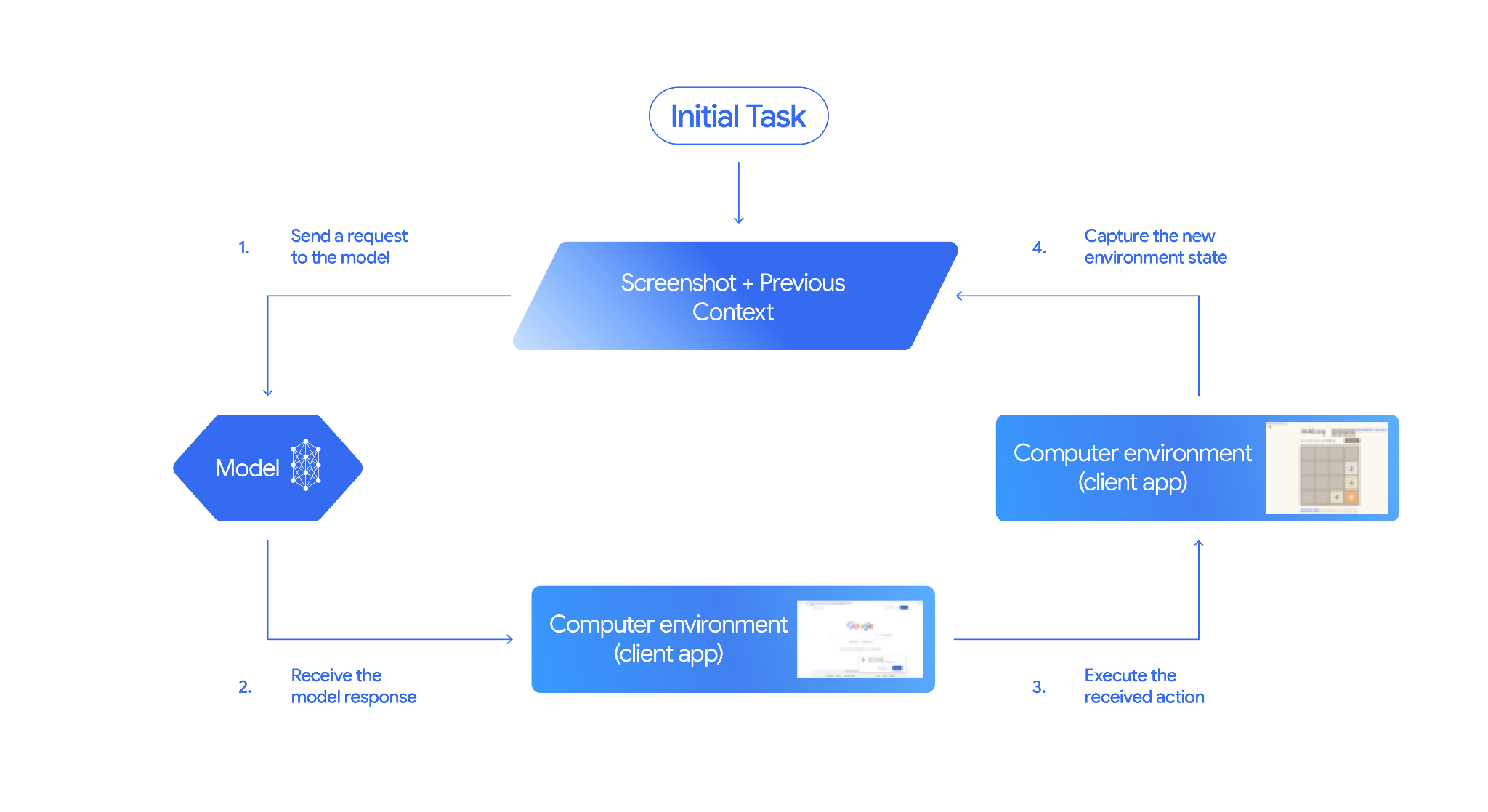
Aby utworzyć agenta z modelem Computer Use, musisz skonfigurować ciągłą pętlę między aplikacją a interfejsem API. Oto co będzie robić Twój kod na każdym etapie:
- Wysyłanie żądania do modelu
- Aplikacja wysyła żądanie do interfejsu API zawierające narzędzie Computer Use, ustawienia konfiguracji (np. środowisko docelowe), prompt użytkownika i zrzut ekranu.
- Otrzymywanie odpowiedzi modelu
- Model analizuje ekran i prompt, a następnie zwraca odpowiedź, która zawiera sugerowany
function_callreprezentujący działanie w interfejsie (np. kliknięcie, przewinięcie lub naciśnięcie klawisza). - W przypadku modeli Gemini 3.x odpowiedź zawiera też uzasadnienie
intentwyjaśniające, dlaczego model wybrał to działanie. - Odpowiedź może też zawierać
safety_decisionz wewnętrznego systemu bezpieczeństwa, który klasyfikuje działanie jako zwykłe/dozwolone,require_confirmation(wymagające zatwierdzenia przez użytkownika) lub zablokowane.
- Model analizuje ekran i prompt, a następnie zwraca odpowiedź, która zawiera sugerowany
- Wykonaj otrzymane działanie
- Jeśli działanie jest dozwolone (lub użytkownik je potwierdzi), kod po stronie klienta analizuje
function_call, skaluje znormalizowane współrzędne, aby dopasować je do widocznego obszaru, i wykonuje działanie w środowisku docelowym za pomocą narzędzi do automatyzacji (takich jak Playwright). Jeśli działanie jest zablokowane, klient powinien zatrzymać wykonywanie lub obsłużyć przerwanie.
- Jeśli działanie jest dozwolone (lub użytkownik je potwierdzi), kod po stronie klienta analizuje
- Zapisz stan nowego środowiska
- Po zakończeniu działania aplikacja robi nowy zrzut ekranu i wysyła go z powrotem do modelu w
function_result, aby poprosić o wykonanie następnego kroku.
- Po zakończeniu działania aplikacja robi nowy zrzut ekranu i wysyła go z powrotem do modelu w
Następnie proces powtarza się od kroku 2, stale prosząc model o wykonanie kolejnej czynności, dopóki zadanie nie zostanie ukończone lub przerwane.
Jak wdrożyć korzystanie z komputera
Zanim zaczniesz korzystać z narzędzia do korzystania z komputera, musisz skonfigurować:
- Bezpieczne środowisko wykonawcze: uruchamiaj agenta w piaskownicy w postaci maszyny wirtualnej lub kontenera, aby odizolować go od systemu hosta i ograniczyć jego potencjalny wpływ. Implementacja referencyjna zawiera gotową do użycia piaskownicę opartą na Dockerze, której możesz użyć jako punktu początkowego.
- Obsługa działań po stronie klienta: wdróż logikę po stronie klienta, aby wykonywać współrzędne, wpisywać tekst i robić zrzuty ekranu.
W przykładach poniżej jako środowisko wykonawcze używana jest przeglądarka, a jako moduł obsługi po stronie klienta – Playwright.
0. Konfigurowanie Playwright
Najpierw zainstaluj wymagane pakiety:
pip install google-genai playwright
playwright install chromium
Następnie zainicjuj instancję przeglądarki Playwright, która będzie używana do wykonywania:
from playwright.sync_api import sync_playwright

# 1. Configure screen dimensions for the target environment
SCREEN_WIDTH = 1440
SCREEN_HEIGHT = 900

# 2. Start the Playwright browser
# In production, utilize a sandboxed environment.
playwright = sync_playwright().start()
# Set headless=False to see the actions performed on your screen
browser = playwright.chromium.launch(headless=False)

# 3. Create a context and page with the specified dimensions
context = browser.new_context(
    viewport={"width": SCREEN_WIDTH, "height": SCREEN_HEIGHT}
)
page = context.new_page()

# 4. Navigate to an initial page to start the task
page.goto("https://www.google.com")

# The 'page', 'SCREEN_WIDTH', and 'SCREEN_HEIGHT' variables
# will be used in the steps below.
1. Wysyłanie żądania do modelu
Zainicjuj bibliotekę klienta i skonfiguruj narzędzie Computer Use. Pamiętaj, że podczas wysyłania żądania nie musisz określać rozmiaru wyświetlacza. Model przewiduje współrzędne pikseli przeskalowane do wysokości i szerokości ekranu.
Python
Użyj google-genaipakietu SDK Pythona (w wersji 2.7.0 lub nowszej), aby skonfigurować żądanie kierowane na środowisko przeglądarki:
from google import genai

client = genai.Client()

interaction = client.interactions.create(
    model='gemini-3.8-flash',
    input="Find a flight from SF to Hawaii on Jun 30th, coming back on Jul 6th",
    tools=[
        {
            "type": "computer_use",
            "environment": "browser",
            "enable_prompt_injection_detection": True
        }
    ]
)

print(interaction)
JavaScript
Aby skonfigurować żądanie kierowane na środowisko przeglądarki, użyj pakietu @google/genai Node.js SDK:
import { GoogleGenAI } from '@google/genai';

const ai = new GoogleGenAI();

const interaction = await ai.interactions.create({
  model: 'gemini-3.8-flash',
  input: "Find a flight from SF to Hawaii on Jun 30th, coming back on Jul 6th",
  tools: [
    {
      type: "computer_use",
      environment: "browser",
      enable_prompt_injection_detection: true
    }
  ]
});

console.log(interaction);
Java
import com.google.genai.Client;
import com.google.genai.gaos.models.interactions.ComputerUse;
import com.google.genai.gaos.models.interactions.CreateModelInteraction;
import com.google.genai.gaos.models.interactions.EnvironmentEnum;
import com.google.genai.gaos.models.interactions.Interaction;
import com.google.genai.gaos.models.interactions.InteractionsInput;
import com.google.genai.gaos.models.operations.CreateInteractionRequestBody;
import java.util.Arrays;

Client client = new Client();

CreateModelInteraction params =
    CreateModelInteraction.builder()
        .model("gemini-3.8-flash")
        .input(
            InteractionsInput.of(
                "Find a flight from SF to Hawaii on Jun 30th, coming back on Jul 6th"))
        .tools(
            Arrays.asList(
                ComputerUse.builder()
                    .environment(EnvironmentEnum.BROWSER)
                    .enablePromptInjectionDetection(true)
                    .build()))
        .build();

Interaction interaction =
    client.interactions.create(CreateInteractionRequestBody.of(params)).interaction().get();

System.out.println(interaction);
Go
package main

import (
    "context"
    "fmt"
    "log"

    "google.golang.org/genai"
    "google.golang.org/genai/interactions/models/interactions"
    "google.golang.org/genai/interactions/models/operations"
)

func main() {
    ctx := context.Background()
    client, err := genai.NewClient(ctx, nil)
    if err != nil {
        log.Fatal(err)
    }

    res, err := client.Interactions.Create(ctx, operations.CreateInteractionRequest{
        Body: operations.NewCreateInteractionRequestBody(interactions.CreateModelInteraction{
            Model: interactions.Model("gemini-3.8-flash"),
            Input: interactions.NewInteractionsInput("Find a flight from SF to Hawaii on Jun 30th, coming back on Jul 6th"),
            Tools: []interactions.Tool{
                interactions.NewTool(interactions.ComputerUse{
                    Environment:                    interactions.EnvironmentEnumBrowser.ToPointer(),
                    EnablePromptInjectionDetection: genai.Ptr(true),
                }),
            },
        }),
    })
    if err != nil {
        log.Fatal(err)
    }

    fmt.Println(res.Interaction)
}
REST
Aby wysłać żądanie, użyj polecenia curl:
curl -X POST \
  "https://generativelanguage.googleapis.com/v1beta/interactions" \
  -H "x-goog-api-key: $GEMINI_API_KEY" \
  -H "Content-Type: application/json" \
  -d '{
    "model": "gemini-3.8-flash",
    "input": "Find me a flight from SF to Hawaii on Jun 30th, coming back on Jul 6th. Start by navigating directly to flights.google.com",
    "tools": [
      {
        "type": "computer_use",
        "environment": "browser",
        "enable_prompt_injection_detection": true
      }
    ]
  }'
2. Otrzymywanie odpowiedzi modelu
Odpowiedź modelu sugeruje wywołanie funkcji zawierające współrzędne i dopasowany zamiar rozumowania wyjaśniający działanie:
{
  "steps": [
    {
      "type": "function_call",
      "name": "click",
      "arguments": {
        "x": 450,
        "y": 120,
        "intent": "Click the search box to type the destination."
      }
    }
  ]
}
3. wykonywać otrzymane działania,
Aplikacja musi przeanalizować współrzędne odpowiedzi, przeskalować je ze znormalizowanych współrzędnych 1000 x 1000 i wykonać działanie:
Python
from typing import Any, List, Tuple
import time

def denormalize_x(x: int, screen_width: int) -> int:
    """Convert normalized x coordinate (0-1000) to actual pixel coordinate."""
    return int(x / 1000 * screen_width)

def denormalize_y(y: int, screen_height: int) -> int:
    """Convert normalized y coordinate (0-1000) to actual pixel coordinate."""
    return int(y / 1000 * screen_height)

def execute_function_calls(interaction, page, screen_width, screen_height):
    results = []
    function_calls = [
        step for step in interaction.steps if step.type == "function_call"
    ]

    for function_call in function_calls:
        action_result = {}
        fname = function_call.name
        args = function_call.arguments
        print(f"  -> Executing: {fname} (Intent: {args.get('intent', 'N/A')})")

        try:
            if fname == "open_app":
                pass # Handled / already open
            elif fname in ("click", "double_click", "triple_click", "middle_click", "right_click", "move", "long_press"):
                actual_x = denormalize_x(args["x"], screen_width)
                actual_y = denormalize_y(args["y"], screen_height)

                if fname == "click":
                    page.mouse.click(actual_x, actual_y)
                elif fname == "double_click":
                    page.mouse.dblclick(actual_x, actual_y)
                elif fname == "right_click":
                    page.mouse.click(actual_x, actual_y, button="right")
                elif fname == "middle_click":
                    page.mouse.click(actual_x, actual_y, button="middle")
                elif fname == "move":
                    page.mouse.move(actual_x, actual_y)
            elif fname == "type":
                actual_x = denormalize_x(args["x"], screen_width) if "x" in args else None
                actual_y = denormalize_y(args["y"], screen_height) if "y" in args else None
                text = args["text"]
                press_enter = args.get("press_enter", False)

                if actual_x is not None and actual_y is not None:
                    page.mouse.click(actual_x, actual_y)
                # Clear field first
                page.keyboard.press("Meta+A")
                page.keyboard.press("Backspace")
                page.keyboard.type(text)
                if press_enter:
                    page.keyboard.press("Enter")
            elif fname == "navigate":
                page.goto(args["url"])
            elif fname == "go_back":
                page.go_back()
            elif fname == "go_forward":
                page.go_forward()
            elif fname == "wait":
                time.sleep(args.get("seconds", 1))
            else:
                print(f"Warning: Custom or unhandled function {fname}")

            page.wait_for_load_state(timeout=5000)
            time.sleep(1)

        except Exception as e:
            print(f"Error executing {fname}: {e}")
            action_result = {"error": str(e)}

        results.append((fname, function_call.id, action_result))

    return results
JavaScript
function denormalizeX(x, screenWidth) {
    // Convert normalized x coordinate (0-1000) to actual pixel coordinate.
    return Math.floor((x / 1000) * screenWidth);
}

function denormalizeY(y, screenHeight) {
    // Convert normalized y coordinate (0-1000) to actual pixel coordinate.
    return Math.floor((y / 1000) * screenHeight);
}

async function executeFunctionCalls(interaction, page, screenWidth, screenHeight) {
    const results = [];
    const functionCalls = interaction.steps.filter(step => step.type === "function_call");

    for (const functionCall of functionCalls) {
        const actionResult = {};
        const fname = functionCall.name;
        const args = functionCall.arguments;
        console.log(`  -> Executing: ${fname} (Intent: ${args.intent || 'N/A'})`);

        try {
            if (fname === "open_app") {
                // Handled / already open
            } else if (["click", "double_click", "triple_click", "middle_click", "right_click", "move", "long_press"].includes(fname)) {
                const actualX = denormalizeX(args.x, screenWidth);
                const actualY = denormalizeY(args.y, screenHeight);

                if (fname === "click") {
                    await page.mouse.click(actualX, actualY);
                } else if (fname === "double_click") {
                    await page.mouse.dblclick(actualX, actualY);
                } else if (fname === "right_click") {
                    await page.mouse.click(actualX, actualY, { button: "right" });
                } else if (fname === "middle_click") {
                    await page.mouse.click(actualX, actualY, { button: "middle" });
                } else if (fname === "move") {
                    await page.mouse.move(actualX, actualY);
                }
            } else if (fname === "type") {
                const actualX = args.x !== undefined ? denormalizeX(args.x, screenWidth) : null;
                const actualY = args.y !== undefined ? denormalizeY(args.y, screenHeight) : null;
                const text = args.text;
                const pressEnter = args.press_enter || false;

                if (actualX !== null && actualY !== null) {
                    await page.mouse.click(actualX, actualY);
                }
                // Clear field first
                await page.keyboard.press("Meta+A");
                await page.keyboard.press("Backspace");
                await page.keyboard.type(text);
                if (pressEnter) {
                    await page.keyboard.press("Enter");
                }
            } else if (fname === "navigate") {
                await page.goto(args.url);
            } else if (fname === "go_back") {
                await page.goBack();
            } else if (fname === "go_forward") {
                await page.goForward();
            } else if (fname === "wait") {
                await new Promise(resolve => setTimeout(resolve, (args.seconds || 1) * 1000));
            } else {
                console.log(`Warning: Custom or unhandled function ${fname}`);
            }

            await page.waitForLoadState('load', { timeout: 5000 }).catch(() => {});
            await new Promise(resolve => setTimeout(resolve, 1000));
        } catch (e) {
            console.log(`Error executing ${fname}: ${e}`);
            actionResult.error = e.message;
        }

        results.push([fname, functionCall.id, actionResult]);
    }

    return results;
}
Java
import com.google.genai.gaos.models.interactions.FunctionCallStep;
import com.google.genai.gaos.models.interactions.Interaction;
import com.google.genai.gaos.models.interactions.Step;
import java.util.ArrayList;
import java.util.Collections;
import java.util.HashMap;
import java.util.List;
import java.util.Map;

class ActionExecutor {
  int denormalizeX(int x, int screenWidth) {
    return (int) (x / 1000.0 * screenWidth);
  }

  int denormalizeY(int y, int screenHeight) {
    return (int) (y / 1000.0 * screenHeight);
  }

  List<Map<String, Object>> executeFunctionCalls(
      Interaction interaction, int screenWidth, int screenHeight) {
    List<Map<String, Object>> results = new ArrayList<>();

    for (Step step : interaction.steps().orElse(Collections.emptyList())) {
      if (step instanceof FunctionCallStep) {
        FunctionCallStep functionCall = (FunctionCallStep) step;
        String fname = functionCall.name().orElse("");
        Map<String, Object> args = functionCall.arguments().orElse(Collections.emptyMap());
        Map<String, Object> actionResult = new HashMap<>();

        System.out.println(
            "  -> Executing: " + fname + " (Intent: " + args.getOrDefault("intent", "N/A") + ")");

        try {
          if (fname.equals("click")) {
            int actualX = denormalizeX(((Number) args.get("x")).intValue(), screenWidth);
            int actualY = denormalizeY(((Number) args.get("y")).intValue(), screenHeight);
            // Perform mouse click at (actualX, actualY) using your browser automation library
          } else if (fname.equals("type")) {
            String text = (String) args.get("text");
            // Type text into active element using your browser automation library
          } else if (fname.equals("navigate")) {
            String url = (String) args.get("url");
            // Navigate browser to url
          }
        } catch (Exception e) {
          actionResult.put("error", e.getMessage());
        }

        Map<String, Object> entry = new HashMap<>();
        entry.put("name", fname);
        entry.put("callId", functionCall.id().orElse(""));
        entry.put("result", actionResult);
        results.add(entry);
      }
    }
    return results;
  }
}
Go
package main

import (
    "fmt"

    "google.golang.org/genai/interactions/models/interactions"
)

func denormalizeX(x, screenWidth int) int {
    return int(float64(x) / 1000.0 * float64(screenWidth))
}

func denormalizeY(y, screenHeight int) int {
    return int(float64(y) / 1000.0 * float64(screenHeight))
}

func executeFunctionCalls(interaction *interactions.Interaction, screenWidth, screenHeight int) []map[string]any {
    var results []map[string]any

    for _, step := range interaction.Steps {
        if functionCall := step.FunctionCallStep; functionCall != nil {
            fname := functionCall.Name
            args := functionCall.Arguments
            actionResult := map[string]any{}

            intent := args["intent"]
            if intent == nil {
                intent = "N/A"
            }
            fmt.Printf("  -> Executing: %s (Intent: %v)\n", fname, intent)

            switch fname {
            case "click":
                xVal, _ := args["x"].(float64)
                yVal, _ := args["y"].(float64)
                actualX := denormalizeX(int(xVal), screenWidth)
                actualY := denormalizeY(int(yVal), screenHeight)
                _ = actualX
                _ = actualY
                // Perform mouse click at (actualX, actualY) using your browser automation library
            case "type":
                text, _ := args["text"].(string)
                _ = text
                // Type text into active element using your browser automation library
            case "navigate":
                url, _ := args["url"].(string)
                _ = url
                // Navigate browser to url
            }

            results = append(results, map[string]any{
                "name":   fname,
                "callId": functionCall.ID,
                "result": actionResult,
            })
        }
    }
    return results
}

func main() {
    // Example helper usage with an Interaction response
}
4. Przechwyć nowy stan środowiska
Po wykonaniu działań wyślij wynik wykonania funkcji z powrotem do modelu, aby mógł on wykorzystać te informacje do wygenerowania następnego działania. Jeśli wykonano kilka działań (równoległych wywołań), w kolejnej turze użytkownika musisz wysłać function_result dla każdego z nich.
Python
import json
import base64

def get_function_responses(page, results):
    screenshot_bytes = page.screenshot(type="png")
    current_url = page.url
    function_responses = []
    for name, call_id, result in results:
        function_responses.append({
            "type": "function_result",
            "name": name,
            "call_id": call_id,
            "result": [
                {
                    "type": "text",
                    "text": json.dumps({"url": current_url, **result})
                },
                {
                    "type": "image",
                    "data": base64.b64encode(screenshot_bytes).decode("utf-8"),
                    "mime_type": "image/png"
                }
            ]
        })
    return function_responses
JavaScript
async function getFunctionResponses(page, results) {
    const screenshotBuffer = await page.screenshot({ type: 'png' });
    const screenshotBase64 = screenshotBuffer.toString('base64');
    const currentUrl = page.url();
    const functionResponses = [];

    for (const [name, callId, result] of results) {
        functionResponses.push({
            type: "function_result",
            name: name,
            call_id: callId,
            result: [
                {
                    type: "text",
                    text: JSON.stringify({ url: currentUrl, ...result })
                },
                {
                    type: "image",
                    data: screenshotBase64,
                    mime_type: "image/png"
                }
            ]
        });
    }
    return functionResponses;
}
Java
import com.google.genai.gaos.models.interactions.FunctionResultStep;
import com.google.genai.gaos.models.interactions.FunctionResultStepResultUnion;
import com.google.genai.gaos.models.interactions.ImageContent;
import com.google.genai.gaos.models.interactions.ImageContentMimeType;
import com.google.genai.gaos.models.interactions.Step;
import com.google.genai.gaos.models.interactions.TextContent;
import java.util.ArrayList;
import java.util.Arrays;
import java.util.Base64;
import java.util.List;
import java.util.Map;

class StateCapturer {
  List<Step> getFunctionResponses(
      byte[] screenshotBytes, String currentUrl, List<Map<String, Object>> results) {
    List<Step> functionResponses = new ArrayList<>();
    String base64Screenshot = Base64.getEncoder().encodeToString(screenshotBytes);

    for (Map<String, Object> entry : results) {
      String name = (String) entry.get("name");
      String callId = (String) entry.get("callId");
      String jsonResult = String.format("{\"url\": \"%s\"}", currentUrl);

      FunctionResultStep responseStep =
          FunctionResultStep.builder()
              .name(name)
              .callId(callId)
              .result(
                  FunctionResultStepResultUnion.of(
                      Arrays.asList(
                          TextContent.builder().text(jsonResult).build(),
                          ImageContent.builder()
                              .data(base64Screenshot)
                              .mimeType(ImageContentMimeType.IMAGE_PNG)
                              .build())))
              .build();
      functionResponses.add(responseStep);
    }
    return functionResponses;
  }
}
Go
package main

import (
    "encoding/base64"
    "fmt"

    "google.golang.org/genai"
    "google.golang.org/genai/interactions/models/interactions"
)

func getFunctionResponses(screenshotBytes []byte, currentURL string, results []map[string]any) []interactions.Step {
    var functionResponses []interactions.Step
    base64Screenshot := base64.StdEncoding.EncodeToString(screenshotBytes)

    for _, entry := range results {
        name, _ := entry["name"].(string)
        callID, _ := entry["callId"].(string)
        jsonResult := fmt.Sprintf(`{"url": "%s"}`, currentURL)

        responseStep := interactions.NewStep(interactions.FunctionResultStep{
            Name:   genai.Ptr(name),
            CallID: callID,
            Result: interactions.NewFunctionResultStepResultUnion([]interactions.FunctionResultSubcontent{
                interactions.NewFunctionResultSubcontent(interactions.TextContent{
                    Text: jsonResult,
                }),
                interactions.NewFunctionResultSubcontent(interactions.ImageContent{
                    Data:     genai.Ptr(base64Screenshot),
                    MimeType: interactions.ImageContentMimeType("image/png").ToPointer(),
                }),
            }),
        })
        functionResponses = append(functionResponses, responseStep)
    }
    return functionResponses
}

func main() {
    // Example helper usage to build FunctionResultStep responses
}
Po określeniu sposobu rejestrowania i formatowania stanu środowiska możesz połączyć wszystkie te kroki w ciągłą pętlę wykonywania.
Tworzenie pętli agenta
Aby włączyć interakcje wieloetapowe, połącz w jedną pętlę 4 kroki z sekcji Jak wdrożyć korzystanie z komputera. Pętla ta kontynuuje wysyłanie próśb o wykonanie działań i przekazywanie wyników z powrotem do modelu, dopóki zadanie nie zostanie ukończone.
Pamiętaj, aby prawidłowo zarządzać historią rozmów, dodając do niej na każdym etapie odpowiedzi modelu i odpowiedzi funkcji.
Python
import time
from typing import Any, List, Tuple
from playwright.sync_api import sync_playwright

from google import genai

client = genai.Client()

# Constants for screen dimensions
SCREEN_WIDTH = 1440
SCREEN_HEIGHT = 900

# Setup Playwright
print("Initializing browser...")
playwright = sync_playwright().start()
browser = playwright.chromium.launch(headless=False)
context = browser.new_context(viewport={"width": SCREEN_WIDTH, "height": SCREEN_HEIGHT})
page = context.new_page()

# Define helper functions. Copy/paste from steps 3 and 4
# def denormalize_x(...)
# def denormalize_y(...)
# def execute_function_calls(...)
# def get_function_responses(...)

try:
    # Go to initial page
    page.goto("https://ai.google.dev/gemini-api/docs")

    # Take initial screenshot
    initial_screenshot = page.screenshot(type="png")
    USER_PROMPT = "Go to ai.google.dev/gemini-api/docs and search for pricing."
    print(f"Goal: {USER_PROMPT}")

    # First interaction
    interaction = client.interactions.create(
        model='gemini-3.8-flash',
        input=[
            {"type": "text", "text": USER_PROMPT},
            {"type": "image", "data": base64.b64encode(initial_screenshot).decode("utf-8"), "mime_type": "image/png"}
        ],
        tools=[{
            "type": "computer_use",
            "environment": "browser",
            "enable_prompt_injection_detection": True
        }]
    )

    # Agent Loop
    turn_limit = 5
    for i in range(turn_limit):
        print(f"\n--- Turn {i+1} ---")

        has_function_calls = any(
            step.type == "function_call"
            for step in interaction.steps
        )
        if not has_function_calls:
            text_response = " ".join([
                content_block.text for step in interaction.steps if step.type == "model_output"
                for content_block in step.content if content_block.type == "text"
            ])
            print("Agent finished:", text_response)
            break

        print("Executing actions...")
        results = execute_function_calls(interaction, page, SCREEN_WIDTH, SCREEN_HEIGHT)

        print("Capturing state...")
        function_responses = get_function_responses(page, results)

        # Continue conversation with function responses
        interaction = client.interactions.create(
            model='gemini-3.8-flash',
            previous_interaction_id=interaction.id,
            input=function_responses,
            tools=[{
                "type": "computer_use",
                "environment": "browser",
                "enable_prompt_injection_detection": True
            }]
        )

finally:
    # Cleanup
    print("\nClosing browser...")
    browser.close()
    playwright.stop()
JavaScript
import { chromium } from 'playwright';
import { GoogleGenAI } from '@google/genai';

const ai = new GoogleGenAI();

// Constants for screen dimensions
const SCREEN_WIDTH = 1440;
const SCREEN_HEIGHT = 900;

console.log("Initializing browser...");
const browser = await chromium.launch({ headless: false });
const context = await browser.newContext({
    viewport: { width: SCREEN_WIDTH, height: SCREEN_HEIGHT }
});
const page = await context.newPage();

// Define helper functions. Copy/paste from steps 3 and 4:
// function denormalizeX(...)
// function denormalizeY(...)
// async function executeFunctionCalls(...)
// async function getFunctionResponses(...)

try {
    // Go to initial page
    await page.goto("https://ai.google.dev/gemini-api/docs");

    // Take initial screenshot
    const initialScreenshotBuffer = await page.screenshot({ type: 'png' });
    const initialScreenshotBase64 = initialScreenshotBuffer.toString('base64');
    const USER_PROMPT = "Go to ai.google.dev/gemini-api/docs and search for pricing.";
    console.log(`Goal: ${USER_PROMPT}`);

    // First interaction
    let interaction = await ai.interactions.create({
        model: 'gemini-3.8-flash',
        input: [
            { type: 'text', text: USER_PROMPT },
            { type: 'image', data: initialScreenshotBase64, mime_type: 'image/png' }
        ],
        tools: [{
            type: 'computer_use',
            environment: 'browser',
            enable_prompt_injection_detection: true
        }]
    });

    // Agent Loop
    const turnLimit = 5;
    for (let i = 0; i < turnLimit; i++) {
        console.log(`\n--- Turn ${i + 1} ---`);

        const hasFunctionCalls = interaction.steps.some(step => step.type === "function_call");
        if (!hasFunctionCalls) {
            const textResponses = [];
            for (const step of interaction.steps) {
                if (step.type === "model_output") {
                    for (const contentBlock of step.content || []) {
                        if (contentBlock.type === "text") {
                            textResponses.push(contentBlock.text);
                        }
                    }
                }
            }
            console.log("Agent finished:", textResponses.join(" "));
            break;
        }

        console.log("Executing actions...");
        const results = await executeFunctionCalls(interaction, page, SCREEN_WIDTH, SCREEN_HEIGHT);

        console.log("Capturing state...");
        const functionResponses = await getFunctionResponses(page, results);

        // Continue conversation with function responses
        interaction = await ai.interactions.create({
            model: 'gemini-3.8-flash',
            previous_interaction_id: interaction.id,
            input: functionResponses,
            tools: [{
                type: 'computer_use',
                environment: 'browser',
                enable_prompt_injection_detection: true
            }]
        });
    }
} finally {
    // Cleanup
    console.log("\nClosing browser...");
    await browser.close();
}
Java
import com.google.genai.Client;
import com.google.genai.gaos.models.interactions.ComputerUse;
import com.google.genai.gaos.models.interactions.Content;
import com.google.genai.gaos.models.interactions.CreateModelInteraction;
import com.google.genai.gaos.models.interactions.EnvironmentEnum;
import com.google.genai.gaos.models.interactions.FunctionCallStep;
import com.google.genai.gaos.models.interactions.ImageContent;
import com.google.genai.gaos.models.interactions.ImageContentMimeType;
import com.google.genai.gaos.models.interactions.Interaction;
import com.google.genai.gaos.models.interactions.InteractionsInput;
import com.google.genai.gaos.models.interactions.ModelOutputStep;
import com.google.genai.gaos.models.interactions.Step;
import com.google.genai.gaos.models.interactions.TextContent;
import com.google.genai.gaos.models.operations.CreateInteractionRequestBody;
import java.util.ArrayList;
import java.util.Arrays;
import java.util.Base64;
import java.util.Collections;
import java.util.List;

Client client = new Client();

// Constants for screen dimensions
int screenWidth = 1440;
int screenHeight = 900;

// Capture initial screenshot from browser driver (e.g. Playwright)
byte[] initialScreenshot = new byte[0];
String base64Screenshot = Base64.getEncoder().encodeToString(initialScreenshot);
String userPrompt = "Go to ai.google.dev/gemini-api/docs and search for pricing.";
System.out.println("Goal: " + userPrompt);

ComputerUse computerUseTool =
    ComputerUse.builder()
        .environment(EnvironmentEnum.BROWSER)
        .enablePromptInjectionDetection(true)
        .build();

CreateModelInteraction initialParams =
    CreateModelInteraction.builder()
        .model("gemini-3.8-flash")
        .input(
            InteractionsInput.ofContent(
                Arrays.asList(
                    TextContent.builder().text(userPrompt).build(),
                    ImageContent.builder()
                        .data(base64Screenshot)
                        .mimeType(ImageContentMimeType.IMAGE_PNG)
                        .build())))
        .tools(Arrays.asList(computerUseTool))
        .build();

Interaction interaction =
    client.interactions.create(CreateInteractionRequestBody.of(initialParams)).interaction().get();

int turnLimit = 5;
for (int i = 0; i < turnLimit; i++) {
  System.out.println("\n--- Turn " + (i + 1) + " ---");

  boolean hasFunctionCalls =
      interaction.steps().orElse(Collections.emptyList()).stream()
          .anyMatch(step -> step instanceof FunctionCallStep);

  if (!hasFunctionCalls) {
    StringBuilder textResponse = new StringBuilder();
    for (Step step : interaction.steps().orElse(Collections.emptyList())) {
      if (step instanceof ModelOutputStep) {
        for (Content contentBlock :
            ((ModelOutputStep) step).content().orElse(Collections.emptyList())) {
          if (contentBlock instanceof TextContent) {
            textResponse.append(((TextContent) contentBlock).text().orElse("")).append(" ");
          }
        }
      }
    }
    System.out.println("Agent finished: " + textResponse.toString().trim());
    break;
  }

  System.out.println("Executing actions and capturing state...");
  // Execute function calls against browser driver and capture List<Step> functionResponses
  List<Step> functionResponses = new ArrayList<>();

  CreateModelInteraction nextParams =
      CreateModelInteraction.builder()
          .model("gemini-3.8-flash")
          .previousInteractionId(interaction.id().get())
          .input(InteractionsInput.ofStep(functionResponses))
          .tools(Arrays.asList(computerUseTool))
          .build();

  interaction =
      client.interactions.create(CreateInteractionRequestBody.of(nextParams)).interaction().get();
}
Go
package main

import (
    "context"
    "encoding/base64"
    "fmt"
    "log"
    "strings"

    "google.golang.org/genai"
    "google.golang.org/genai/interactions/models/interactions"
    "google.golang.org/genai/interactions/models/operations"
)

func main() {
    ctx := context.Background()
    client, err := genai.NewClient(ctx, nil)
    if err != nil {
        log.Fatal(err)
    }

    // Constants for screen dimensions
    screenWidth := 1440
    screenHeight := 900
    _ = screenWidth
    _ = screenHeight

    // Capture initial screenshot from browser driver (e.g. Playwright)
    initialScreenshot := []byte{}
    base64Screenshot := base64.StdEncoding.EncodeToString(initialScreenshot)
    userPrompt := "Go to ai.google.dev/gemini-api/docs and search for pricing."
    fmt.Println("Goal:", userPrompt)

    computerUseTool := interactions.NewTool(interactions.ComputerUse{
        Environment:                    interactions.EnvironmentEnumBrowser.ToPointer(),
        EnablePromptInjectionDetection: genai.Ptr(true),
    })

    res, err := client.Interactions.Create(ctx, operations.CreateInteractionRequest{
        Body: operations.NewCreateInteractionRequestBody(interactions.CreateModelInteraction{
            Model: interactions.Model("gemini-3.8-flash"),
            Input: interactions.NewInteractionsInput([]interactions.Content{
                interactions.NewContent(interactions.TextContent{Text: userPrompt}),
                interactions.NewContent(interactions.ImageContent{
                    Data:     genai.Ptr(base64Screenshot),
                    MimeType: interactions.ImageContentMimeType("image/png").ToPointer(),
                }),
            }),
            Tools: []interactions.Tool{computerUseTool},
        }),
    })
    if err != nil {
        log.Fatal(err)
    }
    interaction := res.Interaction

    turnLimit := 5
    for i := 0; i < turnLimit; i++ {
        fmt.Printf("\n--- Turn %d ---\n", i+1)

        hasFunctionCalls := false
        for _, step := range interaction.Steps {
            if step.FunctionCallStep != nil {
                hasFunctionCalls = true
                break
            }
        }

        if !hasFunctionCalls {
            var parts []string
            for _, step := range interaction.Steps {
                if outStep := step.ModelOutputStep; outStep != nil {
                    for _, contentBlock := range outStep.Content {
                        if textContent := contentBlock.TextContent; textContent != nil {
                            parts = append(parts, textContent.GetText())
                        }
                    }
                }
            }
            fmt.Println("Agent finished:", strings.TrimSpace(strings.Join(parts, " ")))
            break
        }

        fmt.Println("Executing actions and capturing state...")
        // Execute function calls against browser driver and capture []interactions.Step functionResponses
        var functionResponses []interactions.Step

        nextRes, err := client.Interactions.Create(ctx, operations.CreateInteractionRequest{
            Body: operations.NewCreateInteractionRequestBody(interactions.CreateModelInteraction{
                Model:                 interactions.Model("gemini-3.8-flash"),
                PreviousInteractionID: interaction.ID,
                Input:                 interactions.NewInteractionsInput(functionResponses),
                Tools:                 []interactions.Tool{computerUseTool},
            }),
        })
        if err != nil {
            log.Fatal(err)
        }
        interaction = nextRes.Interaction
    }
}
Obsługiwane środowiska
Modele Gemini w wersji 3.x obsługują 3 środowiska określone w computer_usekonfiguracjach:
Środowisko przeglądarki (ENVIRONMENT_BROWSER)
Dostępne działania w narzędziu przeglądarki:
| Nazwa polecenia | Opis | Argumenty (w wywołaniu funkcji) |
|---|---|---|
| kliknięcie | Lewe kliknięcia na współrzędnych. | y: int (0–999)x: int (0–999)intent: str |
| double_click | Dwukrotne kliknięcie współrzędnych. | y: int (0–999)x: int (0–999)intent: str |
| triple_click | Trzykrotne kliknięcie we współrzędnych. | y: int (0–999)x: int (0–999)intent: str |
| middle_click | Kliknięcie środkowym przyciskiem myszy we współrzędnych. | y: int (0–999)x: int (0–999)intent: str |
| right_click | Kliknięcie prawym przyciskiem myszy we współrzędnych. | y: int (0–999)x: int (0–999)intent: str |
| mouse_down | Naciśnięcie i przytrzymanie przycisku myszy we współrzędnych. | y: int (0–999)x: int (0–999)intent: str |
| mouse_up | Zwalnia przycisk myszy we współrzędnych. | y: int (0–999)x: int (0–999)intent: str |
| przenieść | Przenosi kursor w określone miejsce. | y: int (0–999)x: int (0–999)intent: str |
| type | Wpisuje tekst. | text: strpress_enter: bool (opcjonalny, domyślnie false)intent: str |
| drag_and_drop | Przeciąga element od współrzędnych początkowych do końcowych. | start_y: int (0–999)start_x: int (0–999)end_y: int (0–999)end_x: int (0–999)intent: str |
| wait | Wstrzymuje wykonanie na określoną liczbę sekund. | seconds: int (opcjonalny, domyślnie 1)intent: str |
| press_key | Naciśnięcie i puszczenie określonego klawisza. | key: strintent: str |
| key_down | Naciśnięcie i przytrzymanie określonego klawisza. | key: strintent: str |
| key_up | Zwalnia określony klawisz. | key: strintent: str |
| klawisz skrótu | Naciśnięcie określonej kombinacji klawiszy. | keys: List[str]intent: str |
| take_screenshot | Zwraca zrzut bieżącego ekranu. | intent: str |
| scroll | Przewija w górę, w dół, w lewo lub w prawo o określoną liczbę pikseli. | y: int (0–999)x: int (0–999)direction: str ("up", "down", "left", "right")magnitude_in_pixels: int (0–999, opcjonalnie, domyślnie 300)intent: str |
| go_back | Powrót do poprzedniej strony internetowej w historii przeglądarki. | intent: str |
| navigate | Przechodzi bezpośrednio do określonego adresu URL. | url: strintent: str |
| go_forward | Przechodzi do następnej strony w historii przeglądania. | intent: str |
Środowisko mobilne (ENVIRONMENT_MOBILE)
Działania w środowisku zoptymalizowanym pod kątem Androida:
| Nazwa polecenia | Opis | Argumenty (w wywołaniu funkcji) |
|---|---|---|
| open_app | Otwiera aplikację według nazwy. | app_name: strintent: str |
| kliknięcie | Lewe kliknięcia na współrzędnych. | y: int (0–999)x: int (0–999)intent: str |
| list_apps | Zawiera listę aplikacji dostępnych na urządzeniu wraz z ich nazwami i nazwami pakietów. | intent: str |
| wait | Wstrzymuje wykonanie na określoną liczbę sekund. | seconds: int (opcjonalny, domyślnie 1)intent: str |
| go_back | Cofasz się do poprzedniego ekranu lub strony internetowej. | intent: str |
| type | Wpisuje tekst. | text: strpress_enter: bool (opcjonalny, domyślnie false)intent: str |
| drag_and_drop | Przeciąga element od współrzędnych początkowych do końcowych. | start_y: int (0–999)start_x: int (0–999)end_y: int (0–999)end_x: int (0–999)intent: str |
| long_press | Wykonuje długie naciśnięcie w określonym miejscu na ekranie. | y: int (0–999)x: int (0–999)seconds: int (opcjonalnie, domyślnie 2)intent: str |
| press_key | Naciśnięcie i puszczenie określonego klawisza. | key: strintent: str |
| take_screenshot | Zwraca zrzut bieżącego ekranu. | intent: str |
Środowisko graficzne (ENVIRONMENT_DESKTOP)
Polecenia kursora na poziomie systemu operacyjnego w środowiskach graficznych:
| Nazwa polecenia | Opis | Argumenty (w wywołaniu funkcji) |
|---|---|---|
| kliknięcie | Lewe kliknięcia na współrzędnych. | y: int (0–999)x: int (0–999)intent: str |
| double_click | Dwukrotne kliknięcie współrzędnych. | y: int (0–999)x: int (0–999)intent: str |
| triple_click | Trzykrotne kliknięcie we współrzędnych. | y: int (0–999)x: int (0–999)intent: str |
| middle_click | Kliknięcie środkowym przyciskiem myszy we współrzędnych. | y: int (0–999)x: int (0–999)intent: str |
| right_click | Kliknięcie prawym przyciskiem myszy we współrzędnych. | y: int (0–999)x: int (0–999)intent: str |
| mouse_down | Naciśnięcie i przytrzymanie przycisku myszy we współrzędnych. | y: int (0–999)x: int (0–999)intent: str |
| mouse_up | Zwalnia przycisk myszy we współrzędnych. | y: int (0–999)x: int (0–999)intent: str |
| przenieść | Przenosi kursor w określone miejsce. | y: int (0–999)x: int (0–999)intent: str |
| type | Wpisuje tekst. | text: strpress_enter: bool (opcjonalny, domyślnie false)intent: str |
| drag_and_drop | Przeciąga element od współrzędnych początkowych do końcowych. | start_y: int (0–999)start_x: int (0–999)end_y: int (0–999)end_x: int (0–999)intent: str |
| wait | Wstrzymuje wykonanie na określoną liczbę sekund. | seconds: int (opcjonalny, domyślnie 1)intent: str |
| press_key | Naciśnięcie i puszczenie określonego klawisza. | key: strintent: str |
| key_down | Naciśnięcie i przytrzymanie określonego klawisza. | key: strintent: str |
| key_up | Zwalnia określony klawisz. | key: strintent: str |
| klawisz skrótu | Naciśnięcie określonej kombinacji klawiszy. | keys: List[str]intent: str |
| take_screenshot | Zwraca zrzut bieżącego ekranu. | intent: str |
| scroll | Przewija w górę, w dół, w lewo lub w prawo o określoną liczbę pikseli. | y: int (0–999)x: int (0–999)direction: str ("up", "down", "left", "right")magnitude_in_pixels: int (0–999, opcjonalnie, domyślnie 300)intent: str |
Funkcje niestandardowe zdefiniowane przez użytkownika
Możesz rozszerzyć funkcjonalność modelu, dodając niestandardowe funkcje zdefiniowane przez użytkownika. Na przykład w scenariuszach z udziałem człowieka (HITL) możesz wykluczyć domyślne, wstępnie zdefiniowane działania i zarejestrować działania niestandardowe.
Python
Wyklucz standardowe, zdefiniowane wstępnie działania przeglądarki (np. click) i zarejestruj niestandardowe narzędzie yield_to_user:
from google import genai

client = genai.Client()

yield_to_user_tool = {
    "type": "function",
    "name": "yield_to_user",
    "description": "Yields control back to the user for assistance or verification when an automated action is unsafe or ambiguous.",
    "parameters": {
        "type": "object",
        "properties": {
            "reason": {
                "type": "string",
                "description": "The reason why the agent is yielding control to the human."
            }
        },
        "required": ["reason"]
    }
}

interaction = client.interactions.create(
    model="gemini-3.8-flash",
    input="Click the submit button. If you need a second factor authentication code, ask me.",
    tools=[
        {
            "type": "computer_use",
            "environment": "mobile",
            "excluded_predefined_functions": ["click"]
        },
        yield_to_user_tool
    ]
)
JavaScript
Wyklucz standardowe, zdefiniowane wstępnie działania przeglądarki (np. click) i zarejestruj niestandardowe narzędzie yield_to_user:
import { GoogleGenAI } from '@google/genai';

const ai = new GoogleGenAI();

const yieldToUserTool = {
    type: "function",
    name: "yield_to_user",
    description: "Yields control back to the user for assistance or verification when an automated action is unsafe or ambiguous.",
    parameters: {
        type: "object",
        properties: {
            reason: {
                type: "string",
                description: "The reason why the agent is yielding control to the human."
            }
        },
        required: ["reason"]
    }
};

const interaction = await ai.interactions.create({
    model: "gemini-3.8-flash",
    input: "Click the submit button. If you need a second factor authentication code, ask me.",
    tools: [
        {
            type: "computer_use",
            environment: "mobile",
            excluded_predefined_functions: ["click"]
        },
        yieldToUserTool
    ]
});
Java
import com.google.genai.Client;
import com.google.genai.gaos.models.interactions.ComputerUse;
import com.google.genai.gaos.models.interactions.CreateModelInteraction;
import com.google.genai.gaos.models.interactions.EnvironmentEnum;
import com.google.genai.gaos.models.interactions.Function;
import com.google.genai.gaos.models.interactions.Interaction;
import com.google.genai.gaos.models.interactions.InteractionsInput;
import com.google.genai.gaos.models.operations.CreateInteractionRequestBody;
import java.util.Arrays;
import java.util.Collections;
import java.util.HashMap;
import java.util.Map;

Client client = new Client();

Map<String, Object> reasonProp = new HashMap<>();
reasonProp.put("type", "string");
reasonProp.put("description", "The reason why the agent is yielding control to the human.");

Map<String, Object> properties = new HashMap<>();
properties.put("reason", reasonProp);

Map<String, Object> parameters = new HashMap<>();
parameters.put("type", "object");
parameters.put("properties", properties);
parameters.put("required", Collections.singletonList("reason"));

Function yieldToUserTool =
    Function.builder()
        .name("yield_to_user")
        .description(
            "Yields control back to the user for assistance or verification when an automated action is unsafe or ambiguous.")
        .parameters(parameters)
        .build();

CreateModelInteraction params =
    CreateModelInteraction.builder()
        .model("gemini-3.8-flash")
        .input(
            InteractionsInput.of(
                "Click the submit button. If you need a second factor authentication code, ask me."))
        .tools(
            Arrays.asList(
                ComputerUse.builder()
                    .environment(EnvironmentEnum.MOBILE)
                    .excludedPredefinedFunctions(Arrays.asList("click"))
                    .build(),
                yieldToUserTool))
        .build();

Interaction interaction =
    client.interactions.create(CreateInteractionRequestBody.of(params)).interaction().get();
Go
package main

import (
    "context"
    "log"

    "google.golang.org/genai"
    "google.golang.org/genai/interactions/models/interactions"
    "google.golang.org/genai/interactions/models/operations"
)

func main() {
    ctx := context.Background()
    client, err := genai.NewClient(ctx, nil)
    if err != nil {
        log.Fatal(err)
    }

    yieldToUserTool := interactions.NewTool(interactions.Function{
        Name:        genai.Ptr("yield_to_user"),
        Description: genai.Ptr("Yields control back to the user for assistance or verification when an automated action is unsafe or ambiguous."),
        Parameters: map[string]any{
            "type": "object",
            "properties": map[string]any{
                "reason": map[string]any{
                    "type":        "string",
                    "description": "The reason why the agent is yielding control to the human.",
                },
            },
            "required": []string{"reason"},
        },
    })

    _, err = client.Interactions.Create(ctx, operations.CreateInteractionRequest{
        Body: operations.NewCreateInteractionRequestBody(interactions.CreateModelInteraction{
            Model: interactions.Model("gemini-3.8-flash"),
            Input: interactions.NewInteractionsInput("Click the submit button. If you need a second factor authentication code, ask me."),
            Tools: []interactions.Tool{
                interactions.NewTool(interactions.ComputerUse{
                    Environment:                 interactions.EnvironmentEnumMobile.ToPointer(),
                    ExcludedPredefinedFunctions: []string{"click"},
                }),
                yieldToUserTool,
            },
        }),
    })
    if err != nil {
        log.Fatal(err)
    }
}
Zarządzanie poziomami myślenia
W przypadku agentów korzystających z komputera możesz skonfigurować różne poziomy myślenia, aby zachować równowagę między jakością działania a szybkością wykonywania. Niższe poziomy myślenia zwykle zapewniają dobrą równowagę w przypadku standardowych zadań automatyzacji.
Bezpieczeństwo
Konfigurowanie zasad bezpieczeństwa
Modele Gemini w wersji 3.x zawierają wbudowane kategorie usług związane z bezpieczeństwem, które pomagają określić, czy wymagane jest potwierdzenie przez użytkownika.
| Kategoria zasad bezpieczeństwa | Opis |
|---|---|
FINANCIAL_TRANSACTIONS |
Blokuje lub wywołuje potwierdzenie działań związanych z płatnościami, płatnościami w sklepie lub towarami podlegającymi regulacjom. |
SENSITIVE_DATA_MODIFICATION |
chroni dokumentację medyczną, finansową i państwową przed nieautoryzowanymi modyfikacjami; |
COMMUNICATION_TOOL |
Ogranicza możliwość autonomicznego wysyłania e-maili, wiadomości na czacie lub wersji roboczych przez agenta. |
ACCOUNT_CREATION |
Ogranicza możliwość autonomicznego rejestrowania nowych kont w witrynach przez agenta. |
DATA_MODIFICATION |
Reguluje ogólne modyfikacje systemu plików, udostępnianie danych i usuwanie pamięci. |
USER_CONSENT_MANAGEMENT |
Wymaga przejęcia kontroli nad ekranem użytkownika w przypadku banerów z prośbą o zgodę na stosowanie plików cookie i komunikatów dotyczących prywatności. |
LEGAL_TERMS_AND_AGREEMENTS |
Zapobiega samodzielnemu akceptowaniu przez model Warunków usługi lub prawnie wiążących umów. |
Zastąpienia dotyczące bezpieczeństwa
Możesz zastąpić wybrane zasady, przekazując zastąpienia:
Python
from google import genai

client = genai.Client()

interaction = client.interactions.create(
    model="gemini-3.8-flash",
    input="Clean up the local folder by archiving old logs.",
    tools=[
        {
            "type": "computer_use",
            "environment": "desktop",
            "disabled_safety_policies": [
                "data_modification"
            ]
        }
    ]
)
JavaScript
import { GoogleGenAI } from '@google/genai';

const ai = new GoogleGenAI();

const interaction = await ai.interactions.create({
    model: "gemini-3.8-flash",
    input: "Clean up the local folder by archiving old logs.",
    tools: [
        {
            type: "computer_use",
            environment: "desktop",
            disabled_safety_policies: [
                "data_modification"
            ]
        }
    ]
});
Java
import com.google.genai.Client;
import com.google.genai.gaos.models.interactions.ComputerUse;
import com.google.genai.gaos.models.interactions.CreateModelInteraction;
import com.google.genai.gaos.models.interactions.DisabledSafetyPolicy;
import com.google.genai.gaos.models.interactions.EnvironmentEnum;
import com.google.genai.gaos.models.interactions.Interaction;
import com.google.genai.gaos.models.interactions.InteractionsInput;
import com.google.genai.gaos.models.operations.CreateInteractionRequestBody;
import java.util.Arrays;

Client client = new Client();

CreateModelInteraction params =
    CreateModelInteraction.builder()
        .model("gemini-3.8-flash")
        .input(InteractionsInput.of("Clean up the local folder by archiving old logs."))
        .tools(
            Arrays.asList(
                ComputerUse.builder()
                    .environment(EnvironmentEnum.DESKTOP)
                    .disabledSafetyPolicies(
                        Arrays.asList(DisabledSafetyPolicy.DATA_MODIFICATION))
                    .build()))
        .build();

Interaction interaction =
    client.interactions.create(CreateInteractionRequestBody.of(params)).interaction().get();
Go
package main

import (
    "context"
    "log"

    "google.golang.org/genai"
    "google.golang.org/genai/interactions/models/interactions"
    "google.golang.org/genai/interactions/models/operations"
)

func main() {
    ctx := context.Background()
    client, err := genai.NewClient(ctx, nil)
    if err != nil {
        log.Fatal(err)
    }

    _, err = client.Interactions.Create(ctx, operations.CreateInteractionRequest{
        Body: operations.NewCreateInteractionRequestBody(interactions.CreateModelInteraction{
            Model: interactions.Model("gemini-3.8-flash"),
            Input: interactions.NewInteractionsInput("Clean up the local folder by archiving old logs."),
            Tools: []interactions.Tool{
                interactions.NewTool(interactions.ComputerUse{
                    Environment: interactions.EnvironmentEnumDesktop.ToPointer(),
                    DisabledSafetyPolicies: []interactions.DisabledSafetyPolicy{
                        interactions.DisabledSafetyPolicyDataModification,
                    },
                }),
            },
        }),
    })
    if err != nil {
        log.Fatal(err)
    }
}
Wykrywanie wstrzykiwania promptów
Korzystanie z komputera w przypadku Gemini 3.5 Flash-Lite lub nowszego obsługuje zaawansowany mechanizm bezpieczeństwa, który wykrywa ataki przy użyciu wstrzykiwania promptów. Gdy ta funkcja jest włączona, sprawdza, czy dołączony zrzut ekranu zawiera ukryte instrukcje wprowadzające w błąd (np. „Zignoruj poprzednie polecenia”), i blokuje wykonanie, gdy takie instrukcje zostaną wykryte.
Wykrywanie wstrzykiwania promptów jest funkcją opcjonalną. Wartość domyślna to false.
Poniższe przykłady pokazują, jak włączyć wykrywanie wstrzykiwania promptów w konfiguracji narzędzia do korzystania z komputera:
Python
from google import genai

client = genai.Client()

interaction = client.interactions.create(
    model="gemini-3.8-flash",
    input="Search for flight deals and summarize top results.",
    tools=[
        {
            "type": "computer_use",
            "environment": "desktop",
            "enable_prompt_injection_detection": True,
        }
    ],
)
JavaScript
import { GoogleGenAI } from '@google/genai';

const ai = new GoogleGenAI();

const interaction = await ai.interactions.create({
    model: "gemini-3.8-flash",
    input: "Search for flight deals and summarize top results.",
    tools: [
        {
            type: "computer_use",
            environment: "desktop",
            enablePromptInjectionDetection: true,
        }
    ]
});
Java
import com.google.genai.Client;
import com.google.genai.gaos.models.interactions.ComputerUse;
import com.google.genai.gaos.models.interactions.CreateModelInteraction;
import com.google.genai.gaos.models.interactions.EnvironmentEnum;
import com.google.genai.gaos.models.interactions.Interaction;
import com.google.genai.gaos.models.interactions.InteractionsInput;
import com.google.genai.gaos.models.operations.CreateInteractionRequestBody;
import java.util.Arrays;

Client client = new Client();

CreateModelInteraction params =
    CreateModelInteraction.builder()
        .model("gemini-3.8-flash")
        .input(InteractionsInput.of("Search for flight deals and summarize top results."))
        .tools(
            Arrays.asList(
                ComputerUse.builder()
                    .environment(EnvironmentEnum.DESKTOP)
                    .enablePromptInjectionDetection(true)
                    .build()))
        .build();

Interaction interaction =
    client.interactions.create(CreateInteractionRequestBody.of(params)).interaction().get();
Go
package main

import (
    "context"
    "log"

    "google.golang.org/genai"
    "google.golang.org/genai/interactions/models/interactions"
    "google.golang.org/genai/interactions/models/operations"
)

func main() {
    ctx := context.Background()
    client, err := genai.NewClient(ctx, nil)
    if err != nil {
        log.Fatal(err)
    }

    _, err = client.Interactions.Create(ctx, operations.CreateInteractionRequest{
        Body: operations.NewCreateInteractionRequestBody(interactions.CreateModelInteraction{
            Model: interactions.Model("gemini-3.8-flash"),
            Input: interactions.NewInteractionsInput("Search for flight deals and summarize top results."),
            Tools: []interactions.Tool{
                interactions.NewTool(interactions.ComputerUse{
                    Environment:                    interactions.EnvironmentEnumDesktop.ToPointer(),
                    EnablePromptInjectionDetection: genai.Ptr(true),
                }),
            },
        }),
    })
    if err != nil {
        log.Fatal(err)
    }
}
cURL
curl "https://generativelanguage.googleapis.com/v1beta/interactions?key=${GEMINI_API_KEY}" \
-H 'Content-Type: application/json' \
-d '{
  "model": "gemini-3.8-flash",
  "input": "Search for flight deals and summarize top results.",
  "tools": [
    {
      "type": "computer_use",
      "environment": "desktop",
      "enable_prompt_injection_detection": true
    }
  ]
}'
Potwierdzenie decyzji dotyczącej bezpieczeństwa
Odpowiedź może zawierać parametr safety_decision w argumentach wywołania funkcji:
{
  "steps": [
    {
      "type": "function_call",
      "name": "click",
      "arguments": {
        "x": 60,
        "y": 100,
        "safety_decision": {
          "explanation": "Must check check-box",
          "decision": "require_confirmation"
        }
      }
    }
  ]
}
Jeśli wartość safety_decision to require_confirmation, wyświetl użytkownikowi prośbę. Jeśli użytkownik potwierdzi, ustaw wartość safety_acknowledgement w function_result.
Python
def get_safety_confirmation(safety_decision):
    # Prompt user for confirmation
    print(f"Safety confirmation required: {safety_decision.get('explanation', '')}")
    return "CONTINUE" # Or TERMINATE

# Inside execute_function_calls, check for safety_decision:
if 'safety_decision' in function_call.arguments:
    decision = get_safety_confirmation(function_call.arguments['safety_decision'])
    if decision == "TERMINATE":
        break
    # Include safety_acknowledgement inside the action result
    action_result["safety_acknowledgement"] = True
Sprawdzone metody ochrony bezpieczeństwa
Korzystanie z komputera wiąże się z wyjątkowymi zagrożeniami dla bezpieczeństwa i działania, ponieważ model działający w imieniu użytkownika może napotkać na ekranach niezaufane treści lub popełniać błędy podczas wykonywania działań. Aby chronić dane i systemy użytkowników, stosuj te sprawdzone metody:
- Proces z udziałem człowieka:
- Wymagaj potwierdzenia przez użytkownika: gdy odpowiedź dotycząca bezpieczeństwa wskazuje na
require_confirmation, poproś użytkownika o zatwierdzenie. Podaj niestandardowe instrukcje dotyczące bezpieczeństwa: wdróż niestandardową instrukcję systemową, aby określić i egzekwować własne granice bezpieczeństwa. Na przykład:
Python
from google import genai

client = genai.Client()

system_instruction = """
## **RULE 1: Seek User Confirmation (USER_CONFIRMATION)**

This is your first and most important check. If the next required action falls
into any of the following categories, you MUST stop immediately, and seek the
user's explicit permission.

**Procedure for Seeking Confirmation:**
* **For Consequential Actions:** Perform all preparatory steps (e.g., navigating,
  filling out forms, typing a message). You will ask for confirmation **AFTER**
  all necessary information is entered on the screen, but **BEFORE** you perform
  the final, irreversible action (e.g., before clicking "Send", "Submit",
  "Confirm Purchase", "Share").
* **For Prohibited Actions:** If the action is strictly forbidden (e.g., accepting
  legal terms, solving a CAPTCHA), you must first inform the user about the
  required action and ask for their confirmation to proceed.

**USER_CONFIRMATION Categories:**

*   **Consent and Agreements:** You are FORBIDDEN from accepting, selecting, or
    agreeing to any of the following on the user's behalf. You must ask the
    user to confirm before performing these actions.
    *   Terms of Service
    *   Privacy Policies
    *   Cookie consent banners
    *   End User License Agreements (EULAs)
    *   Any other legally significant contracts or agreements.
*   **Robot Detection:** You MUST NEVER attempt to solve or bypass the
    following. You must ask the user to confirm before performing these actions.
    *   CAPTCHAs (of any kind)
    *   Any other anti-robot or human-verification mechanisms, even if you are
        capable.
*   **Financial Transactions:**
    *   Completing any purchase.
    *   Managing or moving money (e.g., transfers, payments).
    *   Purchasing regulated goods or participating in gambling.
*   **Sending Communications:**
    *   Sending emails.
    *   Sending messages on any platform (e.g., social media, chat apps).
    *   Posting content on social media or forums.
*   **Accessing or Modifying Sensitive Information:**
    *   Health, financial, or government records (e.g., medical history, tax
        forms, passport status).
    *   Revealing or modifying sensitive personal identifiers (e.g., SSN, bank
        account number, credit card number).
*   **User Data Management:**
    *   Accessing, downloading, or saving files from the web.
    *   Sharing or sending files/data to any third party.
    *   Transferring user data between systems.
*   **Browser Data Usage:**
    *   Accessing or managing Chrome browsing history, bookmarks, autofill data,
        or saved passwords.
*   **Security and Identity:**
    *   Logging into any user account.
    *   Any action that involves misrepresentation or impersonation (e.g.,
        creating a fan account, posting as someone else).
*   **Insurmountable Obstacles:** If you are technically unable to interact with
    a user interface element or are stuck in a loop you cannot resolve, ask the
    user to take over.
---

## **RULE 2: Default Behavior (ACTUATE)**

If an action does **NOT** fall under the conditions for `USER_CONFIRMATION`,
your default behavior is to **Actuate**.

**Actuation Means:**  You MUST proactively perform all necessary steps to move
the user's request forward. Continue to actuate until you either complete the
non-consequential task or encounter a condition defined in Rule 1.

*   **Example 1:** If asked to send money, you will navigate to the payment
    portal, enter the recipient's details, and enter the amount. You will then
    **STOP** as per Rule 1 and ask for confirmation before clicking the final
    "Send" button.
*   **Example 2:** If asked to post a message, you will navigate to the site,
    open the post composition window, and write the full message. You will then
    **STOP** as per Rule 1 and ask for confirmation before clicking the final
    "Post" button.

    After the user has confirmed, remember to get the user's latest screen
    before continuing to perform actions.

# Final Response Guidelines:
Write final response to the user in the following cases:
- User confirmation
- When the task is complete or you have enough information to respond to the user
"""

interaction = client.interactions.create(
    model="gemini-3.8-flash",
    system_instruction=system_instruction,
    input="Prepare a draft but do not send.",
    tools=[{
        "type": "computer_use",
        "environment": "browser"
    }]
)
JavaScript
import { GoogleGenAI } from '@google/genai';

const ai = new GoogleGenAI();

const systemInstruction = `
## **RULE 1: Seek User Confirmation (USER_CONFIRMATION)**

This is your first and most important check. If the next required action falls
into any of the following categories, you MUST stop immediately, and seek the
user's explicit permission.

**Procedure for Seeking Confirmation:**
* **For Consequential Actions:** Perform all preparatory steps (e.g., navigating,
  filling out forms, typing a message). You will ask for confirmation **AFTER**
  all necessary information is entered on the screen, but **BEFORE** you perform
  the final, irreversible action (e.g., before clicking "Send", "Submit",
  "Confirm Purchase", "Share").
* **For Prohibited Actions:** If the action is strictly forbidden (e.g., accepting
  legal terms, solving a CAPTCHA), you must first inform the user about the
  required action and ask for their confirmation to proceed.

**USER_CONFIRMATION Categories:**

*   **Consent and Agreements:** You are FORBIDDEN from accepting, selecting, or
    agreeing to any of the following on the user's behalf. You must ask the
    user to confirm before performing these actions.
    *   Terms of Service
    *   Privacy Policies
    *   Cookie consent banners
    *   End User License Agreements (EULAs)
    *   Any other legally significant contracts or agreements.
*   **Robot Detection:** You MUST NEVER attempt to solve or bypass the
    following. You must ask the user to confirm before performing these actions.
    *   CAPTCHAs (of any kind)
    *   Any other anti-robot or human-verification mechanisms, even if you are
        capable.
*   **Financial Transactions:**
    *   Completing any purchase.
    *   Managing or moving money (e.g., transfers, payments).
    *   Purchasing regulated goods or participating in gambling.
*   **Sending Communications:**
    *   Sending emails.
    *   Sending messages on any platform (e.g., social media, chat apps).
    *   Posting content on social media or forums.
*   **Accessing or Modifying Sensitive Information:**
    *   Health, financial, or government records (e.g., medical history, tax
        forms, passport status).
    *   Revealing or modifying sensitive personal identifiers (e.g., SSN, bank
        account number, credit card number).
*   **User Data Management:**
    *   Accessing, downloading, or saving files from the web.
    *   Sharing or sending files/data to any third party.
    *   Transferring user data between systems.
*   **Browser Data Usage:**
    *   Accessing or managing Chrome browsing history, bookmarks, autofill data,
        or saved passwords.
*   **Security and Identity:**
    *   Logging into any user account.
    *   Any action that involves misrepresentation or impersonation (e.g.,
        creating a fan account, posting as someone else).
*   **Insurmountable Obstacles:** If you are technically unable to interact with
    a user interface element or are stuck in a loop you cannot resolve, ask the
    user to take over.
---

## **RULE 2: Default Behavior (ACTUATE)**

If an action does **NOT** fall under the conditions for \`USER_CONFIRMATION\`,
your default behavior is to **Actuate**.

**Actuation Means:**  You MUST proactively perform all necessary steps to move
the user's request forward. Continue to actuate until you either complete the
non-consequential task or encounter a condition defined in Rule 1.

*   **Example 1:** If asked to send money, you will navigate to the payment
    portal, enter the recipient's details, and enter the amount. You will then
    **STOP** as per Rule 1 and ask for confirmation before clicking the final
    "Send" button.
*   **Example 2:** If asked to post a message, you will navigate to the site,
    open the post composition window, and write the full message. You will then
    **STOP** as per Rule 1 and ask for confirmation before clicking the final
    "Post" button.

    After the user has confirmed, remember to get the user's latest screen
    before continuing to perform actions.

# Final Response Guidelines:
Write final response to the user in the following cases:
- User confirmation
- When the task is complete or you have enough information to respond to the user
`;

const interaction = await ai.interactions.create({
    model: "gemini-3.8-flash",
    system_instruction: systemInstruction,
    input: "Prepare a draft but do not send.",
    tools: [{
        type: "computer_use",
        environment: "browser"
    }]
});
- Wymagaj potwierdzenia przez użytkownika: gdy odpowiedź dotycząca bezpieczeństwa wskazuje na
Java
import com.google.genai.Client;
import com.google.genai.gaos.models.interactions.ComputerUse;
import com.google.genai.gaos.models.interactions.CreateModelInteraction;
import com.google.genai.gaos.models.interactions.EnvironmentEnum;
import com.google.genai.gaos.models.interactions.Interaction;
import com.google.genai.gaos.models.interactions.InteractionsInput;
import com.google.genai.gaos.models.operations.CreateInteractionRequestBody;
import java.util.Arrays;

Client client = new Client();

String systemInstruction =
    "## **RULE 1: Seek User Confirmation (USER_CONFIRMATION)**\n\n"
        + "This is your first and most important check. If the next required action falls "
        + "into any of the following categories, you MUST stop immediately, and seek the "
        + "user's explicit permission.\n\n"
        + "## **RULE 2: Default Behavior (ACTUATE)**\n\n"
        + "If an action does **NOT** fall under the conditions for `USER_CONFIRMATION`, "
        + "your default behavior is to **Actuate**.";

CreateModelInteraction params =
    CreateModelInteraction.builder()
        .model("gemini-3.8-flash")
        .systemInstruction(systemInstruction)
        .input(InteractionsInput.of("Prepare a draft but do not send."))
        .tools(
            Arrays.asList(
                ComputerUse.builder().environment(EnvironmentEnum.BROWSER).build()))
        .build();

Interaction interaction =
    client.interactions.create(CreateInteractionRequestBody.of(params)).interaction().get();
Go
package main

import (
    "context"
    "log"

    "google.golang.org/genai"
    "google.golang.org/genai/interactions/models/interactions"
    "google.golang.org/genai/interactions/models/operations"
)

func main() {
    ctx := context.Background()
    client, err := genai.NewClient(ctx, nil)
    if err != nil {
        log.Fatal(err)
    }

    systemInstruction := "## **RULE 1: Seek User Confirmation (USER_CONFIRMATION)**\n\n" +
        "This is your first and most important check. If the next required action falls " +
        "into any of the following categories, you MUST stop immediately, and seek the " +
        "user's explicit permission.\n\n" +
        "## **RULE 2: Default Behavior (ACTUATE)**\n\n" +
        "If an action does **NOT** fall under the conditions for `USER_CONFIRMATION`, " +
        "your default behavior is to **Actuate**."

    _, err = client.Interactions.Create(ctx, operations.CreateInteractionRequest{
        Body: operations.NewCreateInteractionRequestBody(interactions.CreateModelInteraction{
            Model:             interactions.Model("gemini-3.8-flash"),
            SystemInstruction: genai.Ptr(systemInstruction),
            Input:             interactions.NewInteractionsInput("Prepare a draft but do not send."),
            Tools: []interactions.Tool{
                interactions.NewTool(interactions.ComputerUse{
                    Environment: interactions.EnvironmentEnumBrowser.ToPointer(),
                }),
            },
        }),
    })
    if err != nil {
        log.Fatal(err)
    }
}
- Bezpieczne środowisko wykonawcze: uruchamiaj agenta w bezpiecznym środowisku piaskownicy, aby ograniczyć jego potencjalny wpływ. Może to być maszyna wirtualna w piaskownicy, kontener (np. Docker) lub dedykowany profil przeglądarki z ograniczonymi uprawnieniami. Wskazówki dotyczące konfigurowania piaskownicy za pomocą Dockera znajdziesz w implementacji referencyjnej na GitHubie.
- Czyszczenie danych wejściowych: czyszczenie całego tekstu wygenerowanego przez użytkownika w promptach w celu zmniejszenia ryzyka niezamierzonych instrukcji lub wstrzykiwania promptów. Jest to przydatna warstwa zabezpieczeń, ale nie zastępuje bezpiecznego środowiska wykonawczego.
- Zabezpieczenia treści: używaj zabezpieczeń i interfejsów API bezpieczeństwa treści, aby oceniać dane wejściowe użytkownika, dane wejściowe i wyjściowe narzędzi oraz odpowiedzi agenta pod kątem odpowiedniości, wstrzykiwania promptów i wykrywania jailbreaku.
- Listy dozwolonych i zablokowanych: wdróż mechanizmy filtrowania, aby kontrolować, gdzie model może się poruszać i co może robić. Dobrym punktem wyjścia jest lista zablokowanych zakazanych witryn, a jeszcze bezpieczniejsza jest bardziej restrykcyjna lista dozwolonych.
- Dostrzegalność i rejestrowanie: prowadź szczegółowe dzienniki na potrzeby debugowania, kontroli i reagowania na incydenty. Klient powinien rejestrować prompty, zrzuty ekranu, sugerowane przez model działania (
function_call), odpowiedzi związane z bezpieczeństwem i wszystkie działania ostatecznie wykonane przez klienta. - Zarządzanie środowiskiem: upewnij się, że środowisko GUI jest spójne. Nieoczekiwane wyskakujące okienka, powiadomienia lub zmiany układu mogą wprowadzić model w błąd. W miarę możliwości zaczynaj każde nowe zadanie od znanego, czystego stanu.
Wersje modelu
Z funkcji Korzystanie z komputera możesz korzystać w przypadku tych modeli:
- Gemini 3.8 Flash (
gemini-3.8-flash): zalecany model do użytku na komputerze, charakteryzujący się wysoką dokładnością interakcji z interfejsem i niezawodnym wywoływaniem narzędzi. - Gemini 3.5 Flash-Lite (
gemini-3.5-flash-lite): model o niskim opóźnieniu i niskich kosztach, który obsługuje korzystanie z komputera. - Gemini 3 Flash (wersja testowa) (
gemini-3-flash-preview): model w wersji testowej obsługujący korzystanie z komputera.
Co dalej?
- Wypróbuj korzystanie z komputera w środowisku demonstracyjnym Browserbase.
- Przykładowy kod znajdziesz w implementacji referencyjnej.
- Dowiedz się więcej o innych narzędziach Gemini API: