

Les modèles Gemini Robotics ER peuvent écrire et exécuter du code Python pour manipuler des images et appliquer une logique avant de répondre. Cette page présente des exemples d'exécution de code : détection d'objets avec zoom et recadrage, lecture d'instruments, mesure de fluides, lecture de cartes de circuits imprimés et annotation d'images.
Pour adapter ces exemples à votre cas d'utilisation, remplacez le texte du prompt et le fichier image importé par les vôtres. Vous pouvez également ajuster le schéma JSON demandé dans le prompt pour qu'il corresponde à la structure de sortie dont votre application a besoin, ou ajouter une system_instruction pour appliquer le format et la précision de la sortie.
Pour obtenir le code exécutable complet, consultez le livre de recettes Robotics.
Niveau de réflexion
Vous pouvez contrôler le niveau de réflexion pour échanger la latence contre la précision. Les tâches spatiales telles que la détection d'objets fonctionnent bien avec un faible niveau de réflexion. Les tâches complexes telles que le comptage ou l'estimation du poids bénéficient d'un niveau de réflexion plus élevé.
L'exemple suivant définit le niveau de réflexion sur high pour une tâche de comptage complexe :
Python
from google import genai
from google.genai import types

client = genai.Client()

with open('scene.jpeg', 'rb') as f:
    image_bytes = f.read()

response = client.models.generate_content(
    model="gemini-robotics-er-2-preview",
    contents=[
        types.Part.from_bytes(
            data=image_bytes,
            mime_type='image/jpeg',
        ),
        "Identify and count all objects on the table."
    ],
    config=types.GenerateContentConfig(
        thinking_config=types.ThinkingConfig(thinking_level="high")
    )
)

print(response.text)
Pour en savoir plus, consultez la section Réflexion.
Détection d'objets (zoom et recadrage)
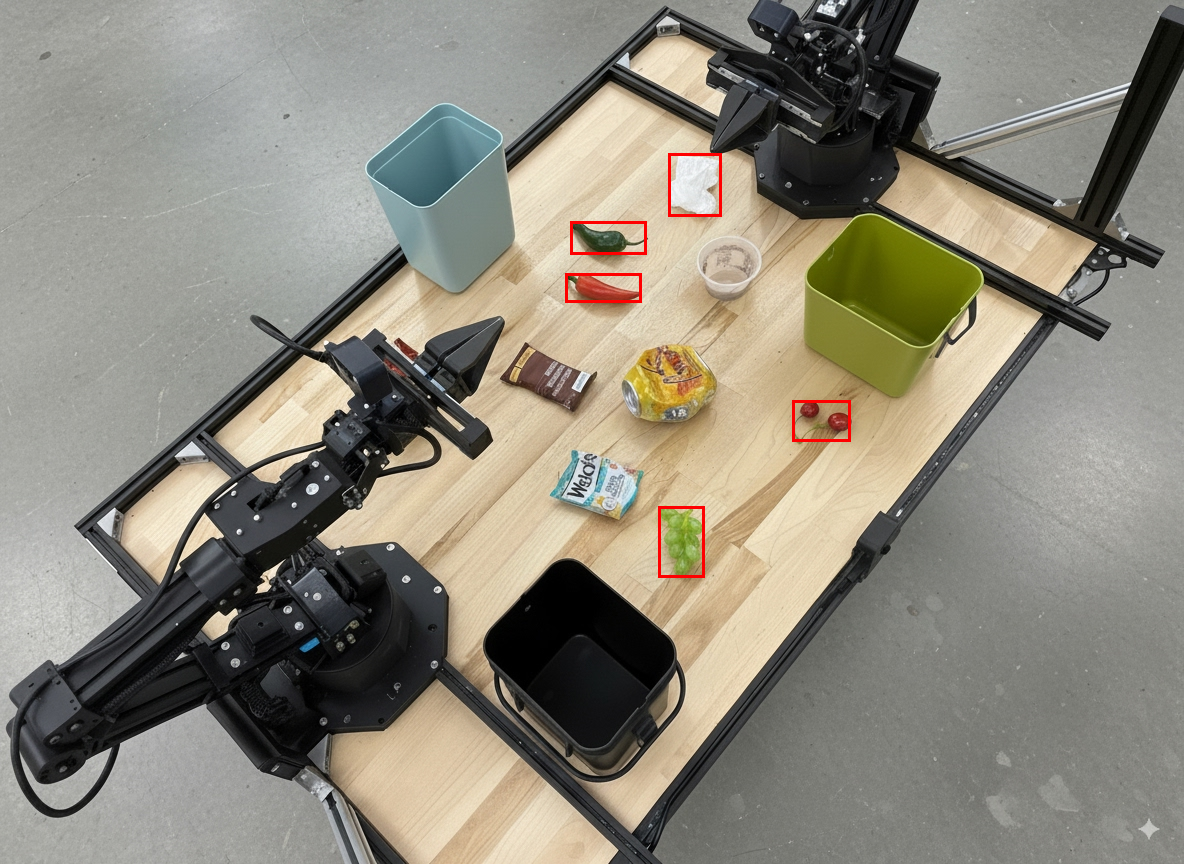
L'exemple suivant montre comment utiliser l'exécution de code pour zoomer et recadrer une image afin d'obtenir une vue plus claire lors de la détection d'objets et du renvoi de cadres de délimitation.
Python
from google import genai
from google.genai import types

client = genai.Client()

# Load your image
with open('sorting.jpeg', 'rb') as f:
    image_bytes = f.read()

prompt = """
Return JSON in the format {label: val, y: val, x: val, y2: val, x2: val} for
the compostable objects in this scene. Please Zoom and crop the image for a
clearer view. Return an annotated image of the final result with the bounding
boxes drawn on it to the API caller as a part of your process.
"""

response = client.models.generate_content(
    model="gemini-robotics-er-2-preview",
    contents=[
        types.Part.from_bytes(
            data=image_bytes,
            mime_type='image/jpeg',
        ),
        prompt
    ],
    config = types.GenerateContentConfig(
        tools=[types.Tool(code_execution=types.ToolCodeExecution)],
    )
)

print(response.text)
La sortie du modèle serait semblable à la réponse JSON suivante :
[
  {"label": "compostable", "y": 256, "x": 482, "y2": 295, "x2": 546},
  {"label": "compostable", "y": 317, "x": 478, "y2": 350, "x2": 542},
  {"label": "compostable", "y": 586, "x": 556, "y2": 668, "x2": 595},
  {"label": "compostable", "y": 463, "x": 669, "y2": 511, "x2": 718},
  {"label": "compostable", "y": 178, "x": 565, "y2": 250, "x2": 609}
]
L'image suivante affiche les cadres renvoyés par le modèle.
Lire une jauge analogique et appliquer une logique
L'exemple suivant montre comment utiliser le modèle pour lire une jauge analogique et effectuer des calculs de temps. Il utilise une instruction système pour appliquer une sortie JSON.
Python
from google import genai
from google.genai import types

client = genai.Client()

with open('gauge.jpeg', 'rb') as f:
    image_bytes = f.read()

system_instruction = "Be precise. When JSON is requested, reply with ONLY that JSON (no preface, no code block)."

response = client.models.generate_content(
    model="gemini-robotics-er-2-preview",
    contents=[
        types.Part.from_bytes(
            data=image_bytes,
            mime_type='image/jpeg',
        ),
        """Read the current value from this gauge. Then, calculate how long
        it will take at the current rate for the value to reach maximum.
        Reply in JSON: {"current_value": val, "max_value": val,
        "time_to_max_minutes": val}"""
    ],
    config = types.GenerateContentConfig(
        system_instruction=system_instruction,
        tools=[types.Tool(code_execution=types.ToolCodeExecution)],
    )
)

print(response.text)
Mesurer le fluide dans un conteneur
L'exemple suivant montre comment utiliser l'exécution de code pour mesurer le niveau de fluide dans un conteneur.
Python
from google import genai
from google.genai import types

client = genai.Client()

with open('fluid.jpeg', 'rb') as f:
    image_bytes = f.read()

system_instruction = "Be precise. When JSON is requested, reply with ONLY that JSON (no preface, no code block)."

response = client.models.generate_content(
    model="gemini-robotics-er-2-preview",
    contents=[
        types.Part.from_bytes(
            data=image_bytes,
            mime_type='image/jpeg',
        ),
        """Measure the amount of fluid in the container. Reply in JSON:
        {"fluid_level_ml": val, "container_capacity_ml": val,
        "percentage_full": val}"""
    ],
    config = types.GenerateContentConfig(
        system_instruction=system_instruction,
        tools=[types.Tool(code_execution=types.ToolCodeExecution)],
    )
)

print(response.text)
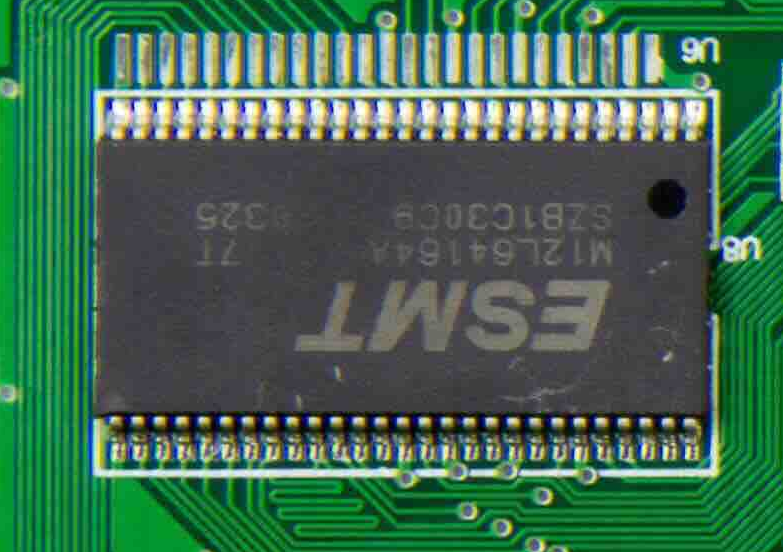
Lire les marquages sur une carte de circuit imprimé
L'exemple suivant montre comment utiliser l'exécution de code pour lire les marquages sur une carte de circuit imprimé.
Python
from google import genai
from google.genai import types

client = genai.Client()

with open('circuit_board.jpeg', 'rb') as f:
    image_bytes = f.read()

system_instruction = "Be precise. When JSON is requested, reply with ONLY that JSON (no preface, no code block)."

response = client.models.generate_content(
    model="gemini-robotics-er-2-preview",
    contents=[
        types.Part.from_bytes(
            data=image_bytes,
            mime_type='image/jpeg',
        ),
        """Read all visible component labels and markings on this circuit
        board. Reply in JSON: {"components": [{"label": val,
        "location": [y, x]}]}"""
    ],
    config = types.GenerateContentConfig(
        system_instruction=system_instruction,
        tools=[types.Tool(code_execution=types.ToolCodeExecution)],
    )
)

print(response.text)
Annotation d'images
L'exemple suivant montre comment utiliser l'exécution de code pour annoter une image (par exemple, en dessinant des flèches pour les instructions d'élimination) et renvoyer l'image modifiée.
Python
from google import genai
from google.genai import types

client = genai.Client()

# Load your image
with open('sorting.jpeg', 'rb') as f:
    image_bytes = f.read()

prompt = """
Look at this image and return it as an annotated version using arrows of
different colors to represent which items should go in which bins for
disposal. You must return the final image to the API caller.
"""

response = client.models.generate_content(
    model="gemini-robotics-er-2-preview",
    contents=[
        types.Part.from_bytes(
            data=image_bytes,
            mime_type='image/jpeg',
        ),
        prompt
    ],
    config = types.GenerateContentConfig(
        tools=[types.Tool(code_execution=types.ToolCodeExecution)],
    )
)

print(response.text)
Voici un exemple d'image d'entrée.
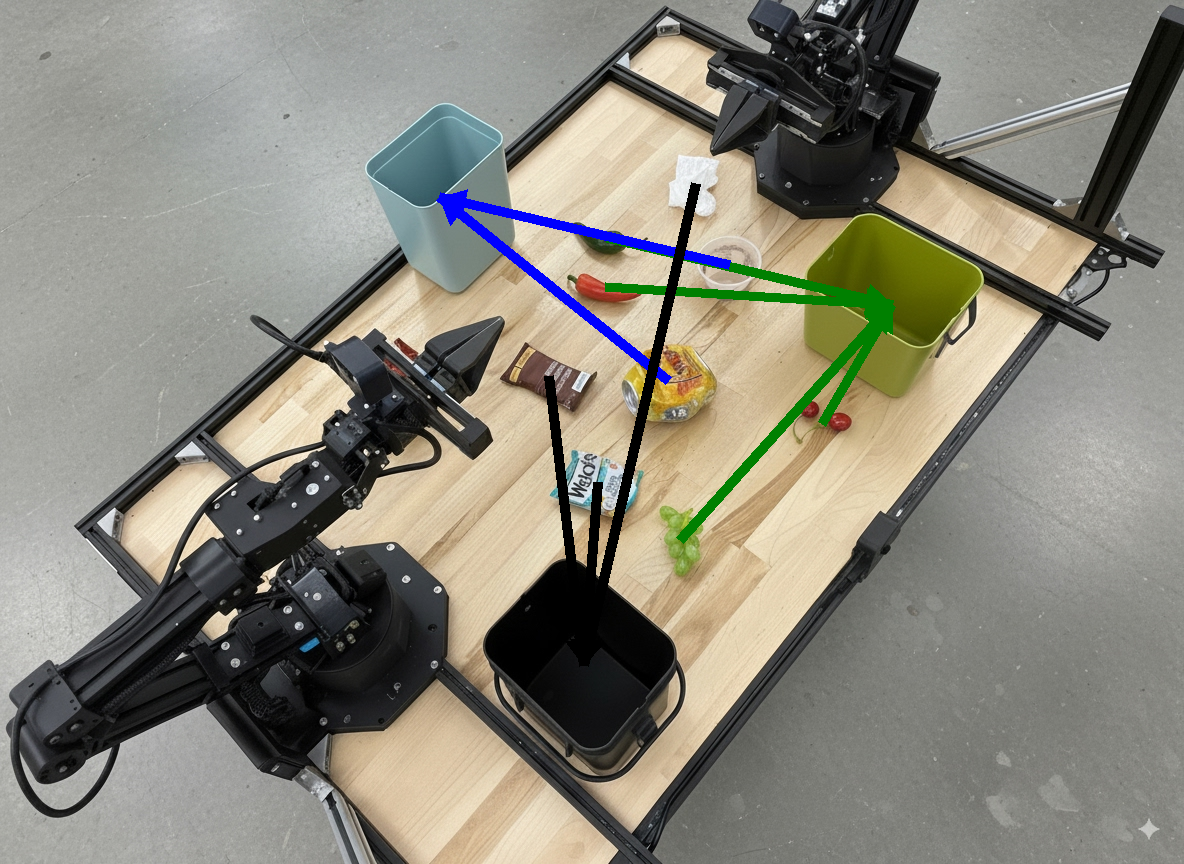
La sortie du modèle serait semblable à ce qui suit :
  The annotated image shows the suggested disposal locations for the items on the table:
  - **Green bin (Compost/Organic)**: Green chili, red chili, grapes, and cherries.
  - **Blue bin (Recycling)**: Yellow crushed can and plastic container.
  - **Black bin (Trash)**: Chocolate bar wrapper, Welch's packet, and white tissue.
Étape suivante
- Orchestration des tâches : tâches à long terme avec des API de robot personnalisées.
- Robotique avec streaming : streaming bidirectionnel en temps réel (Gemini Robotics ER 2 uniquement).
- Compréhension vidéo : recherche de moments et classification de la progression (Gemini Robotics ER 2 uniquement).