

Các mô hình Gemini Robotics ER có thể viết và thực thi mã Python để thao tác với hình ảnh và áp dụng logic trước khi trả lời. Trang này trình bày các ví dụ về việc thực thi mã: phát hiện đối tượng bằng cách thu phóng và cắt, đọc nhạc cụ, đo chất lỏng, đọc bảng mạch và chú thích hình ảnh.
Để điều chỉnh các ví dụ này cho trường hợp sử dụng của riêng bạn, hãy thay thế văn bản câu lệnh và tệp hình ảnh đã tải lên bằng văn bản và tệp của riêng bạn. Bạn cũng có thể điều chỉnh giản đồ JSON được yêu cầu trong câu lệnh để khớp với cấu trúc đầu ra mà ứng dụng của bạn cần, hoặc thêm system_instruction để thực thi định dạng và độ chính xác của đầu ra.
Để xem toàn bộ mã có thể chạy, hãy xem Sổ tay về robot học.
Cấp độ tư duy
Bạn có thể kiểm soát mức độ suy nghĩ để đánh đổi độ trễ lấy độ chính xác. Các tác vụ không gian như phát hiện đối tượng hoạt động hiệu quả với mức độ tư duy thấp. Các nhiệm vụ phức tạp như đếm hoặc ước tính trọng lượng sẽ có lợi khi bạn có cấp độ tư duy cao hơn.
Ví dụ sau đây đặt cấp độ tư duy thành high cho một nhiệm vụ đếm phức tạp:
Python
from google import genai
from google.genai import types

client = genai.Client()

with open('scene.jpeg', 'rb') as f:
    image_bytes = f.read()

response = client.models.generate_content(
    model="gemini-robotics-er-2-preview",
    contents=[
        types.Part.from_bytes(
            data=image_bytes,
            mime_type='image/jpeg',
        ),
        "Identify and count all objects on the table."
    ],
    config=types.GenerateContentConfig(
        thinking_config=types.ThinkingConfig(thinking_level="high")
    )
)

print(response.text)
Hãy xem phần Tư duy để biết thông tin chi tiết.
Phát hiện đối tượng (Thu phóng và cắt)
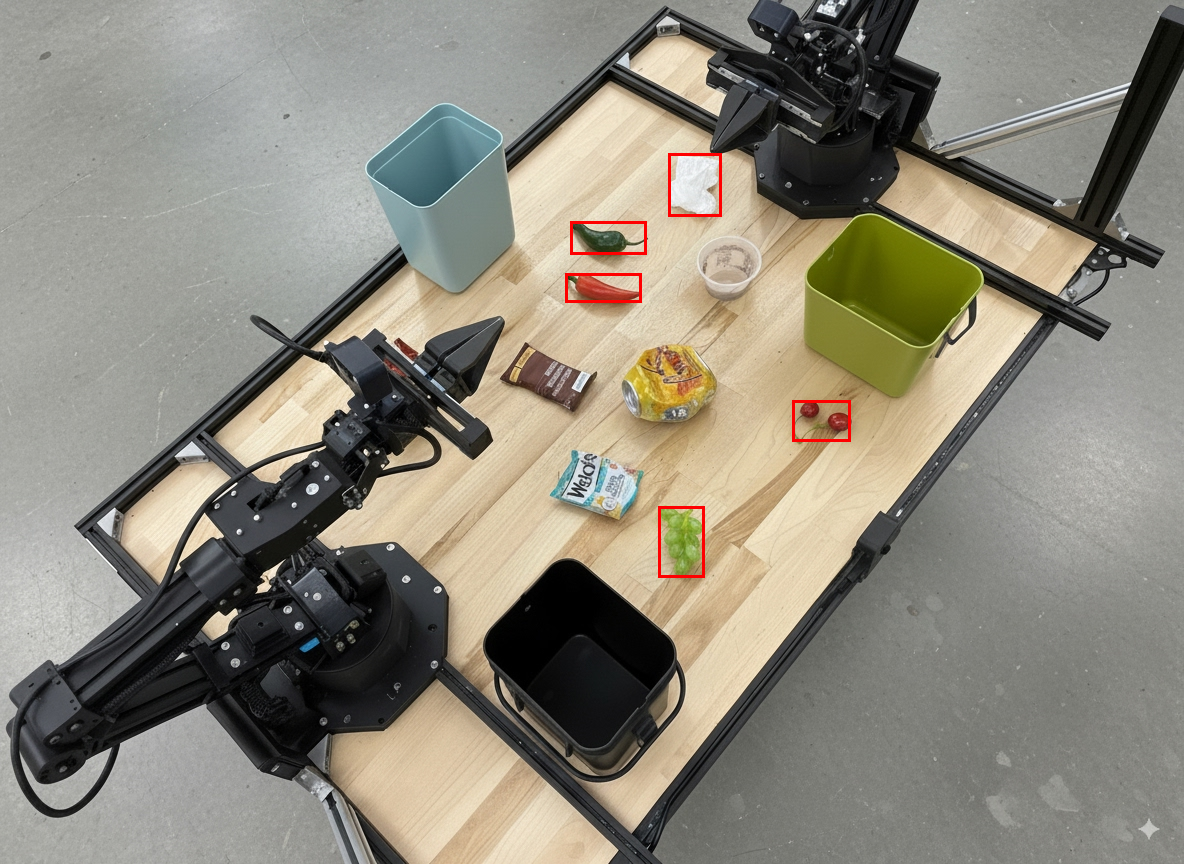
Ví dụ sau đây minh hoạ cách sử dụng tính năng thực thi mã để thu phóng và cắt ảnh nhằm có chế độ xem rõ ràng hơn khi phát hiện các đối tượng và trả về các hộp giới hạn.
Python
from google import genai
from google.genai import types

client = genai.Client()

# Load your image
with open('sorting.jpeg', 'rb') as f:
    image_bytes = f.read()

prompt = """
Return JSON in the format {label: val, y: val, x: val, y2: val, x2: val} for
the compostable objects in this scene. Please Zoom and crop the image for a
clearer view. Return an annotated image of the final result with the bounding
boxes drawn on it to the API caller as a part of your process.
"""

response = client.models.generate_content(
    model="gemini-robotics-er-2-preview",
    contents=[
        types.Part.from_bytes(
            data=image_bytes,
            mime_type='image/jpeg',
        ),
        prompt
    ],
    config = types.GenerateContentConfig(
        tools=[types.Tool(code_execution=types.ToolCodeExecution)],
    )
)

print(response.text)
Đầu ra của mô hình sẽ tương tự như phản hồi JSON sau:
[
  {"label": "compostable", "y": 256, "x": 482, "y2": 295, "x2": 546},
  {"label": "compostable", "y": 317, "x": 478, "y2": 350, "x2": 542},
  {"label": "compostable", "y": 586, "x": 556, "y2": 668, "x2": 595},
  {"label": "compostable", "y": 463, "x": 669, "y2": 511, "x2": 718},
  {"label": "compostable", "y": 178, "x": 565, "y2": 250, "x2": 609}
]
Hình ảnh sau đây cho thấy các hộp được trả về từ mô hình.
Đọc đồng hồ đo analog và áp dụng logic
Ví dụ sau đây minh hoạ cách sử dụng mô hình để đọc đồng hồ đo tương tự và thực hiện các phép tính thời gian. Công cụ này sử dụng một chỉ dẫn hệ thống để thực thi đầu ra JSON.
Python
from google import genai
from google.genai import types

client = genai.Client()

with open('gauge.jpeg', 'rb') as f:
    image_bytes = f.read()

system_instruction = "Be precise. When JSON is requested, reply with ONLY that JSON (no preface, no code block)."

response = client.models.generate_content(
    model="gemini-robotics-er-2-preview",
    contents=[
        types.Part.from_bytes(
            data=image_bytes,
            mime_type='image/jpeg',
        ),
        """Read the current value from this gauge. Then, calculate how long
        it will take at the current rate for the value to reach maximum.
        Reply in JSON: {"current_value": val, "max_value": val,
        "time_to_max_minutes": val}"""
    ],
    config = types.GenerateContentConfig(
        system_instruction=system_instruction,
        tools=[types.Tool(code_execution=types.ToolCodeExecution)],
    )
)

print(response.text)
Đo chất lỏng trong một bình chứa
Ví dụ sau đây minh hoạ cách sử dụng tính năng thực thi mã để đo mức chất lỏng trong một hộp chứa.
Python
from google import genai
from google.genai import types

client = genai.Client()

with open('fluid.jpeg', 'rb') as f:
    image_bytes = f.read()

system_instruction = "Be precise. When JSON is requested, reply with ONLY that JSON (no preface, no code block)."

response = client.models.generate_content(
    model="gemini-robotics-er-2-preview",
    contents=[
        types.Part.from_bytes(
            data=image_bytes,
            mime_type='image/jpeg',
        ),
        """Measure the amount of fluid in the container. Reply in JSON:
        {"fluid_level_ml": val, "container_capacity_ml": val,
        "percentage_full": val}"""
    ],
    config = types.GenerateContentConfig(
        system_instruction=system_instruction,
        tools=[types.Tool(code_execution=types.ToolCodeExecution)],
    )
)

print(response.text)
Đọc các dấu hiệu trên bảng mạch
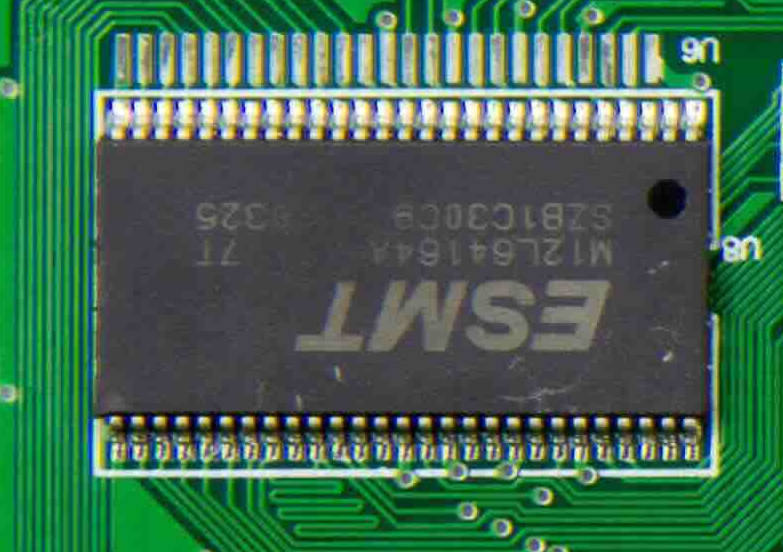
Ví dụ sau đây minh hoạ cách sử dụng tính năng thực thi mã để đọc các dấu hiệu trên bảng mạch.
Python
from google import genai
from google.genai import types

client = genai.Client()

with open('circuit_board.jpeg', 'rb') as f:
    image_bytes = f.read()

system_instruction = "Be precise. When JSON is requested, reply with ONLY that JSON (no preface, no code block)."

response = client.models.generate_content(
    model="gemini-robotics-er-2-preview",
    contents=[
        types.Part.from_bytes(
            data=image_bytes,
            mime_type='image/jpeg',
        ),
        """Read all visible component labels and markings on this circuit
        board. Reply in JSON: {"components": [{"label": val,
        "location": [y, x]}]}"""
    ],
    config = types.GenerateContentConfig(
        system_instruction=system_instruction,
        tools=[types.Tool(code_execution=types.ToolCodeExecution)],
    )
)

print(response.text)
Chú thích hình ảnh
Ví dụ sau đây minh hoạ cách sử dụng tính năng thực thi mã để chú thích một hình ảnh (ví dụ: vẽ mũi tên cho hướng dẫn xử lý) và trả về hình ảnh đã sửa đổi.
Python
from google import genai
from google.genai import types

client = genai.Client()

# Load your image
with open('sorting.jpeg', 'rb') as f:
    image_bytes = f.read()

prompt = """
Look at this image and return it as an annotated version using arrows of
different colors to represent which items should go in which bins for
disposal. You must return the final image to the API caller.
"""

response = client.models.generate_content(
    model="gemini-robotics-er-2-preview",
    contents=[
        types.Part.from_bytes(
            data=image_bytes,
            mime_type='image/jpeg',
        ),
        prompt
    ],
    config = types.GenerateContentConfig(
        tools=[types.Tool(code_execution=types.ToolCodeExecution)],
    )
)

print(response.text)
Sau đây là một ví dụ về dữ liệu đầu vào hình ảnh.
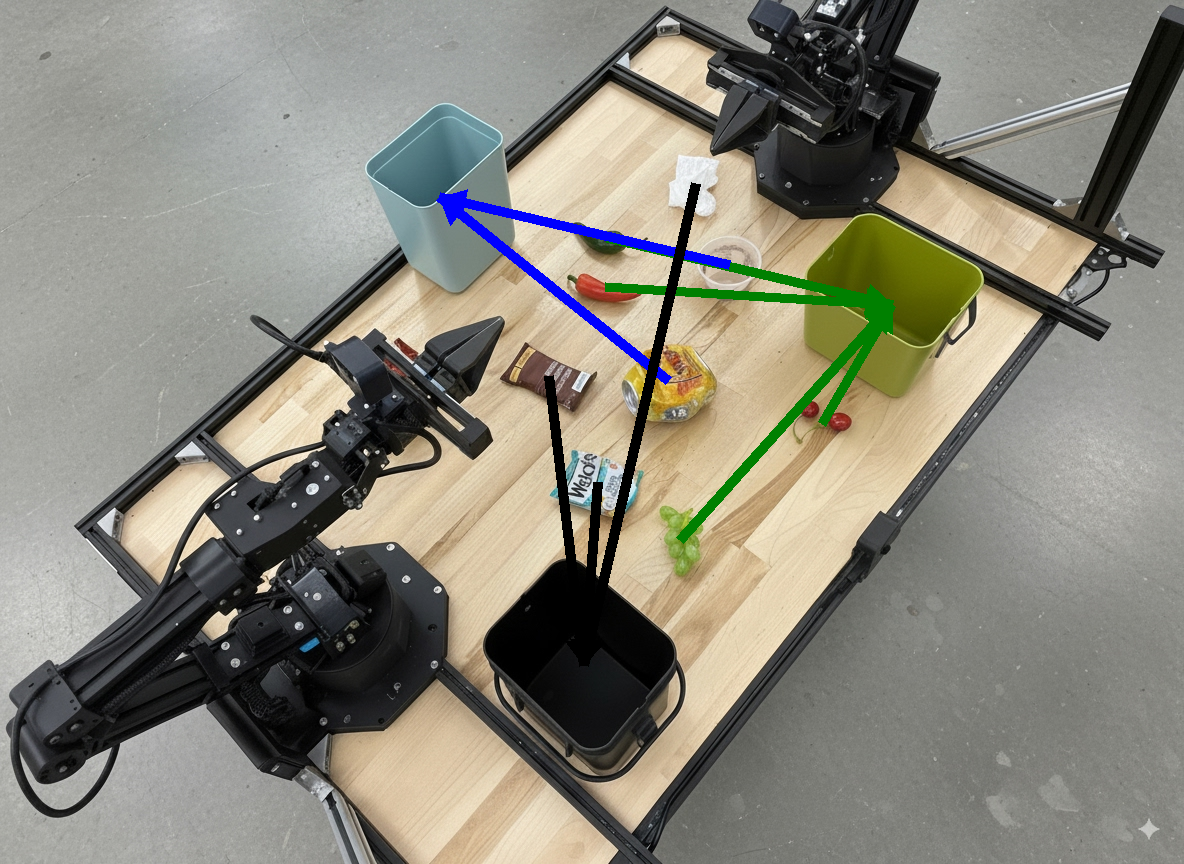
Đầu ra của mô hình sẽ tương tự như sau:
  The annotated image shows the suggested disposal locations for the items on the table:
  - **Green bin (Compost/Organic)**: Green chili, red chili, grapes, and cherries.
  - **Blue bin (Recycling)**: Yellow crushed can and plastic container.
  - **Black bin (Trash)**: Chocolate bar wrapper, Welch's packet, and white tissue.
Bước tiếp theo
- Điều phối tác vụ – các tác vụ có thời hạn dài bằng API robot tuỳ chỉnh.
- Robot học có tính năng truyền trực tuyến — truyền trực tuyến hai chiều theo thời gian thực (chỉ Gemini Robotics ER 2).
- Hiểu video – tìm khoảnh khắc và phân loại tiến trình (chỉ Gemini Robotics ER 2).