

Los modelos de Gemini se diseñaron para ser multimodales desde cero, lo que permite realizar una amplia variedad de tareas de procesamiento de imágenes y visión artificial, incluidos, sin limitaciones, la descripción de imágenes, la clasificación y la respuesta a preguntas visuales, sin tener que entrenar modelos de AA especializados.
Además de sus capacidades multimodales generales, los modelos de Gemini ofrecen una mayor precisión para casos de uso específicos, como la detección de objetos y la segmentación, a través de entrenamiento adicional.
Cómo pasar imágenes a Gemini
Puedes proporcionar imágenes como entrada a Gemini de varias maneras:
- Pasa la imagen con la URL: Es ideal para imágenes de acceso público.
- Cómo pasar datos de imágenes intercaladas: Para datos de imágenes codificados en Base64
- Cómo subir imágenes con la API de File: Se recomienda para archivos más grandes o para reutilizar imágenes en varias solicitudes.
Cómo pasar una imagen con una URL
Puedes subir una imagen con la API de Files y pasarla en la solicitud:
Python
from google import genai

client = genai.Client()

uploaded_file = client.files.upload(file="path/to/organ.jpg")

interaction = client.interactions.create(
    model="gemini-3.8-flash",
    input=[
        {"type": "text", "text": "Caption this image."},
        {
            "type": "image",
            "uri": uploaded_file.uri,
            "mime_type": uploaded_file.mime_type
        }
    ]
)
print(interaction.output_text)
JavaScript
import { GoogleGenAI } from "@google/genai";

const client = new GoogleGenAI({});

const uploadedFile = await client.files.upload({
    file: "path/to/organ.jpg",
    config: { mimeType: "image/jpeg" }
});

const interaction = await client.interactions.create({
    model: "gemini-3.8-flash",
    input: [
        {type: "text", text: "Caption this image."},
        {
            type: "image",
            uri: uploadedFile.uri,
            mime_type: uploadedFile.mimeType
        }
    ]
});
console.log(interaction.output_text);
Java
import com.google.genai.Client;
import com.google.genai.gaos.models.interactions.Content;
import com.google.genai.gaos.models.interactions.CreateModelInteraction;
import com.google.genai.gaos.models.interactions.ImageContent;
import com.google.genai.gaos.models.interactions.ImageContentMimeType;
import com.google.genai.gaos.models.interactions.Interaction;
import com.google.genai.gaos.models.interactions.InteractionsInput;
import com.google.genai.gaos.models.interactions.Model;
import com.google.genai.gaos.models.interactions.TextContent;
import com.google.genai.gaos.models.operations.CreateInteractionRequestBody;
import com.google.genai.types.File;
import com.google.genai.types.UploadFileConfig;
import java.util.Arrays;
import java.util.List;

Client client = new Client();

File uploadedFile =
    client.files.upload(
        new java.io.File("path/to/organ.jpg"),
        UploadFileConfig.builder().mimeType("image/jpeg").build());

Content textContent = TextContent.builder().text("Caption this image.").build();
Content imageContent =
    ImageContent.builder()
        .uri(uploadedFile.uri().orElse(""))
        .mimeType(ImageContentMimeType.of(uploadedFile.mimeType().orElse("image/jpeg")))
        .build();

List<Content> contents = Arrays.asList(textContent, imageContent);

CreateModelInteraction params =
    CreateModelInteraction.builder()
        .model(Model.of("gemini-3.8-flash"))
        .input(InteractionsInput.ofContent(contents))
        .build();

Interaction interaction =
    client.interactions.create(CreateInteractionRequestBody.of(params)).interaction().get();
System.out.println(interaction.outputText().orElse(""));
Go
package main

import (
    "context"
    "fmt"
    "log"

    "google.golang.org/genai"
    "google.golang.org/genai/interactions/models/interactions"
    "google.golang.org/genai/interactions/models/operations"
)

func main() {
    ctx := context.Background()
    client, err := genai.NewClient(ctx, nil)
    if err != nil {
        log.Fatal(err)
    }

    uploadedFile, err := client.Files.UploadFromPath(ctx, "path/to/organ.jpg", &genai.UploadFileConfig{
        MIMEType: "image/jpeg",
    })
    if err != nil {
        log.Fatal(err)
    }

    res, err := client.Interactions.Create(ctx, operations.CreateInteractionRequest{
        Body: operations.NewCreateInteractionRequestBody(interactions.CreateModelInteraction{
            Model: interactions.Model("gemini-3.8-flash"),
            Input: interactions.NewInteractionsInput([]interactions.Content{
                interactions.NewContent(interactions.TextContent{
                    Text: "Caption this image.",
                }),
                interactions.NewContent(interactions.ImageContent{
                    URI:      genai.Ptr(uploadedFile.URI),
                    MimeType: interactions.ImageContentMimeType(uploadedFile.MIMEType).ToPointer(),
                }),
            }),
        }),
    })
    if err != nil {
        log.Fatal(err)
    }
    if res.Interaction.OutputText != nil {
        fmt.Println(*res.Interaction.OutputText)
    }
}
REST
# First upload the file using the Files API, then use the URI:
curl -X POST "https://generativelanguage.googleapis.com/v1beta/interactions" \
  -H "x-goog-api-key: $GEMINI_API_KEY" \
  -H 'Content-Type: application/json' \
  -d '{
    "model": "gemini-3.8-flash",
    "input": [
      {"type": "text", "text": "Caption this image."},
      {
        "type": "image",
        "uri": "YOUR_FILE_URI",
        "mime_type": "image/jpeg"
      }
    ]
  }'
Cómo pasar datos de imágenes intercaladas
Puedes proporcionar datos de imágenes como cadenas codificadas en base64:
Python
import base64
from google import genai

with open('path/to/small-sample.jpg', 'rb') as f:
    image_bytes = f.read()

client = genai.Client()

interaction = client.interactions.create(
    model="gemini-3.8-flash",
    input=[
        {"type": "text", "text": "Caption this image."},
        {
            "type": "image",
            "data": base64.b64encode(image_bytes).decode('utf-8'),
            "mime_type": "image/jpeg"
        }
    ]
)
print(interaction.output_text)
JavaScript
import { GoogleGenAI } from "@google/genai";
import * as fs from "node:fs";

const client = new GoogleGenAI({});
const base64ImageFile = fs.readFileSync("path/to/small-sample.jpg", {
  encoding: "base64",
});

const interaction = await client.interactions.create({
    model: "gemini-3.8-flash",
    input: [
        {type: "text", text: "Caption this image."},
        {
            type: "image",
            data: base64ImageFile,
            mime_type: "image/jpeg"
        }
    ]
});
console.log(interaction.output_text);
Java
import com.google.genai.Client;
import com.google.genai.gaos.models.interactions.Content;
import com.google.genai.gaos.models.interactions.CreateModelInteraction;
import com.google.genai.gaos.models.interactions.ImageContent;
import com.google.genai.gaos.models.interactions.ImageContentMimeType;
import com.google.genai.gaos.models.interactions.Interaction;
import com.google.genai.gaos.models.interactions.InteractionsInput;
import com.google.genai.gaos.models.interactions.Model;
import com.google.genai.gaos.models.interactions.TextContent;
import com.google.genai.gaos.models.operations.CreateInteractionRequestBody;
import java.nio.file.Files;
import java.nio.file.Paths;
import java.util.Arrays;
import java.util.Base64;
import java.util.List;

byte[] imageBytes = Files.readAllBytes(Paths.get("path/to/small-sample.jpg"));
String base64Image = Base64.getEncoder().encodeToString(imageBytes);

Client client = new Client();

Content textContent = TextContent.builder().text("Caption this image.").build();
Content imageContent =
    ImageContent.builder()
        .data(base64Image)
        .mimeType(ImageContentMimeType.IMAGE_JPEG)
        .build();

List<Content> contents = Arrays.asList(textContent, imageContent);

CreateModelInteraction params =
    CreateModelInteraction.builder()
        .model(Model.of("gemini-3.8-flash"))
        .input(InteractionsInput.ofContent(contents))
        .build();

Interaction interaction =
    client.interactions.create(CreateInteractionRequestBody.of(params)).interaction().get();
System.out.println(interaction.outputText().orElse(""));
Go
package main

import (
    "context"
    "encoding/base64"
    "fmt"
    "log"
    "os"

    "google.golang.org/genai"
    "google.golang.org/genai/interactions/models/interactions"
    "google.golang.org/genai/interactions/models/operations"
)

func main() {
    ctx := context.Background()
    client, err := genai.NewClient(ctx, nil)
    if err != nil {
        log.Fatal(err)
    }

    imageBytes, err := os.ReadFile("path/to/small-sample.jpg")
    if err != nil {
        log.Fatal(err)
    }
    base64Image := base64.StdEncoding.EncodeToString(imageBytes)

    res, err := client.Interactions.Create(ctx, operations.CreateInteractionRequest{
        Body: operations.NewCreateInteractionRequestBody(interactions.CreateModelInteraction{
            Model: interactions.Model("gemini-3.8-flash"),
            Input: interactions.NewInteractionsInput([]interactions.Content{
                interactions.NewContent(interactions.TextContent{
                    Text: "Caption this image.",
                }),
                interactions.NewContent(interactions.ImageContent{
                    Data:     genai.Ptr(base64Image),
                    MimeType: interactions.ImageContentMimeTypeImageJpeg.ToPointer(),
                }),
            }),
        }),
    })
    if err != nil {
        log.Fatal(err)
    }
    if res.Interaction.OutputText != nil {
        fmt.Println(*res.Interaction.OutputText)
    }
}
REST
IMG_PATH="/path/to/your/image1.jpg"

if [[ "$(base64 --version 2>&1)" = *"FreeBSD"* ]]; then
  B64FLAGS="--input"
else
  B64FLAGS="-w0"
fi

curl -X POST "https://generativelanguage.googleapis.com/v1beta/interactions" \
  -H "x-goog-api-key: $GEMINI_API_KEY" \
  -H 'Content-Type: application/json' \
  -d '{
    "model": "gemini-3.8-flash",
    "input": [
      {"type": "text", "text": "Caption this image."},
      {
        "type": "image",
        "data": "'"$(base64 $B64FLAGS $IMG_PATH)"'",
        "mime_type": "image/jpeg"
      }
    ]
  }'
Cómo subir imágenes con la API de File
Para archivos grandes o para poder usar el mismo archivo de imagen varias veces, usa la API de Files. Consulta la guía de la API de Files.
Python
from google import genai

client = genai.Client()

my_file = client.files.upload(file="path/to/sample.jpg")

interaction = client.interactions.create(
    model="gemini-3.8-flash",
    input=[
        {"type": "text", "text": "Caption this image."},
        {
            "type": "image",
            "uri": my_file.uri,
            "mime_type": my_file.mime_type
        }
    ]
)
print(interaction.output_text)
JavaScript
import { GoogleGenAI } from "@google/genai";

const client = new GoogleGenAI({});

const myfile = await client.files.upload({
    file: "path/to/sample.jpg",
    config: { mimeType: "image/jpeg" },
});

const interaction = await client.interactions.create({
    model: "gemini-3.8-flash",
    input: [
        {type: "text", text: "Caption this image."},
        {
            type: "image",
            uri: myfile.uri,
            mime_type: myfile.mimeType
        }
    ]
});
console.log(interaction.output_text);
Java
import com.google.genai.Client;
import com.google.genai.gaos.models.interactions.Content;
import com.google.genai.gaos.models.interactions.CreateModelInteraction;
import com.google.genai.gaos.models.interactions.ImageContent;
import com.google.genai.gaos.models.interactions.ImageContentMimeType;
import com.google.genai.gaos.models.interactions.Interaction;
import com.google.genai.gaos.models.interactions.InteractionsInput;
import com.google.genai.gaos.models.interactions.Model;
import com.google.genai.gaos.models.interactions.TextContent;
import com.google.genai.gaos.models.operations.CreateInteractionRequestBody;
import com.google.genai.types.File;
import com.google.genai.types.UploadFileConfig;
import java.util.Arrays;
import java.util.List;

Client client = new Client();

File myFile =
    client.files.upload(
        new java.io.File("path/to/sample.jpg"),
        UploadFileConfig.builder().mimeType("image/jpeg").build());

Content textContent = TextContent.builder().text("Caption this image.").build();
Content imageContent =
    ImageContent.builder()
        .uri(myFile.uri().orElse(""))
        .mimeType(ImageContentMimeType.of(myFile.mimeType().orElse("image/jpeg")))
        .build();

List<Content> contents = Arrays.asList(textContent, imageContent);

CreateModelInteraction params =
    CreateModelInteraction.builder()
        .model(Model.of("gemini-3.8-flash"))
        .input(InteractionsInput.ofContent(contents))
        .build();

Interaction interaction =
    client.interactions.create(CreateInteractionRequestBody.of(params)).interaction().get();
System.out.println(interaction.outputText().orElse(""));
Go
package main

import (
    "context"
    "fmt"
    "log"

    "google.golang.org/genai"
    "google.golang.org/genai/interactions/models/interactions"
    "google.golang.org/genai/interactions/models/operations"
)

func main() {
    ctx := context.Background()
    client, err := genai.NewClient(ctx, nil)
    if err != nil {
        log.Fatal(err)
    }

    myFile, err := client.Files.UploadFromPath(ctx, "path/to/sample.jpg", &genai.UploadFileConfig{
        MIMEType: "image/jpeg",
    })
    if err != nil {
        log.Fatal(err)
    }

    res, err := client.Interactions.Create(ctx, operations.CreateInteractionRequest{
        Body: operations.NewCreateInteractionRequestBody(interactions.CreateModelInteraction{
            Model: interactions.Model("gemini-3.8-flash"),
            Input: interactions.NewInteractionsInput([]interactions.Content{
                interactions.NewContent(interactions.TextContent{
                    Text: "Caption this image.",
                }),
                interactions.NewContent(interactions.ImageContent{
                    URI:      genai.Ptr(myFile.URI),
                    MimeType: interactions.ImageContentMimeType(myFile.MIMEType).ToPointer(),
                }),
            }),
        }),
    })
    if err != nil {
        log.Fatal(err)
    }
    if res.Interaction.OutputText != nil {
        fmt.Println(*res.Interaction.OutputText)
    }
}
REST
# First upload the file (see Files API guide for details)
# Then use the file URI in the request:

curl -X POST "https://generativelanguage.googleapis.com/v1beta/interactions" \
  -H "x-goog-api-key: $GEMINI_API_KEY" \
  -H 'Content-Type: application/json' \
  -d '{
    "model": "gemini-3.8-flash",
    "input": [
      {"type": "text", "text": "Caption this image."},
      {
        "type": "image",
        "uri": "YOUR_FILE_URI",
        "mime_type": "image/jpeg"
      }
    ]
  }'
Instrucciones con varias imágenes
Puedes proporcionar varias imágenes en una sola instrucción incluyendo varios objetos de imagen en el array input:
Python
from google import genai

client = genai.Client()

interaction = client.interactions.create(
    model="gemini-3.8-flash",
    input=[
        {"type": "text", "text": "What is different between these two images?"},
        {
            "type": "image",
            "uri": "https://example.com/image1.jpg",
            "mime_type": "image/jpeg"
        },
        {
            "type": "image",
            "uri": "https://example.com/image2.jpg",
            "mime_type": "image/jpeg"
        }
    ]
)
print(interaction.output_text)
JavaScript
import { GoogleGenAI } from "@google/genai";

const client = new GoogleGenAI({});

const interaction = await client.interactions.create({
    model: "gemini-3.8-flash",
    input: [
        {type: "text", text: "What is different between these two images?"},
        {
            type: "image",
            uri: "https://example.com/image1.jpg",
            mime_type: "image/jpeg"
        },
        {
            type: "image",
            uri: "https://example.com/image2.jpg",
            mime_type: "image/jpeg"
        }
    ]
});
console.log(interaction.output_text);
Java
import com.google.genai.Client;
import com.google.genai.gaos.models.interactions.Content;
import com.google.genai.gaos.models.interactions.CreateModelInteraction;
import com.google.genai.gaos.models.interactions.ImageContent;
import com.google.genai.gaos.models.interactions.ImageContentMimeType;
import com.google.genai.gaos.models.interactions.Interaction;
import com.google.genai.gaos.models.interactions.InteractionsInput;
import com.google.genai.gaos.models.interactions.Model;
import com.google.genai.gaos.models.interactions.TextContent;
import com.google.genai.gaos.models.operations.CreateInteractionRequestBody;
import java.util.Arrays;
import java.util.List;

Client client = new Client();

Content textContent =
    TextContent.builder().text("What is different between these two images?").build();
Content image1 =
    ImageContent.builder()
        .uri("https://example.com/image1.jpg")
        .mimeType(ImageContentMimeType.IMAGE_JPEG)
        .build();
Content image2 =
    ImageContent.builder()
        .uri("https://example.com/image2.jpg")
        .mimeType(ImageContentMimeType.IMAGE_JPEG)
        .build();

List<Content> contents = Arrays.asList(textContent, image1, image2);

CreateModelInteraction params =
    CreateModelInteraction.builder()
        .model(Model.of("gemini-3.8-flash"))
        .input(InteractionsInput.ofContent(contents))
        .build();

Interaction interaction =
    client.interactions.create(CreateInteractionRequestBody.of(params)).interaction().get();
System.out.println(interaction.outputText().orElse(""));
Go
package main

import (
    "context"
    "fmt"
    "log"

    "google.golang.org/genai"
    "google.golang.org/genai/interactions/models/interactions"
    "google.golang.org/genai/interactions/models/operations"
)

func main() {
    ctx := context.Background()
    client, err := genai.NewClient(ctx, nil)
    if err != nil {
        log.Fatal(err)
    }

    res, err := client.Interactions.Create(ctx, operations.CreateInteractionRequest{
        Body: operations.NewCreateInteractionRequestBody(interactions.CreateModelInteraction{
            Model: interactions.Model("gemini-3.8-flash"),
            Input: interactions.NewInteractionsInput([]interactions.Content{
                interactions.NewContent(interactions.TextContent{
                    Text: "What is different between these two images?",
                }),
                interactions.NewContent(interactions.ImageContent{
                    URI:      genai.Ptr("https://example.com/image1.jpg"),
                    MimeType: interactions.ImageContentMimeTypeImageJpeg.ToPointer(),
                }),
                interactions.NewContent(interactions.ImageContent{
                    URI:      genai.Ptr("https://example.com/image2.jpg"),
                    MimeType: interactions.ImageContentMimeTypeImageJpeg.ToPointer(),
                }),
            }),
        }),
    })
    if err != nil {
        log.Fatal(err)
    }
    if res.Interaction.OutputText != nil {
        fmt.Println(*res.Interaction.OutputText)
    }
}
REST
curl -X POST "https://generativelanguage.googleapis.com/v1beta/interactions" \
  -H "x-goog-api-key: $GEMINI_API_KEY" \
  -H 'Content-Type: application/json' \
  -d '{
    "model": "gemini-3.8-flash",
    "input": [
      {"type": "text", "text": "What is different between these two images?"},
      {
        "type": "image",
        "uri": "https://example.com/image1.jpg",
        "mime_type": "image/jpeg"
      },
      {
        "type": "image",
        "uri": "https://example.com/image2.jpg",
        "mime_type": "image/jpeg"
      }
    ]
  }'
Detección de objetos
Los modelos se entrenan para detectar objetos en una imagen y obtener las coordenadas de su cuadro delimitador. Las coordenadas, relativas a las dimensiones de la imagen, se ajustan a una escala de [0, 1000]. Debes ajustar estas coordenadas según el tamaño de la imagen original.
Python
from google import genai
from pydantic import BaseModel, Field
from typing import List
import json

client = genai.Client()
prompt = "Detect the all of the prominent items in the image. The box_2d should be [ymin, xmin, ymax, xmax] normalized to 0-1000."

class BoundingBox(BaseModel):
    box_2d: List[int] = Field(description="The 2D bounding box of the item as [ymin, xmin, ymax, xmax] normalized to 0-1000.")
    mask: List[List[int]] = Field(description="The segmentation mask of the item as a polygon of [x,y] coordinates, normalized to 0-1000.")
    label: str = Field(description="A descriptive label for the item.")

class BoundingBoxes(BaseModel):
    boxes: List[BoundingBox]

interaction = client.interactions.create(
    model="gemini-3.8-flash",
    input=[
        {"type": "text", "text": prompt},
        {
            "type": "image",
            "uri": "https://example.com/image.png",
            "mime_type": "image/png"
        }
    ],
    response_format={
        "type": "text",
        "mime_type": "application/json",
        "schema": BoundingBoxes.model_json_schema()
    }
)

bounding_boxes = BoundingBoxes.model_validate_json(interaction.output_text)
print(bounding_boxes)
JavaScript
import { GoogleGenAI } from "@google/genai";
import * as z from "zod";

const client = new GoogleGenAI({});
const prompt = "Detect the all of the prominent items in the image. The box_2d should be [ymin, xmin, ymax, xmax] normalized to 0-1000.";

const boundingBoxesSchema = z.object({
  boxes: z.array(z.object({
    box_2d: z.array(z.number()),
    mask: z.array(z.array(z.number())),
    label: z.string()
  }))
});

const interaction = await client.interactions.create({
  model: "gemini-3.8-flash",
  input: [
    { type: "text", text: prompt },
    {
      type: "image",
      uri: "https://example.com/image.png",
      mime_type: "image/png"
    }
  ],
  response_format: {
    type: 'text',
    mime_type: 'application/json',
    schema: z.toJSONSchema(boundingBoxesSchema)
  },
});

const result = boundingBoxesSchema.parse(JSON.parse(interaction.output_text));
console.log(result);
Java
import com.google.genai.Client;
import com.google.genai.gaos.models.interactions.Content;
import com.google.genai.gaos.models.interactions.CreateModelInteraction;
import com.google.genai.gaos.models.interactions.CreateModelInteractionResponseFormat;
import com.google.genai.gaos.models.interactions.ImageContent;
import com.google.genai.gaos.models.interactions.ImageContentMimeType;
import com.google.genai.gaos.models.interactions.Interaction;
import com.google.genai.gaos.models.interactions.InteractionsInput;
import com.google.genai.gaos.models.interactions.Model;
import com.google.genai.gaos.models.interactions.ResponseFormat;
import com.google.genai.gaos.models.interactions.TextContent;
import com.google.genai.gaos.models.interactions.TextResponseFormat;
import com.google.genai.gaos.models.interactions.TextResponseFormatMimeType;
import com.google.genai.gaos.models.operations.CreateInteractionRequestBody;
import java.util.Arrays;
import java.util.List;
import java.util.Map;

Client client = new Client();
String prompt =
    "Detect the all of the prominent items in the image. The box_2d should be [ymin, xmin, ymax, xmax] normalized to 0-1000.";

Map<String, Object> boundingBoxSchema =
    Map.of(
        "type", "object",
        "properties",
            Map.of(
                "box_2d",
                    Map.of(
                        "type", "array",
                        "items", Map.of("type", "integer"),
                        "description",
                            "The 2D bounding box of the item as [ymin, xmin, ymax, xmax] normalized to 0-1000."),
                "mask",
                    Map.of(
                        "type", "array",
                        "items", Map.of("type", "array", "items", Map.of("type", "integer")),
                        "description",
                            "The segmentation mask of the item as a polygon of [x,y] coordinates, normalized to 0-1000."),
                "label",
                    Map.of("type", "string", "description", "A descriptive label for the item.")),
        "required", List.of("box_2d", "mask", "label"));

Map<String, Object> boundingBoxesSchema =
    Map.of(
        "type", "object",
        "properties", Map.of("boxes", Map.of("type", "array", "items", boundingBoxSchema)),
        "required", List.of("boxes"));

CreateModelInteractionResponseFormat format =
    CreateModelInteractionResponseFormat.of(
        ResponseFormat.of(
            TextResponseFormat.builder()
                .mimeType(TextResponseFormatMimeType.APPLICATION_JSON)
                .schema(boundingBoxesSchema)
                .build()));

Content textContent = TextContent.builder().text(prompt).build();
Content imageContent =
    ImageContent.builder()
        .uri("https://example.com/image.png")
        .mimeType(ImageContentMimeType.IMAGE_PNG)
        .build();

CreateModelInteraction params =
    CreateModelInteraction.builder()
        .model(Model.of("gemini-3.8-flash"))
        .input(InteractionsInput.ofContent(Arrays.asList(textContent, imageContent)))
        .responseFormat(format)
        .build();

Interaction interaction =
    client.interactions.create(CreateInteractionRequestBody.of(params)).interaction().get();
System.out.println(interaction.outputText().orElse(""));
Go
package main

import (
    "context"
    "fmt"
    "log"

    "google.golang.org/genai"
    "google.golang.org/genai/interactions/models/interactions"
    "google.golang.org/genai/interactions/models/operations"
)

func main() {
    ctx := context.Background()
    client, err := genai.NewClient(ctx, nil)
    if err != nil {
        log.Fatal(err)
    }

    prompt := "Detect the all of the prominent items in the image. The box_2d should be [ymin, xmin, ymax, xmax] normalized to 0-1000."

    boundingBoxSchema := map[string]any{
        "type": "object",
        "properties": map[string]any{
            "box_2d": map[string]any{
                "type":        "array",
                "items":       map[string]any{"type": "integer"},
                "description": "The 2D bounding box of the item as [ymin, xmin, ymax, xmax] normalized to 0-1000.",
            },
            "mask": map[string]any{
                "type":        "array",
                "items":       map[string]any{"type": "array", "items": map[string]any{"type": "integer"}},
                "description": "The segmentation mask of the item as a polygon of [x,y] coordinates, normalized to 0-1000.",
            },
            "label": map[string]any{
                "type":        "string",
                "description": "A descriptive label for the item.",
            },
        },
        "required": []string{"box_2d", "mask", "label"},
    }

    boundingBoxesSchema := map[string]any{
        "type": "object",
        "properties": map[string]any{
            "boxes": map[string]any{
                "type":  "array",
                "items": boundingBoxSchema,
            },
        },
        "required": []string{"boxes"},
    }

    format := interactions.NewCreateModelInteractionResponseFormat(
        interactions.NewResponseFormat(interactions.TextResponseFormat{
            MimeType: interactions.TextResponseFormatMimeTypeApplicationJSON.ToPointer(),
            Schema:   boundingBoxesSchema,
        }),
    )

    res, err := client.Interactions.Create(ctx, operations.CreateInteractionRequest{
        Body: operations.NewCreateInteractionRequestBody(interactions.CreateModelInteraction{
            Model: interactions.Model("gemini-3.8-flash"),
            Input: interactions.NewInteractionsInput([]interactions.Content{
                interactions.NewContent(interactions.TextContent{
                    Text: prompt,
                }),
                interactions.NewContent(interactions.ImageContent{
                    URI:      genai.Ptr("https://example.com/image.png"),
                    MimeType: interactions.ImageContentMimeTypeImagePng.ToPointer(),
                }),
            }),
            ResponseFormat: genai.Ptr(format),
        }),
    })
    if err != nil {
        log.Fatal(err)
    }
    if res.Interaction.OutputText != nil {
        fmt.Println(*res.Interaction.OutputText)
    }
}
REST
curl -X POST "https://generativelanguage.googleapis.com/v1beta/interactions" \
  -H "x-goog-api-key: $GEMINI_API_KEY" \
  -H 'Content-Type: application/json' \
  -d '{
    "model": "gemini-3.8-flash",
    "input": [
      {"type": "text", "text": "Detect the all of the prominent items in the image. The box_2d should be [ymin, xmin, ymax, xmax] normalized to 0-1000."},
      {
        "type": "image",
        "uri": "https://example.com/image.png",
        "mime_type": "image/png"
      }
    ],
    "response_format": {
      "type": "text",
      "mime_type": "application/json",
      "schema": {
        "type": "object",
        "properties": {
          "boxes": {
            "type": "array",
            "items": {
              "type": "object",
              "properties": {
                "box_2d": { "type": "array", "items": { "type": "integer" } },
                "mask": { "type": "array", "items": { "type": "array", "items": { "type": "integer" } } },
                "label": { "type": "string" }
              },
              "required": ["box_2d", "mask", "label"]
            }
          }
        },
        "required": ["boxes"]
      }
    }
  }'
Para obtener más ejemplos, visita la guía de soluciones de Gemini.
Segmentación
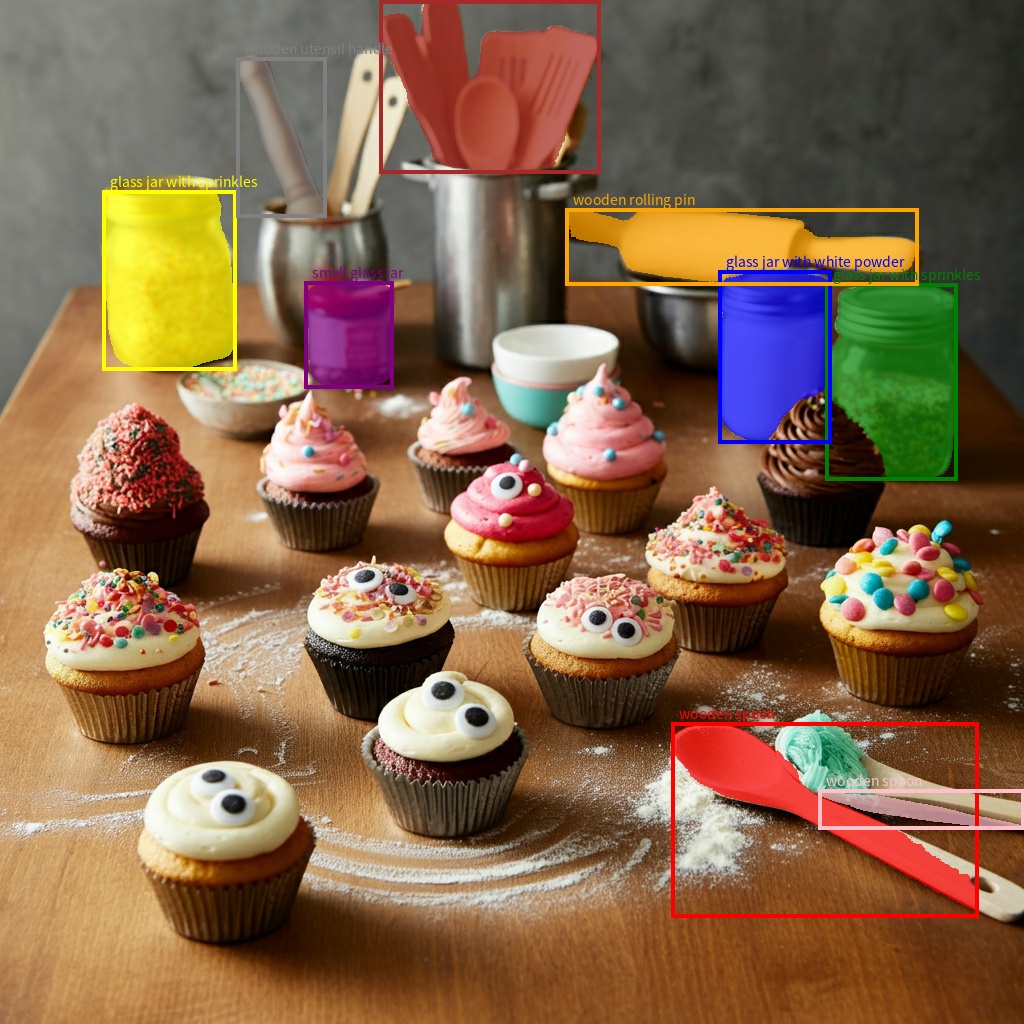
Los modelos de Gemini no solo detectan elementos, sino que también los segmentan y proporcionan sus máscaras de contorno.
El modelo predice una lista JSON, en la que cada elemento representa una máscara de segmentación. Cada elemento tiene un cuadro delimitador ("box_2d") en el formato [ymin, xmin, ymax, xmax] con coordenadas normalizadas entre 0 y 1,000, una etiqueta ("label") que identifica el objeto y, por último, la máscara de segmentación dentro del cuadro delimitador como un polígono de coordenadas [x, y] normalizadas de 0 a 1,000.
Python
from google import genai
from pydantic import BaseModel, Field
from typing import List
import json

client = genai.Client()

prompt = """
Give the segmentation masks for the wooden and glass items.
Output a JSON list of segmentation masks where each entry contains the 2D
bounding box in the key "box_2d", the segmentation mask in key "mask", and
the text label in the key "label". Use descriptive labels.
"""

class BoundingBox(BaseModel):
    box_2d: List[int] = Field(description="The 2D bounding box of the item as [ymin, xmin, ymax, xmax] normalized to 0-1000.")
    mask: List[List[int]] = Field(description="The segmentation mask of the item as a polygon of [x,y] coordinates, normalized to 0-1000.")
    label: str = Field(description="A descriptive label for the item.")

class BoundingBoxes(BaseModel):
    boxes: List[BoundingBox]

interaction = client.interactions.create(
    model="gemini-3.8-flash",
    input=[
        {"type": "text", "text": prompt},
        {
            "type": "image",
            "uri": "https://example.com/image.png",
            "mime_type": "image/png"
        }
    ],
    response_format={
        "type": "text",
        "mime_type": "application/json",
        "schema": BoundingBoxes.model_json_schema()
    },
    generation_config={
        "thinking_level": "minimal"
    }
)

items = BoundingBoxes.model_validate_json(interaction.output_text)
print("Segmentation results:", items)
JavaScript
import { GoogleGenAI } from "@google/genai";
import * as z from "zod";

const client = new GoogleGenAI({});
const prompt = `
Give the segmentation masks for the wooden and glass items.
Output a JSON list of segmentation masks where each entry contains the 2D
bounding box in the key "box_2d", the segmentation mask in key "mask", and
the text label in the key "label". Use descriptive labels.
`;

const boundingBoxesSchema = z.object({
  boxes: z.array(z.object({
    box_2d: z.array(z.number()),
    mask: z.array(z.array(z.number())),
    label: z.string()
  }))
});

const interaction = await client.interactions.create({
  model: "gemini-3.8-flash",
  input: [
    { type: "text", text: prompt },
    {
      type: "image",
      uri: "https://example.com/image.png",
      mime_type: "image/png"
    }
  ],
  response_format: {
    type: 'text',
    mime_type: 'application/json',
    schema: z.toJSONSchema(boundingBoxesSchema)
  },
  generation_config: {
    thinking_level: "minimal"
  }
});

const result = boundingBoxesSchema.parse(JSON.parse(interaction.output_text));
console.log(result);
Java
import com.google.genai.Client;
import com.google.genai.gaos.models.interactions.Content;
import com.google.genai.gaos.models.interactions.CreateModelInteraction;
import com.google.genai.gaos.models.interactions.CreateModelInteractionResponseFormat;
import com.google.genai.gaos.models.interactions.GenerationConfig;
import com.google.genai.gaos.models.interactions.ImageContent;
import com.google.genai.gaos.models.interactions.ImageContentMimeType;
import com.google.genai.gaos.models.interactions.Interaction;
import com.google.genai.gaos.models.interactions.InteractionsInput;
import com.google.genai.gaos.models.interactions.Model;
import com.google.genai.gaos.models.interactions.ResponseFormat;
import com.google.genai.gaos.models.interactions.TextContent;
import com.google.genai.gaos.models.interactions.TextResponseFormat;
import com.google.genai.gaos.models.interactions.TextResponseFormatMimeType;
import com.google.genai.gaos.models.interactions.ThinkingLevel;
import com.google.genai.gaos.models.operations.CreateInteractionRequestBody;
import java.util.Arrays;
import java.util.List;
import java.util.Map;

Client client = new Client();

String prompt =
    "Give the segmentation masks for the wooden and glass items.\n"
        + "Output a JSON list of segmentation masks where each entry contains the 2D\n"
        + "bounding box in the key \"box_2d\", the segmentation mask in key \"mask\", and\n"
        + "the text label in the key \"label\". Use descriptive labels.";

Map<String, Object> boundingBoxSchema =
    Map.of(
        "type", "object",
        "properties",
            Map.of(
                "box_2d",
                    Map.of(
                        "type", "array",
                        "items", Map.of("type", "integer"),
                        "description",
                            "The 2D bounding box of the item as [ymin, xmin, ymax, xmax] normalized to 0-1000."),
                "mask",
                    Map.of(
                        "type", "array",
                        "items", Map.of("type", "array", "items", Map.of("type", "integer")),
                        "description",
                            "The segmentation mask of the item as a polygon of [x,y] coordinates, normalized to 0-1000."),
                "label",
                    Map.of("type", "string", "description", "A descriptive label for the item.")),
        "required", List.of("box_2d", "mask", "label"));

Map<String, Object> boundingBoxesSchema =
    Map.of(
        "type", "object",
        "properties", Map.of("boxes", Map.of("type", "array", "items", boundingBoxSchema)),
        "required", List.of("boxes"));

CreateModelInteractionResponseFormat format =
    CreateModelInteractionResponseFormat.of(
        ResponseFormat.of(
            TextResponseFormat.builder()
                .mimeType(TextResponseFormatMimeType.APPLICATION_JSON)
                .schema(boundingBoxesSchema)
                .build()));

Content textContent = TextContent.builder().text(prompt).build();
Content imageContent =
    ImageContent.builder()
        .uri("https://example.com/image.png")
        .mimeType(ImageContentMimeType.IMAGE_PNG)
        .build();

CreateModelInteraction params =
    CreateModelInteraction.builder()
        .model(Model.of("gemini-3.8-flash"))
        .input(InteractionsInput.ofContent(Arrays.asList(textContent, imageContent)))
        .responseFormat(format)
        .generationConfig(GenerationConfig.builder().thinkingLevel(ThinkingLevel.MINIMAL).build())
        .build();

Interaction interaction =
    client.interactions.create(CreateInteractionRequestBody.of(params)).interaction().get();
System.out.println("Segmentation results: " + interaction.outputText().orElse(""));
Go
package main

import (
    "context"
    "fmt"
    "log"

    "google.golang.org/genai"
    "google.golang.org/genai/interactions/models/interactions"
    "google.golang.org/genai/interactions/models/operations"
)

func main() {
    ctx := context.Background()
    client, err := genai.NewClient(ctx, nil)
    if err != nil {
        log.Fatal(err)
    }

    prompt := "Give the segmentation masks for the wooden and glass items.\n" +
        "Output a JSON list of segmentation masks where each entry contains the 2D\n" +
        "bounding box in the key \"box_2d\", the segmentation mask in key \"mask\", and\n" +
        "the text label in the key \"label\". Use descriptive labels."

    boundingBoxSchema := map[string]any{
        "type": "object",
        "properties": map[string]any{
            "box_2d": map[string]any{
                "type":        "array",
                "items":       map[string]any{"type": "integer"},
                "description": "The 2D bounding box of the item as [ymin, xmin, ymax, xmax] normalized to 0-1000.",
            },
            "mask": map[string]any{
                "type":        "array",
                "items":       map[string]any{"type": "array", "items": map[string]any{"type": "integer"}},
                "description": "The segmentation mask of the item as a polygon of [x,y] coordinates, normalized to 0-1000.",
            },
            "label": map[string]any{
                "type":        "string",
                "description": "A descriptive label for the item.",
            },
        },
        "required": []string{"box_2d", "mask", "label"},
    }

    boundingBoxesSchema := map[string]any{
        "type": "object",
        "properties": map[string]any{
            "boxes": map[string]any{
                "type":  "array",
                "items": boundingBoxSchema,
            },
        },
        "required": []string{"boxes"},
    }

    format := interactions.NewCreateModelInteractionResponseFormat(
        interactions.NewResponseFormat(interactions.TextResponseFormat{
            MimeType: interactions.TextResponseFormatMimeTypeApplicationJSON.ToPointer(),
            Schema:   boundingBoxesSchema,
        }),
    )

    res, err := client.Interactions.Create(ctx, operations.CreateInteractionRequest{
        Body: operations.NewCreateInteractionRequestBody(interactions.CreateModelInteraction{
            Model: interactions.Model("gemini-3.8-flash"),
            Input: interactions.NewInteractionsInput([]interactions.Content{
                interactions.NewContent(interactions.TextContent{
                    Text: prompt,
                }),
                interactions.NewContent(interactions.ImageContent{
                    URI:      genai.Ptr("https://example.com/image.png"),
                    MimeType: interactions.ImageContentMimeTypeImagePng.ToPointer(),
                }),
            }),
            ResponseFormat: genai.Ptr(format),
            GenerationConfig: &interactions.GenerationConfig{
                ThinkingLevel: interactions.ThinkingLevelMinimal.ToPointer(),
            },
        }),
    })
    if err != nil {
        log.Fatal(err)
    }
    if res.Interaction.OutputText != nil {
        fmt.Println("Segmentation results: " + *res.Interaction.OutputText)
    }
}
REST
curl -X POST "https://generativelanguage.googleapis.com/v1beta/interactions" \
  -H "x-goog-api-key: $GEMINI_API_KEY" \
  -H 'Content-Type: application/json' \
  -d '{
    "model": "gemini-3.8-flash",
    "input": [
      {"type": "text", "text": "Give the segmentation masks for the wooden and glass items.\nOutput a JSON list of segmentation masks where each entry contains the 2D\nbounding box in the key \"box_2d\", the segmentation mask in key \"mask\", and\nthe text label in the key \"label\". Use descriptive labels."},
      {
        "type": "image",
        "uri": "https://example.com/image.png",
        "mime_type": "image/png"
      }
    ],
    "response_format": {
      "type": "text",
      "mime_type": "application/json",
      "schema": {
        "type": "object",
        "properties": {
          "boxes": {
            "type": "array",
            "items": {
              "type": "object",
              "properties": {
                "box_2d": { "type": "array", "items": { "type": "integer" } },
                "mask": { "type": "array", "items": { "type": "array", "items": { "type": "integer" } } },
                "label": { "type": "string" }
              },
              "required": ["box_2d", "mask", "label"]
            }
          }
        },
        "required": ["boxes"]
      }
    },
    "generation_config": {
      "thinking_level": "minimal"
    }
  }'
Formatos de imagen compatibles
Gemini admite los siguientes tipos de MIME de formato de imagen:
- PNG -
image/png - JPEG -
image/jpeg - WEBP -
image/webp - HEIC:
image/heic - HEIF -
image/heif
Para obtener información sobre otros métodos de entrada de archivos, consulta la guía Métodos de entrada de archivos.
Funciones
Todas las versiones de los modelos de Gemini son multimodales y se pueden utilizar en una amplia variedad de tareas de procesamiento de imágenes y visión artificial, incluidas, sin limitaciones, la descripción de imágenes, las preguntas y respuestas visuales, la clasificación de imágenes, la detección y segmentación de objetos.
Gemini puede reducir la necesidad de usar modelos de AA especializados según tus requisitos de calidad y rendimiento.
Las versiones más recientes del modelo se entrenan específicamente para mejorar la precisión de las tareas especializadas, además de las capacidades genéricas, como la detección y la segmentación de objetos mejoradas.
Limitaciones e información técnica clave
Límite de archivos
Los modelos de Gemini admiten un máximo de 3,600 archivos de imagen por solicitud.
Cálculo de tokens
- 258 tokens si ambas dimensiones son <= 384 píxeles Las imágenes más grandes se dividen en mosaicos de 768 × 768 píxeles, y cada uno cuesta 258 tokens.
Una fórmula aproximada para calcular la cantidad de segmentos es la siguiente:
- Calcula el tamaño de la unidad de recorte, que es aproximadamente
floor(min(width, height)/ 1.5. - Divide cada dimensión por el tamaño de la unidad de recorte y multiplica los resultados para obtener la cantidad de mosaicos.
Por ejemplo, una imagen de dimensiones 960 x 540 tendría un tamaño de unidad de recorte de 360. Divide cada dimensión por 360, y la cantidad de mosaicos es 3 * 2 = 6.
Resolución de contenido multimedia
Gemini 3 introduce un control detallado sobre el procesamiento de la visión multimodal con el parámetro media_resolution. El parámetro media_resolution determina la cantidad máxima de tokens asignados por imagen de entrada o fotograma de video.
Las resoluciones más altas mejoran la capacidad del modelo para leer texto pequeño o identificar detalles pequeños, pero aumentan el uso de tokens y la latencia.
Sugerencias y prácticas recomendadas
- Verifica que las imágenes estén rotadas correctamente.
- Usa imágenes claras y no borrosas.
- Cuando uses una sola imagen con texto, coloca la instrucción de texto antes de la imagen en el array
input.
¿Qué sigue?
En esta guía, se muestra cómo subir archivos de imagen y generar resultados de texto a partir de entradas de imágenes. Para obtener más información, consulta los siguientes recursos:
- API de Files: Obtén más información para subir y administrar archivos para usarlos con Gemini.
- Instrucciones del sistema: Las instrucciones del sistema te permiten dirigir el comportamiento del modelo según tus necesidades y casos de uso específicos.
- Estrategias de instrucciones con archivos: La API de Gemini admite instrucciones con datos de texto, imagen, audio y video, lo que también se conoce como instrucciones multimodales.
- Orientación sobre seguridad: A veces, los modelos de IA generativa producen resultados inesperados, como resultados inexactos, sesgados o ofensivos. El procesamiento posterior y la evaluación humana son fundamentales para limitar el riesgo de daño que pueden causar estos resultados.