

Gemini Robotics ER modelleri, resimleri değiştirmek ve yanıt vermeden önce mantık uygulamak için Python kodu yazıp yürütebilir. Bu sayfada, kod yürütme örnekleri (yakınlaştırma ve kırpma ile nesne tespit etme, cihaz okuma, sıvı ölçümü, devre kartı okuma ve görüntü ek açıklaması) ele alınmaktadır.
Bu örnekleri kendi kullanım alanınıza uyarlamak için istem metnini ve yüklenen resim dosyasını kendinizinkilerle değiştirin. Ayrıca, istemdeki istenen JSON şemasını uygulamanızın ihtiyaç duyduğu çıkış yapısına uyacak şekilde ayarlayabilir veya çıkış biçimini ve doğruluğunu zorunlu kılmak için system_instruction ekleyebilirsiniz.
Çalıştırılabilir kodun tamamı için Robotics cookbook'a (Robotik yemek kitabı) bakın.
Düşünme düzeyi
Gecikmeyi doğrulukla değiştirmek için modelin düşünme düzeyini kontrol edebilirsiniz. Nesne tespit etme gibi uzamsal görevler, düşük düşünme seviyesinde iyi performans gösterir. Sayma veya ağırlık tahmini gibi karmaşık görevler, daha yüksek bir düşünme seviyesinden yararlanır.
Aşağıdaki örnekte, karmaşık bir sayma görevi için düşünme düzeyi high olarak ayarlanmıştır:
Python
from google import genai

client = genai.Client()

uploaded_file = client.files.upload(file="scene.jpeg")

interaction = client.interactions.create(
    model="gemini-robotics-er-2-preview",
    input=[
        {
            "type": "image",
            "uri": uploaded_file.uri,
            "mime_type": uploaded_file.mime_type
        },
        {"type": "text", "text": "Identify and count all objects on the table."}
    ],
    generation_config={
        "thinking_level": "high"  # Use "minimal" or "low" for faster spatial tasks
    }
)

print(interaction.output_text)
Ayrıntılar için Thinking (Düşünme) bölümüne bakın.
Nesne tespit etme (yakınlaştırma ve kırpma)
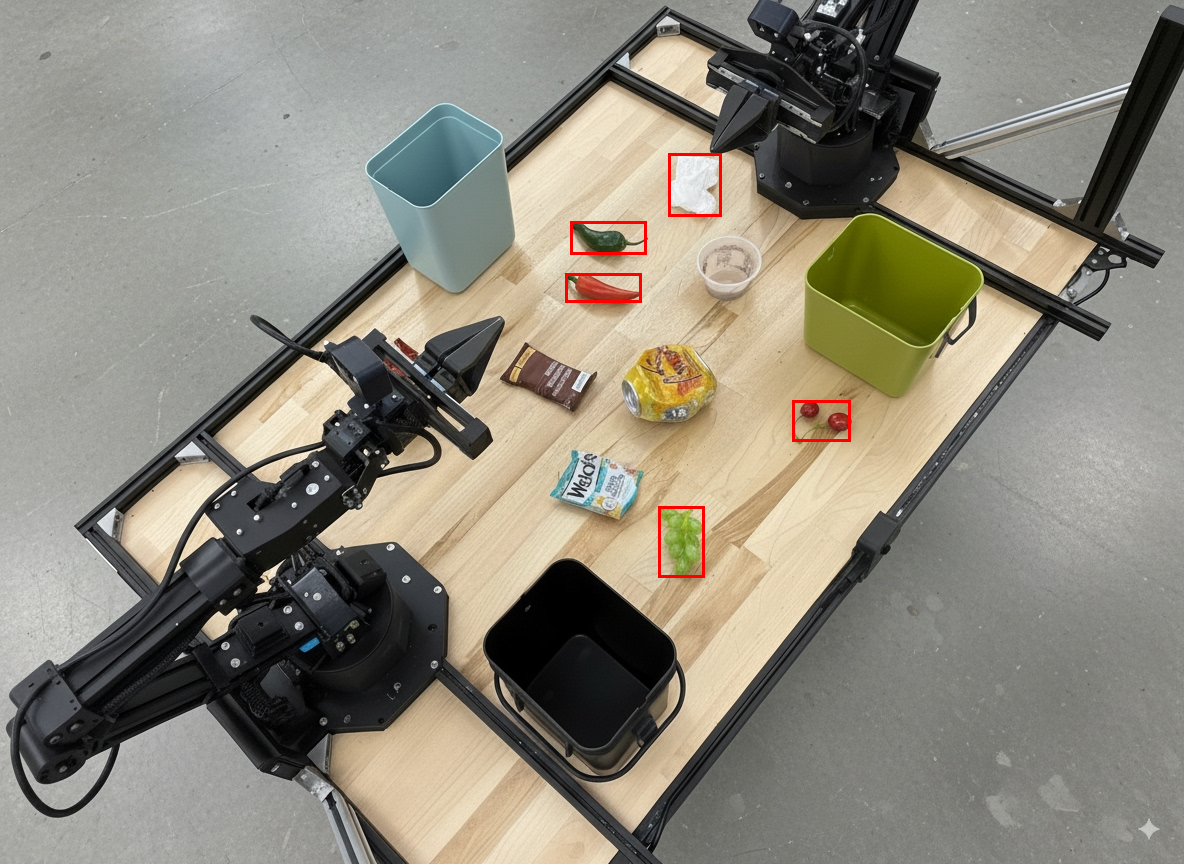
Aşağıdaki örnekte, nesneleri algılarken ve sınırlayıcı kutuları döndürürken daha net bir görünüm için resmi yakınlaştırmak ve kırpmak üzere kod yürütme kullanılır.
Python
from google import genai

client = genai.Client()

uploaded_file = client.files.upload(file="sorting.jpeg")

prompt = """
Return JSON in the format {label: val, y: val, x: val, y2: val, x2: val} for
the compostable objects in this scene. Please Zoom and crop the image for a
clearer view. Return an annotated image of the final result with the bounding
boxes drawn on it to the API caller as a part of your process.
"""

interaction = client.interactions.create(
    model="gemini-robotics-er-2-preview",
    input=[
        {
            "type": "image",
            "uri": uploaded_file.uri,
            "mime_type": uploaded_file.mime_type
        },
        {"type": "text", "text": prompt}
    ],
    tools=[{"type": "code_execution"}]
)

print(interaction.output_text)
Model çıkışı, aşağıdaki JSON yanıtına benzer olacaktır:
[
  {"label": "compostable", "y": 256, "x": 482, "y2": 295, "x2": 546},
  {"label": "compostable", "y": 317, "x": 478, "y2": 350, "x2": 542},
  {"label": "compostable", "y": 586, "x": 556, "y2": 668, "x2": 595},
  {"label": "compostable", "y": 463, "x": 669, "y2": 511, "x2": 718},
  {"label": "compostable", "y": 178, "x": 565, "y2": 250, "x2": 609}
]
Aşağıdaki resimde, modelden döndürülen kutular gösterilmektedir.
Analog bir göstergeyi okuma ve mantık uygulama
Aşağıdaki örnekte, analog bir ölçüm cihazını okumak ve zaman hesaplamaları yapmak için modelin nasıl kullanılacağı gösterilmektedir. JSON çıkışını zorunlu kılmak için sistem talimatı kullanır.
Python
from google import genai

client = genai.Client()

uploaded_file = client.files.upload(file="gauge.jpeg")

interaction = client.interactions.create(
    model="gemini-robotics-er-2-preview",
    system_instruction="Be precise. When JSON is requested, reply with ONLY that JSON (no preface, no code block).",
    input=[
        {
            "type": "image",
            "uri": uploaded_file.uri,
            "mime_type": uploaded_file.mime_type
        },
        {"type": "text", "text": """Read the current value from this gauge. Then, calculate how long
        it will take at the current rate for the value to reach maximum.
        Reply in JSON: {"current_value": val, "max_value": val,
        "time_to_max_minutes": val}"""}
    ],
    tools=[{"type": "code_execution"}]
)

print(interaction.output_text)
Bir kaptaki sıvıyı ölçme
Aşağıdaki örnekte, bir kaptaki sıvı seviyesini ölçmek için kod yürütmenin nasıl kullanılacağı gösterilmektedir.
Python
from google import genai

client = genai.Client()

uploaded_file = client.files.upload(file="fluid.jpeg")

interaction = client.interactions.create(
    model="gemini-robotics-er-2-preview",
    system_instruction="Be precise. When JSON is requested, reply with ONLY that JSON (no preface, no code block).",
    input=[
        {
            "type": "image",
            "uri": uploaded_file.uri,
            "mime_type": uploaded_file.mime_type
        },
        {"type": "text", "text": """Measure the amount of fluid in the container. Reply in JSON:
        {"fluid_level_ml": val, "container_capacity_ml": val,
        "percentage_full": val}"""}
    ],
    tools=[{"type": "code_execution"}]
)

print(interaction.output_text)
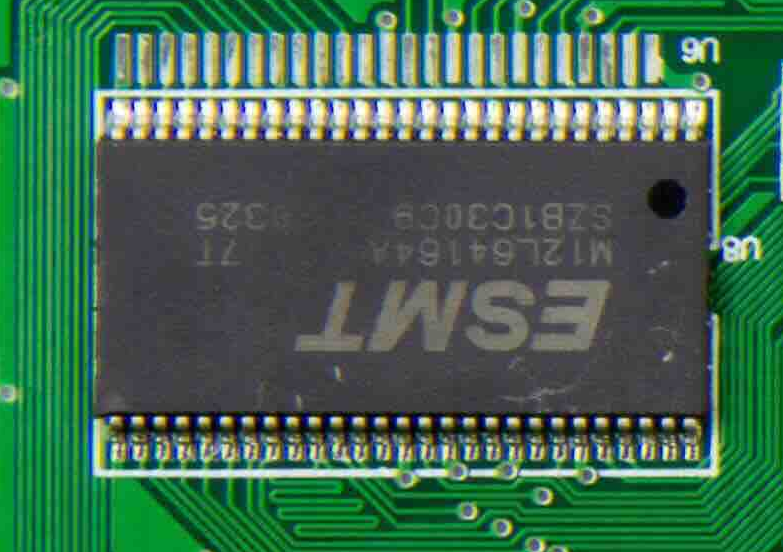
Devre kartındaki işaretleri okuma
Aşağıdaki örnekte, devre kartındaki işaretleri okumak için kod yürütmenin nasıl kullanılacağı gösterilmektedir.
Python
from google import genai

client = genai.Client()

uploaded_file = client.files.upload(file="circuit_board.jpeg")

interaction = client.interactions.create(
    model="gemini-robotics-er-2-preview",
    system_instruction="Be precise. When JSON is requested, reply with ONLY that JSON (no preface, no code block).",
    input=[
        {
            "type": "image",
            "uri": uploaded_file.uri,
            "mime_type": uploaded_file.mime_type
        },
        {"type": "text", "text": """Read all visible component labels and markings on this circuit
        board. Reply in JSON: {"components": [{"label": val,
        "location": [y, x]}]}"""}
    ],
    tools=[{"type": "code_execution"}]
)

print(interaction.output_text)
Resim ek açıklaması
Aşağıdaki örnekte, kod yürütme özelliğini kullanarak bir resmi nasıl açıklayacağınız (ör. imha talimatları için ok çizme) ve değiştirilen resmi nasıl döndüreceğiniz gösterilmektedir.
Python
from google import genai

client = genai.Client()

# Load your image
uploaded_file = client.files.upload(file="sorting.jpeg")

prompt = """
Look at this image and return it as an annotated version using arrows of
different colors to represent which items should go in which bins for
disposal. You must return the final image to the API caller.
"""

interaction = client.interactions.create(
    model="gemini-robotics-er-2-preview",
    input=[
        {
            "type": "image",
            "uri": uploaded_file.uri,
            "mime_type": uploaded_file.mime_type
        },
        {"type": "text", "text": prompt}
    ],
    tools=[{"type": "code_execution"}]
)

print(interaction.output_text)
Aşağıda örnek bir resim girişi verilmiştir.
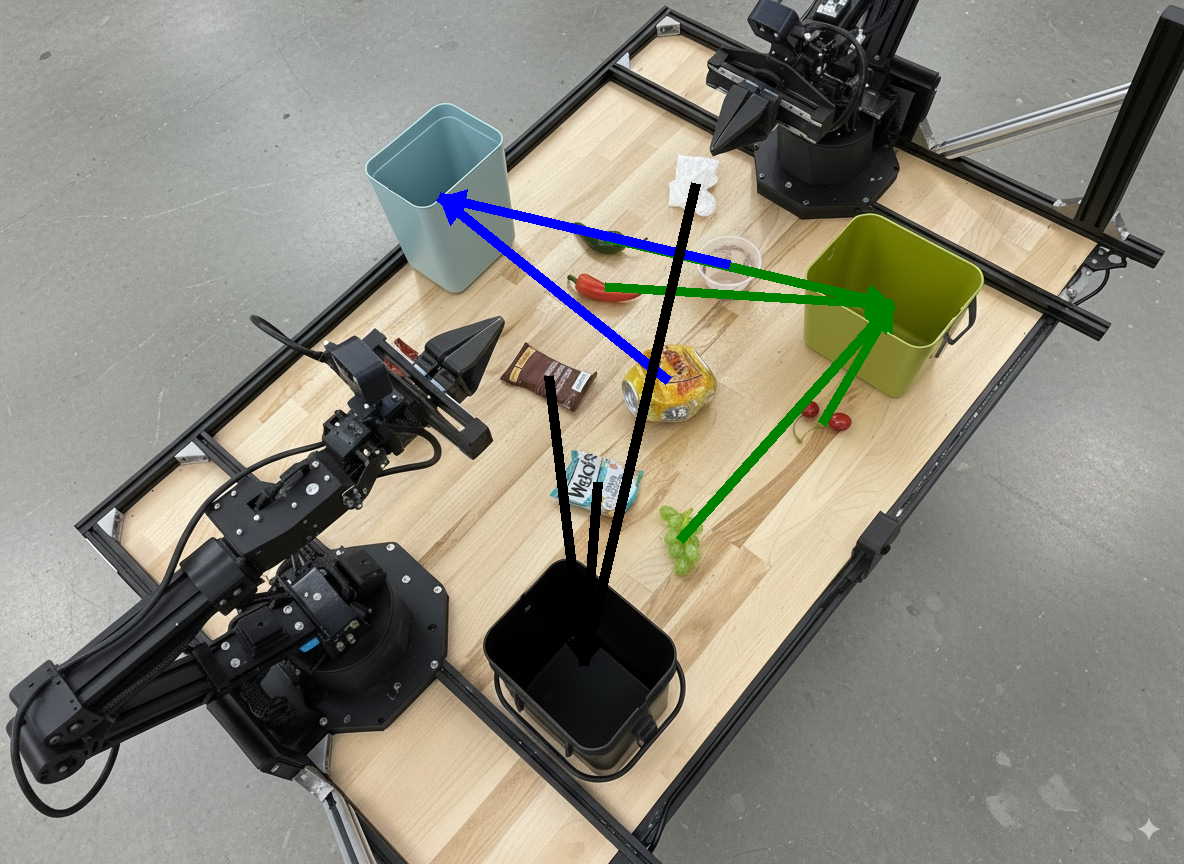
Model çıkışı aşağıdaki gibi olur:
  The annotated image shows the suggested disposal locations for the items on the table:
  - **Green bin (Compost/Organic)**: Green chili, red chili, grapes, and cherries.
  - **Blue bin (Recycling)**: Yellow crushed can and plastic container.
  - **Black bin (Trash)**: Chocolate bar wrapper, Welch's packet, and white tissue.
Sırada ne var?
- Görev düzenleme: Özel robot API'leri içeren uzun vadeli görevler.
- Yayın özellikli robotik: Gerçek zamanlı çift yönlü yayın (yalnızca Gemini Robotics ER 2).
- Video anlama: Anları bulma ve ilerleme sınıflandırması (yalnızca Gemini Robotics ER 2).