
 Run in Google Colab Run in Google Colab
|
 View source on GitHub View source on GitHub
|
Overview
Mobile Actions is a demo app where users can trigger actions on their device from voice or text input. It reimagines assistant interaction as a fully offline capability. Whether it's "Create a calendar event for lunch tomorrow", "Add John to my contacts", or "Turn on the flashlight" the model parses the natural language and identifies the correct OS tool to execute the command.
This guide shows you how to:
- Fine-tuning the FunctionGemma 270M model using the Mobile Actions dataset
- Deploying the customized model to the Google AI Edge Gallery
You will be able to learn end-to-end from fine-tuning a model to deploying it on device.
Step 1: Fine-tuning FunctionGemma with the Mobile Actions Dataset
FunctionGemma is a 270 million parameter model based on the Gemma 3 architecture. It has been trained specifically for function calling, enabling it to translate natural language requests into function calls.
This model is small and efficient enough to run on a mobile phone, but as is common for models of this size, it requires fine-tuning to specialize it for the task it is going to perform.
To fine-tune FunctionGemma, we use the Mobile Actions dataset, which is publicly available on Hugging Face. Each entry in this dataset provides:
- The set of tools (functions) the model can use:
- Turns the flashlight on
- Turns the flashlight off
- Creates a contact in the phone's contact list
- Sends an email
- Shows a location on the map
- Opens the WiFi settings
- Creates a new calendar event
- The system prompt providing the context like current date and time
- The user prompt, like
turn on the flashlight. - The expected model response, including the appropriate function calls.
Here is how the show map function looks:
{
  "function": {
    "name": "show_map",
    "description": "Shows a location on the map.",
    "parameters": {
      "type": "OBJECT",
      "properties": {
        "query": {
          "type": "STRING",
          "description": "The location to search for. May be the name of a place, a business, or an address."
        }
      },
      "required": [
        "query"
      ]
    }
  }
}
The colab notebook covers all necessary steps, including:
- Setting up the environment
- Loading and preprocessing the Mobile Actions dataset
- Fine-tuning the model using Hugging Face TRL
- Converting the model to
.litertlmformat for deployment
Step 2: Deploying on Google AI Edge Gallery
Prerequisite: You need the same Google Account you used to save the
.litertlm file in step 1 and to be signed in with it on your Android phone.
After fine-tuning, we convert and quantize the model weights to .litertlm
format.
You can deploy the model to the Google AI Edge Gallery - Mobile Actions option
by choosing Load Model and selecting it from your Google Drive (or alternative
method of distribution). The Google AI Edge Gallery is
available on Google Play Store.
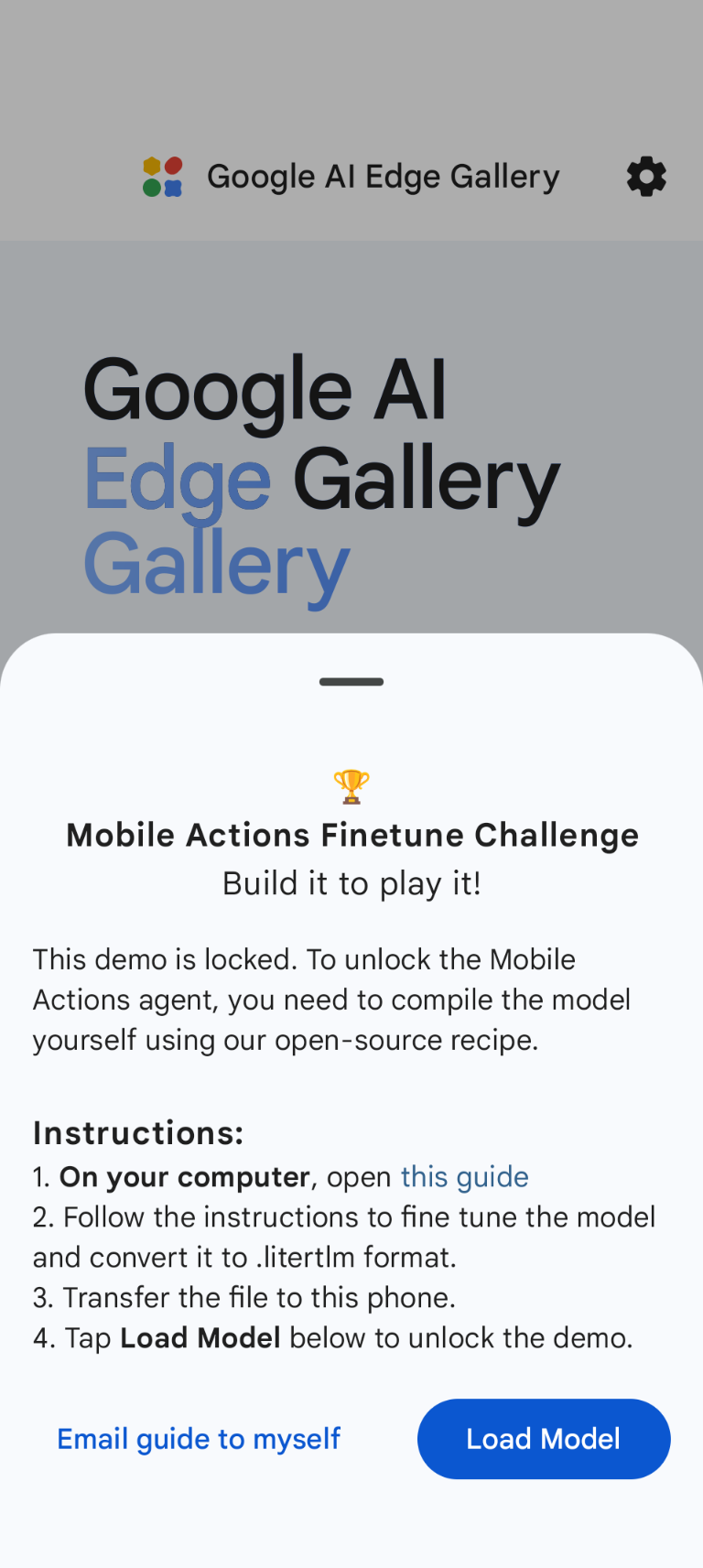
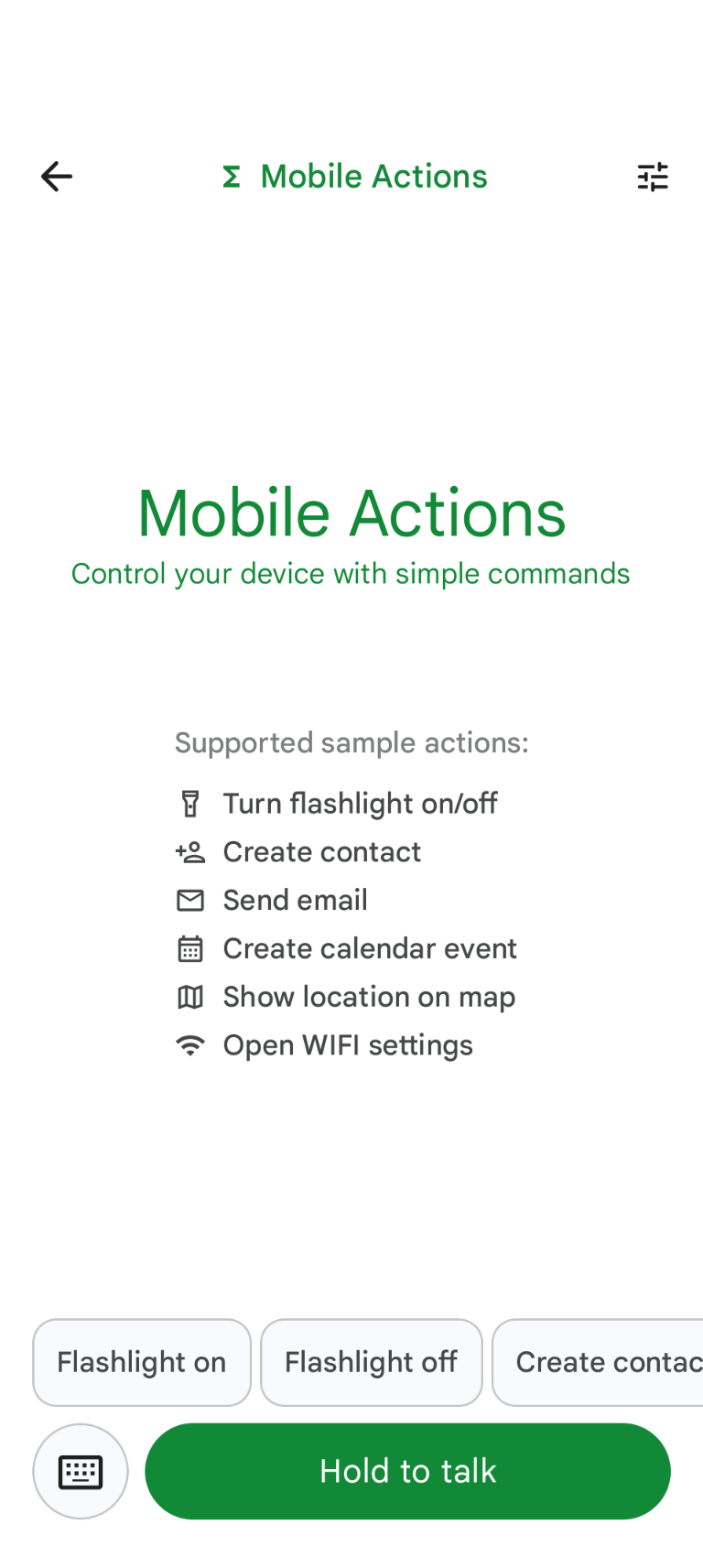
Now, you can try giving a voice command or typing in the app to see how well your new fine-tuned model does calling the functions available to it.
Next Steps
Congratulations! You now know how to fine-tune a model with Hugging Face and deploy it on-device with LiteRT-LM.