

تتيح لك أداة "استخدام الكمبيوتر" إنشاء وكلاء تحكّم في المتصفّح والأجهزة الجوّالة وأجهزة الكمبيوتر المكتبي تتفاعل مع المهام وتنفّذها تلقائيًا. باستخدام لقطات الشاشة، يمكن للنموذج "رؤية" شاشة الكمبيوتر و "التصرف" من خلال إنشاء إجراءات معيّنة في واجهة المستخدم، مثل نقرات الماوس وإدخالات لوحة المفاتيح. على غرار ميزة "استدعاء الدوال"، عليك تنفيذ بيئة التنفيذ من جهة العميل لتلقّي إجراءات "استخدام الكمبيوتر" وتنفيذها.
للاطّلاع على قائمة بالطُرز المتوافقة، يُرجى الانتقال إلى إصدارات الطُرز. تتوفّر في نماذج Gemini 3.x عدة إمكانات متقدّمة:
- التوافق مع بيئات متعددة: يمكنك إنشاء وكلاء لبيئات المتصفّح والأجهزة الجوّالة وأجهزة الكمبيوتر.
- إجراءات مبسطة مع النوايا: تتضمّن الإجراءات حقل
intentيشرح الأساس المنطقي الذي يستند إليه النموذج في كل خطوة. - سياسات الأمان القابلة للإعداد: يمكنك تحسين سلوك الأمان باستخدام فئات السياسات وعناصر التجاوز المضمّنة.
- رصد عمليات حقن الطلبات: فعِّل ميزة فحص لقطات الشاشة لرصد التعليمات الخفية التي تهدف إلى خداع الذكاء الاصطناعي.
باستخدام "استخدام الكمبيوتر"، يمكنك إنشاء وكلاء تنفيذ يمكنهم:
- أتمتة إدخال البيانات المتكرّر أو ملء النماذج على المواقع الإلكترونية
- إجراء اختبار آلي لتطبيقات الويب ومسارات المستخدمين
- إجراء بحث على مواقع إلكترونية مختلفة (مثل جمع معلومات عن المنتجات وأسعارها ومراجعاتها من مواقع التجارة الإلكترونية لاتخاذ قرار بشأن الشراء)
في ما يلي مثال بسيط على تهيئة العميل وإرسال طلب إلى النموذج مع تفعيل الأداة computer_use لبيئة المتصفّح:
Python
from google import genai

client = genai.Client()

interaction = client.interactions.create(
    model="gemini-3.6-flash",
    input="Search for 'Gemini API' on Google.",
    tools=[{"type": "computer_use", "environment": "browser"}]
)

print(interaction)
JavaScript
import { GoogleGenAI } from '@google/genai';

const ai = new GoogleGenAI();

const interaction = await ai.interactions.create({
  model: 'gemini-3.6-flash',
  input: "Search for 'Gemini API' on Google.",
  tools: [{ type: "computer_use", environment: "browser" }]
});

console.log(interaction);
طريقة عمل ميزة "استخدام الكمبيوتر"
لإنشاء وكيل باستخدام نموذج "استخدام الكمبيوتر"، عليك إعداد حلقة متواصلة بين تطبيقك وواجهة برمجة التطبيقات. في ما يلي ما سيفعله الرمز في كل خطوة:
- إرسال طلب إلى النموذج
- يرسل تطبيقك طلبًا إلى واجهة برمجة التطبيقات يتضمّن أداة "استخدام الكمبيوتر"، وإعدادات التهيئة (مثل البيئة المستهدَفة)، وطلب المستخدم، ولقطة شاشة للشاشة الحالية.
- تلقّي ردّ النموذج
- يحلّل النموذج الشاشة والطلب، ويعرض ردًا يتضمّن
function_callمقترَحًا يمثّل إجراءً في واجهة المستخدم (مثل النقر أو التمرير أو ضغط المفتاح). - بالنسبة إلى نماذج Gemini 3.x، يتضمّن الردّ أيضًا
intentيوضّح سبب اختيار النموذج لهذا الإجراء. - قد يتضمّن الرد أيضًا
safety_decisionمن نظام أمان داخلي يصنّف الإجراء على أنّه عادي/مسموح به، أوrequire_confirmation(يتطلّب موافقة المستخدم)، أو محظور.
- يحلّل النموذج الشاشة والطلب، ويعرض ردًا يتضمّن
- تنفيذ الإجراء الذي تم استلامه
- إذا كان الإجراء مسموحًا به (أو إذا أكّده المستخدم)، سيحلّل الرمز البرمجي من جهة العميل
function_call، ويغيّر حجم الإحداثيات العادية لتتطابق مع إطار العرض، وينفّذ الإجراء في البيئة المستهدَفة باستخدام أدوات التشغيل الآلي (مثل Playwright). إذا تم حظر الإجراء، على العميل إيقاف التنفيذ أو التعامل مع الانقطاع.
- إذا كان الإجراء مسموحًا به (أو إذا أكّده المستخدم)، سيحلّل الرمز البرمجي من جهة العميل
- تسجيل حالة البيئة الجديدة
- بعد انتهاء تنفيذ الإجراء، يلتقط تطبيقك لقطة شاشة جديدة ويرسلها مرة أخرى إلى النموذج في
function_resultلطلب الخطوة التالية.
- بعد انتهاء تنفيذ الإجراء، يلتقط تطبيقك لقطة شاشة جديدة ويرسلها مرة أخرى إلى النموذج في
بعد ذلك، تتكرر هذه العملية بدءًا من الخطوة 2، ويتم باستمرار طلب الإجراء التالي من النموذج إلى أن تكتمل المهمة أو يتم إنهاؤها.
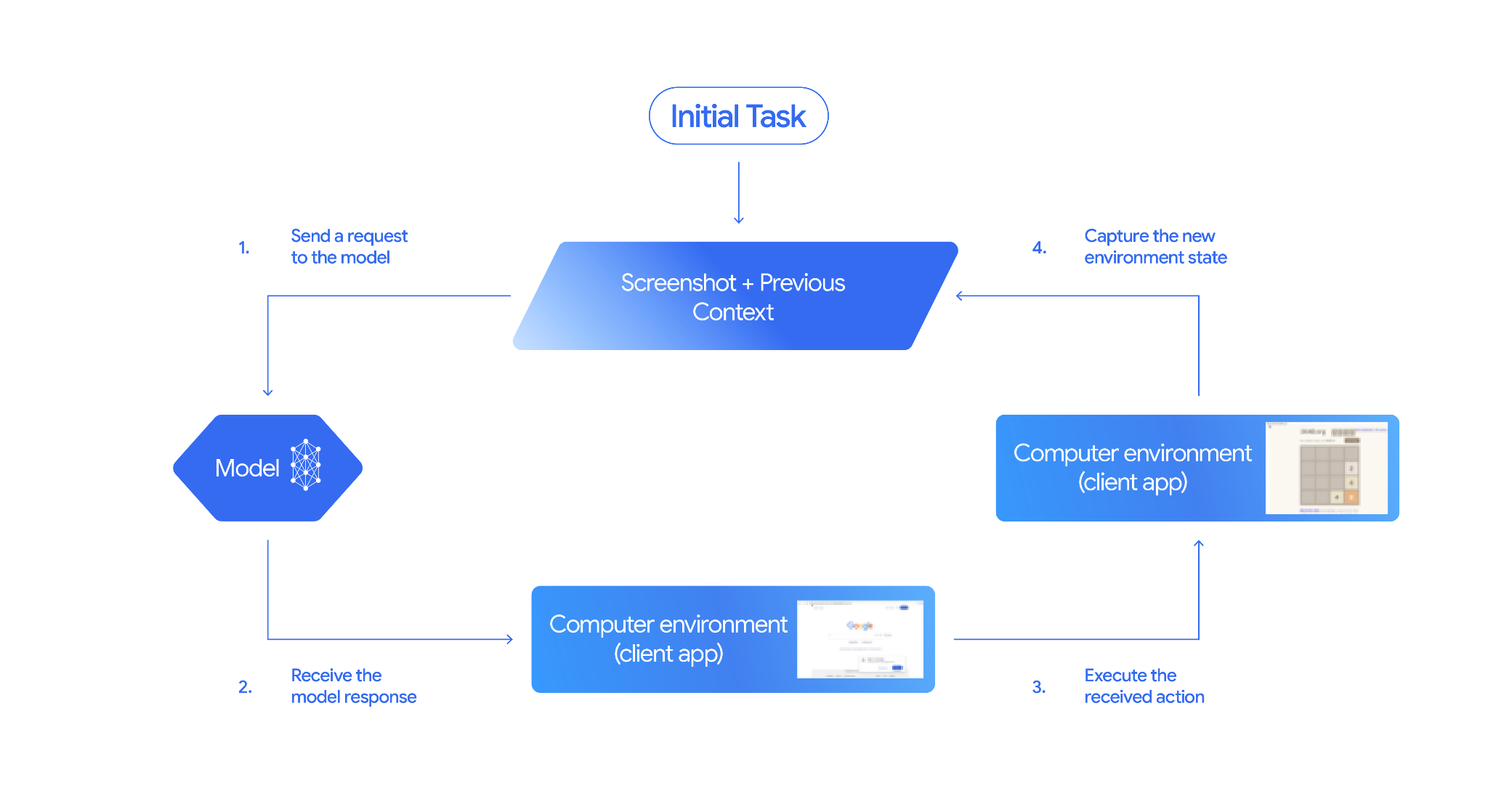
كيفية تنفيذ ميزة "استخدام الكمبيوتر"
قبل استخدام أداة "استخدام الكمبيوتر"، عليك إعداد ما يلي:
- بيئة تنفيذ آمنة: شغِّل وكيلك في آلة افتراضية أو حاوية في وضع الحماية لعزله عن نظامك المضيف والحدّ من تأثيره المحتمل. يتضمّن التنفيذ المرجعي بيئة اختبارية جاهزة للاستخدام تستند إلى Docker ويمكنك استخدامها كنقطة بداية.
- معالج الإجراءات من جهة العميل: نفِّذ منطقًا من جهة العميل لتنفيذ الإحداثيات وكتابة النص وأخذ لقطات شاشة.
تستخدِم الأمثلة أدناه متصفّح ويب كبيئة تنفيذ وPlaywright كأداة معالجة من جهة العميل.
0. إعداد Playwright
أولاً، ثبِّت الحِزم المطلوبة:
pip install google-genai playwright
playwright install chromium
بعد ذلك، ابدأ مثيلاً لمتصفّح Playwright لاستخدامه في التنفيذ:
from playwright.sync_api import sync_playwright

# 1. Configure screen dimensions for the target environment
SCREEN_WIDTH = 1440
SCREEN_HEIGHT = 900

# 2. Start the Playwright browser
# In production, utilize a sandboxed environment.
playwright = sync_playwright().start()
# Set headless=False to see the actions performed on your screen
browser = playwright.chromium.launch(headless=False)

# 3. Create a context and page with the specified dimensions
context = browser.new_context(
    viewport={"width": SCREEN_WIDTH, "height": SCREEN_HEIGHT}
)
page = context.new_page()

# 4. Navigate to an initial page to start the task
page.goto("https://www.google.com")

# The 'page', 'SCREEN_WIDTH', and 'SCREEN_HEIGHT' variables
# will be used in the steps below.
1. إرسال طلب إلى النموذج
ابدأ مكتبة البرامج واضبط أداة "استخدام الكمبيوتر". يُرجى العِلم أنّه ليس من الضروري تحديد حجم العرض عند إرسال طلب، فالنموذج يتوقّع إحداثيات البكسل التي تم تغيير حجمها لتناسب ارتفاع الشاشة وعرضها.
Gemini 3.x
Python
استخدِم حزمة تطوير البرامج (SDK) google-genai Python (الإصدار 2.7.0 أو إصدار أحدث) لإعداد طلب يستهدف بيئة المتصفّح:
from google import genai

client = genai.Client()

interaction = client.interactions.create(
    model='gemini-3.6-flash',
    input="Find a flight from SF to Hawaii on Jun 30th, coming back on Jul 6th",
    tools=[
        {
            "type": "computer_use",
            "environment": "browser",
            "enable_prompt_injection_detection": True
        }
    ]
)

print(interaction)
JavaScript
استخدِم حزمة تطوير البرامج (SDK) الخاصة بـ Node.js في @google/genai لإعداد طلب يستهدف بيئة المتصفّح:
import { GoogleGenAI } from '@google/genai';

const ai = new GoogleGenAI();

const interaction = await ai.interactions.create({
  model: 'gemini-3.6-flash',
  input: "Find a flight from SF to Hawaii on Jun 30th, coming back on Jul 6th",
  tools: [
    {
      type: "computer_use",
      environment: "browser",
      enable_prompt_injection_detection: true
    }
  ]
});

console.log(interaction);
REST
استخدِم curl لإرسال طلب:
curl -X POST \
  "https://generativelanguage.googleapis.com/v1beta/interactions" \
  -H "x-goog-api-key: $GEMINI_API_KEY" \
  -H "Content-Type: application/json" \
  -d '{
    "model": "gemini-3.6-flash",
    "input": "Find me a flight from SF to Hawaii on Jun 30th, coming back on Jul 6th. Start by navigating directly to flights.google.com",
    "tools": [
      {
        "type": "computer_use",
        "environment": "browser",
        "enable_prompt_injection_detection": true
      }
    ]
  }'
Gemini 2.5 (الإصدار القديم)
Python
from google import genai

client = genai.Client()

# Specify predefined functions to exclude (optional)
excluded_functions = ["drag_and_drop"]

interaction = client.interactions.create(
    model='gemini-2.5-computer-use-preview-10-2025',
    input="Search for highly rated smart fridges on Google Shopping.",
    tools=[
        {
            "type": "computer_use",
            "environment": "browser",
            "excluded_predefined_functions": excluded_functions
        }
    ]
)

print(interaction)
JavaScript
import { GoogleGenAI } from '@google/genai';

const ai = new GoogleGenAI();

// Specify predefined functions to exclude (optional)
const excludedFunctions = ["drag_and_drop"];

const interaction = await ai.interactions.create({
  model: 'gemini-2.5-computer-use-preview-10-2025',
  input: "Search for highly rated smart fridges on Google Shopping.",
  tools: [
    {
      type: "computer_use",
      environment: "browser",
      excluded_predefined_functions: excludedFunctions
    }
  ]
});

console.log(interaction);
2. تلقّي ردّ النموذج
يقترح نموذج الردّ استدعاء دالة. بالنسبة إلى نماذج Gemini 3.x، يتضمّن الردّ هدف استدلال مخصّصًا بالإضافة إلى الإحداثيات. يوضّح ما يلي أمثلة على كلا الردّين:
Gemini 3.x
{
  "steps": [
    {
      "type": "function_call",
      "name": "click",
      "arguments": {
        "x": 450,
        "y": 120,
        "intent": "Click the search box to type the destination."
      }
    }
  ]
}
Gemini 2.5 (الإصدار القديم)
{
  "steps": [
    {
      "type": "model_output",
      "content": [
        {
          "type": "text",
          "text": "I will type the search query into the search bar."
        }
      ]
    },
    {
      "type": "function_call",
      "name": "type_text_at",
      "arguments": {
        "x": 371,
        "y": 470,
        "text": "highly rated smart fridges",
        "press_enter": true
      }
    }
  ]
}
3- تنفيذ الإجراءات التي تم تلقّيها
يجب أن يحلّل تطبيقك إحداثيات الردّ وينفّذ الإجراء ويغيّر حجمها من الإحداثيات العادية 1000x1000.
يتعامل الرمز أدناه مع أوامر الأداة القديمة (click_at وtype_text_at) والأوامر الحديثة المبسّطة (click وtype).
Python
from typing import Any, List, Tuple
import time

def denormalize_x(x: int, screen_width: int) -> int:
    """Convert normalized x coordinate (0-1000) to actual pixel coordinate."""
    return int(x / 1000 * screen_width)

def denormalize_y(y: int, screen_height: int) -> int:
    """Convert normalized y coordinate (0-1000) to actual pixel coordinate."""
    return int(y / 1000 * screen_height)

def execute_function_calls(interaction, page, screen_width, screen_height):
    results = []
    function_calls = [
        step for step in interaction.steps if step.type == "function_call"
    ]

    for function_call in function_calls:
        action_result = {}
        fname = function_call.name
        args = function_call.arguments
        print(f"  -> Executing: {fname} (Intent: {args.get('intent', 'N/A')})")

        try:
            if fname in ("open_web_browser", "open_app"):
                pass # Handled / already open
            elif fname in ("click", "click_at", "double_click", "triple_click", "middle_click", "right_click", "move", "long_press"):
                actual_x = denormalize_x(args["x"], screen_width)
                actual_y = denormalize_y(args["y"], screen_height)

                if fname in ("click", "click_at"):
                    page.mouse.click(actual_x, actual_y)
                elif fname == "double_click":
                    page.mouse.dblclick(actual_x, actual_y)
                elif fname == "right_click":
                    page.mouse.click(actual_x, actual_y, button="right")
                elif fname == "middle_click":
                    page.mouse.click(actual_x, actual_y, button="middle")
                elif fname == "move":
                    page.mouse.move(actual_x, actual_y)
            elif fname in ("type", "type_text_at"):
                actual_x = denormalize_x(args["x"], screen_width) if "x" in args else None
                actual_y = denormalize_y(args["y"], screen_height) if "y" in args else None
                text = args["text"]
                press_enter = args.get("press_enter", False)

                if actual_x is not None and actual_y is not None:
                    page.mouse.click(actual_x, actual_y)
                # Clear field first
                page.keyboard.press("Meta+A")
                page.keyboard.press("Backspace")
                page.keyboard.type(text)
                if press_enter:
                    page.keyboard.press("Enter")
            elif fname == "navigate":
                page.goto(args["url"])
            elif fname == "go_back":
                page.go_back()
            elif fname == "go_forward":
                page.go_forward()
            elif fname == "wait":
                time.sleep(args.get("seconds", 1))
            else:
                print(f"Warning: Custom or unhandled function {fname}")

            page.wait_for_load_state(timeout=5000)
            time.sleep(1)

        except Exception as e:
            print(f"Error executing {fname}: {e}")
            action_result = {"error": str(e)}

        results.append((fname, function_call.id, action_result))

    return results
JavaScript
function denormalizeX(x, screenWidth) {
    // Convert normalized x coordinate (0-1000) to actual pixel coordinate.
    return Math.floor((x / 1000) * screenWidth);
}

function denormalizeY(y, screenHeight) {
    // Convert normalized y coordinate (0-1000) to actual pixel coordinate.
    return Math.floor((y / 1000) * screenHeight);
}

async function executeFunctionCalls(interaction, page, screenWidth, screenHeight) {
    const results = [];
    const functionCalls = interaction.steps.filter(step => step.type === "function_call");

    for (const functionCall of functionCalls) {
        const actionResult = {};
        const fname = functionCall.name;
        const args = functionCall.arguments;
        console.log(`  -> Executing: ${fname} (Intent: ${args.intent || 'N/A'})`);

        try {
            if (fname === "open_web_browser" || fname === "open_app") {
                // Handled / already open
            } else if (["click", "click_at", "double_click", "triple_click", "middle_click", "right_click", "move", "long_press"].includes(fname)) {
                const actualX = denormalizeX(args.x, screenWidth);
                const actualY = denormalizeY(args.y, screenHeight);

                if (fname === "click" || fname === "click_at") {
                    await page.mouse.click(actualX, actualY);
                } else if (fname === "double_click") {
                    await page.mouse.dblclick(actualX, actualY);
                } else if (fname === "right_click") {
                    await page.mouse.click(actualX, actualY, { button: "right" });
                } else if (fname === "middle_click") {
                    await page.mouse.click(actualX, actualY, { button: "middle" });
                } else if (fname === "move") {
                    await page.mouse.move(actualX, actualY);
                }
            } else if (fname === "type" || fname === "type_text_at") {
                const actualX = args.x !== undefined ? denormalizeX(args.x, screenWidth) : null;
                const actualY = args.y !== undefined ? denormalizeY(args.y, screenHeight) : null;
                const text = args.text;
                const pressEnter = args.press_enter || false;

                if (actualX !== null && actualY !== null) {
                    await page.mouse.click(actualX, actualY);
                }
                // Clear field first
                await page.keyboard.press("Meta+A");
                await page.keyboard.press("Backspace");
                await page.keyboard.type(text);
                if (pressEnter) {
                    await page.keyboard.press("Enter");
                }
            } else if (fname === "navigate") {
                await page.goto(args.url);
            } else if (fname === "go_back") {
                await page.goBack();
            } else if (fname === "go_forward") {
                await page.goForward();
            } else if (fname === "wait") {
                await new Promise(resolve => setTimeout(resolve, (args.seconds || 1) * 1000));
            } else {
                console.log(`Warning: Custom or unhandled function ${fname}`);
            }

            await page.waitForLoadState('load', { timeout: 5000 }).catch(() => {});
            await new Promise(resolve => setTimeout(resolve, 1000));
        } catch (e) {
            console.log(`Error executing ${fname}: ${e}`);
            actionResult.error = e.message;
        }

        results.push([fname, functionCall.id, actionResult]);
    }

    return results;
}
4. تسجيل حالة البيئة الجديدة
بعد تنفيذ الإجراءات، أرسِل نتيجة تنفيذ الدالة إلى النموذج ليتمكّن من استخدام هذه المعلومات لإنشاء الإجراء التالي. في حال تنفيذ إجراءات متعدّدة (طلبات متوازية)، عليك إرسال function_result لكل إجراء في رد المستخدم التالي.
Python
import json
import base64

def get_function_responses(page, results):
    screenshot_bytes = page.screenshot(type="png")
    current_url = page.url
    function_responses = []
    for name, call_id, result in results:
        function_responses.append({
            "type": "function_result",
            "name": name,
            "call_id": call_id,
            "result": [
                {
                    "type": "text",
                    "text": json.dumps({"url": current_url, **result})
                },
                {
                    "type": "image",
                    "data": base64.b64encode(screenshot_bytes).decode("utf-8"),
                    "mime_type": "image/png"
                }
            ]
        })
    return function_responses
JavaScript
async function getFunctionResponses(page, results) {
    const screenshotBuffer = await page.screenshot({ type: 'png' });
    const screenshotBase64 = screenshotBuffer.toString('base64');
    const currentUrl = page.url();
    const functionResponses = [];

    for (const [name, callId, result] of results) {
        functionResponses.push({
            type: "function_result",
            name: name,
            call_id: callId,
            result: [
                {
                    type: "text",
                    text: JSON.stringify({ url: currentUrl, ...result })
                },
                {
                    type: "image",
                    data: screenshotBase64,
                    mime_type: "image/png"
                }
            ]
        });
    }
    return functionResponses;
}
بعد تحديد كيفية تسجيل حالة البيئة وتنسيقها، يمكنك دمج كل هذه الخطوات في حلقة تنفيذ مستمرة.
إنشاء حلقة وكيل
لتفعيل التفاعلات المتعدّدة الخطوات، ادمِج الخطوات الأربع من قسم كيفية تنفيذ "استخدام الكمبيوتر" في حلقة واحدة. تستمر هذه الحلقة في طلب تنفيذ الإجراءات وإعادة النتائج إلى النموذج إلى أن تكتمل المهمة.
تذكَّر إدارة سجلّ المحادثات بشكل صحيح من خلال إضافة ردود النموذج وردود الوظائف إلى السجلّ في كل خطوة.
Python
import time
from typing import Any, List, Tuple
from playwright.sync_api import sync_playwright

from google import genai

client = genai.Client()

# Constants for screen dimensions
SCREEN_WIDTH = 1440
SCREEN_HEIGHT = 900

# Setup Playwright
print("Initializing browser...")
playwright = sync_playwright().start()
browser = playwright.chromium.launch(headless=False)
context = browser.new_context(viewport={"width": SCREEN_WIDTH, "height": SCREEN_HEIGHT})
page = context.new_page()

# Define helper functions. Copy/paste from steps 3 and 4
# def denormalize_x(...)
# def denormalize_y(...)
# def execute_function_calls(...)
# def get_function_responses(...)

try:
    # Go to initial page
    page.goto("https://ai.google.dev/gemini-api/docs")

    # Take initial screenshot
    initial_screenshot = page.screenshot(type="png")
    USER_PROMPT = "Go to ai.google.dev/gemini-api/docs and search for pricing."
    print(f"Goal: {USER_PROMPT}")

    # First interaction
    interaction = client.interactions.create(
        model='gemini-3.6-flash',
        input=[
            {"type": "text", "text": USER_PROMPT},
            {"type": "image", "data": base64.b64encode(initial_screenshot).decode("utf-8"), "mime_type": "image/png"}
        ],
        tools=[{
            "type": "computer_use",
            "environment": "browser",
            "enable_prompt_injection_detection": True
        }]
    )

    # Agent Loop
    turn_limit = 5
    for i in range(turn_limit):
        print(f"\n--- Turn {i+1} ---")

        has_function_calls = any(
            step.type == "function_call"
            for step in interaction.steps
        )
        if not has_function_calls:
            text_response = " ".join([
                content_block.text for step in interaction.steps if step.type == "model_output"
                for content_block in step.content if content_block.type == "text"
            ])
            print("Agent finished:", text_response)
            break

        print("Executing actions...")
        results = execute_function_calls(interaction, page, SCREEN_WIDTH, SCREEN_HEIGHT)

        print("Capturing state...")
        function_responses = get_function_responses(page, results)

        # Continue conversation with function responses
        interaction = client.interactions.create(
            model='gemini-3.6-flash',
            previous_interaction_id=interaction.id,
            input=function_responses,
            tools=[{
                "type": "computer_use",
                "environment": "browser",
                "enable_prompt_injection_detection": True
            }]
        )

finally:
    # Cleanup
    print("\nClosing browser...")
    browser.close()
    playwright.stop()
JavaScript
import { chromium } from 'playwright';
import { GoogleGenAI } from '@google/genai';

const ai = new GoogleGenAI();

// Constants for screen dimensions
const SCREEN_WIDTH = 1440;
const SCREEN_HEIGHT = 900;

console.log("Initializing browser...");
const browser = await chromium.launch({ headless: false });
const context = await browser.newContext({
    viewport: { width: SCREEN_WIDTH, height: SCREEN_HEIGHT }
});
const page = await context.newPage();

// Define helper functions. Copy/paste from steps 3 and 4:
// function denormalizeX(...)
// function denormalizeY(...)
// async function executeFunctionCalls(...)
// async function getFunctionResponses(...)

try {
    // Go to initial page
    await page.goto("https://ai.google.dev/gemini-api/docs");

    // Take initial screenshot
    const initialScreenshotBuffer = await page.screenshot({ type: 'png' });
    const initialScreenshotBase64 = initialScreenshotBuffer.toString('base64');
    const USER_PROMPT = "Go to ai.google.dev/gemini-api/docs and search for pricing.";
    console.log(`Goal: ${USER_PROMPT}`);

    // First interaction
    let interaction = await ai.interactions.create({
        model: 'gemini-3.6-flash',
        input: [
            { type: 'text', text: USER_PROMPT },
            { type: 'image', data: initialScreenshotBase64, mime_type: 'image/png' }
        ],
        tools: [{
            type: 'computer_use',
            environment: 'browser',
            enable_prompt_injection_detection: true
        }]
    });

    // Agent Loop
    const turnLimit = 5;
    for (let i = 0; i < turnLimit; i++) {
        console.log(`\n--- Turn ${i + 1} ---`);

        const hasFunctionCalls = interaction.steps.some(step => step.type === "function_call");
        if (!hasFunctionCalls) {
            const textResponses = [];
            for (const step of interaction.steps) {
                if (step.type === "model_output") {
                    for (const contentBlock of step.content || []) {
                        if (contentBlock.type === "text") {
                            textResponses.push(contentBlock.text);
                        }
                    }
                }
            }
            console.log("Agent finished:", textResponses.join(" "));
            break;
        }

        console.log("Executing actions...");
        const results = await executeFunctionCalls(interaction, page, SCREEN_WIDTH, SCREEN_HEIGHT);

        console.log("Capturing state...");
        const functionResponses = await getFunctionResponses(page, results);

        // Continue conversation with function responses
        interaction = await ai.interactions.create({
            model: 'gemini-3.6-flash',
            previous_interaction_id: interaction.id,
            input: functionResponses,
            tools: [{
                type: 'computer_use',
                environment: 'browser',
                enable_prompt_injection_detection: true
            }]
        });
    }
} finally {
    // Cleanup
    console.log("\nClosing browser...");
    await browser.close();
}
البيئات المتوافقة (الإصدار 3.x من Gemini)
تتيح نماذج Gemini 3.x ثلاث بيئات محدّدة في إعدادات computer_use:
بيئة المتصفّح (ENVIRONMENT_BROWSER)
الإجراءات المتاحة ضمن أداة المتصفّح:
| اسم الأمر | الوصف | الوسيطات (في استدعاء الدالة) |
|---|---|---|
| click | انقر بالزر الأيسر للفأرة على الإحداثيات. | y: int (0-999)x: int (0-999)intent: str |
| double_click | انقر مرّتين على الإحداثيات. | y: int (0-999)x: int (0-999)intent: str |
| triple_click | انقر ثلاث مرات على الإحداثيات. | y: int (0-999)x: int (0-999)intent: str |
| middle_click | انقر بزر الماوس الأوسط على الإحداثيات. | y: int (0-999)x: int (0-999)intent: str |
| right_click | انقر بزر الماوس الأيمن على الإحداثيات. | y: int (0-999)x: int (0-999)intent: str |
| mouse_down | يضغط مع الاستمرار على زر الماوس عند الإحداثيات. | y: int (0-999)x: int (0-999)intent: str |
| mouse_up | يرفع إصبعك عن زر الماوس عند الإحداثيات. | y: int (0-999)x: int (0-999)intent: str |
| نقل | تنقل هذه السمة المؤشر إلى الموضع المحدّد. | y: int (0-999)x: int (0-999)intent: str |
| type | كتابة نص | text: strpress_enter: bool (اختياري، القيمة التلقائية false)intent: str |
| drag_and_drop | يسحب عنصرًا من إحداثيات البداية إلى إحداثيات النهاية. | start_y: int (0-999)start_x: int (0-999)end_y: int (0-999)end_x: int (0-999)intent: str |
| wait | يوقف التنفيذ مؤقتًا لعدد محدّد من الثواني. | seconds: int (اختياري، القيمة التلقائية 1)intent: str |
| press_key | يضغط على المفتاح المحدّد ثم يحرّره. | key: strintent: str |
| key_down | يضغط مع الاستمرار على المفتاح المحدّد. | key: strintent: str |
| key_up | تُستخدَم هذه الطريقة لتحرير المفتاح المحدّد. | key: strintent: str |
| مفتاح الاختصار | يضغط على مجموعة المفاتيح المحدّدة. | keys: List[str]intent: str |
| take_screenshot | تعرض هذه الدالة لقطة شاشة للشاشة الحالية. | intent: str |
| scroll | التمرير للأعلى أو للأسفل أو لليسار أو لليمين عند إحداثية معيّنة بمسافة بكسل | y: عدد صحيح (0-999)x: عدد صحيح (0-999)direction: سلسلة ("up"، "down"، "left"، "right")magnitude_in_pixels: عدد صحيح (0-999، اختياري، القيمة التلقائية 300)intent: سلسلة |
| go_back | للرجوع إلى صفحة الويب السابقة في سجلّ المتصفّح | intent: str |
| navigate | ينتقِل مباشرةً إلى عنوان URL محدّد. | url: strintent: str |
| go_forward | ينتقِل إلى صفحة الويب التالية في سجلّ التصفّح. | intent: str |
بيئة الأجهزة الجوّالة (ENVIRONMENT_MOBILE)
إجراءات البيئة المحسّنة لنظام التشغيل Android:
| اسم الأمر | الوصف | الوسيطات (في استدعاء الدالة) |
|---|---|---|
| open_app | يفتح تطبيقًا باسمه. | app_name: strintent: str |
| click | انقر بالزر الأيسر للفأرة على الإحداثيات. | y: int (0-999)x: int (0-999)intent: str |
| list_apps | تعرض هذه الطريقة التطبيقات المتاحة على الجهاز، وتعرض أسماءها وأسماء حِزمها. | intent: str |
| wait | يوقف التنفيذ مؤقتًا لعدد محدّد من الثواني. | seconds: int (اختياري، القيمة التلقائية 1)intent: str |
| go_back | للرجوع إلى الشاشة أو صفحة الويب السابقة | intent: str |
| type | كتابة نص | text: strpress_enter: bool (اختياري، القيمة التلقائية false)intent: str |
| drag_and_drop | يسحب عنصرًا من إحداثيات البداية إلى إحداثيات النهاية. | start_y: int (0-999)start_x: int (0-999)end_y: int (0-999)end_x: int (0-999)intent: str |
| long_press | تنفيذ ضغطة مع الاستمرار على إحداثيات معيّنة على الشاشة | y: عدد صحيح (0-999)x: عدد صحيح (0-999)seconds: عدد صحيح (اختياري، القيمة التلقائية 2)intent: سلسلة |
| press_key | يضغط على المفتاح المحدّد ثم يحرّره. | key: strintent: str |
| take_screenshot | تعرض هذه الدالة لقطة شاشة للشاشة الحالية. | intent: str |
بيئة الكمبيوتر المكتبي (ENVIRONMENT_DESKTOP)
أوامر المؤشر على مستوى نظام التشغيل في بيئات سطح المكتب:
| اسم الأمر | الوصف | الوسيطات (في استدعاء الدالة) |
|---|---|---|
| click | انقر بالزر الأيسر للفأرة على الإحداثيات. | y: int (0-999)x: int (0-999)intent: str |
| double_click | انقر مرّتين على الإحداثيات. | y: int (0-999)x: int (0-999)intent: str |
| triple_click | انقر ثلاث مرات على الإحداثيات. | y: int (0-999)x: int (0-999)intent: str |
| middle_click | انقر بزر الماوس الأوسط على الإحداثيات. | y: int (0-999)x: int (0-999)intent: str |
| right_click | انقر بزر الماوس الأيمن على الإحداثيات. | y: int (0-999)x: int (0-999)intent: str |
| mouse_down | يضغط مع الاستمرار على زر الماوس عند الإحداثيات. | y: int (0-999)x: int (0-999)intent: str |
| mouse_up | يرفع إصبعك عن زر الماوس عند الإحداثيات. | y: int (0-999)x: int (0-999)intent: str |
| نقل | تنقل هذه السمة المؤشر إلى الموضع المحدّد. | y: int (0-999)x: int (0-999)intent: str |
| type | كتابة نص | text: strpress_enter: bool (اختياري، القيمة التلقائية false)intent: str |
| drag_and_drop | يسحب عنصرًا من إحداثيات البداية إلى إحداثيات النهاية. | start_y: int (0-999)start_x: int (0-999)end_y: int (0-999)end_x: int (0-999)intent: str |
| wait | يوقف التنفيذ مؤقتًا لعدد محدّد من الثواني. | seconds: int (اختياري، القيمة التلقائية 1)intent: str |
| press_key | يضغط على المفتاح المحدّد ثم يحرّره. | key: strintent: str |
| key_down | يضغط مع الاستمرار على المفتاح المحدّد. | key: strintent: str |
| key_up | تُستخدَم هذه الطريقة لتحرير المفتاح المحدّد. | key: strintent: str |
| مفتاح الاختصار | يضغط على مجموعة المفاتيح المحدّدة. | keys: List[str]intent: str |
| take_screenshot | تعرض هذه الدالة لقطة شاشة للشاشة الحالية. | intent: str |
| scroll | التمرير للأعلى أو للأسفل أو لليسار أو لليمين عند إحداثية معيّنة بمسافة بكسل | y: عدد صحيح (0-999)x: عدد صحيح (0-999)direction: سلسلة ("up"، "down"، "left"، "right")magnitude_in_pixels: عدد صحيح (0-999، اختياري، القيمة التلقائية 300)intent: سلسلة |
إجراءات واجهة المستخدم المتوافقة مع الإصدارات القديمة (Gemini 2.5)
بالنسبة إلى النماذج القديمة (gemini-2.5-computer-use-preview-10-2025)، تتوفّر الإجراءات التالية:
| اسم الأمر | الوصف | الوسيطات (في استدعاء الدالة) | مثال على استدعاء الدالة |
|---|---|---|---|
| open_web_browser | يفتح متصفّح الويب. | بدون | {"name": "open_web_browser", "arguments": {}} |
| wait_5_seconds | يوقف التنفيذ مؤقتًا لمدة 5 ثوانٍ. | بدون | {"name": "wait_5_seconds", "arguments": {}} |
| go_back | ينقلك هذا الزر إلى الصفحة السابقة في السجلّ. | بدون | {"name": "go_back", "arguments": {}} |
| go_forward | للانتقال إلى الصفحة التالية في السجلّ | بدون | {"name": "go_forward", "arguments": {}} |
| search | ينتقِل إلى محرك البحث التلقائي. | بدون | {"name": "search", "arguments": {}} |
| navigate | ينقل المتصفّح مباشرةً إلى عنوان URL المحدّد. | url: str |
{"name": "navigate", "arguments": {"url": "https://www.wikipedia.org"}} |
| click_at | النقرات في إحداثيات معيّنة | y: عدد صحيح (من 0 إلى 999)، x: عدد صحيح (من 0 إلى 999) |
{"name": "click_at", "arguments": {"y": 300, "x": 500}} |
| hover_at | يحوم الماوس عند إحداثيات معيّنة. | y: عدد صحيح (من 0 إلى 999)، x: عدد صحيح (من 0 إلى 999) |
{"name": "hover_at", "arguments": {"y": 150, "x": 250}} |
| type_text_at | كتابة نص في إحداثية | y: عدد صحيح (0-999)، x: عدد صحيح (0-999)، text: سلسلة، press_enter: قيمة منطقية (اختيارية، القيمة التلقائية هي True)، clear_before_typing: قيمة منطقية (اختيارية، القيمة التلقائية هي True) |
{"name": "type_text_at", "arguments": {"y": 250, "x": 400, "text": "search", "press_enter": false}} |
| key_combination | اضغط على المفاتيح أو المجموعات. | keys: str |
{"name": "key_combination", "arguments": {"keys": "Control+A"}} |
| scroll_document | تؤدي إلى تمرير صفحة الويب بأكملها. | direction: str |
{"name": "scroll_document", "arguments": {"direction": "down"}} |
| scroll_at | يتم التمرير في الإحداثيات (x,y). | y: int، x: int، direction: str، magnitude: int (اختياري، القيمة التلقائية 800) |
{"name": "scroll_at", "arguments": {"y": 500, "x": 500, "direction": "down"}} |
| drag_and_drop | عمليات السحب بين إحداثيتَين | y: int، x: int، destination_y: int، destination_x: int |
{"name": "drag_and_drop", "arguments": {"y": 100, "destination_y": 500, "destination_x": 500, "x": 100}} |
الدوال المخصّصة من تحديد المستخدم
يمكنك توسيع وظائف النموذج من خلال تضمين دوال مخصّصة يحدّدها المستخدم. على سبيل المثال، في سيناريوهات المشاركة البشرية (HITL)، يمكنك استبعاد الإجراءات التلقائية المحدّدة مسبقًا وتسجيل إجراءات مخصّصة.
أدوات مخصّصة من Gemini 3.x
Python
استبعِد إجراءات المتصفّح العادية المحدّدة مسبقًا (مثل click) وسجِّل أداة yield_to_user مخصّصة:
from google import genai

client = genai.Client()

yield_to_user_tool = {
    "type": "function",
    "name": "yield_to_user",
    "description": "Yields control back to the user for assistance or verification when an automated action is unsafe or ambiguous.",
    "parameters": {
        "type": "object",
        "properties": {
            "reason": {
                "type": "string",
                "description": "The reason why the agent is yielding control to the human."
            }
        },
        "required": ["reason"]
    }
}

interaction = client.interactions.create(
    model="gemini-3.6-flash",
    input="Click the submit button. If you need a second factor authentication code, ask me.",
    tools=[
        {
            "type": "computer_use",
            "environment": "mobile",
            "excluded_predefined_functions": ["click"]
        },
        yield_to_user_tool
    ]
)
JavaScript
استبعِد إجراءات المتصفّح العادية المحدّدة مسبقًا (مثل click) وسجِّل أداة yield_to_user مخصّصة:
import { GoogleGenAI } from '@google/genai';

const ai = new GoogleGenAI();

const yieldToUserTool = {
    type: "function",
    name: "yield_to_user",
    description: "Yields control back to the user for assistance or verification when an automated action is unsafe or ambiguous.",
    parameters: {
        type: "object",
        properties: {
            reason: {
                type: "string",
                description: "The reason why the agent is yielding control to the human."
            }
        },
        required: ["reason"]
    }
};

const interaction = await ai.interactions.create({
    model: "gemini-3.6-flash",
    input: "Click the submit button. If you need a second factor authentication code, ask me.",
    tools: [
        {
            type: "computer_use",
            environment: "mobile",
            excluded_predefined_functions: ["click"]
        },
        yieldToUserTool
    ]
});
أدوات مخصّصة (قديمة) في Gemini 2.5
Python
from google import genai

client = genai.Client()

# Define custom tools here
custom_functions = [...]  # Describe parameters as function declarations

excluded_functions = [
    "open_web_browser",
    "wait_5_seconds",
    "go_back",
    "go_forward",
    "search",
    "navigate",
    "hover_at",
    "scroll_document",
    "key_combination",
    "drag_and_drop",
]

interaction = client.interactions.create(
    model='gemini-2.5-computer-use-preview-10-2025',
    input="Open Chrome, then long-press at 200,400.",
    tools=[
        {
            "type": "computer_use",
            "environment": "browser",
            "excluded_predefined_functions": excluded_functions
        },
        *custom_functions
    ]
)

print(interaction)
JavaScript
import { GoogleGenAI } from '@google/genai';

const ai = new GoogleGenAI();

// Define custom tools here
const customFunctions = [...]; // Describe parameters as function declarations

const excludedFunctions = [
    "open_web_browser",
    "wait_5_seconds",
    "go_back",
    "go_forward",
    "search",
    "navigate",
    "hover_at",
    "scroll_document",
    "key_combination",
    "drag_and_drop",
];

const interaction = await ai.interactions.create({
    model: 'gemini-2.5-computer-use-preview-10-2025',
    input: "Open Chrome, then long-press at 200,400.",
    tools: [
        {
            type: "computer_use",
            environment: "browser",
            excluded_predefined_functions: excludedFunctions
        },
        ...customFunctions
    ]
});

console.log(interaction);
إدارة مستويات التفكير (الإصدار 3.x من Gemini)
بالنسبة إلى وكلاء استخدام الكمبيوتر، يمكنك ضبط مستويات تفكير مختلفة لتحقيق التوازن بين جودة الإجراء وسرعة التنفيذ. بشكل عام، تحقق مستويات التفكير المنخفضة توازنًا جيدًا لمهام التشغيل الآلي العادية.
السلامة والأمان
ضبط سياسات السلامة (الإصدار 3.x من Gemini)
تتضمّن نماذج Gemini 3.x فئات خدمات أمان مُدمَجة تحدّد تلقائيًا ما إذا كان تأكيد المستخدم مطلوبًا.
| فئة سياسة السلامة | الوصف |
|---|---|
FINANCIAL_TRANSACTIONS |
يحظر أو يشغّل تأكيدًا للإجراءات التي تتضمّن دفعات أو إتمام عملية شراء بالتجزئة أو سلعًا خاضعة للرقابة. |
SENSITIVE_DATA_MODIFICATION |
يحمي السجلات الصحية أو المالية أو الحكومية من التعديل غير المصرّح به. |
COMMUNICATION_TOOL |
يمنع الوكيل من إرسال رسائل إلكترونية أو رسائل محادثة أو مسودات بشكل مستقل. |
ACCOUNT_CREATION |
يمنع هذا الخيار الوكيل من تسجيل حسابات جديدة بشكل مستقل على المواقع الإلكترونية. |
DATA_MODIFICATION |
تنظّم هذه السياسة التعديلات العامة على نظام الملفات ومشاركة البيانات وحذف مساحة التخزين. |
USER_CONSENT_MANAGEMENT |
يتطلّب ذلك أن يتولّى المستخدم إدارة بانرات قبول ملفات تعريف الارتباط وطلبات الخصوصية. |
LEGAL_TERMS_AND_AGREEMENTS |
يمنع النموذج من قبول بنود الخدمة أو العقود الملزمة قانونًا بشكل مستقل. |
تجاهل إعدادات الأمان
يمكنك إلغاء سياسات محدّدة من خلال تمرير عمليات الإلغاء:
Python
from google import genai

client = genai.Client()

interaction = client.interactions.create(
    model="gemini-3.6-flash",
    input="Clean up the local folder by archiving old logs.",
    tools=[
        {
            "type": "computer_use",
            "environment": "desktop",
            "disabled_safety_policies": [
                "data_modification"
            ]
        }
    ]
)
JavaScript
import { GoogleGenAI } from '@google/genai';

const ai = new GoogleGenAI();

const interaction = await ai.interactions.create({
    model: "gemini-3.6-flash",
    input: "Clean up the local folder by archiving old logs.",
    tools: [
        {
            type: "computer_use",
            environment: "desktop",
            disabled_safety_policies: [
                "data_modification"
            ]
        }
    ]
});
رصد هجمات حقن الطلبات (الإصدار 3.x من Gemini)
آلية أمان تتطلّب موافقة المستخدم، وتفحص وحدات البكسل في لقطة الشاشة بحثًا عن تعليمات طلب خداعي خفية (مثل "تجاهل الأوامر السابقة") وتحظر تنفيذها عند رصدها.
تأكيد قرار الأمان
قد يتضمّن الرد المَعلمة safety_decision في وسيطات استدعاء الدالة:
{
  "steps": [
    {
      "type": "function_call",
      "name": "click_at",
      "arguments": {
        "x": 60,
        "y": 100,
        "safety_decision": {
          "explanation": "Must check check-box",
          "decision": "require_confirmation"
        }
      }
    }
  ]
}
إذا كانت قيمة safety_decision هي require_confirmation، اطلب من المستخدم النهائي اتّخاذ إجراء. إذا أكّد المستخدم ذلك، اضبط قيمة safety_acknowledgement في function_result.
Python
def get_safety_confirmation(safety_decision):
    # Prompt user for confirmation
    print(f"Safety confirmation required: {safety_decision.get('explanation', '')}")
    return "CONTINUE" # Or TERMINATE

# Inside execute_function_calls, check for safety_decision:
if 'safety_decision' in function_call.arguments:
    decision = get_safety_confirmation(function_call.arguments['safety_decision'])
    if decision == "TERMINATE":
        break
    # Include safety_acknowledgement inside the action result
    action_result["safety_acknowledgement"] = True
أفضل الممارسات المتعلّقة بالأمان
يمثّل استخدام الكمبيوتر مخاطر فريدة على مستوى الأمان والتشغيل، إذ قد يواجه نموذج يعمل نيابةً عن المستخدم محتوًى غير موثوق به على الشاشات أو يرتكب أخطاءً في تنفيذ الإجراءات. اتّبِع أفضل الممارسات التالية لحماية بيانات المستخدمين وأنظمتهم:
المشاركة البشرية (HITL):
- فرض تأكيد المستخدم: عندما يشير الرد المتعلّق بالسلامة إلى
require_confirmation(أو عندما يتطلّب قرار السلامة القديم ذلك)، اطلب من المستخدم الموافقة. تقديم تعليمات أمان مخصّصة: يمكنك تنفيذ تعليمات نظام مخصّصة لتحديد حدود الأمان الخاصة بك وفرضها. على سبيل المثال:
Python
from google import genai

client = genai.Client()

system_instruction = """
## **RULE 1: Seek User Confirmation (USER_CONFIRMATION)**

This is your first and most important check. If the next required action falls
into any of the following categories, you MUST stop immediately, and seek the
user's explicit permission.

**Procedure for Seeking Confirmation:**
* **For Consequential Actions:** Perform all preparatory steps (e.g., navigating,
  filling out forms, typing a message). You will ask for confirmation **AFTER**
  all necessary information is entered on the screen, but **BEFORE** you perform
  the final, irreversible action (e.g., before clicking "Send", "Submit",
  "Confirm Purchase", "Share").
* **For Prohibited Actions:** If the action is strictly forbidden (e.g., accepting
  legal terms, solving a CAPTCHA), you must first inform the user about the
  required action and ask for their confirmation to proceed.

**USER_CONFIRMATION Categories:**

*   **Consent and Agreements:** You are FORBIDDEN from accepting, selecting, or
    agreeing to any of the following on the user's behalf. You must ask the
    user to confirm before performing these actions.
    *   Terms of Service
    *   Privacy Policies
    *   Cookie consent banners
    *   End User License Agreements (EULAs)
    *   Any other legally significant contracts or agreements.
*   **Robot Detection:** You MUST NEVER attempt to solve or bypass the
    following. You must ask the user to confirm before performing these actions.
    *   CAPTCHAs (of any kind)
    *   Any other anti-robot or human-verification mechanisms, even if you are
        capable.
*   **Financial Transactions:**
    *   Completing any purchase.
    *   Managing or moving money (e.g., transfers, payments).
    *   Purchasing regulated goods or participating in gambling.
*   **Sending Communications:**
    *   Sending emails.
    *   Sending messages on any platform (e.g., social media, chat apps).
    *   Posting content on social media or forums.
*   **Accessing or Modifying Sensitive Information:**
    *   Health, financial, or government records (e.g., medical history, tax
        forms, passport status).
    *   Revealing or modifying sensitive personal identifiers (e.g., SSN, bank
        account number, credit card number).
*   **User Data Management:**
    *   Accessing, downloading, or saving files from the web.
    *   Sharing or sending files/data to any third party.
    *   Transferring user data between systems.
*   **Browser Data Usage:**
    *   Accessing or managing Chrome browsing history, bookmarks, autofill data,
        or saved passwords.
*   **Security and Identity:**
    *   Logging into any user account.
    *   Any action that involves misrepresentation or impersonation (e.g.,
        creating a fan account, posting as someone else).
*   **Insurmountable Obstacles:** If you are technically unable to interact with
    a user interface element or are stuck in a loop you cannot resolve, ask the
    user to take over.
---

## **RULE 2: Default Behavior (ACTUATE)**

If an action does **NOT** fall under the conditions for `USER_CONFIRMATION`,
your default behavior is to **Actuate**.

**Actuation Means:**  You MUST proactively perform all necessary steps to move
the user's request forward. Continue to actuate until you either complete the
non-consequential task or encounter a condition defined in Rule 1.

*   **Example 1:** If asked to send money, you will navigate to the payment
    portal, enter the recipient's details, and enter the amount. You will then
    **STOP** as per Rule 1 and ask for confirmation before clicking the final
    "Send" button.
*   **Example 2:** If asked to post a message, you will navigate to the site,
    open the post composition window, and write the full message. You will then
    **STOP** as per Rule 1 and ask for confirmation before clicking the final
    "Post" button.

    After the user has confirmed, remember to get the user's latest screen
    before continuing to perform actions.

# Final Response Guidelines:
Write final response to the user in the following cases:
- User confirmation
- When the task is complete or you have enough information to respond to the user
"""

interaction = client.interactions.create(
    model="gemini-3.6-flash",
    system_instruction=system_instruction,
    input="Prepare a draft but do not send.",
    tools=[{
        "type": "computer_use",
        "environment": "browser"
    }]
)
JavaScript
import { GoogleGenAI } from '@google/genai';

const ai = new GoogleGenAI();

const systemInstruction = `
## **RULE 1: Seek User Confirmation (USER_CONFIRMATION)**

This is your first and most important check. If the next required action falls
into any of the following categories, you MUST stop immediately, and seek the
user's explicit permission.

**Procedure for Seeking Confirmation:**
* **For Consequential Actions:** Perform all preparatory steps (e.g., navigating,
  filling out forms, typing a message). You will ask for confirmation **AFTER**
  all necessary information is entered on the screen, but **BEFORE** you perform
  the final, irreversible action (e.g., before clicking "Send", "Submit",
  "Confirm Purchase", "Share").
* **For Prohibited Actions:** If the action is strictly forbidden (e.g., accepting
  legal terms, solving a CAPTCHA), you must first inform the user about the
  required action and ask for their confirmation to proceed.

**USER_CONFIRMATION Categories:**

*   **Consent and Agreements:** You are FORBIDDEN from accepting, selecting, or
    agreeing to any of the following on the user's behalf. You must ask the
    user to confirm before performing these actions.
    *   Terms of Service
    *   Privacy Policies
    *   Cookie consent banners
    *   End User License Agreements (EULAs)
    *   Any other legally significant contracts or agreements.
*   **Robot Detection:** You MUST NEVER attempt to solve or bypass the
    following. You must ask the user to confirm before performing these actions.
    *   CAPTCHAs (of any kind)
    *   Any other anti-robot or human-verification mechanisms, even if you are
        capable.
*   **Financial Transactions:**
    *   Completing any purchase.
    *   Managing or moving money (e.g., transfers, payments).
    *   Purchasing regulated goods or participating in gambling.
*   **Sending Communications:**
    *   Sending emails.
    *   Sending messages on any platform (e.g., social media, chat apps).
    *   Posting content on social media or forums.
*   **Accessing or Modifying Sensitive Information:**
    *   Health, financial, or government records (e.g., medical history, tax
        forms, passport status).
    *   Revealing or modifying sensitive personal identifiers (e.g., SSN, bank
        account number, credit card number).
*   **User Data Management:**
    *   Accessing, downloading, or saving files from the web.
    *   Sharing or sending files/data to any third party.
    *   Transferring user data between systems.
*   **Browser Data Usage:**
    *   Accessing or managing Chrome browsing history, bookmarks, autofill data,
        or saved passwords.
*   **Security and Identity:**
    *   Logging into any user account.
    *   Any action that involves misrepresentation or impersonation (e.g.,
        creating a fan account, posting as someone else).
*   **Insurmountable Obstacles:** If you are technically unable to interact with
    a user interface element or are stuck in a loop you cannot resolve, ask the
    user to take over.
---

## **RULE 2: Default Behavior (ACTUATE)**

If an action does **NOT** fall under the conditions for `USER_CONFIRMATION`,
your default behavior is to **Actuate**.

**Actuation Means:**  You MUST proactively perform all necessary steps to move
the user's request forward. Continue to actuate until you either complete the
non-consequential task or encounter a condition defined in Rule 1.

*   **Example 1:** If asked to send money, you will navigate to the payment
    portal, enter the recipient's details, and enter the amount. You will then
    **STOP** as per Rule 1 and ask for confirmation before clicking the final
    "Send" button.
*   **Example 2:** If asked to post a message, you will navigate to the site,
    open the post composition window, and write the full message. You will then
    **STOP** as per Rule 1 and ask for confirmation before clicking the final
    "Post" button.

    After the user has confirmed, remember to get the user's latest screen
    before continuing to perform actions.

# Final Response Guidelines:
Write final response to the user in the following cases:
- User confirmation
- When the task is complete or you have enough information to respond to the user
`;

const interaction = await ai.interactions.create({
    model: "gemini-3.6-flash",
    system_instruction: systemInstruction,
    input: "Prepare a draft but do not send.",
    tools: [{
        type: "computer_use",
        environment: "browser"
    }]
});
- فرض تأكيد المستخدم: عندما يشير الرد المتعلّق بالسلامة إلى
بيئة تنفيذ آمنة: شغِّل وكيلك في بيئة آمنة ومحمية للحدّ من تأثيره المحتمَل. يمكن أن يكون ذلك عبارة عن آلة افتراضية (VM) معزولة، أو حاوية (مثل Docker)، أو ملف شخصي مخصّص للمتصفّح مع أذونات محدودة. يمكنك الاطّلاع على التنفيذ المرجعي على GitHub للحصول على إرشادات حول إعداد وضع الحماية باستخدام Docker.
تنظيف البيانات المدخلة: يجب تنظيف كل النصوص التي ينشئها المستخدمون في الطلبات للحد من خطر التعليمات غير المقصودة أو هجمات حقن الطلبات. هذه الطبقة مفيدة للأمان، ولكنّها لا تحلّ محل بيئة التنفيذ الآمنة.
ضوابط المحتوى: استخدِم ضوابط المحتوى وواجهات برمجة التطبيقات الخاصة بسلامة المحتوى لتقييم مدى ملاءمة مدخلات المستخدمين ومدخلات الأدوات ومخرجاتها وردود الوكيل، بالإضافة إلى رصد عمليات حقن التعليمات البرمجية وعمليات تجاوز القيود.
القوائم المسموح بها والقوائم المحظورة: استخدِم آليات فلترة للتحكّم في الأماكن التي يمكن للنموذج الانتقال إليها والإجراءات التي يمكنه اتّخاذها. تُعدّ القائمة المحظورة التي تتضمّن المواقع الإلكترونية المحظورة نقطة بداية جيدة، بينما تكون القائمة المسموح بها الأكثر تقييدًا أكثر أمانًا.
إمكانية تتبّع البيانات وتسجيل البيانات: احتفِظ بسجلات مفصّلة لتصحيح الأخطاء والتدقيق والاستجابة للحوادث. على البرنامج تسجيل الطلبات، ولقطات الشاشة، والإجراءات التي تقترحها النماذج (
function_call)، والردود الآمنة، وجميع الإجراءات التي ينفّذها البرنامج في النهاية.إدارة البيئة: تأكَّد من اتساق بيئة واجهة المستخدم الرسومية. قد تؤدي النوافذ المنبثقة أو الإشعارات أو التغييرات غير المتوقّعة في التنسيق إلى إرباك النموذج. ابدأ من حالة معروفة ونظيفة لكل مهمة جديدة إذا أمكن ذلك.
إصدارات النموذج
يمكنك استخدام ميزة "استخدام الكمبيوتر" مع الطُرز التالية:
- Gemini 3.6 Flash (
gemini-3.6-flash): النموذج المقترَح للاستخدام على الكمبيوتر، ويتميّز بإجراءات مبسطة مع الأهداف، ويتوافق مع بيئات المتصفّح والأجهزة الجوّالة وأجهزة الكمبيوتر، ويتضمّن سياسات أمان قابلة للضبط، ويتيح رصد عمليات حقن الطلبات. - Gemini 3.5 Flash-Lite (
gemini-3.5-flash-lite): نموذج منخفض الاستجابة وفعّال من حيث التكلفة ومناسب للاستخدام على أجهزة الكمبيوتر. - Gemini 3.5 Flash (
gemini-3.5-flash): هو النموذج الثابت السابق الذي يتيح استخدام الكمبيوتر. - معاينة Gemini 3 Flash (
gemini-3-flash-preview): نموذج معاينة متوافق مع أجهزة الكمبيوتر - Gemini 2.5 (إصدار تجريبي قديم) (
gemini-2.5-computer-use-preview-10-2025): نموذج إصدار تجريبي قديم محسّن للاستخدام على أجهزة الكمبيوتر المستندة إلى المتصفّح
الخطوات التالية
- جرِّب استخدام الكمبيوتر في بيئة العرض التوضيحي Browserbase.
- اطّلِع على التنفيذ المرجعي للحصول على مثال على الرمز البرمجي.
- مزيد من المعلومات حول أدوات Gemini API الأخرى: