

Com a ferramenta Uso do computador, você cria agentes de controle para navegadores, dispositivos móveis e computadores que interagem e automatizam tarefas. Usando capturas de tela, o modelo pode "ver" uma tela de computador e "agir" gerando ações específicas da interface, como cliques do mouse e entradas do teclado. Assim como na chamada de função, você precisa implementar o ambiente de execução do lado do cliente para receber e executar as ações de uso do computador.
Para a lista de modelos compatíveis, consulte Versões de modelo. Os modelos do Gemini 3.x oferecem suporte a vários recursos avançados:
- Suporte a vários ambientes:crie agentes de build para ambientes de navegador, dispositivos móveis e computadores.
- Ações simplificadas com intents:as ações incluem um campo
intentque explica o raciocínio do modelo por trás de cada etapa. - Políticas de segurança configuráveis:ajuste o comportamento de segurança com categorias e substituições de políticas integradas.
- Detecção de injeção de comandos:ative a verificação de capturas de tela para detectar instruções adversárias ocultas.
Com o uso do computador, é possível criar agentes que:
- Automatizar a entrada de dados repetitivos ou o preenchimento de formulários em sites.
- Realizar testes automatizados de aplicativos da Web e fluxos de usuários
- Fazer pesquisas em vários sites (por exemplo, coletar informações, preços e avaliações de produtos em sites de e-commerce para informar uma compra)
Confira um exemplo mínimo de inicialização do cliente e envio de um comando ao modelo com a ferramenta computer_use ativada para um ambiente de navegador:
Python
from google import genai

client = genai.Client()

interaction = client.interactions.create(
    model="gemini-3.8-flash",
    input="Search for 'Gemini API' on Google.",
    tools=[{"type": "computer_use", "environment": "browser"}]
)

print(interaction)
JavaScript
import { GoogleGenAI } from '@google/genai';

const ai = new GoogleGenAI();

const interaction = await ai.interactions.create({
  model: 'gemini-3.8-flash',
  input: "Search for 'Gemini API' on Google.",
  tools: [{ type: "computer_use", environment: "browser" }]
});

console.log(interaction);
Java
import com.google.genai.Client;
import com.google.genai.gaos.models.interactions.ComputerUse;
import com.google.genai.gaos.models.interactions.CreateModelInteraction;
import com.google.genai.gaos.models.interactions.EnvironmentEnum;
import com.google.genai.gaos.models.interactions.Interaction;
import com.google.genai.gaos.models.interactions.InteractionsInput;
import com.google.genai.gaos.models.operations.CreateInteractionRequestBody;
import java.util.Arrays;

Client client = new Client();

CreateModelInteraction params =
    CreateModelInteraction.builder()
        .model("gemini-3.8-flash")
        .input(InteractionsInput.of("Search for 'Gemini API' on Google."))
        .tools(
            Arrays.asList(
                ComputerUse.builder().environment(EnvironmentEnum.BROWSER).build()))
        .build();

Interaction interaction =
    client.interactions.create(CreateInteractionRequestBody.of(params)).interaction().get();

System.out.println(interaction);
Go
package main

import (
    "context"
    "fmt"
    "log"

    "google.golang.org/genai"
    "google.golang.org/genai/interactions/models/interactions"
    "google.golang.org/genai/interactions/models/operations"
)

func main() {
    ctx := context.Background()
    client, err := genai.NewClient(ctx, nil)
    if err != nil {
        log.Fatal(err)
    }

    res, err := client.Interactions.Create(ctx, operations.CreateInteractionRequest{
        Body: operations.NewCreateInteractionRequestBody(interactions.CreateModelInteraction{
            Model: interactions.Model("gemini-3.8-flash"),
            Input: interactions.NewInteractionsInput("Search for 'Gemini API' on Google."),
            Tools: []interactions.Tool{
                interactions.NewTool(interactions.ComputerUse{
                    Environment: interactions.EnvironmentEnumBrowser.ToPointer(),
                }),
            },
        }),
    })
    if err != nil {
        log.Fatal(err)
    }

    fmt.Println(res.Interaction)
}
Como o uso de computador funciona
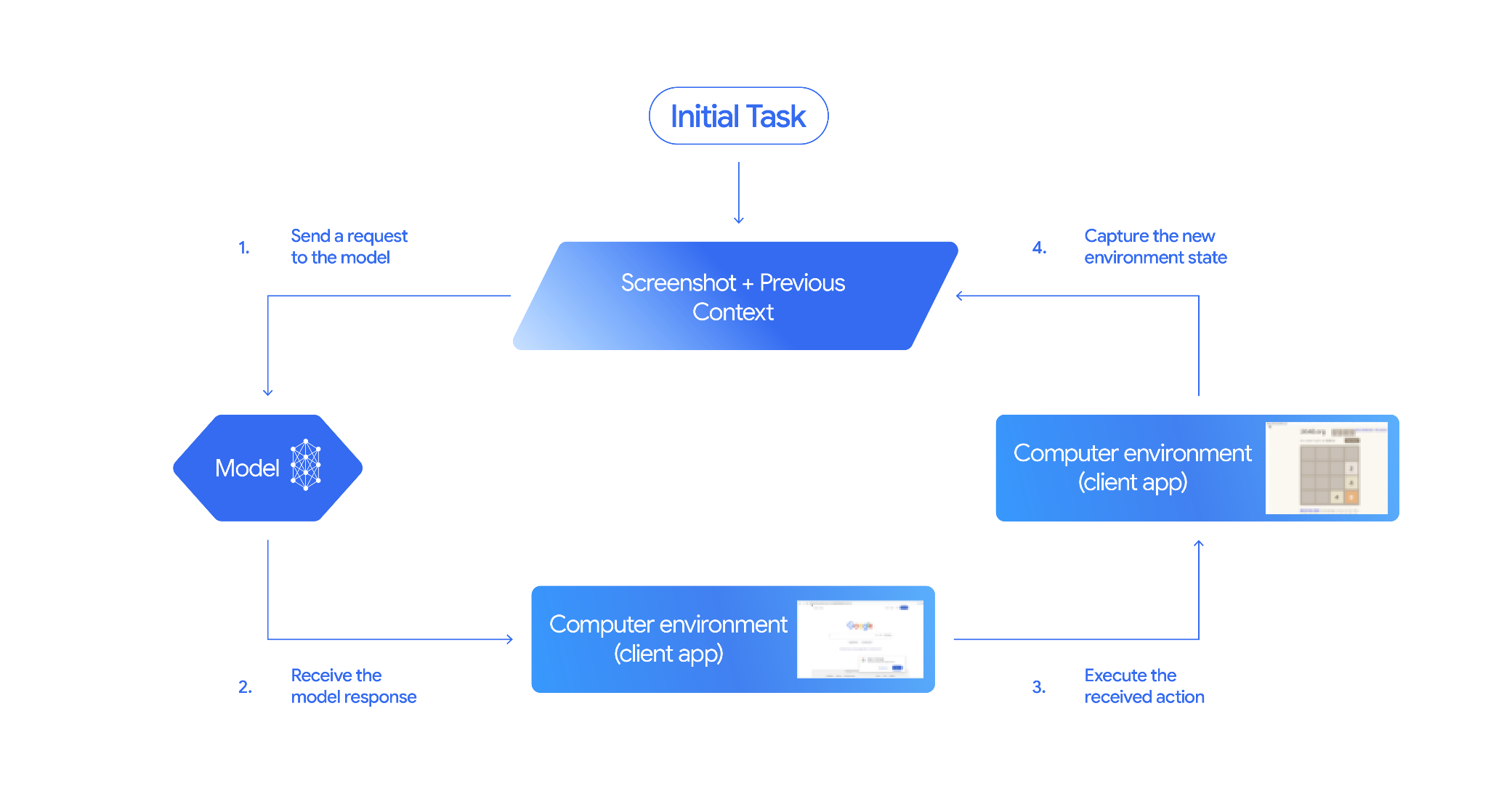
Para criar um agente com o modelo de uso de computador, configure um loop contínuo entre seu aplicativo e a API. Confira o que seu código vai fazer em cada etapa:
- Enviar uma solicitação para o modelo
- O aplicativo envia uma solicitação de API que contém a ferramenta de uso do computador, as configurações de configuração (como o ambiente de destino), o comando do usuário e uma captura de tela da tela atual.
- Receber a resposta do modelo
- O modelo analisa a tela e o comando, retornando uma resposta que inclui um
function_callsugerido representando uma ação da interface (como um clique, rolagem ou pressionamento de tecla). - Para os modelos do Gemini 3.x, a resposta também inclui um raciocínio
intentexplicando por que o modelo escolheu essa ação. - A resposta também pode incluir um
safety_decisionde um sistema de segurança interno que classifica a ação como regular/permitida,require_confirmation(exigindo aprovação do usuário) ou bloqueada.
- O modelo analisa a tela e o comando, retornando uma resposta que inclui um
- Execute a ação recebida
- Se a ação for permitida (ou o usuário confirmar), seu código do lado do cliente vai analisar o
function_call, dimensionar as coordenadas normalizadas para corresponder à sua janela de visualização e executar a ação no ambiente de destino usando ferramentas de automação (como o Playwright). Se a ação for bloqueada, o cliente vai interromper a execução ou processar a interrupção.
- Se a ação for permitida (ou o usuário confirmar), seu código do lado do cliente vai analisar o
- Capturar o novo estado do ambiente
- Depois que a ação termina de ser executada, o aplicativo captura uma nova
captura de tela e a envia de volta ao modelo em um
function_resultpara solicitar a próxima etapa.
- Depois que a ação termina de ser executada, o aplicativo captura uma nova
captura de tela e a envia de volta ao modelo em um
Esse processo se repete desde a etapa 2, solicitando continuamente a próxima ação do modelo até que a tarefa seja concluída ou encerrada.
Como implementar o uso do computador
Antes de criar com a ferramenta "Uso do computador", você precisa configurar:
- Ambiente de execução seguro:execute o agente em uma VM ou contêiner em sandbox para isolá-lo do sistema host e limitar o impacto potencial. A implementação de referência inclui um sandbox baseado em Docker pronto para uso que você pode usar como ponto de partida.
- Gerenciador de ações do lado do cliente:implemente a lógica do lado do cliente para executar coordenadas, digitar texto e fazer capturas de tela.
Os exemplos abaixo usam um navegador da Web como ambiente de execução e Playwright como o manipulador do lado do cliente.
0. Configurar o Playwright
Primeiro, instale os pacotes necessários:
pip install google-genai playwright
playwright install chromium
Em seguida, inicialize uma instância do navegador Playwright para usar na execução:
from playwright.sync_api import sync_playwright

# 1. Configure screen dimensions for the target environment
SCREEN_WIDTH = 1440
SCREEN_HEIGHT = 900

# 2. Start the Playwright browser
# In production, utilize a sandboxed environment.
playwright = sync_playwright().start()
# Set headless=False to see the actions performed on your screen
browser = playwright.chromium.launch(headless=False)

# 3. Create a context and page with the specified dimensions
context = browser.new_context(
    viewport={"width": SCREEN_WIDTH, "height": SCREEN_HEIGHT}
)
page = context.new_page()

# 4. Navigate to an initial page to start the task
page.goto("https://www.google.com")

# The 'page', 'SCREEN_WIDTH', and 'SCREEN_HEIGHT' variables
# will be used in the steps below.
1. Enviar uma solicitação ao modelo
Inicialize a biblioteca de cliente e configure a ferramenta "Uso do computador". Não é necessário especificar o tamanho da tela ao fazer uma solicitação. O modelo prevê coordenadas de pixel dimensionadas para a altura e a largura da tela.
Gemini 3.x
Python
Use o SDK do Python google-genai (versão 2.7.0 ou mais recente) para configurar uma solicitação direcionada ao ambiente do navegador:
from google import genai

client = genai.Client()

interaction = client.interactions.create(
    model='gemini-3.8-flash',
    input="Find a flight from SF to Hawaii on Jun 30th, coming back on Jul 6th",
    tools=[
        {
            "type": "computer_use",
            "environment": "browser",
            "enable_prompt_injection_detection": True
        }
    ]
)

print(interaction)
JavaScript
Use o SDK do Node.js @google/genai para configurar uma solicitação segmentando o ambiente do navegador:
import { GoogleGenAI } from '@google/genai';

const ai = new GoogleGenAI();

const interaction = await ai.interactions.create({
  model: 'gemini-3.8-flash',
  input: "Find a flight from SF to Hawaii on Jun 30th, coming back on Jul 6th",
  tools: [
    {
      type: "computer_use",
      environment: "browser",
      enable_prompt_injection_detection: true
    }
  ]
});

console.log(interaction);
Java
import com.google.genai.Client;
import com.google.genai.gaos.models.interactions.ComputerUse;
import com.google.genai.gaos.models.interactions.CreateModelInteraction;
import com.google.genai.gaos.models.interactions.EnvironmentEnum;
import com.google.genai.gaos.models.interactions.Interaction;
import com.google.genai.gaos.models.interactions.InteractionsInput;
import com.google.genai.gaos.models.operations.CreateInteractionRequestBody;
import java.util.Arrays;

Client client = new Client();

CreateModelInteraction params =
    CreateModelInteraction.builder()
        .model("gemini-3.8-flash")
        .input(
            InteractionsInput.of(
                "Find a flight from SF to Hawaii on Jun 30th, coming back on Jul 6th"))
        .tools(
            Arrays.asList(
                ComputerUse.builder()
                    .environment(EnvironmentEnum.BROWSER)
                    .enablePromptInjectionDetection(true)
                    .build()))
        .build();

Interaction interaction =
    client.interactions.create(CreateInteractionRequestBody.of(params)).interaction().get();

System.out.println(interaction);
Go
package main

import (
    "context"
    "fmt"
    "log"

    "google.golang.org/genai"
    "google.golang.org/genai/interactions/models/interactions"
    "google.golang.org/genai/interactions/models/operations"
)

func main() {
    ctx := context.Background()
    client, err := genai.NewClient(ctx, nil)
    if err != nil {
        log.Fatal(err)
    }

    res, err := client.Interactions.Create(ctx, operations.CreateInteractionRequest{
        Body: operations.NewCreateInteractionRequestBody(interactions.CreateModelInteraction{
            Model: interactions.Model("gemini-3.8-flash"),
            Input: interactions.NewInteractionsInput("Find a flight from SF to Hawaii on Jun 30th, coming back on Jul 6th"),
            Tools: []interactions.Tool{
                interactions.NewTool(interactions.ComputerUse{
                    Environment:                    interactions.EnvironmentEnumBrowser.ToPointer(),
                    EnablePromptInjectionDetection: genai.Ptr(true),
                }),
            },
        }),
    })
    if err != nil {
        log.Fatal(err)
    }

    fmt.Println(res.Interaction)
}
REST
Use curl para enviar uma solicitação:
curl -X POST \
  "https://generativelanguage.googleapis.com/v1beta/interactions" \
  -H "x-goog-api-key: $GEMINI_API_KEY" \
  -H "Content-Type: application/json" \
  -d '{
    "model": "gemini-3.8-flash",
    "input": "Find me a flight from SF to Hawaii on Jun 30th, coming back on Jul 6th. Start by navigating directly to flights.google.com",
    "tools": [
      {
        "type": "computer_use",
        "environment": "browser",
        "enable_prompt_injection_detection": true
      }
    ]
  }'
Gemini 2.5 (legado)
Python
from google import genai

client = genai.Client()

# Specify predefined functions to exclude (optional)
excluded_functions = ["drag_and_drop"]

interaction = client.interactions.create(
    model='gemini-2.5-computer-use-preview-10-2025',
    input="Search for highly rated smart fridges on Google Shopping.",
    tools=[
        {
            "type": "computer_use",
            "environment": "browser",
            "excluded_predefined_functions": excluded_functions
        }
    ]
)

print(interaction)
JavaScript
import { GoogleGenAI } from '@google/genai';

const ai = new GoogleGenAI();

// Specify predefined functions to exclude (optional)
const excludedFunctions = ["drag_and_drop"];

const interaction = await ai.interactions.create({
  model: 'gemini-2.5-computer-use-preview-10-2025',
  input: "Search for highly rated smart fridges on Google Shopping.",
  tools: [
    {
      type: "computer_use",
      environment: "browser",
      excluded_predefined_functions: excludedFunctions
    }
  ]
});

console.log(interaction);
Java
import com.google.genai.Client;
import com.google.genai.gaos.models.interactions.ComputerUse;
import com.google.genai.gaos.models.interactions.CreateModelInteraction;
import com.google.genai.gaos.models.interactions.EnvironmentEnum;
import com.google.genai.gaos.models.interactions.Interaction;
import com.google.genai.gaos.models.interactions.InteractionsInput;
import com.google.genai.gaos.models.operations.CreateInteractionRequestBody;
import java.util.Arrays;
import java.util.List;

Client client = new Client();

// Specify predefined functions to exclude (optional)
List<String> excludedFunctions = Arrays.asList("drag_and_drop");

CreateModelInteraction params =
    CreateModelInteraction.builder()
        .model("gemini-2.5-computer-use-preview-10-2025")
        .input(InteractionsInput.of("Search for highly rated smart fridges on Google Shopping."))
        .tools(
            Arrays.asList(
                ComputerUse.builder()
                    .environment(EnvironmentEnum.BROWSER)
                    .excludedPredefinedFunctions(excludedFunctions)
                    .build()))
        .build();

Interaction interaction =
    client.interactions.create(CreateInteractionRequestBody.of(params)).interaction().get();

System.out.println(interaction);
Go
package main

import (
    "context"
    "fmt"
    "log"

    "google.golang.org/genai"
    "google.golang.org/genai/interactions/models/interactions"
    "google.golang.org/genai/interactions/models/operations"
)

func main() {
    ctx := context.Background()
    client, err := genai.NewClient(ctx, nil)
    if err != nil {
        log.Fatal(err)
    }

    // Specify predefined functions to exclude (optional)
    excludedFunctions := []string{"drag_and_drop"}

    res, err := client.Interactions.Create(ctx, operations.CreateInteractionRequest{
        Body: operations.NewCreateInteractionRequestBody(interactions.CreateModelInteraction{
            Model: interactions.Model("gemini-2.5-computer-use-preview-10-2025"),
            Input: interactions.NewInteractionsInput("Search for highly rated smart fridges on Google Shopping."),
            Tools: []interactions.Tool{
                interactions.NewTool(interactions.ComputerUse{
                    Environment:                 interactions.EnvironmentEnumBrowser.ToPointer(),
                    ExcludedPredefinedFunctions: excludedFunctions,
                }),
            },
        }),
    })
    if err != nil {
        log.Fatal(err)
    }

    fmt.Println(res.Interaction)
}
2. Receber a resposta do modelo
O modelo de resposta sugere uma chamada de função. Para os modelos do Gemini 3.x, a resposta contém uma intenção de raciocínio personalizada com coordenadas. Confira exemplos das duas respostas:
Gemini 3.x
{
  "steps": [
    {
      "type": "function_call",
      "name": "click",
      "arguments": {
        "x": 450,
        "y": 120,
        "intent": "Click the search box to type the destination."
      }
    }
  ]
}
Gemini 2.5 (legado)
{
  "steps": [
    {
      "type": "model_output",
      "content": [
        {
          "type": "text",
          "text": "I will type the search query into the search bar."
        }
      ]
    },
    {
      "type": "function_call",
      "name": "type_text_at",
      "arguments": {
        "x": 371,
        "y": 470,
        "text": "highly rated smart fridges",
        "press_enter": true
      }
    }
  ]
}
3. Executar as ações recebidas
Seu aplicativo precisa analisar as coordenadas de resposta, executar a ação e escalonar as coordenadas normalizadas de 1000 x 1000.
O código abaixo processa comandos de ferramentas legadas (click_at, type_text_at) e comandos modernos simplificados (click, type).
Python
from typing import Any, List, Tuple
import time

def denormalize_x(x: int, screen_width: int) -> int:
    """Convert normalized x coordinate (0-1000) to actual pixel coordinate."""
    return int(x / 1000 * screen_width)

def denormalize_y(y: int, screen_height: int) -> int:
    """Convert normalized y coordinate (0-1000) to actual pixel coordinate."""
    return int(y / 1000 * screen_height)

def execute_function_calls(interaction, page, screen_width, screen_height):
    results = []
    function_calls = [
        step for step in interaction.steps if step.type == "function_call"
    ]

    for function_call in function_calls:
        action_result = {}
        fname = function_call.name
        args = function_call.arguments
        print(f"  -> Executing: {fname} (Intent: {args.get('intent', 'N/A')})")

        try:
            if fname in ("open_web_browser", "open_app"):
                pass # Handled / already open
            elif fname in ("click", "click_at", "double_click", "triple_click", "middle_click", "right_click", "move", "long_press"):
                actual_x = denormalize_x(args["x"], screen_width)
                actual_y = denormalize_y(args["y"], screen_height)

                if fname in ("click", "click_at"):
                    page.mouse.click(actual_x, actual_y)
                elif fname == "double_click":
                    page.mouse.dblclick(actual_x, actual_y)
                elif fname == "right_click":
                    page.mouse.click(actual_x, actual_y, button="right")
                elif fname == "middle_click":
                    page.mouse.click(actual_x, actual_y, button="middle")
                elif fname == "move":
                    page.mouse.move(actual_x, actual_y)
            elif fname in ("type", "type_text_at"):
                actual_x = denormalize_x(args["x"], screen_width) if "x" in args else None
                actual_y = denormalize_y(args["y"], screen_height) if "y" in args else None
                text = args["text"]
                press_enter = args.get("press_enter", False)

                if actual_x is not None and actual_y is not None:
                    page.mouse.click(actual_x, actual_y)
                # Clear field first
                page.keyboard.press("Meta+A")
                page.keyboard.press("Backspace")
                page.keyboard.type(text)
                if press_enter:
                    page.keyboard.press("Enter")
            elif fname == "navigate":
                page.goto(args["url"])
            elif fname == "go_back":
                page.go_back()
            elif fname == "go_forward":
                page.go_forward()
            elif fname == "wait":
                time.sleep(args.get("seconds", 1))
            else:
                print(f"Warning: Custom or unhandled function {fname}")

            page.wait_for_load_state(timeout=5000)
            time.sleep(1)

        except Exception as e:
            print(f"Error executing {fname}: {e}")
            action_result = {"error": str(e)}

        results.append((fname, function_call.id, action_result))

    return results
JavaScript
function denormalizeX(x, screenWidth) {
    // Convert normalized x coordinate (0-1000) to actual pixel coordinate.
    return Math.floor((x / 1000) * screenWidth);
}

function denormalizeY(y, screenHeight) {
    // Convert normalized y coordinate (0-1000) to actual pixel coordinate.
    return Math.floor((y / 1000) * screenHeight);
}

async function executeFunctionCalls(interaction, page, screenWidth, screenHeight) {
    const results = [];
    const functionCalls = interaction.steps.filter(step => step.type === "function_call");

    for (const functionCall of functionCalls) {
        const actionResult = {};
        const fname = functionCall.name;
        const args = functionCall.arguments;
        console.log(`  -> Executing: ${fname} (Intent: ${args.intent || 'N/A'})`);

        try {
            if (fname === "open_web_browser" || fname === "open_app") {
                // Handled / already open
            } else if (["click", "click_at", "double_click", "triple_click", "middle_click", "right_click", "move", "long_press"].includes(fname)) {
                const actualX = denormalizeX(args.x, screenWidth);
                const actualY = denormalizeY(args.y, screenHeight);

                if (fname === "click" || fname === "click_at") {
                    await page.mouse.click(actualX, actualY);
                } else if (fname === "double_click") {
                    await page.mouse.dblclick(actualX, actualY);
                } else if (fname === "right_click") {
                    await page.mouse.click(actualX, actualY, { button: "right" });
                } else if (fname === "middle_click") {
                    await page.mouse.click(actualX, actualY, { button: "middle" });
                } else if (fname === "move") {
                    await page.mouse.move(actualX, actualY);
                }
            } else if (fname === "type" || fname === "type_text_at") {
                const actualX = args.x !== undefined ? denormalizeX(args.x, screenWidth) : null;
                const actualY = args.y !== undefined ? denormalizeY(args.y, screenHeight) : null;
                const text = args.text;
                const pressEnter = args.press_enter || false;

                if (actualX !== null && actualY !== null) {
                    await page.mouse.click(actualX, actualY);
                }
                // Clear field first
                await page.keyboard.press("Meta+A");
                await page.keyboard.press("Backspace");
                await page.keyboard.type(text);
                if (pressEnter) {
                    await page.keyboard.press("Enter");
                }
            } else if (fname === "navigate") {
                await page.goto(args.url);
            } else if (fname === "go_back") {
                await page.goBack();
            } else if (fname === "go_forward") {
                await page.goForward();
            } else if (fname === "wait") {
                await new Promise(resolve => setTimeout(resolve, (args.seconds || 1) * 1000));
            } else {
                console.log(`Warning: Custom or unhandled function ${fname}`);
            }

            await page.waitForLoadState('load', { timeout: 5000 }).catch(() => {});
            await new Promise(resolve => setTimeout(resolve, 1000));
        } catch (e) {
            console.log(`Error executing ${fname}: ${e}`);
            actionResult.error = e.message;
        }

        results.push([fname, functionCall.id, actionResult]);
    }

    return results;
}
Java
import com.google.genai.gaos.models.interactions.FunctionCallStep;
import com.google.genai.gaos.models.interactions.Interaction;
import com.google.genai.gaos.models.interactions.Step;
import java.util.ArrayList;
import java.util.Collections;
import java.util.HashMap;
import java.util.List;
import java.util.Map;

class ActionExecutor {
  int denormalizeX(int x, int screenWidth) {
    return (int) (x / 1000.0 * screenWidth);
  }

  int denormalizeY(int y, int screenHeight) {
    return (int) (y / 1000.0 * screenHeight);
  }

  List<Map<String, Object>> executeFunctionCalls(
      Interaction interaction, int screenWidth, int screenHeight) {
    List<Map<String, Object>> results = new ArrayList<>();

    for (Step step : interaction.steps().orElse(Collections.emptyList())) {
      if (step instanceof FunctionCallStep) {
        FunctionCallStep functionCall = (FunctionCallStep) step;
        String fname = functionCall.name().orElse("");
        Map<String, Object> args = functionCall.arguments().orElse(Collections.emptyMap());
        Map<String, Object> actionResult = new HashMap<>();

        System.out.println(
            "  -> Executing: " + fname + " (Intent: " + args.getOrDefault("intent", "N/A") + ")");

        try {
          if (fname.equals("click") || fname.equals("click_at")) {
            int actualX = denormalizeX(((Number) args.get("x")).intValue(), screenWidth);
            int actualY = denormalizeY(((Number) args.get("y")).intValue(), screenHeight);
            // Perform mouse click at (actualX, actualY) using your browser automation library
          } else if (fname.equals("type") || fname.equals("type_text_at")) {
            String text = (String) args.get("text");
            // Type text into active element using your browser automation library
          } else if (fname.equals("navigate")) {
            String url = (String) args.get("url");
            // Navigate browser to url
          }
        } catch (Exception e) {
          actionResult.put("error", e.getMessage());
        }

        Map<String, Object> entry = new HashMap<>();
        entry.put("name", fname);
        entry.put("callId", functionCall.id().orElse(""));
        entry.put("result", actionResult);
        results.add(entry);
      }
    }
    return results;
  }
}
Go
package main

import (
    "fmt"

    "google.golang.org/genai/interactions/models/interactions"
)

func denormalizeX(x, screenWidth int) int {
    return int(float64(x) / 1000.0 * float64(screenWidth))
}

func denormalizeY(y, screenHeight int) int {
    return int(float64(y) / 1000.0 * float64(screenHeight))
}

func executeFunctionCalls(interaction *interactions.Interaction, screenWidth, screenHeight int) []map[string]any {
    var results []map[string]any

    for _, step := range interaction.Steps {
        if functionCall := step.FunctionCallStep; functionCall != nil {
            fname := functionCall.Name
            args := functionCall.Arguments
            actionResult := map[string]any{}

            intent := args["intent"]
            if intent == nil {
                intent = "N/A"
            }
            fmt.Printf("  -> Executing: %s (Intent: %v)\n", fname, intent)

            switch fname {
            case "click", "click_at":
                xVal, _ := args["x"].(float64)
                yVal, _ := args["y"].(float64)
                actualX := denormalizeX(int(xVal), screenWidth)
                actualY := denormalizeY(int(yVal), screenHeight)
                _ = actualX
                _ = actualY
                // Perform mouse click at (actualX, actualY) using your browser automation library
            case "type", "type_text_at":
                text, _ := args["text"].(string)
                _ = text
                // Type text into active element using your browser automation library
            case "navigate":
                url, _ := args["url"].(string)
                _ = url
                // Navigate browser to url
            }

            results = append(results, map[string]any{
                "name":   fname,
                "callId": functionCall.ID,
                "result": actionResult,
            })
        }
    }
    return results
}

func main() {
    // Example helper usage with an Interaction response
}
4. Capturar o novo estado do ambiente
Depois de executar as ações, envie o resultado da execução da função de volta ao modelo para que ele possa usar essas informações e gerar a próxima ação. Se
várias ações (chamadas paralelas) foram executadas, envie um
function_result para cada uma na próxima vez que o usuário falar.
Python
import json
import base64

def get_function_responses(page, results):
    screenshot_bytes = page.screenshot(type="png")
    current_url = page.url
    function_responses = []
    for name, call_id, result in results:
        function_responses.append({
            "type": "function_result",
            "name": name,
            "call_id": call_id,
            "result": [
                {
                    "type": "text",
                    "text": json.dumps({"url": current_url, **result})
                },
                {
                    "type": "image",
                    "data": base64.b64encode(screenshot_bytes).decode("utf-8"),
                    "mime_type": "image/png"
                }
            ]
        })
    return function_responses
JavaScript
async function getFunctionResponses(page, results) {
    const screenshotBuffer = await page.screenshot({ type: 'png' });
    const screenshotBase64 = screenshotBuffer.toString('base64');
    const currentUrl = page.url();
    const functionResponses = [];

    for (const [name, callId, result] of results) {
        functionResponses.push({
            type: "function_result",
            name: name,
            call_id: callId,
            result: [
                {
                    type: "text",
                    text: JSON.stringify({ url: currentUrl, ...result })
                },
                {
                    type: "image",
                    data: screenshotBase64,
                    mime_type: "image/png"
                }
            ]
        });
    }
    return functionResponses;
}
Java
import com.google.genai.gaos.models.interactions.FunctionResultStep;
import com.google.genai.gaos.models.interactions.FunctionResultStepResultUnion;
import com.google.genai.gaos.models.interactions.ImageContent;
import com.google.genai.gaos.models.interactions.ImageContentMimeType;
import com.google.genai.gaos.models.interactions.Step;
import com.google.genai.gaos.models.interactions.TextContent;
import java.util.ArrayList;
import java.util.Arrays;
import java.util.Base64;
import java.util.List;
import java.util.Map;

class StateCapturer {
  List<Step> getFunctionResponses(
      byte[] screenshotBytes, String currentUrl, List<Map<String, Object>> results) {
    List<Step> functionResponses = new ArrayList<>();
    String base64Screenshot = Base64.getEncoder().encodeToString(screenshotBytes);

    for (Map<String, Object> entry : results) {
      String name = (String) entry.get("name");
      String callId = (String) entry.get("callId");
      String jsonResult = String.format("{\"url\": \"%s\"}", currentUrl);

      FunctionResultStep responseStep =
          FunctionResultStep.builder()
              .name(name)
              .callId(callId)
              .result(
                  FunctionResultStepResultUnion.of(
                      Arrays.asList(
                          TextContent.builder().text(jsonResult).build(),
                          ImageContent.builder()
                              .data(base64Screenshot)
                              .mimeType(ImageContentMimeType.IMAGE_PNG)
                              .build())))
              .build();
      functionResponses.add(responseStep);
    }
    return functionResponses;
  }
}
Go
package main

import (
    "encoding/base64"
    "fmt"

    "google.golang.org/genai"
    "google.golang.org/genai/interactions/models/interactions"
)

func getFunctionResponses(screenshotBytes []byte, currentURL string, results []map[string]any) []interactions.Step {
    var functionResponses []interactions.Step
    base64Screenshot := base64.StdEncoding.EncodeToString(screenshotBytes)

    for _, entry := range results {
        name, _ := entry["name"].(string)
        callID, _ := entry["callId"].(string)
        jsonResult := fmt.Sprintf(`{"url": "%s"}`, currentURL)

        responseStep := interactions.NewStep(interactions.FunctionResultStep{
            Name:   genai.Ptr(name),
            CallID: callID,
            Result: interactions.NewFunctionResultStepResultUnion([]interactions.FunctionResultSubcontent{
                interactions.NewFunctionResultSubcontent(interactions.TextContent{
                    Text: jsonResult,
                }),
                interactions.NewFunctionResultSubcontent(interactions.ImageContent{
                    Data:     genai.Ptr(base64Screenshot),
                    MimeType: interactions.ImageContentMimeType("image/png").ToPointer(),
                }),
            }),
        })
        functionResponses = append(functionResponses, responseStep)
    }
    return functionResponses
}

func main() {
    // Example helper usage to build FunctionResultStep responses
}
Depois de definir como capturar e formatar o estado do ambiente, você pode combinar todas essas etapas em um loop de execução contínua.
Criar um loop do agente
Para ativar interações de várias etapas, combine as quatro etapas da seção Como implementar o uso de computadores em um único loop. Esse loop continua solicitando ações e enviando os resultados de volta ao modelo até que a tarefa seja concluída.
Não se esqueça de gerenciar o histórico de conversas corretamente, adicionando as respostas do modelo e da função ao histórico em cada etapa.
Python
import time
from typing import Any, List, Tuple
from playwright.sync_api import sync_playwright

from google import genai

client = genai.Client()

# Constants for screen dimensions
SCREEN_WIDTH = 1440
SCREEN_HEIGHT = 900

# Setup Playwright
print("Initializing browser...")
playwright = sync_playwright().start()
browser = playwright.chromium.launch(headless=False)
context = browser.new_context(viewport={"width": SCREEN_WIDTH, "height": SCREEN_HEIGHT})
page = context.new_page()

# Define helper functions. Copy/paste from steps 3 and 4
# def denormalize_x(...)
# def denormalize_y(...)
# def execute_function_calls(...)
# def get_function_responses(...)

try:
    # Go to initial page
    page.goto("https://ai.google.dev/gemini-api/docs")

    # Take initial screenshot
    initial_screenshot = page.screenshot(type="png")
    USER_PROMPT = "Go to ai.google.dev/gemini-api/docs and search for pricing."
    print(f"Goal: {USER_PROMPT}")

    # First interaction
    interaction = client.interactions.create(
        model='gemini-3.8-flash',
        input=[
            {"type": "text", "text": USER_PROMPT},
            {"type": "image", "data": base64.b64encode(initial_screenshot).decode("utf-8"), "mime_type": "image/png"}
        ],
        tools=[{
            "type": "computer_use",
            "environment": "browser",
            "enable_prompt_injection_detection": True
        }]
    )

    # Agent Loop
    turn_limit = 5
    for i in range(turn_limit):
        print(f"\n--- Turn {i+1} ---")

        has_function_calls = any(
            step.type == "function_call"
            for step in interaction.steps
        )
        if not has_function_calls:
            text_response = " ".join([
                content_block.text for step in interaction.steps if step.type == "model_output"
                for content_block in step.content if content_block.type == "text"
            ])
            print("Agent finished:", text_response)
            break

        print("Executing actions...")
        results = execute_function_calls(interaction, page, SCREEN_WIDTH, SCREEN_HEIGHT)

        print("Capturing state...")
        function_responses = get_function_responses(page, results)

        # Continue conversation with function responses
        interaction = client.interactions.create(
            model='gemini-3.8-flash',
            previous_interaction_id=interaction.id,
            input=function_responses,
            tools=[{
                "type": "computer_use",
                "environment": "browser",
                "enable_prompt_injection_detection": True
            }]
        )

finally:
    # Cleanup
    print("\nClosing browser...")
    browser.close()
    playwright.stop()
JavaScript
import { chromium } from 'playwright';
import { GoogleGenAI } from '@google/genai';

const ai = new GoogleGenAI();

// Constants for screen dimensions
const SCREEN_WIDTH = 1440;
const SCREEN_HEIGHT = 900;

console.log("Initializing browser...");
const browser = await chromium.launch({ headless: false });
const context = await browser.newContext({
    viewport: { width: SCREEN_WIDTH, height: SCREEN_HEIGHT }
});
const page = await context.newPage();

// Define helper functions. Copy/paste from steps 3 and 4:
// function denormalizeX(...)
// function denormalizeY(...)
// async function executeFunctionCalls(...)
// async function getFunctionResponses(...)

try {
    // Go to initial page
    await page.goto("https://ai.google.dev/gemini-api/docs");

    // Take initial screenshot
    const initialScreenshotBuffer = await page.screenshot({ type: 'png' });
    const initialScreenshotBase64 = initialScreenshotBuffer.toString('base64');
    const USER_PROMPT = "Go to ai.google.dev/gemini-api/docs and search for pricing.";
    console.log(`Goal: ${USER_PROMPT}`);

    // First interaction
    let interaction = await ai.interactions.create({
        model: 'gemini-3.8-flash',
        input: [
            { type: 'text', text: USER_PROMPT },
            { type: 'image', data: initialScreenshotBase64, mime_type: 'image/png' }
        ],
        tools: [{
            type: 'computer_use',
            environment: 'browser',
            enable_prompt_injection_detection: true
        }]
    });

    // Agent Loop
    const turnLimit = 5;
    for (let i = 0; i < turnLimit; i++) {
        console.log(`\n--- Turn ${i + 1} ---`);

        const hasFunctionCalls = interaction.steps.some(step => step.type === "function_call");
        if (!hasFunctionCalls) {
            const textResponses = [];
            for (const step of interaction.steps) {
                if (step.type === "model_output") {
                    for (const contentBlock of step.content || []) {
                        if (contentBlock.type === "text") {
                            textResponses.push(contentBlock.text);
                        }
                    }
                }
            }
            console.log("Agent finished:", textResponses.join(" "));
            break;
        }

        console.log("Executing actions...");
        const results = await executeFunctionCalls(interaction, page, SCREEN_WIDTH, SCREEN_HEIGHT);

        console.log("Capturing state...");
        const functionResponses = await getFunctionResponses(page, results);

        // Continue conversation with function responses
        interaction = await ai.interactions.create({
            model: 'gemini-3.8-flash',
            previous_interaction_id: interaction.id,
            input: functionResponses,
            tools: [{
                type: 'computer_use',
                environment: 'browser',
                enable_prompt_injection_detection: true
            }]
        });
    }
} finally {
    // Cleanup
    console.log("\nClosing browser...");
    await browser.close();
}
Java
import com.google.genai.Client;
import com.google.genai.gaos.models.interactions.ComputerUse;
import com.google.genai.gaos.models.interactions.Content;
import com.google.genai.gaos.models.interactions.CreateModelInteraction;
import com.google.genai.gaos.models.interactions.EnvironmentEnum;
import com.google.genai.gaos.models.interactions.FunctionCallStep;
import com.google.genai.gaos.models.interactions.ImageContent;
import com.google.genai.gaos.models.interactions.ImageContentMimeType;
import com.google.genai.gaos.models.interactions.Interaction;
import com.google.genai.gaos.models.interactions.InteractionsInput;
import com.google.genai.gaos.models.interactions.ModelOutputStep;
import com.google.genai.gaos.models.interactions.Step;
import com.google.genai.gaos.models.interactions.TextContent;
import com.google.genai.gaos.models.operations.CreateInteractionRequestBody;
import java.util.ArrayList;
import java.util.Arrays;
import java.util.Base64;
import java.util.Collections;
import java.util.List;

Client client = new Client();

// Constants for screen dimensions
int screenWidth = 1440;
int screenHeight = 900;

// Capture initial screenshot from browser driver (e.g. Playwright)
byte[] initialScreenshot = new byte[0];
String base64Screenshot = Base64.getEncoder().encodeToString(initialScreenshot);
String userPrompt = "Go to ai.google.dev/gemini-api/docs and search for pricing.";
System.out.println("Goal: " + userPrompt);

ComputerUse computerUseTool =
    ComputerUse.builder()
        .environment(EnvironmentEnum.BROWSER)
        .enablePromptInjectionDetection(true)
        .build();

CreateModelInteraction initialParams =
    CreateModelInteraction.builder()
        .model("gemini-3.8-flash")
        .input(
            InteractionsInput.ofContent(
                Arrays.asList(
                    TextContent.builder().text(userPrompt).build(),
                    ImageContent.builder()
                        .data(base64Screenshot)
                        .mimeType(ImageContentMimeType.IMAGE_PNG)
                        .build())))
        .tools(Arrays.asList(computerUseTool))
        .build();

Interaction interaction =
    client.interactions.create(CreateInteractionRequestBody.of(initialParams)).interaction().get();

int turnLimit = 5;
for (int i = 0; i < turnLimit; i++) {
  System.out.println("\n--- Turn " + (i + 1) + " ---");

  boolean hasFunctionCalls =
      interaction.steps().orElse(Collections.emptyList()).stream()
          .anyMatch(step -> step instanceof FunctionCallStep);

  if (!hasFunctionCalls) {
    StringBuilder textResponse = new StringBuilder();
    for (Step step : interaction.steps().orElse(Collections.emptyList())) {
      if (step instanceof ModelOutputStep) {
        for (Content contentBlock :
            ((ModelOutputStep) step).content().orElse(Collections.emptyList())) {
          if (contentBlock instanceof TextContent) {
            textResponse.append(((TextContent) contentBlock).text().orElse("")).append(" ");
          }
        }
      }
    }
    System.out.println("Agent finished: " + textResponse.toString().trim());
    break;
  }

  System.out.println("Executing actions and capturing state...");
  // Execute function calls against browser driver and capture List<Step> functionResponses
  List<Step> functionResponses = new ArrayList<>();

  CreateModelInteraction nextParams =
      CreateModelInteraction.builder()
          .model("gemini-3.8-flash")
          .previousInteractionId(interaction.id().get())
          .input(InteractionsInput.ofStep(functionResponses))
          .tools(Arrays.asList(computerUseTool))
          .build();

  interaction =
      client.interactions.create(CreateInteractionRequestBody.of(nextParams)).interaction().get();
}
Go
package main

import (
    "context"
    "encoding/base64"
    "fmt"
    "log"
    "strings"

    "google.golang.org/genai"
    "google.golang.org/genai/interactions/models/interactions"
    "google.golang.org/genai/interactions/models/operations"
)

func main() {
    ctx := context.Background()
    client, err := genai.NewClient(ctx, nil)
    if err != nil {
        log.Fatal(err)
    }

    // Constants for screen dimensions
    screenWidth := 1440
    screenHeight := 900
    _ = screenWidth
    _ = screenHeight

    // Capture initial screenshot from browser driver (e.g. Playwright)
    initialScreenshot := []byte{}
    base64Screenshot := base64.StdEncoding.EncodeToString(initialScreenshot)
    userPrompt := "Go to ai.google.dev/gemini-api/docs and search for pricing."
    fmt.Println("Goal:", userPrompt)

    computerUseTool := interactions.NewTool(interactions.ComputerUse{
        Environment:                    interactions.EnvironmentEnumBrowser.ToPointer(),
        EnablePromptInjectionDetection: genai.Ptr(true),
    })

    res, err := client.Interactions.Create(ctx, operations.CreateInteractionRequest{
        Body: operations.NewCreateInteractionRequestBody(interactions.CreateModelInteraction{
            Model: interactions.Model("gemini-3.8-flash"),
            Input: interactions.NewInteractionsInput([]interactions.Content{
                interactions.NewContent(interactions.TextContent{Text: userPrompt}),
                interactions.NewContent(interactions.ImageContent{
                    Data:     genai.Ptr(base64Screenshot),
                    MimeType: interactions.ImageContentMimeType("image/png").ToPointer(),
                }),
            }),
            Tools: []interactions.Tool{computerUseTool},
        }),
    })
    if err != nil {
        log.Fatal(err)
    }
    interaction := res.Interaction

    turnLimit := 5
    for i := 0; i < turnLimit; i++ {
        fmt.Printf("\n--- Turn %d ---\n", i+1)

        hasFunctionCalls := false
        for _, step := range interaction.Steps {
            if step.FunctionCallStep != nil {
                hasFunctionCalls = true
                break
            }
        }

        if !hasFunctionCalls {
            var parts []string
            for _, step := range interaction.Steps {
                if outStep := step.ModelOutputStep; outStep != nil {
                    for _, contentBlock := range outStep.Content {
                        if textContent := contentBlock.TextContent; textContent != nil {
                            parts = append(parts, textContent.GetText())
                        }
                    }
                }
            }
            fmt.Println("Agent finished:", strings.TrimSpace(strings.Join(parts, " ")))
            break
        }

        fmt.Println("Executing actions and capturing state...")
        // Execute function calls against browser driver and capture []interactions.Step functionResponses
        var functionResponses []interactions.Step

        nextRes, err := client.Interactions.Create(ctx, operations.CreateInteractionRequest{
            Body: operations.NewCreateInteractionRequestBody(interactions.CreateModelInteraction{
                Model:                 interactions.Model("gemini-3.8-flash"),
                PreviousInteractionID: interaction.ID,
                Input:                 interactions.NewInteractionsInput(functionResponses),
                Tools:                 []interactions.Tool{computerUseTool},
            }),
        })
        if err != nil {
            log.Fatal(err)
        }
        interaction = nextRes.Interaction
    }
}
Ambientes compatíveis (Gemini 3.x)
Os modelos do Gemini 3.x são compatíveis com três ambientes especificados nas configurações de computer_use:
Ambiente do navegador (ENVIRONMENT_BROWSER)
Ações disponíveis na ferramenta do navegador:
| Nome do comando | Descrição | Argumentos (na chamada de função) |
|---|---|---|
| click | Clique com o botão esquerdo na coordenada. | y: int (0-999)x: int (0-999)intent: str |
| double_click | Clique duas vezes na coordenada. | y: int (0-999)x: int (0-999)intent: str |
| triple_click | Clica três vezes na coordenada. | y: int (0-999)x: int (0-999)intent: str |
| middle_click | Clique com o botão do meio na coordenada. | y: int (0-999)x: int (0-999)intent: str |
| right_click | Clica com o botão direito do mouse na coordenada. | y: int (0-999)x: int (0-999)intent: str |
| mouse_down | Toca e mantém pressionado o botão do mouse na coordenada. | y: int (0-999)x: int (0-999)intent: str |
| mouse_up | Solta o botão do mouse na coordenada. | y: int (0-999)x: int (0-999)intent: str |
| move | Move o cursor para a posição especificada. | y: int (0-999)x: int (0-999)intent: str |
| type | Digita texto. | text: strpress_enter: bool (opcional, padrão false)intent: str |
| drag_and_drop | Arrasta um item da coordenada inicial até a coordenada final. | start_y: int (0-999)start_x: int (0-999)end_y: int (0-999)end_x: int (0-999)intent: str |
| wait | Pausa a execução por um número especificado de segundos. | seconds: int (opcional, padrão 1)intent: str |
| press_key | Pressiona e solta a tecla especificada. | key: strintent: str |
| key_down | Pressiona e mantém pressionada a tecla especificada. | key: strintent: str |
| key_up | Libera a chave especificada. | key: strintent: str |
| tecla de atalho | Pressiona a combinação de teclas especificada. | keys: List[str]intent: str |
| take_screenshot | Retorna uma captura de tela da tela atual. | intent: str |
| scroll | Rola para cima, para baixo, para a esquerda ou para a direita em uma coordenada por uma distância de pixel. | y: int (0-999)x: int (0-999)direction: str ("up", "down", "left", "right")magnitude_in_pixels: int (0-999, opcional, padrão 300)intent: str |
| go_back | Volta para a página da Web anterior no histórico do navegador. | intent: str |
| navigate | Navega diretamente para um URL especificado. | url: strintent: str |
| go_forward | Navega para a próxima página da Web no histórico do navegador. | intent: str |
Ambiente móvel (ENVIRONMENT_MOBILE)
Ações de ambiente otimizado para Android:
| Nome do comando | Descrição | Argumentos (na chamada de função) |
|---|---|---|
| open_app | Abre um aplicativo pelo nome. | app_name: strintent: str |
| click | Clique com o botão esquerdo na coordenada. | y: int (0-999)x: int (0-999)intent: str |
| list_apps | Lista os aplicativos disponíveis no dispositivo, retornando os nomes e nomes de pacotes. | intent: str |
| wait | Pausa a execução por um número especificado de segundos. | seconds: int (opcional, padrão 1)intent: str |
| go_back | Volta para a tela ou página da Web anterior. | intent: str |
| type | Digita texto. | text: strpress_enter: bool (opcional, padrão false)intent: str |
| drag_and_drop | Arrasta um item da coordenada inicial até a coordenada final. | start_y: int (0-999)start_x: int (0-999)end_y: int (0-999)end_x: int (0-999)intent: str |
| long_press | Faz um toque longo em uma coordenada na tela. | y: int (0-999)x: int (0-999)seconds: int (opcional, padrão 2)intent: str |
| press_key | Pressiona e solta a tecla especificada. | key: strintent: str |
| take_screenshot | Retorna uma captura de tela da tela atual. | intent: str |
Ambiente de trabalho (ENVIRONMENT_DESKTOP)
Comandos de cursor no nível do SO para ambientes de desktop:
| Nome do comando | Descrição | Argumentos (na chamada de função) |
|---|---|---|
| click | Clique com o botão esquerdo na coordenada. | y: int (0-999)x: int (0-999)intent: str |
| double_click | Clique duas vezes na coordenada. | y: int (0-999)x: int (0-999)intent: str |
| triple_click | Clica três vezes na coordenada. | y: int (0-999)x: int (0-999)intent: str |
| middle_click | Clique com o botão do meio na coordenada. | y: int (0-999)x: int (0-999)intent: str |
| right_click | Clica com o botão direito do mouse na coordenada. | y: int (0-999)x: int (0-999)intent: str |
| mouse_down | Toca e mantém pressionado o botão do mouse na coordenada. | y: int (0-999)x: int (0-999)intent: str |
| mouse_up | Solta o botão do mouse na coordenada. | y: int (0-999)x: int (0-999)intent: str |
| move | Move o cursor para a posição especificada. | y: int (0-999)x: int (0-999)intent: str |
| type | Digita texto. | text: strpress_enter: bool (opcional, padrão false)intent: str |
| drag_and_drop | Arrasta um item da coordenada inicial até a coordenada final. | start_y: int (0-999)start_x: int (0-999)end_y: int (0-999)end_x: int (0-999)intent: str |
| wait | Pausa a execução por um número especificado de segundos. | seconds: int (opcional, padrão 1)intent: str |
| press_key | Pressiona e solta a tecla especificada. | key: strintent: str |
| key_down | Pressiona e mantém pressionada a tecla especificada. | key: strintent: str |
| key_up | Libera a chave especificada. | key: strintent: str |
| tecla de atalho | Pressiona a combinação de teclas especificada. | keys: List[str]intent: str |
| take_screenshot | Retorna uma captura de tela da tela atual. | intent: str |
| scroll | Rola para cima, para baixo, para a esquerda ou para a direita em uma coordenada por uma distância de pixel. | y: int (0-999)x: int (0-999)direction: str ("up", "down", "left", "right")magnitude_in_pixels: int (0-999, opcional, padrão 300)intent: str |
Ações legadas da interface compatíveis (Gemini 2.5)
Para modelos legados (gemini-2.5-computer-use-preview-10-2025), as seguintes ações são compatíveis:
| Nome do comando | Descrição | Argumentos (na chamada de função) | Exemplo de chamada de função |
|---|---|---|---|
| open_web_browser | Abre o navegador da Web. | Nenhum | {"name": "open_web_browser", "arguments": {}} |
| wait_5_seconds | Pausa a execução por 5 segundos. | Nenhum | {"name": "wait_5_seconds", "arguments": {}} |
| go_back | Navega para a página anterior no histórico. | Nenhum | {"name": "go_back", "arguments": {}} |
| go_forward | Navega para a próxima página no histórico. | Nenhum | {"name": "go_forward", "arguments": {}} |
| search | Navega até o mecanismo de pesquisa padrão. | Nenhum | {"name": "search", "arguments": {}} |
| navigate | Navega o navegador diretamente para o URL especificado. | url: str |
{"name": "navigate", "arguments": {"url": "https://www.wikipedia.org"}} |
| click_at | Clica em uma coordenada específica. | y: int (0-999), x: int (0-999) |
{"name": "click_at", "arguments": {"y": 300, "x": 500}} |
| hover_at | Passa o cursor do mouse em uma coordenada específica. | y: int (0-999), x: int (0-999) |
{"name": "hover_at", "arguments": {"y": 150, "x": 250}} |
| type_text_at | Digita texto em uma coordenada. | y: int (0 a 999), x: int (0 a 999), text: str, press_enter: bool (opcional, padrão True), clear_before_typing: bool (opcional, padrão True) |
{"name": "type_text_at", "arguments": {"y": 250, "x": 400, "text": "search", "press_enter": false}} |
| key_combination | Pressione teclas ou combinações. | keys: str |
{"name": "key_combination", "arguments": {"keys": "Control+A"}} |
| scroll_document | Rola a página da Web inteira. | direction: str |
{"name": "scroll_document", "arguments": {"direction": "down"}} |
| scroll_at | Rola na coordenada (x,y). | y: int, x: int, direction: str, magnitude: int (opcional, padrão 800) |
{"name": "scroll_at", "arguments": {"y": 500, "x": 500, "direction": "down"}} |
| drag_and_drop | Arrasta entre duas coordenadas. | y: int, x: int, destination_y: int, destination_x: int |
{"name": "drag_and_drop", "arguments": {"y": 100, "destination_y": 500, "destination_x": 500, "x": 100}} |
Funções personalizadas definidas pelo usuário
É possível estender a funcionalidade do modelo incluindo funções personalizadas definidas pelo usuário. Por exemplo, em cenários de human-in-the-loop (HITL), é possível excluir ações predefinidas padrão e registrar ações personalizadas.
Ferramentas personalizadas do Gemini 3.x
Python
Exclua as ações padrão predefinidas do navegador (como click) e registre uma ferramenta yield_to_user personalizada:
from google import genai

client = genai.Client()

yield_to_user_tool = {
    "type": "function",
    "name": "yield_to_user",
    "description": "Yields control back to the user for assistance or verification when an automated action is unsafe or ambiguous.",
    "parameters": {
        "type": "object",
        "properties": {
            "reason": {
                "type": "string",
                "description": "The reason why the agent is yielding control to the human."
            }
        },
        "required": ["reason"]
    }
}

interaction = client.interactions.create(
    model="gemini-3.8-flash",
    input="Click the submit button. If you need a second factor authentication code, ask me.",
    tools=[
        {
            "type": "computer_use",
            "environment": "mobile",
            "excluded_predefined_functions": ["click"]
        },
        yield_to_user_tool
    ]
)
JavaScript
Exclua as ações padrão predefinidas do navegador (como click) e registre uma ferramenta yield_to_user personalizada:
import { GoogleGenAI } from '@google/genai';

const ai = new GoogleGenAI();

const yieldToUserTool = {
    type: "function",
    name: "yield_to_user",
    description: "Yields control back to the user for assistance or verification when an automated action is unsafe or ambiguous.",
    parameters: {
        type: "object",
        properties: {
            reason: {
                type: "string",
                description: "The reason why the agent is yielding control to the human."
            }
        },
        required: ["reason"]
    }
};

const interaction = await ai.interactions.create({
    model: "gemini-3.8-flash",
    input: "Click the submit button. If you need a second factor authentication code, ask me.",
    tools: [
        {
            type: "computer_use",
            environment: "mobile",
            excluded_predefined_functions: ["click"]
        },
        yieldToUserTool
    ]
});
Java
import com.google.genai.Client;
import com.google.genai.gaos.models.interactions.ComputerUse;
import com.google.genai.gaos.models.interactions.CreateModelInteraction;
import com.google.genai.gaos.models.interactions.EnvironmentEnum;
import com.google.genai.gaos.models.interactions.Function;
import com.google.genai.gaos.models.interactions.Interaction;
import com.google.genai.gaos.models.interactions.InteractionsInput;
import com.google.genai.gaos.models.operations.CreateInteractionRequestBody;
import java.util.Arrays;
import java.util.Collections;
import java.util.HashMap;
import java.util.Map;

Client client = new Client();

Map<String, Object> reasonProp = new HashMap<>();
reasonProp.put("type", "string");
reasonProp.put("description", "The reason why the agent is yielding control to the human.");

Map<String, Object> properties = new HashMap<>();
properties.put("reason", reasonProp);

Map<String, Object> parameters = new HashMap<>();
parameters.put("type", "object");
parameters.put("properties", properties);
parameters.put("required", Collections.singletonList("reason"));

Function yieldToUserTool =
    Function.builder()
        .name("yield_to_user")
        .description(
            "Yields control back to the user for assistance or verification when an automated action is unsafe or ambiguous.")
        .parameters(parameters)
        .build();

CreateModelInteraction params =
    CreateModelInteraction.builder()
        .model("gemini-3.8-flash")
        .input(
            InteractionsInput.of(
                "Click the submit button. If you need a second factor authentication code, ask me."))
        .tools(
            Arrays.asList(
                ComputerUse.builder()
                    .environment(EnvironmentEnum.MOBILE)
                    .excludedPredefinedFunctions(Arrays.asList("click"))
                    .build(),
                yieldToUserTool))
        .build();

Interaction interaction =
    client.interactions.create(CreateInteractionRequestBody.of(params)).interaction().get();
Go
package main

import (
    "context"
    "log"

    "google.golang.org/genai"
    "google.golang.org/genai/interactions/models/interactions"
    "google.golang.org/genai/interactions/models/operations"
)

func main() {
    ctx := context.Background()
    client, err := genai.NewClient(ctx, nil)
    if err != nil {
        log.Fatal(err)
    }

    yieldToUserTool := interactions.NewTool(interactions.Function{
        Name:        genai.Ptr("yield_to_user"),
        Description: genai.Ptr("Yields control back to the user for assistance or verification when an automated action is unsafe or ambiguous."),
        Parameters: map[string]any{
            "type": "object",
            "properties": map[string]any{
                "reason": map[string]any{
                    "type":        "string",
                    "description": "The reason why the agent is yielding control to the human.",
                },
            },
            "required": []string{"reason"},
        },
    })

    _, err = client.Interactions.Create(ctx, operations.CreateInteractionRequest{
        Body: operations.NewCreateInteractionRequestBody(interactions.CreateModelInteraction{
            Model: interactions.Model("gemini-3.8-flash"),
            Input: interactions.NewInteractionsInput("Click the submit button. If you need a second factor authentication code, ask me."),
            Tools: []interactions.Tool{
                interactions.NewTool(interactions.ComputerUse{
                    Environment:                 interactions.EnvironmentEnumMobile.ToPointer(),
                    ExcludedPredefinedFunctions: []string{"click"},
                }),
                yieldToUserTool,
            },
        }),
    })
    if err != nil {
        log.Fatal(err)
    }
}
Ferramentas personalizadas do Gemini 2.5 (legado)
Python
from google import genai

client = genai.Client()

# Define custom tools here
custom_functions = [...]  # Describe parameters as function declarations

excluded_functions = [
    "open_web_browser",
    "wait_5_seconds",
    "go_back",
    "go_forward",
    "search",
    "navigate",
    "hover_at",
    "scroll_document",
    "key_combination",
    "drag_and_drop",
]

interaction = client.interactions.create(
    model='gemini-2.5-computer-use-preview-10-2025',
    input="Open Chrome, then long-press at 200,400.",
    tools=[
        {
            "type": "computer_use",
            "environment": "browser",
            "excluded_predefined_functions": excluded_functions
        },
        *custom_functions
    ]
)

print(interaction)
JavaScript
import { GoogleGenAI } from '@google/genai';

const ai = new GoogleGenAI();

// Define custom tools here
const customFunctions = [...]; // Describe parameters as function declarations

const excludedFunctions = [
    "open_web_browser",
    "wait_5_seconds",
    "go_back",
    "go_forward",
    "search",
    "navigate",
    "hover_at",
    "scroll_document",
    "key_combination",
    "drag_and_drop",
];

const interaction = await ai.interactions.create({
    model: 'gemini-2.5-computer-use-preview-10-2025',
    input: "Open Chrome, then long-press at 200,400.",
    tools: [
        {
            type: "computer_use",
            environment: "browser",
            excluded_predefined_functions: excludedFunctions
        },
        ...customFunctions
    ]
});

console.log(interaction);
Java
import com.google.genai.Client;
import com.google.genai.gaos.models.interactions.ComputerUse;
import com.google.genai.gaos.models.interactions.CreateModelInteraction;
import com.google.genai.gaos.models.interactions.EnvironmentEnum;
import com.google.genai.gaos.models.interactions.Function;
import com.google.genai.gaos.models.interactions.Interaction;
import com.google.genai.gaos.models.interactions.InteractionsInput;
import com.google.genai.gaos.models.operations.CreateInteractionRequestBody;
import java.util.Arrays;
import java.util.List;

Client client = new Client();

// Define custom tools here
Function customFunction =
    Function.builder()
        .name("long_press_at")
        .description("Long-press at specified coordinates.")
        .build();

List<String> excludedFunctions =
    Arrays.asList(
        "open_web_browser",
        "wait_5_seconds",
        "go_back",
        "go_forward",
        "search",
        "navigate",
        "hover_at",
        "scroll_document",
        "key_combination",
        "drag_and_drop");

CreateModelInteraction params =
    CreateModelInteraction.builder()
        .model("gemini-2.5-computer-use-preview-10-2025")
        .input(InteractionsInput.of("Open Chrome, then long-press at 200,400."))
        .tools(
            Arrays.asList(
                ComputerUse.builder()
                    .environment(EnvironmentEnum.BROWSER)
                    .excludedPredefinedFunctions(excludedFunctions)
                    .build(),
                customFunction))
        .build();

Interaction interaction =
    client.interactions.create(CreateInteractionRequestBody.of(params)).interaction().get();

System.out.println(interaction);
Go
package main

import (
    "context"
    "fmt"
    "log"

    "google.golang.org/genai"
    "google.golang.org/genai/interactions/models/interactions"
    "google.golang.org/genai/interactions/models/operations"
)

func main() {
    ctx := context.Background()
    client, err := genai.NewClient(ctx, nil)
    if err != nil {
        log.Fatal(err)
    }

    // Define custom tools here
    customFunction := interactions.NewTool(interactions.Function{
        Name:        genai.Ptr("long_press_at"),
        Description: genai.Ptr("Long-press at specified coordinates."),
    })

    excludedFunctions := []string{
        "open_web_browser",
        "wait_5_seconds",
        "go_back",
        "go_forward",
        "search",
        "navigate",
        "hover_at",
        "scroll_document",
        "key_combination",
        "drag_and_drop",
    }

    res, err := client.Interactions.Create(ctx, operations.CreateInteractionRequest{
        Body: operations.NewCreateInteractionRequestBody(interactions.CreateModelInteraction{
            Model: interactions.Model("gemini-2.5-computer-use-preview-10-2025"),
            Input: interactions.NewInteractionsInput("Open Chrome, then long-press at 200,400."),
            Tools: []interactions.Tool{
                interactions.NewTool(interactions.ComputerUse{
                    Environment:                 interactions.EnvironmentEnumBrowser.ToPointer(),
                    ExcludedPredefinedFunctions: excludedFunctions,
                }),
                customFunction,
            },
        }),
    })
    if err != nil {
        log.Fatal(err)
    }

    fmt.Println(res.Interaction)
}
Gerenciar níveis de raciocínio (Gemini 3.x)
Para agentes de uso de computador, é possível configurar diferentes níveis de pensamento para equilibrar a qualidade da ação e a velocidade de execução. Níveis mais baixos de pensamento geralmente alcançam um bom equilíbrio para tarefas de automação padrão.
Segurança e proteção
Configurar políticas de segurança (Gemini 3.x)
Os modelos do Gemini 3.x incluem categorias de serviços de segurança integrados que determinam automaticamente se a confirmação do usuário é necessária.
| Categoria da política de segurança | Descrição |
|---|---|
FINANCIAL_TRANSACTIONS |
Bloqueia ou aciona a confirmação de ações envolvendo pagamentos, finalização de compras no varejo ou produtos regulamentados. |
SENSITIVE_DATA_MODIFICATION |
Protege registros de saúde, financeiros ou governamentais contra modificações não autorizadas. |
COMMUNICATION_TOOL |
Impede que o agente envie e-mails, mensagens de chat ou rascunhos de forma autônoma. |
ACCOUNT_CREATION |
Impede que o agente registre novas contas de forma autônoma em sites. |
DATA_MODIFICATION |
Regula as modificações gerais do sistema de arquivos, o compartilhamento de dados e a exclusão de armazenamento. |
USER_CONSENT_MANAGEMENT |
Exige a substituição do usuário para banners de consentimento de cookies e solicitações de privacidade. |
LEGAL_TERMS_AND_AGREEMENTS |
Impede que o modelo aceite de forma autônoma Termos de Serviço ou contratos juridicamente vinculativos. |
Substituições de segurança
É possível substituir políticas selecionadas transmitindo substituições:
Python
from google import genai

client = genai.Client()

interaction = client.interactions.create(
    model="gemini-3.8-flash",
    input="Clean up the local folder by archiving old logs.",
    tools=[
        {
            "type": "computer_use",
            "environment": "desktop",
            "disabled_safety_policies": [
                "data_modification"
            ]
        }
    ]
)
JavaScript
import { GoogleGenAI } from '@google/genai';

const ai = new GoogleGenAI();

const interaction = await ai.interactions.create({
    model: "gemini-3.8-flash",
    input: "Clean up the local folder by archiving old logs.",
    tools: [
        {
            type: "computer_use",
            environment: "desktop",
            disabled_safety_policies: [
                "data_modification"
            ]
        }
    ]
});
Java
import com.google.genai.Client;
import com.google.genai.gaos.models.interactions.ComputerUse;
import com.google.genai.gaos.models.interactions.CreateModelInteraction;
import com.google.genai.gaos.models.interactions.DisabledSafetyPolicy;
import com.google.genai.gaos.models.interactions.EnvironmentEnum;
import com.google.genai.gaos.models.interactions.Interaction;
import com.google.genai.gaos.models.interactions.InteractionsInput;
import com.google.genai.gaos.models.operations.CreateInteractionRequestBody;
import java.util.Arrays;

Client client = new Client();

CreateModelInteraction params =
    CreateModelInteraction.builder()
        .model("gemini-3.8-flash")
        .input(InteractionsInput.of("Clean up the local folder by archiving old logs."))
        .tools(
            Arrays.asList(
                ComputerUse.builder()
                    .environment(EnvironmentEnum.DESKTOP)
                    .disabledSafetyPolicies(
                        Arrays.asList(DisabledSafetyPolicy.DATA_MODIFICATION))
                    .build()))
        .build();

Interaction interaction =
    client.interactions.create(CreateInteractionRequestBody.of(params)).interaction().get();
Go
package main

import (
    "context"
    "log"

    "google.golang.org/genai"
    "google.golang.org/genai/interactions/models/interactions"
    "google.golang.org/genai/interactions/models/operations"
)

func main() {
    ctx := context.Background()
    client, err := genai.NewClient(ctx, nil)
    if err != nil {
        log.Fatal(err)
    }

    _, err = client.Interactions.Create(ctx, operations.CreateInteractionRequest{
        Body: operations.NewCreateInteractionRequestBody(interactions.CreateModelInteraction{
            Model: interactions.Model("gemini-3.8-flash"),
            Input: interactions.NewInteractionsInput("Clean up the local folder by archiving old logs."),
            Tools: []interactions.Tool{
                interactions.NewTool(interactions.ComputerUse{
                    Environment: interactions.EnvironmentEnumDesktop.ToPointer(),
                    DisabledSafetyPolicies: []interactions.DisabledSafetyPolicy{
                        interactions.DisabledSafetyPolicyDataModification,
                    },
                }),
            },
        }),
    })
    if err != nil {
        log.Fatal(err)
    }
}
Detecção de injeção de comandos (Gemini 3.x)
O uso de computadores com o Gemini 3.5 Flash ou versões mais recentes oferece suporte a um mecanismo de segurança avançado para detectar ataques de injeção de comandos. Quando ativado, esse recurso verifica se uma captura de tela incluída contém instruções adversárias ocultas (por exemplo, "Ignore os comandos anteriores") e bloqueia a execução quando detectadas.
A detecção de injeção de comandos é um recurso opcional. O padrão é false.
Os exemplos a seguir mostram como ativar a detecção de injeção de comandos na configuração da ferramenta Uso do computador:
Python
from google import genai

client = genai.Client()

interaction = client.interactions.create(
    model="gemini-3.5-flash",
    input="Search for flight deals and summarize top results.",
    tools=[
        {
            "type": "computer_use",
            "environment": "desktop",
            "enable_prompt_injection_detection": True,
        }
    ],
)
JavaScript
import { GoogleGenAI } from '@google/genai';

const ai = new GoogleGenAI();

const interaction = await ai.interactions.create({
    model: "gemini-3.5-flash",
    input: "Search for flight deals and summarize top results.",
    tools: [
        {
            type: "computer_use",
            environment: "desktop",
            enablePromptInjectionDetection: true,
        }
    ]
});
Java
import com.google.genai.Client;
import com.google.genai.gaos.models.interactions.ComputerUse;
import com.google.genai.gaos.models.interactions.CreateModelInteraction;
import com.google.genai.gaos.models.interactions.EnvironmentEnum;
import com.google.genai.gaos.models.interactions.Interaction;
import com.google.genai.gaos.models.interactions.InteractionsInput;
import com.google.genai.gaos.models.operations.CreateInteractionRequestBody;
import java.util.Arrays;

Client client = new Client();

CreateModelInteraction params =
    CreateModelInteraction.builder()
        .model("gemini-3.5-flash")
        .input(InteractionsInput.of("Search for flight deals and summarize top results."))
        .tools(
            Arrays.asList(
                ComputerUse.builder()
                    .environment(EnvironmentEnum.DESKTOP)
                    .enablePromptInjectionDetection(true)
                    .build()))
        .build();

Interaction interaction =
    client.interactions.create(CreateInteractionRequestBody.of(params)).interaction().get();
Go
package main

import (
    "context"
    "log"

    "google.golang.org/genai"
    "google.golang.org/genai/interactions/models/interactions"
    "google.golang.org/genai/interactions/models/operations"
)

func main() {
    ctx := context.Background()
    client, err := genai.NewClient(ctx, nil)
    if err != nil {
        log.Fatal(err)
    }

    _, err = client.Interactions.Create(ctx, operations.CreateInteractionRequest{
        Body: operations.NewCreateInteractionRequestBody(interactions.CreateModelInteraction{
            Model: interactions.Model("gemini-3.5-flash"),
            Input: interactions.NewInteractionsInput("Search for flight deals and summarize top results."),
            Tools: []interactions.Tool{
                interactions.NewTool(interactions.ComputerUse{
                    Environment:                    interactions.EnvironmentEnumDesktop.ToPointer(),
                    EnablePromptInjectionDetection: genai.Ptr(true),
                }),
            },
        }),
    })
    if err != nil {
        log.Fatal(err)
    }
}
cURL
curl "https://generativelanguage.googleapis.com/v1beta/interactions?key=${GEMINI_API_KEY}" \
-H 'Content-Type: application/json' \
-d '{
  "model": "gemini-3.5-flash",
  "input": "Search for flight deals and summarize top results.",
  "tools": [
    {
      "type": "computer_use",
      "environment": "desktop",
      "enable_prompt_injection_detection": true
    }
  ]
}'
Confirmar decisão de segurança
A resposta pode incluir um parâmetro safety_decision nos argumentos de chamada de função:
{
  "steps": [
    {
      "type": "function_call",
      "name": "click_at",
      "arguments": {
        "x": 60,
        "y": 100,
        "safety_decision": {
          "explanation": "Must check check-box",
          "decision": "require_confirmation"
        }
      }
    }
  ]
}
Se o safety_decision for require_confirmation, peça ao usuário final. Se o usuário confirmar, defina safety_acknowledgement em function_result.
Python
def get_safety_confirmation(safety_decision):
    # Prompt user for confirmation
    print(f"Safety confirmation required: {safety_decision.get('explanation', '')}")
    return "CONTINUE" # Or TERMINATE

# Inside execute_function_calls, check for safety_decision:
if 'safety_decision' in function_call.arguments:
    decision = get_safety_confirmation(function_call.arguments['safety_decision'])
    if decision == "TERMINATE":
        break
    # Include safety_acknowledgement inside the action result
    action_result["safety_acknowledgement"] = True
Práticas recomendadas de segurança
O uso de computadores apresenta riscos operacionais e de segurança exclusivos, já que um modelo que age em nome de um usuário pode encontrar conteúdo não confiável nas telas ou cometer erros ao executar ações. Implemente as seguintes práticas recomendadas para proteger os dados e sistemas dos usuários:
- Human-in-the-loop (HITL):
- Exigir confirmação do usuário:quando a resposta de segurança indicar
require_confirmation(ou uma decisão de segurança legada exigir isso), peça a aprovação do usuário. Forneça instruções de segurança personalizadas:implemente uma instrução de sistema personalizada para definir e aplicar seus próprios limites de segurança. Exemplo:
Python
from google import genai

client = genai.Client()

system_instruction = """
## **RULE 1: Seek User Confirmation (USER_CONFIRMATION)**

This is your first and most important check. If the next required action falls
into any of the following categories, you MUST stop immediately, and seek the
user's explicit permission.

**Procedure for Seeking Confirmation:**
* **For Consequential Actions:** Perform all preparatory steps (e.g., navigating,
  filling out forms, typing a message). You will ask for confirmation **AFTER**
  all necessary information is entered on the screen, but **BEFORE** you perform
  the final, irreversible action (e.g., before clicking "Send", "Submit",
  "Confirm Purchase", "Share").
* **For Prohibited Actions:** If the action is strictly forbidden (e.g., accepting
  legal terms, solving a CAPTCHA), you must first inform the user about the
  required action and ask for their confirmation to proceed.

**USER_CONFIRMATION Categories:**

*   **Consent and Agreements:** You are FORBIDDEN from accepting, selecting, or
    agreeing to any of the following on the user's behalf. You must ask the
    user to confirm before performing these actions.
    *   Terms of Service
    *   Privacy Policies
    *   Cookie consent banners
    *   End User License Agreements (EULAs)
    *   Any other legally significant contracts or agreements.
*   **Robot Detection:** You MUST NEVER attempt to solve or bypass the
    following. You must ask the user to confirm before performing these actions.
    *   CAPTCHAs (of any kind)
    *   Any other anti-robot or human-verification mechanisms, even if you are
        capable.
*   **Financial Transactions:**
    *   Completing any purchase.
    *   Managing or moving money (e.g., transfers, payments).
    *   Purchasing regulated goods or participating in gambling.
*   **Sending Communications:**
    *   Sending emails.
    *   Sending messages on any platform (e.g., social media, chat apps).
    *   Posting content on social media or forums.
*   **Accessing or Modifying Sensitive Information:**
    *   Health, financial, or government records (e.g., medical history, tax
        forms, passport status).
    *   Revealing or modifying sensitive personal identifiers (e.g., SSN, bank
        account number, credit card number).
*   **User Data Management:**
    *   Accessing, downloading, or saving files from the web.
    *   Sharing or sending files/data to any third party.
    *   Transferring user data between systems.
*   **Browser Data Usage:**
    *   Accessing or managing Chrome browsing history, bookmarks, autofill data,
        or saved passwords.
*   **Security and Identity:**
    *   Logging into any user account.
    *   Any action that involves misrepresentation or impersonation (e.g.,
        creating a fan account, posting as someone else).
*   **Insurmountable Obstacles:** If you are technically unable to interact with
    a user interface element or are stuck in a loop you cannot resolve, ask the
    user to take over.
---

## **RULE 2: Default Behavior (ACTUATE)**

If an action does **NOT** fall under the conditions for `USER_CONFIRMATION`,
your default behavior is to **Actuate**.

**Actuation Means:**  You MUST proactively perform all necessary steps to move
the user's request forward. Continue to actuate until you either complete the
non-consequential task or encounter a condition defined in Rule 1.

*   **Example 1:** If asked to send money, you will navigate to the payment
    portal, enter the recipient's details, and enter the amount. You will then
    **STOP** as per Rule 1 and ask for confirmation before clicking the final
    "Send" button.
*   **Example 2:** If asked to post a message, you will navigate to the site,
    open the post composition window, and write the full message. You will then
    **STOP** as per Rule 1 and ask for confirmation before clicking the final
    "Post" button.

    After the user has confirmed, remember to get the user's latest screen
    before continuing to perform actions.

# Final Response Guidelines:
Write final response to the user in the following cases:
- User confirmation
- When the task is complete or you have enough information to respond to the user
"""

interaction = client.interactions.create(
    model="gemini-3.8-flash",
    system_instruction=system_instruction,
    input="Prepare a draft but do not send.",
    tools=[{
        "type": "computer_use",
        "environment": "browser"
    }]
)
JavaScript
import { GoogleGenAI } from '@google/genai';

const ai = new GoogleGenAI();

const systemInstruction = `
## **RULE 1: Seek User Confirmation (USER_CONFIRMATION)**

This is your first and most important check. If the next required action falls
into any of the following categories, you MUST stop immediately, and seek the
user's explicit permission.

**Procedure for Seeking Confirmation:**
* **For Consequential Actions:** Perform all preparatory steps (e.g., navigating,
  filling out forms, typing a message). You will ask for confirmation **AFTER**
  all necessary information is entered on the screen, but **BEFORE** you perform
  the final, irreversible action (e.g., before clicking "Send", "Submit",
  "Confirm Purchase", "Share").
* **For Prohibited Actions:** If the action is strictly forbidden (e.g., accepting
  legal terms, solving a CAPTCHA), you must first inform the user about the
  required action and ask for their confirmation to proceed.

**USER_CONFIRMATION Categories:**

*   **Consent and Agreements:** You are FORBIDDEN from accepting, selecting, or
    agreeing to any of the following on the user's behalf. You must ask the
    user to confirm before performing these actions.
    *   Terms of Service
    *   Privacy Policies
    *   Cookie consent banners
    *   End User License Agreements (EULAs)
    *   Any other legally significant contracts or agreements.
*   **Robot Detection:** You MUST NEVER attempt to solve or bypass the
    following. You must ask the user to confirm before performing these actions.
    *   CAPTCHAs (of any kind)
    *   Any other anti-robot or human-verification mechanisms, even if you are
        capable.
*   **Financial Transactions:**
    *   Completing any purchase.
    *   Managing or moving money (e.g., transfers, payments).
    *   Purchasing regulated goods or participating in gambling.
*   **Sending Communications:**
    *   Sending emails.
    *   Sending messages on any platform (e.g., social media, chat apps).
    *   Posting content on social media or forums.
*   **Accessing or Modifying Sensitive Information:**
    *   Health, financial, or government records (e.g., medical history, tax
        forms, passport status).
    *   Revealing or modifying sensitive personal identifiers (e.g., SSN, bank
        account number, credit card number).
*   **User Data Management:**
    *   Accessing, downloading, or saving files from the web.
    *   Sharing or sending files/data to any third party.
    *   Transferring user data between systems.
*   **Browser Data Usage:**
    *   Accessing or managing Chrome browsing history, bookmarks, autofill data,
        or saved passwords.
*   **Security and Identity:**
    *   Logging into any user account.
    *   Any action that involves misrepresentation or impersonation (e.g.,
        creating a fan account, posting as someone else).
*   **Insurmountable Obstacles:** If you are technically unable to interact with
    a user interface element or are stuck in a loop you cannot resolve, ask the
    user to take over.
---

## **RULE 2: Default Behavior (ACTUATE)**

If an action does **NOT** fall under the conditions for \`USER_CONFIRMATION\`,
your default behavior is to **Actuate**.

**Actuation Means:**  You MUST proactively perform all necessary steps to move
the user's request forward. Continue to actuate until you either complete the
non-consequential task or encounter a condition defined in Rule 1.

*   **Example 1:** If asked to send money, you will navigate to the payment
    portal, enter the recipient's details, and enter the amount. You will then
    **STOP** as per Rule 1 and ask for confirmation before clicking the final
    "Send" button.
*   **Example 2:** If asked to post a message, you will navigate to the site,
    open the post composition window, and write the full message. You will then
    **STOP** as per Rule 1 and ask for confirmation before clicking the final
    "Post" button.

    After the user has confirmed, remember to get the user's latest screen
    before continuing to perform actions.

# Final Response Guidelines:
Write final response to the user in the following cases:
- User confirmation
- When the task is complete or you have enough information to respond to the user
`;

const interaction = await ai.interactions.create({
    model: "gemini-3.8-flash",
    system_instruction: systemInstruction,
    input: "Prepare a draft but do not send.",
    tools: [{
        type: "computer_use",
        environment: "browser"
    }]
});
- Exigir confirmação do usuário:quando a resposta de segurança indicar
Java
import com.google.genai.Client;
import com.google.genai.gaos.models.interactions.ComputerUse;
import com.google.genai.gaos.models.interactions.CreateModelInteraction;
import com.google.genai.gaos.models.interactions.EnvironmentEnum;
import com.google.genai.gaos.models.interactions.Interaction;
import com.google.genai.gaos.models.interactions.InteractionsInput;
import com.google.genai.gaos.models.operations.CreateInteractionRequestBody;
import java.util.Arrays;

Client client = new Client();

String systemInstruction =
    "## **RULE 1: Seek User Confirmation (USER_CONFIRMATION)**\n\n"
        + "This is your first and most important check. If the next required action falls "
        + "into any of the following categories, you MUST stop immediately, and seek the "
        + "user's explicit permission.\n\n"
        + "## **RULE 2: Default Behavior (ACTUATE)**\n\n"
        + "If an action does **NOT** fall under the conditions for `USER_CONFIRMATION`, "
        + "your default behavior is to **Actuate**.";

CreateModelInteraction params =
    CreateModelInteraction.builder()
        .model("gemini-3.8-flash")
        .systemInstruction(systemInstruction)
        .input(InteractionsInput.of("Prepare a draft but do not send."))
        .tools(
            Arrays.asList(
                ComputerUse.builder().environment(EnvironmentEnum.BROWSER).build()))
        .build();

Interaction interaction =
    client.interactions.create(CreateInteractionRequestBody.of(params)).interaction().get();
Go
package main

import (
    "context"
    "log"

    "google.golang.org/genai"
    "google.golang.org/genai/interactions/models/interactions"
    "google.golang.org/genai/interactions/models/operations"
)

func main() {
    ctx := context.Background()
    client, err := genai.NewClient(ctx, nil)
    if err != nil {
        log.Fatal(err)
    }

    systemInstruction := "## **RULE 1: Seek User Confirmation (USER_CONFIRMATION)**\n\n" +
        "This is your first and most important check. If the next required action falls " +
        "into any of the following categories, you MUST stop immediately, and seek the " +
        "user's explicit permission.\n\n" +
        "## **RULE 2: Default Behavior (ACTUATE)**\n\n" +
        "If an action does **NOT** fall under the conditions for `USER_CONFIRMATION`, " +
        "your default behavior is to **Actuate**."

    _, err = client.Interactions.Create(ctx, operations.CreateInteractionRequest{
        Body: operations.NewCreateInteractionRequestBody(interactions.CreateModelInteraction{
            Model:             interactions.Model("gemini-3.8-flash"),
            SystemInstruction: genai.Ptr(systemInstruction),
            Input:             interactions.NewInteractionsInput("Prepare a draft but do not send."),
            Tools: []interactions.Tool{
                interactions.NewTool(interactions.ComputerUse{
                    Environment: interactions.EnvironmentEnumBrowser.ToPointer(),
                }),
            },
        }),
    })
    if err != nil {
        log.Fatal(err)
    }
}
- Ambiente de execução seguro:execute o agente em um ambiente seguro de sandbox para limitar o impacto potencial dele. Pode ser uma máquina virtual (VM) em sandbox, um contêiner (por exemplo, Docker) ou um perfil de navegador dedicado com permissões limitadas. Consulte a implementação de referência do GitHub para orientações sobre a configuração de sandbox usando o Docker.
- Sanitização de entrada:sanitizar todo o texto gerado pelo usuário em comandos para reduzir o risco de instruções não intencionais ou injeção de comandos. Essa é uma camada útil de segurança, mas não substitui um ambiente de execução seguro.
- Barreiras de proteção de conteúdo:use barreiras de proteção e APIs de segurança de conteúdo para avaliar entradas do usuário, entradas e saídas de ferramentas e as respostas do agente quanto à adequação, injeção de comandos e detecção de jailbreak.
- Listas de permissões e de bloqueio:implemente mecanismos de filtragem para controlar onde o modelo pode navegar e o que ele pode fazer. Uma lista de bloqueio de sites proibidos é um bom ponto de partida, mas uma lista de permissões mais restritiva é ainda mais segura.
- Observabilidade e geração de registros:mantenha registros detalhados para depuração, auditoria e resposta a incidentes. Seu cliente precisa registrar comandos,
capturas de tela, ações sugeridas pelo modelo (
function_call), respostas de segurança e todas as ações executadas pelo cliente. - Gerenciamento de ambiente:garanta que o ambiente da GUI seja consistente. Pop-ups, notificações ou mudanças inesperadas no layout podem confundir o modelo. Comece de um estado limpo e conhecido para cada nova tarefa, se possível.
Versões do modelo
É possível usar o recurso "Uso do computador" com os seguintes modelos:
- Gemini 3.8 Flash (
gemini-3.8-flash): o modelo recomendado para uso em computadores, com interação de alta precisão na interface e chamadas de ferramentas confiáveis. - Gemini 3.7 Flash (
gemini-3.7-flash): modelo estável anterior para uso em computadores, com ações simplificadas com intents, suporte a ambientes de navegador, dispositivos móveis e computadores desktop, políticas de segurança configuráveis e detecção de injeção de comandos. - Gemini 3.5 Flash Lite (
gemini-3.5-flash-lite): um modelo econômico e de baixa latência que oferece suporte ao uso de computadores. - Gemini 3.5 Flash (
gemini-3.5-flash): modelo estável anterior que oferece suporte ao uso de computadores. - Pré-lançamento do Gemini 3 Flash (
gemini-3-flash-preview): modelo de pré-lançamento que oferece suporte ao uso de computadores. - Gemini 2.5 (pré-lançamento legado) (
gemini-2.5-computer-use-preview-10-2025): modelo de pré-lançamento legado otimizado para uso de computador baseado em navegador.
A seguir
- Teste o uso do computador no ambiente de demonstração do Browserbase.
- Confira a implementação de referência para ver um exemplo de código.
- Conheça outras ferramentas da API Gemini: