

Interfejs Gemini API umożliwia generowanie wspomagane wyszukiwaniem (RAG) za pomocą narzędzia wyszukiwania plików. Wyszukiwarka plików importuje, dzieli na części i indeksuje dane, aby umożliwić szybkie wyszukiwanie odpowiednich informacji na podstawie podanego promptu. Te pobrane informacje są następnie używane jako kontekst dla modelu, co pozwala mu udzielać dokładniejszych i trafniejszych odpowiedzi. Wyszukiwanie plików może też zapewniać funkcje multimodalne z wektorami dystrybucyjnymi tekstu obsługiwanymi przez gemini-embedding-001 oraz wektorami dystrybucyjnymi obrazów i wektorami multimodalnymi obsługiwanymi przez gemini-embedding-2.
Przechowywanie plików i generowanie osadzania w momencie wysyłania zapytania jest bezpłatne. Płacisz tylko za tworzenie osadzania podczas pierwszego indeksowania plików oraz za normalne koszty tokenów wejściowych i wyjściowych modelu Gemini. Ten nowy model rozliczeń sprawia, że narzędzie do wyszukiwania plików jest łatwiejsze i bardziej opłacalne w tworzeniu i skalowaniu. Szczegółowe informacje znajdziesz w sekcji Ceny.
Przesyłanie bezpośrednio do sklepu File Search
Ten przykład pokazuje, jak bezpośrednio przesłać plik do sklepu z wyszukiwarką plików:
Python
from google import genai
from google.genai import types
import time

client = genai.Client()

# File name will be visible in citations
file_search_store = client.file_search_stores.create(
    config={
        'display_name': 'your-fileSearchStore-name',
        'embedding_model': 'models/gemini-embedding-2'
    }
)

operation = client.file_search_stores.upload_to_file_search_store(
  file='sample.txt',
  file_search_store_name=file_search_store.name,
  config={
      'display_name' : 'display-file-name',
  }
)

while not operation.done:
    time.sleep(5)
    operation = client.operations.get(operation)

response = client.models.generate_content(
    model="gemini-3.8-flash",
    contents="""Can you tell me about [insert question]""",
    config=types.GenerateContentConfig(
        tools=[
            types.Tool(
                file_search=types.FileSearch(
                    file_search_store_names=[file_search_store.name]
                )
            )
        ]
    )
)

print(response.text)
JavaScript
const { GoogleGenAI } = require('@google/genai');

const ai = new GoogleGenAI({});

async function run() {
  // File name will be visible in citations
  const fileSearchStore = await ai.fileSearchStores.create({
    config: {
      displayName: 'your-fileSearchStore-name',
      embeddingModel: 'models/gemini-embedding-2'
    }
  });

  let operation = await ai.fileSearchStores.uploadToFileSearchStore({
    file: 'file.txt',
    fileSearchStoreName: fileSearchStore.name,
    config: {
      displayName: 'file-name',
    }
  });

  while (!operation.done) {
    await new Promise(resolve => setTimeout(resolve, 5000));
    operation = await ai.operations.get({ operation });
  }

  const response = await ai.models.generateContent({
    model: "gemini-3.8-flash",
    contents: "Can you tell me about [insert question]",
    config: {
      tools: [
        {
          fileSearch: {
            fileSearchStoreNames: [fileSearchStore.name]
          }
        }
      ]
    }
  });

  console.log(response.text);
}

run();
Więcej informacji znajdziesz w dokumentacji interfejsu API uploadToFileSearchStore.
Importowanie plików
Możesz też przesłać istniejący plik i zaimportować go do magazynu wyszukiwania plików:
Python
from google import genai
from google.genai import types
import time

client = genai.Client()

# File name will be visible in citations
sample_file = client.files.upload(file='sample.txt', config={'name': 'display_file_name'})

file_search_store = client.file_search_stores.create(
    config={
        'display_name': 'your-fileSearchStore-name',
        'embedding_model': 'models/gemini-embedding-2'
    }
)

operation = client.file_search_stores.import_file(
    file_search_store_name=file_search_store.name,
    file_name=sample_file.name
)

while not operation.done:
    time.sleep(5)
    operation = client.operations.get(operation)

response = client.models.generate_content(
    model="gemini-3.8-flash",
    contents="""Can you tell me about [insert question]""",
    config=types.GenerateContentConfig(
        tools=[
            types.Tool(
                file_search=types.FileSearch(
                    file_search_store_names=[file_search_store.name]
                )
            )
        ]
    )
)

print(response.text)
JavaScript
const { GoogleGenAI } = require('@google/genai');

const ai = new GoogleGenAI({});

async function run() {
  // File name will be visible in citations
  const sampleFile = await ai.files.upload({
    file: 'sample.txt',
    config: { name: 'file-name' }
  });

  const fileSearchStore = await ai.fileSearchStores.create({
    config: {
      displayName: 'your-fileSearchStore-name',
      embeddingModel: 'models/gemini-embedding-2'
    }
  });

  let operation = await ai.fileSearchStores.importFile({
    fileSearchStoreName: fileSearchStore.name,
    fileName: sampleFile.name
  });

  while (!operation.done) {
    await new Promise(resolve => setTimeout(resolve, 5000));
    operation = await ai.operations.get({ operation: operation });
  }

  const response = await ai.models.generateContent({
    model: "gemini-3.8-flash",
    contents: "Can you tell me about [insert question]",
    config: {
      tools: [
        {
          fileSearch: {
            fileSearchStoreNames: [fileSearchStore.name]
          }
        }
      ]
    }
  });

  console.log(response.text);
}

run();
Więcej informacji znajdziesz w dokumentacji interfejsu API importFile.
Konfiguracja podziału na fragmenty
Gdy zaimportujesz plik do sklepu File Search, zostanie on automatycznie podzielony na części, osadzony, zindeksowany i przesłany do sklepu File Search. Jeśli potrzebujesz większej kontroli nad strategią dzielenia na fragmenty, możesz określić ustawienie chunking_config, aby ustawić maksymalną liczbę tokenów na fragment i maksymalną liczbę nakładających się tokenów.
Python
from google import genai
from google.genai import types
import time

client = genai.Client()

operation = client.file_search_stores.upload_to_file_search_store(
    file_search_store_name=file_search_store.name,
    file_name=sample_file.name,
    config={
        'chunking_config': {
          'white_space_config': {
            'max_tokens_per_chunk': 200,
            'max_overlap_tokens': 20
          }
        }
    }
)

while not operation.done:
    time.sleep(5)
    operation = client.operations.get(operation)

print("Custom chunking complete.")
JavaScript
const { GoogleGenAI } = require('@google/genai');

const ai = new GoogleGenAI({});

let operation = await ai.fileSearchStores.uploadToFileSearchStore({
  file: 'file.txt',
  fileSearchStoreName: fileSearchStore.name,
  config: {
    displayName: 'file-name',
    chunkingConfig: {
      whiteSpaceConfig: {
        maxTokensPerChunk: 200,
        maxOverlapTokens: 20
      }
    }
  }
});

while (!operation.done) {
  await new Promise(resolve => setTimeout(resolve, 5000));
  operation = await ai.operations.get({ operation });
}
console.log("Custom chunking complete.");
Aby użyć sklepu File Search, przekaż go jako narzędzie do metody generateContent, jak pokazano w przykładach przesyłania i importowania.
Jak to działa
Wyszukiwanie plików wykorzystuje technikę zwaną wyszukiwaniem semantycznym, aby znaleźć informacje istotne dla prompta użytkownika. W przeciwieństwie do standardowego wyszukiwania opartego na słowach kluczowych wyszukiwanie semantyczne rozumie znaczenie i kontekst zapytania.
Gdy importujesz plik, jest on konwertowany na reprezentacje liczbowe zwane wektorami dystrybucyjnymi, które odzwierciedlają znaczenie semantyczne przesłanych treści. Te wektory są przechowywane w specjalistycznej bazie danych wyszukiwania plików. Gdy wysyłasz zapytanie, jest ono również przekształcane w wektor. Następnie system przeprowadza wyszukiwanie plików, aby znaleźć najbardziej podobne i odpowiednie fragmenty dokumentów w magazynie wyszukiwania plików.
W przypadku wektorów dystrybucyjnych nie ma czasu życia danych (TTL). Są one przechowywane do momentu ręcznego usunięcia lub wycofania modelu. Pliki są jednak usuwane po 48 godzinach.
Oto opis procesu korzystania z interfejsu File Search API uploadToFileSearchStore:
Utwórz magazyn wyszukiwania plików: magazyn wyszukiwania plików zawiera przetworzone dane z Twoich plików. Jest to stały kontener na wektory dystrybucyjne, na których będzie działać wyszukiwanie semantyczne.
Przesyłanie pliku i importowanie do magazynu wyszukiwania plików: możesz jednocześnie przesłać plik i zaimportować wyniki do magazynu wyszukiwania plików. Spowoduje to utworzenie tymczasowego obiektu
File, który jest odwołaniem do nieprzetworzonego dokumentu. Dane są następnie dzielone na części, przekształcane w wektory dystrybucyjne wyszukiwania plików i indeksowane.FileObiekt zostanie usunięty po 48 godzinach, a dane zaimportowane do magazynu wyszukiwania plików będą przechowywane bezterminowo, dopóki nie zdecydujesz się ich usunąć.Zapytanie z wyszukiwaniem plików: na koniec używasz narzędzia
FileSearchw wywołaniugenerateContent. W konfiguracji narzędzia określaszFileSearchRetrievalResource, który wskazujeFileSearchStore, który chcesz przeszukać. Informuje to model, że ma przeprowadzić wyszukiwanie semantyczne w tym konkretnym magazynie wyszukiwania plików, aby znaleźć odpowiednie informacje, na których może oprzeć swoją odpowiedź.
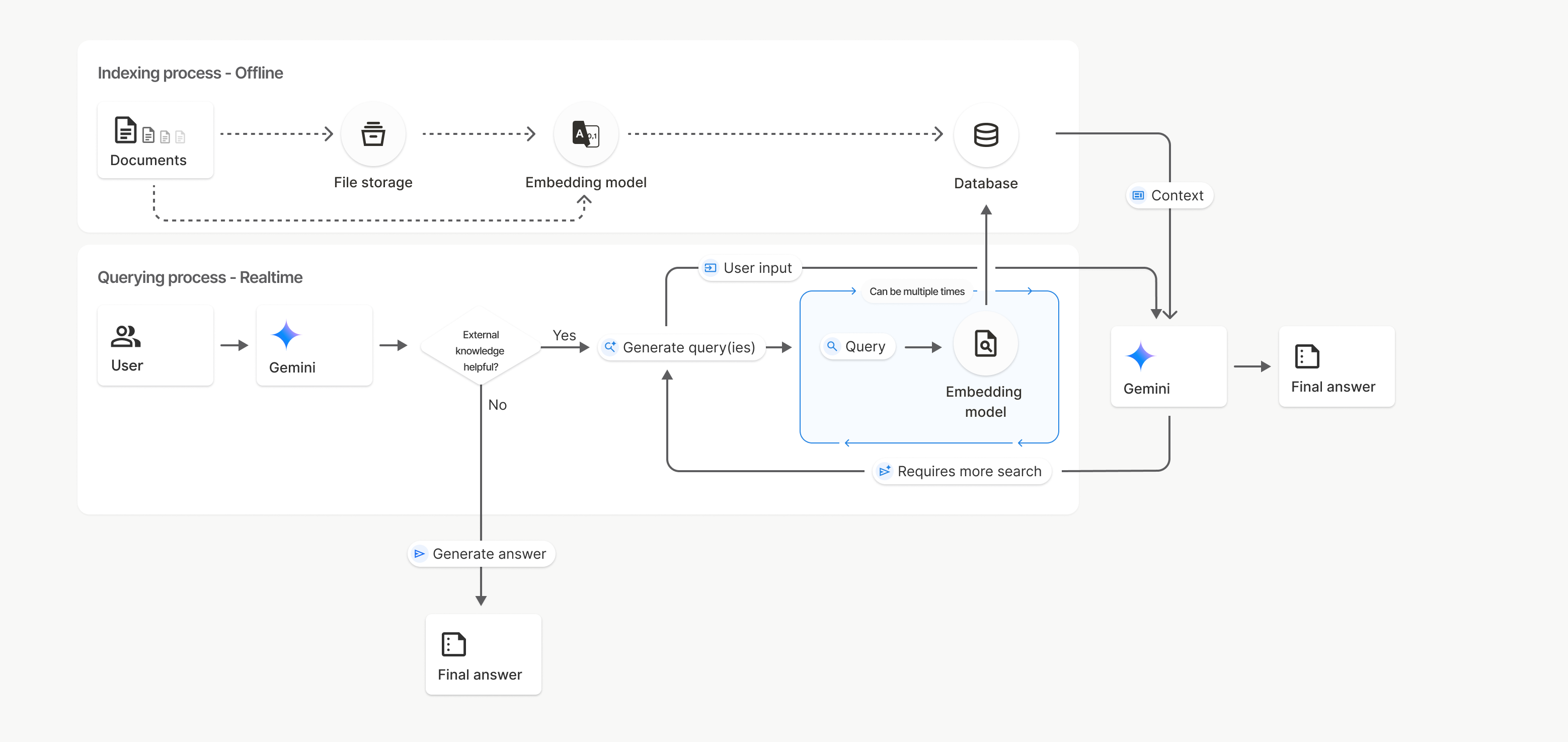
Na tym diagramie linia przerywana od Dokumentów do Modelu wektorów dystrybucyjnych (z użyciem gemini-embedding-001) reprezentuje interfejs API uploadToFileSearchStore (z pominięciem pamięci masowej plików).
W przeciwnym razie użycie interfejsu Files API do oddzielnego tworzenia i importowania plików przenosi proces indeksowania z Dokumentów do pamięci plików, a następnie do modelu wektora dystrybucyjnego.
Magazyny wyszukiwania plików
Magazyn wyszukiwania plików to kontener na wektory dystrybucyjne dokumentów. Pliki nieprzetworzone przesłane za pomocą interfejsu File API są usuwane po 48 godzinach, ale dane zaimportowane do magazynu wyszukiwania plików są przechowywane bezterminowo, dopóki nie zostaną ręcznie usunięte. Możesz utworzyć kilka sklepów wyszukiwania plików, aby uporządkować dokumenty. Interfejs API FileSearchStore umożliwia tworzenie, wyświetlanie, pobieranie i usuwanie sklepów z wyszukiwarką plików w celu zarządzania nimi. Nazwy magazynów wyszukiwania plików mają zakres globalny.
Oto kilka przykładów zarządzania magazynami wyszukiwania plików:
Python
file_search_store = client.file_search_stores.create(
    config={
        'display_name': 'my-file_search-store-123',
        'embedding_model': 'models/gemini-embedding-2'
    }
)

for file_search_store in client.file_search_stores.list():
    print(file_search_store)

my_file_search_store = client.file_search_stores.get(name='fileSearchStores/my-file_search-store-123')

client.file_search_stores.delete(name='fileSearchStores/my-file_search-store-123', config={'force': True})
JavaScript
const fileSearchStore = await ai.fileSearchStores.create({
  config: {
    displayName: 'my-file_search-store-123',
    embeddingModel: 'models/gemini-embedding-2'
  }
});

const fileSearchStores = await ai.fileSearchStores.list();
for await (const store of fileSearchStores) {
  console.log(store);
}

const myFileSearchStore = await ai.fileSearchStores.get({
  name: 'fileSearchStores/my-file_search-store-123'
});

await ai.fileSearchStores.delete({
  name: 'fileSearchStores/my-file_search-store-123',
  config: { force: true }
});
REST
curl -X POST "https://generativelanguage.googleapis.com/v1beta/fileSearchStores?key=${GEMINI_API_KEY}" \
    -H "Content-Type: application/json" \
    -d '{ "displayName": "My Store", "embedding_model": "models/gemini-embedding-2" }'

curl "https://generativelanguage.googleapis.com/v1beta/fileSearchStores?key=${GEMINI_API_KEY}" \

curl "https://generativelanguage.googleapis.com/v1beta/fileSearchStores/my-file_search-store-123?key=${GEMINI_API_KEY}"

curl -X DELETE "https://generativelanguage.googleapis.com/v1beta/fileSearchStores/my-file_search-store-123?key=${GEMINI_API_KEY}"
Dokumenty wyszukiwania plików
Poszczególnymi dokumentami w magazynach plików możesz zarządzać za pomocą interfejsu File Search Documents, aby list każdy dokument w magazynie wyszukiwania plików, get informacje o dokumencie i delete dokument według nazwy.
Python
for document_in_store in client.file_search_stores.documents.list(parent='fileSearchStores/my-file_search-store-123'):
  print(document_in_store)

file_search_document = client.file_search_stores.documents.get(name='fileSearchStores/my-file_search-store-123/documents/my_doc')
print(file_search_document)

client.file_search_stores.documents.delete(name='fileSearchStores/my-file_search-store-123/documents/my_doc')
JavaScript
const documents = await ai.fileSearchStores.documents.list({
  parent: 'fileSearchStores/my-file_search-store-123'
});
for await (const doc of documents) {
  console.log(doc);
}

const fileSearchDocument = await ai.fileSearchStores.documents.get({
  name: 'fileSearchStores/my-file_search-store-123/documents/my_doc',
});

await ai.fileSearchStores.documents.delete({
  name: 'fileSearchStores/my-file_search-store-123/documents/my_doc'
});
REST
curl "https://generativelanguage.googleapis.com/v1beta/fileSearchStores/my-file_search-store-123/documents?key=${GEMINI_API_KEY}"

curl "https://generativelanguage.googleapis.com/v1beta/fileSearchStores/my-file_search-store-123/documents/my_doc?key=${GEMINI_API_KEY}"

curl -X DELETE "https://generativelanguage.googleapis.com/v1beta/fileSearchStores/my-file_search-store-123/documents/my_doc?key=${GEMINI_API_KEY}"
Metadane pliku
Możesz dodać do plików metadane niestandardowe, aby ułatwić ich filtrowanie lub zapewnić dodatkowy kontekst. Metadane to zbiór par klucz-wartość.
Python
op = client.file_search_stores.import_file(
    file_search_store_name=file_search_store.name,
    file_name=sample_file.name,
    custom_metadata=[
        {"key": "author", "string_value": "Robert Graves"},
        {"key": "year", "numeric_value": 1934}
    ]
)
JavaScript
let operation = await ai.fileSearchStores.importFile({
  fileSearchStoreName: fileSearchStore.name,
  fileName: sampleFile.name,
  config: {
    customMetadata: [
      { key: "author", stringValue: "Robert Graves" },
      { key: "year", numericValue: 1934 }
    ]
  }
});
Jest to przydatne, gdy masz wiele dokumentów w magazynie wyszukiwania plików i chcesz przeszukać tylko ich podzbiór.
Python
response = client.models.generate_content(
    model="gemini-3.8-flash",
    contents="Tell me about the book 'I, Claudius'",
    config=types.GenerateContentConfig(
        tools=[
            types.Tool(
                file_search=types.FileSearch(
                    file_search_store_names=[file_search_store.name],
                    metadata_filter="author=Robert Graves",
                )
            )
        ]
    )
)

print(response.text)
JavaScript
const response = await ai.models.generateContent({
  model: "gemini-3.8-flash",
  contents: "Tell me about the book 'I, Claudius'",
  config: {
    tools: [
      {
        fileSearch: {
          fileSearchStoreNames: [fileSearchStore.name],
          metadataFilter: 'author="Robert Graves"',
        }
      }
    ]
  }
});

console.log(response.text);
REST
curl "https://generativelanguage.googleapis.com/v1beta/models/gemini-3.8-flash:generateContent?key=${GEMINI_API_KEY}" \
    -H 'Content-Type: application/json' \
    -X POST \
    -d '{
            "contents": [{
                "parts":[{"text": "Tell me about the book I, Claudius"}]
            }],
            "tools": [{
                "file_search": {
                    "file_search_store_names":["'$STORE_NAME'"],
                    "metadata_filter": "author = \"Robert Graves\""
                }
            }]
        }' 2> /dev/null > response.json

cat response.json
Wskazówki dotyczące implementacji składni filtra listy dla metadata_filter znajdziesz na stronie google.aip.dev/160.
Wyszukiwanie plików w trybie multimodalnym
Multimodalne wyszukiwanie plików umożliwia natywne umieszczanie i wyszukiwanie obrazów, co pozwala na tworzenie rozbudowanych, multimodalnych aplikacji RAG.
Konfigurowanie modelu wektora dystrybucyjnego
Podczas tworzenia FileSearchStore musisz zastąpić domyślny model wektorów dystrybucyjnych tylko tekstowych, aby używać modelu multimodalnego. Użyj models/gemini-embedding-2, aby przetwarzać tekst i obrazy.
Python
store = client.file_search_stores.create(
    config={
        "display_name": "Multimodal Catalog",
        "embedding_model": "models/gemini-embedding-2",
    }
)
JavaScript
const fileSearchStore = await ai.fileSearchStores.create({
  config: {
    displayName: "Multimodal Catalog",
    embeddingModel: "models/gemini-embedding-2",
  },
});
REST
curl -X POST "https://generativelanguage.googleapis.com/v1beta/fileSearchStores?key=$GEMINI_API_KEY" \
    -H "Content-Type: application/json" \
    -d '{
      "display_name": "Multimodal Catalog",
      "embedding_model": "models/gemini-embedding-2"
    }'
Prześlij obrazy
Po utworzeniu magazynu z modelem wektorów dystrybucyjnych multimodalnych możesz przesyłać pliki graficzne bezpośrednio za pomocą tych samych interfejsów API do przesyłania, które opisano w sekcji Bezpośrednie przesyłanie do magazynu wyszukiwania plików lub Importowanie plików.
Wymagania dotyczące pliku graficznego:
- Pliki graficzne mogą mieć rozdzielczość maksymalnie 4K x 4K pikseli.
- Obsługiwane formaty to PNG i JPEG.
Cytaty
Gdy korzystasz z wyszukiwania plików, odpowiedź modelu może zawierać cytaty wskazujące, które części przesłanych dokumentów zostały użyte do wygenerowania odpowiedzi. Pomaga to w weryfikacji informacji.
Informacje o cytatach możesz uzyskać za pomocą atrybutu grounding_metadata odpowiedzi.
Python
print(response.candidates[0].grounding_metadata)
JavaScript
console.log(JSON.stringify(response.candidates?.[0]?.groundingMetadata, null, 2));
Szczegółowe informacje o strukturze metadanych związanych z groundingiem znajdziesz w przykładach w poradniku dotyczącym wyszukiwania plików lub w sekcji poświęconej groundingowi w dokumentacji Grounding z użyciem wyszukiwarki Google.
Numery stron
Gdy używasz wyszukiwania plików w dokumentach, które mają strony (np. w plikach PDF), odpowiedź modelu może zawierać numer strony, na której znaleziono informacje.
Dostęp do tych informacji możesz uzyskać za pomocą atrybutu page_number obiektu retrieved_context.
Python
# Iterate through citations and check for page numbers
for chunk in response.grounding_metadata.grounding_chunks:
   if chunk.retrieved_context and chunk.retrieved_context.page_number:
       print(f"Cited Page: {chunk.retrieved_context.page_number}")
JavaScript
const groundingMetadata = response.candidates[0].groundingMetadata;
for (const chunk of groundingMetadata.groundingChunks) {
  if (chunk.retrievedContext && chunk.retrievedContext.pageNumber) {
    console.log(`Cited Page: ${chunk.retrievedContext.pageNumber}`);
  }
}
Cytaty z mediów
Gdy model odwołuje się do fragmentu obrazu podczas generowania, interfejs API zwraca cytat w metadanych źródłowych, który zawiera media_id. Możesz użyć tego identyfikatora, aby pobrać dokładnie ten fragment obrazu, do którego odwoływał się model. Ten identyfikator media_id jest trwały w przypadku wielu wywołań wyszukiwania, co pozwala na niezawodne pobieranie tego samego obrazu lub zapisywanie go w pamięci podręcznej przy użyciu identyfikatora.
Poniższy fragment kodu to przykładowa odpowiedź REST:
"groundingMetadata": {
  "groundingChunks": [
    {
      "retrievedContext": {
        "title": "product_image",
        "fileSearchStore": "fileSearchStores/my-store-123",
        "media_id": "fileSearchStores/my-store-123/media/BlobId-456"
      }
    }
  ]
}
Poniższe fragmenty kodu pokazują, jak pobrać media_id i pobrać multimedia:
Python
# Iterate through citations and download media if present
for chunk in response.grounding_metadata.grounding_chunks:
   if chunk.retrieved_context and chunk.retrieved_context.media_id:
       print(f"Cited Media ID: {chunk.retrieved_context.media_id}")
       # Download the blob using the SDK
       blob_content = client.file_search_stores.download_media(
           media_id=chunk.retrieved_context.media_id
       )
       # Save blob_content to file...
JavaScript
const groundingMetadata = response.candidates[0].groundingMetadata;
for (const chunk of groundingMetadata.groundingChunks) {
  if (chunk.retrievedContext && chunk.retrievedContext.mediaId) {
    console.log(`Cited Media ID: ${chunk.retrievedContext.mediaId}`);
    const blobContent = await ai.fileSearchStores.downloadMedia(chunk.retrievedContext.mediaId);
    // Save blobContent to file...
  }
}
REST
curl -X GET "https://generativelanguage.googleapis.com/v1/fileSearchStores/my-store-123/media/BlobId-456" \
  -H "x-goog-api-key: $GEMINI_API_KEY"
Niestandardowe metadane w danych groundingu
Jeśli do plików zostały dodane niestandardowe metadane, możesz uzyskać do nich dostęp w metadanych źródłowych odpowiedzi modelu. Jest to przydatne do przekazywania dodatkowego kontekstu (np. adresów URL, numerów stron lub autorów) z dokumentów źródłowych do logiki aplikacji. Każdy element grounding_chunk w retrieved_context zawiera te niestandardowe metadane.
Python
response = client.models.generate_content(
    model="gemini-3.8-flash",
    contents="Tell me about [insert question]",
    config=types.GenerateContentConfig(
        tools=[
            types.Tool(
                file_search=types.FileSearch(
                    file_search_store_names=[file_search_store.name]
                )
            )
        ]
    )
)

for chunk in response.candidates[0].grounding_metadata.grounding_chunks:
    if chunk.retrieved_context:
        print(f"Text: {chunk.retrieved_context.text}")
        if chunk.retrieved_context.custom_metadata:
            for metadata in chunk.retrieved_context.custom_metadata:
                print(f"Metadata Key: {metadata.key}")
                print(f"Value: {metadata.string_value or metadata.numeric_value}")
JavaScript
const response = await ai.models.generateContent({
  model: "gemini-3.8-flash",
  contents: "Tell me about [insert question]",
  config: {
    tools: [
      {
        fileSearch: {
          fileSearchStoreNames: [fileSearchStore.name]
        }
      }
    ]
  }
});

const groundingMetadata = response.candidates[0].groundingMetadata;
groundingMetadata.groundingChunks.forEach((chunk) => {
  if (chunk.retrievedContext) {
    console.log(`Text: ${chunk.retrievedContext.text}`);
    if (chunk.retrievedContext.customMetadata) {
      chunk.retrievedContext.customMetadata.forEach((metadata) => {
        console.log(`Metadata Key: ${metadata.key}`);
        console.log(`Value: ${metadata.stringValue || metadata.numericValue}`);
      });
    }
  }
});
REST
{
  "candidates": [
    {
      "content": { ... },
      "grounding_metadata": {
        "grounding_chunks": [
          {
            "retrieved_context": {
              "text": "...",
              "title": "...",
              "uri": "...",
              "custom_metadata": [
                {
                  "key": "author",
                  "string_value": "Robert Graves"
                },
                {
                  "key": "year",
                  "numeric_value": 1934
                }
              ]
            }
          }
        ],
        "grounding_supports": [ ... ]
      }
    }
  ]
}
Uporządkowane dane wyjściowe
Począwszy od modeli Gemini 3, możesz łączyć narzędzie do wyszukiwania plików z danymi strukturalnymi.
Python
from pydantic import BaseModel, Field

class Money(BaseModel):
    amount: str = Field(description="The numerical part of the amount.")
    currency: str = Field(description="The currency of amount.")

response = client.models.generate_content(
    model="gemini-3.8-flash",
    contents="What is the minimum hourly wage in Tokyo right now?",
    config=types.GenerateContentConfig(
                tools=[
                    types.Tool(
                        file_search=types.FileSearch(
                            file_search_store_names=[file_search_store.name]
                        )
                    )
                ],
                response_format={"text": {"mime_type": "application/json", "schema": Money.model_json_schema()}}
      )
)
result = Money.model_validate_json(response.text)
print(result)
JavaScript
import { z } from "zod";

const moneySchema = z.object({
  amount: z.string().describe("The numerical part of the amount."),
  currency: z.string().describe("The currency of amount."),
});

async function run() {
  const response = await ai.models.generateContent({
    model: "gemini-3.8-flash",
    contents: "What is the minimum hourly wage in Tokyo right now?",
    config: {
      tools: [
        {
          fileSearch: {
            fileSearchStoreNames: [file_search_store.name],
          },
        },
      ],
      responseFormat: { text: { mimeType: "application/json", schema: z.toJSONSchema(moneySchema) } },
    },
  });

  const result = moneySchema.parse(JSON.parse(response.text));
  console.log(result);
}

run();
REST
curl "https://generativelanguage.googleapis.com/v1beta/models/gemini-3.8-flash:generateContent" \
  -H "x-goog-api-key: $GEMINI_API_KEY" \
  -H 'Content-Type: application/json' \
  -X POST \
  -d '{
    "contents": [{
      "parts": [{"text": "What is the minimum hourly wage in Tokyo right now?"}]
    }],
    "tools": [
      {
        "fileSearch": {
          "fileSearchStoreNames": ["$FILE_SEARCH_STORE_NAME"]
        }
      }
    ],
    "generationConfig": {
"responseFormat": {
  "text": {
    "mimeType": "application/json",
    "schema": {
            "type": "object",
            "properties": {
                "amount": {"type": "string", "description": "The numerical part of the amount."},
                "currency": {"type": "string", "description": "The currency of amount."}
  }
}
},
            "required": ["amount", "currency"]
        }
    }
  }'
Obsługiwane modele
Wyszukiwanie plików jest obsługiwane przez te modele:
| Model | Wyszukiwanie plików |
|---|---|
| Gemini 4 Argon | ✔️ |
| Gemini 3.8 Flash | ✔️ |
| Gemini 3.6 Flash | ✔️ |
| Gemini 3.5 Flash-Lite | ✔️ |
| Gemini 3.1 Pro (wersja testowa) | ✔️ |
| Gemini 3.1 Flash-Lite | ✔️ |
| Gemini 3 Flash (wersja testowa) | ✔️ |
| Gemini 2.5 Pro | ✔️ |
| Gemini 2.5 Flash-Lite | ✔️ |
Obsługiwane kombinacje narzędzi
Modele Gemini 4 i Gemini 3 obsługują łączenie wbudowanych narzędzi (takich jak wyszukiwanie plików) z narzędziami niestandardowymi (wywoływanie funkcji). Więcej informacji znajdziesz na stronie Kombinacje narzędzi.
Obsługiwane typy plików
Wyszukiwanie plików obsługuje szeroką gamę formatów plików wymienionych w sekcjach poniżej.
Typy plików aplikacji
application/dartapplication/ecmascriptapplication/jsonapplication/ms-javaapplication/mswordapplication/pdfapplication/sqlapplication/typescriptapplication/vnd.curlapplication/vnd.dartapplication/vnd.ibm.secure-containerapplication/vnd.jupyterapplication/vnd.ms-excelapplication/vnd.oasis.opendocument.textapplication/vnd.openxmlformats-officedocument.presentationml.presentationapplication/vnd.openxmlformats-officedocument.spreadsheetml.sheetapplication/vnd.openxmlformats-officedocument.wordprocessingml.documentapplication/vnd.openxmlformats-officedocument.wordprocessingml.templateapplication/x-cshapplication/x-hwpapplication/x-hwp-v5application/x-latexapplication/x-phpapplication/x-powershellapplication/x-shapplication/x-shellscriptapplication/x-texapplication/x-zshapplication/xmlapplication/zip
Typy plików tekstowych
text/1d-interleaved-parityfectext/REDtext/SGMLtext/cache-manifesttext/calendartext/cqltext/cql-extensiontext/cql-identifiertext/csstext/csvtext/csv-schematext/dnstext/encaprtptext/enrichedtext/exampletext/fhirpathtext/flexfectext/fwdredtext/gff3text/grammar-ref-listtext/hl7v2text/htmltext/javascripttext/jcr-cndtext/jsxtext/markdowntext/mizartext/n3text/parameterstext/parityfectext/phptext/plaintext/provenance-notationtext/prs.fallenstein.rsttext/prs.lines.tagtext/prs.prop.logictext/raptorfectext/rfc822-headerstext/rtftext/rtp-enc-aescm128text/rtploopbacktext/rtxtext/sgmltext/shaclctext/shextext/spdxtext/stringstext/t140text/tab-separated-valuestext/texmacstext/trofftext/tsvtext/tsxtext/turtletext/ulpfectext/uri-listtext/vcardtext/vnd.DMClientScripttext/vnd.IPTC.NITFtext/vnd.IPTC.NewsMLtext/vnd.atext/vnd.abctext/vnd.ascii-arttext/vnd.curltext/vnd.debian.copyrighttext/vnd.dvb.subtitletext/vnd.esmertec.theme-descriptortext/vnd.exchangeabletext/vnd.familysearch.gedcomtext/vnd.ficlab.flttext/vnd.flytext/vnd.fmi.flexstortext/vnd.gmltext/vnd.graphviztext/vnd.hanstext/vnd.hgltext/vnd.in3d.3dmltext/vnd.in3d.spottext/vnd.latex-ztext/vnd.motorola.reflextext/vnd.ms-mediapackagetext/vnd.net2phone.commcenter.commandtext/vnd.radisys.msml-basic-layouttext/vnd.senx.warpscripttext/vnd.sositext/vnd.sun.j2me.app-descriptortext/vnd.trolltech.linguisttext/vnd.wap.sitext/vnd.wap.sltext/vnd.wap.wmltext/vnd.wap.wmlscripttext/vtttext/wgsltext/x-asmtext/x-bibtextext/x-bootext/x-ctext/x-c++hdrtext/x-c++srctext/x-cassandratext/x-chdrtext/x-coffeescripttext/x-componenttext/x-cshtext/x-csharptext/x-csrctext/x-cudatext/x-dtext/x-difftext/x-dsrctext/x-emacs-lisptext/x-erlangtext/x-gff3text/x-gotext/x-haskelltext/x-javatext/x-java-propertiestext/x-java-sourcetext/x-kotlintext/x-lilypondtext/x-lisptext/x-literate-haskelltext/x-luatext/x-moctext/x-objcsrctext/x-pascaltext/x-pcs-gcdtext/x-perltext/x-perl-scripttext/x-pythontext/x-python-scripttext/x-r-markdowntext/x-rsrctext/x-rsttext/x-ruby-scripttext/x-rusttext/x-sasstext/x-scalatext/x-schemetext/x-script.pythontext/x-scsstext/x-setexttext/x-sfvtext/x-shtext/x-siestatext/x-sostext/x-sqltext/x-swifttext/x-tcltext/x-textext/x-vbasictext/x-vcalendartext/xmltext/xml-dtdtext/xml-external-parsed-entitytext/yaml
Ograniczenia
- Interfejs Live API: wyszukiwanie plików nie jest obsługiwane w interfejsie Live API.
- Niezgodność narzędzi: wyszukiwania plików nie można obecnie łączyć z innymi narzędziami, takimi jak powiązanie ze źródłami informacji przy użyciu wyszukiwarki Google czy kontekst adresu URL.
Ograniczenia liczby żądań
Aby zapewnić stabilność usługi, interfejs File Search API ma te limity:
- Maksymalny rozmiar pliku / limit na dokument: 100 MB
- Łączny rozmiar magazynów wyszukiwania plików w projekcie (na podstawie poziomu użytkownika):
- Bezpłatnie: 1 GB
- Poziom 1: 10 GB
- Poziom 2: 100 GB
- Poziom 3: 1 TB
- Zalecenie: aby zapewnić optymalne opóźnienia pobierania, ogranicz rozmiar każdego magazynu wyszukiwania plików do mniej niż 20 GB.
Ceny
- Opłaty za wektoryzację są naliczane w momencie indeksowania na podstawie obowiązującego cennika wektorów.
- Przechowywanie jest bezpłatne.
- Wektory dystrybucyjne czasu zapytania są bezpłatne.
- Pobrane tokeny dokumentów są rozliczane jako zwykłe tokeny kontekstu.
Co dalej?
- Zapoznaj się z dokumentacją interfejsu API File Search Stores i File Search Documents.