

تم تصميم نماذج Gemini لتكون متعددة الوسائط منذ البداية، ما يتيح تنفيذ مجموعة واسعة من مهام معالجة الصور ورؤية الكمبيوتر، بما في ذلك على سبيل المثال لا الحصر، إضافة تعليقات توضيحية إلى الصور وتصنيفها والإجابة عن الأسئلة المرئية بدون الحاجة إلى تدريب نماذج مخصّصة للتعلم الآلي.
بالإضافة إلى إمكانات النماذج العامة المتعدّدة الوسائط، توفّر نماذج Gemini دقة محسّنة لحالات استخدام معيّنة، مثل رصد العناصر والتقسيم، من خلال تدريب إضافي.
تمرير الصور إلى Gemini
يمكنك تقديم صور كمدخلات إلى Gemini باستخدام عدة طرق:
- تمرير الصورة باستخدام عنوان URL: هذه الطريقة مثالية للصور المتاحة للجميع.
- تمرير بيانات الصورة المضمّنة: لبيانات الصورة المرمّزة بـ base64
- تحميل الصور باستخدام File API: ننصح به للملفات الأكبر حجمًا أو لإعادة استخدام الصور في طلبات متعددة.
تمرير الصورة باستخدام عنوان URL
يمكنك تحميل صورة باستخدام Files API وتمريرها في الطلب:
Python
from google import genai

client = genai.Client()

uploaded_file = client.files.upload(file="path/to/organ.jpg")

interaction = client.interactions.create(
    model="gemini-3.6-flash",
    input=[
        {"type": "text", "text": "Caption this image."},
        {
            "type": "image",
            "uri": uploaded_file.uri,
            "mime_type": uploaded_file.mime_type
        }
    ]
)
print(interaction.output_text)
JavaScript
import { GoogleGenAI } from "@google/genai";

const client = new GoogleGenAI({});

const uploadedFile = await client.files.upload({
    file: "path/to/organ.jpg",
    config: { mimeType: "image/jpeg" }
});

const interaction = await client.interactions.create({
    model: "gemini-3.6-flash",
    input: [
        {type: "text", text: "Caption this image."},
        {
            type: "image",
            uri: uploadedFile.uri,
            mime_type: uploadedFile.mimeType
        }
    ]
});
console.log(interaction.output_text);
REST
# First upload the file using the Files API, then use the URI:
curl -X POST "https://generativelanguage.googleapis.com/v1beta/interactions" \
  -H "x-goog-api-key: $GEMINI_API_KEY" \
  -H 'Content-Type: application/json' \
  -d '{
    "model": "gemini-3.6-flash",
    "input": [
      {"type": "text", "text": "Caption this image."},
      {
        "type": "image",
        "uri": "YOUR_FILE_URI",
        "mime_type": "image/jpeg"
      }
    ]
  }'
تمرير بيانات الصور المضمّنة
يمكنك تقديم بيانات الصور كسلاسل base64 مشفّرة:
Python
import base64
from google import genai

with open('path/to/small-sample.jpg', 'rb') as f:
    image_bytes = f.read()

client = genai.Client()

interaction = client.interactions.create(
    model="gemini-3.6-flash",
    input=[
        {"type": "text", "text": "Caption this image."},
        {
            "type": "image",
            "data": base64.b64encode(image_bytes).decode('utf-8'),
            "mime_type": "image/jpeg"
        }
    ]
)
print(interaction.output_text)
JavaScript
import { GoogleGenAI } from "@google/genai";
import * as fs from "node:fs";

const client = new GoogleGenAI({});
const base64ImageFile = fs.readFileSync("path/to/small-sample.jpg", {
  encoding: "base64",
});

const interaction = await client.interactions.create({
    model: "gemini-3.6-flash",
    input: [
        {type: "text", text: "Caption this image."},
        {
            type: "image",
            data: base64ImageFile,
            mime_type: "image/jpeg"
        }
    ]
});
console.log(interaction.output_text);
REST
IMG_PATH="/path/to/your/image1.jpg"

if [[ "$(base64 --version 2>&1)" = *"FreeBSD"* ]]; then
  B64FLAGS="--input"
else
  B64FLAGS="-w0"
fi

curl -X POST "https://generativelanguage.googleapis.com/v1beta/interactions" \
  -H "x-goog-api-key: $GEMINI_API_KEY" \
  -H 'Content-Type: application/json' \
  -d '{
    "model": "gemini-3.6-flash",
    "input": [
      {"type": "text", "text": "Caption this image."},
      {
        "type": "image",
        "data": "'"$(base64 $B64FLAGS $IMG_PATH)"'",
        "mime_type": "image/jpeg"
      }
    ]
  }'
تحميل الصور باستخدام File API
بالنسبة إلى الملفات الكبيرة أو لاستخدام ملف الصورة نفسه بشكل متكرر، استخدِم Files API. اطّلِع على دليل Files API.
Python
from google import genai

client = genai.Client()

my_file = client.files.upload(file="path/to/sample.jpg")

interaction = client.interactions.create(
    model="gemini-3.6-flash",
    input=[
        {"type": "text", "text": "Caption this image."},
        {
            "type": "image",
            "uri": my_file.uri,
            "mime_type": my_file.mime_type
        }
    ]
)
print(interaction.output_text)
JavaScript
import { GoogleGenAI } from "@google/genai";

const client = new GoogleGenAI({});

const myfile = await client.files.upload({
    file: "path/to/sample.jpg",
    config: { mimeType: "image/jpeg" },
});

const interaction = await client.interactions.create({
    model: "gemini-3.6-flash",
    input: [
        {type: "text", text: "Caption this image."},
        {
            type: "image",
            uri: myfile.uri,
            mime_type: myfile.mimeType
        }
    ]
});
console.log(interaction.output_text);
REST
# First upload the file (see Files API guide for details)
# Then use the file URI in the request:

curl -X POST "https://generativelanguage.googleapis.com/v1beta/interactions" \
  -H "x-goog-api-key: $GEMINI_API_KEY" \
  -H 'Content-Type: application/json' \
  -d '{
    "model": "gemini-3.6-flash",
    "input": [
      {"type": "text", "text": "Caption this image."},
      {
        "type": "image",
        "uri": "YOUR_FILE_URI",
        "mime_type": "image/jpeg"
      }
    ]
  }'
تقديم الطلبات باستخدام صور متعددة
يمكنك تقديم صور متعددة في طلب واحد من خلال تضمين عناصر صور متعددة في مصفوفة input:
Python
from google import genai

client = genai.Client()

interaction = client.interactions.create(
    model="gemini-3.6-flash",
    input=[
        {"type": "text", "text": "What is different between these two images?"},
        {
            "type": "image",
            "uri": "https://example.com/image1.jpg",
            "mime_type": "image/jpeg"
        },
        {
            "type": "image",
            "uri": "https://example.com/image2.jpg",
            "mime_type": "image/jpeg"
        }
    ]
)
print(interaction.output_text)
JavaScript
import { GoogleGenAI } from "@google/genai";

const client = new GoogleGenAI({});

const interaction = await client.interactions.create({
    model: "gemini-3.6-flash",
    input: [
        {type: "text", text: "What is different between these two images?"},
        {
            type: "image",
            uri: "https://example.com/image1.jpg",
            mime_type: "image/jpeg"
        },
        {
            type: "image",
            uri: "https://example.com/image2.jpg",
            mime_type: "image/jpeg"
        }
    ]
});
console.log(interaction.output_text);
REST
curl -X POST "https://generativelanguage.googleapis.com/v1beta/interactions" \
  -H "x-goog-api-key: $GEMINI_API_KEY" \
  -H 'Content-Type: application/json' \
  -d '{
    "model": "gemini-3.6-flash",
    "input": [
      {"type": "text", "text": "What is different between these two images?"},
      {
        "type": "image",
        "uri": "https://example.com/image1.jpg",
        "mime_type": "image/jpeg"
      },
      {
        "type": "image",
        "uri": "https://example.com/image2.jpg",
        "mime_type": "image/jpeg"
      }
    ]
  }'
رصد العناصر
يتم تدريب النماذج على رصد العناصر في صورة والحصول على إحداثيات المربّع المحيط بها. يتم تغيير حجم الإحداثيات، بالنسبة إلى أبعاد الصورة، إلى النطاق [0, 1000]. عليك إعادة قياس هذه الإحداثيات استنادًا إلى حجم الصورة الأصلية.
Python
from google import genai
from pydantic import BaseModel, Field
from typing import List
import json

client = genai.Client()
prompt = "Detect the all of the prominent items in the image. The box_2d should be [ymin, xmin, ymax, xmax] normalized to 0-1000."

class BoundingBox(BaseModel):
    box_2d: List[int] = Field(description="The 2D bounding box of the item as [ymin, xmin, ymax, xmax] normalized to 0-1000.")
    mask: List[List[int]] = Field(description="The segmentation mask of the item as a polygon of [x,y] coordinates, normalized to 0-1000.")
    label: str = Field(description="A descriptive label for the item.")

class BoundingBoxes(BaseModel):
    boxes: List[BoundingBox]

interaction = client.interactions.create(
    model="gemini-3.6-flash",
    input=[
        {"type": "text", "text": prompt},
        {
            "type": "image",
            "uri": "https://example.com/image.png",
            "mime_type": "image/png"
        }
    ],
    response_format={
        "type": "text",
        "mime_type": "application/json",
        "schema": BoundingBoxes.model_json_schema()
    }
)

bounding_boxes = BoundingBoxes.model_validate_json(interaction.output_text)
print(bounding_boxes)
JavaScript
import { GoogleGenAI } from "@google/genai";
import * as z from "zod";

const client = new GoogleGenAI({});
const prompt = "Detect the all of the prominent items in the image. The box_2d should be [ymin, xmin, ymax, xmax] normalized to 0-1000.";

const boundingBoxesSchema = z.object({
  boxes: z.array(z.object({
    box_2d: z.array(z.number()),
    mask: z.array(z.array(z.number())),
    label: z.string()
  }))
});

const interaction = await client.interactions.create({
  model: "gemini-3.6-flash",
  input: [
    { type: "text", text: prompt },
    {
      type: "image",
      uri: "https://example.com/image.png",
      mime_type: "image/png"
    }
  ],
  response_format: {
    type: 'text',
    mime_type: 'application/json',
    schema: z.toJSONSchema(boundingBoxesSchema)
  },
});

const result = boundingBoxesSchema.parse(JSON.parse(interaction.output_text));
console.log(result);
REST
curl -X POST "https://generativelanguage.googleapis.com/v1beta/interactions" \
  -H "x-goog-api-key: $GEMINI_API_KEY" \
  -H 'Content-Type: application/json' \
  -d '{
    "model": "gemini-3.6-flash",
    "input": [
      {"type": "text", "text": "Detect the all of the prominent items in the image. The box_2d should be [ymin, xmin, ymax, xmax] normalized to 0-1000."},
      {
        "type": "image",
        "uri": "https://example.com/image.png",
        "mime_type": "image/png"
      }
    ],
    "response_format": {
      "type": "text",
      "mime_type": "application/json",
      "schema": {
        "type": "object",
        "properties": {
          "boxes": {
            "type": "array",
            "items": {
              "type": "object",
              "properties": {
                "box_2d": { "type": "array", "items": { "type": "integer" } },
                "mask": { "type": "array", "items": { "type": "array", "items": { "type": "integer" } } },
                "label": { "type": "string" }
              },
              "required": ["box_2d", "mask", "label"]
            }
          }
        },
        "required": ["boxes"]
      }
    }
  }'
للاطّلاع على المزيد من الأمثلة، يُرجى الانتقال إلى كتاب الطبخ في Gemini.
التقسيم
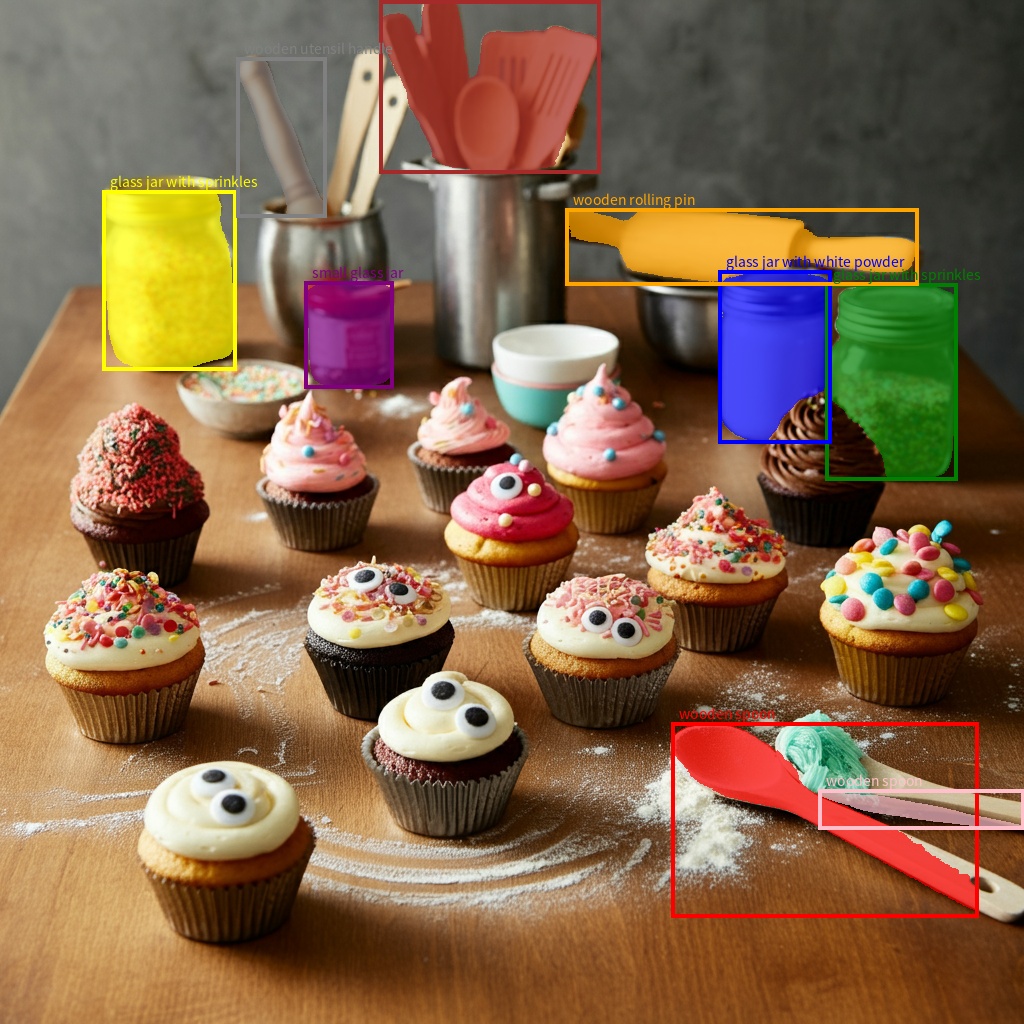
لا تكتفي نماذج Gemini برصد العناصر، بل تقسمها أيضًا وتوفّر أقنعة حدودها.
يتوقّع النموذج قائمة JSON، حيث يمثّل كل عنصر قناع تجزئة. يحتوي كل عنصر على مربّع إحاطة ("box_2d") بالتنسيق [ymin, xmin, ymax, xmax] مع إحداثيات عادية بين 0 و1000، وتصنيف ("label") يحدّد العنصر، وأخيرًا قناع التقسيم داخل مربّع الإحاطة كمضلّع من إحداثيات [x, y] العادية بين 0 و1000.
Python
from google import genai
from pydantic import BaseModel, Field
from typing import List
import json

client = genai.Client()

prompt = """
Give the segmentation masks for the wooden and glass items.
Output a JSON list of segmentation masks where each entry contains the 2D
bounding box in the key "box_2d", the segmentation mask in key "mask", and
the text label in the key "label". Use descriptive labels.
"""

class BoundingBox(BaseModel):
    box_2d: List[int] = Field(description="The 2D bounding box of the item as [ymin, xmin, ymax, xmax] normalized to 0-1000.")
    mask: List[List[int]] = Field(description="The segmentation mask of the item as a polygon of [x,y] coordinates, normalized to 0-1000.")
    label: str = Field(description="A descriptive label for the item.")

class BoundingBoxes(BaseModel):
    boxes: List[BoundingBox]

interaction = client.interactions.create(
    model="gemini-3.6-flash",
    input=[
        {"type": "text", "text": prompt},
        {
            "type": "image",
            "uri": "https://example.com/image.png",
            "mime_type": "image/png"
        }
    ],
    response_format={
        "type": "text",
        "mime_type": "application/json",
        "schema": BoundingBoxes.model_json_schema()
    },
    generation_config={
        "thinking_level": "minimal"
    }
)

items = BoundingBoxes.model_validate_json(interaction.output_text)
print("Segmentation results:", items)
JavaScript
import { GoogleGenAI } from "@google/genai";
import * as z from "zod";

const client = new GoogleGenAI({});
const prompt = `
Give the segmentation masks for the wooden and glass items.
Output a JSON list of segmentation masks where each entry contains the 2D
bounding box in the key "box_2d", the segmentation mask in key "mask", and
the text label in the key "label". Use descriptive labels.
`;

const boundingBoxesSchema = z.object({
  boxes: z.array(z.object({
    box_2d: z.array(z.number()),
    mask: z.array(z.array(z.number())),
    label: z.string()
  }))
});

const interaction = await client.interactions.create({
  model: "gemini-3.6-flash",
  input: [
    { type: "text", text: prompt },
    {
      type: "image",
      uri: "https://example.com/image.png",
      mime_type: "image/png"
    }
  ],
  response_format: {
    type: 'text',
    mime_type: 'application/json',
    schema: z.toJSONSchema(boundingBoxesSchema)
  },
  generation_config: {
    thinking_level: "minimal"
  }
});

const result = boundingBoxesSchema.parse(JSON.parse(interaction.output_text));
console.log(result);
REST
curl -X POST "https://generativelanguage.googleapis.com/v1beta/interactions" \
  -H "x-goog-api-key: $GEMINI_API_KEY" \
  -H 'Content-Type: application/json' \
  -d '{
    "model": "gemini-3.6-flash",
    "input": [
      {"type": "text", "text": "Give the segmentation masks for the wooden and glass items.\nOutput a JSON list of segmentation masks where each entry contains the 2D\nbounding box in the key \"box_2d\", the segmentation mask in key \"mask\", and\nthe text label in the key \"label\". Use descriptive labels."},
      {
        "type": "image",
        "uri": "https://example.com/image.png",
        "mime_type": "image/png"
      }
    ],
    "response_format": {
      "type": "text",
      "mime_type": "application/json",
      "schema": {
        "type": "object",
        "properties": {
          "boxes": {
            "type": "array",
            "items": {
              "type": "object",
              "properties": {
                "box_2d": { "type": "array", "items": { "type": "integer" } },
                "mask": { "type": "array", "items": { "type": "array", "items": { "type": "integer" } } },
                "label": { "type": "string" }
              },
              "required": ["box_2d", "mask", "label"]
            }
          }
        },
        "required": ["boxes"]
      }
    },
    "generation_config": {
      "thinking_level": "minimal"
    }
  }'
تنسيقات الصور المسموح بها
يتوافق Gemini مع أنواع MIME التالية لتنسيقات الصور:
- PNG -
image/png - JPEG -
image/jpeg - WEBP -
image/webp - HEIC -
image/heic - HEIF -
image/heif
للتعرّف على طرق إدخال الملفات الأخرى، يُرجى الاطّلاع على دليل طرق إدخال الملفات.
الإمكانات
تتضمّن جميع إصدارات نماذج Gemini وسائط متعددة ويمكن استخدامها في مجموعة واسعة من مهام معالجة الصور ورؤية الكمبيوتر، بما في ذلك على سبيل المثال لا الحصر، إضافة تعليقات توضيحية إلى الصور، والإجابة عن الأسئلة المرئية، وتصنيف الصور، ورصد العناصر وتقسيمها.
يمكن أن يقلّل Gemini من الحاجة إلى استخدام نماذج تعلُّم آلي متخصّصة، وذلك حسب متطلبات الجودة والأداء.
تم تدريب أحدث إصدارات النماذج خصيصًا لتحسين دقة المهام المتخصصة بالإضافة إلى الإمكانات العامة، مثل رصد العناصر والتقسيم المحسّنَين.
القيود والمعلومات الفنية الأساسية
حد الملف
تتيح نماذج Gemini تحميل 3,600 ملف صورة كحد أقصى لكل طلب.
احتساب الرموز المميّزة
- 258 رمزًا مميزًا إذا كان كلا البُعدَين <= 384 بكسل يتم تقسيم الصور الأكبر حجمًا إلى مربّعات بحجم 768 × 768 بكسل، وتكلّف كل مربّع 258 رمزًا مميزًا.
في ما يلي صيغة تقريبية لاحتساب عدد المربّعات:
- احسب حجم وحدة الاقتصاص الذي يبلغ تقريبًا:
floor(min(width, height)/ 1.5). - قسِّم كل بُعد على حجم وحدة الاقتصاص واضرب النتيجة في بعضها للحصول على عدد المربّعات.
على سبيل المثال، إذا كانت أبعاد الصورة 960x540، سيكون حجم وحدة الاقتصاص 360. قسِّم كل بُعد على 360، ويكون عدد المربّعات 3 × 2 = 6.
درجة دقة الوسائط
يقدّم Gemini 3 إمكانية التحكّم الدقيق في معالجة الصور المتعدّدة الوسائط باستخدام المَعلمة
media_resolution. تحدّد المَعلمة media_resolution الحد الأقصى لعدد الرموز المميزة المخصّصة لكل صورة إدخال أو إطار فيديو.
تؤدي الدقة الأعلى إلى تحسين قدرة النموذج على قراءة النصوص الدقيقة أو تحديد التفاصيل الصغيرة، ولكنها تزيد من استخدام الرموز المميزة ووقت الاستجابة.
النصائح وأفضل الممارسات
- تأكَّد من تدوير الصور بشكل صحيح.
- استخدِم صورًا واضحة وغير معتمة.
- عند استخدام صورة واحدة مع نص، ضَع الطلب النصي قبل الصورة في مصفوفة
input.
الخطوات التالية
يوضّح لك هذا الدليل كيفية تحميل ملفات الصور وإنشاء نصوص من مدخلات الصور. لمزيد من المعلومات، يُرجى الاطّلاع على المراجع التالية:
- Files API: مزيد من المعلومات حول تحميل الملفات وإدارتها لاستخدامها مع Gemini
- تعليمات النظام: تتيح لك تعليمات النظام توجيه سلوك النموذج استنادًا إلى احتياجاتك وحالات الاستخدام المحدّدة.
- استراتيجيات إنشاء الطلبات: تتيح واجهة Gemini API إمكانية إنشاء الطلبات باستخدام بيانات نصية وصور وملفات صوت وفيديوهات، ويُعرف ذلك أيضًا باسم إنشاء الطلبات المتعددة الوسائط.
- إرشادات الأمان: في بعض الأحيان، تقدّم نماذج الذكاء الاصطناعي التوليدي نتائج غير متوقعة، مثل نتائج غير دقيقة أو متحيزة أو مسيئة. تُعدّ المعالجة اللاحقة والتقييم البشري ضروريين للحدّ من خطر الأضرار الناجمة عن هذه النتائج.