

Gemini Omni Flash (gemini-omni-1.1-flash) là một mô hình đa phương thức hiệu suất cao, được thiết kế để tạo và chỉnh sửa video ở tốc độ cao, đồng thời kiểm soát chất lượng điện ảnh.
Gemini Omni được xây dựng dựa trên những chức năng cốt lõi sau đây, giúp phân biệt mô hình này với các mô hình video trước đây:
- Đa phương thức tự nhiên: Gemini có thể xử lý đồng thời văn bản, hình ảnh, âm thanh và video, mang đến cho bạn kết quả mạch lạc, nhất quán và có thể kiểm soát hơn.
- Chỉnh sửa bằng ngôn ngữ tự nhiên: được hỗ trợ bởi Interactions API, tính năng này cho phép bạn tinh chỉnh và chỉnh sửa video nhiều lần thông qua cuộc trò chuyện bằng ngôn ngữ tự nhiên. Mô tả nội dung bạn muốn thay đổi, mô hình sẽ áp dụng nội dung chỉnh sửa trong khi vẫn giữ lại những phần bạn muốn giữ lại trong video.
- Kiến thức về thế giới: Gemini Omni kết hợp kiến thức về vật lý với kiến thức của Gemini về lịch sử, khoa học và bối cảnh văn hoá, thu hẹp khoảng cách từ tính chân thực đến khả năng kể chuyện có ý nghĩa.
Tạo video từ văn bản
Tạo video từ câu lệnh văn bản. Mô hình này tạo video có âm thanh dựa trên nội dung mô tả bằng văn bản của bạn. Viết câu lệnh có các thông tin chi tiết như nội dung mô tả cảnh, chuyển động của camera, ánh sáng và tâm trạng để có kết quả tốt nhất.
Python
import base64
from google import genai

client = genai.Client()

interaction = client.interactions.create(
    model="gemini-omni-1.1-flash",
    input="A marble rolling fast on a chain reaction style track, continuous smooth shot."
)
with open("marble.mp4", "wb") as f:
    f.write(base64.b64decode(interaction.output_video.data))
JavaScript
import { GoogleGenAI } from '@google/genai';
import * as fs from 'fs';
const ai = new GoogleGenAI({});

const interaction = await ai.interactions.create({
  model: 'gemini-omni-1.1-flash',
  input: 'A marble rolling fast on a chain reaction style track, continuous smooth shot.',
});

if (interaction.output_video?.data) {
  fs.writeFileSync('marble.mp4', Buffer.from(interaction.output_video.data, 'base64'));
}
REST
curl -X POST "https://generativelanguage.googleapis.com/v1beta/interactions?key=$API_KEY" \
-H "Content-Type: application/json" \
-d '{
 "model": "gemini-omni-1.1-flash",
 "input": "A marble rolling fast on a chain reaction style track, continuous smooth shot."
}'
Giản đồ phản hồi REST
Trường tiện ích interaction.output_video là chỉ dành cho SDK.
Nhận đầu ra video từ mảng steps khi sử dụng trực tiếp API REST.
Cấu trúc JSON REST thô:
{
  "steps": [
    { "type": "user_input", "content": [{"type": "text", "text": "..."}] },
    { "type": "thought", "content": [{"text": "...", "type": "thought"}] },
    {
      "type": "model_output",
      "content": [
        {
          "type": "video",
          "mime_type": "video/mp4",
          "data": "AAAAIGZ0eXBpc29t..." // Base64 encoded video data
        }
      ]
    }
  ],
  "id": "v1_...",
  "status": "completed",
  "model": "gemini-omni-1.1-flash",
  "object": "interaction"
}
Kiểm soát tỷ lệ khung hình
Đặt aspect_ratio thành "9:16" để tạo video dọc. Hướng ngang (16:9) là hướng mặc định.
Python
import base64
from google import genai

client = genai.Client()

interaction = client.interactions.create(
    model="gemini-omni-1.1-flash",
    input="A futuristic city with neon lights and flying cars, cyberpunk style",
    response_format={
        "type": "video",  # optional
        "aspect_ratio": "9:16"  # Supported values: "9:16", "16:9"
    }
)
with open("example.mp4", "wb") as f:
    f.write(base64.b64decode(interaction.output_video.data))
JavaScript
import { GoogleGenAI } from '@google/genai';
import * as fs from 'fs';
const ai = new GoogleGenAI({});

const interaction = await ai.interactions.create({
  model: 'gemini-omni-1.1-flash',
  input: 'A futuristic city with neon lights and flying cars, cyberpunk style',
  response_format: {
    type: 'video', // optional
    aspect_ratio: '9:16' // Supported values: '9:16', '16:9'
  },
});

if (interaction.output_video?.data) {
  fs.writeFileSync('example.mp4', Buffer.from(interaction.output_video.data, 'base64'));
}
REST
curl -X POST "https://generativelanguage.googleapis.com/v1beta/interactions?key=$API_KEY" \
-H "Content-Type: application/json" \
-d '{
 "model": "gemini-omni-1.1-flash",
 "input": "A futuristic city with neon lights and flying cars, cyberpunk style",
 "response_format": {
   "type": "video",
   "aspect_ratio": "9:16"
 }
}'
Độ phân giải đầu ra
Kiểm soát độ phân giải đầu ra của video được tạo bằng cách sử dụng tham số resolution trong response_format. Độ phân giải mặc định là 720p.
| Giá trị | Mô tả |
|---|---|
360p |
Độ phân giải đầu ra 360p |
720p |
Độ phân giải đầu ra 720p (mặc định) |
1080p |
Đầu ra 1080p (tăng độ phân giải) |
4k |
Đầu ra 4K (đã nâng cấp) |
Python
import base64
from google import genai

client = genai.Client()

interaction = client.interactions.create(
    model="gemini-omni-1.1-flash",
    input="A drone shot of a mountain landscape at sunrise.",
    response_format={
        "type": "video",
        "resolution": "1080p",
    },
)
with open("hires.mp4", "wb") as f:
    f.write(base64.b64decode(interaction.output_video.data))
JavaScript
import { GoogleGenAI } from '@google/genai';
import * as fs from 'fs';
const ai = new GoogleGenAI({});

const interaction = await ai.interactions.create({
  model: 'gemini-omni-1.1-flash',
  input: 'A drone shot of a mountain landscape at sunrise.',
  response_format: {
    type: 'video',
    resolution: '1080p',
  },
});

if (interaction.output_video?.data) {
  fs.writeFileSync('hires.mp4', Buffer.from(interaction.output_video.data, 'base64'));
}
REST
curl -X POST "https://generativelanguage.googleapis.com/v1beta/interactions?key=$API_KEY" \
-H "Content-Type: application/json" \
-d '{
 "model": "gemini-omni-1.1-flash",
 "input": "A drone shot of a mountain landscape at sunrise.",
 "response_format": {
   "type": "video",
   "resolution": "1080p"
 }
}'
Tạo video từ hình ảnh
Bạn có thể cung cấp một hình ảnh tham khảo cùng với câu lệnh dạng văn bản. Tuỳ thuộc vào câu lệnh của bạn, mô hình sẽ quyết định cách sử dụng hình ảnh. Tính năng này hữu ích khi bạn muốn làm cho ảnh chụp sản phẩm, hình minh hoạ hoặc ảnh chụp trở nên sống động.
Ví dụ sau đây cho thấy cách sử dụng hình ảnh tham khảo của một bức vẽ con cá nhảy ra khỏi mặt nước:
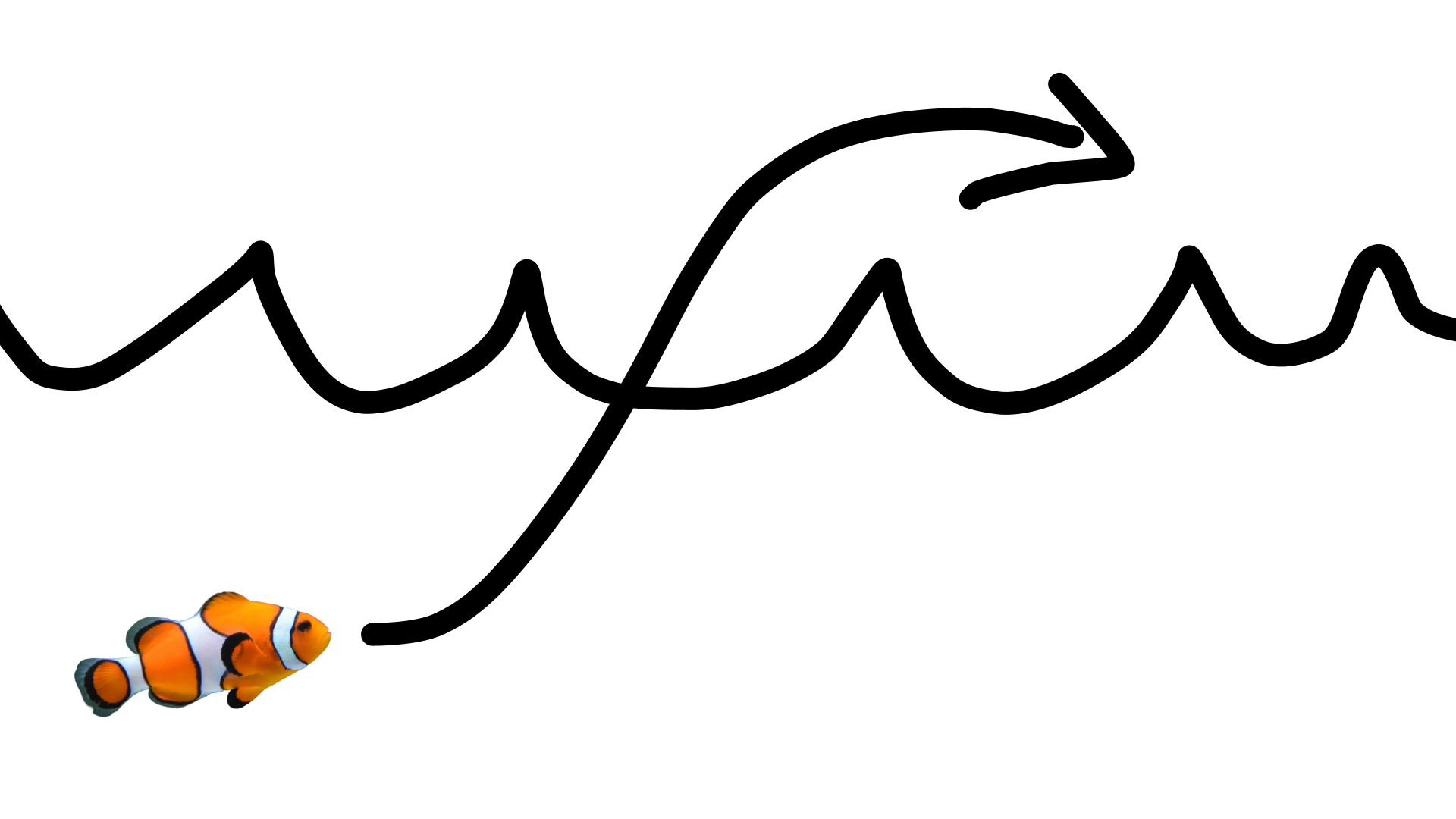
Với câu lệnh sau:
turn this into realistic footage, using the drawing only as a guide for movement, do not show the drawing in the final video
Để tạo video chân thực về bản vẽ.
Python
import base64
from google import genai

client = genai.Client()

interaction = client.interactions.create(
    model="gemini-omni-1.1-flash",
    input=[
        {"type": "image", "data": base64_image, "mime_type": "image/jpeg"},
        {"type": "text", "text": "turn this into realistic footage, using the drawing only as a guide for movement, do not show the drawing in the final video"}
    ],
)
with open("clownfish.mp4", "wb") as f:
    f.write(base64.b64decode(interaction.output_video.data))
JavaScript
import { GoogleGenAI } from '@google/genai';
import * as fs from 'fs';
const ai = new GoogleGenAI({});

const interaction = await ai.interactions.create({
  model: 'gemini-omni-1.1-flash',
  input: [
    { type: 'image', data: base64Image, mime_type: 'image/jpeg' },
    { type: 'text', text: 'turn this into realistic footage, using the drawing only as a guide for movement, do not show the drawing in the final video' }
  ]
});

if (interaction.output_video?.data) {
  fs.writeFileSync('clownfish.mp4', Buffer.from(interaction.output_video.data, 'base64'));
}
REST
curl -X POST "https://generativelanguage.googleapis.com/v1beta/interactions?key=$API_KEY" \
-H "Content-Type: application/json" \
-d '{
 "model": "gemini-omni-1.1-flash",
 "input": [
   {"type": "image", "data": "'"$BASE64_IMAGE"'", "mime_type": "image/jpeg"},
   {"type": "text", "text": "turn this into realistic footage, using the drawing only as a guide for movement, do not show the drawing in the final video"}
 ]
}'
Nội suy khung hình đầu tiên và cuối cùng
Gemini Omni Flash hỗ trợ tính năng nội suy video, cho phép bạn tạo một video chuyển đổi mượt mà giữa hình ảnh bắt đầu (khung hình đầu tiên) và hình ảnh kết thúc (khung hình cuối cùng).
Cung cấp 2 hình ảnh trong danh sách input và mô tả hiệu ứng chuyển cảnh mong muốn trong câu lệnh. Mô hình này sẽ tạo ảnh động cho cảnh từ khung hình đầu tiên đến khung hình kết thúc.
Python
import base64
from google import genai

client = genai.Client()

interaction = client.interactions.create(
    model="gemini-omni-1.1-flash",
    input=[
        {"type": "image", "data": first_frame_b64, "mime_type": "image/jpeg"},
        {"type": "image", "data": last_frame_b64, "mime_type": "image/jpeg"},
        {"type": "text", "text": "A smooth cinematic transition from a lush green forest at sunrise to a snowy forest under a starry night sky."}
    ],
)
with open("interpolation.mp4", "wb") as f:
    f.write(base64.b64decode(interaction.output_video.data))
JavaScript
import { GoogleGenAI } from '@google/genai';
import * as fs from 'fs';
const ai = new GoogleGenAI({});

const interaction = await ai.interactions.create({
  model: 'gemini-omni-1.1-flash',
  input: [
    { type: 'image', data: firstFrameB64, mime_type: 'image/jpeg' },
    { type: 'image', data: lastFrameB64, mime_type: 'image/jpeg' },
    { type: 'text', text: 'A smooth cinematic transition from a lush green forest at sunrise to a snowy forest under a starry night sky.' }
  ]
});

if (interaction.output_video?.data) {
  fs.writeFileSync('interpolation.mp4', Buffer.from(interaction.output_video.data, 'base64'));
}
REST
curl -X POST "https://generativelanguage.googleapis.com/v1beta/interactions?key=$API_KEY" \
-H "Content-Type: application/json" \
-d '{
 "model": "gemini-omni-1.1-flash",
 "input": [
   {"type": "image", "data": "'"$FIRST_FRAME_B64"'", "mime_type": "image/jpeg"},
   {"type": "image", "data": "'"$LAST_FRAME_B64"'", "mime_type": "image/jpeg"},
   {"type": "text", "text": "A smooth cinematic transition from a lush green forest at sunrise to a snowy forest under a starry night sky."}
 ]
}'
Tham chiếu đối tượng
Bạn có thể tạo một video có chứa các chủ đề cụ thể được cung cấp dưới dạng hình ảnh tham khảo. Ví dụ: mã sau đây cho biết cách cung cấp 2 hình ảnh về một con mèo và cuộn len để tạo video về con mèo đang chơi với cuộn len.
Python
import base64
from google import genai

client = genai.Client()

interaction = client.interactions.create(
    model="gemini-omni-1.1-flash",
    input=[
        {"type": "image", "data": cat_b64, "mime_type": "image/png"},
        {"type": "image", "data": yarn_b64, "mime_type": "image/png"},
        {"type": "text", "text": "A cat playfully batting at a ball of yarn."}
    ],
)
with open("cat.mp4", "wb") as f:
    f.write(base64.b64decode(interaction.output_video.data))
JavaScript
import { GoogleGenAI } from '@google/genai';
import * as fs from 'fs';
const ai = new GoogleGenAI({});

const interaction = await ai.interactions.create({
  model: 'gemini-omni-1.1-flash',
  input: [
    { type: 'image', data: catData, mime_type: 'image/png' },
    { type: 'image', data: yarnData, mime_type: 'image/png' },
    { type: 'text', text: 'A cat playfully batting at a ball of yarn.' }
  ]
});

if (interaction.output_video?.data) {
  fs.writeFileSync('cat.mp4', Buffer.from(interaction.output_video.data, 'base64'));
}
REST
curl -X POST "https://generativelanguage.googleapis.com/v1beta/interactions?key=$API_KEY" \
-H "Content-Type: application/json" \
-d '{
 "model": "gemini-omni-1.1-flash",
 "input": [
   {"type": "image", "data": "'"$CAT_B64"'", "mime_type": "image/png"},
   {"type": "image", "data": "'"$YARN_B64"'", "mime_type": "image/png"},
   {"type": "text", "text": "A cat playfully batting at a ball of yarn."}
 ]
}'
Tham số Tasks
Sử dụng tham số task trong video_config để chỉ định rõ hành vi dự kiến, ví dụ: nếu bạn muốn mô hình tạo video từ một hình ảnh, bạn có thể đặt tham số thành image_to_video. Nếu bạn không đặt thuộc tính này, mô hình sẽ suy luận những gì bạn muốn từ câu lệnh.
Sau đây là các giá trị được phép:
text_to_videoimage_to_videoreference_to_videoeditextend
Ví dụ sau đây cho thấy cách thiết lập điều này cho ví dụ về hình ảnh thành video mà bạn thấy trước đó.
Python
import base64
from google import genai

client = genai.Client()

interaction = client.interactions.create(
    model="gemini-omni-1.1-flash",
    input=[
        {"type": "image", "data": base64_image, "mime_type": "image/jpeg"},
        {"type": "text", "text": "turn this into realistic footage, using the drawing only as a guide for movement, do not show the drawing in the final video"}
    ],
    generation_config={
      "video_config": {
        "task": "image_to_video",
      }
    },
)
with open("example.mp4", "wb") as f:
    f.write(base64.b64decode(interaction.output_video.data))
JavaScript
import { GoogleGenAI } from "@google/genai";
import * as fs from 'fs';
const ai = new GoogleGenAI({});

const interaction = await ai.interactions.create({
  model: 'gemini-omni-1.1-flash',
  input: [
    { type: 'image', data: base64Image, mime_type: 'image/jpeg' },
    { type: 'text', text: 'turn this into realistic footage, using the drawing only as a guide for movement, do not show the drawing in the final video' }
  ],
  generationConfig: {
    videoConfig: {
      task: 'image_to_video',
    }
  }
});

if (interaction.output_video?.data) {
  fs.writeFileSync('example.mp4', Buffer.from(interaction.output_video.data, 'base64'));
}
REST
curl -X POST "https://generativelanguage.googleapis.com/v1beta/interactions" \
  -H "x-goog-api-key: $GEMINI_API_KEY" \
  -H "Content-Type: application/json" \
  -d '{
    "model": "gemini-omni-1.1-flash",
    "input": [
      {
        "type": "image",
        "data": "'"$BASE64_IMAGE"'",
        "mime_type": "image/jpeg"
      },
      {
        "type": "text",
        "text": "turn this into realistic footage, using the drawing only as a guide for movement, do not show the drawing in the final video"
      }
    ],
    "generation_config": {
      "video_config": {
        "task": "image_to_video"
      }
    }
  }'
Chỉnh sửa video có trạng thái
Tạo video và chỉnh sửa video đó nhiều lần bằng các câu lệnh tiếp theo. Mỗi lượt đều dựa trên kết quả trước đó. Mô hình này ghi nhớ bối cảnh video, áp dụng các thay đổi của bạn trong khi vẫn giữ nguyên những phần tử mà bạn không đề cập đến. Sử dụng previous_interaction_id để theo dõi lịch sử cuộc trò chuyện và trạng thái video đã tạo mà không cần tải lại video trước đó.
Ví dụ sau đây minh hoạ cách tạo video đầu tiên rồi chỉnh sửa video đó:
Python
import base64
from google import genai

client = genai.Client()

# Turn 1: Generate initial video
res1 = client.interactions.create(model="gemini-omni-1.1-flash", input="A woman playing violin outdoors.")

# Turn 2: Edit the previous video
res2 = client.interactions.create(
    model="gemini-omni-1.1-flash",
    previous_interaction_id=res1.id,
    input="Make the violin invisible."
)
with open("example.mp4", "wb") as f:
    f.write(base64.b64decode(res2.output_video.data))
JavaScript
import { GoogleGenAI } from '@google/genai';
import * as fs from 'fs';
const ai = new GoogleGenAI({});

// Turn 1: Generate initial video
const res1 = await ai.interactions.create({
  model: 'gemini-omni-1.1-flash',
  input: 'A woman playing violin outdoors.',
});

// Turn 2: Edit the previous video
const res2 = await ai.interactions.create({
  model: 'gemini-omni-1.1-flash',
  previous_interaction_id: res1.id,
  input: 'Make the violin invisible.',
});

if (res2.output_video?.data) {
  fs.writeFileSync('example.mp4', Buffer.from(res2.output_video.data, 'base64'));
}
REST
curl -X POST "https://generativelanguage.googleapis.com/v1beta/interactions?key=$API_KEY" \
-H "Content-Type: application/json" \
-d '{
 "model": "gemini-omni-1.1-flash",
 "previous_interaction_id": "'"$PREVIOUS_ID"'",
 "input": "Make the violin invisible."
}'
Ví dụ về video ban đầu:
Ví dụ về video đã chỉnh sửa:
Mỗi lượt trò chuyện sẽ tạo ra một video mới. Mô hình này hiểu được ngữ cảnh từ các lượt tương tác trước đó, cho phép bạn thực hiện các thay đổi gia tăng như điều chỉnh ánh sáng và thay đổi phông nền mà không cần mô tả lại toàn bộ cảnh.
Chỉnh sửa video của chính bạn
Tải video lên bằng Files API để chỉnh sửa bằng Gemini Omni Flash.
Ví dụ sau đây minh hoạ cách chỉnh sửa video gốc sau đây:
Python
import time
import base64
from google import genai

client = genai.Client()

# Upload video using the file API
video_file = client.files.upload(file="Video.mp4")

while video_file.state == "PROCESSING":
    print('Waiting for video to be processed.')
    time.sleep(10)
    video_file = client.files.get(name=video_file.name)

if video_file.state == "FAILED":
  raise ValueError(video_file.state)
print(f'Video processing complete: ' + video_file.uri)

# Edit your video
interaction = client.interactions.create(
    model="gemini-omni-1.1-flash",
    input=[
        {"type": "document", "uri": video_file.uri},
        {"type": "text", "text": "When the person touches the mirror, make the mirror ripple beautifully like liquid, and the person's arm turns into reflective mirror material"}
    ],
)
with open("example.mp4", "wb") as f:
    f.write(base64.b64decode(interaction.output_video.data))
JavaScript
import { GoogleGenAI } from '@google/genai';
import * as fs from 'fs';
const ai = new GoogleGenAI({});

// Upload video using the file API
let videoFile = await ai.files.upload({
  file: 'Video.mp4',
});

while (videoFile.state === 'PROCESSING') {
  console.log('Waiting for video to be processed.');
  await new Promise(r => setTimeout(r, 10000));
  videoFile = await ai.files.get({ name: videoFile.name });
}

if (videoFile.state === 'FAILED') {
  throw new Error(videoFile.state);
}
console.log('Video processing complete: ' + videoFile.uri);

// Edit your video
const interaction = await ai.interactions.create({
  model: 'gemini-omni-1.1-flash',
  input: [
    { type: 'document', uri: videoFile.uri },
    { type: 'text', text: "When the person touches the mirror, make the mirror ripple beautifully like liquid, and the person's arm turns into reflective mirror material" }
  ],
});

if (interaction.output_video?.data) {
  fs.writeFileSync('example.mp4', Buffer.from(interaction.output_video.data, 'base64'));
}
REST
#!/bin/bash
VIDEO_B64=$(encode_file "$VIDEO_FILE")

curl -sS -w "\n[HTTP %{http_code}]\n" "https://generativelanguage.googleapis.com/v1beta/interactions" \
  -H "x-goog-api-key: ${API_KEY}" \
  -H "Content-Type: application/json" \
  -d @- <<EOF > video_editing_response.json
{
  "model": "gemini-omni-1.1-flash",
  "input": [
    {
      "type": "user_input",
      "content": [
        {
          "type": "video",
          "mime_type": "video/mp4",
          "data": "$VIDEO_B64"
        },
        {
          "type": "text",
          "text": "When the person touches the mirror, make the mirror ripple beautifully like liquid, and the person's arm turns into reflective mirror material"
        }
      ]
    }
  ],
  "response_format": { "type": "video" }
}
EOF
Ví dụ về video đã chỉnh sửa:
Truy xuất video bằng URI
Sử dụng tham số delivery="uri" trong response_format để truy xuất những video được tạo có kích thước lớn hơn 4 MB.
Thao tác này trả về một URI do Google lưu trữ mà bạn có thể thăm dò cho đến khi video ở trạng thái ACTIVE trước khi tải xuống.
Python
import time
from google import genai

client = genai.Client()

# 1. Request video via URI delivery
interaction = client.interactions.create(
    model="gemini-omni-1.1-flash",
    input="A beautiful sunset.",
    response_format={"type": "video", "delivery": "uri"}
)

# 2. Extract file name and poll for ACTIVE state
video_output = interaction.output_video
file_name = video_output.uri.split("/")[-1] # Extract ID

print("Waiting for video processing...")
while True:
    f_info = client.files.get(name=f"files/{file_name}")
    if f_info.state.name == "ACTIVE":
        break
    elif f_info.state.name == "FAILED":
        raise RuntimeError("Generation failed.")
    time.sleep(5)

# 3. Download the final video
client.files.download(file=video_output.uri, destination="output.mp4")
JavaScript
import { GoogleGenAI } from '@google/genai';
const ai = new GoogleGenAI({});

// 1. Request video via URI delivery
const interaction = await ai.interactions.create({
  model: 'gemini-omni-1.1-flash',
  input: 'A beautiful sunset.',
  response_format: { type: 'video', delivery: 'uri' },
});

// 2. Extract file name and poll for ACTIVE state
const videoOutput = interaction.output_video;
const fileId = videoOutput.uri.match(/files\/([a-zA-Z0-9]+)/)[1];
const name = `files/${fileId}`;

console.log("Waiting for video processing...");
while (true) {
  const fInfo = await ai.files.get({ name });
  if (fInfo.state.name === 'ACTIVE') break;
  if (fInfo.state.name === 'FAILED') throw new Error("Generation failed.");
  await new Promise(r => setTimeout(r, 5000));
}

// 3. Download the final video
await ai.files.download({
  file: videoOutput,
  downloadPath: 'output.mp4',
});
console.log("💾 Saved video to output.mp4");
REST
#!/bin/bash

# 1. Initial request to generate the video
RESPONSE=$(curl -s -X POST "https://generativelanguage.googleapis.com/v1beta/interactions?key=$API_KEY" \
-H "Content-Type: application/json" \
-d '{
 "model": "gemini-omni-1.1-flash",
 "input": "A beautiful sunset over a calm ocean.",
 "response_format": {"type": "video", "delivery": "uri"}
}')

# Extract FILE_ID from the URI (e.g., "files/abc-123" -> "abc-123")
FILE_URI=$(echo $RESPONSE | jq -r '.output_video.uri')
FILE_ID=$(echo $FILE_URI | cut -d'/' -f2)

echo "Video requested (ID: $FILE_ID). Waiting for processing..."

# 2. Polling loop
while true; do
 # Get current file status
 STATUS_JSON=$(curl -s -X GET "https://generativelanguage.googleapis.com/v1beta/files/$FILE_ID?key=$API_KEY")
 STATE=$(echo $STATUS_JSON | jq -r '.state')

 if [ "$STATE" == "ACTIVE" ]; then
   echo "Processing complete! Downloading..."
   break
 elif [ "$STATE" == "FAILED" ]; then
   echo "Error: Generation failed."
   exit 1
 else
   echo "Current state: $STATE... (waiting 5s)"
   sleep 5
 fi
done

# 3. Final download
curl -L -X GET "https://generativelanguage.googleapis.com/v1beta/files/$FILE_ID:download?alt=media&key=$API_KEY" \
--output "output.mp4"

echo "Done! Video saved to output.mp4"
Cấu trúc JSON REST thô (URI):
{
  "steps": [
    { "type": "user_input", "content": [{"type": "text", "text": "..."}] },
    { "type": "thought", "content": [{"text": "...", "type": "thought"}] },
    {
      "type": "model_output",
      "content": [
        {
          "type": "video",
          "mime_type": "video/mp4",
          "uri": "https://generativelanguage.googleapis.com/v1beta/files/...:download?alt=media"
        }
      ]
    }
  ],
  "id": "v1_...",
  "status": "completed",
  "model": "gemini-omni-1.1-flash",
  "object": "interaction"
}
Phần mở rộng về video
Kéo dài một video hiện có bằng cách tạo phần tiếp nối liền mạch ở cuối đoạn video. Mô tả cách bạn muốn video tiếp tục trong câu lệnh, ví dụ: "Extend this video" hoặc "Continue the scene: the camera pans across the mountains".
Mô hình này phân tích video đầu vào để tạo một đoạn video tiếp nối dài từ 3 đến 10 giây.
Bạn có thể mở rộng:
- Video do mô hình tạo (nhiều lượt): Mở rộng một video đã tạo trước đó bằng cách tham chiếu
previous_interaction_idcủa video đó. Video đã tải lên: Cung cấp một tệp video đã tải lên (thông qua Files API) cùng với lời nhắc về tiện ích của bạn.
Python
import base64
from google import genai

client = genai.Client()

# Upload your video using the Files API
video_file = client.files.upload(file="my_video.mp4")

# Extend the video using prompt-based extension
interaction = client.interactions.create(
    model="gemini-omni-1.1-flash",
    input=[
        {"type": "document", "uri": video_file.uri},
        {"type": "text", "text": "Continue the scene."}
    ],
)
with open("extended.mp4", "wb") as f:
    f.write(base64.b64decode(interaction.output_video.data))
JavaScript
import { GoogleGenAI } from '@google/genai';
import * as fs from 'fs';
const ai = new GoogleGenAI({});

// Upload your video using the Files API
let videoFile = await ai.files.upload({
  file: 'my_video.mp4',
});

while (videoFile.state === 'PROCESSING') {
  await new Promise(r => setTimeout(r, 10000));
  videoFile = await ai.files.get({ name: videoFile.name });
}

// Extend the video using prompt-based extension
const interaction = await ai.interactions.create({
  model: 'gemini-omni-1.1-flash',
  input: [
    { type: 'document', uri: videoFile.uri },
    { type: 'text', text: 'Continue the scene.' }
  ],
});

if (interaction.output_video?.data) {
  fs.writeFileSync('extended.mp4', Buffer.from(interaction.output_video.data, 'base64'));
}
REST
curl -X POST "https://generativelanguage.googleapis.com/v1beta/interactions?key=$API_KEY"     -H "Content-Type: application/json"     -d '{
 "model": "gemini-omni-1.1-flash",
 "input": [
   {"type": "document", "uri": "'"$VIDEO_URI"'"},
   {"type": "text", "text": "Continue the scene."}
 ]
}'
Mở rộng bằng nội dung nghe nhìn tham khảo
Bạn có thể cung cấp hình ảnh tham khảo trong mảng input cùng với câu lệnh để đưa các nhân vật hoặc phần tử mới vào video mở rộng:
Python
import base64
from google import genai

client = genai.Client()

# Upload base video and reference image using the Files API
video_file = client.files.upload(file="my_video.mp4")
character_img = client.files.upload(file="character.png")

# Extend the video while introducing the reference character
interaction = client.interactions.create(
    model="gemini-omni-1.1-flash",
    input=[
        {"type": "document", "uri": video_file.uri},
        {"type": "document", "uri": character_img.uri},
        {"type": "text", "text": "Extend this video: have the character shown in <IMAGE_REF_0> enter the scene and wave."}
    ],
)
with open("extended_with_character.mp4", "wb") as f:
    f.write(base64.b64decode(interaction.output_video.data))
JavaScript
import { GoogleGenAI } from '@google/genai';
import * as fs from 'fs';
const ai = new GoogleGenAI({});

// Upload base video and reference image using the Files API
let videoFile = await ai.files.upload({ file: 'my_video.mp4' });
let characterImg = await ai.files.upload({ file: 'character.png' });

while (videoFile.state === 'PROCESSING' || characterImg.state === 'PROCESSING') {
  await new Promise(r => setTimeout(r, 10000));
  videoFile = await ai.files.get({ name: videoFile.name });
  characterImg = await ai.files.get({ name: characterImg.name });
}

// Extend the video while introducing the reference character
const interaction = await ai.interactions.create({
  model: 'gemini-omni-1.1-flash',
  input: [
    { type: 'document', uri: videoFile.uri },
    { type: 'document', uri: characterImg.uri },
    { type: 'text', text: 'Extend this video: have the character shown in <IMAGE_REF_0> enter the scene and wave.' }
  ],
});

if (interaction.output_video?.data) {
  fs.writeFileSync('extended_with_character.mp4', Buffer.from(interaction.output_video.data, 'base64'));
}
REST
curl -X POST "https://generativelanguage.googleapis.com/v1beta/interactions?key=$API_KEY"     -H "Content-Type: application/json"     -d '{
 "model": "gemini-omni-1.1-flash",
 "input": [
   {"type": "document", "uri": "'$VIDEO_URI'"},
   {"type": "document", "uri": "'$CHARACTER_IMG_URI'"},
   {"type": "text", "text": "Extend this video: have the character shown in <IMAGE_REF_0> enter the scene and wave."}
 ]
}'
Nguyên tắc và các hạn chế đối với tiện ích
Khi kéo dài video, hãy lưu ý những quy tắc và hạn chế sau:
- Lời thoại trong video được tải lên: Hiện tại, bạn không thể kéo dài một video đã tải lên có người đang nói để thêm lời thoại (tính năng này được hỗ trợ nếu nhân vật giữ im lặng hoặc nếu câu lệnh không thêm lời thoại).
- Tiện ích thoại nhiều lượt: Tính năng tạo đoạn hội thoại hoặc lời nói được hỗ trợ khi mở rộng các video đã tạo trước đó thông qua tiện ích nhiều lượt (
previous_interaction_id). - Chỉ cuối đoạn video: Tiện ích chỉ được phép thêm vào cuối video. Bạn không thể thêm nội dung vào đầu hoặc kéo dài phần giữa của một đoạn video.
- Giới hạn về thời lượng: Video đầu vào cho tiện ích phải có thời lượng từ 10 giây trở xuống khi tải lên (trừ phi bạn sử dụng tính năng nhiều lượt).
- Phạm vi cung cấp theo khu vực: Tính năng kéo dài video đã tải lên hiện chưa được cung cấp cho người dùng ở Khu vực kinh tế Châu Âu (EEA), Thuỵ Sĩ và Vương quốc Anh (tính năng kéo dài video do mô hình tạo được hỗ trợ ở tất cả khu vực có cung cấp tính năng này).
Các phương pháp hay nhất
- Sử dụng phương thức phân phối URI cho video có kích thước lớn: Đối với video có kích thước lớn hơn 4 MB (>720p khi có thể), hãy sử dụng
delivery="uri"trongresponse_formatđể tránh giới hạn về kích thước tải trọng. - Tối ưu hoá hiệu suất: Đặt
background=false,store=falsevàstream=falseđể tạo số một ngôi nhanh hơn, đồng bộ. Xin lưu ý rằng chế độ cài đặtstore=falsecó nghĩa là bạn sẽ không thể chỉnh sửa video đã tạo trong các lượt tiếp theo bằngprevious_interaction_id. - Độ chính xác của câu lệnh: Xem phần hướng dẫn về câu lệnh để biết thông tin chi tiết.
Các điểm hạn chế
- Chúng tôi không hỗ trợ việc tải lên và chỉnh sửa hình ảnh có trẻ vị thành niên ở Khu vực kinh tế Châu Âu, Thuỵ Sĩ và Vương quốc Anh.
- Chúng tôi không hỗ trợ việc tải lên và chỉnh sửa hình ảnh có chứa một số người có thể nhận dạng được.
- Tính năng chỉnh sửa hoặc kéo dài video đã tải lên hiện chưa được cung cấp cho người dùng ở Khu vực kinh tế Châu Âu (EEA), Thuỵ Sĩ và Vương quốc Anh (chúng tôi có hỗ trợ tính năng chỉnh sửa hoặc kéo dài video do mô hình tạo).
- Khi tải lên, video đầu vào để chỉnh sửa và mở rộng phải có thời lượng từ 10 giây trở xuống (trừ trường hợp mở rộng video do mô hình tạo trong nhiều lượt).
- Tiện ích video chỉ được phép thêm vào cuối video; không được phép thêm vào đầu hoặc kéo dài phần giữa của một đoạn video.
- Bạn không thể kéo dài một video đã tải lên có người đang nói để thêm đoạn hội thoại khác (nhân vật có thể giữ im lặng hoặc bạn có thể dùng tính năng kéo dài nhiều lượt bằng
previous_interaction_id). - Không hỗ trợ chỉnh sửa bằng giọng nói.
- Phiên bản API hiện tại không hỗ trợ việc tải các tệp âm thanh tham chiếu lên.
- Video tham chiếu hoạt động hiệu quả nhất với hình ảnh tương tự; mọi âm thanh trong video tham chiếu đều bị bỏ qua. Nội dung tham khảo bằng video hỗ trợ tối đa 3 đoạn video, mỗi đoạn dài tối đa 3 giây.
- Không hỗ trợ việc tham chiếu hoặc suy luận trên nhiều video. Việc thử tạo câu lệnh cho nhiều video có thể làm giảm hiệu suất của mô hình hoặc tạo ra kết quả không mong muốn.
- Không hỗ trợ thông lượng được cung cấp.
- Không được hỗ trợ chỉ dẫn cho hệ thống, nhiệt độ,
top_p, chuỗi dừng và câu lệnh phủ định (bạn có thể đặt câu lệnh phủ định vào câu lệnh thông thường: ví dụ: "Đừng làm X"). - Không hỗ trợ việc sử dụng video trên YouTube làm nguồn nội dung nghe nhìn.
Chi tiết kỹ thuật
- Tất cả video được tạo đều có hình mờ SynthID. Người xem không nhìn thấy hình mờ này nhưng hệ thống có thể phát hiện được để xác minh nguồn gốc.
- Thời gian tạo video sẽ khác nhau tuỳ thuộc vào thời lượng, độ phân giải và mức tải API hiện tại. Video có thời lượng dài hơn và độ phân giải cao hơn sẽ mất nhiều thời gian hơn để tạo.
- Omni áp dụng bộ lọc an toàn cho nội dung đối với cả câu lệnh đầu vào và video được tạo (tuỳ theo khu vực). Những câu lệnh vi phạm chính sách sử dụng sẽ bị chặn.
- Tiếng Anh (EN) được hỗ trợ đầy đủ, nhưng các ngôn ngữ khác chưa được đánh giá, vì vậy, các ngôn ngữ này có thể hoạt động nhưng kết quả có thể khác nhau.
Hướng dẫn về câu lệnh cho Gemini Omni Flash
Phần này chứa các mẹo và ví dụ về cách đưa ra câu lệnh hiệu quả cho Gemini Omni Flash.
Một cảnh
Theo mặc định, Omni Flash sẽ cố gắng tạo một video có một số cảnh khác nhau. Công cụ này sẽ cố gắng tạo ra một câu chuyện thú vị dựa trên câu lệnh.
Nếu cần video đầu ra chứa một cảnh duy nhất, bạn phải đưa ra câu lệnh cho cảnh đó:
- Trong một cảnh duy nhất không bị gián đoạn
- Trong một cảnh quay liền mạch
- Không có cảnh cắt
Ví dụ:
Continuous, unbroken handheld shot of a fluffy tabby cat sitting on a sunny windowsill, looking out into a leafy garden. The cat's tail twitches slowly, and its ears rotate slightly toward ambient noises. Sunbeams illuminate dust motes in the air. Sound design: Gentle breeze, distant bird chirps. No dialogue.
Xoá các phần tử không mong muốn
Nếu video được tạo có những nội dung bạn không muốn, hãy thêm câu lệnh phủ định đơn giản để tránh những nội dung đó:
- Không có lời thoại
- Không có thông tin bổ sung
- Không có hiệu ứng âm thanh bổ sung
Lời nhắc chỉnh sửa
Câu lệnh đơn giản sẽ cho kết quả tốt nhất khi chỉnh sửa video. Câu lệnh mô tả quá chi tiết có thể dẫn đến những thay đổi ngoài ý muốn.
Sau đây là một số ví dụ khác về câu lệnh chỉnh sửa đơn giản:
- Biến video này thành hoạt hình Nhật Bản
- Đội cho người này một chiếc mũ thời trang
- Thay đổi ánh sáng để tạo cảm giác kịch tính hơn
- Thay đổi văn bản trên biển báo thành "Omni Flash"
Khi chỉnh sửa một khía cạnh cụ thể của video, hãy thêm "Keep everything else the same" để duy trì tính nhất quán về hình ảnh.
Sau đây là một số ví dụ minh hoạ cách áp dụng kỹ thuật này:
- Tránh:
In the video of the man sitting on the sofa, please add a small black cat that runs from the right side of the screen, jumps onto his lap, and then he starts to stroke its head while looking down.- Đơn giản hoá:
Add a cat that jumps onto his lap, he begins to pet it.
Keep everything else the same.
- Đơn giản hoá:
- Tránh:
Please remove the cell phone that the person is holding in their hand and fill in the background so it looks like they are just holding their hand empty.- Đơn giản hoá:
Make the phone invisible. Keep everything else the
same.
- Đơn giản hoá:
Tạo câu lệnh cho âm thanh
Theo mặc định, mô hình này sẽ cố gắng tạo một bản âm thanh phù hợp cho video. Đây có thể không phải là điều bạn muốn. Bạn có thể dùng câu lệnh để mô tả loại âm thanh bạn muốn. Điều này đặc biệt quan trọng nếu bạn muốn có nhạc trong video:
- Thêm nhạc nền nhẹ nhàng
- Video có nhịp điệu techno sôi động
- Âm thanh là một bản phát sóng radio có âm lượng nhỏ và chói tai ở chế độ nền, đang phát một bài hát
Sự kiện về thời gian
Bạn có thể yêu cầu thực hiện các việc vào những thời điểm cụ thể trong video, không cần cú pháp chính xác và bạn có thể sử dụng ngôn ngữ tự nhiên. Điều này đặc biệt hữu ích khi bạn tạo các cảnh cắt, nhịp điệu hoặc chuỗi cảnh bắn nhanh của riêng mình. Hãy xem các ví dụ sau:
- Sau 3 giây, một người phụ nữ xuất hiện.
- Điệp khúc bắt đầu ở giây thứ 5 trong âm thanh nền.
- Cứ 2 giây lại chuyển sang một khung hình mới.
- Trong một chuỗi cảnh quay nhanh, cứ nửa giây (12 khung hình ở tốc độ 24 khung hình/giây), hãy thay đổi cảnh sang một vị trí mới.
Bạn cũng có thể sử dụng cú pháp mã thời gian:
[0-3s] A person is walking
[3-6s] They stop and turn around
[6-10s] They start running
Đặt siêu câu lệnh
Bạn có thể yêu cầu Gemini Omni Flash chú ý đến các phẩm chất hoặc nguyên tắc chung khi tạo video:
- Hãy cân nhắc chi tiết nhỏ, biểu cảm và thời gian để tạo ra một cảnh rất phong phú, chi tiết nhưng hoàn toàn tự nhiên.
- Mô tả nhân vật và môi trường một cách cực kỳ chi tiết. Áp dụng các nguyên tắc thiết kế trang phục cho nhân vật. Mô tả thật cụ thể về người, vật phẩm và đối tượng trong cảnh.
- Thêm nhiều chi tiết phù hợp vào các phần tử nền để cảnh trông chân thực và tự nhiên.
- Tạo một video có nhịp độ nhanh, trong đó cứ 1 giây sẽ xuất hiện một
[thing]hiếm gặp khác, nhạc vui nhộn và văn bản để gắn nhãn cho vật thể.
Văn bản trong video
Bạn có thể đưa ra câu lệnh để thêm văn bản vào video và Gemini Omni sẽ hiển thị văn bản theo cách chính xác và dễ đọc. Nếu video của bạn có văn bản xuất hiện tự nhiên, ngay cả trong các phần tử nền, thì bạn có thể xác định nội dung mà văn bản đó nên nói.
- Mỗi lần một từ trên màn hình: "did, you, know, that, Omni, can, do, awesome, text?" (bạn, có, biết, rằng, Omni, có, thể, tạo, văn, bản, tuyệt, vời, không?) Mỗi từ xuất hiện trong 1 giây với một kiểu hoạt hoạ riêng. Không có lời thoại.
- Có một biển báo đường phố có nội dung: "Đây là nội dung do AI tạo bởi Omni", có một mặt tiền cửa hàng có nội dung: "AI cho mọi nhu cầu", có một chiếc ô tô có biển số: "OMNI1.1"
Câu lệnh để kéo dài video
Với Gemini Omni 1.1 Flash, bạn có thể mở rộng video bằng các câu lệnh như "Extend this video" hoặc "The scene continues". Bạn có thể kéo dài video thêm 10 giây, với tổng thời lượng tối đa là 40 giây.
Omni tạo một phần mở rộng giúp video, chuyển động, nhân vật và âm thanh nhất quán bằng cách sử dụng 10 giây cuối cùng của video gốc làm bối cảnh. Một số khung hình cuối cùng trong video đầu vào sẽ được chỉnh sửa để tạo hiệu ứng chuyển cảnh liền mạch.
Khi mở rộng, tất cả các mẹo về câu lệnh Omni trong hướng dẫn này vẫn được áp dụng:
- Mô tả âm thanh trong cảnh mở rộng, đặc biệt là nếu bạn cần thay đổi âm thanh:
"The music continues into the chorus" - Mô tả xem cảnh có tiếp tục hay có cảnh quay chuyển sang một cảnh mới (có thể có cùng nhân vật):
"Show the same characters in the next scene" - Thêm hình ảnh và video làm tài liệu tham khảo khi mở rộng để đảm bảo kết quả chính xác hoặc giới thiệu nhân vật mới:
"The person shown in the reference image enters the scene","The dog in the reference video <VIDEO_REF_0> jumps onto the sofa" - Nếu sử dụng dấu thời gian hoặc cú pháp mã thời gian, thì 0 giây là thời điểm bắt đầu phần mở rộng của video. Nếu bạn kéo dài một video 10 giây, thì cảnh cắt trong câu lệnh này sẽ xuất hiện sau 12 giây:
"After 2s cut to a new scene with the same characters"
Sử dụng thẻ trong câu lệnh để đặt vai trò cho hình ảnh và video
Bạn có thể dùng thẻ để liên kết nội dung nghe nhìn đã tải lên với các vai trò tạo sinh cụ thể. Nhờ đó, bạn có thể chỉ định xem mỗi hình ảnh hoặc video là khung bắt đầu, khung kết thúc hay khung tham chiếu.
1. Thẻ đơn giản (nên dùng)
Đối với những trường hợp đơn giản mà vai trò của nội dung nghe nhìn rõ ràng trong câu lệnh, bạn có thể liên kết trực tiếp hình ảnh và video với các vai trò:
<FIRST_FRAME>: dùng hình ảnh làm khung hình bắt đầu của video, ví dụ:<FIRST_FRAME> a woman is walking<LAST_FRAME>: sử dụng hình ảnh làm khung hình cuối cùng của video để chuyển sang. Phải được dùng với<FIRST_FRAME>, ví dụ:<FIRST_FRAME> <LAST_FRAME> a woman is walking<IMAGE_REF_N>: sử dụng hình ảnh làm tài liệu tham khảo, ví dụ:in the style of <IMAGE_REF_0> a woman <IMAGE_REF_1> is walking(kết hợp tài liệu tham khảo về phong cách từ hình ảnh đầu tiên và tài liệu tham khảo về chủ thể từ hình ảnh thứ hai). Các tham chiếu hình ảnh bắt đầu từ 0.<VIDEO_REF_N>: sử dụng video làm tài liệu tham khảo về nhân vật hoặc đối tượng, ví dụ:the person in <VIDEO_REF_0> is playing the violin. Tệp đối chiếu video cũng bắt đầu từ 0.
Sau đây là ví dụ có 6 hình ảnh tham chiếu:
[0-3s] A studio fashion sequence. Starting with woman <IMAGE_REF_0>, she is holding <IMAGE_REF_1>
[3-6s] Then we see the man <IMAGE_REF_2> holding <IMAGE_REF_3>
[6-10s] And finally another woman <IMAGE_REF_4> who is holding <IMAGE_REF_5> while walking.
2. Khai báo nguồn và thông tin tham khảo
Đối với các trường hợp phức tạp hơn có nhiều đầu vào nội dung nghe nhìn và nhiều vai trò, bạn có thể sử dụng các thẻ tiền tố rõ ràng kết hợp với hướng dẫn bằng ngôn ngữ tự nhiên. Bạn nên khai báo những nguồn và tài liệu tham khảo này khi bắt đầu câu lệnh.
[# Sources <FIRST_FRAME>@Image1]sẽ dùng hình ảnh đầu tiên làm khung hình bắt đầu.[# Sources <FIRST_FRAME>@Image1 <LAST_FRAME>@Image2]sẽ dùng hình ảnh đầu tiên làm khung hình bắt đầu và hình ảnh thứ hai làm khung hình cuối cùng.[# Sources <FIRST_FRAME>@Image1 <LAST_FRAME>@Image1]sẽ dùng hình ảnh đầu tiên làm cả khung hình đầu tiên và khung hình cuối cùng, tạo ra một video lặp lại.[# Sources <FIRST_FRAME>@Image1] [# References <IMAGE_REF_0>@Image2]sẽ dùng hình ảnh đầu tiên làm khung hình bắt đầu và hình ảnh thứ hai làm tài liệu tham khảo.[# Sources <VIDEO_0>@Video1]sẽ sử dụng video đó làm video nguồn chính để chỉnh sửa hoặc sửa đổi.[# Sources <PREVIOUS_VIDEO>@Video1]sẽ sử dụng video từ lượt chơi trước để mở rộng.[# References <IMAGE_REF_0>@Image1]sẽ dùng hình ảnh đầu tiên làm tài liệu tham khảo.[# References <IMAGE_REF_1>@Image2]sẽ dùng hình ảnh thứ hai làm tài liệu tham khảo.[# References <IMAGE_REF_0>@Image1 <IMAGE_REF_1>@Image2]sẽ dùng cả hai hình ảnh làm tài liệu tham khảo.[# References <VIDEO_REF_0>@Video1]sẽ dùng video đầu tiên làm tài liệu tham khảo.[# References <IMAGE_REF_0>@Image1 <VIDEO_REF_0>@Video1]sẽ sử dụng cả hình ảnh và video làm tài liệu tham khảo.
Thêm hướng dẫn ở cuối câu lệnh:
- Đối với khung hình bắt đầu:
"Use this image as the starting frame." - Đối với video lặp lại thông qua khung hình bắt đầu và kết thúc:
"Use this image as the first frame and the last frame." - Đối với hình ảnh tham khảo:
"Use the given image(s) as references for video generation. The images should not be used as literal initial frames." - Đối với video tham chiếu:
"Use the given video(s) as references. Do not use them as a source for video editing."
Một số ví dụ về câu lệnh có khai báo nguồn và thông tin tham khảo:
Khung hình bắt đầu kết hợp với hình ảnh tham khảo:
[# Sources <FIRST_FRAME>@Image1] [# References <IMAGE_REF_0>@Image2] a woman <IMAGE_REF_0> is walking. Use Image1 as the starting frame. Use Image2 as a reference for the video generation.
Video đối chiếu nhân vật kết hợp với hình ảnh tham khảo đối tượng:
[# References <IMAGE_REF_0>@Image1 <VIDEO_REF_0>@Video1] The woman in <VIDEO_REF_0> is playing the violin shown in <IMAGE_REF_0>. Use Video1 as a character reference and Image1 as an object reference.
Bước tiếp theo
- Bắt đầu dùng Gemini Omni Flash bằng cách thử nghiệm trong Omni Quickstart Colab.
- Tìm hiểu cách viết câu lệnh hiệu quả hơn nữa qua bài viết Giới thiệu về thiết kế câu lệnh.