

Model Gemini Robotics ER dapat menulis dan mengeksekusi kode Python untuk memanipulasi gambar dan menerapkan logika sebelum memberikan jawaban. Halaman ini mencakup contoh eksekusi kode: deteksi objek dengan zoom dan pangkas, pembacaan instrumen, pengukuran cairan, pembacaan papan sirkuit, dan anotasi gambar.
Untuk menyesuaikan contoh ini dengan kasus penggunaan Anda sendiri, ganti teks perintah dan file gambar yang diupload dengan milik Anda sendiri. Anda juga dapat menyesuaikan skema JSON yang diminta dalam perintah agar sesuai dengan struktur output yang dibutuhkan aplikasi Anda, atau menambahkan system_instruction untuk menerapkan format dan presisi output.
Untuk kode yang dapat dijalankan sepenuhnya, lihat Robotics cookbook.
Tingkat penalaran
Anda dapat mengontrol tingkat penalaran model untuk menyeimbangkan latensi dan akurasi. Tugas spasial seperti deteksi objek berperforma baik dengan tingkat pemikiran yang rendah. Tugas yang kompleks seperti menghitung atau memperkirakan berat akan lebih baik jika dilakukan dengan tingkat pemikiran yang lebih tinggi.
Contoh berikut menetapkan tingkat pemikiran ke high untuk tugas penghitungan yang kompleks:
Python
from google import genai

client = genai.Client()

uploaded_file = client.files.upload(file="scene.jpeg")

interaction = client.interactions.create(
    model="gemini-robotics-er-2-preview",
    input=[
        {
            "type": "image",
            "uri": uploaded_file.uri,
            "mime_type": uploaded_file.mime_type
        },
        {"type": "text", "text": "Identify and count all objects on the table."}
    ],
    generation_config={
        "thinking_level": "high"  # Use "minimal" or "low" for faster spatial tasks
    }
)

print(interaction.output_text)
Lihat Berpikir untuk mengetahui detailnya.
Deteksi objek (Zoom dan pangkas)
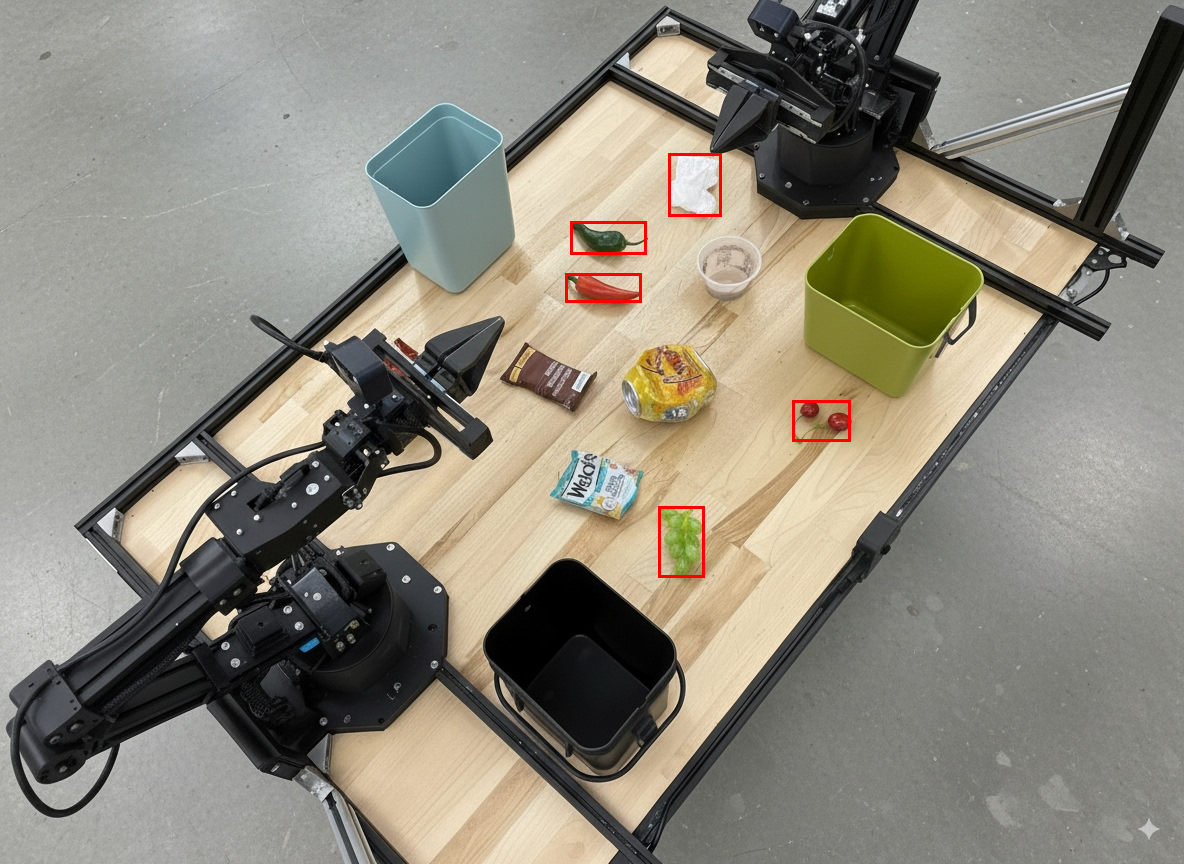
Contoh berikut menggunakan eksekusi kode untuk memperbesar dan memotong gambar agar terlihat lebih jelas saat mendeteksi objek dan mengembalikan kotak pembatas.
Python
from google import genai

client = genai.Client()

uploaded_file = client.files.upload(file="sorting.jpeg")

prompt = """
Return JSON in the format {label: val, y: val, x: val, y2: val, x2: val} for
the compostable objects in this scene. Please Zoom and crop the image for a
clearer view. Return an annotated image of the final result with the bounding
boxes drawn on it to the API caller as a part of your process.
"""

interaction = client.interactions.create(
    model="gemini-robotics-er-2-preview",
    input=[
        {
            "type": "image",
            "uri": uploaded_file.uri,
            "mime_type": uploaded_file.mime_type
        },
        {"type": "text", "text": prompt}
    ],
    tools=[{"type": "code_execution"}]
)

print(interaction.output_text)
Output model akan mirip dengan respons JSON berikut:
[
  {"label": "compostable", "y": 256, "x": 482, "y2": 295, "x2": 546},
  {"label": "compostable", "y": 317, "x": 478, "y2": 350, "x2": 542},
  {"label": "compostable", "y": 586, "x": 556, "y2": 668, "x2": 595},
  {"label": "compostable", "y": 463, "x": 669, "y2": 511, "x2": 718},
  {"label": "compostable", "y": 178, "x": 565, "y2": 250, "x2": 609}
]
Gambar berikut menampilkan kotak yang ditampilkan dari model.
Membaca pengukur analog dan menerapkan logika
Contoh berikut menunjukkan cara menggunakan model untuk membaca pengukur analog dan melakukan penghitungan waktu. Tindakan ini menggunakan petunjuk sistem untuk menerapkan output JSON.
Python
from google import genai

client = genai.Client()

uploaded_file = client.files.upload(file="gauge.jpeg")

interaction = client.interactions.create(
    model="gemini-robotics-er-2-preview",
    system_instruction="Be precise. When JSON is requested, reply with ONLY that JSON (no preface, no code block).",
    input=[
        {
            "type": "image",
            "uri": uploaded_file.uri,
            "mime_type": uploaded_file.mime_type
        },
        {"type": "text", "text": """Read the current value from this gauge. Then, calculate how long
        it will take at the current rate for the value to reach maximum.
        Reply in JSON: {"current_value": val, "max_value": val,
        "time_to_max_minutes": val}"""}
    ],
    tools=[{"type": "code_execution"}]
)

print(interaction.output_text)
Mengukur cairan dalam wadah
Contoh berikut menunjukkan cara menggunakan eksekusi kode untuk mengukur tingkat cairan dalam wadah.
Python
from google import genai

client = genai.Client()

uploaded_file = client.files.upload(file="fluid.jpeg")

interaction = client.interactions.create(
    model="gemini-robotics-er-2-preview",
    system_instruction="Be precise. When JSON is requested, reply with ONLY that JSON (no preface, no code block).",
    input=[
        {
            "type": "image",
            "uri": uploaded_file.uri,
            "mime_type": uploaded_file.mime_type
        },
        {"type": "text", "text": """Measure the amount of fluid in the container. Reply in JSON:
        {"fluid_level_ml": val, "container_capacity_ml": val,
        "percentage_full": val}"""}
    ],
    tools=[{"type": "code_execution"}]
)

print(interaction.output_text)
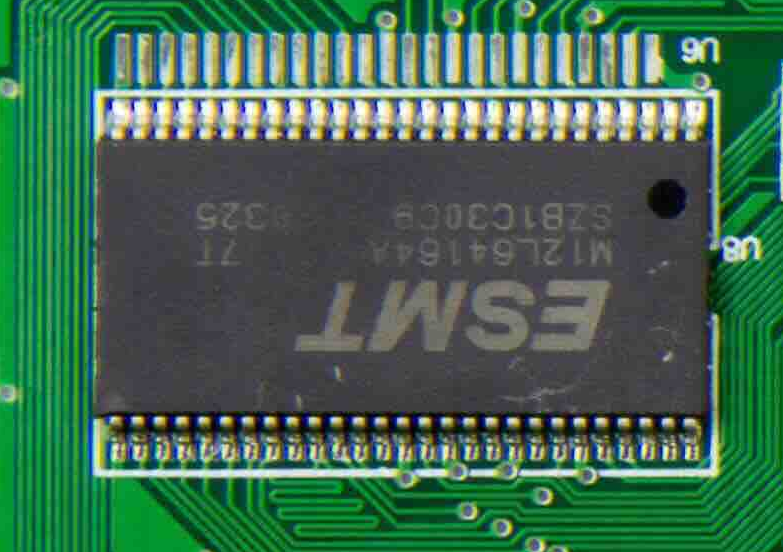
Membaca tanda pada papan sirkuit
Contoh berikut menunjukkan cara menggunakan eksekusi kode untuk membaca tanda pada papan sirkuit.
Python
from google import genai

client = genai.Client()

uploaded_file = client.files.upload(file="circuit_board.jpeg")

interaction = client.interactions.create(
    model="gemini-robotics-er-2-preview",
    system_instruction="Be precise. When JSON is requested, reply with ONLY that JSON (no preface, no code block).",
    input=[
        {
            "type": "image",
            "uri": uploaded_file.uri,
            "mime_type": uploaded_file.mime_type
        },
        {"type": "text", "text": """Read all visible component labels and markings on this circuit
        board. Reply in JSON: {"components": [{"label": val,
        "location": [y, x]}]}"""}
    ],
    tools=[{"type": "code_execution"}]
)

print(interaction.output_text)
Anotasi gambar
Contoh berikut menunjukkan cara menggunakan eksekusi kode untuk memberi anotasi pada gambar (misalnya, menggambar panah untuk petunjuk pembuangan) dan menampilkan gambar yang telah dimodifikasi.
Python
from google import genai

client = genai.Client()

# Load your image
uploaded_file = client.files.upload(file="sorting.jpeg")

prompt = """
Look at this image and return it as an annotated version using arrows of
different colors to represent which items should go in which bins for
disposal. You must return the final image to the API caller.
"""

interaction = client.interactions.create(
    model="gemini-robotics-er-2-preview",
    input=[
        {
            "type": "image",
            "uri": uploaded_file.uri,
            "mime_type": uploaded_file.mime_type
        },
        {"type": "text", "text": prompt}
    ],
    tools=[{"type": "code_execution"}]
)

print(interaction.output_text)
Berikut adalah contoh input gambar.
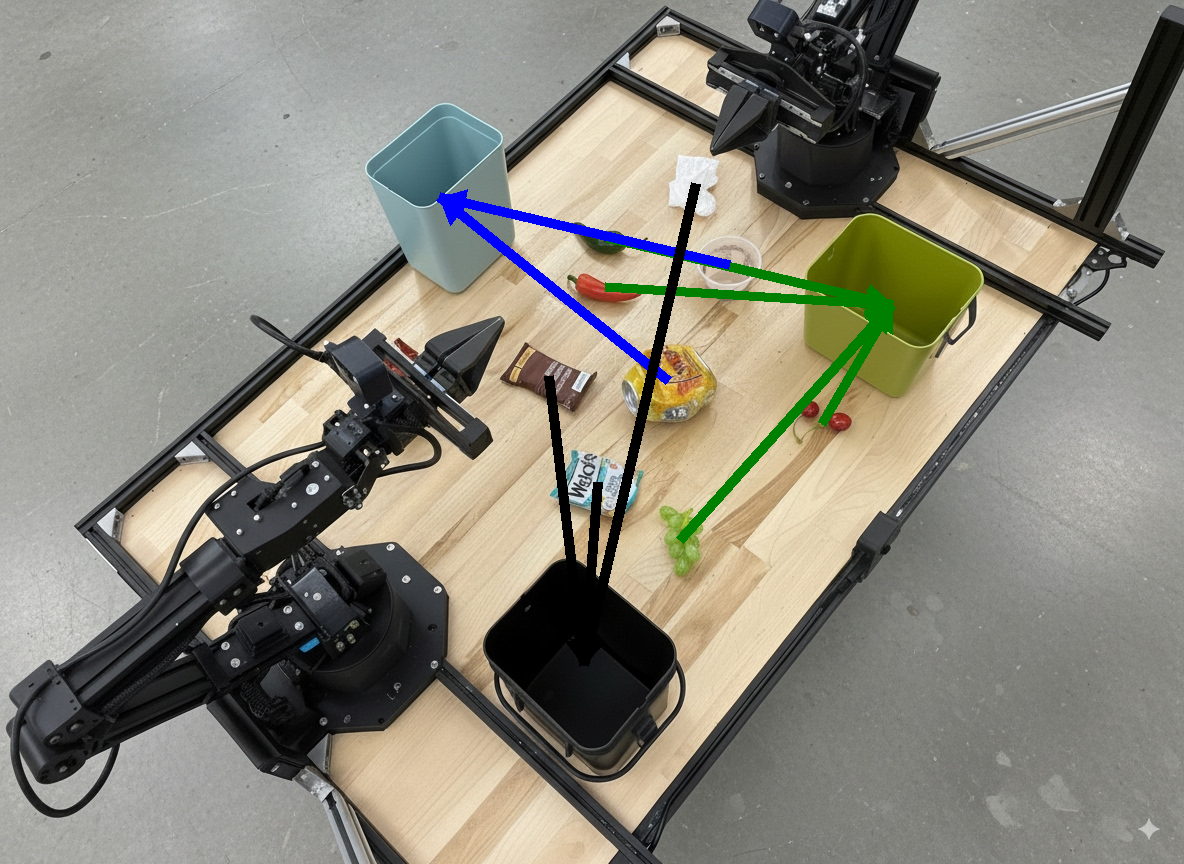
Output model akan mirip dengan berikut ini:
  The annotated image shows the suggested disposal locations for the items on the table:
  - **Green bin (Compost/Organic)**: Green chili, red chili, grapes, and cherries.
  - **Blue bin (Recycling)**: Yellow crushed can and plastic container.
  - **Black bin (Trash)**: Chocolate bar wrapper, Welch's packet, and white tissue.
Langkah berikutnya
- Orkestrasi tugas — tugas jangka panjang dengan API robot kustom.
- Robotika dengan streaming — streaming dua arah real-time (khusus Gemini Robotics ER 2).
- Pemahaman video — penemuan momen dan klasifikasi progres (khusus Gemini Robotics ER 2).