

Gemini Robotics ER モデルは、Python コードを記述して実行し、画像を操作してロジックを適用してから回答できます。このページでは、コード実行の例として、ズームと切り抜きによるオブジェクト検出、機器の読み取り、液体の測定、回路基板の読み取り、画像アノテーションについて説明します。
これらの例を独自のユースケースに合わせるには、プロンプト テキストとアップロードした画像ファイルを独自のファイルに置き換えます。また、プロンプトでリクエストされた JSON スキーマを、アプリケーションに必要な出力構造に合わせて調整したり、system_instruction を追加して出力形式と精度を強制したりすることもできます。
実行可能な完全なコードについては、 ロボット工学のクックブックをご覧ください。
思考レベル
モデルの思考レベルを制御して、レイテンシと精度のバランスを取ることができます。オブジェクト検出などの空間タスクは、思考レベルが低い場合に適切に機能します。カウントや重量推定などの複雑なタスクでは、思考レベルを高くすると効果的です。
次の例では、複雑なカウントタスクの思考レベルを high に設定しています。
Python
from google import genai

client = genai.Client()

uploaded_file = client.files.upload(file="scene.jpeg")

interaction = client.interactions.create(
    model="gemini-robotics-er-2-preview",
    input=[
        {
            "type": "image",
            "uri": uploaded_file.uri,
            "mime_type": uploaded_file.mime_type
        },
        {"type": "text", "text": "Identify and count all objects on the table."}
    ],
    generation_config={
        "thinking_level": "high"  # Use "minimal" or "low" for faster spatial tasks
    }
)

print(interaction.output_text)
詳細については、思考をご覧ください。
オブジェクト検出(ズームと切り抜き)
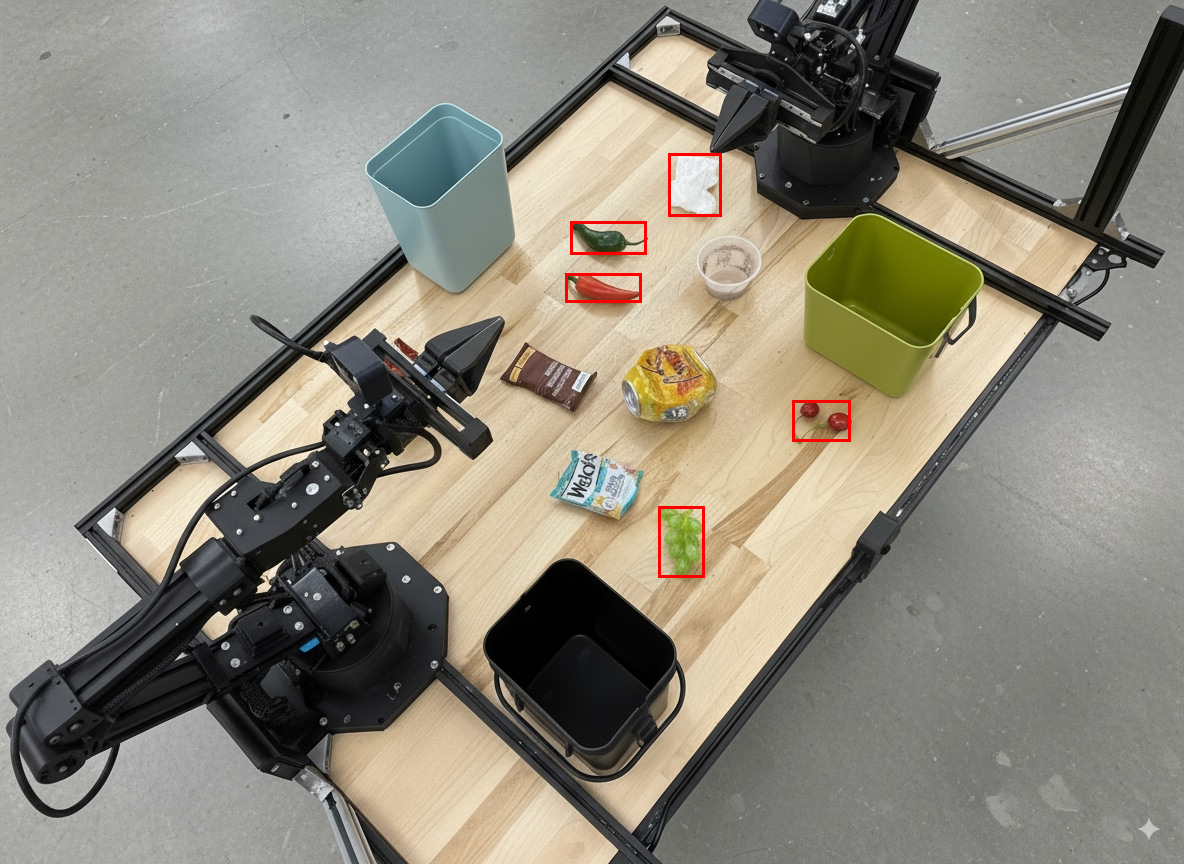
次の例では、コード実行を使用して画像をズームして切り抜き、オブジェクトを検出してバウンディング ボックスを返す際の視認性を高めています。
Python
from google import genai

client = genai.Client()

uploaded_file = client.files.upload(file="sorting.jpeg")

prompt = """
Return JSON in the format {label: val, y: val, x: val, y2: val, x2: val} for
the compostable objects in this scene. Please Zoom and crop the image for a
clearer view. Return an annotated image of the final result with the bounding
boxes drawn on it to the API caller as a part of your process.
"""

interaction = client.interactions.create(
    model="gemini-robotics-er-2-preview",
    input=[
        {
            "type": "image",
            "uri": uploaded_file.uri,
            "mime_type": uploaded_file.mime_type
        },
        {"type": "text", "text": prompt}
    ],
    tools=[{"type": "code_execution"}]
)

print(interaction.output_text)
モデル出力は、次の JSON レスポンスのようになります。
[
  {"label": "compostable", "y": 256, "x": 482, "y2": 295, "x2": 546},
  {"label": "compostable", "y": 317, "x": 478, "y2": 350, "x2": 542},
  {"label": "compostable", "y": 586, "x": 556, "y2": 668, "x2": 595},
  {"label": "compostable", "y": 463, "x": 669, "y2": 511, "x2": 718},
  {"label": "compostable", "y": 178, "x": 565, "y2": 250, "x2": 609}
]
次の画像は、モデルから返されたボックスを示しています。
アナログ ゲージを読み取り、ロジックを適用する
次の例では、モデルを使用してアナログ ゲージを読み取り、時間計算を行う方法を示します。システム命令を使用して JSON 出力を強制します。
Python
from google import genai

client = genai.Client()

uploaded_file = client.files.upload(file="gauge.jpeg")

interaction = client.interactions.create(
    model="gemini-robotics-er-2-preview",
    system_instruction="Be precise. When JSON is requested, reply with ONLY that JSON (no preface, no code block).",
    input=[
        {
            "type": "image",
            "uri": uploaded_file.uri,
            "mime_type": uploaded_file.mime_type
        },
        {"type": "text", "text": """Read the current value from this gauge. Then, calculate how long
        it will take at the current rate for the value to reach maximum.
        Reply in JSON: {"current_value": val, "max_value": val,
        "time_to_max_minutes": val}"""}
    ],
    tools=[{"type": "code_execution"}]
)

print(interaction.output_text)
容器内の液体を測定する
次の例では、コード実行を使用して容器内の液体のレベルを測定する方法を示します。
Python
from google import genai

client = genai.Client()

uploaded_file = client.files.upload(file="fluid.jpeg")

interaction = client.interactions.create(
    model="gemini-robotics-er-2-preview",
    system_instruction="Be precise. When JSON is requested, reply with ONLY that JSON (no preface, no code block).",
    input=[
        {
            "type": "image",
            "uri": uploaded_file.uri,
            "mime_type": uploaded_file.mime_type
        },
        {"type": "text", "text": """Measure the amount of fluid in the container. Reply in JSON:
        {"fluid_level_ml": val, "container_capacity_ml": val,
        "percentage_full": val}"""}
    ],
    tools=[{"type": "code_execution"}]
)

print(interaction.output_text)
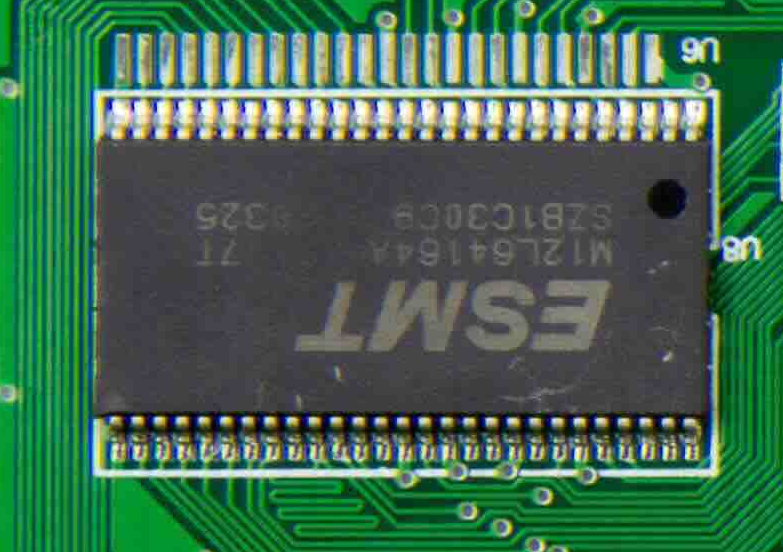
回路基板のマーキングを読み取る
次の例では、コード実行を使用して回路基板のマーキングを読み取る方法を示します。
Python
from google import genai

client = genai.Client()

uploaded_file = client.files.upload(file="circuit_board.jpeg")

interaction = client.interactions.create(
    model="gemini-robotics-er-2-preview",
    system_instruction="Be precise. When JSON is requested, reply with ONLY that JSON (no preface, no code block).",
    input=[
        {
            "type": "image",
            "uri": uploaded_file.uri,
            "mime_type": uploaded_file.mime_type
        },
        {"type": "text", "text": """Read all visible component labels and markings on this circuit
        board. Reply in JSON: {"components": [{"label": val,
        "location": [y, x]}]}"""}
    ],
    tools=[{"type": "code_execution"}]
)

print(interaction.output_text)
画像アノテーション
次の例では、コード実行を使用して画像にアノテーションを付け(廃棄手順を示す矢印を描画するなど)、変更された画像を返す方法を示します。
Python
from google import genai

client = genai.Client()

# Load your image
uploaded_file = client.files.upload(file="sorting.jpeg")

prompt = """
Look at this image and return it as an annotated version using arrows of
different colors to represent which items should go in which bins for
disposal. You must return the final image to the API caller.
"""

interaction = client.interactions.create(
    model="gemini-robotics-er-2-preview",
    input=[
        {
            "type": "image",
            "uri": uploaded_file.uri,
            "mime_type": uploaded_file.mime_type
        },
        {"type": "text", "text": prompt}
    ],
    tools=[{"type": "code_execution"}]
)

print(interaction.output_text)
画像入力の例を次に示します。
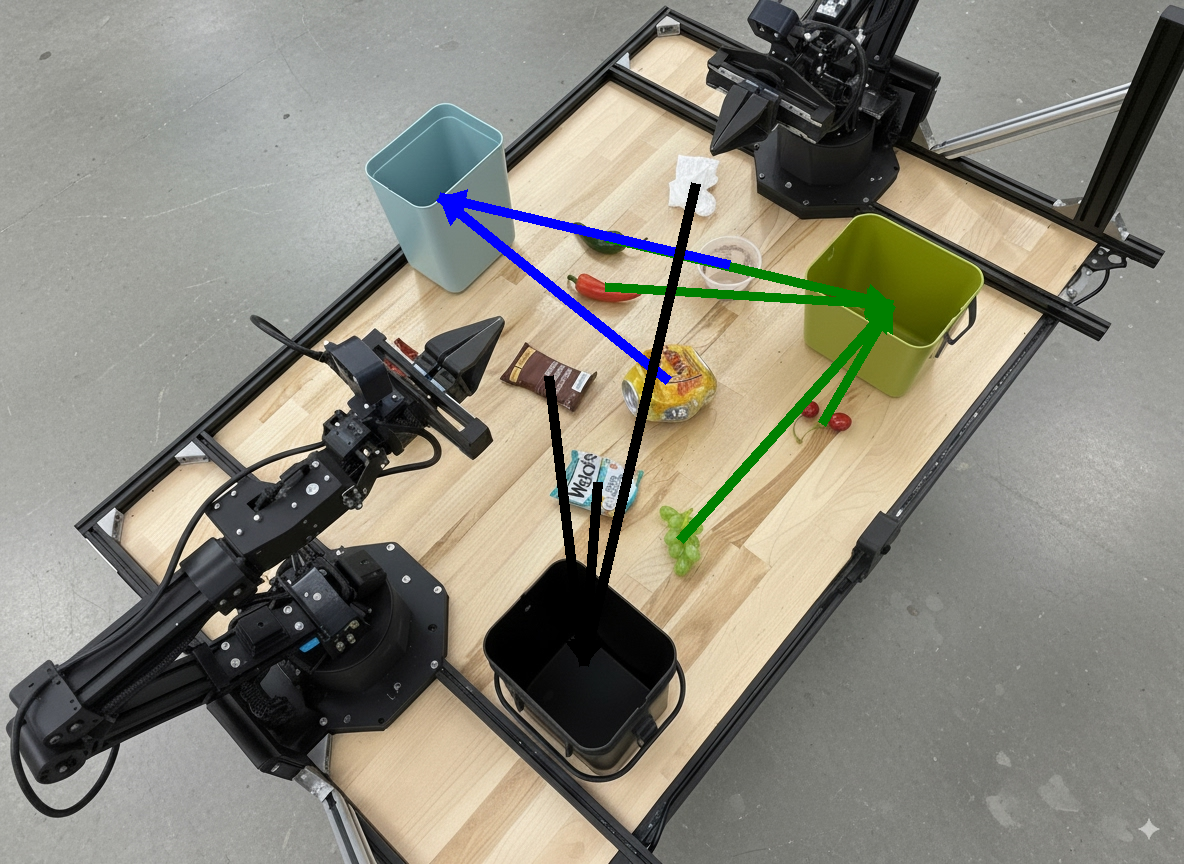
モデルの出力は次のようになります。
  The annotated image shows the suggested disposal locations for the items on the table:
  - **Green bin (Compost/Organic)**: Green chili, red chili, grapes, and cherries.
  - **Blue bin (Recycling)**: Yellow crushed can and plastic container.
  - **Black bin (Trash)**: Chocolate bar wrapper, Welch's packet, and white tissue.
次のステップ
- タスク オーケストレーション - カスタム ロボット API を使用した長期的なタスク。
- ストリーミングによるロボット工学 - リアルタイムの双方向ストリーミング(Gemini Robotics ER 2 のみ)。
- 動画理解 - モーメントの検出と進捗状況の分類(Gemini Robotics ER 2 のみ)。