

Os modelos do Gemini Robotics ER podem escrever e executar código Python para manipular imagens e aplicar lógica antes de responder. Esta página aborda exemplos de execução de código: detecção de objetos com zoom e corte, leitura de instrumentos, medição de fluidos, leitura de placas de circuito e anotação de imagens.
Para adaptar esses exemplos ao seu caso de uso, substitua o texto do comando e o arquivo de imagem enviado pelos seus. Você também pode ajustar o esquema JSON solicitado no comando para corresponder à estrutura de saída de que seu aplicativo precisa ou adicionar uma system_instruction para aplicar o formato e a precisão da saída.
Para conferir o código executável completo, consulte o livro de receitas de robótica.
Nível de raciocínio
Você pode controlar o nível de raciocínio do modelo para trocar latência por precisão. Tarefas espaciais, como detecção de objetos, têm bom desempenho com um nível de raciocínio baixo. Tarefas complexas, como contagem ou estimativa de peso, se beneficiam de um nível de raciocínio mais alto.
O exemplo a seguir define o nível de raciocínio como high para uma tarefa de contagem complexa:
Python
from google import genai

client = genai.Client()

uploaded_file = client.files.upload(file="scene.jpeg")

interaction = client.interactions.create(
    model="gemini-robotics-er-2-preview",
    input=[
        {
            "type": "image",
            "uri": uploaded_file.uri,
            "mime_type": uploaded_file.mime_type
        },
        {"type": "text", "text": "Identify and count all objects on the table."}
    ],
    generation_config={
        "thinking_level": "high"  # Use "minimal" or "low" for faster spatial tasks
    }
)

print(interaction.output_text)
Consulte Raciocínio para mais detalhes.
Detecção de objetos (zoom e corte)
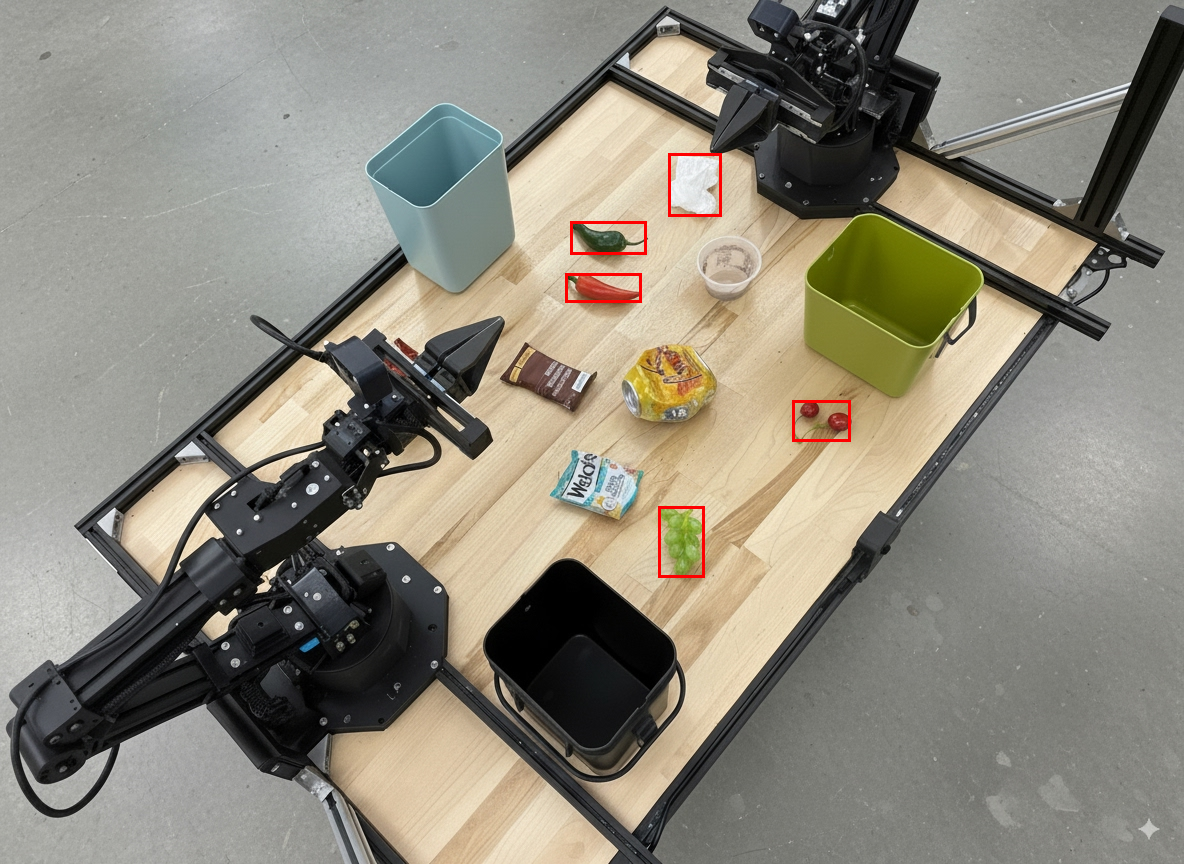
O exemplo a seguir usa a execução de código para aplicar zoom e cortar uma imagem para uma visualização mais clara ao detectar objetos e retornar caixas delimitadoras.
Python
from google import genai

client = genai.Client()

uploaded_file = client.files.upload(file="sorting.jpeg")

prompt = """
Return JSON in the format {label: val, y: val, x: val, y2: val, x2: val} for
the compostable objects in this scene. Please Zoom and crop the image for a
clearer view. Return an annotated image of the final result with the bounding
boxes drawn on it to the API caller as a part of your process.
"""

interaction = client.interactions.create(
    model="gemini-robotics-er-2-preview",
    input=[
        {
            "type": "image",
            "uri": uploaded_file.uri,
            "mime_type": uploaded_file.mime_type
        },
        {"type": "text", "text": prompt}
    ],
    tools=[{"type": "code_execution"}]
)

print(interaction.output_text)
A saída do modelo seria semelhante à seguinte resposta JSON:
[
  {"label": "compostable", "y": 256, "x": 482, "y2": 295, "x2": 546},
  {"label": "compostable", "y": 317, "x": 478, "y2": 350, "x2": 542},
  {"label": "compostable", "y": 586, "x": 556, "y2": 668, "x2": 595},
  {"label": "compostable", "y": 463, "x": 669, "y2": 511, "x2": 718},
  {"label": "compostable", "y": 178, "x": 565, "y2": 250, "x2": 609}
]
A imagem a seguir mostra as caixas retornadas do modelo.
Ler um medidor analógico e aplicar lógica
O exemplo a seguir demonstra como usar o modelo para ler um medidor analógico e realizar cálculos de tempo. Ele usa uma instrução do sistema para aplicar uma saída JSON.
Python
from google import genai

client = genai.Client()

uploaded_file = client.files.upload(file="gauge.jpeg")

interaction = client.interactions.create(
    model="gemini-robotics-er-2-preview",
    system_instruction="Be precise. When JSON is requested, reply with ONLY that JSON (no preface, no code block).",
    input=[
        {
            "type": "image",
            "uri": uploaded_file.uri,
            "mime_type": uploaded_file.mime_type
        },
        {"type": "text", "text": """Read the current value from this gauge. Then, calculate how long
        it will take at the current rate for the value to reach maximum.
        Reply in JSON: {"current_value": val, "max_value": val,
        "time_to_max_minutes": val}"""}
    ],
    tools=[{"type": "code_execution"}]
)

print(interaction.output_text)
Medir fluido em um contêiner
O exemplo a seguir demonstra como usar a execução de código para medir o nível de fluido em um contêiner.
Python
from google import genai

client = genai.Client()

uploaded_file = client.files.upload(file="fluid.jpeg")

interaction = client.interactions.create(
    model="gemini-robotics-er-2-preview",
    system_instruction="Be precise. When JSON is requested, reply with ONLY that JSON (no preface, no code block).",
    input=[
        {
            "type": "image",
            "uri": uploaded_file.uri,
            "mime_type": uploaded_file.mime_type
        },
        {"type": "text", "text": """Measure the amount of fluid in the container. Reply in JSON:
        {"fluid_level_ml": val, "container_capacity_ml": val,
        "percentage_full": val}"""}
    ],
    tools=[{"type": "code_execution"}]
)

print(interaction.output_text)
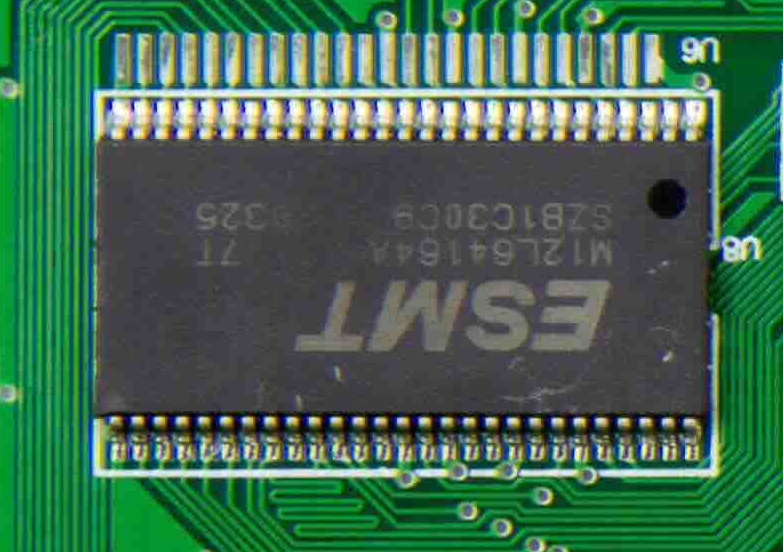
Ler marcações em uma placa de circuito
O exemplo a seguir demonstra como usar a execução de código para ler as marcações em uma placa de circuito.
Python
from google import genai

client = genai.Client()

uploaded_file = client.files.upload(file="circuit_board.jpeg")

interaction = client.interactions.create(
    model="gemini-robotics-er-2-preview",
    system_instruction="Be precise. When JSON is requested, reply with ONLY that JSON (no preface, no code block).",
    input=[
        {
            "type": "image",
            "uri": uploaded_file.uri,
            "mime_type": uploaded_file.mime_type
        },
        {"type": "text", "text": """Read all visible component labels and markings on this circuit
        board. Reply in JSON: {"components": [{"label": val,
        "location": [y, x]}]}"""}
    ],
    tools=[{"type": "code_execution"}]
)

print(interaction.output_text)
Anotação da imagem
O exemplo a seguir demonstra como usar a execução de código para anotar uma imagem (por exemplo, desenhar setas para instruções de descarte) e retornar a imagem modificada.
Python
from google import genai

client = genai.Client()

# Load your image
uploaded_file = client.files.upload(file="sorting.jpeg")

prompt = """
Look at this image and return it as an annotated version using arrows of
different colors to represent which items should go in which bins for
disposal. You must return the final image to the API caller.
"""

interaction = client.interactions.create(
    model="gemini-robotics-er-2-preview",
    input=[
        {
            "type": "image",
            "uri": uploaded_file.uri,
            "mime_type": uploaded_file.mime_type
        },
        {"type": "text", "text": prompt}
    ],
    tools=[{"type": "code_execution"}]
)

print(interaction.output_text)
A seguir, um exemplo de entrada de imagem.
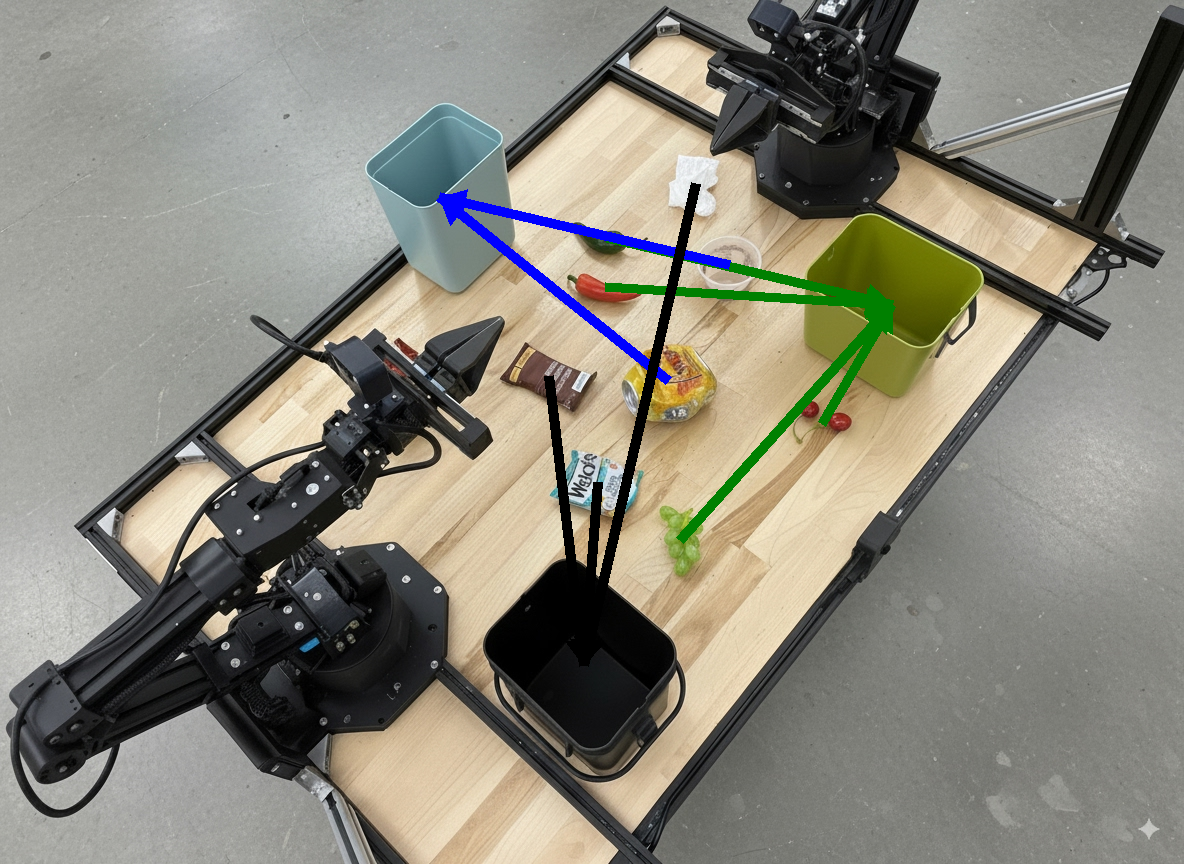
A saída do modelo seria semelhante a esta:
  The annotated image shows the suggested disposal locations for the items on the table:
  - **Green bin (Compost/Organic)**: Green chili, red chili, grapes, and cherries.
  - **Blue bin (Recycling)**: Yellow crushed can and plastic container.
  - **Black bin (Trash)**: Chocolate bar wrapper, Welch's packet, and white tissue.
A seguir
- Orquestração de tarefas: tarefas de longo prazo com APIs de robôs personalizadas.
- Robótica com streaming: streaming bidirecional em tempo real (somente no Gemini Robotics ER 2).
- Compreensão de vídeo: localização de momentos e classificação de progresso (somente no Gemini Robotics ER 2).