

เราสร้างโมเดล Gemini ขึ้นมาใหม่ทั้งหมดให้ทำงานได้หลายรูปแบบ เพื่อให้คุณทำงานด้านการประมวลผลรูปภาพและคอมพิวเตอร์วิชันได้หลากหลาย ซึ่งรวมถึงแต่ไม่จำกัดเพียงการสร้างคำบรรยายรูปภาพ การจัดประเภท และการตอบคำถามด้วยภาพโดยไม่ต้องฝึกโมเดล ML เฉพาะทาง
นอกจากความสามารถแบบหลายรูปแบบทั่วไปแล้ว โมเดล Gemini ยังมีความแม่นยำที่ดียิ่งขึ้นสำหรับ Use Case เฉพาะ เช่น การตรวจจับออบเจ็กต์ และการแบ่งกลุ่มผ่านการฝึกเพิ่มเติม
การส่งรูปภาพไปยัง Gemini
คุณสามารถป้อนรูปภาพให้กับ Gemini ได้หลายวิธีดังนี้
- ส่งรูปภาพโดยใช้ URL: เหมาะสำหรับรูปภาพที่เข้าถึงได้แบบสาธารณะ
- การส่งข้อมูลรูปภาพในบรรทัด: สำหรับข้อมูลรูปภาพที่เข้ารหัส Base64
- การอัปโหลดรูปภาพโดยใช้ File API: แนะนำสำหรับ ไฟล์ขนาดใหญ่หรือสำหรับการนำรูปภาพกลับมาใช้ซ้ำในคำขอหลายรายการ
การส่งรูปภาพโดยใช้ URL
คุณอัปโหลดรูปภาพได้โดยใช้ Files API และส่งในคำขอ
Python
from google import genai

client = genai.Client()

uploaded_file = client.files.upload(file="path/to/organ.jpg")

interaction = client.interactions.create(
    model="gemini-3.8-flash",
    input=[
        {"type": "text", "text": "Caption this image."},
        {
            "type": "image",
            "uri": uploaded_file.uri,
            "mime_type": uploaded_file.mime_type
        }
    ]
)
print(interaction.output_text)
JavaScript
import { GoogleGenAI } from "@google/genai";

const client = new GoogleGenAI({});

const uploadedFile = await client.files.upload({
    file: "path/to/organ.jpg",
    config: { mimeType: "image/jpeg" }
});

const interaction = await client.interactions.create({
    model: "gemini-3.8-flash",
    input: [
        {type: "text", text: "Caption this image."},
        {
            type: "image",
            uri: uploadedFile.uri,
            mime_type: uploadedFile.mimeType
        }
    ]
});
console.log(interaction.output_text);
Java
import com.google.genai.Client;
import com.google.genai.gaos.models.interactions.Content;
import com.google.genai.gaos.models.interactions.CreateModelInteraction;
import com.google.genai.gaos.models.interactions.ImageContent;
import com.google.genai.gaos.models.interactions.ImageContentMimeType;
import com.google.genai.gaos.models.interactions.Interaction;
import com.google.genai.gaos.models.interactions.InteractionsInput;
import com.google.genai.gaos.models.interactions.Model;
import com.google.genai.gaos.models.interactions.TextContent;
import com.google.genai.gaos.models.operations.CreateInteractionRequestBody;
import com.google.genai.types.File;
import com.google.genai.types.UploadFileConfig;
import java.util.Arrays;
import java.util.List;

Client client = new Client();

File uploadedFile =
    client.files.upload(
        new java.io.File("path/to/organ.jpg"),
        UploadFileConfig.builder().mimeType("image/jpeg").build());

Content textContent = TextContent.builder().text("Caption this image.").build();
Content imageContent =
    ImageContent.builder()
        .uri(uploadedFile.uri().orElse(""))
        .mimeType(ImageContentMimeType.of(uploadedFile.mimeType().orElse("image/jpeg")))
        .build();

List<Content> contents = Arrays.asList(textContent, imageContent);

CreateModelInteraction params =
    CreateModelInteraction.builder()
        .model(Model.of("gemini-3.8-flash"))
        .input(InteractionsInput.ofContent(contents))
        .build();

Interaction interaction =
    client.interactions.create(CreateInteractionRequestBody.of(params)).interaction().get();
System.out.println(interaction.outputText().orElse(""));
Go
package main

import (
    "context"
    "fmt"
    "log"

    "google.golang.org/genai"
    "google.golang.org/genai/interactions/models/interactions"
    "google.golang.org/genai/interactions/models/operations"
)

func main() {
    ctx := context.Background()
    client, err := genai.NewClient(ctx, nil)
    if err != nil {
        log.Fatal(err)
    }

    uploadedFile, err := client.Files.UploadFromPath(ctx, "path/to/organ.jpg", &genai.UploadFileConfig{
        MIMEType: "image/jpeg",
    })
    if err != nil {
        log.Fatal(err)
    }

    res, err := client.Interactions.Create(ctx, operations.CreateInteractionRequest{
        Body: operations.NewCreateInteractionRequestBody(interactions.CreateModelInteraction{
            Model: interactions.Model("gemini-3.8-flash"),
            Input: interactions.NewInteractionsInput([]interactions.Content{
                interactions.NewContent(interactions.TextContent{
                    Text: "Caption this image.",
                }),
                interactions.NewContent(interactions.ImageContent{
                    URI:      genai.Ptr(uploadedFile.URI),
                    MimeType: interactions.ImageContentMimeType(uploadedFile.MIMEType).ToPointer(),
                }),
            }),
        }),
    })
    if err != nil {
        log.Fatal(err)
    }
    if res.Interaction.OutputText != nil {
        fmt.Println(*res.Interaction.OutputText)
    }
}
REST
# First upload the file using the Files API, then use the URI:
curl -X POST "https://generativelanguage.googleapis.com/v1beta/interactions" \
  -H "x-goog-api-key: $GEMINI_API_KEY" \
  -H 'Content-Type: application/json' \
  -d '{
    "model": "gemini-3.8-flash",
    "input": [
      {"type": "text", "text": "Caption this image."},
      {
        "type": "image",
        "uri": "YOUR_FILE_URI",
        "mime_type": "image/jpeg"
      }
    ]
  }'
การส่งข้อมูลรูปภาพในบรรทัด
คุณระบุข้อมูลรูปภาพเป็นสตริงที่เข้ารหัส Base64 ได้ดังนี้
Python
import base64
from google import genai

with open('path/to/small-sample.jpg', 'rb') as f:
    image_bytes = f.read()

client = genai.Client()

interaction = client.interactions.create(
    model="gemini-3.8-flash",
    input=[
        {"type": "text", "text": "Caption this image."},
        {
            "type": "image",
            "data": base64.b64encode(image_bytes).decode('utf-8'),
            "mime_type": "image/jpeg"
        }
    ]
)
print(interaction.output_text)
JavaScript
import { GoogleGenAI } from "@google/genai";
import * as fs from "node:fs";

const client = new GoogleGenAI({});
const base64ImageFile = fs.readFileSync("path/to/small-sample.jpg", {
  encoding: "base64",
});

const interaction = await client.interactions.create({
    model: "gemini-3.8-flash",
    input: [
        {type: "text", text: "Caption this image."},
        {
            type: "image",
            data: base64ImageFile,
            mime_type: "image/jpeg"
        }
    ]
});
console.log(interaction.output_text);
Java
import com.google.genai.Client;
import com.google.genai.gaos.models.interactions.Content;
import com.google.genai.gaos.models.interactions.CreateModelInteraction;
import com.google.genai.gaos.models.interactions.ImageContent;
import com.google.genai.gaos.models.interactions.ImageContentMimeType;
import com.google.genai.gaos.models.interactions.Interaction;
import com.google.genai.gaos.models.interactions.InteractionsInput;
import com.google.genai.gaos.models.interactions.Model;
import com.google.genai.gaos.models.interactions.TextContent;
import com.google.genai.gaos.models.operations.CreateInteractionRequestBody;
import java.nio.file.Files;
import java.nio.file.Paths;
import java.util.Arrays;
import java.util.Base64;
import java.util.List;

byte[] imageBytes = Files.readAllBytes(Paths.get("path/to/small-sample.jpg"));
String base64Image = Base64.getEncoder().encodeToString(imageBytes);

Client client = new Client();

Content textContent = TextContent.builder().text("Caption this image.").build();
Content imageContent =
    ImageContent.builder()
        .data(base64Image)
        .mimeType(ImageContentMimeType.IMAGE_JPEG)
        .build();

List<Content> contents = Arrays.asList(textContent, imageContent);

CreateModelInteraction params =
    CreateModelInteraction.builder()
        .model(Model.of("gemini-3.8-flash"))
        .input(InteractionsInput.ofContent(contents))
        .build();

Interaction interaction =
    client.interactions.create(CreateInteractionRequestBody.of(params)).interaction().get();
System.out.println(interaction.outputText().orElse(""));
Go
package main

import (
    "context"
    "encoding/base64"
    "fmt"
    "log"
    "os"

    "google.golang.org/genai"
    "google.golang.org/genai/interactions/models/interactions"
    "google.golang.org/genai/interactions/models/operations"
)

func main() {
    ctx := context.Background()
    client, err := genai.NewClient(ctx, nil)
    if err != nil {
        log.Fatal(err)
    }

    imageBytes, err := os.ReadFile("path/to/small-sample.jpg")
    if err != nil {
        log.Fatal(err)
    }
    base64Image := base64.StdEncoding.EncodeToString(imageBytes)

    res, err := client.Interactions.Create(ctx, operations.CreateInteractionRequest{
        Body: operations.NewCreateInteractionRequestBody(interactions.CreateModelInteraction{
            Model: interactions.Model("gemini-3.8-flash"),
            Input: interactions.NewInteractionsInput([]interactions.Content{
                interactions.NewContent(interactions.TextContent{
                    Text: "Caption this image.",
                }),
                interactions.NewContent(interactions.ImageContent{
                    Data:     genai.Ptr(base64Image),
                    MimeType: interactions.ImageContentMimeTypeImageJpeg.ToPointer(),
                }),
            }),
        }),
    })
    if err != nil {
        log.Fatal(err)
    }
    if res.Interaction.OutputText != nil {
        fmt.Println(*res.Interaction.OutputText)
    }
}
REST
IMG_PATH="/path/to/your/image1.jpg"

if [[ "$(base64 --version 2>&1)" = *"FreeBSD"* ]]; then
  B64FLAGS="--input"
else
  B64FLAGS="-w0"
fi

curl -X POST "https://generativelanguage.googleapis.com/v1beta/interactions" \
  -H "x-goog-api-key: $GEMINI_API_KEY" \
  -H 'Content-Type: application/json' \
  -d '{
    "model": "gemini-3.8-flash",
    "input": [
      {"type": "text", "text": "Caption this image."},
      {
        "type": "image",
        "data": "'"$(base64 $B64FLAGS $IMG_PATH)"'",
        "mime_type": "image/jpeg"
      }
    ]
  }'
การอัปโหลดรูปภาพโดยใช้ File API
หากต้องการใช้ไฟล์ขนาดใหญ่หรือใช้ไฟล์รูปภาพเดียวกันซ้ำๆ ให้ใช้ Files API ดูคู่มือ Files API
Python
from google import genai

client = genai.Client()

my_file = client.files.upload(file="path/to/sample.jpg")

interaction = client.interactions.create(
    model="gemini-3.8-flash",
    input=[
        {"type": "text", "text": "Caption this image."},
        {
            "type": "image",
            "uri": my_file.uri,
            "mime_type": my_file.mime_type
        }
    ]
)
print(interaction.output_text)
JavaScript
import { GoogleGenAI } from "@google/genai";

const client = new GoogleGenAI({});

const myfile = await client.files.upload({
    file: "path/to/sample.jpg",
    config: { mimeType: "image/jpeg" },
});

const interaction = await client.interactions.create({
    model: "gemini-3.8-flash",
    input: [
        {type: "text", text: "Caption this image."},
        {
            type: "image",
            uri: myfile.uri,
            mime_type: myfile.mimeType
        }
    ]
});
console.log(interaction.output_text);
Java
import com.google.genai.Client;
import com.google.genai.gaos.models.interactions.Content;
import com.google.genai.gaos.models.interactions.CreateModelInteraction;
import com.google.genai.gaos.models.interactions.ImageContent;
import com.google.genai.gaos.models.interactions.ImageContentMimeType;
import com.google.genai.gaos.models.interactions.Interaction;
import com.google.genai.gaos.models.interactions.InteractionsInput;
import com.google.genai.gaos.models.interactions.Model;
import com.google.genai.gaos.models.interactions.TextContent;
import com.google.genai.gaos.models.operations.CreateInteractionRequestBody;
import com.google.genai.types.File;
import com.google.genai.types.UploadFileConfig;
import java.util.Arrays;
import java.util.List;

Client client = new Client();

File myFile =
    client.files.upload(
        new java.io.File("path/to/sample.jpg"),
        UploadFileConfig.builder().mimeType("image/jpeg").build());

Content textContent = TextContent.builder().text("Caption this image.").build();
Content imageContent =
    ImageContent.builder()
        .uri(myFile.uri().orElse(""))
        .mimeType(ImageContentMimeType.of(myFile.mimeType().orElse("image/jpeg")))
        .build();

List<Content> contents = Arrays.asList(textContent, imageContent);

CreateModelInteraction params =
    CreateModelInteraction.builder()
        .model(Model.of("gemini-3.8-flash"))
        .input(InteractionsInput.ofContent(contents))
        .build();

Interaction interaction =
    client.interactions.create(CreateInteractionRequestBody.of(params)).interaction().get();
System.out.println(interaction.outputText().orElse(""));
Go
package main

import (
    "context"
    "fmt"
    "log"

    "google.golang.org/genai"
    "google.golang.org/genai/interactions/models/interactions"
    "google.golang.org/genai/interactions/models/operations"
)

func main() {
    ctx := context.Background()
    client, err := genai.NewClient(ctx, nil)
    if err != nil {
        log.Fatal(err)
    }

    myFile, err := client.Files.UploadFromPath(ctx, "path/to/sample.jpg", &genai.UploadFileConfig{
        MIMEType: "image/jpeg",
    })
    if err != nil {
        log.Fatal(err)
    }

    res, err := client.Interactions.Create(ctx, operations.CreateInteractionRequest{
        Body: operations.NewCreateInteractionRequestBody(interactions.CreateModelInteraction{
            Model: interactions.Model("gemini-3.8-flash"),
            Input: interactions.NewInteractionsInput([]interactions.Content{
                interactions.NewContent(interactions.TextContent{
                    Text: "Caption this image.",
                }),
                interactions.NewContent(interactions.ImageContent{
                    URI:      genai.Ptr(myFile.URI),
                    MimeType: interactions.ImageContentMimeType(myFile.MIMEType).ToPointer(),
                }),
            }),
        }),
    })
    if err != nil {
        log.Fatal(err)
    }
    if res.Interaction.OutputText != nil {
        fmt.Println(*res.Interaction.OutputText)
    }
}
REST
# First upload the file (see Files API guide for details)
# Then use the file URI in the request:

curl -X POST "https://generativelanguage.googleapis.com/v1beta/interactions" \
  -H "x-goog-api-key: $GEMINI_API_KEY" \
  -H 'Content-Type: application/json' \
  -d '{
    "model": "gemini-3.8-flash",
    "input": [
      {"type": "text", "text": "Caption this image."},
      {
        "type": "image",
        "uri": "YOUR_FILE_URI",
        "mime_type": "image/jpeg"
      }
    ]
  }'
การป้อนพรอมต์ด้วยรูปภาพหลายรูป
คุณระบุรูปภาพหลายรูปในพรอมต์เดียวได้โดยรวมออบเจ็กต์รูปภาพหลายรายการในอาร์เรย์ input ดังนี้
Python
from google import genai

client = genai.Client()

interaction = client.interactions.create(
    model="gemini-3.8-flash",
    input=[
        {"type": "text", "text": "What is different between these two images?"},
        {
            "type": "image",
            "uri": "https://example.com/image1.jpg",
            "mime_type": "image/jpeg"
        },
        {
            "type": "image",
            "uri": "https://example.com/image2.jpg",
            "mime_type": "image/jpeg"
        }
    ]
)
print(interaction.output_text)
JavaScript
import { GoogleGenAI } from "@google/genai";

const client = new GoogleGenAI({});

const interaction = await client.interactions.create({
    model: "gemini-3.8-flash",
    input: [
        {type: "text", text: "What is different between these two images?"},
        {
            type: "image",
            uri: "https://example.com/image1.jpg",
            mime_type: "image/jpeg"
        },
        {
            type: "image",
            uri: "https://example.com/image2.jpg",
            mime_type: "image/jpeg"
        }
    ]
});
console.log(interaction.output_text);
Java
import com.google.genai.Client;
import com.google.genai.gaos.models.interactions.Content;
import com.google.genai.gaos.models.interactions.CreateModelInteraction;
import com.google.genai.gaos.models.interactions.ImageContent;
import com.google.genai.gaos.models.interactions.ImageContentMimeType;
import com.google.genai.gaos.models.interactions.Interaction;
import com.google.genai.gaos.models.interactions.InteractionsInput;
import com.google.genai.gaos.models.interactions.Model;
import com.google.genai.gaos.models.interactions.TextContent;
import com.google.genai.gaos.models.operations.CreateInteractionRequestBody;
import java.util.Arrays;
import java.util.List;

Client client = new Client();

Content textContent =
    TextContent.builder().text("What is different between these two images?").build();
Content image1 =
    ImageContent.builder()
        .uri("https://example.com/image1.jpg")
        .mimeType(ImageContentMimeType.IMAGE_JPEG)
        .build();
Content image2 =
    ImageContent.builder()
        .uri("https://example.com/image2.jpg")
        .mimeType(ImageContentMimeType.IMAGE_JPEG)
        .build();

List<Content> contents = Arrays.asList(textContent, image1, image2);

CreateModelInteraction params =
    CreateModelInteraction.builder()
        .model(Model.of("gemini-3.8-flash"))
        .input(InteractionsInput.ofContent(contents))
        .build();

Interaction interaction =
    client.interactions.create(CreateInteractionRequestBody.of(params)).interaction().get();
System.out.println(interaction.outputText().orElse(""));
Go
package main

import (
    "context"
    "fmt"
    "log"

    "google.golang.org/genai"
    "google.golang.org/genai/interactions/models/interactions"
    "google.golang.org/genai/interactions/models/operations"
)

func main() {
    ctx := context.Background()
    client, err := genai.NewClient(ctx, nil)
    if err != nil {
        log.Fatal(err)
    }

    res, err := client.Interactions.Create(ctx, operations.CreateInteractionRequest{
        Body: operations.NewCreateInteractionRequestBody(interactions.CreateModelInteraction{
            Model: interactions.Model("gemini-3.8-flash"),
            Input: interactions.NewInteractionsInput([]interactions.Content{
                interactions.NewContent(interactions.TextContent{
                    Text: "What is different between these two images?",
                }),
                interactions.NewContent(interactions.ImageContent{
                    URI:      genai.Ptr("https://example.com/image1.jpg"),
                    MimeType: interactions.ImageContentMimeTypeImageJpeg.ToPointer(),
                }),
                interactions.NewContent(interactions.ImageContent{
                    URI:      genai.Ptr("https://example.com/image2.jpg"),
                    MimeType: interactions.ImageContentMimeTypeImageJpeg.ToPointer(),
                }),
            }),
        }),
    })
    if err != nil {
        log.Fatal(err)
    }
    if res.Interaction.OutputText != nil {
        fmt.Println(*res.Interaction.OutputText)
    }
}
REST
curl -X POST "https://generativelanguage.googleapis.com/v1beta/interactions" \
  -H "x-goog-api-key: $GEMINI_API_KEY" \
  -H 'Content-Type: application/json' \
  -d '{
    "model": "gemini-3.8-flash",
    "input": [
      {"type": "text", "text": "What is different between these two images?"},
      {
        "type": "image",
        "uri": "https://example.com/image1.jpg",
        "mime_type": "image/jpeg"
      },
      {
        "type": "image",
        "uri": "https://example.com/image2.jpg",
        "mime_type": "image/jpeg"
      }
    ]
  }'
การตรวจจับออบเจ็กต์
โมเดลได้รับการฝึกให้ตรวจจับออบเจ็กต์ในรูปภาพและรับพิกัดกรอบล้อมรอบของออบเจ็กต์ พิกัดที่สัมพันธ์กับขนาดรูปภาพจะปรับขนาดเป็น [0, 1000] คุณต้องปรับขนาดพิกัดเหล่านี้ตาม ขนาดรูปภาพต้นฉบับ
Python
from google import genai
from pydantic import BaseModel, Field
from typing import List
import json

client = genai.Client()
prompt = "Detect the all of the prominent items in the image. The box_2d should be [ymin, xmin, ymax, xmax] normalized to 0-1000."

class BoundingBox(BaseModel):
    box_2d: List[int] = Field(description="The 2D bounding box of the item as [ymin, xmin, ymax, xmax] normalized to 0-1000.")
    mask: List[List[int]] = Field(description="The segmentation mask of the item as a polygon of [x,y] coordinates, normalized to 0-1000.")
    label: str = Field(description="A descriptive label for the item.")

class BoundingBoxes(BaseModel):
    boxes: List[BoundingBox]

interaction = client.interactions.create(
    model="gemini-3.8-flash",
    input=[
        {"type": "text", "text": prompt},
        {
            "type": "image",
            "uri": "https://example.com/image.png",
            "mime_type": "image/png"
        }
    ],
    response_format={
        "type": "text",
        "mime_type": "application/json",
        "schema": BoundingBoxes.model_json_schema()
    }
)

bounding_boxes = BoundingBoxes.model_validate_json(interaction.output_text)
print(bounding_boxes)
JavaScript
import { GoogleGenAI } from "@google/genai";
import * as z from "zod";

const client = new GoogleGenAI({});
const prompt = "Detect the all of the prominent items in the image. The box_2d should be [ymin, xmin, ymax, xmax] normalized to 0-1000.";

const boundingBoxesSchema = z.object({
  boxes: z.array(z.object({
    box_2d: z.array(z.number()),
    mask: z.array(z.array(z.number())),
    label: z.string()
  }))
});

const interaction = await client.interactions.create({
  model: "gemini-3.8-flash",
  input: [
    { type: "text", text: prompt },
    {
      type: "image",
      uri: "https://example.com/image.png",
      mime_type: "image/png"
    }
  ],
  response_format: {
    type: 'text',
    mime_type: 'application/json',
    schema: z.toJSONSchema(boundingBoxesSchema)
  },
});

const result = boundingBoxesSchema.parse(JSON.parse(interaction.output_text));
console.log(result);
Java
import com.google.genai.Client;
import com.google.genai.gaos.models.interactions.Content;
import com.google.genai.gaos.models.interactions.CreateModelInteraction;
import com.google.genai.gaos.models.interactions.CreateModelInteractionResponseFormat;
import com.google.genai.gaos.models.interactions.ImageContent;
import com.google.genai.gaos.models.interactions.ImageContentMimeType;
import com.google.genai.gaos.models.interactions.Interaction;
import com.google.genai.gaos.models.interactions.InteractionsInput;
import com.google.genai.gaos.models.interactions.Model;
import com.google.genai.gaos.models.interactions.ResponseFormat;
import com.google.genai.gaos.models.interactions.TextContent;
import com.google.genai.gaos.models.interactions.TextResponseFormat;
import com.google.genai.gaos.models.interactions.TextResponseFormatMimeType;
import com.google.genai.gaos.models.operations.CreateInteractionRequestBody;
import java.util.Arrays;
import java.util.List;
import java.util.Map;

Client client = new Client();
String prompt =
    "Detect the all of the prominent items in the image. The box_2d should be [ymin, xmin, ymax, xmax] normalized to 0-1000.";

Map<String, Object> boundingBoxSchema =
    Map.of(
        "type", "object",
        "properties",
            Map.of(
                "box_2d",
                    Map.of(
                        "type", "array",
                        "items", Map.of("type", "integer"),
                        "description",
                            "The 2D bounding box of the item as [ymin, xmin, ymax, xmax] normalized to 0-1000."),
                "mask",
                    Map.of(
                        "type", "array",
                        "items", Map.of("type", "array", "items", Map.of("type", "integer")),
                        "description",
                            "The segmentation mask of the item as a polygon of [x,y] coordinates, normalized to 0-1000."),
                "label",
                    Map.of("type", "string", "description", "A descriptive label for the item.")),
        "required", List.of("box_2d", "mask", "label"));

Map<String, Object> boundingBoxesSchema =
    Map.of(
        "type", "object",
        "properties", Map.of("boxes", Map.of("type", "array", "items", boundingBoxSchema)),
        "required", List.of("boxes"));

CreateModelInteractionResponseFormat format =
    CreateModelInteractionResponseFormat.of(
        ResponseFormat.of(
            TextResponseFormat.builder()
                .mimeType(TextResponseFormatMimeType.APPLICATION_JSON)
                .schema(boundingBoxesSchema)
                .build()));

Content textContent = TextContent.builder().text(prompt).build();
Content imageContent =
    ImageContent.builder()
        .uri("https://example.com/image.png")
        .mimeType(ImageContentMimeType.IMAGE_PNG)
        .build();

CreateModelInteraction params =
    CreateModelInteraction.builder()
        .model(Model.of("gemini-3.8-flash"))
        .input(InteractionsInput.ofContent(Arrays.asList(textContent, imageContent)))
        .responseFormat(format)
        .build();

Interaction interaction =
    client.interactions.create(CreateInteractionRequestBody.of(params)).interaction().get();
System.out.println(interaction.outputText().orElse(""));
Go
package main

import (
    "context"
    "fmt"
    "log"

    "google.golang.org/genai"
    "google.golang.org/genai/interactions/models/interactions"
    "google.golang.org/genai/interactions/models/operations"
)

func main() {
    ctx := context.Background()
    client, err := genai.NewClient(ctx, nil)
    if err != nil {
        log.Fatal(err)
    }

    prompt := "Detect the all of the prominent items in the image. The box_2d should be [ymin, xmin, ymax, xmax] normalized to 0-1000."

    boundingBoxSchema := map[string]any{
        "type": "object",
        "properties": map[string]any{
            "box_2d": map[string]any{
                "type":        "array",
                "items":       map[string]any{"type": "integer"},
                "description": "The 2D bounding box of the item as [ymin, xmin, ymax, xmax] normalized to 0-1000.",
            },
            "mask": map[string]any{
                "type":        "array",
                "items":       map[string]any{"type": "array", "items": map[string]any{"type": "integer"}},
                "description": "The segmentation mask of the item as a polygon of [x,y] coordinates, normalized to 0-1000.",
            },
            "label": map[string]any{
                "type":        "string",
                "description": "A descriptive label for the item.",
            },
        },
        "required": []string{"box_2d", "mask", "label"},
    }

    boundingBoxesSchema := map[string]any{
        "type": "object",
        "properties": map[string]any{
            "boxes": map[string]any{
                "type":  "array",
                "items": boundingBoxSchema,
            },
        },
        "required": []string{"boxes"},
    }

    format := interactions.NewCreateModelInteractionResponseFormat(
        interactions.NewResponseFormat(interactions.TextResponseFormat{
            MimeType: interactions.TextResponseFormatMimeTypeApplicationJSON.ToPointer(),
            Schema:   boundingBoxesSchema,
        }),
    )

    res, err := client.Interactions.Create(ctx, operations.CreateInteractionRequest{
        Body: operations.NewCreateInteractionRequestBody(interactions.CreateModelInteraction{
            Model: interactions.Model("gemini-3.8-flash"),
            Input: interactions.NewInteractionsInput([]interactions.Content{
                interactions.NewContent(interactions.TextContent{
                    Text: prompt,
                }),
                interactions.NewContent(interactions.ImageContent{
                    URI:      genai.Ptr("https://example.com/image.png"),
                    MimeType: interactions.ImageContentMimeTypeImagePng.ToPointer(),
                }),
            }),
            ResponseFormat: genai.Ptr(format),
        }),
    })
    if err != nil {
        log.Fatal(err)
    }
    if res.Interaction.OutputText != nil {
        fmt.Println(*res.Interaction.OutputText)
    }
}
REST
curl -X POST "https://generativelanguage.googleapis.com/v1beta/interactions" \
  -H "x-goog-api-key: $GEMINI_API_KEY" \
  -H 'Content-Type: application/json' \
  -d '{
    "model": "gemini-3.8-flash",
    "input": [
      {"type": "text", "text": "Detect the all of the prominent items in the image. The box_2d should be [ymin, xmin, ymax, xmax] normalized to 0-1000."},
      {
        "type": "image",
        "uri": "https://example.com/image.png",
        "mime_type": "image/png"
      }
    ],
    "response_format": {
      "type": "text",
      "mime_type": "application/json",
      "schema": {
        "type": "object",
        "properties": {
          "boxes": {
            "type": "array",
            "items": {
              "type": "object",
              "properties": {
                "box_2d": { "type": "array", "items": { "type": "integer" } },
                "mask": { "type": "array", "items": { "type": "array", "items": { "type": "integer" } } },
                "label": { "type": "string" }
              },
              "required": ["box_2d", "mask", "label"]
            }
          }
        },
        "required": ["boxes"]
      }
    }
  }'
ดูตัวอย่างเพิ่มเติมได้ที่สูตรการแก้ปัญหาของ Gemini
การแบ่งกลุ่ม
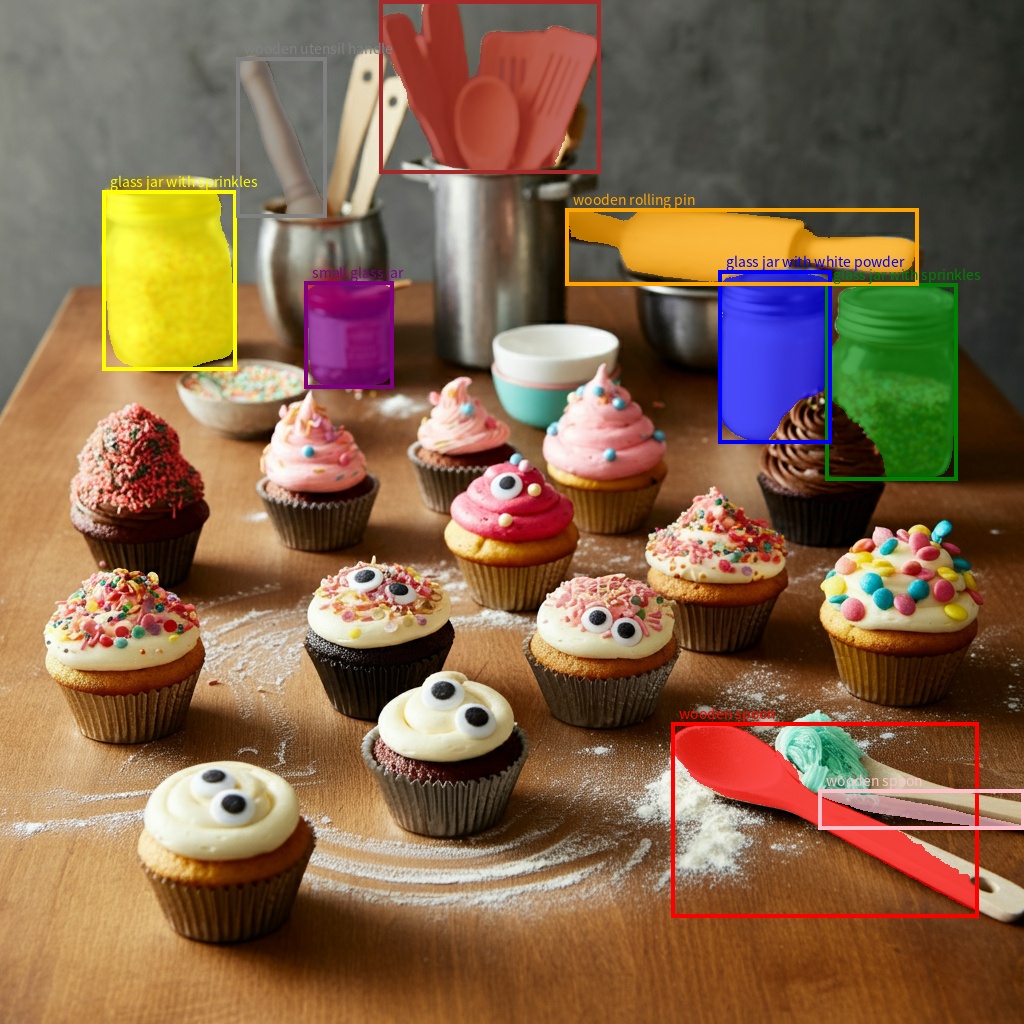
โมเดล Gemini ไม่เพียงตรวจจับรายการต่างๆ แต่ยังแบ่งกลุ่มและระบุมาสก์รูปร่างของรายการเหล่านั้นด้วย
โมเดลจะคาดการณ์รายการ JSON โดยแต่ละรายการแสดงถึงมาสก์การแบ่งกลุ่ม แต่ละรายการมีกรอบล้อมรอบ ("box_2d") ในรูปแบบ [ymin, xmin, ymax, xmax] ที่มีพิกัดที่ปรับให้เป็นมาตรฐานระหว่าง 0 ถึง 1000 ป้ายกำกับ ("label") ที่ระบุออบเจ็กต์ และสุดท้ายคือมาสก์การแบ่งกลุ่มภายในกรอบล้อมรอบเป็นรูปหลายเหลี่ยมของพิกัด [x, y] ที่ปรับให้เป็นมาตรฐานเป็น 0-1000
Python
from google import genai
from pydantic import BaseModel, Field
from typing import List
import json

client = genai.Client()

prompt = """
Give the segmentation masks for the wooden and glass items.
Output a JSON list of segmentation masks where each entry contains the 2D
bounding box in the key "box_2d", the segmentation mask in key "mask", and
the text label in the key "label". Use descriptive labels.
"""

class BoundingBox(BaseModel):
    box_2d: List[int] = Field(description="The 2D bounding box of the item as [ymin, xmin, ymax, xmax] normalized to 0-1000.")
    mask: List[List[int]] = Field(description="The segmentation mask of the item as a polygon of [x,y] coordinates, normalized to 0-1000.")
    label: str = Field(description="A descriptive label for the item.")

class BoundingBoxes(BaseModel):
    boxes: List[BoundingBox]

interaction = client.interactions.create(
    model="gemini-3.8-flash",
    input=[
        {"type": "text", "text": prompt},
        {
            "type": "image",
            "uri": "https://example.com/image.png",
            "mime_type": "image/png"
        }
    ],
    response_format={
        "type": "text",
        "mime_type": "application/json",
        "schema": BoundingBoxes.model_json_schema()
    },
    generation_config={
        "thinking_level": "minimal"
    }
)

items = BoundingBoxes.model_validate_json(interaction.output_text)
print("Segmentation results:", items)
JavaScript
import { GoogleGenAI } from "@google/genai";
import * as z from "zod";

const client = new GoogleGenAI({});
const prompt = `
Give the segmentation masks for the wooden and glass items.
Output a JSON list of segmentation masks where each entry contains the 2D
bounding box in the key "box_2d", the segmentation mask in key "mask", and
the text label in the key "label". Use descriptive labels.
`;

const boundingBoxesSchema = z.object({
  boxes: z.array(z.object({
    box_2d: z.array(z.number()),
    mask: z.array(z.array(z.number())),
    label: z.string()
  }))
});

const interaction = await client.interactions.create({
  model: "gemini-3.8-flash",
  input: [
    { type: "text", text: prompt },
    {
      type: "image",
      uri: "https://example.com/image.png",
      mime_type: "image/png"
    }
  ],
  response_format: {
    type: 'text',
    mime_type: 'application/json',
    schema: z.toJSONSchema(boundingBoxesSchema)
  },
  generation_config: {
    thinking_level: "minimal"
  }
});

const result = boundingBoxesSchema.parse(JSON.parse(interaction.output_text));
console.log(result);
Java
import com.google.genai.Client;
import com.google.genai.gaos.models.interactions.Content;
import com.google.genai.gaos.models.interactions.CreateModelInteraction;
import com.google.genai.gaos.models.interactions.CreateModelInteractionResponseFormat;
import com.google.genai.gaos.models.interactions.GenerationConfig;
import com.google.genai.gaos.models.interactions.ImageContent;
import com.google.genai.gaos.models.interactions.ImageContentMimeType;
import com.google.genai.gaos.models.interactions.Interaction;
import com.google.genai.gaos.models.interactions.InteractionsInput;
import com.google.genai.gaos.models.interactions.Model;
import com.google.genai.gaos.models.interactions.ResponseFormat;
import com.google.genai.gaos.models.interactions.TextContent;
import com.google.genai.gaos.models.interactions.TextResponseFormat;
import com.google.genai.gaos.models.interactions.TextResponseFormatMimeType;
import com.google.genai.gaos.models.interactions.ThinkingLevel;
import com.google.genai.gaos.models.operations.CreateInteractionRequestBody;
import java.util.Arrays;
import java.util.List;
import java.util.Map;

Client client = new Client();

String prompt =
    "Give the segmentation masks for the wooden and glass items.\n"
        + "Output a JSON list of segmentation masks where each entry contains the 2D\n"
        + "bounding box in the key \"box_2d\", the segmentation mask in key \"mask\", and\n"
        + "the text label in the key \"label\". Use descriptive labels.";

Map<String, Object> boundingBoxSchema =
    Map.of(
        "type", "object",
        "properties",
            Map.of(
                "box_2d",
                    Map.of(
                        "type", "array",
                        "items", Map.of("type", "integer"),
                        "description",
                            "The 2D bounding box of the item as [ymin, xmin, ymax, xmax] normalized to 0-1000."),
                "mask",
                    Map.of(
                        "type", "array",
                        "items", Map.of("type", "array", "items", Map.of("type", "integer")),
                        "description",
                            "The segmentation mask of the item as a polygon of [x,y] coordinates, normalized to 0-1000."),
                "label",
                    Map.of("type", "string", "description", "A descriptive label for the item.")),
        "required", List.of("box_2d", "mask", "label"));

Map<String, Object> boundingBoxesSchema =
    Map.of(
        "type", "object",
        "properties", Map.of("boxes", Map.of("type", "array", "items", boundingBoxSchema)),
        "required", List.of("boxes"));

CreateModelInteractionResponseFormat format =
    CreateModelInteractionResponseFormat.of(
        ResponseFormat.of(
            TextResponseFormat.builder()
                .mimeType(TextResponseFormatMimeType.APPLICATION_JSON)
                .schema(boundingBoxesSchema)
                .build()));

Content textContent = TextContent.builder().text(prompt).build();
Content imageContent =
    ImageContent.builder()
        .uri("https://example.com/image.png")
        .mimeType(ImageContentMimeType.IMAGE_PNG)
        .build();

CreateModelInteraction params =
    CreateModelInteraction.builder()
        .model(Model.of("gemini-3.8-flash"))
        .input(InteractionsInput.ofContent(Arrays.asList(textContent, imageContent)))
        .responseFormat(format)
        .generationConfig(GenerationConfig.builder().thinkingLevel(ThinkingLevel.MINIMAL).build())
        .build();

Interaction interaction =
    client.interactions.create(CreateInteractionRequestBody.of(params)).interaction().get();
System.out.println("Segmentation results: " + interaction.outputText().orElse(""));
Go
package main

import (
    "context"
    "fmt"
    "log"

    "google.golang.org/genai"
    "google.golang.org/genai/interactions/models/interactions"
    "google.golang.org/genai/interactions/models/operations"
)

func main() {
    ctx := context.Background()
    client, err := genai.NewClient(ctx, nil)
    if err != nil {
        log.Fatal(err)
    }

    prompt := "Give the segmentation masks for the wooden and glass items.\n" +
        "Output a JSON list of segmentation masks where each entry contains the 2D\n" +
        "bounding box in the key \"box_2d\", the segmentation mask in key \"mask\", and\n" +
        "the text label in the key \"label\". Use descriptive labels."

    boundingBoxSchema := map[string]any{
        "type": "object",
        "properties": map[string]any{
            "box_2d": map[string]any{
                "type":        "array",
                "items":       map[string]any{"type": "integer"},
                "description": "The 2D bounding box of the item as [ymin, xmin, ymax, xmax] normalized to 0-1000.",
            },
            "mask": map[string]any{
                "type":        "array",
                "items":       map[string]any{"type": "array", "items": map[string]any{"type": "integer"}},
                "description": "The segmentation mask of the item as a polygon of [x,y] coordinates, normalized to 0-1000.",
            },
            "label": map[string]any{
                "type":        "string",
                "description": "A descriptive label for the item.",
            },
        },
        "required": []string{"box_2d", "mask", "label"},
    }

    boundingBoxesSchema := map[string]any{
        "type": "object",
        "properties": map[string]any{
            "boxes": map[string]any{
                "type":  "array",
                "items": boundingBoxSchema,
            },
        },
        "required": []string{"boxes"},
    }

    format := interactions.NewCreateModelInteractionResponseFormat(
        interactions.NewResponseFormat(interactions.TextResponseFormat{
            MimeType: interactions.TextResponseFormatMimeTypeApplicationJSON.ToPointer(),
            Schema:   boundingBoxesSchema,
        }),
    )

    res, err := client.Interactions.Create(ctx, operations.CreateInteractionRequest{
        Body: operations.NewCreateInteractionRequestBody(interactions.CreateModelInteraction{
            Model: interactions.Model("gemini-3.8-flash"),
            Input: interactions.NewInteractionsInput([]interactions.Content{
                interactions.NewContent(interactions.TextContent{
                    Text: prompt,
                }),
                interactions.NewContent(interactions.ImageContent{
                    URI:      genai.Ptr("https://example.com/image.png"),
                    MimeType: interactions.ImageContentMimeTypeImagePng.ToPointer(),
                }),
            }),
            ResponseFormat: genai.Ptr(format),
            GenerationConfig: &interactions.GenerationConfig{
                ThinkingLevel: interactions.ThinkingLevelMinimal.ToPointer(),
            },
        }),
    })
    if err != nil {
        log.Fatal(err)
    }
    if res.Interaction.OutputText != nil {
        fmt.Println("Segmentation results: " + *res.Interaction.OutputText)
    }
}
REST
curl -X POST "https://generativelanguage.googleapis.com/v1beta/interactions" \
  -H "x-goog-api-key: $GEMINI_API_KEY" \
  -H 'Content-Type: application/json' \
  -d '{
    "model": "gemini-3.8-flash",
    "input": [
      {"type": "text", "text": "Give the segmentation masks for the wooden and glass items.\nOutput a JSON list of segmentation masks where each entry contains the 2D\nbounding box in the key \"box_2d\", the segmentation mask in key \"mask\", and\nthe text label in the key \"label\". Use descriptive labels."},
      {
        "type": "image",
        "uri": "https://example.com/image.png",
        "mime_type": "image/png"
      }
    ],
    "response_format": {
      "type": "text",
      "mime_type": "application/json",
      "schema": {
        "type": "object",
        "properties": {
          "boxes": {
            "type": "array",
            "items": {
              "type": "object",
              "properties": {
                "box_2d": { "type": "array", "items": { "type": "integer" } },
                "mask": { "type": "array", "items": { "type": "array", "items": { "type": "integer" } } },
                "label": { "type": "string" }
              },
              "required": ["box_2d", "mask", "label"]
            }
          }
        },
        "required": ["boxes"]
      }
    },
    "generation_config": {
      "thinking_level": "minimal"
    }
  }'
รูปแบบรูปภาพที่รองรับ
Gemini รองรับประเภท MIME ของรูปแบบรูปภาพต่อไปนี้
- PNG -
image/png - JPEG -
image/jpeg - WEBP -
image/webp - HEIC -
image/heic - HEIF -
image/heif
ดูข้อมูลเกี่ยวกับวิธีการป้อนไฟล์อื่นๆ ได้ในคู่มือวิธีการป้อนไฟล์
ความสามารถ
โมเดล Gemini ทุกเวอร์ชันทำงานได้กับข้อมูลหลายรูปแบบและสามารถใช้ในงานประมวลผลรูปภาพและคอมพิวเตอร์วิทัศน์ได้หลากหลาย ซึ่งรวมถึงแต่ไม่จำกัดเพียงคำอธิบายภาพ คำถามและคำตอบเกี่ยวกับภาพ การจัดหมวดหมู่รูปภาพ การตรวจจับออบเจ็กต์ และการแบ่งส่วนออบเจ็กต์
Gemini สามารถลดความจำเป็นในการใช้โมเดล ML เฉพาะทางได้ ทั้งนี้ขึ้นอยู่กับข้อกำหนดด้านคุณภาพและประสิทธิภาพของคุณ
โมเดลเวอร์ชันล่าสุดได้รับการฝึกมาโดยเฉพาะเพื่อปรับปรุงความแม่นยำของงานเฉพาะทาง นอกเหนือจากความสามารถทั่วไป เช่น การตรวจจับออบเจ็กต์และการแบ่งกลุ่มที่ได้รับการปรับปรุง
ข้อจำกัดและข้อมูลทางเทคนิคที่สำคัญ
ขีดจำกัดไฟล์
โมเดล Gemini รองรับไฟล์รูปภาพสูงสุด 3,600 ไฟล์ต่อคำขอ
การคำนวณโทเค็น
- 258 โทเค็นหากทั้ง 2 ด้านมีขนาดไม่เกิน 384 พิกเซล รูปภาพขนาดใหญ่จะเรียงต่อกันเป็นไทล์ขนาด 768x768 พิกเซล โดยแต่ละไทล์มีค่าใช้จ่าย 258 โทเค็น
สูตรคร่าวๆ สำหรับคำนวณจำนวนไทล์มีดังนี้
- คำนวณขนาดหน่วยครอบตัดซึ่งโดยประมาณคือ
floor(min(width, height)/ 1.5) - หารมิติข้อมูลแต่ละรายการด้วยขนาดหน่วยครอบตัด แล้วคูณกันเพื่อหา จำนวนไทล์
เช่น รูปภาพที่มีขนาด 960x540 จะมีขนาดหน่วยครอบตัดเป็น 360 หารแต่ละมิติข้อมูลด้วย 360 และจำนวนไทล์คือ 3 * 2 = 6
ความละเอียดของสื่อ
Gemini 3 เปิดตัวการควบคุมแบบละเอียดในการประมวลผลวิสัยทัศน์แบบมัลติโมดัลด้วยพารามิเตอร์ media_resolution พารามิเตอร์ media_resolution จะกำหนดจำนวนโทเค็นสูงสุดที่จัดสรรต่อรูปภาพอินพุตหรือเฟรมวิดีโอ
ความละเอียดที่สูงขึ้นจะช่วยปรับปรุงความสามารถของโมเดลในการอ่านข้อความขนาดเล็กหรือระบุรายละเอียดเล็กๆ แต่จะเพิ่มการใช้โทเค็นและเวลาในการตอบสนอง
เคล็ดลับและแนวทางปฏิบัติที่ดีที่สุด
- ตรวจสอบว่ารูปภาพหมุนอย่างถูกต้อง
- ใช้รูปภาพที่ชัดเจนและไม่เบลอ
- เมื่อใช้รูปภาพเดียวกับข้อความ ให้วางพรอมต์ข้อความก่อนรูปภาพในอาร์เรย์
input
ขั้นตอนถัดไป
คู่มือนี้จะแสดงวิธีอัปโหลดไฟล์รูปภาพและสร้างเอาต์พุตข้อความ จากอินพุตรูปภาพ ดูข้อมูลเพิ่มเติมได้ที่แหล่งข้อมูลต่อไปนี้
- Files API: ดูข้อมูลเพิ่มเติมเกี่ยวกับการอัปโหลดและจัดการไฟล์เพื่อใช้กับ Gemini
- คำสั่งของระบบ: คำสั่งของระบบช่วยให้คุณกำหนดลักษณะการทำงานของโมเดลตามความต้องการ และกรณีการใช้งานที่เฉพาะเจาะจงได้
- กลยุทธ์การเขียนพรอมต์ไฟล์: Gemini API รองรับการเขียนพรอมต์โดยใช้ข้อมูลข้อความ รูปภาพ เสียง และวิดีโอ ซึ่งเรียกอีกอย่างว่าการเขียนพรอมต์แบบหลายรูปแบบ
- คำแนะนำด้านความปลอดภัย: บางครั้งโมเดล Generative AI อาจสร้างเอาต์พุตที่ไม่คาดคิด เช่น เอาต์พุตที่ไม่ถูกต้อง มีอคติ หรือไม่เหมาะสม การประมวลผลภายหลังและการประเมินจากเจ้าหน้าที่เป็นสิ่งจำเป็นเพื่อ จำกัดความเสี่ยงที่จะเกิดอันตรายจากเอาต์พุตดังกล่าว