

Инструмент «Использование компьютера» позволяет создавать агенты управления для браузеров, мобильных устройств и настольных компьютеров, которые взаимодействуют с задачами и автоматизируют их. Используя снимки экрана, модель может «видеть» экран компьютера и «действовать», генерируя определенные действия пользовательского интерфейса, такие как щелчки мыши и ввод с клавиатуры. Аналогично вызову функций, вам потребуется реализовать среду выполнения на стороне клиента для получения и выполнения действий, выполняемых инструментом «Использование компьютера».
Рекомендуемая модель для использования на компьютере — Gemini 3.5 Flash, которая предлагает ряд новых возможностей:
- Поддержка нескольких сред: создание агентов для браузеров, мобильных устройств и настольных компьютеров.
- Упрощенные действия с учетом намерений: действия включают поле
intent, которое объясняет логику модели, лежащую в основе каждого шага. - Настраиваемые политики безопасности: тонкая настройка поведения системы безопасности с помощью встроенных категорий политик и механизмов их переопределения.
- Обнаружение внедрения подсказок: сканирование скриншотов с возможностью включения этой функции для обнаружения скрытых враждебных инструкций.
С помощью Computer Use вы можете создавать агентов, которые:
- Автоматизируйте повторяющийся ввод данных или заполнение форм на веб-сайтах.
- Проведите автоматизированное тестирование веб-приложений и пользовательских сценариев.
- Проведите исследование на различных веб-сайтах (например, соберите информацию о товарах, ценах и отзывах на сайтах электронной коммерции, чтобы принять решение о покупке).
Вот минимальный пример инициализации клиента и отправки запроса модели с включенным инструментом computer_use для браузерной среды:
Python
from google import genai

client = genai.Client()

interaction = client.interactions.create(
    model="gemini-3.5-flash",
    input="Search for 'Gemini API' on Google.",
    tools=[{"type": "computer_use", "environment": "browser"}]
)

print(interaction)
JavaScript
import { GoogleGenAI } from '@google/genai';

const ai = new GoogleGenAI();

const interaction = await ai.interactions.create({
  model: 'gemini-3.5-flash',
  input: "Search for 'Gemini API' on Google.",
  tools: [{ type: "computer_use", environment: "browser" }]
});

console.log(interaction);
Как работает использование компьютера
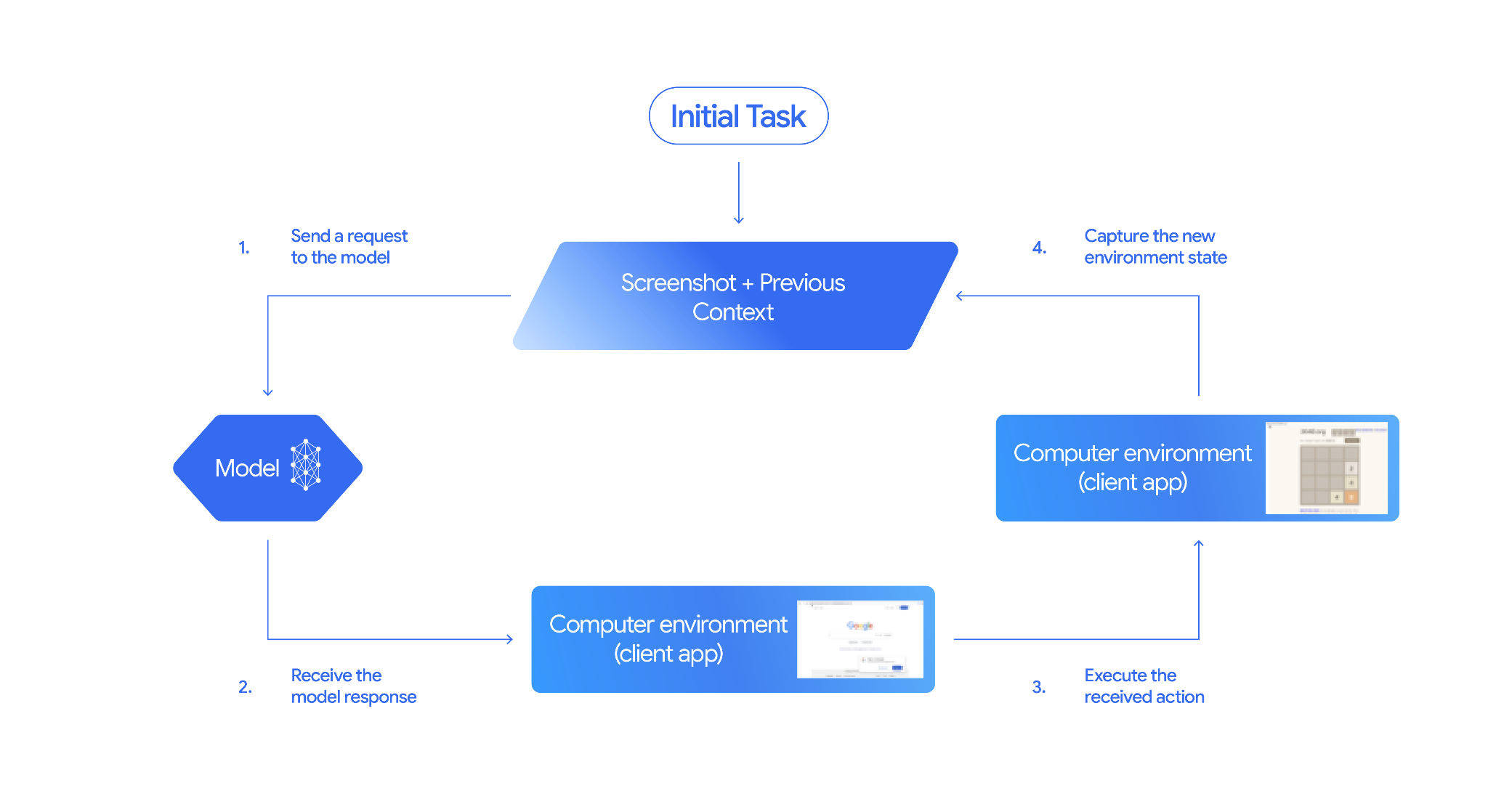
Для создания агента с моделью использования компьютера необходимо настроить непрерывный цикл между вашим приложением и API. Вот что будет делать ваш код на каждом шаге:
- Отправьте запрос модели
- Ваше приложение отправляет API-запрос, содержащий инструмент «Использование компьютера», ваши параметры конфигурации (например, целевую среду), подсказку пользователя и снимок экрана текущего экрана.
- Получите ответ модели.
- Модель анализирует экран и подсказку, возвращая ответ, который включает в себя предлагаемый
function_call, представляющий собой действие пользовательского интерфейса (например, щелчок, прокрутка или нажатие клавиши). - В случае с Gemini 3.5 Flash ответ также включает в себя
intentвыбора модели. - Для устаревших моделей (таких как
gemini-2.5-computer-use-preview-10-2025) ответ может включать в себяsafety_decisionот внутренней системы безопасности, которое классифицирует действие как обычное/разрешенное,require_confirmation(требующее одобрения пользователя) или заблокированное.
- Модель анализирует экран и подсказку, возвращая ответ, который включает в себя предлагаемый
- Выполните полученное действие
- Если действие разрешено (или пользователь подтверждает его), ваш клиентский код анализирует
function_call, масштабирует нормализованные координаты в соответствии с областью просмотра и выполняет действие в целевой среде с помощью инструментов автоматизации (таких как Playwright). Если действие заблокировано, ваш клиент должен остановить выполнение или обработать прерывание.
- Если действие разрешено (или пользователь подтверждает его), ваш клиентский код анализирует
- Зафиксировать новое состояние окружающей среды
- После завершения выполнения действия ваше приложение делает новый снимок экрана и отправляет его обратно в модель в
function_resultдля запроса следующего шага.
- После завершения выполнения действия ваше приложение делает новый снимок экрана и отправляет его обратно в модель в
Затем этот процесс повторяется, начиная с шага 2, постоянно запрашивая у модели следующее действие до тех пор, пока задача не будет выполнена или завершена.
Как внедрить использование компьютеров
Перед началом работы с инструментом «Использование компьютера» вам необходимо выполнить следующие настройки:
- Безопасная среда выполнения: запускайте агент в изолированной виртуальной машине или контейнере, чтобы изолировать его от хост-системы и ограничить его потенциальное воздействие. Эталонная реализация включает в себя готовую к использованию песочницу на основе Docker, которую можно использовать в качестве отправной точки.
- Обработчик действий на стороне клиента: Реализуйте логику на стороне клиента для выполнения операций ввода координат, ввода текста и создания снимков экрана.
В приведенных ниже примерах в качестве среды выполнения используется веб-браузер, а в качестве обработчика на стороне клиента — Playwright .
0. Настройка драматурга
Сначала установите необходимые пакеты:
pip install google-genai playwright
playwright install chromium
Затем инициализируйте экземпляр браузера Playwright для использования в процессе выполнения:
from playwright.sync_api import sync_playwright

# 1. Configure screen dimensions for the target environment
SCREEN_WIDTH = 1440
SCREEN_HEIGHT = 900

# 2. Start the Playwright browser
# In production, utilize a sandboxed environment.
playwright = sync_playwright().start()
# Set headless=False to see the actions performed on your screen
browser = playwright.chromium.launch(headless=False)

# 3. Create a context and page with the specified dimensions
context = browser.new_context(
    viewport={"width": SCREEN_WIDTH, "height": SCREEN_HEIGHT}
)
page = context.new_page()

# 4. Navigate to an initial page to start the task
page.goto("https://www.google.com")

# The 'page', 'SCREEN_WIDTH', and 'SCREEN_HEIGHT' variables
# will be used in the steps below.
1. Отправьте запрос модели.
Инициализируйте клиентскую библиотеку и настройте инструмент «Использование компьютера». Обратите внимание, что при отправке запроса указывать размер экрана не нужно; модель прогнозирует пиксельные координаты, масштабированные в соответствии с высотой и шириной экрана.
Вспышка Gemini 3.5 (рекомендуется)
Python
Используйте Python SDK google-genai (версия 2.7.0 или выше) для настройки запроса, ориентированного на браузерную среду:
from google import genai

client = genai.Client()

interaction = client.interactions.create(
    model='gemini-3.5-flash',
    input="Find a flight from SF to Hawaii on Jun 30th, coming back on Jul 6th",
    tools=[
        {
            "type": "computer_use",
            "environment": "browser",
            "enable_prompt_injection_detection": True
        }
    ]
)

print(interaction)
JavaScript
Используйте SDK Node.js @google/genai для настройки запроса, ориентированного на среду браузера:
import { GoogleGenAI } from '@google/genai';

const ai = new GoogleGenAI();

const interaction = await ai.interactions.create({
  model: 'gemini-3.5-flash',
  input: "Find a flight from SF to Hawaii on Jun 30th, coming back on Jul 6th",
  tools: [
    {
      type: "computer_use",
      environment: "browser",
      enable_prompt_injection_detection: true
    }
  ]
});

console.log(interaction);
ОТДЫХ
Для отправки запроса используйте curl:
curl -X POST \
  "https://generativelanguage.googleapis.com/v1beta/interactions" \
  -H "x-goog-api-key: $GEMINI_API_KEY" \
  -H "Content-Type: application/json" \
  -d '{
    "model": "gemini-3.5-flash",
    "input": "Find me a flight from SF to Hawaii on Jun 30th, coming back on Jul 6th. Start by navigating directly to flights.google.com",
    "tools": [
      {
        "type": "computer_use",
        "environment": "browser",
        "enable_prompt_injection_detection": true
      }
    ]
  }'
Близнецы 2.5 (Наследие)
Python
from google import genai

client = genai.Client()

# Specify predefined functions to exclude (optional)
excluded_functions = ["drag_and_drop"]

interaction = client.interactions.create(
    model='gemini-2.5-computer-use-preview-10-2025',
    input="Search for highly rated smart fridges on Google Shopping.",
    tools=[
        {
            "type": "computer_use",
            "environment": "browser",
            "excluded_predefined_functions": excluded_functions
        }
    ]
)

print(interaction)
JavaScript
import { GoogleGenAI } from '@google/genai';

const ai = new GoogleGenAI();

// Specify predefined functions to exclude (optional)
const excludedFunctions = ["drag_and_drop"];

const interaction = await ai.interactions.create({
  model: 'gemini-2.5-computer-use-preview-10-2025',
  input: "Search for highly rated smart fridges on Google Shopping.",
  tools: [
    {
      type: "computer_use",
      environment: "browser",
      excluded_predefined_functions: excludedFunctions
    }
  ]
});

console.log(interaction);
2. Получите ответ модели.
Модель ответа предполагает вызов функции. Для Gemini 3.5 Flash ответ содержит специально разработанное логическое обоснование наряду с координатами. Ниже приведены примеры обоих ответов:
Вспышка Gemini 3.5
{
  "steps": [
    {
      "type": "function_call",
      "name": "click",
      "arguments": {
        "x": 450,
        "y": 120,
        "intent": "Click the search box to type the destination."
      }
    }
  ]
}
Близнецы 2.5 (Наследие)
{
  "steps": [
    {
      "type": "model_output",
      "content": [
        {
          "type": "text",
          "text": "I will type the search query into the search bar."
        }
      ]
    },
    {
      "type": "function_call",
      "name": "type_text_at",
      "arguments": {
        "x": 371,
        "y": 470,
        "text": "highly rated smart fridges",
        "press_enter": true
      }
    }
  ]
}
3. Выполните полученные действия.
Ваше приложение должно проанализировать координаты ответа, выполнить действие и масштабировать их на основе нормализованных координат размером 1000x1000.
Приведённый ниже код обрабатывает как устаревшие команды инструментов ( click_at , type_text_at ), так и упрощённые команды Gemini 3.5 Flash ( click , type ).
Python
from typing import Any, List, Tuple
import time

def denormalize_x(x: int, screen_width: int) -> int:
    """Convert normalized x coordinate (0-1000) to actual pixel coordinate."""
    return int(x / 1000 * screen_width)

def denormalize_y(y: int, screen_height: int) -> int:
    """Convert normalized y coordinate (0-1000) to actual pixel coordinate."""
    return int(y / 1000 * screen_height)

def execute_function_calls(interaction, page, screen_width, screen_height):
    results = []
    function_calls = [
        step for step in interaction.steps if step.type == "function_call"
    ]

    for function_call in function_calls:
        action_result = {}
        fname = function_call.name
        args = function_call.arguments
        print(f"  -> Executing: {fname} (Intent: {args.get('intent', 'N/A')})")

        try:
            if fname in ("open_web_browser", "open_app"):
                pass # Handled / already open
            elif fname in ("click", "click_at", "double_click", "triple_click", "middle_click", "right_click", "move", "long_press"):
                actual_x = denormalize_x(args["x"], screen_width)
                actual_y = denormalize_y(args["y"], screen_height)

                if fname in ("click", "click_at"):
                    page.mouse.click(actual_x, actual_y)
                elif fname == "double_click":
                    page.mouse.dblclick(actual_x, actual_y)
                elif fname == "right_click":
                    page.mouse.click(actual_x, actual_y, button="right")
                elif fname == "middle_click":
                    page.mouse.click(actual_x, actual_y, button="middle")
                elif fname == "move":
                    page.mouse.move(actual_x, actual_y)
            elif fname in ("type", "type_text_at"):
                actual_x = denormalize_x(args["x"], screen_width) if "x" in args else None
                actual_y = denormalize_y(args["y"], screen_height) if "y" in args else None
                text = args["text"]
                press_enter = args.get("press_enter", False)

                if actual_x is not None and actual_y is not None:
                    page.mouse.click(actual_x, actual_y)
                # Clear field first
                page.keyboard.press("Meta+A")
                page.keyboard.press("Backspace")
                page.keyboard.type(text)
                if press_enter:
                    page.keyboard.press("Enter")
            elif fname == "navigate":
                page.goto(args["url"])
            elif fname == "go_back":
                page.go_back()
            elif fname == "go_forward":
                page.go_forward()
            elif fname == "wait":
                time.sleep(args.get("seconds", 1))
            else:
                print(f"Warning: Custom or unhandled function {fname}")

            page.wait_for_load_state(timeout=5000)
            time.sleep(1)

        except Exception as e:
            print(f"Error executing {fname}: {e}")
            action_result = {"error": str(e)}

        results.append((fname, function_call.id, action_result))

    return results
JavaScript
function denormalizeX(x, screenWidth) {
    // Convert normalized x coordinate (0-1000) to actual pixel coordinate.
    return Math.floor((x / 1000) * screenWidth);
}

function denormalizeY(y, screenHeight) {
    // Convert normalized y coordinate (0-1000) to actual pixel coordinate.
    return Math.floor((y / 1000) * screenHeight);
}

async function executeFunctionCalls(interaction, page, screenWidth, screenHeight) {
    const results = [];
    const functionCalls = interaction.steps.filter(step => step.type === "function_call");

    for (const functionCall of functionCalls) {
        const actionResult = {};
        const fname = functionCall.name;
        const args = functionCall.arguments;
        console.log(`  -> Executing: ${fname} (Intent: ${args.intent || 'N/A'})`);

        try {
            if (fname === "open_web_browser" || fname === "open_app") {
                // Handled / already open
            } else if (["click", "click_at", "double_click", "triple_click", "middle_click", "right_click", "move", "long_press"].includes(fname)) {
                const actualX = denormalizeX(args.x, screenWidth);
                const actualY = denormalizeY(args.y, screenHeight);

                if (fname === "click" || fname === "click_at") {
                    await page.mouse.click(actualX, actualY);
                } else if (fname === "double_click") {
                    await page.mouse.dblclick(actualX, actualY);
                } else if (fname === "right_click") {
                    await page.mouse.click(actualX, actualY, { button: "right" });
                } else if (fname === "middle_click") {
                    await page.mouse.click(actualX, actualY, { button: "middle" });
                } else if (fname === "move") {
                    await page.mouse.move(actualX, actualY);
                }
            } else if (fname === "type" || fname === "type_text_at") {
                const actualX = args.x !== undefined ? denormalizeX(args.x, screenWidth) : null;
                const actualY = args.y !== undefined ? denormalizeY(args.y, screenHeight) : null;
                const text = args.text;
                const pressEnter = args.press_enter || false;

                if (actualX !== null && actualY !== null) {
                    await page.mouse.click(actualX, actualY);
                }
                // Clear field first
                await page.keyboard.press("Meta+A");
                await page.keyboard.press("Backspace");
                await page.keyboard.type(text);
                if (pressEnter) {
                    await page.keyboard.press("Enter");
                }
            } else if (fname === "navigate") {
                await page.goto(args.url);
            } else if (fname === "go_back") {
                await page.goBack();
            } else if (fname === "go_forward") {
                await page.goForward();
            } else if (fname === "wait") {
                await new Promise(resolve => setTimeout(resolve, (args.seconds || 1) * 1000));
            } else {
                console.log(`Warning: Custom or unhandled function ${fname}`);
            }

            await page.waitForLoadState('load', { timeout: 5000 }).catch(() => {});
            await new Promise(resolve => setTimeout(resolve, 1000));
        } catch (e) {
            console.log(`Error executing ${fname}: ${e}`);
            actionResult.error = e.message;
        }

        results.push([fname, functionCall.id, actionResult]);
    }

    return results;
}
4. Зафиксируйте новое состояние окружающей среды.
После выполнения действий отправьте результат выполнения функции обратно в модель, чтобы она могла использовать эту информацию для генерации следующего действия. Если было выполнено несколько действий (параллельных вызовов), необходимо отправить function_result для каждого из них при последующем обращении пользователя.
Python
import json
import base64

def get_function_responses(page, results):
    screenshot_bytes = page.screenshot(type="png")
    current_url = page.url
    function_responses = []
    for name, call_id, result in results:
        function_responses.append({
            "type": "function_result",
            "name": name,
            "call_id": call_id,
            "result": [
                {
                    "type": "text",
                    "text": json.dumps({"url": current_url, **result})
                },
                {
                    "type": "image",
                    "data": base64.b64encode(screenshot_bytes).decode("utf-8"),
                    "mime_type": "image/png"
                }
            ]
        })
    return function_responses
JavaScript
async function getFunctionResponses(page, results) {
    const screenshotBuffer = await page.screenshot({ type: 'png' });
    const screenshotBase64 = screenshotBuffer.toString('base64');
    const currentUrl = page.url();
    const functionResponses = [];

    for (const [name, callId, result] of results) {
        functionResponses.push({
            type: "function_result",
            name: name,
            call_id: callId,
            result: [
                {
                    type: "text",
                    text: JSON.stringify({ url: currentUrl, ...result })
                },
                {
                    type: "image",
                    data: screenshotBase64,
                    mime_type: "image/png"
                }
            ]
        });
    }
    return functionResponses;
}
После того как вы определили, как фиксировать и форматировать состояние среды, вы можете объединить все эти шаги в непрерывный цикл выполнения.
Создайте цикл взаимодействия агентов.
Для обеспечения многоэтапного взаимодействия объедините четыре шага из раздела « Как реализовать использование компьютера» в один цикл. Этот цикл будет продолжать запрашивать действия и передавать результаты обратно в модель до тех пор, пока задача не будет выполнена.
Не забудьте правильно управлять историей переписки, добавляя к ней на каждом шаге как ответы модели, так и ответы вашей функции.
Python
import time
from typing import Any, List, Tuple
from playwright.sync_api import sync_playwright

from google import genai

client = genai.Client()

# Constants for screen dimensions
SCREEN_WIDTH = 1440
SCREEN_HEIGHT = 900

# Setup Playwright
print("Initializing browser...")
playwright = sync_playwright().start()
browser = playwright.chromium.launch(headless=False)
context = browser.new_context(viewport={"width": SCREEN_WIDTH, "height": SCREEN_HEIGHT})
page = context.new_page()

# Define helper functions. Copy/paste from steps 3 and 4
# def denormalize_x(...)
# def denormalize_y(...)
# def execute_function_calls(...)
# def get_function_responses(...)

try:
    # Go to initial page
    page.goto("https://ai.google.dev/gemini-api/docs")

    # Take initial screenshot
    initial_screenshot = page.screenshot(type="png")
    USER_PROMPT = "Go to ai.google.dev/gemini-api/docs and search for pricing."
    print(f"Goal: {USER_PROMPT}")

    # First interaction
    interaction = client.interactions.create(
        model='gemini-3.5-flash',
        input=[
            {"type": "text", "text": USER_PROMPT},
            {"type": "image", "data": base64.b64encode(initial_screenshot).decode("utf-8"), "mime_type": "image/png"}
        ],
        tools=[{
            "type": "computer_use",
            "environment": "browser",
            "enable_prompt_injection_detection": True
        }]
    )

    # Agent Loop
    turn_limit = 5
    for i in range(turn_limit):
        print(f"\n--- Turn {i+1} ---")

        has_function_calls = any(
            step.type == "function_call"
            for step in interaction.steps
        )
        if not has_function_calls:
            text_response = " ".join([
                content_block.text for step in interaction.steps if step.type == "model_output"
                for content_block in step.content if content_block.type == "text"
            ])
            print("Agent finished:", text_response)
            break

        print("Executing actions...")
        results = execute_function_calls(interaction, page, SCREEN_WIDTH, SCREEN_HEIGHT)

        print("Capturing state...")
        function_responses = get_function_responses(page, results)

        # Continue conversation with function responses
        interaction = client.interactions.create(
            model='gemini-3.5-flash',
            previous_interaction_id=interaction.id,
            input=function_responses,
            tools=[{
                "type": "computer_use",
                "environment": "browser",
                "enable_prompt_injection_detection": True
            }]
        )

finally:
    # Cleanup
    print("\nClosing browser...")
    browser.close()
    playwright.stop()
JavaScript
import { chromium } from 'playwright';
import { GoogleGenAI } from '@google/genai';

const ai = new GoogleGenAI();

// Constants for screen dimensions
const SCREEN_WIDTH = 1440;
const SCREEN_HEIGHT = 900;

console.log("Initializing browser...");
const browser = await chromium.launch({ headless: false });
const context = await browser.newContext({
    viewport: { width: SCREEN_WIDTH, height: SCREEN_HEIGHT }
});
const page = await context.newPage();

// Define helper functions. Copy/paste from steps 3 and 4:
// function denormalizeX(...)
// function denormalizeY(...)
// async function executeFunctionCalls(...)
// async function getFunctionResponses(...)

try {
    // Go to initial page
    await page.goto("https://ai.google.dev/gemini-api/docs");

    // Take initial screenshot
    const initialScreenshotBuffer = await page.screenshot({ type: 'png' });
    const initialScreenshotBase64 = initialScreenshotBuffer.toString('base64');
    const USER_PROMPT = "Go to ai.google.dev/gemini-api/docs and search for pricing.";
    console.log(`Goal: ${USER_PROMPT}`);

    // First interaction
    let interaction = await ai.interactions.create({
        model: 'gemini-3.5-flash',
        input: [
            { type: 'text', text: USER_PROMPT },
            { type: 'image', data: initialScreenshotBase64, mime_type: 'image/png' }
        ],
        tools: [{
            type: 'computer_use',
            environment: 'browser',
            enable_prompt_injection_detection: true
        }]
    });

    // Agent Loop
    const turnLimit = 5;
    for (let i = 0; i < turnLimit; i++) {
        console.log(`\n--- Turn ${i + 1} ---`);

        const hasFunctionCalls = interaction.steps.some(step => step.type === "function_call");
        if (!hasFunctionCalls) {
            const textResponses = [];
            for (const step of interaction.steps) {
                if (step.type === "model_output") {
                    for (const contentBlock of step.content || []) {
                        if (contentBlock.type === "text") {
                            textResponses.push(contentBlock.text);
                        }
                    }
                }
            }
            console.log("Agent finished:", textResponses.join(" "));
            break;
        }

        console.log("Executing actions...");
        const results = await executeFunctionCalls(interaction, page, SCREEN_WIDTH, SCREEN_HEIGHT);

        console.log("Capturing state...");
        const functionResponses = await getFunctionResponses(page, results);

        // Continue conversation with function responses
        interaction = await ai.interactions.create({
            model: 'gemini-3.5-flash',
            previous_interaction_id: interaction.id,
            input: functionResponses,
            tools: [{
                type: 'computer_use',
                environment: 'browser',
                enable_prompt_injection_detection: true
            }]
        });
    }
} finally {
    // Cleanup
    console.log("\nClosing browser...");
    await browser.close();
}
Поддерживаемые среды (Gemini 3.5 Flash)
Gemini 3.5 Flash поддерживает три среды, указанные в конфигурации computer_use :
Окружение браузера ( ENVIRONMENT_BROWSER )
Доступные действия в инструменте браузера:
| Название команды | Описание | Аргументы (при вызове функции) |
|---|---|---|
| клик | Нажатие левой кнопкой мыши по указанной координате. | y : int (0-999)x : целое число (0-999)intent : строка |
| двойной_клик | Двойной щелчок по координатам. | y : int (0-999)x : целое число (0-999)intent : строка |
| тройной_клик | Тройной щелчок по координатам. | y : int (0-999)x : целое число (0-999)intent : строка |
| средний_клик | Нажатие средней кнопкой мыши на указанную координату. | y : int (0-999)x : целое число (0-999)intent : строка |
| правый_клик | Щелчок правой кнопкой мыши по координатам. | y : int (0-999)x : целое число (0-999)intent : строка |
| mouse_down | Нажимает и удерживает кнопку мыши в указанной координате. | y : int (0-999)x : целое число (0-999)intent : строка |
| mouse_up | Отпускает кнопку мыши в указанной координате. | y : int (0-999)x : целое число (0-999)intent : строка |
| двигаться | Перемещает курсор в указанную позицию. | y : int (0-999)x : целое число (0-999)intent : строка |
| тип | Вводит текст. | text : строкаpress_enter : bool (Необязательно, по умолчанию false )intent : строка |
| перетаскивание | Перетаскивает элемент из начальной координаты в конечную координату. | start_y : int (0-999)start_x : int (0-999)end_y : int (0-999)end_x : int (0-999)intent : строка |
| ждать | Приостанавливает выполнение на указанное количество секунд. | seconds : целое число (необязательно, по умолчанию 1 )intent : строка |
| нажмите_клавишу | Нажимает указанную клавишу и отпускает её. | key : строкаintent : строка |
| key_down | Нажимает и удерживает указанную клавишу. | key : строкаintent : строка |
| key_up | Освобождает указанную клавишу. | key : строкаintent : строка |
| горячая клавиша | Нажимает указанную комбинацию клавиш. | keys : List[str]intent : str |
| сделать_скриншот | Возвращает снимок экрана текущего экрана. | intent : строка |
| прокрутка | Прокрутка вверх, вниз, влево или вправо на заданную координату с шагом в один пиксель. | y : int (0-999)x : целое число (0-999)direction : str ( "up" , "down" , "left" , "right" )magnitude_in_pixels : int (0-999, Optional, default 300 )intent : строка |
| возвращаться | Возвращает на предыдущую веб-страницу из истории браузера. | intent : строка |
| навигация | Перенаправляет непосредственно на указанный URL-адрес. | url : strintent : строка |
| go_forward | Переход на следующую веб-страницу из истории браузера. | intent : строка |
Мобильная среда ( ENVIRONMENT_MOBILE )
Действия в среде, оптимизированной для Android:
| Название команды | Описание | Аргументы (при вызове функции) |
|---|---|---|
| открытое_приложение | Открывает приложение по его имени. | app_name : strintent : строка |
| клик | Нажатие левой кнопкой мыши по указанной координате. | y : int (0-999)x : целое число (0-999)intent : строка |
| список_приложений | Отображает список доступных на устройстве приложений, возвращая их названия и имена пакетов. | intent : строка |
| ждать | Приостанавливает выполнение на указанное количество секунд. | seconds : целое число (необязательно, по умолчанию 1 )intent : строка |
| возвращаться | Возвращает на предыдущий экран или веб-страницу. | intent : строка |
| тип | Вводит текст. | text : строкаpress_enter : bool (Необязательно, по умолчанию false )intent : строка |
| перетаскивание | Перетаскивает элемент из начальной координаты в конечную координату. | start_y : int (0-999)start_x : int (0-999)end_y : int (0-999)end_x : int (0-999)intent : строка |
| длинное нажатие | Выполняет длительное нажатие в указанной точке на экране. | y : int (0-999)x : целое число (0-999)seconds : целое число (необязательно, по умолчанию 2 )intent : строка |
| нажмите_клавишу | Нажимает указанную клавишу и отпускает её. | key : строкаintent : строка |
| сделать_скриншот | Возвращает снимок экрана текущего экрана. | intent : строка |
Рабочая среда ( ENVIRONMENT_DESKTOP )
Команды курсора на уровне операционной системы в средах рабочего стола:
| Название команды | Описание | Аргументы (при вызове функции) |
|---|---|---|
| клик | Нажатие левой кнопкой мыши по указанной координате. | y : int (0-999)x : целое число (0-999)intent : строка |
| двойной_клик | Двойной щелчок по координатам. | y : int (0-999)x : целое число (0-999)intent : строка |
| тройной_клик | Тройной щелчок по координатам. | y : int (0-999)x : целое число (0-999)intent : строка |
| средний_клик | Нажатие средней кнопкой мыши на указанную координату. | y : int (0-999)x : целое число (0-999)intent : строка |
| правый_клик | Щелчок правой кнопкой мыши по координатам. | y : int (0-999)x : целое число (0-999)intent : строка |
| mouse_down | Нажимает и удерживает кнопку мыши в указанной координате. | y : int (0-999)x : целое число (0-999)intent : строка |
| mouse_up | Отпускает кнопку мыши в указанной координате. | y : int (0-999)x : целое число (0-999)intent : строка |
| двигаться | Перемещает курсор в указанную позицию. | y : int (0-999)x : целое число (0-999)intent : строка |
| тип | Вводит текст. | text : строкаpress_enter : bool (Необязательно, по умолчанию false )intent : строка |
| перетаскивание | Перетаскивает элемент из начальной координаты в конечную координату. | start_y : int (0-999)start_x : int (0-999)end_y : int (0-999)end_x : int (0-999)intent : строка |
| ждать | Приостанавливает выполнение на указанное количество секунд. | seconds : целое число (необязательно, по умолчанию 1 )intent : строка |
| нажмите_клавишу | Нажимает указанную клавишу и отпускает её. | key : строкаintent : строка |
| key_down | Нажимает и удерживает указанную клавишу. | key : строкаintent : строка |
| key_up | Освобождает указанную клавишу. | key : строкаintent : строка |
| горячая клавиша | Нажимает указанную комбинацию клавиш. | keys : List[str]intent : str |
| сделать_скриншот | Возвращает снимок экрана текущего экрана. | intent : строка |
| прокрутка | Прокрутка вверх, вниз, влево или вправо на заданную координату с шагом в один пиксель. | y : int (0-999)x : целое число (0-999)direction : str ( "up" , "down" , "left" , "right" )magnitude_in_pixels : int (0-999, Optional, default 300 )intent : строка |
Поддерживаемые устаревшие действия пользовательского интерфейса (Gemini 2.5)
Для устаревших моделей ( gemini-2.5-computer-use-preview-10-2025 ) поддерживаются следующие действия:
| Название команды | Описание | Аргументы (при вызове функции) | Пример вызова функции |
|---|---|---|---|
| открытый_веб_браузер | Открывает веб-браузер. | Никто | {"name": "open_web_browser", "arguments": {}} |
| wait_5_seconds | Приостанавливает выполнение на 5 секунд. | Никто | {"name": "wait_5_seconds", "arguments": {}} |
| возвращаться | Переходит на предыдущую страницу в истории. | Никто | {"name": "go_back", "arguments": {}} |
| go_forward | Переход на следующую страницу истории. | Никто | {"name": "go_forward", "arguments": {}} |
| поиск | Перенаправляет на поисковую систему по умолчанию. | Никто | {"name": "search", "arguments": {}} |
| навигация | Перенаправляет браузер непосредственно на указанный URL-адрес. | url : str | {"name": "navigate", "arguments": {"url": "https://www.wikipedia.org"}} |
| click_at | Нажатие на определенную координату. | y : int (0-999), x : int (0-999) | {"name": "click_at", "arguments": {"y": 300, "x": 500}} |
| hover_at | Наводит курсор мыши на определенную координату. | y : int (0-999), x : int (0-999) | {"name": "hover_at", "arguments": {"y": 150, "x": 250}} |
| type_text_at | Вводит текст по координатам. | y : int (0-999), x : int (0-999), text : str, press_enter : bool (Необязательно, по умолчанию True), clear_before_typing : bool (Необязательно, по умолчанию True) | {"name": "type_text_at", "arguments": {"y": 250, "x": 400, "text": "search", "press_enter": false}} |
| комбинация клавиш | Нажимайте клавиши или комбинации клавиш. | keys : строка | {"name": "key_combination", "arguments": {"keys": "Control+A"}} |
| прокрутка_документа | Прокручивает всю веб-страницу. | direction : str | {"name": "scroll_document", "arguments": {"direction": "down"}} |
| scroll_at | Прокрутка в координатах (x,y). | y : целое число, x : целое число, direction : str, magnitude : целое число (необязательно, по умолчанию 800) | {"name": "scroll_at", "arguments": {"y": 500, "x": 500, "direction": "down"}} |
| перетаскивание | Перетаскивание курсора между двумя координатами. | y : int, x : int, destination_y : int, destination_x : int | {"name": "drag_and_drop", "arguments": {"y": 100, "destination_y": 500, "destination_x": 500, "x": 100}} |
Пользовательские функции, определяемые пользователем
Вы можете расширить функциональность модели, включив в нее пользовательские функции. Например, в сценариях с участием человека (HITL) вы можете исключить предопределенные действия по умолчанию и зарегистрировать пользовательские действия.
Gemini 3.5 Flash Custom Tooling
Python
Исключите стандартные предопределенные действия браузера (например, click ) и зарегистрируйте пользовательский инструмент yield_to_user :
from google import genai

client = genai.Client()

yield_to_user_tool = {
    "type": "function",
    "name": "yield_to_user",
    "description": "Yields control back to the user for assistance or verification when an automated action is unsafe or ambiguous.",
    "parameters": {
        "type": "object",
        "properties": {
            "reason": {
                "type": "string",
                "description": "The reason why the agent is yielding control to the human."
            }
        },
        "required": ["reason"]
    }
}

interaction = client.interactions.create(
    model="gemini-3.5-flash",
    input="Click the submit button. If you need a second factor authentication code, ask me.",
    tools=[
        {
            "type": "computer_use",
            "environment": "mobile",
            "excluded_predefined_functions": ["click"]
        },
        yield_to_user_tool
    ]
)
JavaScript
Исключите стандартные предопределенные действия браузера (например, click ) и зарегистрируйте пользовательский инструмент yield_to_user :
import { GoogleGenAI } from '@google/genai';

const ai = new GoogleGenAI();

const yieldToUserTool = {
    type: "function",
    name: "yield_to_user",
    description: "Yields control back to the user for assistance or verification when an automated action is unsafe or ambiguous.",
    parameters: {
        type: "object",
        properties: {
            reason: {
                type: "string",
                description: "The reason why the agent is yielding control to the human."
            }
        },
        required: ["reason"]
    }
};

const interaction = await ai.interactions.create({
    model: "gemini-3.5-flash",
    input: "Click the submit button. If you need a second factor authentication code, ask me.",
    tools: [
        {
            type: "computer_use",
            environment: "mobile",
            excluded_predefined_functions: ["click"]
        },
        yieldToUserTool
    ]
});
Gemini 2.5 (Legacy) Custom Tooling
Python
from google import genai

client = genai.Client()

# Define custom tools here
custom_functions = [...]  # Describe parameters as function declarations

excluded_functions = [
    "open_web_browser",
    "wait_5_seconds",
    "go_back",
    "go_forward",
    "search",
    "navigate",
    "hover_at",
    "scroll_document",
    "key_combination",
    "drag_and_drop",
]

interaction = client.interactions.create(
    model='gemini-2.5-computer-use-preview-10-2025',
    input="Open Chrome, then long-press at 200,400.",
    tools=[
        {
            "type": "computer_use",
            "environment": "browser",
            "excluded_predefined_functions": excluded_functions
        },
        *custom_functions
    ]
)

print(interaction)
JavaScript
import { GoogleGenAI } from '@google/genai';

const ai = new GoogleGenAI();

// Define custom tools here
const customFunctions = [...]; // Describe parameters as function declarations

const excludedFunctions = [
    "open_web_browser",
    "wait_5_seconds",
    "go_back",
    "go_forward",
    "search",
    "navigate",
    "hover_at",
    "scroll_document",
    "key_combination",
    "drag_and_drop",
];

const interaction = await ai.interactions.create({
    model: 'gemini-2.5-computer-use-preview-10-2025',
    input: "Open Chrome, then long-press at 200,400.",
    tools: [
        {
            type: "computer_use",
            environment: "browser",
            excluded_predefined_functions: excludedFunctions
        },
        ...customFunctions
    ]
});

console.log(interaction);
Управление уровнями мышления (Близнецы 3.5 Флэш)
Для агентов, работающих с компьютером, можно настроить различные уровни мышления, чтобы сбалансировать качество действий и скорость выполнения. Более низкие уровни мышления, как правило, обеспечивают хороший баланс для стандартных задач автоматизации.
Безопасность и охрана
Настройка политик безопасности (Gemini 3.5 Flash)
В модели Gemini 3.5 Flash предусмотрена встроенная система категорий безопасности, которая автоматически определяет, требуется ли подтверждение пользователя.
| Категория политики безопасности | Описание |
|---|---|
FINANCIAL_TRANSACTIONS | Блокирует или инициирует подтверждение действий, связанных с платежами, оформлением покупок в розничной торговле или регулируемыми товарами. |
SENSITIVE_DATA_MODIFICATION | Защищает медицинские, финансовые или государственные документы от несанкционированного изменения. |
COMMUNICATION_TOOL | Запрещает агенту самостоятельно отправлять электронные письма, сообщения в чате или черновики. |
ACCOUNT_CREATION | Запрещает агенту самостоятельно регистрировать новые учетные записи на веб-сайтах. |
DATA_MODIFICATION | Регулирует общие изменения файловой системы, обмен данными и удаление данных из хранилища. |
USER_CONSENT_MANAGEMENT | Для отображения баннеров с согласием на использование файлов cookie и запросов о конфиденциальности требуется подтверждение пользователя. |
LEGAL_TERMS_AND_AGREEMENTS | Предотвращает автоматическое принятие моделью Условий предоставления услуг или юридически обязывающих договоров. |
Предохранительные отключения
Вы можете переопределить некоторые политики, передав соответствующие параметры:
Python
from google import genai

client = genai.Client()

interaction = client.interactions.create(
    model="gemini-3.5-flash",
    input="Clean up the local folder by archiving old logs.",
    tools=[
        {
            "type": "computer_use",
            "environment": "desktop",
            "safety_policy_overrides": [
                {"category": "DATA_MODIFICATION"}
            ]
        }
    ]
)
JavaScript
import { GoogleGenAI } from '@google/genai';

const ai = new GoogleGenAI();

const interaction = await ai.interactions.create({
    model: "gemini-3.5-flash",
    input: "Clean up the local folder by archiving old logs.",
    tools: [
        {
            type: "computer_use",
            environment: "desktop",
            safety_policy_overrides: [
                { category: "DATA_MODIFICATION" }
            ]
        }
    ]
});
Оперативное обнаружение инъекции (Gemini 3.5 Flash)
Встроенный механизм безопасности, который сканирует пиксели скриншота на наличие скрытых вредоносных команд (например, «Игнорировать предыдущие команды») и блокирует их выполнение при обнаружении.
Подтверждение решения по обеспечению безопасности (Gemini 2.5 Legacy)
Для устаревших моделей ответ может включать параметр safety_decision :
{
  "steps": [
    {
      "type": "function_call",
      "name": "click_at",
      "arguments": {
        "x": 60,
        "y": 100,
        "safety_decision": {
          "explanation": "Must check check-box",
          "decision": "require_confirmation"
        }
      }
    }
  ]
}
Если значение параметра safety_decision равно require_confirmation , запросите подтверждение у конечного пользователя. Если пользователь подтвердит, установите safety_acknowledgement в function_result .
Python
def get_safety_confirmation(safety_decision):
    # Prompt user
    return "CONTINUE" # Or TERMINATE

# Inside execute_function_calls:
if 'safety_decision' in function_call.arguments:
    decision = get_safety_confirmation(function_call.arguments['safety_decision'])
    if decision == "TERMINATE":
        break
    extra_fr_fields["safety_acknowledgement"] = True
Передовые методы обеспечения безопасности
Использование компьютеров сопряжено с уникальными рисками в области безопасности и эксплуатации, поскольку модель, действующая от имени пользователя, может столкнуться с ненадежным контентом на экране или допустить ошибки при выполнении действий. Для защиты пользовательских данных и систем следует внедрить следующие передовые методы:
Человек в цикле событий (HITL):
- Обязательное подтверждение пользователя: если в ответе службы безопасности указано
require_confirmation(или это требуется в соответствии с устаревшим решением службы безопасности), запросите у пользователя подтверждение. Предоставьте пользовательские инструкции по технике безопасности: реализуйте пользовательскую системную инструкцию для определения и обеспечения соблюдения собственных границ безопасности. Например:
Python
from google import genai

client = genai.Client()

system_instruction = """
## **RULE 1: Seek User Confirmation (USER_CONFIRMATION)**

This is your first and most important check. If the next required action falls
into any of the following categories, you MUST stop immediately, and seek the
user's explicit permission.

**Procedure for Seeking Confirmation:**
* **For Consequential Actions:** Perform all preparatory steps (e.g., navigating,
  filling out forms, typing a message). You will ask for confirmation **AFTER**
  all necessary information is entered on the screen, but **BEFORE** you perform
  the final, irreversible action (e.g., before clicking "Send", "Submit",
  "Confirm Purchase", "Share").
* **For Prohibited Actions:** If the action is strictly forbidden (e.g., accepting
  legal terms, solving a CAPTCHA), you must first inform the user about the
  required action and ask for their confirmation to proceed.

**USER_CONFIRMATION Categories:**

*   **Consent and Agreements:** You are FORBIDDEN from accepting, selecting, or
    agreeing to any of the following on the user's behalf. You must ask the
    user to confirm before performing these actions.
    *   Terms of Service
    *   Privacy Policies
    *   Cookie consent banners
    *   End User License Agreements (EULAs)
    *   Any other legally significant contracts or agreements.
*   **Robot Detection:** You MUST NEVER attempt to solve or bypass the
    following. You must ask the user to confirm before performing these actions.
    *   CAPTCHAs (of any kind)
    *   Any other anti-robot or human-verification mechanisms, even if you are
        capable.
*   **Financial Transactions:**
    *   Completing any purchase.
    *   Managing or moving money (e.g., transfers, payments).
    *   Purchasing regulated goods or participating in gambling.
*   **Sending Communications:**
    *   Sending emails.
    *   Sending messages on any platform (e.g., social media, chat apps).
    *   Posting content on social media or forums.
*   **Accessing or Modifying Sensitive Information:**
    *   Health, financial, or government records (e.g., medical history, tax
        forms, passport status).
    *   Revealing or modifying sensitive personal identifiers (e.g., SSN, bank
        account number, credit card number).
*   **User Data Management:**
    *   Accessing, downloading, or saving files from the web.
    *   Sharing or sending files/data to any third party.
    *   Transferring user data between systems.
*   **Browser Data Usage:**
    *   Accessing or managing Chrome browsing history, bookmarks, autofill data,
        or saved passwords.
*   **Security and Identity:**
    *   Logging into any user account.
    *   Any action that involves misrepresentation or impersonation (e.g.,
        creating a fan account, posting as someone else).
*   **Insurmountable Obstacles:** If you are technically unable to interact with
    a user interface element or are stuck in a loop you cannot resolve, ask the
    user to take over.
---

## **RULE 2: Default Behavior (ACTUATE)**

If an action does **NOT** fall under the conditions for `USER_CONFIRMATION`,
your default behavior is to **Actuate**.

**Actuation Means:**  You MUST proactively perform all necessary steps to move
the user's request forward. Continue to actuate until you either complete the
non-consequential task or encounter a condition defined in Rule 1.

*   **Example 1:** If asked to send money, you will navigate to the payment
    portal, enter the recipient's details, and enter the amount. You will then
    **STOP** as per Rule 1 and ask for confirmation before clicking the final
    "Send" button.
*   **Example 2:** If asked to post a message, you will navigate to the site,
    open the post composition window, and write the full message. You will then
    **STOP** as per Rule 1 and ask for confirmation before clicking the final
    "Post" button.

    After the user has confirmed, remember to get the user's latest screen
    before continuing to perform actions.

# Final Response Guidelines:
Write final response to the user in the following cases:
- User confirmation
- When the task is complete or you have enough information to respond to the user
"""

interaction = client.interactions.create(
    model="gemini-3.5-flash",
    system_instruction=system_instruction,
    input="Prepare a draft but do not send.",
    tools=[{
        "type": "computer_use",
        "environment": "browser"
    }]
)
JavaScript
import { GoogleGenAI } from '@google/genai';

const ai = new GoogleGenAI();

const systemInstruction = `
## **RULE 1: Seek User Confirmation (USER_CONFIRMATION)**

This is your first and most important check. If the next required action falls
into any of the following categories, you MUST stop immediately, and seek the
user's explicit permission.

**Procedure for Seeking Confirmation:**
* **For Consequential Actions:** Perform all preparatory steps (e.g., navigating,
  filling out forms, typing a message). You will ask for confirmation **AFTER**
  all necessary information is entered on the screen, but **BEFORE** you perform
  the final, irreversible action (e.g., before clicking "Send", "Submit",
  "Confirm Purchase", "Share").
* **For Prohibited Actions:** If the action is strictly forbidden (e.g., accepting
  legal terms, solving a CAPTCHA), you must first inform the user about the
  required action and ask for their confirmation to proceed.

**USER_CONFIRMATION Categories:**

*   **Consent and Agreements:** You are FORBIDDEN from accepting, selecting, or
    agreeing to any of the following on the user's behalf. You must ask the
    user to confirm before performing these actions.
    *   Terms of Service
    *   Privacy Policies
    *   Cookie consent banners
    *   End User License Agreements (EULAs)
    *   Any other legally significant contracts or agreements.
*   **Robot Detection:** You MUST NEVER attempt to solve or bypass the
    following. You must ask the user to confirm before performing these actions.
    *   CAPTCHAs (of any kind)
    *   Any other anti-robot or human-verification mechanisms, even if you are
        capable.
*   **Financial Transactions:**
    *   Completing any purchase.
    *   Managing or moving money (e.g., transfers, payments).
    *   Purchasing regulated goods or participating in gambling.
*   **Sending Communications:**
    *   Sending emails.
    *   Sending messages on any platform (e.g., social media, chat apps).
    *   Posting content on social media or forums.
*   **Accessing or Modifying Sensitive Information:**
    *   Health, financial, or government records (e.g., medical history, tax
        forms, passport status).
    *   Revealing or modifying sensitive personal identifiers (e.g., SSN, bank
        account number, credit card number).
*   **User Data Management:**
    *   Accessing, downloading, or saving files from the web.
    *   Sharing or sending files/data to any third party.
    *   Transferring user data between systems.
*   **Browser Data Usage:**
    *   Accessing or managing Chrome browsing history, bookmarks, autofill data,
        or saved passwords.
*   **Security and Identity:**
    *   Logging into any user account.
    *   Any action that involves misrepresentation or impersonation (e.g.,
        creating a fan account, posting as someone else).
*   **Insurmountable Obstacles:** If you are technically unable to interact with
    a user interface element or are stuck in a loop you cannot resolve, ask the
    user to take over.
---

## **RULE 2: Default Behavior (ACTUATE)**

If an action does **NOT** fall under the conditions for `USER_CONFIRMATION`,
your default behavior is to **Actuate**.

**Actuation Means:**  You MUST proactively perform all necessary steps to move
the user's request forward. Continue to actuate until you either complete the
non-consequential task or encounter a condition defined in Rule 1.

*   **Example 1:** If asked to send money, you will navigate to the payment
    portal, enter the recipient's details, and enter the amount. You will then
    **STOP** as per Rule 1 and ask for confirmation before clicking the final
    "Send" button.
*   **Example 2:** If asked to post a message, you will navigate to the site,
    open the post composition window, and write the full message. You will then
    **STOP** as per Rule 1 and ask for confirmation before clicking the final
    "Post" button.

    After the user has confirmed, remember to get the user's latest screen
    before continuing to perform actions.

# Final Response Guidelines:
Write final response to the user in the following cases:
- User confirmation
- When the task is complete or you have enough information to respond to the user
`;

const interaction = await ai.interactions.create({
    model: "gemini-3.5-flash",
    system_instruction: systemInstruction,
    input: "Prepare a draft but do not send.",
    tools: [{
        type: "computer_use",
        environment: "browser"
    }]
});
- Обязательное подтверждение пользователя: если в ответе службы безопасности указано
Безопасная среда выполнения: запускайте агент в безопасной, изолированной среде, чтобы ограничить его потенциальное влияние. Это может быть изолированная виртуальная машина (ВМ), контейнер (например, Docker) или выделенный профиль браузера с ограниченными правами доступа. См. эталонную реализацию на GitHub для получения рекомендаций по настройке песочницы с использованием Docker.
Очистка входных данных: Очистка всего пользовательского текста в подсказках для снижения риска непреднамеренных инструкций или внедрения подсказок. Это полезный уровень безопасности, но он не заменяет безопасную среду выполнения.
Ограничения на доступ к контенту: Используйте ограничения и API для обеспечения безопасности контента, чтобы оценивать вводимые пользователем данные, входные и выходные данные инструментов, а также ответы агента на предмет соответствия требованиям, внедрения подсказок и обнаружения взлома.
Списки разрешенных и заблокированных сайтов: Внедрите механизмы фильтрации, чтобы контролировать, куда модель может переходить и что она может делать. Список заблокированных сайтов — хорошая отправная точка, а более строгий список разрешенных сайтов еще безопаснее.
Наблюдаемость и ведение журналов: Ведите подробные журналы для отладки, аудита и реагирования на инциденты. Ваш клиент должен регистрировать подсказки, снимки экрана, действия, предложенные моделью (
function_call), реакции системы безопасности и все действия, в конечном итоге выполненные клиентом.Управление средой: Обеспечьте согласованность графического интерфейса пользователя. Неожиданные всплывающие окна, уведомления или изменения в расположении элементов могут сбить с толку модель. По возможности начинайте каждую новую задачу с известного, чистого состояния.
Версии моделей
Вы можете использовать функцию «Использование компьютера» со следующими моделями:
- Gemini 3.5 Flash (
gemini-3.5-flash): Рекомендуемая модель для использования на компьютере, отличающаяся оптимизированными действиями с использованием интентов, поддержкой браузеров, мобильных и настольных сред, настраиваемыми политиками безопасности и быстрым обнаружением внедрения. - Gemini 3 Flash Preview (
gemini-3-flash-preview): Предварительная версия, поддерживающая использование на компьютере. - Gemini 2.5 (предварительная версия для устаревших систем) (
gemini-2.5-computer-use-preview-10-2025): Предварительная версия для устаревших систем, оптимизированная для использования на компьютерах через браузер.
Что дальше?
- Поэкспериментируйте с использованием компьютера в демонстрационной среде Browserbase .
- Примеры кода можно найти в эталонной реализации .
- Узнайте о других инструментах Gemini API: