

Bilgisayar Kullanımı aracı, tarayıcı, mobil ve masaüstü kontrol aracıları oluşturmanıza olanak tanır. Bu aracılar, görevlerle etkileşime girer ve görevleri otomatikleştirir. Model, ekran görüntülerini kullanarak bilgisayar ekranını "görebilir" ve fare tıklamaları ile klavye girişleri gibi belirli kullanıcı arayüzü işlemlerini oluşturarak "hareket edebilir". İşlev çağrısına benzer şekilde, Bilgisayar Kullanımı işlemlerini almak ve yürütmek için istemci tarafı yürütme ortamını uygulamanız gerekir.
Gemini 3.5 Flash, Bilgisayar Kullanımı için önerilen modeldir ve çeşitli yeni özellikler sunar:
- Çoklu ortam desteği: Tarayıcı, mobil ve masaüstü ortamları için aracı oluşturun.
- Intent'lerle basitleştirilmiş işlemler: İşlemlerde, modelin her adımın arkasındaki mantığını açıklayan bir
intentalanı bulunur. - Yapılandırılabilir güvenlik politikaları: Yerleşik politika kategorileri ve geçersiz kılma işlemleriyle güvenlik davranışını hassas bir şekilde ayarlayın.
- İstem enjeksiyonu algılama: Gizli saldırgan talimatları algılamak için ekran görüntüsü taramayı etkinleştirin.
Bilgisayar Kullanımı ile şu özellikleri içeren temsilciler oluşturabilirsiniz:
- Web sitelerinde tekrarlayan veri girişini veya form doldurma işlemlerini otomatikleştirin.
- Web uygulamalarının ve kullanıcı akışlarının otomatik testini gerçekleştirme
- Çeşitli web sitelerinde araştırma yapma (ör. satın alma işlemi hakkında bilgi vermek için e-ticaret sitelerinden ürün bilgileri, fiyatlar ve yorumlar toplama)
İstemciyi başlatma ve tarayıcı ortamında computer_use aracı etkinleştirilmişken modele istem gönderme ile ilgili en basit örneği aşağıda bulabilirsiniz:
Python
from google import genai

client = genai.Client()

interaction = client.interactions.create(
    model="gemini-3.5-flash",
    input="Search for 'Gemini API' on Google.",
    tools=[{"type": "computer_use", "environment": "browser"}]
)

print(interaction)
JavaScript
import { GoogleGenAI } from '@google/genai';

const ai = new GoogleGenAI();

const interaction = await ai.interactions.create({
  model: 'gemini-3.5-flash',
  input: "Search for 'Gemini API' on Google.",
  tools: [{ type: "computer_use", environment: "browser" }]
});

console.log(interaction);
Bilgisayar Kullanımı nasıl çalışır?
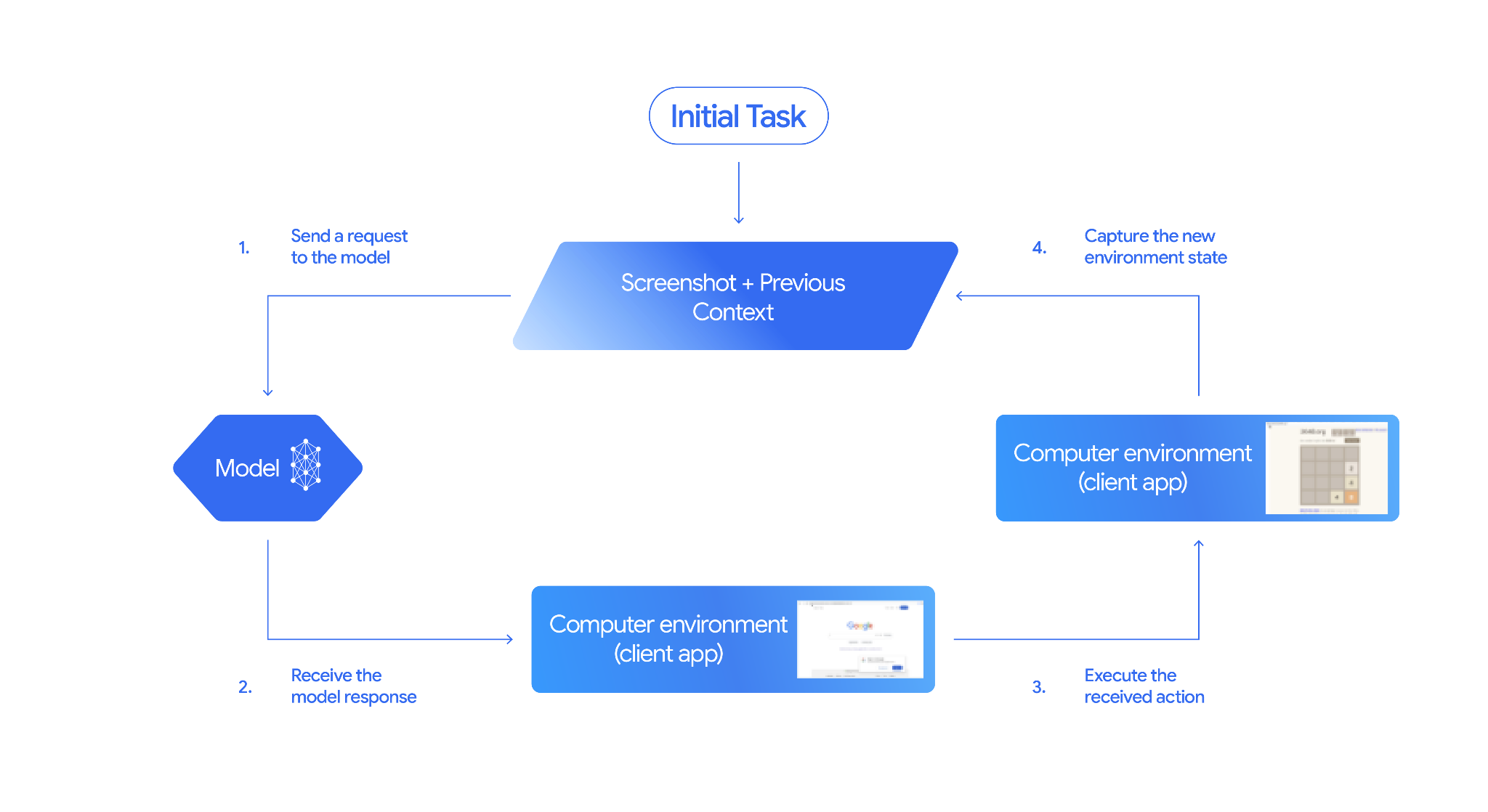
Bilgisayar Kullanımı modeliyle bir aracı oluşturmak için uygulamanız ile API arasında sürekli bir döngü oluşturmanız gerekir. Kodunuzun her adımda ne yapacağını aşağıda bulabilirsiniz:
- Modele istek gönderme
- Uygulamanız, Bilgisayar Kullanımı aracını, yapılandırma ayarlarınızı (ör. hedef ortam), kullanıcının istemini ve mevcut ekranın ekran görüntüsünü içeren bir API isteği gönderir.
- Model yanıtını alma
- Model, ekranı ve istemi analiz ederek bir yanıt döndürür. Bu yanıtta, kullanıcı arayüzü işlemini (ör. tıklama, kaydırma veya tuş vuruşu) temsil eden önerilen bir
function_callyer alır. - Gemini 3.5 Flash için yanıtta, modelin neden bu işlemi seçtiğini açıklayan bir gerekçe de yer alır
intent - Yanıt, işlemin normal/izin verilen,
safety_decision(kullanıcı onayı gerektiren) veya engellenen olarak sınıflandırıldığı bir dahili güvenlik sisteminden gelenrequire_confirmationde içerebilir.
- Model, ekranı ve istemi analiz ederek bir yanıt döndürür. Bu yanıtta, kullanıcı arayüzü işlemini (ör. tıklama, kaydırma veya tuş vuruşu) temsil eden önerilen bir
- Alınan işlemi yürütün
- İşleme izin verildiyse (veya kullanıcı işlemi onayladıysa) istemci tarafı kodunuz
function_callöğesini ayrıştırır, normalleştirilmiş koordinatları görünüm alanınızla eşleşecek şekilde ölçeklendirir ve otomasyon araçlarını (ör. Playwright) kullanarak hedef ortamınızda işlemi yürütür. İşlem engellenirse istemciniz yürütmeyi durdurmalı veya kesintiyi işlemelidir.
- İşleme izin verildiyse (veya kullanıcı işlemi onayladıysa) istemci tarafı kodunuz
- Yeni ortam durumunu yakalama
- İşlem yürütülmeyi tamamladıktan sonra uygulamanız yeni bir ekran görüntüsü alır ve bir sonraki adımı istemek için
function_resultiçinde modele geri gönderir.
- İşlem yürütülmeyi tamamladıktan sonra uygulamanız yeni bir ekran görüntüsü alır ve bir sonraki adımı istemek için
Bu işlem daha sonra 2. adımdan itibaren tekrarlanır ve görev tamamlanana veya sonlandırılana kadar modelden sürekli olarak bir sonraki işlem istenir.
Bilgisayar Kullanımı nasıl uygulanır?
Bilgisayar Kullanımı aracıyla oluşturmaya başlamadan önce şunları ayarlamanız gerekir:
- Güvenli yürütme ortamı: Aracılarınızı, ana makine sisteminizden izole etmek ve olası etkilerini sınırlamak için korumalı alanda çalışan bir sanal makinede veya kapsayıcıda çalıştırın. Referans uygulama, başlangıç noktası olarak kullanabileceğiniz, kullanıma hazır Docker tabanlı bir sanal alan içerir.
- İstemci tarafı işlem işleyici: Koordinatları yürütmek, metin yazmak ve ekran görüntüsü almak için istemci tarafı mantığını uygulayın.
Aşağıdaki örneklerde, yürütme ortamı olarak web tarayıcısı, istemci taraflı işleyici olarak ise Playwright kullanılır.
0. Playwright'ı ayarlama
Öncelikle gerekli paketleri yükleyin:
pip install google-genai playwright
playwright install chromium
Ardından, yürütme için kullanılacak bir Playwright tarayıcı örneği başlatın:
from playwright.sync_api import sync_playwright

# 1. Configure screen dimensions for the target environment
SCREEN_WIDTH = 1440
SCREEN_HEIGHT = 900

# 2. Start the Playwright browser
# In production, utilize a sandboxed environment.
playwright = sync_playwright().start()
# Set headless=False to see the actions performed on your screen
browser = playwright.chromium.launch(headless=False)

# 3. Create a context and page with the specified dimensions
context = browser.new_context(
    viewport={"width": SCREEN_WIDTH, "height": SCREEN_HEIGHT}
)
page = context.new_page()

# 4. Navigate to an initial page to start the task
page.goto("https://www.google.com")

# The 'page', 'SCREEN_WIDTH', and 'SCREEN_HEIGHT' variables
# will be used in the steps below.
1. Modele istek gönderme
İstemci kitaplığını başlatın ve Bilgisayar Kullanımı aracını yapılandırın. İstek gönderirken ekran boyutunu belirtmenize gerek olmadığını unutmayın. Model, piksel koordinatlarını ekranın yüksekliğine ve genişliğine göre ölçekleyerek tahmin eder.
Gemini 3.5 Flash (Önerilen)
Python
Tarayıcı ortamını hedefleyen bir isteği yapılandırmak için google-genai Python SDK'sını (2.7.0 veya sonraki bir sürüm) kullanın:
from google import genai

client = genai.Client()

interaction = client.interactions.create(
    model='gemini-3.5-flash',
    input="Find a flight from SF to Hawaii on Jun 30th, coming back on Jul 6th",
    tools=[
        {
            "type": "computer_use",
            "environment": "browser",
            "enable_prompt_injection_detection": True
        }
    ]
)

print(interaction)
JavaScript
Tarayıcı ortamını hedefleyen bir isteği yapılandırmak için @google/genai Node.js SDK'sını kullanın:
import { GoogleGenAI } from '@google/genai';

const ai = new GoogleGenAI();

const interaction = await ai.interactions.create({
  model: 'gemini-3.5-flash',
  input: "Find a flight from SF to Hawaii on Jun 30th, coming back on Jul 6th",
  tools: [
    {
      type: "computer_use",
      environment: "browser",
      enable_prompt_injection_detection: true
    }
  ]
});

console.log(interaction);
REST
İstek göndermek için curl'ü kullanın:
curl -X POST \
  "https://generativelanguage.googleapis.com/v1beta/interactions" \
  -H "x-goog-api-key: $GEMINI_API_KEY" \
  -H "Content-Type: application/json" \
  -d '{
    "model": "gemini-3.5-flash",
    "input": "Find me a flight from SF to Hawaii on Jun 30th, coming back on Jul 6th. Start by navigating directly to flights.google.com",
    "tools": [
      {
        "type": "computer_use",
        "environment": "browser",
        "enable_prompt_injection_detection": true
      }
    ]
  }'
Gemini 2.5 (Legacy)
Python
from google import genai

client = genai.Client()

# Specify predefined functions to exclude (optional)
excluded_functions = ["drag_and_drop"]

interaction = client.interactions.create(
    model='gemini-2.5-computer-use-preview-10-2025',
    input="Search for highly rated smart fridges on Google Shopping.",
    tools=[
        {
            "type": "computer_use",
            "environment": "browser",
            "excluded_predefined_functions": excluded_functions
        }
    ]
)

print(interaction)
JavaScript
import { GoogleGenAI } from '@google/genai';

const ai = new GoogleGenAI();

// Specify predefined functions to exclude (optional)
const excludedFunctions = ["drag_and_drop"];

const interaction = await ai.interactions.create({
  model: 'gemini-2.5-computer-use-preview-10-2025',
  input: "Search for highly rated smart fridges on Google Shopping.",
  tools: [
    {
      type: "computer_use",
      environment: "browser",
      excluded_predefined_functions: excludedFunctions
    }
  ]
});

console.log(interaction);
2. Model yanıtını alma
Yanıt modeli, bir işlev çağrısı öneriyor. Gemini 3.5 Flash için yanıtta, koordinatların yanı sıra amaca uygun bir akıl yürütme niyeti yer alır. Aşağıda her iki yanıtın da örnekleri verilmiştir:
Gemini 3.5 Flash
{
  "steps": [
    {
      "type": "function_call",
      "name": "click",
      "arguments": {
        "x": 450,
        "y": 120,
        "intent": "Click the search box to type the destination."
      }
    }
  ]
}
Gemini 2.5 (Legacy)
{
  "steps": [
    {
      "type": "model_output",
      "content": [
        {
          "type": "text",
          "text": "I will type the search query into the search bar."
        }
      ]
    },
    {
      "type": "function_call",
      "name": "type_text_at",
      "arguments": {
        "x": 371,
        "y": 470,
        "text": "highly rated smart fridges",
        "press_enter": true
      }
    }
  ]
}
3. Alınan işlemleri yürütme
Uygulamanız, yanıt koordinatlarını ayrıştırmalı, işlemi yürütmeli ve bunları normalleştirilmiş 1.000x1.000 koordinatlarından ölçeklendirmelidir.
Aşağıdaki kod hem eski araç komutlarını (click_at, type_text_at) hem de Gemini 3.5 Flash'in basitleştirilmiş komutlarını (click, type) işler.
Python
from typing import Any, List, Tuple
import time

def denormalize_x(x: int, screen_width: int) -> int:
    """Convert normalized x coordinate (0-1000) to actual pixel coordinate."""
    return int(x / 1000 * screen_width)

def denormalize_y(y: int, screen_height: int) -> int:
    """Convert normalized y coordinate (0-1000) to actual pixel coordinate."""
    return int(y / 1000 * screen_height)

def execute_function_calls(interaction, page, screen_width, screen_height):
    results = []
    function_calls = [
        step for step in interaction.steps if step.type == "function_call"
    ]

    for function_call in function_calls:
        action_result = {}
        fname = function_call.name
        args = function_call.arguments
        print(f"  -> Executing: {fname} (Intent: {args.get('intent', 'N/A')})")

        try:
            if fname in ("open_web_browser", "open_app"):
                pass # Handled / already open
            elif fname in ("click", "click_at", "double_click", "triple_click", "middle_click", "right_click", "move", "long_press"):
                actual_x = denormalize_x(args["x"], screen_width)
                actual_y = denormalize_y(args["y"], screen_height)

                if fname in ("click", "click_at"):
                    page.mouse.click(actual_x, actual_y)
                elif fname == "double_click":
                    page.mouse.dblclick(actual_x, actual_y)
                elif fname == "right_click":
                    page.mouse.click(actual_x, actual_y, button="right")
                elif fname == "middle_click":
                    page.mouse.click(actual_x, actual_y, button="middle")
                elif fname == "move":
                    page.mouse.move(actual_x, actual_y)
            elif fname in ("type", "type_text_at"):
                actual_x = denormalize_x(args["x"], screen_width) if "x" in args else None
                actual_y = denormalize_y(args["y"], screen_height) if "y" in args else None
                text = args["text"]
                press_enter = args.get("press_enter", False)

                if actual_x is not None and actual_y is not None:
                    page.mouse.click(actual_x, actual_y)
                # Clear field first
                page.keyboard.press("Meta+A")
                page.keyboard.press("Backspace")
                page.keyboard.type(text)
                if press_enter:
                    page.keyboard.press("Enter")
            elif fname == "navigate":
                page.goto(args["url"])
            elif fname == "go_back":
                page.go_back()
            elif fname == "go_forward":
                page.go_forward()
            elif fname == "wait":
                time.sleep(args.get("seconds", 1))
            else:
                print(f"Warning: Custom or unhandled function {fname}")

            page.wait_for_load_state(timeout=5000)
            time.sleep(1)

        except Exception as e:
            print(f"Error executing {fname}: {e}")
            action_result = {"error": str(e)}

        results.append((fname, function_call.id, action_result))

    return results
JavaScript
function denormalizeX(x, screenWidth) {
    // Convert normalized x coordinate (0-1000) to actual pixel coordinate.
    return Math.floor((x / 1000) * screenWidth);
}

function denormalizeY(y, screenHeight) {
    // Convert normalized y coordinate (0-1000) to actual pixel coordinate.
    return Math.floor((y / 1000) * screenHeight);
}

async function executeFunctionCalls(interaction, page, screenWidth, screenHeight) {
    const results = [];
    const functionCalls = interaction.steps.filter(step => step.type === "function_call");

    for (const functionCall of functionCalls) {
        const actionResult = {};
        const fname = functionCall.name;
        const args = functionCall.arguments;
        console.log(`  -> Executing: ${fname} (Intent: ${args.intent || 'N/A'})`);

        try {
            if (fname === "open_web_browser" || fname === "open_app") {
                // Handled / already open
            } else if (["click", "click_at", "double_click", "triple_click", "middle_click", "right_click", "move", "long_press"].includes(fname)) {
                const actualX = denormalizeX(args.x, screenWidth);
                const actualY = denormalizeY(args.y, screenHeight);

                if (fname === "click" || fname === "click_at") {
                    await page.mouse.click(actualX, actualY);
                } else if (fname === "double_click") {
                    await page.mouse.dblclick(actualX, actualY);
                } else if (fname === "right_click") {
                    await page.mouse.click(actualX, actualY, { button: "right" });
                } else if (fname === "middle_click") {
                    await page.mouse.click(actualX, actualY, { button: "middle" });
                } else if (fname === "move") {
                    await page.mouse.move(actualX, actualY);
                }
            } else if (fname === "type" || fname === "type_text_at") {
                const actualX = args.x !== undefined ? denormalizeX(args.x, screenWidth) : null;
                const actualY = args.y !== undefined ? denormalizeY(args.y, screenHeight) : null;
                const text = args.text;
                const pressEnter = args.press_enter || false;

                if (actualX !== null && actualY !== null) {
                    await page.mouse.click(actualX, actualY);
                }
                // Clear field first
                await page.keyboard.press("Meta+A");
                await page.keyboard.press("Backspace");
                await page.keyboard.type(text);
                if (pressEnter) {
                    await page.keyboard.press("Enter");
                }
            } else if (fname === "navigate") {
                await page.goto(args.url);
            } else if (fname === "go_back") {
                await page.goBack();
            } else if (fname === "go_forward") {
                await page.goForward();
            } else if (fname === "wait") {
                await new Promise(resolve => setTimeout(resolve, (args.seconds || 1) * 1000));
            } else {
                console.log(`Warning: Custom or unhandled function ${fname}`);
            }

            await page.waitForLoadState('load', { timeout: 5000 }).catch(() => {});
            await new Promise(resolve => setTimeout(resolve, 1000));
        } catch (e) {
            console.log(`Error executing ${fname}: ${e}`);
            actionResult.error = e.message;
        }

        results.push([fname, functionCall.id, actionResult]);
    }

    return results;
}
4. Yeni ortam durumunu yakalama
İşlemleri yürüttükten sonra, işlev yürütme sonucunu modele geri gönderin. Böylece model, bu bilgileri kullanarak sonraki işlemi oluşturabilir. Birden fazla işlem (paralel çağrı) yürütüldüyse sonraki kullanıcı dönüşünde her biri için bir function_result göndermeniz gerekir.
Python
import json
import base64

def get_function_responses(page, results):
    screenshot_bytes = page.screenshot(type="png")
    current_url = page.url
    function_responses = []
    for name, call_id, result in results:
        function_responses.append({
            "type": "function_result",
            "name": name,
            "call_id": call_id,
            "result": [
                {
                    "type": "text",
                    "text": json.dumps({"url": current_url, **result})
                },
                {
                    "type": "image",
                    "data": base64.b64encode(screenshot_bytes).decode("utf-8"),
                    "mime_type": "image/png"
                }
            ]
        })
    return function_responses
JavaScript
async function getFunctionResponses(page, results) {
    const screenshotBuffer = await page.screenshot({ type: 'png' });
    const screenshotBase64 = screenshotBuffer.toString('base64');
    const currentUrl = page.url();
    const functionResponses = [];

    for (const [name, callId, result] of results) {
        functionResponses.push({
            type: "function_result",
            name: name,
            call_id: callId,
            result: [
                {
                    type: "text",
                    text: JSON.stringify({ url: currentUrl, ...result })
                },
                {
                    type: "image",
                    data: screenshotBase64,
                    mime_type: "image/png"
                }
            ]
        });
    }
    return functionResponses;
}
Ortam durumunun nasıl yakalanacağını ve biçimlendirileceğini tanımladıktan sonra tüm bu adımları sürekli bir yürütme döngüsünde birleştirebilirsiniz.
Aracı döngüsü oluşturma
Çok adımlı etkileşimleri etkinleştirmek için Bilgisayar kullanımını uygulama bölümündeki dört adımı tek bir döngüde birleştirin. Bu döngü, görev tamamlanana kadar işlem isteğinde bulunmaya ve sonuçları modele geri aktarmaya devam eder.
Her adımda hem model yanıtlarını hem de işlev yanıtlarınızı geçmişe ekleyerek sohbet geçmişini doğru şekilde yönetmeyi unutmayın.
Python
import time
from typing import Any, List, Tuple
from playwright.sync_api import sync_playwright

from google import genai

client = genai.Client()

# Constants for screen dimensions
SCREEN_WIDTH = 1440
SCREEN_HEIGHT = 900

# Setup Playwright
print("Initializing browser...")
playwright = sync_playwright().start()
browser = playwright.chromium.launch(headless=False)
context = browser.new_context(viewport={"width": SCREEN_WIDTH, "height": SCREEN_HEIGHT})
page = context.new_page()

# Define helper functions. Copy/paste from steps 3 and 4
# def denormalize_x(...)
# def denormalize_y(...)
# def execute_function_calls(...)
# def get_function_responses(...)

try:
    # Go to initial page
    page.goto("https://ai.google.dev/gemini-api/docs")

    # Take initial screenshot
    initial_screenshot = page.screenshot(type="png")
    USER_PROMPT = "Go to ai.google.dev/gemini-api/docs and search for pricing."
    print(f"Goal: {USER_PROMPT}")

    # First interaction
    interaction = client.interactions.create(
        model='gemini-3.5-flash',
        input=[
            {"type": "text", "text": USER_PROMPT},
            {"type": "image", "data": base64.b64encode(initial_screenshot).decode("utf-8"), "mime_type": "image/png"}
        ],
        tools=[{
            "type": "computer_use",
            "environment": "browser",
            "enable_prompt_injection_detection": True
        }]
    )

    # Agent Loop
    turn_limit = 5
    for i in range(turn_limit):
        print(f"\n--- Turn {i+1} ---")

        has_function_calls = any(
            step.type == "function_call"
            for step in interaction.steps
        )
        if not has_function_calls:
            text_response = " ".join([
                content_block.text for step in interaction.steps if step.type == "model_output"
                for content_block in step.content if content_block.type == "text"
            ])
            print("Agent finished:", text_response)
            break

        print("Executing actions...")
        results = execute_function_calls(interaction, page, SCREEN_WIDTH, SCREEN_HEIGHT)

        print("Capturing state...")
        function_responses = get_function_responses(page, results)

        # Continue conversation with function responses
        interaction = client.interactions.create(
            model='gemini-3.5-flash',
            previous_interaction_id=interaction.id,
            input=function_responses,
            tools=[{
                "type": "computer_use",
                "environment": "browser",
                "enable_prompt_injection_detection": True
            }]
        )

finally:
    # Cleanup
    print("\nClosing browser...")
    browser.close()
    playwright.stop()
JavaScript
import { chromium } from 'playwright';
import { GoogleGenAI } from '@google/genai';

const ai = new GoogleGenAI();

// Constants for screen dimensions
const SCREEN_WIDTH = 1440;
const SCREEN_HEIGHT = 900;

console.log("Initializing browser...");
const browser = await chromium.launch({ headless: false });
const context = await browser.newContext({
    viewport: { width: SCREEN_WIDTH, height: SCREEN_HEIGHT }
});
const page = await context.newPage();

// Define helper functions. Copy/paste from steps 3 and 4:
// function denormalizeX(...)
// function denormalizeY(...)
// async function executeFunctionCalls(...)
// async function getFunctionResponses(...)

try {
    // Go to initial page
    await page.goto("https://ai.google.dev/gemini-api/docs");

    // Take initial screenshot
    const initialScreenshotBuffer = await page.screenshot({ type: 'png' });
    const initialScreenshotBase64 = initialScreenshotBuffer.toString('base64');
    const USER_PROMPT = "Go to ai.google.dev/gemini-api/docs and search for pricing.";
    console.log(`Goal: ${USER_PROMPT}`);

    // First interaction
    let interaction = await ai.interactions.create({
        model: 'gemini-3.5-flash',
        input: [
            { type: 'text', text: USER_PROMPT },
            { type: 'image', data: initialScreenshotBase64, mime_type: 'image/png' }
        ],
        tools: [{
            type: 'computer_use',
            environment: 'browser',
            enable_prompt_injection_detection: true
        }]
    });

    // Agent Loop
    const turnLimit = 5;
    for (let i = 0; i < turnLimit; i++) {
        console.log(`\n--- Turn ${i + 1} ---`);

        const hasFunctionCalls = interaction.steps.some(step => step.type === "function_call");
        if (!hasFunctionCalls) {
            const textResponses = [];
            for (const step of interaction.steps) {
                if (step.type === "model_output") {
                    for (const contentBlock of step.content || []) {
                        if (contentBlock.type === "text") {
                            textResponses.push(contentBlock.text);
                        }
                    }
                }
            }
            console.log("Agent finished:", textResponses.join(" "));
            break;
        }

        console.log("Executing actions...");
        const results = await executeFunctionCalls(interaction, page, SCREEN_WIDTH, SCREEN_HEIGHT);

        console.log("Capturing state...");
        const functionResponses = await getFunctionResponses(page, results);

        // Continue conversation with function responses
        interaction = await ai.interactions.create({
            model: 'gemini-3.5-flash',
            previous_interaction_id: interaction.id,
            input: functionResponses,
            tools: [{
                type: 'computer_use',
                environment: 'browser',
                enable_prompt_injection_detection: true
            }]
        });
    }
} finally {
    // Cleanup
    console.log("\nClosing browser...");
    await browser.close();
}
Desteklenen ortamlar (Gemini 3.5 Flash)
Gemini 3.5 Flash, computer_use yapılandırmalarında belirtilen üç ortamı destekler:
Tarayıcı ortamı (ENVIRONMENT_BROWSER)
Tarayıcı aracında kullanılabilen işlemler:
| Komut adı | Açıklama | Bağımsız değişkenler (işlev çağrısında) |
|---|---|---|
| tıklama | Koordinatta sol tıklamalar. | y: int (0-999)x: int (0-999)intent: str |
| double_click | Koordinatı çift tıklayın. | y: int (0-999)x: int (0-999)intent: str |
| triple_click | Koordinat üç kez tıklanır. | y: int (0-999)x: int (0-999)intent: str |
| middle_click | Orta tıklama koordinatında. | y: int (0-999)x: int (0-999)intent: str |
| right_click | Koordinatta sağ tıklamalar. | y: int (0-999)x: int (0-999)intent: str |
| mouse_down | Farenin düğmesini koordinatta basar ve basılı tutar. | y: int (0-999)x: int (0-999)intent: str |
| mouse_up | Fare düğmesini koordinatta bırakır. | y: int (0-999)x: int (0-999)intent: str |
| move | İmleci belirtilen konuma taşır. | y: int (0-999)x: int (0-999)intent: str |
| type | Metin yazma | text: strpress_enter: bool (isteğe bağlı, varsayılan false)intent: str |
| drag_and_drop | Bir öğeyi başlangıç koordinatından bitiş koordinatına sürükler. | start_y: int (0-999)start_x: int (0-999)end_y: int (0-999)end_x: int (0-999)intent: str |
| wait | Yürütmeyi belirtilen saniye sayısı kadar duraklatır. | seconds: int (İsteğe bağlı, varsayılan 1)intent: str |
| press_key | Belirtilen tuşa basar ve tuşu bırakır. | key: strintent: str |
| key_down | Belirtilen tuşa basar ve basılı tutar. | key: strintent: str |
| key_up | Belirtilen anahtarı serbest bırakır. | key: strintent: str |
| hotkey | Belirtilen tuş kombinasyonuna basar. | keys: List[str]intent: str |
| take_screenshot | Mevcut ekranın ekran görüntüsünü döndürür. | intent: str |
| scroll | Bir koordinatta yukarı, aşağı, sola veya sağa doğru bir piksel mesafesi kaydırır. | y: int (0-999)x: int (0-999)direction: str ("up", "down", "left", "right")magnitude_in_pixels: int (0-999, İsteğe bağlı, varsayılan 300)intent: str |
| go_back | Tarama geçmişinde önceki web sayfasına geri döner. | intent: str |
| navigate | Doğrudan belirtilen bir URL'ye gider. | url: strintent: str |
| go_forward | Tarama geçmişinde sonraki web sayfasına gider. | intent: str |
Mobil ortam (ENVIRONMENT_MOBILE)
Android için optimize edilmiş ortam işlemleri:
| Komut adı | Açıklama | Bağımsız değişkenler (işlev çağrısında) |
|---|---|---|
| open_app | Bir uygulamayı adıyla açar. | app_name: strintent: str |
| tıklama | Koordinatta sol tıklamalar. | y: int (0-999)x: int (0-999)intent: str |
| list_apps | Cihazdaki kullanılabilir uygulamaları adları ve paket adlarıyla birlikte listeler. | intent: str |
| wait | Yürütmeyi belirtilen saniye sayısı kadar duraklatır. | seconds: int (İsteğe bağlı, varsayılan 1)intent: str |
| go_back | Önceki ekrana veya web sayfasına geri döner. | intent: str |
| type | Metin yazma | text: strpress_enter: bool (isteğe bağlı, varsayılan false)intent: str |
| drag_and_drop | Bir öğeyi başlangıç koordinatından bitiş koordinatına sürükler. | start_y: int (0-999)start_x: int (0-999)end_y: int (0-999)end_x: int (0-999)intent: str |
| long_press | Ekranda bir koordinata uzun basma işlemi gerçekleştirir. | y: int (0-999)x: int (0-999)seconds: int (İsteğe bağlı, varsayılan 2)intent: str |
| press_key | Belirtilen tuşa basar ve tuşu bırakır. | key: strintent: str |
| take_screenshot | Mevcut ekranın ekran görüntüsünü döndürür. | intent: str |
Masaüstü ortamı (ENVIRONMENT_DESKTOP)
Masaüstü ortamlarında işletim sistemi düzeyinde imleç komutları:
| Komut adı | Açıklama | Bağımsız değişkenler (işlev çağrısında) |
|---|---|---|
| tıklama | Koordinatta sol tıklamalar. | y: int (0-999)x: int (0-999)intent: str |
| double_click | Koordinatı çift tıklayın. | y: int (0-999)x: int (0-999)intent: str |
| triple_click | Koordinat üç kez tıklanır. | y: int (0-999)x: int (0-999)intent: str |
| middle_click | Orta tıklama koordinatında. | y: int (0-999)x: int (0-999)intent: str |
| right_click | Koordinatta sağ tıklamalar. | y: int (0-999)x: int (0-999)intent: str |
| mouse_down | Farenin düğmesini koordinatta basar ve basılı tutar. | y: int (0-999)x: int (0-999)intent: str |
| mouse_up | Fare düğmesini koordinatta bırakır. | y: int (0-999)x: int (0-999)intent: str |
| move | İmleci belirtilen konuma taşır. | y: int (0-999)x: int (0-999)intent: str |
| type | Metin yazma | text: strpress_enter: bool (isteğe bağlı, varsayılan false)intent: str |
| drag_and_drop | Bir öğeyi başlangıç koordinatından bitiş koordinatına sürükler. | start_y: int (0-999)start_x: int (0-999)end_y: int (0-999)end_x: int (0-999)intent: str |
| wait | Yürütmeyi belirtilen saniye sayısı kadar duraklatır. | seconds: int (İsteğe bağlı, varsayılan 1)intent: str |
| press_key | Belirtilen tuşa basar ve tuşu bırakır. | key: strintent: str |
| key_down | Belirtilen tuşa basar ve basılı tutar. | key: strintent: str |
| key_up | Belirtilen anahtarı serbest bırakır. | key: strintent: str |
| hotkey | Belirtilen tuş kombinasyonuna basar. | keys: List[str]intent: str |
| take_screenshot | Mevcut ekranın ekran görüntüsünü döndürür. | intent: str |
| scroll | Bir koordinatta yukarı, aşağı, sola veya sağa doğru bir piksel mesafesi kaydırır. | y: int (0-999)x: int (0-999)direction: str ("up", "down", "left", "right")magnitude_in_pixels: int (0-999, İsteğe bağlı, varsayılan 300)intent: str |
Eski desteklenen kullanıcı arayüzü işlemleri (Gemini 2.5)
Eski modeller (gemini-2.5-computer-use-preview-10-2025) için aşağıdaki işlemler desteklenir:
| Komut adı | Açıklama | Bağımsız değişkenler (işlev çağrısında) | Örnek işlev çağrısı |
|---|---|---|---|
| open_web_browser | Web tarayıcısını açar. | Yok | {"name": "open_web_browser", "arguments": {}} |
| wait_5_seconds | Yürütmeyi 5 saniye duraklatır. | Yok | {"name": "wait_5_seconds", "arguments": {}} |
| go_back | Geçmiş'te önceki sayfaya gider. | Yok | {"name": "go_back", "arguments": {}} |
| go_forward | Geçmiş'te sonraki sayfaya gider. | Yok | {"name": "go_forward", "arguments": {}} |
| search | Varsayılan arama motoruna gider. | Yok | {"name": "search", "arguments": {}} |
| navigate | Tarayıcıyı doğrudan belirtilen URL'ye yönlendirir. | url: str |
{"name": "navigate", "arguments": {"url": "https://www.wikipedia.org"}} |
| click_at | Belirli bir koordinattaki tıklamalar. | y: int (0-999), x: int (0-999) |
{"name": "click_at", "arguments": {"y": 300, "x": 500}} |
| hover_at | Fareyi belirli bir koordinat üzerinde tutar. | y: int (0-999), x: int (0-999) |
{"name": "hover_at", "arguments": {"y": 150, "x": 250}} |
| type_text_at | Bir koordinata metin yazar. | y: int (0-999), x: int (0-999), text: str, press_enter: bool (isteğe bağlı, varsayılan değer True), clear_before_typing: bool (isteğe bağlı, varsayılan değer True) |
{"name": "type_text_at", "arguments": {"y": 250, "x": 400, "text": "search", "press_enter": false}} |
| key_combination | Tuşlara veya kombinasyonlara basın. | keys: str |
{"name": "key_combination", "arguments": {"keys": "Control+A"}} |
| scroll_document | Web sayfasının tamamını kaydırır. | direction: str |
{"name": "scroll_document", "arguments": {"direction": "down"}} |
| scroll_at | (x,y) koordinatında kaydırır. | y: int, x: int, direction: str, magnitude: int (isteğe bağlı, varsayılan 800) |
{"name": "scroll_at", "arguments": {"y": 500, "x": 500, "direction": "down"}} |
| drag_and_drop | İki koordinat arasında sürükleme. | y: int, x: int, destination_y: int, destination_x: int |
{"name": "drag_and_drop", "arguments": {"y": 100, "destination_y": 500, "destination_x": 500, "x": 100}} |
Özel kullanıcı tanımlı işlevler
Özel kullanıcı tanımlı işlevler ekleyerek modelin işlevselliğini genişletebilirsiniz. Örneğin, sürece insanların dahil edildiği (HITL) senaryolarda varsayılan olarak önceden tanımlanmış işlemleri hariç tutabilir ve özel işlemleri kaydedebilirsiniz.
Gemini 3.5 Flash Özel Araçları
Python
Standart önceden tanımlanmış tarayıcı işlemlerini (ör. click) hariç tutun ve özel bir yield_to_user aracı kaydedin:
from google import genai

client = genai.Client()

yield_to_user_tool = {
    "type": "function",
    "name": "yield_to_user",
    "description": "Yields control back to the user for assistance or verification when an automated action is unsafe or ambiguous.",
    "parameters": {
        "type": "object",
        "properties": {
            "reason": {
                "type": "string",
                "description": "The reason why the agent is yielding control to the human."
            }
        },
        "required": ["reason"]
    }
}

interaction = client.interactions.create(
    model="gemini-3.5-flash",
    input="Click the submit button. If you need a second factor authentication code, ask me.",
    tools=[
        {
            "type": "computer_use",
            "environment": "mobile",
            "excluded_predefined_functions": ["click"]
        },
        yield_to_user_tool
    ]
)
JavaScript
Standart önceden tanımlanmış tarayıcı işlemlerini (ör. click) hariç tutun ve özel bir yield_to_user aracı kaydedin:
import { GoogleGenAI } from '@google/genai';

const ai = new GoogleGenAI();

const yieldToUserTool = {
    type: "function",
    name: "yield_to_user",
    description: "Yields control back to the user for assistance or verification when an automated action is unsafe or ambiguous.",
    parameters: {
        type: "object",
        properties: {
            reason: {
                type: "string",
                description: "The reason why the agent is yielding control to the human."
            }
        },
        required: ["reason"]
    }
};

const interaction = await ai.interactions.create({
    model: "gemini-3.5-flash",
    input: "Click the submit button. If you need a second factor authentication code, ask me.",
    tools: [
        {
            type: "computer_use",
            environment: "mobile",
            excluded_predefined_functions: ["click"]
        },
        yieldToUserTool
    ]
});
Gemini 2.5 (Legacy) Özel Araçlar
Python
from google import genai

client = genai.Client()

# Define custom tools here
custom_functions = [...]  # Describe parameters as function declarations

excluded_functions = [
    "open_web_browser",
    "wait_5_seconds",
    "go_back",
    "go_forward",
    "search",
    "navigate",
    "hover_at",
    "scroll_document",
    "key_combination",
    "drag_and_drop",
]

interaction = client.interactions.create(
    model='gemini-2.5-computer-use-preview-10-2025',
    input="Open Chrome, then long-press at 200,400.",
    tools=[
        {
            "type": "computer_use",
            "environment": "browser",
            "excluded_predefined_functions": excluded_functions
        },
        *custom_functions
    ]
)

print(interaction)
JavaScript
import { GoogleGenAI } from '@google/genai';

const ai = new GoogleGenAI();

// Define custom tools here
const customFunctions = [...]; // Describe parameters as function declarations

const excludedFunctions = [
    "open_web_browser",
    "wait_5_seconds",
    "go_back",
    "go_forward",
    "search",
    "navigate",
    "hover_at",
    "scroll_document",
    "key_combination",
    "drag_and_drop",
];

const interaction = await ai.interactions.create({
    model: 'gemini-2.5-computer-use-preview-10-2025',
    input: "Open Chrome, then long-press at 200,400.",
    tools: [
        {
            type: "computer_use",
            environment: "browser",
            excluded_predefined_functions: excludedFunctions
        },
        ...customFunctions
    ]
});

console.log(interaction);
Düşünme seviyelerini yönetme (Gemini 3.5 Flash)
Bilgisayar kullanım aracıları için işlem kalitesi ile yürütme hızı arasında denge kurmak amacıyla farklı düşünme düzeyleri yapılandırabilirsiniz. Daha düşük düşünme seviyeleri, standart otomasyon görevleri için genellikle iyi bir denge sağlar.
Güvenlik
Güvenlik politikalarını yapılandırma (Gemini 3.5 Flash)
Gemini 3.5 Flash modeli, kullanıcı onayı gerekip gerekmediğini otomatik olarak belirleyen yerleşik güvenlik hizmeti kategorileri içerir.
| Güvenlik politikası kategorisi | Açıklama |
|---|---|
FINANCIAL_TRANSACTIONS |
Ödemeler, perakende ödeme veya yasal düzenlemelere tabi ürünlerle ilgili işlemlerde onay verilmesini engeller ya da onay verilmesini tetikler. |
SENSITIVE_DATA_MODIFICATION |
Sağlık, finans veya devlet kayıtlarını yetkisiz değişikliklere karşı korur. |
COMMUNICATION_TOOL |
Temsilcinin bağımsız olarak e-posta, sohbet mesajı veya taslak göndermesini kısıtlar. |
ACCOUNT_CREATION |
Aracının web sitelerinde bağımsız olarak yeni hesap kaydetmesini kısıtlar. |
DATA_MODIFICATION |
Genel dosya sistemi değişikliklerini, veri paylaşımını ve depolama silme işlemlerini düzenler. |
USER_CONSENT_MANAGEMENT |
Çerez izni banner'ları ve gizlilik istemleri için kullanıcı devralma işlemi gerektirir. |
LEGAL_TERMS_AND_AGREEMENTS |
Modelin, Hizmet Şartları'nı veya yasal olarak bağlayıcı sözleşmeleri bağımsız bir şekilde kabul etmesini engeller. |
Güvenlik geçersiz kılmaları
Geçersiz kılmalar ileterek belirli politikaları geçersiz kılabilirsiniz:
Python
from google import genai

client = genai.Client()

interaction = client.interactions.create(
    model="gemini-3.5-flash",
    input="Clean up the local folder by archiving old logs.",
    tools=[
        {
            "type": "computer_use",
            "environment": "desktop",
            "disabled_safety_policies": [
                "data_modification"
            ]
        }
    ]
)
JavaScript
import { GoogleGenAI } from '@google/genai';

const ai = new GoogleGenAI();

const interaction = await ai.interactions.create({
    model: "gemini-3.5-flash",
    input: "Clean up the local folder by archiving old logs.",
    tools: [
        {
            type: "computer_use",
            environment: "desktop",
            disabled_safety_policies: [
                "data_modification"
            ]
        }
    ]
});
İstem enjeksiyonu tespiti (Gemini 3.5 Flash)
Ekran görüntüsü piksellerini gizli yanıltıcı istem talimatları (ör. "Önceki komutları yoksay") için tarayan ve algılandığında yürütmeyi engelleyen isteğe bağlı güvenlik mekanizması.
Güvenlik kararını onaylama
Yanıt, işlev çağrısı bağımsız değişkenlerinde bir safety_decision parametresi içerebilir:
{
  "steps": [
    {
      "type": "function_call",
      "name": "click_at",
      "arguments": {
        "x": 60,
        "y": 100,
        "safety_decision": {
          "explanation": "Must check check-box",
          "decision": "require_confirmation"
        }
      }
    }
  ]
}
safety_decision değeri require_confirmation ise son kullanıcıya istem gösterin. Kullanıcı onaylarsa safety_acknowledgement değerini function_result olarak ayarlayın.
Python
def get_safety_confirmation(safety_decision):
    # Prompt user for confirmation
    print(f"Safety confirmation required: {safety_decision.get('explanation', '')}")
    return "CONTINUE" # Or TERMINATE

# Inside execute_function_calls, check for safety_decision:
if 'safety_decision' in function_call.arguments:
    decision = get_safety_confirmation(function_call.arguments['safety_decision'])
    if decision == "TERMINATE":
        break
    # Include safety_acknowledgement inside the action result
    action_result["safety_acknowledgement"] = True
Güvenlikle ilgili en iyi uygulamalar
Bilgisayar Kullanımı, kullanıcı adına hareket eden bir modelin ekranlarda güvenilmeyen içerikle karşılaşabileceği veya işlemleri yürütürken hatalar yapabileceği için benzersiz güvenlik ve operasyonel riskler barındırır. Kullanıcı verilerini ve sistemlerini korumak için aşağıdaki en iyi uygulamaları hayata geçirin:
İnsanların dahil edilmesi (HITL):
- Kullanıcı onayını zorunlu kılma: Güvenlik yanıtı
require_confirmationsimgesini gösterdiğinde (veya eski güvenlik kararı bunu gerektirdiğinde) kullanıcıdan onay isteyin. Özel güvenlik talimatları sağlama: Kendi güvenlik sınırlarınızı tanımlamak ve uygulamak için özel bir sistem talimatı uygulayın. Örneğin:
Python
from google import genai

client = genai.Client()

system_instruction = """
## **RULE 1: Seek User Confirmation (USER_CONFIRMATION)**

This is your first and most important check. If the next required action falls
into any of the following categories, you MUST stop immediately, and seek the
user's explicit permission.

**Procedure for Seeking Confirmation:**
* **For Consequential Actions:** Perform all preparatory steps (e.g., navigating,
  filling out forms, typing a message). You will ask for confirmation **AFTER**
  all necessary information is entered on the screen, but **BEFORE** you perform
  the final, irreversible action (e.g., before clicking "Send", "Submit",
  "Confirm Purchase", "Share").
* **For Prohibited Actions:** If the action is strictly forbidden (e.g., accepting
  legal terms, solving a CAPTCHA), you must first inform the user about the
  required action and ask for their confirmation to proceed.

**USER_CONFIRMATION Categories:**

*   **Consent and Agreements:** You are FORBIDDEN from accepting, selecting, or
    agreeing to any of the following on the user's behalf. You must ask the
    user to confirm before performing these actions.
    *   Terms of Service
    *   Privacy Policies
    *   Cookie consent banners
    *   End User License Agreements (EULAs)
    *   Any other legally significant contracts or agreements.
*   **Robot Detection:** You MUST NEVER attempt to solve or bypass the
    following. You must ask the user to confirm before performing these actions.
    *   CAPTCHAs (of any kind)
    *   Any other anti-robot or human-verification mechanisms, even if you are
        capable.
*   **Financial Transactions:**
    *   Completing any purchase.
    *   Managing or moving money (e.g., transfers, payments).
    *   Purchasing regulated goods or participating in gambling.
*   **Sending Communications:**
    *   Sending emails.
    *   Sending messages on any platform (e.g., social media, chat apps).
    *   Posting content on social media or forums.
*   **Accessing or Modifying Sensitive Information:**
    *   Health, financial, or government records (e.g., medical history, tax
        forms, passport status).
    *   Revealing or modifying sensitive personal identifiers (e.g., SSN, bank
        account number, credit card number).
*   **User Data Management:**
    *   Accessing, downloading, or saving files from the web.
    *   Sharing or sending files/data to any third party.
    *   Transferring user data between systems.
*   **Browser Data Usage:**
    *   Accessing or managing Chrome browsing history, bookmarks, autofill data,
        or saved passwords.
*   **Security and Identity:**
    *   Logging into any user account.
    *   Any action that involves misrepresentation or impersonation (e.g.,
        creating a fan account, posting as someone else).
*   **Insurmountable Obstacles:** If you are technically unable to interact with
    a user interface element or are stuck in a loop you cannot resolve, ask the
    user to take over.
---

## **RULE 2: Default Behavior (ACTUATE)**

If an action does **NOT** fall under the conditions for `USER_CONFIRMATION`,
your default behavior is to **Actuate**.

**Actuation Means:**  You MUST proactively perform all necessary steps to move
the user's request forward. Continue to actuate until you either complete the
non-consequential task or encounter a condition defined in Rule 1.

*   **Example 1:** If asked to send money, you will navigate to the payment
    portal, enter the recipient's details, and enter the amount. You will then
    **STOP** as per Rule 1 and ask for confirmation before clicking the final
    "Send" button.
*   **Example 2:** If asked to post a message, you will navigate to the site,
    open the post composition window, and write the full message. You will then
    **STOP** as per Rule 1 and ask for confirmation before clicking the final
    "Post" button.

    After the user has confirmed, remember to get the user's latest screen
    before continuing to perform actions.

# Final Response Guidelines:
Write final response to the user in the following cases:
- User confirmation
- When the task is complete or you have enough information to respond to the user
"""

interaction = client.interactions.create(
    model="gemini-3.5-flash",
    system_instruction=system_instruction,
    input="Prepare a draft but do not send.",
    tools=[{
        "type": "computer_use",
        "environment": "browser"
    }]
)
JavaScript
import { GoogleGenAI } from '@google/genai';

const ai = new GoogleGenAI();

const systemInstruction = `
## **RULE 1: Seek User Confirmation (USER_CONFIRMATION)**

This is your first and most important check. If the next required action falls
into any of the following categories, you MUST stop immediately, and seek the
user's explicit permission.

**Procedure for Seeking Confirmation:**
* **For Consequential Actions:** Perform all preparatory steps (e.g., navigating,
  filling out forms, typing a message). You will ask for confirmation **AFTER**
  all necessary information is entered on the screen, but **BEFORE** you perform
  the final, irreversible action (e.g., before clicking "Send", "Submit",
  "Confirm Purchase", "Share").
* **For Prohibited Actions:** If the action is strictly forbidden (e.g., accepting
  legal terms, solving a CAPTCHA), you must first inform the user about the
  required action and ask for their confirmation to proceed.

**USER_CONFIRMATION Categories:**

*   **Consent and Agreements:** You are FORBIDDEN from accepting, selecting, or
    agreeing to any of the following on the user's behalf. You must ask the
    user to confirm before performing these actions.
    *   Terms of Service
    *   Privacy Policies
    *   Cookie consent banners
    *   End User License Agreements (EULAs)
    *   Any other legally significant contracts or agreements.
*   **Robot Detection:** You MUST NEVER attempt to solve or bypass the
    following. You must ask the user to confirm before performing these actions.
    *   CAPTCHAs (of any kind)
    *   Any other anti-robot or human-verification mechanisms, even if you are
        capable.
*   **Financial Transactions:**
    *   Completing any purchase.
    *   Managing or moving money (e.g., transfers, payments).
    *   Purchasing regulated goods or participating in gambling.
*   **Sending Communications:**
    *   Sending emails.
    *   Sending messages on any platform (e.g., social media, chat apps).
    *   Posting content on social media or forums.
*   **Accessing or Modifying Sensitive Information:**
    *   Health, financial, or government records (e.g., medical history, tax
        forms, passport status).
    *   Revealing or modifying sensitive personal identifiers (e.g., SSN, bank
        account number, credit card number).
*   **User Data Management:**
    *   Accessing, downloading, or saving files from the web.
    *   Sharing or sending files/data to any third party.
    *   Transferring user data between systems.
*   **Browser Data Usage:**
    *   Accessing or managing Chrome browsing history, bookmarks, autofill data,
        or saved passwords.
*   **Security and Identity:**
    *   Logging into any user account.
    *   Any action that involves misrepresentation or impersonation (e.g.,
        creating a fan account, posting as someone else).
*   **Insurmountable Obstacles:** If you are technically unable to interact with
    a user interface element or are stuck in a loop you cannot resolve, ask the
    user to take over.
---

## **RULE 2: Default Behavior (ACTUATE)**

If an action does **NOT** fall under the conditions for `USER_CONFIRMATION`,
your default behavior is to **Actuate**.

**Actuation Means:**  You MUST proactively perform all necessary steps to move
the user's request forward. Continue to actuate until you either complete the
non-consequential task or encounter a condition defined in Rule 1.

*   **Example 1:** If asked to send money, you will navigate to the payment
    portal, enter the recipient's details, and enter the amount. You will then
    **STOP** as per Rule 1 and ask for confirmation before clicking the final
    "Send" button.
*   **Example 2:** If asked to post a message, you will navigate to the site,
    open the post composition window, and write the full message. You will then
    **STOP** as per Rule 1 and ask for confirmation before clicking the final
    "Post" button.

    After the user has confirmed, remember to get the user's latest screen
    before continuing to perform actions.

# Final Response Guidelines:
Write final response to the user in the following cases:
- User confirmation
- When the task is complete or you have enough information to respond to the user
`;

const interaction = await ai.interactions.create({
    model: "gemini-3.5-flash",
    system_instruction: systemInstruction,
    input: "Prepare a draft but do not send.",
    tools: [{
        type: "computer_use",
        environment: "browser"
    }]
});
- Kullanıcı onayını zorunlu kılma: Güvenlik yanıtı
Güvenli yürütme ortamı: Potansiyel etkisini sınırlamak için aracınızı güvenli ve korumalı bir ortamda çalıştırın. Bu, sanal makine (VM) için korumalı alan, kapsayıcı (ör. Docker) veya sınırlı izinlere sahip özel bir tarayıcı profili olabilir. Docker kullanarak sanal alan kurulumuyla ilgili rehberlik için GitHub referans uygulamasını inceleyin.
Giriş temizleme: İstenmeyen talimatlar veya istem enjeksiyonu riskini azaltmak için istemlerdeki kullanıcı tarafından oluşturulan tüm metinleri temizleyin. Bu, faydalı bir güvenlik katmanı olsa da güvenli bir yürütme ortamının yerini almaz.
İçerik koruma sınırları: Kullanıcı girişlerini, araç girişlerini ve çıkışlarını, aracının yanıtlarını uygunluk, istem enjeksiyonu ve jailbreak tespiti açısından değerlendirmek için koruma sınırlarını ve içerik güvenliği API'lerini kullanın.
İzin verilenler listeleri ve engellenenler listeleri: Modelin nereye gidebileceğini ve neler yapabileceğini kontrol etmek için filtreleme mekanizmalarını uygulayın. Yasaklanmış web sitelerinin engellenenler listesi iyi bir başlangıç noktasıdır. Daha kısıtlayıcı bir izin verilenler listesi ise daha da güvenlidir.
Gözlemlenebilirlik ve günlük kaydı: Hata ayıklama, denetleme ve olaylara müdahale için ayrıntılı günlükler tutun. Müşteriniz istemleri, ekran görüntülerini, model tarafından önerilen işlemleri (
function_call), güvenlik yanıtlarını ve sonuç olarak müşteri tarafından gerçekleştirilen tüm işlemleri günlüğe kaydetmelidir.Ortam yönetimi: GUI ortamının tutarlı olmasını sağlayın. Beklenmedik pop-up'lar, bildirimler veya düzendeki değişiklikler modelin kafasını karıştırabilir. Mümkünse her yeni görev için bilinen ve temiz bir durumdan başlayın.
Model sürümleri
Bilgisayar Kullanımı'nı aşağıdaki modellerle kullanabilirsiniz:
- Gemini 3.5 Flash (
gemini-3.5-flash): Bilgisayar kullanımı için önerilen modeldir. Amaçlarla basitleştirilmiş işlemler, tarayıcı, mobil ve masaüstü ortamları için destek, yapılandırılabilir güvenlik politikaları ve istem ekleme algılama özelliklerine sahiptir. - Gemini 3 Flash Preview (
gemini-3-flash-preview): Bilgisayar kullanımını destekleyen önizleme modeli. - Gemini 2.5 (Eski Önizleme) (
gemini-2.5-computer-use-preview-10-2025): Tarayıcı tabanlı bilgisayar kullanımı için optimize edilmiş eski önizleme modeli.
Sırada ne var?
- Browserbase demo ortamında bilgisayar kullanımıyla ilgili denemeler yapın.
- Örnek kod için Referans uygulama bölümünü inceleyin.
- Diğer Gemini API araçları hakkında bilgi edinin: