

Dateisuche
Die Gemini API ermöglicht Retrieval-Augmented Generation („RAG“) über das Tool „Dateisuche“. Bei der Dateisuche werden Ihre Daten importiert, in Chunks aufgeteilt und indexiert, damit relevante Informationen auf Grundlage eines bereitgestellten Prompts schnell abgerufen werden können. Diese abgerufenen Informationen werden dann als Kontext für das Modell verwendet, damit es genauere und relevantere Antworten geben kann. Die Dateisuche bietet auch multimodale Funktionen mit Texteinbettungen, die von gemini-embedding-001 unterstützt werden, und Bild-/multimodalen Einbettungen, die von gemini-embedding-2 unterstützt werden.
Die Dateispeicherung und die Generierung von Einbettungen zur Abfragezeit sind kostenlos. Sie zahlen nur für das Erstellen von Einbettungen, wenn Sie Ihre Dateien zum ersten Mal indexieren, sowie die normalen Kosten für Gemini-Modell-Ein- und Ausgabetokens. Dieses neue Abrechnungsmodell macht es einfacher und kostengünstiger, das Tool zur Dateisuche zu entwickeln und zu skalieren. Weitere Informationen finden Sie im Abschnitt zu Preisen.
Direkt in den File Search-Speicher hochladen
In diesem Beispiel wird gezeigt, wie Sie eine Datei direkt in den Dateisuchspeicher hochladen:
Python
# This will only work for SDK newer than 2.0.0
from google import genai
from google.genai import types
import time

client = genai.Client()

# File name will be visible in citations
file_search_store = client.file_search_stores.create(
    config={
        'display_name': 'your-fileSearchStore-name',
        'embedding_model': 'models/gemini-embedding-2'
    }
)

operation = client.file_search_stores.upload_to_file_search_store(
  file='sample.txt',
  file_search_store_name=file_search_store.name,
  config={
      'display_name' : 'display-file-name',
  }
)

while not operation.done:
    time.sleep(5)
    operation = client.operations.get(operation)

interaction = client.interactions.create(
    model="gemini-3-flash-preview",
    input="Can you tell me about [insert question]",
    tools=[{
        "type": "file_search",
        "file_search_store_names": [file_search_store.name]
    }]
)

for step in interaction.steps:
    if step.type == "model_output":
        for content_block in step.content:
            if content_block.type == "text":
                print(content_block.text)
                if content_block.annotations:
                    print("\nSources:")
                    for annotation in content_block.annotations:
                        if annotation.type == "file_citation":
                            print(f"  - {annotation.file_name}: {annotation.source}")
JavaScript
// This will only work for SDK newer than 2.0.0
const { GoogleGenAI } = require('@google/genai');

const ai = new GoogleGenAI({});

async function run() {
  // File name will be visible in citations
  const fileSearchStore = await ai.fileSearchStores.create({
    config: {
      displayName: 'your-fileSearchStore-name',
      embeddingModel: 'models/gemini-embedding-2'
    }
  });

  let operation = await ai.fileSearchStores.uploadToFileSearchStore({
    file: 'file.txt',
    fileSearchStoreName: fileSearchStore.name,
    config: {
      displayName: 'file-name',
    }
  });

  while (!operation.done) {
    await new Promise(resolve => setTimeout(resolve, 5000));
    operation = await ai.operations.get({ operation });
  }

  const interaction = await ai.interactions.create({
    model: "gemini-3-flash-preview",
    input: "Can you tell me about [insert question]",
    tools: [{
      type: "file_search",
      file_search_store_names: [fileSearchStore.name]
    }]
  });

  for (const step of interaction.steps) {
    if (step.type === 'model_output') {
      for (const contentBlock of step.content) {
        if (contentBlock.type === 'text') {
          console.log(contentBlock.text);
          if (contentBlock.annotations) {
            console.log("\nSources:");
            for (const annotation of contentBlock.annotations) {
              if (annotation.type === 'file_citation') {
                console.log(`  - ${annotation.file_name}: ${annotation.source}`);
              }
            }
          }
        }
      }
    }
  }
}

run();
Weitere Informationen finden Sie in der API-Referenz für uploadToFileSearchStore.
Dateien importieren
Alternativ können Sie eine vorhandene Datei hochladen und in Ihren Dateispeicher für die Suche importieren:
Python
# This will only work for SDK newer than 2.0.0
from google import genai
from google.genai import types
import time

client = genai.Client()

# File name will be visible in citations
sample_file = client.files.upload(file='sample.txt', config={'display_name': 'display_file_name'})

file_search_store = client.file_search_stores.create(
    config={
        'display_name': 'your-fileSearchStore-name',
        'embedding_model': 'models/gemini-embedding-2'
    }
)

operation = client.file_search_stores.import_file(
    file_search_store_name=file_search_store.name,
    file_name=sample_file.name
)

while not operation.done:
    time.sleep(5)
    operation = client.operations.get(operation)

interaction = client.interactions.create(
    model="gemini-3-flash-preview",
    input="Can you tell me about [insert question]",
    tools=[{
        "type": "file_search",
        "file_search_store_names": [file_search_store.name]
    }]
)

for step in interaction.steps:
    if step.type == "model_output":
        for content_block in step.content:
            if content_block.type == "text":
                print(content_block.text)
JavaScript
// This will only work for SDK newer than 2.0.0
const { GoogleGenAI } = require('@google/genai');

const ai = new GoogleGenAI({});

async function run() {
  // File name will be visible in citations
  const sampleFile = await ai.files.upload({
    file: 'sample.txt',
    config: { displayName: 'file-name' }
  });

  const fileSearchStore = await ai.fileSearchStores.create({
    config: {
      displayName: 'your-fileSearchStore-name',
      embeddingModel: 'models/gemini-embedding-2'
    }
  });

  let operation = await ai.fileSearchStores.importFile({
    fileSearchStoreName: fileSearchStore.name,
    fileName: sampleFile.name
  });

  while (!operation.done) {
    await new Promise(resolve => setTimeout(resolve, 5000));
    operation = await ai.operations.get({ operation: operation });
  }

  const interaction = await ai.interactions.create({
    model: "gemini-3-flash-preview",
    input: "Can you tell me about [insert question]",
    tools: [{
      type: "file_search",
      file_search_store_names: [fileSearchStore.name]
    }]
  });

  for (const step of interaction.steps) {
    if (step.type === 'model_output') {
      for (const contentBlock of step.content) {
        if (contentBlock.type === 'text') {
          console.log(contentBlock.text);
        }
      }
    }
  }
}

run();
Weitere Informationen finden Sie in der API-Referenz für importFile.
Konfiguration für die Blockaufteilung
Wenn Sie eine Datei in einen File Search-Speicher importieren, wird sie automatisch in Chunks aufgeteilt, eingebettet, indexiert und in Ihren File Search-Speicher hochgeladen. Wenn Sie mehr Kontrolle über die Chunking-Strategie benötigen, können Sie die Einstellung chunking_config verwenden, um eine maximale Anzahl von Tokens pro Chunk und eine maximale Anzahl von sich überschneidenden Tokens festzulegen.
Python
# This will only work for SDK newer than 2.0.0
from google import genai
from google.genai import types
import time

client = genai.Client()

operation = client.file_search_stores.upload_to_file_search_store(
    file_search_store_name=file_search_store.name,
    file='sample.txt',
    config={
        'chunking_config': {
          'white_space_config': {
            'max_tokens_per_chunk': 200,
            'max_overlap_tokens': 20
          }
        }
    }
)

while not operation.done:
    time.sleep(5)
    operation = client.operations.get(operation)

print("Custom chunking complete.")
JavaScript
// This will only work for SDK newer than 2.0.0
const { GoogleGenAI } = require('@google/genai');

const ai = new GoogleGenAI({});

let operation = await ai.fileSearchStores.uploadToFileSearchStore({
  file: 'file.txt',
  fileSearchStoreName: fileSearchStore.name,
  config: {
    displayName: 'file-name',
    chunkingConfig: {
      whiteSpaceConfig: {
        maxTokensPerChunk: 200,
        maxOverlapTokens: 20
      }
    }
  }
});

while (!operation.done) {
  await new Promise(resolve => setTimeout(resolve, 5000));
  operation = await ai.operations.get({ operation });
}
console.log("Custom chunking complete.");
Wenn Sie Ihren File Search-Speicher verwenden möchten, übergeben Sie ihn als Tool an die interactions.create-Methode, wie in den Beispielen Upload und Import gezeigt.
Funktionsweise
Bei der Dateisuche wird ein Verfahren namens „semantische Suche“ verwendet, um Informationen zu finden, die für den Nutzer-Prompt relevant sind. Im Gegensatz zur standardmäßigen stichwortbasierten Suche werden bei der semantischen Suche die Bedeutung und der Kontext Ihrer Anfrage berücksichtigt.
Wenn Sie eine Datei importieren, wird sie in numerische Darstellungen umgewandelt, die als Einbettungen bezeichnet werden und die semantische Bedeutung der hochgeladenen Inhalte erfassen. Diese Einbettungen werden in einer speziellen File Search-Datenbank gespeichert. Wenn Sie eine Anfrage stellen, wird diese ebenfalls in eine Einbettung umgewandelt. Anschließend führt das System eine Dateisuche durch, um die ähnlichsten und relevantesten Dokument-Chunks aus dem Dateisuchspeicher zu finden.
Für Einbettungen gibt es keine Gültigkeitsdauer (Time To Live, TTL). Sie bleiben erhalten, bis sie manuell gelöscht werden oder das Modell eingestellt wird. Dateien werden jedoch nach 48 Stunden gelöscht.
So verwenden Sie die File Search uploadToFileSearchStore API:
Dateisuchspeicher erstellen: Ein Dateisuchspeicher enthält die verarbeiteten Daten aus Ihren Dateien. Er ist der persistente Container für die Einbettungen, auf denen die semantische Suche basiert.
Datei hochladen und in einen File Search-Speicher importieren: Sie können gleichzeitig eine Datei hochladen und die Ergebnisse in Ihren File Search-Speicher importieren. Dadurch wird ein temporäres
File-Objekt erstellt, das eine Referenz zu Ihrem Rohdokument ist. Diese Daten werden dann in Chunks aufgeteilt, in File Search-Einbettungen umgewandelt und indexiert. DasFile-Objekt wird nach 48 Stunden gelöscht. Die in den Dateisuchspeicher importierten Daten werden auf unbestimmte Zeit gespeichert, bis Sie sie löschen.Abfrage mit der Dateisuche: Schließlich verwenden Sie das Tool
FileSearchin einemgenerateContent-Aufruf. In der Toolkonfiguration geben Sie einenFileSearchRetrievalResourcean, der auf dieFileSearchStoreverweist, die Sie durchsuchen möchten. Dadurch wird das Modell angewiesen, eine semantische Suche in diesem bestimmten File Search-Speicher durchzuführen, um relevante Informationen für die Fundierung der Antwort zu finden.
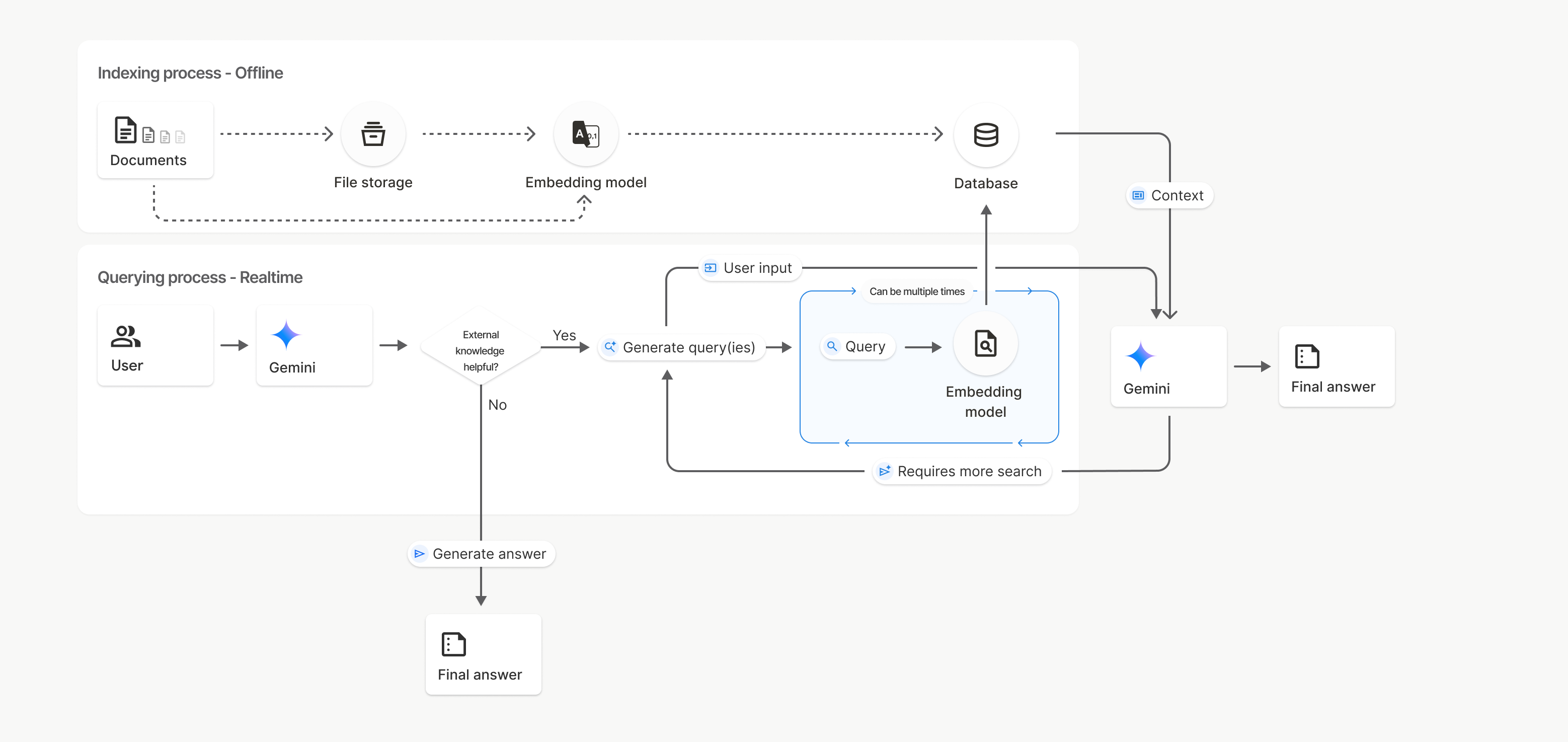
Im Diagramm stellt die gepunktete Linie von Dokumente zu Embedding-Modell (mit gemini-embedding-001) die uploadToFileSearchStore API dar (Dateispeicher wird umgangen).
Andernfalls wird der Indexierungsprozess durch die separate Erstellung und den anschließenden Import von Dateien mit der Files API von Dokumente zu Dateispeicher und dann zu Embedding-Modell verschoben.
Dateispeicher für die Dateisuche
Ein File Search-Speicher ist ein Container für Ihre Dokumenteinbettungen. Rohdateien, die über die File API hochgeladen werden, werden nach 48 Stunden gelöscht. Die Daten, die in einem File Search-Speicher importiert werden, werden jedoch auf unbestimmte Zeit gespeichert, bis Sie sie manuell löschen. Sie können mehrere File Search-Speicher erstellen, um Ihre Dokumente zu organisieren. Mit der FileSearchStore API können Sie Ihre Dateisuchspeicher erstellen, auflisten, abrufen und löschen. Die Namen von File Search-Speichern sind global.
Hier sind einige Beispiele für die Verwaltung Ihrer File Search-Speicher:
Python
# This will only work for SDK newer than 2.0.0
file_search_store = client.file_search_stores.create(
    config={
        'display_name': 'my-file_search-store-123',
        'embedding_model': 'models/gemini-embedding-2'
    }
)

for file_search_store in client.file_search_stores.list():
    print(file_search_store)

my_file_search_store = client.file_search_stores.get(name='fileSearchStores/my-file_search-store-123')

client.file_search_stores.delete(name='fileSearchStores/my-file_search-store-123', config={'force': True})
JavaScript
// This will only work for SDK newer than 2.0.0
const fileSearchStore = await ai.fileSearchStores.create({
  config: {
    displayName: 'my-file_search-store-123',
    embeddingModel: 'models/gemini-embedding-2'
  }
});

const fileSearchStores = await ai.fileSearchStores.list();
for await (const store of fileSearchStores) {
  console.log(store);
}

const myFileSearchStore = await ai.fileSearchStores.get({
  name: 'fileSearchStores/my-file_search-store-123'
});

await ai.fileSearchStores.delete({
  name: 'fileSearchStores/my-file_search-store-123',
  config: { force: true }
});
REST
curl -X POST "https://generativelanguage.googleapis.com/v1beta/fileSearchStores?key=${GEMINI_API_KEY}" \
    -H "Content-Type: application/json" \
    -d '{ "displayName": "My Store", "embedding_model": "models/gemini-embedding-2" }'

curl "https://generativelanguage.googleapis.com/v1beta/fileSearchStores?key=${GEMINI_API_KEY}" \

curl "https://generativelanguage.googleapis.com/v1beta/fileSearchStores/my-file_search-store-123?key=${GEMINI_API_KEY}"

curl -X DELETE "https://generativelanguage.googleapis.com/v1beta/fileSearchStores/my-file_search-store-123?key=${GEMINI_API_KEY}"
Dokumente für die Dateisuche
Mit der File Search Documents API können Sie einzelne Dokumente in Ihren Dateispeichern verwalten. Sie können list jedes Dokument in einem Dateisuchspeicher, get Informationen zu einem Dokument und delete ein Dokument nach Namen.
Python
# This will only work for SDK newer than 2.0.0
for document_in_store in client.file_search_stores.documents.list(parent='fileSearchStores/my-file_search-store-123'):
  print(document_in_store)

file_search_document = client.file_search_stores.documents.get(name='fileSearchStores/my-file_search-store-123/documents/my_doc')
print(file_search_document)

client.file_search_stores.documents.delete(name='fileSearchStores/my-file_search-store-123/documents/my_doc', config={'force': True})
JavaScript
// This will only work for SDK newer than 2.0.0
const documents = await ai.fileSearchStores.documents.list({
  parent: 'fileSearchStores/my-file_search-store-123'
});
for await (const doc of documents) {
  console.log(doc);
}

const fileSearchDocument = await ai.fileSearchStores.documents.get({
  name: 'fileSearchStores/my-file_search-store-123/documents/my_doc'
});

await ai.fileSearchStores.documents.delete({
  name: 'fileSearchStores/my-file_search-store-123/documents/my_doc'
});
REST
curl "https://generativelanguage.googleapis.com/v1beta/fileSearchStores/my-file_search-store-123/documents?key=${GEMINI_API_KEY}"

curl "https://generativelanguage.googleapis.com/v1beta/fileSearchStores/my-file_search-store-123/documents/my_doc?key=${GEMINI_API_KEY}"

curl -X DELETE "https://generativelanguage.googleapis.com/v1beta/fileSearchStores/my-file_search-store-123/documents/my_doc?key=${GEMINI_API_KEY}&force=true"
Dateimetadaten
Sie können Ihren Dateien benutzerdefinierte Metadaten hinzufügen, um sie zu filtern oder zusätzlichen Kontext bereitzustellen. Metadaten sind eine Reihe von Schlüssel/Wert-Paaren.
Python
# This will only work for SDK newer than 2.0.0
op = client.file_search_stores.import_file(
    file_search_store_name=file_search_store.name,
    file_name=sample_file.name,
    config={
        'custom_metadata': [
            {"key": "author", "string_value": "Robert Graves"},
            {"key": "year", "numeric_value": 1934}
        ]
    }
)
JavaScript
// This will only work for SDK newer than 2.0.0
let operation = await ai.fileSearchStores.importFile({
  fileSearchStoreName: fileSearchStore.name,
  fileName: sampleFile.name,
  config: {
    customMetadata: [
      { key: "author", stringValue: "Robert Graves" },
      { key: "year", numericValue: 1934 }
    ]
  }
});
Das ist nützlich, wenn Sie mehrere Dokumente in einem Dateisuchspeicher haben und nur in einer Teilmenge davon suchen möchten.
Python
# This will only work for SDK newer than 2.0.0
interaction = client.interactions.create(
    model="gemini-3-flash-preview",
    input="Tell me about the book 'I, Claudius'",
    tools=[{
        "type": "file_search",
        "file_search_store_names": [file_search_store.name],
        "metadata_filter": 'author="Robert Graves"',
    }]
)

for step in interaction.steps:
    if step.type == "model_output":
        for content_block in step.content:
            if content_block.type == "text":
                print(content_block.text)
JavaScript
// This will only work for SDK newer than 2.0.0
const interaction = await ai.interactions.create({
  model: "gemini-3-flash-preview",
  input: "Tell me about the book 'I, Claudius'",
  tools: [{
    type: "file_search",
    file_search_store_names: [fileSearchStore.name],
    metadata_filter: 'author="Robert Graves"',
  }]
});

for (const step of interaction.steps) {
  if (step.type === 'model_output') {
    for (const contentBlock of step.content) {
      if (contentBlock.type === 'text') {
        console.log(contentBlock.text);
      }
    }
  }
}
REST
# Specifies the API revision to avoid breaking changes when they become default
curl "https://generativelanguage.googleapis.com/v1beta/interactions" \
    -H "x-goog-api-key: $GEMINI_API_KEY" \
    -H 'Content-Type: application/json' \
    -H "Api-Revision: 2026-05-20" \
    -X POST \
    -d '{
            "model": "gemini-3-flash-preview",
            "input": [{"type": "text", "text": "Tell me about the book I, Claudius"}],
            "tools": [{
                "type": "file_search",
                "file_search_store_names": ["'$STORE_NAME'"],
                "metadata_filter": "author = \"Robert Graves\""
            }]
        }' 2> /dev/null > response.json

cat response.json
Eine Anleitung zur Implementierung der Listenfiltersyntax für metadata_filter finden Sie unter google.aip.dev/160.
Multimodale Dateisuche
Mit der multimodalen Dateisuche können Sie Bilder nativ einbetten und durchsuchen, um umfangreiche, multimodale RAG-Anwendungen zu erstellen.
Einbettungsmodell konfigurieren
Wenn Sie ein FileSearchStore erstellen, müssen Sie das Standard-Einbettungsmodell für Nur-Text-Inhalte überschreiben, um ein multimodales Modell zu verwenden. Mit models/gemini-embedding-2 können sowohl Text als auch Bilder verarbeitet werden.
Python
store = client.file_search_stores.create(
    config={
        "display_name": "Multimodal Catalog",
        "embedding_model": "models/gemini-embedding-2",
    }
)
JavaScript
const fileSearchStore = await ai.fileSearchStores.create({
  config: {
    displayName: "Multimodal Catalog",
    embeddingModel: "models/gemini-embedding-2",
  },
});
REST
curl -X POST "https://generativelanguage.googleapis.com/v1beta/fileSearchStores?key=$GEMINI_API_KEY" \
    -H "Content-Type: application/json" \
    -d '{
      "display_name": "Multimodal Catalog",
      "embedding_model": "models/gemini-embedding-2"
    }'
Bilder hochladen
Nachdem Sie den Speicher mit einem multimodalen Einbettungsmodell erstellt haben, können Sie Bilddateien direkt mit denselben Upload-APIs hochladen, die unter Direkt in File Search-Speicher hochladen oder Dateien importieren beschrieben werden.
Anforderungen an Bilddateien:
- Bilddateien dürfen maximal 4K × 4K Pixel groß sein.
- Unterstützte Formate sind PNG und JPEG.
Zitationen
Wenn Sie die Dateisuche verwenden, kann die Antwort des Modells Zitationen enthalten, in denen angegeben wird, welche Teile Ihrer hochgeladenen Dokumente zum Generieren der Antwort verwendet wurden. Das hilft bei Faktenchecks und der Überprüfung.
Sie können über das Attribut annotations in den content-Blöcken des Schritts model_output der Antwort auf Zitationsinformationen zugreifen.
Python
# This will only work for SDK newer than 2.0.0
for step in interaction.steps:
    if step.type == 'model_output':
        for content in step.content:
            if content.type == 'text' and content.annotations:
                print(content.annotations)
JavaScript
// This will only work for SDK newer than 2.0.0
for (const step of interaction.steps) {
  if (step.type === 'model_output') {
    for (const contentBlock of step.content) {
      if (contentBlock.type === 'text' && contentBlock.annotations) {
        console.log(JSON.stringify(contentBlock.annotations, null, 2));
      }
    }
  }
}
Ausführliche Informationen zur Struktur der Zitationen finden Sie in der API-Referenz für Interaktionen.
Seitennummern
Wenn Sie die Dateisuche mit Dokumenten verwenden, die Seiten enthalten (z. B. PDFs), kann die Antwort des Modells die Seitenzahl enthalten, auf der die Informationen gefunden wurden.
Sie können über das Attribut page_number einer file_citation-Annotation auf diese Informationen zugreifen.
Python
# Iterate through citations and check for page numbers
for step in interaction.steps:
    if step.type == "model_output":
        for content in step.content:
            if content.type == "text" and content.annotations:
                for annotation in content.annotations:
                    if annotation.type == "file_citation" and annotation.page_number:
                        print(f"Cited Page: {annotation.page_number}")
JavaScript
for (const step of interaction.steps) {
  if (step.type === 'model_output') {
    for (const block of step.content) {
      if (block.type === 'text' && block.annotations) {
        for (const annotation of block.annotations) {
          if (annotation.type === 'file_citation' && annotation.pageNumber) {
            console.log(`Cited Page: ${annotation.pageNumber}`);
          }
        }
      }
    }
  }
}
Media-Zitationen
Wenn das Modell während der Generierung auf einen Bild-Chunk verweist, gibt die API in den Anmerkungen eine Anmerkung vom Typ file_citation zurück, die ein media_id enthält. Mit dieser ID können Sie den genauen Bildausschnitt herunterladen, auf den sich das Modell bezogen hat. Diese media_id ist über mehrere Suchaufrufe hinweg persistent. So können Sie dasselbe Bild zuverlässig abrufen oder mithilfe der ID im Cache speichern.
Das folgende Snippet ist ein Beispiel für einen REST-Antwortschritt:
{
  "type": "model_output",
  "content": [
    {
      "type": "text",
      "text": "...",
      "annotations": [
        {
          "type": "file_citation",
          "file_name": "product_image",
          "media_id": "fileSearchStores/my-store-123/media/BlobId-456"
        }
      ]
    }
  ]
}
Die folgenden Code-Snippets zeigen, wie Sie die media_id abrufen und die Medien herunterladen:
Python
# Iterate through citations and download media if present
for step in interaction.steps:
    if step.type == "model_output":
        for content in step.content:
            if content.type == "text" and content.annotations:
                for annotation in content.annotations:
                    if annotation.type == "file_citation" and annotation.media_id:
                        print(f"Cited Media ID: {annotation.media_id}")
                        # Download the blob using the SDK
                        blob_content = client.file_search_stores.download_media(
                            media_id=annotation.media_id
                        )
                        # Save blob_content to file...
JavaScript
for (const step of interaction.steps) {
  if (step.type === 'model_output') {
    for (const block of step.content) {
      if (block.type === 'text' && block.annotations) {
        for (const annotation of block.annotations) {
          if (annotation.type === 'file_citation' && annotation.mediaId) {
            console.log(`Cited Media ID: ${annotation.mediaId}`);
            const blobContent = await ai.fileSearchStores.downloadMedia(annotation.mediaId);
            // Save blobContent to file...
          }
        }
      }
    }
  }
}
REST
curl -X GET "https://generativelanguage.googleapis.com/v1/fileSearchStores/my-store-123/media/BlobId-456" \
  -H "x-goog-api-key: $GEMINI_API_KEY"
Benutzerdefinierte Metadaten
Wenn Sie Ihren Dateien benutzerdefinierte Metadaten hinzugefügt haben, können Sie in den Anmerkungen der Antwort des Modells darauf zugreifen. Das ist nützlich, um zusätzlichen Kontext (z. B. URLs, Seitenzahlen oder Autoren) aus Ihren Quelldokumenten an Ihre Anwendungslogik zu übergeben. Jede Zitationsanmerkung vom Typ file_citation enthält diese benutzerdefinierten Metadaten.
Python
# This will only work for SDK newer than 2.0.0
interaction = client.interactions.create(
    model="gemini-3-flash-preview",
    input="Tell me about [insert question]",
    tools=[{
        "type": "file_search",
        "file_search_store_names": [file_search_store.name]
    }]
)

for step in interaction.steps:
    if step.type == "model_output":
        for content_block in step.content:
            if content_block.annotations:
                for annotation in content_block.annotations:
                    print(annotation)
JavaScript
  // This will only work for SDK newer than 2.0.0
  const interaction = await ai.interactions.create({
    model: "gemini-3-flash-preview",
    input: "Tell me about [insert question]",
    tools: [{
      type: "file_search",
      file_search_store_names: [fileSearchStore.name]
    }]
  });

  for (const step of interaction.steps) {
    if (step.type === 'model_output') {
      for (const contentBlock of step.content) {
        if (contentBlock.annotations) {
          contentBlock.annotations.forEach((annotation) => {
            console.log(annotation);
          });
        }
      }
    }
  }
REST
{
  "steps": [
    {
      "type": "model_output",
      "content": [
        {
          "type": "text",
          "text": "...",
          "annotations": [
            {
              "file_name": "...",
              "source": "...",
              "custom_metadata": [
                {
                  "key": "author",
                  "string_value": "Robert Graves"
                },
                {
                  "key": "year",
                  "numeric_value": 1934
                }
              ]
            }
          ]
        }
      ]
    }
  ]
}
Strukturierte Ausgabe
Ab Gemini 3-Modellen können Sie das Tool zur Dateisuche mit strukturierten Ausgaben kombinieren.
Python
# This will only work for SDK newer than 2.0.0
from pydantic import BaseModel, Field

class Money(BaseModel):
    amount: str = Field(description="The numerical part of the amount.")
    currency: str = Field(description="The currency of amount.")

interaction = client.interactions.create(
    model="gemini-3-flash-preview",
    input="What is the minimum hourly wage in Tokyo right now?",
    tools=[{
        "type": "file_search",
        "file_search_store_names": [file_search_store.name]
    }],
    response_format={
        "type": "text",
        "mime_type": "application/json",
        "schema": Money.model_json_schema()
    },
)
result = Money.model_validate_json(interaction.steps[-1].content[0].text)
print(result)
JavaScript
// This will only work for SDK newer than 2.0.0
import { z } from "zod";

const moneyJsonSchema = {
  type: "object",
  properties: {
    amount: { type: "string", description: "The numerical part of the amount." },
    currency: { type: "string", description: "The currency of amount." }
  },
  required: ["amount", "currency"]
};

const moneySchema = z.fromJSONSchema(moneyJsonSchema);

async function run() {
  const interaction = await ai.interactions.create({
    model: "gemini-3-flash-preview",
    input: "What is the minimum hourly wage in Tokyo right now?",
    tools: [{
      type: "file_search",
      file_search_store_names: [fileSearchStore.name],
    }],
    response_format: {
      type: 'text',
      mime_type: 'application/json',
      schema: moneyJsonSchema
    },
  });

  const result = moneySchema.parse(JSON.parse(interaction.steps.at(-1).content[0].text));
  console.log(result);
}

run();
REST
# Specifies the API revision to avoid breaking changes when they become default
curl "https://generativelanguage.googleapis.com/v1beta/interactions" \
  -H "x-goog-api-key: $GEMINI_API_KEY" \
  -H 'Content-Type: application/json' \
  -H "Api-Revision: 2026-05-20" \
  -X POST \
  -d '{
    "model": "gemini-3-flash-preview",
    "input": "What is the minimum hourly wage in Tokyo right now?",
    "tools": [{
      "type": "file_search",
      "file_search_store_names": ["$FILE_SEARCH_STORE_NAME"]
    }],
    "response_format": {
      "type": "text",
      "mime_type": "application/json",
      "schema": {
        "type": "object",
        "properties": {
          "amount": {"type": "string", "description": "The numerical part of the amount."},
          "currency": {"type": "string", "description": "The currency of amount."}
        },
        "required": ["amount", "currency"]
      }
    }
  }'
Unterstützte Modelle
Die folgenden Modelle unterstützen die Dateisuche:
| Modell | Dateisuche |
|---|---|
| Gemini 3.1 Pro (Vorabversion) | ✔️ |
| Gemini 3.1 Flash Lite | ✔️ |
| Gemini 3.1 Flash Lite (Vorschau) | ✔️ |
| Gemini 3 Flash (Vorabversion) | ✔️ |
| Gemini 2.5 Pro | ✔️ |
| Gemini 2.5 Flash Lite | ✔️ |
Unterstützte Tool-Kombinationen
Gemini 3-Modelle unterstützen die Kombination von integrierten Tools (z. B. „Dateisuche“) mit benutzerdefinierten Tools (Funktionsaufruf). Weitere Informationen zu Tool-Kombinationen
Unterstützte Dateitypen
Die Dateisuche unterstützt eine Vielzahl von Dateiformaten, die in den folgenden Abschnitten aufgeführt sind.
Anwendungsdateitypen
application/dartapplication/ecmascriptapplication/jsonapplication/ms-javaapplication/mswordapplication/pdfapplication/sqlapplication/typescriptapplication/vnd.curlapplication/vnd.dartapplication/vnd.ibm.secure-containerapplication/vnd.jupyterapplication/vnd.ms-excelapplication/vnd.oasis.opendocument.textapplication/vnd.openxmlformats-officedocument.presentationml.presentationapplication/vnd.openxmlformats-officedocument.spreadsheetml.sheetapplication/vnd.openxmlformats-officedocument.wordprocessingml.documentapplication/vnd.openxmlformats-officedocument.wordprocessingml.templateapplication/x-cshapplication/x-hwpapplication/x-hwp-v5application/x-latexapplication/x-phpapplication/x-powershellapplication/x-shapplication/x-shellscriptapplication/x-texapplication/x-zshapplication/xmlapplication/zip
Textdateitypen
text/1d-interleaved-parityfectext/REDtext/SGMLtext/cache-manifesttext/calendartext/cqltext/cql-extensiontext/cql-identifiertext/csstext/csvtext/csv-schematext/dnstext/encaprtptext/enrichedtext/exampletext/fhirpathtext/flexfectext/fwdredtext/gff3text/grammar-ref-listtext/hl7v2text/htmltext/javascripttext/jcr-cndtext/jsxtext/markdowntext/mizartext/n3text/parameterstext/parityfectext/phptext/plaintext/provenance-notationtext/prs.fallenstein.rsttext/prs.lines.tagtext/prs.prop.logictext/raptorfectext/rfc822-headerstext/rtftext/rtp-enc-aescm128text/rtploopbacktext/rtxtext/sgmltext/shaclctext/shextext/spdxtext/stringstext/t140text/tab-separated-valuestext/texmacstext/trofftext/tsvtext/tsxtext/turtletext/ulpfectext/uri-listtext/vcardtext/vnd.DMClientScripttext/vnd.IPTC.NITFtext/vnd.IPTC.NewsMLtext/vnd.atext/vnd.abctext/vnd.ascii-arttext/vnd.curltext/vnd.debian.copyrighttext/vnd.dvb.subtitletext/vnd.esmertec.theme-descriptortext/vnd.exchangeabletext/vnd.familysearch.gedcomtext/vnd.ficlab.flttext/vnd.flytext/vnd.fmi.flexstortext/vnd.gmltext/vnd.graphviztext/vnd.hanstext/vnd.hgltext/vnd.in3d.3dmltext/vnd.in3d.spottext/vnd.latex-ztext/vnd.motorola.reflextext/vnd.ms-mediapackagetext/vnd.net2phone.commcenter.commandtext/vnd.radisys.msml-basic-layouttext/vnd.senx.warpscripttext/vnd.sositext/vnd.sun.j2me.app-descriptortext/vnd.trolltech.linguisttext/vnd.wap.sitext/vnd.wap.sltext/vnd.wap.wmltext/vnd.wap.wmlscripttext/vtttext/wgsltext/x-asmtext/x-bibtextext/x-bootext/x-ctext/x-c++hdrtext/x-c++srctext/x-cassandratext/x-chdrtext/x-coffeescripttext/x-componenttext/x-cshtext/x-csharptext/x-csrctext/x-cudatext/x-dtext/x-difftext/x-dsrctext/x-emacs-lisptext/x-erlangtext/x-gff3text/x-gotext/x-haskelltext/x-javatext/x-java-propertiestext/x-java-sourcetext/x-kotlintext/x-lilypondtext/x-lisptext/x-literate-haskelltext/x-luatext/x-moctext/x-objcsrctext/x-pascaltext/x-pcs-gcdtext/x-perltext/x-perl-scripttext/x-pythontext/x-python-scripttext/x-r-markdowntext/x-rsrctext/x-rsttext/x-ruby-scripttext/x-rusttext/x-sasstext/x-scalatext/x-schemetext/x-script.pythontext/x-scsstext/x-setexttext/x-sfvtext/x-shtext/x-siestatext/x-sostext/x-sqltext/x-swifttext/x-tcltext/x-textext/x-vbasictext/x-vcalendartext/xmltext/xml-dtdtext/xml-external-parsed-entitytext/yaml
Beschränkungen
- Live API:Die Dateisuche wird in der Live API nicht unterstützt.
- Inkompatibilität mit anderen Tools:Die Dateisuche kann derzeit nicht mit anderen Tools wie Fundierung mit der Google Suche, URL Context usw. kombiniert werden.
Ratenlimits
Die File Search API unterliegt den folgenden Einschränkungen, um die Stabilität des Dienstes zu gewährleisten:
- Maximale Dateigröße / Beschränkung pro Dokument: 100 MB
- Gesamtgröße der von der Projektsuche gespeicherten Dateien (basierend auf der Nutzerstufe):
- Kostenlos: 1 GB
- Stufe 1: 10 GB
- Stufe 2: 100 GB
- Stufe 3: 1 TB
- Empfehlung: Beschränken Sie die Größe jedes File Search-Speichers auf unter 20 GB, um optimale Abruflatenzen zu erzielen.
Preise
- Die Kosten für Einbettungen werden Ihnen zum Zeitpunkt der Indexierung gemäß den bestehenden Preisen für Einbettungen in Rechnung gestellt.
- Die Speicherung ist kostenlos.
- Einbettungen zur Abfragezeit sind kostenlos.
- Abgerufene Dokument-Tokens werden als reguläre Kontext-Tokens abgerechnet.